Week 3 Group Assignment
group assignment:
- demonstrate and compare the toolchains and development workflows for available embedded architectures
press boot button while you plug it in
Arduino
- press boot + plug in
- board shows up as unknown UF2 board
- reset through button, then select the right port after it pops up
- make sure you have the right board selected
- press the arrow to flash the program onto the board
- yay!
- note: need to install libraries in Library Manager if needed
MicroPython
-
Flashing MicroPython onto RP2040
- plug board in while holding BOOT
- RPI-RP2 folder/drive shows up
- after downloading the .uf2 file on micropython.org (this is the MicroPython firmware), drag it onto the RPI-RP2 drive to upload it
- XIAO RP2040 MicroPython download
- board kept ejecting itself/rebooting automatically — this is correct and means that MicroPython installed
-
VSCode - MicroPico
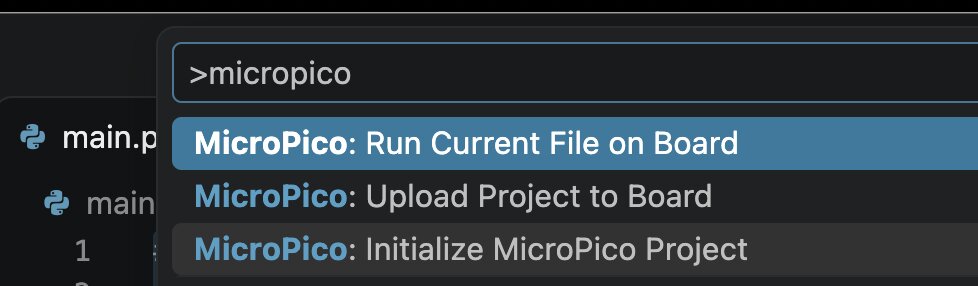
- have to use RP Pico instead (no RP2040)
- install the MicroPico extension to write code
- open VSCode with a new project (main.py)
- install the MicroPico (by Paul Ober) extension for MicroPython
- you can do PlatformIO, but that runs Arduino
- this extension lets you use Cmd+Shift+P for the MicroPico command palette
- in the MicroPico command palette, initialize project
- in the MicroPico command palette, upload
ws2812.pyproject to board - in the MicroPico command palette, run current file on board while on
blink-echo.py
-
Thonny
- Seeed Studio XIAO RP2040 with MicroPython
- don't need to enter boot when plugging in because we assume .uf2 is already flashed
- save
ws2812.pyto Raspberry Pi Pico (File → Save As) 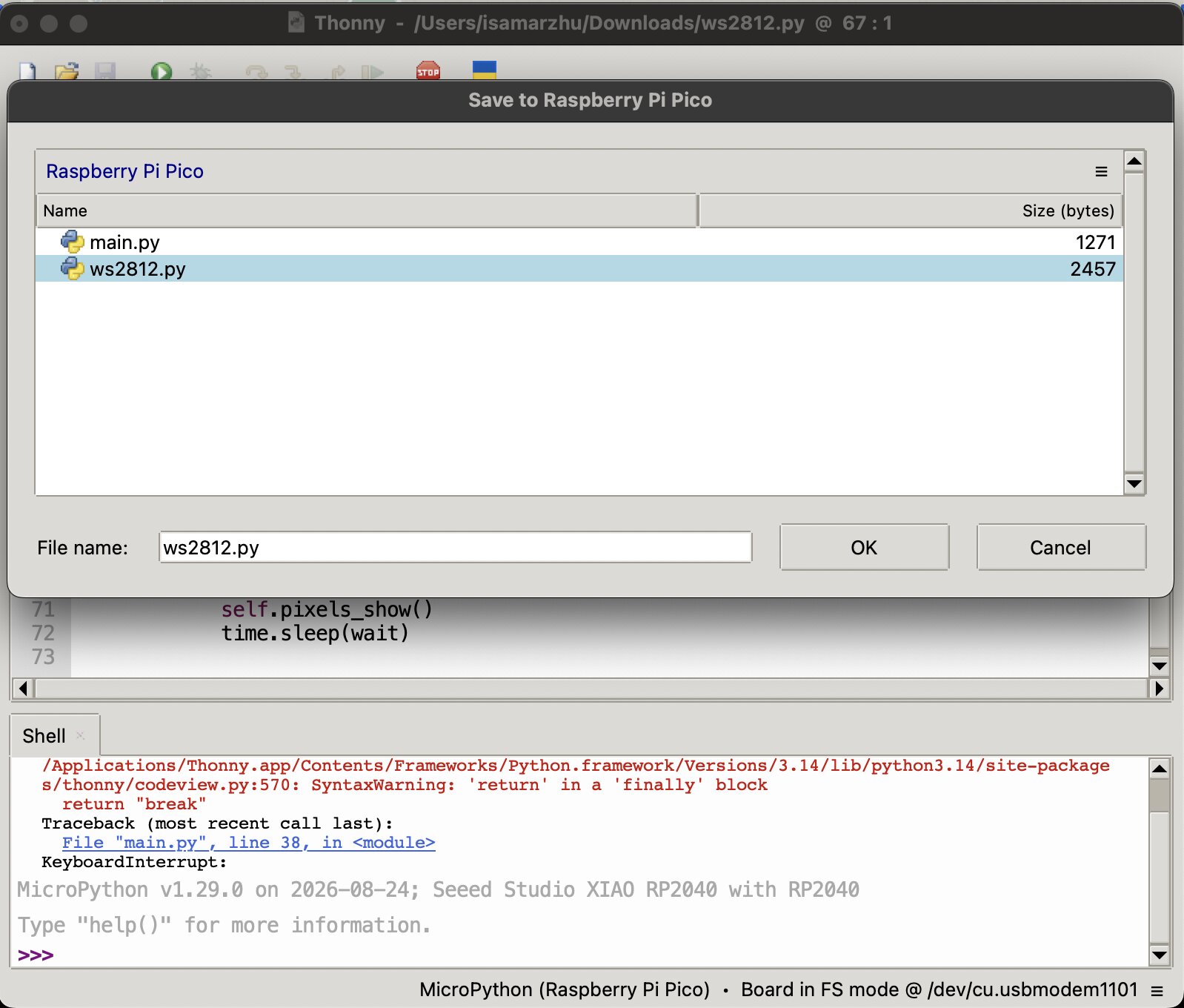
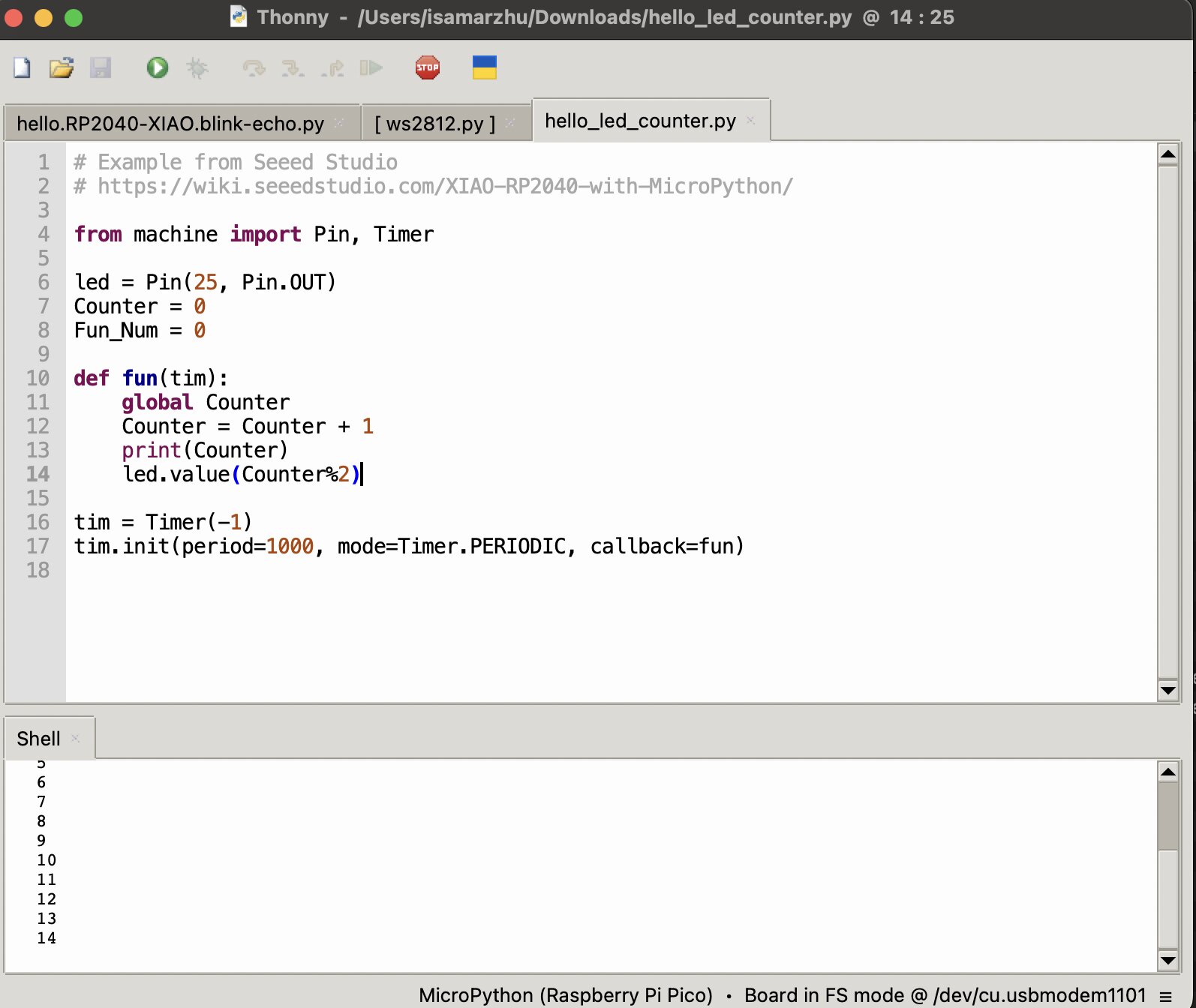
- ran the hello_led_counter.py example
- it counts!
Rust
- download Rust - curl command
- download extension for Rust on VSCode