Week 3: Embedded programming
Website update
Last week I created the file structure and the html files in forge directly, this led to a very simple webpage which was working and useful, however not that pretty and more importantly it is not a very scalable workflow. This week I finally came around to set up a proper workflow. I decided to give hugo a try even though I really like wordpress. I decided that I want to be able to see the changes I make locally and have a .git folder locally where I can commit changes to, this allows me to make snapshots of different states of my page without pushing every little change to the live website. Then when I’m satisfied with the result I can push the changes to the Forge repo.
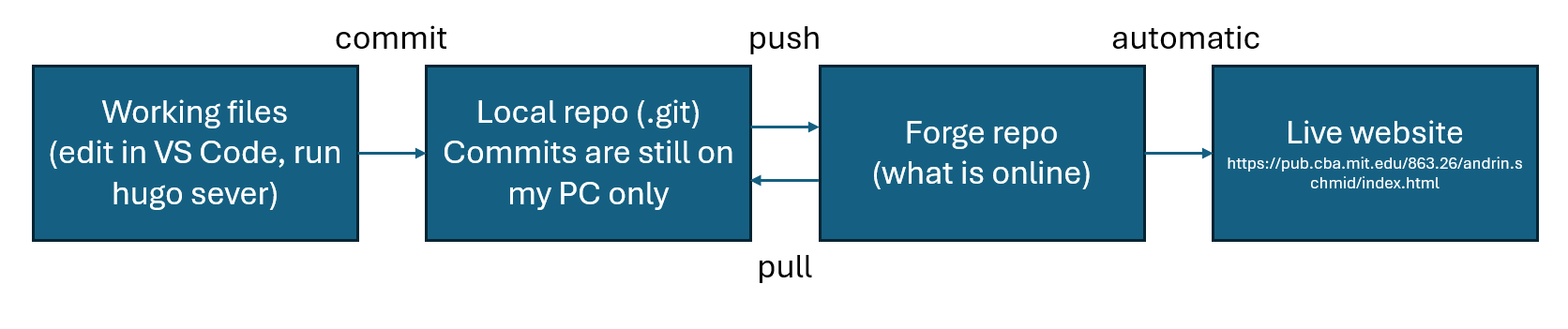
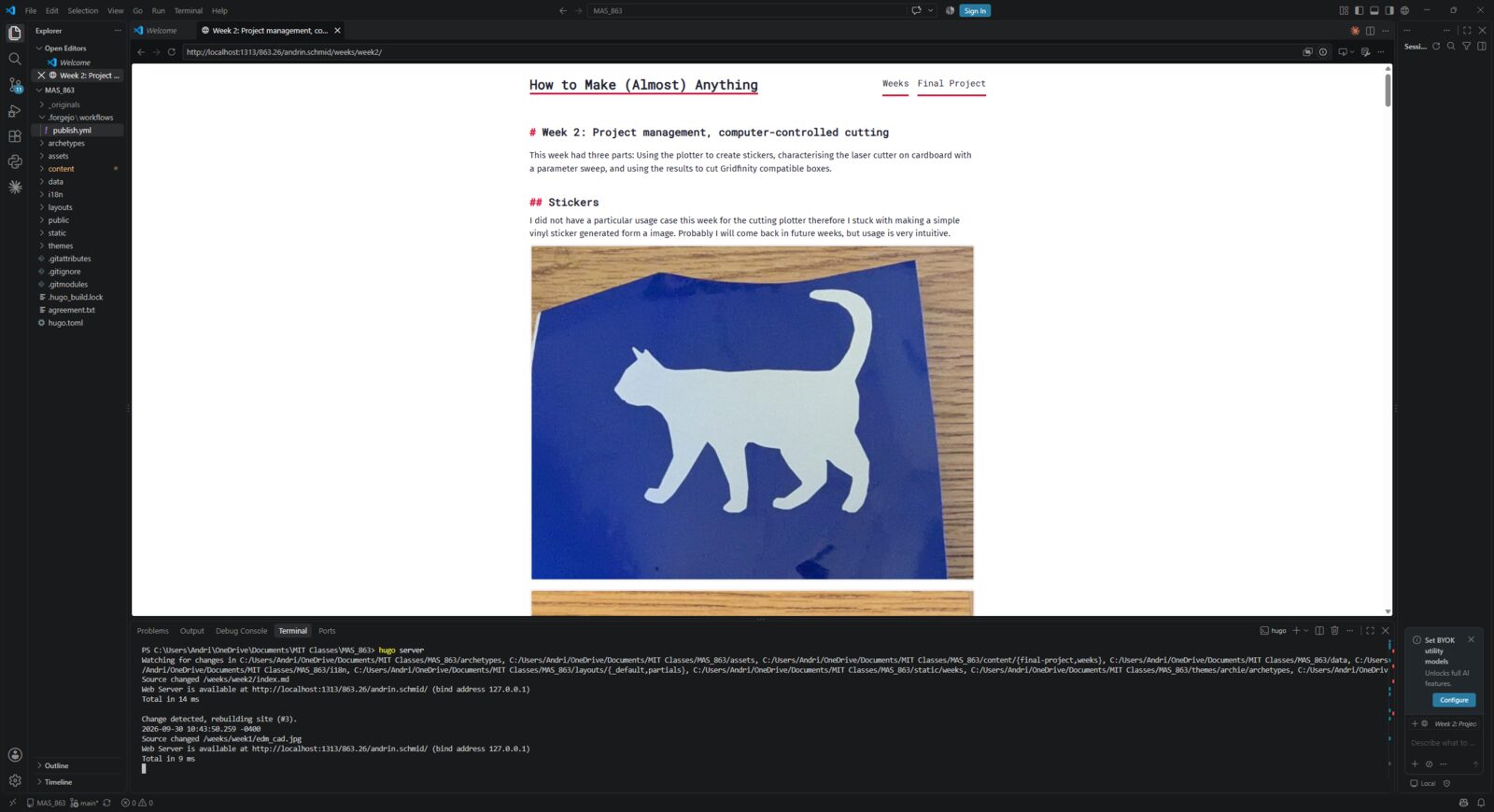
I decided to also choose a simple hugo template for now, I ended up with Archie since it is minimalistic and I liked it. I will see if I will create my own design in future weeks, probably also based on how the main project runs down. I could imagine making the website a design which leans on to the final project and therefore not stay flat/ neutral/ minimalistic as it is now, but for now that is perfect. So I transferred all the text I have into hugo, that took a moment to do but certainly was worth it, also I’m glad that I did the change this week and not later because it would only have gotten more work to transfer the stuff. While I was on it I also continued adding content to the website.
For future me, some of the most important commands are:
To commit (locally)
git add -A                                   # picks up everything which is new and changed
git commit -m "Describe what changed here"   # commit everything what changed
Request status of my local git
git status
Push/pull live website/ forge
git push
git pull
Open the local server for preview (http://localhost:1313/863.26/andrin.schmid)
hugo server
Embedded Programming
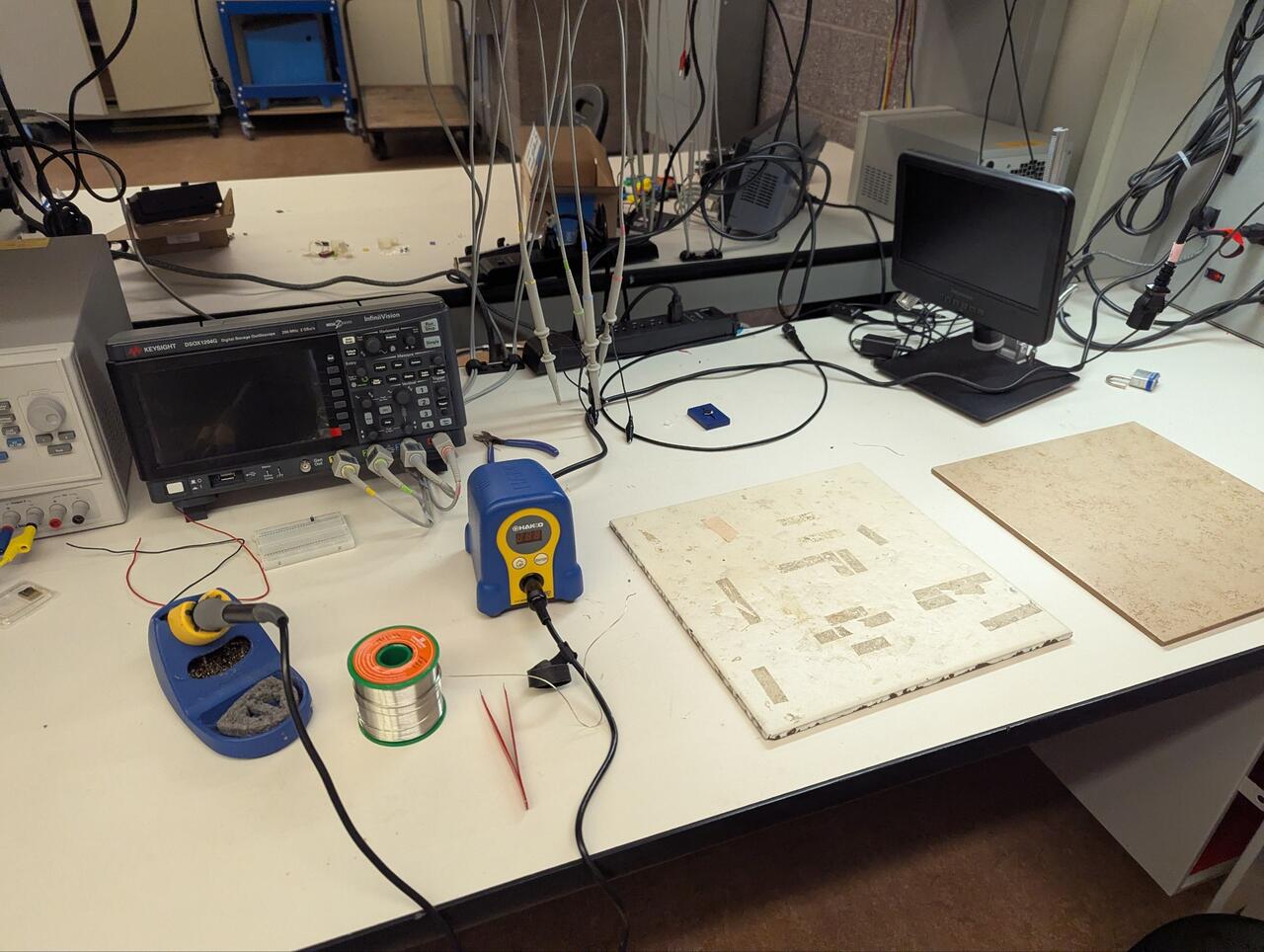
Now we have the small website update out of the way. This week is about programming the embedded system. I first went to the workshop and soldered the few components. I took somewhat of a risk and just soldered how things were fitting together without looking at the documentation. Because of the simplicity of the PCB everything worked out, and I ended up with a working PCB which I was able to program without needing to go back and replace components where the magic smoke came out.
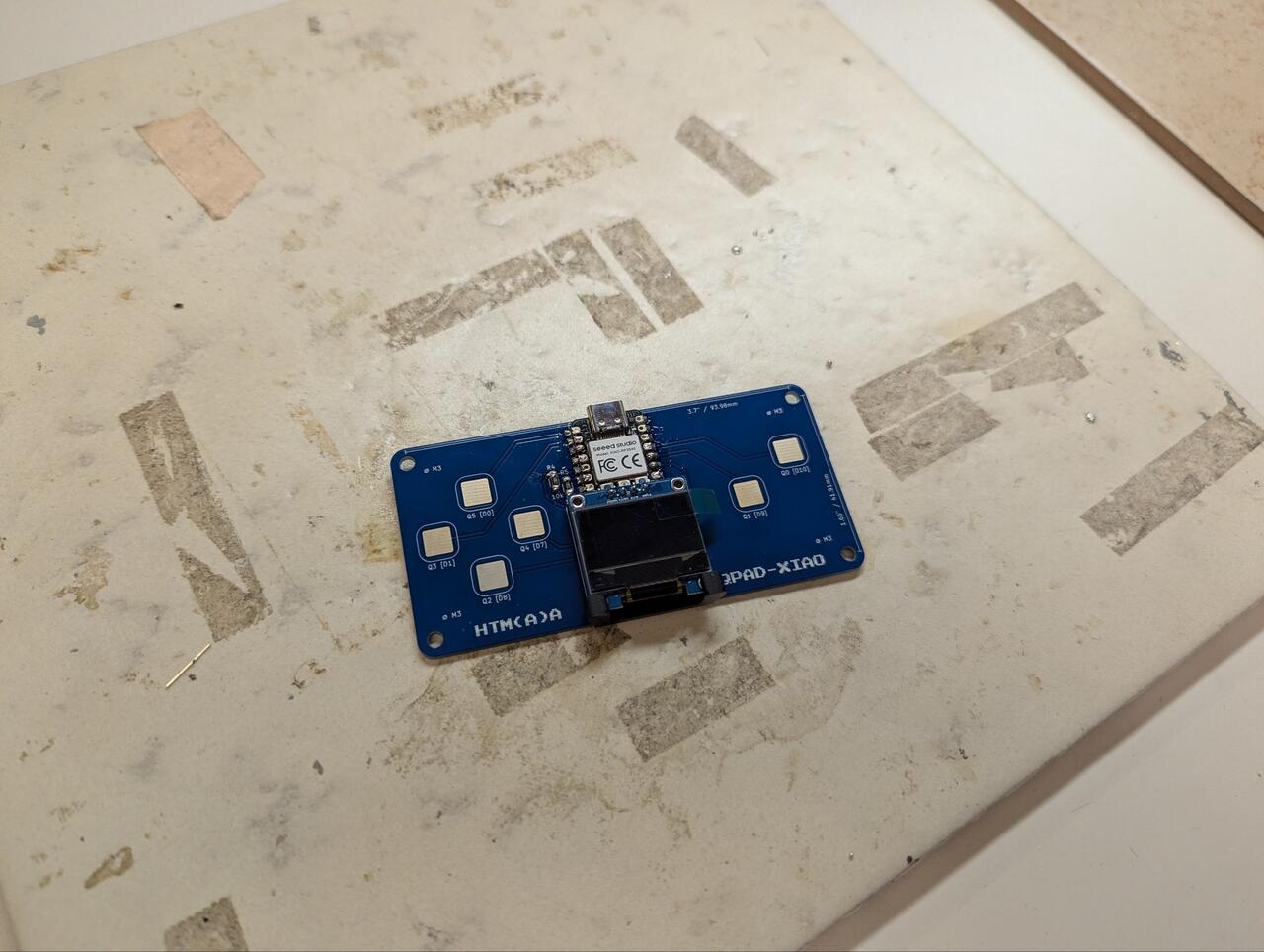
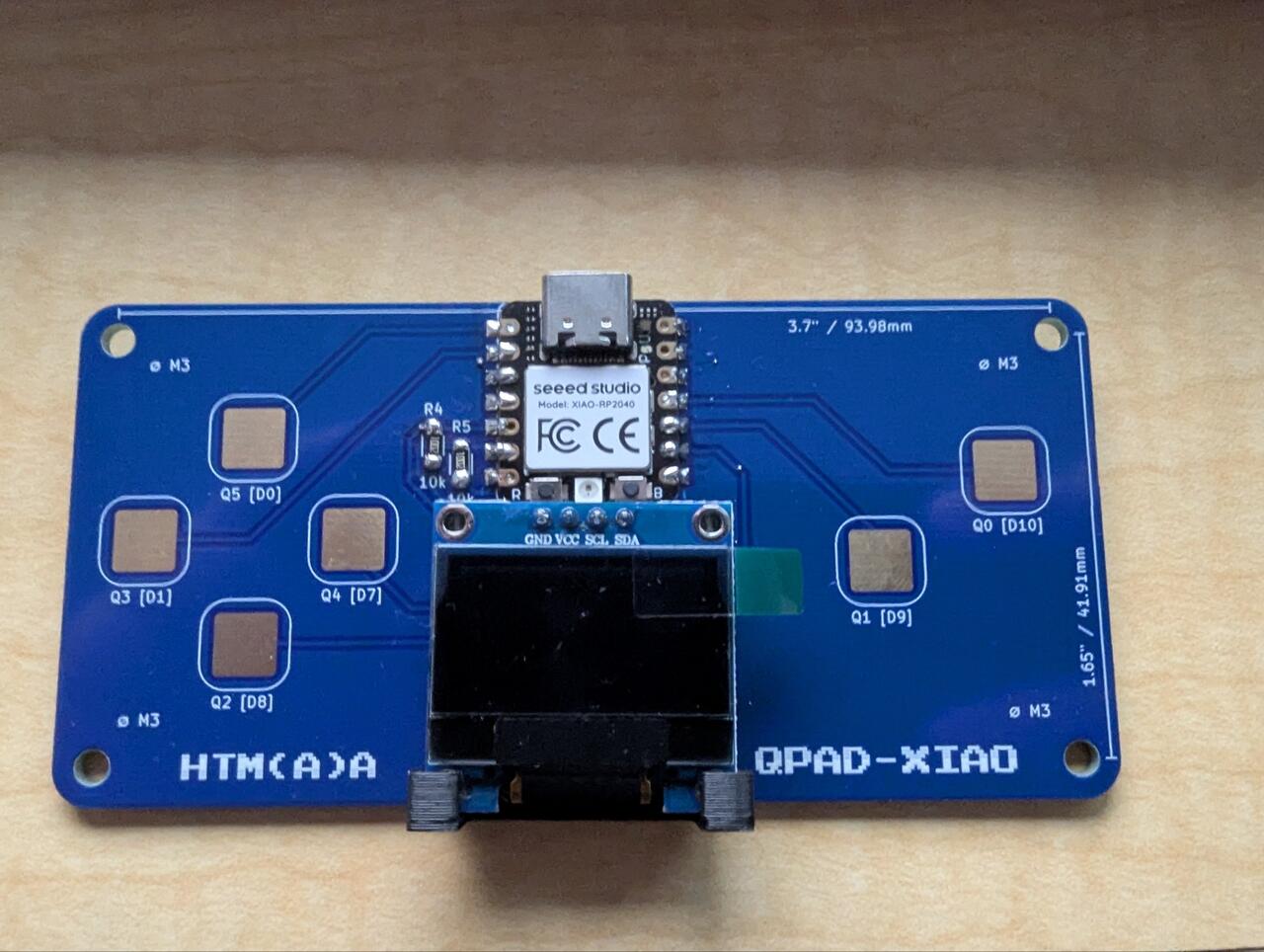
As I mentioned in the beginning I wanted just to see if the programming works so I went ahead and used Arduino IDE downloaded the first best board driver for the 2040 (it was the wrong one) and loaded a blink file and uploaded it, and it worked.
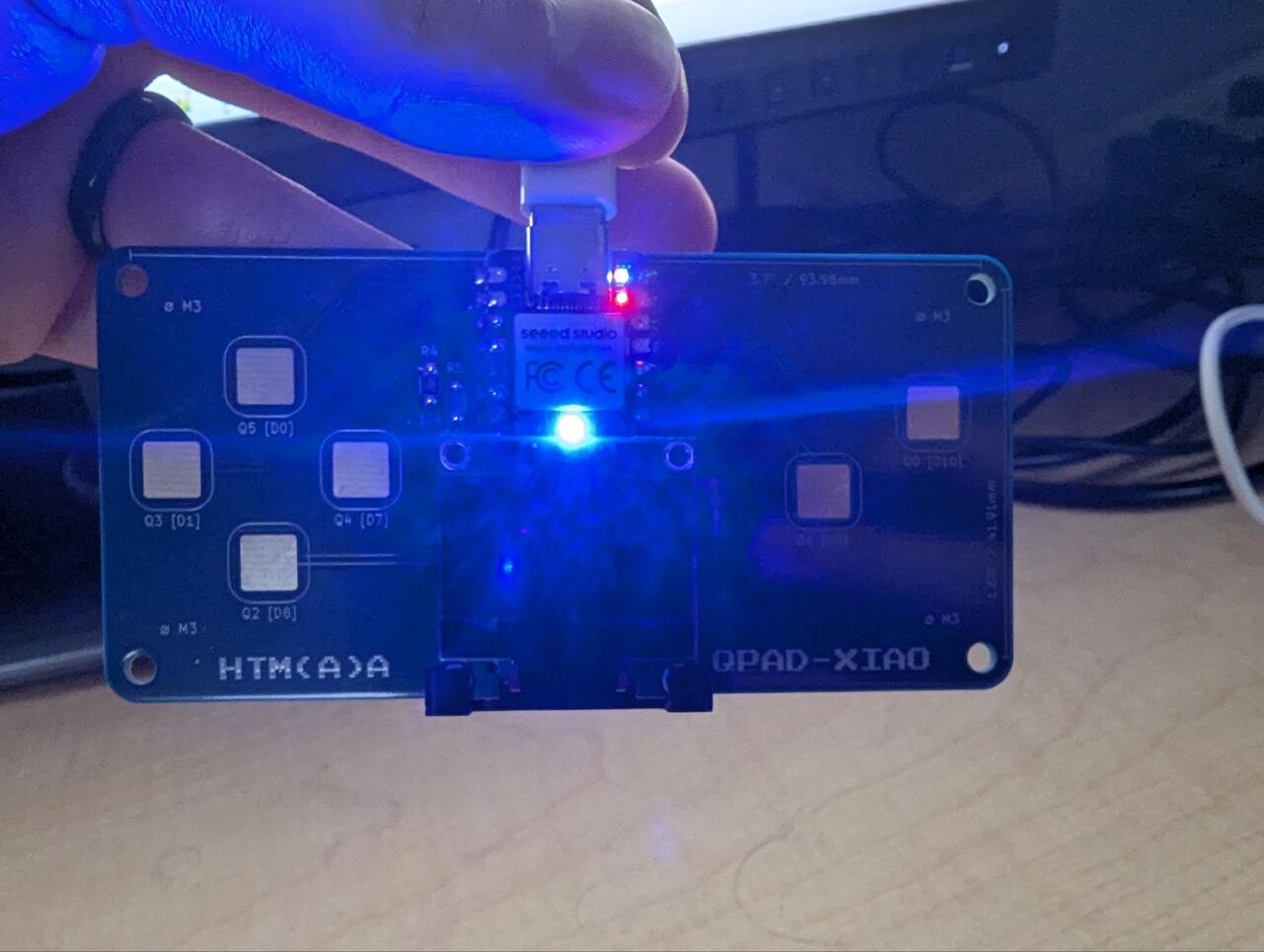
Later I started looking into the documentation and wanted to start testing the other sample files, however because of what I think was the wrong board driver the display would not turn on and the buttons would not react, only blink and the serial monitor would work. So I looked up if there is a specific board driver for the Xiao board we use and after some research on google, I ended up with a driver written by Earle. With this driver the upload worked and all the sample scripts worked as expected.
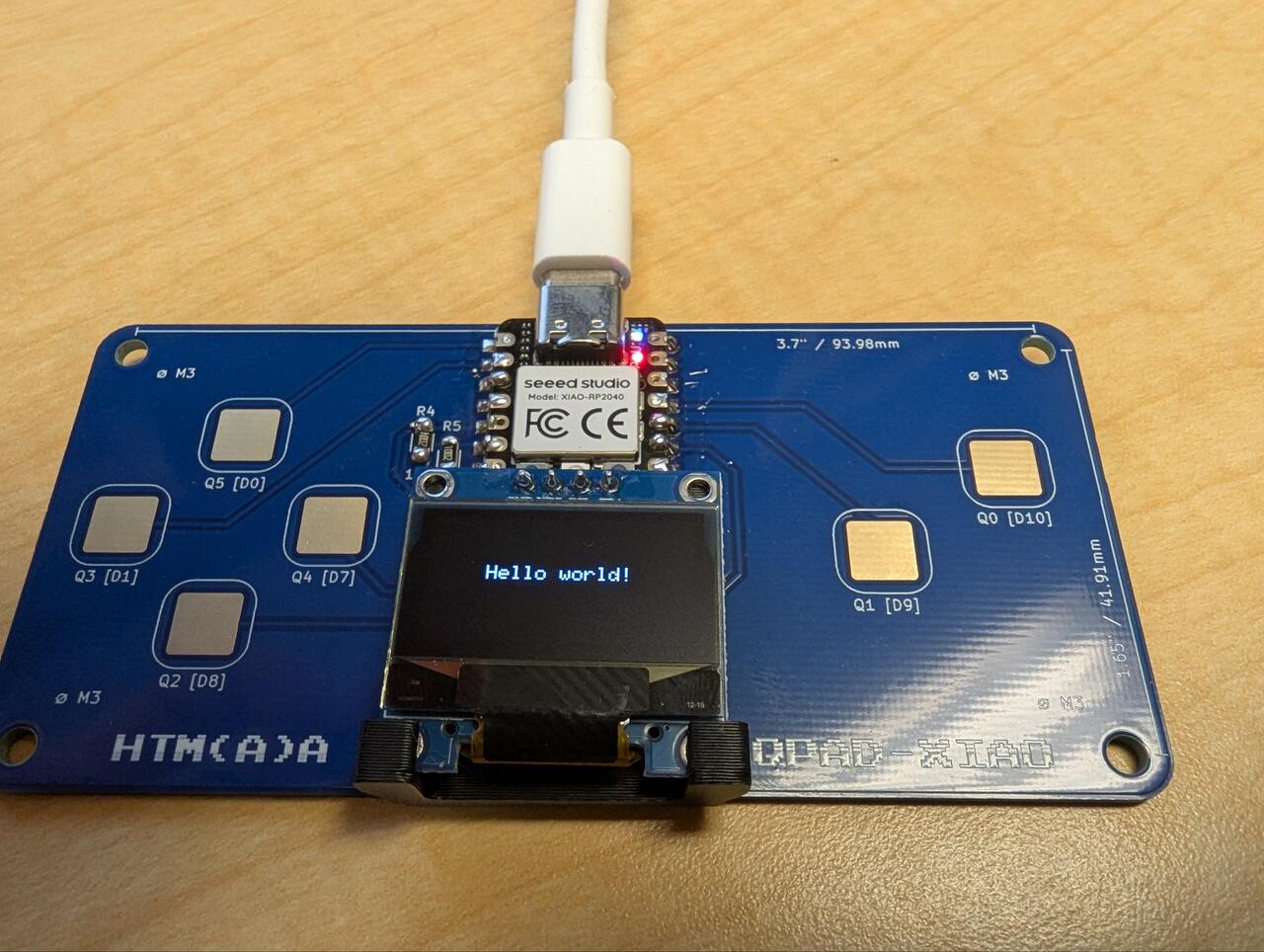
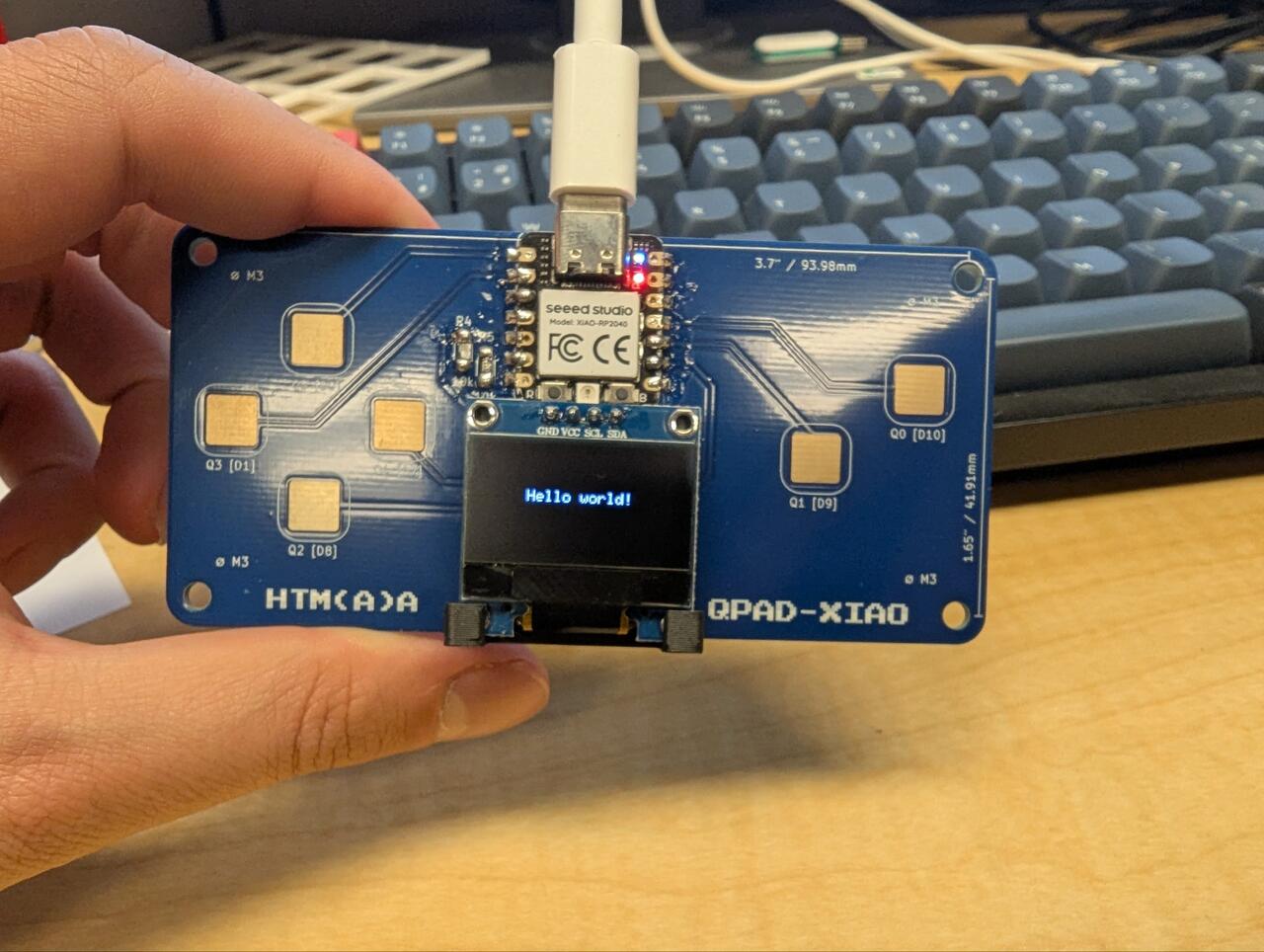
Now I like Arduino IDE for embedded programming and used it in the past a lot but I want to challenge myself in this class to use new approaches. A great and way better approach seems to be to use VS Code since in the future I can also use AI integrations with it as I also already use VS Code to program python for visualizations, plotting data and since this week also for web development, so why not also do embedded programming with it. So, I went ahead and researched some resources, some resources I liked are posted below (some of them use Arduino/PlatformIO some MicroPico) :
- https://www.youtube.com/watch?v=JmvMvIphMnY
- https://wiki.seeedstudio.com/Software-PlatformIO/
- https://randomnerdtutorials.com/raspberry-pi-pico-vs-code-micropython/
- https://home.et.utwente.nl/slootenvanf/2025/07/15/getting-started-micropython-pico/
I decided against Thonny for the time being because I want to see what I can achieve only using VS code, maybe later I will use and learn Thonny.
At first I tried PlatformIO, which is basically an extension for VS Code that handles the boards, libraries and uploading for you. The official PlatformIO platform for the RP2040 only supports the Arduino Mbed core, so to use the Earle core again I had to point it to a fork by Max Gerhardt in the platformio.ini file. Then I spent a while looking for the upload arrow which just would not show up. The reason was simple in the end, I had opened the parent folder in VS Code and the platformio.ini was one folder deeper, so PlatformIO did not recognise it as a project. Always open the folder where the platformio.ini sits directly.
While doing all this I realised that I would rather program the board in Python than in C++, since I use Python daily anyway and it is much faster to try things out. The RP2040 supports MicroPython, so I switched to that.
MicroPython on the QPAD
To get MicroPython onto the board the XIAO needs to go into its bootloader mode. For this you hold the B (boot) button, plug in the USB cable (or press R for reset) and release B again. It took me a moment to realise that the B and R buttons are the two tiny buttons on the XIAO itself and not something on the QPAD. Once in boot mode the board shows up as a drive called RPI-RP2, and I just dragged the MicroPython UF2 file for the Seeed XIAO RP2040 from micropython.org onto it. The drive disappears after a few seconds and the board is running MicroPython. This also means the Arduino program is gone, but you can always go back the same way.
In VS Code I used the MicroPico extension by paulober (it used to be called Pico W Go, which is why the extension ID still has that name). Getting it running had a few hurdles:
- VS Code opened the folder in Restricted Mode, which disables extensions. You have to click on Restricted Mode in the bottom left and trust the folder.
- The folder needs to be initialised as a MicroPico project once (right click, MicroPico, Initialize MicroPico Project).
- The upload options were still greyed out, which meant MicroPico could not see the board. Once MicroPython was actually on the board and no other program was using the port, the status bar showed Pico Connected and everything worked.
The QPAD repository comes with MicroPython examples and three libraries, which need to be uploaded to the root of the board before any of the examples work: ssd1306.py for the OLED (from Seeed Studio), steptime.py for the touch pads (from Neil Gershenfeld, adapted for the QPAD by Krisjanis Rijnieks) and ws2812.py for the RGB LED (from Seeed Studio, also modified by Krisjanis Rijnieks). Then I ran the examples one by one, LED, OLED, touch and the small guessing game, and all of them worked.
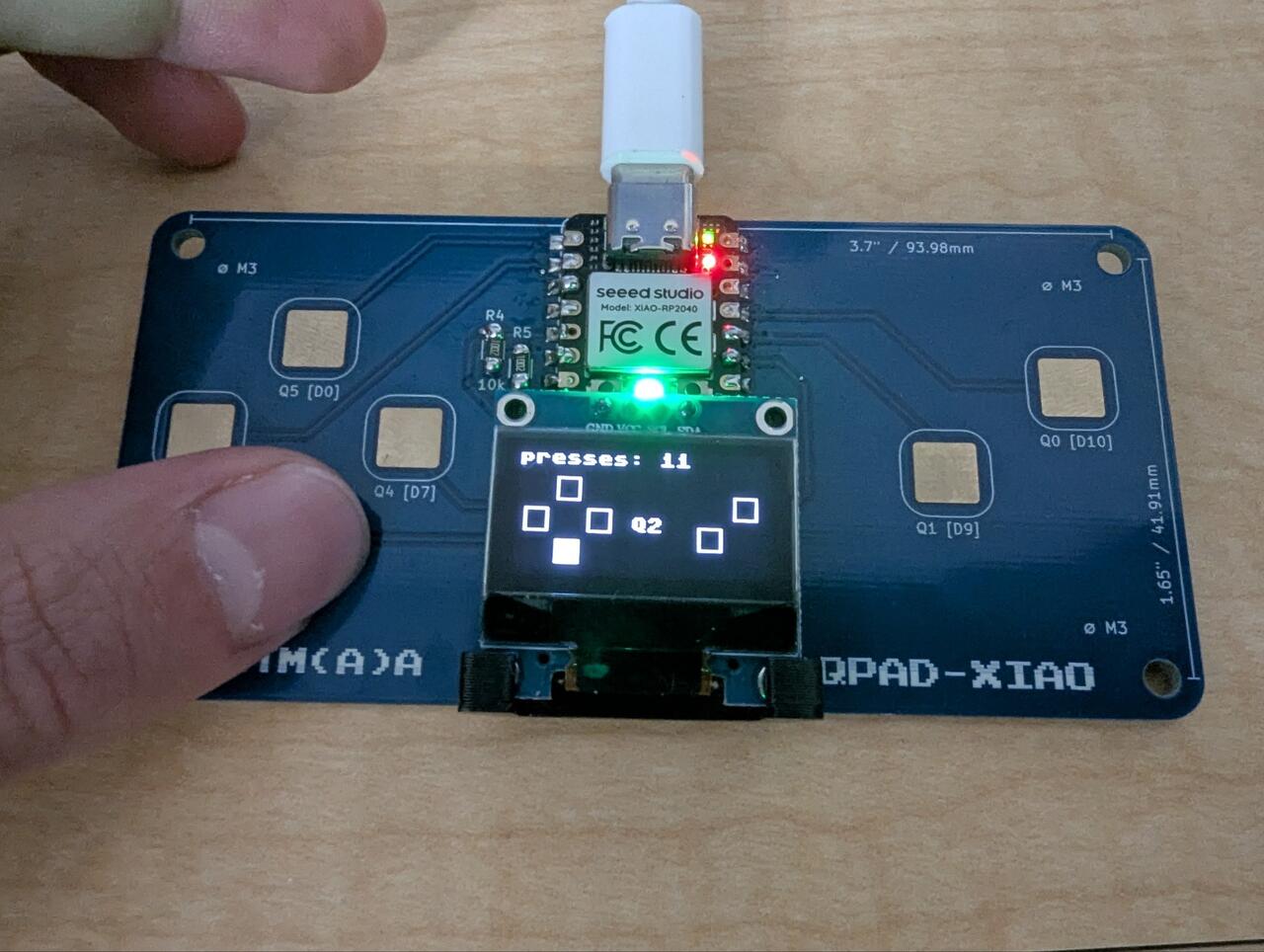
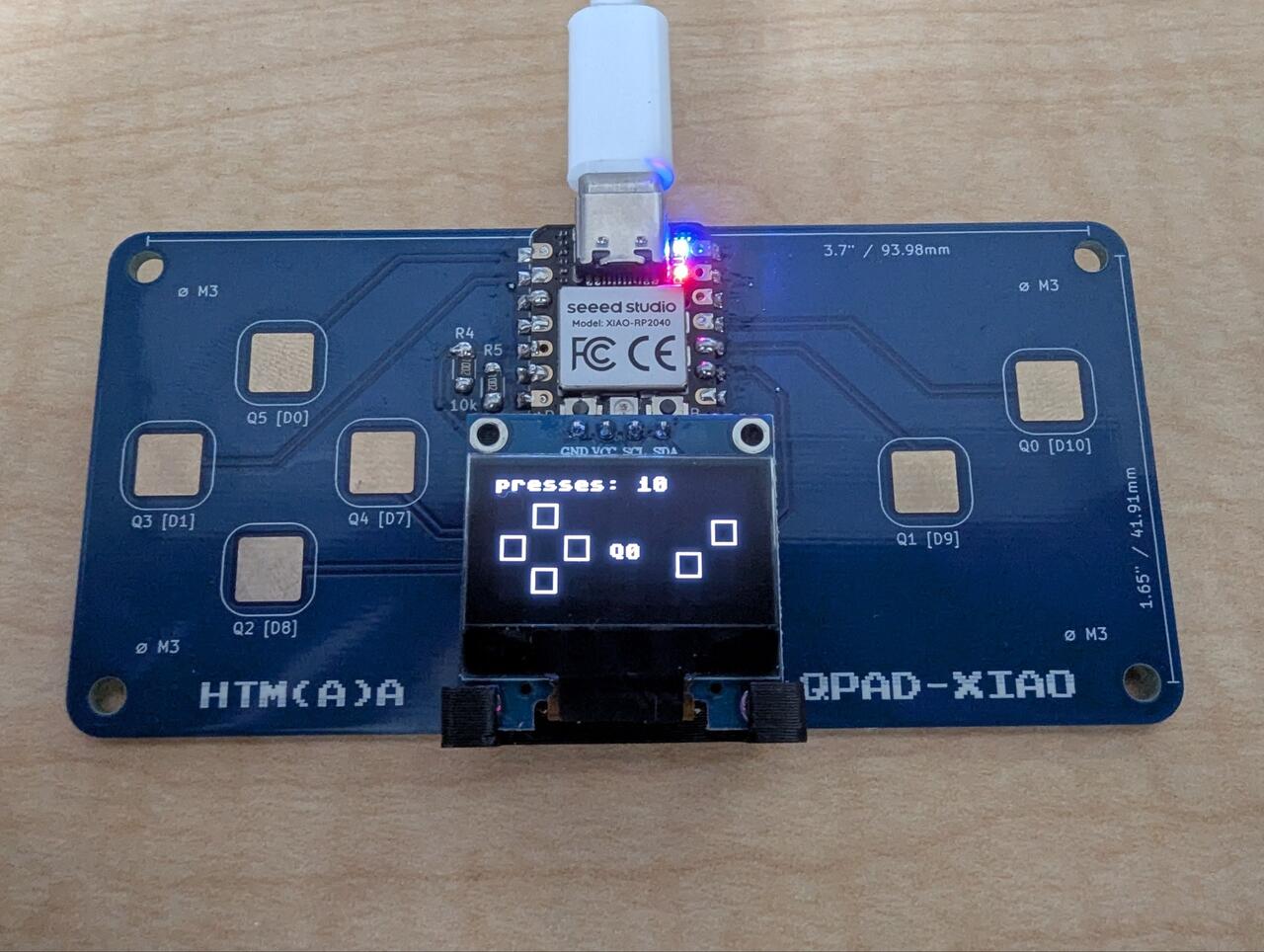
One mistake I made which is worth noting: VS Code has a play button at the top right which runs the script with Python on the PC and not on the board. That gives you an error that the module machine does not exist, since that module only exists on the microcontroller. The Run button of MicroPico is in the bottom status bar.
For future me, the MicroPico workflow:
- Upload a file to the board: Right click on the file, MicroPico, Upload File to Board
- Run a script on the board: Run in the bottom status bar (Stop to end it)
- See which files are on the board: Ctrl+Shift+P, MicroPico: Toggle virtual file system
- Start a script automatically when the board gets power: Save it as main.py and upload it
Reaction time game
As a small project for this week I made a reaction time game which uses all the functions of the board: the six touch pads, the OLED and the RGB LED.
The game works like this: You touch any pad to start. The LED turns red and the display shows “wait”, if you touch a pad now it counts as a false start and the round is repeated. After a random time between 1 and 3 seconds the LED turns green, “GO!” appears and one of the six pads is highlighted on the display. The pads on the display are arranged the same way as on the board, so you can quickly see which one to press. You then have to touch that pad as fast as possible, a wrong pad adds 500 ms. After 5 rounds the display shows the average and the fastest round. The best average is saved in a file on the board, so the record stays even when the board is unplugged.
The interesting part is how the touch pads work. Each pad is just a copper area connected to a pin of the RP2040. The pin is first pulled low to discharge the pad, then switched to an input with the internal pull up resistor, and the time until the pin reads high again is measured. A finger on the pad adds capacitance, so charging takes longer. This measurement runs on the PIO of the RP2040, which are small state machines that run independently of the main processor, one for each pad. Since every pad has a slightly different value even when nobody touches it, the program first takes a baseline for each pad (that’s why you should not touch the pads when the program starts) and then only looks at how much the value rises above it.
In the first version the pads were read one after the other, which made one reading of all six pads fairly slow and would have made the reaction times inaccurate. Since every pad has its own state machine, I changed it so all six measurements are started at the same time and read afterwards, which should make it about six times faster.
def read_pads():
    for sm in sensors:          # 1. start all measurements
        sm.put(LOOP)
        sm.put(SETTLE)
    touched = []
    for i, sm in enumerate(sensors):   # 2. collect the results
        # The PIO counts down from 0, so the raw value wraps around 2**32.
        # Subtracting it from 2**32 gives the positive count.
        value = 4294967296 - sm.get()
        if value < baseline[i]:
            baseline[i] = value
        touched.append(value - baseline[i] > THRESH)
    return touched
Things I would like to add if I find the time: a hard mode with a shorter delay, and a two player mode where one side of the board plays against the other.
Code
- reaction.py: the reaction time game
- qpad_micropython.zip: all MicroPython files I used, including the QPAD examples and the three libraries
AI use
Grammar check of the text with Claude Opus 5.5. The reaction time game (reaction.py) is my own code.