
---
Since it looks like a game controller, I thought it’d be fun to make some kind of simple game…
At the same time, I felt super inspired by the people called for a review last week (Ellen Pan and Xiaozao Wang, who both have done work in graphics/3D) — and decided to incorporate these elements too:
- A physics/cosmology simulation (I’ve gone down too many rabbit holes on Wikipedia..)
- Computational/generative art, because I want to learn more about graphics programming
Ideally, there would only be a few paths that don’t enter any black hole’s event horizon, and you just have to find out where they are by seeing where the probes get sucked into.
This would make use of both my laptop display (the game) and the display on the QPad (HUD)
---
I’ll make an n-body gravity simulation there with inputs for the spaceship, and use a serial connection between my laptop and the QPad to receive them. I also heard there’s a way to detect force/pressure instead of just touch on these pads, so I’ll probably experiment with that too!
First, I picked up the components (PCB, Xiao RP2040, two 10k surface mount resistors, and a screen) and soldered them together, following this guide from the TAs. There was a bit of solder already on the pins for the RP2040 — I thought I’d have to use solder wick to remove it so the board could lay flat, but it seemed like it was fine (?)
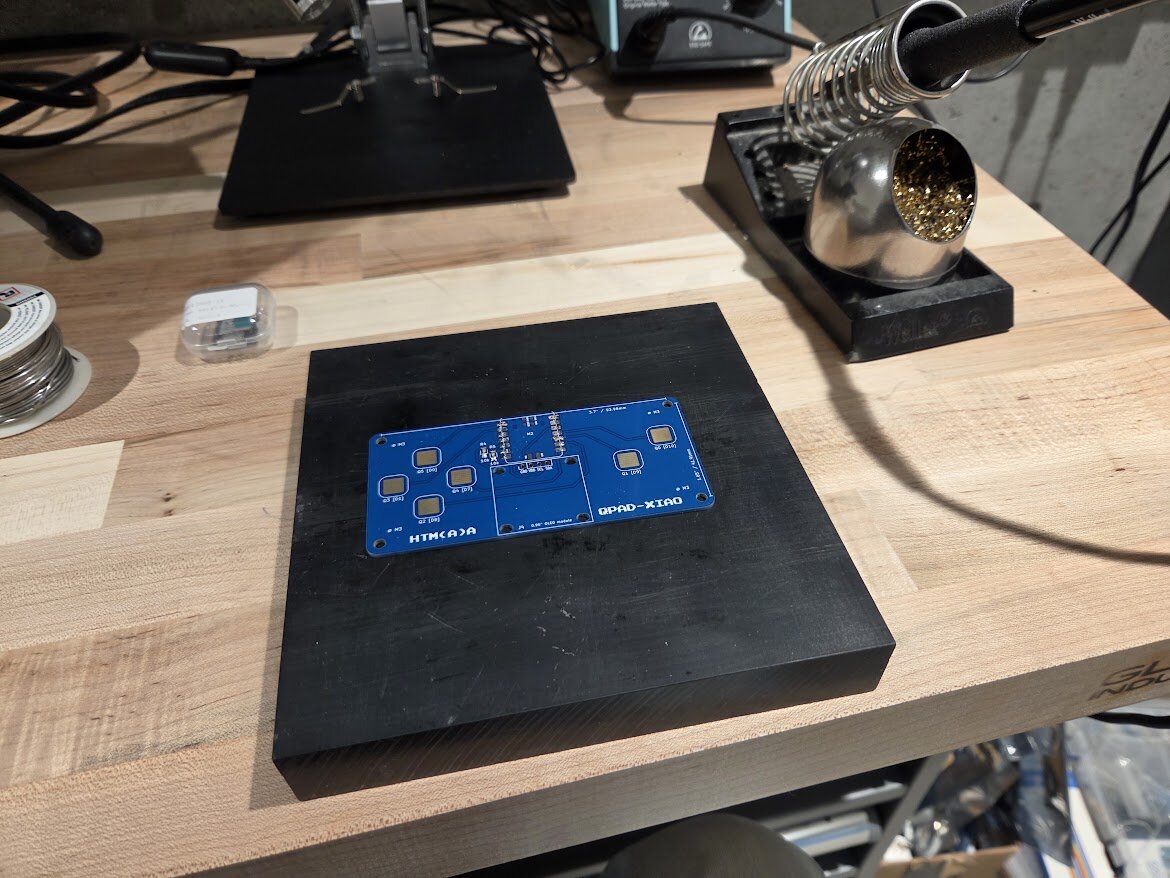
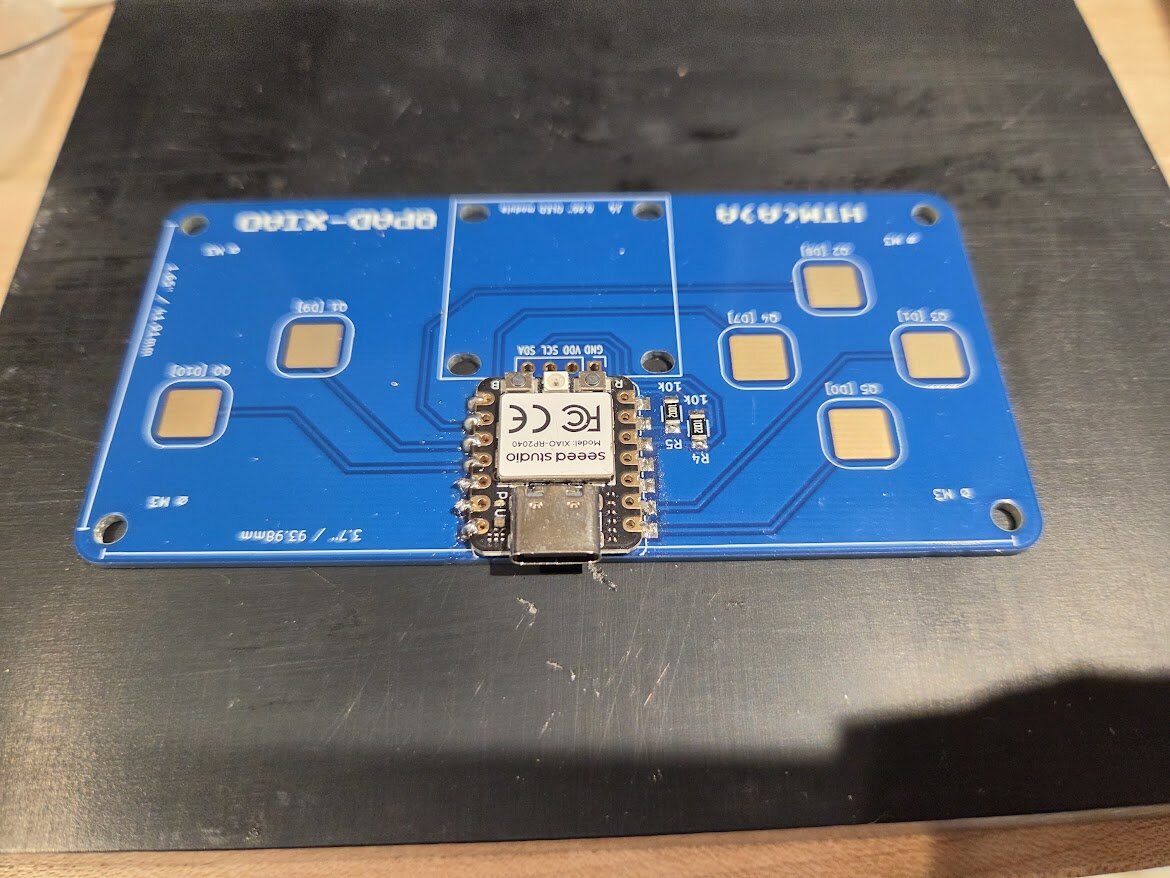
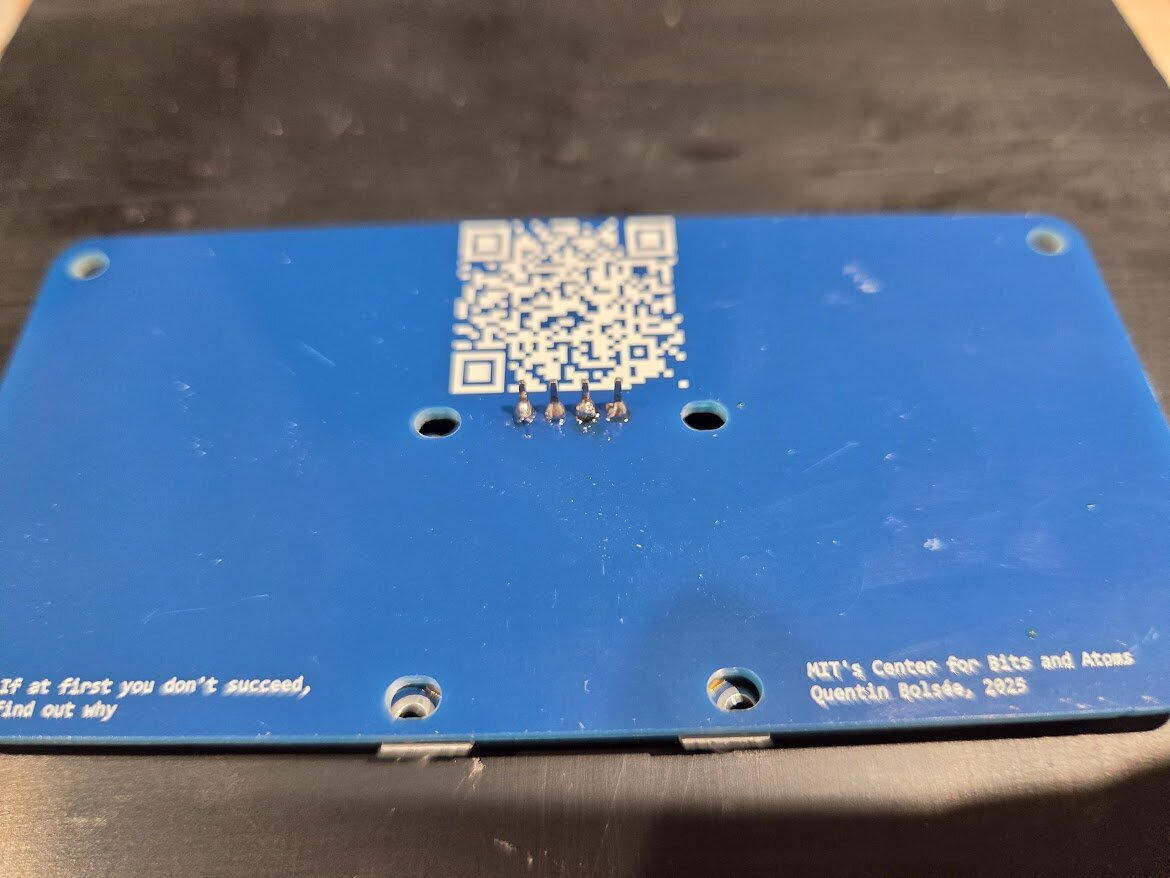
I ran the blink and Tetris sketches, and they worked!
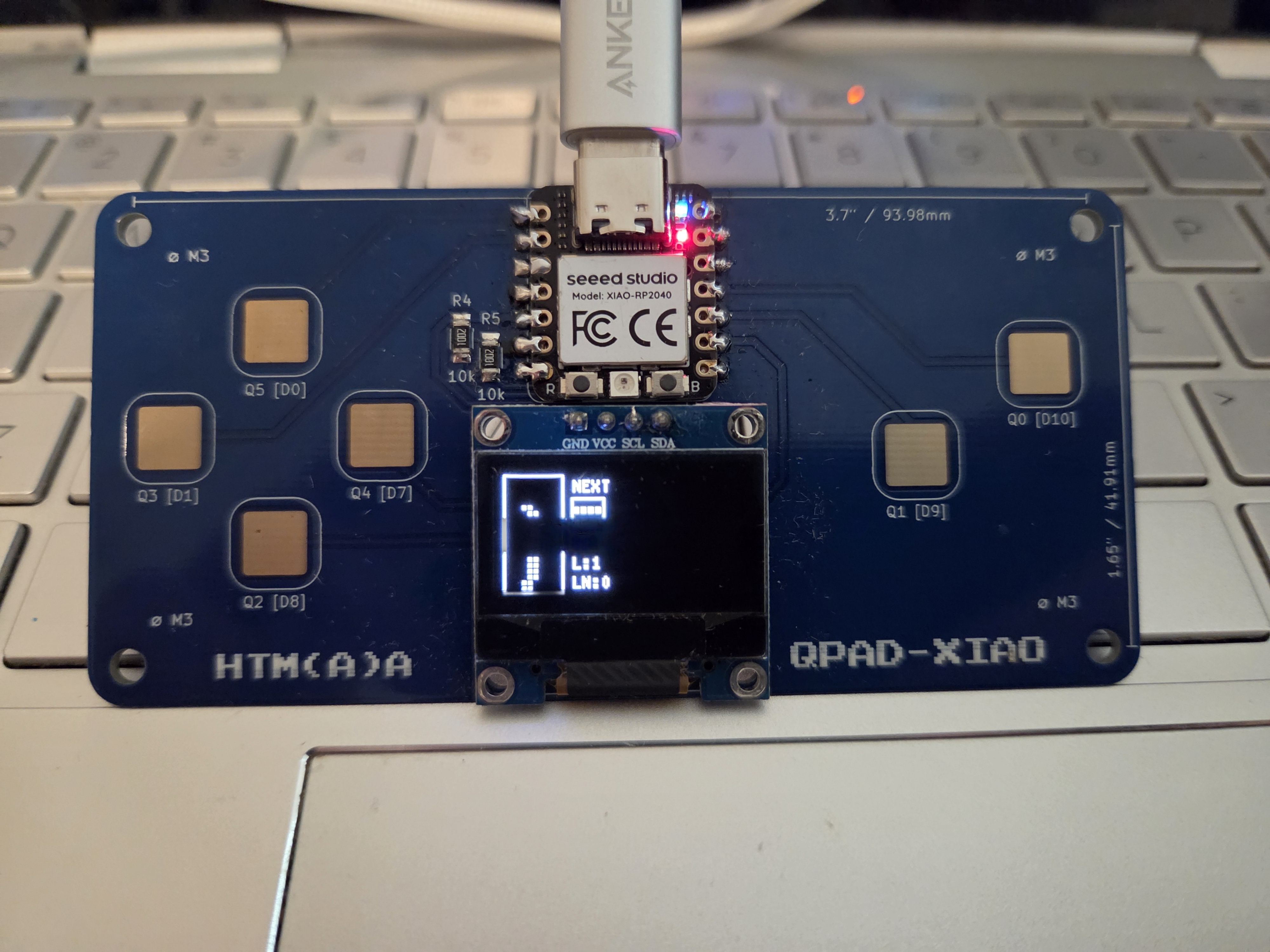
But I noticed both the left and up direction pads were registering as left in Tetris — it might be an accidental bridge from when I soldered the RP2040. Alas, there’s a heavy storm happening at the time of writing, so I can’t go back to fix it for now. Also looked through the RP2040’s datasheet!
Next, I want to get serial communication between the QPad and my laptop working. Referencing the example serial sketch the TAs provided, it’s the same as I remember — Serial.read() reads incoming data byte-by-byte, and Serial.write() sends its argument until it reaches a delimiter. I was confused by the Serial.begin(0) (’start at 0 baud’), but it’s apparently using a USB serial connection (negotiates data rate automatically and sends at highest speed possible) instead of one through a UART peripheral. I found out through these docs and the official Arduino serial docs
I combined that example with the touch pads sketch to get this program that sends a single character for whichever direction you touch:
    #define N_TOUCH 6
    #define THRESHOLD 6

    int touch_pins[N_TOUCH] = {3, 4, 2, 27, 1, 26};
    int touch_values[N_TOUCH] = {0, 0, 0, 0, 0, 0};

    bool pin_touched_now[N_TOUCH] = {false, false, false, false, false, false};
    bool pin_touched_past[N_TOUCH] = {false, false, false, false, false, false};

    int direction_pin_indices[N_TOUCH] = {5, 2, 3, 4, 1, 0};
    String direction_msgs[N_TOUCH] = {"u", "d", "l", "r", "", "z"};


    void update_touch() {
    int t;
    int t_max = 200;
    int p;

    for (int i = 0; i < N_TOUCH; i++) {
        p = touch_pins[i];

        // set to low
        pinMode(p, OUTPUT);
        digitalWriteFast(p, LOW);

        // settle
        delayMicroseconds(25);

        // enable pull-up
        pinMode(p, INPUT_PULLUP);

        // measure time to rise
        t = 0;
        while (!digitalReadFast(p) && t < t_max) {
        t++;
        }
        touch_values[i] = t;

        // update state
        pin_touched_past[i] = pin_touched_now[i];
        pin_touched_now[i] = touch_values[i] > THRESHOLD;
    }
    }

    String get_current_inputs() {
    String output = "";
    for (int i = 0; i < N_TOUCH; i++) {
        if(pin_touched_now[direction_pin_indices[i]]) {
        output += direction_msgs[i];
        }
    }

    return output;
    }


    void setup() {
    Serial.begin(0);
    }

    void loop() {

    update_touch();

        // sends a string containing all of the corresponding
        // characters for whichever pins are currently being touched
        // ex. "u" for just up or "ur" for up and right
    String pkg = get_current_inputs();
    pkg += "\n";

    Serial.print(pkg);

    delay(100);

    }
and on my laptop, I wrote this p5.js sketch to receive the pad data and control the position of a circle using it (linked to an HTML file w/ a button to start the serial connection):
    document.addEventListener('DOMContentLoaded', () => {
    const connect_button = document.getElementById('connect');
    let port;
    let reader;

    connect_button.addEventListener('click', async () => {
        try {
            port = await navigator.serial.requestPort();
            await port.open({ baudRate: 9600 }); // can set this to wtv, it doesn't matter

            connect_button.style.display = 'none'; // hide button

            const textDecoder = new TextDecoderStream();
            const readableStreamClosed = port.readable.pipeTo(textDecoder.writable);
            reader = textDecoder.readable.getReader();

            while (true) {
                const { value, done } = await reader.read();
                if (done) {
                    break;
                }

                if (signals.includes(value)) {
                    if(value == "u") { // ignoring l (left) because they're linked
                        circle_y -= 10; // p5js coord system -> +x is down, +y is to the right                   }

                    if(value == "r") {
                        circle_x += 10;
                    }

                    if(value == "d") {
                        circle_y += 10;
                    }
                }
            }

        } finally {
            if (reader) {
                reader.releaseLock();
                }
            }
        });
    });


    const SCREEN_WIDTH = 1280; // dims of my screen
    const SCREEN_HEIGHT = 585;

    let circle_x = SCREEN_WIDTH/2;
    let circle_y = SCREEN_HEIGHT/2;

    function setup() {
        createCanvas(SCREEN_WIDTH, SCREEN_HEIGHT);
        rectMode(CENTER);
        angleMode(DEGREES);
    }

    function draw() {
        background(255);
        fill(0, 0, 0);

        circle(circle_x, circle_y, 10);
    }
(Disclaimer: For some of the Web Serial API method names and arguments, I asked Google Search’s Gemini because I didn’t feel like looking through the docs)
It worked!
At this point in time, the game itself (a separate p5.js sketch) is almost fully written and just needs some sprites added to it + these inputs + some game constraints. I won’t describe how it was made since it isn’t the focus of this week, but you can find the code here
The ship controls are: up/down for forward/backward thrust, and left/right for turning in those direction. Also, I’m thinking there are levels in this game where the black hole layout is randomly generated, and that in each one, you have a certain amount of fuel you can use and a certain number of probes you can fire. These could be managed as a state in the RP2040 and displayed on the QPad screen?
The data flow is:
- Every iteration of the loop() function, RP2040 updates the resource counters, and sends those values + current input states to my laptop
- p5.js sketch receives that all at once, applies inputs and the corresponding resource restrictions if applicable (ex. you don’t move once you run out of fuel), then sends level reset and level advancement messages back to the RP2040 as they happen (a single ‘r’ or a number ex. 2)
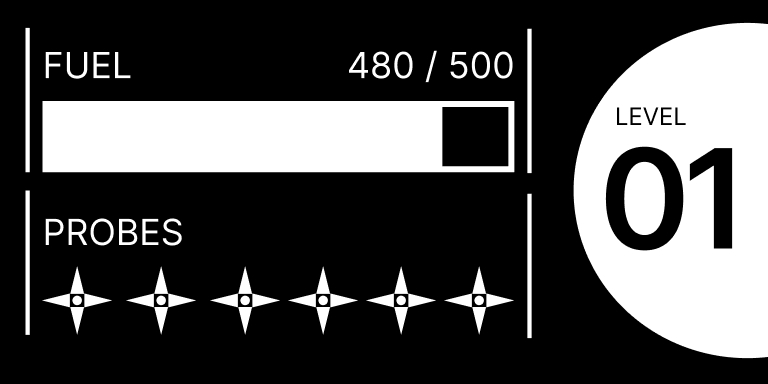
    #include
    #include
    #include

    #define N_TOUCH 6
    #define THRESHOLD 6

    #define SCREEN_WIDTH 128 // OLED display width, in pixels
    #define SCREEN_HEIGHT 64 // OLED display height, in pixels

    #define SCREEN_ADDRESS 0x3C // 0x3D or 0x3C depending on brand

    Adafruit_SSD1306 display(SCREEN_WIDTH, SCREEN_HEIGHT, &Wire, -1, 1700000UL, 1700000UL);


    int touch_pins[N_TOUCH] = {3, 4, 2, 27, 1, 26};
    int touch_values[N_TOUCH] = {0, 0, 0, 0, 0, 0};

    bool pin_touched_now[N_TOUCH] = {false, false, false, false, false, false};
    bool pin_touched_past[N_TOUCH] = {false, false, false, false, false, false};

    int direction_pin_indices[N_TOUCH] = {5, 2, 3, 4, 1, 0};
    String direction_msgs[N_TOUCH] = {"u", "d", "", "r", "", "z"};


    void update_touch() {
    int t;
    int t_max = 200;

    // First discharge ALL electrodes
    for (int i = 0; i < N_TOUCH; i++) {
        pinMode(touch_pins[i], OUTPUT);
        digitalWriteFast(touch_pins[i], LOW);
    }

    delayMicroseconds(25);

    // Now measure each one
    for (int i = 0; i < N_TOUCH; i++) {
        int p = touch_pins[i];

        pinMode(p, INPUT_PULLUP);

        t = 0;
        while (!digitalReadFast(p) && t < t_max) {
        t++;
        }

        touch_values[i] = t;

        pin_touched_past[i] = pin_touched_now[i];
        pin_touched_now[i] = touch_values[i] > THRESHOLD;
    }
    }


    int fuel_left = 500;
    int probes_left = 6;
    int level_number = 1;


    void update_fuel() {
    if ((pin_touched_now[5] || pin_touched_now[2]) && fuel_left > 0) { // up or down pin being touched
        fuel_left -= 4;
    }
    }


    void update_probes() {
    if (pin_touched_now[0] && !pin_touched_past[0] && probes_left > 0) {
        probes_left--;
    }
    }

    String get_current_inputs() {
    String output = "";
    for (int i = 0; i < N_TOUCH; i++) {
        if(pin_touched_now[direction_pin_indices[i]]) {
        output += direction_msgs[i];
        }
    }

    return output;
    }


    void draw_star(int center_x, int center_y) {
    display.fillCircle(center_x, center_y, 1, SSD1306_WHITE);
    }


    void setup() {
    Serial.begin(0);

    // give the screen some time to power up
    delay(50);

    // initialize display
    display.begin(SSD1306_SWITCHCAPVCC, SCREEN_ADDRESS);
    display.clearDisplay();
    display.display();

    // text settings
    display.setTextSize(1);
    display.setTextColor(SSD1306_WHITE);
    }

    String lvl_string = "";

    void loop() {
    char c;

    if (Serial.available()) {
        c = Serial.read();
        if (c == 'r') {
        fuel_left = 500;
        probes_left = 5;
        } else {
        level_number = c - '0';
        }
    }

    update_touch();

    update_fuel();
    update_probes();

    display.clearDisplay();
    display.setTextSize(1);
    display.setTextColor(SSD1306_WHITE);


    // fuel section

    int vert_offset = 1;

    display.setCursor(5, 3+vert_offset);
    display.print("FUEL");

    display.drawLine(1, 3+vert_offset, 1, 25+vert_offset, SSD1306_WHITE);
    display.drawLine(75, 3+vert_offset, 75, 25+vert_offset, SSD1306_WHITE);

    // fuel bar
    display.drawRect(5, 13+vert_offset, 65, 12, SSD1306_WHITE);
    // need to type cast to get float divison, then cast back to int
    display.fillRect(5, 13+vert_offset, (int)(((float)fuel_left / 500) * 65), 12, SSD1306_WHITE);

    // probe section

    display.setCursor(5, 35);
    display.print("PROBES");

    display.drawLine(1, 35, 1, 55, SSD1306_WHITE);
    display.drawLine(75, 35, 75, 55, SSD1306_WHITE);

    for (int i = 0; i < probes_left; i++) {
        draw_star(10 + i*10, 51);
    }


    // level section

    display.setTextColor(SSD1306_BLACK);

    display.fillCircle(122, 32, 30, SSD1306_WHITE);
    display.setCursor(95, 23);
    display.setTextSize(3);


    lvl_string = String(level_number);
    display.print(String("0"));
    display.print(lvl_string);

    display.setTextSize(1);
    display.setCursor(95, 10);
    display.print("LVL");

    // display.setTextSize(5);
    // display.setCursor(100, 20);
    // display.print("0" + String(level_number));

    // send buffer
    display.display();

    String pkg = "";
    pkg += String(fuel_left);
    pkg += " " + String(probes_left);
    pkg += " " + String(level_number);
    pkg += " " + get_current_inputs();
    pkg += "\n";

    Serial.print(pkg);

    delay(100);

    }
Demo videos:
The probe trails were based off of:
- Coded Tapestry: NY_240630 (2026)