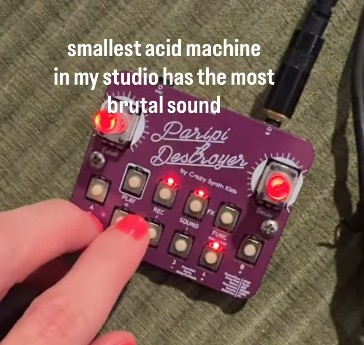
This week, I’m making a small drum machine inspired by Mitski’s
Washing Machine Heart!
I know most people try prototyping a PCB for their final project here, but that doesn’t make much sense since I’m still experimenting with unit designs and actuators. Instead, I’ll be using this as a chance to learn more about electronic components, circuit design for signals, power management, interaction design, and more embedded programming.
---
I originally wanted to make one that lets you sample sounds with the MEMS mic from the inventory, but it might be more interesting to generate the beats in hardware? Like analog → digital processing!
I looked into how drum sounds work for a bit, and I think I need to generate these:
- An attack / pitch envelope → burst from no sound to high frequency that rapidly drops off (around 375 Hz?)
- A fundamental frequency → determines the overall pitch after a drum beat is triggered, usually low (around 40 Hz is okay for a kick drum)
- An amplitude envelope → determines how the volume fades out after the attack
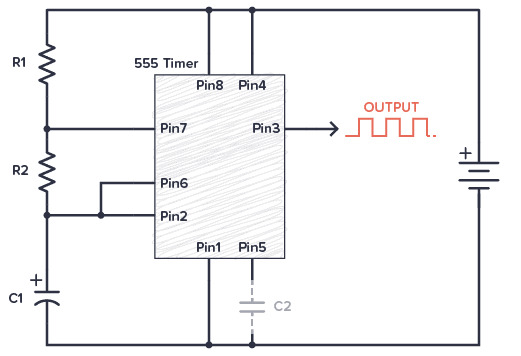
For the fundamental frequency, I’ll use an NE555 astable oscillator circuit, with
this guide as a reference:
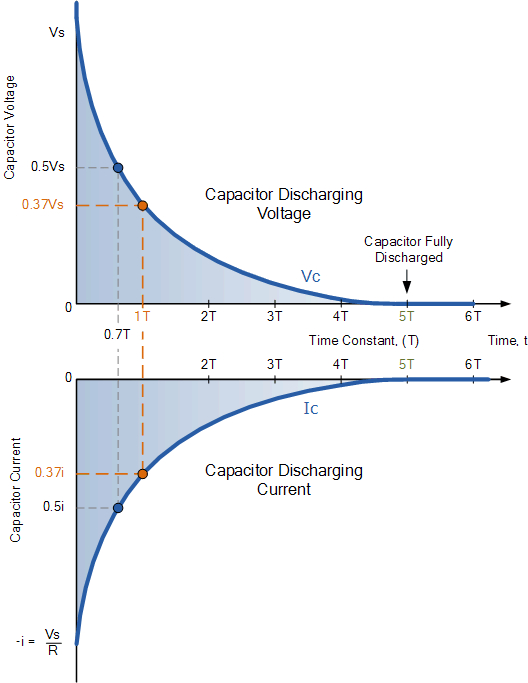
It basically charges and discharges a timing capacitor in a cycle to produce a square wave, which I can read from a GPIO pin on the XIAO RP2040 dev board (after a voltage divider, since NE555 pin 3 outputs VCC = 5V when powering from VBUS). For any other kind of analog wave, I would need to sample it with one of the built in ADCs, or a separate ADC module, I think.
I also want to make use of the RP2040’s hardware timer somehow, so I also made this simple MOSFET-triggered RC decay circuit that fills another larger capacitor that can then dump its charge into the timing capacitor, shortening its charge cycles and increasing the frequency by a lot, with rapid decay. When it’s triggered by an GPIO pin, it can (probably?) work as a pitch envelope!!
This N-channel MOSFET works as a low-side switch — apparently, this is better than P-channel high-side switching because N-channels have lower on-resistances, and you can have a 1:1 GPIO logic off to the MOSFET being completely off (V_GS = 0V when source connected to GND). I included a diode too (mentioned in class) to prevent the timing capacitor from charging this envelope capacitor.
For the amplitude envelope, I decided to just do it in the embedded program next week.
I also need a way to output sound —- to keep circuit debugging simple for next week, I’m using
this I2S DAC breakout from Adafruit.
---
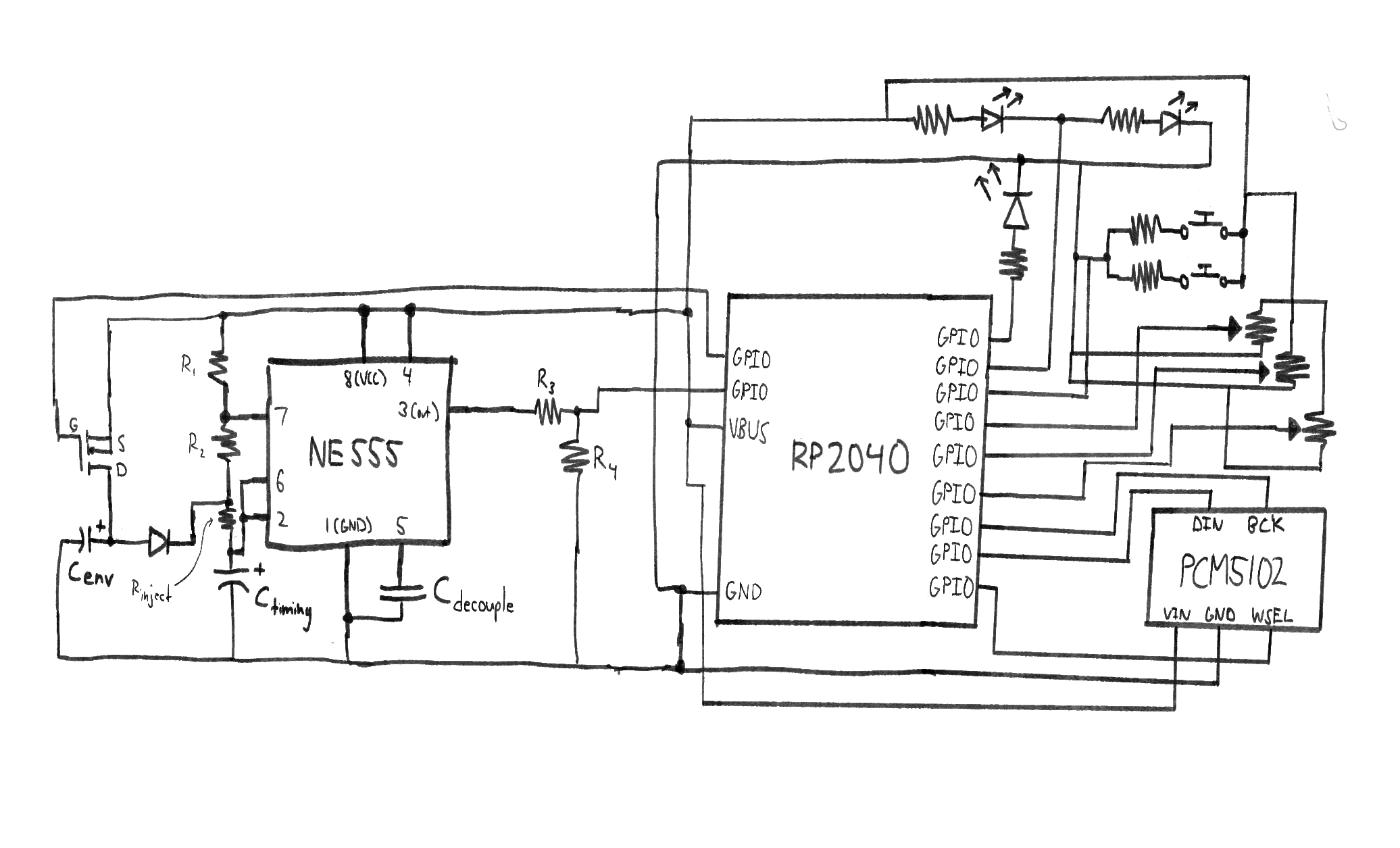
I made this insane-looking sketch at some point (pre-pivot to low side switching) — not really sure why, I think because I vaguely remember it being recommended in class, but I guess it’s good for getting an idea of the wiring topology? More on the other input/output components later!
---
Getting started in the KiCad schematic was straightforward, since I actually used it for projects six years ago; I referenced
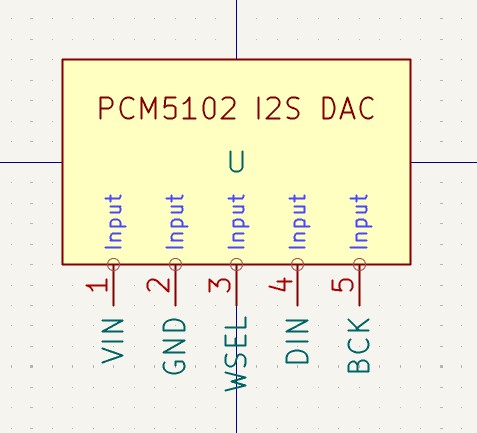
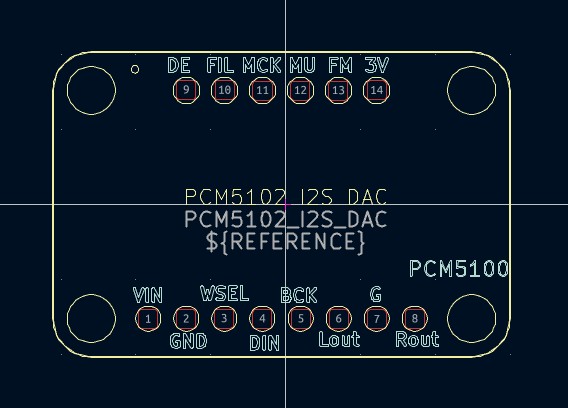
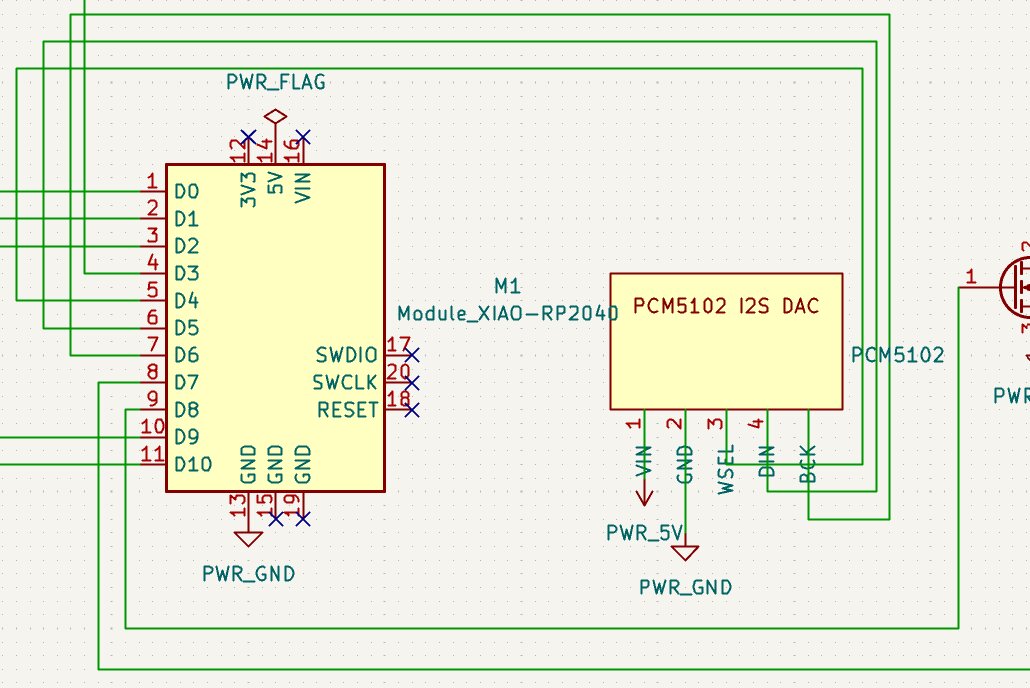
this official guide for anything I forgot. It had all of the symbols and footprints I needed, except for the PCM5102 I2S DAC I mentioned — I had to use the Symbol and Footprint editors to make them from the official PCB files, linked
here (just copied Edge.Cut and other layers, exported → imported as DXF):
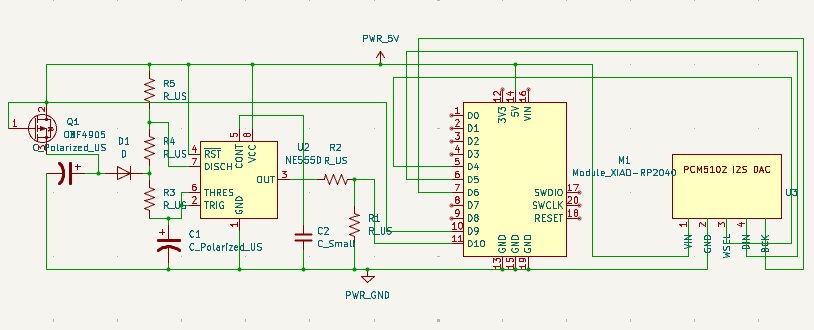
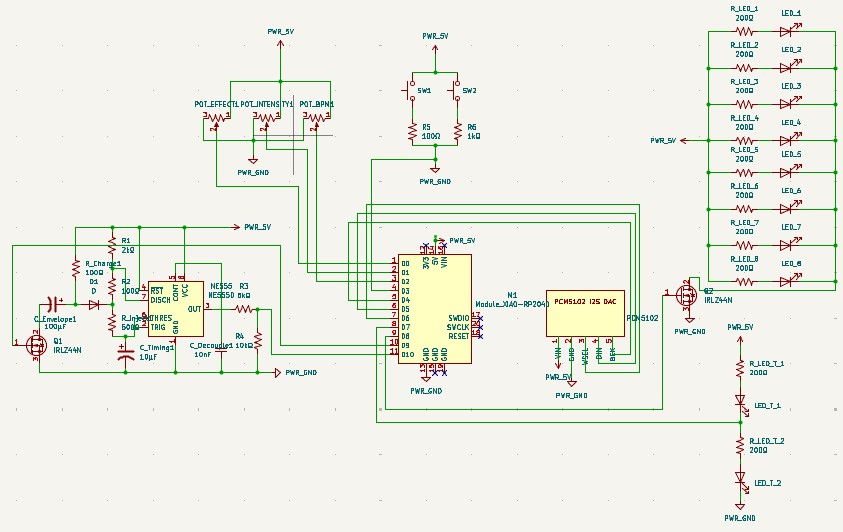
Schematic for NE555 circuit + RP2040 + DAC (pre-low side switching pivot):
---
Since this is a drum machine, I need inputs for users to set BPMs, switch between tracks, etc, and also ideally some visual feedback so it’s easier to build a mental model of what’s happening. The other components I want to include are:
- Two audio tracks, each with a button and indicator LED
- Big washing machine-like dial for applying an effect to the current track (probably 4-6 effects I’ll make next week?)
- A slider/rotary potentiometer for adjusting the intensity of the currently selected effect
- A slider/rotary potentiometer for setting the BPM of the current track
- A large washing machine window circle of LEDs (8) that are in sync with the current track’s beat
This would normally be 4 + 1 + 1 + 1 + 8 + 4 + 3 = 22 GPIO pins used (the Xiao only has 11 available..), including an additional four for two NE555 drum circuits, but I used this LED circuit (only one of the two track indicators is on at a time) + wired together the buttons with different resistor values (can differentiate by that) to reduce those from 4 to 2 pins used. I can also add another low side switching MOSFET to drive the eight LEDs together with the RP2040’s VBUS (USB-C 5V output) pin. I’ll also just not do a second drum circuit, and just generate that one digitally or something.
2 + 1 + 1 + 1 + 1 + 2 + 3 = exactly 11!!!
(add total current draw calculation here)
---
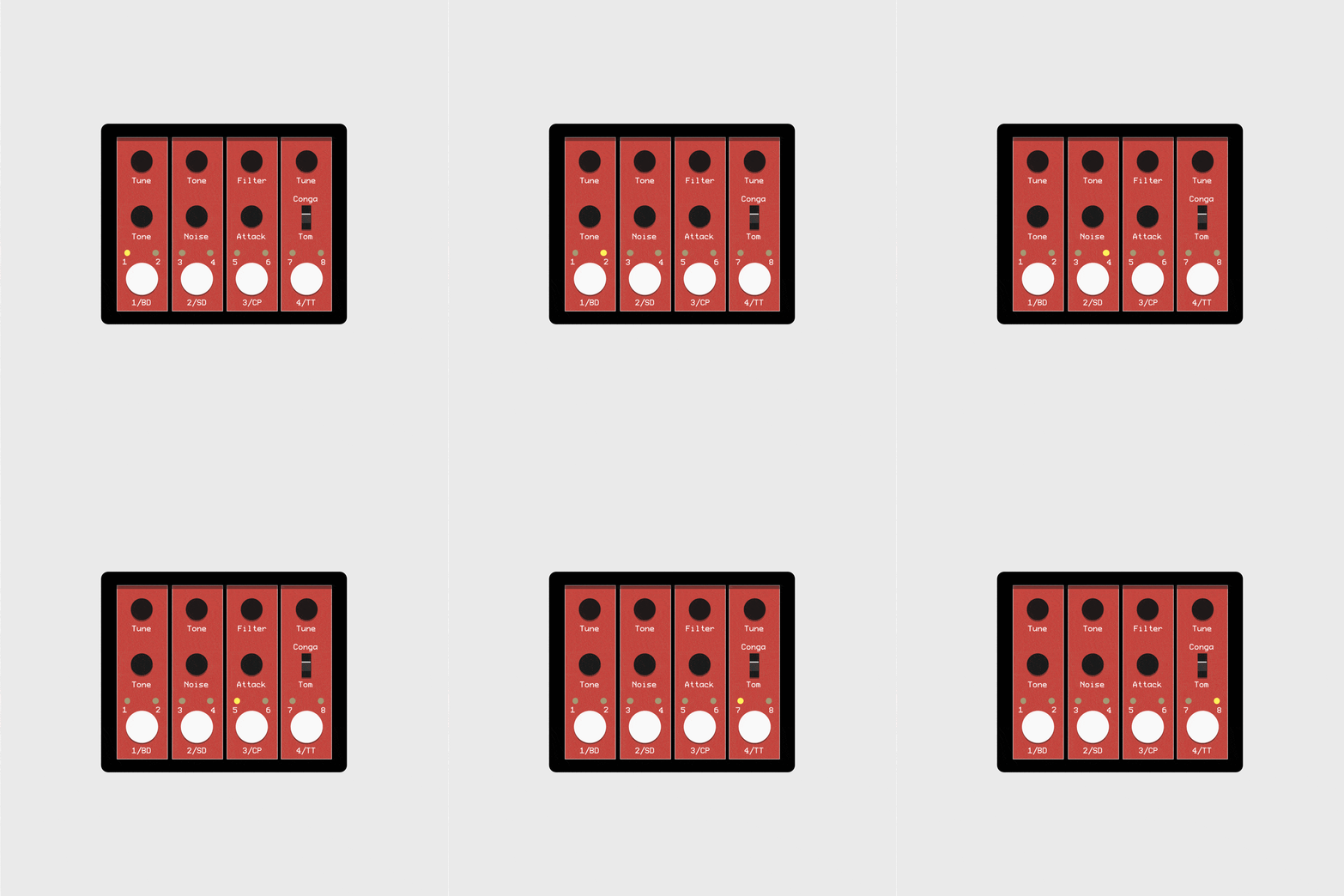
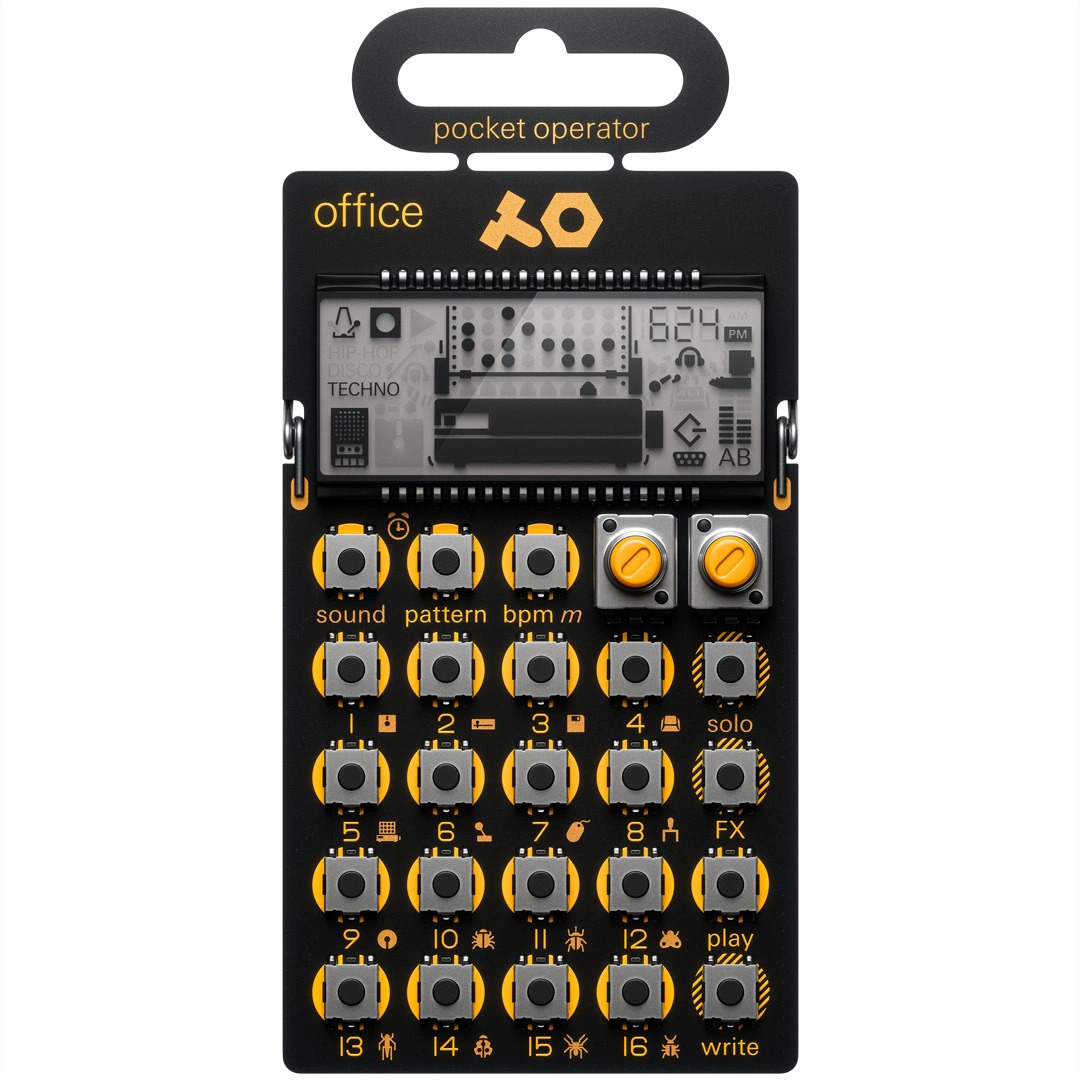
For the physical design/placement of the UI, I’m referencing these synthesizers and drum machines I’ve seen (elphnt, Teenage Engineering, @acidadominga) — the affordances/indicators are pretty simple, and I really just need to make sure contrast/spacing is good.
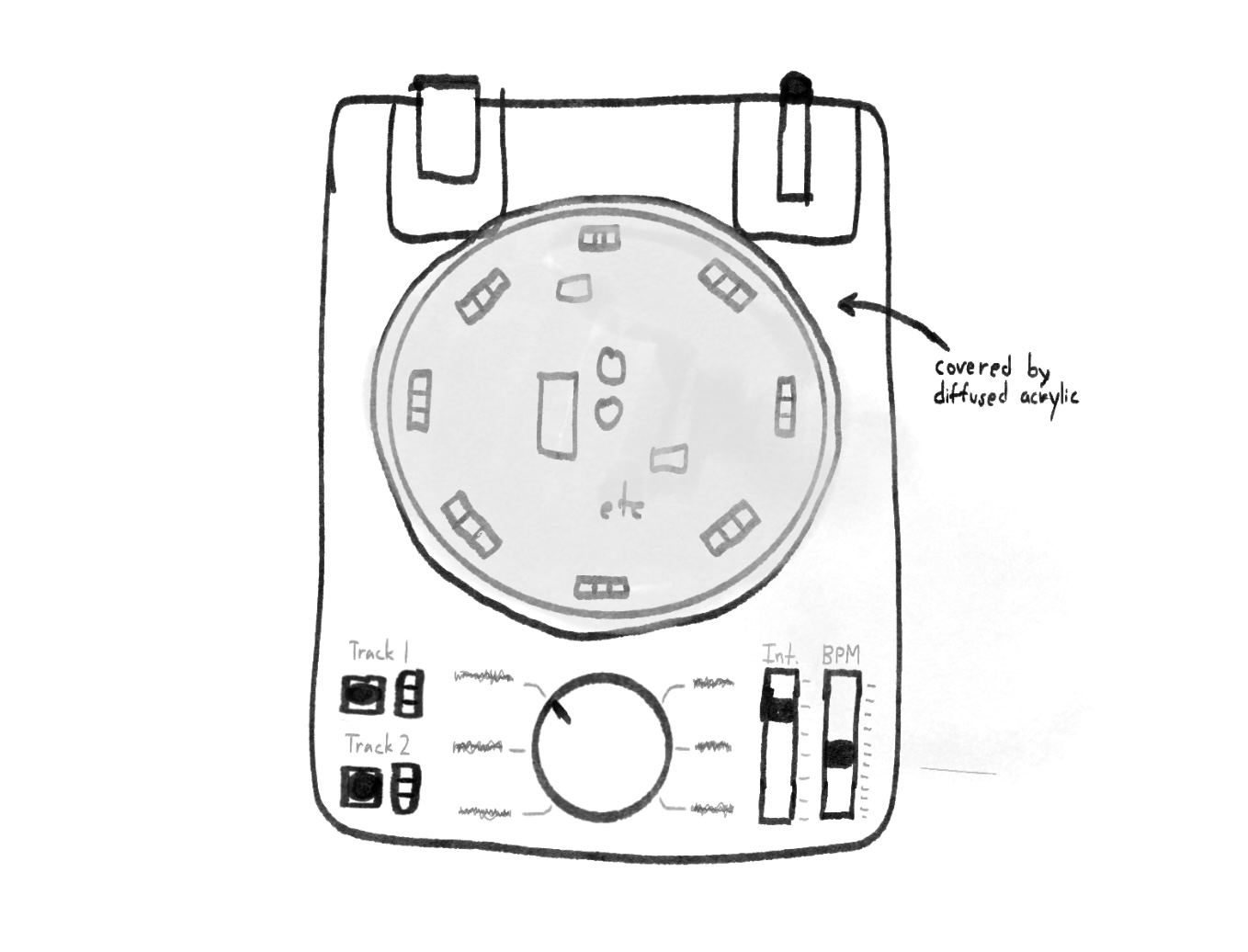
I also just want this to look like a washing machine!! A quick sketch:
I’m planning to mount a diffused acrylic circle above the LED circle to hide most of the drum circuit and make it look a little cleaner! Also, the milling area of a Roland SRM-20 milling machine is 8 x 6 in, so I’ll go for something like 3.5 x 4.5 in.
---
Here’s the full schematic with all of the components (subcircuits isolated and connected with power/ground flags, like recommended in recitation):
I ran an electrical rules check, and realized I needed to place a power flag at the RP2040 VBUS port to tell KiCad where power was coming from.
This is where you need to assign footprints to all of your parts, so I decided which ones I’ll be using:
- Inventory:
- Xiao RP2040
- LED WHITE DIFFUSED 1206 SMD (x8)
- LED ORANGE CLEAR 1206 SMD (x2)
- DIODE SCHOTTKY 100V 150MA SOD123
- Ordering myself (Digikey, Adafruit):
- All resistors (1206 SMD) — I think I’ll need practice soldering these for my final project
- NE555
- IRLZ44N MOSFETs (x2)
- Bourns PTA1543-2010CIB103 slide potentiometer (x2)
- Alps Alpine RK09L1140A5L rotary potentiometer
- Kemet C320C104K5R5TA ceramic THT decoupling capacitor, 0.01 uF
- Rubycon 50YXJ10M5X11 capacitor, 10 uF
- Rubycon 35YXJ100M6.3X11 capacitor, 100 uF
- Adafruit PCM5102 I2S DAC
- 6x6mm push buttons (x2)
(add value calculations + some datasheets here)
---
For the actual PCB, I set board settings to use these:
- 0.4mm for minimum clearance, minimum trace/track width, and minimum connection width because diameter of the milling bit is 1/64” — recommended by Quentin on Slack
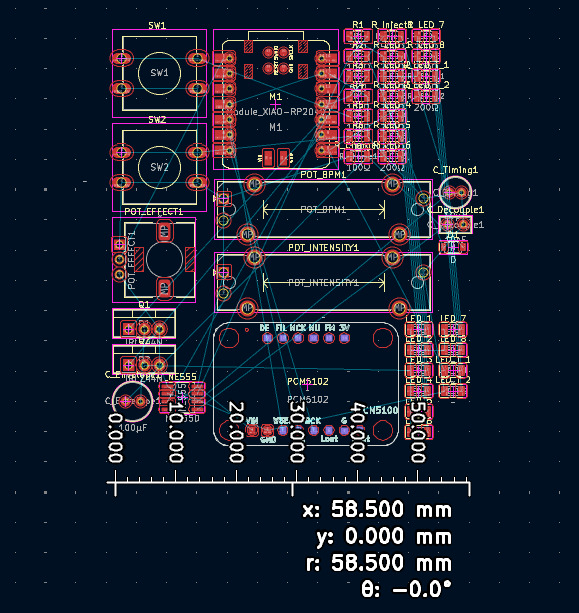
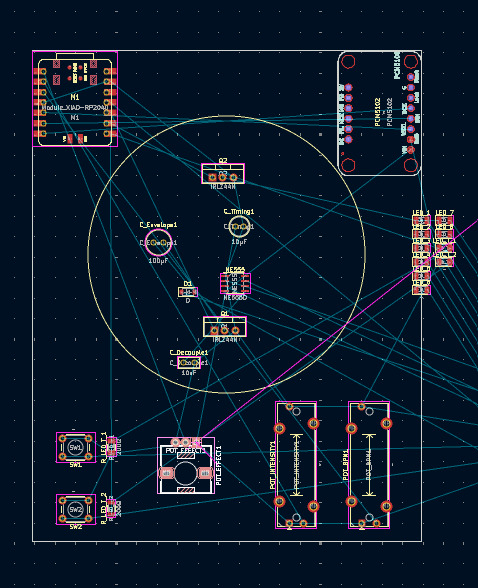
Measuring the width/height of everything in its default placements, it looks like it’s around 2x3 inches, so my 3.5 x 4.5 in target size is fine.
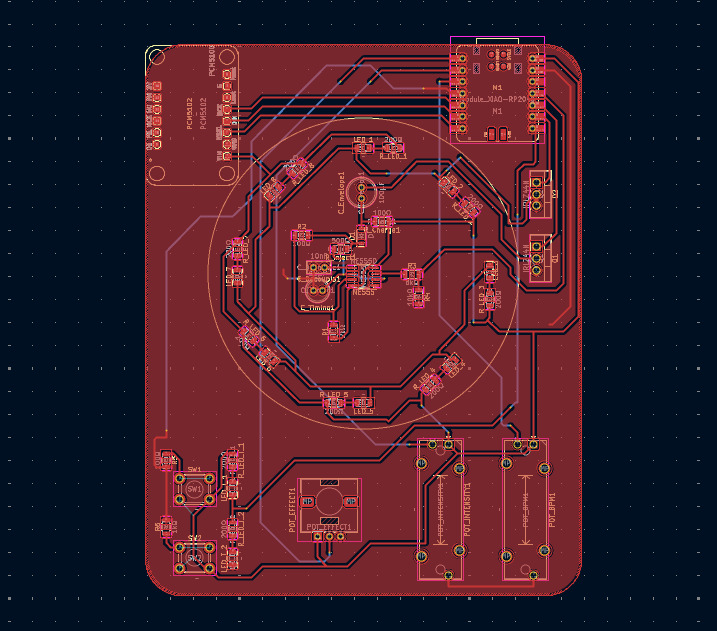
From here, I just placed/grouped everything according to the UI sketch above (turned off power/ground nets for visibility), then oriented most components towards the RP2040. I also to be consistent with LED-resistor placement on the circle (resistor is always clockwise of its LED).
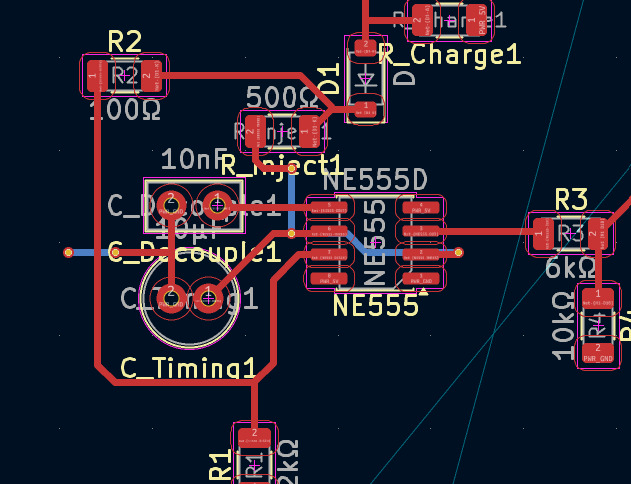
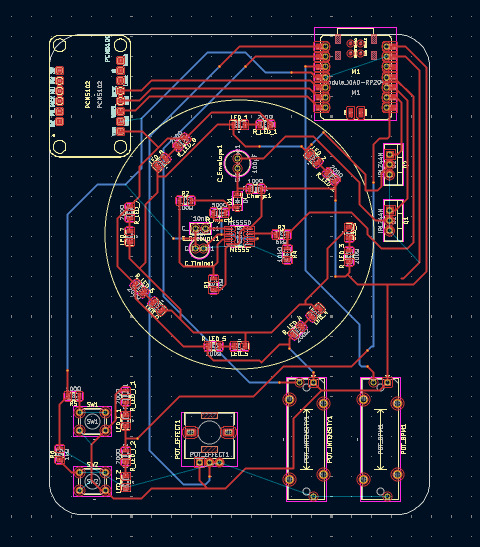
I really tried to keep everything on one layer because it’d be easier to mill… but it looked topologically impossible, especially given how pins 2 and 6 of the NE555 need to be connected. So I made a few vias for that and some other components (ex. bridging UI components and the RP2040 since they’re on opposite ends):
I also made a ground plane for all of my ground connections, since this is apparently good for minimizing inference between signal-carrying traces. Otherwise, I just minimized the distance signals had to travel (from
Claire’s Week 5). I also ran the design rules checker and found that I forgot to make the vias 0.4mm in diameter.
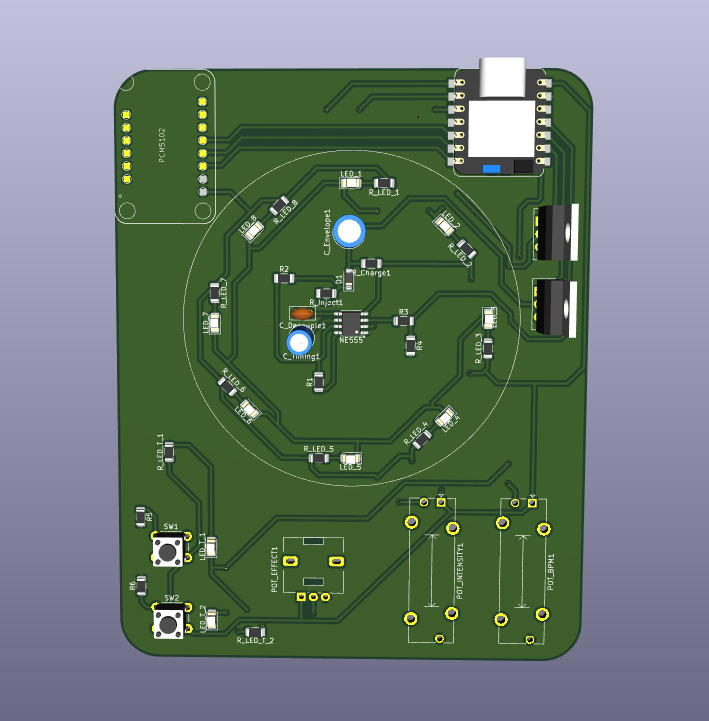
What it looks like in the 3D view:
It still looks really disorganized to be honest… whatever! I’ll clean it up before milling next week. You can download my schematic, PCB, etc files
here.
Here’s what I want to do next week: