Embedded Programming - The Paste Pal
This week I built the Paste Pal, a small handheld controller that stores up to 8 different items on so I can copy and paste between them without losing anything. I soldered the board together myself (the microcontroller, resistor, and OLED screen), then worked step by step with AI (Claude) to write the code. Rather than just copying code, I used it to understand the different coding approaches and how variables are stored and changed as the program runs. Finally, I designed a holder from scratch so the Paste Pal sits on my desk ready to use.
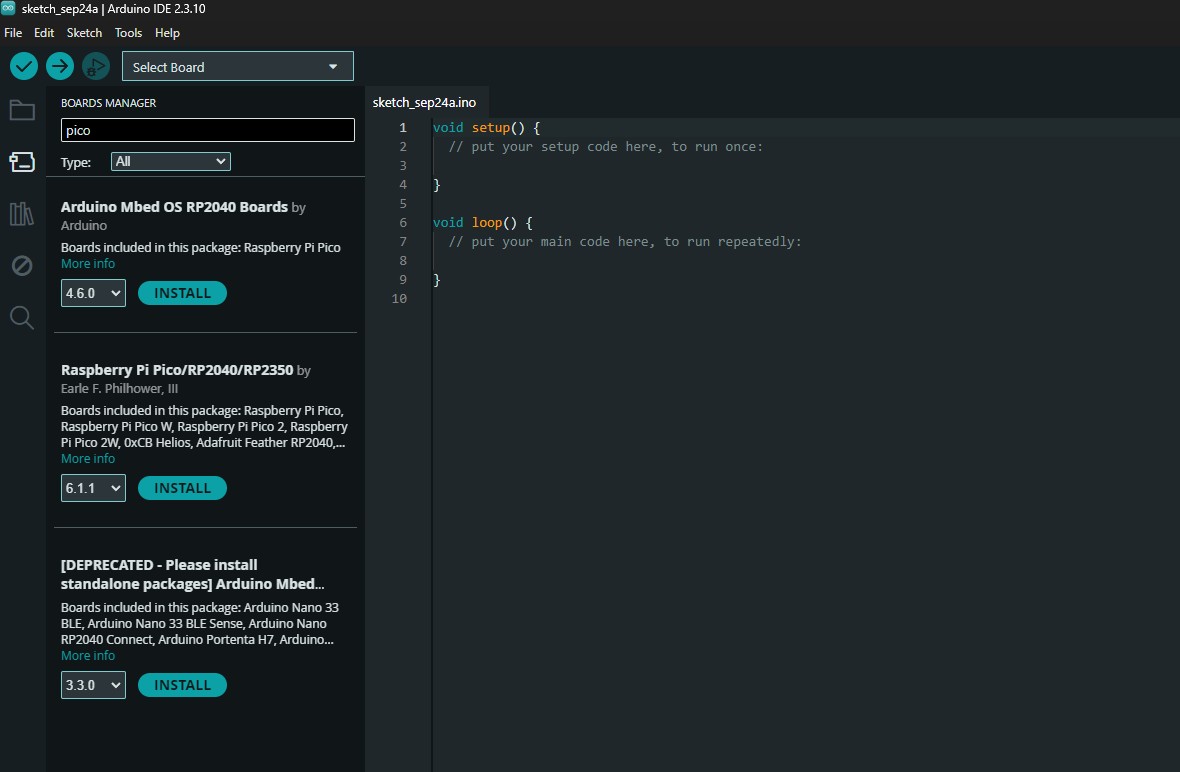
The first step was getting the Arduino IDE ready. I searched the Boards Manager for "pico" to install support for the RP2040 chip that the Seeed XIAO microcontroller uses.
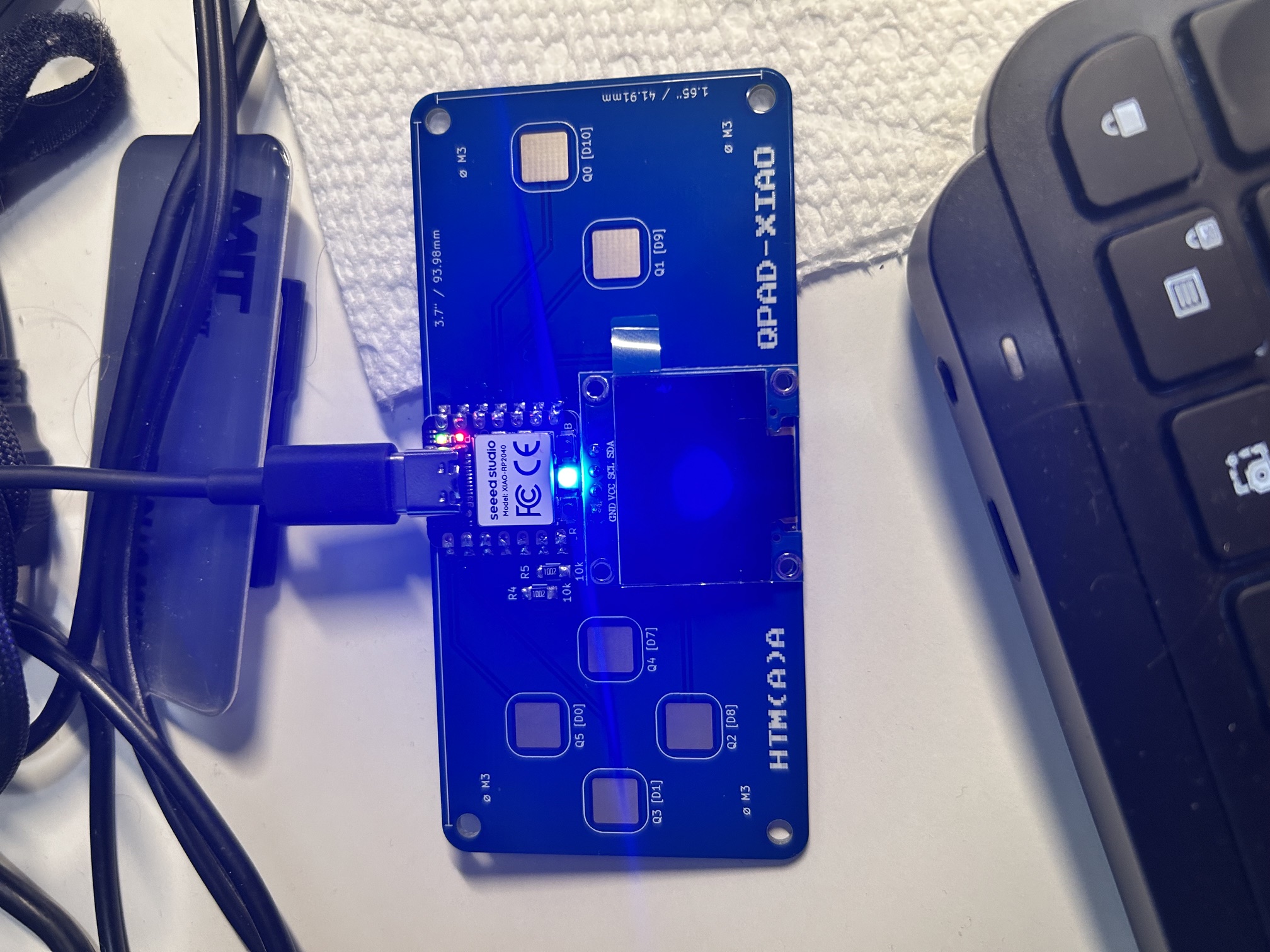
Here is the assembled QPAD attached to the computer via USB-C. You can see my work on the soldering here as well!
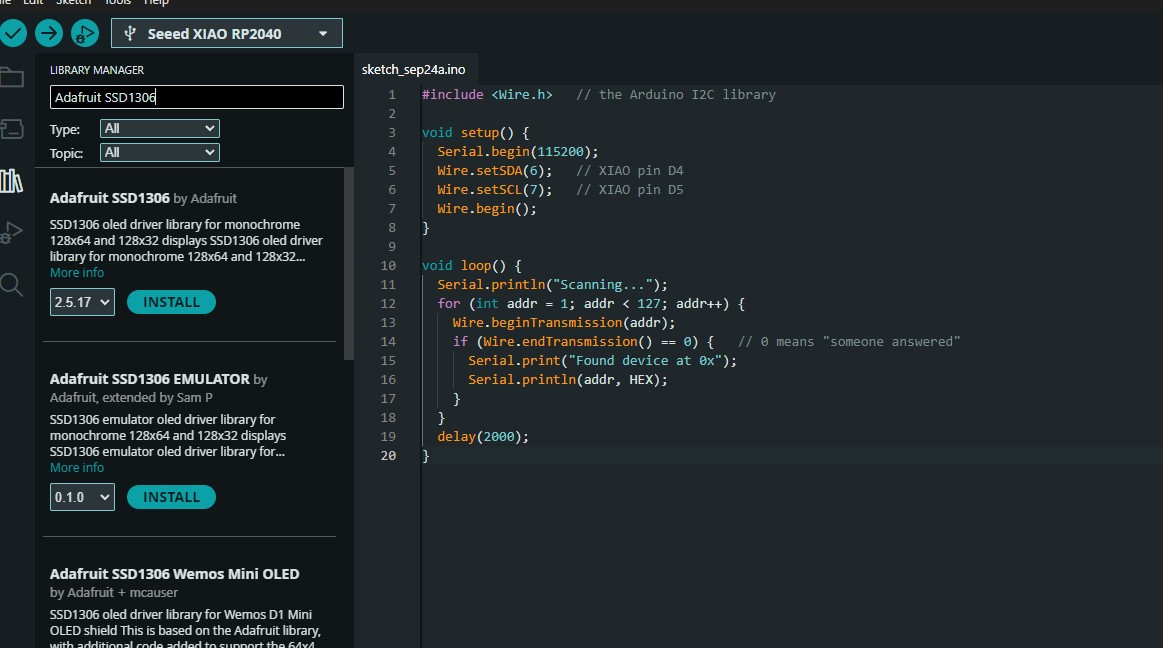
With the board selected, I installed the Adafruit SSD1306 library for the OLED screen in order to allow for programming of the OLED screen.
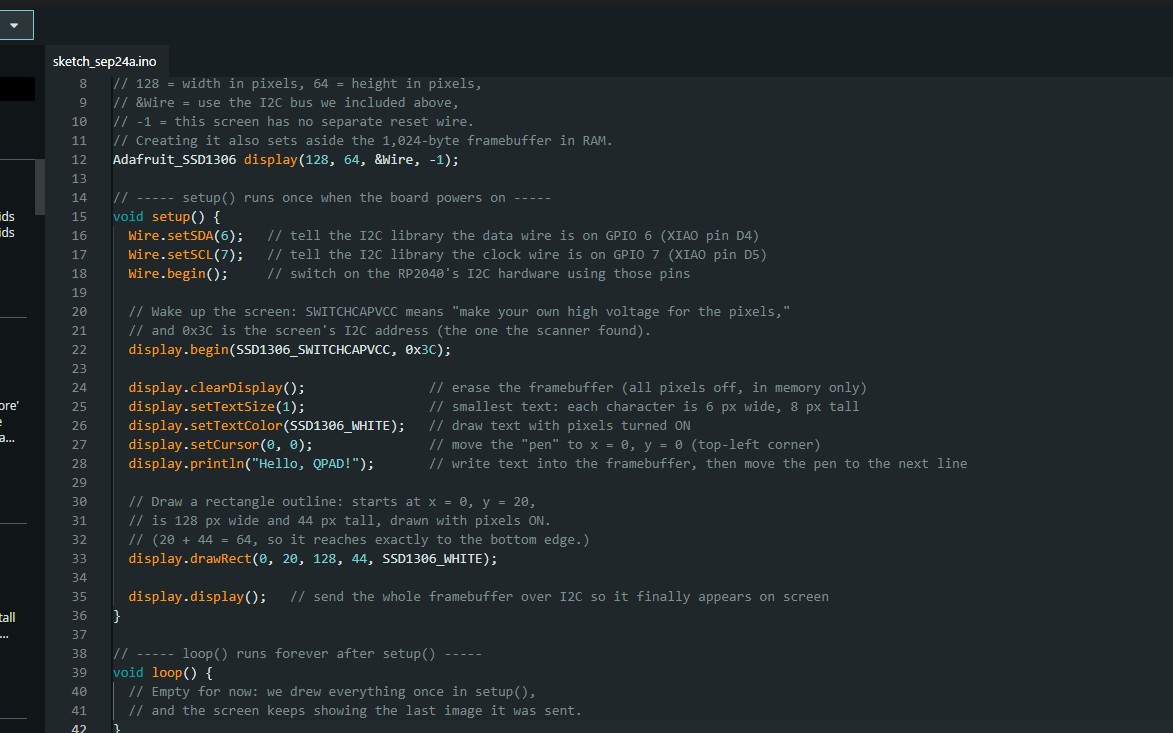
For my first sketch, I added some text and drew a rectangle while also configuring the screen properly.
To learn the drawing commands, I read through the Adafruit GFX Graphics Library guide on how to program and manipulate their graphics.
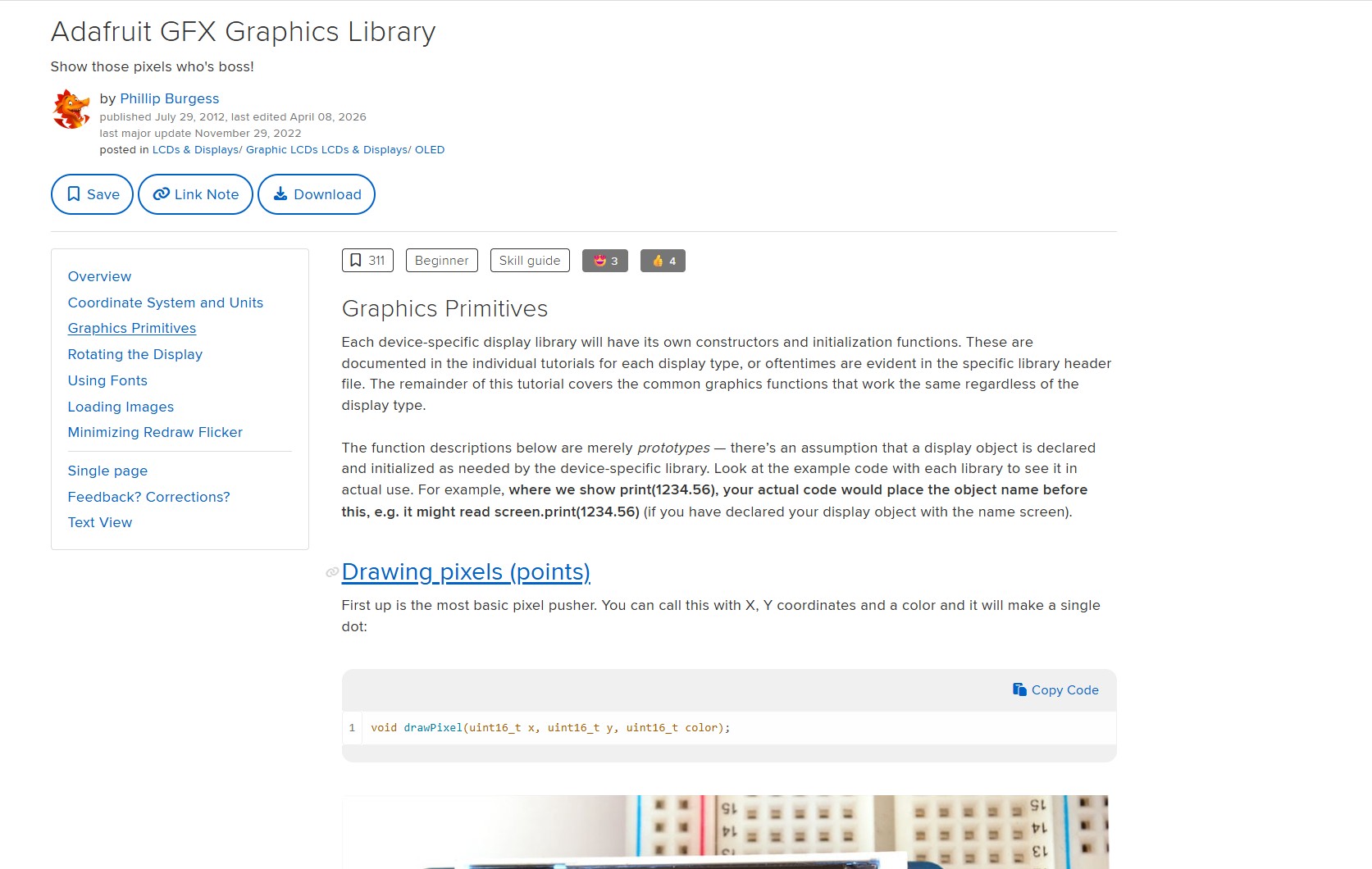
I then experimented with those commands myself, drawing a pixel, a circle outline, and a filled circle by changing the values and positions as directed by the library.
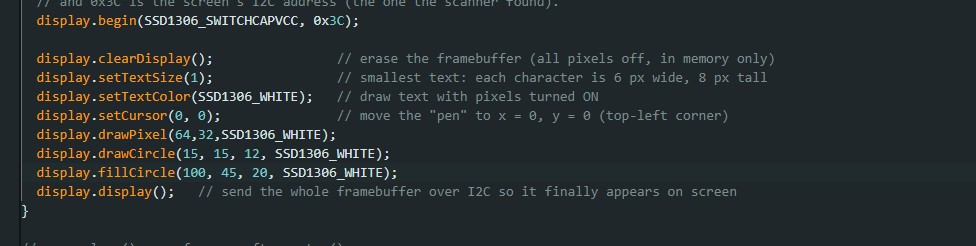
Here you can see the basic shapes I manually programmed via the Adafruit library.
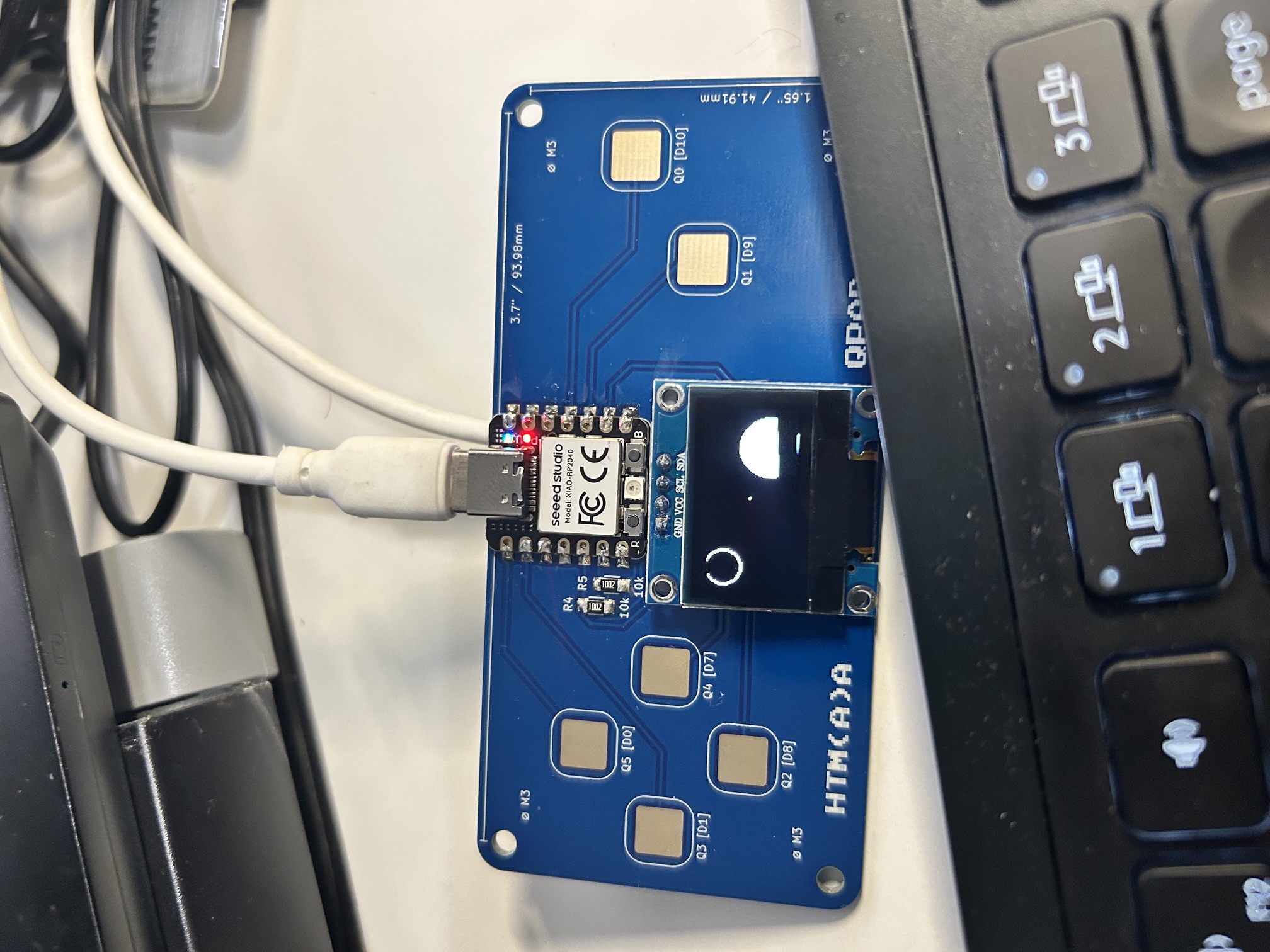
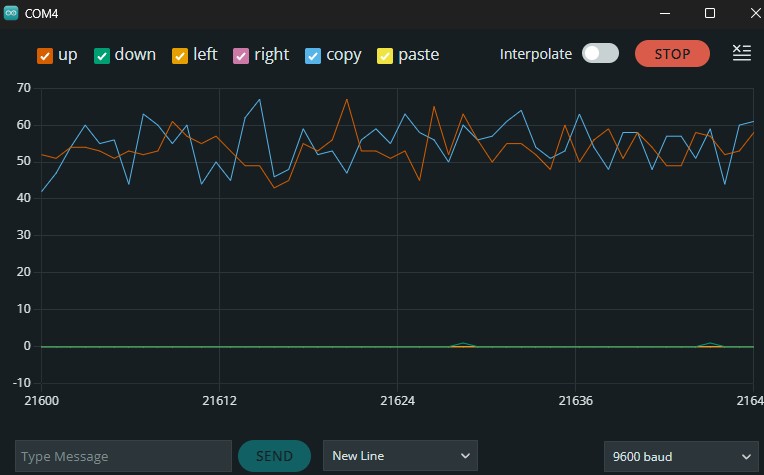
Next came the buttons. The Serial Plotter was used first to watch a live value coming off the board. This was a part of the step to connect the QPAD to the computer and register commands.
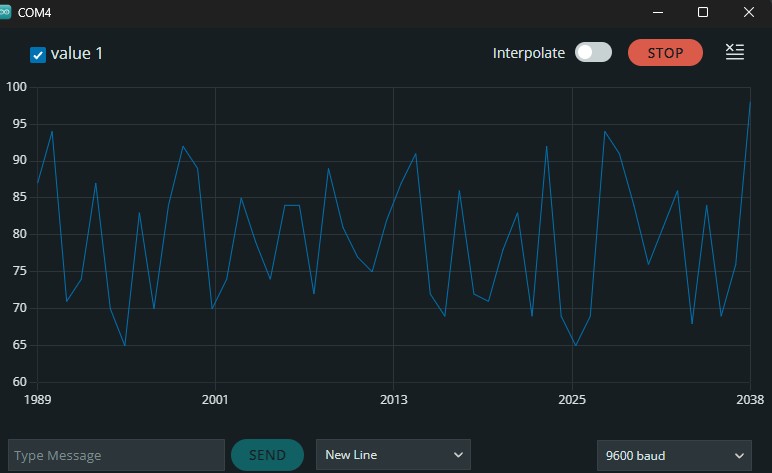
Then I plotted all six touch pads (up, down, left, right, copy, and paste) at once to see how their readings behave. This was done in order to coordinate capacitance to button presses. This was an important baseline in order to ensure that button presses were registered properly.
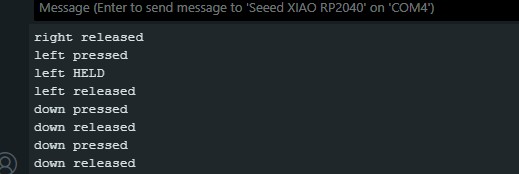
I then programmed and verified operation of pressing, holding, and releasing the different buttons.
Finally, the board acts as a keyboard to send shortcuts like Ctrl+C the way fingers would: hold Ctrl, press the letter, pause, and release. This one also taught me to watch my braces, since a missing one broke the whole sketch.

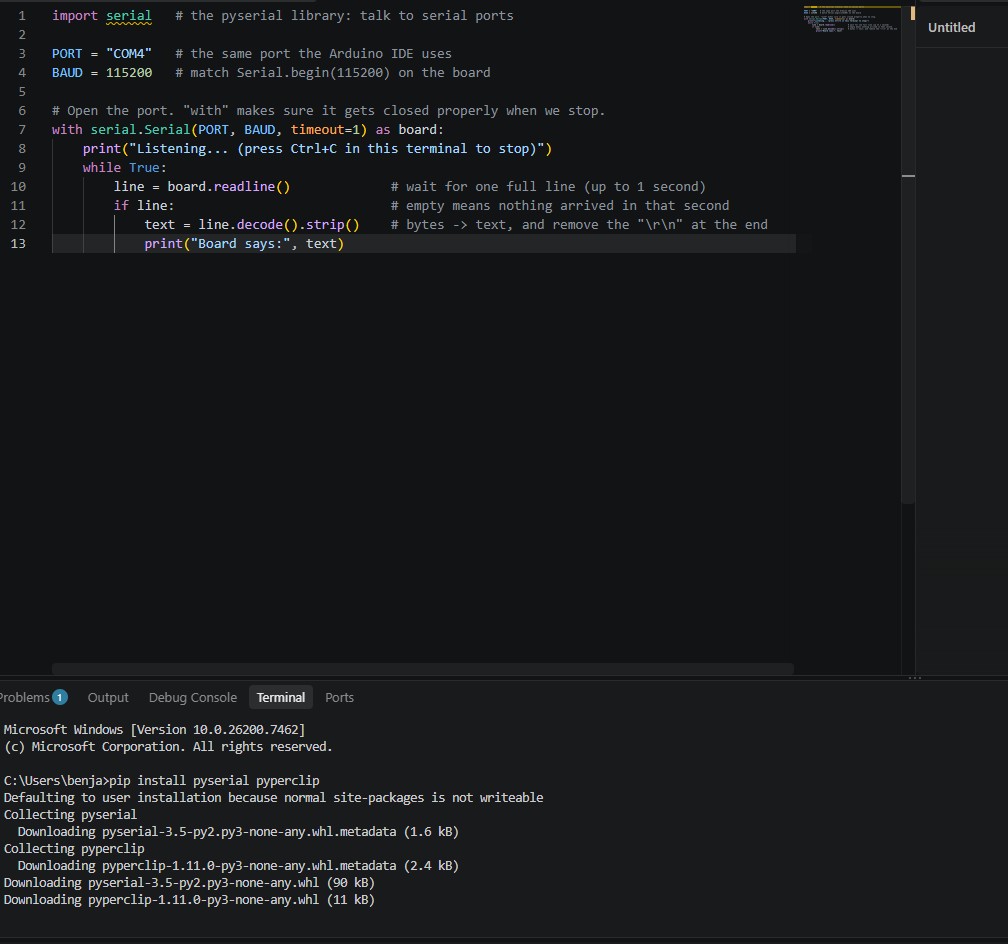
To reach the computer's clipboard, a Python script running on the laptop is needed. I installed pyserial and pyperclip, then wrote a simple listener that reads each line the board sends over the serial port. This verified the correct commands were being received by the computer.
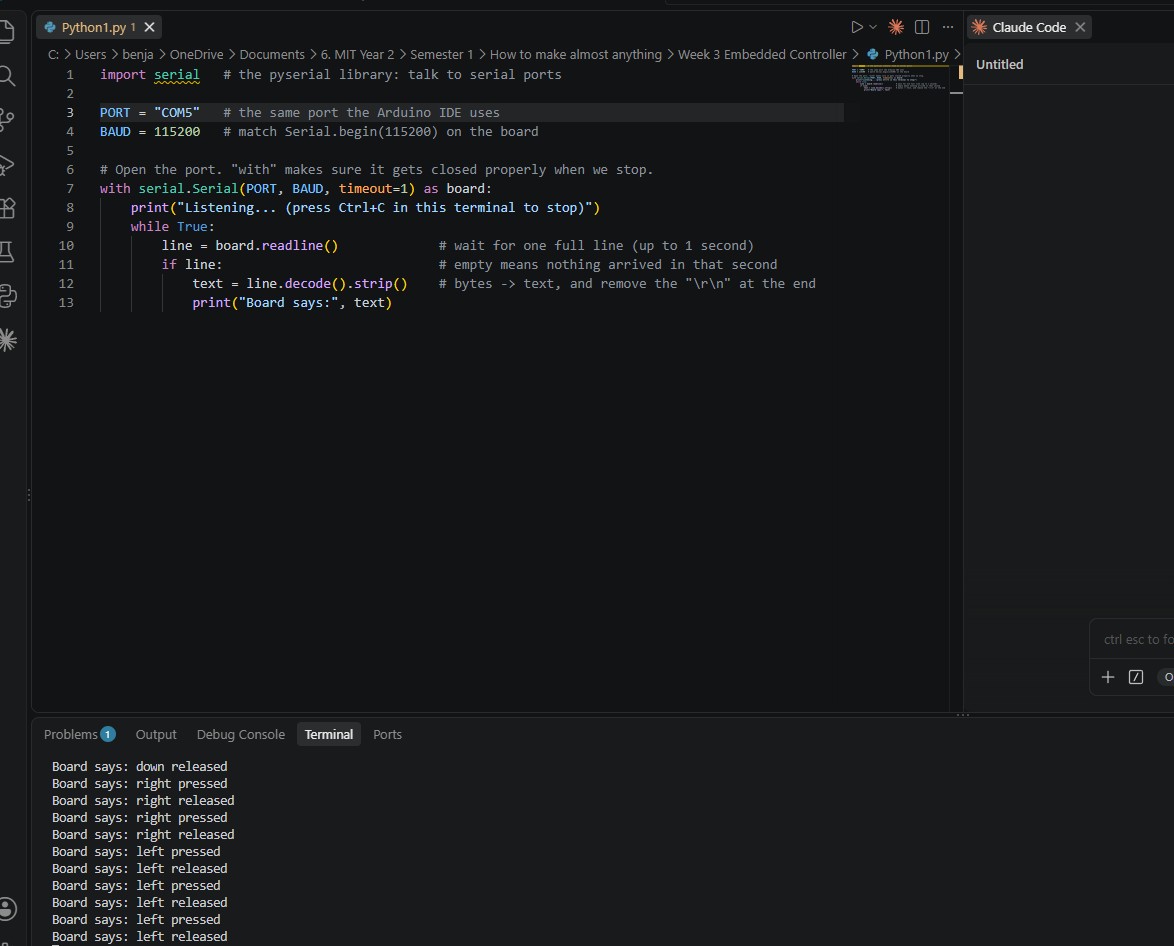
After switching to the correct port (COM5), the terminal showed "Board says:" followed by every button press and release.
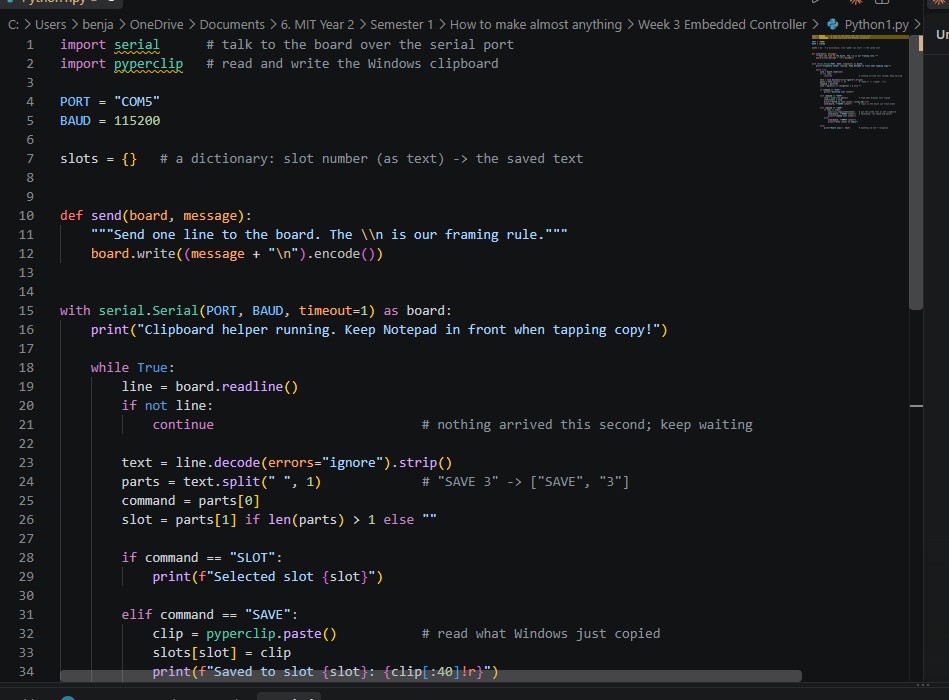
The real clipboard helper. The saved items are kept in a dictionary, where each slot number points to the saved text. When the board sends a command like "SAVE 3", it's split into the command and the slot number, and the script either saves what Windows just copied or loads it back.
Testing it: "Apple" saved to slot 1, "Bannana" to slot 2, then switching between them and loading each one back.

I added CLEAR and QUIT commands so the Paste Pal can empty a slot or shut the helper down (I removed this feature as it was awkward in practice).

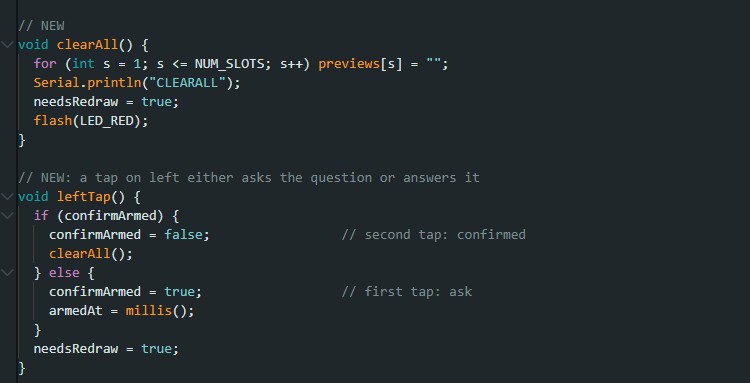
To keep from wiping everything by accident, clearing all slots now needs two taps on the left button: the first asks the question and the second confirms it.
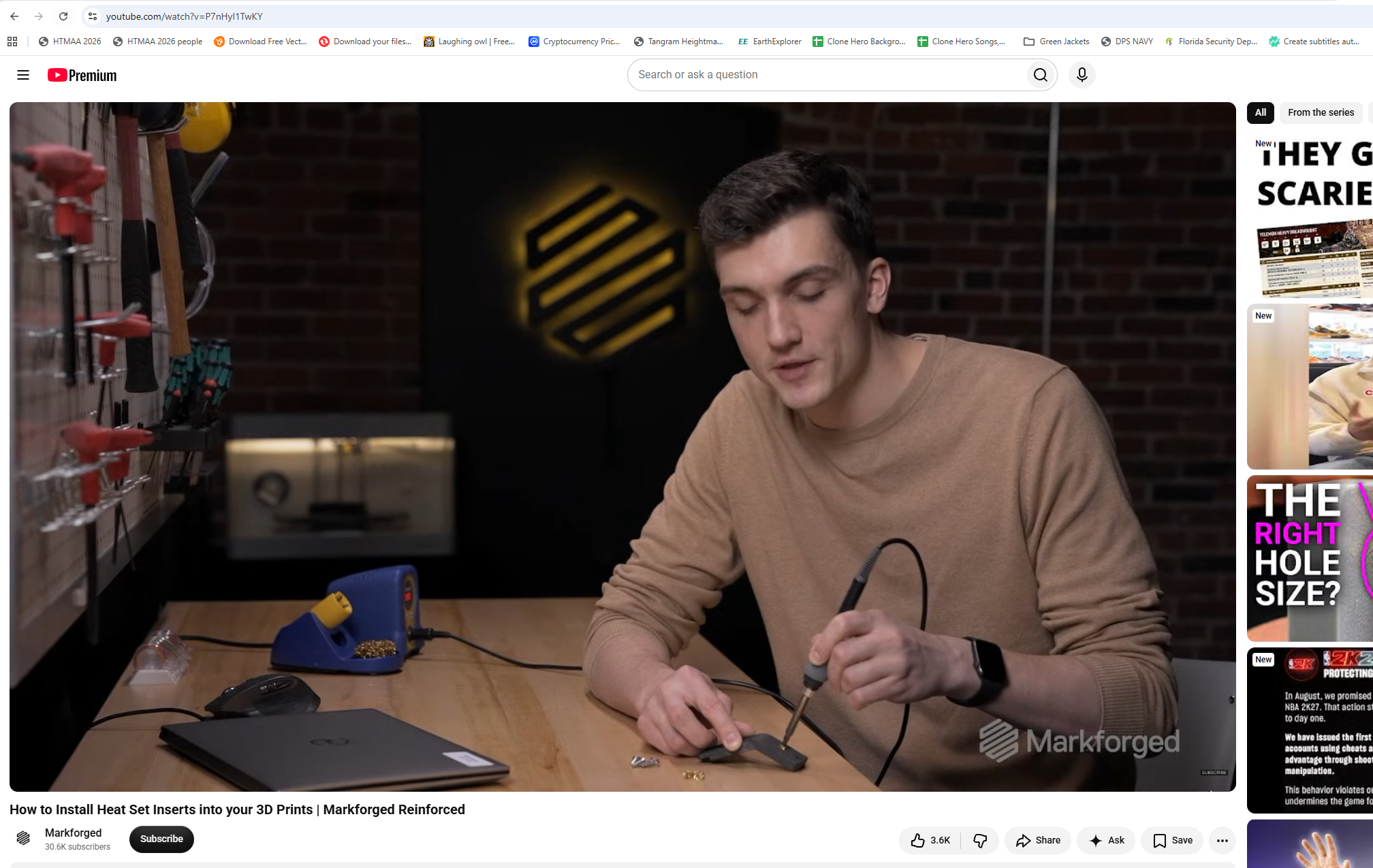
For the holder I wanted to use heat-set inserts so the board could be screwed in and removed many times. I watched a Markforged video on how to install them.
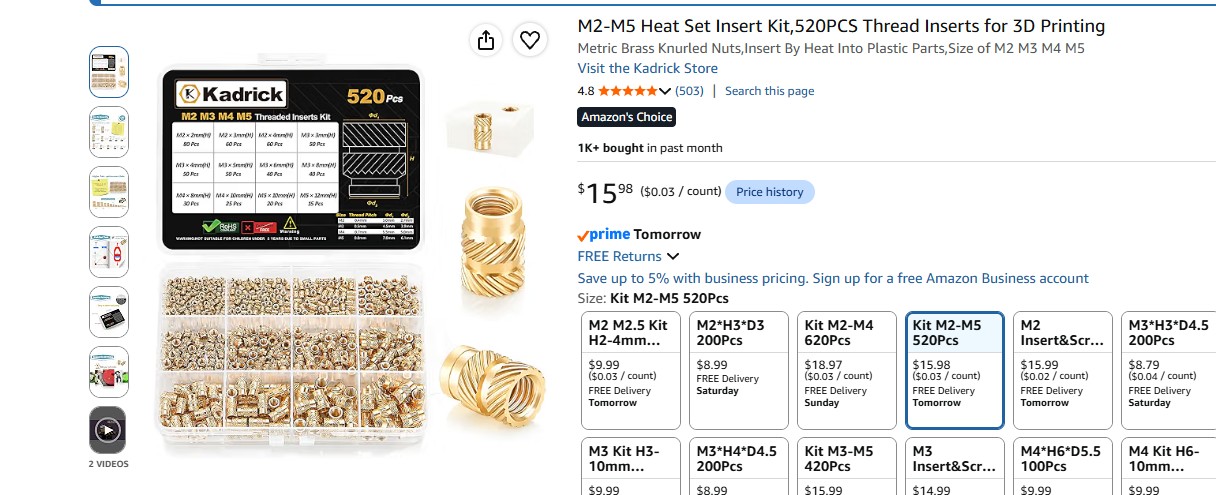
I then ordered an M2 to M5 heat-set insert kit.
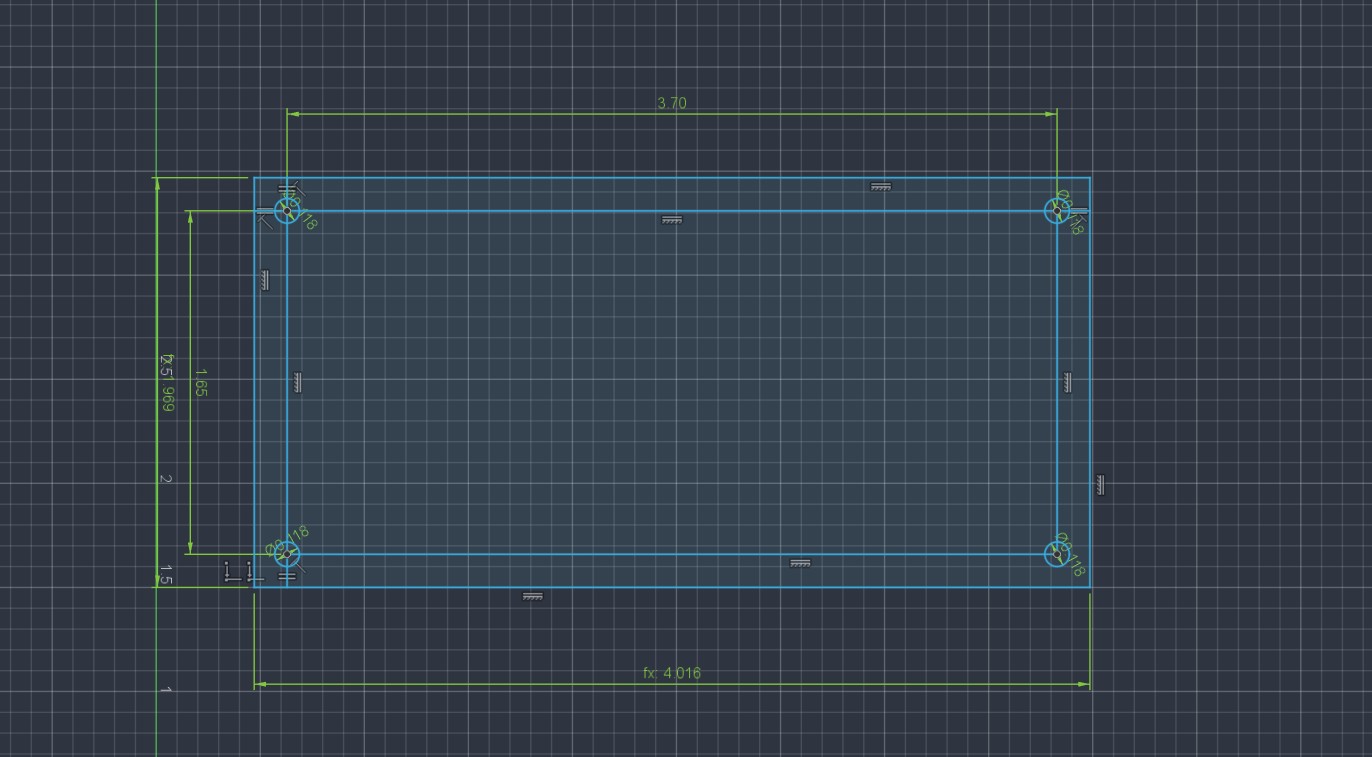
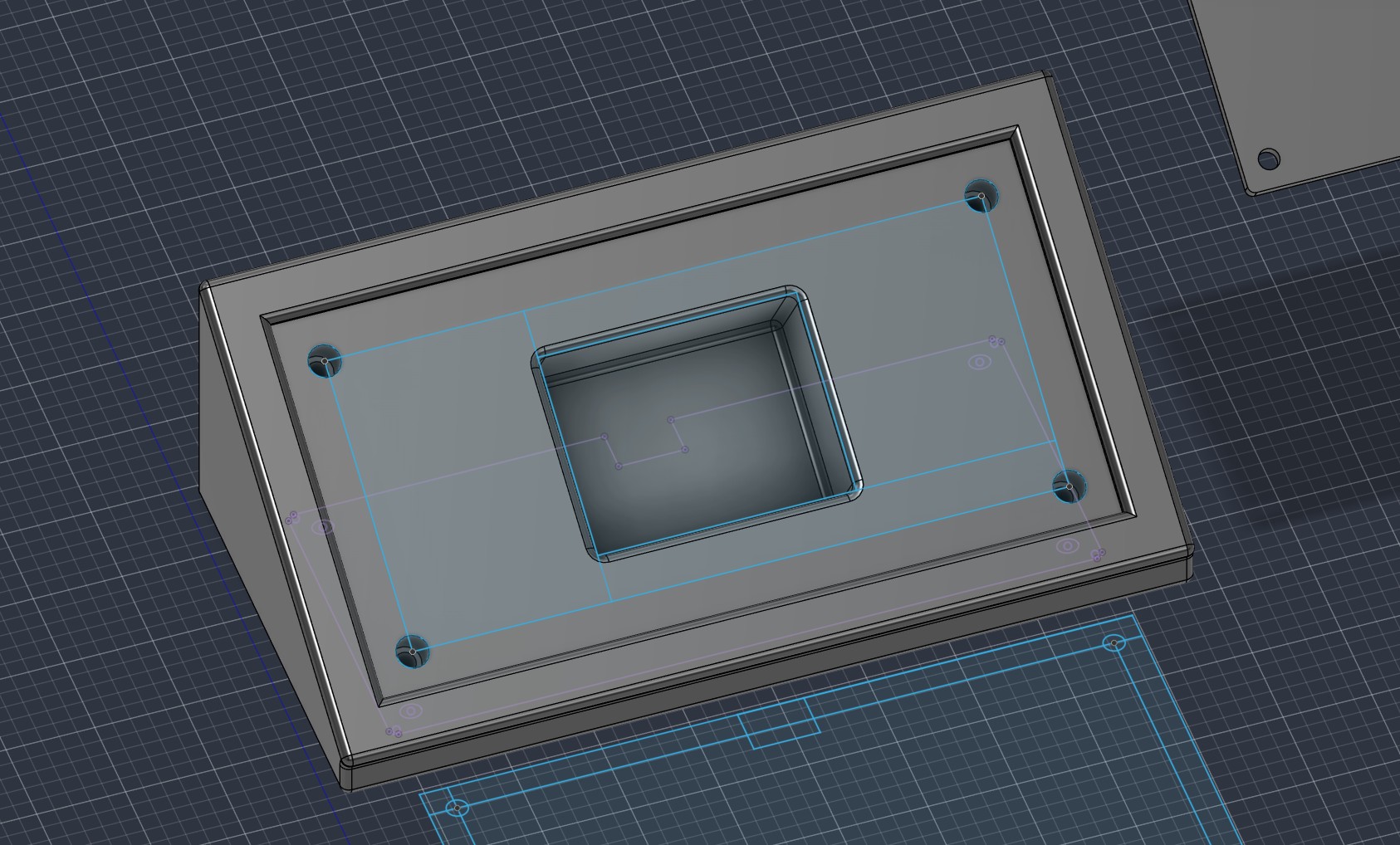
I started in Fusion 360 by sketching the board's outline and mounting holes, all dimensioned so the screws will line up with the board (The dimensions on the board work perfect the first time).
I moved the sketch up, rotated it, and extruded the two sketches together. Then extruded the outsides 2mm further for the board border.
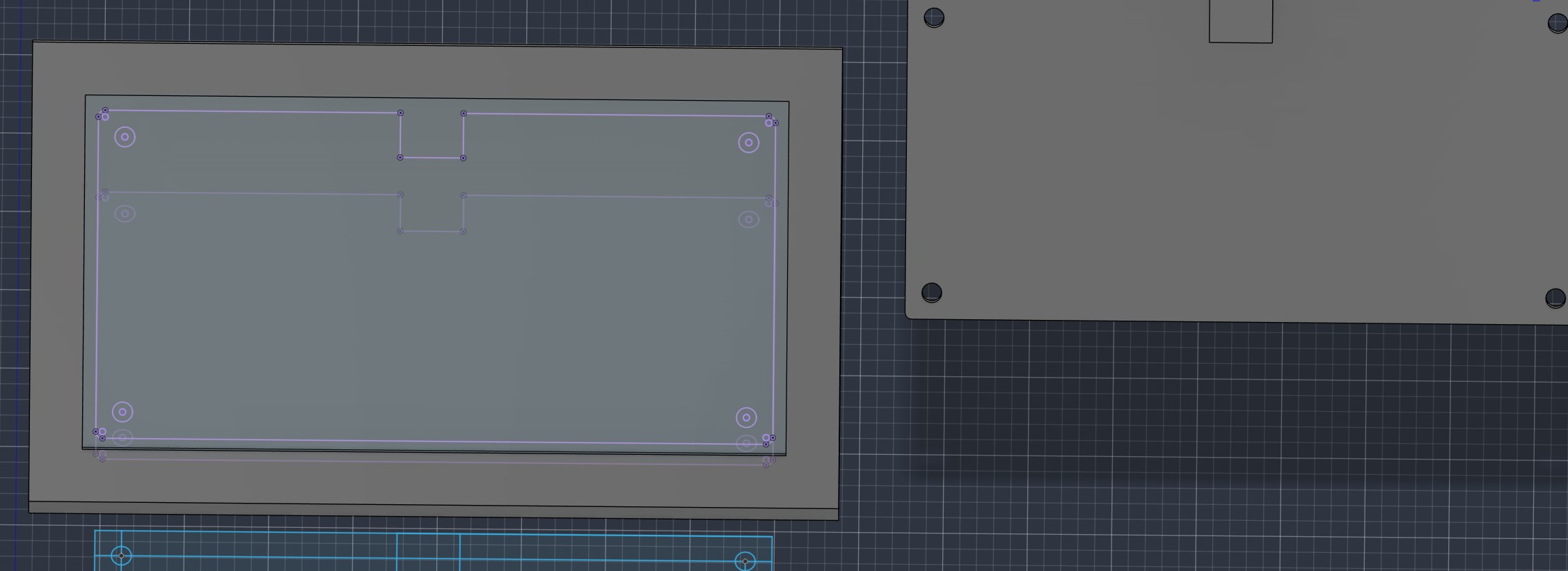
The holder is angled so the screen and buttons face up toward me when it's sitting on the desk.
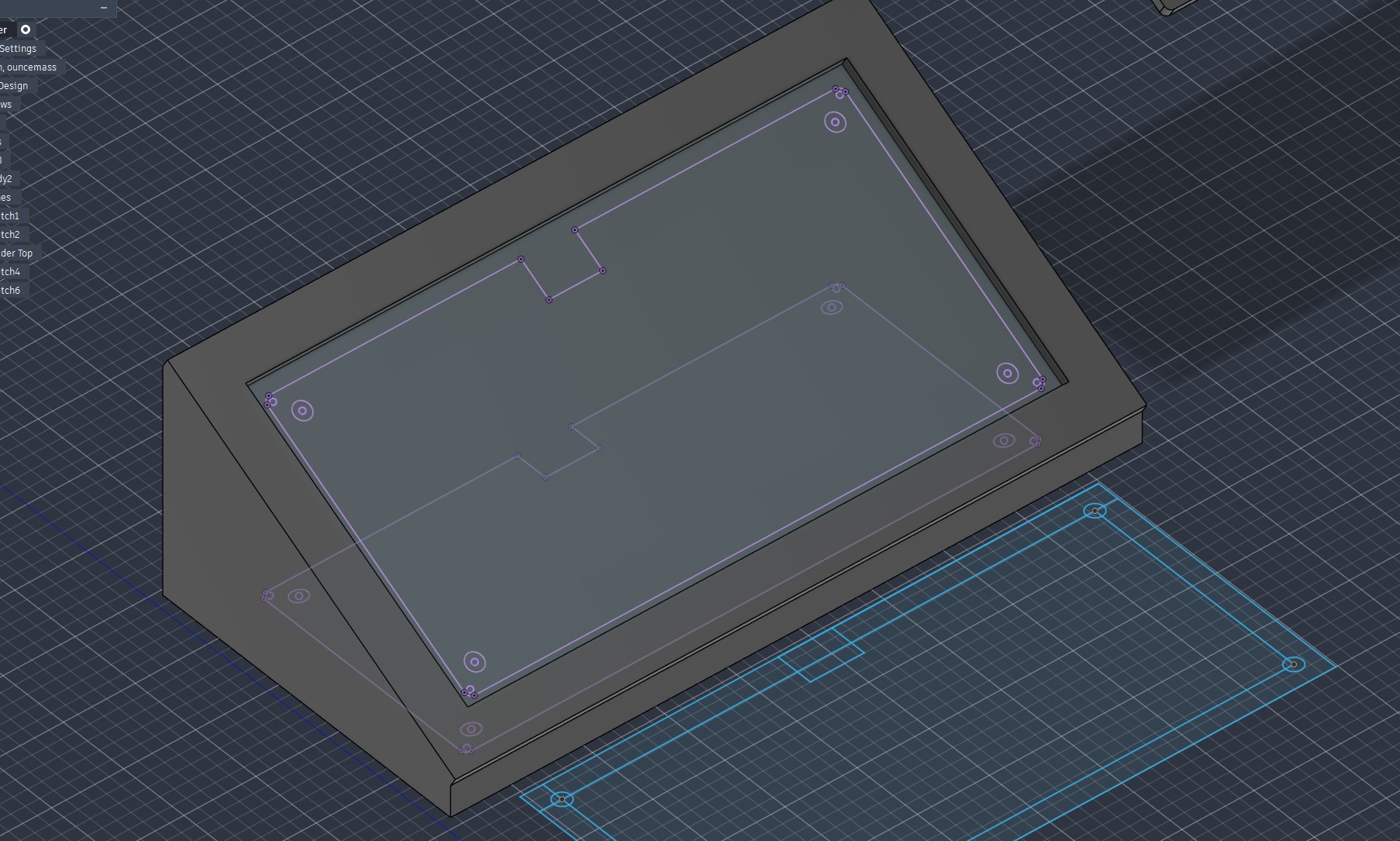
I then added a cutout in the middle for the components (prongs of OLED screen) on the back of the board, along with the four holes for the heat-set inserts.
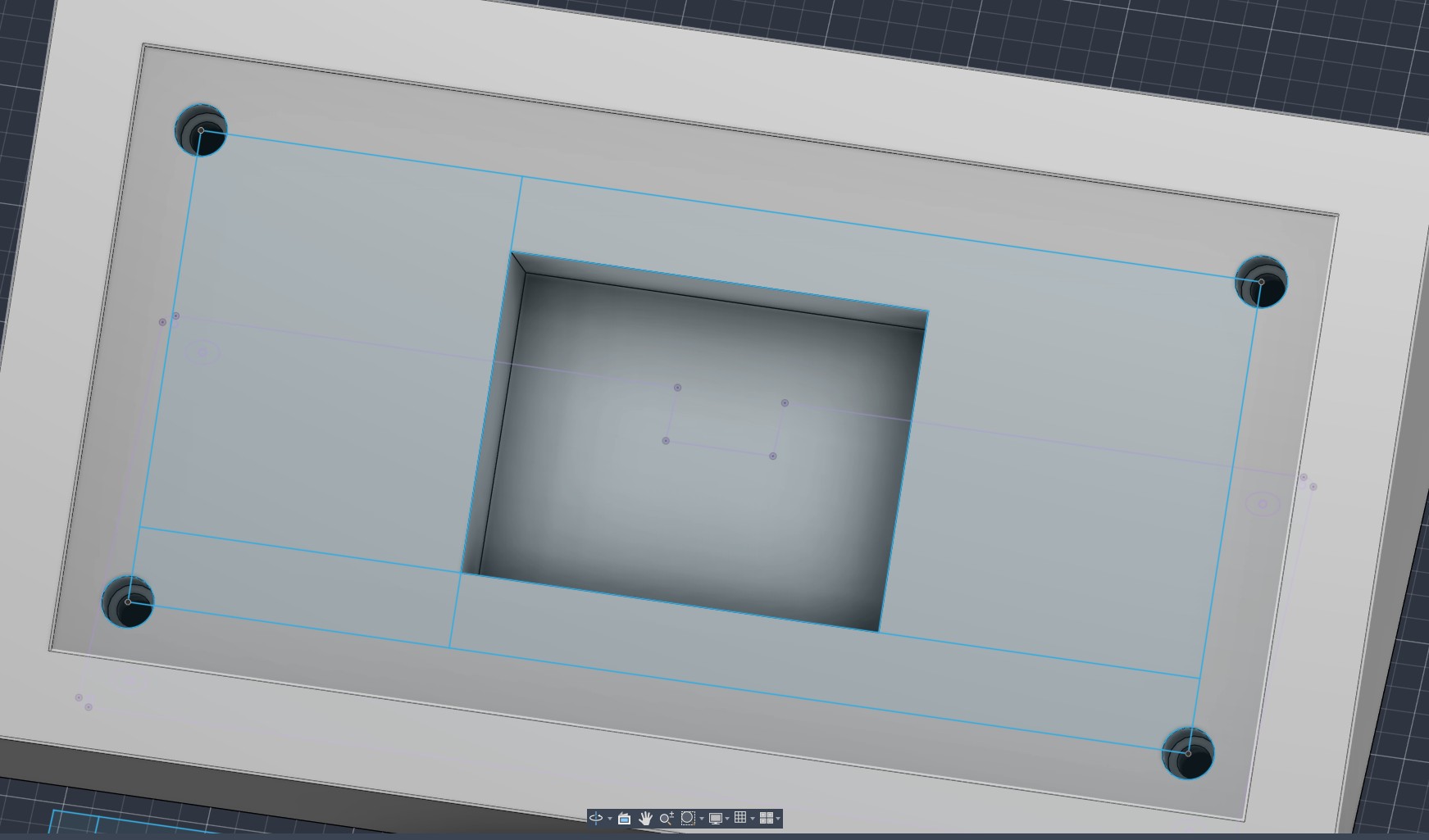
The finished design, with the edges filleted for a cleaner look and easier printing.
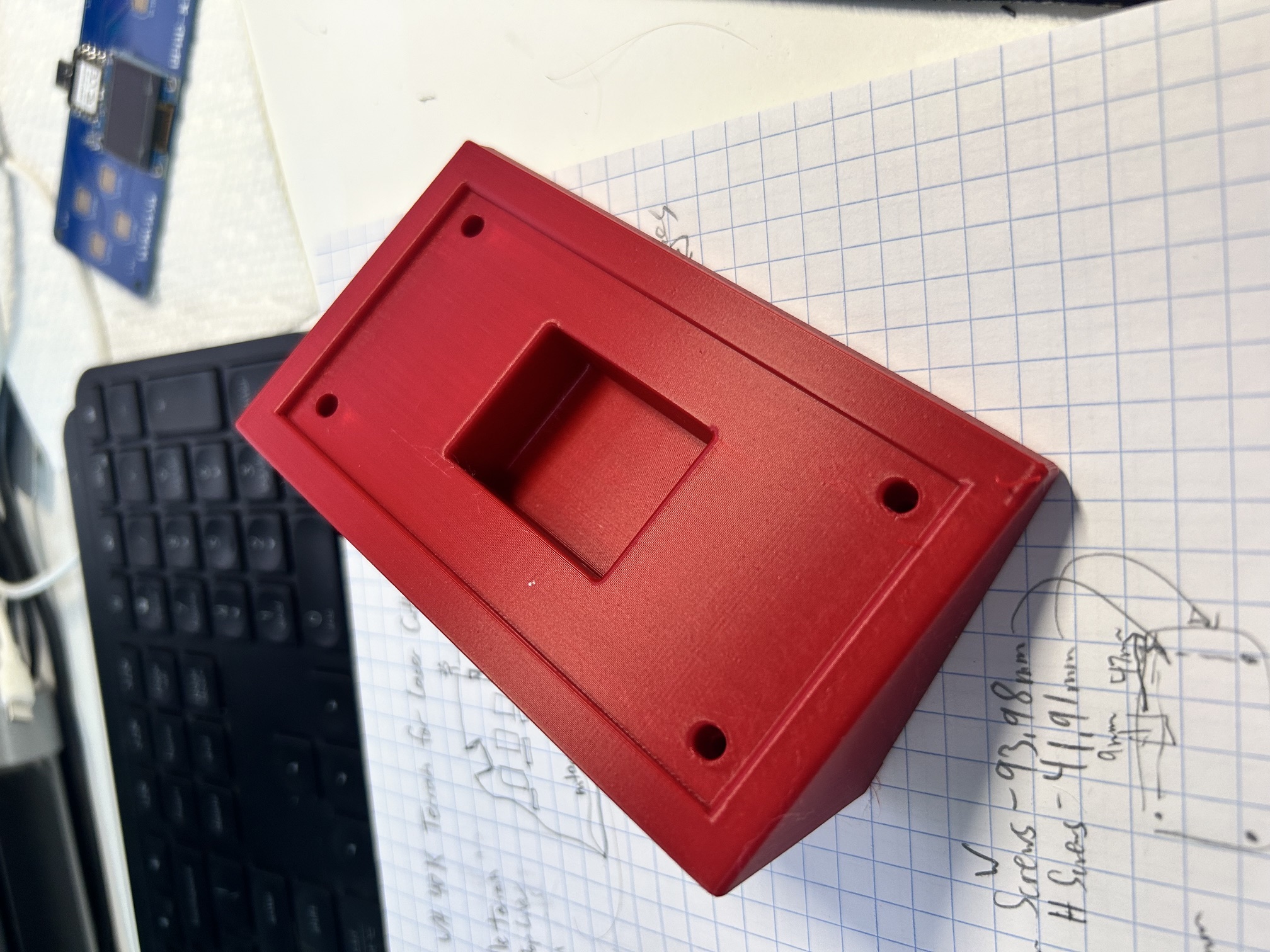
The final print of the holder, fresh off the printer.
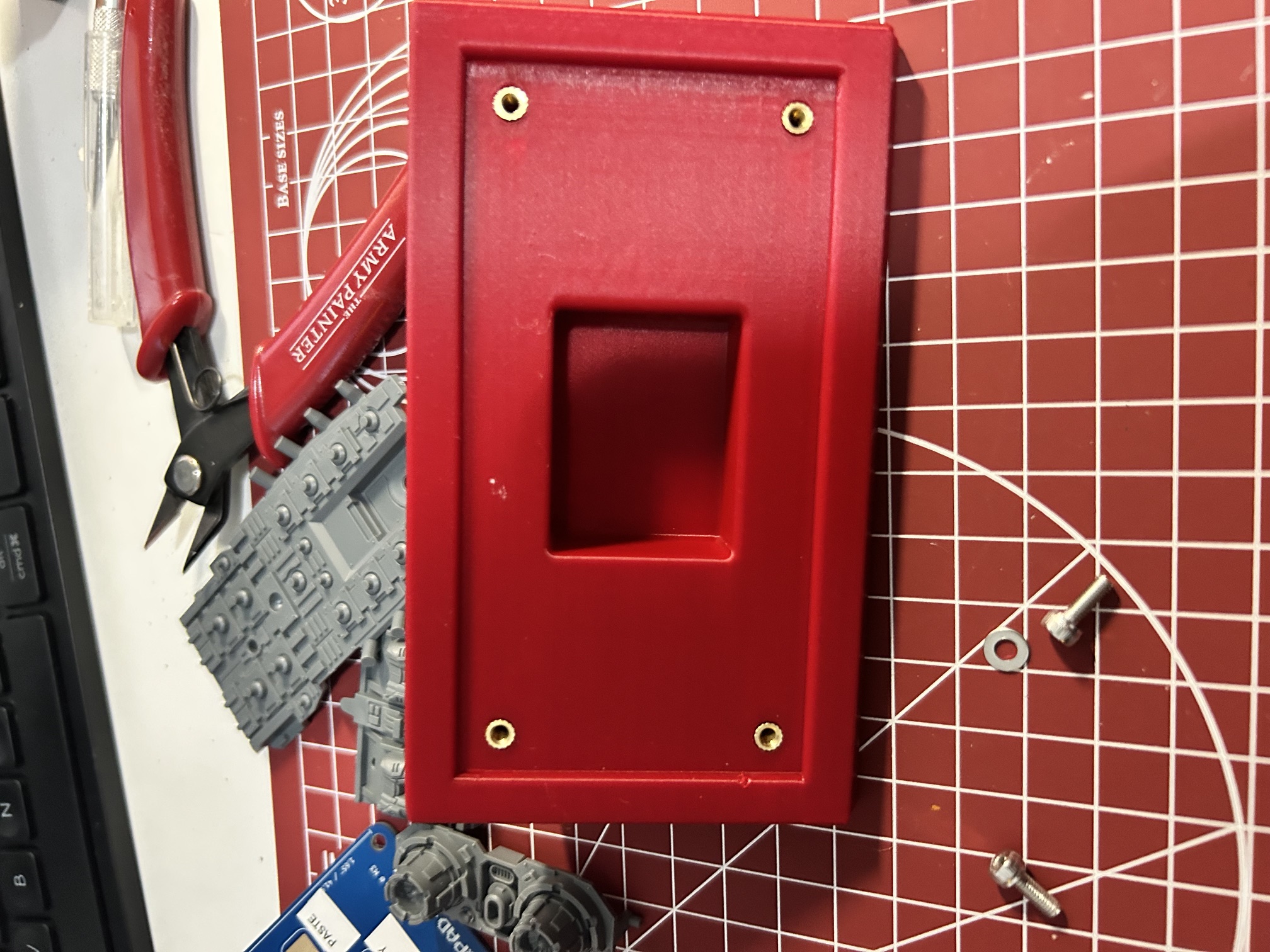
I used a soldering iron for the inserts and was able to make a perfect fit on the first print.
I then assembled the full board and labeled the copy and paste buttons. Here is the final product!
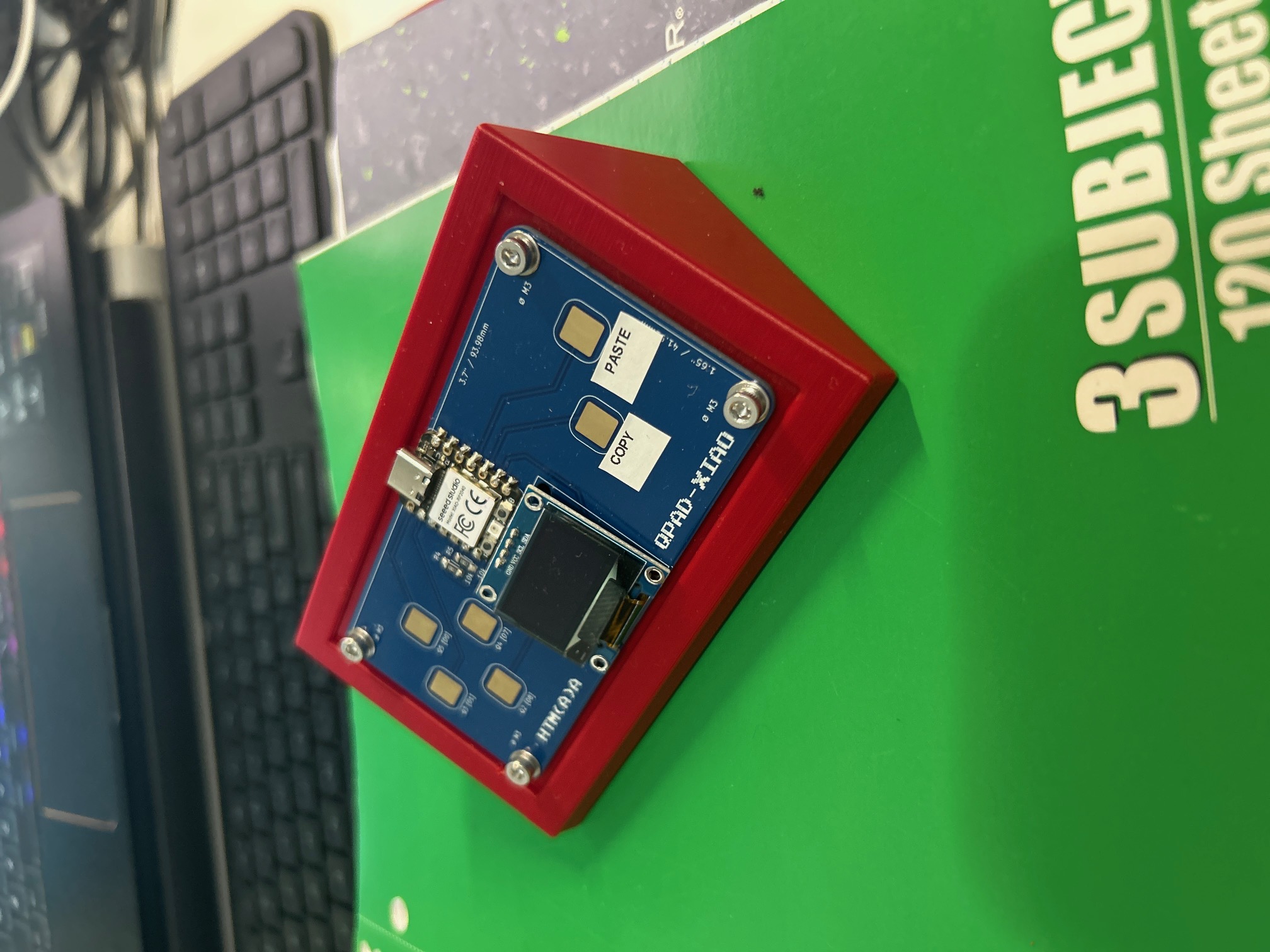
Here is the Paste Pal in action!
AI use notated in the html