Post 1: Designing in 2D and 3D
A.K.A non-artist attempts to draw + casual Fusion360 user attempts to FreeCAD
- Model (raster, vector, 2D, 3D, render, animate, simulate, …) a possible final project.
- Compress your images and videos, and post a description with your design files on your class page
What to design?
I had several ideas in mind for my final project. One of them was building a large cosplay prop that incorporated many manufacturing techniques in its construction.
In particular, I love the weapon design in the Shadow Fight series of games. The glaive (more-precisely a dual-ended glaive) is my favorite weapon type, and Shadow Fight 3’s Blade of Cognition has the sleekest design of them all.
In fact I liked it so much that it is the primary prop used in my main fursona.
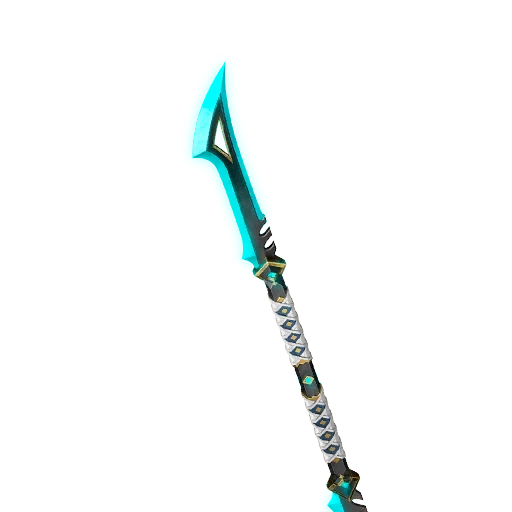
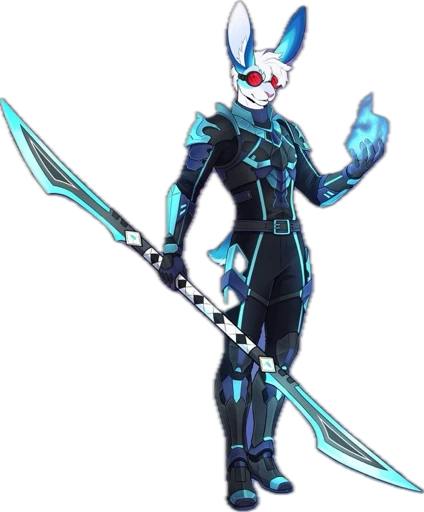
Here are some general thoughts I wrote before beginning the design
- Mechanical Decisions
    - Will need to CAD the blade for production
    - Strong to withstand light impact during use
    - Light to not be too heavy to carry

    - Materials
        - Transparent TPU for the blade to diffuse light and absorb impact
        - Wood(?) for the middle of blade?
        - 3D-printed section for the handle to hold the electronics?

    - Glaive should be separable into two halves
        - Dowels + magnets to hold it together?
        - Turn and lock mechanism?

- Electrical Decisions
    - Would like the blade lighting to be controllable.
    - Need to have a microcontroller inside the hilt + batteries
    - What kind of LED strips to use?
2D Design : Procreate
I used Procreate for the initial design. This is my first time using Procreate; I have several friends who used it for art and I wanted to try my hand at a more “professional” art software.
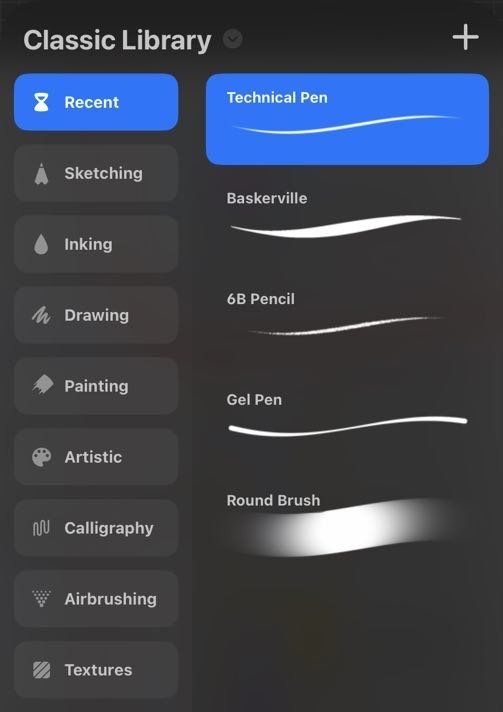
Procreate was quite overwhelming to begin with. There were a large number of brushes that I could use. That and the pressure sensitivity of the brushes initially threw me off.
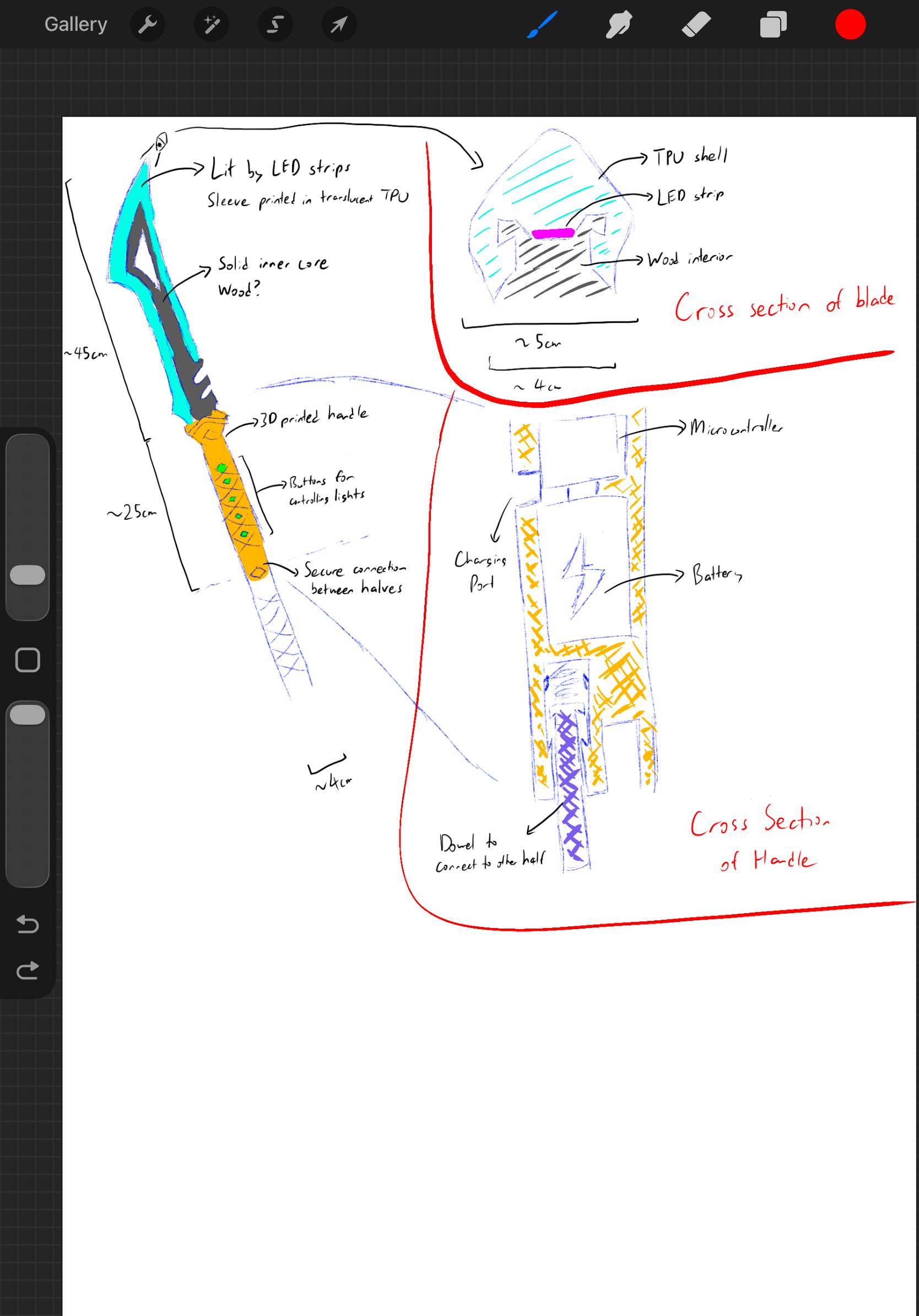
I sketched out some details and cross sections of the glaive, then added some annotations to the drawing to indicate materials or components I wanted to add.
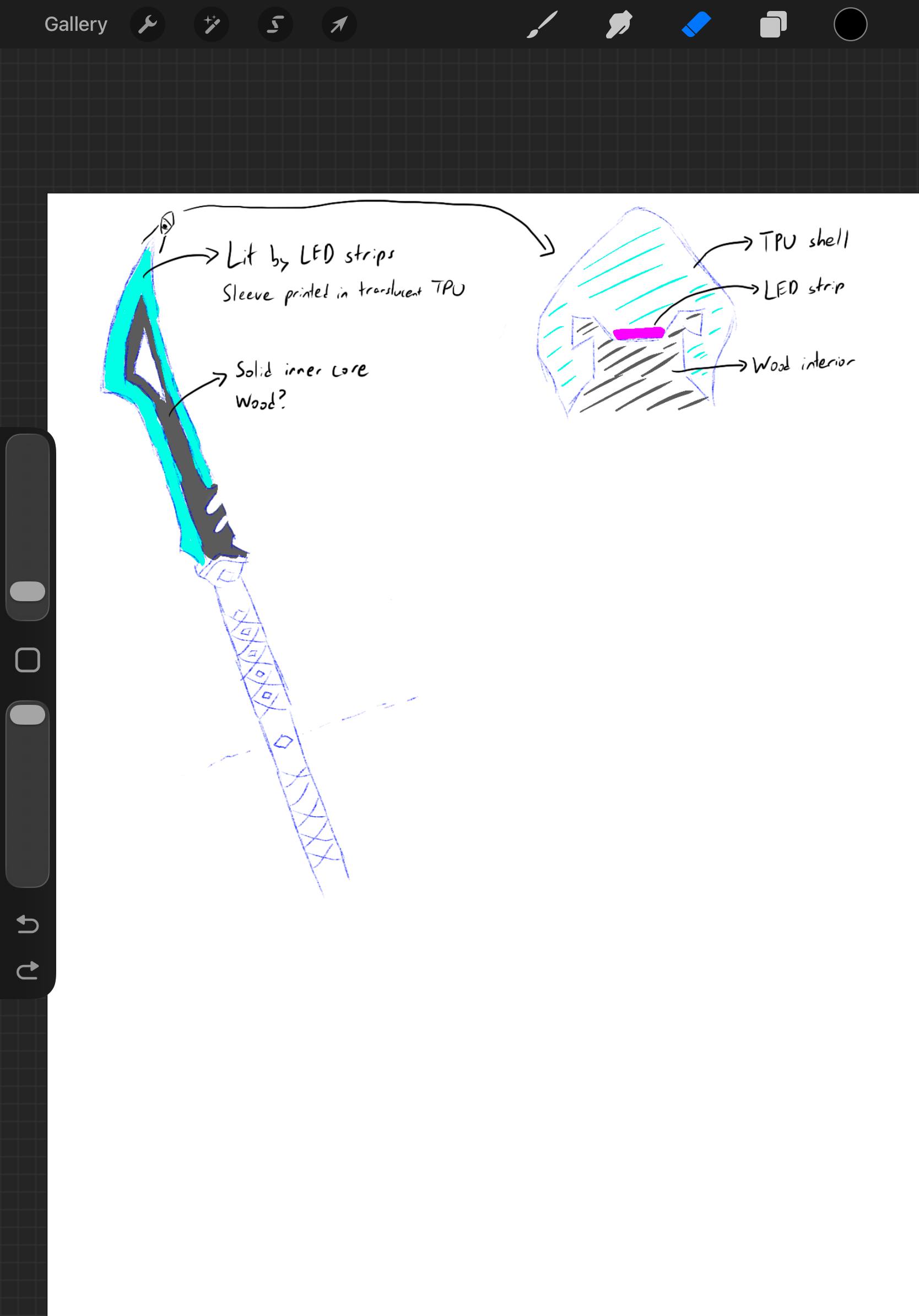
My general idea was to have an LED strip run along the wooden interior of the blade, which is then diffused by the TPU shell around the wood. This shell is held in place by stretching it around the wooden interior.
3D Design : FreeCAD
Before HTMAA, I primarily used Autodesk Fusion360 to do CAD. Since FreeCAD was emphasized so heavily in the class, I gave it a shot. I will be using FreeCAD 1.1.3 here on Windows 11.
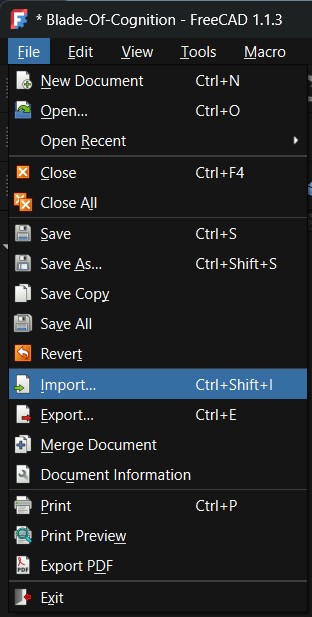
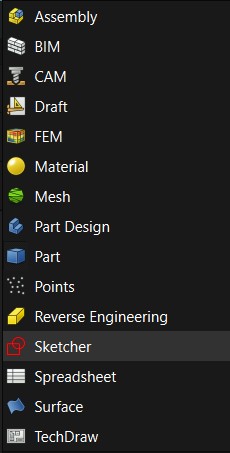
I first imported the refernce image into FreeCAD and placed it on the XY-plane so that I could trace over it. In order to trace, I switched the workbench to Sketcher to use the sketching tools.
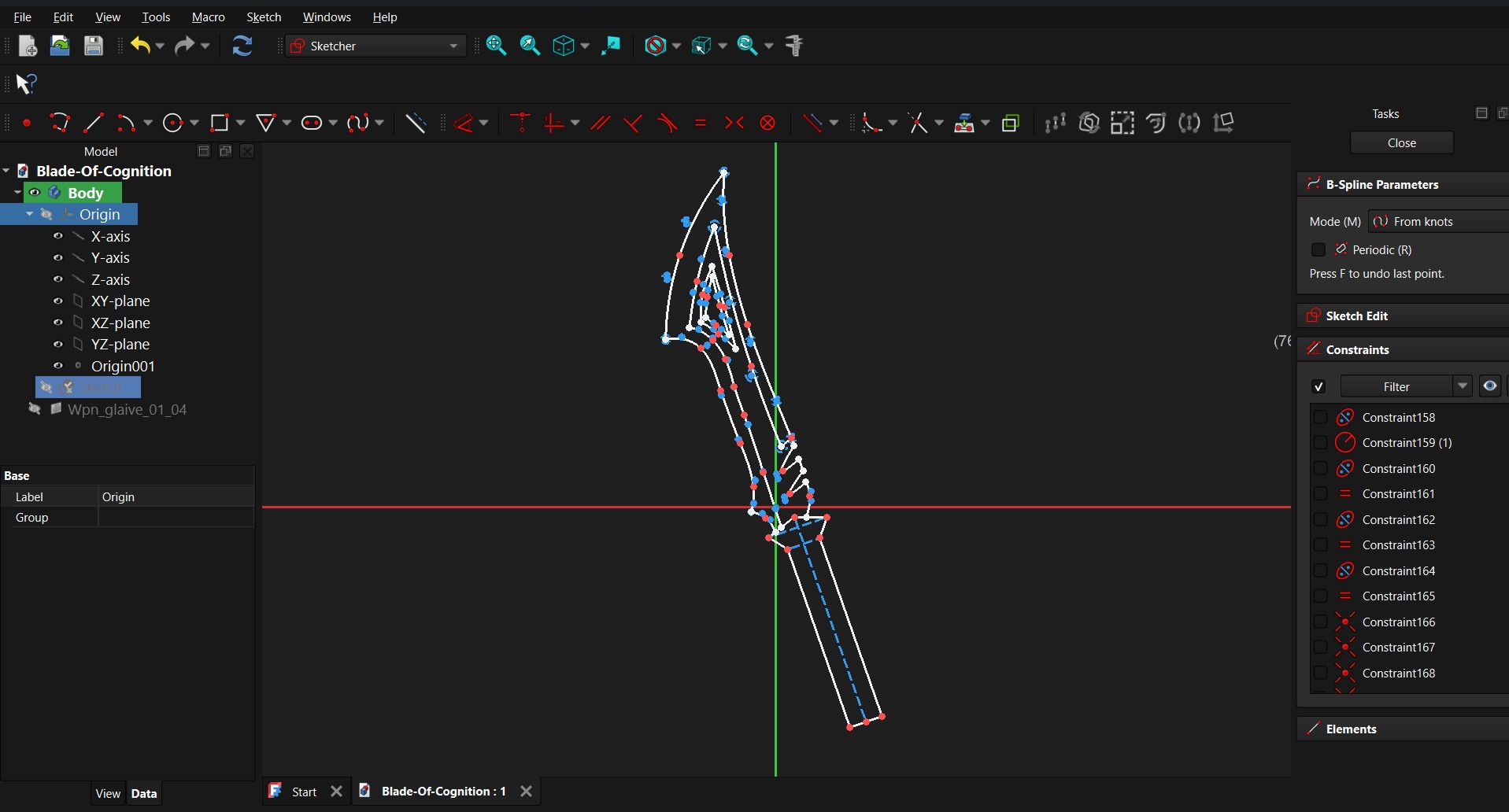
To trace the shape of the prop, I use the Point tool to place points on corners and intermediate positions on the prop.
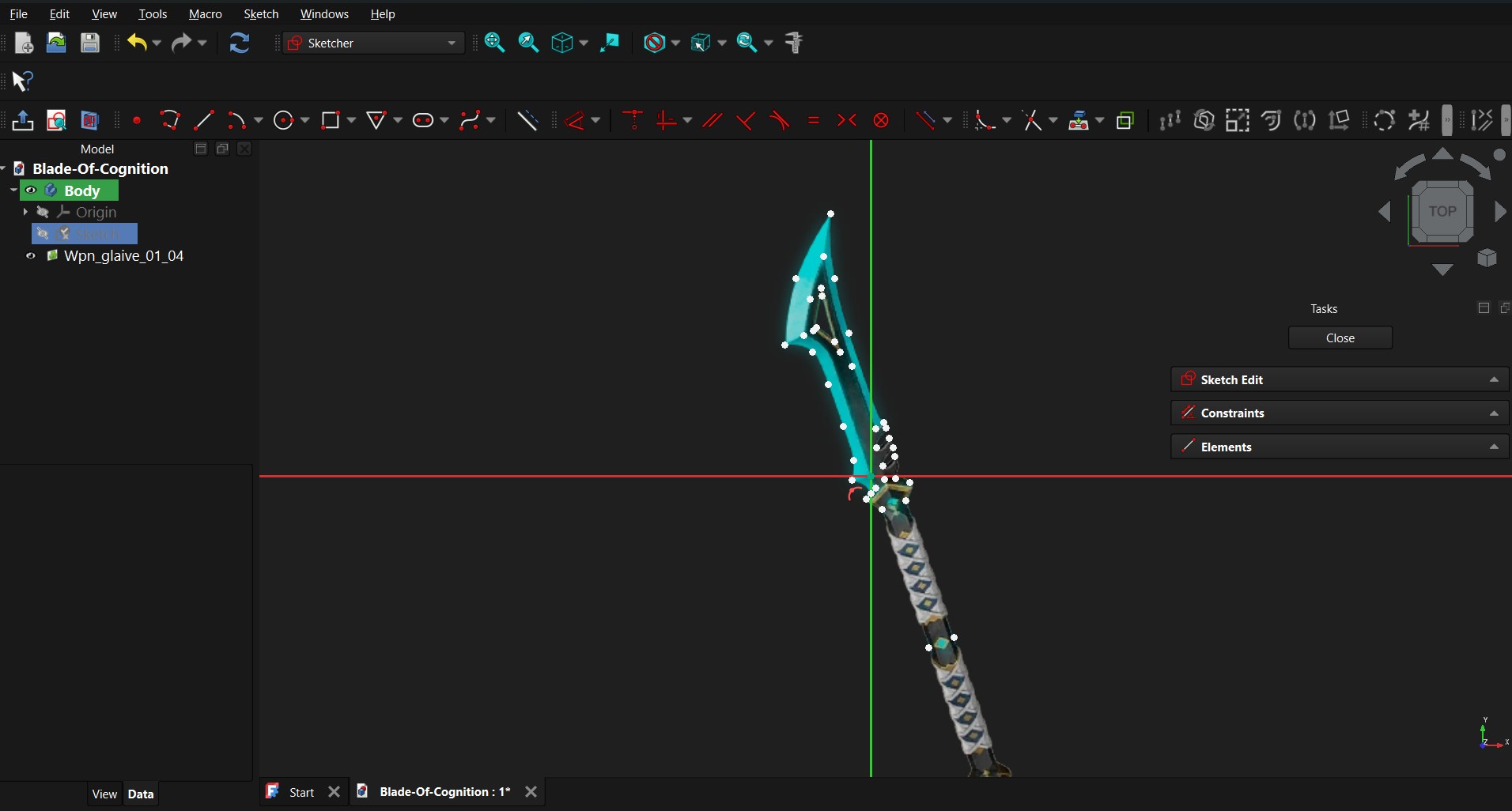
Once I had a decent number of points along the edges that I wanted to trace, I begain to connect these dots with lines and splines to form smooth edges. I also added a number of constraints at the handle to ensure that the handle was symmetric with respect to the centerline of the handle.
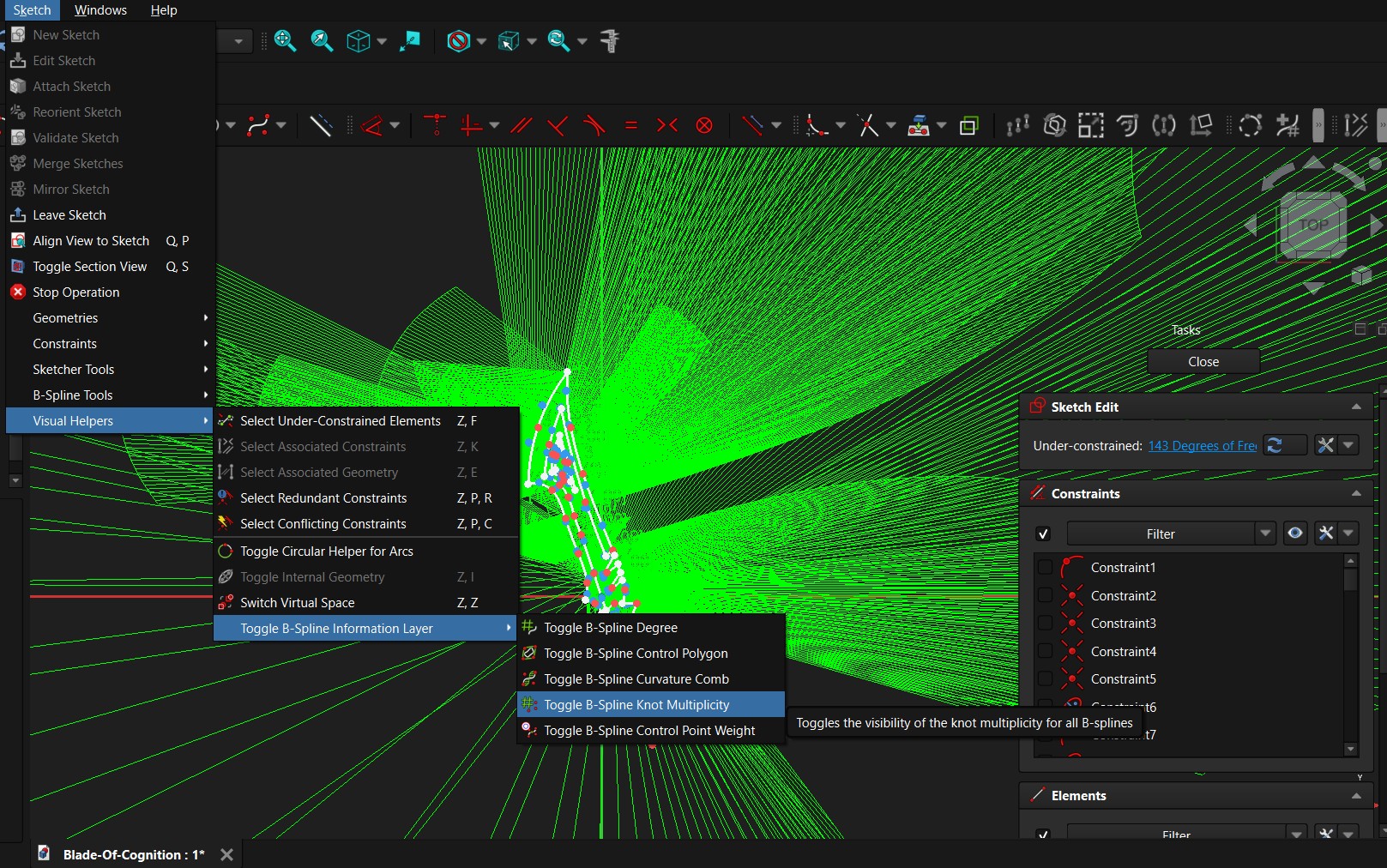
By default, FreeCAD will draw lots of visual helpers to show you how the splines are drawn. Since I am approximating the shape of a model with lots of splines, this results in a huge about of visual clutter. Thankfully, you can disable this with Sketch -> Visual Helpers -> Toggle B-Spline Information Layer and toggle anything you don’t want to see. The most annoying one by far was the curvature comb because it created lots of green lines all over the screen.
Being used to Fusion360, I expected to be able to extrude directly from these sketch profiles. Turns out, FreeCAD is very picky about what kinds or profiles it will extrude. It will refuse to extrude the flat surface formed by a loop if it cannot determine that the loop is actually closed. This led to a lot of frustration when attempting to pad (FreeCAD’s version of extruding for Part Designs) as FreeCAD would complain that the edges I chose did not form a closed loop.
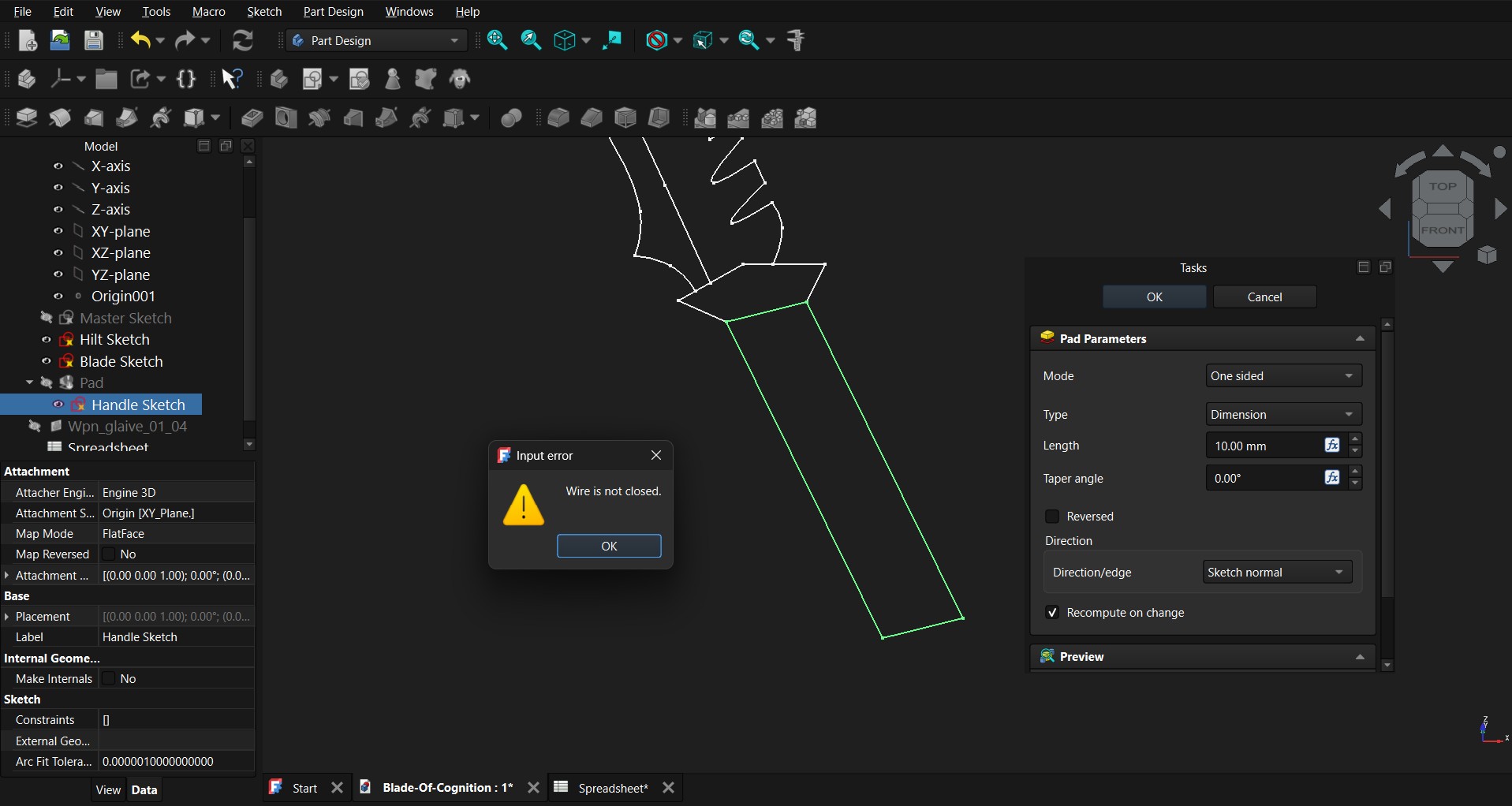
I initially attempted to repeatedly add Coincident constraints to the corners where the lines should meet. It turns out that I was actually using the unified version which reportedly has some issues when trying to close loops as it allows coincidence on extensions of a line (I do not claim to fully understand why this does not work in my case).
After some snooping online and suggestions by Claude, I found Sketcher -> Validate Sketch. This tool detects almost-coincident parts of the sketch lines / cruves and fix the sketch.
After fixing all of the sketches, I could pad each of the segments in order to create the rough shape of the handle, blade and hilt. To avoid writing the same parameter values / using the wrong values for each part of the model, I created a spreadsheet with all the necessary parameters. Notably, I forgot to scale the reference image when I started the project, which means I now have to pay the price by computing a scale ratio to scale everything by.
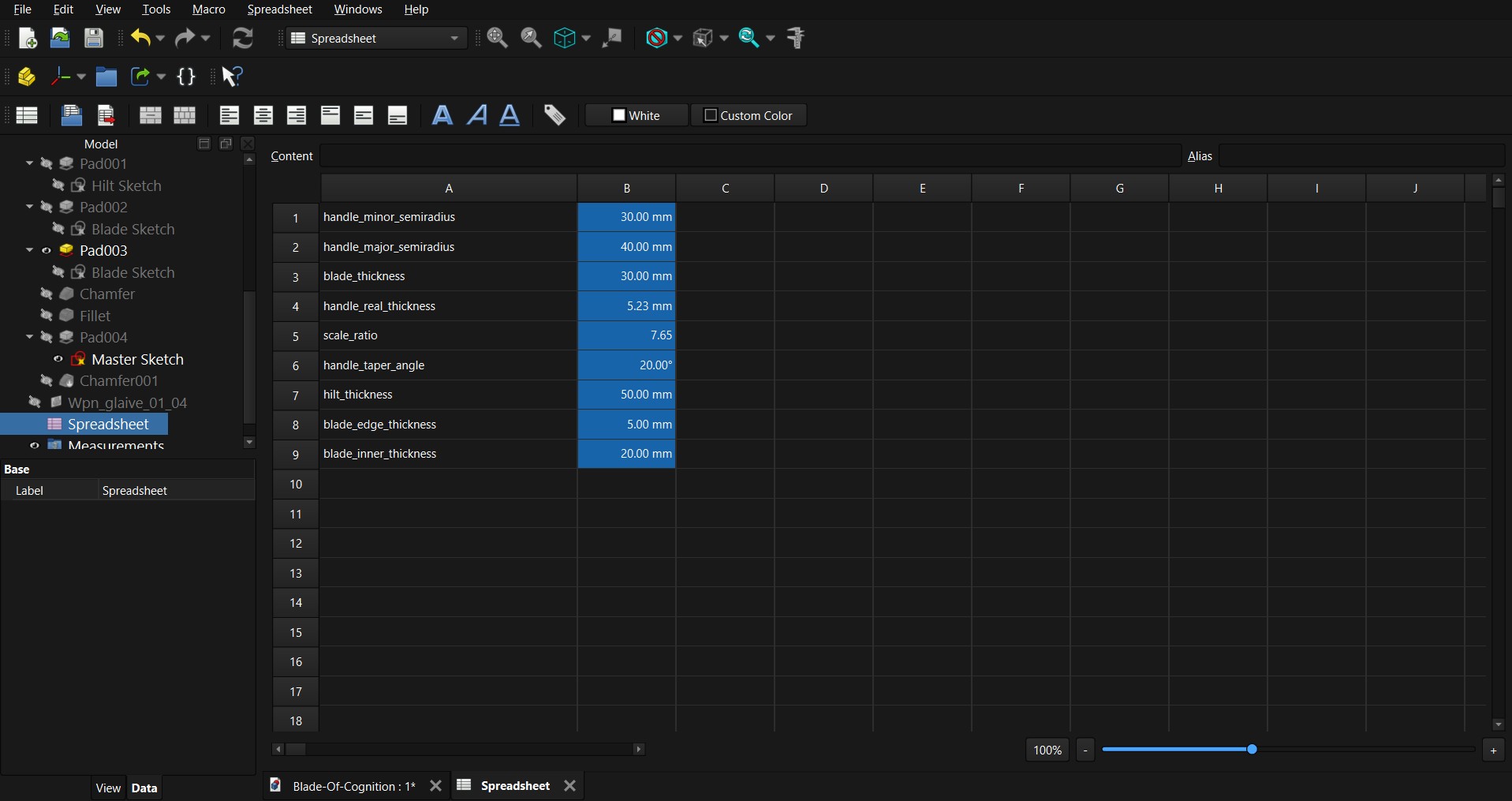
With the parameters in place, I can perform the pad / extrusions. This gives the rough shape of the sword, but it currently is very blocky.
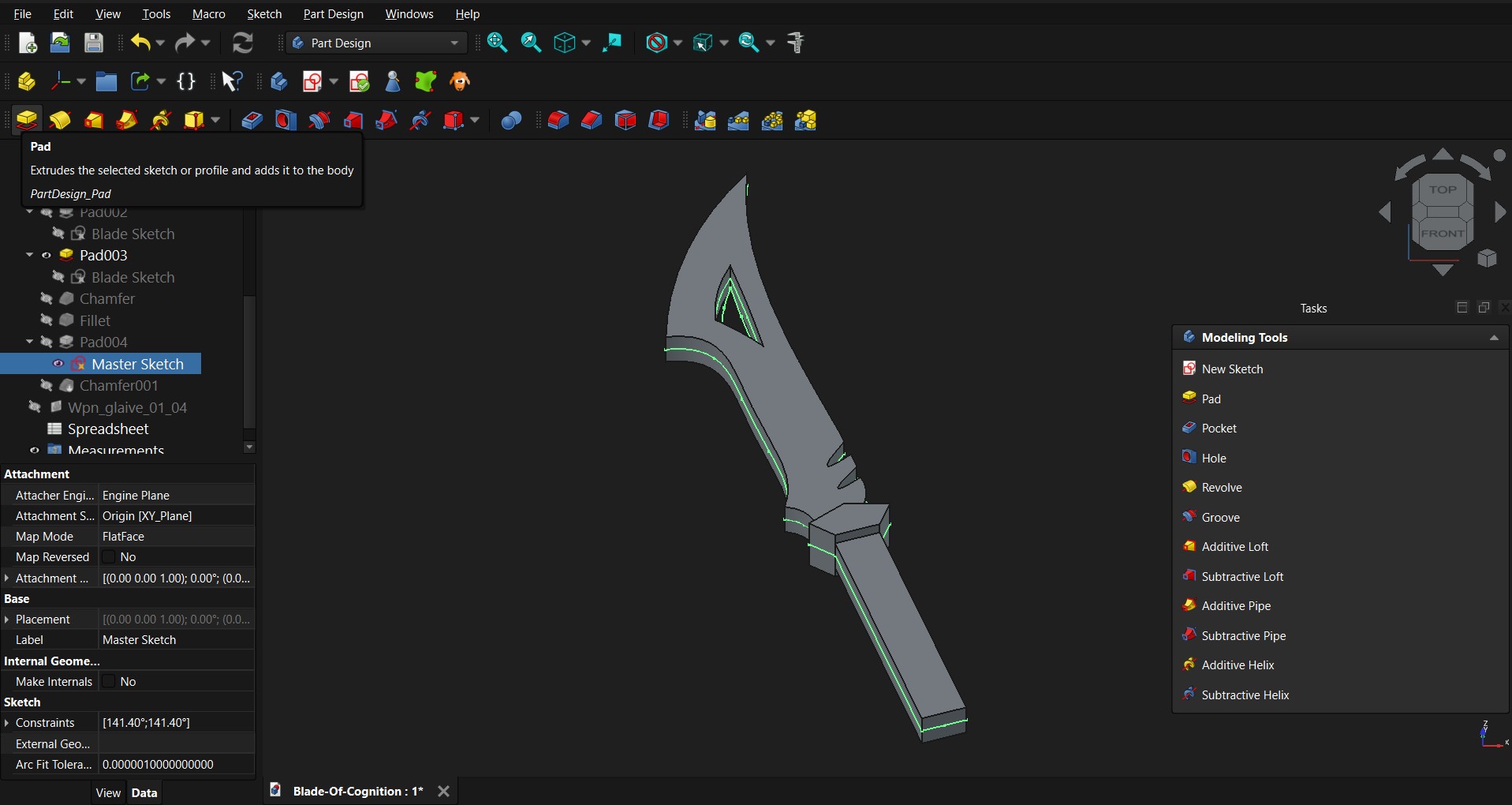
We can make the blade sharper (but not actually sharp where it might be dangerous) by chamfering the edge of the blade to form an angle at the edge. The handle can also be rounded by filleting.
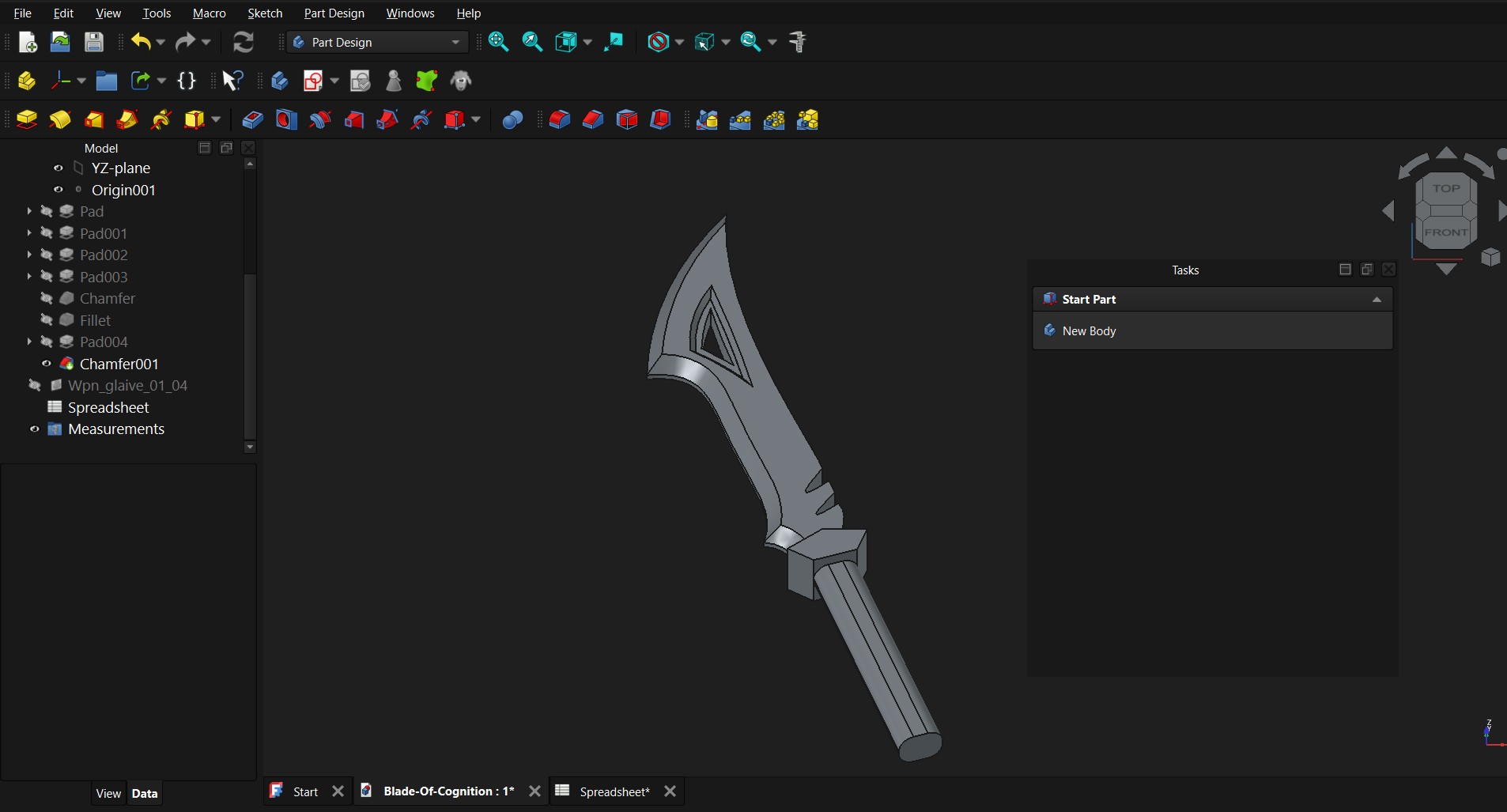
At this point I realise that I need to redo the blade if I wanted to create the cross section as drawn in the 2D sketch. Welp, guess I’ll redo that in the near future!
AI Use
Claude for fixing the webpage to put images correctly (shortcode for a row). These can be found in the repo layouts/shortcodes/row.html. This is used by wrapping text/images in <row> inside {{}}
Claude for suggesting Validate Sketch for fixing the coincidence issues.