Post 6: Electronics Production
I last milled a PCB 2 years ago, what could possibly go wrong? Everything. Literally everything can go wrong.
group assignment:
- characterize the design rules for your in-house PCB production process
- submit a PCB design to a board house
individual assignment:
- make and test an embedded microcontroller system that you designed
- extra credit: make it with another process
WARNING: This is a very long post. Many mistakes were made in the making of this post.
KiCad Python
Out of curiosity, I wanted to see if I could programmatically generate a test pattern for testing milling tolerances. My idea was to design something similar to the line traces test pattern but natively in KiCad.

After a bit of searching, I found the KiCad Python API. The documentation is quite confusing: the add-on developer documentation mentions the kicad-python package, but scripting within the KiPython Shell for KiCad 10.0 does not expose kicad-python. I ended up using the pcbnew package which is set to be deprecated in KiCad 11.0 and replaced by the kicad-python package.

I wrote an initial script to generate the coordinates for each trace. This plugin was named “Width Test Tracks”. There are two primary knobs to turn on this script
NUM_TRACES: Number of traces to drawTRACE_INCREMENT: Increment in width of the traces
Each group of 3 traces consists of a center trace of a specific width, and a wider trace above it with the same width cut in the middle.
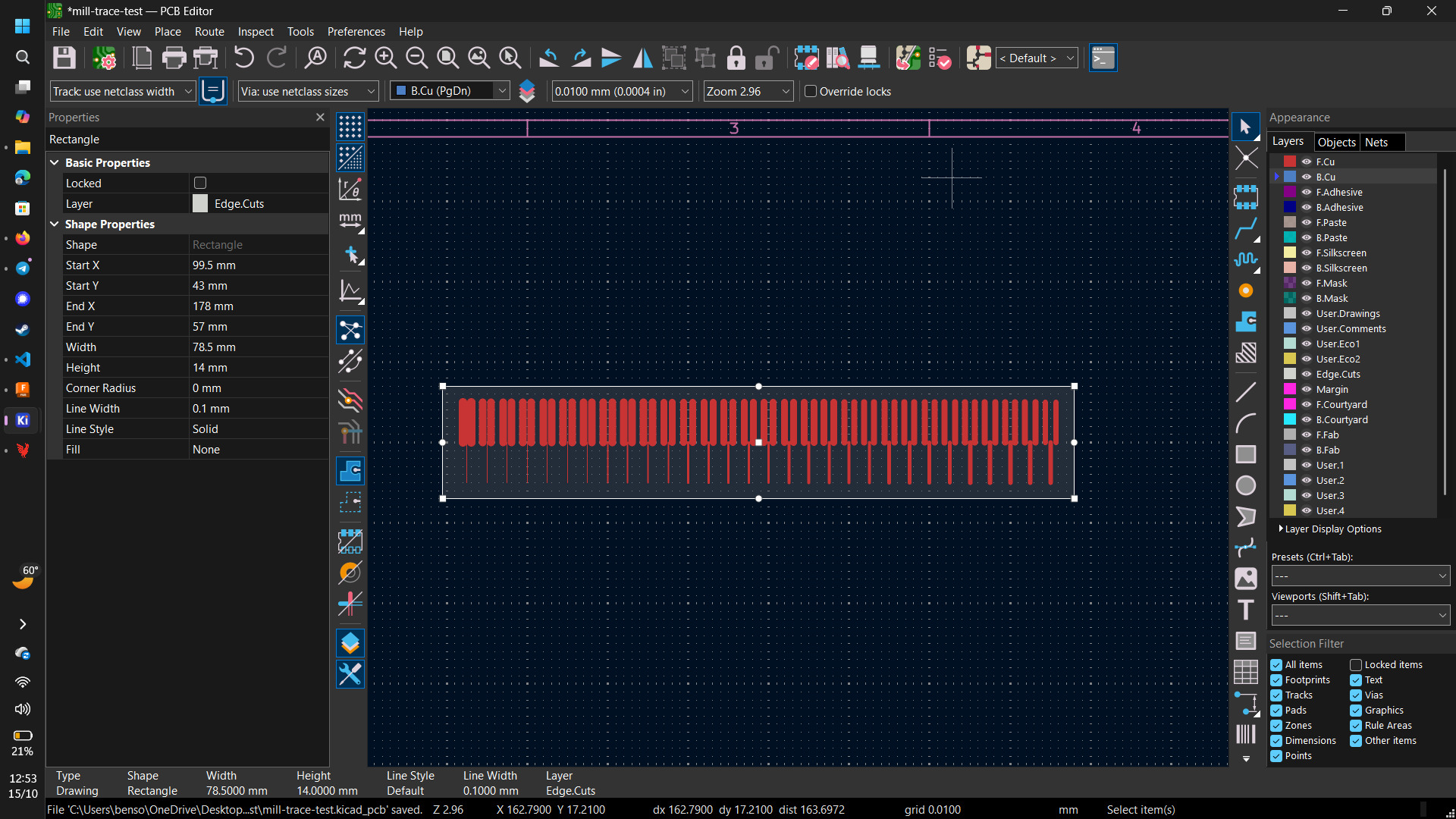
I then got Claude to fill in the boilerplate needed to turn that logic into a proper KiCad plugin by adding the right inheritance of the pcbnew.ActionPlugin class.
PCB Milling
Design Rules on the Metropolis Othermills
For simplicity, I will refer to the test patterns as #groupsxincrement. I generated 3 sets of designs using the “Width Test Tracks” plugins: 20x0.01, 30x0.02 and 20x0.05. Since Metropolis also uses the Othermill PCB Milling machines, I opened the Gerber files exported from KiCad into Bantam Tools Milling Machine Software.
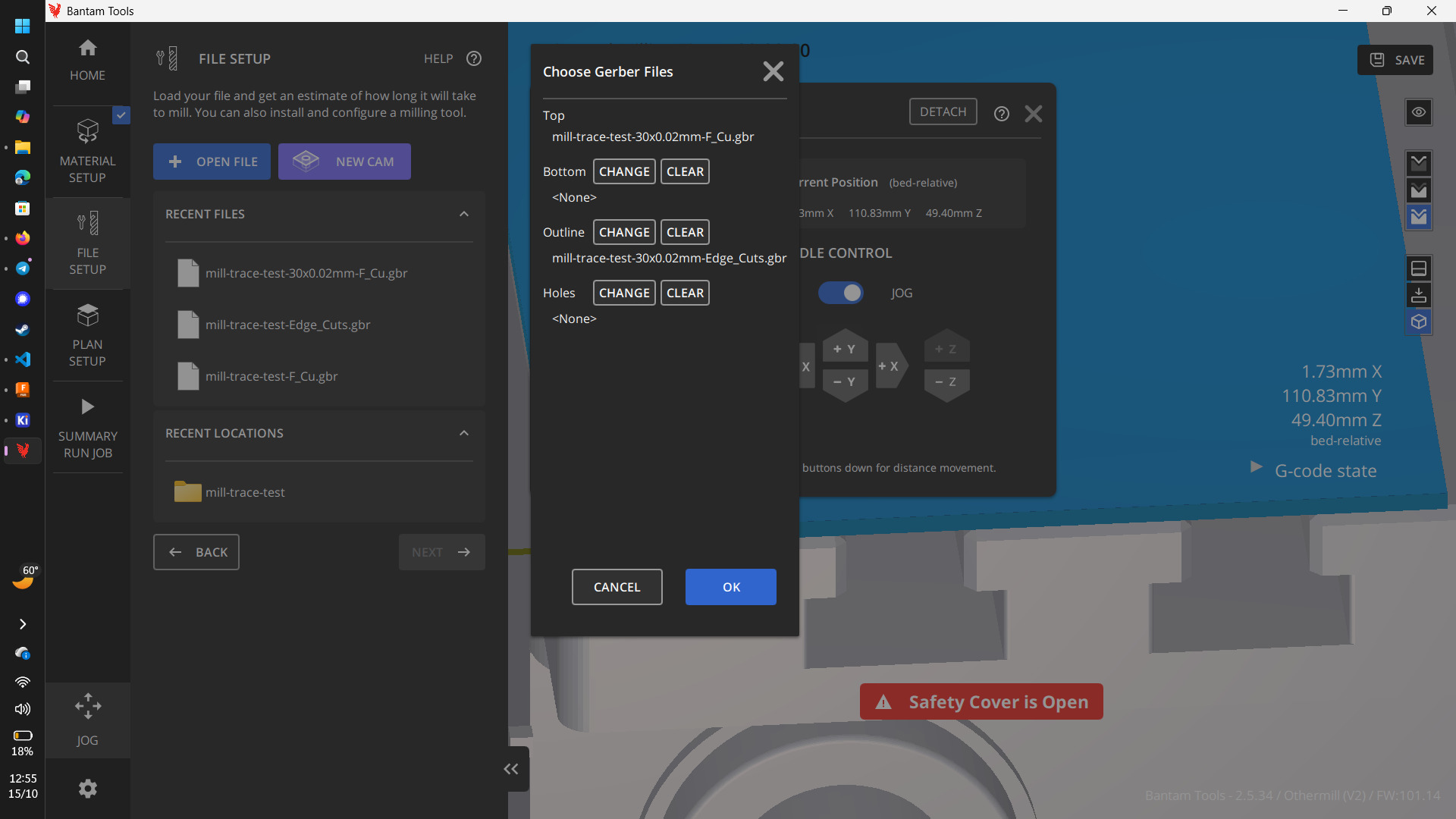
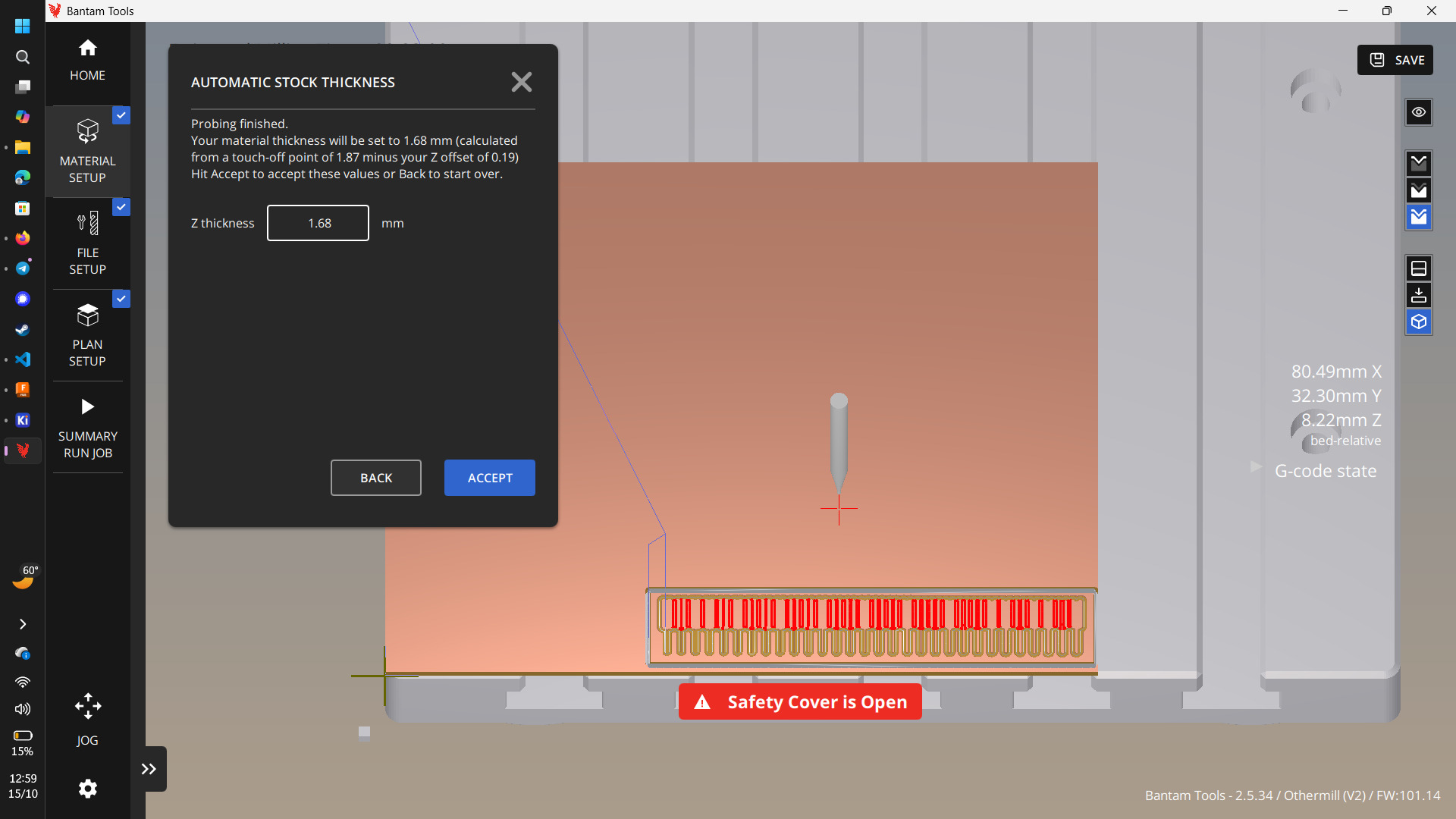
I measured the thickness of the stock I used (with and without the double sided tape) with a pair of calipers. I also loaded the 1/32" endmill. The Othermill automatically homes tools by touching it off on the bed, so I assumed that all of this was enough calibration. Turns out, I was wrong.
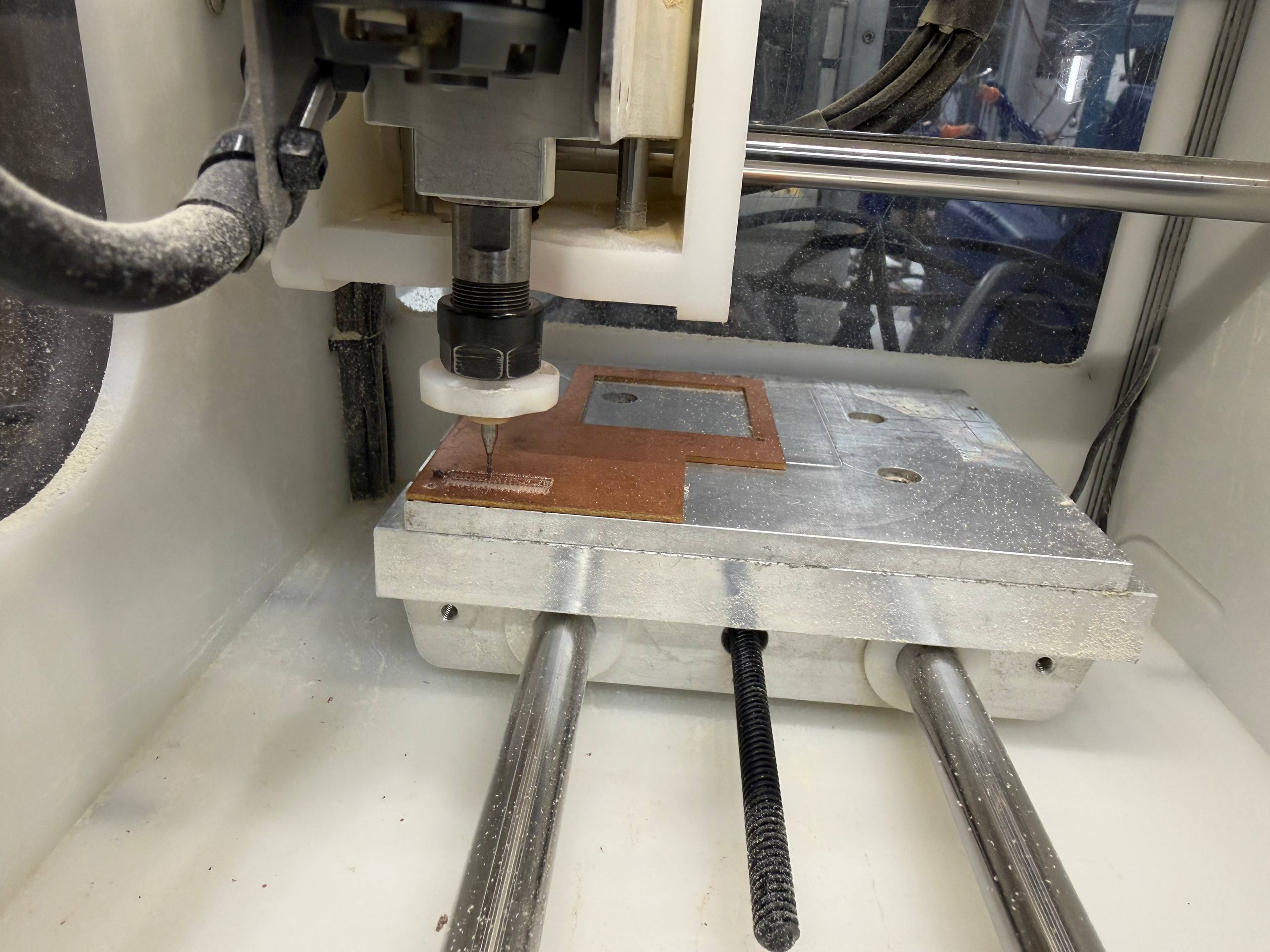
From that point on, I always did a z-calibration on the board (and not just the bed) before running a job.
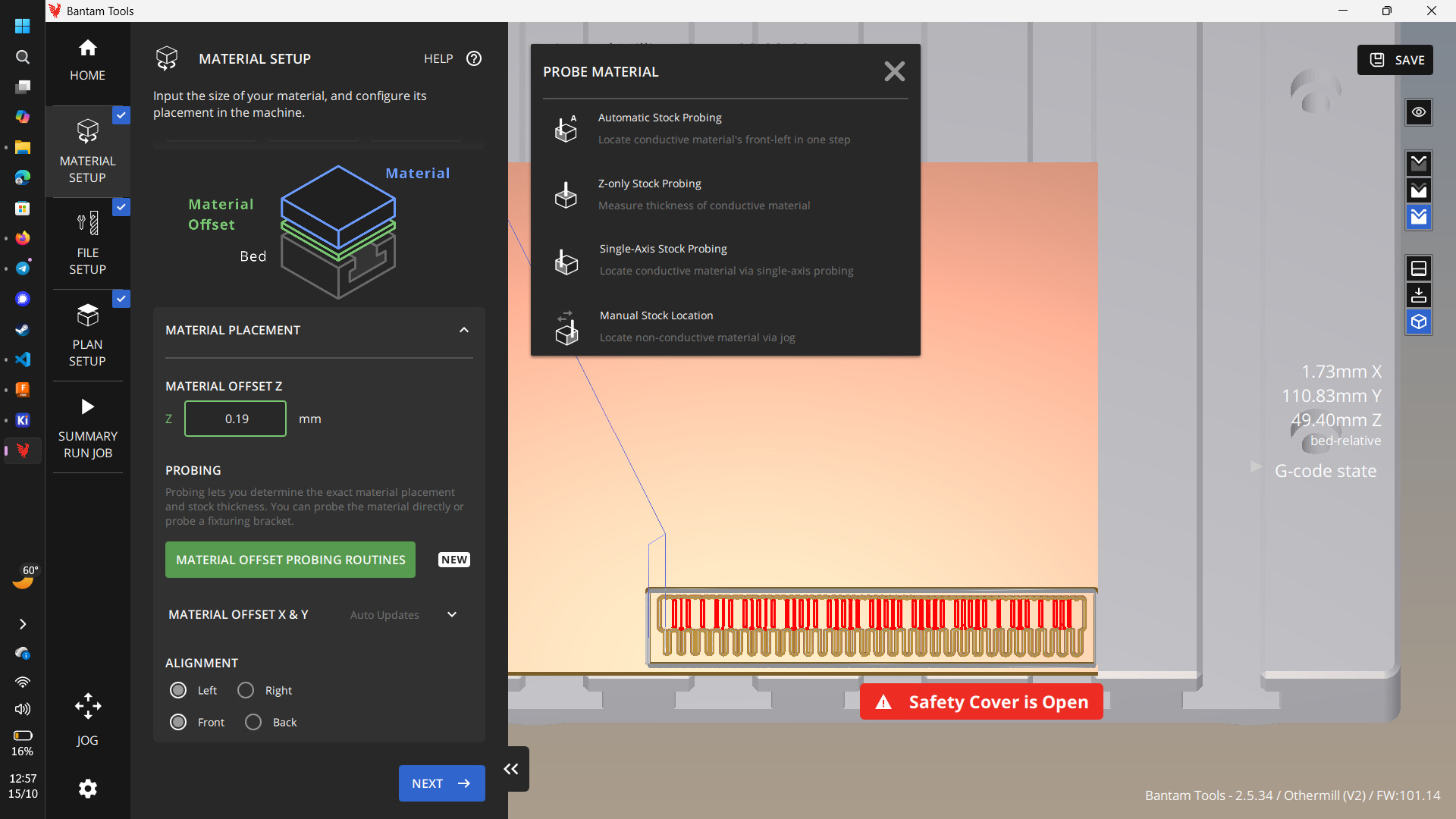
Since the copper of the PCB is not electrically connected to the bed when mounted with double sided tape, I had to install a small clamp to connect the copper with the bed.
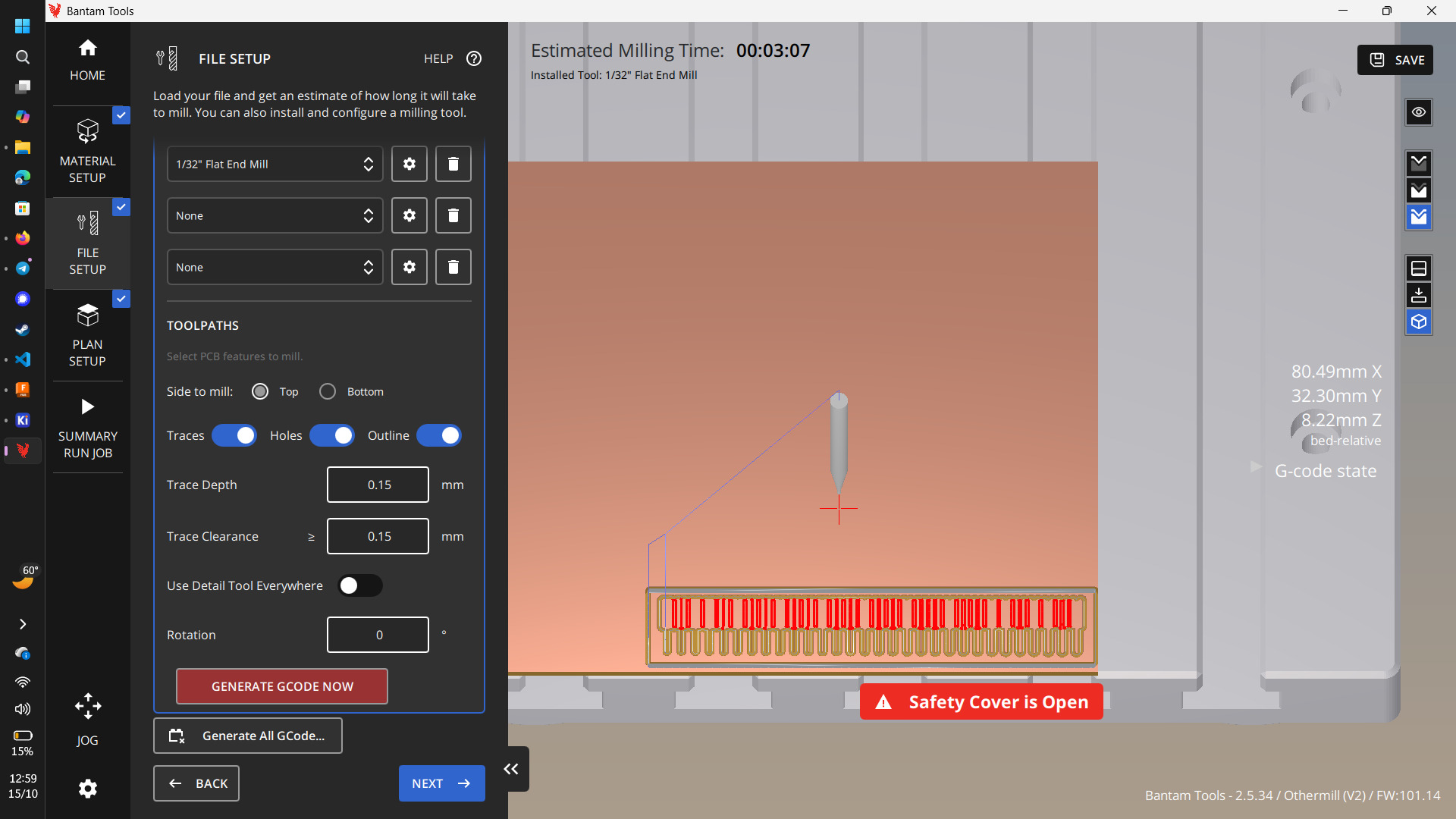
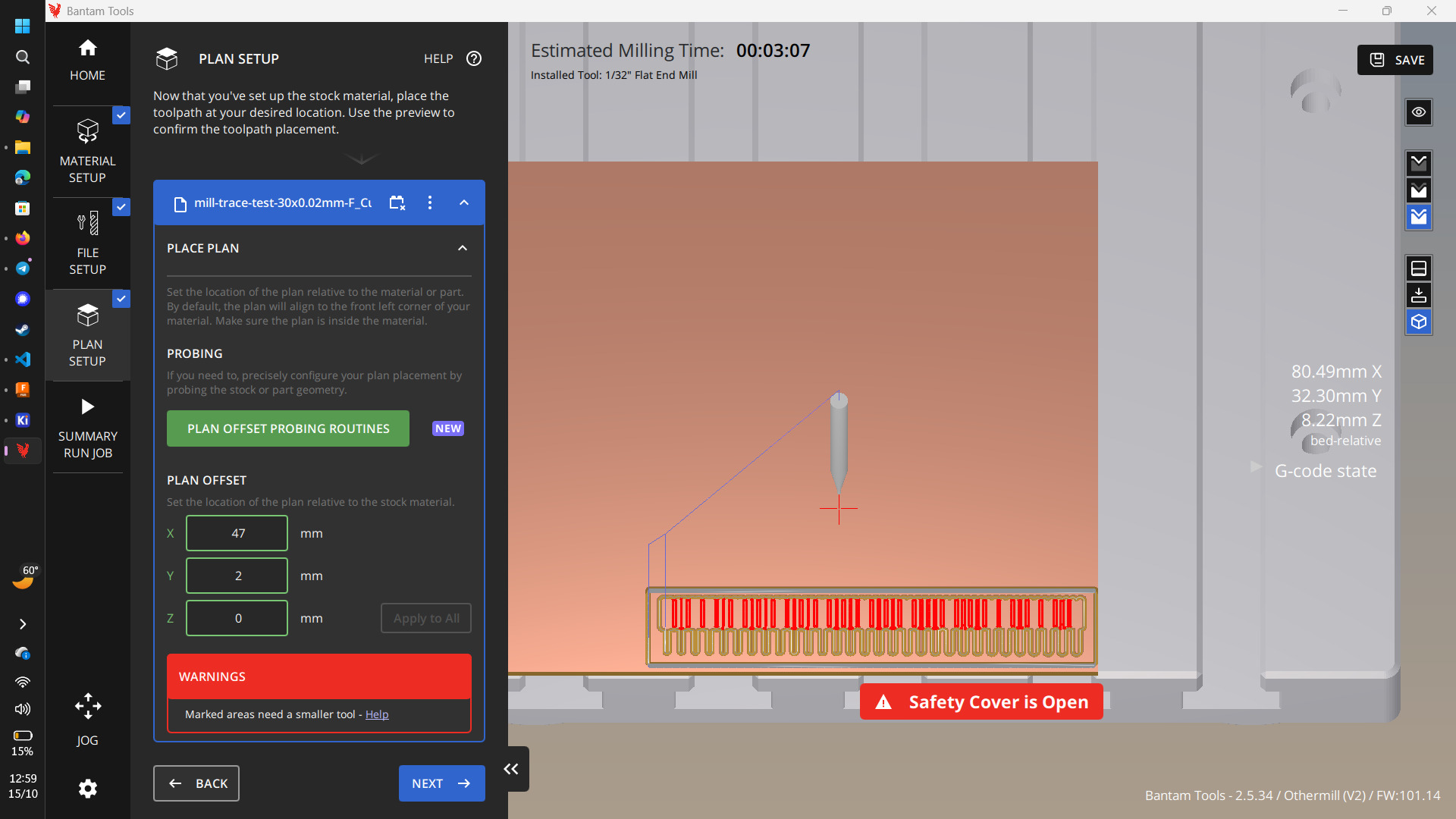
Once the Othermill had calibrated the height of the material to mill, it could generate the g-code for the milling process. I was using scrap PCBs in Metropolis as my board wasnt very big, so I also had to measure out an X and a Y axis offset so that it cut over a clean section of the board.
And here’s a video of it milling the 20x0.05mm test pattern!
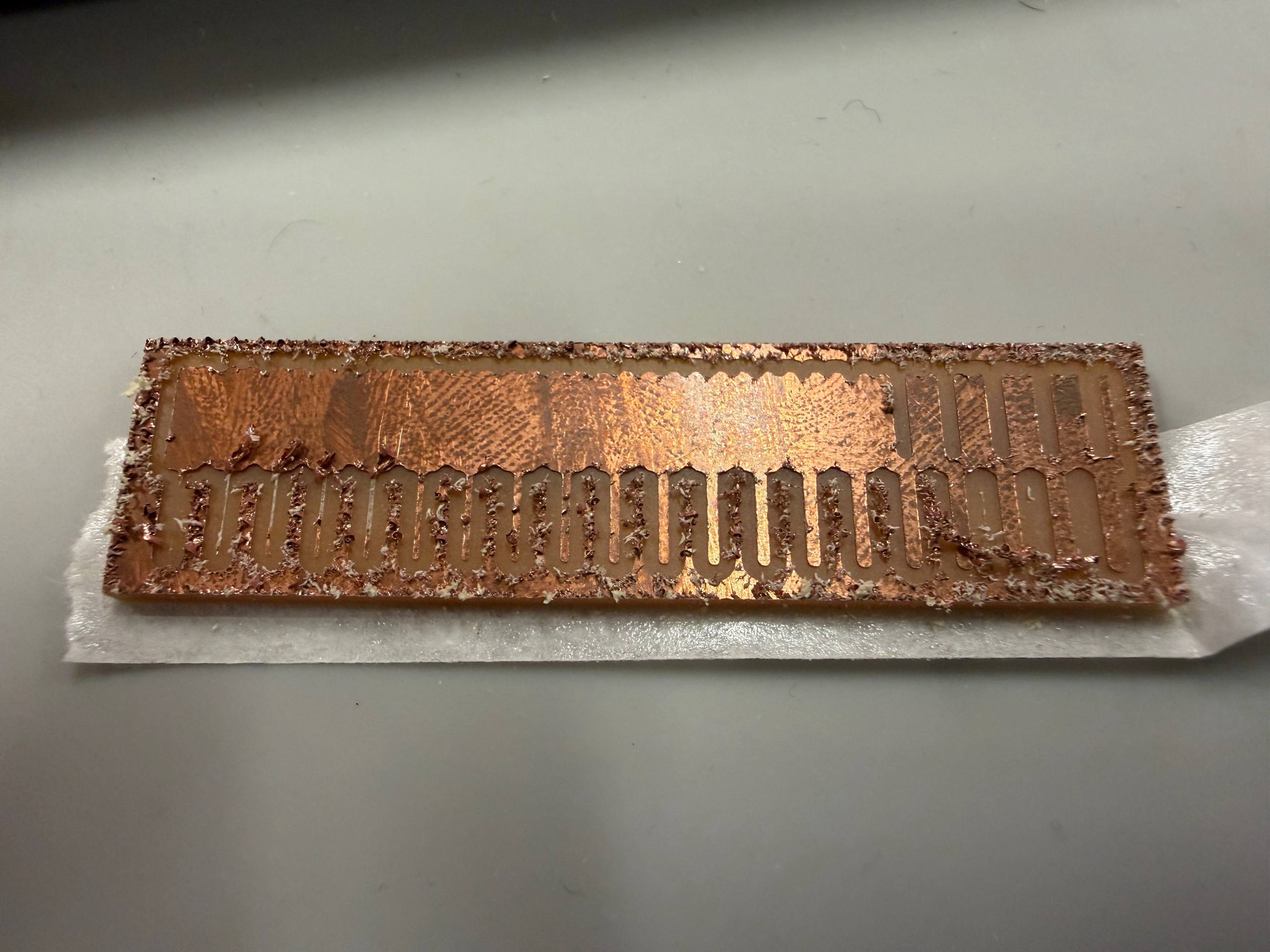
The final result is a little underwhelming. The burrs it created were really bad and I had to do quite a bit of clean up afterwards. It did show that traces 0.6mm and above can be milled with relatively consistency, while traces 0.5mm and below were getting ripped out by the mill. Othermill also refuses to mill features that are smaller than the mill, so only the 0.8mm and higher gaps were milled out.
Take 0: First attempts in EDS
To mill out the smaller features (separating the solder pads of the XIAO), I used a 1/64" endmill.
The rest of the board was milled with a 1/32" endmill.
I couldn’t find any spare SMT WS2812B LEDs lying around in Metropolis, so Kenny helped me desolder one from an existing LED strip. He did this by clamping the strip LED side down and pulling down on the WS2812B LED while heating the back of the strip with hot air. I then soldered the LED in place with a soldering iron and wire solder.
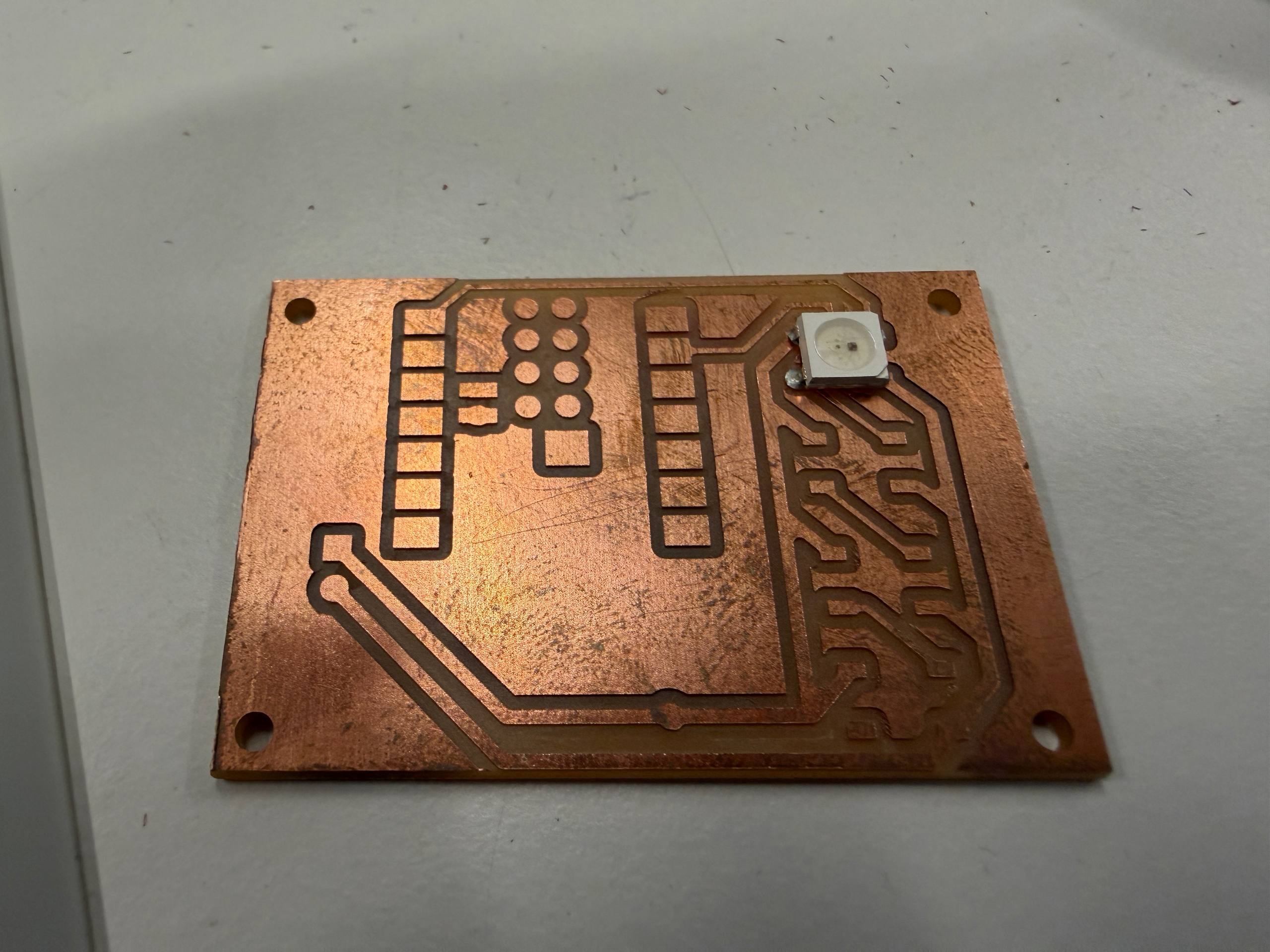
Kenny had a spare microcontroller from a different project that was outputting WS2812B packets, so we used some jumper cables to connect that microcontroller to the PCB.
It works! This gave me some hope that my design wasn’t completely insane or non-functional.
Literally Printed Circuit Boards
Metropolis happens to have Voltera V-One sitting around unused in the Electronics Mezzanine.
This is an additive circuit board printer with swappable tool heads for different purposes. The workflow looks like this
- Conductive silver ink is deposited on a non-conductive board and then baked to remove the solvent and leave behind silver traces.
- Low-temperature solder paste can be deposited on the pads that require it, and the bed can also act as a hot plate for reflow.
It is also able to probe features of existing boards in order to add to boards manufactured by other methods, e.g. adding solder paste to a board that was milled.
It’s consumables are expensive. The conductive ink used to print the traces can cost around 100 USD per refill, and the low temperature solder paste also costs around 60 USD.
Printing Conductive Ink
If there is one redeeming factor of the Voltera V-One UI, it is the fact that its very descriptive and helpful in explaining the exact steps that need to be done.
Once I loaded and calibrated the blank board, I could start printing the conductive ink.
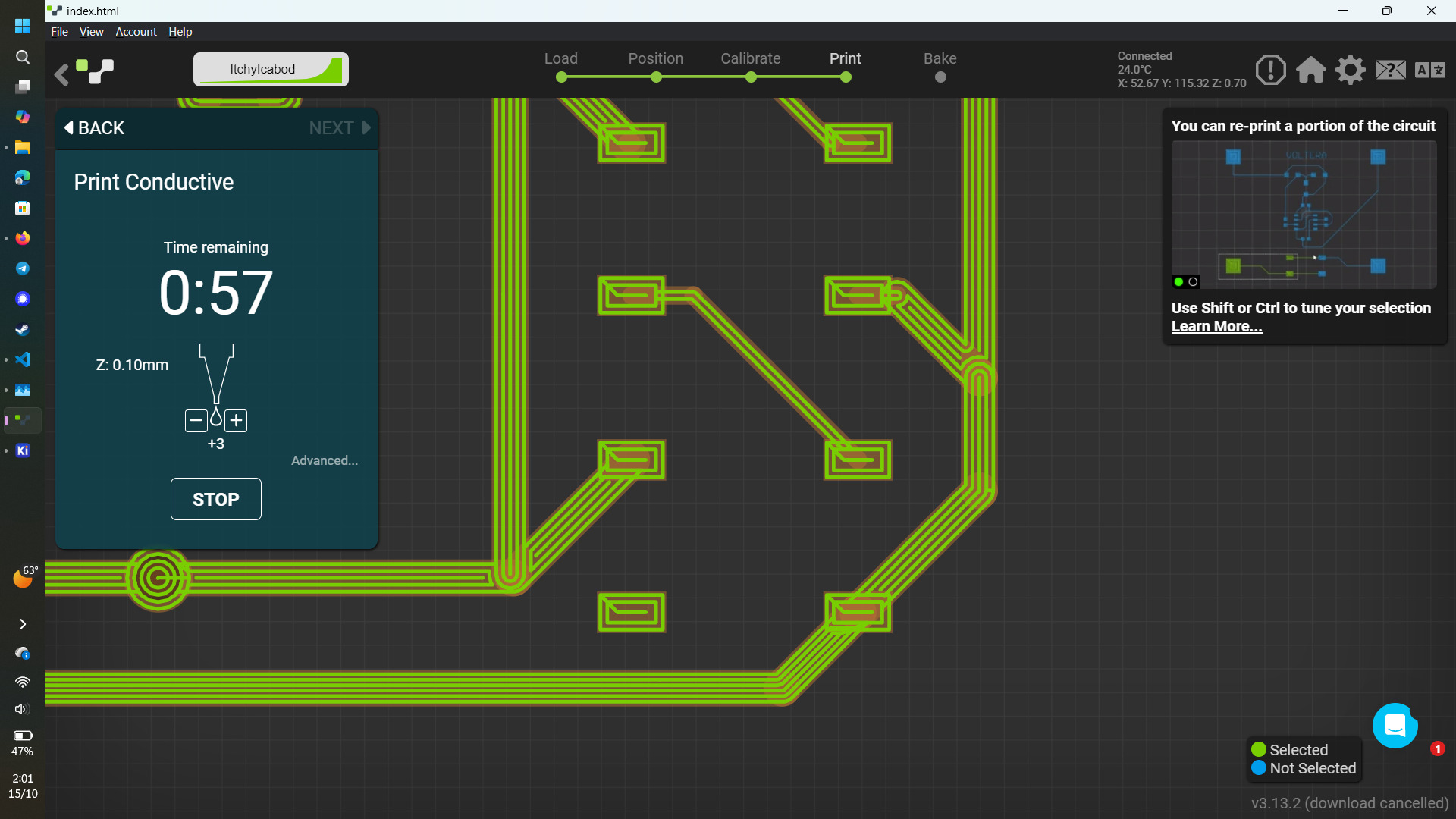
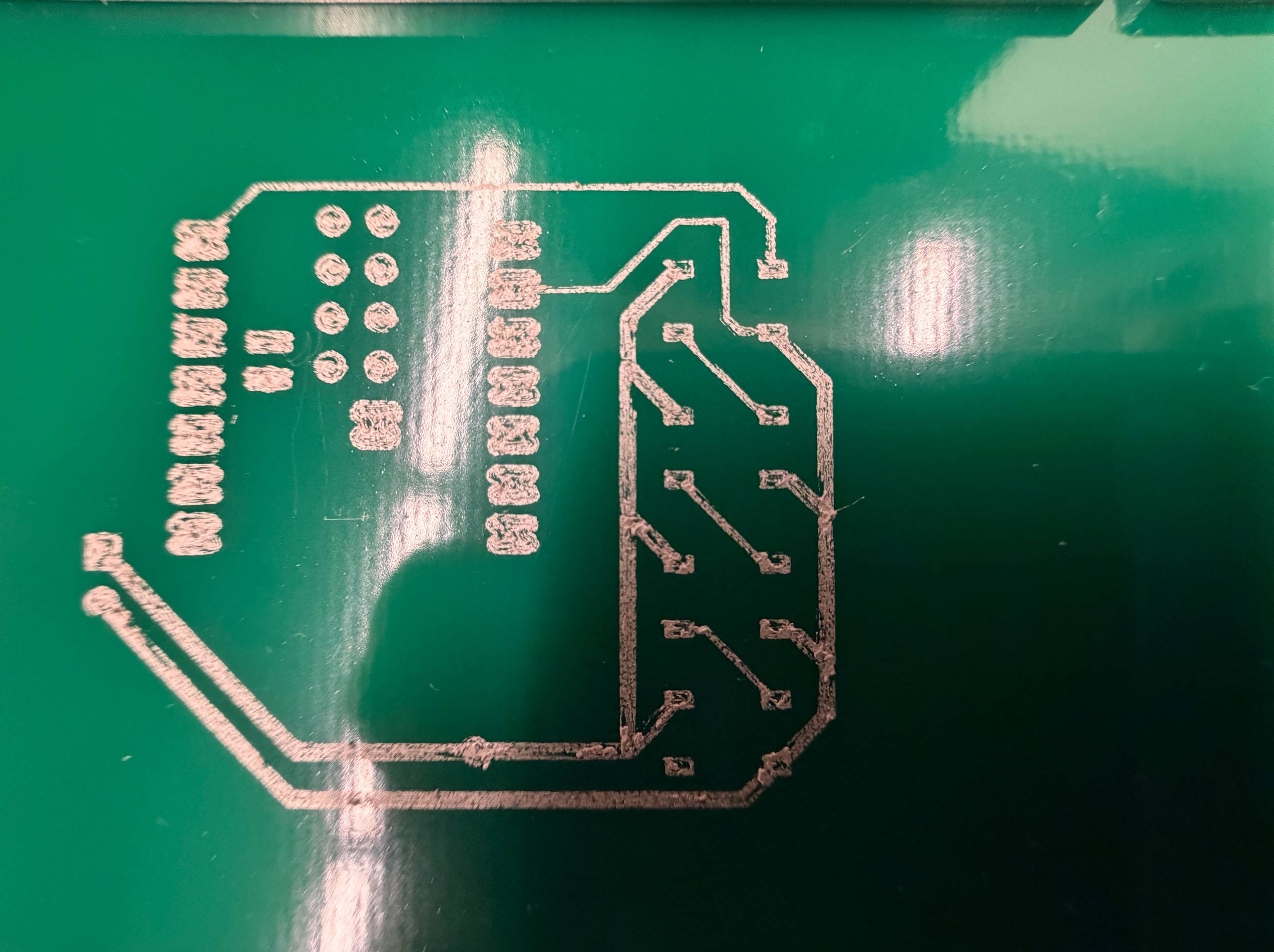
Unfotunately, the ink is about a year expired. No one in Metropolis has used the V-One since it was first obtained by Lee Zamir (who also walked me through using this machine) about a year and a half ago. Thus, the conductive ink had a hard time adhering to the blank and forming conducting traces.
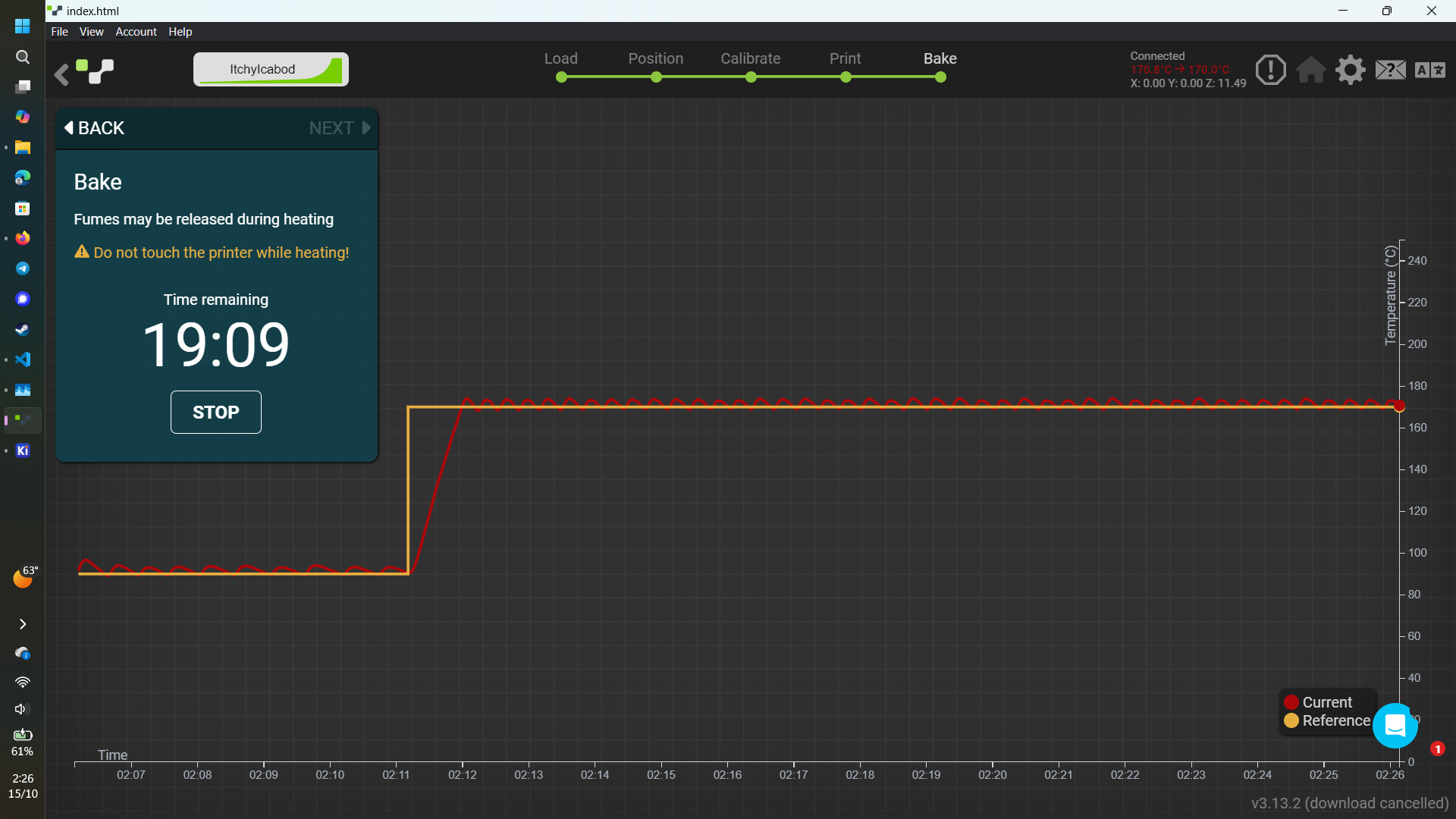
The conductive ink also needs to bake in order to set properly; otherwise it can be wiped off fairly easily. For the conductive ink I used, it took about 39 minutes for the ink to bake. In that time, I took a nice walk to EDS to grab some more WS2812B LEDs and XIAOs, and came back with 19 minutes to spare.
Printing Solder Paste
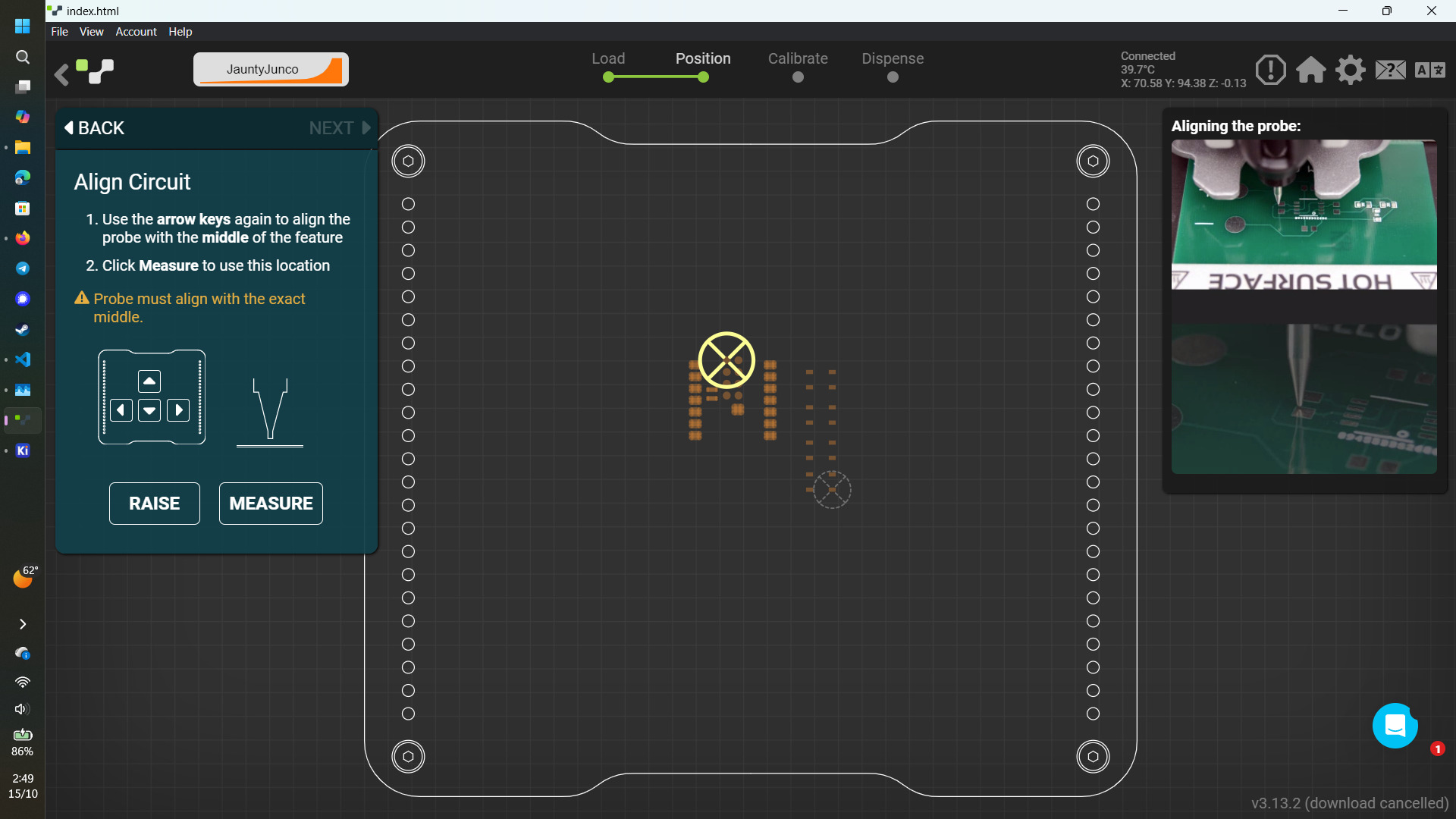
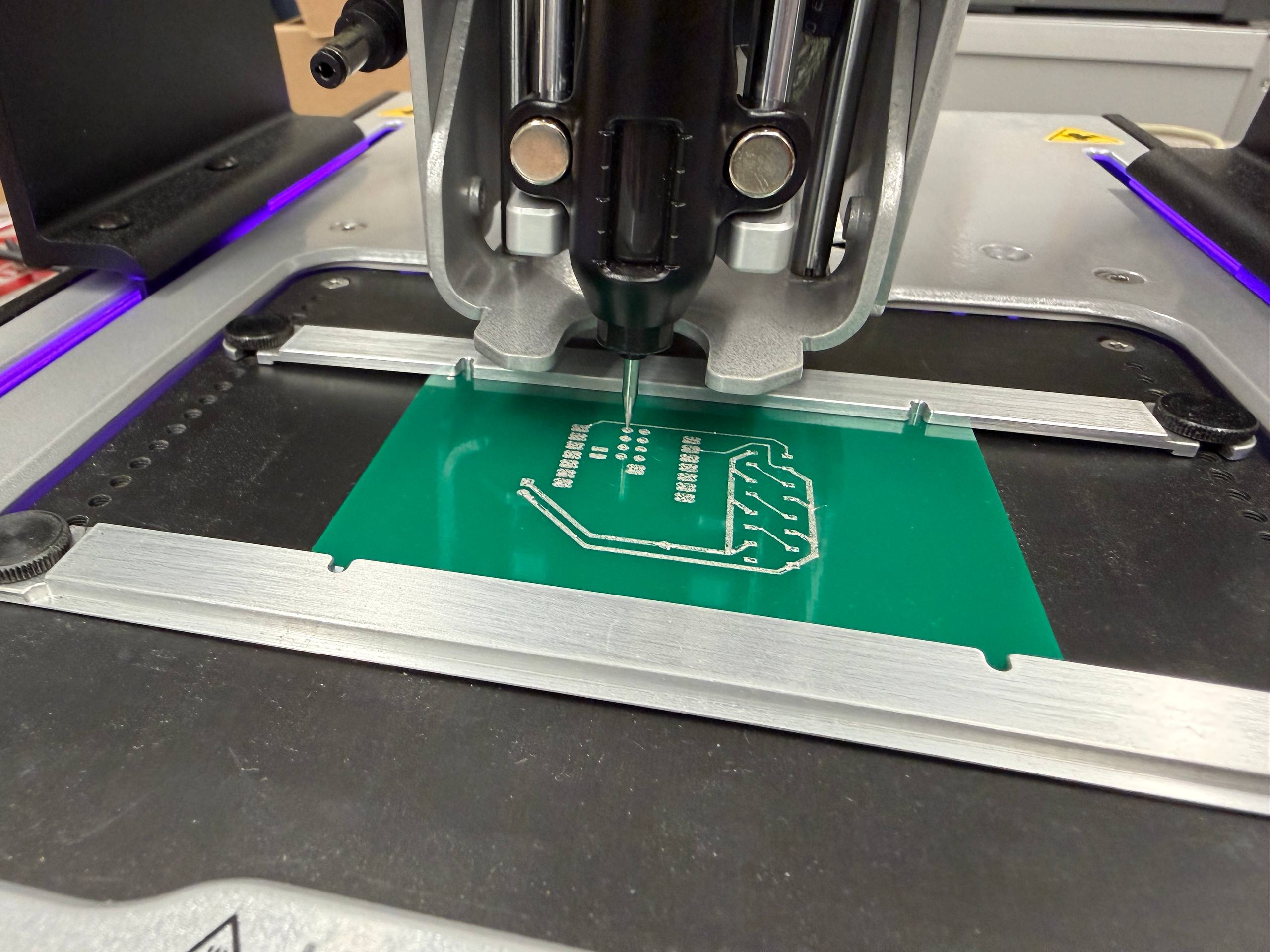
The V-One doesn’t save circuit alignment between jobs, so I had to perform an alignment of the board before printing the solder paste. The V-One does this by asking the user to manually prob two points on the board and calibrating based on those points.
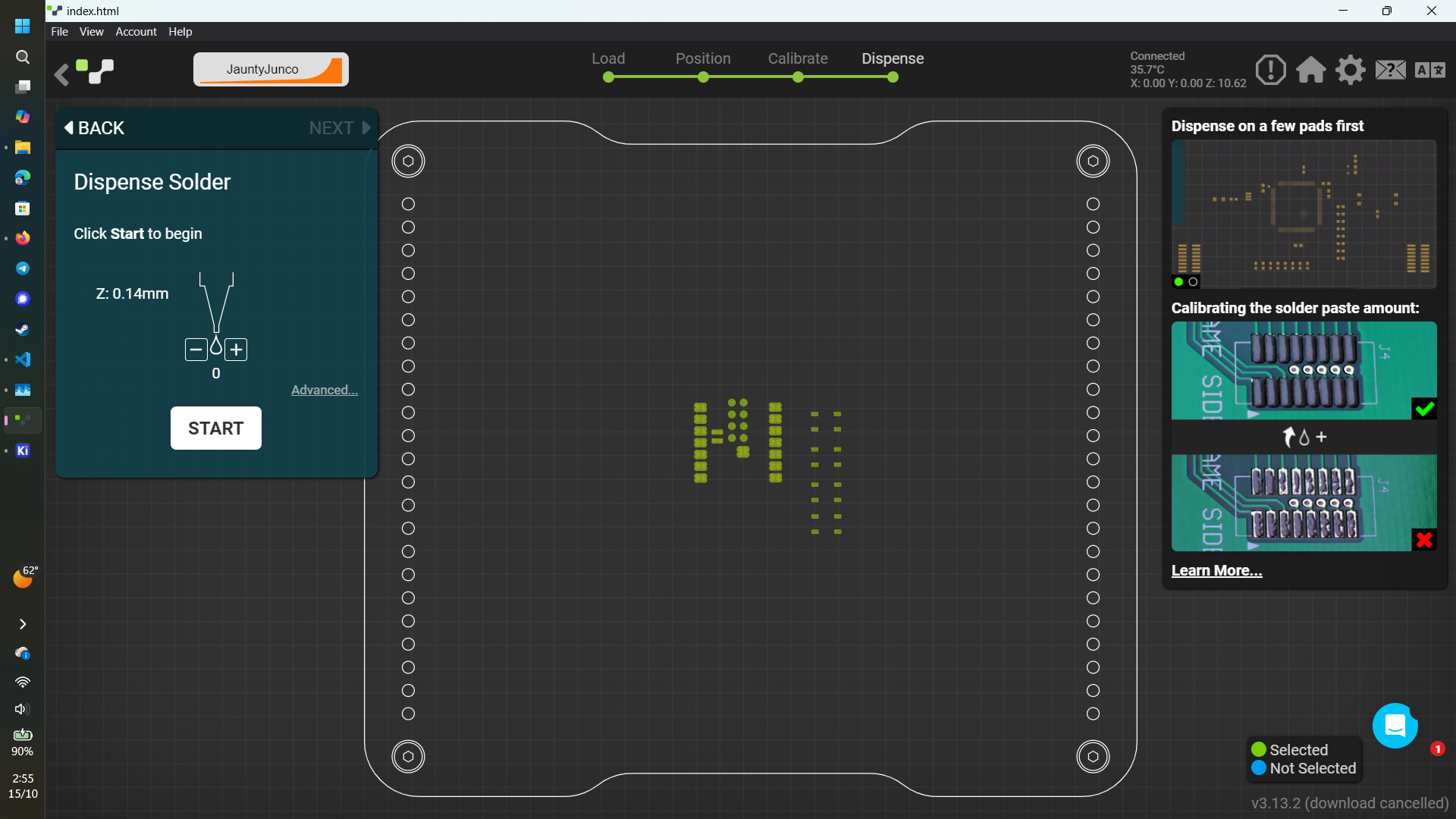
However, the solder paste refused to adhere to the traces. Here are some close up videos of it failing to print even solder paste pads on the traces.
Sometimes so much solder paste builds up on the nozzle that it ends up dropping onto the pads in a big chunk while leaving all other pads without any solder paste.
Reflow
To see how well the reflow and solder paste would work, I placed 4 WS2812B LEDs onto the pads they were meant to be soldered to and started the heating on the V-One.
It kind of worked. The low-temperaure solder did form balls and soldered the LEDs to the board. However the strenght of the joint was extremely weak; just putting the board in a ziploc and carrying it back to my room caused the LEDs to dislodge.
Take 2
I went back to Metropolis and milled another board. This time, I rerouted the data path to go around the rest of the board in order to avoid the grounding pins attached to the USB-C connector on the XIAO.
After using the Voltera as a glorified hot plate for the low temperature solder, I had a nice soldered board with the XIAO and four WS2812B LEDs.
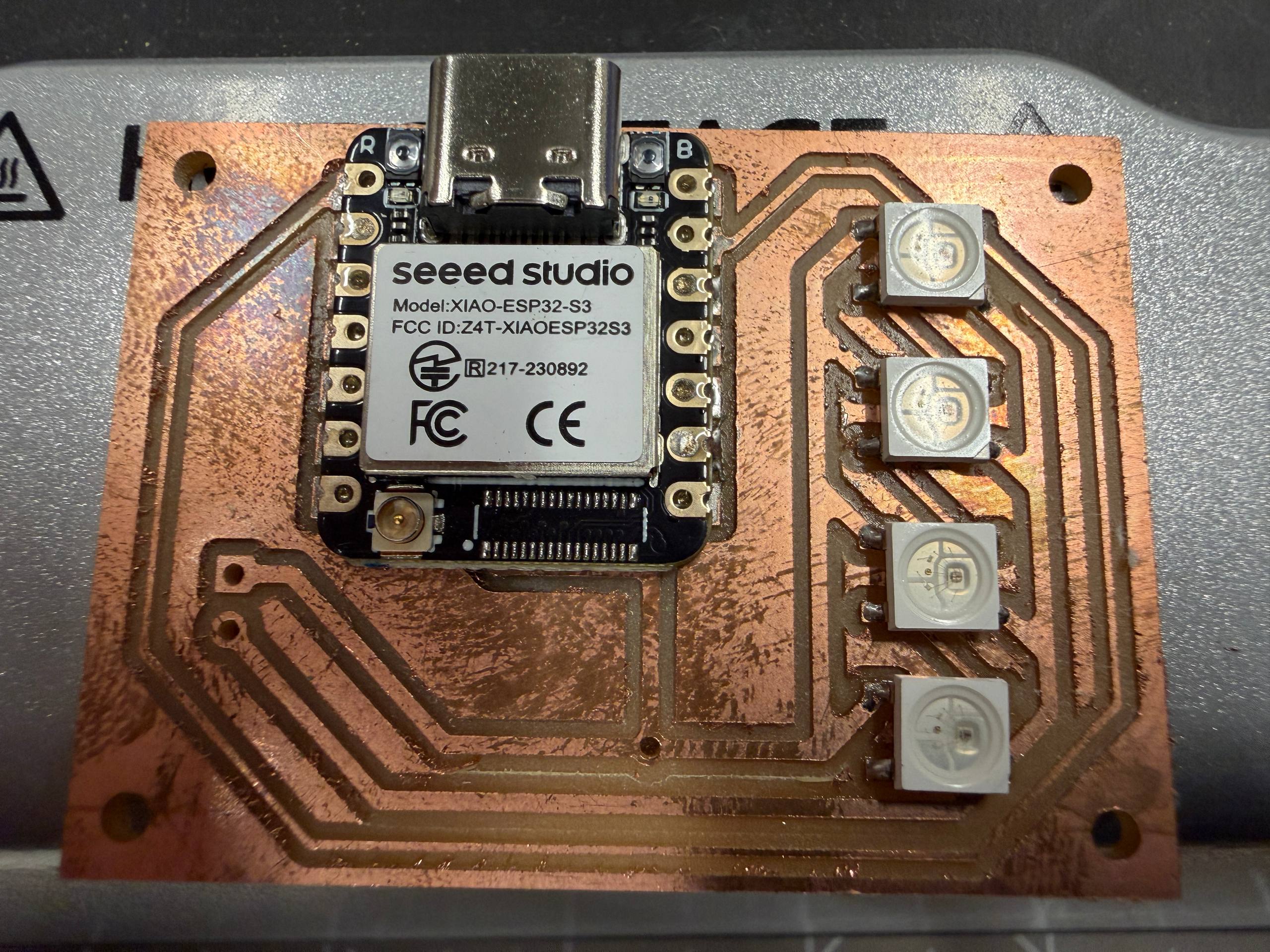
I then used a multimeter to probe for shorts between pins on the XIAO as well as between power and ground and data nets on the PCB.
The pins seemed to be correctly connected, and the solder joints between the XIAO and the PCB looked fine.
However, the XIAO itself did not light up in anyway, which seemed to indicate that there was something wrong with the XIAO. I should have checked this before soldering it to the PCB :(
Connecting the XIAO directly with my laptop confirmed my fears; the onboard LED on the XIAO that indicates whether or not it is powered didn’t turn on even when directly connected to my laptop via USB-C.
Take 3
So far my board has been milled with a combination of 1/64" endmills and 1/32" endmills. Most of the 1/32" endmills in Metropolis have left a pretty bad burr on my PCBs so far and the 1/64" endmills have left very littel burrs, so I wanted to see what the result would be if I only used the 1/64" endmill for the entire board. That includes holes and edge cuts.
Naturally, this took a long time. Bantam Tools estimated that this would take 45 minutes. The actual time was just under 27 minutes and broken down into
- Isolation Milling: 8 minutes 40 seconds
- Mounting Hole Drilling: 3 minutes 23 seconds
- Outside Edge Cut: 14 minutes 54 seconds
I also managed to find a small fan attachment to the mill, which cleared out the dust that was being produced as the mill ran through the board.
This board came out really well! Very little post-processing was needed to clean it up and there were few burrs that needed to be removed. I performed a continuity test and found no issues.
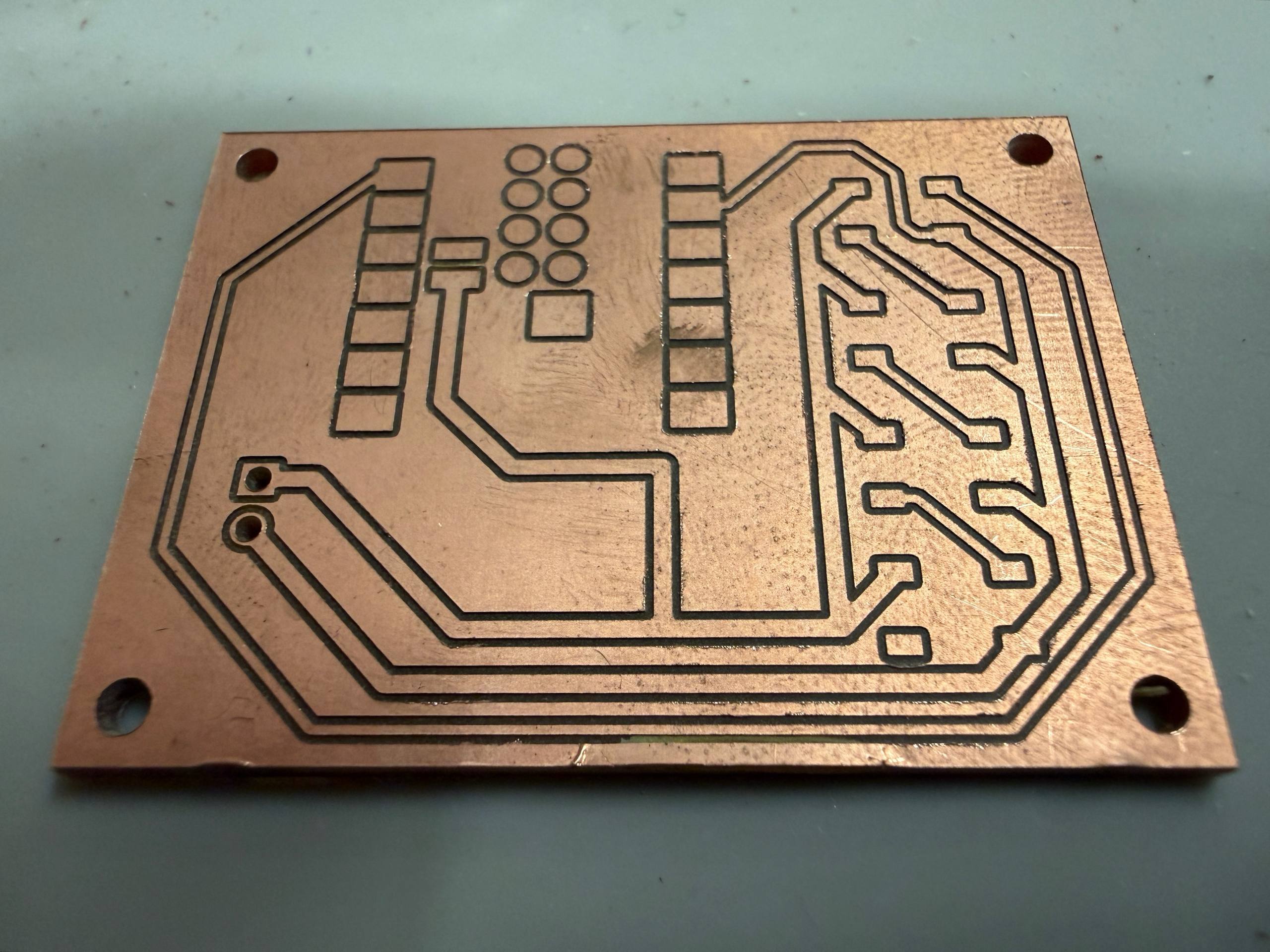
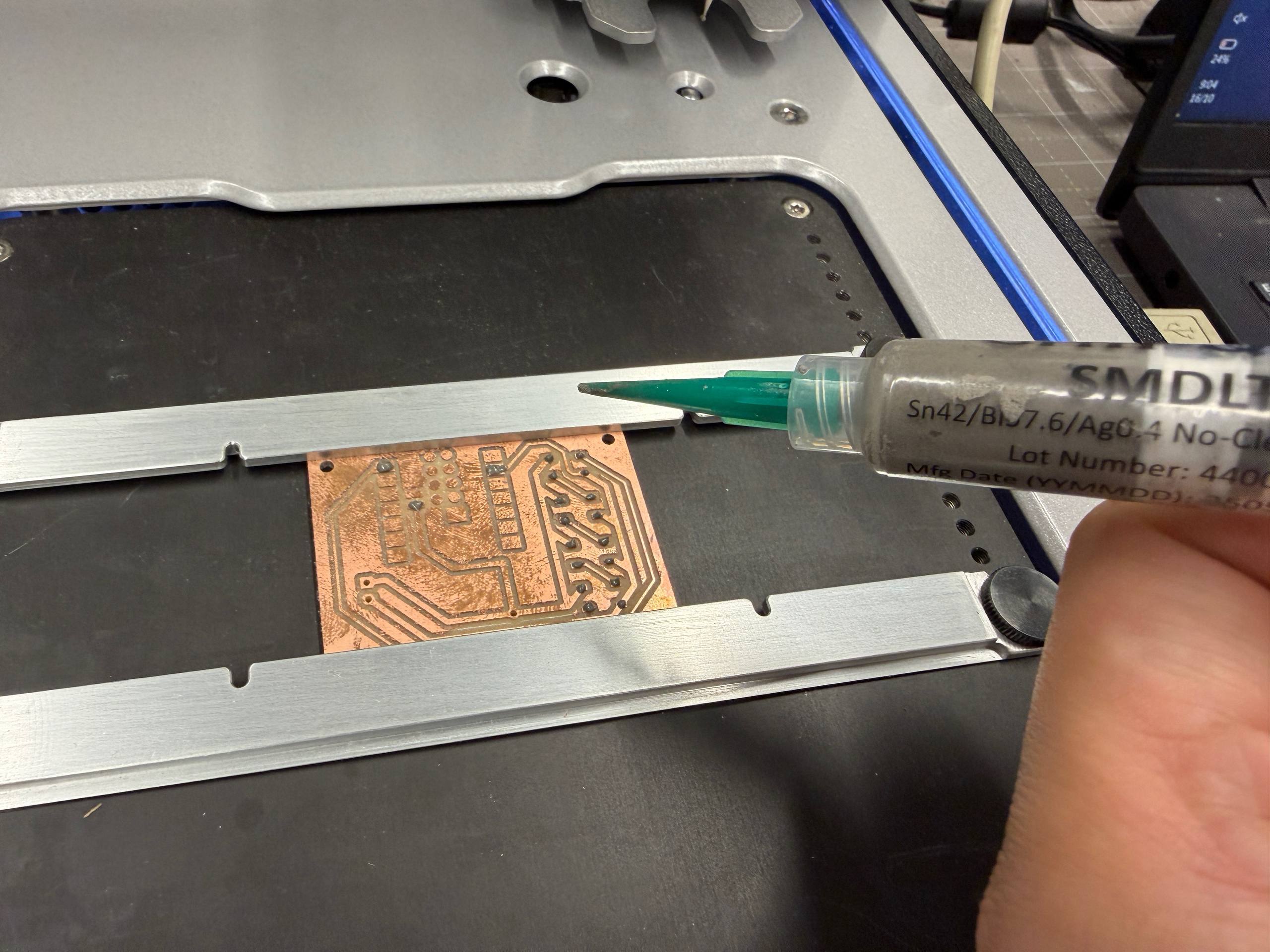
Since the Voltera V-One was could not reliably dispense solder, I grabbed a syringe with low-temperature (Sn42/Bi57/Ag1) solder paste and dispensed it onto the PCB myself.
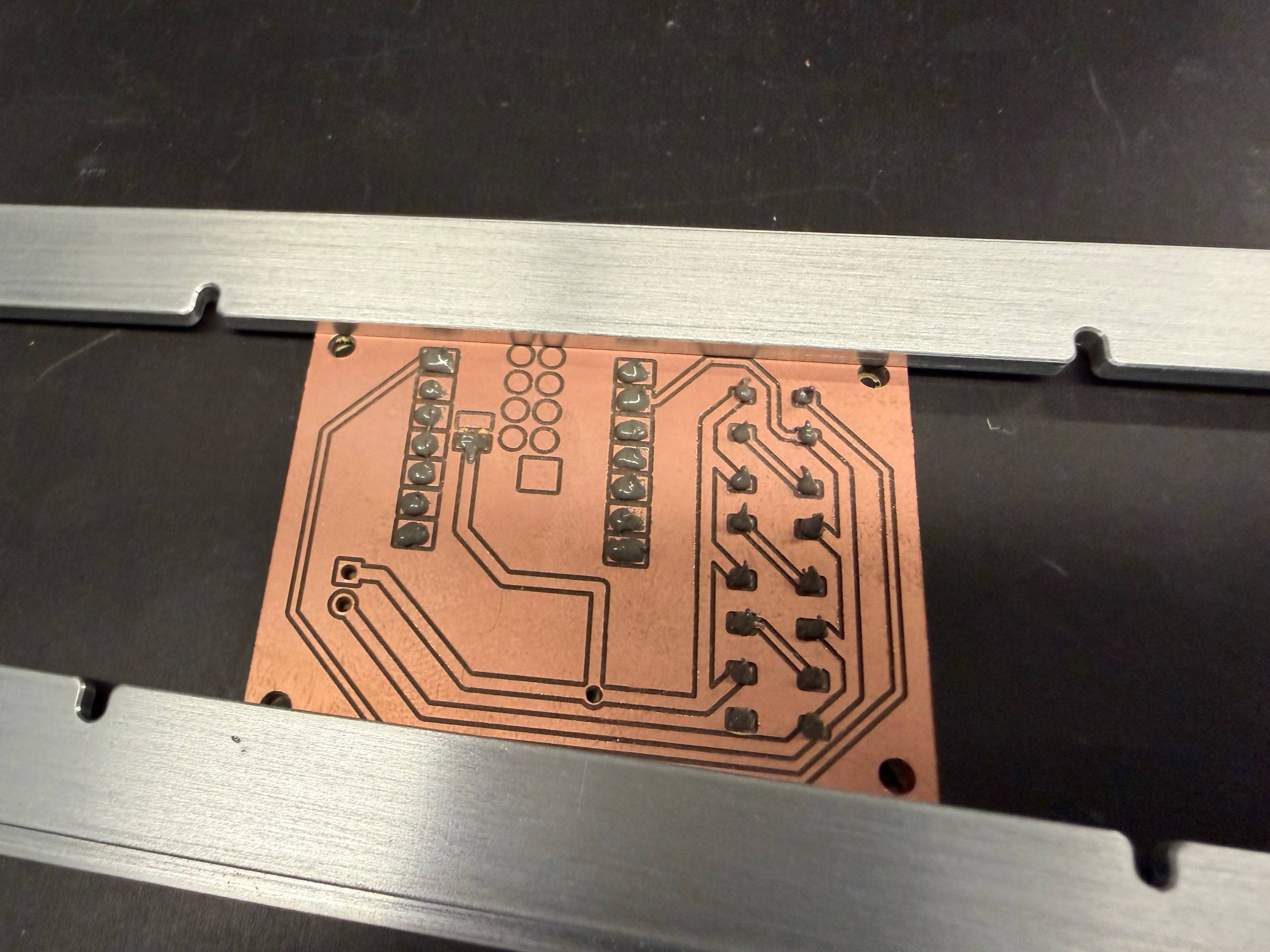
In hindsight was actually a terrible solder paste job: there is far too much solder on the pads which makes it very likely that some of the pads are going to bridge over to the unused copper and create a power-ground short.
I briefly considered reflowing it again and removing components one at a time to identify the source of the short, but I decided it was not worth my time looking for the short at that time. I thus went ahead to mill another board.
Take 4
At Kenny’s suggestion, I tried using an engraving bit instead of an endmill for the traces. Specifically, a 0.1mm 60 degree carbide engraving bit. Since the tips are smaller than the 1/64" endmills, these bits can mill out finer details than the 1/64" endmill. However, they are very sensitive to stock height, and small differences in the height across the board can cause inconsistencies in how much material is removed, leading to some traces being destroyed.
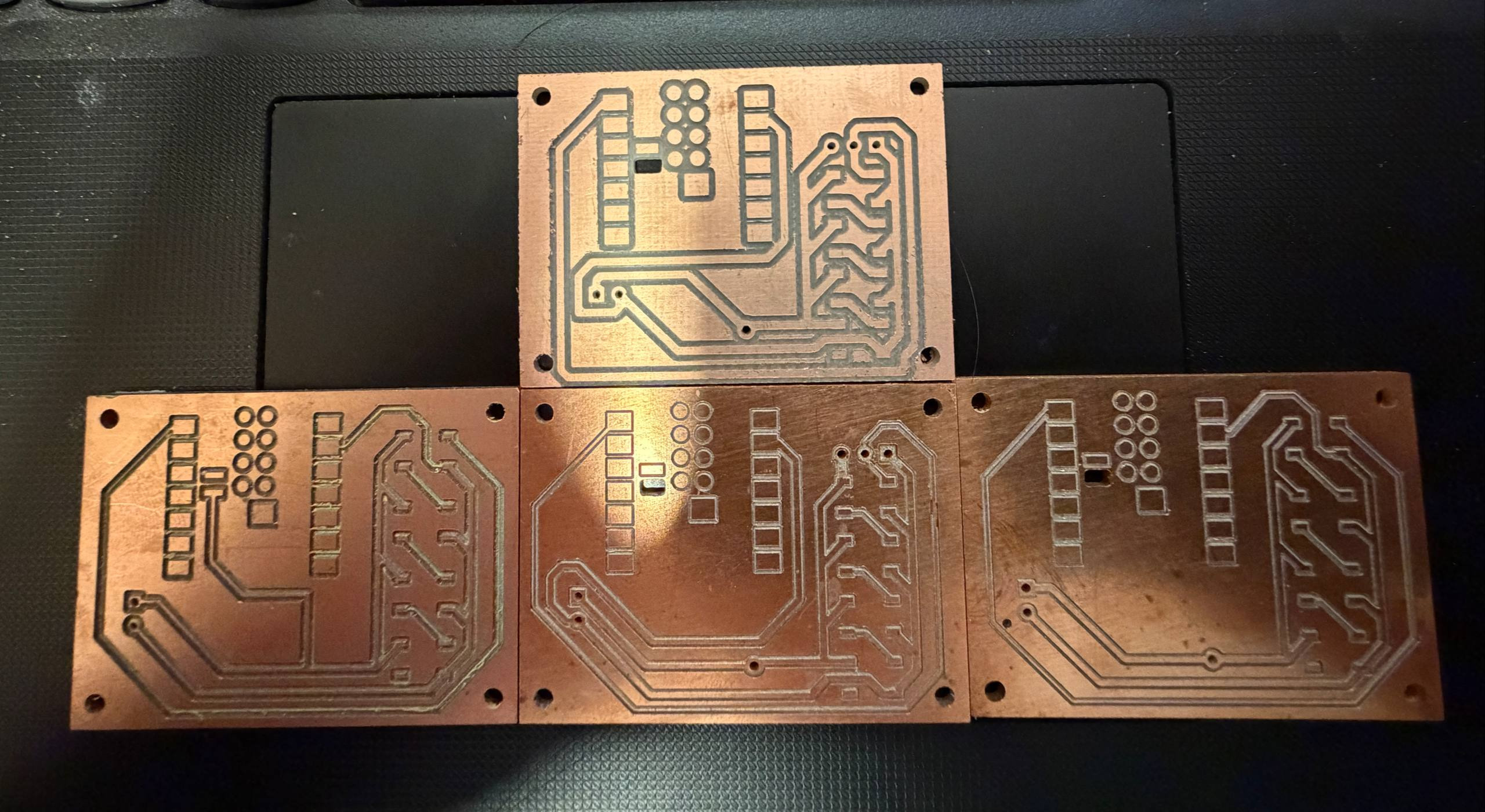
I placed less solder paste on this board, and it paid off. I managed to load a small program that blinked the 4 LEDs in red, green and blue.
It also worked when I plugged it into a 3.7V LiPo battery, which meant that the battery pin was correctly connected to both the LEDs and the battery header pins.
Unfortunately this board also had a mistake, though not a fatal one. The unused copper had an electrical connection to the battery power :(
Take 17
I’ll cut to the chase here. I’ve spent maybe 15 hours in total in Metropolis milling boards with different parameters, trying different engraving bits and endmills, modifying the design to add more features.
Here’s the final list of design decisions that I settled on as improvements to the original board
- An additional 3-pin header near the LEDs in order to break out the power, data, and ground to an external LED strip. This was necessary in the final project design since I’ll be running a much larger LED strip anyway.
- Expanding the board and moving the traces around to increase the spacing betwen the traces. I had a lot of extra space on the board so I saw no real reason the cram the traces too closely together. This made it easier to mill the entire board with just a 1/32" endmill (save for the separating the XIAO solder pads).
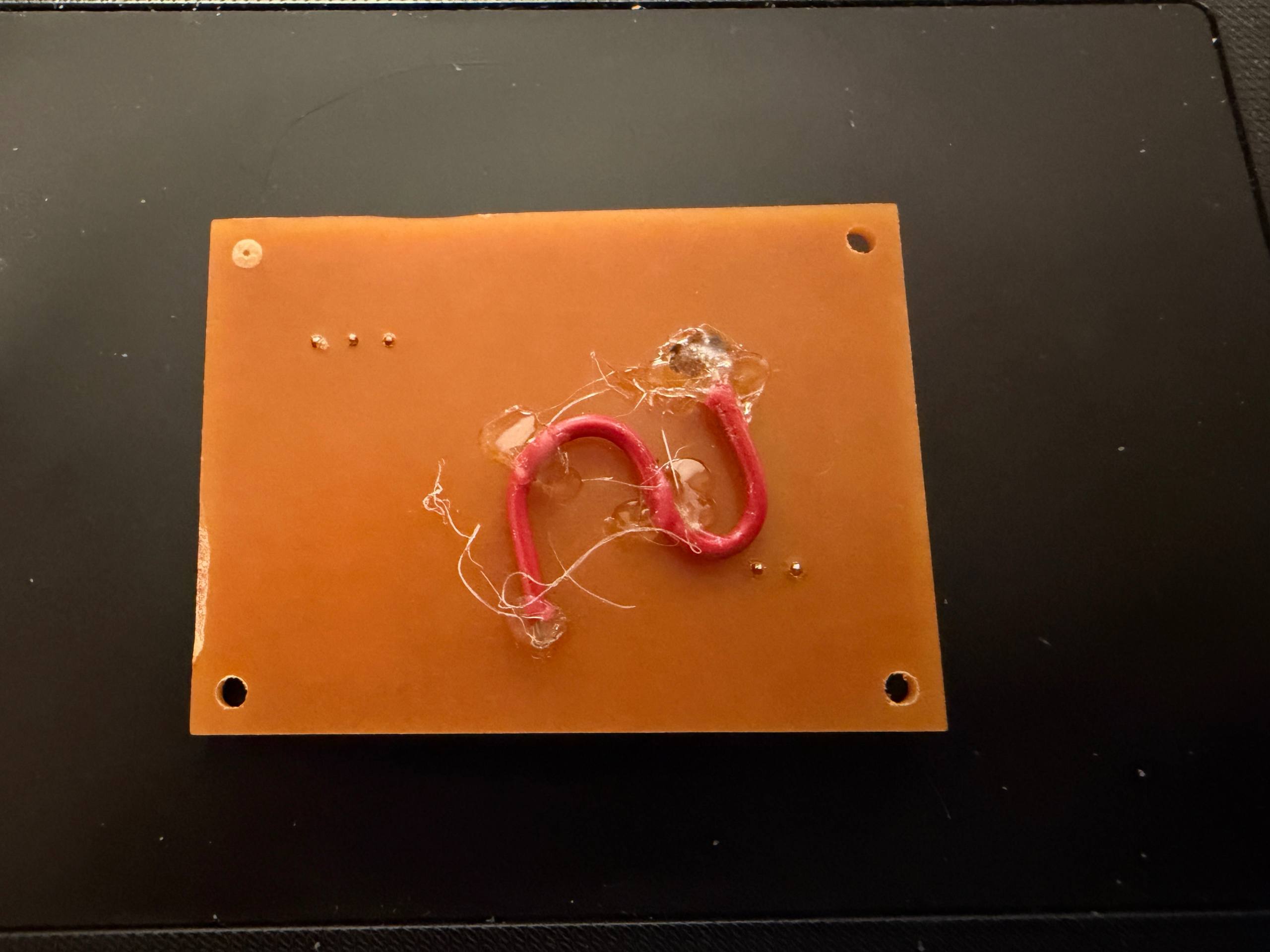
- Hand soldering the BAT pin pad to the power net. Using solder paste and hoping that the resulting solder job didn’t bridge to the neighboring copper pour (or even worse, the neighboring GND pad) was unnecessarily risky when I could just solder a jumper directly to the pad and route it back up through a via.
Here is the final model of the board.
After milling the board with the 1/32" endmill, I carefully placed more low-temperature solder onto the board.
I was so done with using the Voltera V-One, so I used a proper oven for reflow. It had a couple of preset heating patterns including one for low-temperature solder.
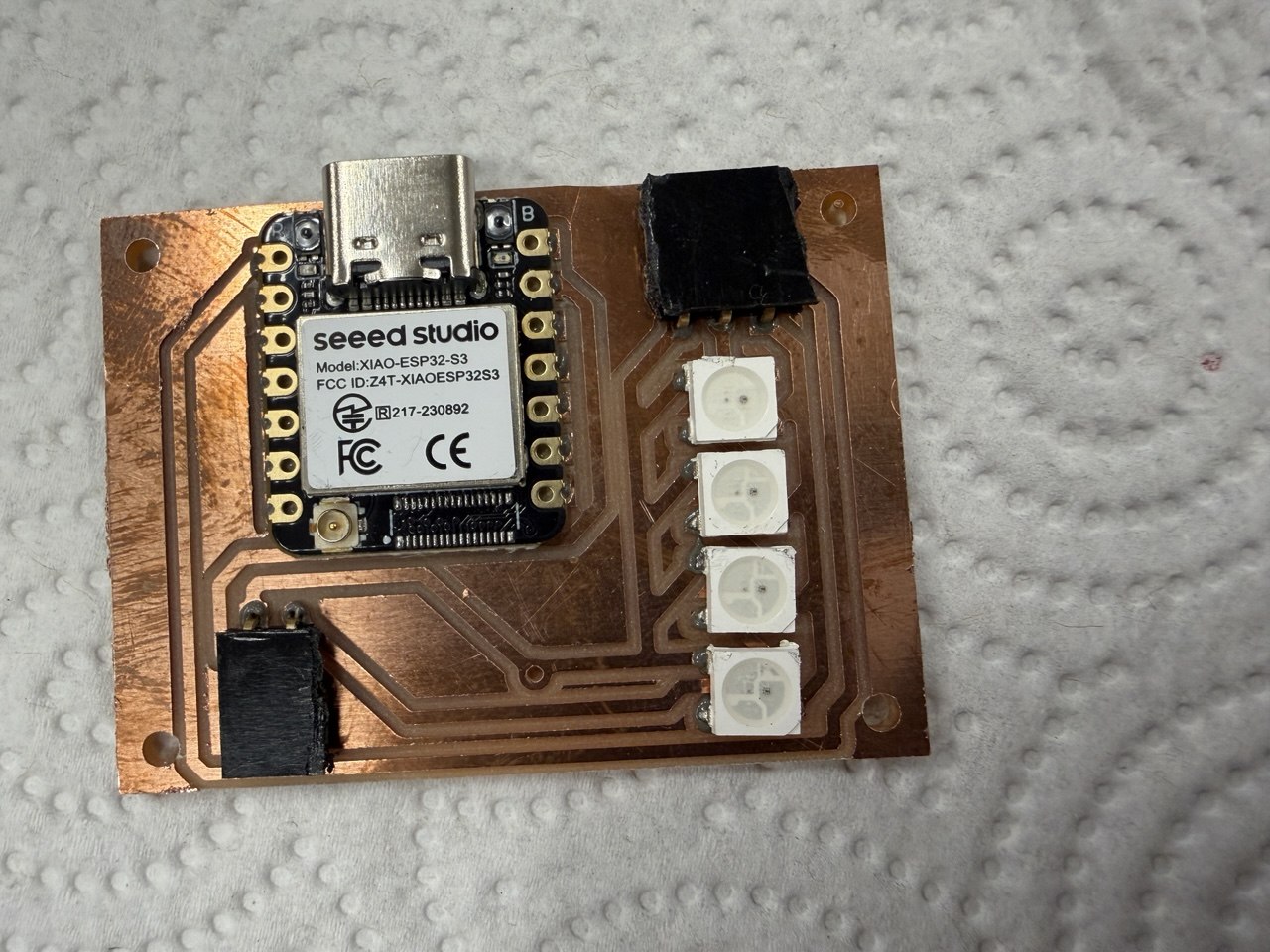
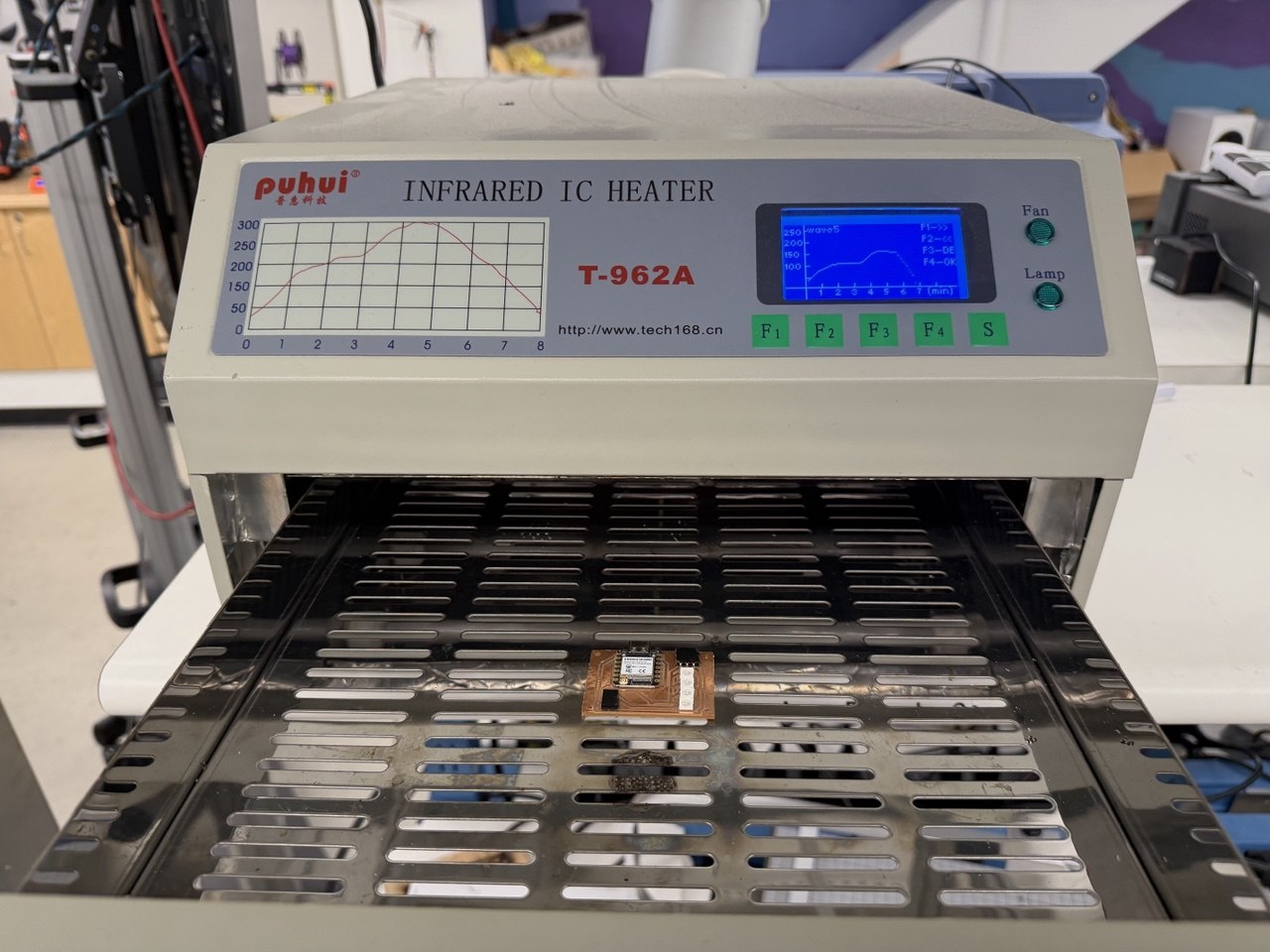
After doing continuity checks on the soldered board, I added a jumper cable along the back of the PCB to connect the BAT pad to the rest of the power net. I also designed a case similar to what I designed for last week’s PCB.
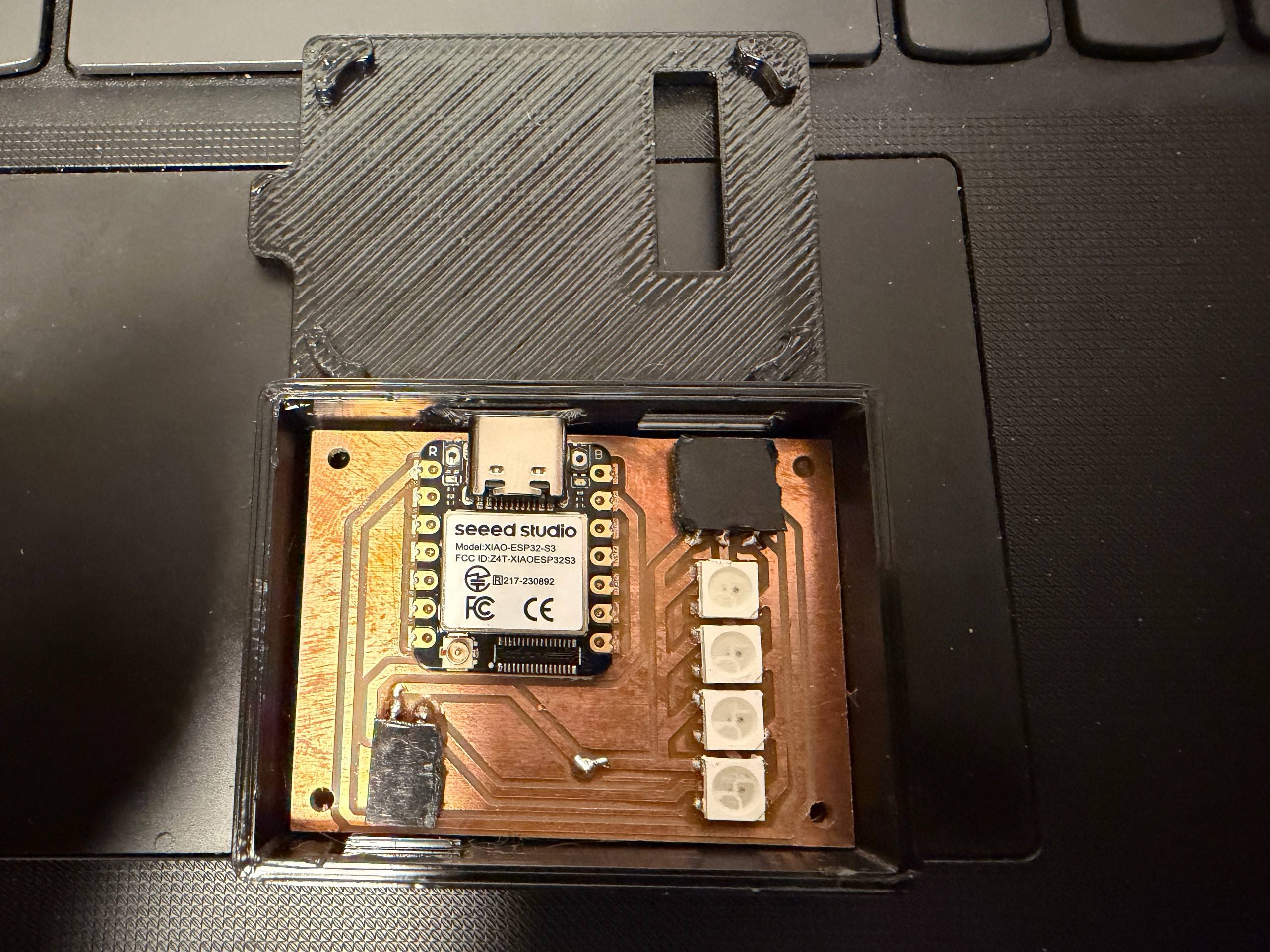
And at last, a working LED strip controller.
Outtakes
Here are some funny moments that happened in the course of completing this week’s work.
At some point the Othermill got stuck during the milling process when my laptop suddently disconnected from the Othermill. The toolhead stayed in place and there was no way I could resume the job even after disconnecting and reconnecting my laptop to the Othermill. I later power cycled the Othermill and re-did the milling job.
The following milling job had an even funnier and benign UI bug. The UI showed that I could resume the job (which happens if the job is paused) even though the Othermill was actively milling and the gcode line numbers were incrementing. Clicking resume didn’t have any effect besides fixing the UI.
AI Use
Claude for producing a working ESP32 LED blinker program using Rust, and helping to do plumbing to finish the testing KiCad plugin.