Project management#
If you’re like me, new to git, bash and creating a website by directly using the Apple terminal, then here is a cheat sheet of the functions I learned and used in setting up my git repo and class website.
I relied on the helpful git tutorial recitation prepared by Dimitar, with Claude and Gemini used as a scaffolding to explain the different functions as I was using them.
Below are short descriptions of bash, git, and using hugo to create my website - all the essential functions I used and learned throughout this process:
Bash#
Bash is the language used by your computer terminal. You can type commands as text, acting as a “shell” that allows you to connect with the core of your computer the “kernel” (CPU, RAM, disk, etc.) – basically acting like a translator.
There are Graphical User Interface (GUI) shells (like windows or macOS that allows one to interact with the computer through a mouse, dragging folders, etc.), while the Command Line Interface (CLI) is text-based with the functions I found most helpful:
nano: a simple text editor that runs directly in the terminal
cat: prints a file's contents to the screen
cp: copies a file from one location to another
cd: changes terminal's current working directory
touch: creates a new, empty file
mkdir: creates a new, empty folder
rm: delete a file
mv: moves or renames a file
ls: lists the files in the current directory
pwd: prints the full path of current directory
cat .ssh/*.pub: prints the SSH public key or checks whether one already exists which is needed to connect to Forgejo
Git#
Git is useful as a tool to save a snapshot of your file over time, allowing to track changes and to go back to an earlier version if something goes wrong.
xcode-select –install: a bash function and the first step, installs Apple's Command Line Tools which also includes git
cat .ssh/*.pub: also a bash function, prints the SSH public key or checks whether one already exists which is needed to connect to the class Forgejo repo
git config user.email: sets the email address attached to your commits
git config --global user.name: sets name attached to every commit
git clone ssh:  downloads a copy of a remote repository from Forgejo, using SSH for secure access
git init: turns an ordinary folder into a git repo
git add: stages a file's changes to go into the next commit
git commit: saves staged changes as a permanent checkpoint in your local history
git log: shows commit history
git status: shows what's currently changed, staged, or untracked
git push: sends committed local changes to Forgejo
git add -A — stages every change in your repository at once (new, modified, and deleted files alike), ready for the next commit
.gitignore create a file to exclude from pushing like a working directory
The first task after connecting to Forgejo was to sign and commit the student agreement, using the steps below:
nano agreement.txt
# typed the agreement text and my name directly into the file, then saved and exited
git add agreement.txt
git commit -m "sign student agreement"
git push
Setting up my Hugo-based website#
After being provided a forge account, one of the first choices to make was to design my website.
In the recitation led by Dimitar, I got to see the option of using plain HTML or markdown through a static generator like Hugo.
Since I was more familiar with markdown and Hugo offers preset design templates, it was a straightforward choice.
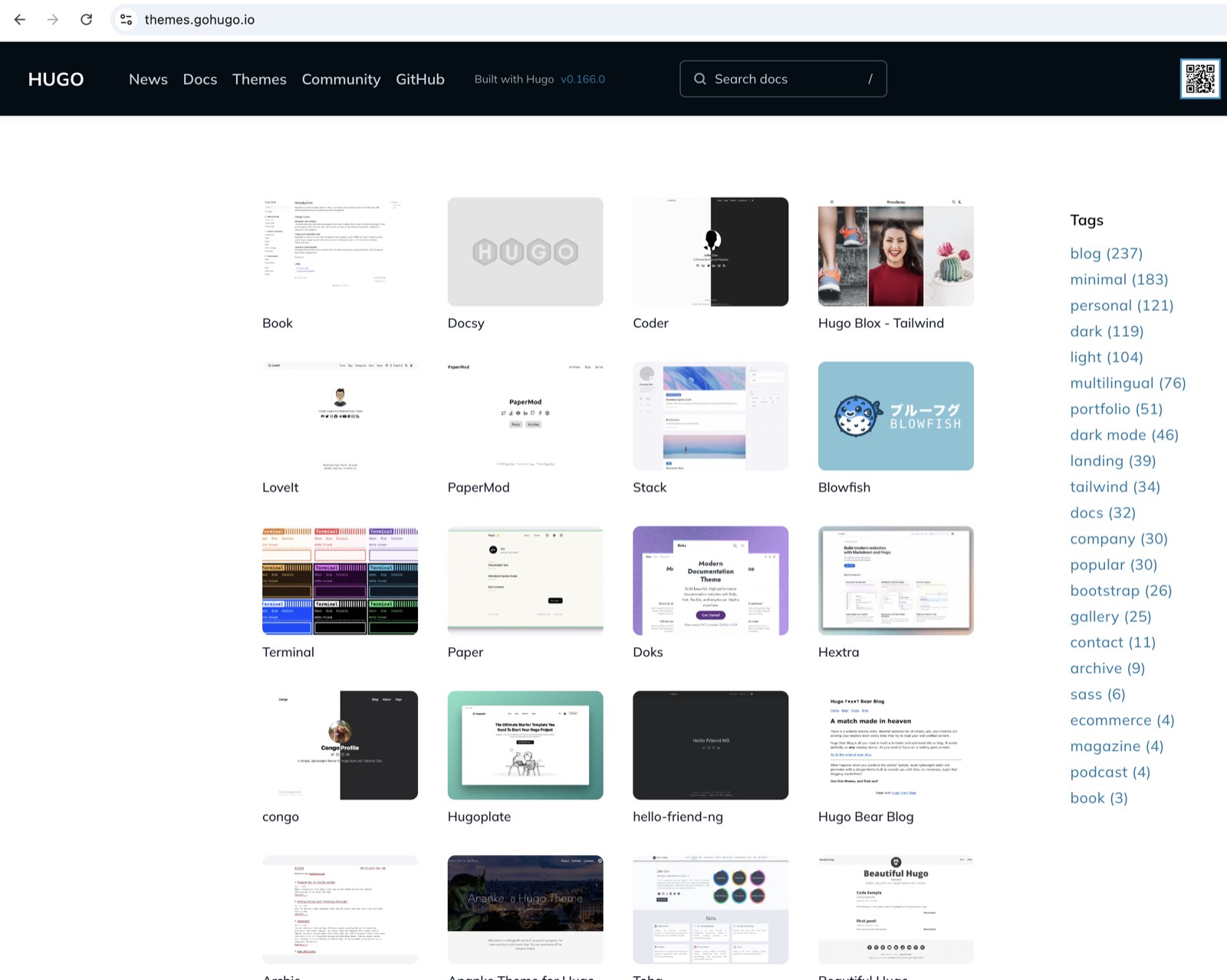
I learned that Hugo is a program created in 2013 as a Static Site Generator (SSG), that uses Go, an open-source programming language created by Google engineers that replaces older languages like C++ .
It is easier to understand that takes plain text (in my case I used markdown files) to then automatically turn it into a finished, ready-to-publish website, linking to an external git design repo that also save on storage space.
Since I was more familiar with markdown and Hugo offers preset design templates, it was a straightforward choice.
Moreover, with limited space in our git repos, Hugo is great to use because it can link my website template as a git module connected to an external design repo.
brew install hugo: installs the Hugo static site generator via Homebrew
hugo new site . –force: scaffolds a new Hugo project in the current folder
hugo server: moves into the project folder and starts Hugo's local preview server (the most useful function to visualize your website before publishing)
git submodule add https://github.com/.... themes/scanlines — adds the hugo theme of your choice as a linked, separate repository inside your site - in this case I chose the scanlines theme
The Hugo website offers several themes. Since I was going for the survival horror genre and I’m into retrocomputing, I went with the scanlines theme.
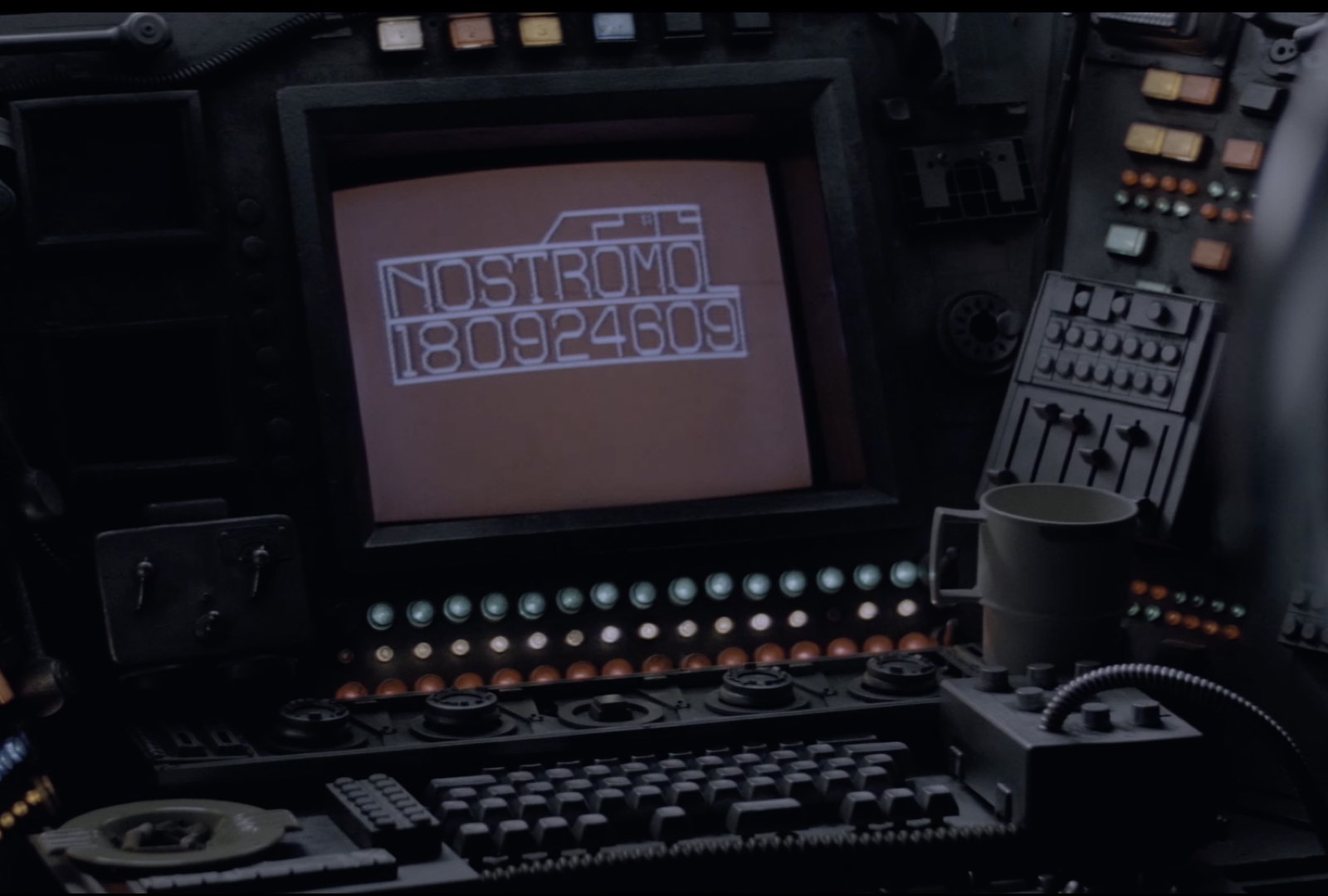
It reminded me of the movie Alien (1979) and the opening scene of the USCSS Nostromo booting up with CRT monitors flickering, and the sound of mechanical precision (https://www.youtube.com/watch?v=SvOdFe4KlJA) .
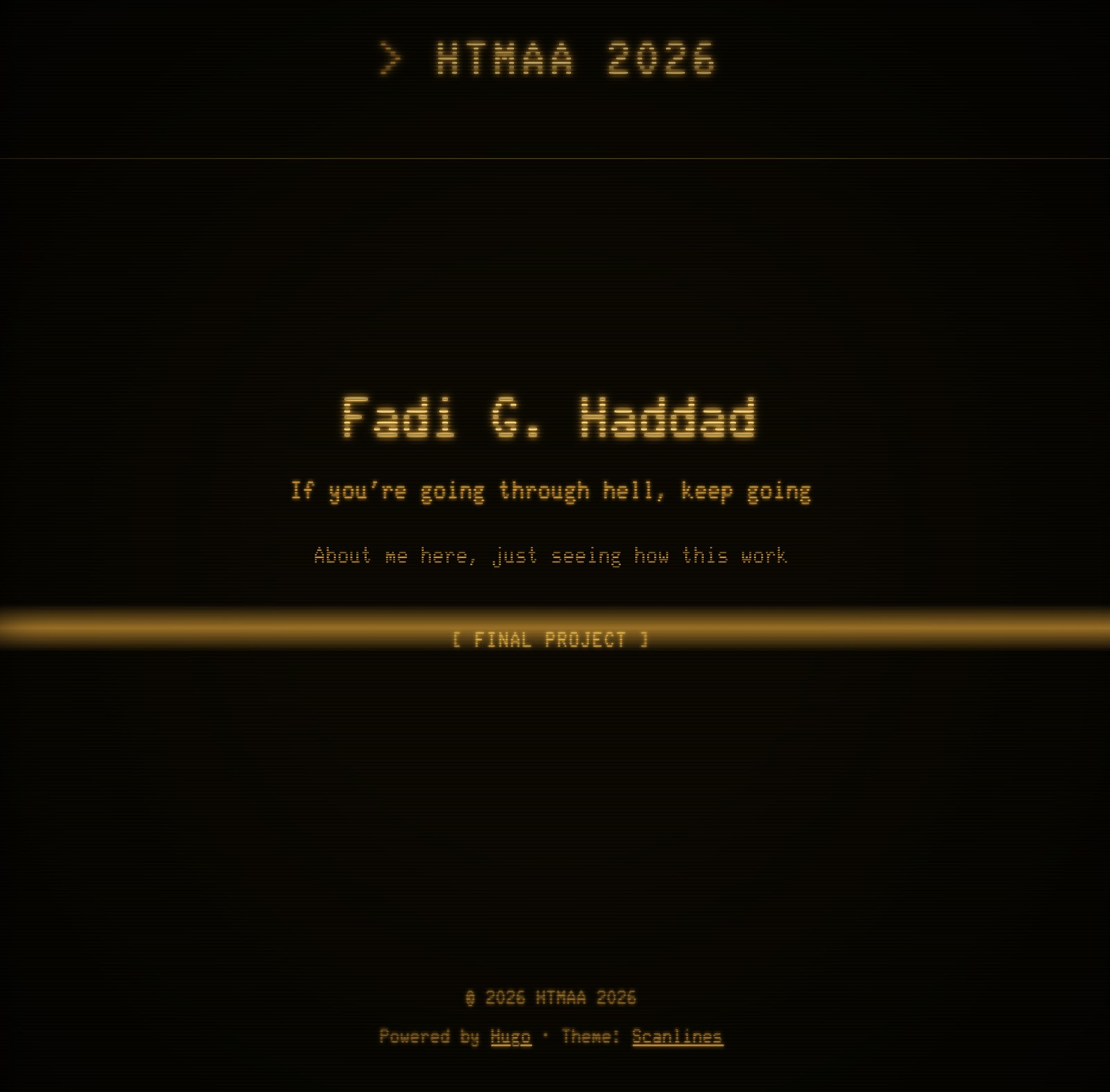
I used the provided templates and wanted to add a more interesting scanline effect with a CRT sweep, I used Claude to add a customized CSS animation.
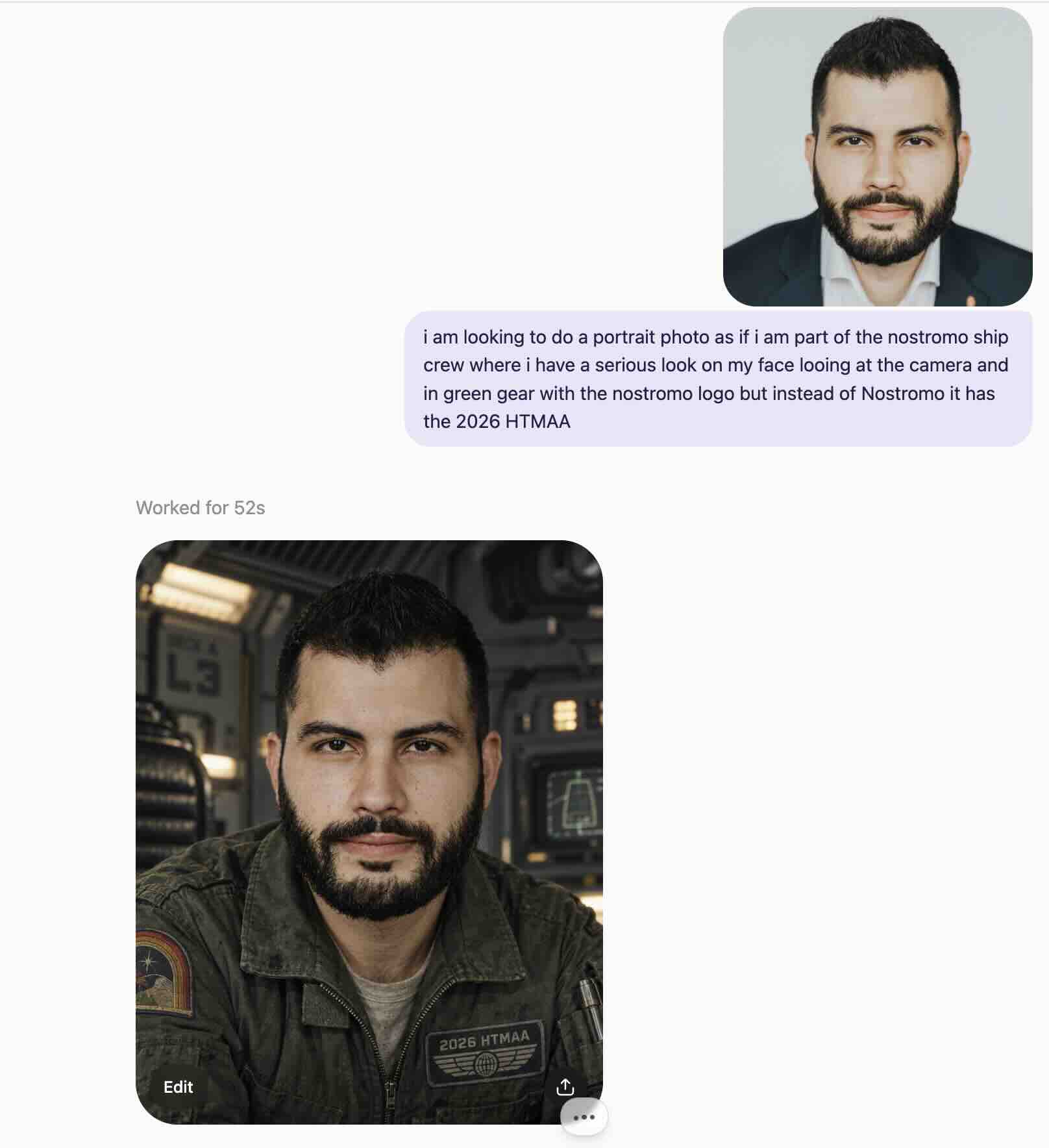
For my about me page, to give the Nostromo feel, I used ChatGPT to take my portrait photo and turn it into one where I’m in uniform as the crew of the HTMAA 2026 – it turned out good with the first try! For a Resident Evil feel, one can also monitor my “vital signs” (fine, caution, danger).
Computer-controlled cutting#
Jen O’Brien, the Archshop manager and technical instructor provided us with an hour safety training.
This was necessary before getting access and using the machines for the week, including the vinyl and laser cutters.
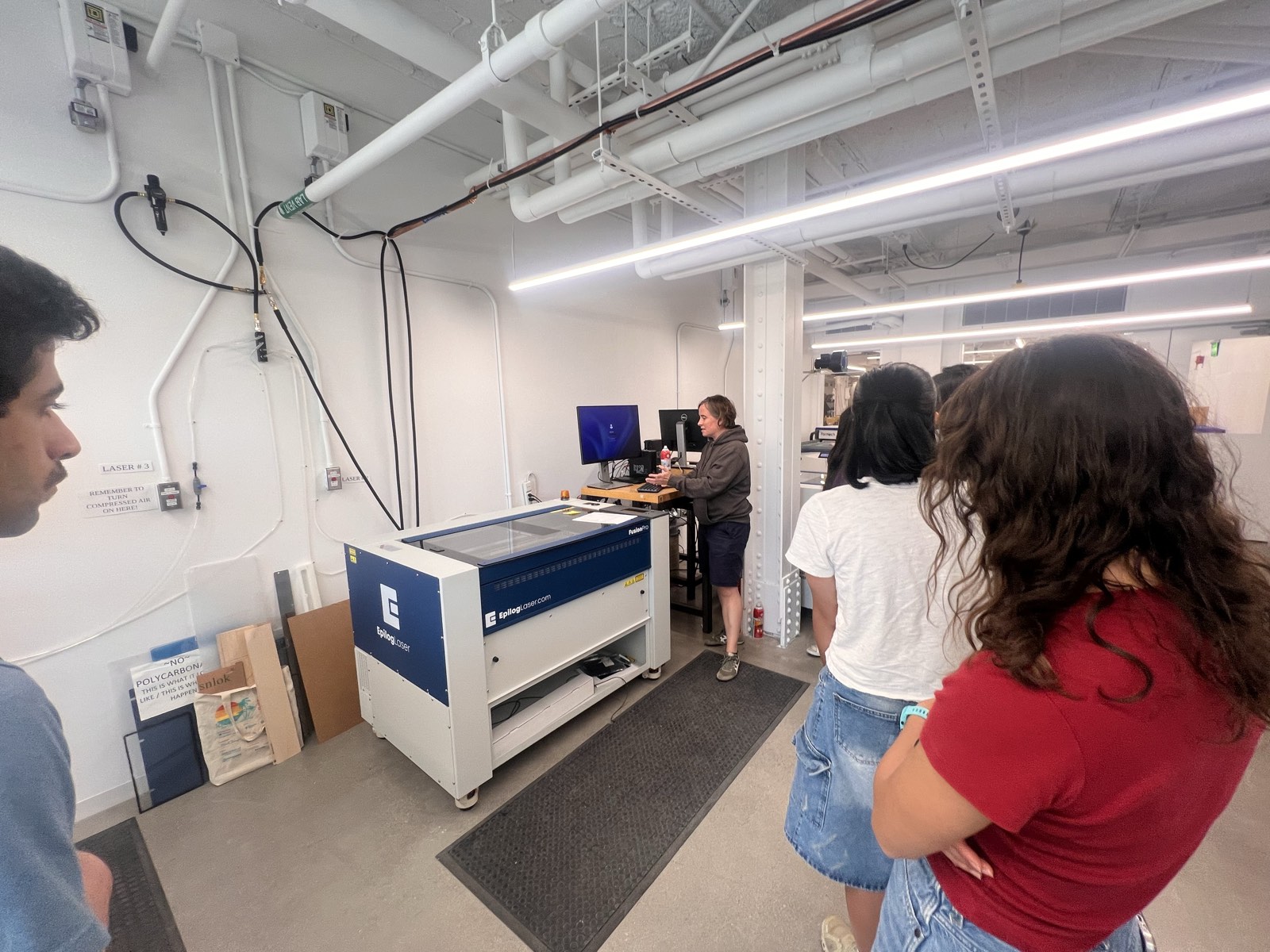
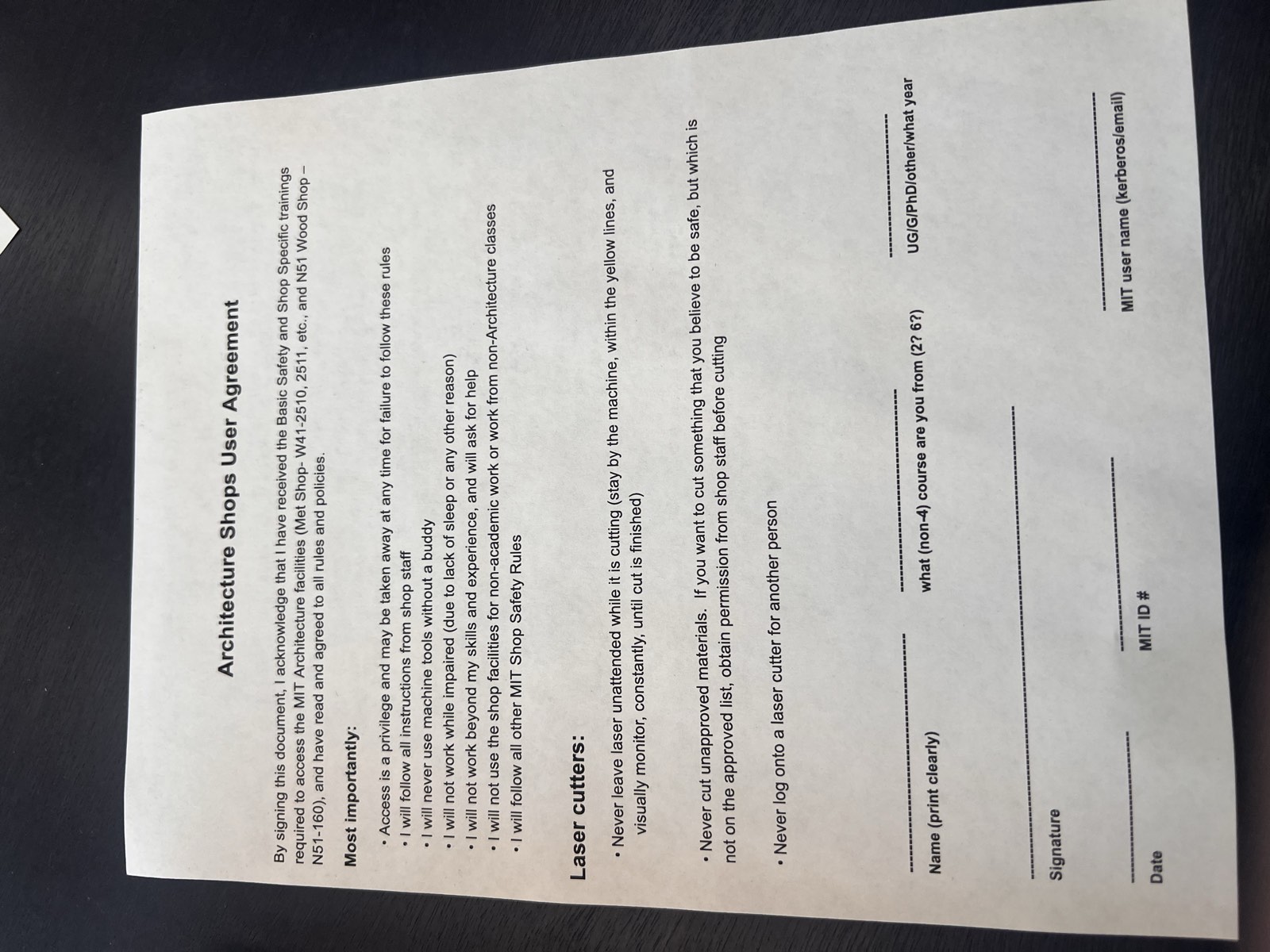
Jen emphasized the importance of safety procedures, including wearing PPE and preventing fires from the laser cutter. For the laser cutting, we were debriefed about three rules:
- The laser cutter cannot be left unattended when running
- Do not use unauthorized material, which could cause fires or fumes
- Access is only granted to students and not outsiders
Vinyl cutting#
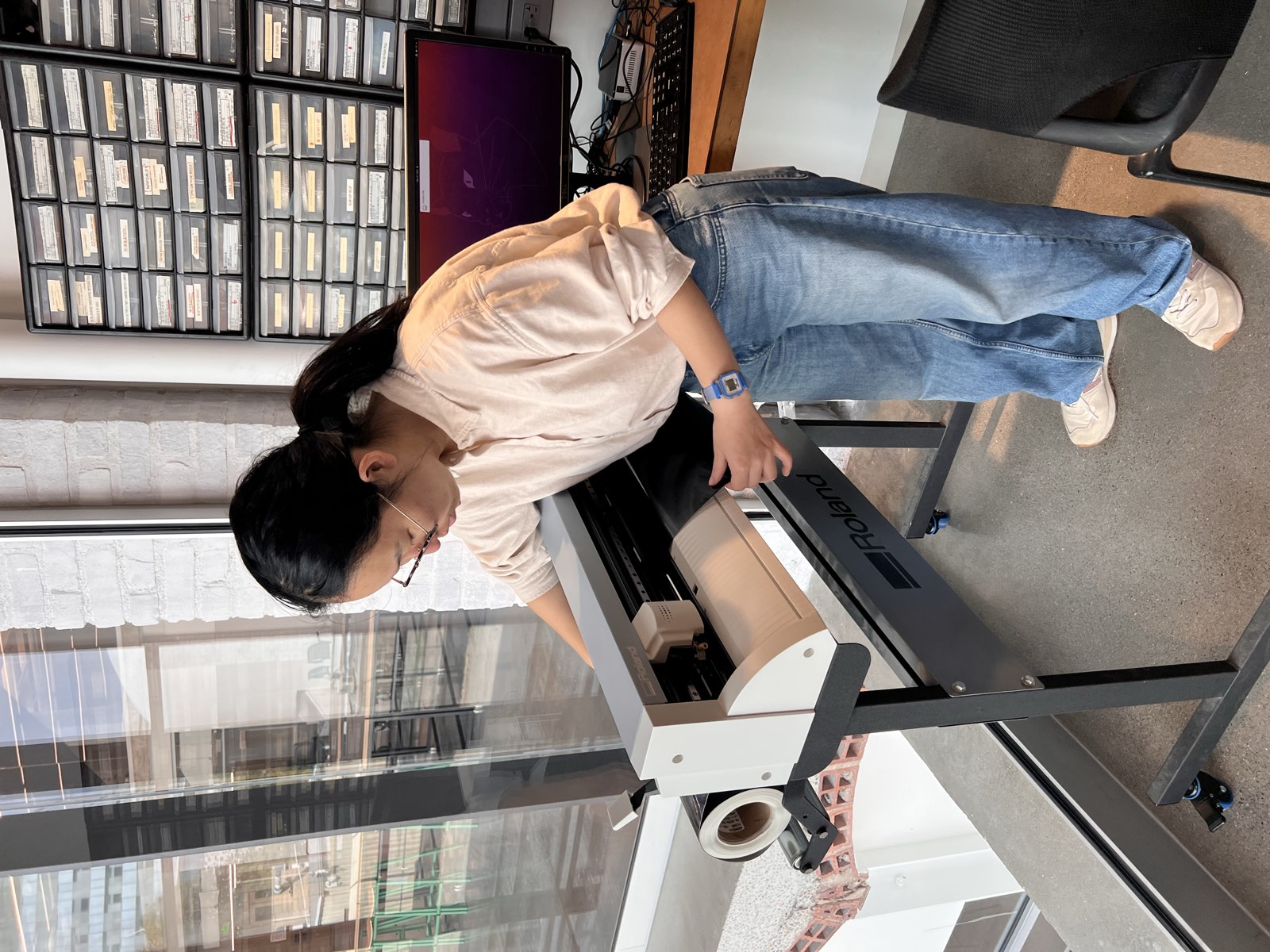
One of our first tasks was characterizing and testing the vinyl cutter using a custom design.
Leaning into a survival horror aesthetic, I prompted ChatGPT to generate a high-contrast binary image of the Alien (1979) Nostromo logo.
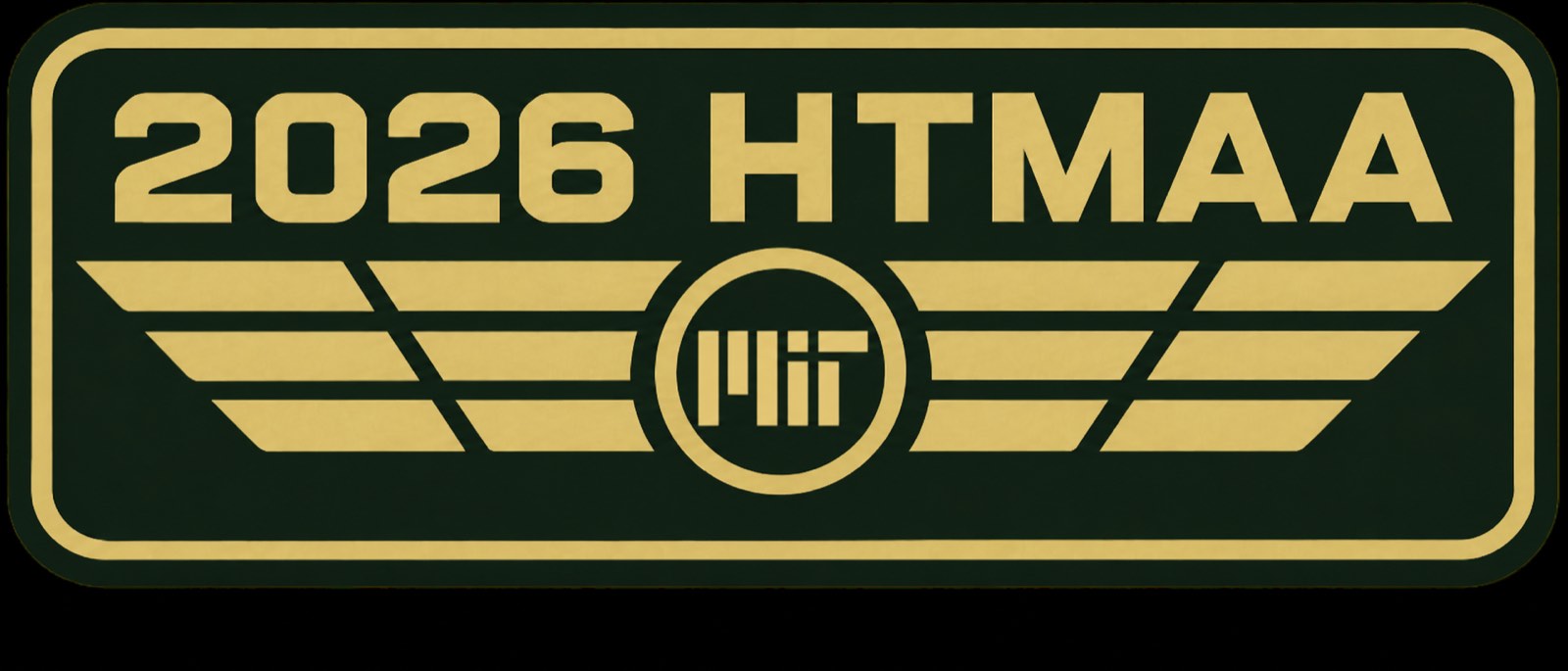
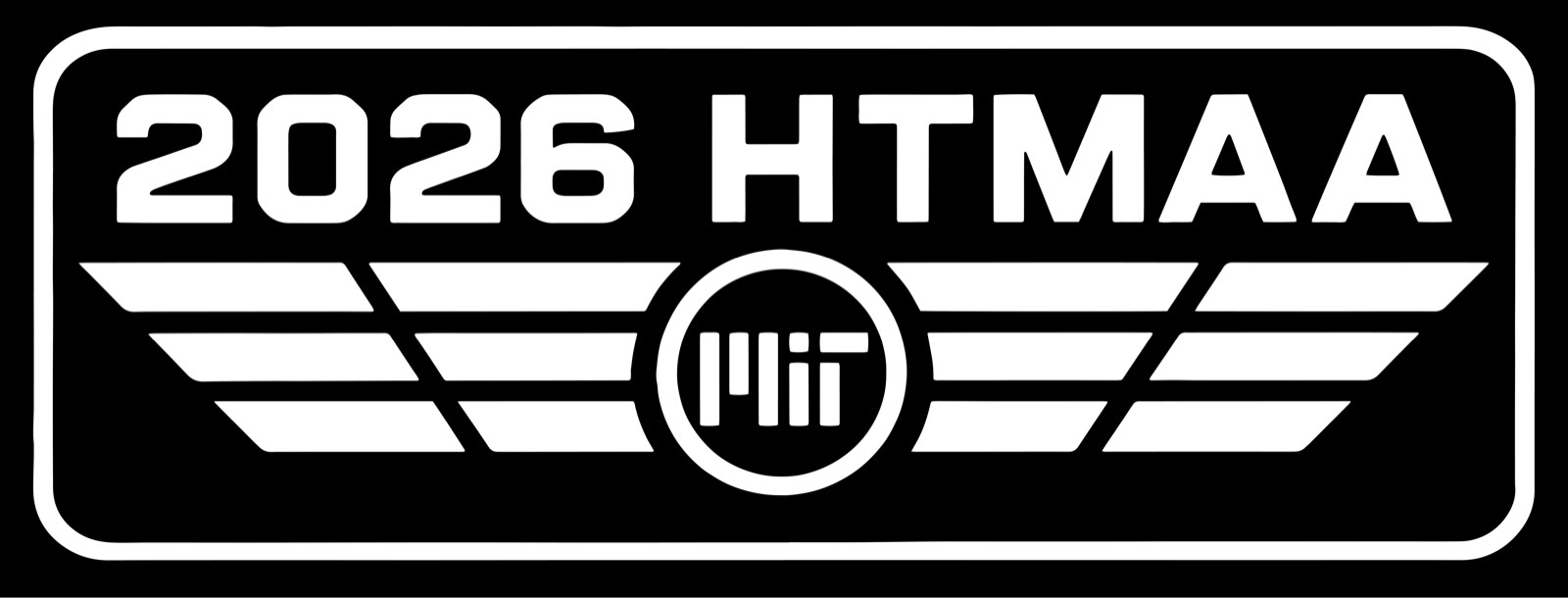
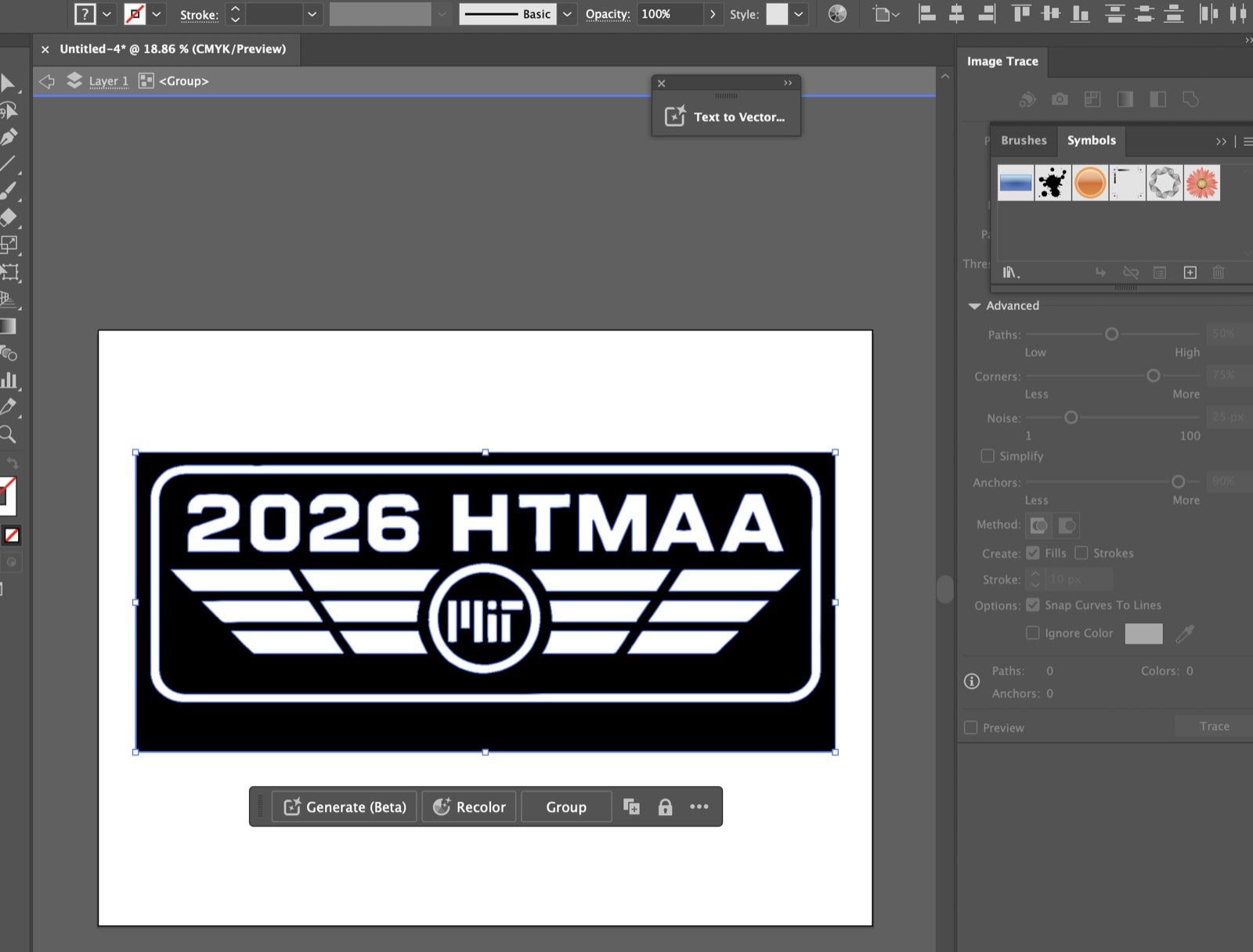
I imported the raster image into Illustrator, ran an Image Trace using the Silhouettes preset to convert the black-and-white pixels into vector paths, and applied Expand to break the trace into editable anchor points and then exported into png files for cutting.
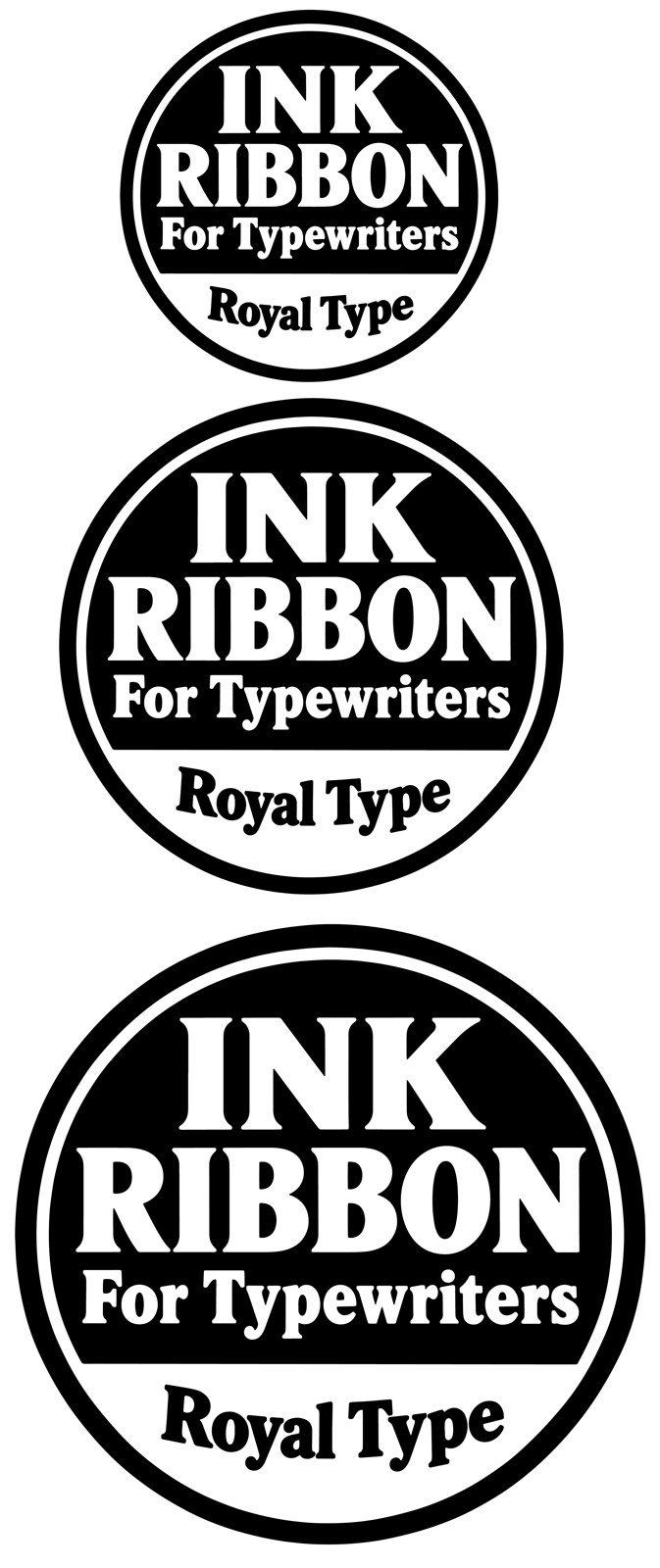
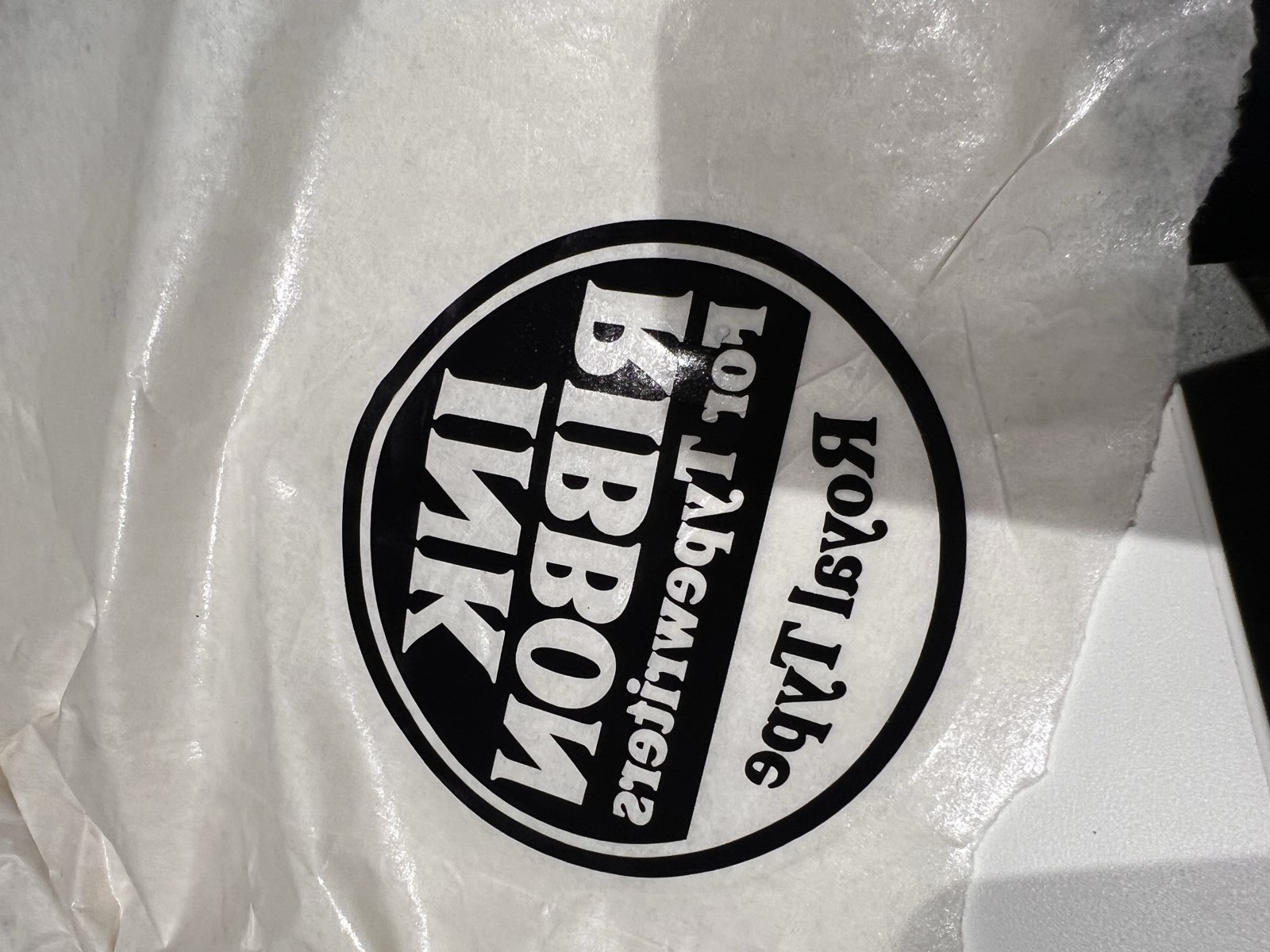
I followed the same workflow to design the custom ink ribbon container logo for The ChronoType.
Next, I brought the png files into the software driver connected to the Roland vinyl cutter (maybe I’m too into the theme, but the clicking and whirring sounds of the vinyl cutting machine makes clicking and whirring sounds that sound strikingly like the Nostromo’s computer boot-up scene).
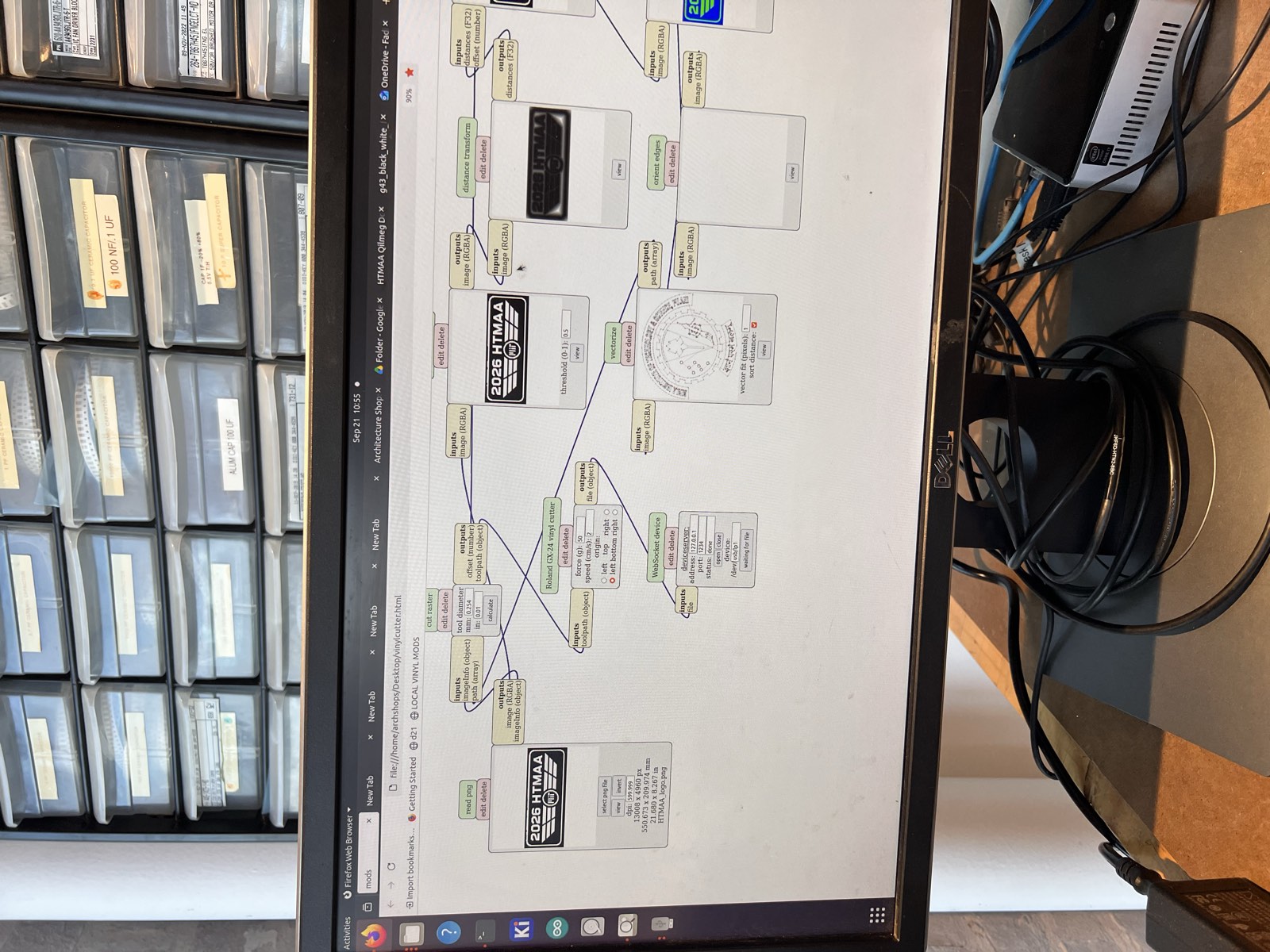
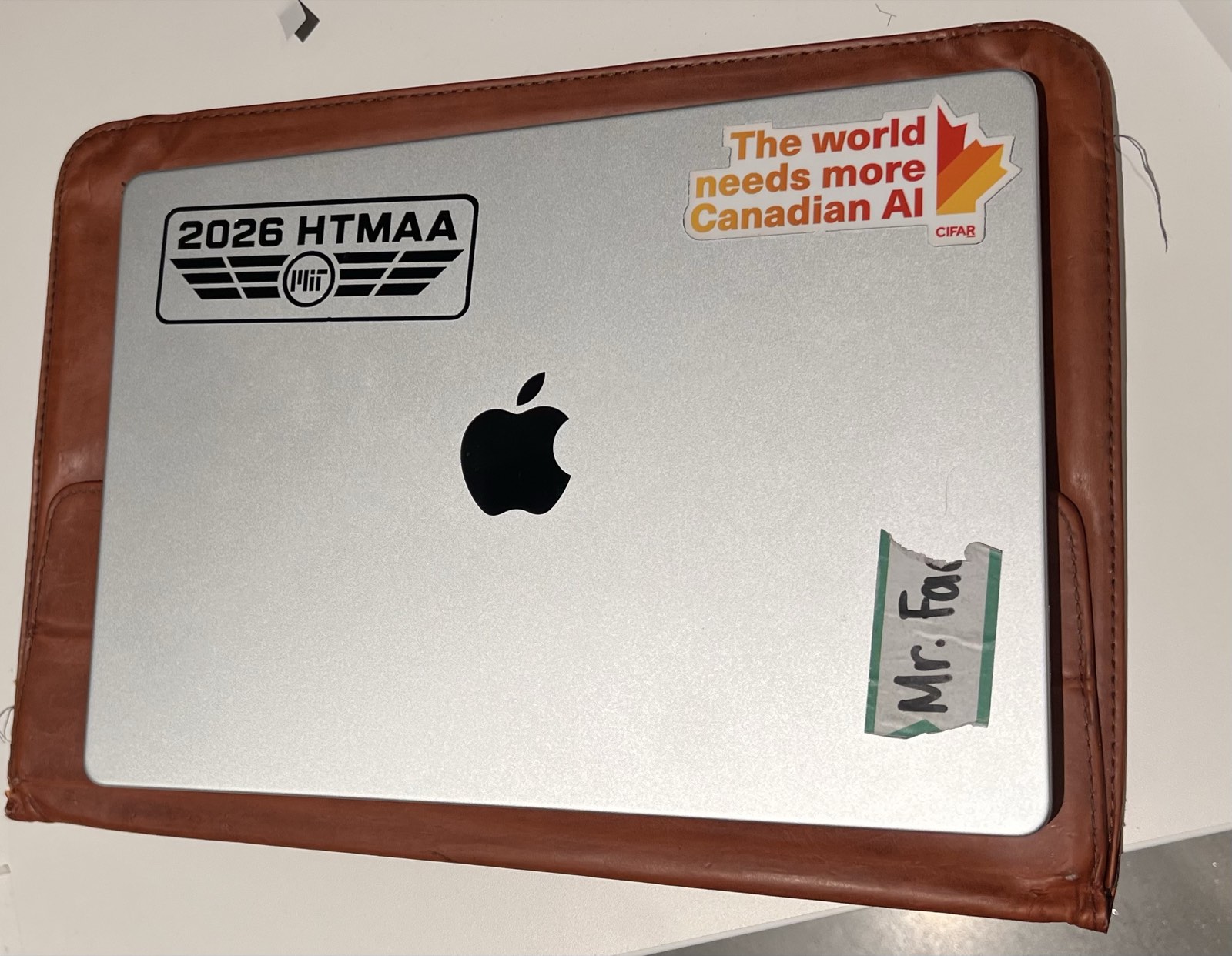
The initial cut test for the HTMAA logo came out way oversized but ended up being a keeper! I scaled the vector geometry down in Illustrator before re-exporting.
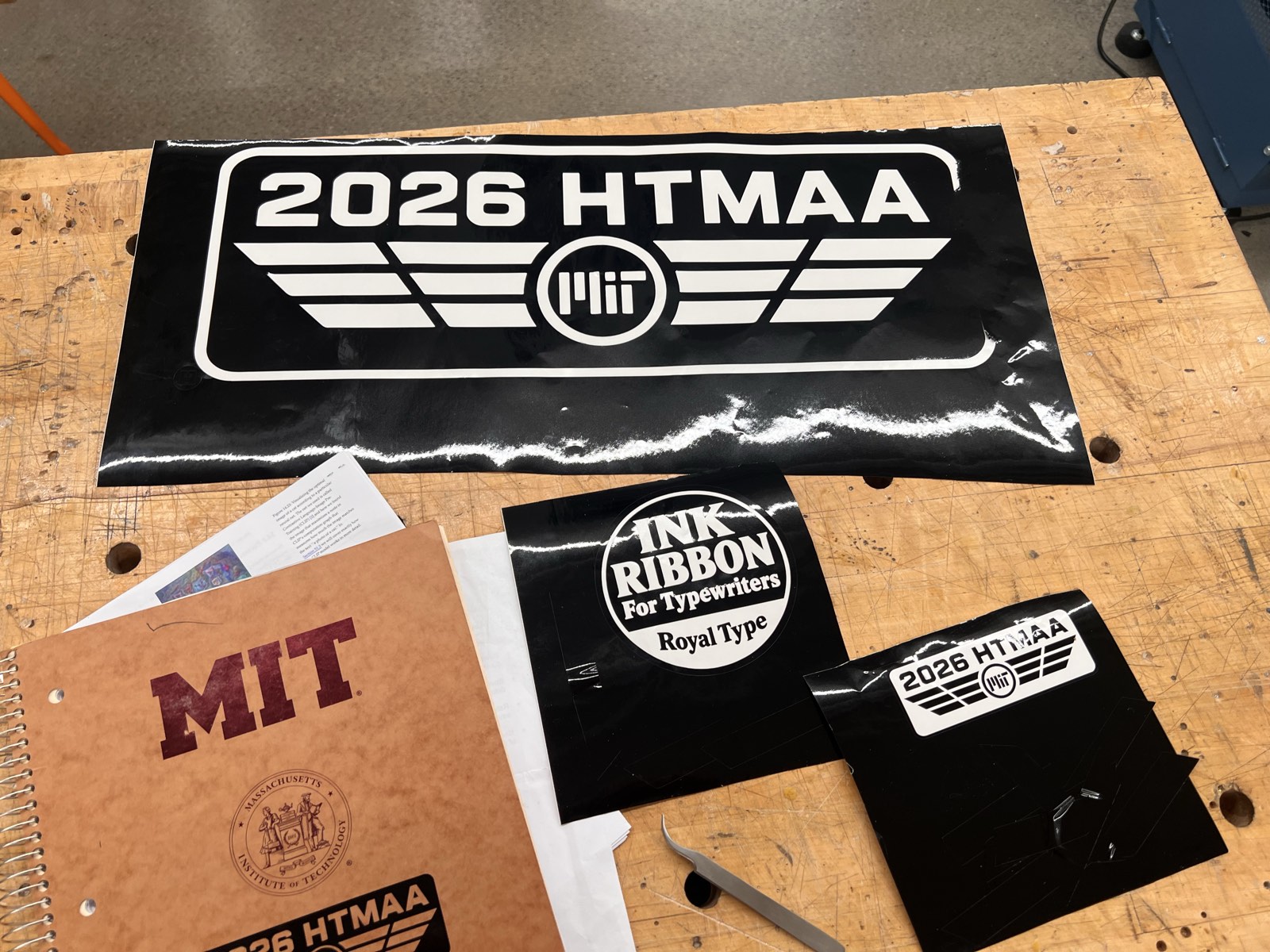
Once cut, I used a weeding pick to peel away the excess vinyl, leaving clean transfers for both the Nostromo graphics and The ChronoType ribbon module.
Laser cutting and parametric construction#
Up next was designing and documenting a parametric construction kit, which is a modular system of press-fit geometric shapes, slots, and connectors that snap together into 3D structures.
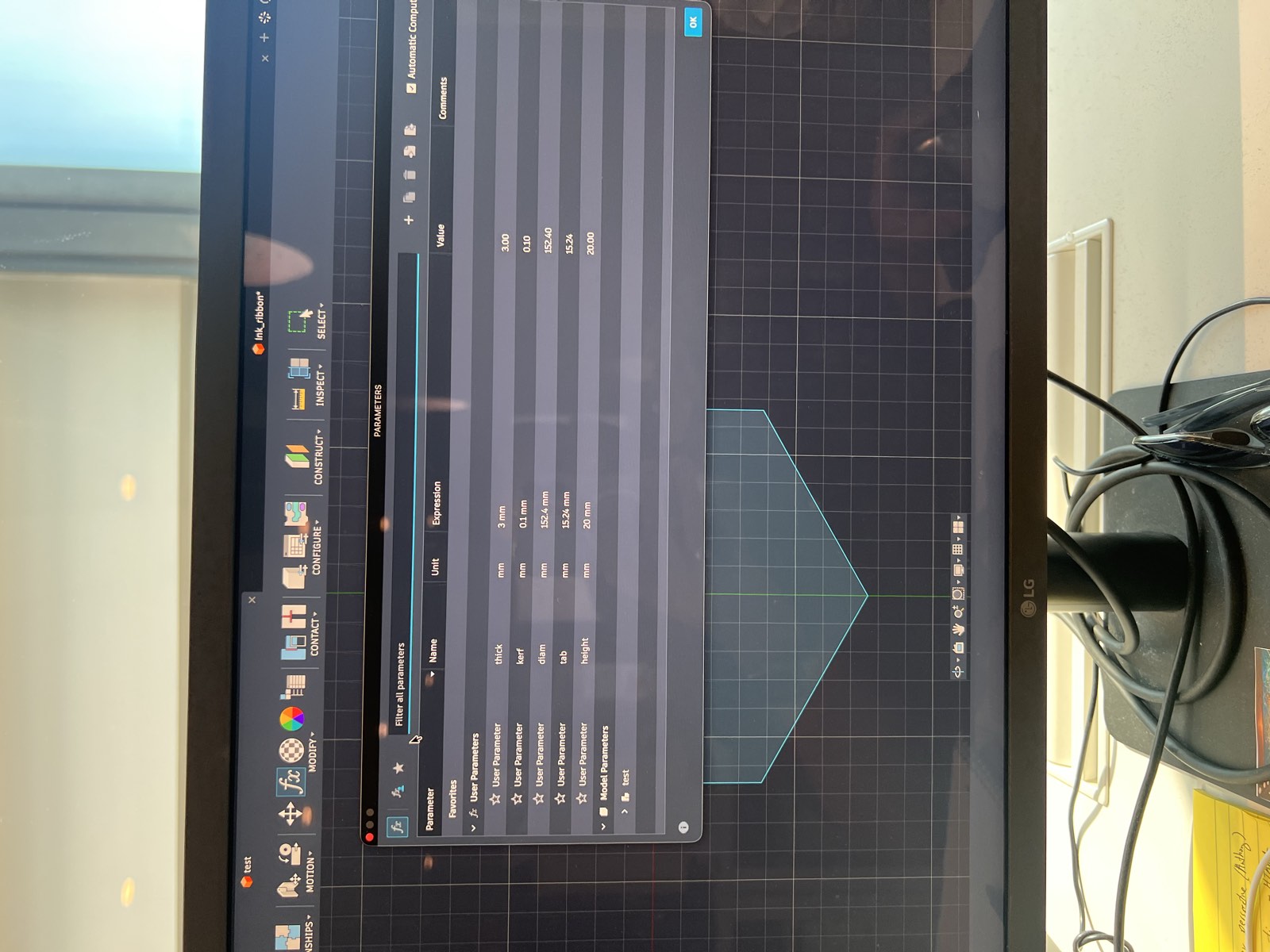
The first step was tackling how to use Autodesk Fusion for its parametric modeling tools, which allow you to define global variables (like material thickness and kerf) so the entire CAD design dynamically updates when dimensions change.
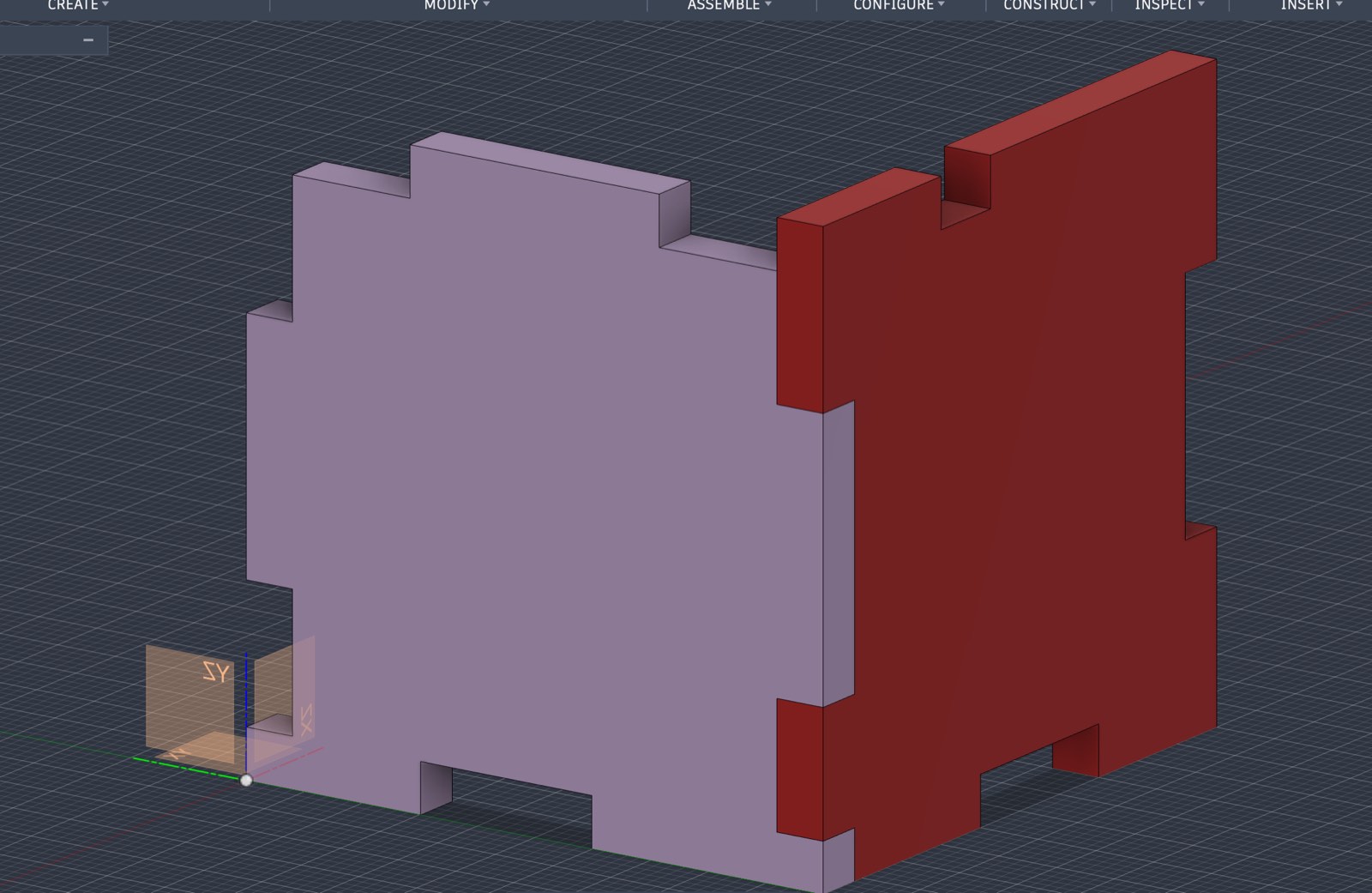
Learning Fusion was daunting, especially coming from a non-design background…even simple navigation like panning and orbiting felt like a hurdle at first.
Luckily, our TA Alfonso recorded great step-by-step tutorial videos. I’m a slow learner so I took me a day of rewatching and practicing each lesson to build muscle memory in using the tool.
There’s a surprisingly steep learning curve packed into the basic workflow: setting parametric user variables, creating reference bodies, projecting geometry, unfolding 3D components onto a 2D layout plane, and exporting clean DXF files for laser cutting via Rhino.
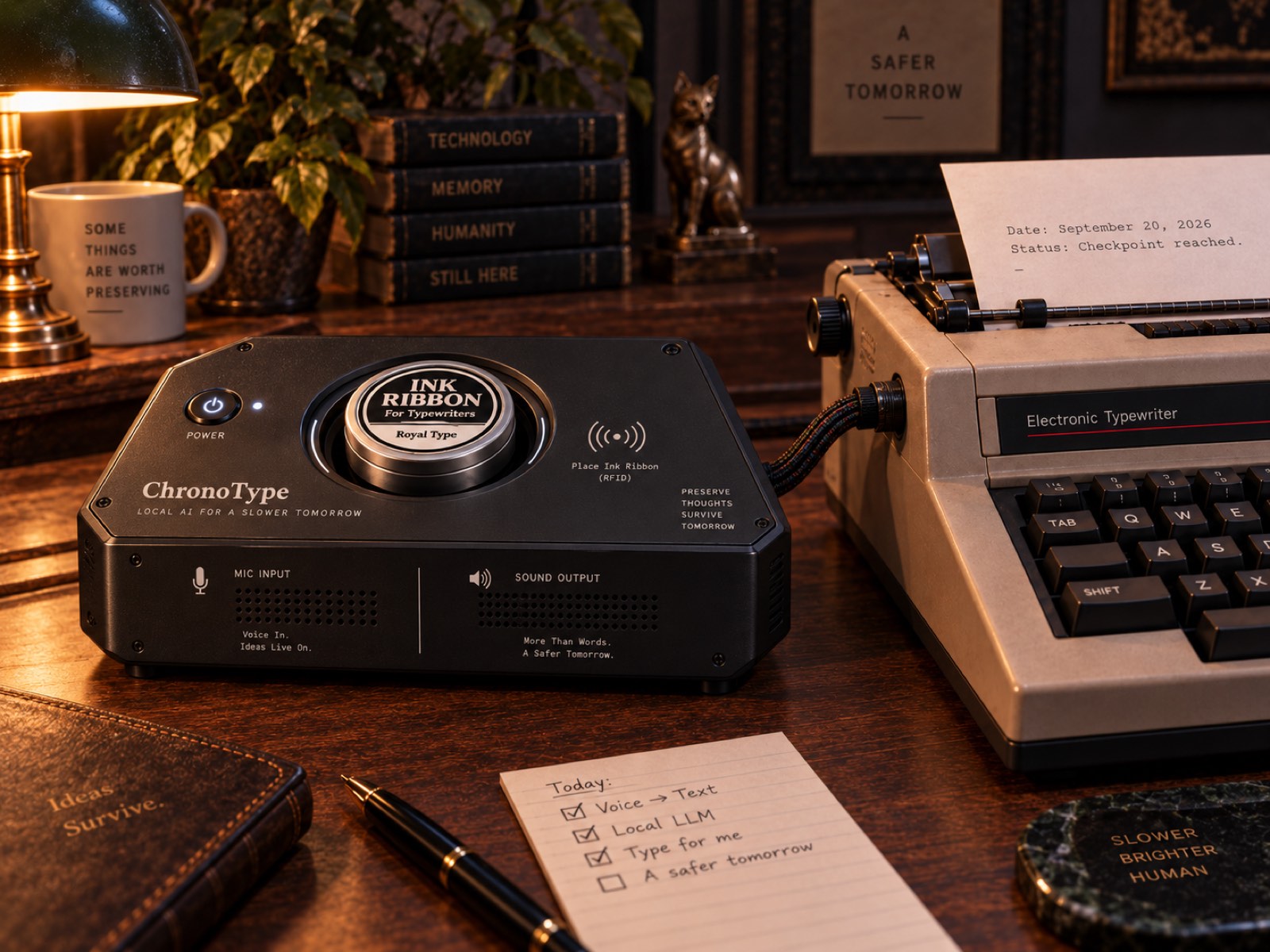
For my construction kit, I aimed to prototype a modular container box that could either house The ChronoType module or act as an RFID ribbon-spool enclosure.
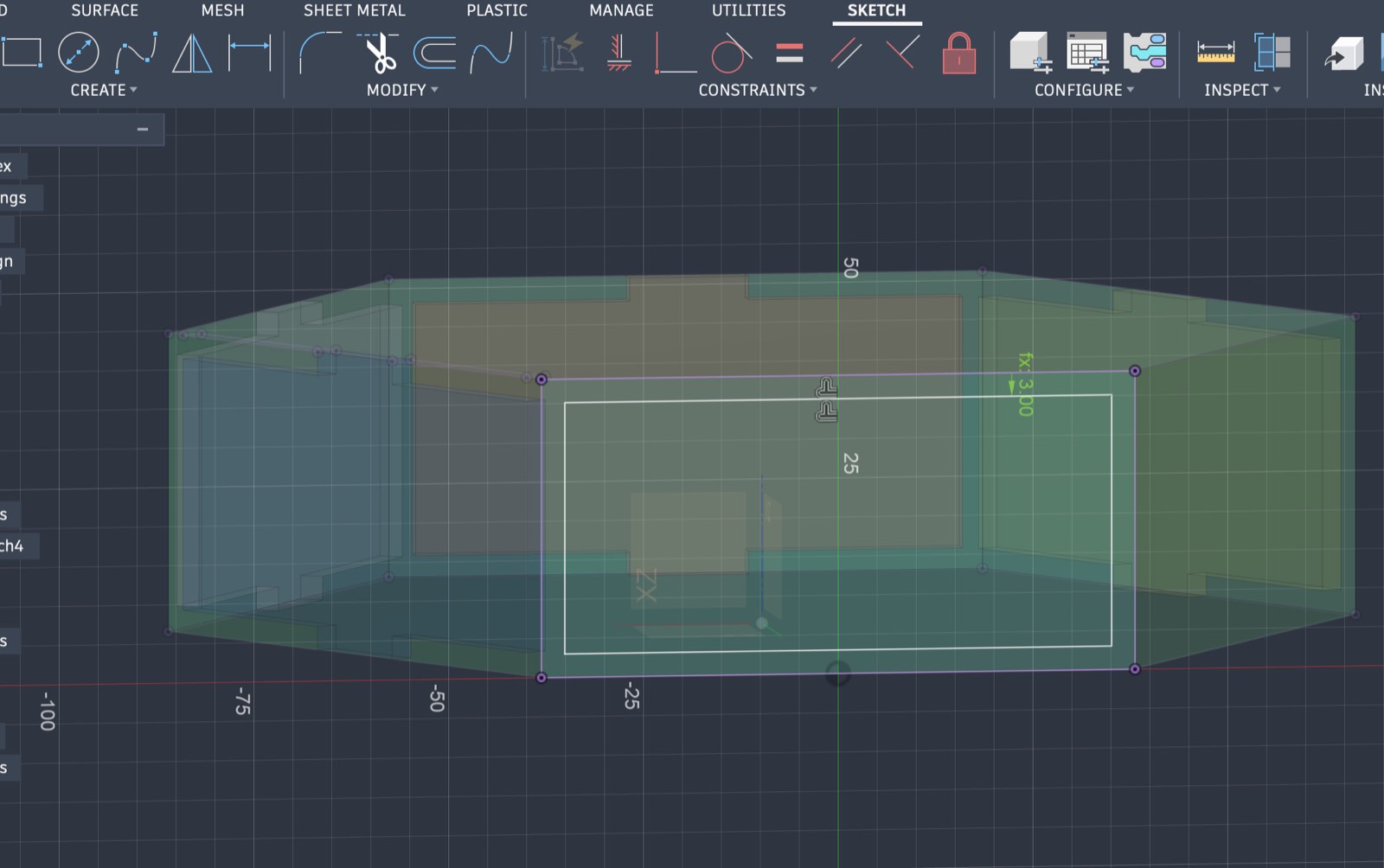
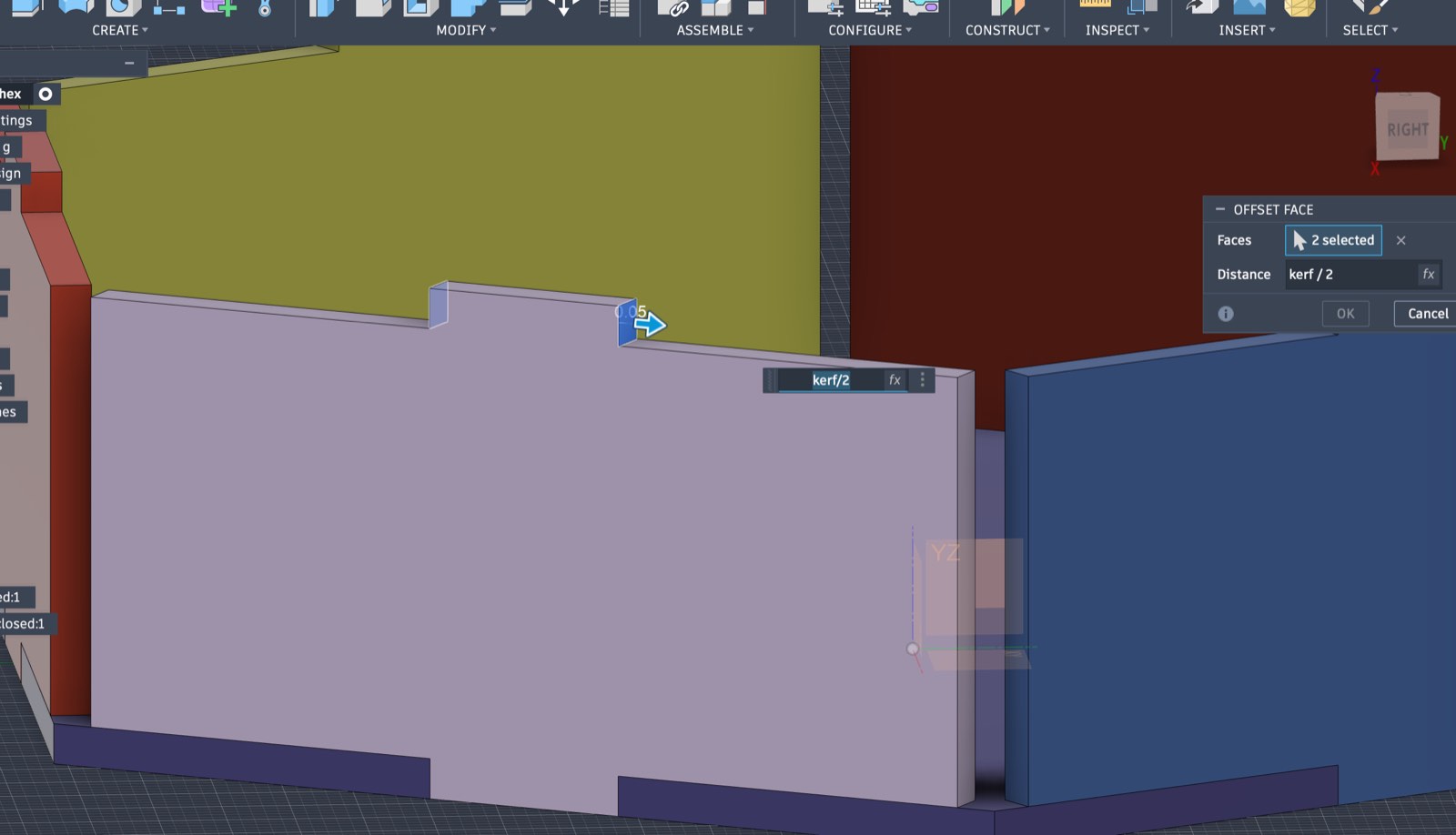
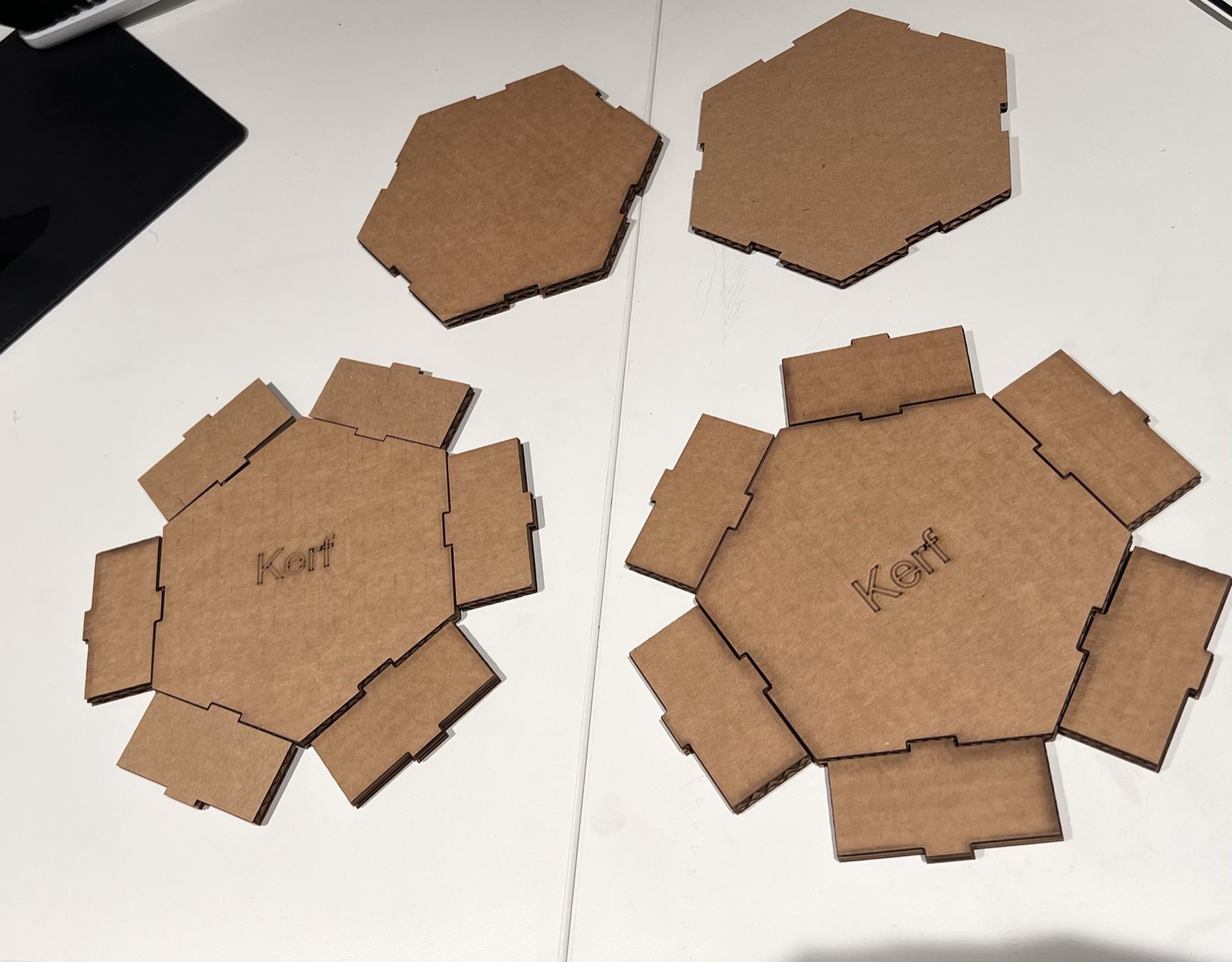
Building on Alfonso’s interlocking cube tutorial (he made it look so easy...cry), I also designed a custom hexagonal press-fit box. I accounted for a 0.1 mm laser kerf offset in my slot tolerances to ensure tighter joints.
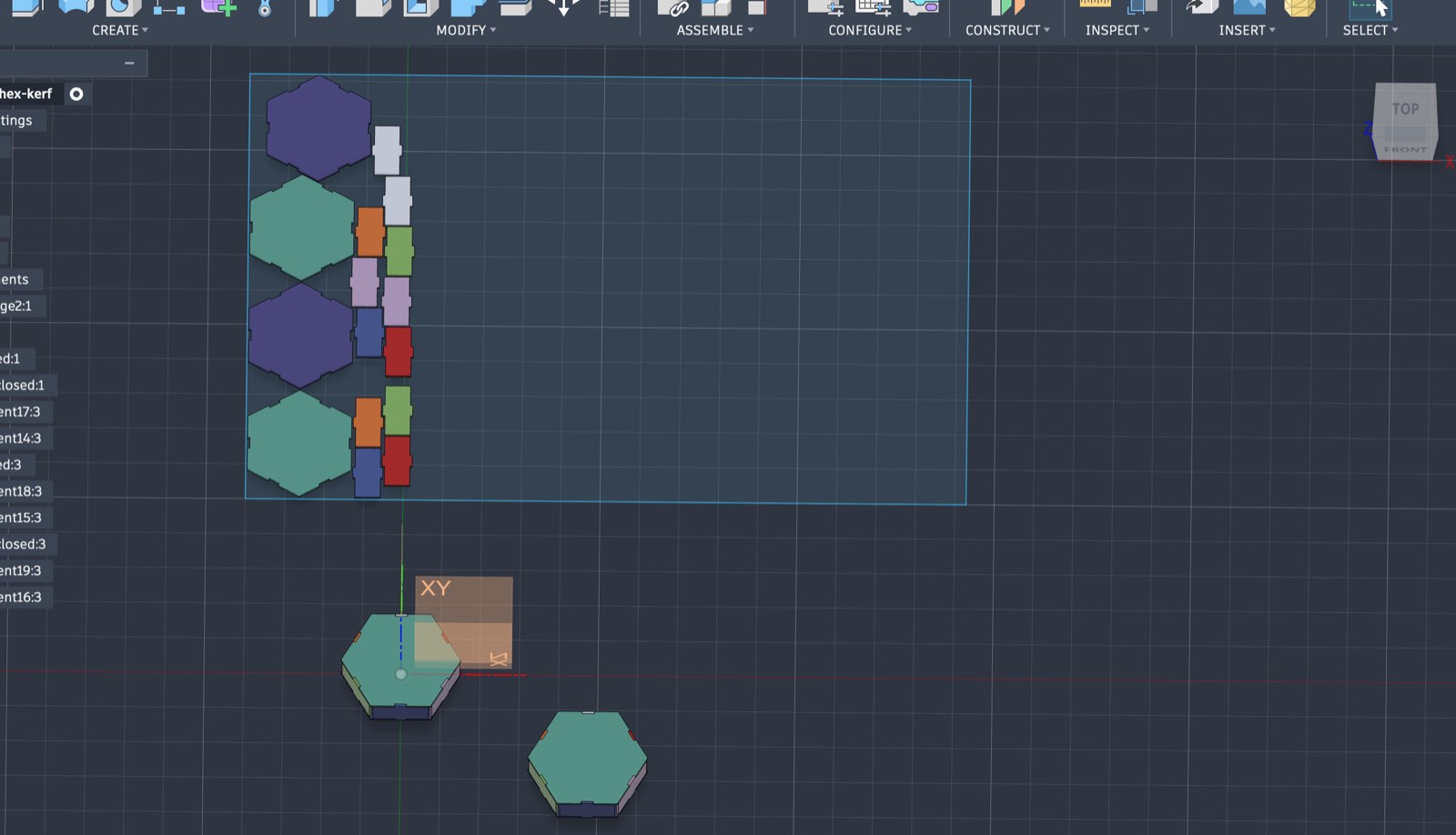
The laser cutting itself went smoothly using the machine settings recommended by Qilmeg.
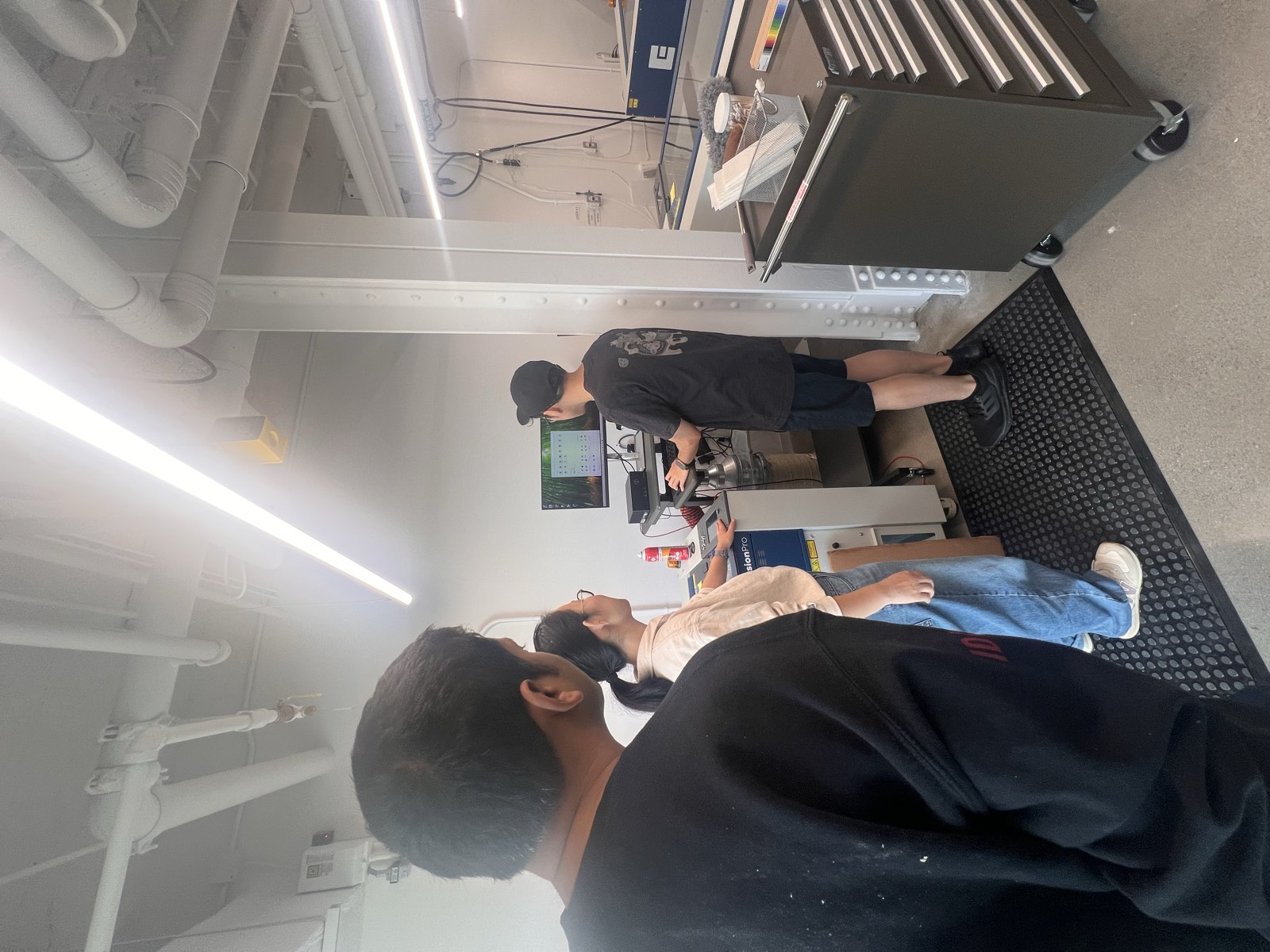
However, I realized after printing that the corrugated cardboard sheet measured closer to 4.8 mm rather than the 3 mm I originally modeled for.
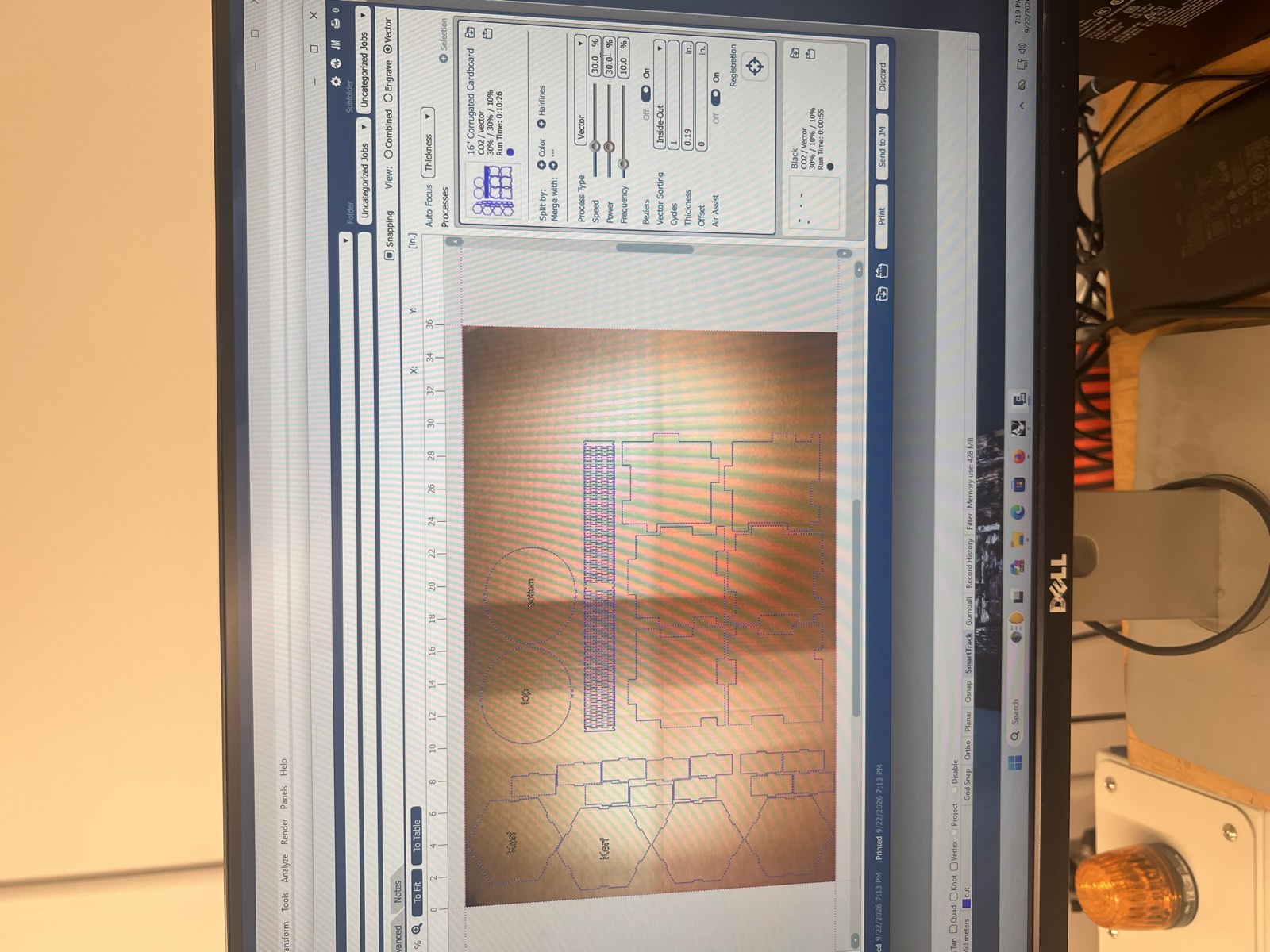
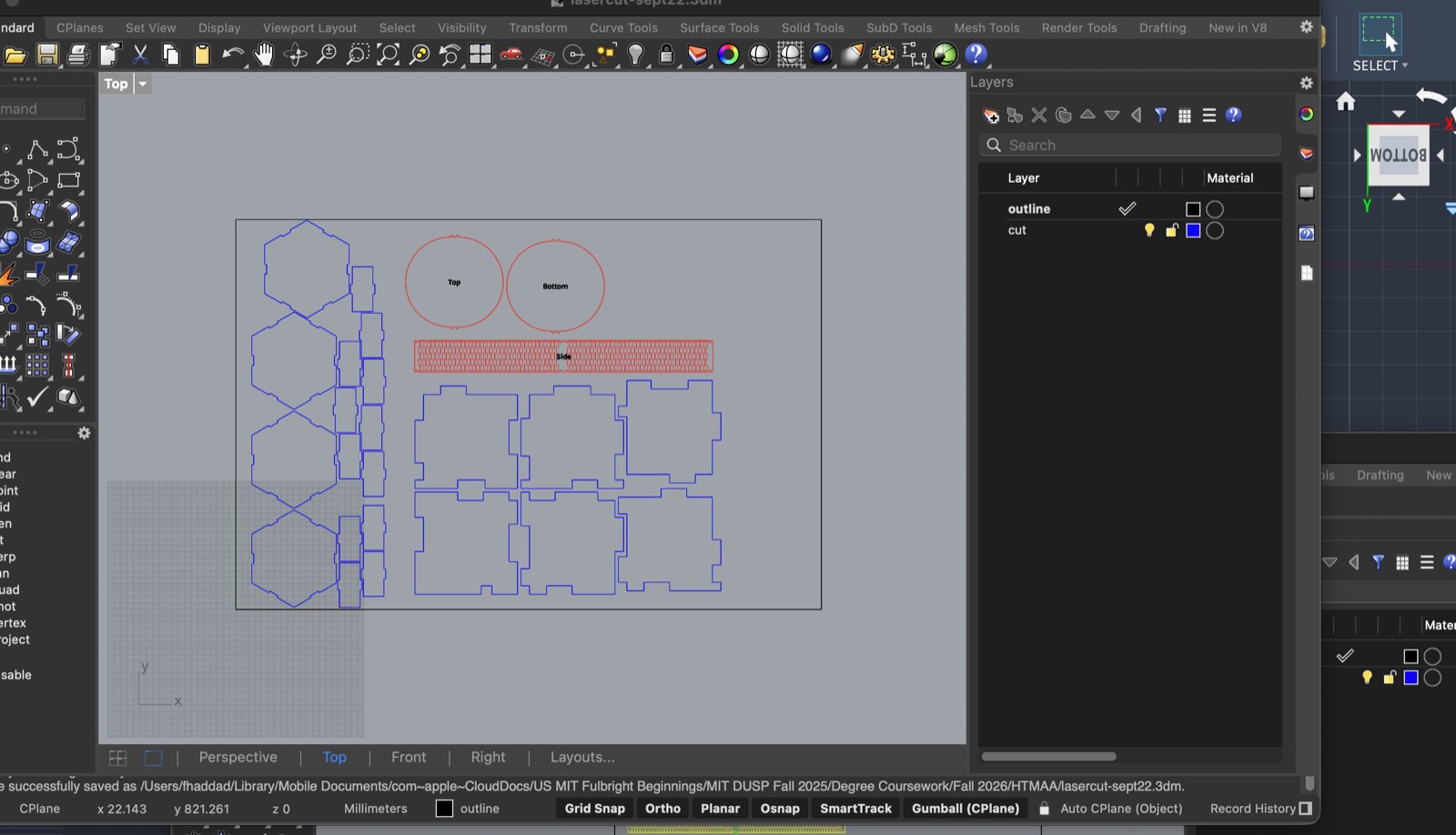
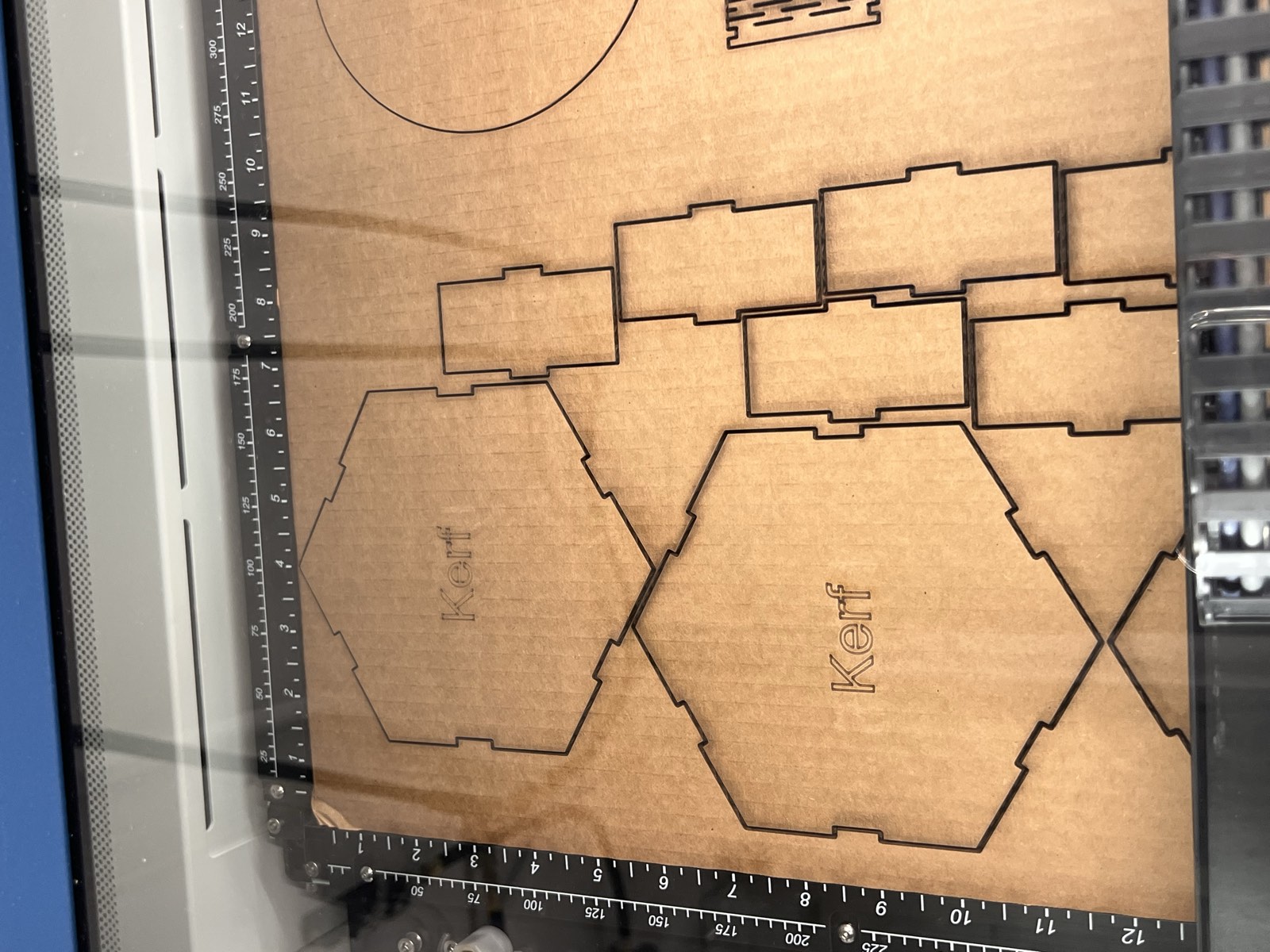
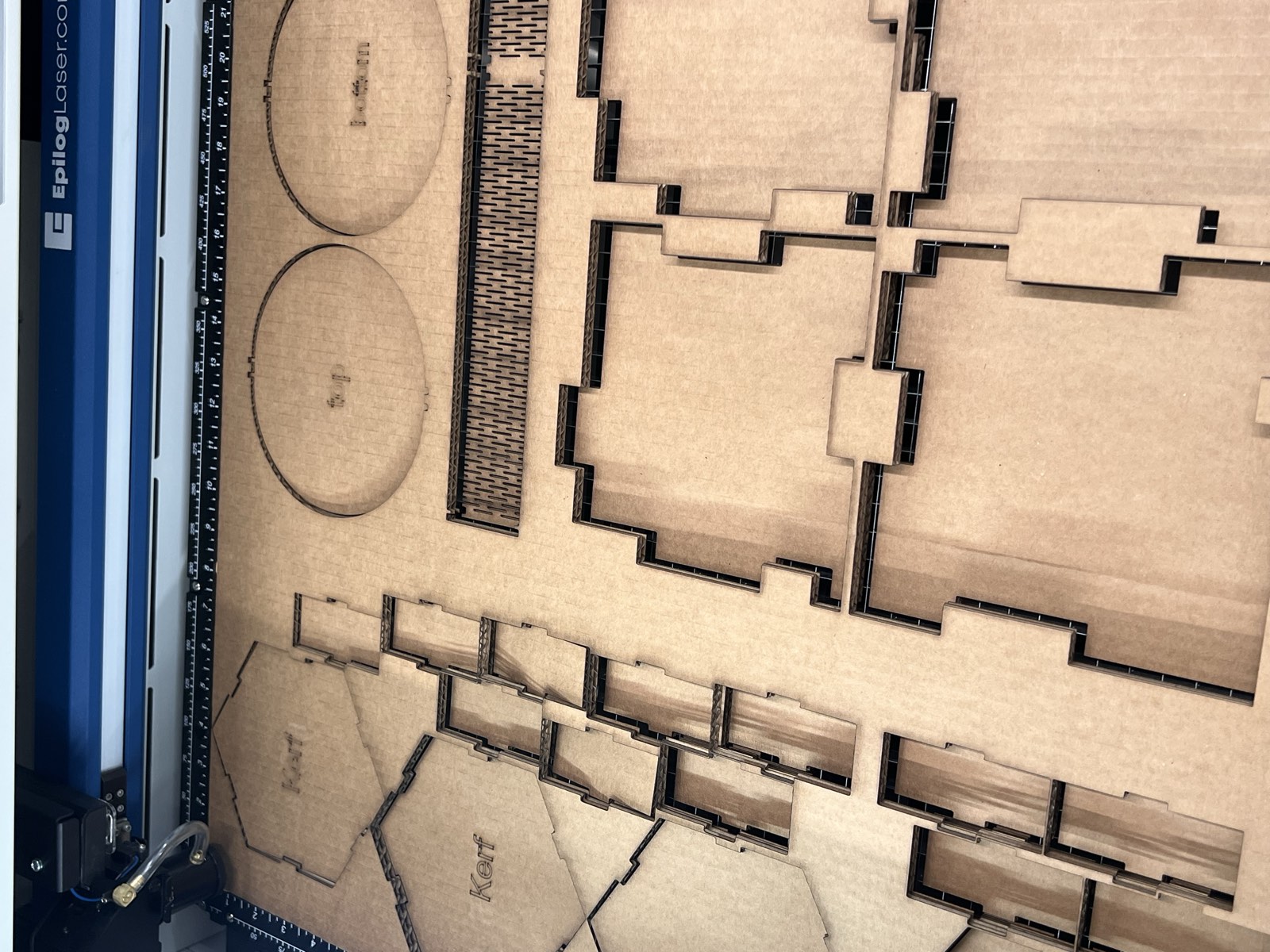
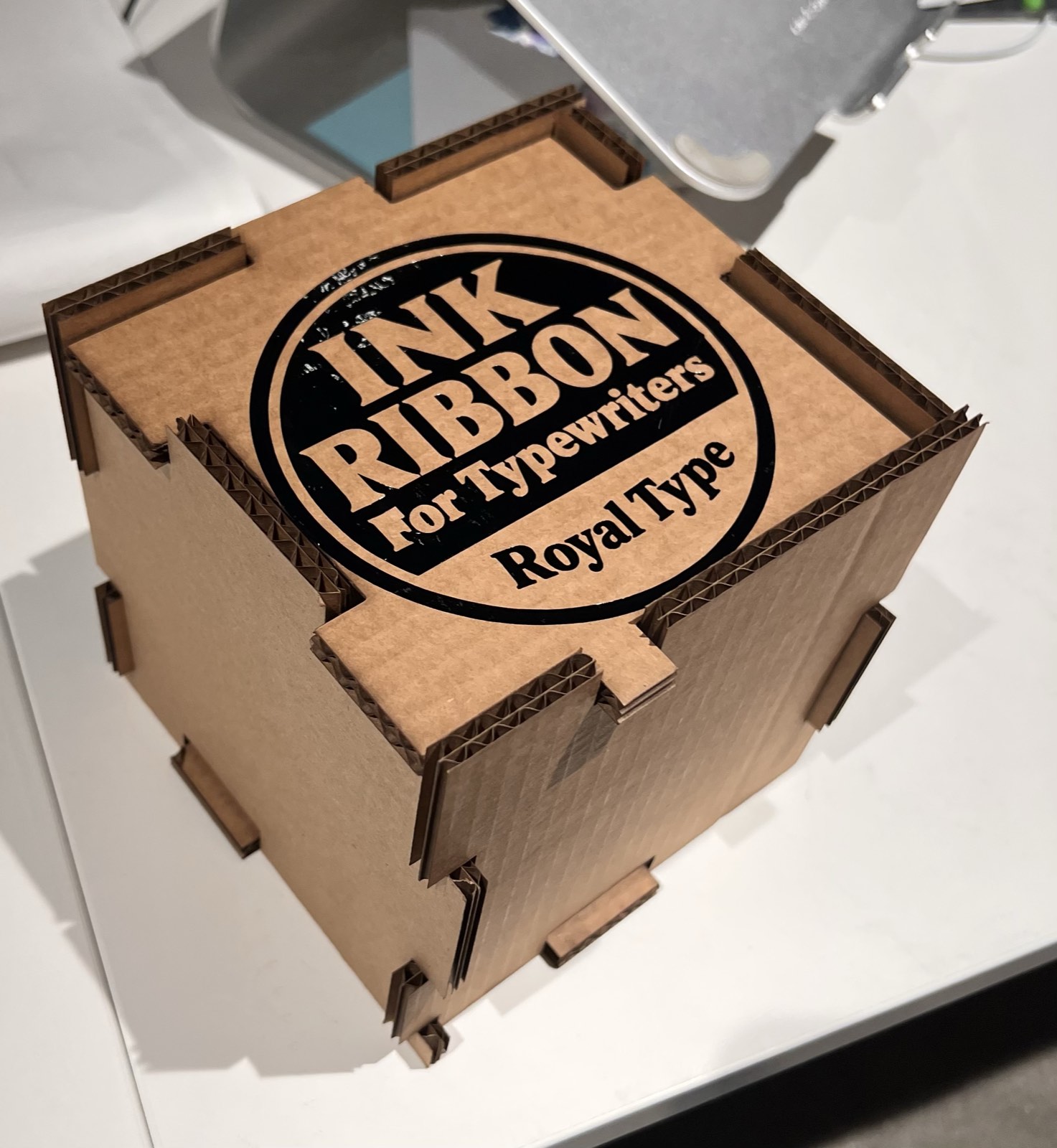
While the square cube puzzle pieces held together (barely), the slots on the hexagonal container were too narrow for the thicker stock.
Regarding cut order and settings: because raster etching was disabled for our corrugated cardboard stock, I used low-power vector cutting (dropping the laser power from 30% down to 5%) to etch the surface details first before running the full-power vector cuts.
To maximize the 36 x 24 bed, I also generated and cut a round box from boxes.py.
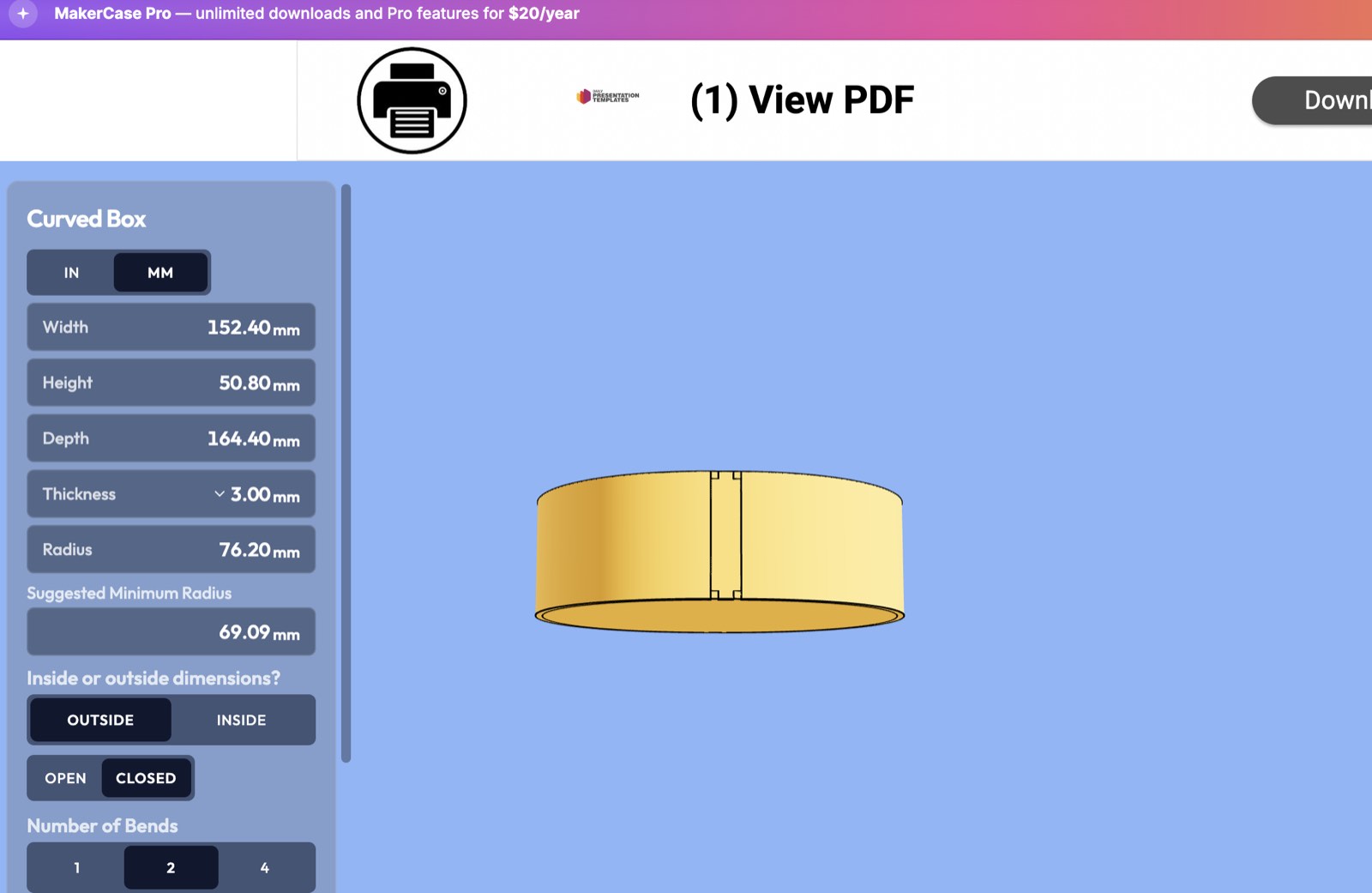
Although the material thickness mismatch prevented the interlocking tabs from joining properly, it gave me a hands-on look at how kerf-bending and lattice cuts (living hinges) allow rigid cardboard to curve.
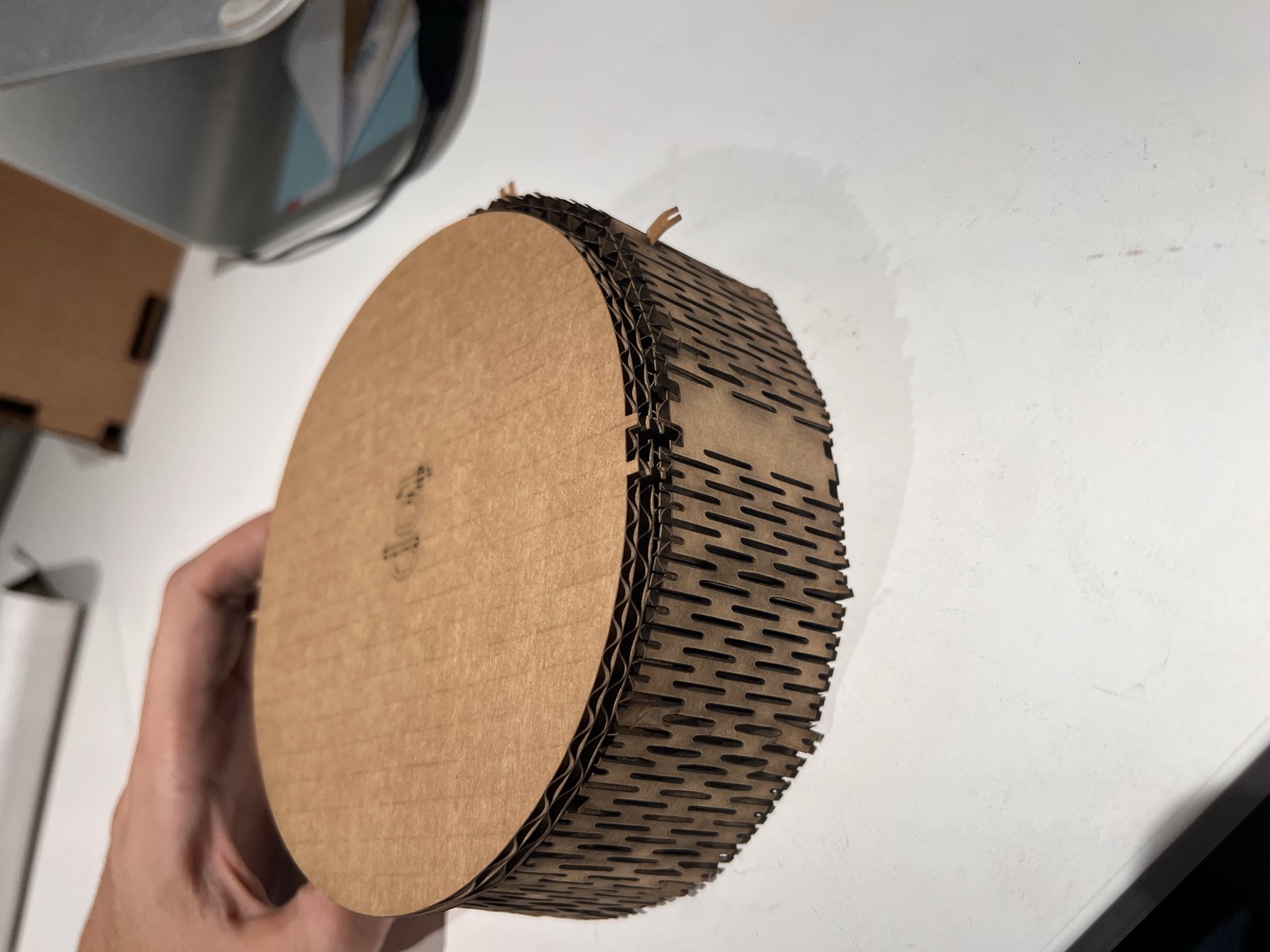
As someone outside the traditional architecture and design disciplines, demystifying this end-to-end manufacturing pipeline felt rewarding to see a final tangible product.
While Fusion felt intimidating and took time to learn, having went through it and gaining hands-on control over the software gives me a lot more confidence as I move forward with designing the final enclosure and ribbon module for The ChronoType.