Understanding a microcontroller#
I've often wondered what it would have been like if I had chosen the path of an electrical engineer rather than one in mining.
Well, it's never too late since one of the first tasks this week was to familiarize myself with the RP2040, the microcontroller designed by Raspberry Pi Ltd. and embedded into the provided Seeed XIAO development board.
The RP2040 microcontroller is the tiny computer that can run code, process signals, control components, and coordinate everything else. XIAO’s development board provides versatility by packaging it all into one circuit board with USB power, voltage regulation and other elements that make prototyping and coding easy to execute.
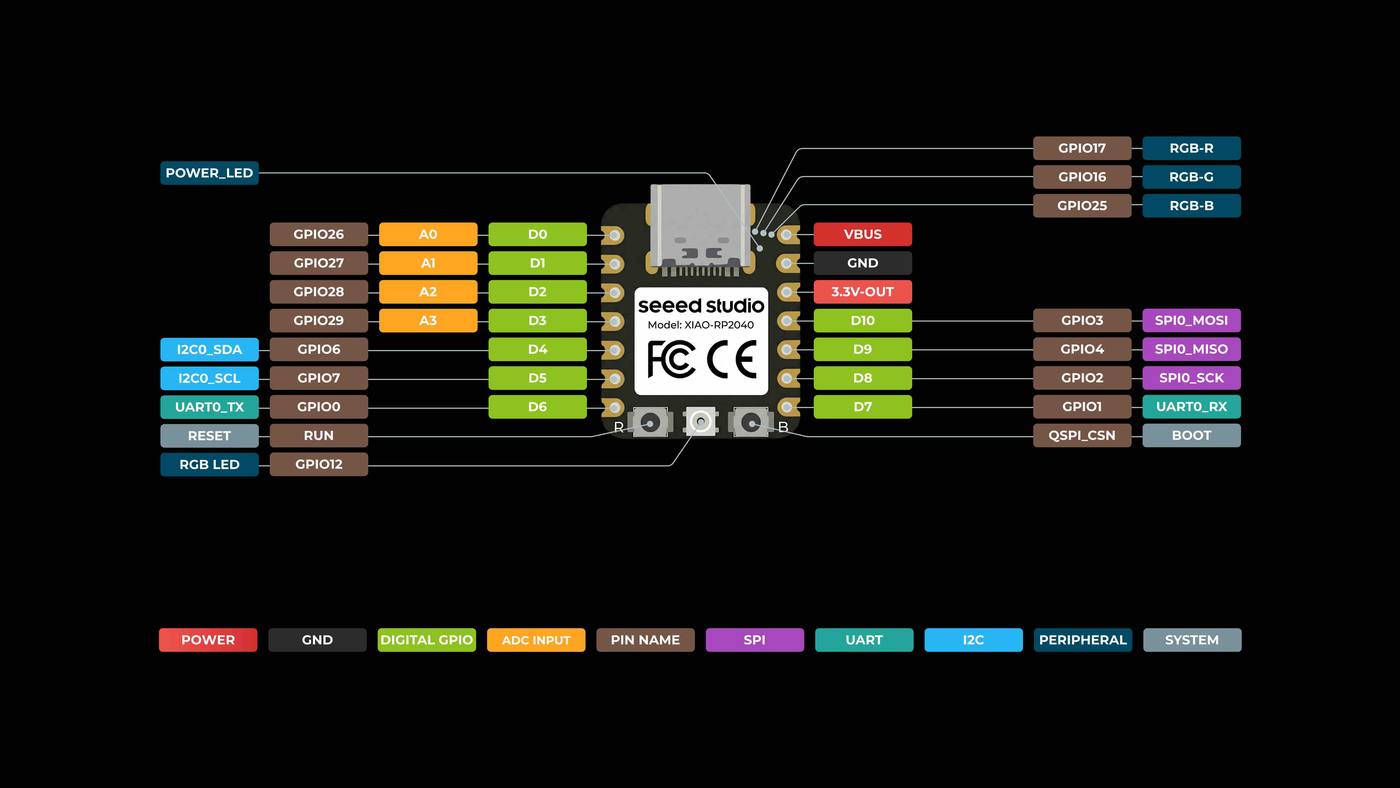
Looking at the RP2040 datasheet (RP2040 datasheet +(XIAO getting started guide to understand the maze of the connector pins, I wanted to at least have a good grasp of the main categories:
Power and system: the power inputs and outputs, ground reference pin. Anthony’s tutorial explains how these pins can power other components or devices (3.3 to 5 V)
I2C (inter-integrated circuit) for connecting low-speed sensors or displays.
SPI (serial peripheral interface) for high speed data transfer connections including an SD reader, WIFI, and colour displays.
UART (universal asynchronous receiver-transmitter) for simple direct communication between two devices.
ADC (analog-to-digital converter) pins read the voltage levels and convert them into a digital number for coding like adjusting the brightness of an LED or audio volume.
One thing I learned is how the XIAO board takes the 30 input/output pins of the RP2040 into a smaller 14-pin footprint that covers all these features and suitable for most unless trying to connect more physical pin connections than the board exposes, in which case a larger board like the Raspberry Pi Pico would be more suitable.
System assembly#
As part of this week's assignment, we each received a didactic circuit board (https://pub.cba.mit.edu/quentin.bolsee/qpad-page/ ) developed by our TA Quentin Bolsée as a way to learn how to solder, and code using Arduino IDEA and MicroPython with example open-source codes.
As specified by Quentin, the board itself makes use of 8 of the 11 pins along with the three other pins (power and ground). The OLED uses I2C's SDA (serial data line) and SCL (serial clock line) pairs. The OLED display needs both whereby the SCL acts as a steady timing pulse to regulate when the display should listen, while the SDA is the actual message which changes voltage levels to send the binary data.
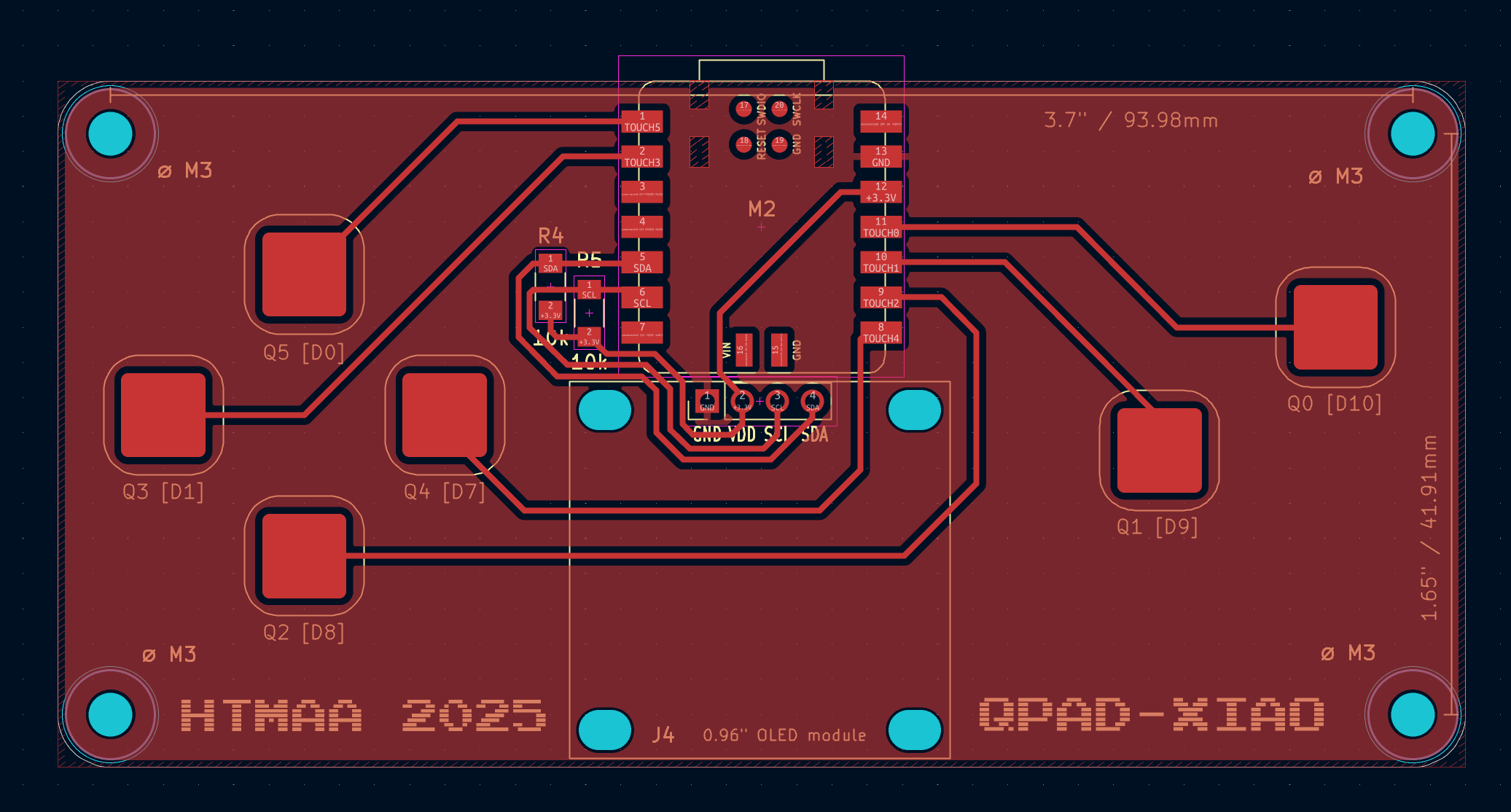
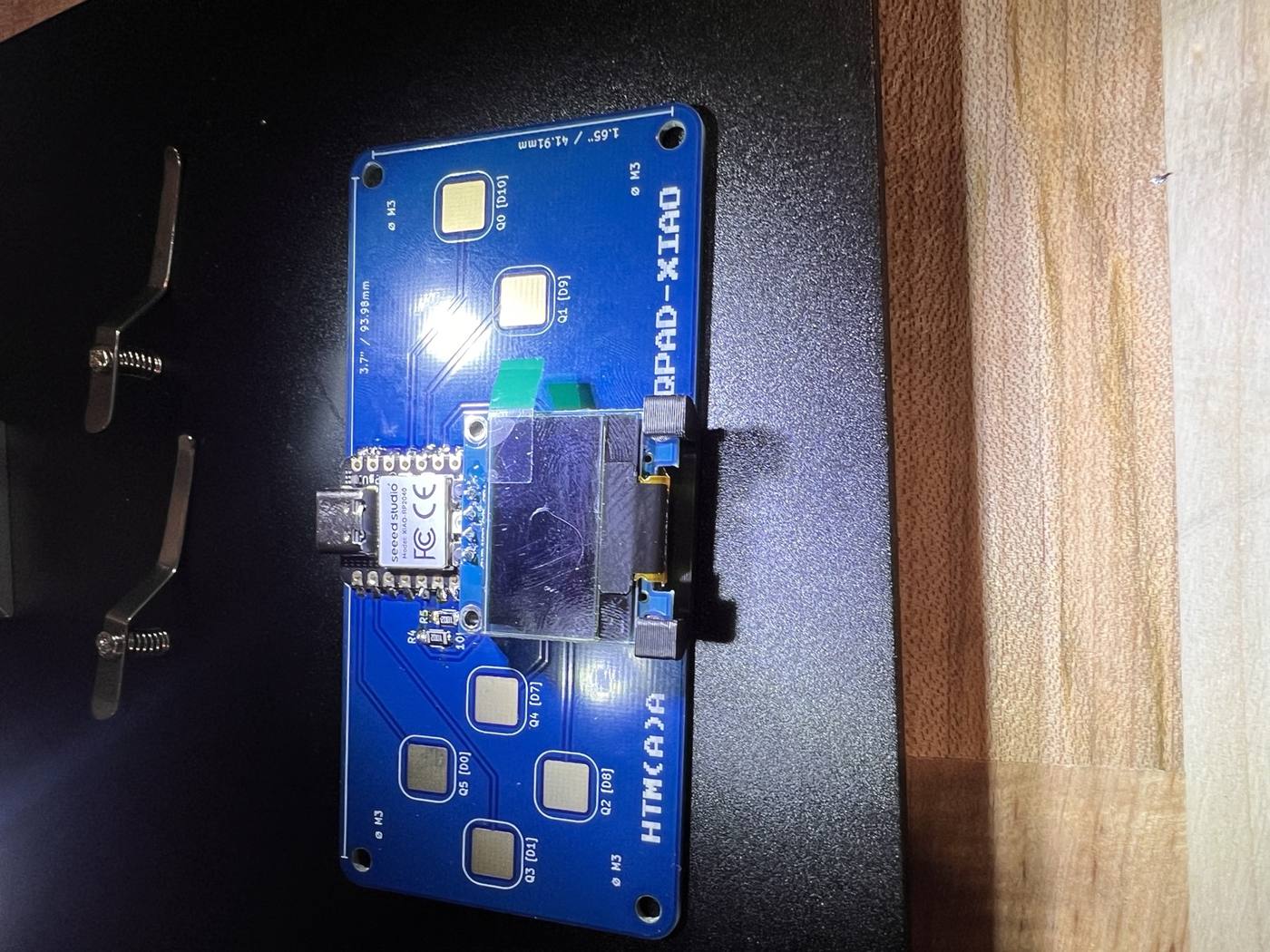
After Neil went through the basics on computer architectures, processor families and coding environments, our TA Qilmeg assembled us at the Archshop for a debrief on how to assemble the system and solder the components. In addition to the printed circuit board which has six capacitive touch pads and the XIAO, we also received two resistors and an OLED display.
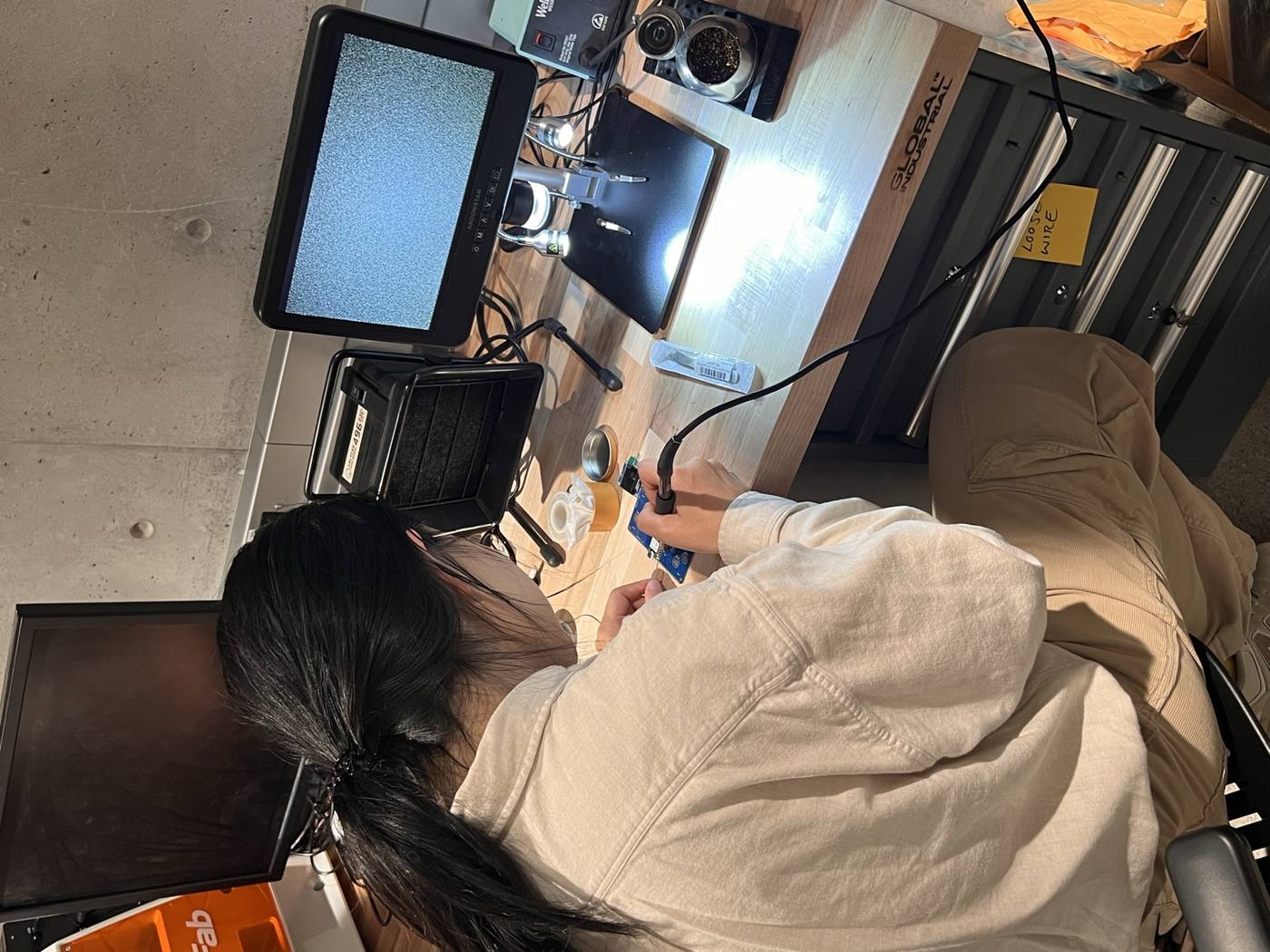
The recommended soldering temperature for the Weller WES51 station, which runs from 35 to 85 Fahrenheit x 10 (177°C to 454°C), was 700°F or about 370°C. The solder provided comes from AIM Solder composed of a 60% tin and 40% lead alloy (SN60 PB40) which also contains 2% flux which reduces oxidation and helps the solder flow smoothly when heated. Finally, a desoldering wire is provided which can be placed and heated on top of solder to draw it away fromt the board for cleaning.
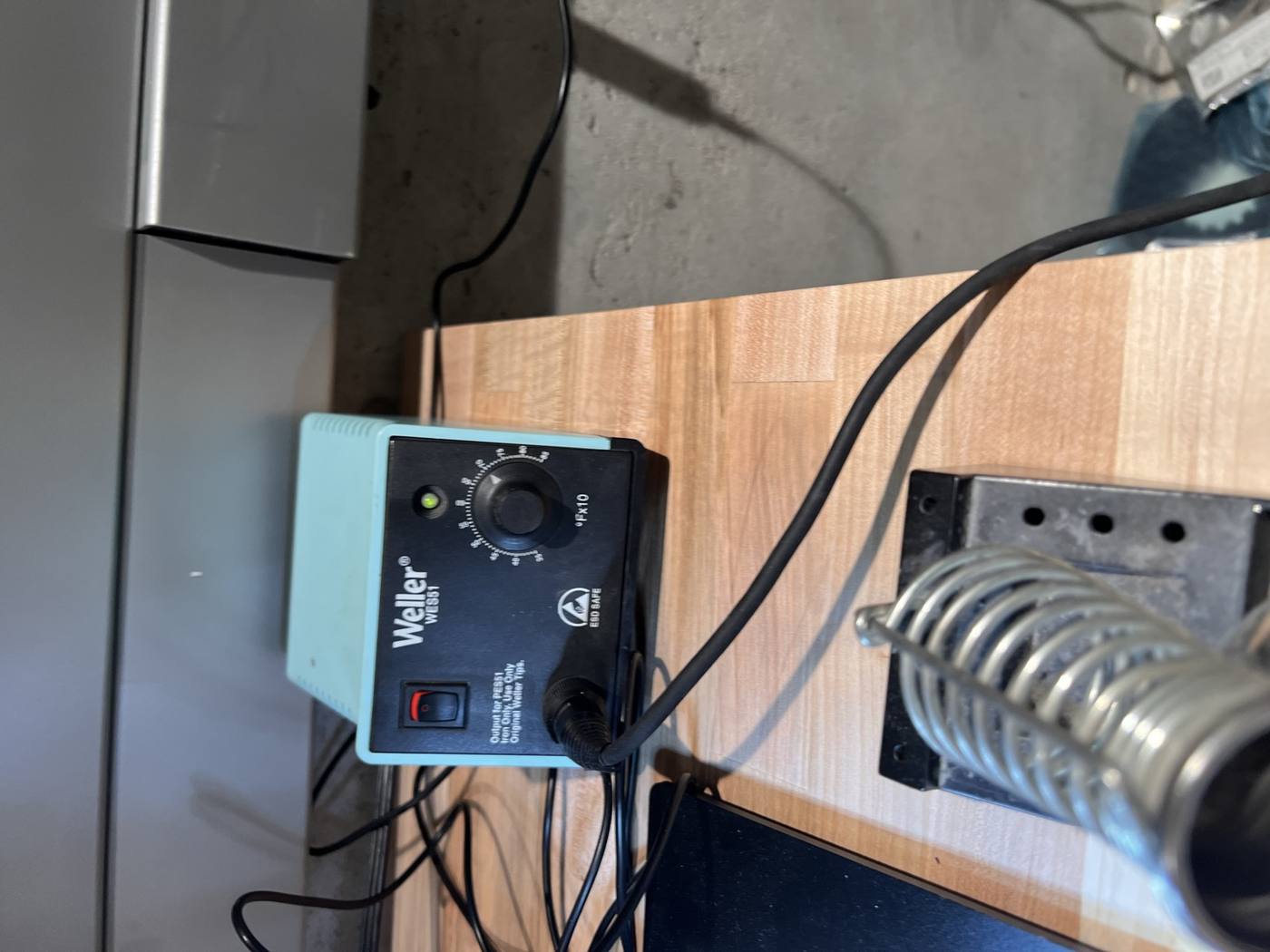
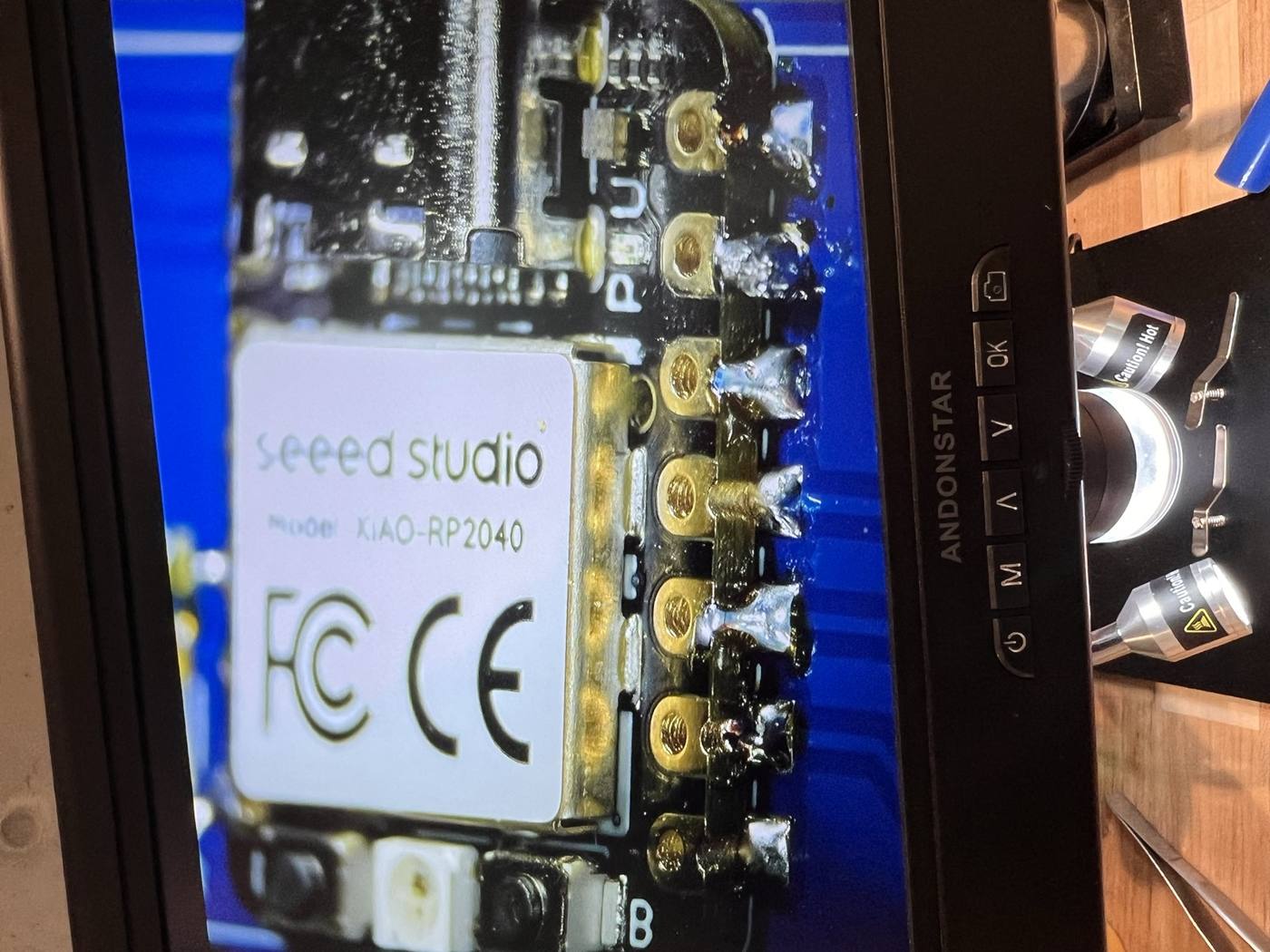
When soldering I wanted to start with the resistors as recommended in the tutorial - early on I was still figuring out how to hold the solder correctly and getting a sense of the best heat temperature. I found it difficult to keep my hand stable at the beginning but with more practice I became more confident. You can see my first soldering was placing the two resistors and there was extra solder around one which I later removed with copper wire.
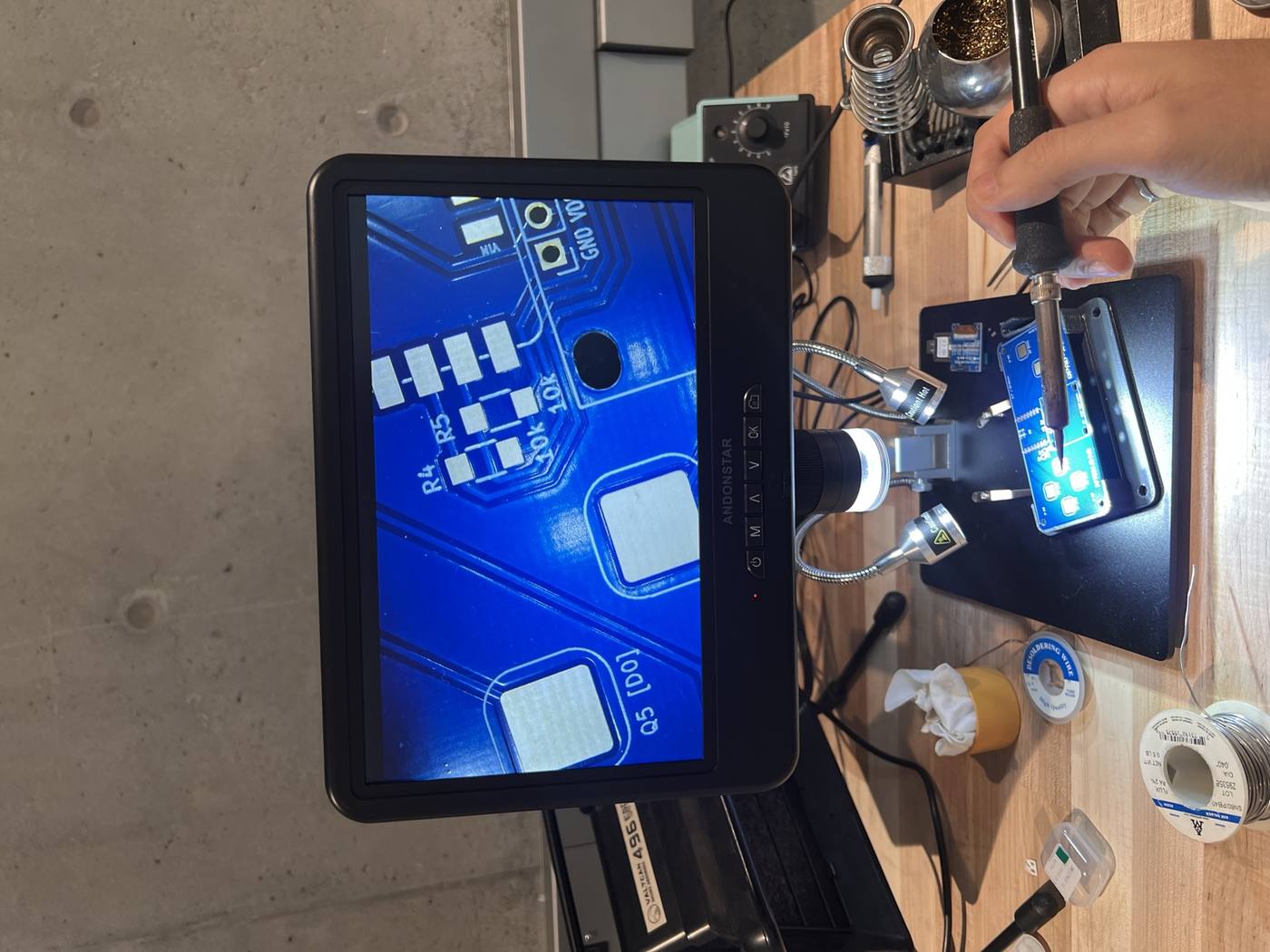
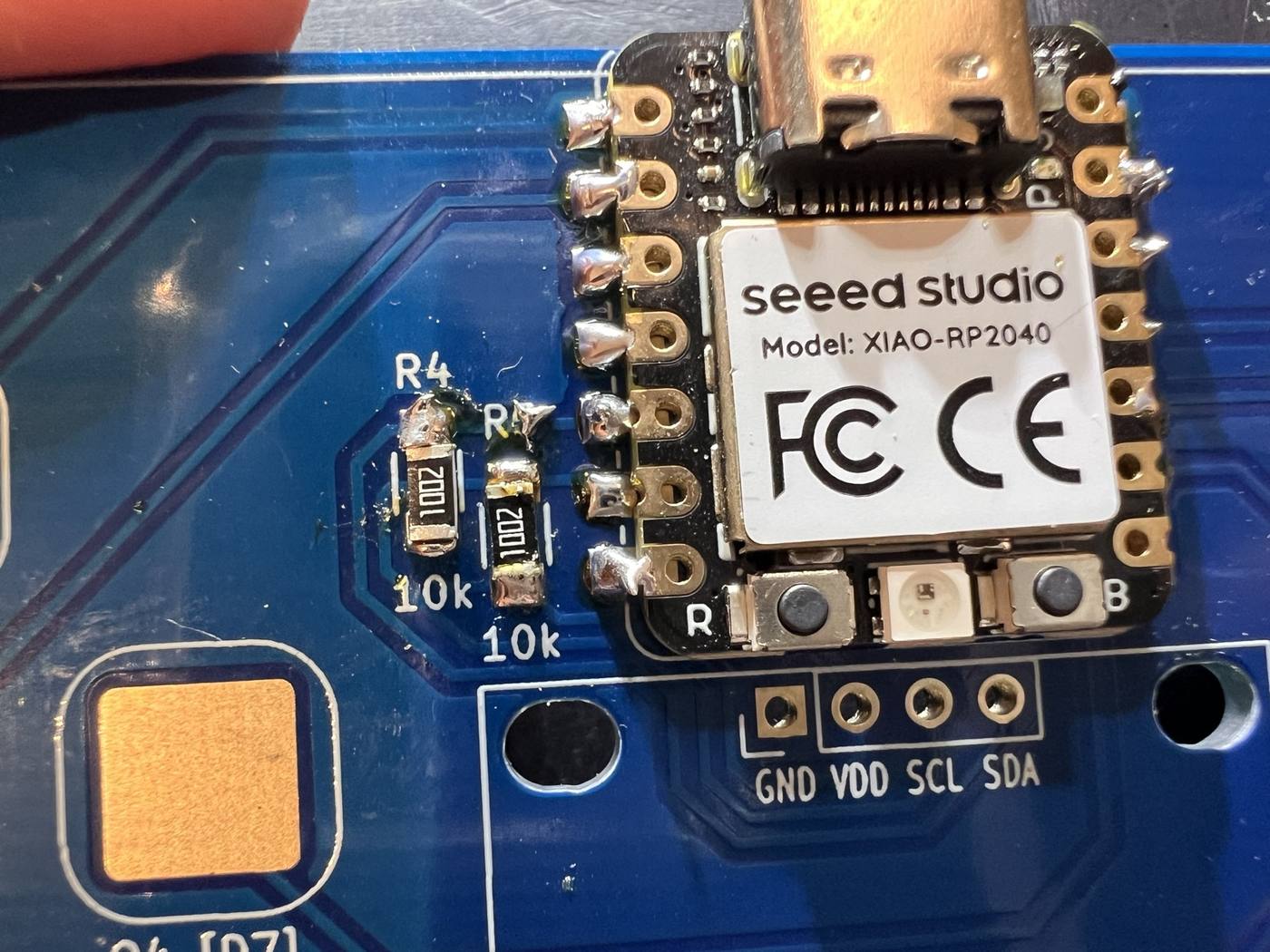
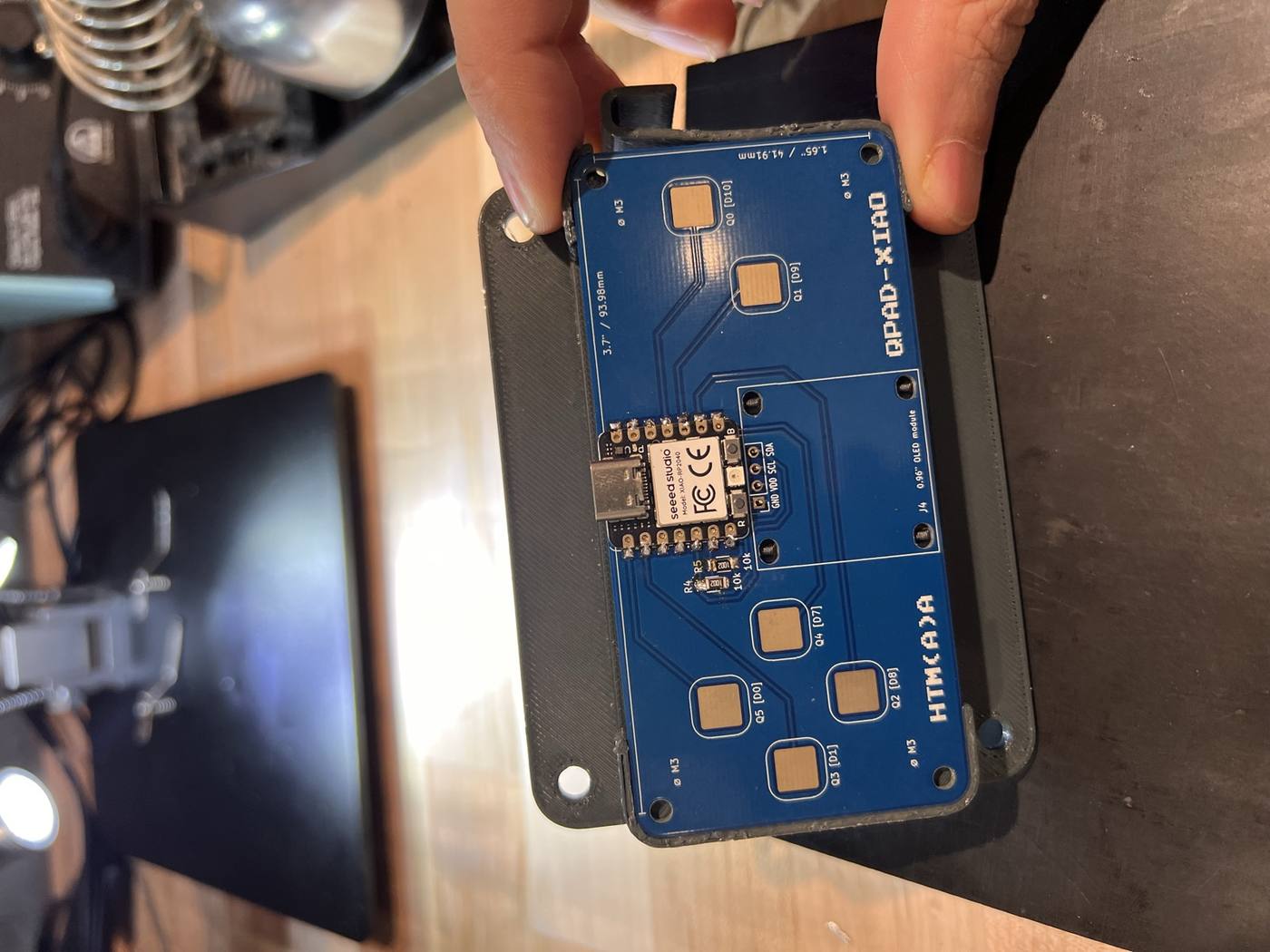
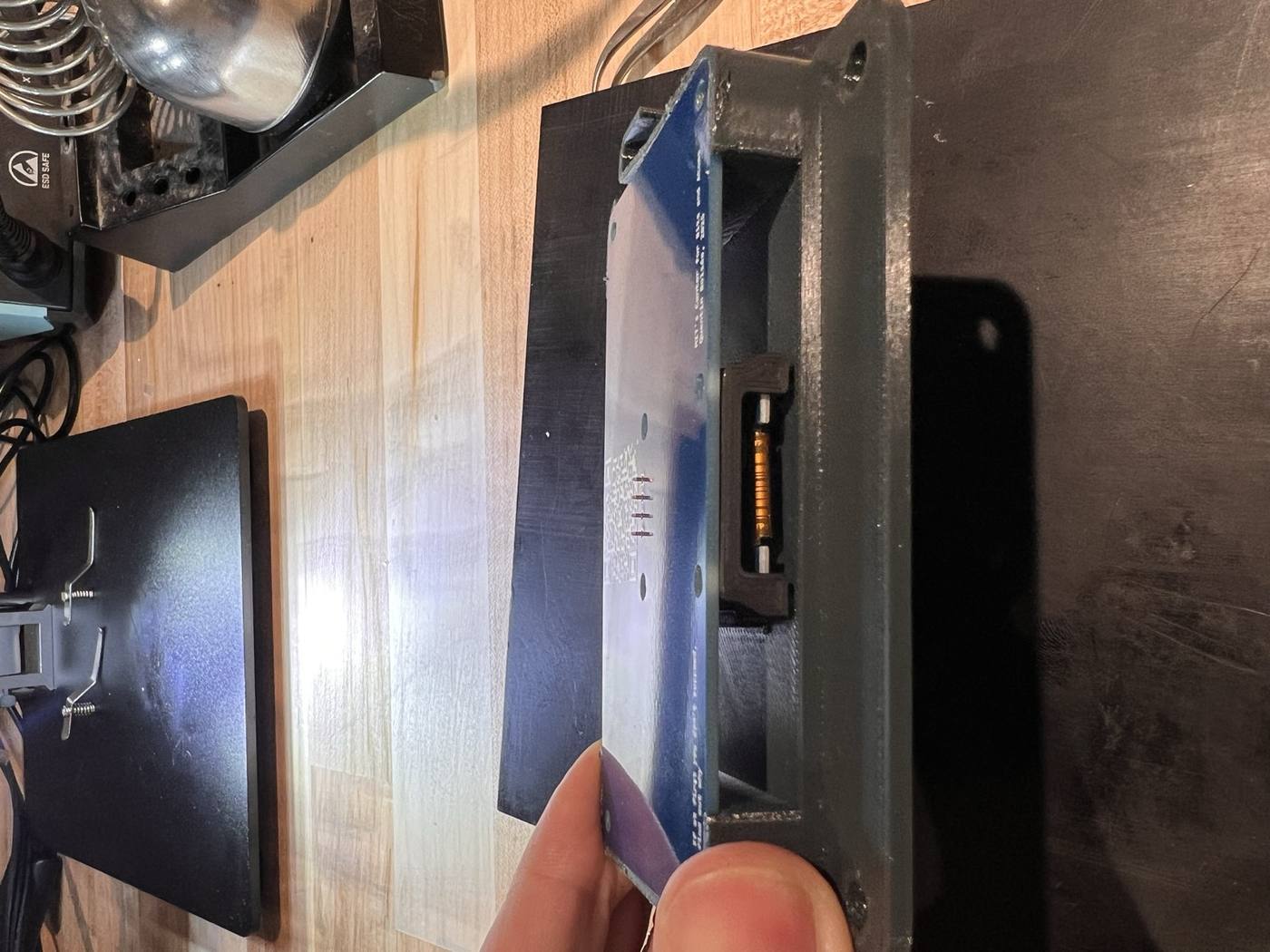
Following Quentin's how to tutorial was helpful, and I found a discarded board with excess solder on it and I decided to practice on it. About two hours later I was done with the QPAD assembly!
Programming environments#
The next part of the assignment was to write and test a program for the system. And as part of the group assignment, the goal was to demonstrate and compare the different toolchains/workflows available for embedded architectures. In this case, we had the choice between Arduino's IDE (integrated development environment) and MicroPython which is an open-source version of python optimized to run inside microcontrollers.
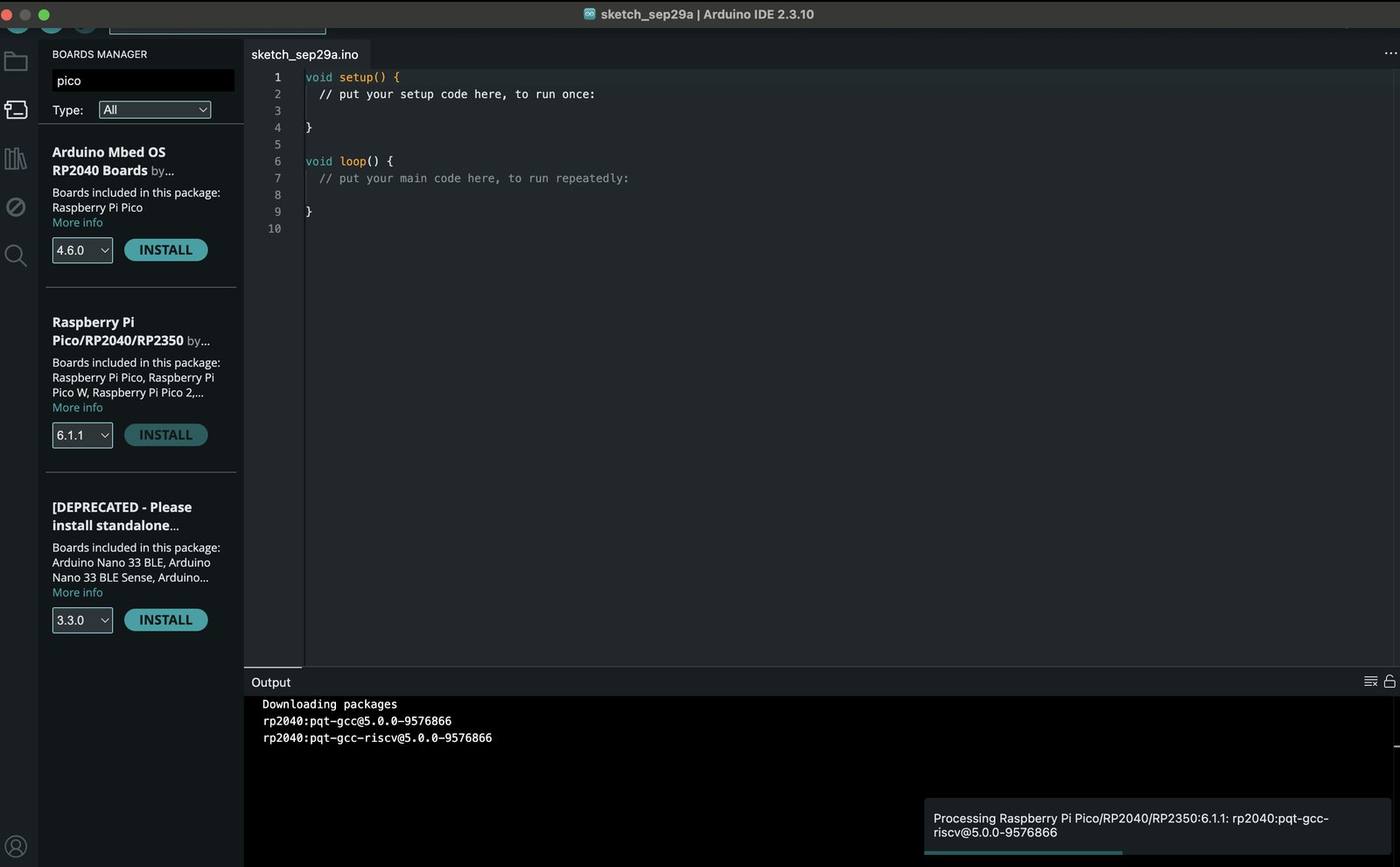
For flashing the microprocessor for the first connection to my Mac, I installed the Arduino IDE, then added the RP2040 board package in the Boards manager using this link (https://github.com/earlephilhower/arduino-pico/releases/download/global/package_rp2040_index.json) , then slected Seeed XIAO RP2040 as the board type. So far so good.
MicroPython#
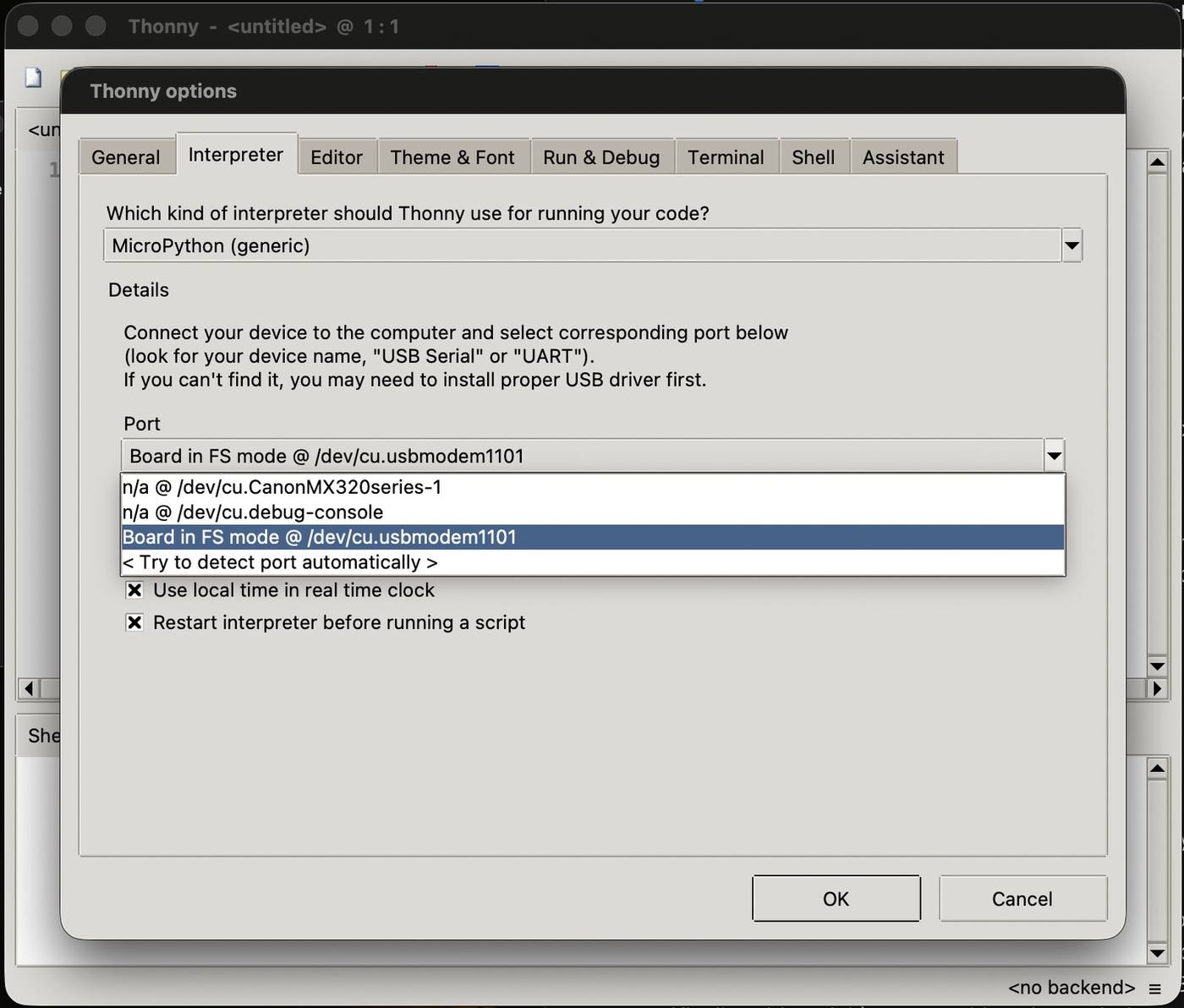
Because I was less familiar with C++, and the concept of "sketch" seemed foreign to me, I decided to deviate to try a second more straightfoward route: MicroPython, using the Thonny editor. To load new firmware onto the board, I held down its BOOT button while plugging it in, which makes it appear on my Mac as a USB drive called RPI-RP2. In Thonny's interpreter settings, the board showed up as "Board in FS mode," and after installing MicroPython by flashing using the UF2 booloader (https://micropython.org/download/SEEED_XIAO_RP2040/) , I could run Python scripts on it directly.
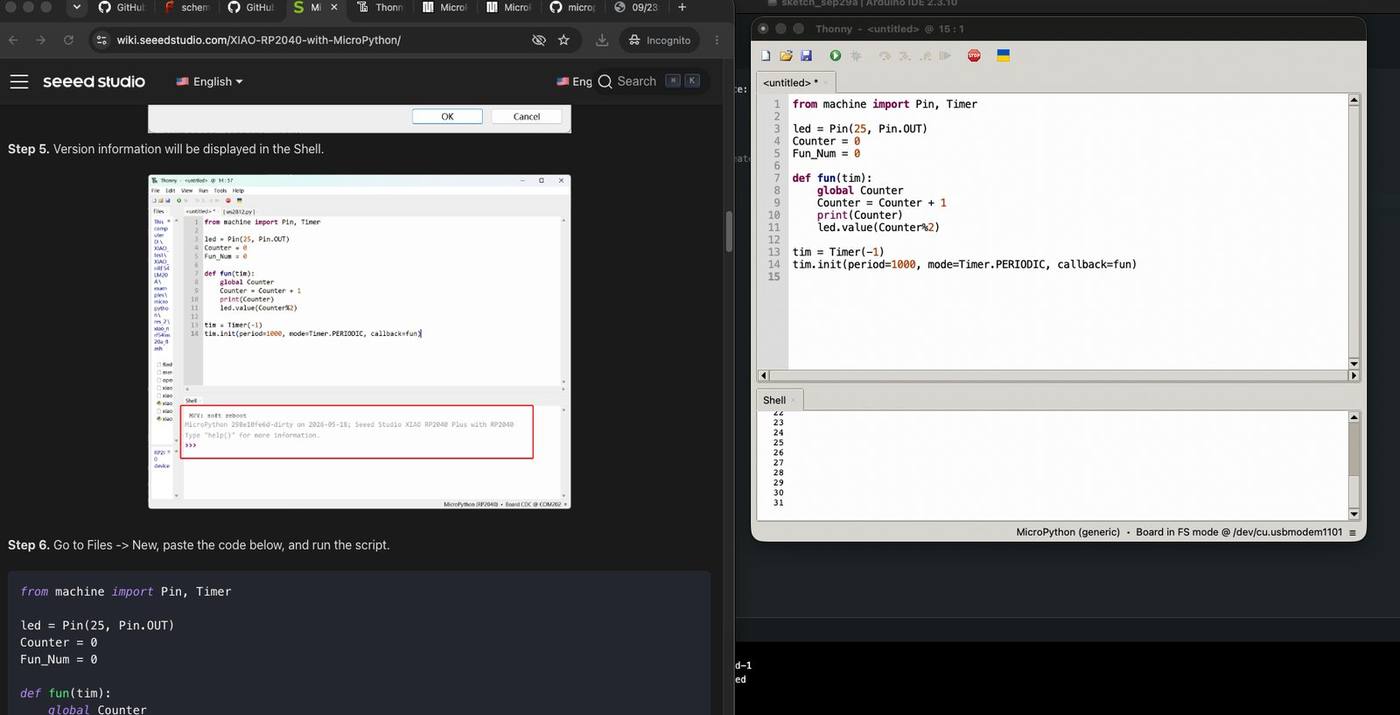
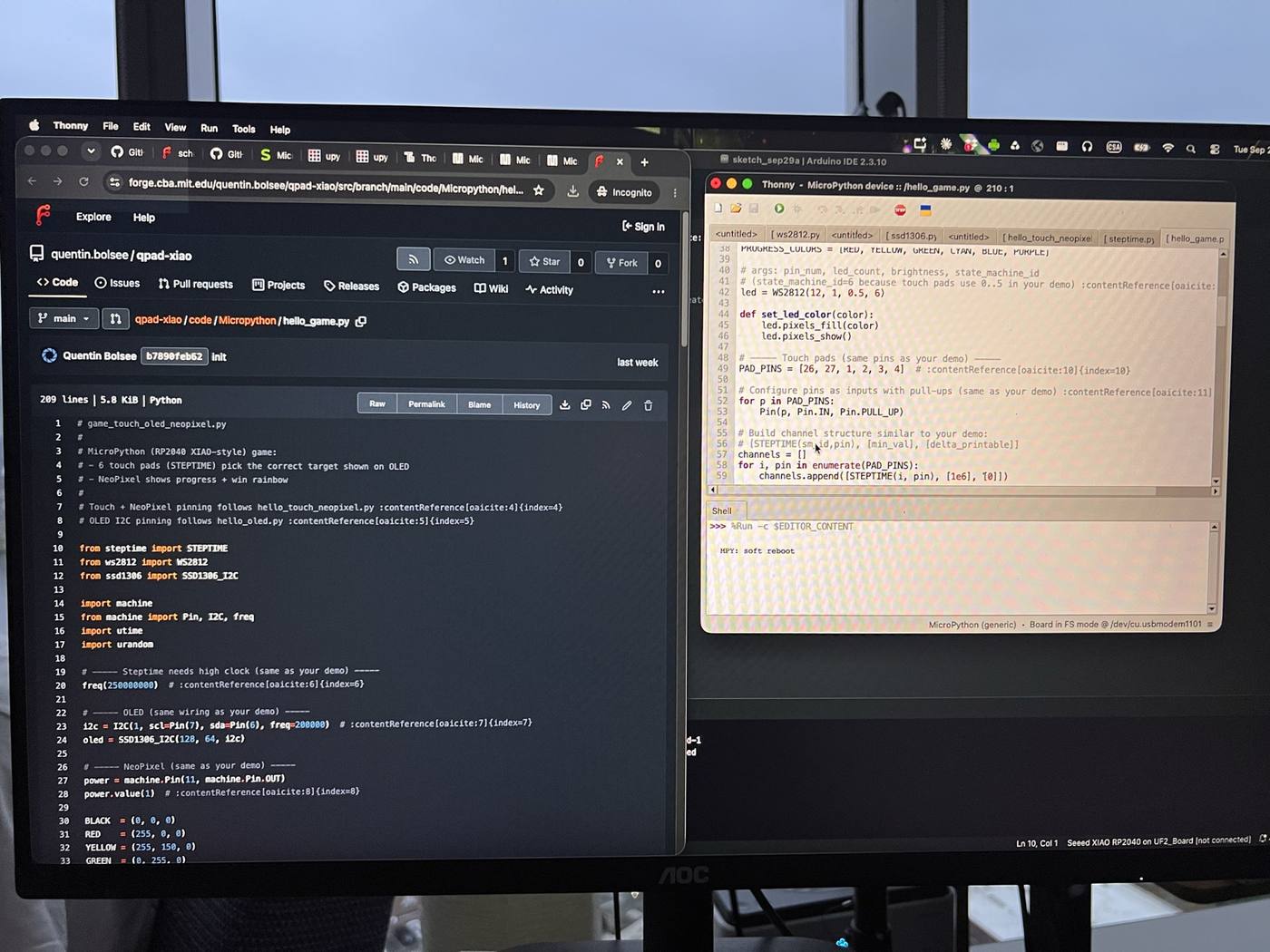
Using the MicroPython code examples here (https://forge.cba.mit.edu/quentin.bolsee/qpad-xiao/src/branch/main/code/Micropython ) I installed the three libraries for the LED, OLED and touch input and found it intuitive to install the full list of available python codes to test on my system.
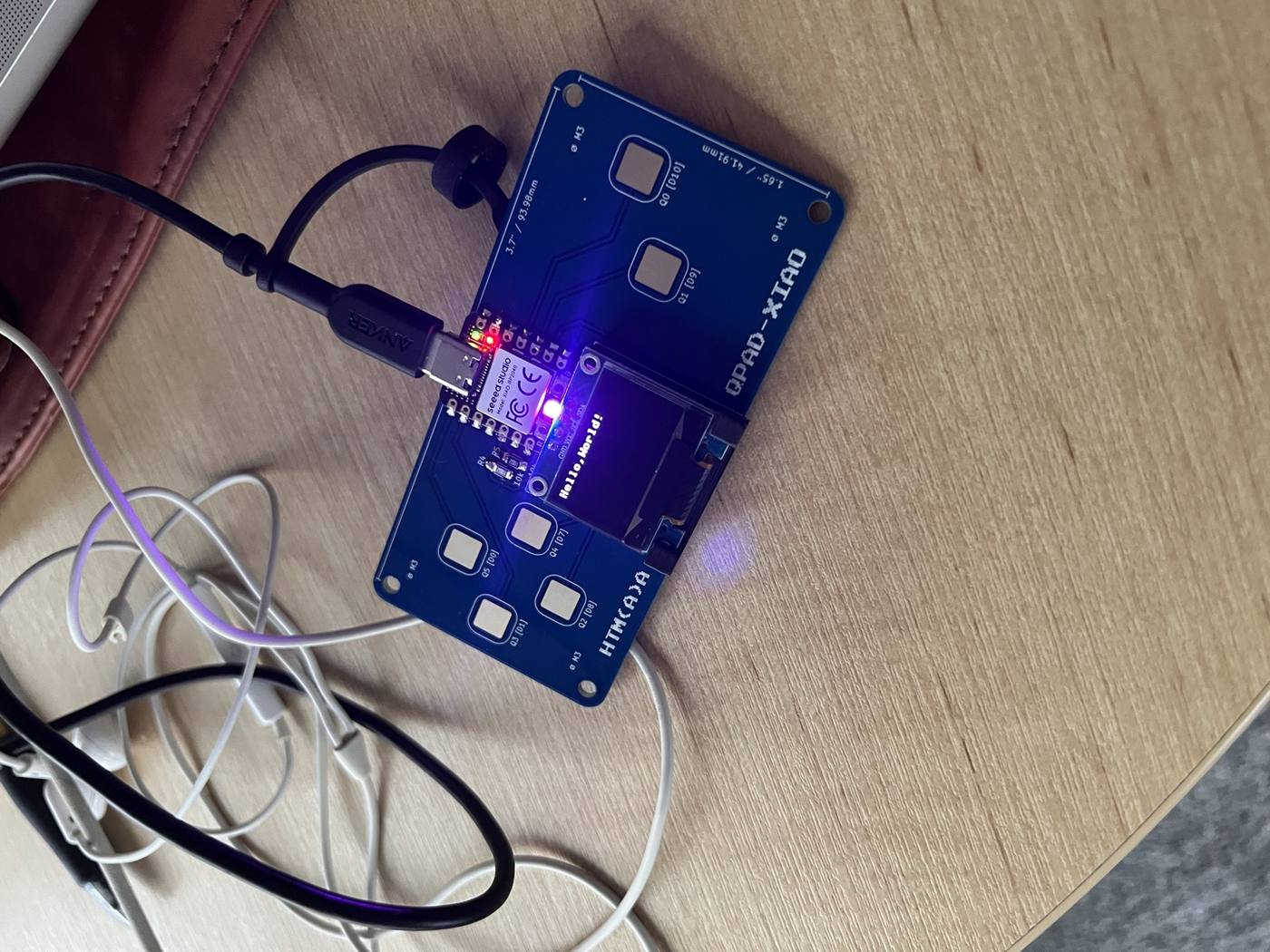
One of them was the hello OLED display and LED carousel example, which cycles the board's red, green, and blue LEDs one at a time. Until then I wasn't sure if my soldering was up to par but it worked.
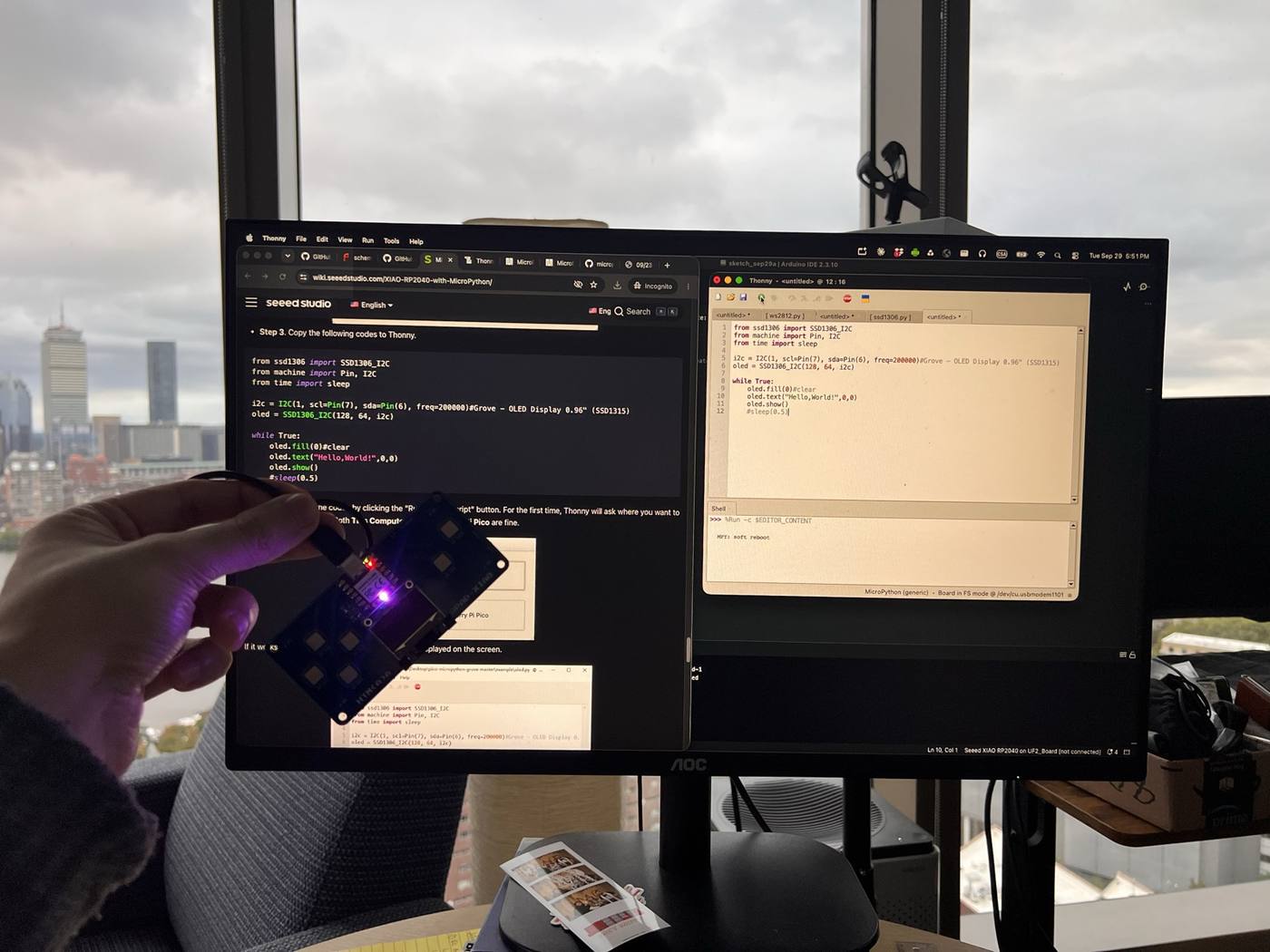
With MicroPython, it keeps a Python interpreter running on the chip and reads my code as it runs, so small changes are quick to test. Conversely, Arduino compiles the code into a single program that replaces everything on the chip, which is also why switching from MicroPython to Arduino erased all my python scripts I had saved on the board through Thonny.
Arduino IDE#
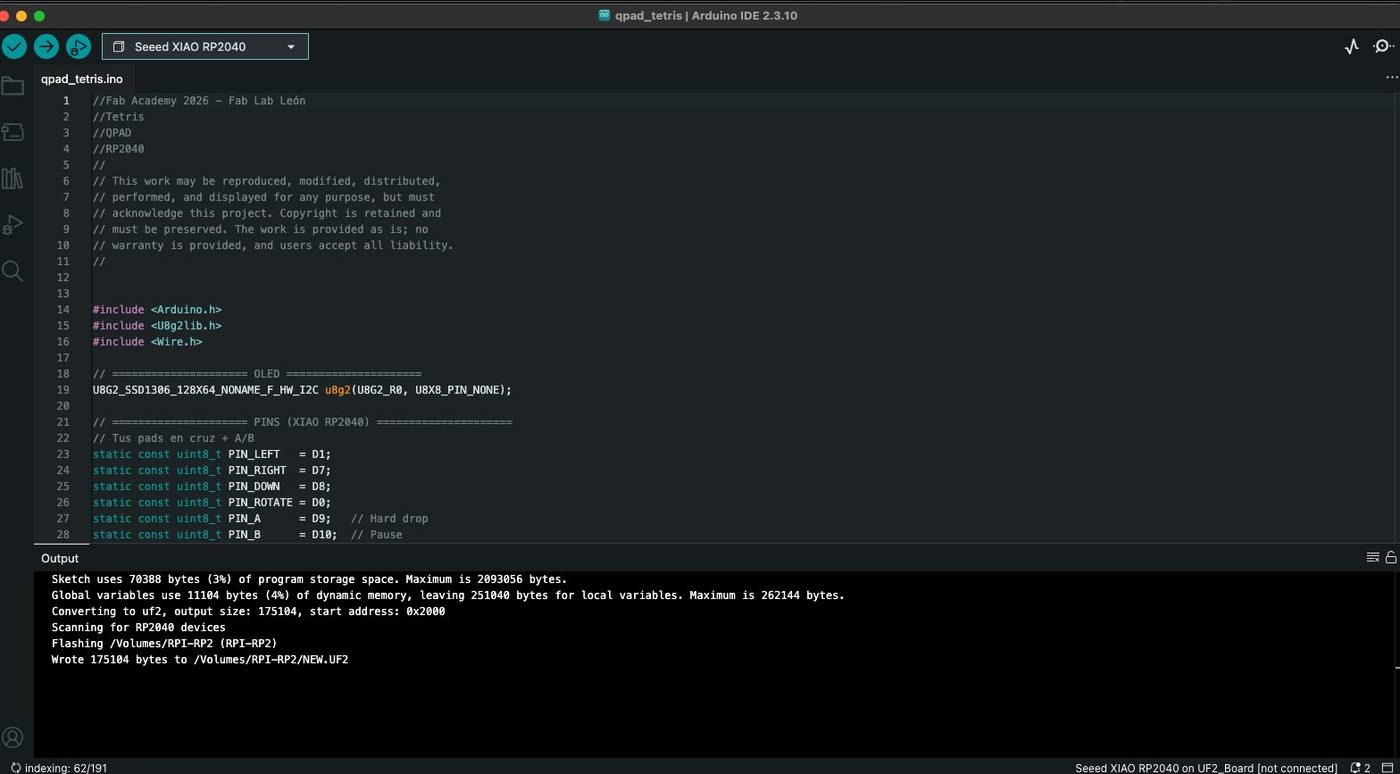
I still opted to work in the Arduino IDE since it seemed to have the most interesting code features based on the code examples, with one of the codes being able to run Tetris after I installed the required libraries including U8g2, Adafruit SSD1306 and GFX for the display, and Adafruit NeoPixel for the RGB LED.
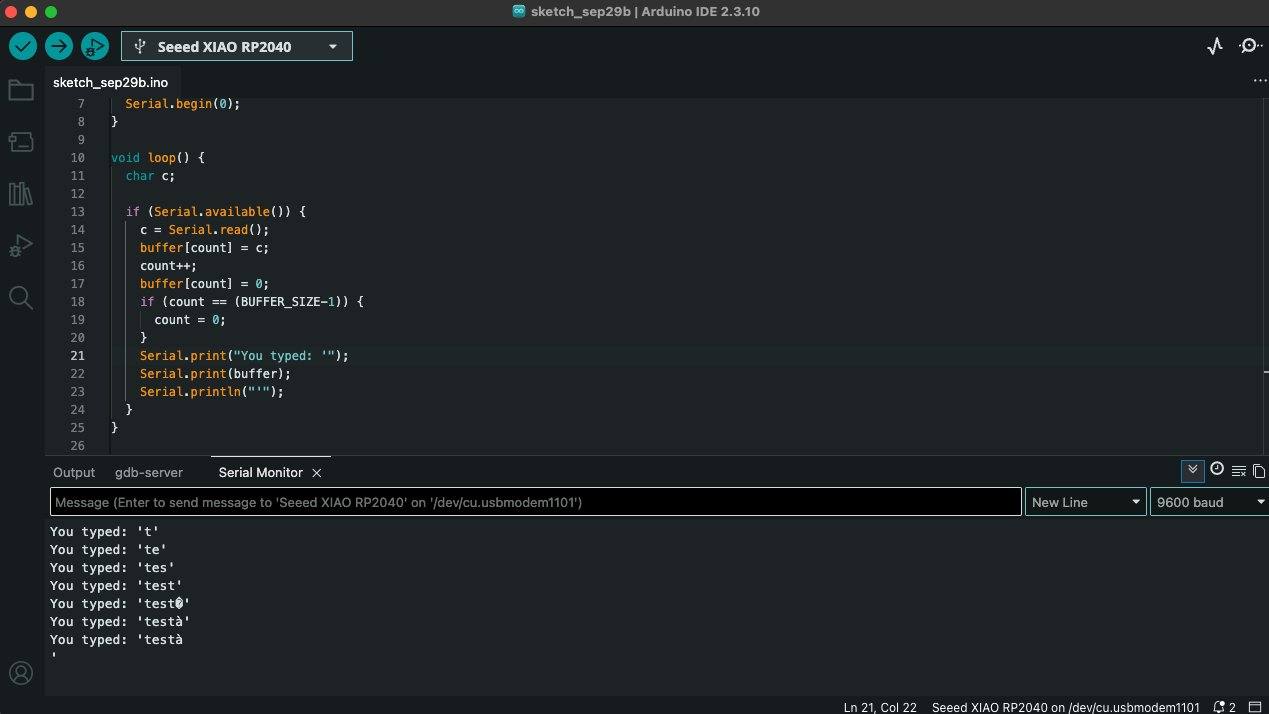
Getting the hang of Arduino taught me a couple of practical lessons. Often the connection failed with "Resource busy" until I realized I had to close the Arduino IDE's Serial Monitor, since only one program can use the port at a time.
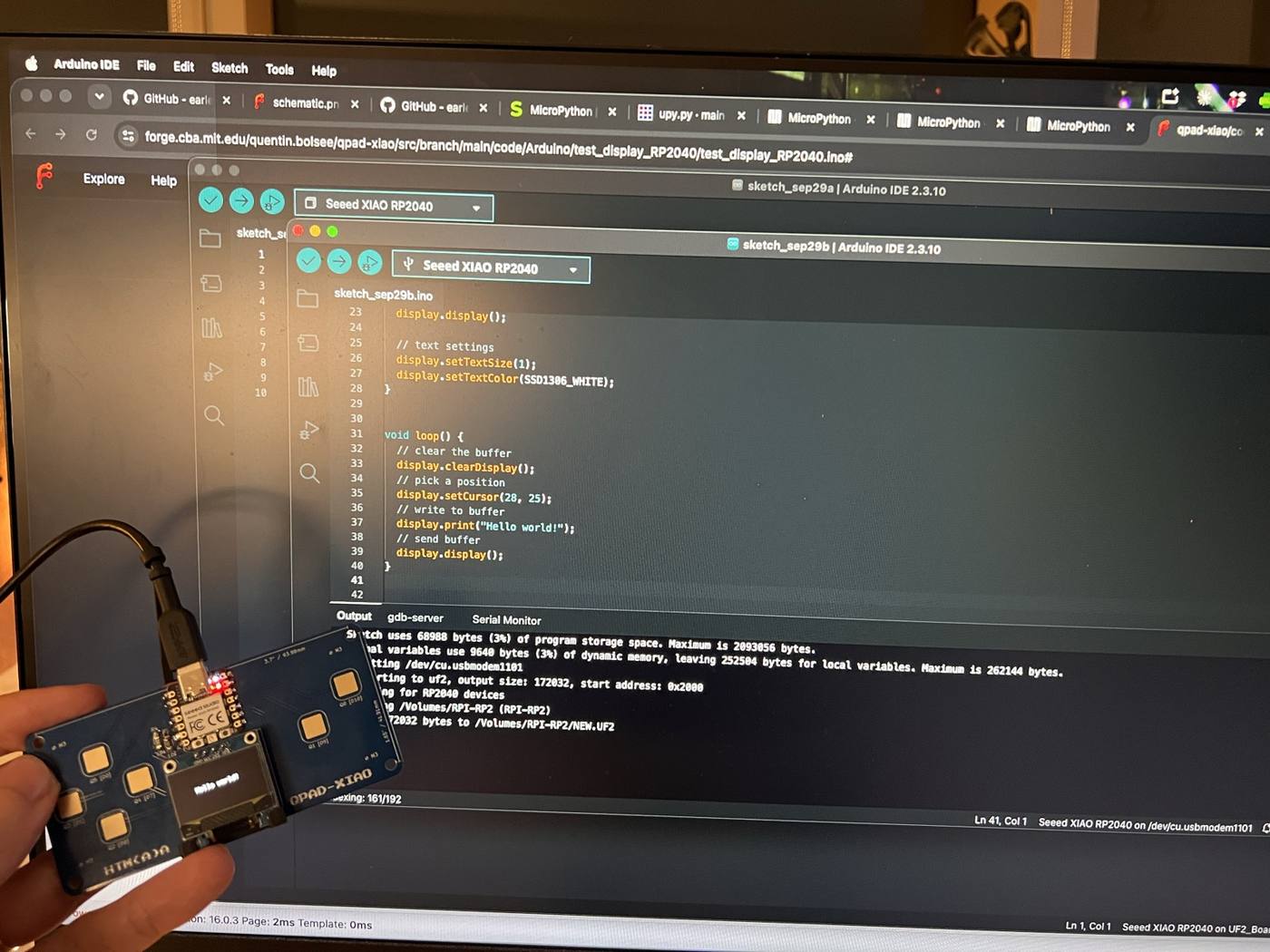
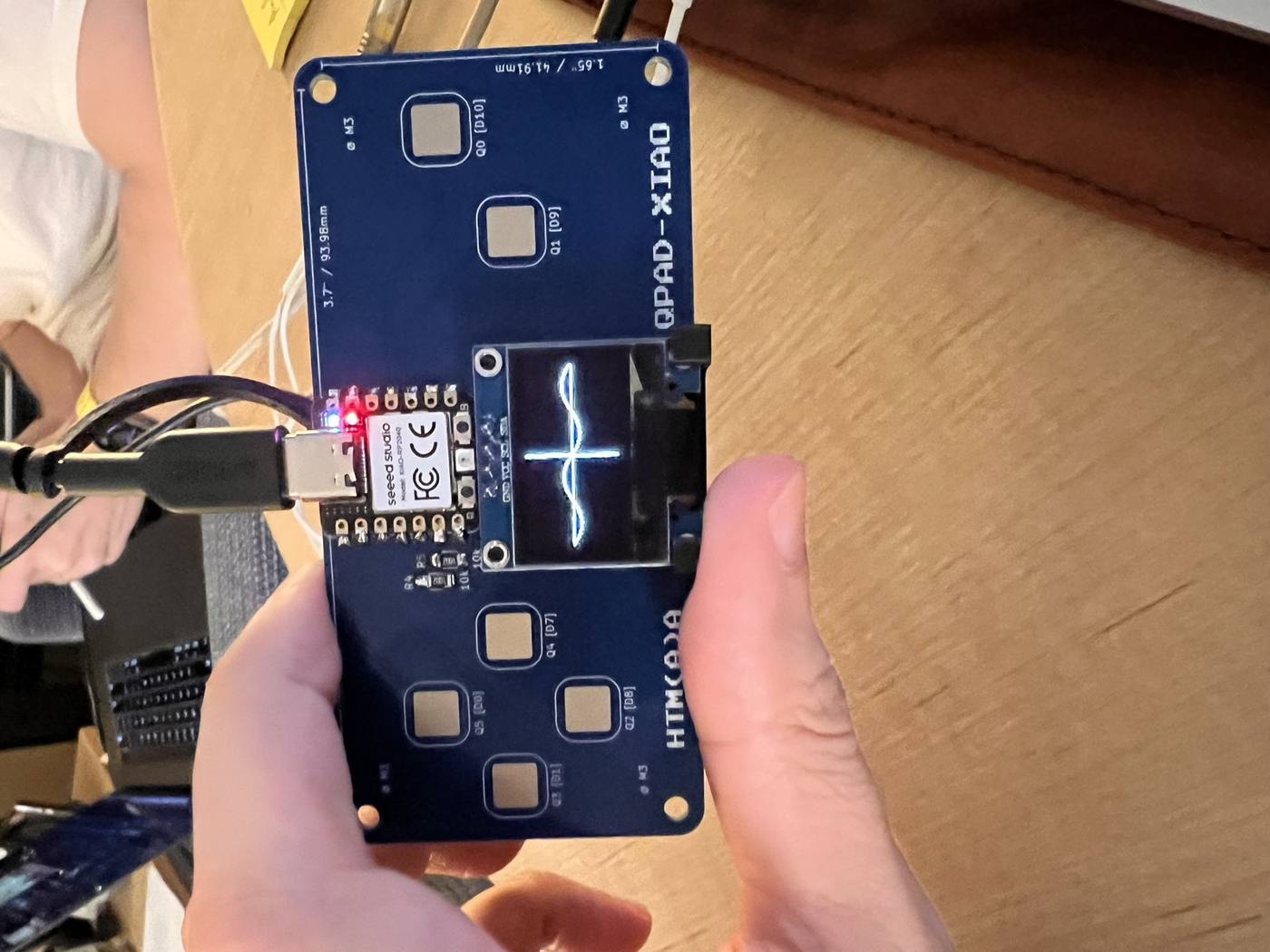
The example that caught my attention was in Quentin's advanced folder: computer_link. Unlike the other examples, it splits the work between two programs. An Arduino sketch on the board receives images and shows them on the OLED, while a Python script on my laptop draws a sine wave and streams it over USB, and touching the pads moves the wave around the screen. Having this option meant the board didn't need to be powerful if I was connecting it to my laptop.
I sought to program something directly connected to my survival horror genre theme and final project, and I wanted to test and make full use of the board capabilities, including the touchpads, the screen, the full-color LED and the three two single colored ones.
The ChronoPulse#
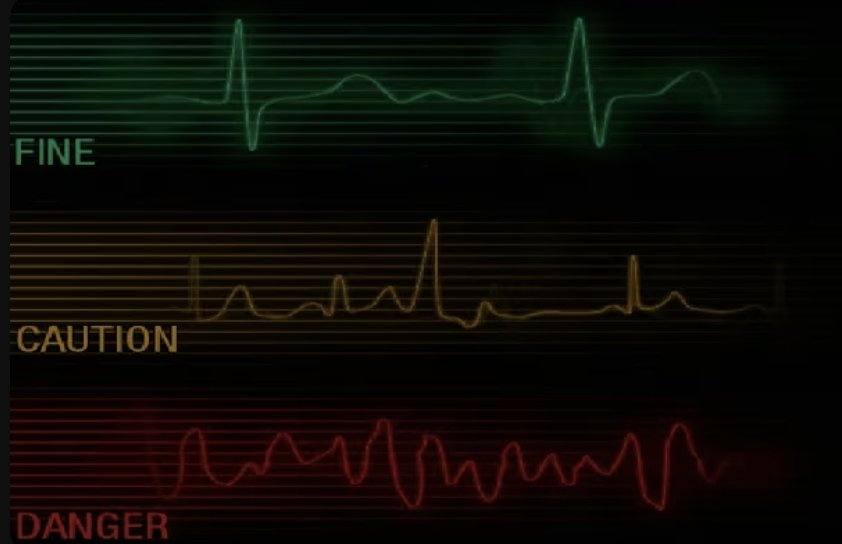
Inspired by the menu screens of Resident Evil that show the heart vital signs of the main characters alternating between "Fine" "Caution" and "Danger" (which I've also opted to include in my About me page), I used the computer_link and python script from the example to split between my laptop and the board.
I used Claude to vibe code my way by directing the board's functionalities that I was looking for and worked iteratively before each step before moving onto the next one:
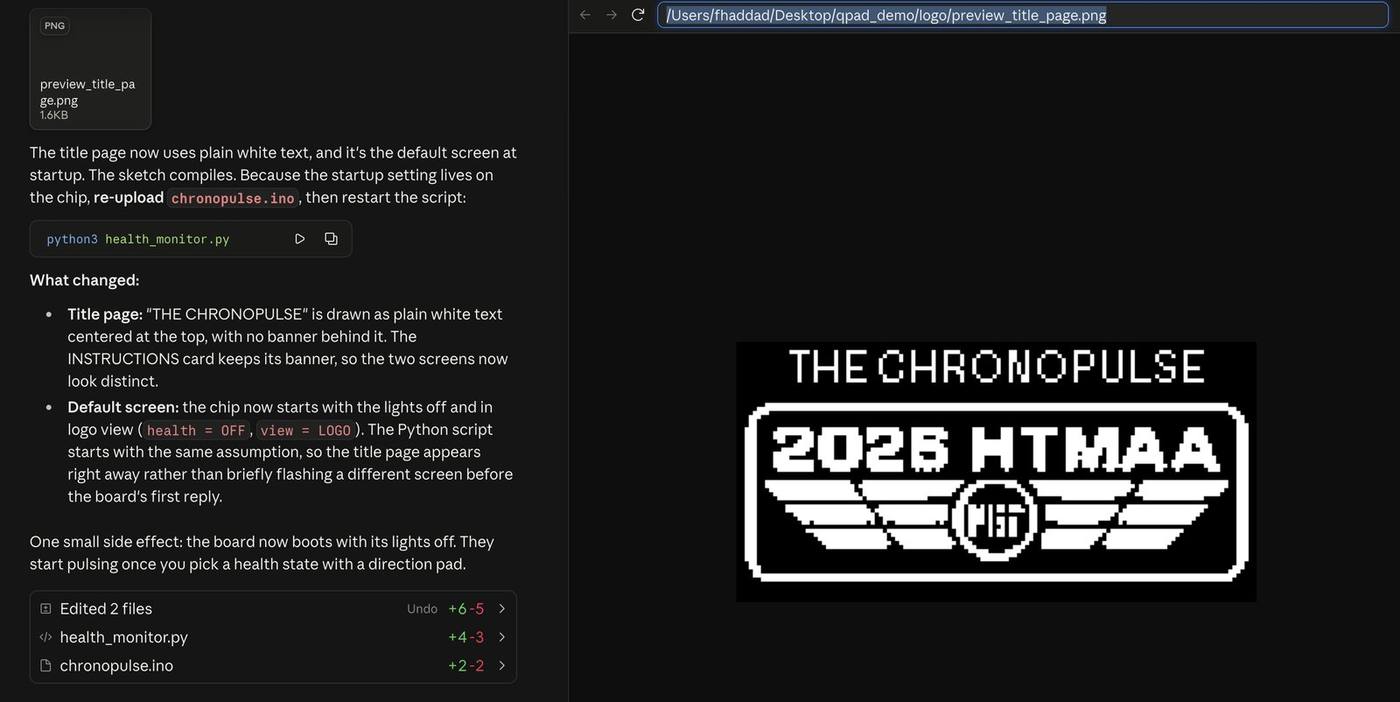
- Show my HTMAA Logo from week 1 as the default menu screen along with the title
- Each touchpad would be programmed to show one of three health conditions
- Each health condition would show one of three heart sinus rhythms on the OLED based on the screenshot I found online
- Each condition would be associated with a colour glowing from the LEDs and in the same rhythm as shown in the sinus rhythm, with green for "Fine" for a steady heart beat, erratic amber for "Caution", and a restless red one for "Danger"
- An instructions menu to show these functionalities
- Because this was an OLED display, I wanted to prevent burn in by having the screen display turn off after about a minut.
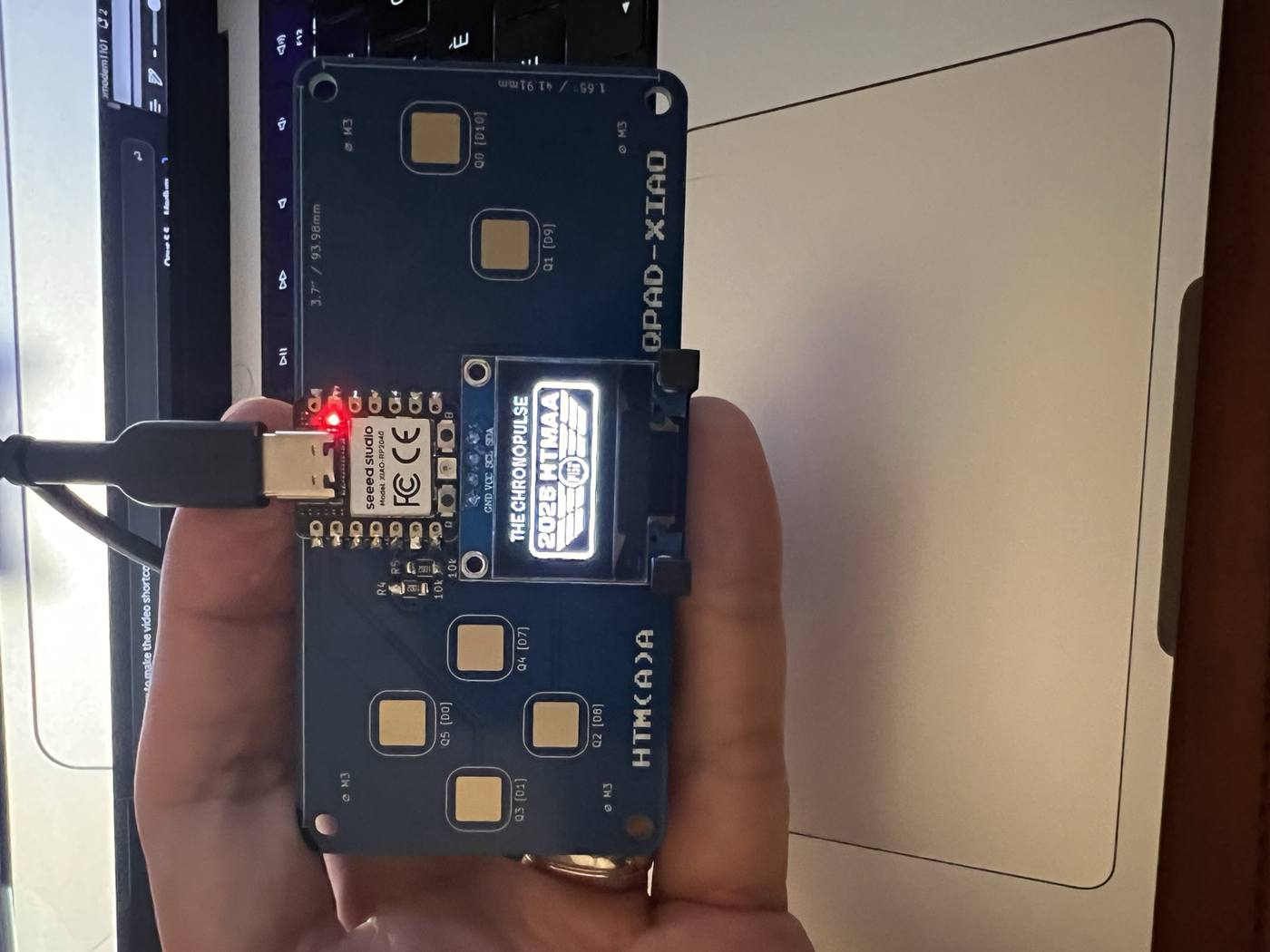
The final product turned out better than expected.
Some of the high-level features I learned from this process:
For the python script on my laptop (health_monitor.py),it acts as a two-way feedback loop with the board while also being the graphics engine that turns the images and ECG equations (which were based on mathematical heartbeat functions (sine waves and bell-shaped exponential curves) into the screen's pixels.
Show source (300 lines)
# The ChronoPulse: laptop side. Draws each screen and streams it to the board.
# Fadi G. Haddad, HTMAA 2026. Pair with chronopulse.ino running on the board.
# Built on Quentin Bolsee's computer_link example (qpad-xiao, MIT License):
# https://forge.cba.mit.edu/quentin.bolsee/qpad-xiao
# Needs: pip3 install numpy pyserial pillow
# Run:   python3 health_monitor.py

import argparse
import glob
import math
import os
import time

import numpy as np
import serial
from PIL import Image, ImageDraw, ImageFont

import libs.hdlc_encoding as hdlc_encoding

W, H = 128, 64

# must match the enums in the Arduino sketch
FINE, CAUTION, DANGER, OFF = 0, 1, 2, 3
WAVES, LOGO = 0, 1
LABELS = {FINE: "FINE", CAUTION: "CAUTION", DANGER: "DANGER"}

# how many milliseconds of heartbeat each screen pixel covers
MS_PER_PX = 20

# trace placement: baseline row and how tall the spikes are, in pixels
BASELINE_Y = 26
AMPLITUDE = 20

SCANLINES = True

TITLE = "THE CHRONOPULSE"        # title page: logo view with the lights off
MENU_TITLE = "INSTRUCTIONS"      # controls card: waves view with the lights off

# logo throb: its width as a fraction of the screen, at rest and at the peak of a beat
LOGO_REST_SCALE = 0.82
LOGO_PEAK_SCALE = 1.0

LOGO_PATH = os.path.join(os.path.dirname(os.path.abspath(__file__)), "logo", "logo_full_bw.png")


# ---------------------------------------------------------------------------
# Heart-monitor waves. These MUST match the same functions in the Arduino
# sketch, so the trace and the lights stay in sync. t is in milliseconds.
# ---------------------------------------------------------------------------

def pulse(t, center, width):
    x = (t - center) / width
    return np.exp(-x * x)


def fine_ecg(now):
    t = now % 1000
    return (0.12 * pulse(t, 150, 35)
            - 0.15 * pulse(t, 265, 10)
            + 1.00 * pulse(t, 285, 12)
            - 0.35 * pulse(t, 305, 12)
            + 0.30 * pulse(t, 520, 60))


CAUTION_AT = [150, 480, 780, 1050, 1350, 1900, 2150]
CAUTION_H = [0.40, 0.50, 0.45, 1.00, 0.30, 0.70, 0.35]


def caution_ecg(now):
    t = now % 2400
    v = 0.08 * np.sin(2 * math.pi * t / 400.0)
    for at, h in zip(CAUTION_AT, CAUTION_H):
        v = v + h * pulse(t, at, 14) - 0.3 * h * pulse(t, at + 22, 12)
    return v


def danger_ecg(now):
    return (0.50 * np.sin(2 * math.pi * (now % 310) / 310.0)
            + 0.33 * np.sin(2 * math.pi * (now % 170) / 170.0 + 1.0)
            + 0.17 * np.sin(2 * math.pi * (now % 97) / 97.0 + 2.0))


ECG = {FINE: fine_ecg, CAUTION: caution_ecg, DANGER: danger_ecg}


# ---------------------------------------------------------------------------
# Drawing
# ---------------------------------------------------------------------------

# same as the lights: follow the upward parts of the trace; DANGER never settles
def beat_wave(health, now):
    if health == OFF:
        return 0.0
    v = float(ECG[health](np.float64(now)))
    if health == DANGER:
        return 0.5 + 0.5 * v
    return min(max(v, 0.0), 1.0)


# the logo, scaled to `scale` x screen width and centered
def draw_logo(source, scale):
    new_w = max(1, round(W * scale))
    new_h = max(1, round(source.height * new_w / source.width))
    logo = source.resize((new_w, new_h), Image.LANCZOS)
    logo = logo.point(lambda p: 255 if p > 90 else 0).convert("1")
    canvas = Image.new("1", (W, H), 0)
    canvas.paste(logo, ((W - new_w) // 2, (H - new_h) // 2))
    return canvas


def text_width(draw, text, font):
    left, _, right, _ = draw.textbbox((0, 0), text, font=font)
    return right - left


# a lit strip across the top with the text in dark pixels, like a menu banner
def draw_banner(draw, text, font):
    draw.rectangle((0, 0, W - 1, 11), fill=1)
    draw.text(((W - text_width(draw, text, font)) // 2, 0), text, font=font, fill=0)


# title page: the name in plain white text, the logo filling the space below it
def draw_title_page(source, font):
    img = Image.new("1", (W, H), 0)
    draw = ImageDraw.Draw(img)
    draw.text(((W - text_width(draw, TITLE, font)) // 2, 0), TITLE, font=font, fill=1)

    new_h = round(source.height * W / source.width)
    logo = source.resize((W, new_h), Image.LANCZOS)
    logo = logo.point(lambda p: 255 if p > 90 else 0).convert("1")
    top = 12 + (H - 12 - new_h) // 2
    img.paste(logo, (0, top))
    return img


# a small solid arrow for a direction pad, or the pad's number
def draw_symbol(draw, symbol, x, y, font):
    shapes = {
        "right": [(x, y + 2), (x, y + 10), (x + 5, y + 6)],
        "left":  [(x + 5, y + 2), (x + 5, y + 10), (x, y + 6)],
        "down":  [(x, y + 4), (x + 7, y + 4), (x + 3, y + 9)],
        "up":    [(x, y + 9), (x + 7, y + 9), (x + 3, y + 4)],
    }
    if symbol in shapes:
        draw.polygon(shapes[symbol], fill=1)
    else:
        draw.text((x, y), symbol, font=font, fill=1)


# title card shown when the lights are off: a menu banner plus the controls
def draw_menu(font):
    img = Image.new("1", (W, H), 0)
    draw = ImageDraw.Draw(img)

    draw_banner(draw, MENU_TITLE, font)

    # view pads first
    for x, (number, label) in zip((4, 68), (("1", "WAVES"), ("2", "LOGO"))):
        draw.text((x, 14), number, font=font, fill=1)
        draw.text((x + 10, 14), label, font=font, fill=1)

    draw_dpad(draw, font, cx=68, cy=45)
    return img


# a plus-shaped D-pad outline with an arrow in each arm, labeled like a controller diagram
def draw_dpad(draw, font, cx, cy, arm=5, reach=15):
    a, L = arm, reach
    outline = [(cx - a, cy - L), (cx + a, cy - L), (cx + a, cy - a), (cx + L, cy - a),
               (cx + L, cy + a), (cx + a, cy + a), (cx + a, cy + L), (cx - a, cy + L),
               (cx - a, cy + a), (cx - L, cy + a), (cx - L, cy - a), (cx - a, cy - a)]
    draw.polygon(outline, outline=1, fill=0)

    draw.polygon([(cx - 3, cy - 7), (cx + 3, cy - 7), (cx, cy - 12)], fill=1)   # up
    draw.polygon([(cx - 3, cy + 7), (cx + 3, cy + 7), (cx, cy + 12)], fill=1)   # down
    draw.polygon([(cx - 7, cy - 3), (cx - 7, cy + 3), (cx - 12, cy)], fill=1)   # left
    draw.polygon([(cx + 7, cy - 3), (cx + 7, cy + 3), (cx + 12, cy)], fill=1)   # right

    draw.text((cx + a + 4, cy - L - 2), "OFF", font=font, fill=1)
    draw.text((cx + a + 4, cy + L - 10), "DANGER", font=font, fill=1)
    draw.text((cx + L + 4, cy - 6), "FINE", font=font, fill=1)
    draw.text((cx - L - 4 - text_width(draw, "CAUTION", font), cy - 6), "CAUTION", font=font, fill=1)


def draw_waves(health, now, font):
    img = Image.new("1", (W, H), 0)
    draw = ImageDraw.Draw(img)

    if SCANLINES:
        for y in range(2, 50, 6):
            for x in range(0, W, 3):
                img.putpixel((x, y), 1)

    if health == OFF:
        return img

    # the right edge of the screen is "now"; older moments scroll off to the left
    xs = np.arange(W)
    times = now - (W - 1 - xs) * MS_PER_PX
    times = times.astype(np.float64)
    ys = BASELINE_Y - AMPLITUDE * ECG[health](times)
    ys = np.clip(ys, 0, 49)

    draw.line(list(zip(xs.tolist(), ys.tolist())), fill=1, width=1)
    draw.text((2, 52), LABELS[health], font=font, fill=1)
    return img


def img_to_bytes(img):
    # same packing as demo_sine_wave.py: 1024 bytes for the 128x64 screen
    arr = np.array(img, dtype=bool)
    data = b""
    for i in range(8):
        data += np.packbits(arr[i*8:(i+1)*8, :], axis=0, bitorder="little").tobytes()
    return data


# how long to wait for the board's reply before assuming it's gone, in seconds
REPLY_TIMEOUT_S = 2.0
RECONNECT_EVERY_S = 1.0


def parse_arguments():
    parser = argparse.ArgumentParser(description="The ChronoPulse health monitor")
    parser.add_argument("port", type=str, nargs="?", default=None,
                        help="Serial port (optional; found automatically if left out).")
    return parser.parse_args()


def find_port(requested):
    if requested:
        return requested
    ports = sorted(glob.glob("/dev/cu.usbmodem*"))
    return ports[0] if ports else None


# keeps trying until the board is plugged in and the port opens
def connect(requested):
    while True:
        port = find_port(requested)
        if port:
            try:
                ser = serial.Serial(port, 250000,
                                    timeout=REPLY_TIMEOUT_S,
                                    write_timeout=REPLY_TIMEOUT_S)
                print(f"Connected to {port}")
                return ser
            except (serial.SerialException, OSError) as e:
                print(f"Can't open {port} yet ({e}); retrying...")
        else:
            print("Board not found; waiting for it to be plugged in...")
        time.sleep(RECONNECT_EVERY_S)


def main():
    args = parse_arguments()
    ser = connect(args.port)

    font = ImageFont.load_default()
    logo_source = Image.open(LOGO_PATH).convert("L")

    # start on the title page until the board reports its own state
    health, view, now = OFF, LOGO, 0

    while True:
        if view == LOGO and health == OFF:
            img = draw_title_page(logo_source, font)
        elif view == LOGO:
            b = beat_wave(health, now)
            img = draw_logo(logo_source, LOGO_REST_SCALE + (LOGO_PEAK_SCALE - LOGO_REST_SCALE) * b)
        elif health == OFF:
            img = draw_menu(font)
        else:
            img = draw_waves(health, now, font)

        try:
            ser.write(hdlc_encoding.encode(img_to_bytes(img)))
            # the board replies with 1 status byte + 4 bytes of its clock
            reply = ser.read(5)
        except (serial.SerialException, OSError):
            reply = b""

        if len(reply) < 5:
            print("Lost the board; reconnecting...")
            try:
                ser.close()
            except Exception:
                pass
            time.sleep(RECONNECT_EVERY_S)
            ser = connect(args.port)
            continue

        status = reply[0]
        health = status & 0b11
        view = (status >> 2) & 1
        now = int.from_bytes(reply[1:5], "little")


if __name__ == "__main__":
    main()
The Python script also needs Quentin's hdlc_encoding.py helper, from his qpad-xiao
repository (MIT License).
It has to calculate them 128 times to fit across the screen width, join them with lines, draw scanlines, overlay the text labels. Basically, it figures out which pixels need to light up on the 128 wide x 64 high monochrome grid for a total of 8,192 pixels and then streams them to the board over serial.
The script then packs the monochrome pixel canvas into a 1 kb memory array, with High-Level Data Link Control (HDLC) framing to stream over the USB connection at a certain rate. After streaming the image, it then listens on whether the capacitive touch pads are being touched to change the screen mode between the three health conditions.
For the board (chronopulse.ino), it receives the image packages streamed over USB from the laptop and writes the 1 kb array directly onto the OLED using I2C.
Show source (349 lines)
// The ChronoPulse: board side (Seeed XIAO RP2040 on the QPAD-xiao board)
// Fadi G. Haddad, HTMAA 2026. Pair with health_monitor.py running on a laptop.
// Built on Quentin Bolsee's computer_link example (qpad-xiao, MIT License):
// https://forge.cba.mit.edu/quentin.bolsee/qpad-xiao

#include <Wire.h>
#include <Adafruit_GFX.h>
#include <Adafruit_SSD1306.h>
#include <Adafruit_NeoPixel.h>

#define SCREEN_WIDTH 128
#define SCREEN_HEIGHT 64

#define OLED_RESET     -1
#define SCREEN_ADDRESS 0x3C
Adafruit_SSD1306 display(SCREEN_WIDTH, SCREEN_HEIGHT, &Wire, OLED_RESET, 1700000UL, 1700000UL);

#define HDLC_FLAG 0x7E
#define HDLC_ESC 0x7D
#define HDLC_FLAG_ENC 0x5E
#define HDLC_ESC_ENC 0x5D

#define LENGTH_BUFFER 1024

#define N_TOUCH 6
#define THRESHOLD 6

uint8_t* buffer_pointer;

#define LENGTH_BUFFER_INPUT 2500

char buffer_in[LENGTH_BUFFER_INPUT];

// touch state
int touch_pins[N_TOUCH] = {3, 4, 2, 27, 1, 26};
int touch_values[N_TOUCH] = {0, 0, 0, 0, 0, 0};
uint8_t touch_state = 0;

// three single-color LEDs, wired active-low: HIGH = off, LOW = on
#define PIN_RED 17
#define PIN_GREEN 16
#define PIN_BLUE 25

// middle full-color LED (PIN_NEOPIXEL = 12, NEOPIXEL_POWER = 11, defined by the board core)
Adafruit_NeoPixel pixel(1, PIN_NEOPIXEL, NEO_GRB + NEO_KHZ800);

// health states
enum Health { FINE, CAUTION, DANGER, OFF };
Health health = OFF;  // start on the title page: lights off, logo view

// test mode: cycle through all three states automatically
#define AUTO_CYCLE false
#define STATE_DURATION_MS 8000

// what the laptop should draw on the screen
enum View { WAVES, LOGO };
View view = LOGO;

// directional touch pads (indices into touch_pins)
#define PAD_DOWN  2
#define PAD_LEFT  3
#define PAD_RIGHT 4
#define PAD_UP    5

// view touch pads
#define PAD_WAVES 0
#define PAD_LOGO  1

// screensaver: switch the screen off after this long with no touches (protects against burn-in)
#define SCREENSAVER_MS 60000
unsigned long last_touch_ms = 0;
bool screen_asleep = false;
bool wake_touch_held = false;  // true while the finger that woke the screen is still down

void update_touch() {
  int t;
  int t_max = 200;
  int p;

  touch_state = 0;
  for (int i = 0; i < N_TOUCH; i++) {
    p = touch_pins[i];

    // set to low
    pinMode(p, OUTPUT);
    digitalWriteFast(p, LOW);

    // settle
    delayMicroseconds(25);

    // enable pull-up
    pinMode(p, INPUT_PULLUP);

    // measure time to rise
    t = 0;
    while (!digitalReadFast(p) && t < t_max) {
      t++;
    }
    touch_values[i] = t;

    // update state
    touch_state |= (touch_values[i] > THRESHOLD) << i;
  }
}

// every light shares the same resting glow; each has its own peak
#define GLOW_BASE 0.25
#define MIDDLE_PEAK 0.4
#define SINGLES_PEAK 1.0

// maps a pulse wave (0..1) onto brightness between GLOW_BASE and `peak`
float shape(float wave, float peak) {
  if (wave > 1.0) wave = 1.0;
  if (wave < 0.0) wave = 0.0;
  return GLOW_BASE + (peak - GLOW_BASE) * wave;
}

// r, g, b: the state's color. wave: the pulse shape, 0..1
// drives the middle light and the three single lights from the same wave, so they stay in sync
void setPixel(int r, int g, int b, float wave) {
  float mid = shape(wave, MIDDLE_PEAK);
  float sgl = shape(wave, SINGLES_PEAK);

  // gamma correction: re-bends values so fades look even to the eye
  pixel.setPixelColor(0, pixel.Color(pixel.gamma8(r * mid),
                                     pixel.gamma8(g * mid),
                                     pixel.gamma8(b * mid)));
  pixel.show();

  // single lights are active-low, so the value is inverted
  analogWrite(PIN_RED,   255 - pixel.gamma8(r * sgl));
  analogWrite(PIN_GREEN, 255 - pixel.gamma8(g * sgl));
  analogWrite(PIN_BLUE,  255 - pixel.gamma8(b * sgl));
}

// ---------------------------------------------------------------------------
// Heart-monitor waves. These MUST match the same functions in health_monitor.py,
// so the trace on screen and the lights stay in sync.
// Each returns roughly -1..1 (the trace); led_wave() turns that into 0..1 brightness.
// ---------------------------------------------------------------------------

// a smooth bump centered at `center` ms, about `width` ms wide
float pulse(float t, float center, float width) {
  float x = (t - center) / width;
  return exp(-x * x);
}

// FINE: regular 60 bpm beat: small bump, dip, tall spike, dip, rounded wave
float fine_ecg(unsigned long now) {
  float t = now % 1000;
  return 0.12 * pulse(t, 150, 35)
       - 0.15 * pulse(t, 265, 10)
       + 1.00 * pulse(t, 285, 12)
       - 0.35 * pulse(t, 305, 12)
       + 0.30 * pulse(t, 520, 60);
}

// CAUTION: uneven spikes of different heights over a 2.4 s pattern, one big one
const float CAUTION_AT[7] = {150, 480, 780, 1050, 1350, 1900, 2150};
const float CAUTION_H[7]  = {0.40, 0.50, 0.45, 1.00, 0.30, 0.70, 0.35};

float caution_ecg(unsigned long now) {
  float t = now % 2400;
  float v = 0.08 * sin(2 * PI * t / 400.0);
  for (int i = 0; i < 7; i++) {
    v += CAUTION_H[i] * pulse(t, CAUTION_AT[i], 14)
       - 0.3 * CAUTION_H[i] * pulse(t, CAUTION_AT[i] + 22, 12);
  }
  return v;
}

// DANGER: chaotic wobble. Each term uses its own remainder so it stays
// precise even after the board has been running for hours.
float danger_ecg(unsigned long now) {
  return 0.50 * sin(2 * PI * (now % 310) / 310.0)
       + 0.33 * sin(2 * PI * (now % 170) / 170.0 + 1.0)
       + 0.17 * sin(2 * PI * (now % 97)  / 97.0  + 2.0);
}

// turns the trace into light brightness (0..1): lights only follow the upward parts,
// except DANGER, which never settles
float led_wave(Health h, unsigned long now) {
  float v;
  if (h == FINE)         v = fine_ecg(now);
  else if (h == CAUTION) v = caution_ecg(now);
  else                   return 0.5 + 0.5 * danger_ecg(now);
  return v < 0.0 ? 0.0 : v;
}

bool pad_pressed(int pad) {
  return (touch_state >> pad) & 1;
}

// the chosen state stays until another pad is pressed
void update_health_from_pads() {
  if (pad_pressed(PAD_UP))    health = OFF;
  if (pad_pressed(PAD_LEFT))  health = CAUTION;
  if (pad_pressed(PAD_DOWN))  health = DANGER;
  if (pad_pressed(PAD_RIGHT)) health = FINE;

  if (pad_pressed(PAD_WAVES)) view = WAVES;
  if (pad_pressed(PAD_LOGO))  view = LOGO;
}

// any touch wakes the screen; that first touch is only a wake-up,
// so it doesn't change the health state or view
void update_screensaver() {
  unsigned long now = millis();

  if (touch_state != 0) {
    last_touch_ms = now;
    if (screen_asleep) {
      screen_asleep = false;
      wake_touch_held = true;
      display.ssd1306_command(SSD1306_DISPLAYON);
    }
  } else {
    wake_touch_held = false;
  }

  if (!screen_asleep && now - last_touch_ms > SCREENSAVER_MS) {
    screen_asleep = true;
    display.ssd1306_command(SSD1306_DISPLAYOFF);
  }
}

// after each frame, tell the laptop what to draw next:
// 1 status byte (bits 0-1: health, bit 2: view) + 4 bytes of this board's clock,
// so the laptop draws the trace on the same timeline the lights use
void send_status() {
  uint8_t status = (uint8_t)health | ((uint8_t)view << 2);
  uint32_t now = millis();
  Serial.write(status);
  Serial.write((uint8_t*)&now, 4);
}

// non-blocking, driven off millis() so it never stalls
// the serial/display loop the way a delay()-based version would
void update_led() {
  unsigned long now = millis();

  if (AUTO_CYCLE) {
    health = (Health)((now / STATE_DURATION_MS) % 3);
  }

  if (health == OFF) {
    setPixel(0, 0, 0, 0.0);
  } else if (health == FINE) {
    setPixel(0, 255, 0, led_wave(FINE, now));         // green
  } else if (health == CAUTION) {
    setPixel(255, 176, 0, led_wave(CAUTION, now));    // site amber #ffb000
  } else {
    setPixel(255, 0, 0, led_wave(DANGER, now));       // red
  }
}

void setup() {
  Serial.begin(0);

  pinMode(PIN_RED, OUTPUT);
  pinMode(PIN_GREEN, OUTPUT);
  pinMode(PIN_BLUE, OUTPUT);
  digitalWrite(PIN_RED, HIGH);
  digitalWrite(PIN_GREEN, HIGH);
  digitalWrite(PIN_BLUE, HIGH);

  pinMode(NEOPIXEL_POWER, OUTPUT);
  digitalWrite(NEOPIXEL_POWER, HIGH);
  pixel.begin();
  setPixel(0, 0, 0, 0.0);

  // give the screen some time to power up
  delay(50);

  display.begin(SSD1306_SWITCHCAPVCC, SCREEN_ADDRESS);

  display.clearDisplay();
  display.setTextSize(1);
  display.setTextColor(SSD1306_WHITE);
  display.print("Waiting for\nconnection...");
  display.display();

  buffer_pointer = display.getBuffer();
}

size_t decode_hdlc(char* buf_in, size_t length_in, char* buf_out, size_t length_out) {
  int i, j;
  char c_in, c_out;

  i = 0;
  j = 0;

  while (i < length_in && j < length_out) {
    c_in = buf_in[i];

    if (c_in == HDLC_ESC) {
      i++;
      c_in = buf_in[i];
      if (c_in == HDLC_FLAG_ENC) {
        c_out = HDLC_FLAG;
      } else {
        c_out = HDLC_ESC;
      }
    } else {
      c_out = c_in;
    }

    buf_out[j] = c_out;

    i++;
    j++;
  }
  return j;
}

void loop() {
  size_t n_read;
  size_t n_decoded;
  char c;

  update_touch();
  update_screensaver();
  if (!wake_touch_held) {
    update_health_from_pads();
  }
  update_led();

  if (Serial.available()) {
    c = Serial.read();
    if (c == HDLC_FLAG) {
      // found a delimiter, read the rest
      n_read = Serial.readBytesUntil(HDLC_FLAG, buffer_in, LENGTH_BUFFER_INPUT);

      if (n_read == 0) {
        // immediately found another delimiter, try to read the rest
        n_read = Serial.readBytesUntil(HDLC_FLAG, buffer_in, LENGTH_BUFFER_INPUT);
      }

      // decode the HDLC encoding
      n_decoded = decode_hdlc(buffer_in, n_read, (char*)buffer_pointer, LENGTH_BUFFER);

      // succesfully recovered 1024 bytes, display it
      if (n_decoded == LENGTH_BUFFER) {
        display.display();
        send_status();
      }
    }
  }
}
To match the heartbeats, it adjusts the brightness of the physical LEDs by running the same equations locally - but instead of having to do it 128 times per frame, it only has to do it once for each split second for the single LED output.
Because the laptop and the board are using the same internal clock timestamp and equations, the waves on the OLED screen and the physical pulse of the LEDs can hit their peak at the same time. Finally, the board also continuously checks for the touch pads and replies with a 5-byte message to transmit to the laptop what to draw next.