Week 2: Computer-Controlled Cutting
Vinyl cutting
I had a lot of fun using the vinyl cutter. First, I compiled a few designs on Pinterest, saving 2-tone images larger connected components. The vinyl-cutter in the EECS lab takes in PNGs, so I used an online format converter to convert JPG->PNG.
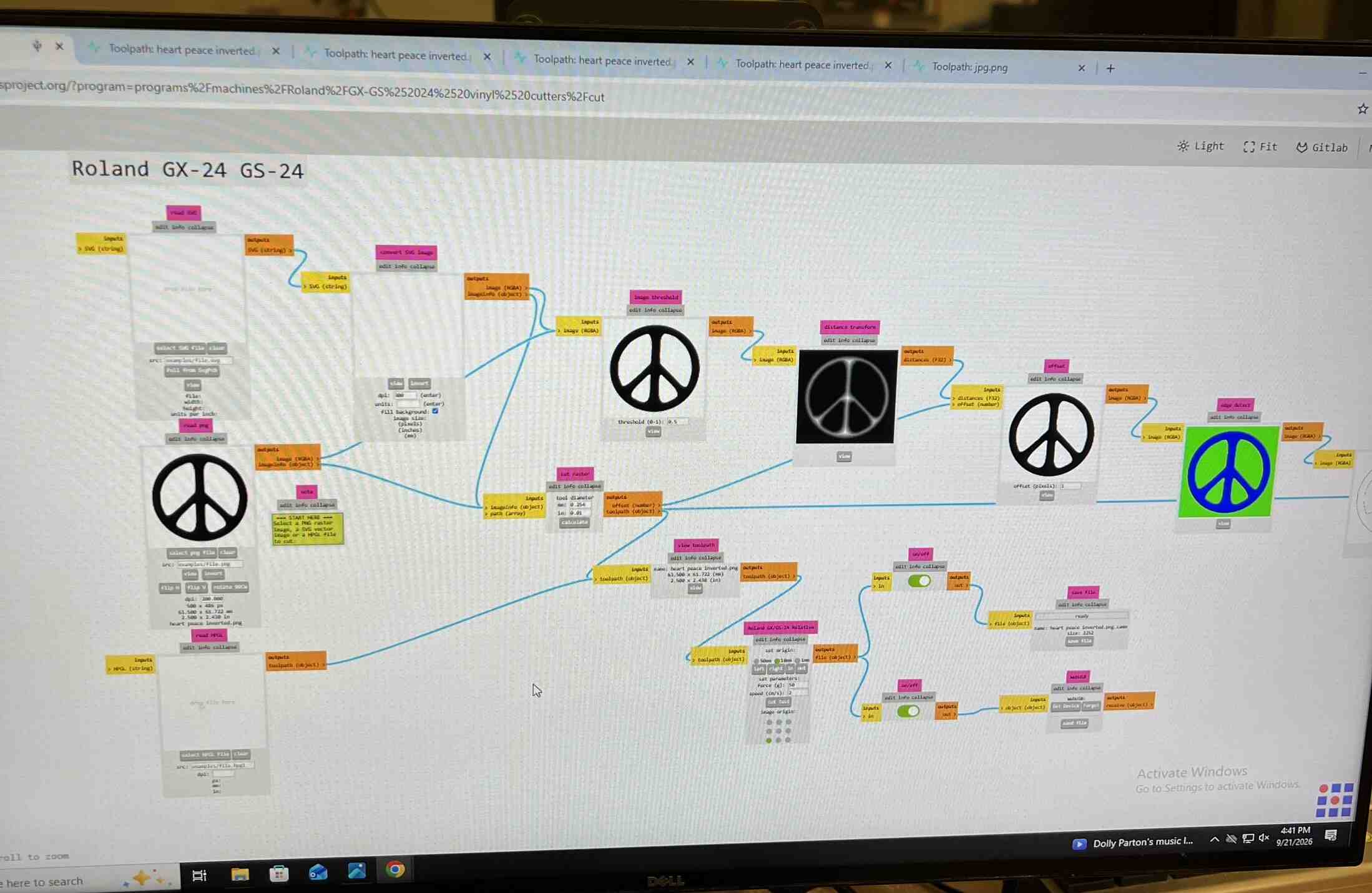
I used Mods CE to send the PNGs to the vinyl cutter. There, I changed the DPI of the image to make the final sticker bigger/smaller.
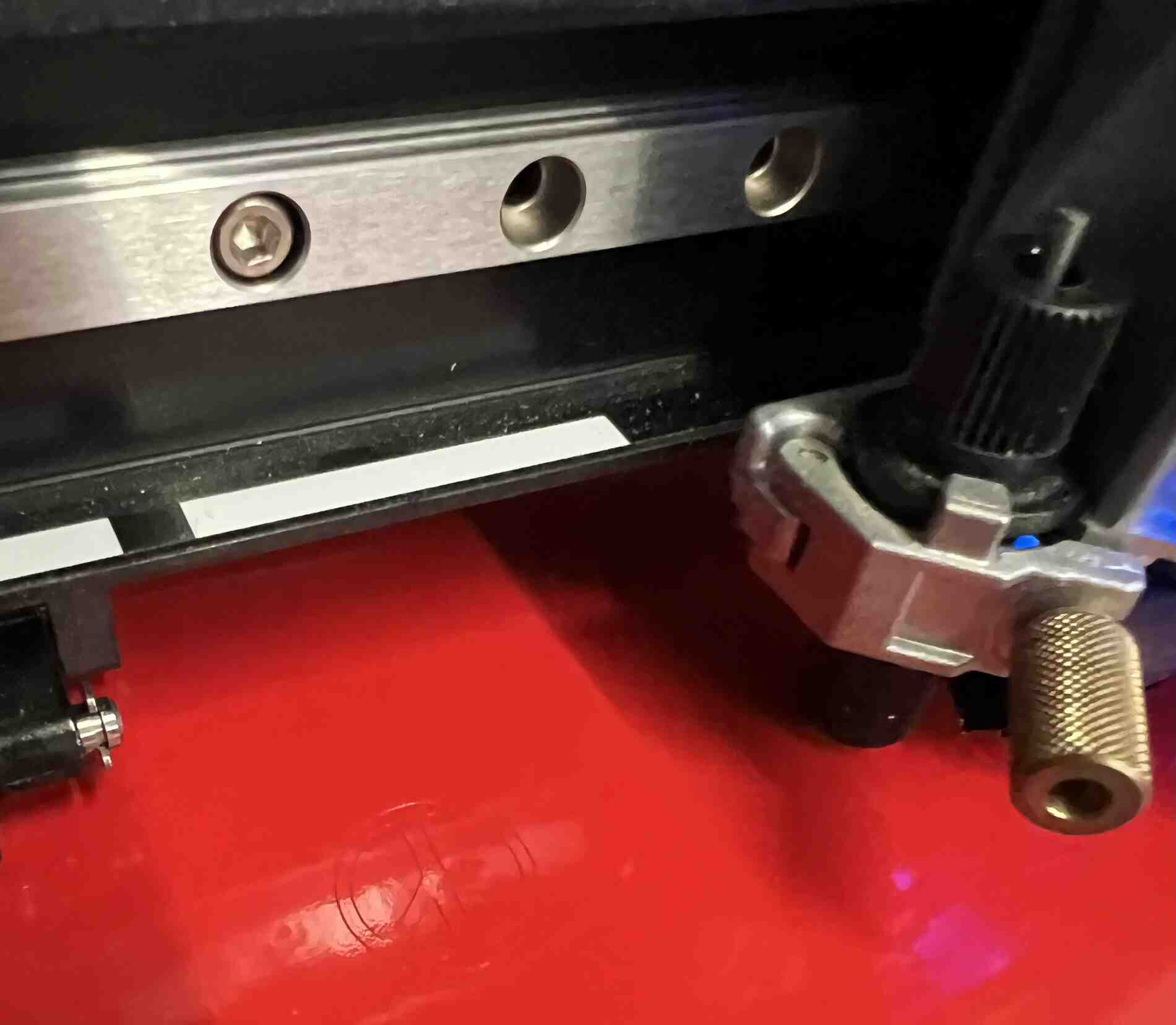
Then, I added the vinyl roll to the Roland vinyl cutter, placed the sheet under the rollers, positioned the head, and hit “Send Image”. Overall, the printing took under 30 seconds.
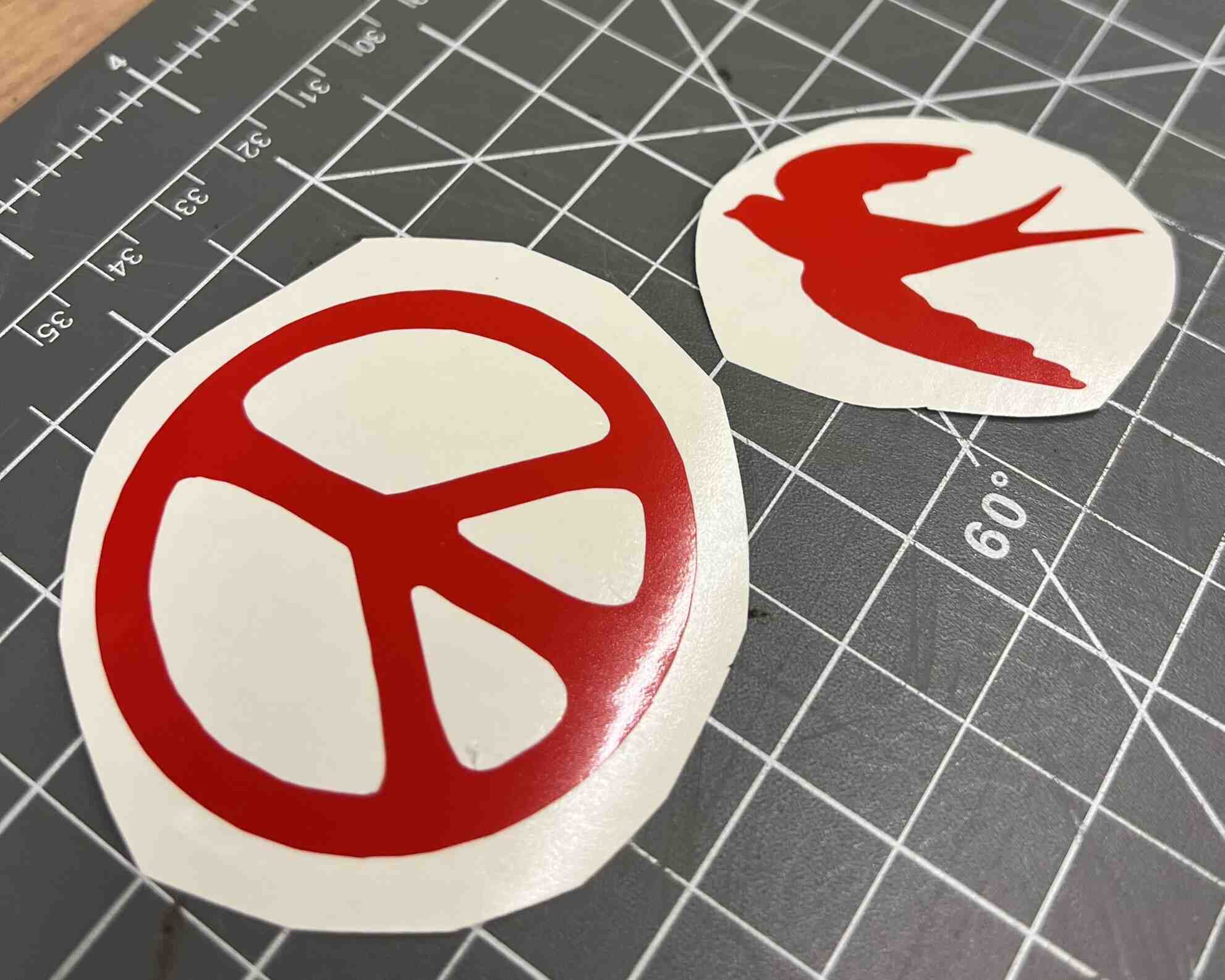
After using tweezers to remove the excess vinyl, I was left with 2 cute stickers! I’ll definitely be back to print more :-). There was also the option to use transfer paper on top of the design, but since my stickers were only 1 component, that wasn’t necessary.
Laser cutting
For the laser cutting assignment, we were asked to design, lasercut, and document a parametric construction kit, accounting for the lasercutter kerf. I decided to make a bird, since my final project will be bird-song related.
Sketching, planning
Before modeling in Fusion, I sketched out the different components to plan out how everything would fit in together. The main components I decided on were: head, neck, main body, smaller body components, wings, tail, bottom/legs, feet.
The sketch allowed me to plan out where the press-fit joints would be, as well as which values should be parameters (green highlights).
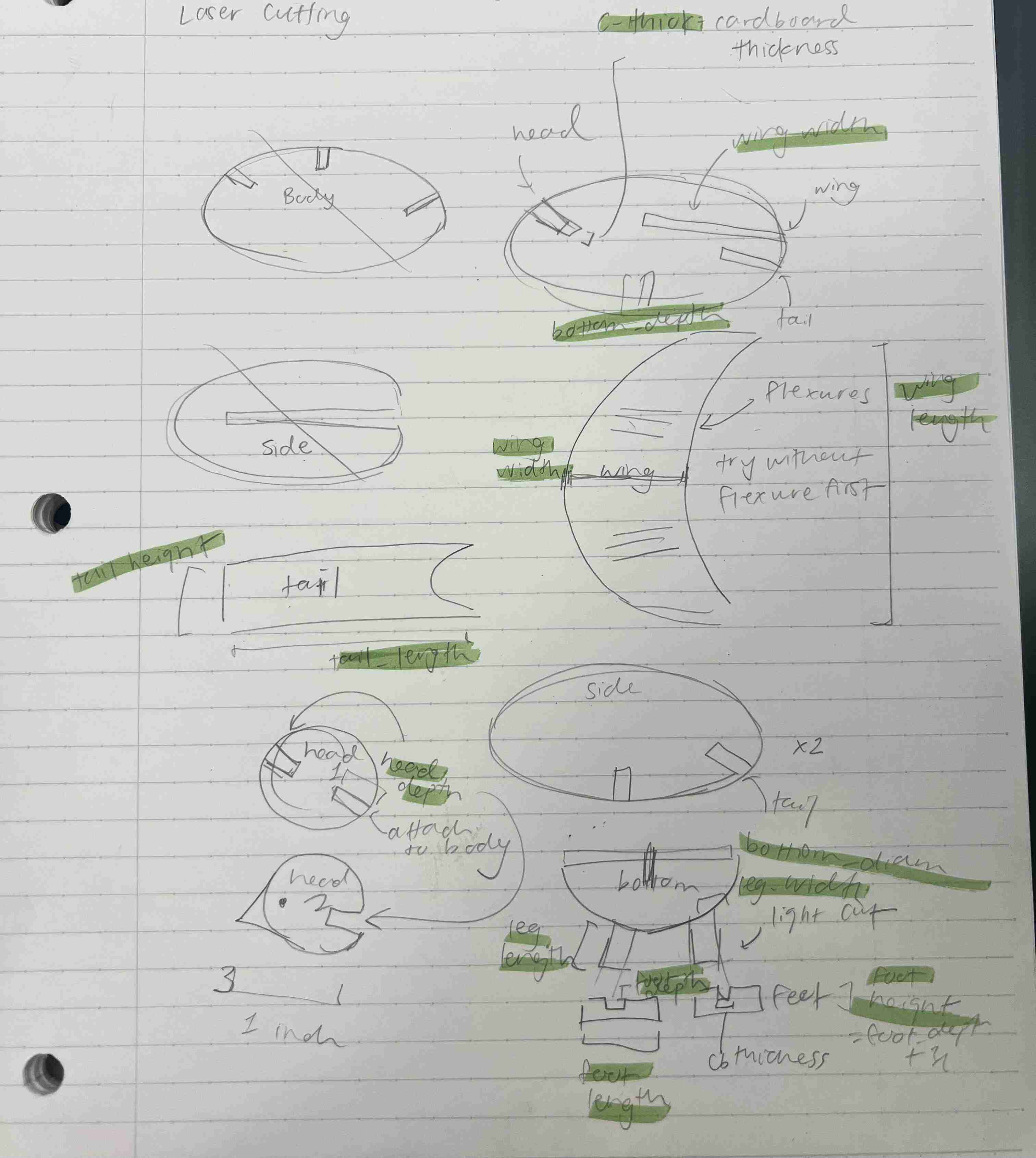
I decided to use a flexure for the wings to make them bend, which I generated using this online tool, and pasted into my Fusion design.
Parameterization
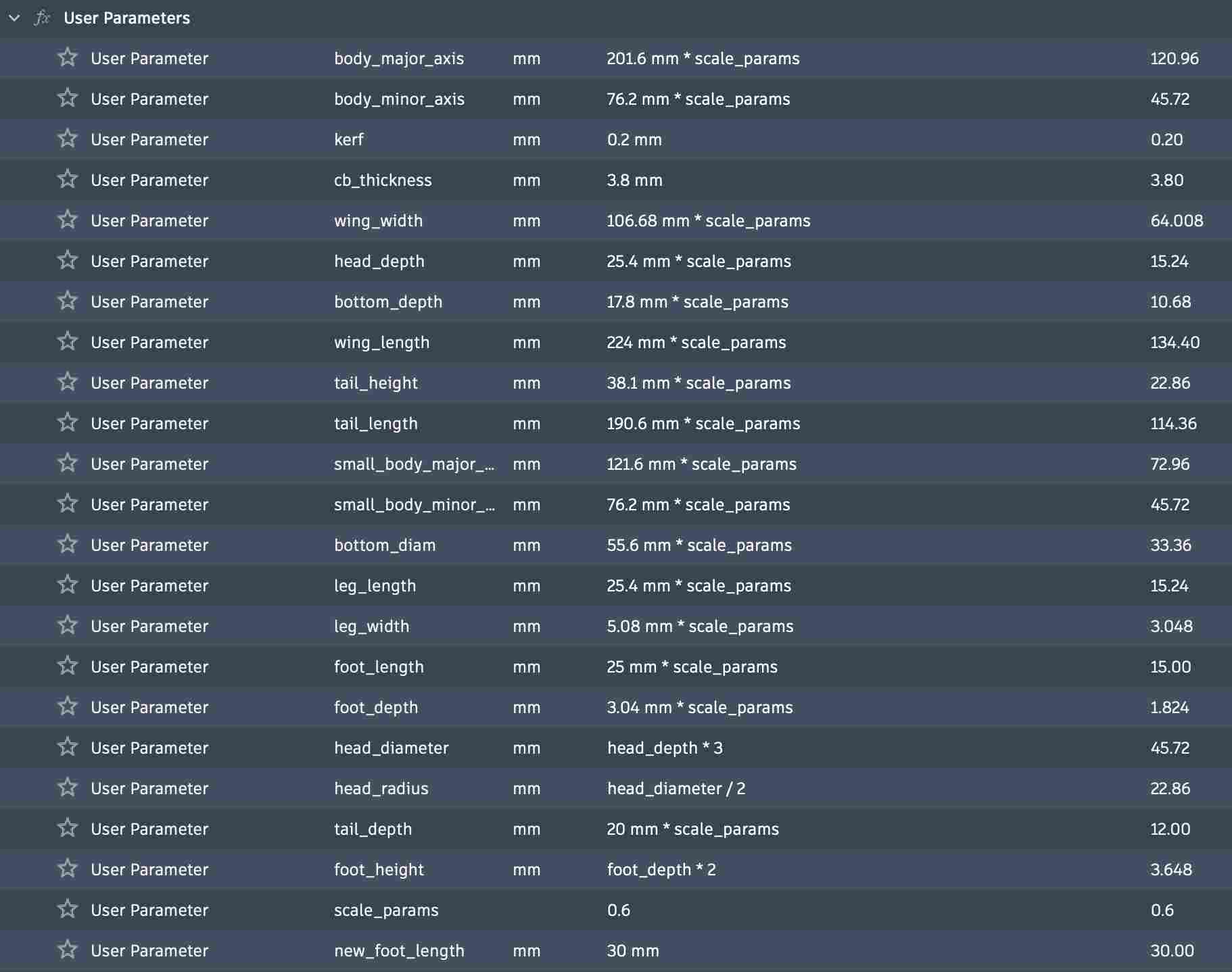
Parameterization allows you to have changeable variables for certain values, like height, width, radius, etc. I made parameters for:
- any value that I thought would later need scaling, like the depth of slots
- values that were used across different components (so I wouldn’t need to change all of them separately)
- values relating to physical measurements (like cardboard thickness and kerf)
In the end, my parameters looked like this:
First design
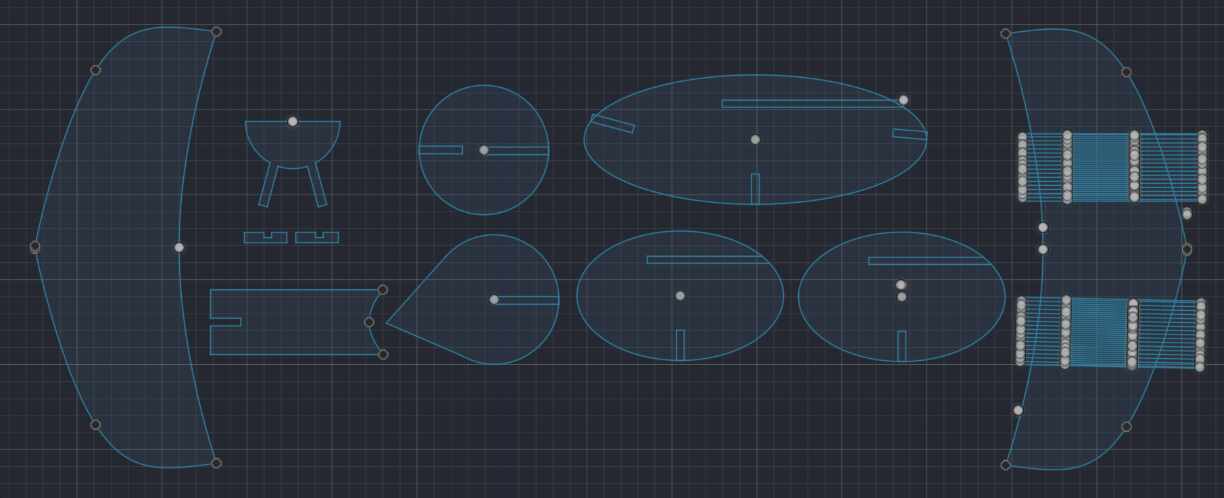
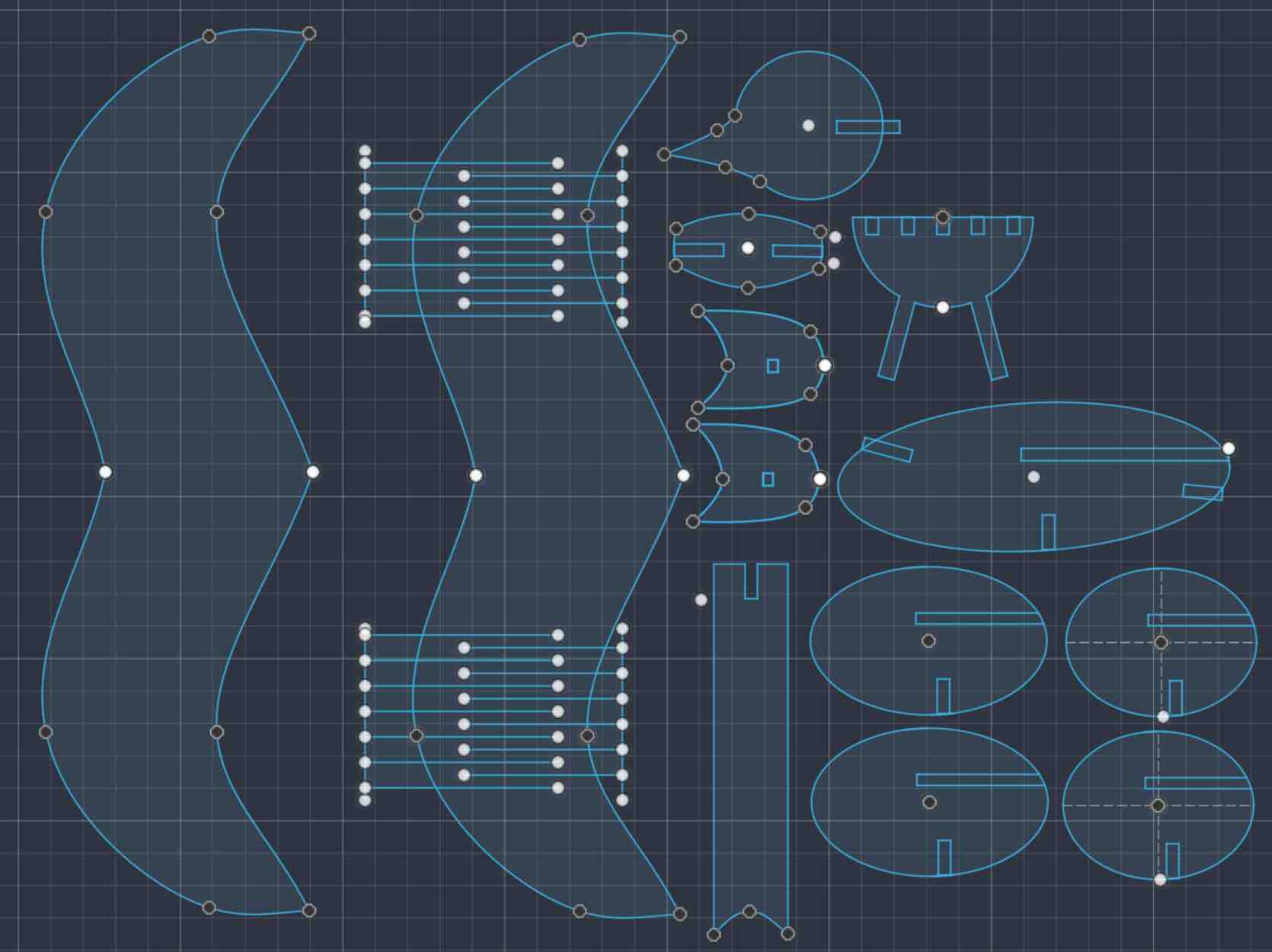
I arranged the separate components on one sketch to export and print.
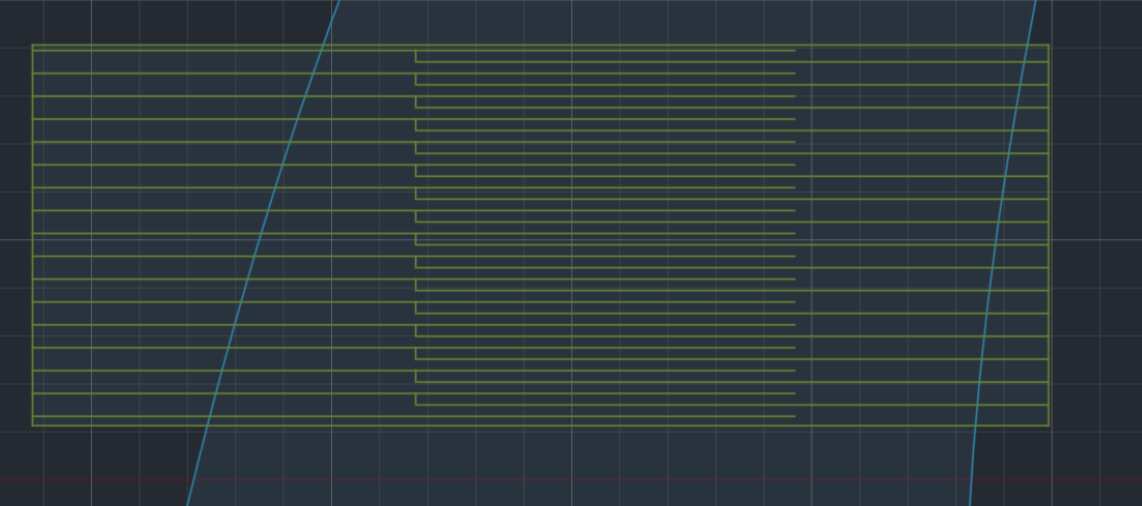
The flexures on the wings look like alternating parallel lines, which create flexiblity.
Tips
- Make parameters that use other parameters in formulas
- Add a global scaling_param that you can multiply every parameter (besides physical parameters) by. This enables easy scaling later on
First lasercutting attempt
I started off in the CBA shop and used the XTool software to send my DXF file to the laser cutter. I set my power to 36% and my speed to 25%, which were the values that we found during the group assignment.
Fire . . .
I was surprised when a small fire started on the cardboard, and Dan helped me put it out (phew). For future reference, the steps to safely put out a fire are:
- Press the emergency stop button or lift the hood, which should automatically stop the printing
- Push the head back, away from the fire
- Throw the fire blanket on, and press down to smother the fire
- If the printing scraps in the tray are also on fire, pull the tray out and cover it with the fire blanket
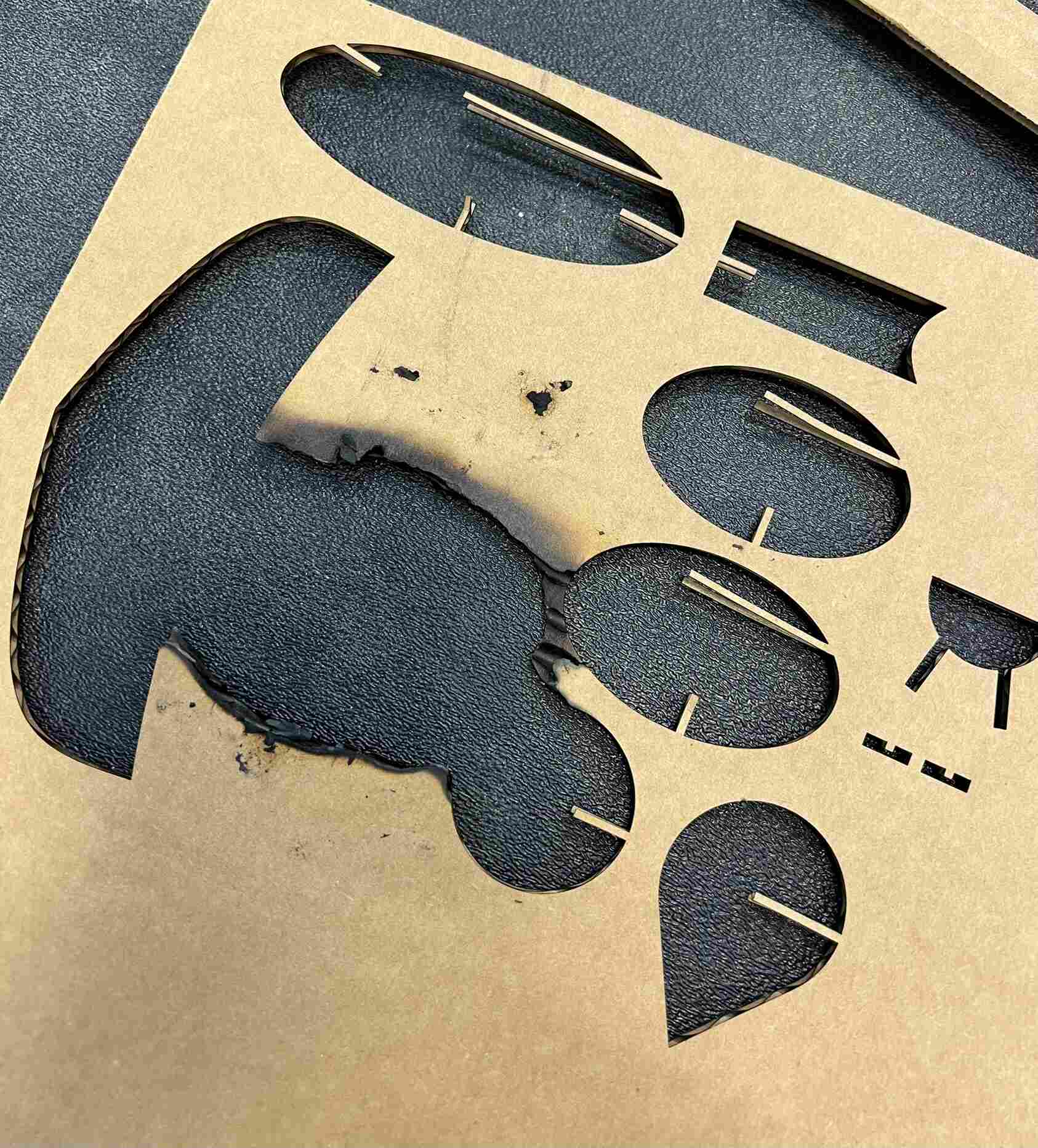
The issue turned out to be a dirty lens on the laser, which made the beam unfocused and caused it to be too hot.
Other issues
I continued with the other laser cutter and discovered a few other issues. The flexure spacing was too thin, causing the cardboard to rip when bent. I was also using a lattice hinge, which created an extra perpendicular cut to make the cardboard more flexible, and it was an overkill.
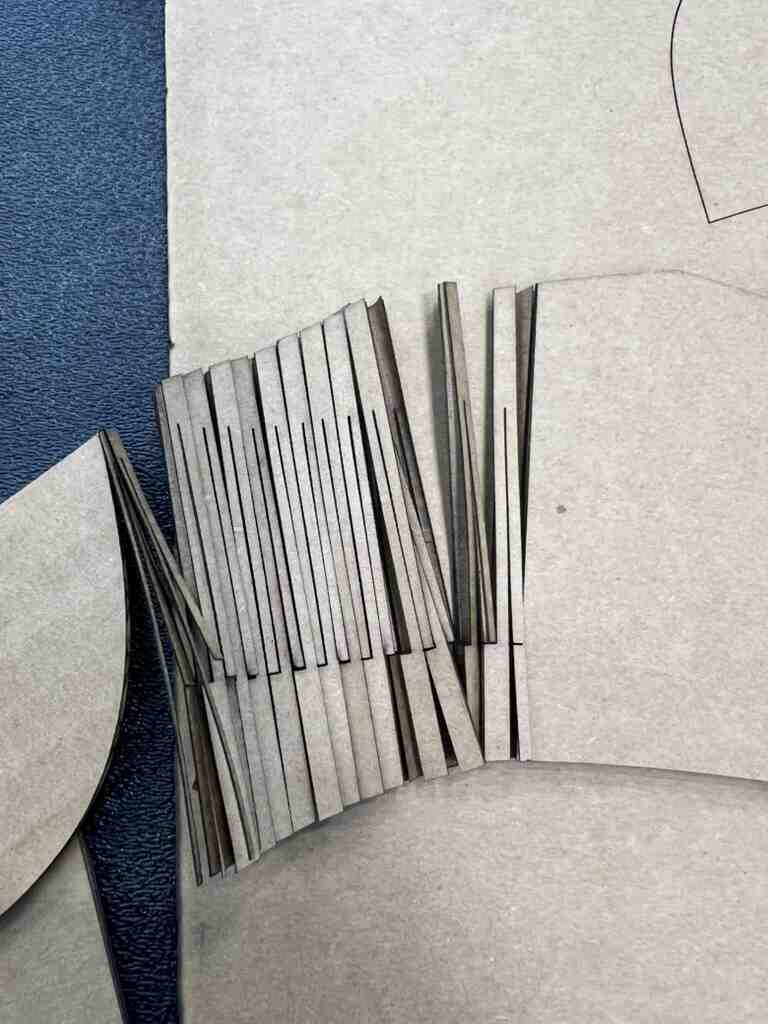
I was also scaling the design within the XTool software, which made the slots too small for the cardboard. I tried editing the cardboard thickness parameter in my Fusion design, but since I had trimmed the ends of the rectangles, some of them lost their rectangle association and just become lines. The TA suggested that I just leave the rectangles untrimmed, since the extra cuts wouldn’t matter. Instead of scaling in XTool, I made the actual dimensions smaller in my Fusion file using a global scaling parameter.
First bird
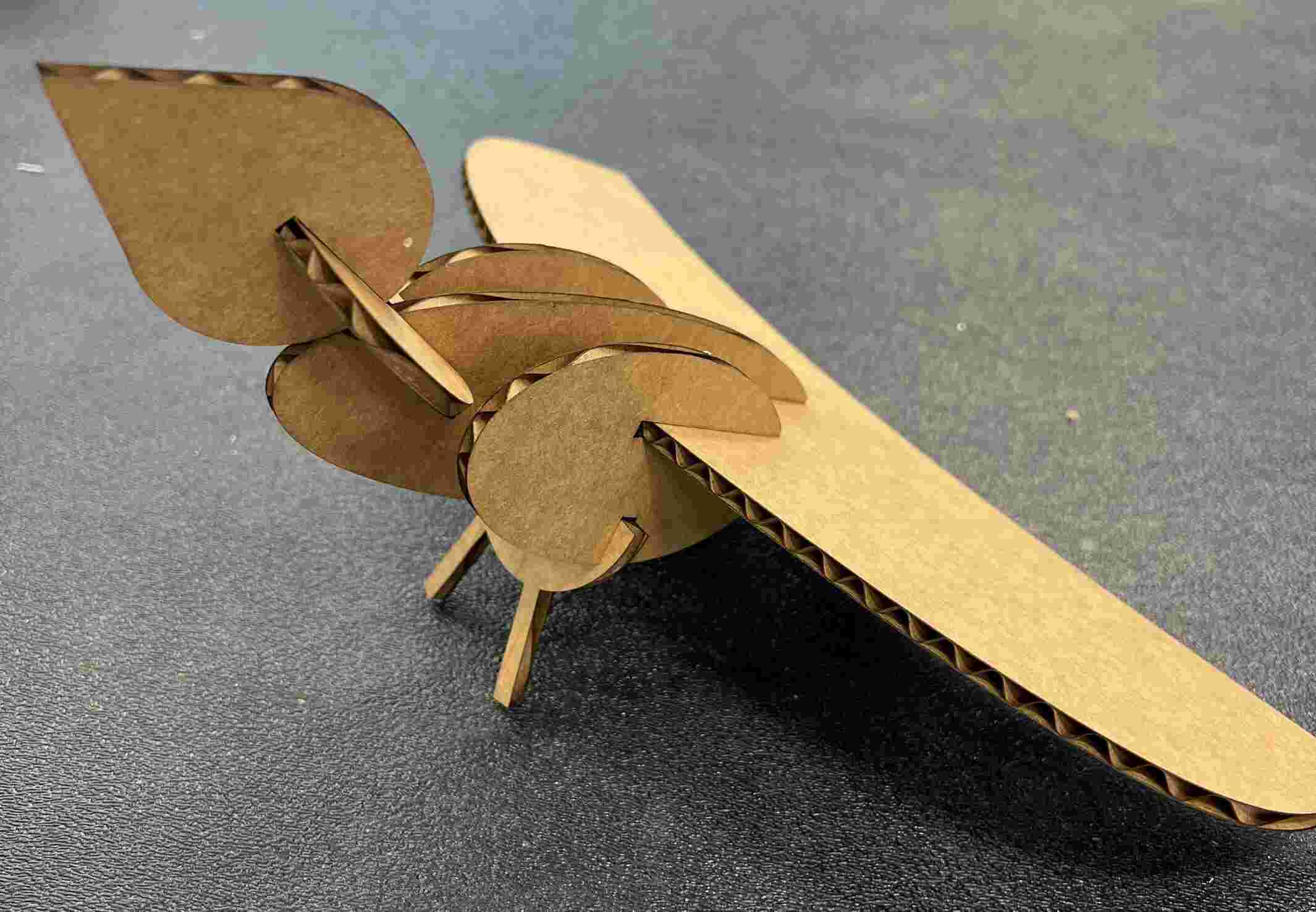
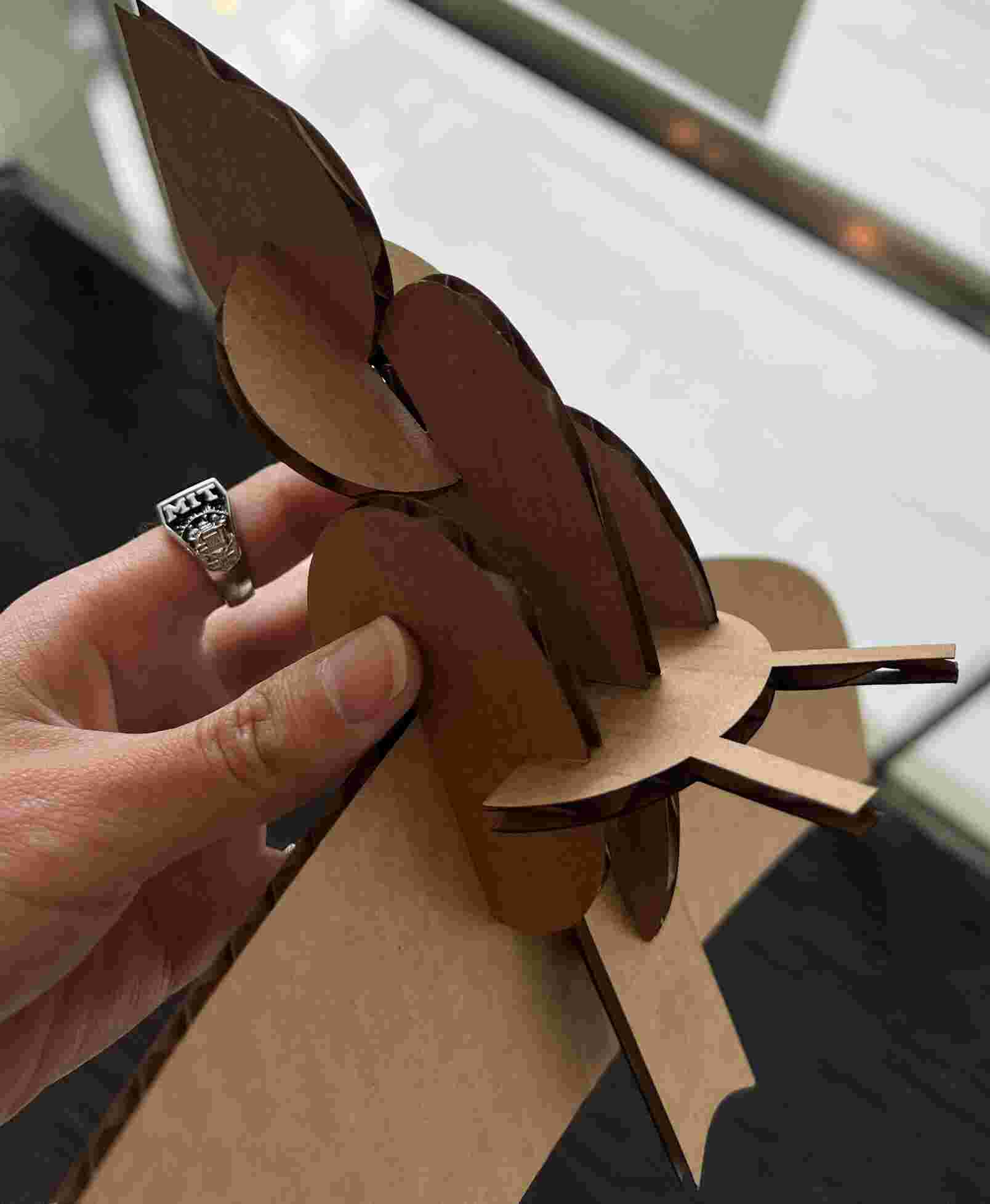
My first, simple bird looked like this! I printed wings without the flexure to test that everything would fit together.
Second laser cutting attempt
I adjusted some of the components to make the bird more bird-like, including making the tail longer, making the wings more wing-shaped, and making the head smaller. I also added two more smaller body components to make the body look rounder. I switched to the EECS shop to complete the assignment due to scheduling constraints, so I learned how to use the other laser cutter and upload files with Inkscape and Corel Draw.
The EECS laser cutter required a few more steps than the XTool laser cutter, which had a pretty automated workflow:
- Upload DXF file, using ‘Import’ instead of ‘Open’
- Change lines to red for cutting
- Change linetype to hairline
- Ctrl + P to send to printer
- In the printer settings, choose the power and speed. Press “Set”
- Adjust the Z-height of the laser head after putting the material onto the tray
- Turn on the air compressor
- Press “Start”
The splines on the wings, head, and neck were too complicated for Inkscape and Corel Draw to process, so I used 3-point arcs instead. This made the bird less realistic, but it saved me from downloading extra tools on Fusion.
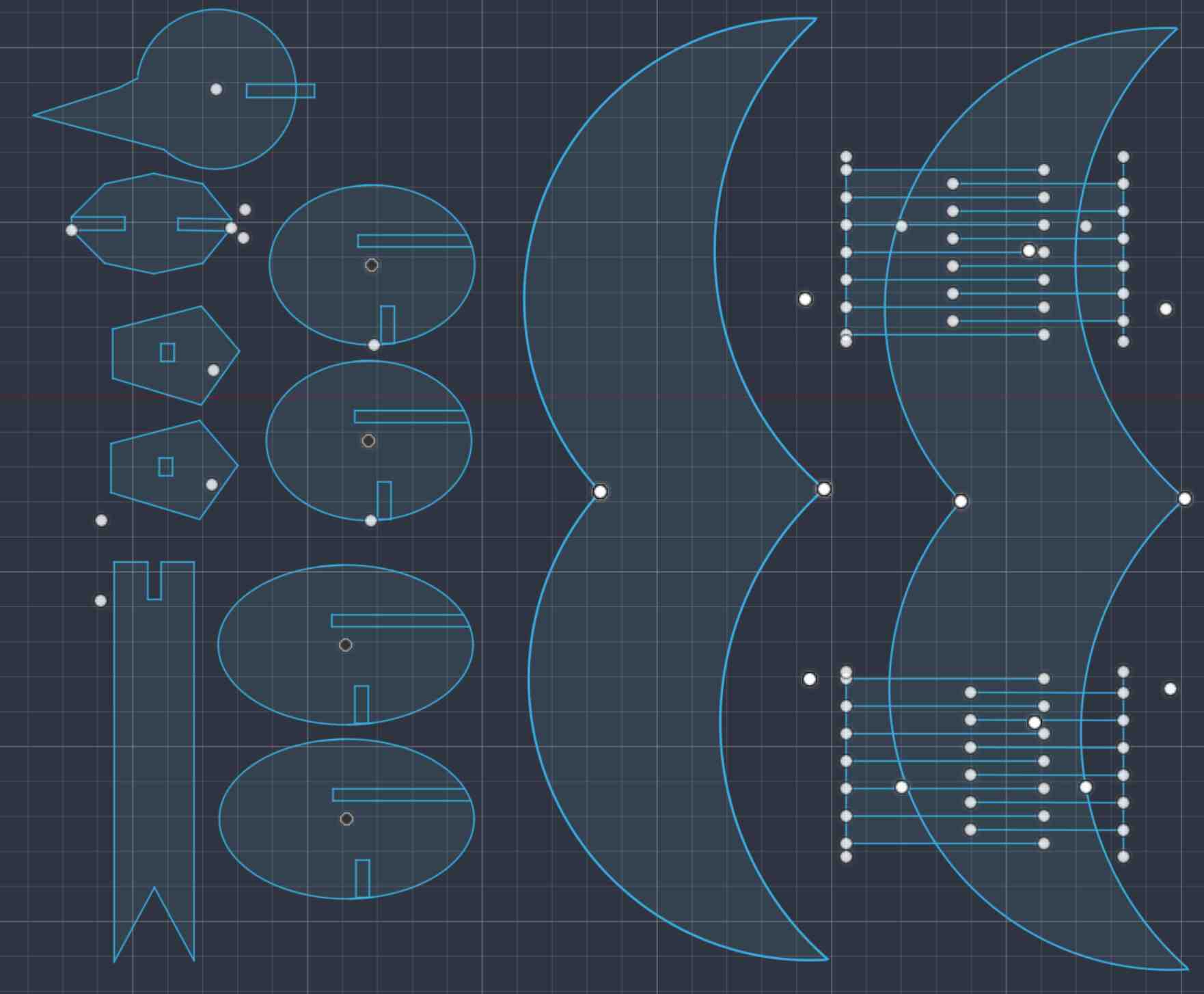
I also made the spacing between the flexures larger and removed the perpendicular cuts to make the bend stronger. The cardboard was placed so that the flexures were running parallel to the flute/grain of the cardboard. The EECS laser cutter used different power and speed settings, but luckily the values were already set for cardboard (100% power and 15% speed).
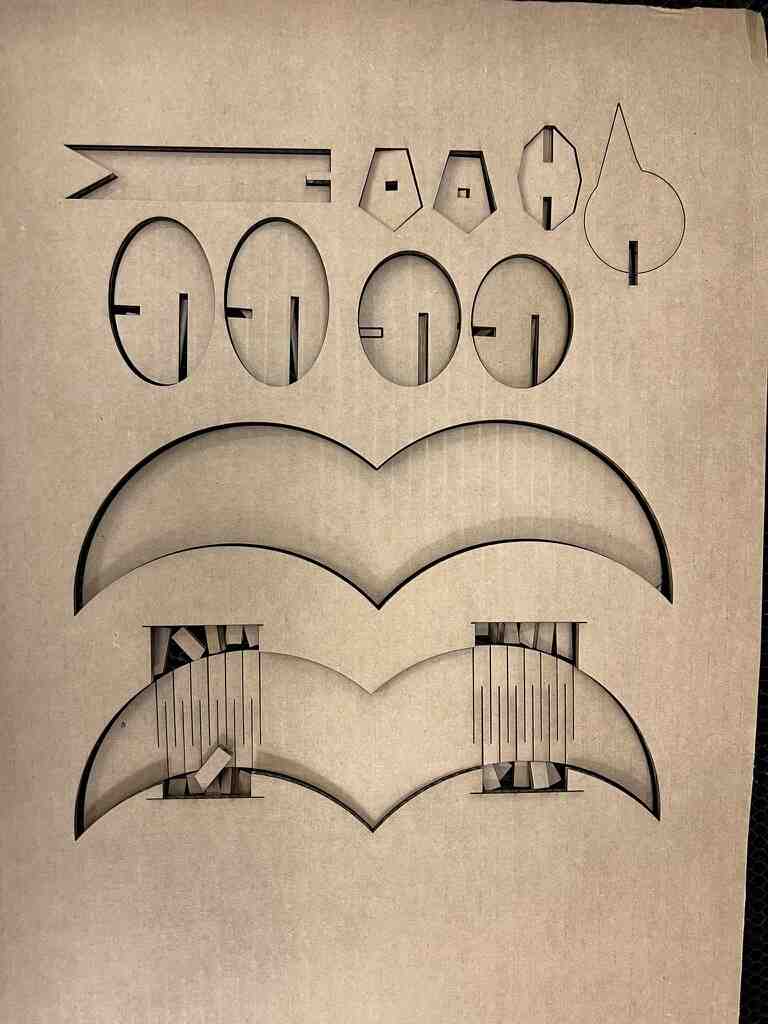
The layout above doesn’t include the bottom and main body, which I printed first to test if the kerf was too big.
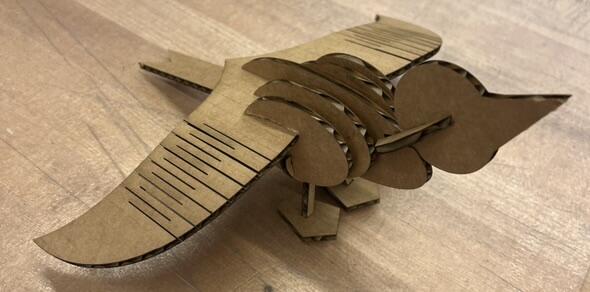
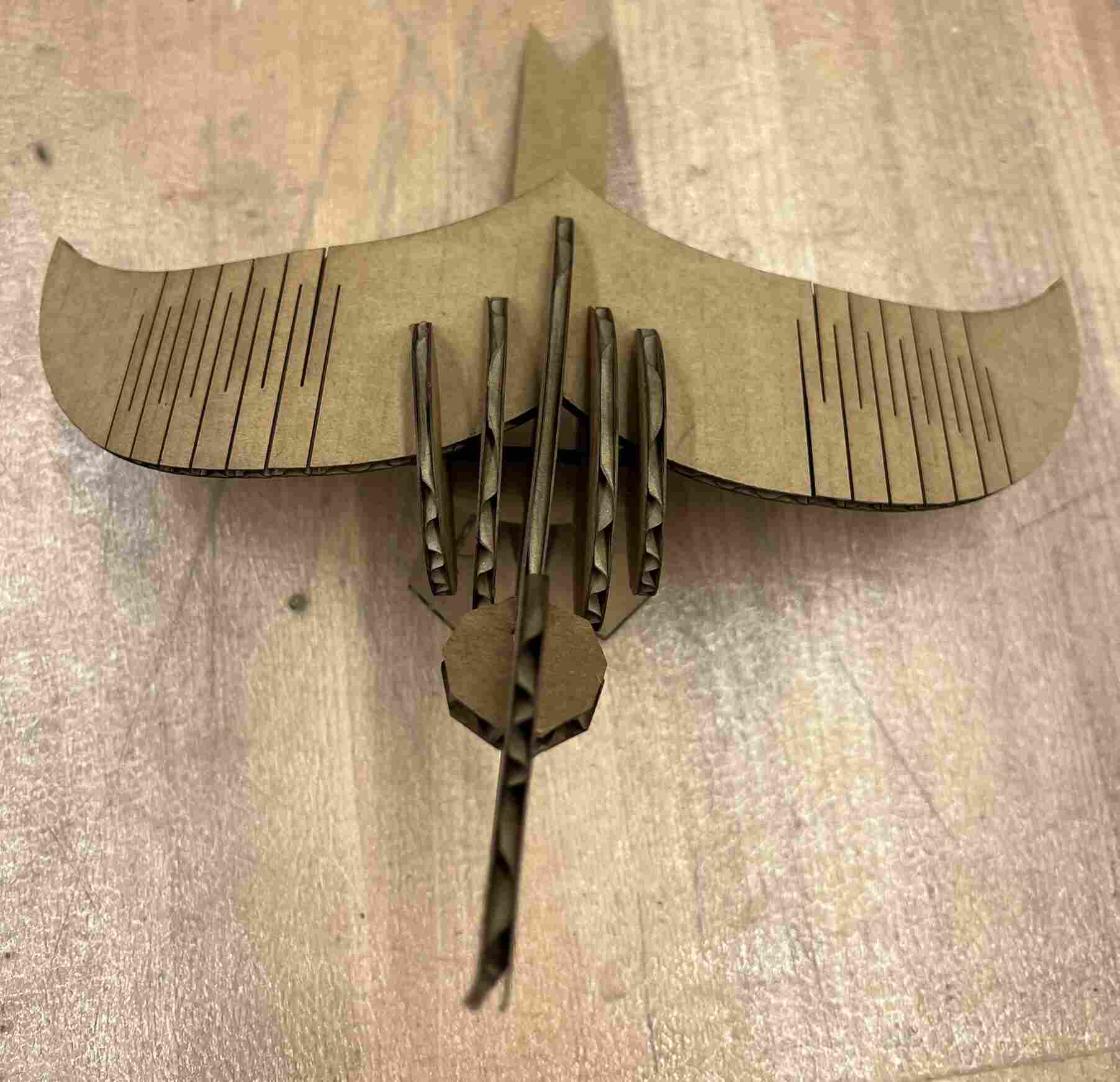
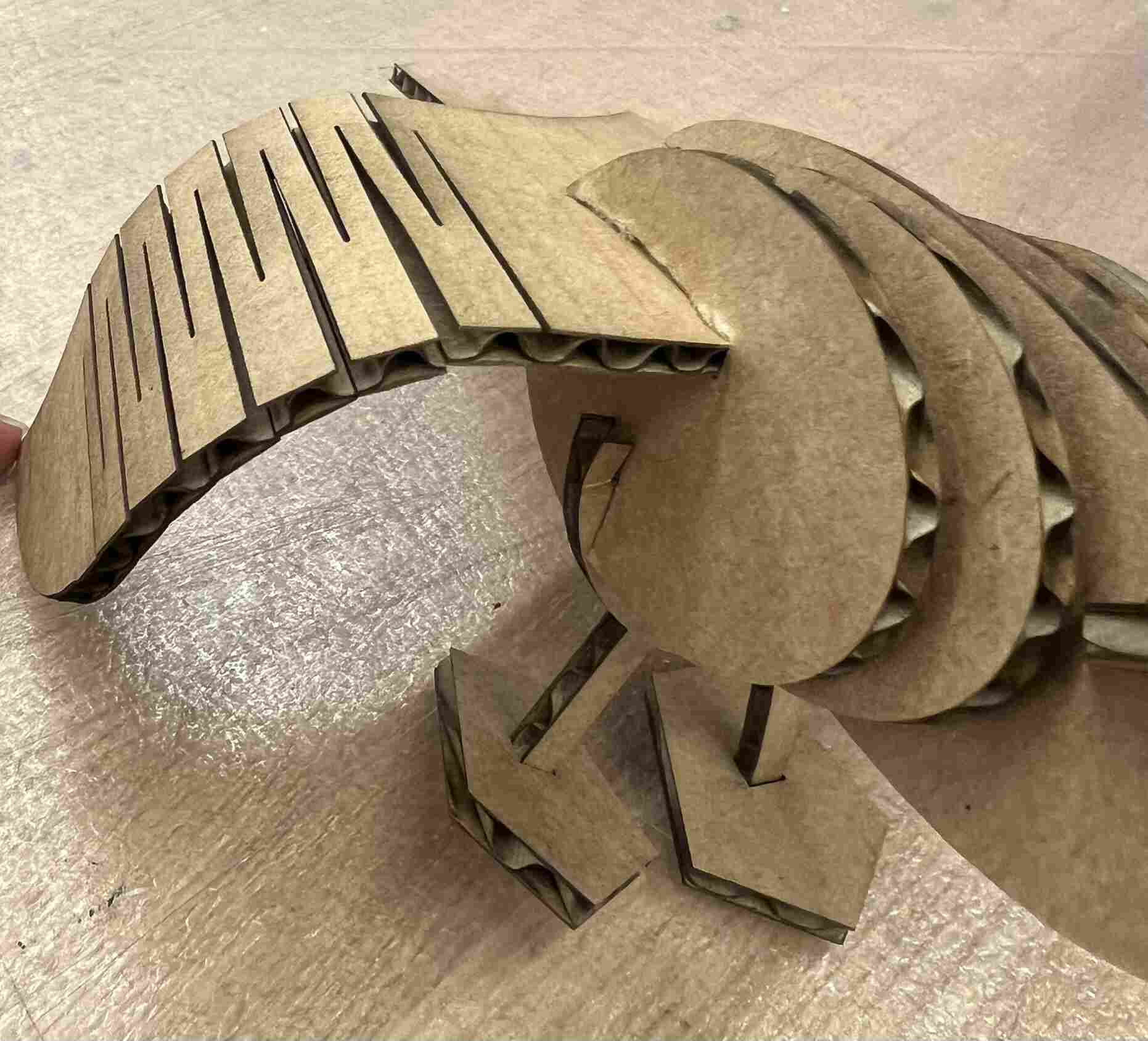
The second attempt worked pretty well, and I ended up with a bird with flapping wings!
Group assignment
For the group assignment, we were asked to do the lab’s safety training and to characterize the laser. The characteristics to focus on were focus, power, speed, rate, kerf, joint clearance and types.
First, we cut cubes with different materials and determined that the kerf for metal was a few mm larger than the kerf for cardboard, causing the metal cube to fit loosely in the cardboard cutout. We also engraved some text on a metal cube with a lighter power, not cutting all the way through.
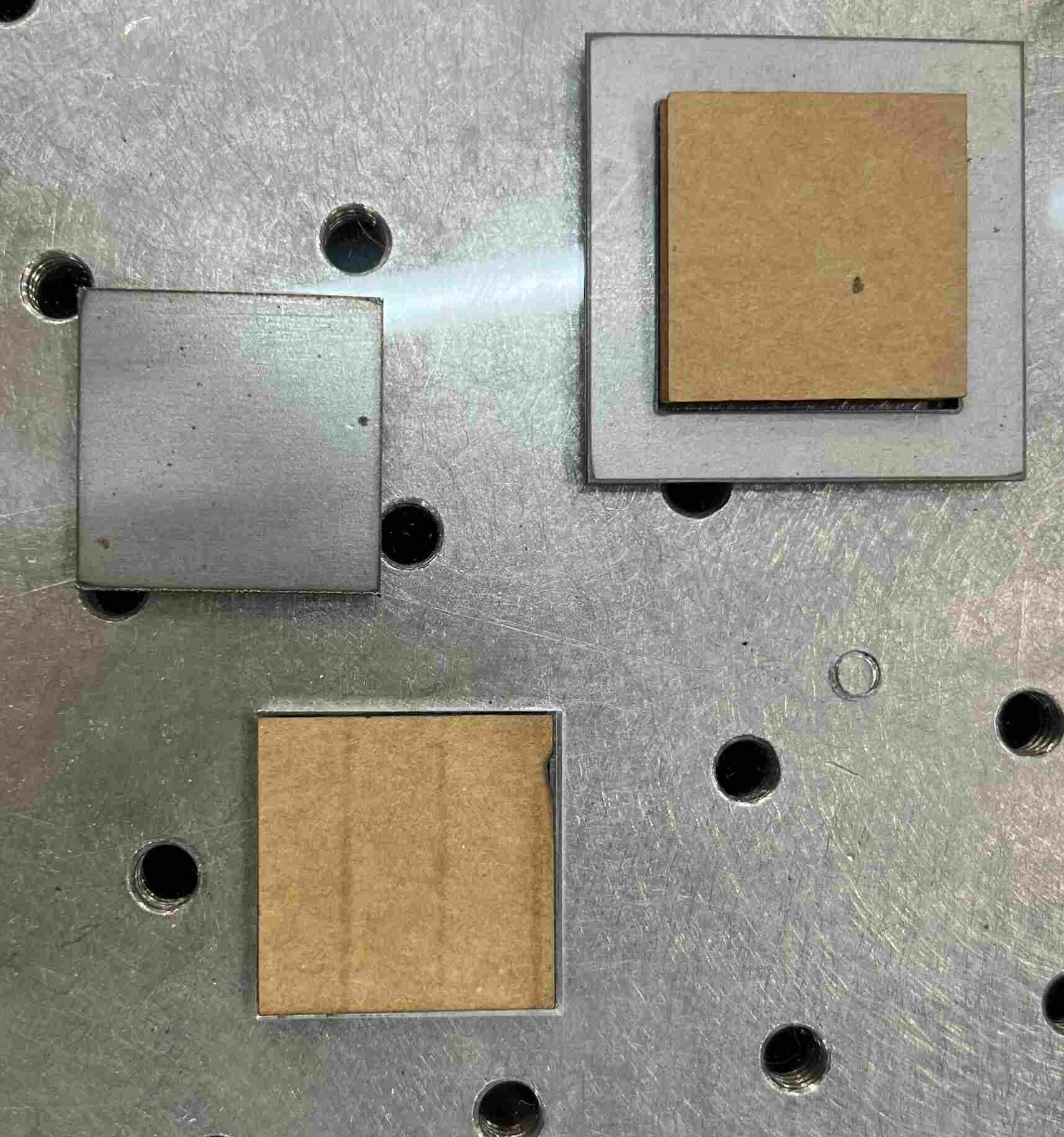
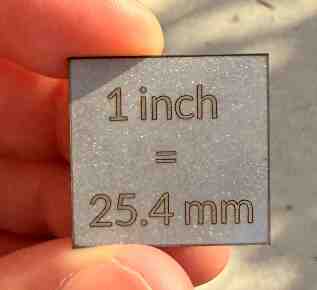
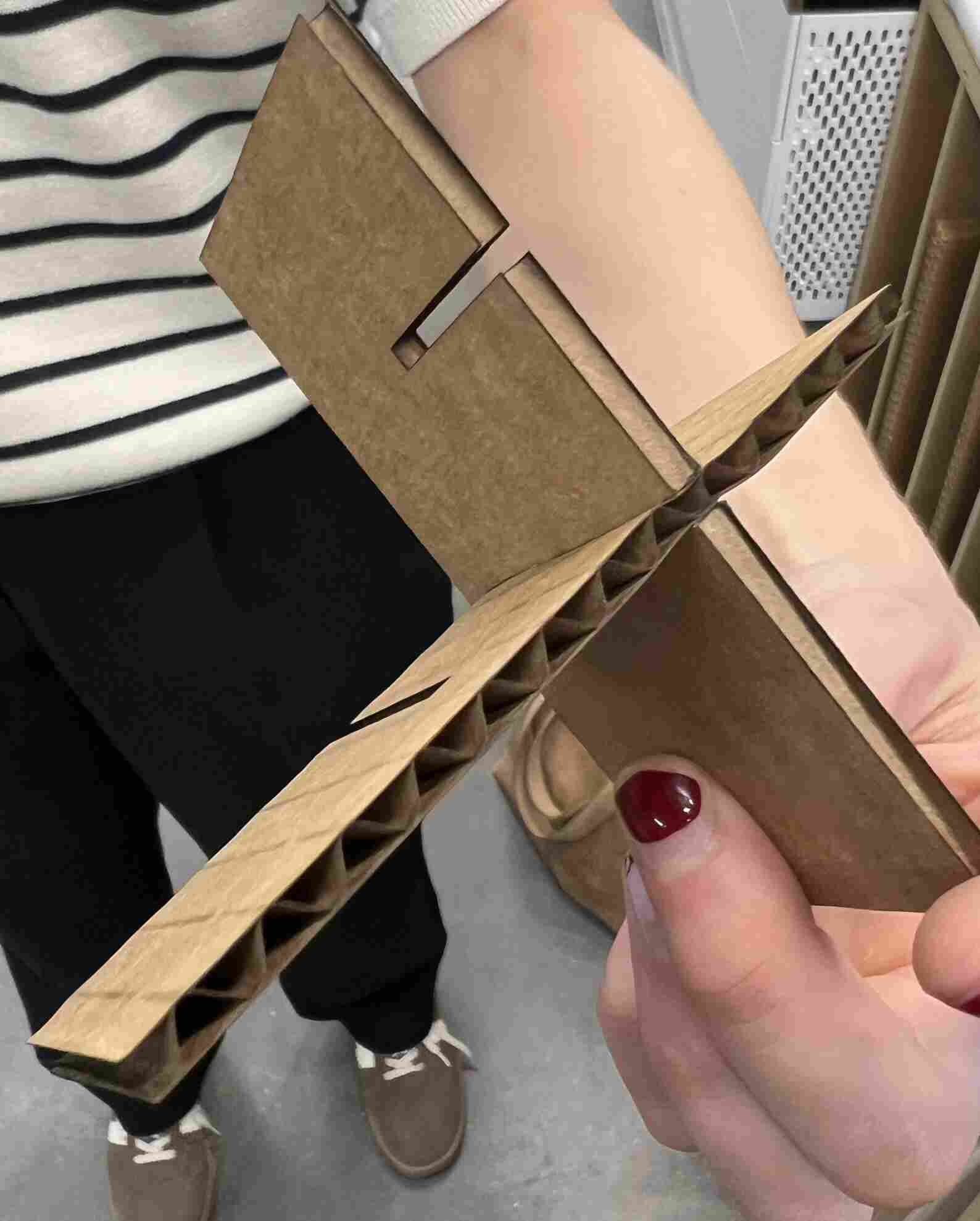
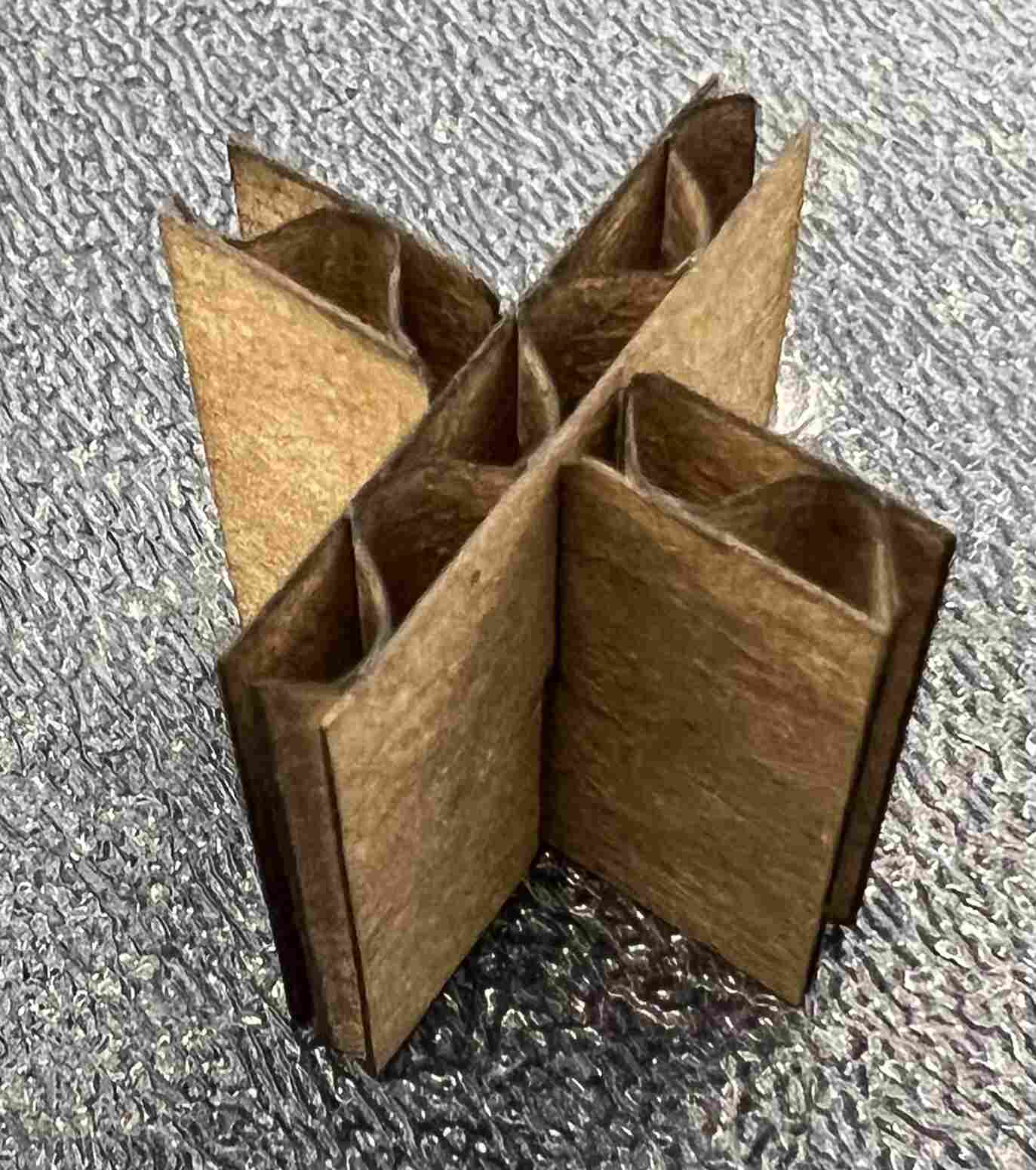
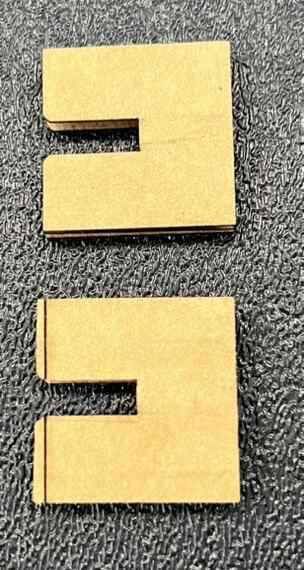
Then, we made a press-fit joint and a chamfer press-fit joint in cardboard, noting that the chafmer made it easier to slot the joints together.
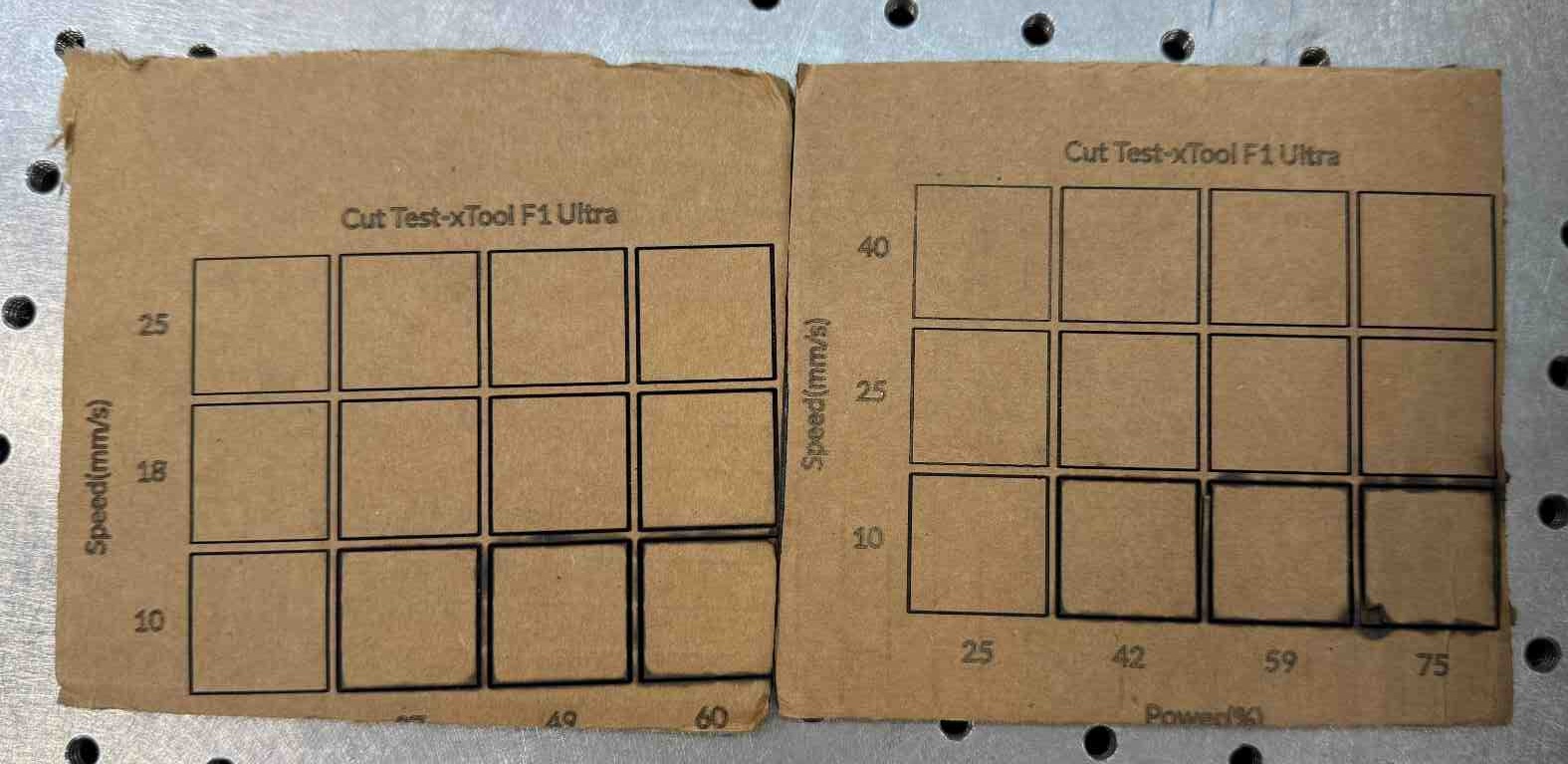
We also varied the speed (10%-40%) and power (10%-75%) to create an array of cuts. Based on the tests, a good speed range is 15%-25% and a good power range is 30%-40%