Week 5: Electronics Design
Intro
Our assignment this week was to:
- use an EDA tool to design an embedded microcontroller system using parts from the inventory, and check its design rules for fabrication
- extra credit: simulate a circuit
- extra credit: try another design workflow
- extra credit: design a case
I’ve only worked with prebuilt boards before, so I was excited for this week’s assignment!
Plan
I referenced a recitation from a previous fab class (linked at the bottom of the page), and learned that the electronic design steps are generally:
- Select components
- Create schematic
- Create component layout
- Define board shape (edge cuts)
To select the components, I first needed to define the functionality that I wanted my board to have. I wanted to work on a component of my final project, so I decided to make a central controller for the sensors, mic streaming, and video streaming. The key parts are:
- Power supply (battery)
- Sssume this can be swapped out once every few days
- Decoupling capacitor near each board’s power?
- 3 cameras (I’ll design the central one this week)
- Central controller handles sensors, triggers, timing, and the main camera’s video/audio stream
- 2 roof peripherals can process images on board and simplify them at a lower frame rate
- USB-C connector for flashing
- I2C communication pins
- A bunch of gpio pins for the sensors
- Microphone
- Laser sensor to detect the bird feed level
- Some motion detection/laser sensor for birds that triggers the cameras
- VL53L5CX distance sensor
- One camera in the middle of the birdhouse, 2 on top
- Indicator LED to debug system state
- 3 fast blinks - system ready/init succeeded
- Slow blinking - system recording/bird detected
I want to eventually stream the following information from my central controller: - Cideo from main camera - Processed video data from 2 rooftop cameras - Audio - Food level indicator - Battery level indicator
Based on these functional requirements and the fab inventory, I decided to use the XIAO ESP32S3 Sense for the central controller, and design the central system for this week’s assignment since it’s the most complicated one.
I decided on a few different components:
- Connectors for the bird level and motion detector, connected to I2C lines
- Connectors for the 2 roof cameras, connected to UART lines
- Connector for 5V power supply
- Indicator LED
Making the schematic
I decided to use KiCad for the design, as recommended in class.
I started off by adding the SeeedStudio_XIAO_ESP32S3 symbol to the schematic. I first pulled the fab symbol and footprint library from the repo, and imported them into KiCad. I couldn’t find the SENSE version of the ESP32S3 in the library (with the camera/mic/wifi peripherals), but the non-dev board version had the same microcontroller + pinout. I just needed to note which pins were used for internal functions, to not use them as custom GPIOs.
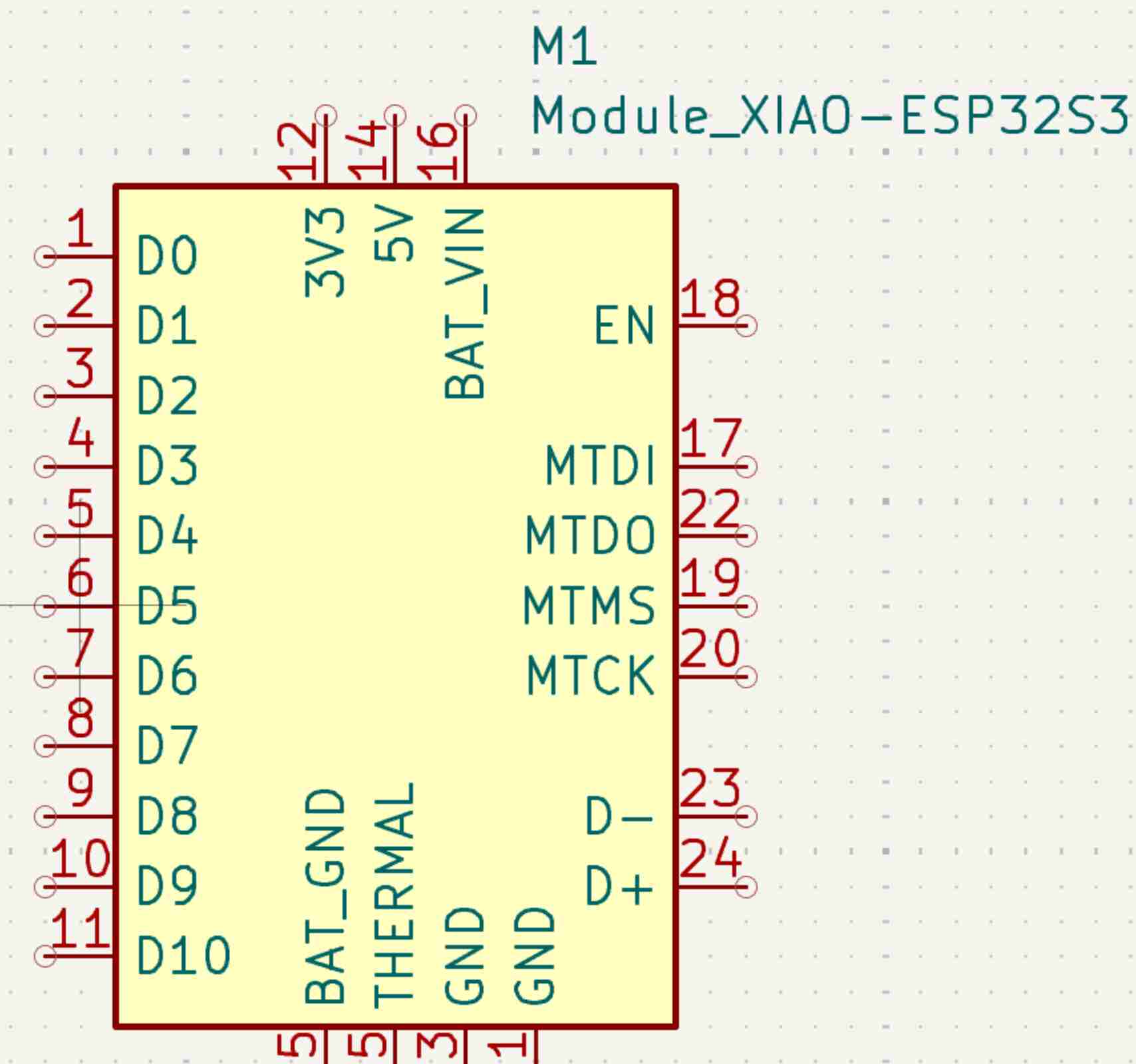
I saw a warning that the footprint for the symbol couldn’t be found, and I realized the default “PCM_fab” didn’t match the “fab” pretty library that I had imported. I changed the footprint name to just “fab”, and the footprint was created. I then added the rest of the components in.
Reading the datasheet
I found the pin map for the XIAO ESP32S3 SENSE, and noted which pins were the free GPIOs, UART, and I2C. I saw that D11 and D12 are used for the microphone, MTDO and MTCK are used for the camera, and D8-D10 are used for the microSD SPI, so I’ll avoid using those pins for now. The spec is here. I also checked that the pins on the schematic matched the pin map.
I then added each component in, connecting them to the pins with wires. The general process was:
- Press S to select symbol from the fab library
- Place on the schematic
- Edit the footprint name from “PCM_fab” to “fab”
- Use R to rotate if needed
- Connect the symbol end to the pins with a wire
- Rename component if desired
Power (5V Connector)
PinHeader_01x02_P2.54mm_Vertical_THT_D1.4mm
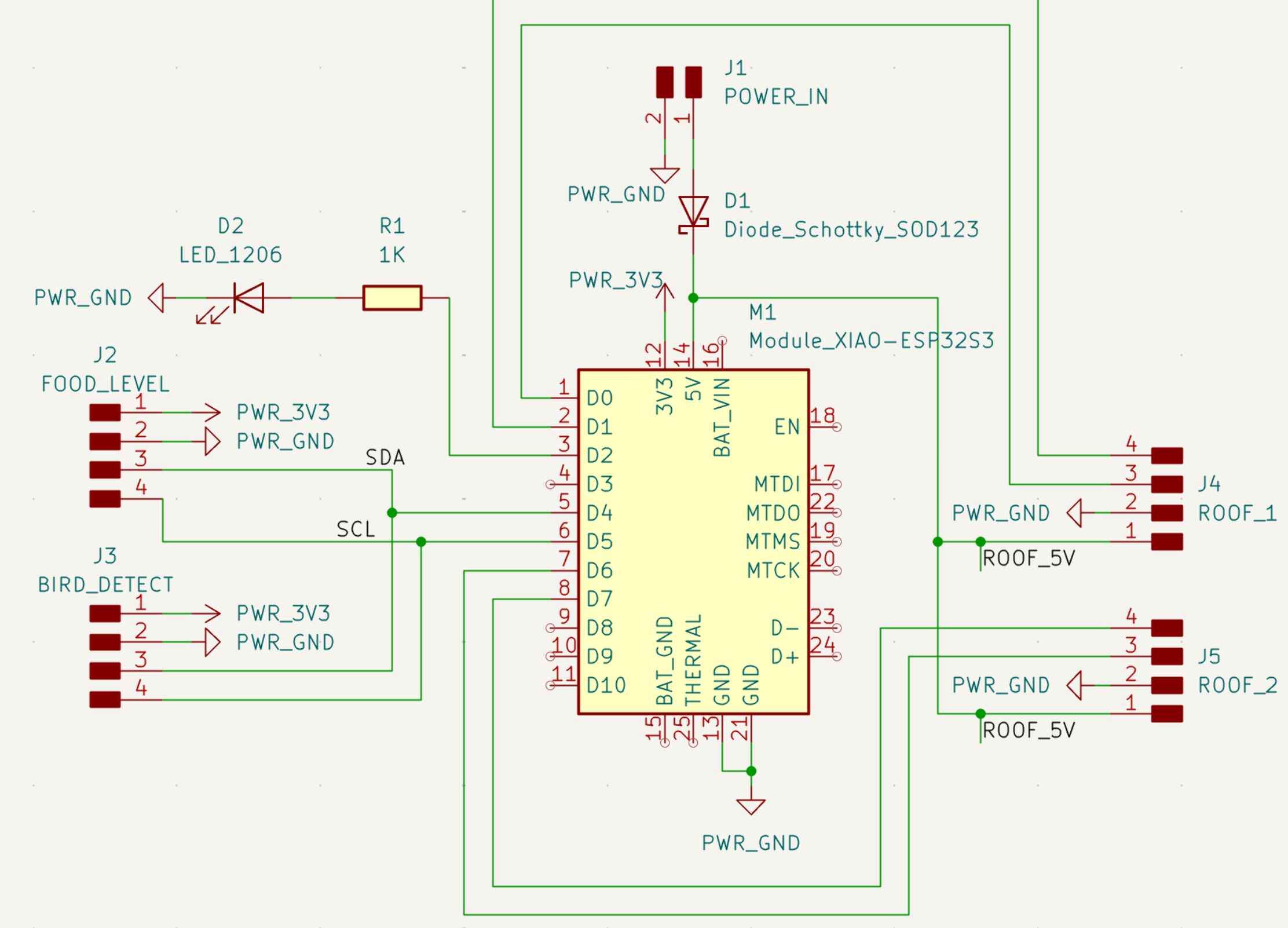
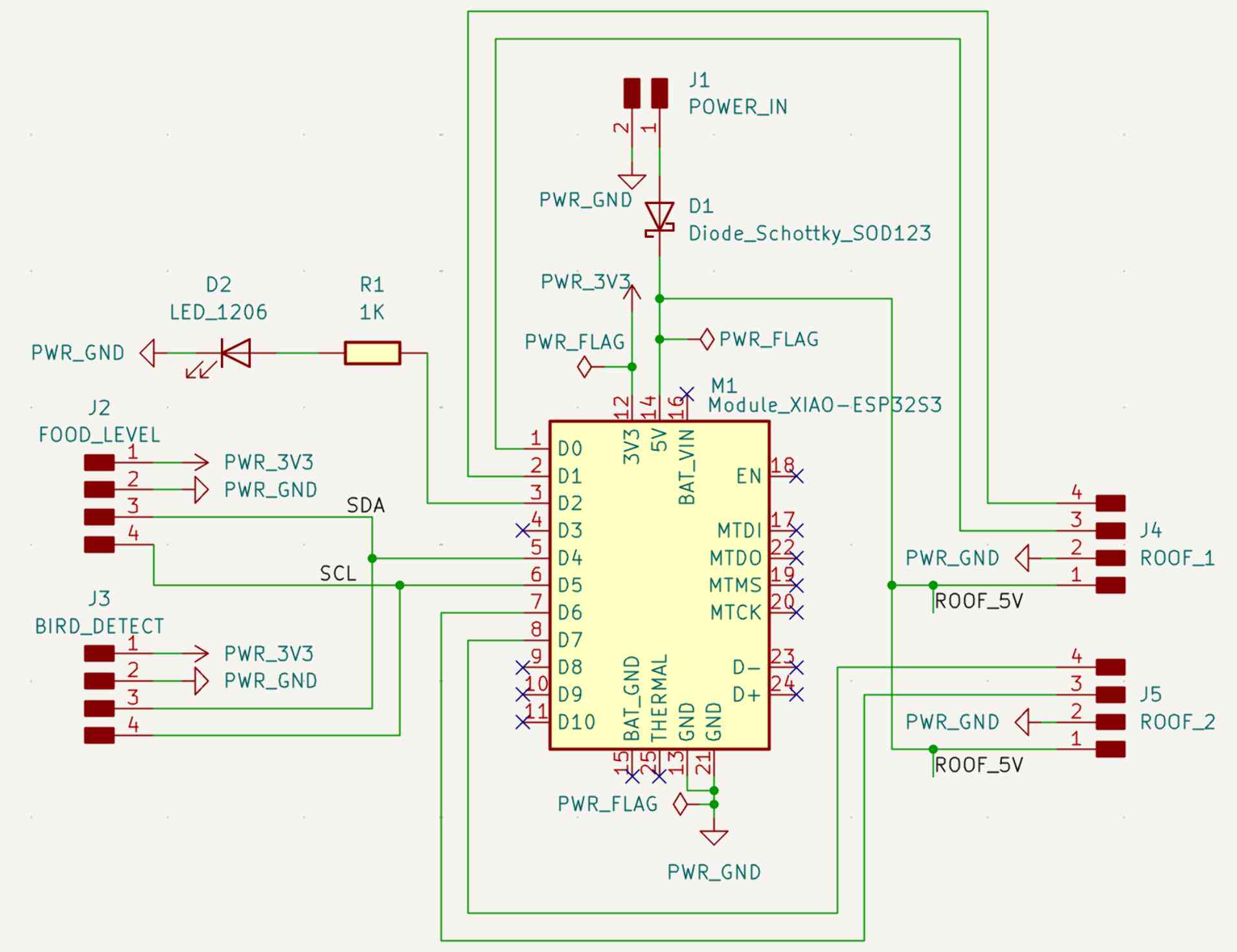
I wanted to use a power connector to connect an external power source without soldering wires permanently. One pin of the connector is wired to GND, and the other to a Schottky diode. I’m assuming that the power supply is 5V already (like from a 5V battery pack). I added a Schottky diode (Diode_Schottky_SOD123) to prevent power from flowing backwards into the device. I added it in series with the external 5V supply, and connected A (anode) -> J1 pin 1 and K (cathode) -> M1 pin 14 (5 V).
I also thought about adding a capacitor before the 5V to stabilize any sudden power draw from the XIAO (like wifi transmission). I’ll do this later, as it’s probably unnecessary for now.
Note
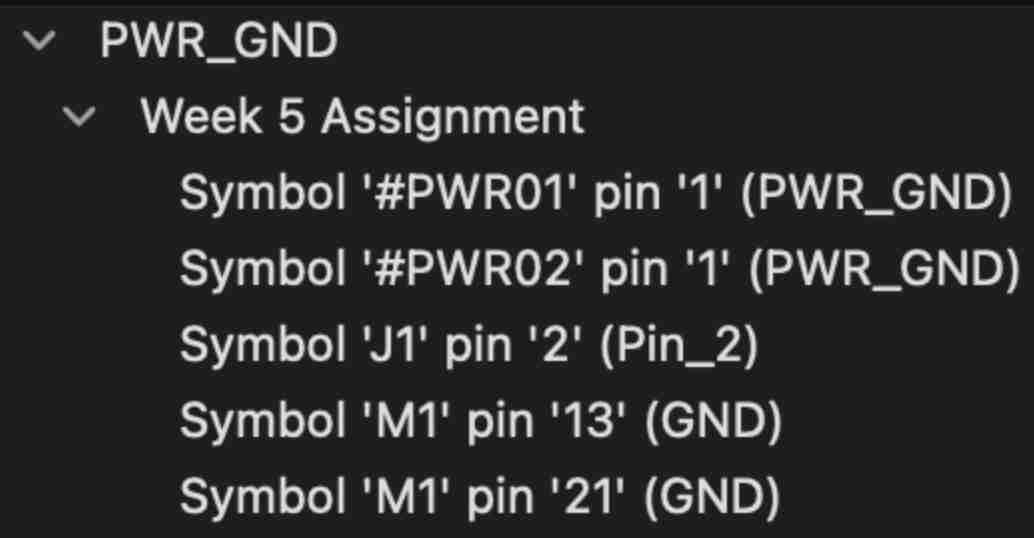
Connecting the GND symbol to the GND pin on the connector is equivalent to connecting the connector to the actual GND pin. The GND “net” connects everything that the symbol labels, so they don’t have to actually be connected by wires in the schematic. The same goes for the “PWR_GND” symbol.
GND
GND is called PWR_GND in the fab library. I connected both of the GND pins (13 and 21) to the PWR_GND net. I also connected the power connector GND to PWR_GND, and verified that all the GNDs connect to the PWR_GND net.
I2C connectors
PinHeader_01x04_P2.54mm_Vertical_THT_D1mm
2 I2C connectors are needed for the bird food level sensor and the bird detection sensor. From the datasheet, D4/GPIO6 is the I2C data line and D5/GPIO6 is the I2C clock line, so both connectors can use 2 pins to connect to the 2 I2C pins. The other 2 pins are for GND and 3v3. The 3v3 net is used to power the periphral sensors.
- J2 (connector) pin 1 -> 3v3
- the 3v3 net is used to power external sensors
- J2 pin 2 -> GND
- J2 pin 3 -> M1 pin 5 (D4, SDA)
- J2 pin 4 -> M1 pin 6 (D5, SCL)
I did this for both sensors. The VL53L1X and VL53L5CX (sensor) breakout boards both include pull-up resistors for the I2C lines already, so we don’t need to add any to this schematic.
Roof XIAO connectors
PinHeader_01x04_P2.54mm_Vertical_THT_D1mm
I also needed connectors for communicating with the 2 XIAOs on the roof of the birdhouse. Each connector should have a UART pin to communicate with the central XIAO, and a 5V power pin. The XIAO ESP32S3 Sense ony has one default UART pin pair (D6/D7), but we can choose another unused pin pair (D0/D1) to configure as UART on the firmware.
Connector 1:
- J2 (connector) pin 1 -> 5V from Schottky diode
- J2 pin 2 -> GND
- J2 pin 3 -> M1 pin 1 (D0, UART TX)
- J2 pin 4 -> M1 pin 2 (D1, UART RX)
Connector 2:
- J2 (connector) pin 1 -> 5V from Schottky diode
- J2 pin 2 -> GND
- J2 pin 3 -> M1 pin 7 (D6, UART TX)
- J2 pin 4 -> M1 pin 8 (D7, UART RX)
Both connectors are lead to XIAOs that need a 5V input for power, so I connected them to the Schottky diode as well. I need to verify that the draw isn’t too large between all of the XIAOs, and that all of them are actually being powered.
Power (3V3)
I needed a source for the 3V3 power (to power the sensors), so I wired pin 12 to a 3V3 symbol to add it to the 3V3 net.
Status LED
LED_1206
I chose not to use an RGB LED to simplify the design. I chose an unused GPIO pin (D2) to communicate with/power the LED, and added a resistor in series so the LED doesn’t receive infinite current. I arbitrarily chose a 1 KΩ, since the exact value doesn’t matter much. To wire the LED and resistor to the XIAO:
- Attach LED cathode -> GND and anode -> resistor
- Placing resistor
- R_1206 (larger resistor so it’s easier to solder)
- Set value in symbol properties to 1k so we know which resistor it is later
- Attach the other end of the resistor to D2
Here’s the finished schematic! Now it’s time to run ERC (electrical rules check) to debug the circuit.
Electronic rules checker
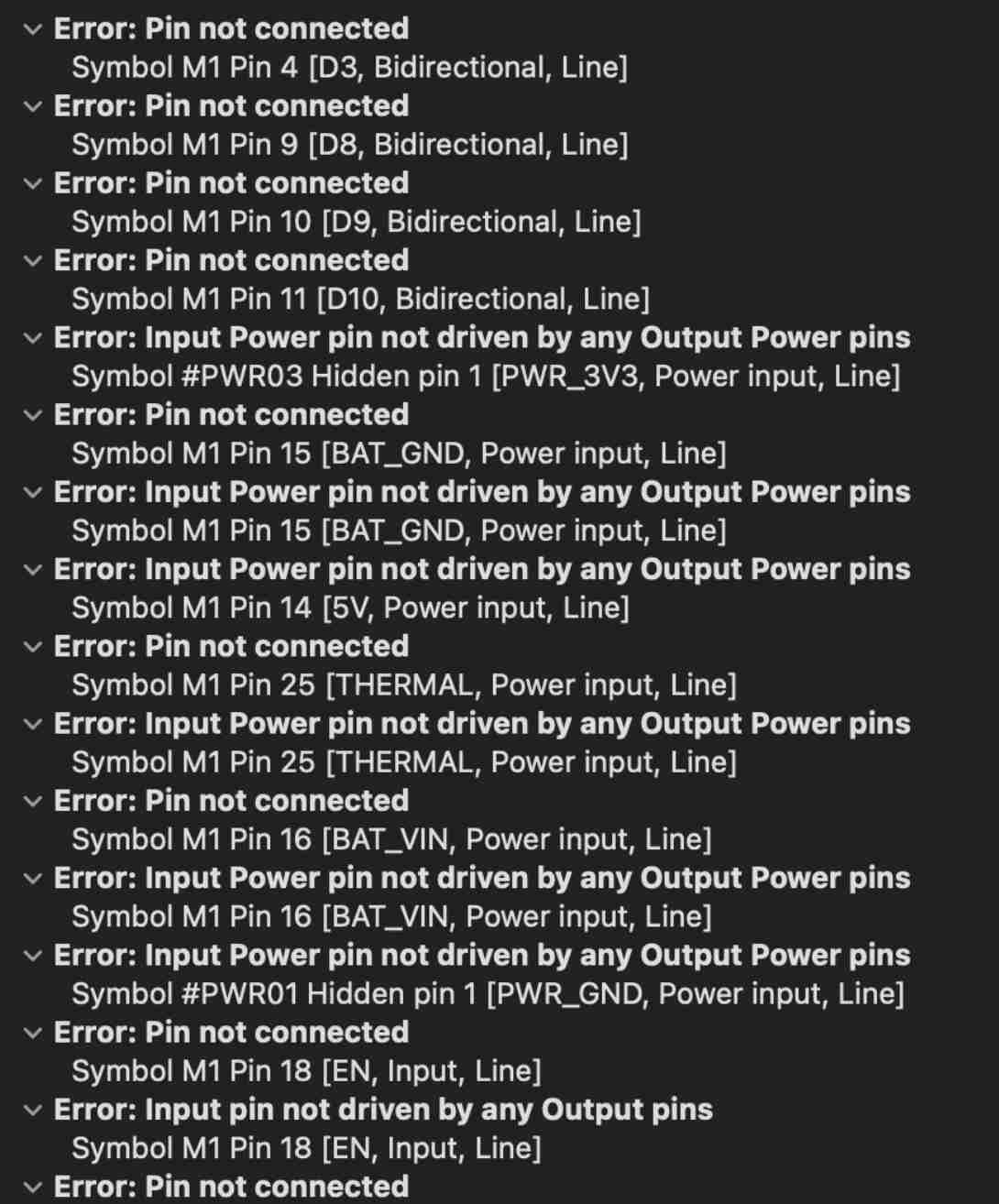
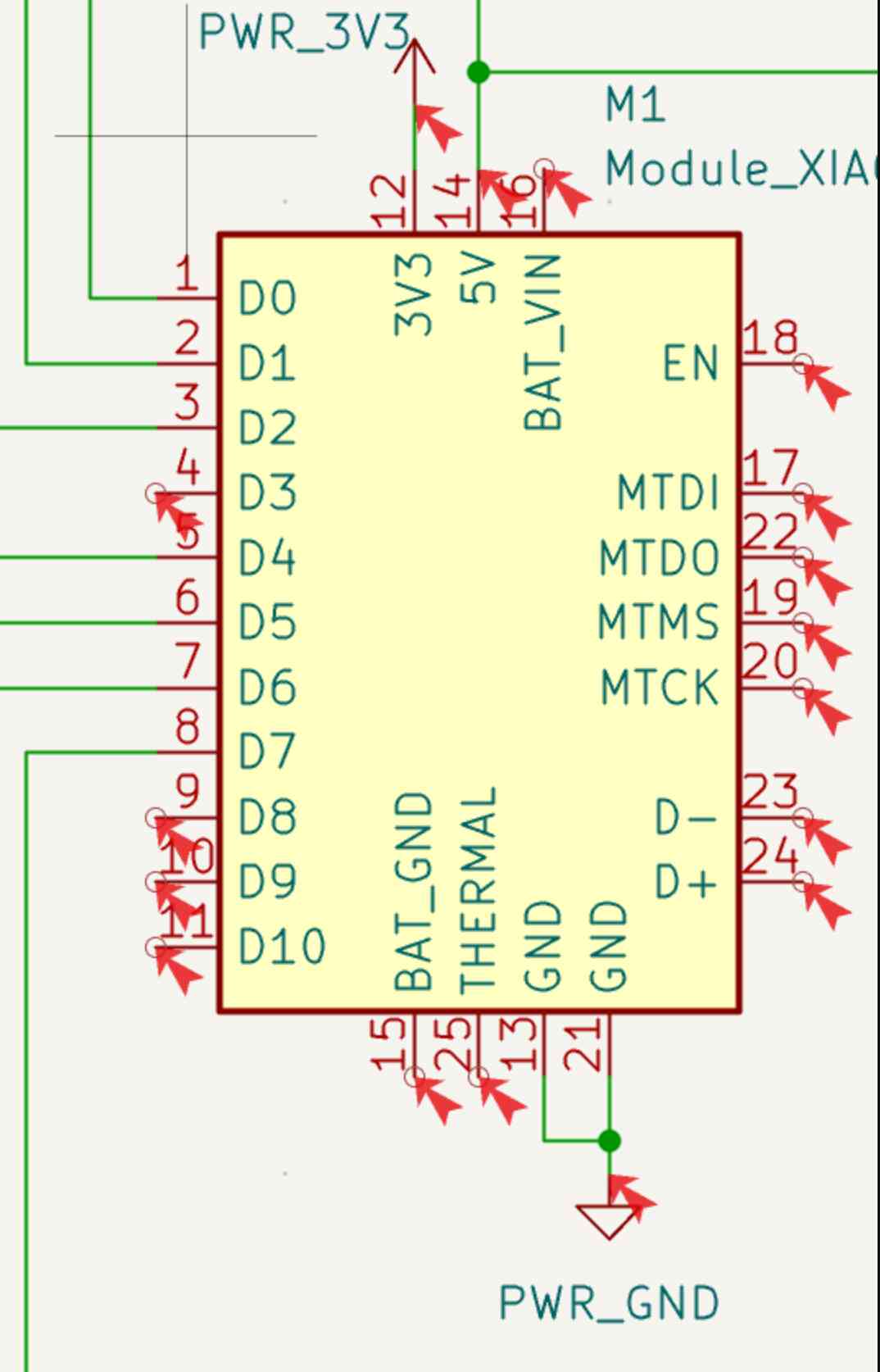
I got a bunch of errors after running ERC… The arrows show where the errors are occuring.
Unused pins
Most of the errors are caused by unused pins, so I had to add a “no-connect” flag to them by hovering over an endpoint and pressing “Q”. Some of the pins are unused, and others, like MTDI, MTDO, MTCMS, and MTCK, are used by the XIAO internally for the camera and microphone.
Power errors
PWR_3V3, PWR_GND, and M1 pin 14 (5V) weren’t being driven. This is because the ERC doesn’t know about external connectors that supply power. To fix this, I added power flags to these three nets.
Finished schematic
This is my finished schematic, which passes all of the design rules!
PCB Layout
Setting design rules
First, the design constraints need to be set. I was a bit unclear about the design rules, so I looked in the EECS section slack and found that:
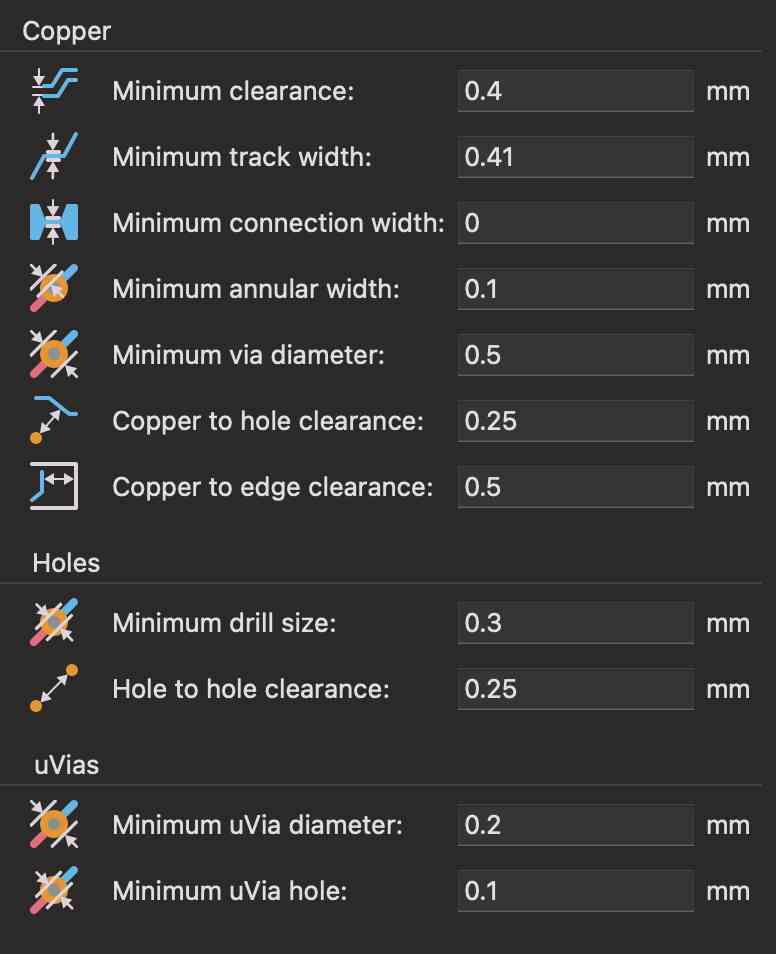
- Spaces between components need to be at least 0.4mm
- Holes should be at least 0.8mm in diameter (via size)
- Traces should be at least 0.41mm
These can be set in File -> Board Setup -> Design Rules -> Constraints. I left the defaults for the other values.
Moving from schematic to PCB
First, I populated the PCB editor with components from the schematic by clicking the import button. Everything was imported in a jumble.
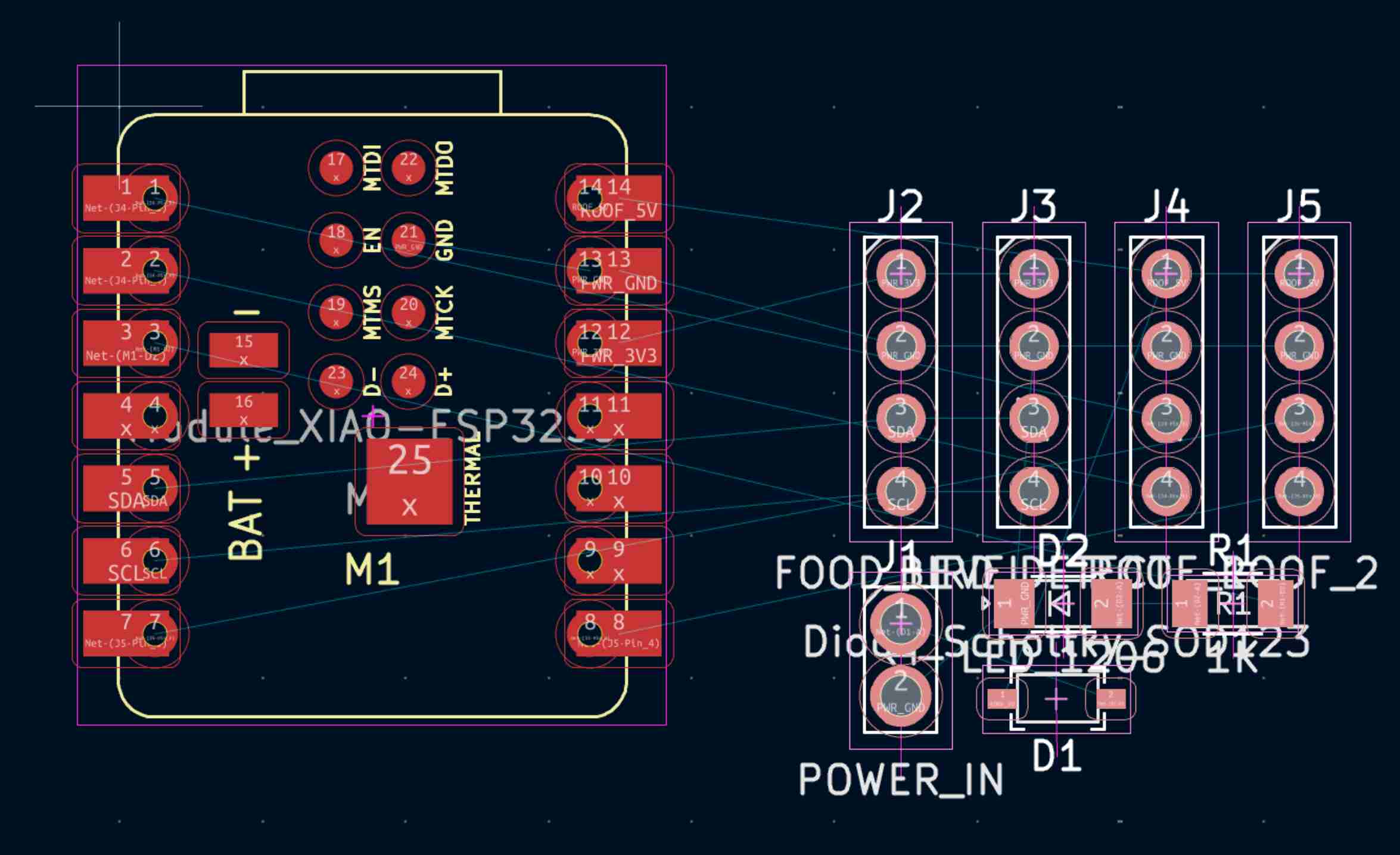
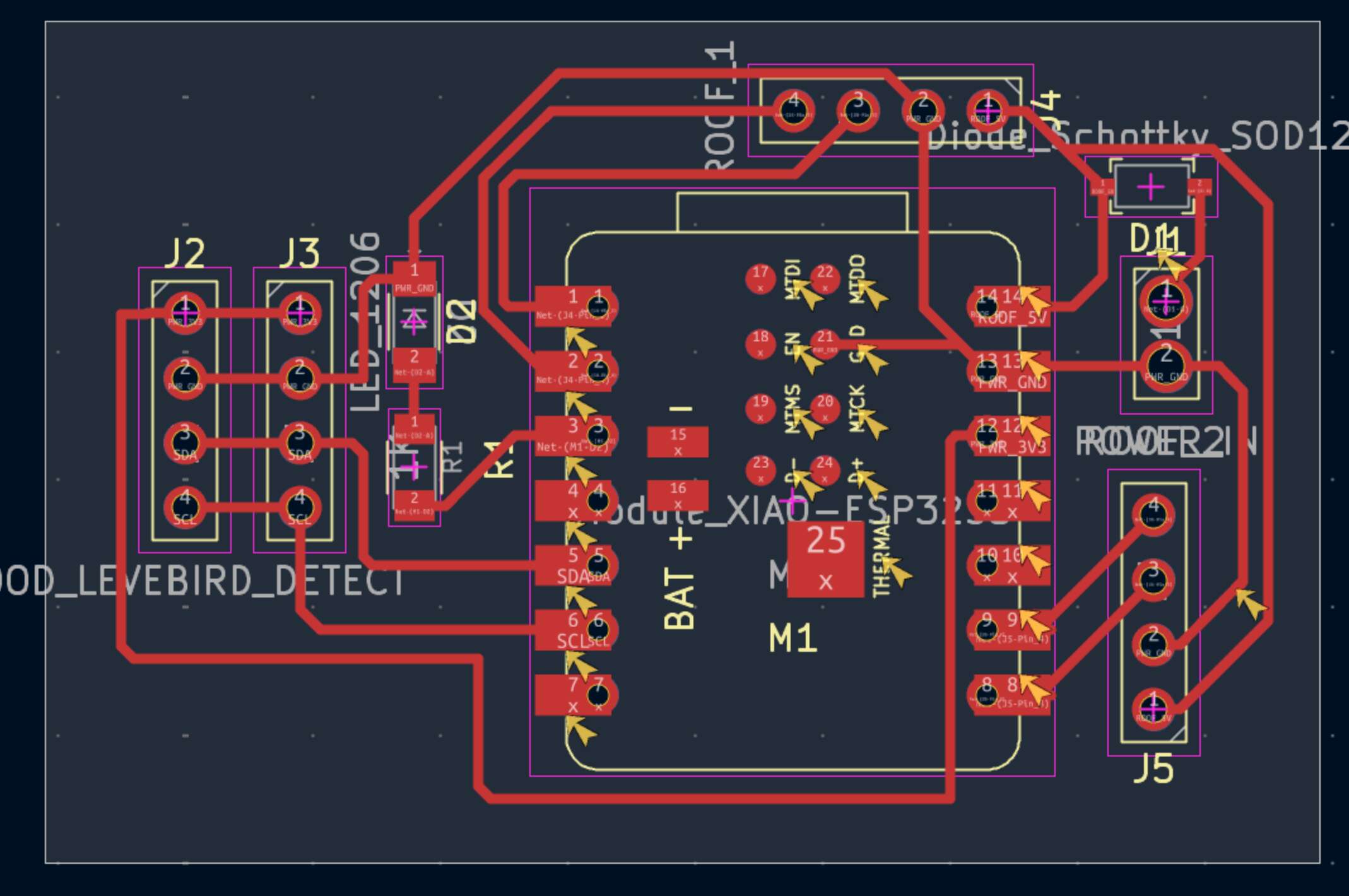
I tried to arrange the components nicely before routing them. I kept the J2/J3 connectors near the I2C pins and the J4/J5 connectors near the UART pins. I tried minimized the crossed lines in the “ratsnest” (connections before traces are added). The ratsnest shows the shortest connections possible, including some that connecting connectors to other connectors instead of back to the XIAO. I rearranged my components and started routing.
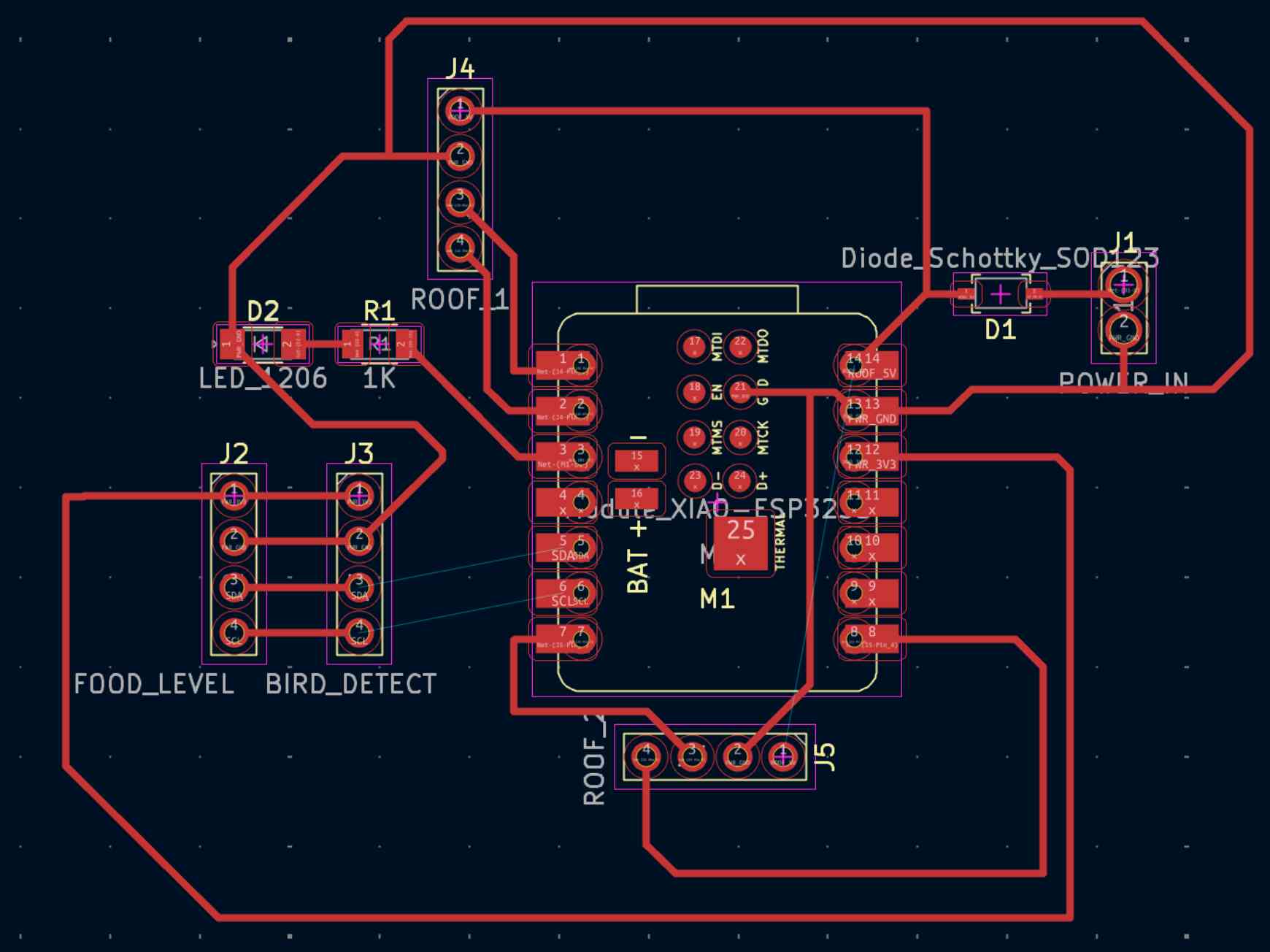
I kept running into issues where I couldn’t route pins from one side of the board to connectors on the other side without crossing other traces. I used the Global Deletion function to delete all of the traces and restart.
I still kept having trouble with the traces running into each other after trying a few different layouts and rotating parts, but I noticed that if I switched the J5 pin 3 -> M1 pin 7 to pin 8, and J2 pin 4 -> M1 pin 8 to pin 9, I could pull the 3v3 trace through the bottom of the microcontroller. Then, the J4 pins could be pulled to the M1 pins 1 and 2 without crossing any other traces. I made the changes in the schematic and uploaded the PCB design. The resulting PCB had all of the traces in place:
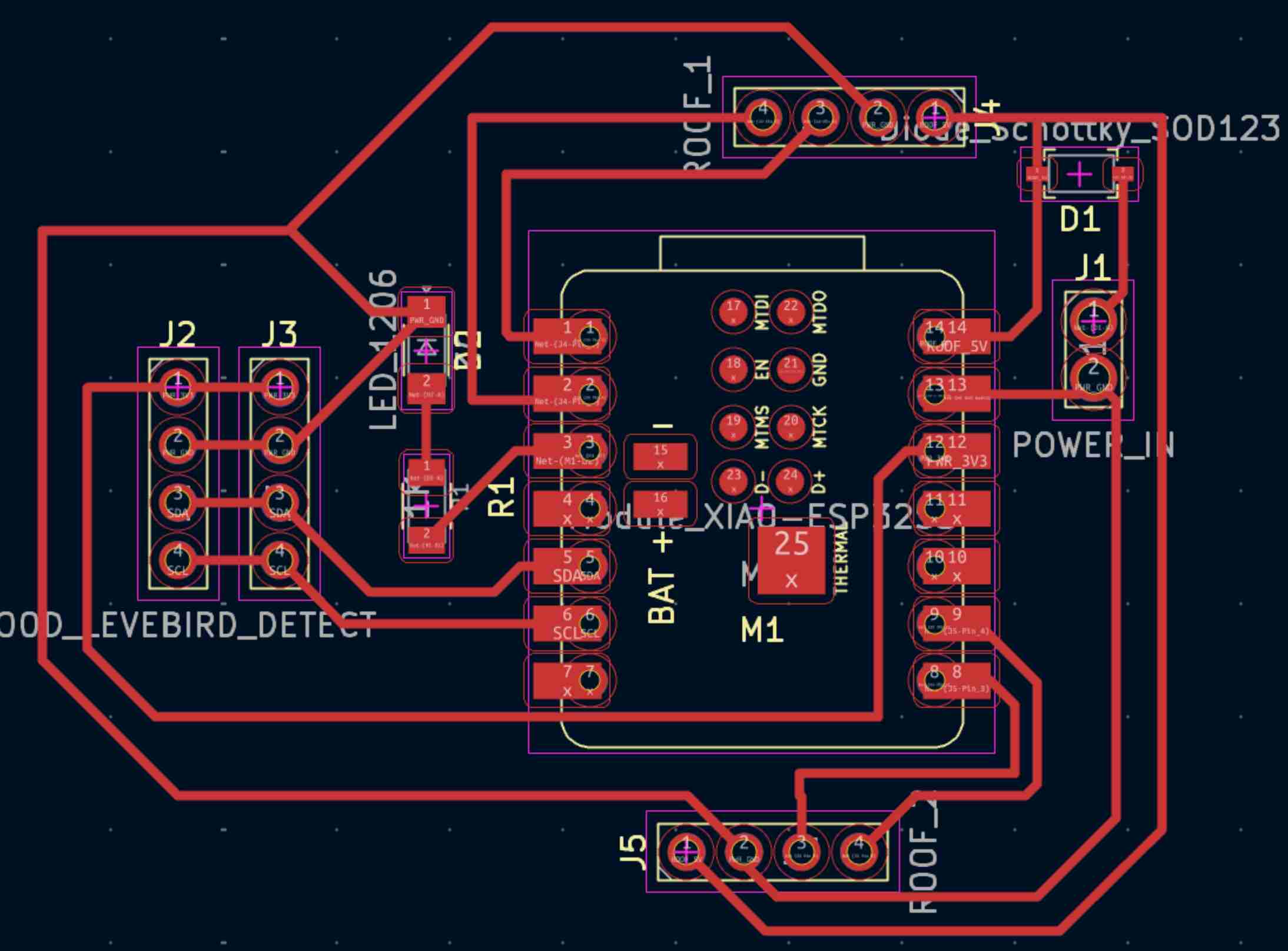
Design rule checker
I ran the DRC and got a bunch of errors…Again, the arrows pointed to where the errors were.
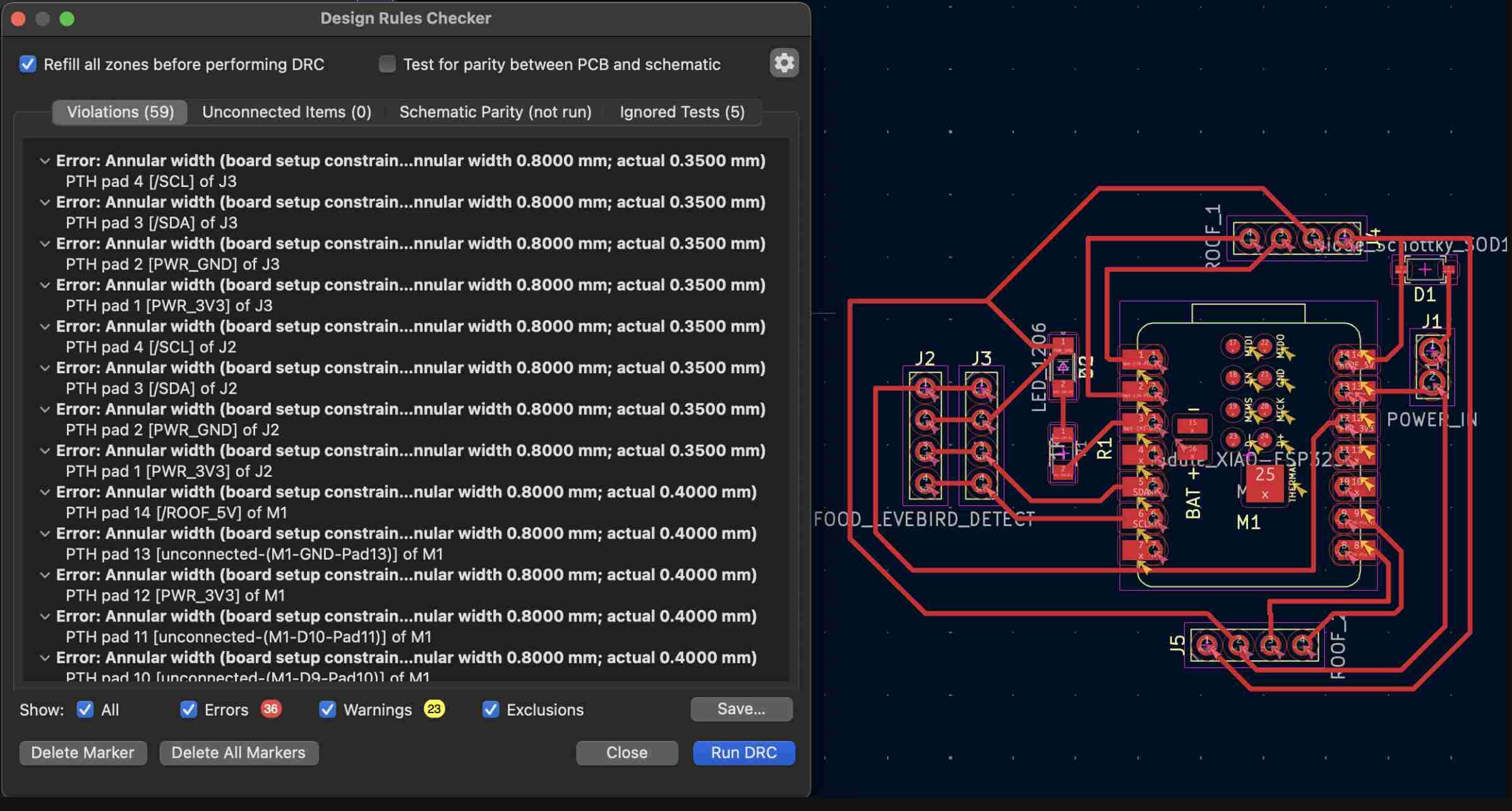
Annular width
My connectors have 0.35mm annular rings, but KiCad is requiring at least 0.8mm, making this seem like a constraint/configuration error. I got that value from the EECS Slack channel, but it seems like it’s way too large. I referenced Dimitar’s page from last year, and it seems like the minimum annular width should be 0.1mm. I’ll check this value with the TAs later.
Items shorting
Error: “Items shorting two nets (PWR_GND and unconnected-(M1-GND-Pad13))” I went back to the Schematic view and noticed that I somehow disconnected the ground wires.
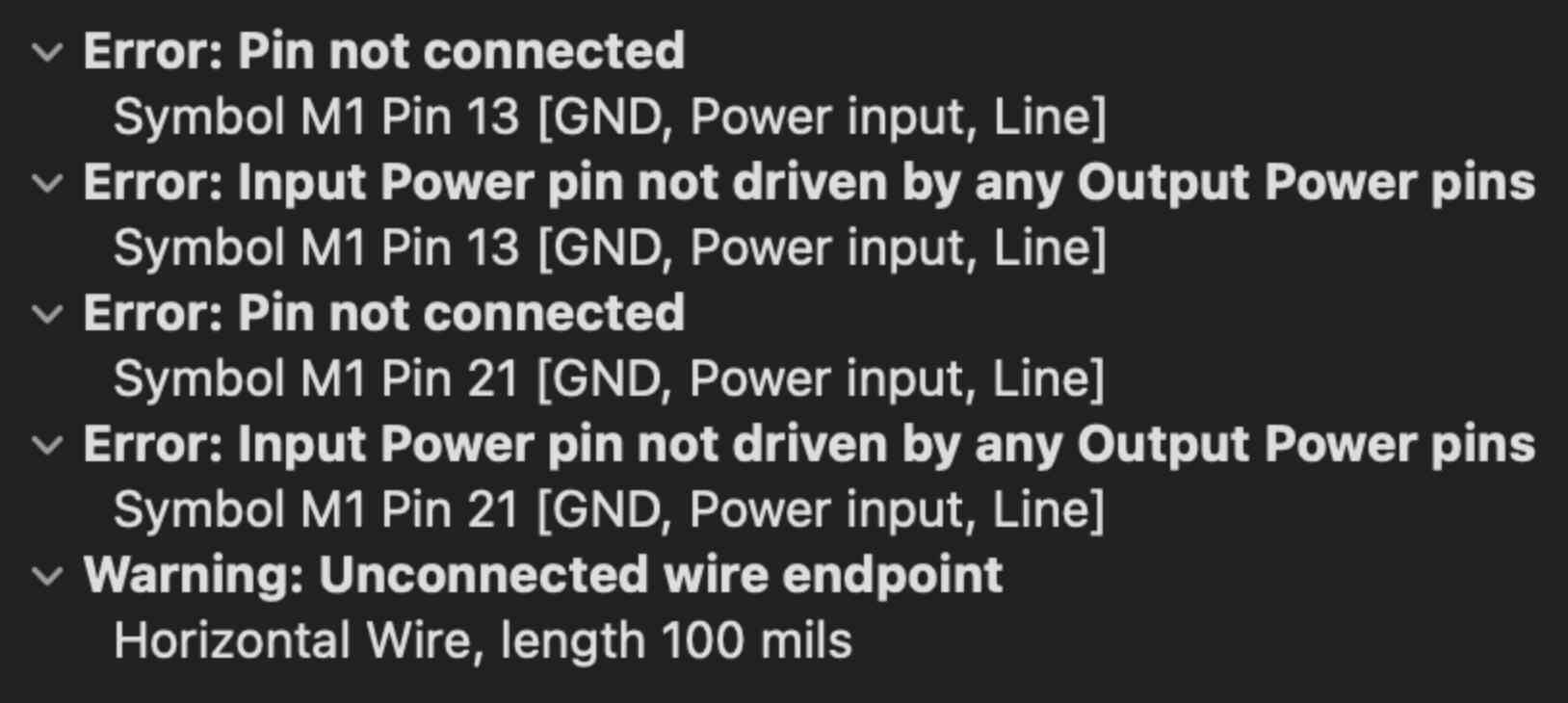
I reconnected ground, went back to PCB view, connected the PWR_GND pin 13 to GND, and the error was resolved.
Malformed outline
Error: “Board has malformed outline (no edges found on Edge.Cuts layer)”
This error was because I hadn’t defined the outline of the board yet. I cleaned up the traces a bit to condense the size of the board, then drew a rectangle around the board with “Edge.Cuts”.
Warnings
I was still getting a lot of warnings, which I fixed as follows.
- Track has unconnected end: Ran “Cleanup Tracks and Vias”, “Delete tracks unconnected at one end”
- Text height out of range: Changed the minimum text height from 0.8mm to 0.5mm
The other warnings were all related to the silkscreen, which we can’t make anyways, so I left the board as-is.
Final touches
Adding art
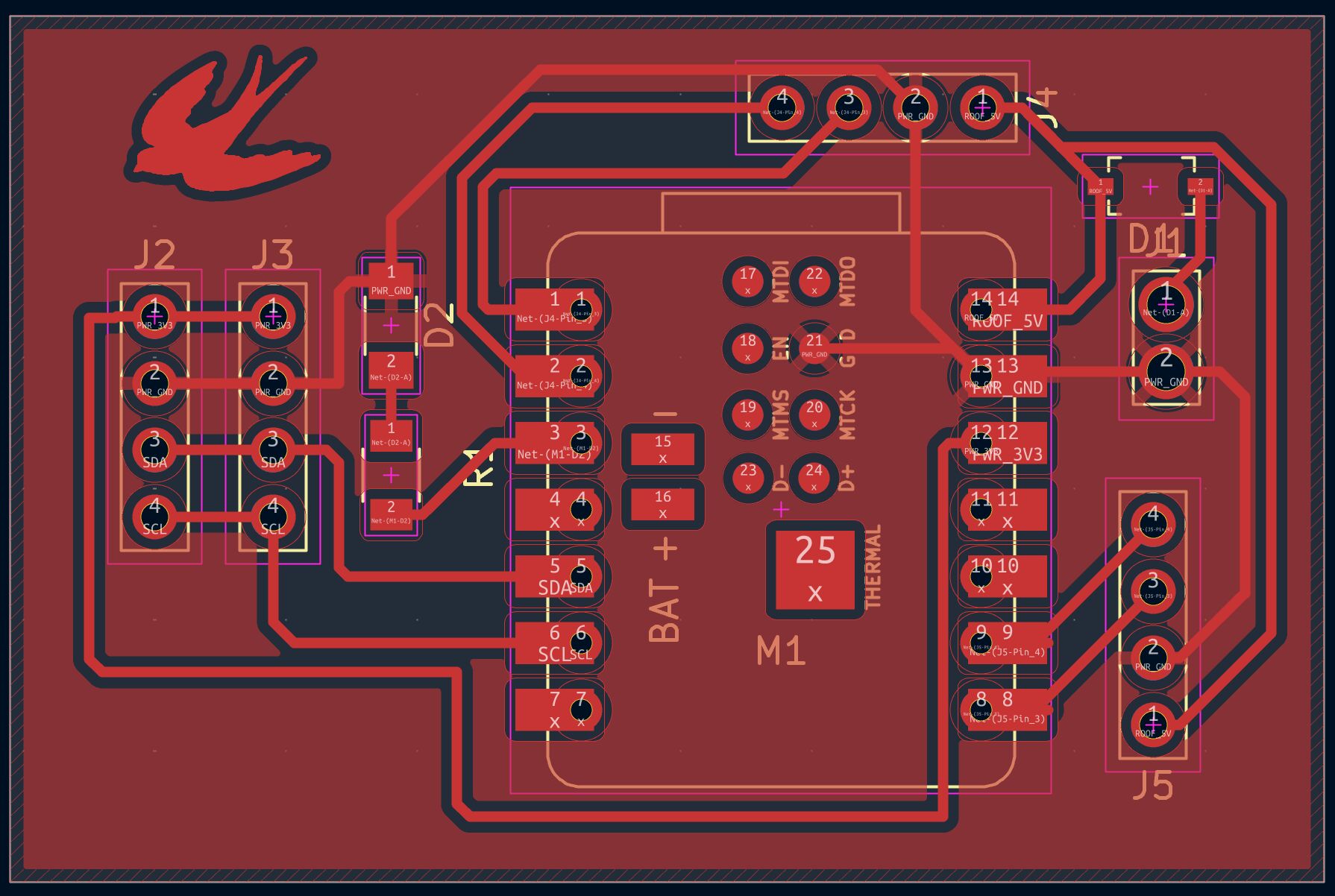
In Quentin’s tutorial from last year, he mentioned that you can import artwork and have it milled as a copper plate/shape. I wanted to do this with a bird, to tie it back to my final project.
- File -> Import -> Graphics
- Layer: F.Cu for copper
Adding background
I also wanted to add a filled background of PWR_GND:
- Draw Filled Zone
- Copper Zone Properties will open ->
- Net name: PWR_GND
- Layer: F.Cu
- Clearance: 0.4mm
- Continue making the rectangle
- Press “B” to fill and autocalculate clearances around traces
Some of the traces ended up being covered, which is fine since they are GND traces. Here’s the final board:
Resources
- Qilmeg’s notes - https://chillmeg.github.io/25_3DGS_ScanHoster/misc/Watch%20your%20microcontroller%20work.html
- Previous fab class recitation: https://pcb.mit.edu/recitations/recitation_06_KiCAD/
- I used ChatGPT to help with deciding on which components to use for the functionality that I described to it.