Post
jeannie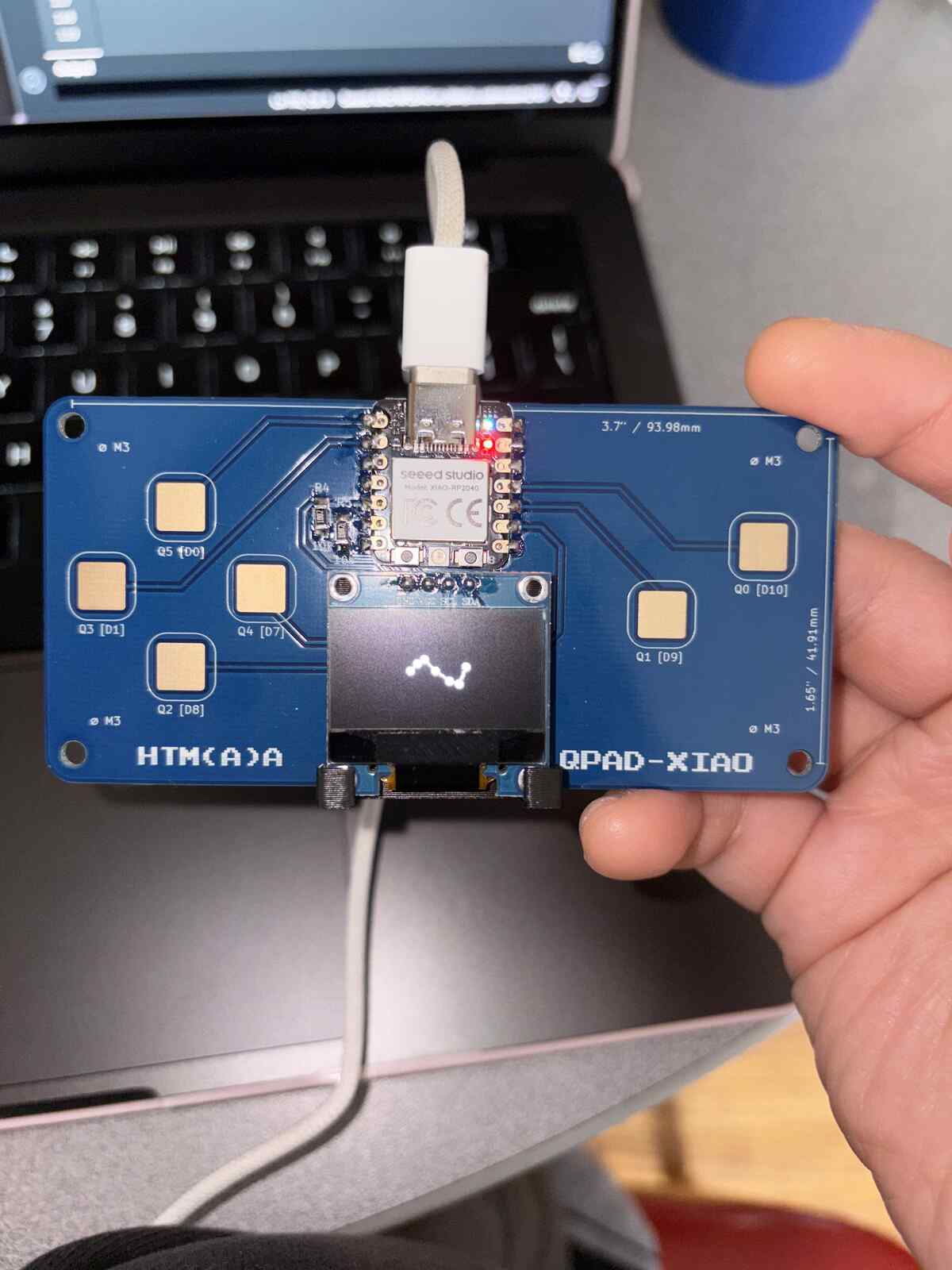
Week 2
Embedded Programming
Group Assignment
- The task is to demonstrate and compare the toolchains and development workflows for available embedded architectures.
- View the group assignment documentation here.
Individual Assignment
- Tasks:
- browse through the data sheet for a microcontroller
- write and test a program for an embedded system using a microcontroller to interact (with input &/or output devices) and communicate (with wired or wireless connections)
- extra credit: assemble the system
- extra credit: try different languages &/or development environments
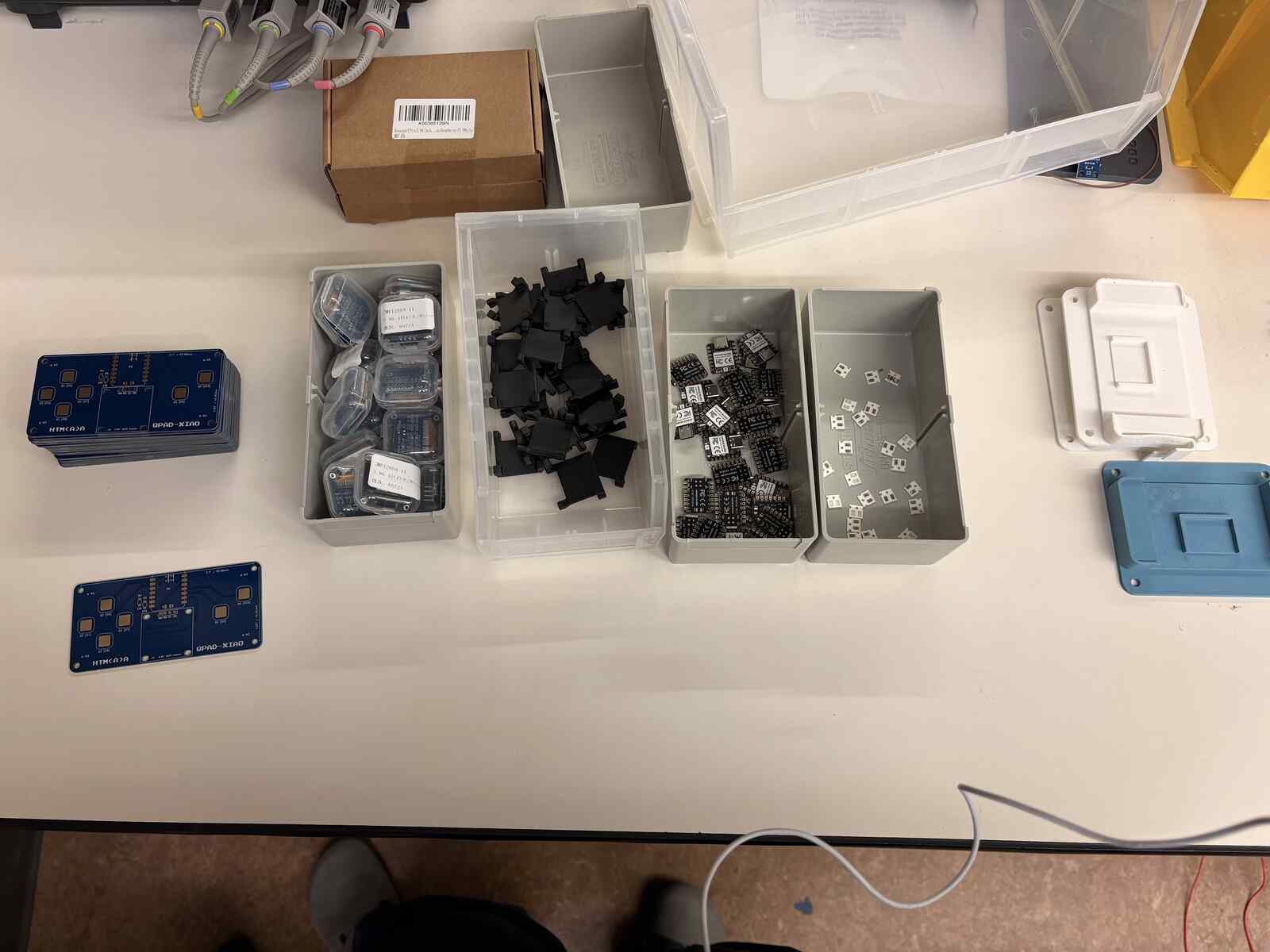
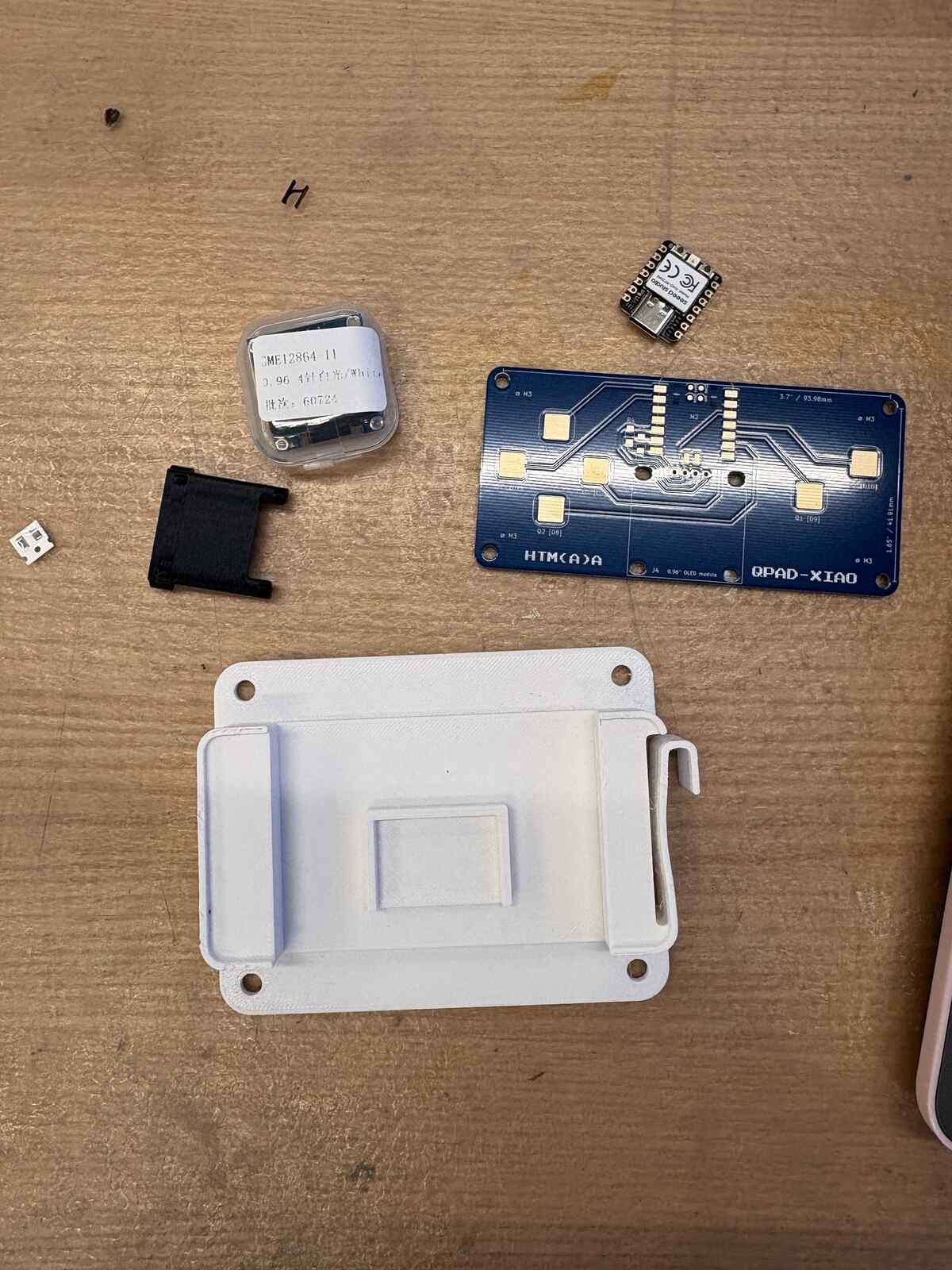
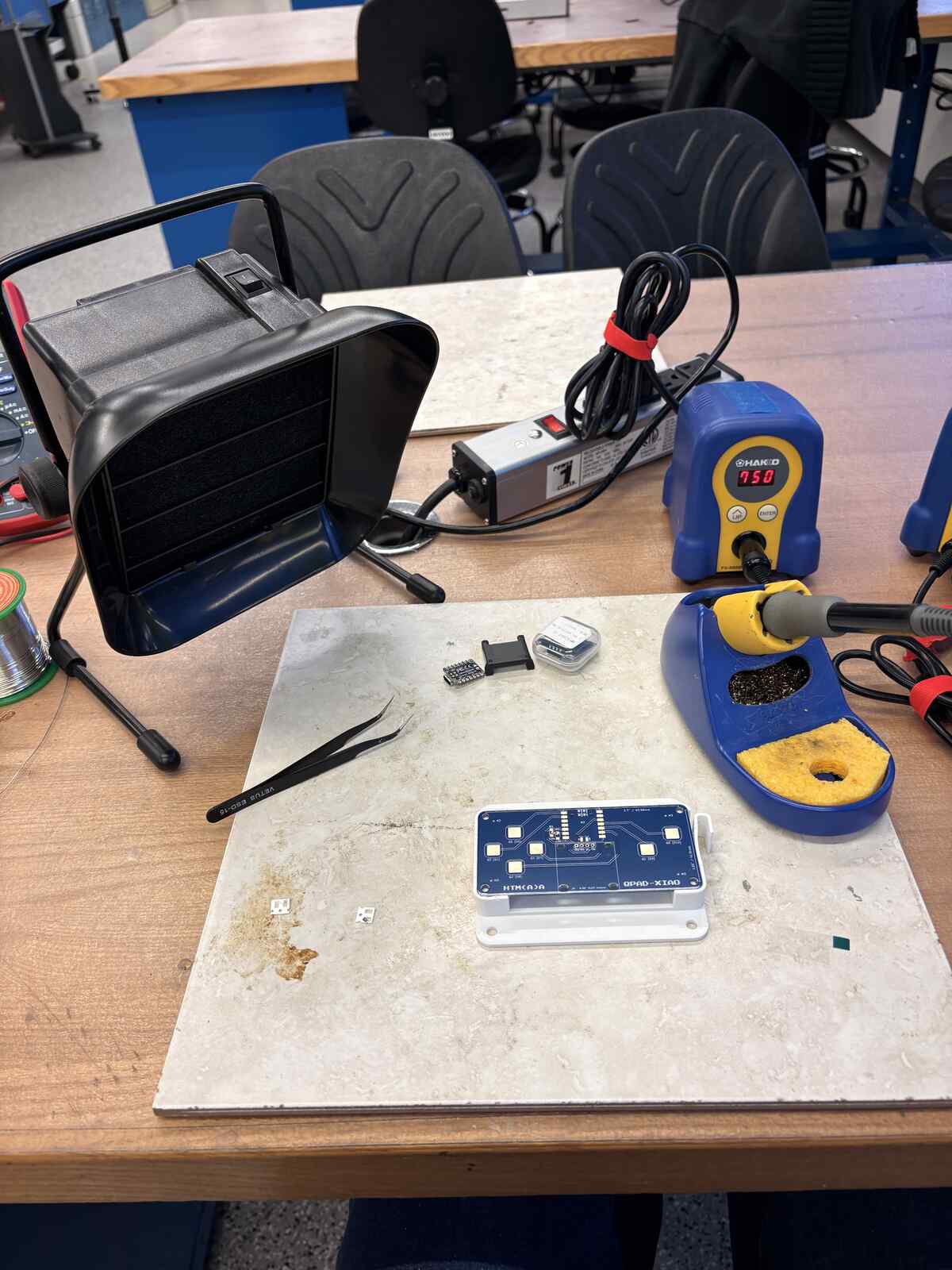
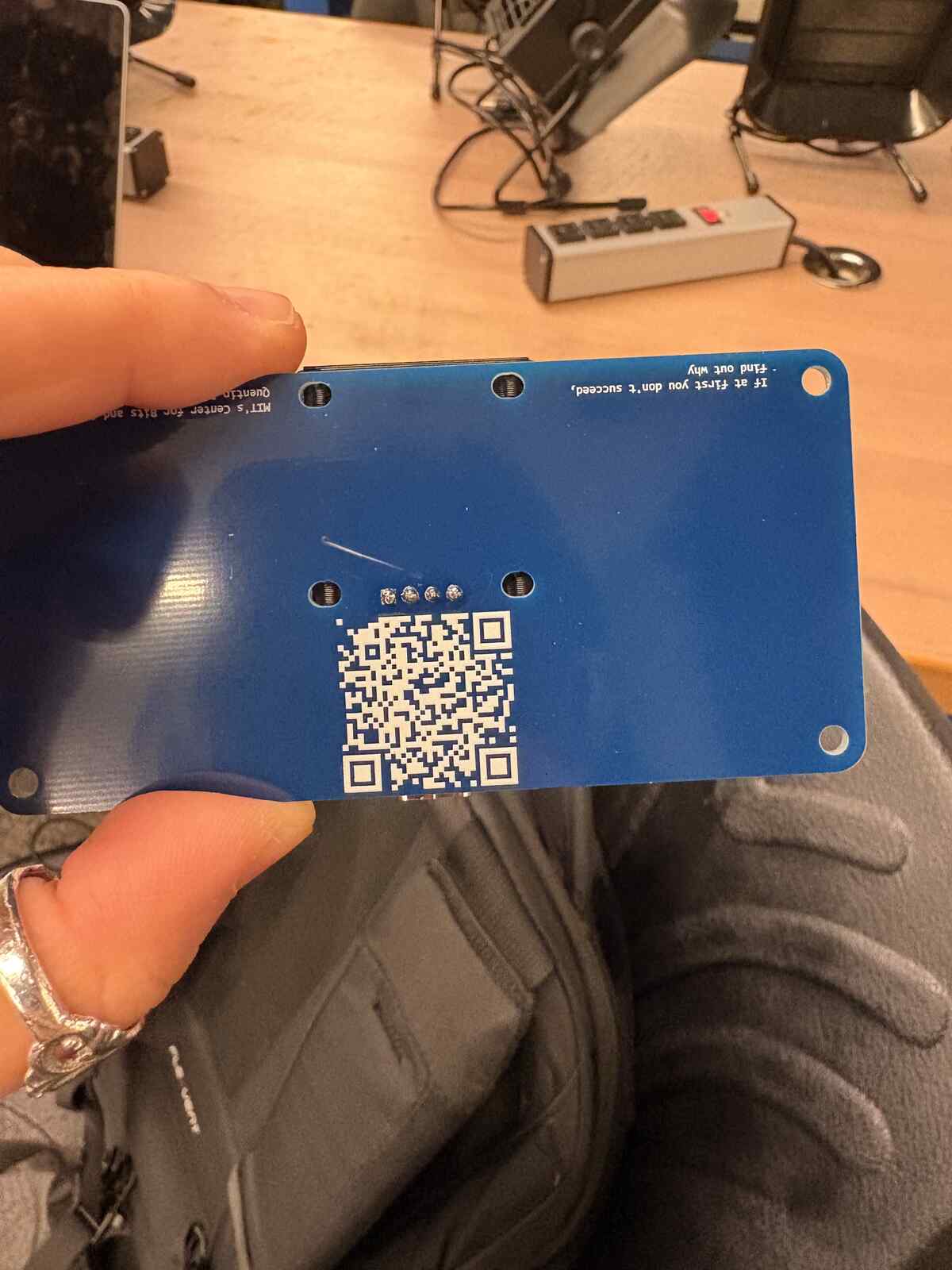
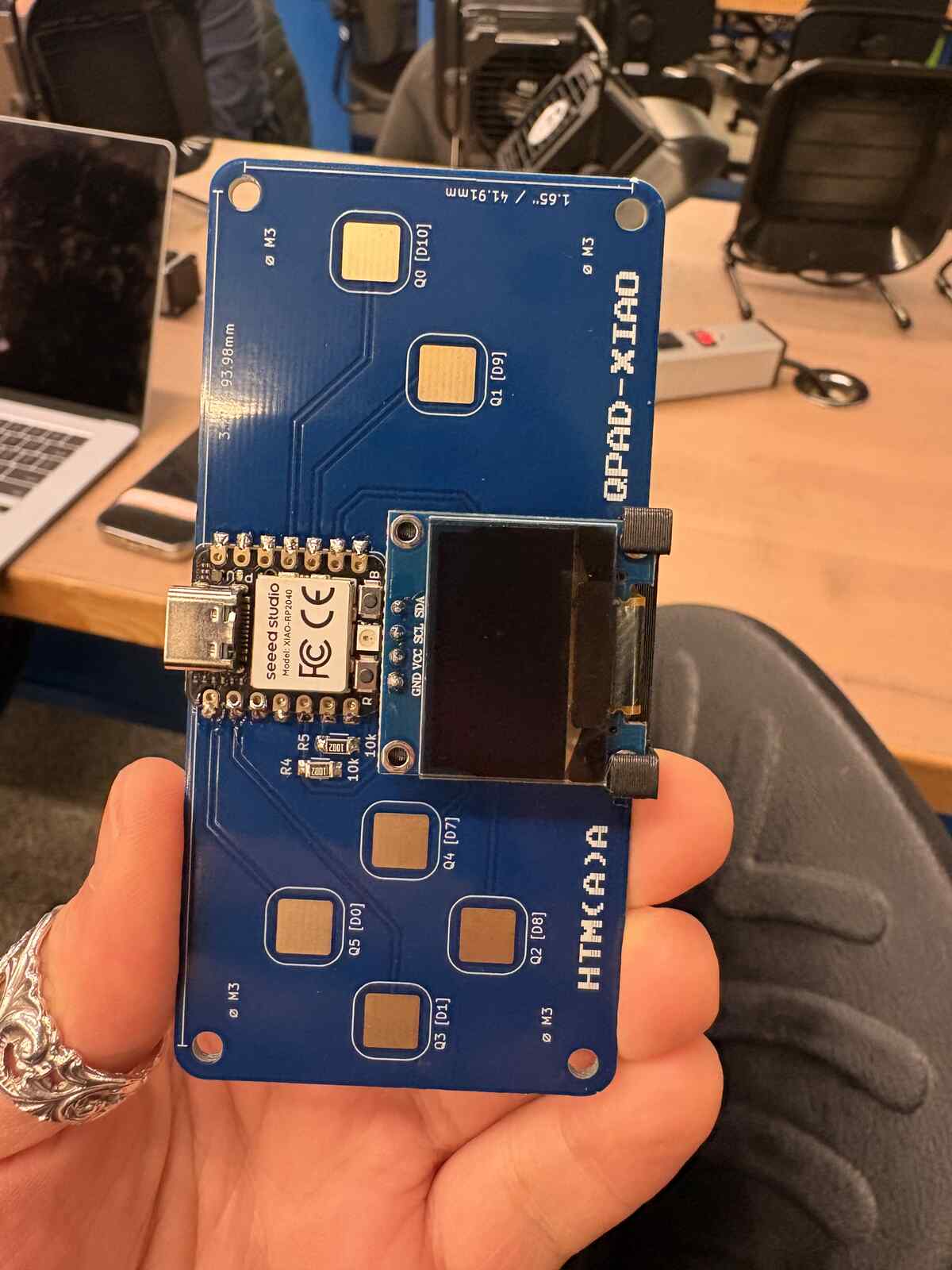
Soldering the QPAD-Xiao
It has been a number of years since I have soldered, so this felt like somewhat familiar yet foreign territory. Thankfully, the extremely thorough QPAD soldering tutorial had my back.
Soldering the resistors was a good start.
I had some trouble soldering the OLED to the PCB. I couldn’t tell if I had actually created a connection between the pad I had tinned and the OLED pin, but after verifying with Jesse, he gave me the thumbs up.
Soldering the through-pins was rather straightforward, though I ended up adding solder twice in order to get a connection that went all around the through-pin.
Anthony inspected my soldering job and told me I should add solder to one of the through-pins since the reflection was visibly different for one of them, indicating that the via wasn’t fully filled with solder.
Tada!
Microcontroller Data Sheet
After attending lecture and recitation this week, I definitely felt like I was thoroughly in over my head. Anthony suggested this datasheet for the RP2040, a microcontroller produced by Raspberry Pi. Below, I take some notes on it!
This is super relevant since the microcontroller that I soldered onto the QPAD was the RP2040 xiao module. All of the following photos are screenshots from the data sheet.
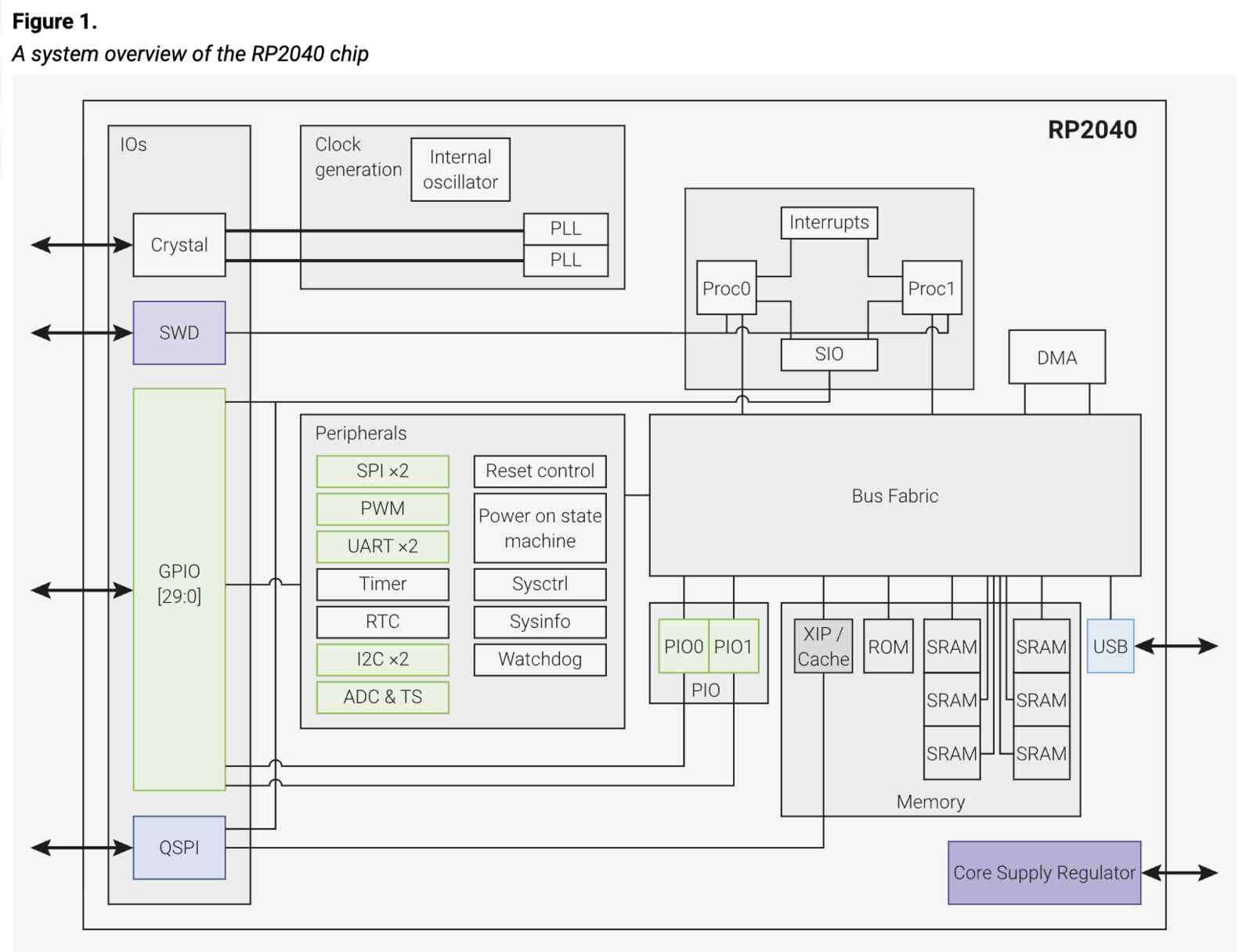
- What is the RP2040?
- A microcontrolled is a small computer designed to control electronics.
- It contains CPU cores (execute the program), memory (stores the program and data), peripherals (hardware helpers for communication and timing), and GPIO pins (connecting to LEDs, buttons, sensors, and other devices).
- About the RP2040
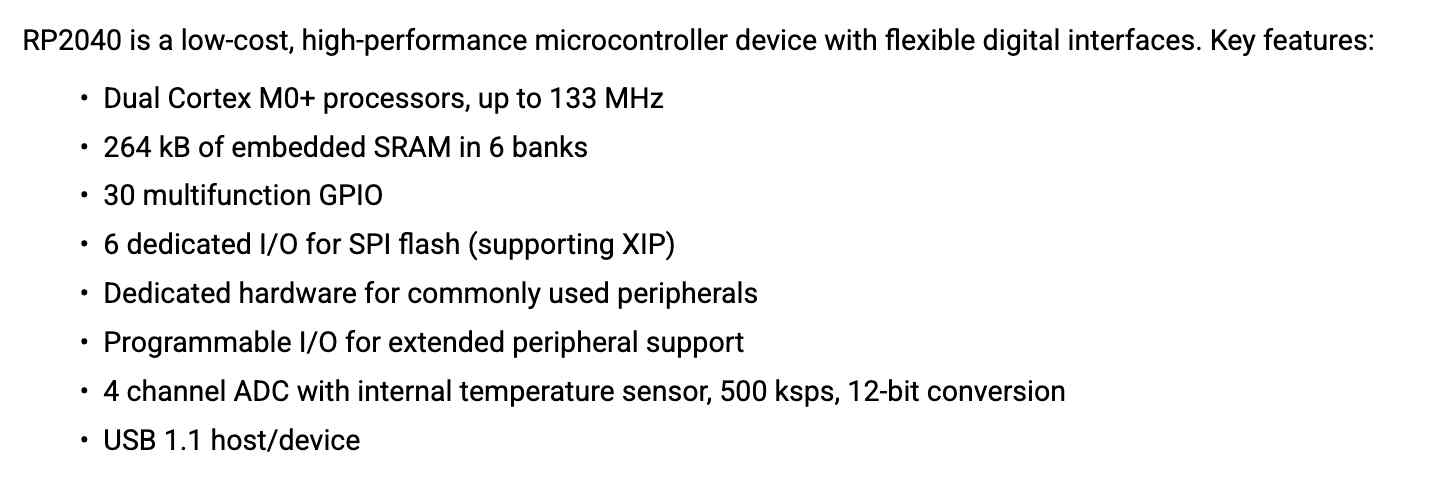
- Dual Cortex M0+ processors, up to 133 MHz
- A CPU core reads and executes instructions. Normally, Core 0 runs your program while Core 1 can run another task at the same time.
- The clock can run up to 133 MHz, meaning the CPU can perform roughly 133 million clock cycles per second.
- 264 kB of embedded SRAM in 6 banks
- SRAM (static random-access memory) is fast temporary memory used while your program runs. It holds variables, temporary calculations, the call stack, and buffers for communication. When power is removed, the contents disappear.
- The 6 banks allow different parts of the chip to access memory more efficiently at the same time.
- 30 multifunction GPIO
- GPIO (general purpose input/output) use electrical signals to read input and control an output. Usually this is 0 volts for
0and 3.3 volts for1. - This is the RP2040’s connection to the outside world.
- GPIO (general purpose input/output) use electrical signals to read input and control an output. Usually this is 0 volts for
- 6 dedicated I/O for SPI flash, supporting XIP
- The RP2040 does not contain built-in program storage. Instead, it normally connects to an external flash chip, which stores the program, constant data, and sometimes files or settings.
- XIP means execute in place. The RP2040 can read instructions directly from flash as needed instead of needing to copy the entire program into SRAM before running it.
- Dedicated hardware for commonly used peripherals
- Programmable I/O for extended peripheral support
- PIO (programmable I/O) consists of small programmable state machines that control pins with precise timing.
- Examples: can interface with hardware not directly supported by the normal peripherals, generate accurately timed signals, etc.
- 4 channel ADC with internal temperature sensor, 500 ksps, 12-bit conversion
- ADC (analog-to-digital converter) converts an analog voltage into a digital number that software can use. It can measure a potentiometer, light sensor output, battery voltage, and analog microphone signals.
- A normal digital input usually only asks if the voltage is on or off, producing a binary readout. However, an ADC can read things that are not simply ON or OFF.
- USB 1.1 host/device
- Built in USB (Universal Serial Bus) hardware means it can connect to a computer.
- Minimal design example
- This describes the minimum amount of circuitry required to make a functional design that can run my code.
- Ok… I clearly do not understand what an RP2040 is if the data sheet provides a minimal design example as a PCB (printed circuit board).
- Myth debunking: the microcontroller does not determine the entire PCB design. It determines the electrical requirements the PCB must satisfy.
- The microcontroller by itself cannot function as a complete product.
- Supporting components can include a clock source, sensors, buttons, LEDs, conectors, external flash memory …
- The PCB can be designed to look physically very different. It could be a tiny board, a wearable device, a sensor product, etc. But the electrical requirements still need to be respected. Power pins must receive appropriate voltages, certain capacitors much be placed correctly, flash memory must be connected in the expected way.
- In our case, the Seeed Studio XIAO RP2040 is a small, finished PCB design built around the RP2040 microcontroller. It includes the microcontroller and supporting circuitry, providing a complete development board that makes the chip easier to use. Another option is the Raspberry Pi Pico.
- The VGA, SD card & audio demo boardsfor Raspberry Pi Pico and Raspberry PiPico W
- Again, it was unclear to me why the datasheet was showcasing “applications” of the RP2040 for VGA video and SD card.
- Myth debunked: The RP2040 becomes a video output or storage device through circuit connections and software.
- The microcontroller can generate signal into a VGA monitor. A VGA monitor receives rapidly changing electrical signals. Starting with the image in memory, the programmable I/O and hardware output pixel data with precise timing. The GPIO pins and resistors create voltages, which the VGA monitor interprets as an image.
- For the SD card, the RP2040 must communicate with an SD card using a defined protocol rather than arbitrary GPIO signals. The software sends commands and receives replies.
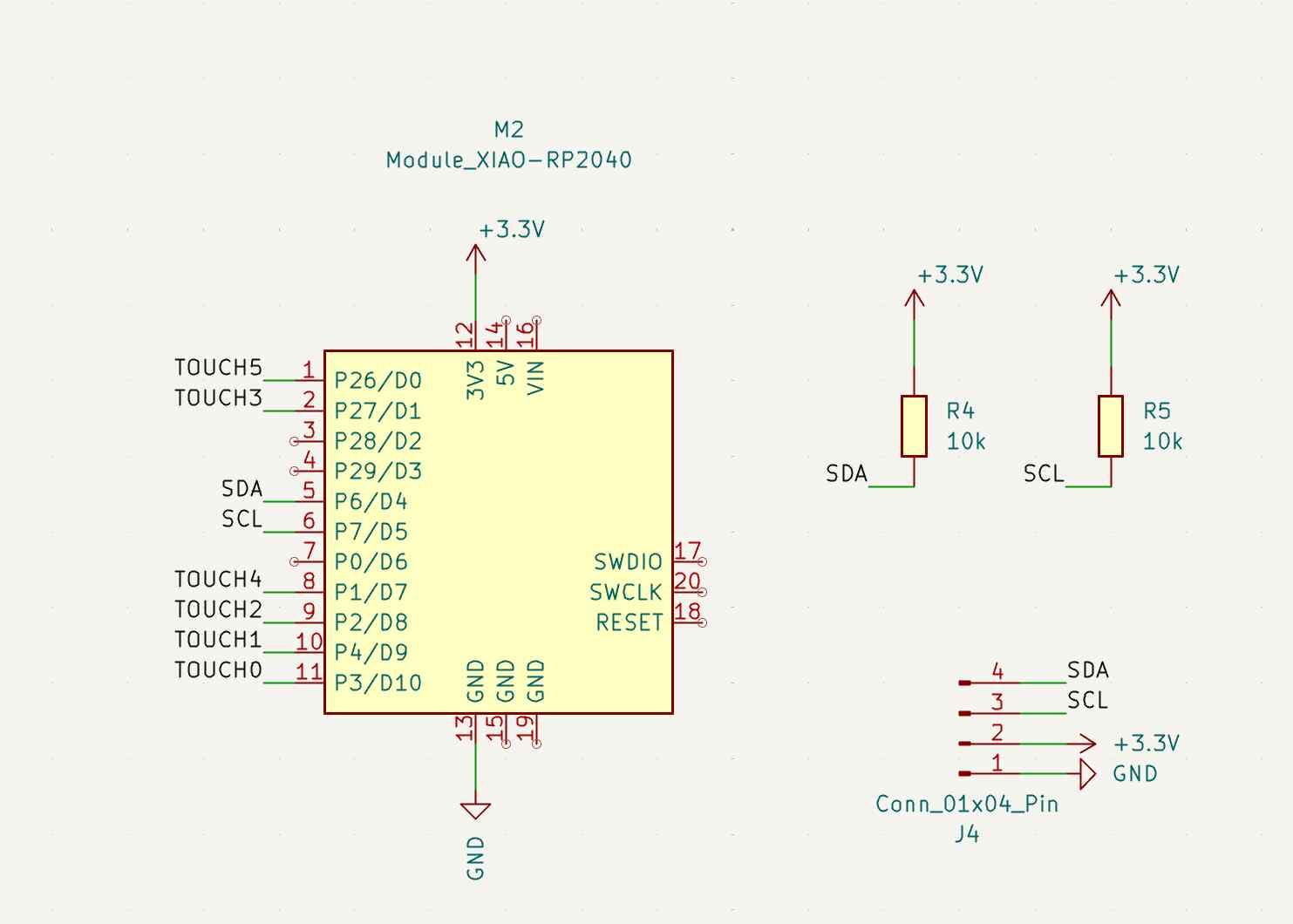
- In general, I realized now that the QPAD-Xiao is a PCB that has hooked up the RP2040 microcontroller (specifically the RP2040-Xiao module) with capacitative buttons, an OLED screen, and a USB-C port that allows me to code up anything I want on the screen. This is the schematic for the QPAD-Xiao:
Writing a Program for an Embedded System
Okay, now that I have a somewhat improved understanding of what an RP2040 is, it’s time to tackle the code.
First, I’m taking a look at the documentation for the QPAD-Xiao.
During lecture, Prof. Gershenfeld mentioned that for programming embedded languages, you should never start from scratch. Start instead from a program that’s near where what you want, and then modify it from there. From the starter code provided by Quentin, there are two options: C++ via Arduino, and MicroPython. Though I have familiarity with Python, I thought it would be a worthwhile challenge to use this as an opportunity to learn some basic C++.
Luckily, when I used my Apple iPhone USB-C to USB-C cord, the lights on the Xiao started blinking. Sign of life!
I am starting with the test_display_RP2040.ino code on Arduino. First, I need to flash the code to the Xiao via Arduino. I need to install the Arduino core, which I did following these steps. I added the written URL to Additional Boards Manager URL, and installed the package that included Raspberry Pi Pico. Now, when I go to select the board and the port, the “Seeed XIAO RP2040” appears!
Upon first upload, I ran into an error saying the Adafruit_GFX.h was not found. I installed Adafruit GFX Library via Tools -> Manage Libraries on Arduino and installed all dependencies as well. I similarly installed the Adafruit SSD1306 library with required dependencies.
Hooray!!! My first Hello World!!!!!!
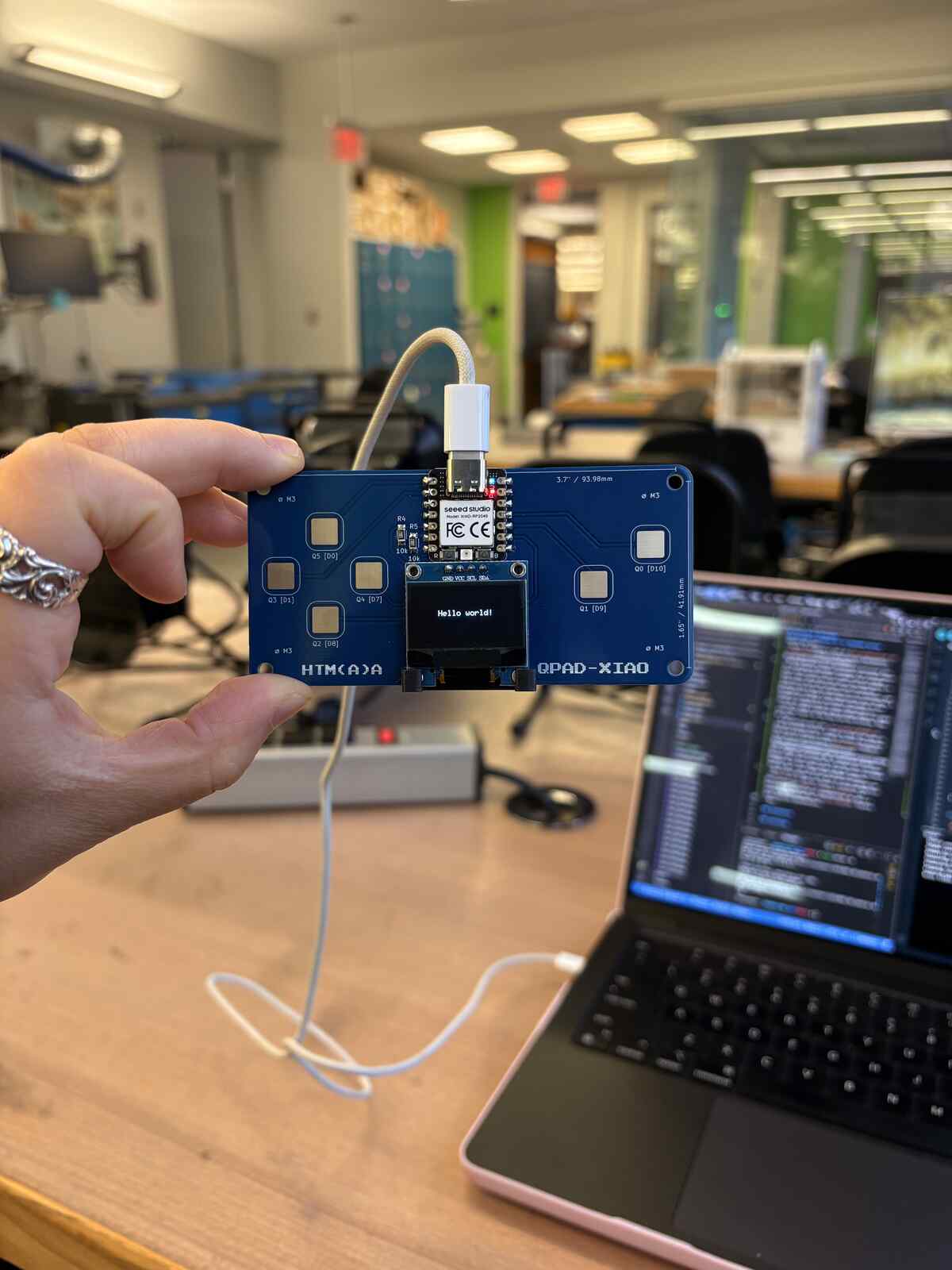
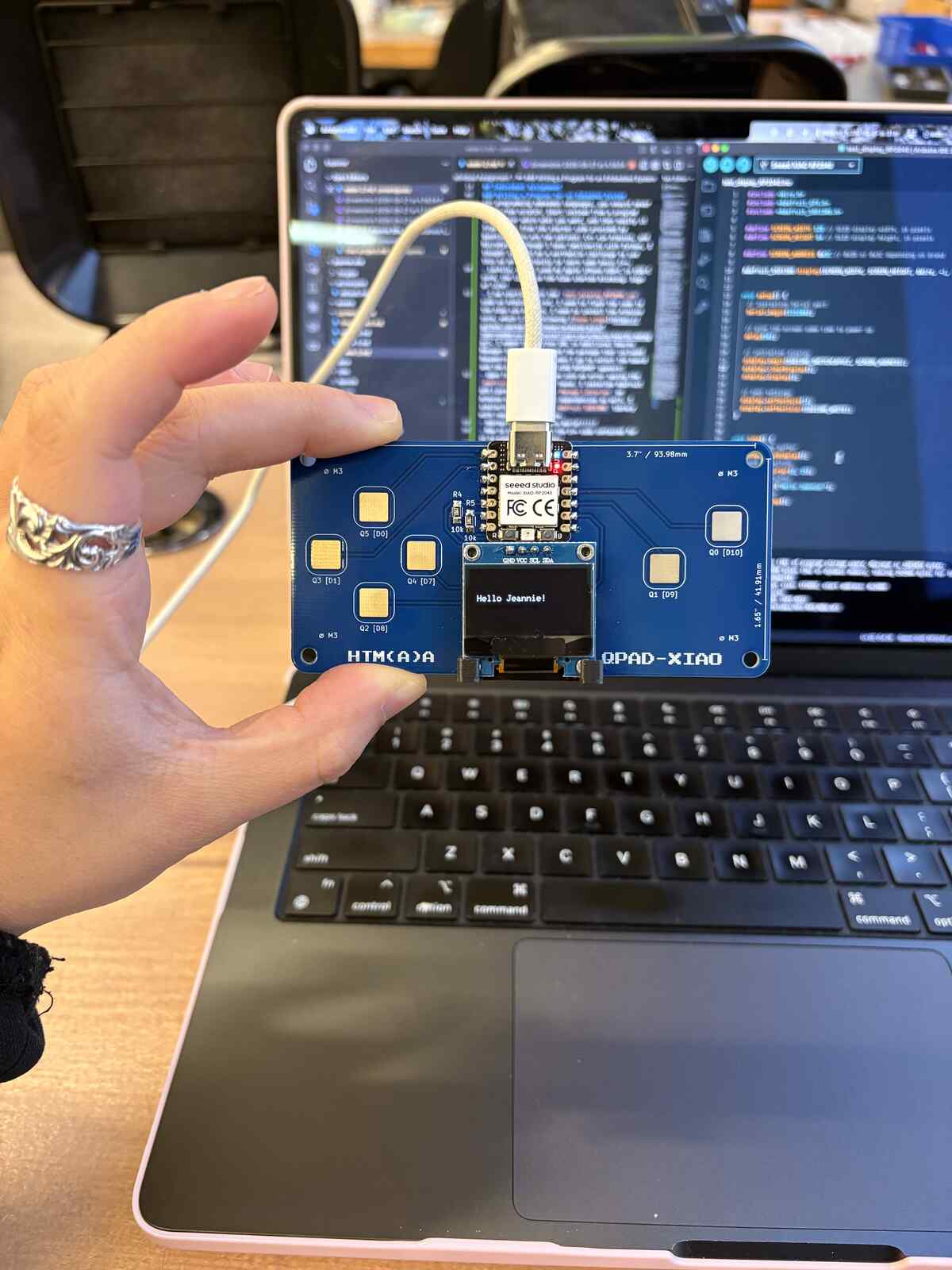
Now to understand what the C++ code contained for it to produce Hello World!:
- We create the I^2C connection, initialize the OLED, draw text into a memory buffer, transfer buffer to the display, and repeat.
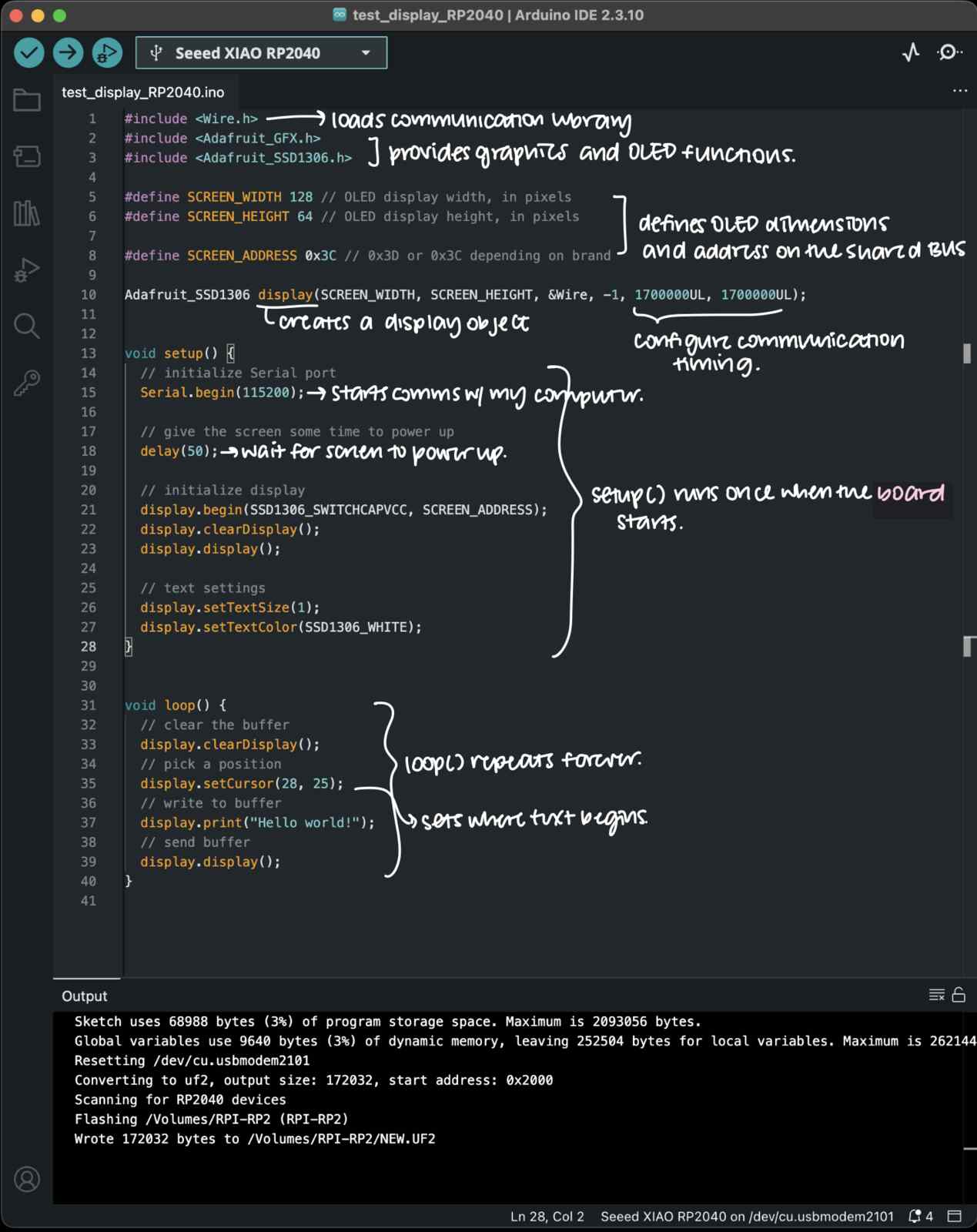
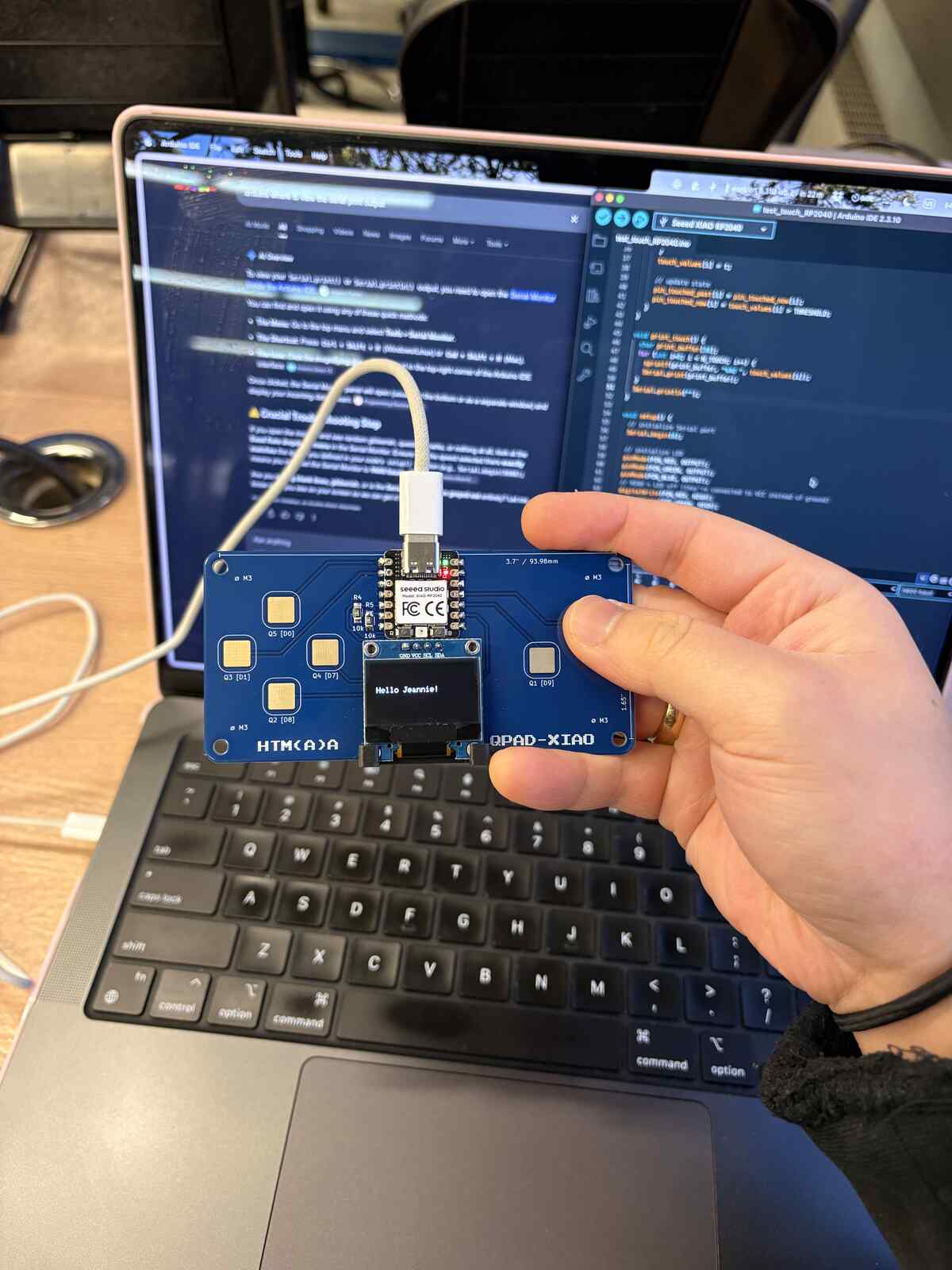
Next, I’m running test_touch_RP2040. I was only seeing visible green signal when touching the Q0 pad, but after I opened the Serial Monitor on Arduino with command+shift+M, I could see all of the buttons respond when I touched them!
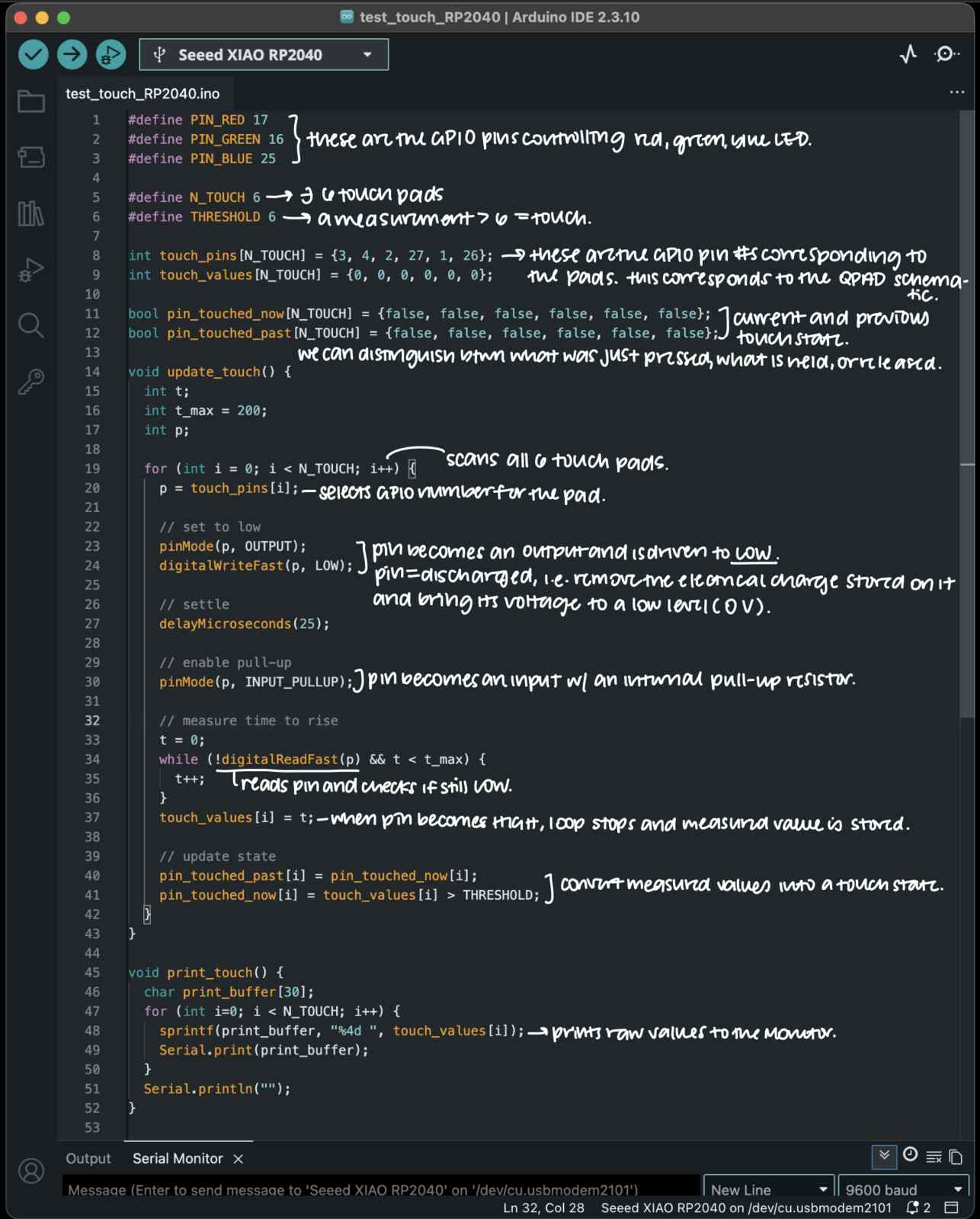
Again, I annotated the code to understand how it was producing this readout upon touching the buttons.
The program detects touch by measuring how quickly each touch pad’s voltage rises. It uses capacitive touch sensing. Contact from a finger adds electrical capacitance to a touch pad.
I modified the code a little to test how it would look like if the blue and red LEDs were to light up if other buttons were pressed. So far, the behavior is as expected!
Brainstorm
Alright, now for my actual assignment. I was inspired by the graphics that Prof. Gershenfeld showed in class written by a previous student, Lingdong. As a bioengineer, I love looking at protein structures and marveling at their beauty. I decided I was going to try to animate an interactive protein viewer on the OLED screen.
Learnings
To start, I wanted to display a basic line with some points.
My initial display was successful, it was simply drawing lines between points and then placing circles where “amino acids” are located. The code is in point_display.ino.
Next, I needed to figure out how to make the graphic rotate upon interaction with the buttons. I had Codex help me with the math for this portion, and using the two buttons on the right, corresponding to touch pins 0 and 1, it was rotating in the Y axis!
I ended up programming the up/down/left/right buttons on the left side of the PCB to rotate the protein accordingly in the X and Y axis, satisfying the human interaction requirement of the assignment.
Next up was actually flashing a protein structure on there.
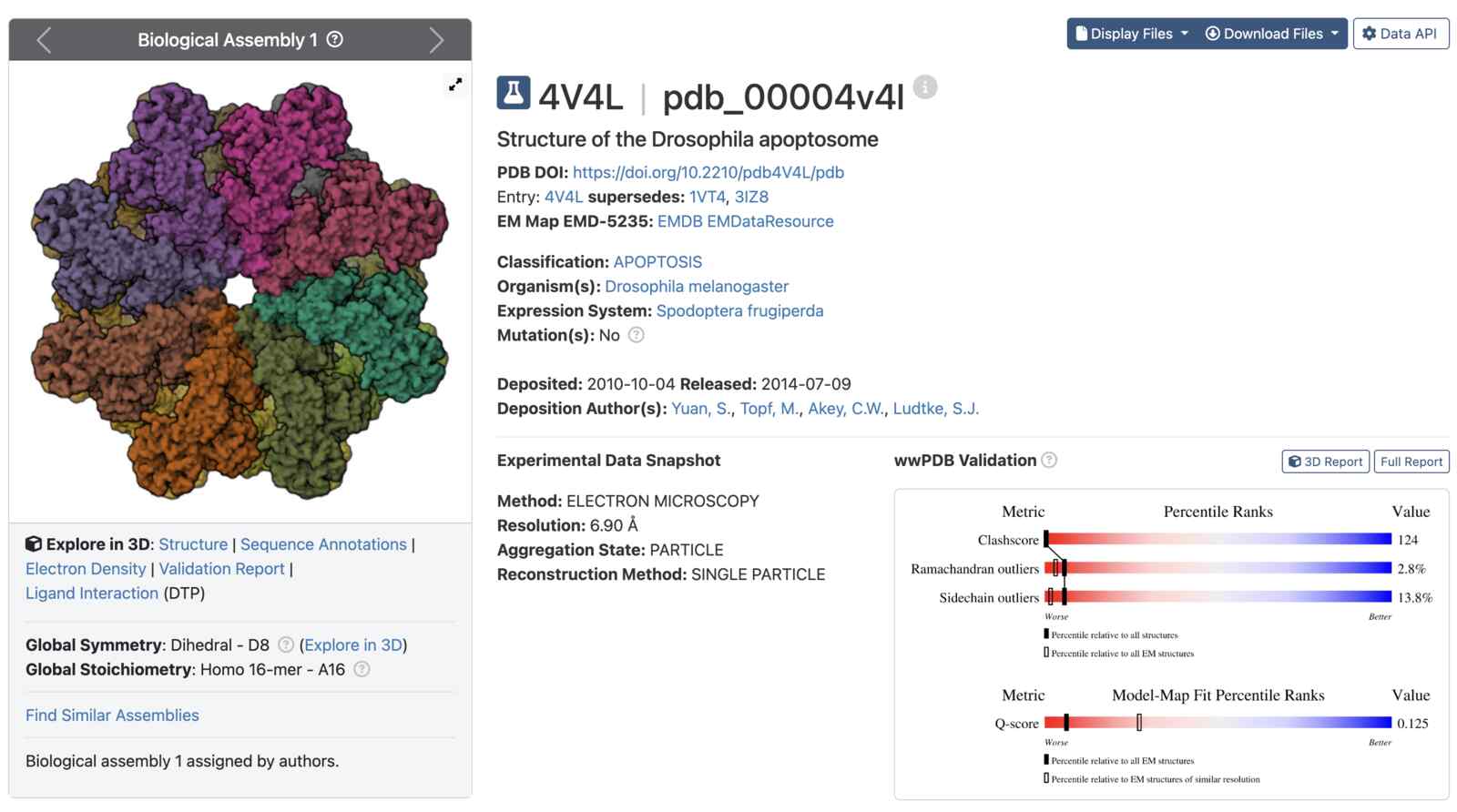
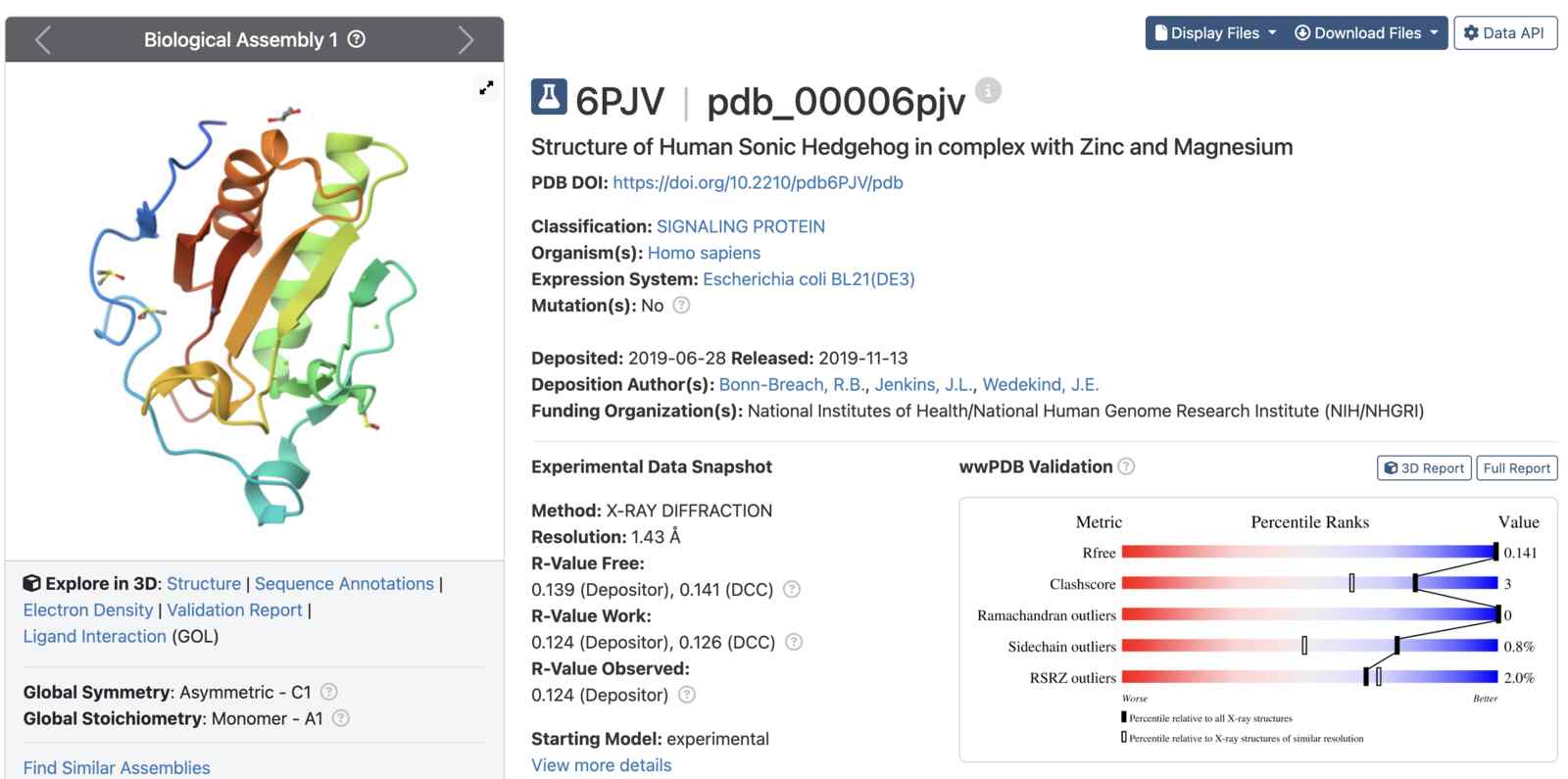
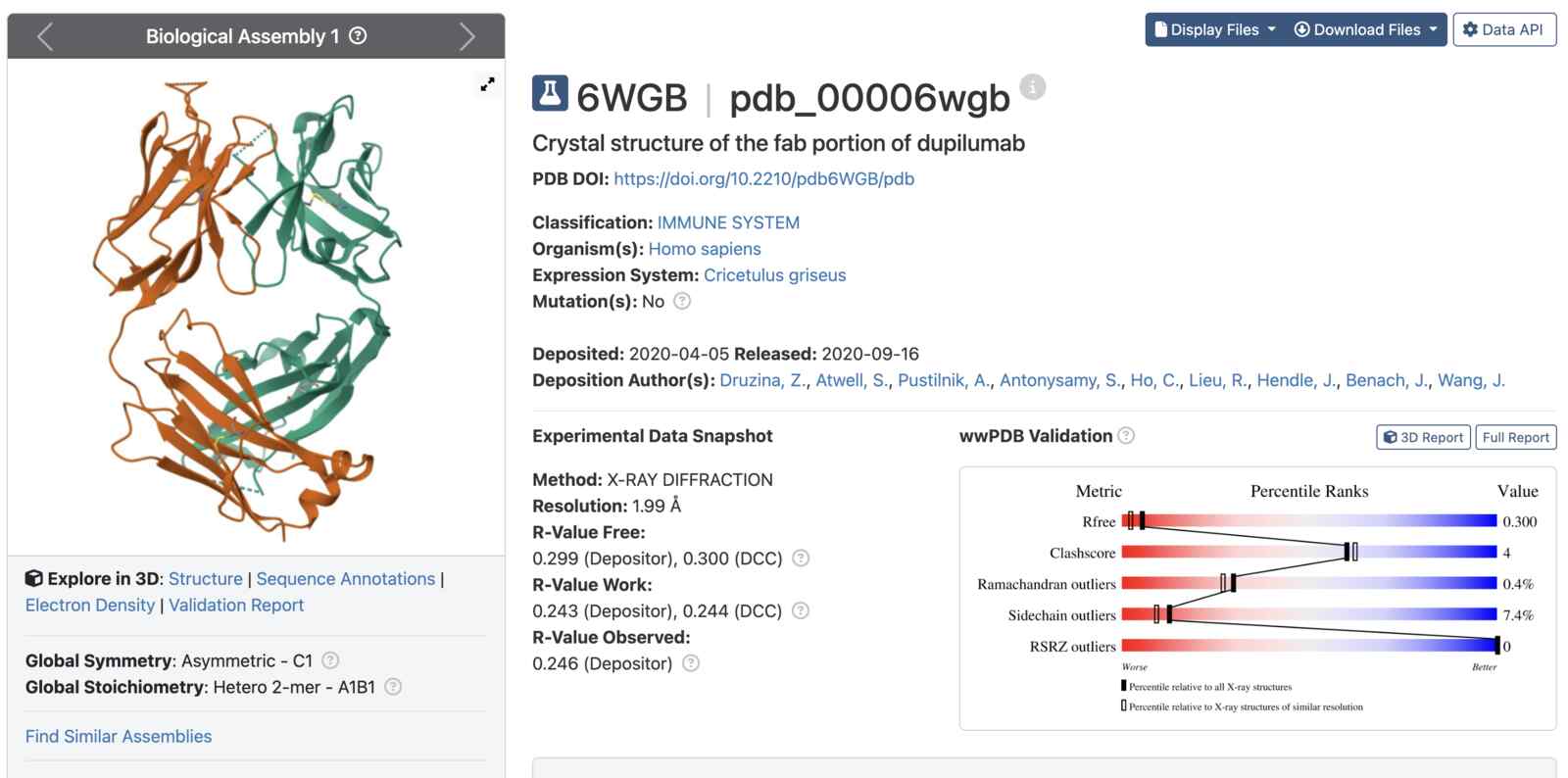
The great thing about proteins is that there exists a Protein Data Bank, PDB, where many proteins’ specific structure is documented to the best of our ability. The PDB file format maps the biological molecules to their location in 3D space. This means that they can be displayed as 3D items, perfect for this exploration.
I had Codex help me write a script to convert the PDB files (or more specifically, the .cif.gz) into arrays that I could load into C++. I also had it write up a module to create a Protein Menu and be able to toggle between multiple structures, similar to how I had seen Lingdong do it.
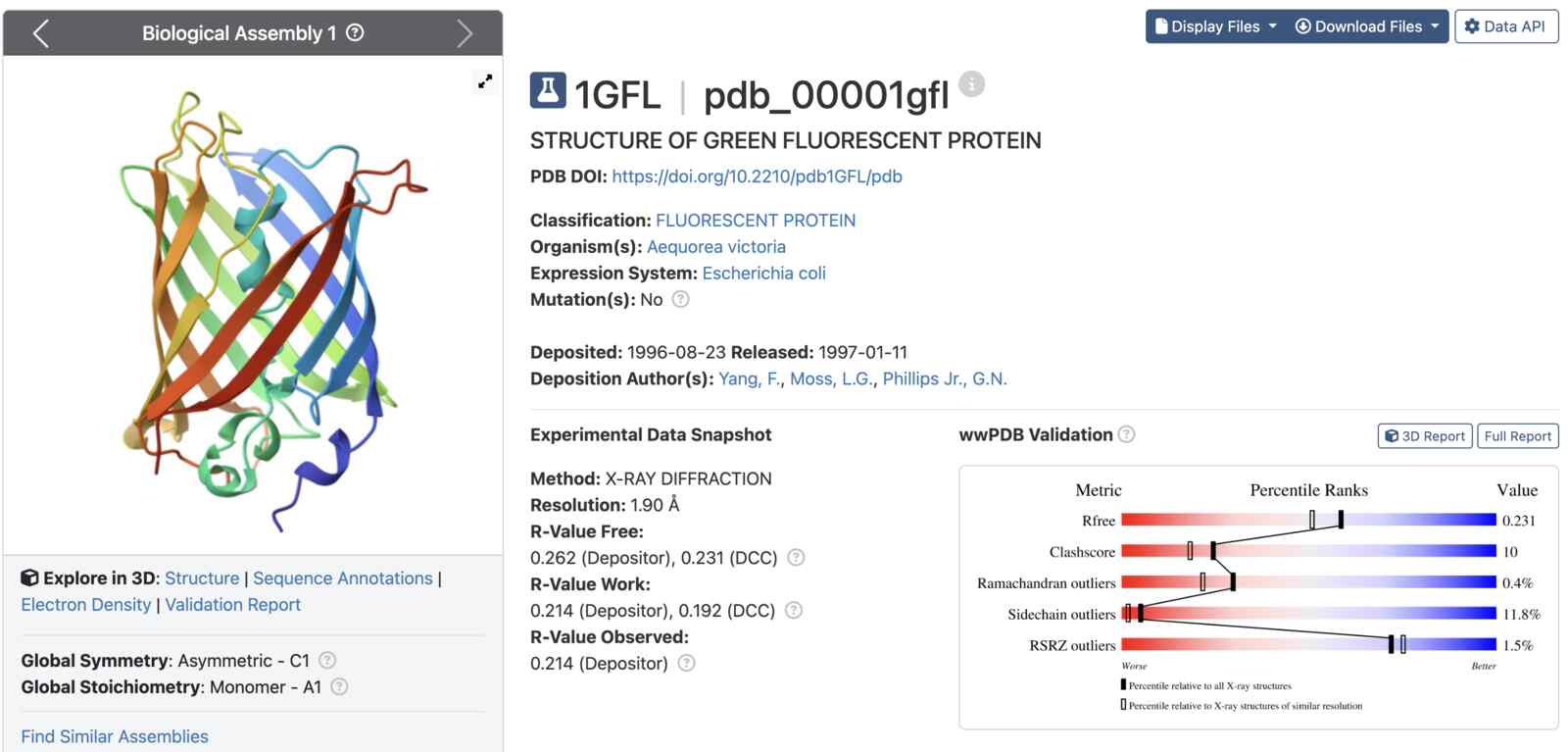
The first protein many biologists think of off the top of their head is GFP, also known as green fluorescent protein. This was the first protein I successfully displayed, but it wasn’t satisfying to look at. The structure was too complex, it was too tiny on the screen, and I struggled with the fact that there was only one “color” on the OLED, and no integrated “depth” display (no gradient between a pixel being “on/off”).
I thought about how to make depth perception possible on the screen, and ended up deciding to drawing the structures farther away from the “player perspective” with dotted lines, and the parts closer to the “player perspective” as thicker, bolder lines. If you look at the final demo closely on the edges of the rotating protein, you can see the lines transitioning from thick to dotted on the edges as it rotates back away from you.
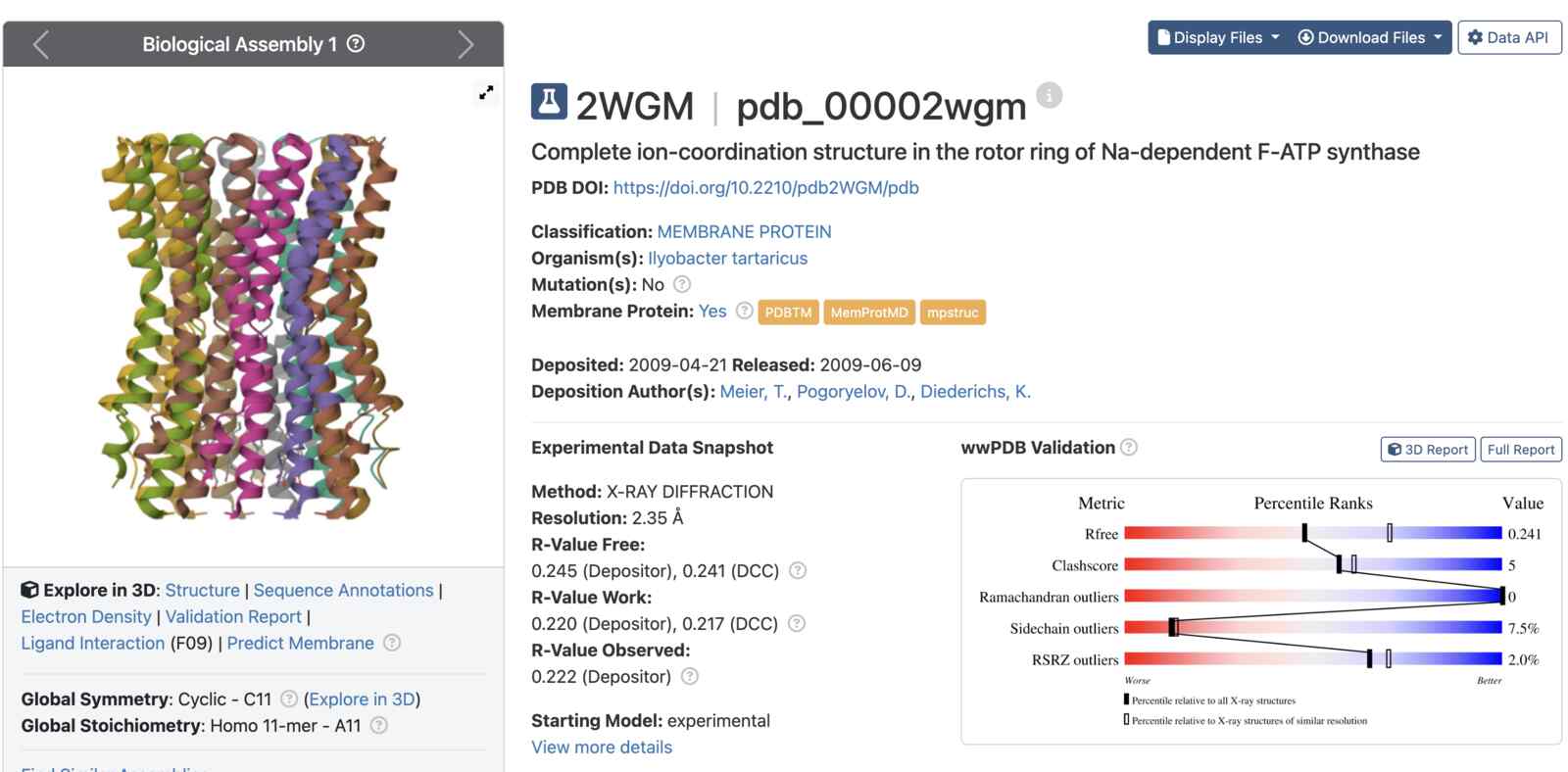
Since I had the entire PDB of interesting proteins to choose to display, I went with the following:
P(D -> C)B
Checkout what I made! I’m calling it P(D -> C)B since the pipeline takes a PDB (Protein Data Bank) file and displays it onto my PCB (Printed Circuit Board).
AI Usage
Codex helped me iterate through what I should get working first before I start attempting the bigger task. GPT-5.6 Luna helped me write the Protein Menu code and the initial code mapping array points to the OLED screen. I also had it help me refine the actual display with the dotted lines and thick and thin lines to create a sense of depth.
Files
- Initial attempt at displaying points in point_display.ino
- Convert PDB file to OLED screen points in convert_pdb_to_oled.ino
- Protein display on QPAD in gfp_oled.ino
- Navigation menu in protein_menu.ino