2. Optical Illusions
-
Board
I used the QPAD-xiao, designed by Quentin Bolsée. It has a Seeed Studio XIAO RP2040 microcontroller (dual-core Arm Cortex-M0+ at 133 MHz, 264 KB RAM, 2 MB flash), a 128×64 SSD1306 OLED display on I2C (SDA = GPIO6, SCL = GPIO7), and six copper touch pads on GPIO 1, 2, 3, 4, 26 and 27.
-
1. Soldering
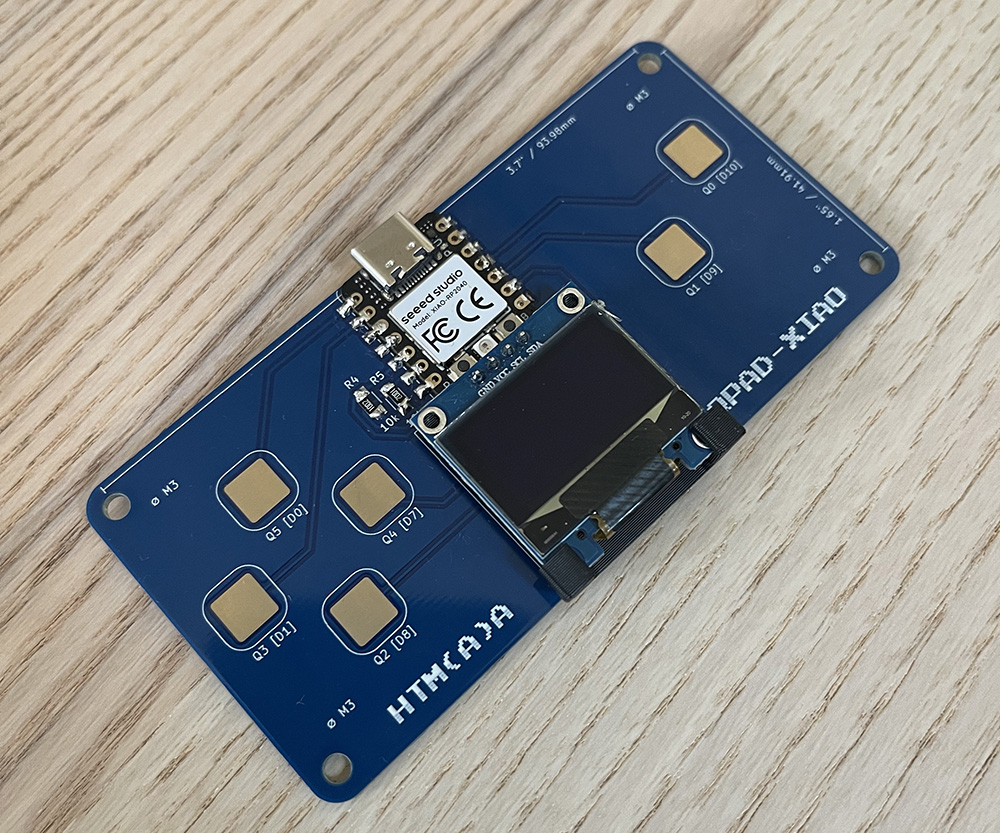
I assembled the board following Antony's tutorial and Quentin's QPAD soldering guide.
For the XIAO RP2040, I tinned one pad first, placed the XIAO and reheated that pad to hold it in place, then soldered the remaining pads. The XIAO is surface-mounted, so each of its 14 castellated edge pads has to line up with its pad on the QPAD.
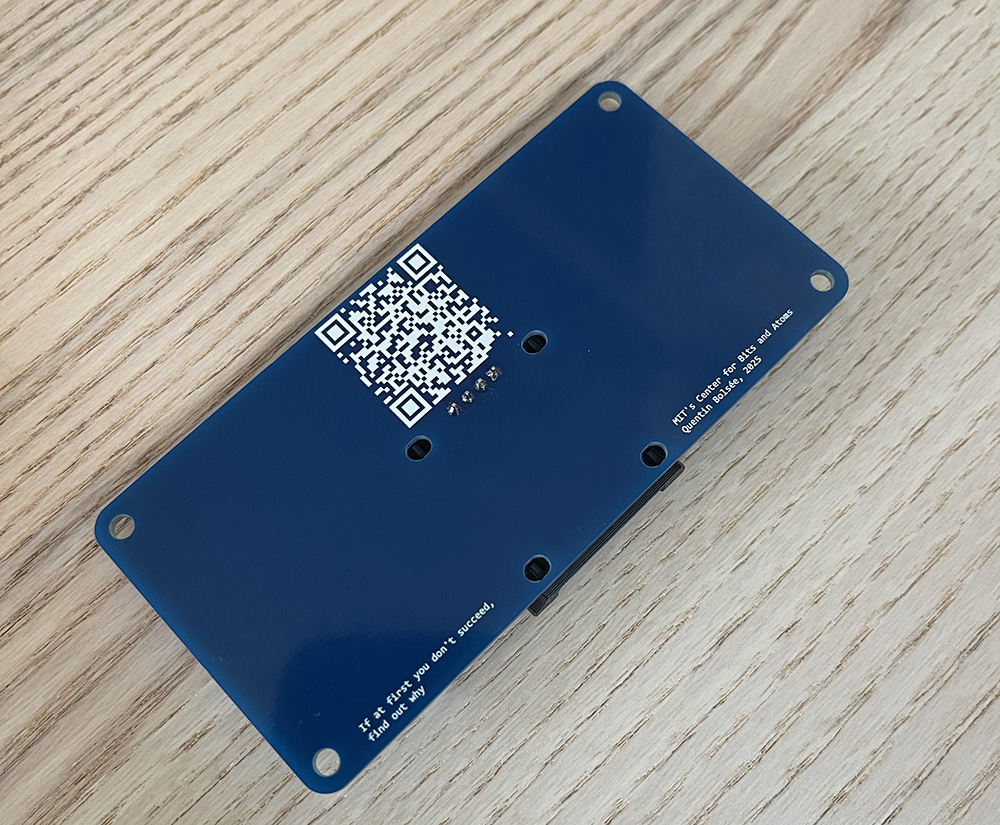
For the OLED display, I used the 3D-printed support under the display so it sits level and raised above the board, then soldered its four pins from the back. I soldered the two 10k resistors the same way as the XIAO RP2040.
-
2. Wokwi Simulation
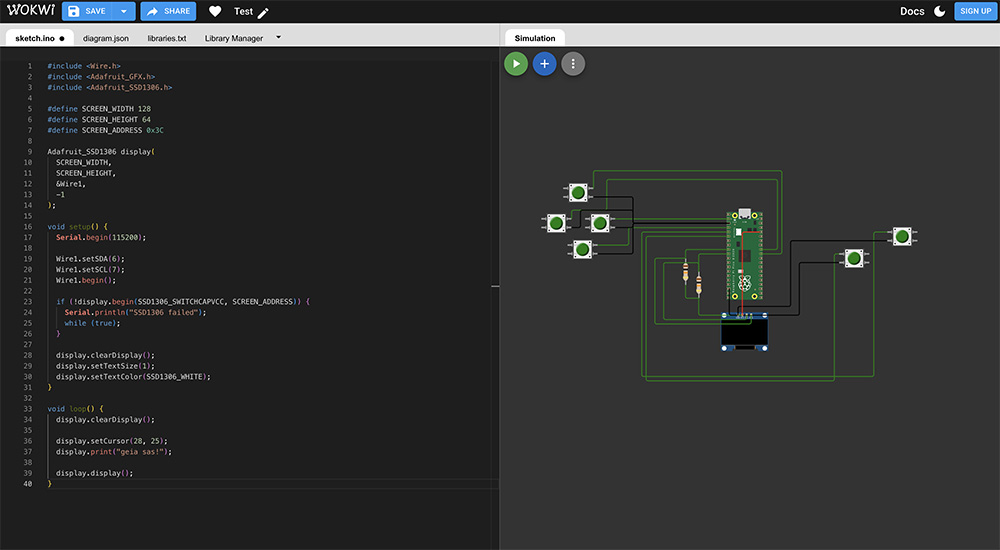
Before programming the real hardware, I rebuilt the QPAD in the Wokwi online simulator.
-
3. The Illusions
I wanted to make a game about optical illusions and I decided on two classic ones:
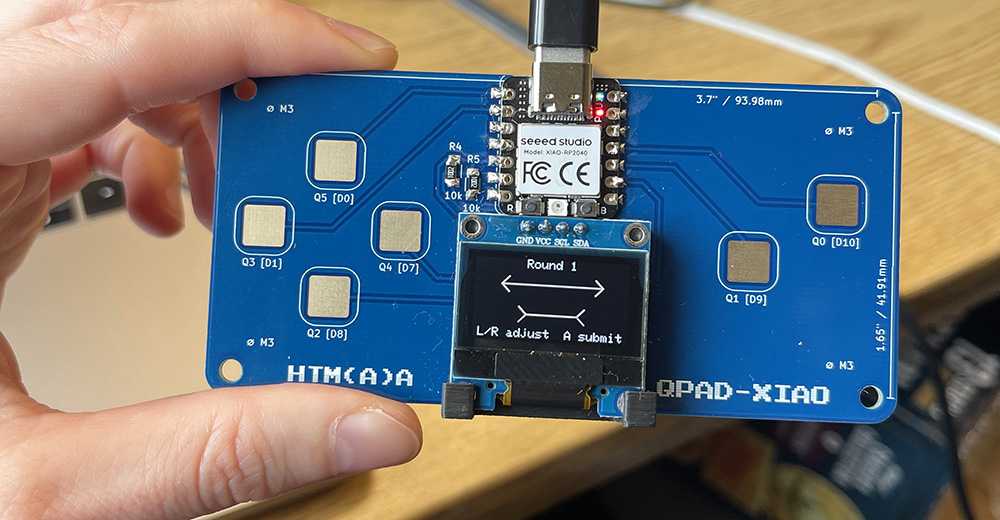
The first is the Müller-Lyer illusion. Two lines of equal length look different depending on the fins at their ends. With arrowheads (<—>) a line looks shorter; with tails (>—<) it looks longer. Franz Carl Müller-Lyer described it in 1889, and it is one of the most studied illusions in psychology.
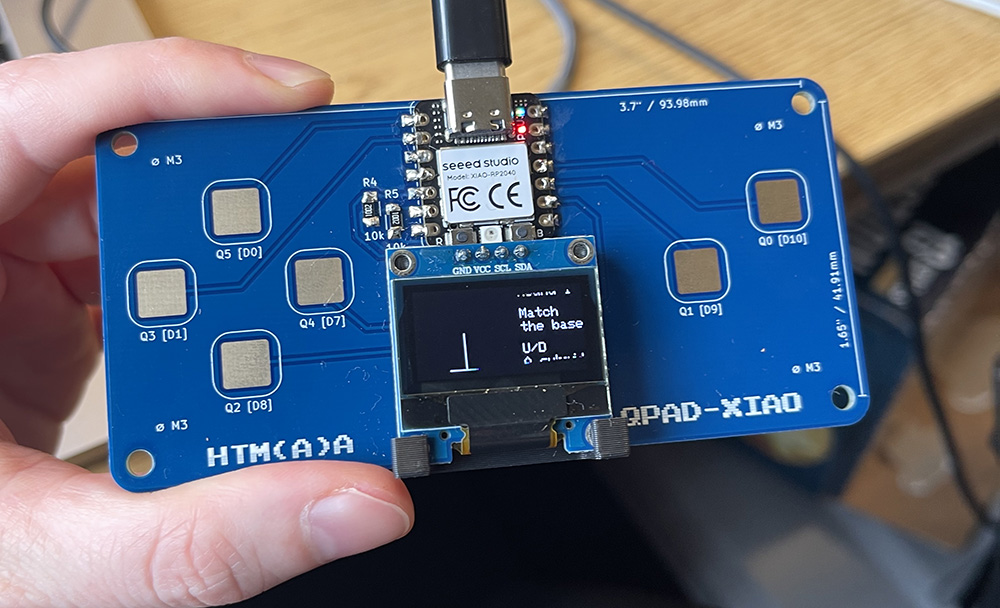
The second is the vertical-horizontal illusion. A vertical line looks longer than a horizontal line of the same length, especially when it stands on the middle of the horizontal, like an upside-down "T".
Why these two
Both show that what we see depends on context, not only on geometry. That matters for anyone designing objects or spaces. Both are made only of straight lines, so they display clearly on a small black-and-white 128×64 screen. The correct answer can be measured in pixels, so the game can score each guess objectively, and each round needs only a couple of controls: make the line longer or shorter, then submit.
-
4. Writing the Game
Claude wrote the code, and I tested and refined it in Wokwi. The simulation is here:
The program is written in C++ with the Arduino framework, using the Adafruit SSD1306 and Adafruit GFX libraries for the display. Its main parts:
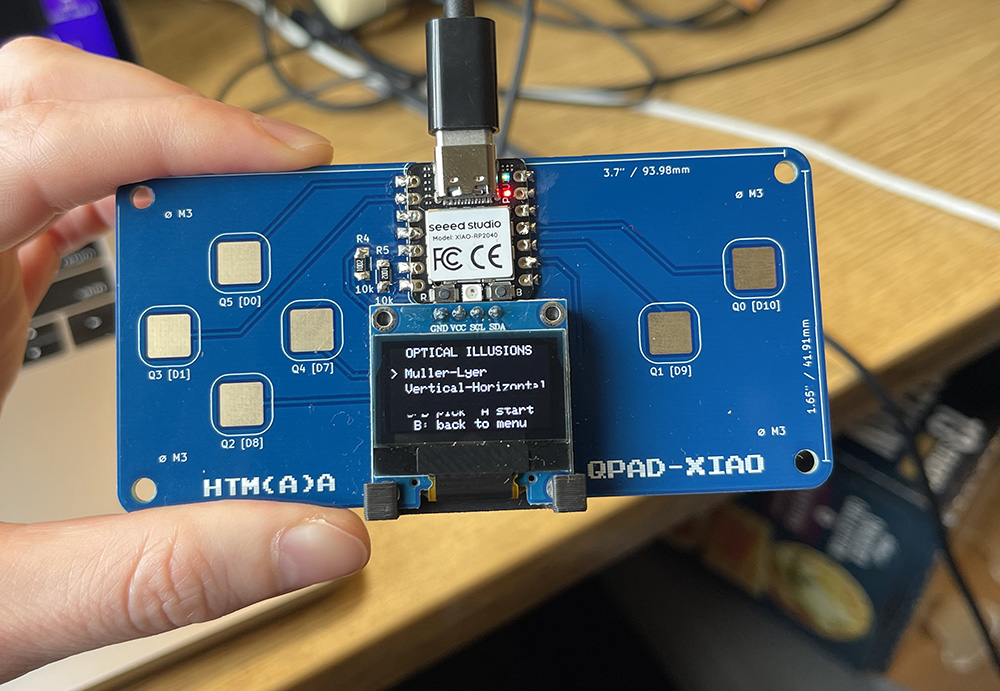
The game is a state machine with three screens. Menu picks the illusion. Adjust is a round in progress. Result shows the score.
loop()checks which state it is in and only responds to the controls that matter on that screen.The two game modes share the same flow but draw different figures.
drawArrowFigure()draws a line with arrowhead or tail fins for Müller-Lyer, anddrawTFigure()draws the upside-down T.Each round picks a random reference length, and for Müller-Lyer a random fin style. The adjustable line always starts clearly wrong so you have to work to match it. The random generator is seeded with the exact moment you press start, so rounds differ every time.
There are two input functions.
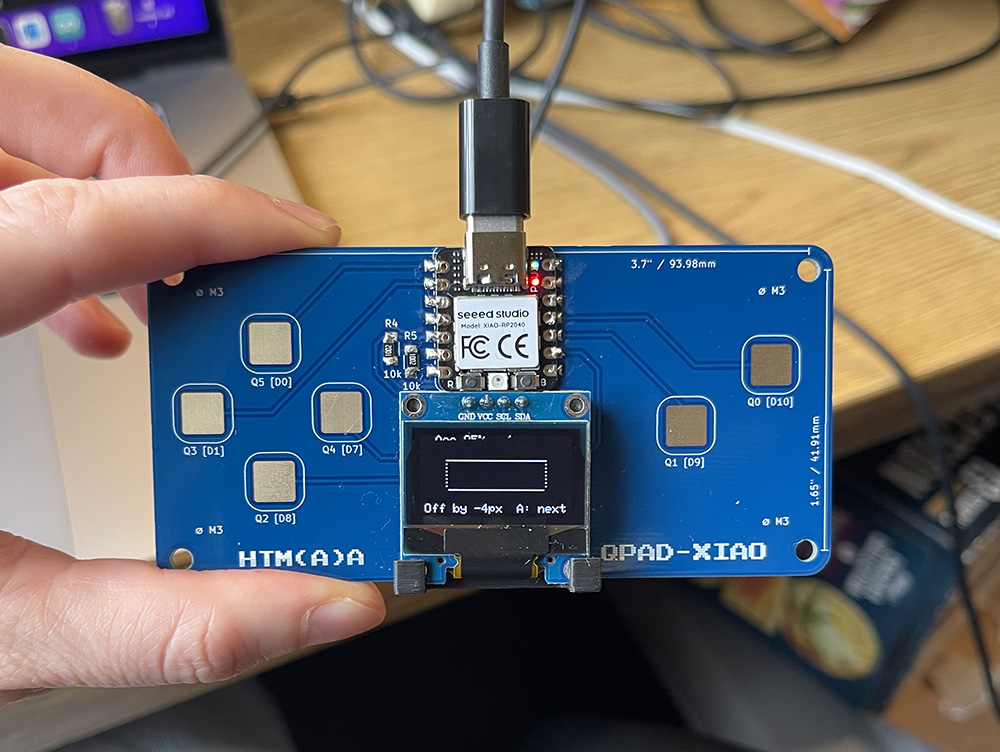
justPressed()fires once per press, for menu choices and submitting.pressedOrHeld()fires once, then repeats while held, like a keyboard key, so you can drag a line smoothly. Both include debouncing.Accuracy is scored as 100 × (1 − |error| / true length). The game tracks your average for each illusion. On the result screen the Müller-Lyer fins are removed and guide lines are drawn, so you can see the real lengths.
Each result is sent over USB serial to the computer (true length, your guess, and the difference), which covers the communication part of the assignment.
-
5. Connecting
At first I couldn't upload anything to the board. With Antony's help I realised I wasn't putting the XIAO into bootloader mode correctly. It needs holding BOOT and double-tapping RESET. After that, it appeared as a USB drive and the Arduino IDE could upload to it.
In the Arduino IDE, I installed the Raspberry Pi Pico/RP2040 board package by Earle Philhower, selected the Seeed XIAO RP2040 board, and added the Adafruit SSD1306 and Adafruit GFX libraries.
To confirm the board and display were working, I uploaded Adafruit's I2C scanner sketch. It tries every I2C address and prints which ones respond. It found a device at 0x3C, the OLED's address, which meant the soldering, the I2C wiring and the upload process were all working.
-
6. Touch Pads
The simulation used push buttons, but the QPAD has capacitive touch pads, and the RP2040 has no built-in touch-sensing hardware.
digitalRead()doesn't work on them. Because the Wokwi pins already matched the real board, the display code and game logic stayed the same. Claude rewrote only the input layer:Reading a pad by timing how long it charges
The code drives the pin LOW to discharge the pad, then switches it to
INPUT_PULLUPso the internal pull-up resistor starts charging the pad, and counts the loop cycles until the pin reads HIGH. A finger adds capacitance, so the pad charges more slowly and the count goes up.int readPad(uint8_t p) { pinMode(p, OUTPUT); digitalWriteFast(p, LOW); delayMicroseconds(25); // discharge pinMode(p, INPUT_PULLUP); int t = 0; while (!digitalReadFast(p) && t < 200) t++; // time to charge return t; }Making it reliable
At startup, the board takes 64 readings of each pad while nobody is touching it, and uses the average as that pad's baseline. A touch means 10 counts above the pad's own baseline, so each pad effectively gets its own threshold.
A pad only changes state after 3 scans in a row agree, which filters out noise. It also releases at half the threshold it pressed at (hysteresis), so a finger resting near the limit doesn't flicker.
justPressed()andpressedOrHeld()kept the same names and behaviour; they now read the touch state instead ofdigitalRead(). The rest of the game didn't need to change. TheINPUT_PULLUPbutton setup was removed, and a "Calibrating… don't touch the pads" screen was added at startup.Before uploading, the code was compiled for the XIAO RP2040 with no errors or warnings. It uses 73 KB of the 2 MB flash (3%) and about 10 KB of RAM.
Once uploaded, it worked.
-
Code
Show the full code
#include <Wire.h> #include <Adafruit_GFX.h> #include <Adafruit_SSD1306.h> #define SCREEN_WIDTH 128 #define SCREEN_HEIGHT 64 #define SCREEN_ADDRESS 0x3C // QPAD-xiao touch pads (GPIO numbers) #define BTN_UP 26 // menu up / vertical line longer #define BTN_DOWN 2 // menu down / vertical line shorter #define BTN_LEFT 27 // bottom line shorter #define BTN_RIGHT 1 // bottom line longer #define BTN_A 3 // start / submit / next #define BTN_B 4 // back to menu // Muller-Lyer layout: two stacked lines centred on the screen #define ML_CX (SCREEN_WIDTH / 2) #define ML_TOP_Y 20 // reference line #define ML_BOTTOM_Y 44 // adjustable line #define ML_FIN 6 // fin length along each axis (45 deg) // Muller-Lyer lengths (kept even so both ends sit on whole pixels) #define ML_MIN 16 #define ML_MAX 110 #define ML_REF_MIN 40 #define ML_REF_MAX 90 #define ML_STEP 2 // each press moves both ends 1 px // Vertical-Horizontal layout: inverted T on the left, text on the right #define VH_CX 36 // x of the vertical line #define VH_BASE_Y 58 // y of the horizontal line #define VH_TEXT_X 80 // Vertical-Horizontal lengths #define VH_MIN 8 #define VH_MAX 54 // vertical top can reach y = 4 #define VH_REF_MIN 20 #define VH_REF_MAX 48 #define VH_STEP 1 // ---------- touch settings ---------- #define TOUCH_T_MAX 200 // stop counting after this many loops #define TOUCH_MARGIN 10 // counts above the untouched baseline that mean "touched" #define TOUCH_CONFIRM 3 // consecutive scans needed to change a pad's state // #define TOUCH_DEBUG // uncomment to print raw counts to Serial for tuning Adafruit_SSD1306 display( SCREEN_WIDTH, SCREEN_HEIGHT, &Wire, -1 ); enum Mode { MULLER_LYER, VERT_HORIZ }; enum State { MENU, ADJUST, RESULT }; Mode mode = MULLER_LYER; State state = MENU; int refLen; // fixed line int adjLen; // player-controlled line bool refInward; // Muller-Lyer: fin style of the top line; bottom gets the opposite int rounds[2]; // per mode float totalAccuracy[2]; // ---------- drawing ---------- void printCentered(const char *text, int y) { display.setCursor((SCREEN_WIDTH - strlen(text) * 6) / 2, y); display.print(text); } void printAt(int x, int y, const char *text) { display.setCursor(x, y); display.print(text); } // Horizontal line of length len centred on the screen. Inward fins are // arrowheads (<-->) and make the line look shorter; outward fins are // tails (>--<) and make it look longer. void drawArrowFigure(int y, int len, bool inward, bool fins) { int x1 = ML_CX - len / 2; int x2 = ML_CX + len / 2; display.drawFastHLine(x1, y, len + 1, SSD1306_WHITE); if (!fins) return; int d = inward ? ML_FIN : -ML_FIN; display.drawLine(x1, y, x1 + d, y - ML_FIN, SSD1306_WHITE); display.drawLine(x1, y, x1 + d, y + ML_FIN, SSD1306_WHITE); display.drawLine(x2, y, x2 - d, y - ML_FIN, SSD1306_WHITE); display.drawLine(x2, y, x2 - d, y + ML_FIN, SSD1306_WHITE); } // Inverted T: a vertical line rising from the middle of a horizontal one. // The vertical tends to look longer than a horizontal of equal length. void drawTFigure(int horizLen, int vertLen) { display.drawFastHLine(VH_CX - horizLen / 2, VH_BASE_Y, horizLen + 1, SSD1306_WHITE); display.drawFastVLine(VH_CX, VH_BASE_Y - vertLen, vertLen + 1, SSD1306_WHITE); } void drawMenu() { display.clearDisplay(); printCentered("OPTICAL ILLUSIONS", 0); printAt(0, 16, mode == MULLER_LYER ? "> Muller-Lyer" : " Muller-Lyer"); printAt(0, 28, mode == VERT_HORIZ ? "> Vertical-Horizontal" : " Vertical-Horizontal"); printCentered("U/D pick A start", 46); printCentered("B: back to menu", 56); display.display(); } void drawRound() { char line[22]; snprintf(line, sizeof line, "Round %d", rounds[mode] + 1); display.clearDisplay(); if (mode == MULLER_LYER) { printCentered(line, 0); drawArrowFigure(ML_TOP_Y, refLen, refInward, true); drawArrowFigure(ML_BOTTOM_Y, adjLen, !refInward, true); printCentered("L/R adjust A submit", 56); } else { drawTFigure(refLen, adjLen); printAt(VH_TEXT_X, 0, line); printAt(VH_TEXT_X, 16, "Match"); printAt(VH_TEXT_X, 26, "the base"); printAt(VH_TEXT_X, 42, "U/D"); printAt(VH_TEXT_X, 52, "A submit"); } display.display(); } void drawResult(int diff, float accuracy) { char line[22]; int acc = (int)(accuracy + 0.5); int avg = (int)(totalAccuracy[mode] / rounds[mode] + 0.5); display.clearDisplay(); if (mode == MULLER_LYER) { snprintf(line, sizeof line, "Acc %d%% Avg %d%%", acc, avg); printCentered(line, 0); // Show the true lengths with the fins removed, plus dotted guides // dropping from the ends of the reference line drawArrowFigure(ML_TOP_Y, refLen, refInward, false); drawArrowFigure(ML_BOTTOM_Y, adjLen, !refInward, false); for (int y = ML_TOP_Y + 3; y < ML_BOTTOM_Y; y += 3) { display.drawPixel(ML_CX - refLen / 2, y, SSD1306_WHITE); display.drawPixel(ML_CX + refLen / 2, y, SSD1306_WHITE); } snprintf(line, sizeof line, "Off by %+dpx A: next", diff); printCentered(line, 56); } else { // Dotted line at the height the vertical should have reached drawTFigure(refLen, adjLen); int targetY = VH_BASE_Y - refLen; for (int x = VH_CX - refLen / 2; x <= VH_CX + refLen / 2; x += 3) display.drawPixel(x, targetY, SSD1306_WHITE); snprintf(line, sizeof line, "Acc %d%%", acc); printAt(VH_TEXT_X, 0, line); snprintf(line, sizeof line, "Avg %d%%", avg); printAt(VH_TEXT_X, 10, line); printAt(VH_TEXT_X, 24, "Off by"); snprintf(line, sizeof line, "%+dpx", diff); printAt(VH_TEXT_X, 34, line); printAt(VH_TEXT_X, 52, "A: next"); } display.display(); } // ---------- touch pads ---------- // The RP2040 has no touch hardware, so each pad is read by timing it: // drive the pin LOW, switch it to INPUT_PULLUP and count how long it // takes to read HIGH. A finger adds capacitance, so the count goes up. const uint8_t touchPins[] = { BTN_UP, BTN_DOWN, BTN_LEFT, BTN_RIGHT, BTN_A, BTN_B }; const char *touchNames[] = { "U", "D", "L", "R", "A", "B" }; const int N_TOUCH = sizeof touchPins; int touchRaw[N_TOUCH]; float touchBase[N_TOUCH]; // untouched level, measured at startup uint8_t touchStreak[N_TOUCH]; // scans in a row that disagree with the current state bool padState[30]; // indexed by GPIO, like the old button code int readPad(uint8_t p) { pinMode(p, OUTPUT); digitalWriteFast(p, LOW); delayMicroseconds(25); // discharge the pad pinMode(p, INPUT_PULLUP); int t = 0; while (!digitalReadFast(p) && t < TOUCH_T_MAX) t++; // time to charge return t; } // Average many untouched readings per pad. Keep fingers off during this. void calibrateTouch() { const int samples = 64; for (int i = 0; i < N_TOUCH; i++) touchBase[i] = 0; for (int s = 0; s < samples; s++) { for (int i = 0; i < N_TOUCH; i++) touchBase[i] += readPad(touchPins[i]); delay(2); } for (int i = 0; i < N_TOUCH; i++) touchBase[i] /= samples; } // Scan all pads once. A pad only changes state after TOUCH_CONFIRM // agreeing scans, and releases at a lower level than it presses // (hysteresis), so noise doesn't cause phantom or flickering presses. void updateTouch() { for (int i = 0; i < N_TOUCH; i++) { uint8_t p = touchPins[i]; touchRaw[i] = readPad(p); float threshold = touchBase[i] + (padState[p] ? TOUCH_MARGIN / 2 : TOUCH_MARGIN); bool reading = touchRaw[i] > threshold; if (reading != padState[p]) { if (++touchStreak[i] >= TOUCH_CONFIRM) { padState[p] = reading; touchStreak[i] = 0; } } else { touchStreak[i] = 0; } } #ifdef TOUCH_DEBUG static unsigned long lastPrint; if (millis() - lastPrint > 100) { lastPrint = millis(); for (int i = 0; i < N_TOUCH; i++) { Serial.print(touchNames[i]); Serial.print(':'); Serial.print(touchRaw[i]); Serial.print('/'); Serial.print((int)touchBase[i]); Serial.print(padState[touchPins[i]] ? "* " : " "); } Serial.println(); } #endif } bool padDown(uint8_t pin) { return padState[pin]; } // ---------- input ---------- // True once per press (on the press edge) bool justPressed(uint8_t pin) { static bool wasDown[30]; static unsigned long lastChange[30]; bool down = padDown(pin); if (down != wasDown[pin] && millis() - lastChange[pin] > 30) { wasDown[pin] = down; lastChange[pin] = millis(); return down; } return false; } // True once on press, then repeatedly while held (like a keyboard key) bool pressedOrHeld(uint8_t pin) { static unsigned long nextFire[30]; static unsigned long lastDown[30]; unsigned long now = millis(); if (!padDown(pin)) { if (now - lastDown[pin] > 30) nextFire[pin] = 0; // released return false; } lastDown[pin] = now; if (nextFire[pin] == 0) { // first press nextFire[pin] = now + 350; return true; } if (now >= nextFire[pin]) { // held: repeat nextFire[pin] = now + 40; return true; } return false; } // ---------- game logic ---------- void showMenu() { state = MENU; drawMenu(); } void newRound() { // Start the adjustable line clearly wrong so the player has to work if (mode == MULLER_LYER) { refLen = random(ML_REF_MIN / 2, ML_REF_MAX / 2 + 1) * 2; refInward = random(2); do { adjLen = random(ML_MIN / 2, ML_MAX / 2 + 1) * 2; } while (abs(adjLen - refLen) < 20); } else { refLen = random(VH_REF_MIN / 2, VH_REF_MAX / 2 + 1) * 2; do { adjLen = random(VH_MIN, VH_MAX + 1); } while (abs(adjLen - refLen) < 10); } state = ADJUST; drawRound(); } void submit() { int diff = adjLen - refLen; float accuracy = 100.0 * (1.0 - (float)abs(diff) / refLen); if (accuracy < 0) accuracy = 0; rounds[mode]++; totalAccuracy[mode] += accuracy; if (mode == MULLER_LYER) { Serial.print("[Muller-Lyer] ref="); Serial.print(refLen); Serial.print(refInward ? " (arrowheads)" : " (tails)"); } else { Serial.print("[Vertical-Horizontal] horizontal="); Serial.print(refLen); } Serial.print(" guess="); Serial.print(adjLen); Serial.print(" diff="); Serial.println(diff); state = RESULT; drawResult(diff, accuracy); } // ---------- main ---------- void setup() { Serial.begin(115200); Wire.setSDA(6); Wire.setSCL(7); Wire.begin(); if (!display.begin(SSD1306_SWITCHCAPVCC, SCREEN_ADDRESS)) { Serial.println("SSD1306 failed"); while (true); } display.setTextSize(1); display.setTextColor(SSD1306_WHITE); display.setTextWrap(false); display.clearDisplay(); printCentered("Calibrating...", 24); printCentered("don't touch the pads", 36); display.display(); delay(300); // time to lift your hand after plugging in calibrateTouch(); showMenu(); } void loop() { updateTouch(); switch (state) { case MENU: if (justPressed(BTN_UP) || justPressed(BTN_DOWN)) { mode = (mode == MULLER_LYER) ? VERT_HORIZ : MULLER_LYER; drawMenu(); } if (justPressed(BTN_A)) { randomSeed(micros()); // exact time of the touch is a good seed newRound(); } break; case ADJUST: { int before = adjLen; if (mode == MULLER_LYER) { if (pressedOrHeld(BTN_LEFT) && adjLen > ML_MIN) adjLen -= ML_STEP; if (pressedOrHeld(BTN_RIGHT) && adjLen < ML_MAX) adjLen += ML_STEP; } else { if (pressedOrHeld(BTN_DOWN) && adjLen > VH_MIN) adjLen -= VH_STEP; if (pressedOrHeld(BTN_UP) && adjLen < VH_MAX) adjLen += VH_STEP; } if (adjLen != before) drawRound(); if (justPressed(BTN_A)) submit(); else if (justPressed(BTN_B)) showMenu(); break; } case RESULT: if (justPressed(BTN_A)) newRound(); else if (justPressed(BTN_B)) showMenu(); break; } } -
Result
-
AI Usage
Identifying AI usage
Claude (Anthropic’s AI assistant) wrote the code for the game, and I used Claude in VS Code to build the page template. I soldered the board, rebuilt the circuit in Wokwi, chose the illusions and the game concept, and tested the code in the simulation and on the board.
How AI was used
I described the game, the two illusions, and the QPAD’s pins and display. Claude wrote the code, and I tested it in Wokwi and asked for changes. When I moved from the simulation to the real board, Claude rewrote the input code so the game reads the touch pads instead of push buttons.