4. Test Board
-
1. Background
I started with a PCB that has a button and an LED, similar to the one Anthony showed us in the tutorial. I designed this in KiCad.
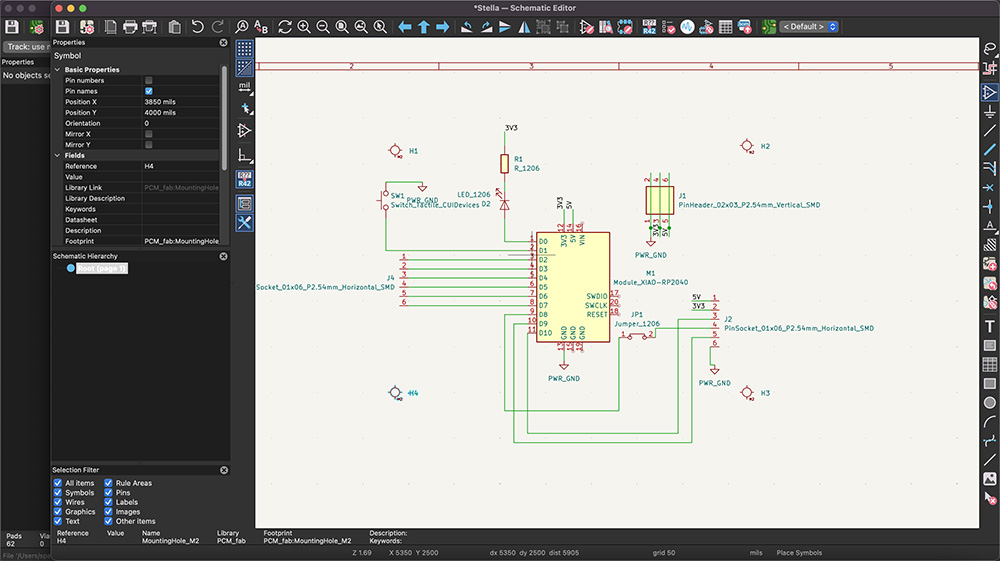
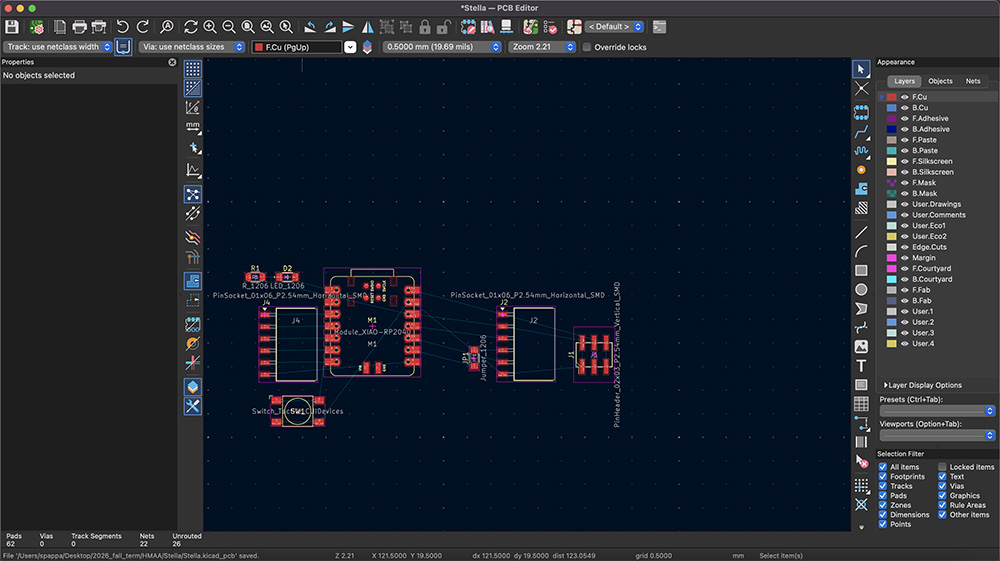
Once I had that board, I decided to work on something a bit more complicated that would help me test some of the electronics and connections for my final project.
I discussed the basic functionality with Anthony this week. I haven’t decided on the interface and interactions yet, but we discussed two main ideas for how the connectors could work:
1. Magnetic recognition. The connectors recognize the presence and direction of magnets, so each connector has multiple magnets (2 parts, 4 magnets), and which way they point identifies the part. One body part has electronics; every other piece is passive. To explore this option, I wanted to test a hall effect sensor.
2. A microcontroller in each fish. Two wires pass electricity between pieces, possibly through pogo pins. The pieces plug into a base that handles bulk energy storage and communication. To explore this option, I added an addressable LED to the original board.
-
2. The Plan
For this board, I kept everything from the tutorial board and added two new parts on top: a WS2812 addressable LED and a TMAG5273 hall effect sensor, which reads a magnet’s field in three directions. The button, the status LED and the headers all keep working exactly as before, so the board stays usable while I test the new parts.
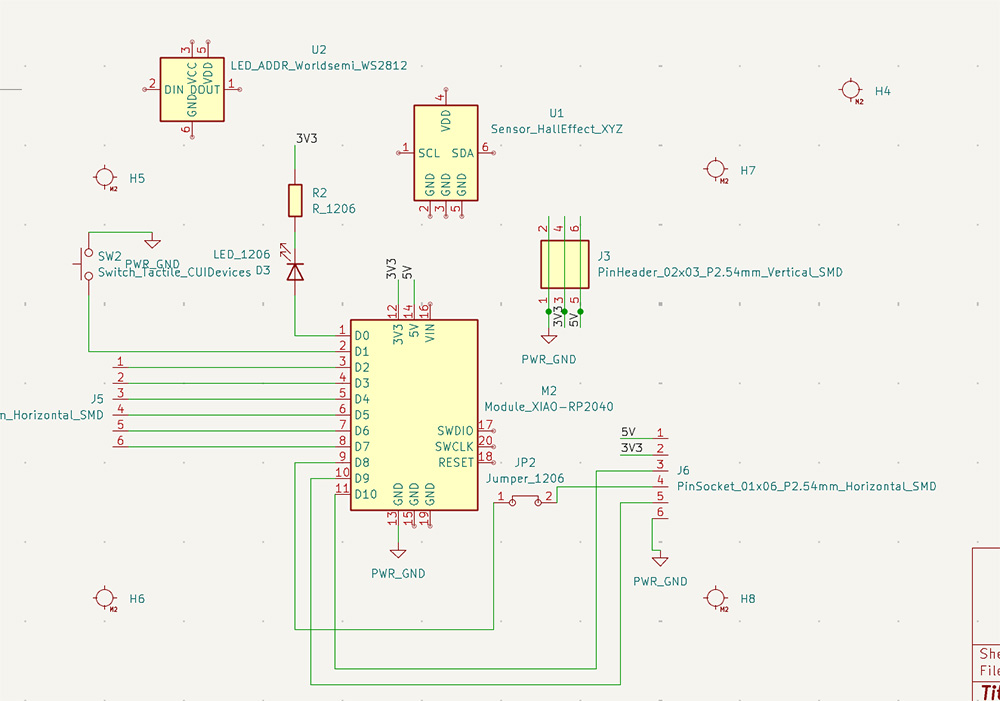
The hall sensor is the first step toward the magnetic connector idea: if each fish part carries magnets, the sensor can tell from their polarity, strength and position which part is plugged in. The addressable LED is my first step toward the second idea.
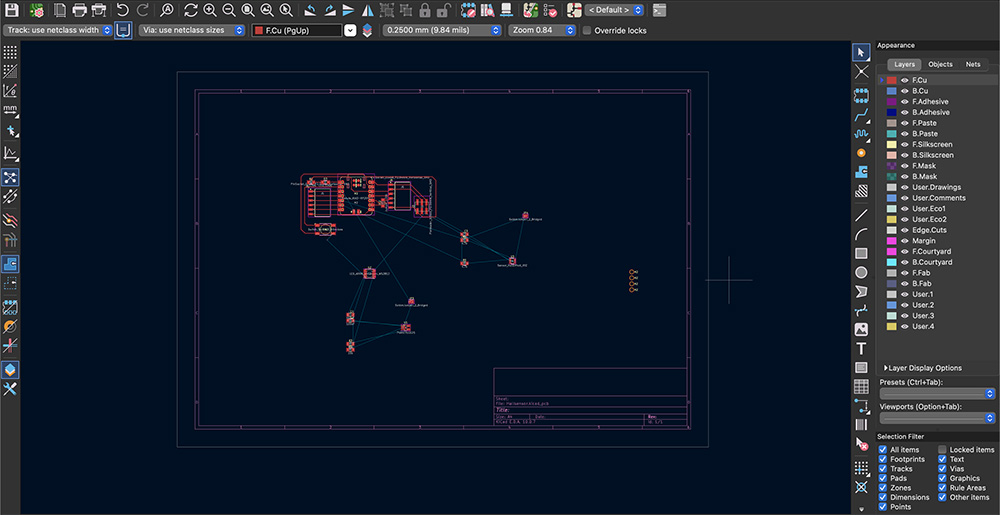
The process went roughly in four steps: choosing the parts and pins, editing the schematic in KiCad, laying out the PCB, and checking everything with KiCad’s rule checkers before ordering.
-
3. Starting Point and the Pin Problem
The tutorial board already worked: a button on D1 that pulls the pin to ground, a status LED on D0 that turns on when the pin goes low, a 2×3 power header (J3), and two 6-pin headers that break out the rest of the pins, J5 for D2–D7 and J6 for D8–D10 along with 5V, 3.3V and ground.
The first problem I ran into was that every one of the XIAO’s 11 GPIO pins was already in use, so there was no free pin for the new parts. Since I don’t know yet what J5 will be used for, I didn’t want to remove it either. Instead, I decided to share three of J5’s pins with the new parts and add solder jumpers that can be cut, so that if J5 ever needs those pins back, the new parts can be disconnected completely.
-
4. Addressable LED
For the addressable LED, I used a single WS2812 (U2). At first I planned for a chain of five, but for this iteration one is enough to test the idea, and more can be added later by connecting each LED’s data output to the next one’s input.
Logic Level
The main issue with the WS2812 is a voltage mismatch. It runs on 5V, and at 5V it expects a data signal of at least about 3.5V, but the XIAO’s pins only output 3.3V. It often works anyway, but it is out of spec and can flicker. I considered three options: driving it directly, lowering the LED’s supply through a diode, or adding a small buffer chip. I went with the buffer, a 74AHCT1G125 (U1), because it gives a clean 5V signal and keeps working if I add more LEDs later, whereas the diode would have to carry the current of every LED in the chain. Based on its documentation, it is important to order the AHCT version, since the T means its input accepts 3.3V as a high signal, and the very similar 74AHC1G125 would not solve the problem.
Choosing the Data Pin
The data pin moved a few times: it started on D2, then moved to D6, and finally to D7. D7 is the bottom pin on the XIAO’s right side, the same side as the 5V pin, so both the data and the power traces can run down to the LED without crossing anything. D6 and D7 are normally the XIAO’s serial (UART) pins, but the RP2040 can move that function to D2 and D3, so nothing is really lost.
How It Is Connected
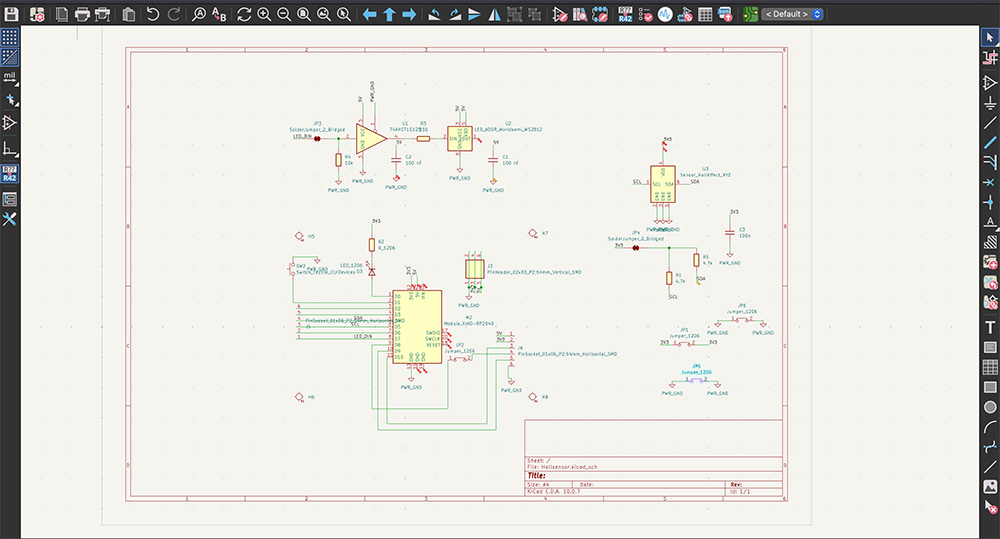
The signal goes from D7 through a solder jumper (JP3), into the buffer, through a 330 Ω resistor (R3), and into the LED’s data input. A 10 kΩ resistor (R4) holds the buffer’s input low whenever the pin isn’t driving it, for example while the XIAO is booting, so the LED doesn’t flash random colors. Both chips are powered from 5V, and each has a 100 nF capacitor right next to it (C1 for the LED, C2 for the buffer) to keep its power steady.
-
5. Hall Effect Sensor

For the hall effect sensor, I compared the three sensors available in my KiCad library. The A1324 was the first to go, because it needs 5V and its output can reach 5V, which is too high for the XIAO’s analog pins. The AH49EN was the simplest option: a single-axis analog sensor that runs on 3.3V and only needs one capacitor. However, it can only sense which pole of the magnet faces it and roughly how strong it is, which gives about 3–4 different fish parts, and each sensor would need its own analog pin, of which I only had one left.
I chose the TMAG5273, a 3-axis sensor that communicates over I2C. Because it reads the field in X, Y and Z, it can tell not only the polarity and strength of a magnet but also where it sits, which gives roughly 4–6 distinguishable parts per connector. It also scales better: all the sensors share the same two wires, and the chip comes in four versions with different addresses, so up to four connectors can be added without using more pins. The trade-off is more work on the firmware side, although SparkFun’s Arduino library handles most of it.
I also looked at electrical ways of identifying parts, like a resistor with a different value in each part or a small ID chip, which can tell many more parts apart. Both need electrical contacts, though, so for the passive magnetic option the hall sensor made more sense.
How It Is Connected
The sensor uses D4 for data (SDA) and D5 for the clock (SCL), which are the XIAO’s default I2C pins. Both stay connected to J5, which turns two of its pins into a connection point for more I2C sensors in the future. The sensor runs on 3.3V, not 5V, with a 100 nF capacitor (C3) right next to it. I2C also needs pull-up resistors, so I added two 4.7 kΩ resistors (R1 and R5) fed from 3.3V through another solder jumper (JP4), which can be cut if J5 ever needs those pins as regular inputs or outputs.
One detail I only found in the datasheet is that pin 5, which the KiCad symbol connects to ground, is actually the sensor’s interrupt pin. Grounding it is allowed, but the firmware has to set a bit (
MASK_INTB) to tell the chip, so this is something to remember when I write the code. The part I will order is the TMAG5273A1QDBVR, the default-address version with the measuring range suited to small magnets. -
6. Schematic in KiCad
To add the new parts without redrawing the original schematic, I connected them with net labels instead of wires. In KiCad, any two points with the same label name are connected, so I only had to put a label such as
LED_DIN,SDAorSCLon the existing XIAO wires and the same label on the new parts.This part of the process had a few issues. The first was ground: I initially used text labels named
PWR_GNDfor the new parts, but KiCad treats those as a separate net from thePWR_GNDpower symbol, so the new parts weren’t actually connected to the XIAO’s ground. Replacing them with the triangle power symbol fixed it. The second was that the buffer and one of the jumpers didn’t show up on the PCB, because their symbols didn’t have a footprint assigned yet.The most confusing problem was that at some point the schematic file turned out to be an older version, missing the new parts, while the PCB still had them. Updating the PCB from the schematic didn’t delete those parts, because the option to delete footprints without symbols was turned off, so the layout was safe. To recover, I added the symbols again with the same reference names.
-
7. PCB Layout
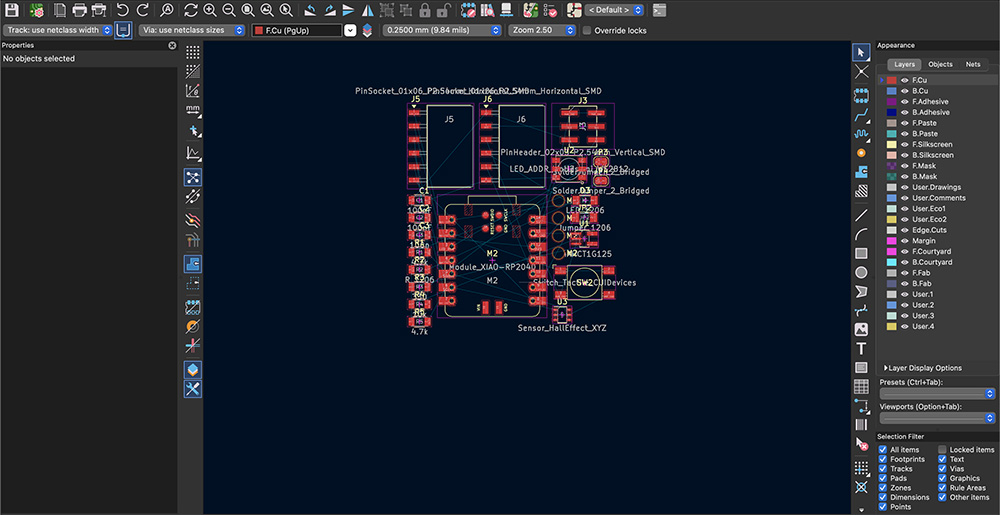
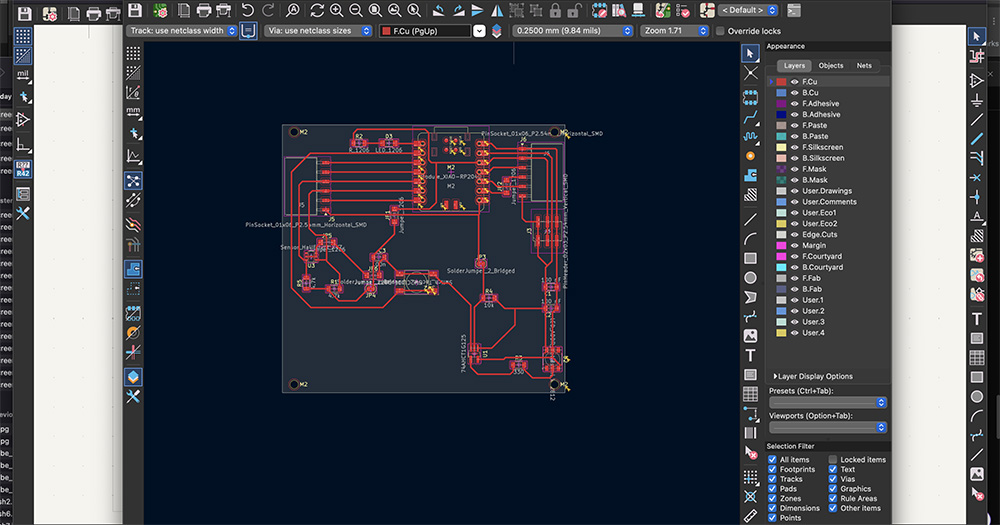
I placed the parts by hand in groups. A helpful trick that I used is to select a group of parts in the schematic, switch to the PCB, and press P, which packs them together so they can be moved as one block.
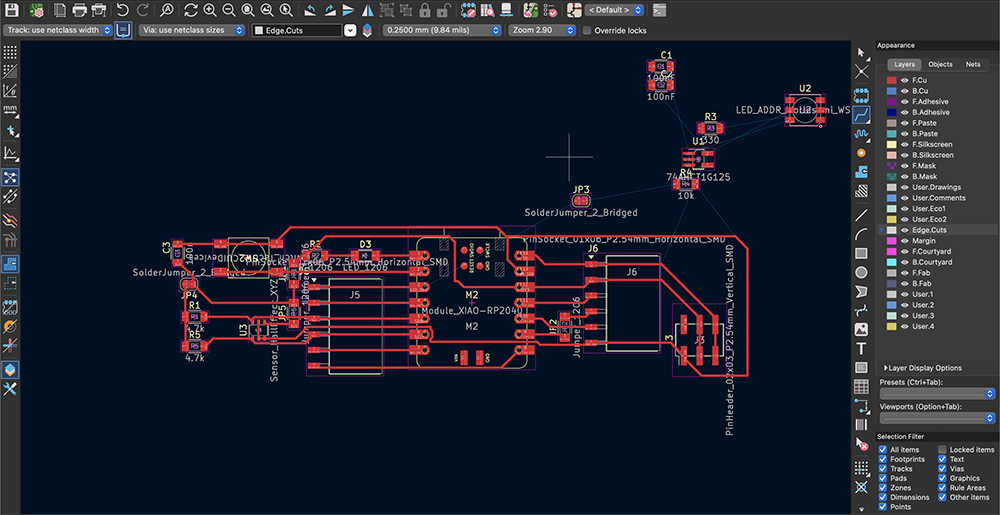
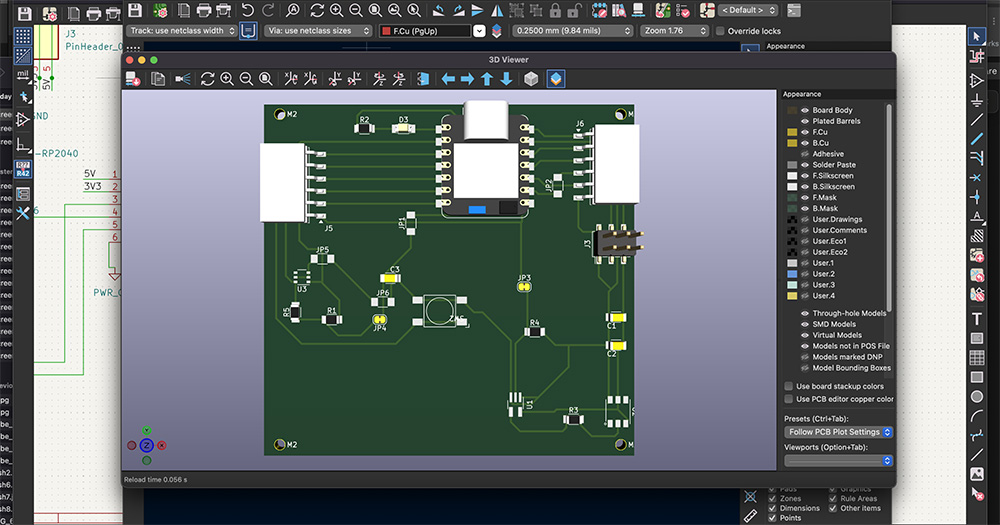
The XIAO sits at the edge of the board with its USB-C port facing out, so a cable can still be plugged in once the board is inside something. The LED group sits below the XIAO, toward the right, close to D7 and the 5V pin. The hall sensor sits in the bottom-left area, away from the USB-C connector, since its metal shell is magnetic and can bend the field the sensor is trying to read. For the same reason, any screws near the sensor should be nylon or brass. Each capacitor sits right next to the chip it supports.
Connectors
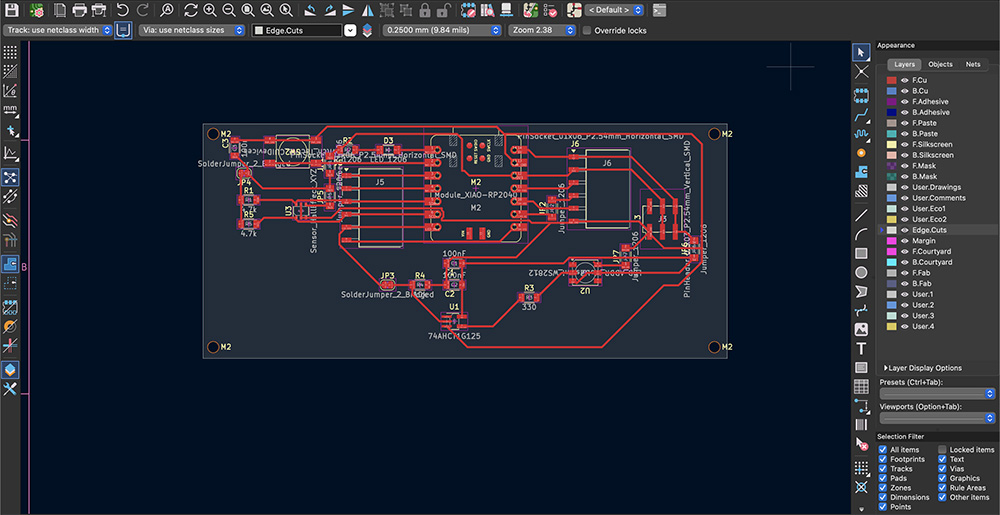
When I checked the board in the 3D viewer, I noticed that J5 and J6, which are horizontal headers, had their pins pointing toward the XIAO instead of off the edge of the board, so nothing could actually be plugged into them. I had to rotate them 180° and move them to the edge.
Routing
The power traces (5V and 3.3V) are about 0.5mm wide and the signal traces 0.25mm. Where two traces had to cross, I either moved one to the bottom layer with a via at each end, or used a 0 Ω resistor as a small bridge over the other trace. I added three of these jumper resistors directly on the PCB: JP1 on the 3.3V line, and JP5 and JP6 on ground. And I also have one more jumper resistor from the original button-LED design.
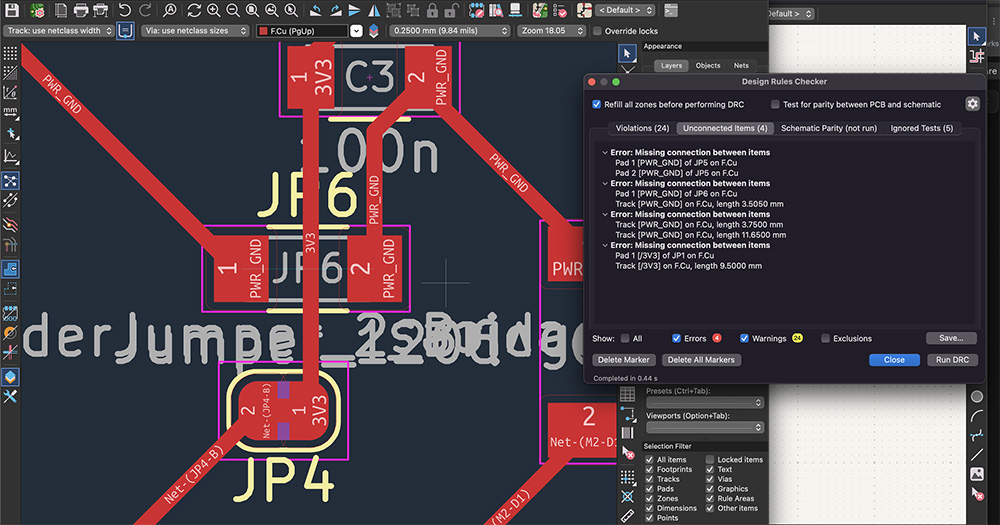
The jumper resistors caused 4 errors in KiCad’s design rule check. KiCad only counts copper as a connection, so it doesn’t know that the resistor connects its two pads once it is soldered. The fix is to mark each footprint as a jumper in its properties, or to exclude those specific errors.
-
8. Checking the Design
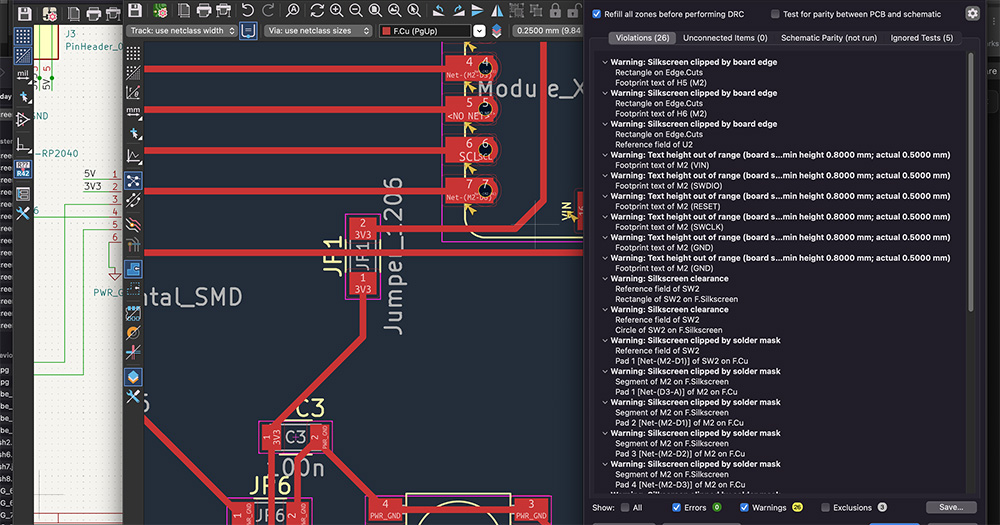
I ran the electrical rules check (ERC), the design rules check (DRC) looks at the PCB and should end with zero violations and zero unconnected items. Finally, the 3D viewer shows whether any parts collide and which way the connectors face, which is how I found the header problem earlier.
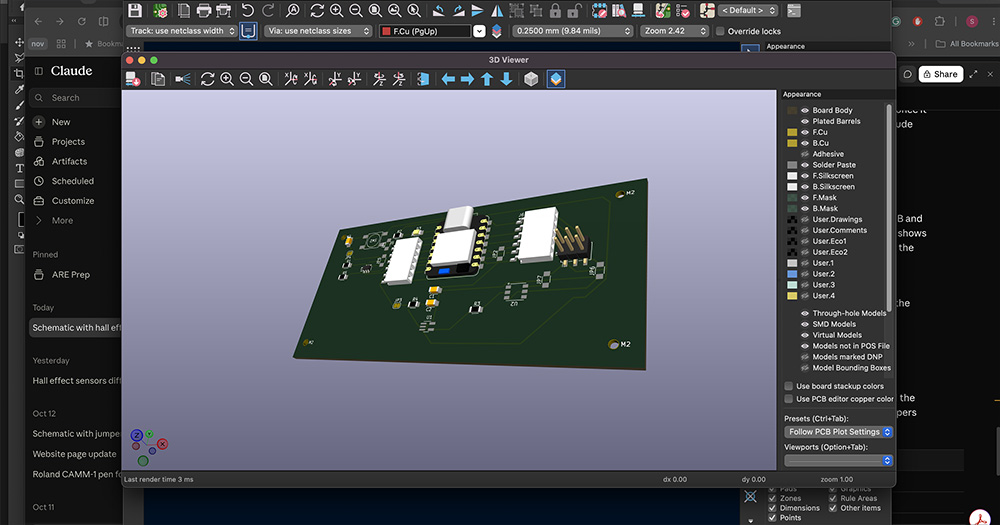
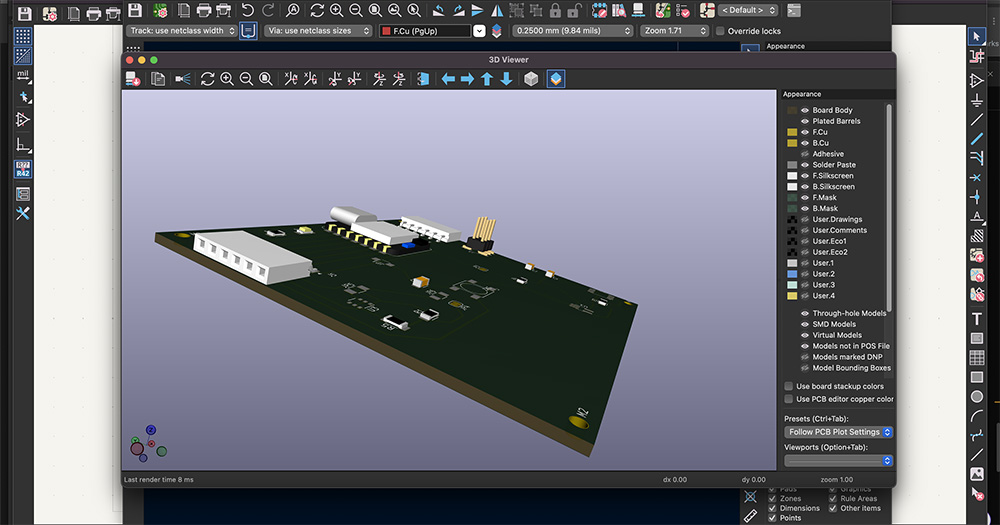
The last DRC run showed 4 errors, all caused by the PCB-only jumpers. The rest of the warnings are related to the silkscreen, so not important at the moment.
-
9. Bill of Materials
The list below includes both the parts from the tutorial board and the new ones. All the passive parts are 1206 size, which is large enough to solder by hand. The solder jumpers JP3 and JP4 are only copper on the board, so there is nothing to order for them.
Ref Part Footprint Purpose M2 Seeed XIAO RP2040 Module_XIAO-RP2040 Microcontroller SW2 Tactile switch (CUI Devices) Switch_Tactile_CUIDevices Button on D1 D3 LED LED_1206 Status LED on D0 R2 Resistor (value from the tutorial board) R_1206 Current limit for D3 JP2 0 Ω jumper Jumper_1206 Connects D8 to J6 J3 2×3 pin header PinHeader_02x03_P2.54mm_Vertical_SMD Power breakout J5 1×6 pin header Horizontal SMD (vertical SMD if changed) D2–D7 breakout J6 1×6 pin socket PinSocket_01x06_P2.54mm_Horizontal_SMD (vertical SMD if changed) 5V, 3.3V, D8–D10, ground H4–H8 Mounting holes M2 Mounting U2 WS2812 LED_ADDR (6-pin) Addressable LED U1 SN74AHCT1G125DBVR SOT-23-5 3.3V to 5V data buffer R3 330 Ω R_1206 LED data series resistor R4 10 kΩ R_1206 Buffer input pull-down C1, C2 100 nF C_1206 Decoupling for U2 and U1 JP3 Solder jumper, bridged SolderJumper-2 Bridged RoundedPad Disconnects LED data from D7 U3 TMAG5273A1QDBVR SOT-23-6 3-axis hall sensor R1, R5 4.7 kΩ R_1206 I2C pull-ups C3 100 nF C_1206 Decoupling for U3 JP4 Solder jumper, bridged SolderJumper-2 Bridged RoundedPad Disconnects the pull-ups JP1, JP5, JP6 0 Ω R_1206 PCB-only jumpers (not in the schematic) -
AI Usage
Identifying AI usage
I used Claude (Anthropic’s AI assistant, model Claude Opus 5.5) to build the HTML for this page from my text. I designed the board in KiCad and took the screenshots and photos myself.
How AI was used
I used Claude in VS Code to build the page template. For this page, I gave Claude my text and image file names, and it laid out the page and the bill of materials table.