5. Making the Test Board
-
1. Overview
This week I updated the schematic from last week’s electronics design assignment and fabricated two boards, one on the Othermill and one on the xTool F1 Ultra.
The LEDs were straightforward. The hall sensor took a bit of debugging on the first board: in the initial design I hadn’t connected 3V3 of the hall sensor to the board’s power supply.
Both boards work: they read X, Y and Z magnetic field values, and I have a test sketch that checks the status LED, the five LEDs, the button and the hall sensor.
-
2. Design Changes
Removing the Buffer
Last week I added a 74AHCT1G125 buffer to raise the XIAO’s 3.3V data signal to the 5V the addressable LEDs expect. After Anthony’s feedback I removed it and drove the LEDs directly from the XIAO. What I learned is that many WS2812B LEDs read a 3.3V signal without problems, so for a test board the extra chip wasn’t worth it and that I can power the first LED through a 1N4148 diode, which lowers its supply to about 4.3V so it reads 3.3V data reliably, but since I have five LEDs already I decided I might just use the first one for this role if I encounter problems and not add an extra one.
Five LEDs Instead of One
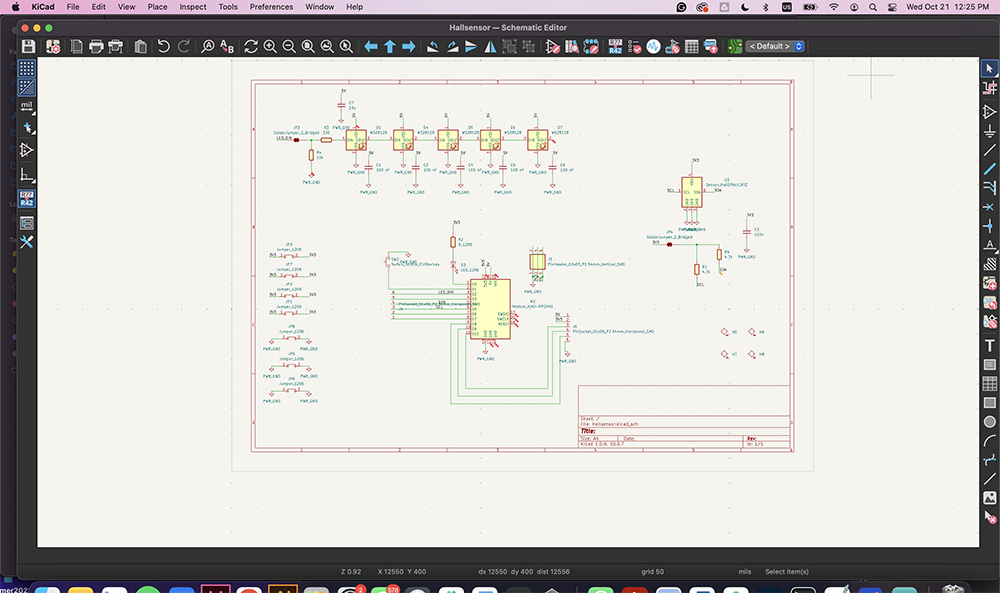
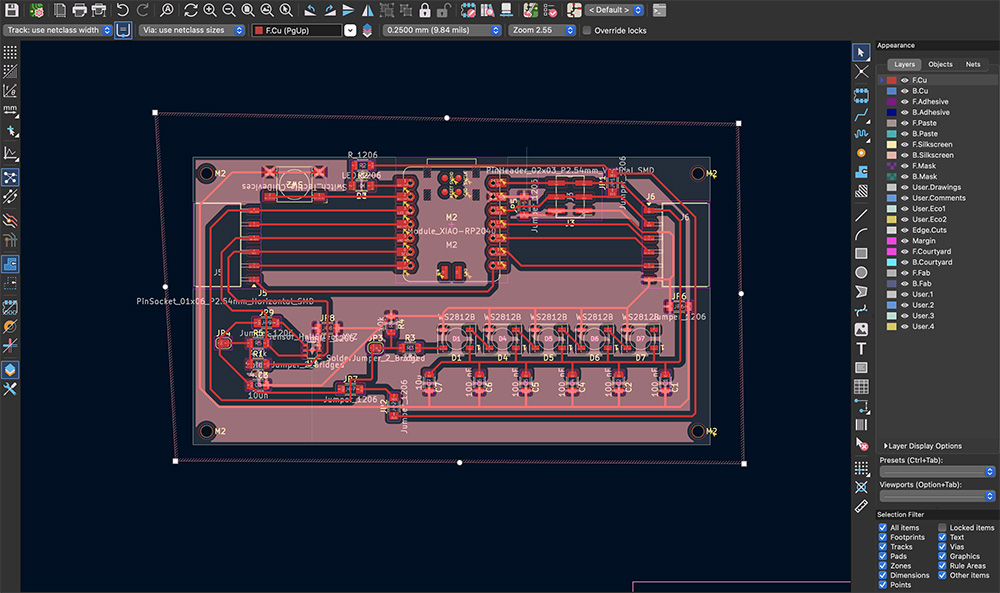
I went from one addressable LED to five WS2812B LEDs chained together. The data goes from D2 through the solder jumper JP3 and a 330 Ω resistor (R3) into the first LED, and each LED passes it on from its data output to the next LED’s data input. All five run on 5V, each with its own 100 nF capacitor between 5V and ground, and the last LED’s data output is left unconnected. The 10 kΩ resistor (R4) still holds the data line low while the XIAO is starting up.
Moving the Data Pin Back to D2
The LED data pin moved a few times over the two weeks, from D2 to D6 and D7, and finally back to D2. D2 also goes to the J5 header, and JP3 can be cut if J5 ever needs that pin back. With D6 and D7 free again, the XIAO’s serial (UART) pins stay available.
Laying Out the LEDs
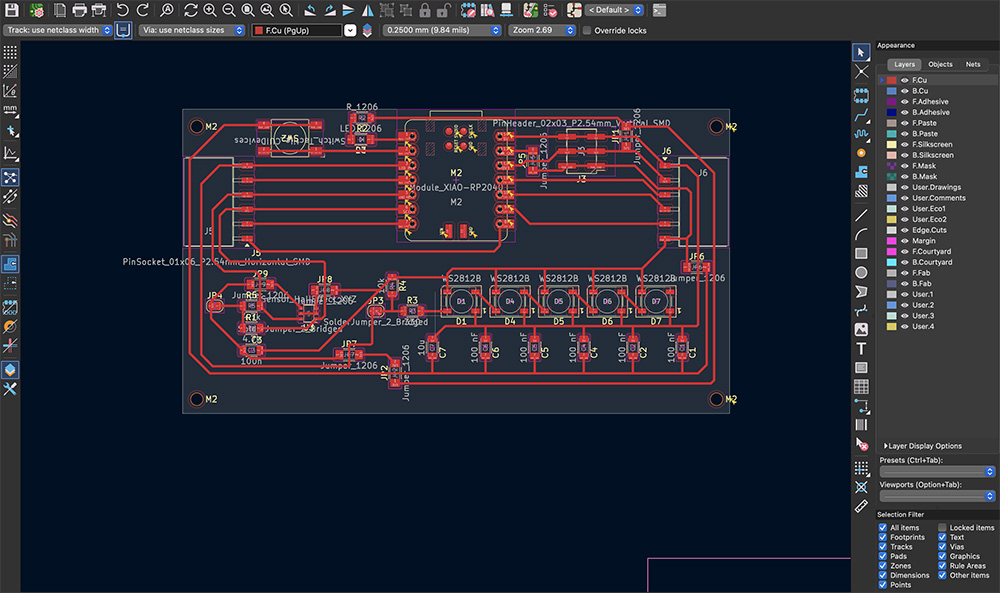
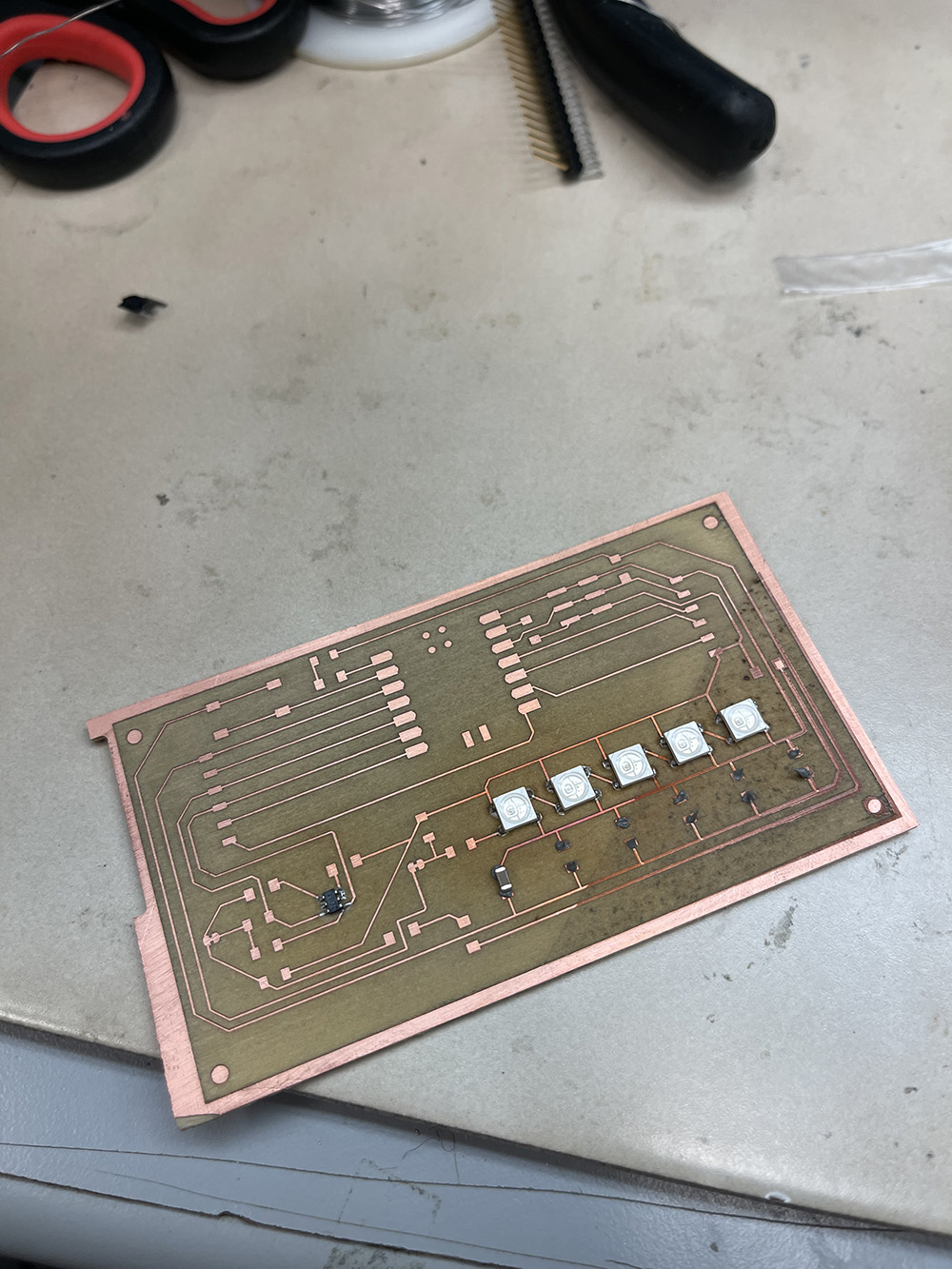
On the PCB, the LEDs sit in a row with the data hopping from one to the next. A 5V trace runs along the row, each capacitor sits right next to its LED between that trace, and JP3, R3 and R4 sit at the start of the row, between D2 and the first LED. The capacitors have to be close to their LEDs, within a few millimeters, because they supply the quick bursts of current the LEDs need when they change color.
-
3. Fabrication
I made two boards from the same design: the first on the Othermill and the second on the xTool F1 Ultra.
First Board: Othermill
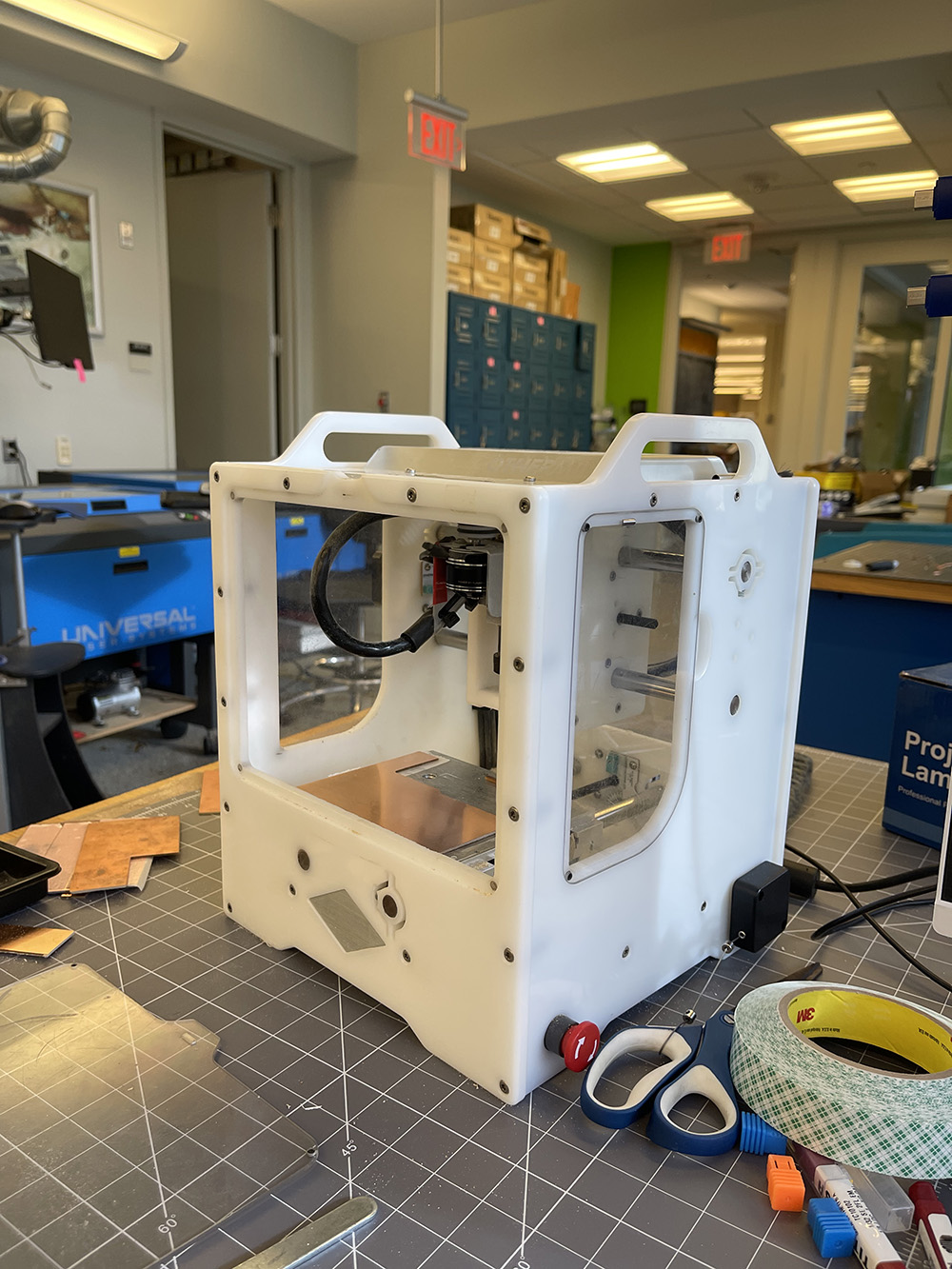
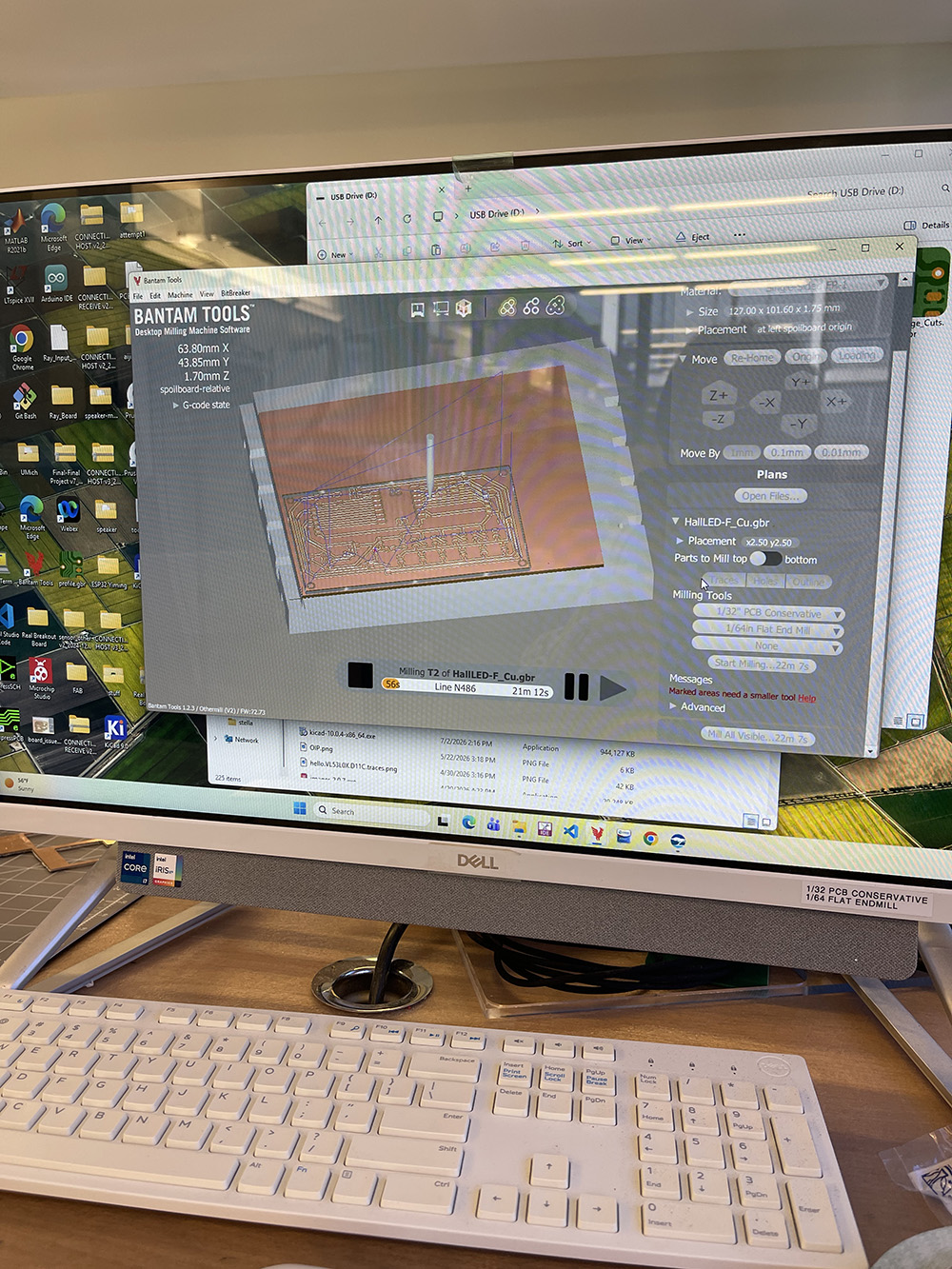
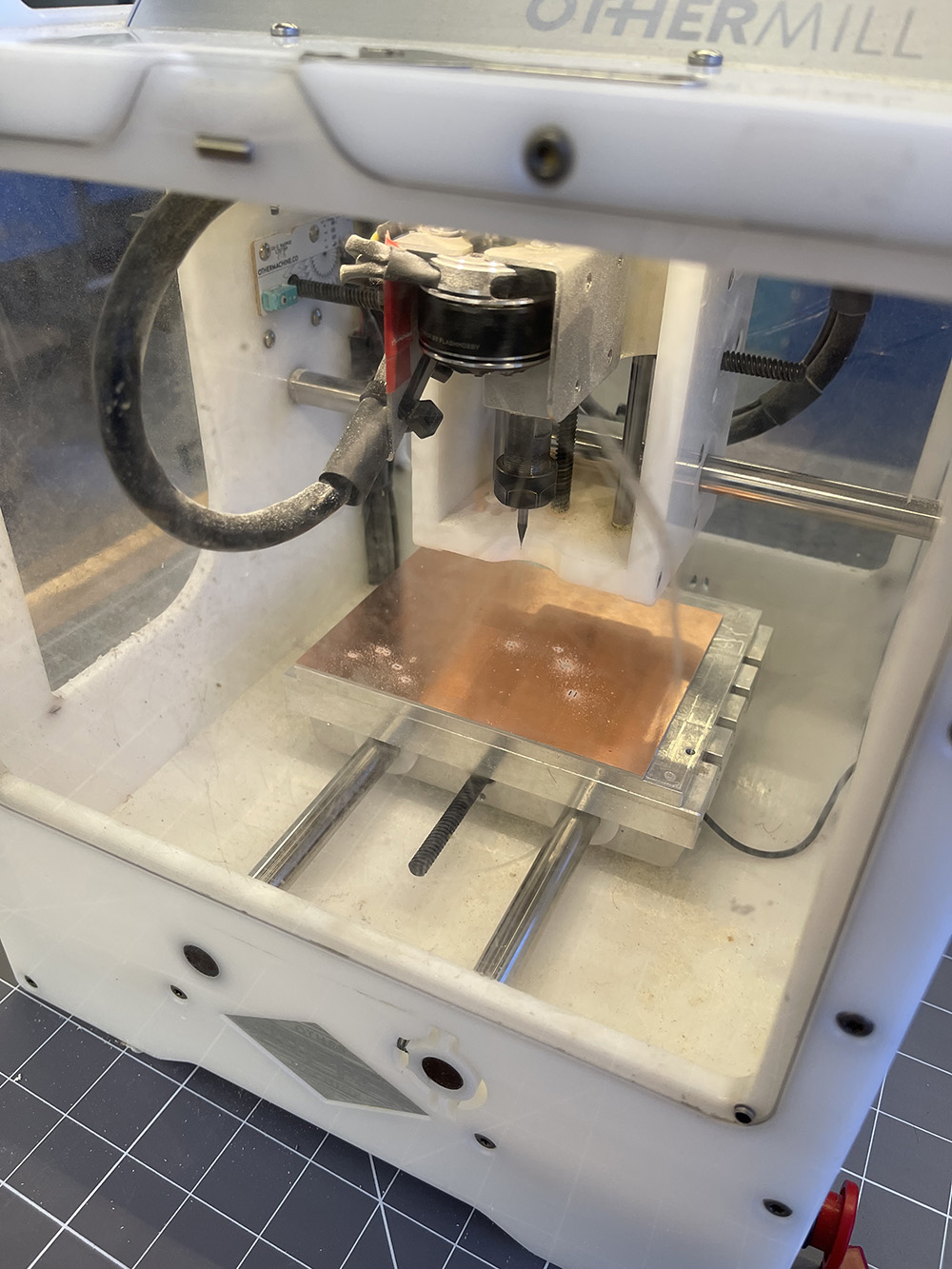
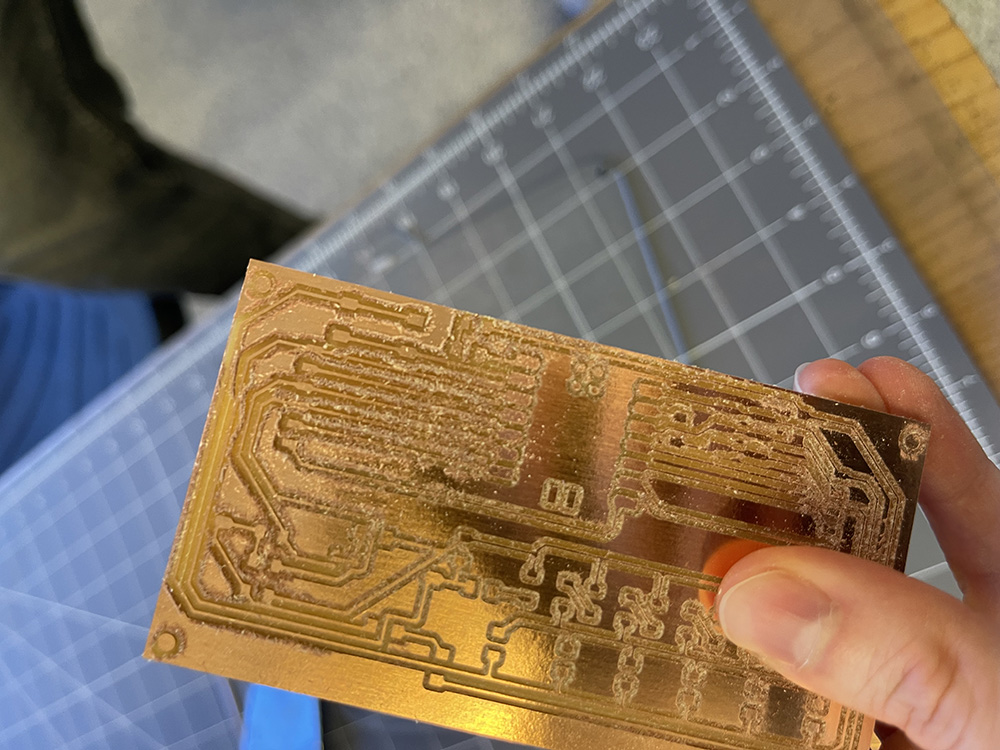
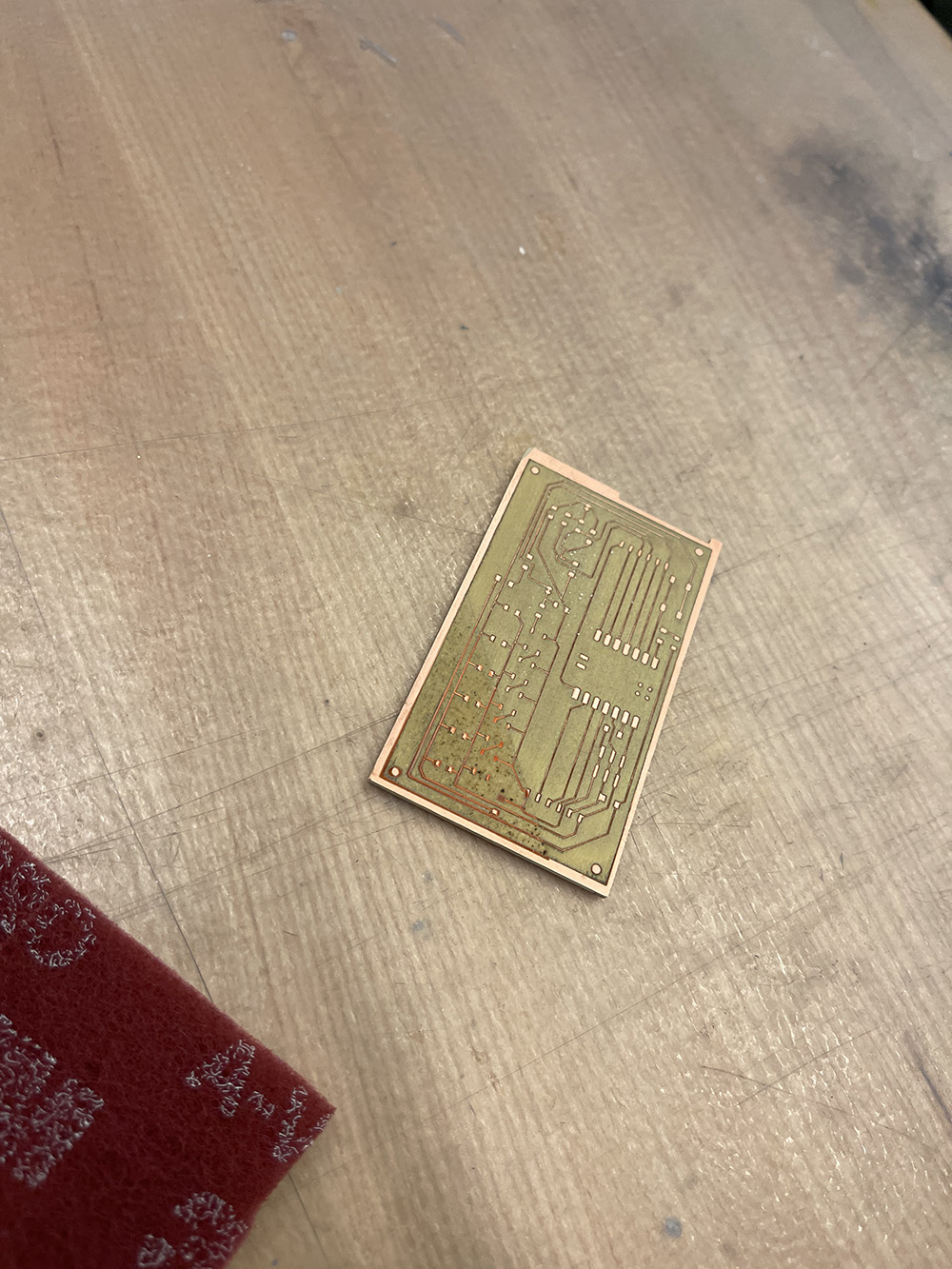
I prepared the job in the Bantam Tools software. The board needed two flat end mills of different sizes, so I used the settings for the 1/32" flat end mill (conservative) and the 1/64" flat end mill. The mill engraved the traces and cut the outline and the holes. Before cutting, I attached the copper board to the machine’s plate with double-sided tape. The whole cut took 15 minutes. Afterwards, I deburred the board by hand with a 3M Scotch-Brite 7447 Pro pad.
Second Board: xTool F1 Ultra
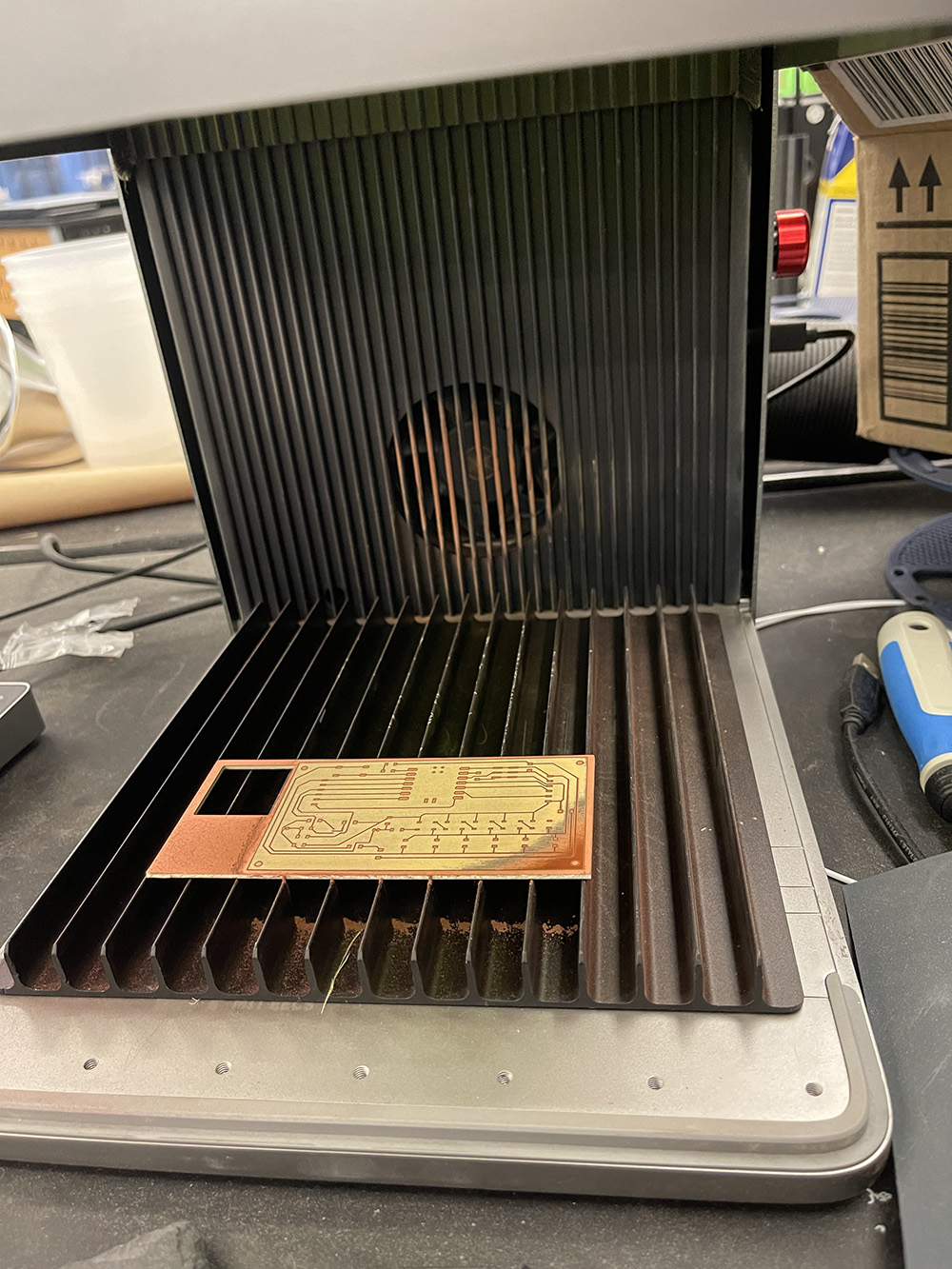
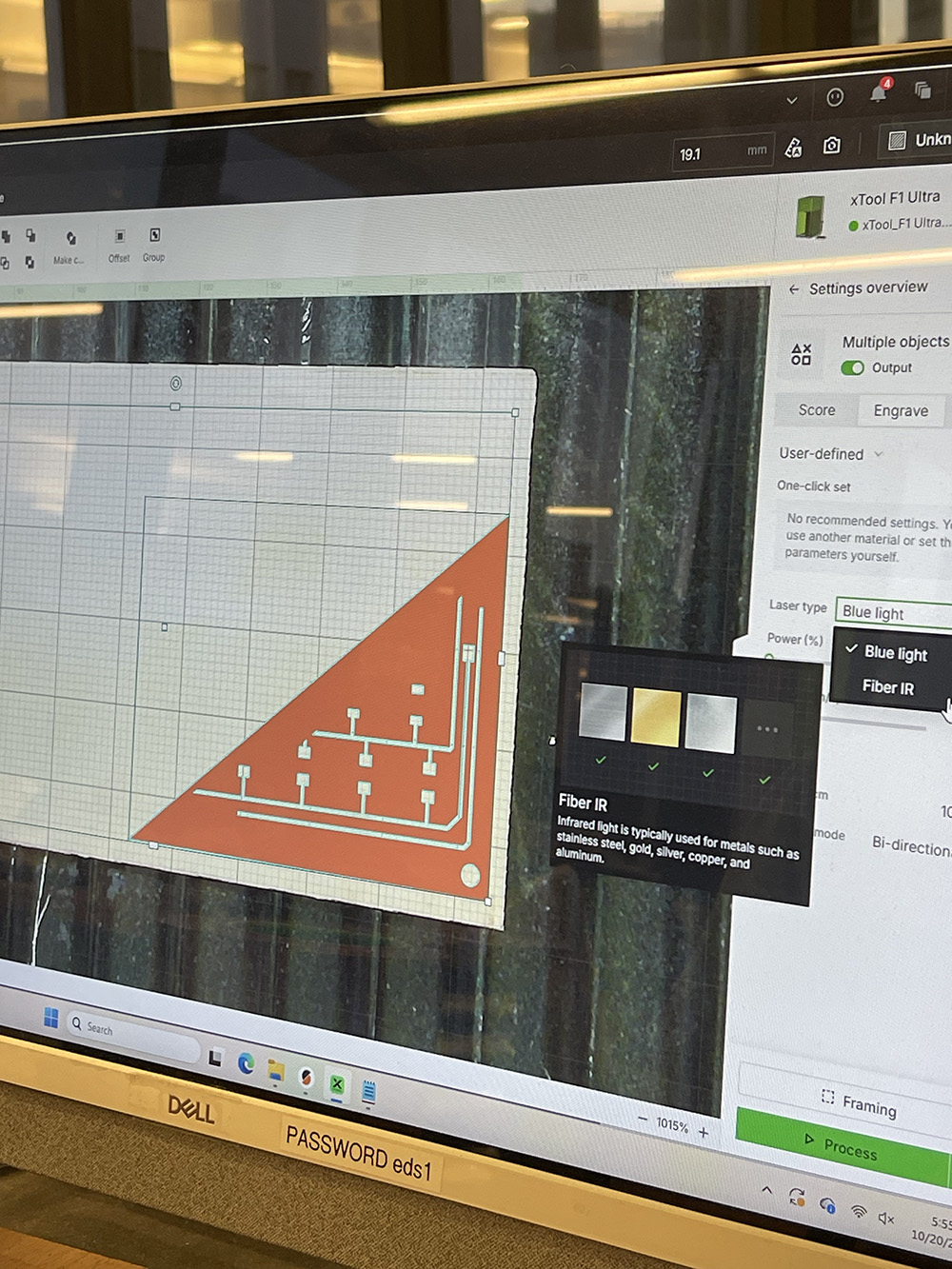
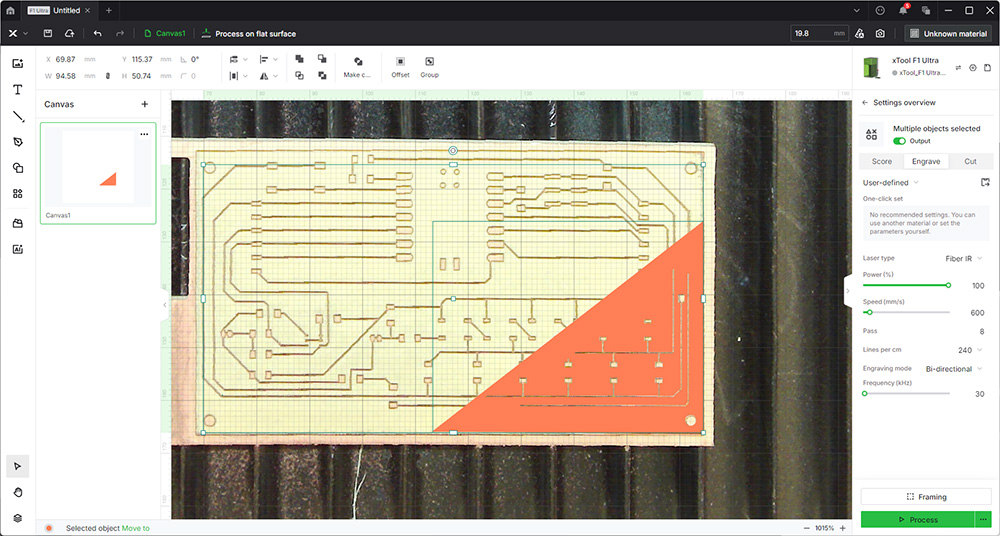
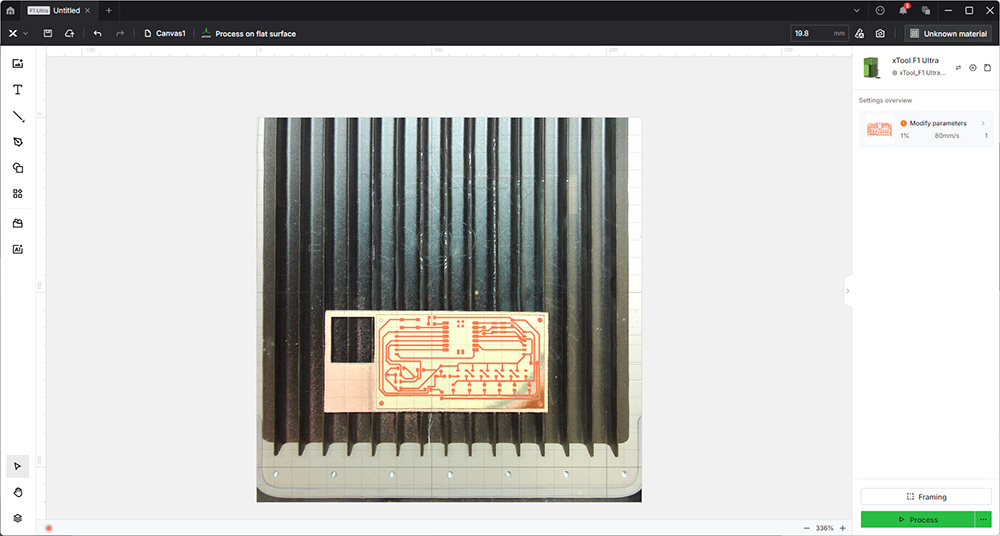
For the second board, I used the xTool F1 Ultra to remove the copper, with these settings: power 100%, speed 600 mm/s, 8 passes and 240 lines/cm. I ran the job twice, and each run took about 30 minutes. The laser can only engrave the copper, not cut through the board, so I cut the outline on a bandsaw. On this board, we also removed all the extra copper around the traces.
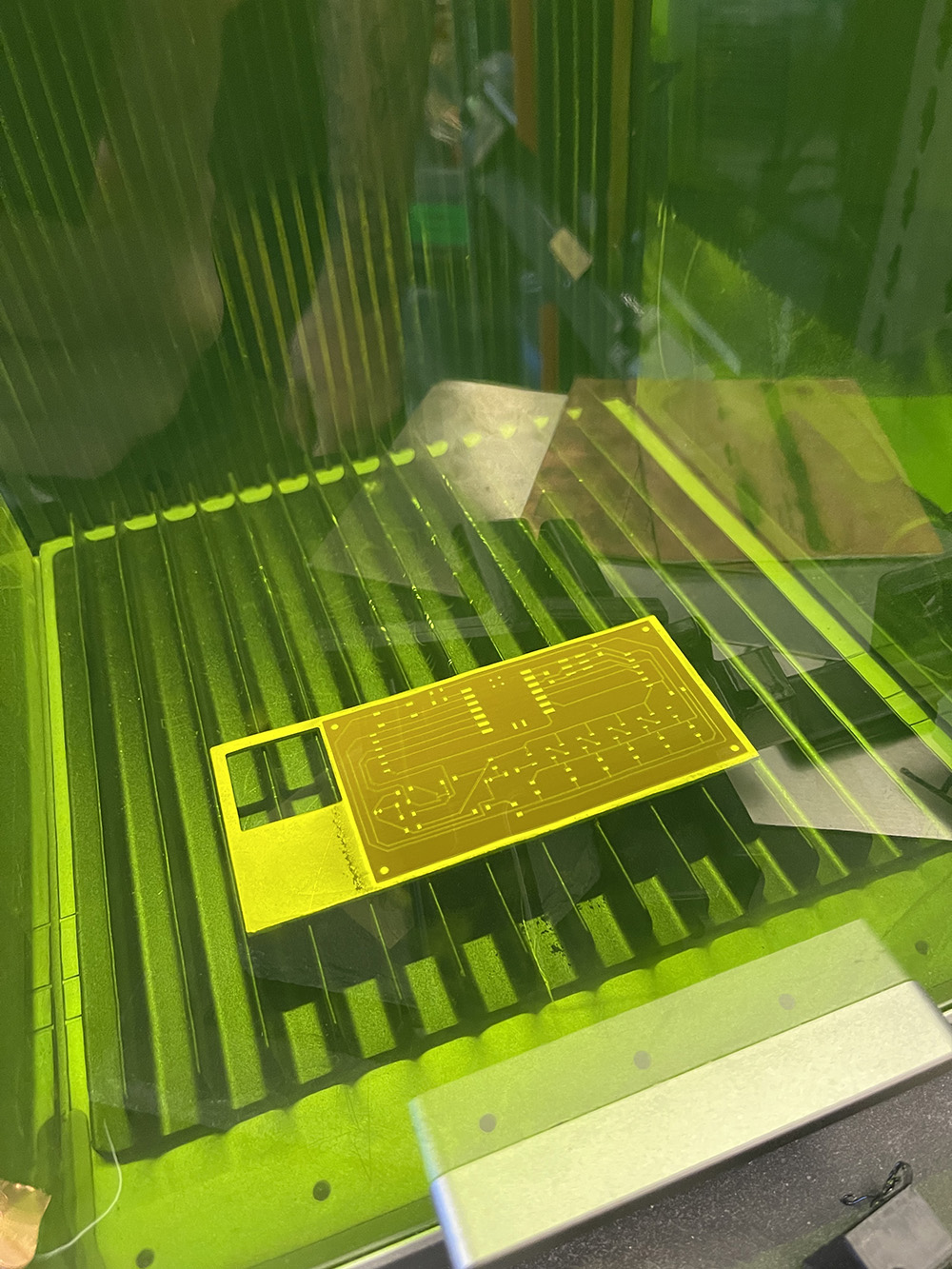
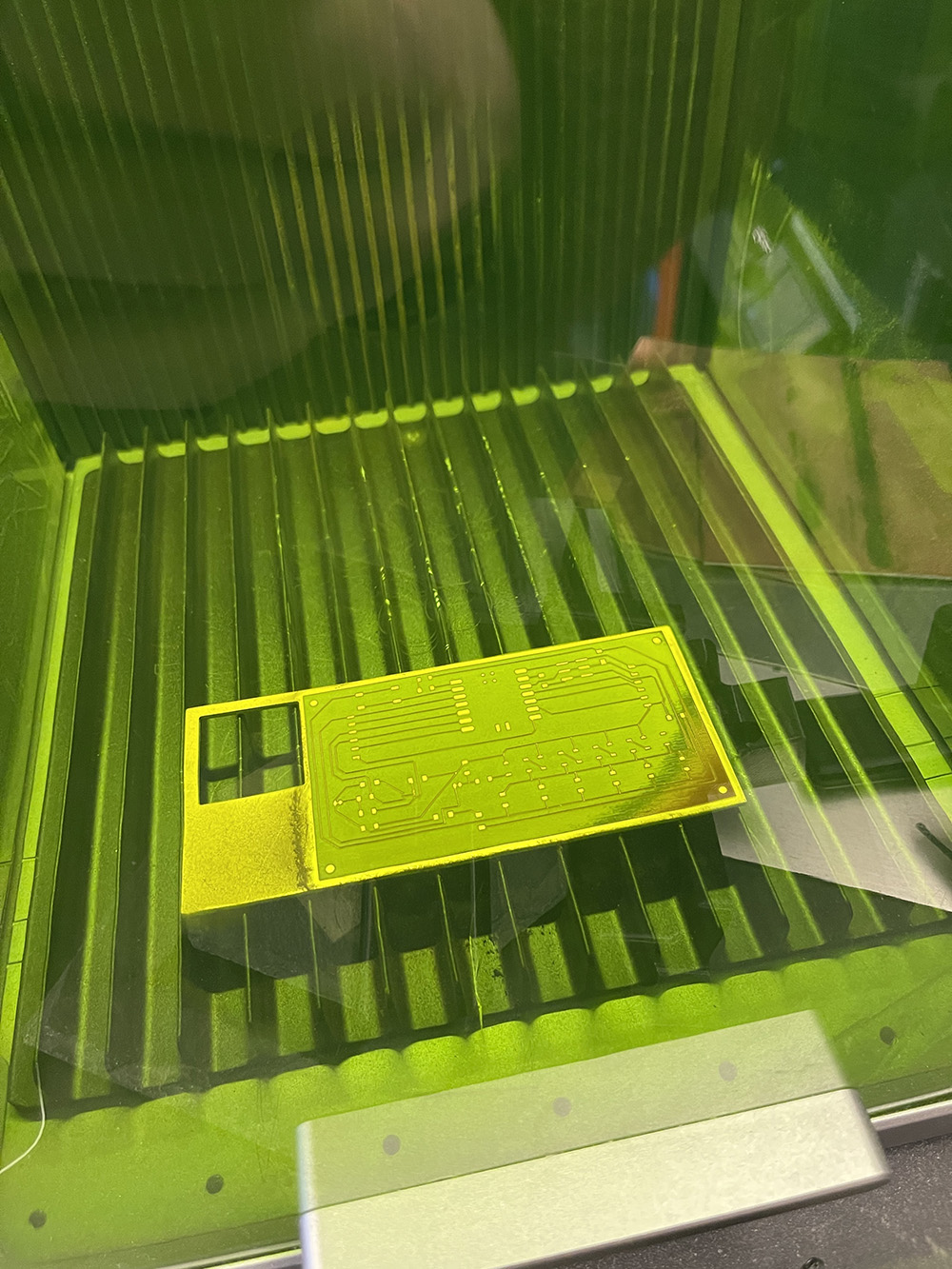
The board was slightly warped in the bottom-right corner, so the copper there wasn’t cleared. Anthony suggested two options: clear that part by hand, or select only the triangle that wasn’t cleared and run the job again there, with the focal point changed by about 0.75 mm. I tried the second option, estimating the distance by eye, and it worked. With the same settings, this extra run took 6 minutes.
Soldering
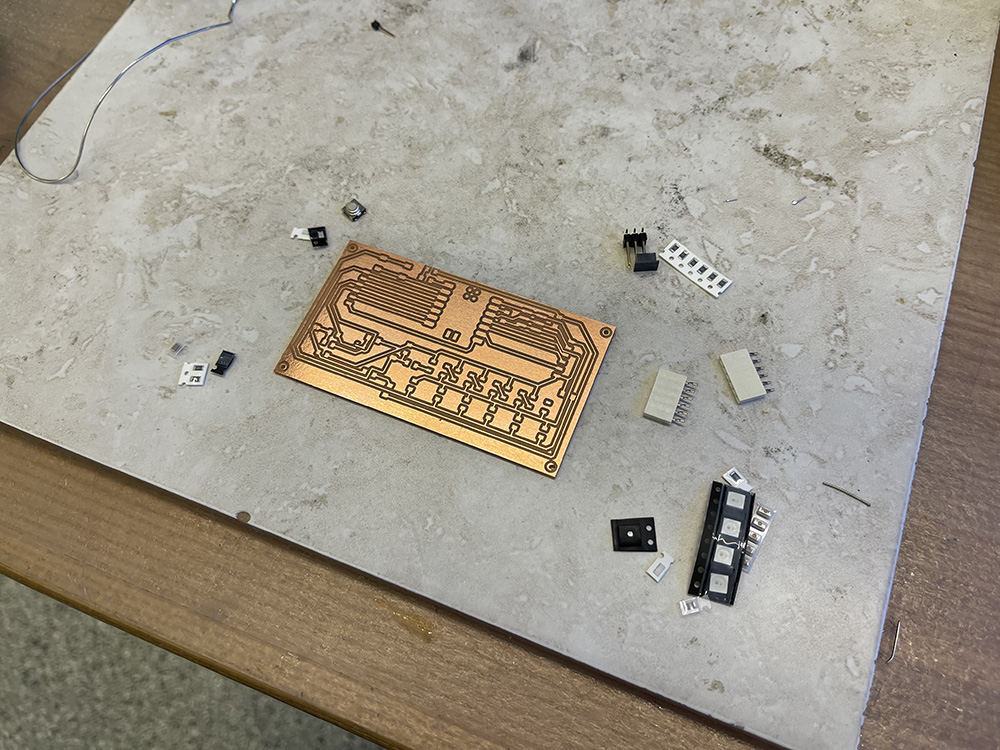
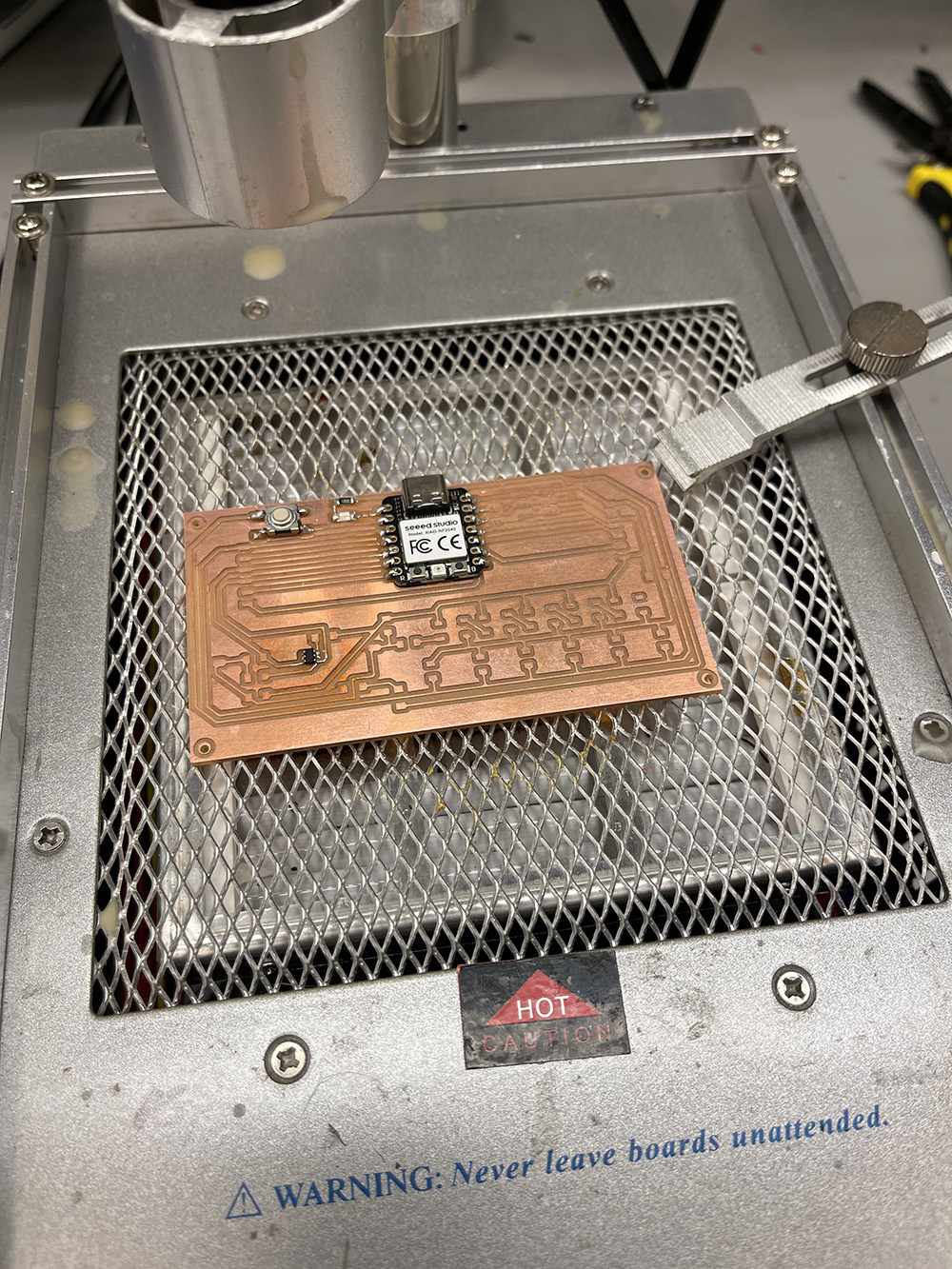
I soldered the hall sensor with solder paste and a hot air gun, and everything else with a soldering iron.
Cases
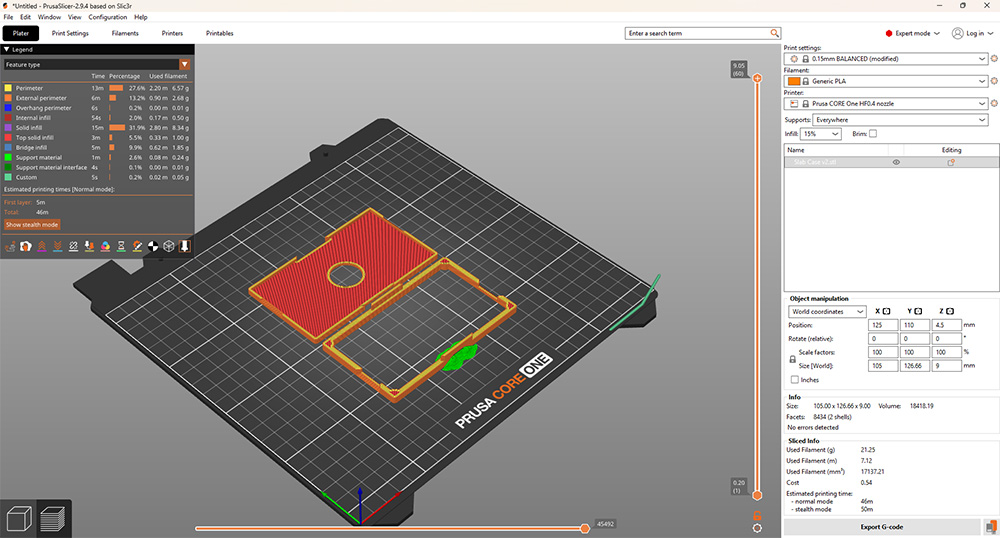
I designed a case for each board and printed both on a Prusa CORE One+ in black PLA.
-
4. First Connection
Before connecting my board to power for the first time, I visually inspected the board and checked with a multimeter for any short circuits.
To program the XIAO, I used the Arduino IDE with the Raspberry Pi Pico/RP2040 board package, and selected Seeed XIAO RP2040 as the board. For the first upload, I held the XIAO’s B (boot) button while plugging it in, so it appeared as a drive called RPI-RP2, then uploaded Arduino’s Blink example. The XIAO’s built-in LED started blinking blue, which confirmed the connection worked. This was the exact same process that we used to connect the QPad.
-
5. Debugging the Hall Sensor
On the first board, the LEDs worked right away, but the hall sensor didn’t show up when I scanned the I2C bus. I checked that the code was using the right pins (D4 for SDA and D5 for SCL) and that both lines were pulled up to 3.3V, and both were fine.
The actual problem was in my schematic. The sensor’s power pin was connected to a power symbol called
PWR_3V3, while the rest of the 3.3V circuit used a label called3V3. KiCad treats different names as different nets, so the sensor’s power pin wasn’t connected to anything, and the PCB had no trace going to it. KiCad’s electrical rules check flags this as “Input Power pin not driven by any Output Power pins”.To fix the first board, I soldered a jumper wire from the sensor’s power pin to 3.3V. After that, the sensor showed up at address 0x35. It still didn’t send readings, though, because my code was written for a different chip.
-
6. Identifying the Sensor
In KiCad, I had used a generic 3-axis hall sensor symbol, and I had written my code for the TI TMAG5273. When I checked the bin the sensor came from, the label read TLE493DA2B6HTSA1CT-ND, which is Digi-Key’s number for the Infineon TLE493D-A2B6.
Luckily, the two chips have the same pinout, the same package size and the same I2C address (0x35), so the board didn’t need any changes, only the code. I switched to Infineon’s Arduino library, XENSIV 3D Magnetic Sensor TLx493D, and the sensor started sending X, Y and Z readings. With no magnet nearby, the readings sit around 0 mT and vary by about 0.1–0.3 mT, which is normal background noise.
-
7. The Second Board
Before making the second board, I fixed the schematic in KiCad by replacing the
PWR_3V3symbol with the same3V3label used everywhere else. That put the sensor’s power pin on the same net as the XIAO’s 3V3 pin, so the PCB now has a trace going to it. The second board, made on the xTool F1 Ultra, didn’t need the jumper wire. -
8. Test Sketches
These are the sketches I use to test the board. They need two Arduino libraries: Adafruit NeoPixel and XENSIV 3D Magnetic Sensor TLx493D.
Sketch What it checks board_test_final.inoThe whole board: the status LED, the five LEDs, the button and the hall sensor; the LEDs light up with the magnet’s strength hall_simple.inoThe hall sensor only: prints X, Y and Z i2c_scan.inoLists every device on the I2C bus -
9. For Next Time
Design the board with a ground pour. This board had no ground pour, so on the xTool F1 Ultra the laser had to remove all the extra copper around the traces. A ground pour fills the empty space with copper connected to ground, so the laser only needs to clear a thin gap around each trace, and every part gets a short connection to ground.
-
AI Usage
Identifying AI usage
Claude (Anthropic’s AI assistant, model Claude Opus 5.5) wrote the Arduino test sketches, and I used Claude to build the HTML for this page from my text. I designed and fabricated the boards, soldered them, debugged the hall sensor, designed the cases, and took the photos and videos myself.
How AI was used
I used Claude in VS Code to build the page template. Claude wrote the three test sketches (
board_test_final.ino,hall_simple.inoandi2c_scan.ino), and I ran them on both boards. For this page, I gave Claude my text and image file names, and it laid out the page and the sketch table.