Abstract
Soldering and programming a microcontroller.
This week’s task was programming the Seeed XIAO RP2040 boards, based on the RP2040 microcontroller. While the RP2040 data sheet is available here, a bit more helpful in terms of understanding and getting started was this compressed guide recommended by Anthony.
Assembling the QPAD-XIAO board
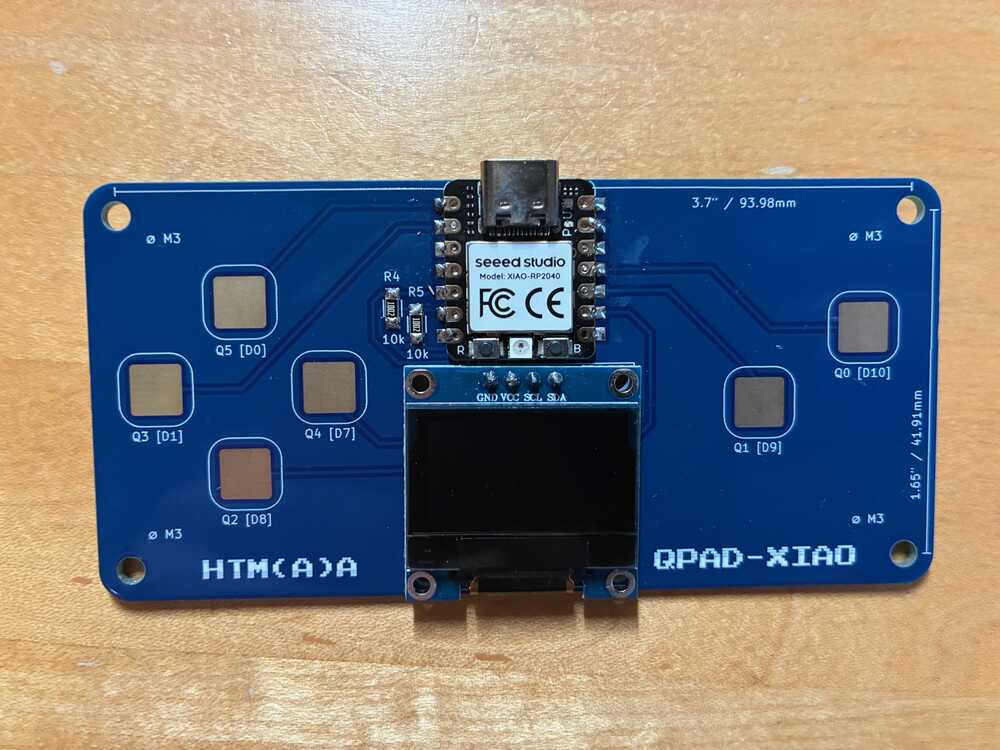
Following Quentin’s tutorial on soldering was straightforward and posed little trouble. After choosing the appropriate 770 F iron temperature for the unleaded solder that was available, the solder flowed nicely and the joints solidified quickly. Figure 1 shows my assembled board: note that, as a slight aesthetic imperfection, I forgot to include the 3D printed supporting jig for the OLED display. When using my board, care must be taken not to press to hard on the display so as not to break the soldered joints.
Looking at the board and understanding it
In the most basic understanding, a microcontroller is a processor that can run programs, with a bunch of pins sticking out of it (called GPIO), used to communicate data to and from the rest of the world.The program written onto the processor is used to either read values from these pins or write them. The XIAO package is a combination of the RP2040 microcontroller with a couple other components such as a USB port, a crystal oscillator giving its clock rate, a step-down voltage regulator from the USB 5V nominal voltage to the 3.3V processor supply voltage, etc. Figure 2 (source) below shows a useful schematic of the pins, including the ground pin, the regulated supply pin, free GPIO pins, the GPIO pins used for controlling the on-package LEDs, etc.
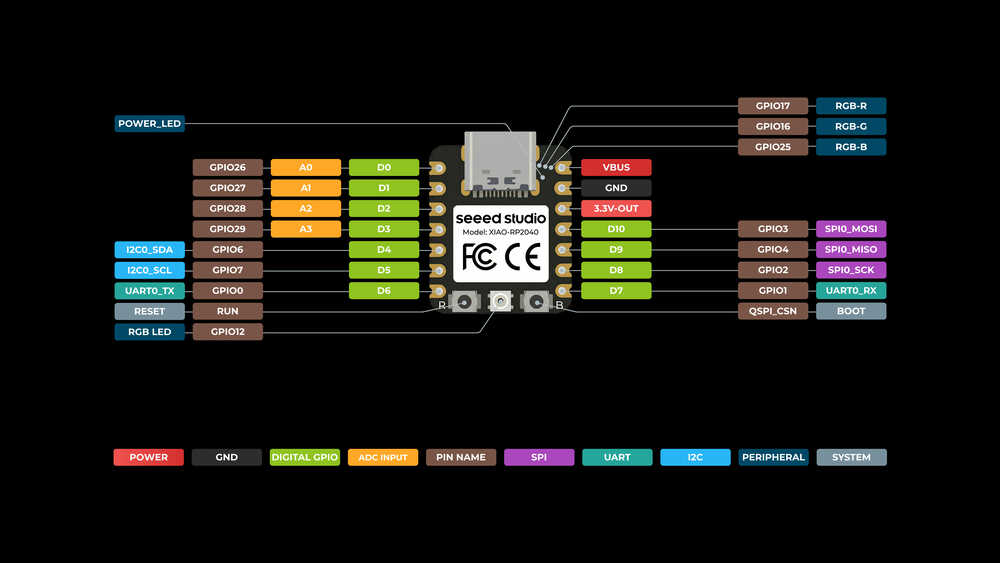
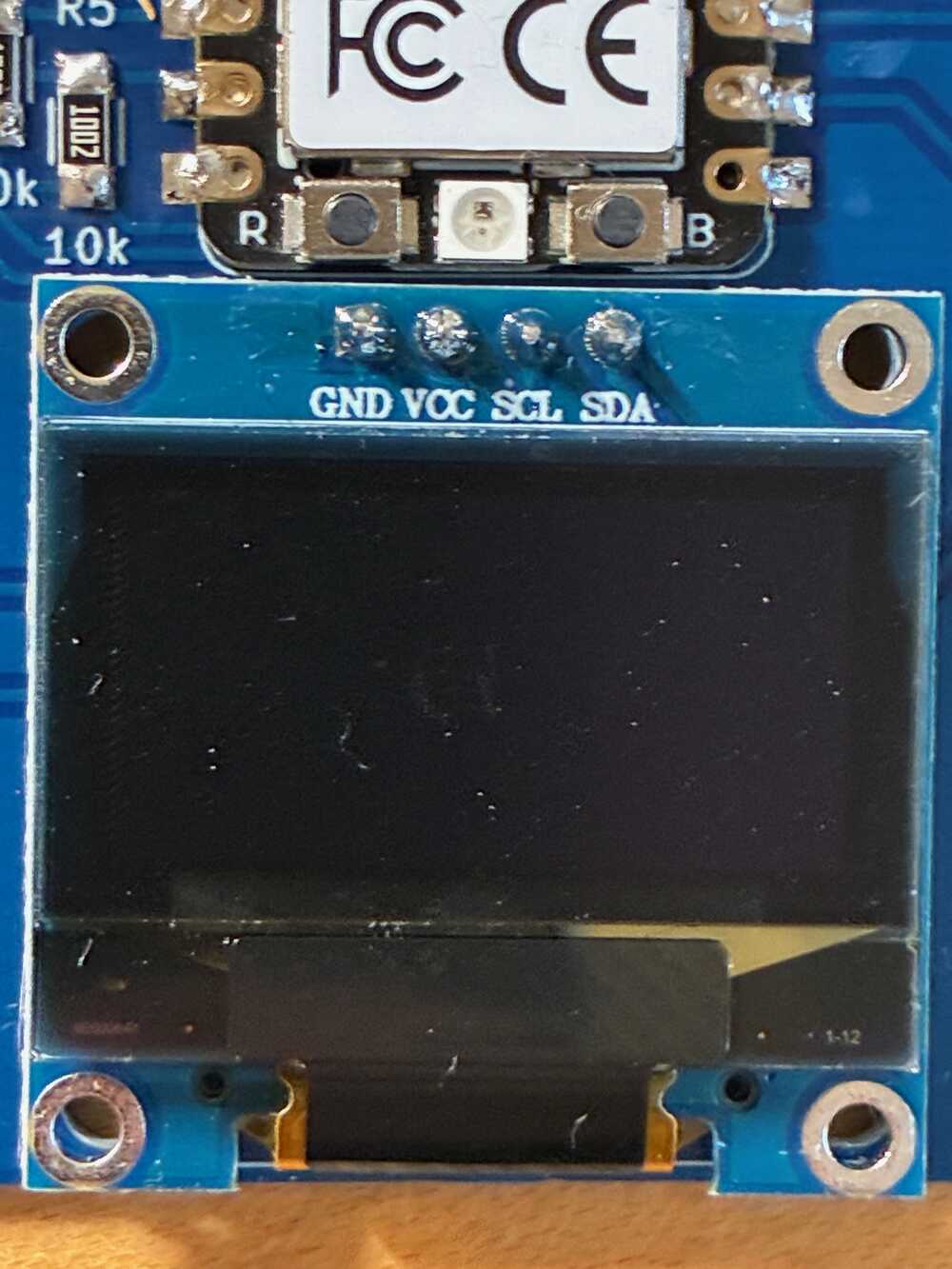
Of particular interest are the GPIO pins 6 and 7, which are also labeled with SDA and SCL respectively. These are the two pins used for communicating with the on-board OLED display. Indeed, if we take a look at the four OLED display, they are labeled with GND, VCC, SCL and SDA respectively. GND and VCC are connected directly to the GND and VCC of the XIAO and are used for providing the voltage reference and the power to the screen respectively. Only the SCL and SDA pins are used for transmitting data, through a protocol called I2C. In this protocol, bits are transmitted one at a time, by driving the SDA (serial data) pin either high or low. The SCL (serial clock) pin is used as a pacer, telling the screen processor when to read a new bit from SDA by switching its state.
Test of the board
Before writing my own code on this board, I wanted to test a few externally-sourced codes on it. On the one hand, I wanted to be sure I assembled the components correctly and that the hardware was behaving as expected. On the other hand, I wanted to use these as an opportunity to walk through the code and map it out to the effects on the hardware.
First, it was instructive to upload and run this code for blinking the LEDs on the XIAO from the HTMAA lesson page. With this, I made sure the XIAO worked correctly and I learned how to send values directly to the different GPIO pins.
Next was working with the OLED display. As Quentin’s demo codes were unavailable at the time when I was working on this, I decided to generate a starting demo code using an LLM. The code generated inside Parley, with model Gemini 3.1 Pro, is available here. This code initializes the display, then listens to the keys pressed on the computer, receives that data through the serial bus and displays it on the OLED. As you can see below, the screen as well as the serial data transmission worked correctly.
Finally, it was time to test out the “buttons” on the board. As explained in the recitation, these are just bare, exposed metal pads electrically in contact with some of the GPIO pins. They essentially behave as capacitor plates, and the moment a finger touches them, they undergo a charge/discharge process. By measuring this charge/discharge time one can decide whether a button is pressed or not. I tested them using the code provided by Quentin in the base QPAD-XIAO repo, which I adapted to include and test all six buttons, here. The LEDs and the buttons worked well. I tried tuning the discharge time and the time step, but it seemed to me that these were the most appropriate values given my reaction speed.
A less fun game
It was now time for me to implement a game on the board. By game, I understand something where I press the buttons and something happens on the screen. Before I delved into a game with more difficult programming, I figured I should try a “game” where the programming for the game is minimal, just to make sure I can properly program the buttons and the display simultaneously.
Here is the “game”: a single, blinking pixel that can be moved around the screen using the buttons on the left (acting as up, down, left and right). By pressing one of the buttons on the right, the currently blinking pixel can be made to stay lit up after passing through it. Once passing through it again, it will automatically turn off (it’s a feature, not a bug…)
The code for this is here. Interaction with the buttons is based on the previous code, as well as the screen initialization.
Snake!
Now being confident that I know how to make the buttons manipulate content on the screen, I figured an actual game would be easy. I decided to program the Snake game. I decided that both the apple as well as the snake would be a single pixel wide. Admittedly, this is a bit hard to see, but I am not sure two pixels width would have made the game as fun.
Keeping the previous code concerning the hardware, I integrated into it a Snake game programmed by Github user ranzuh available here here. Their implementation is in C, which I figured was appropriate for the Arduino IDE, and also, I did not have to deal with the Object-Oriented Programming complexities of C++. The implementation was in ASCII, with S characters denoting the Snake and an A character denoting the Apple. I simply replaced these with pixels, replaced the printing functions with writes to the OLED, and instead of using a while loop inside the main function, the code went directly in the loop() function. There was some difficulty in adjusting the Snake speed and button check rates to make the game feel natural and not laggy, but the current values seem to work correctly.
Finally, I also added a “Game over!” screen. The game can be restarted at any time using the rightmost button.
The code for this is here.