Updated
Week 3: Soldering and Programming an RP2040 OLED Board
I assembled a QPad-XIAO board, programmed its OLED display with a Seeed Studio XIAO RP2040, and used the Q0 touch pad to change the text on screen.
← Back to Home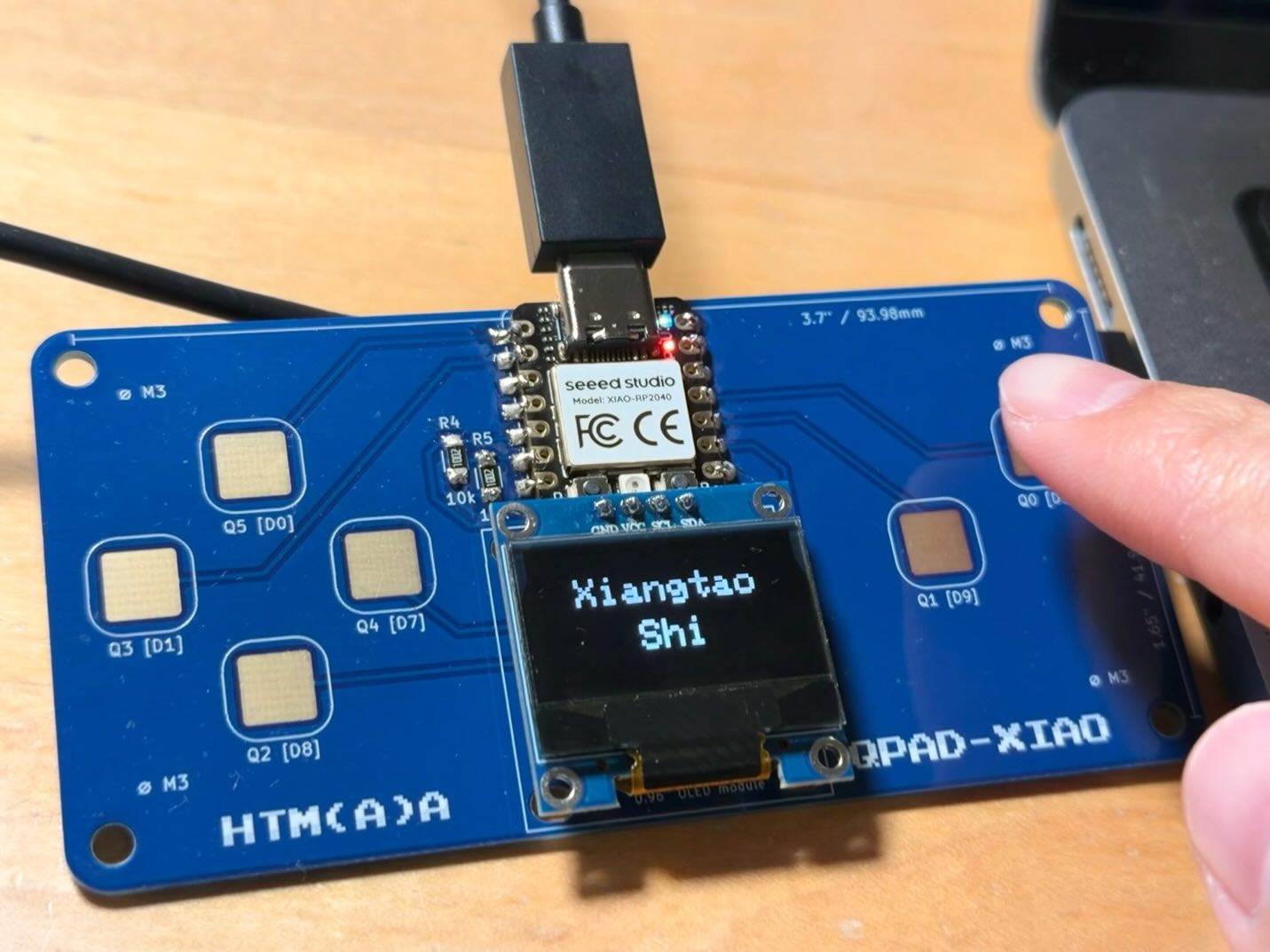
Parts and setup
I started with soldering and safety training.
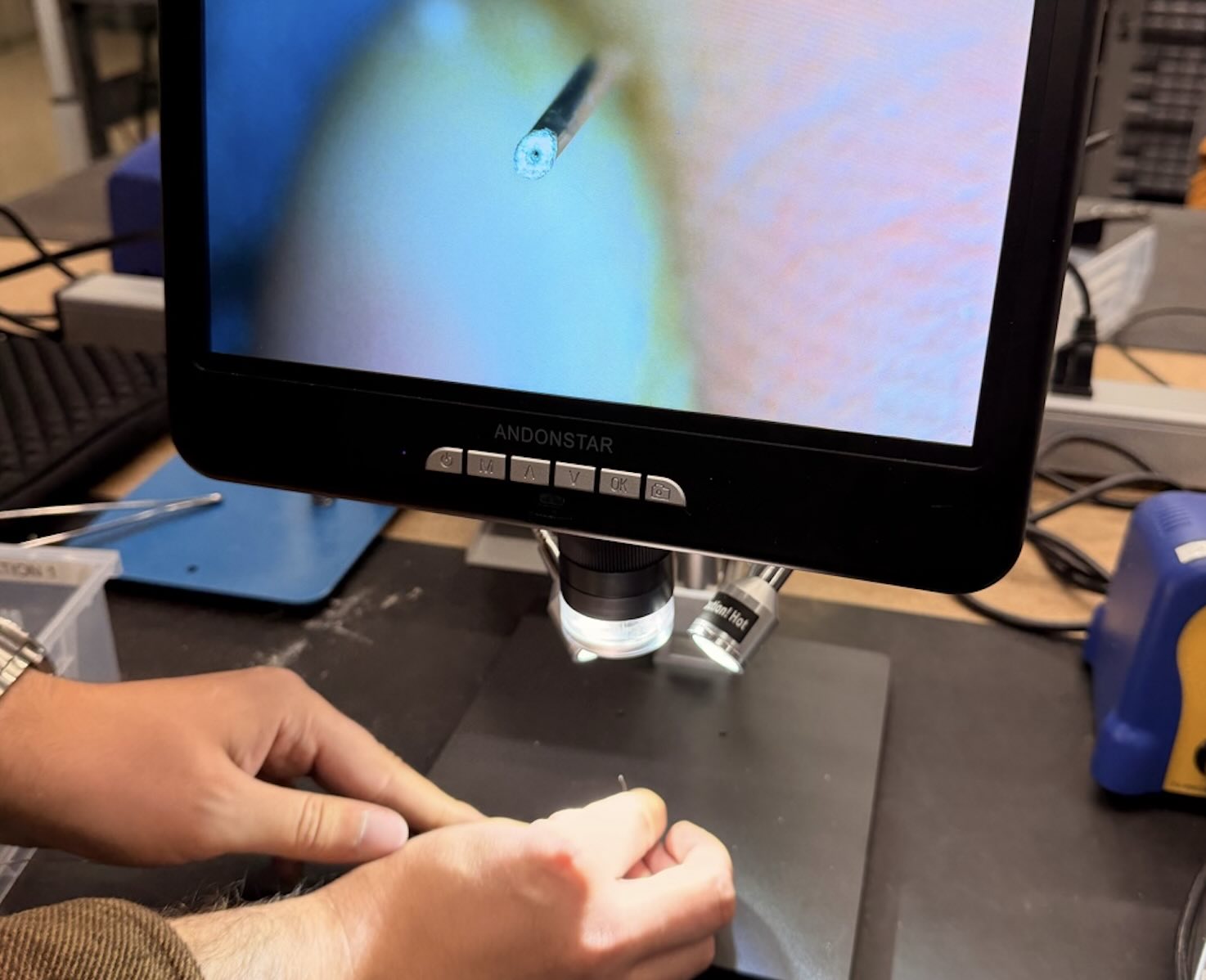
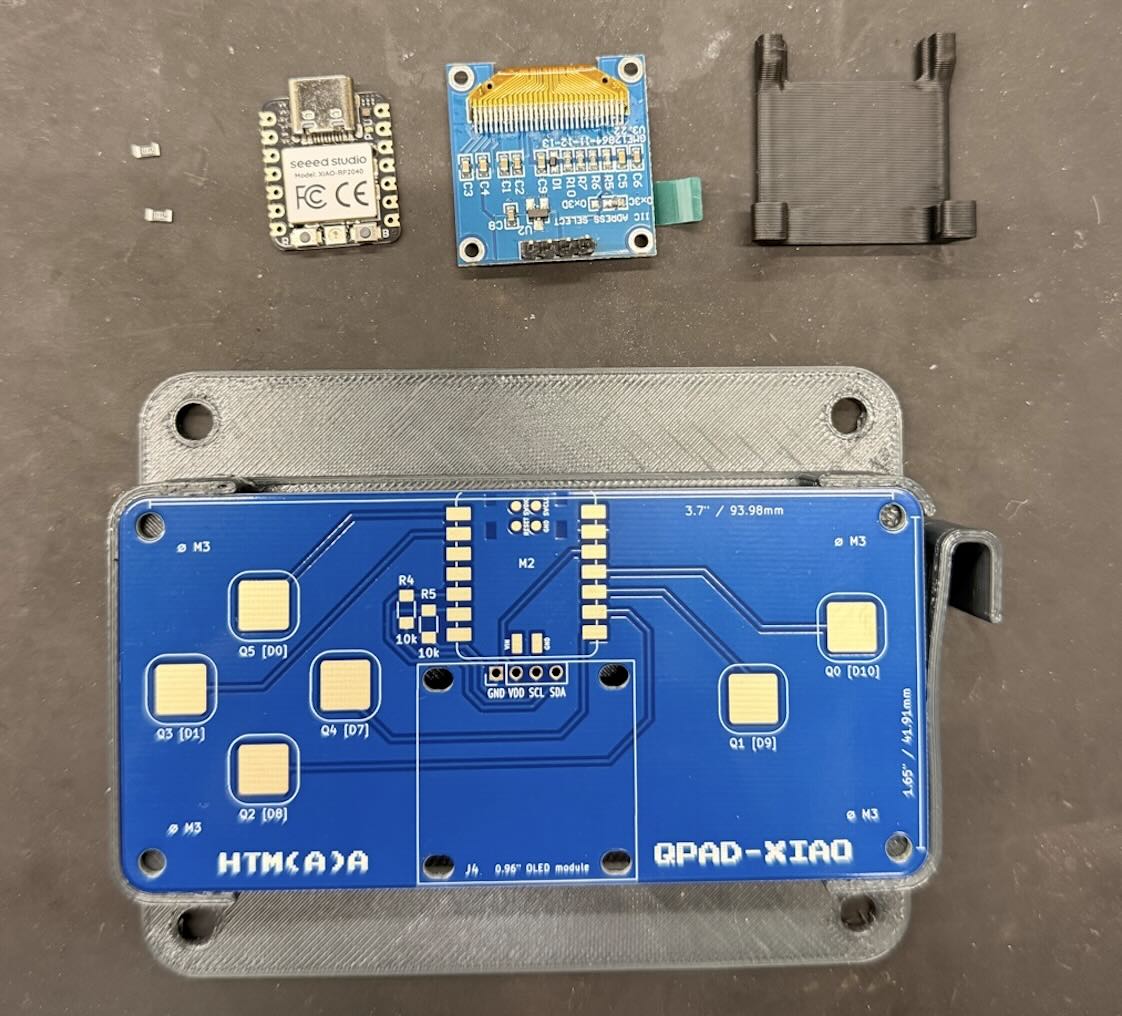
During training, I noticed a dark center in the solder wire. It appeared to be a flux core. Flux helps molten solder, which explains why we did not need to apply separate flux for these connections. The small parts were two 10 kΩ resistors, a XIAO RP2040, an OLED module, and its holder, all to be mounted on the QPad-XIAO board.
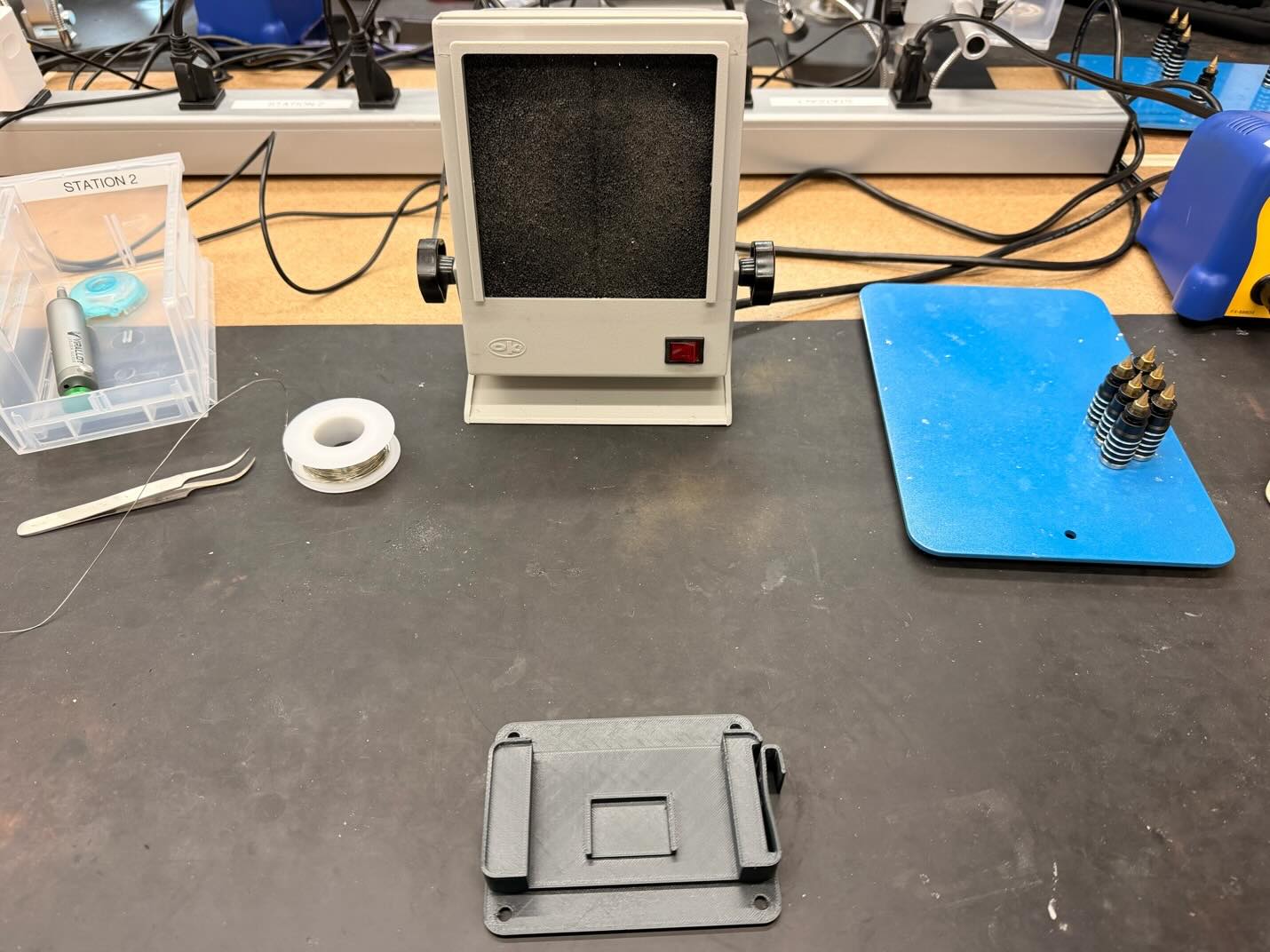
I set up the work area with a fume extraction hood close to the soldering point, which makes my lung safer.
Finding a tip that worked
The narrow tip looked precise, but it took too long to heat each joint.
I began with a narrow soldering-iron tip and the 350°C setting from training. The solder was slow to melt at the joint, so I raised the station to 380°C. Switching to a wider tip helped much more. Its larger contact area transferred heat faster, and soldering became much easier.
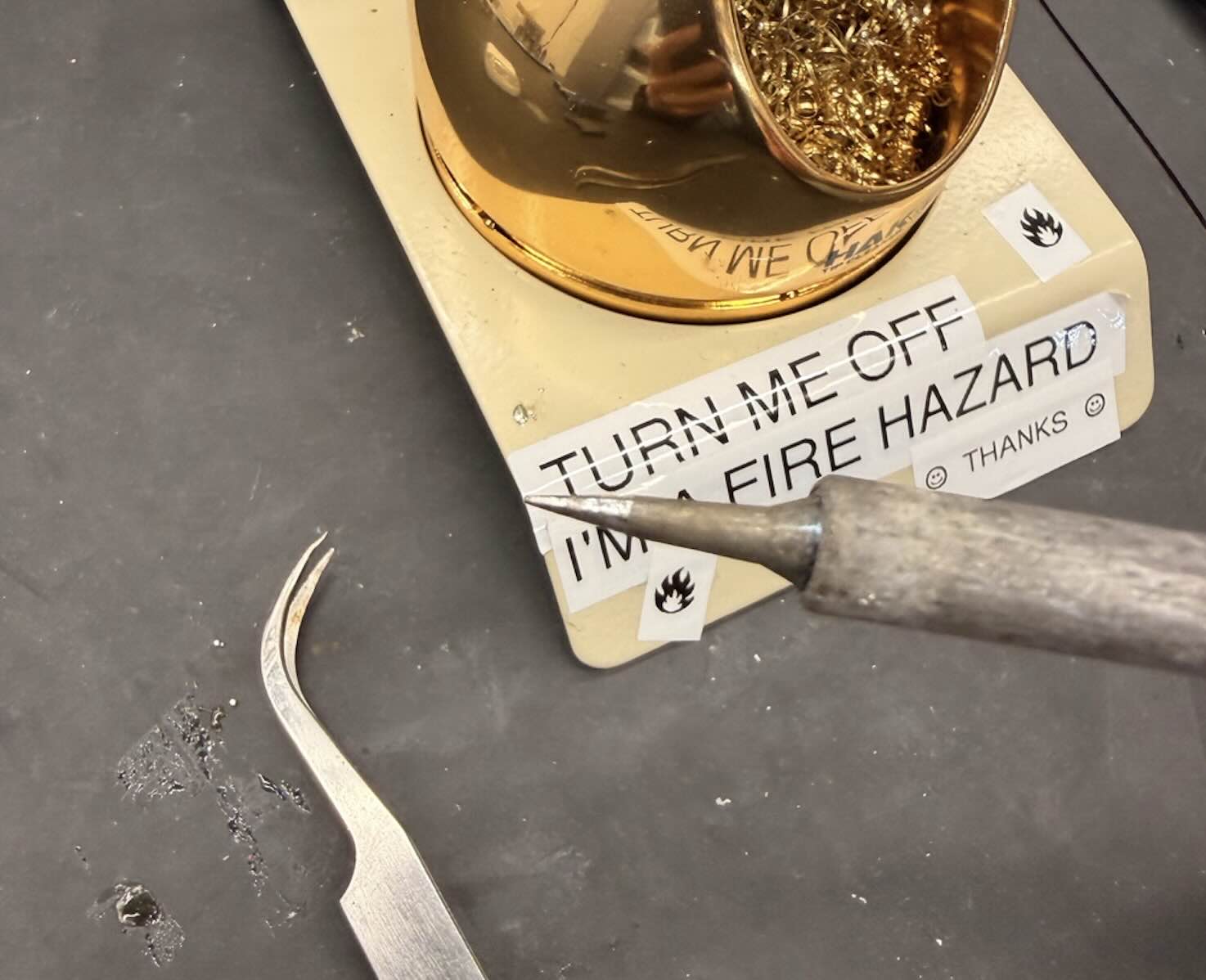
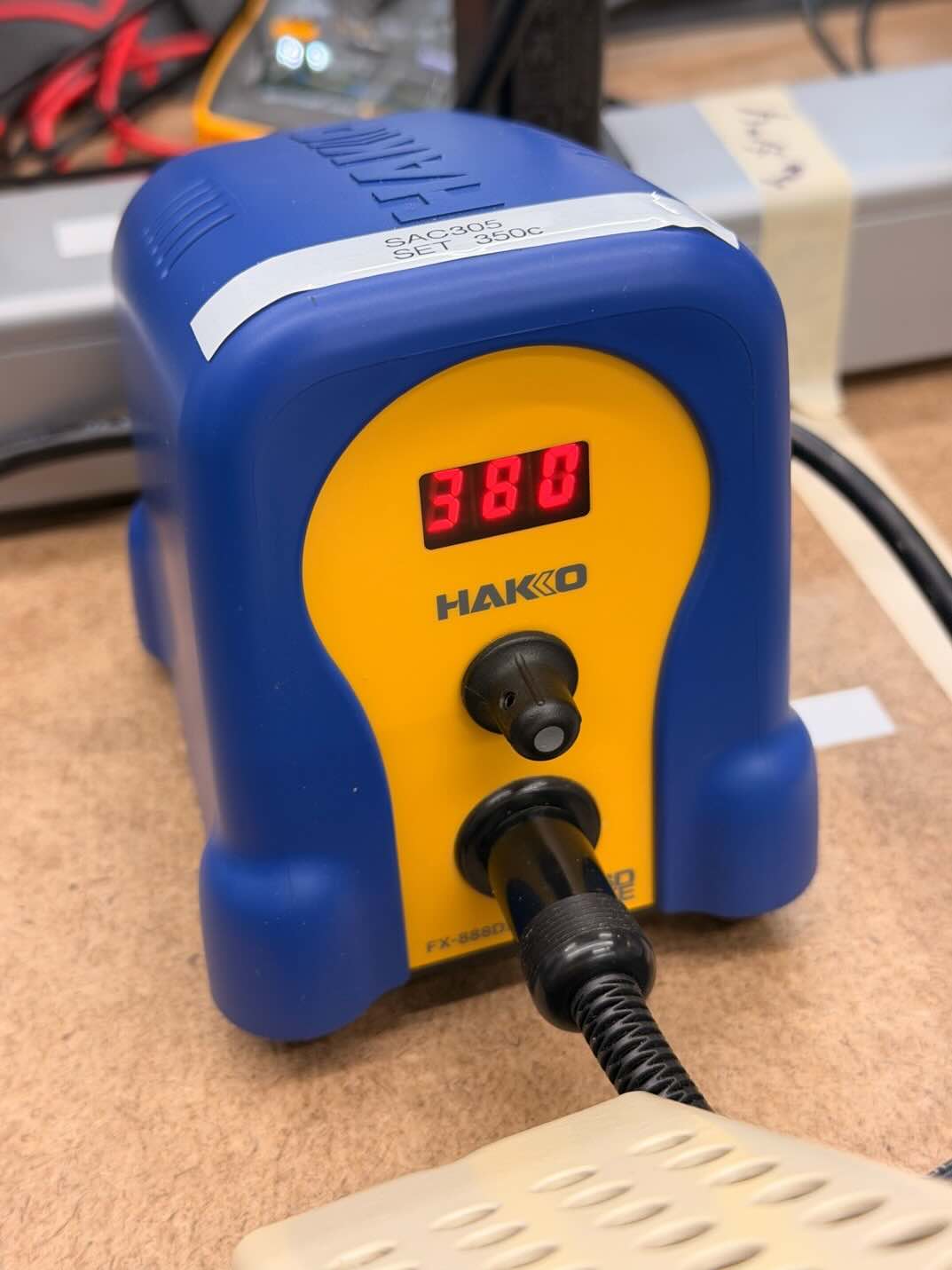
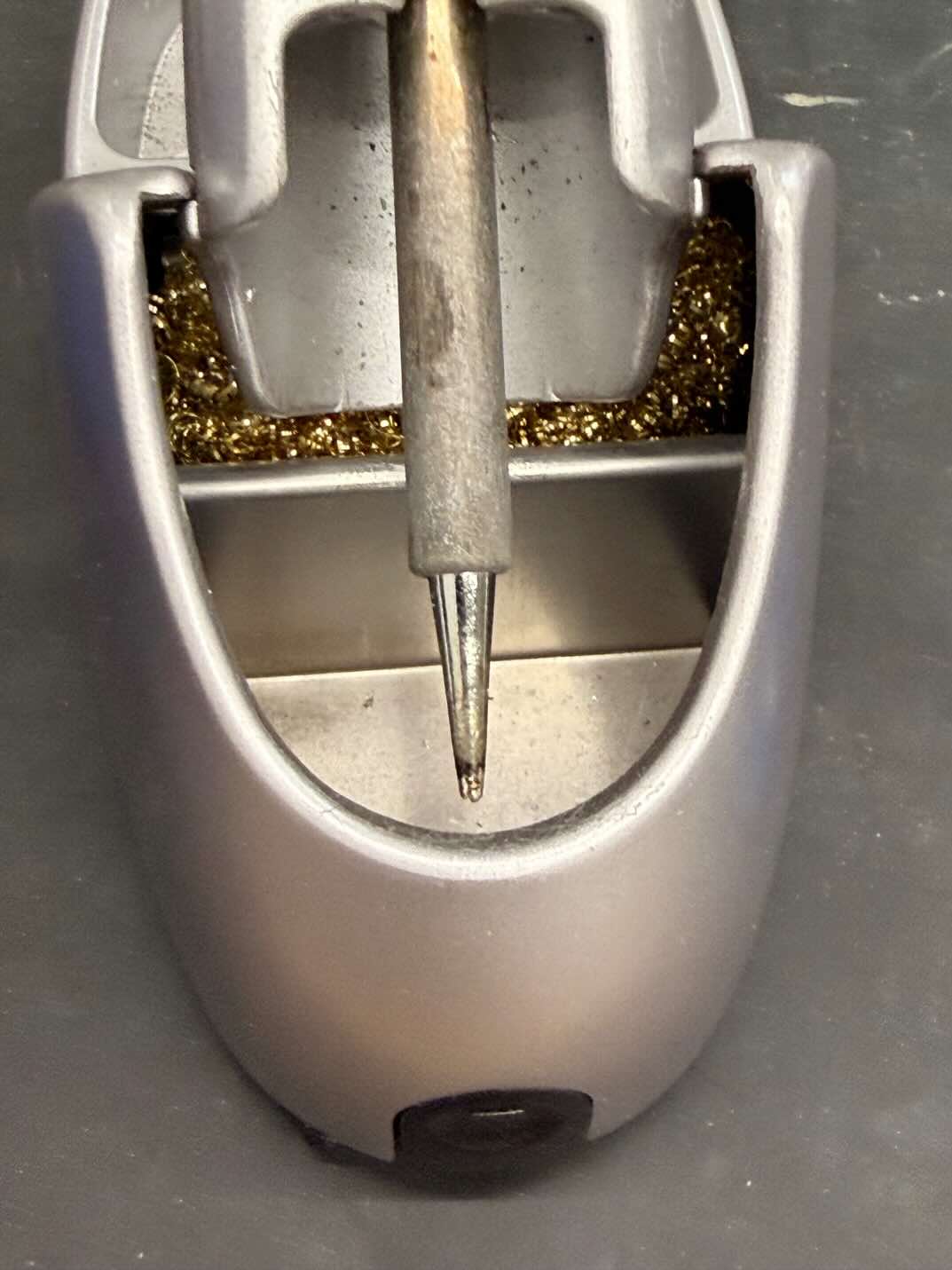
A wider tip can transfer heat more effectively when it makes better contact with both the pad and component lead. That was more useful here than simply turning up the temperature.
The OLED holder
I forgot to put the holder in place before soldering the display.
Once the OLED was attached, four solder joints held it in place. I could not heat all four at once, so I tried a desoldering pump to pull out the solder. I removed some, but some of the connection still seemed to hold. I stopped rather than force the display loose and risk damaging it.
I was disappointed that the holder could not be installed afterward. The OLED now appears to float above the board anyway, so I kept the assembly as it was.
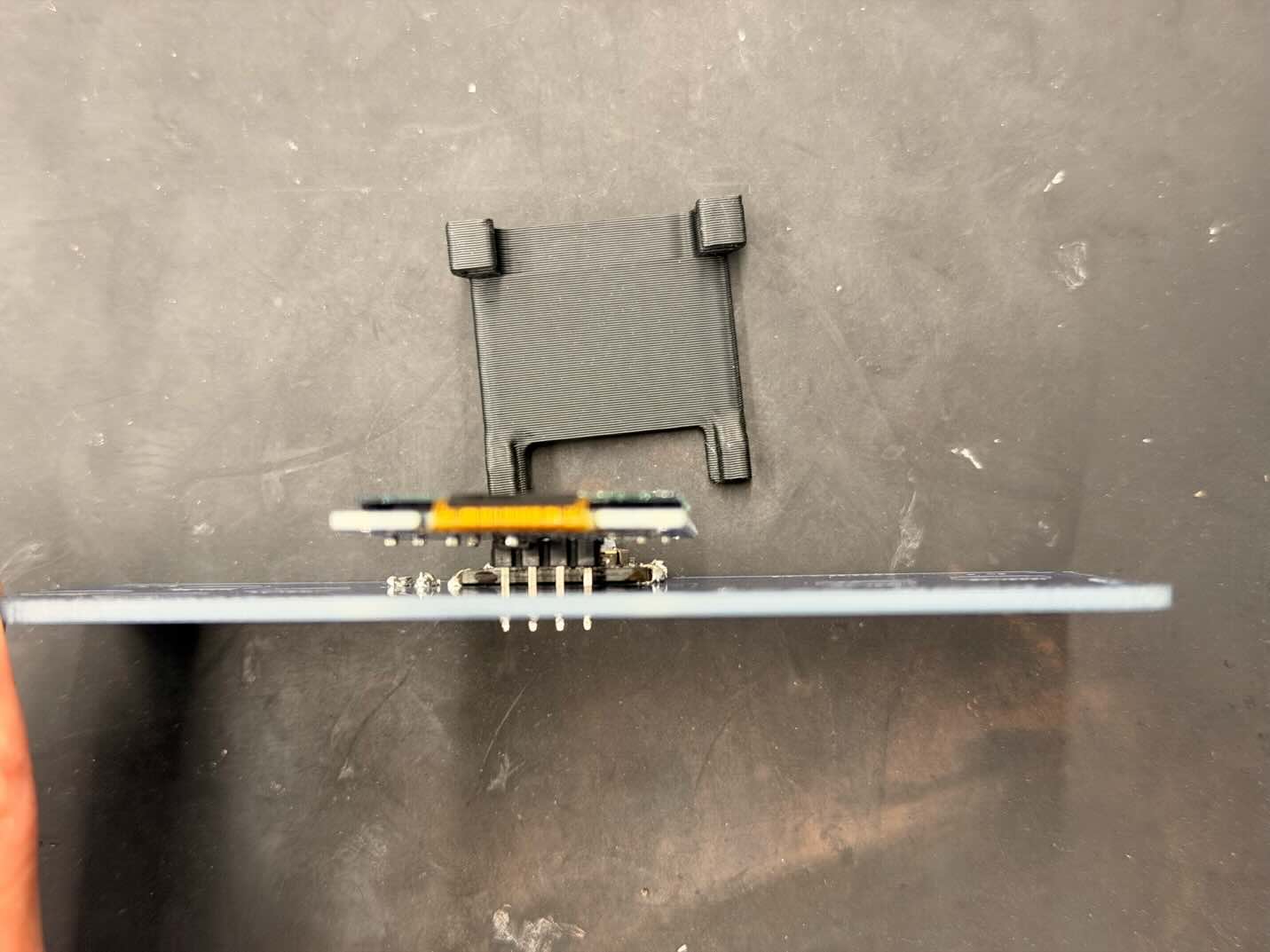
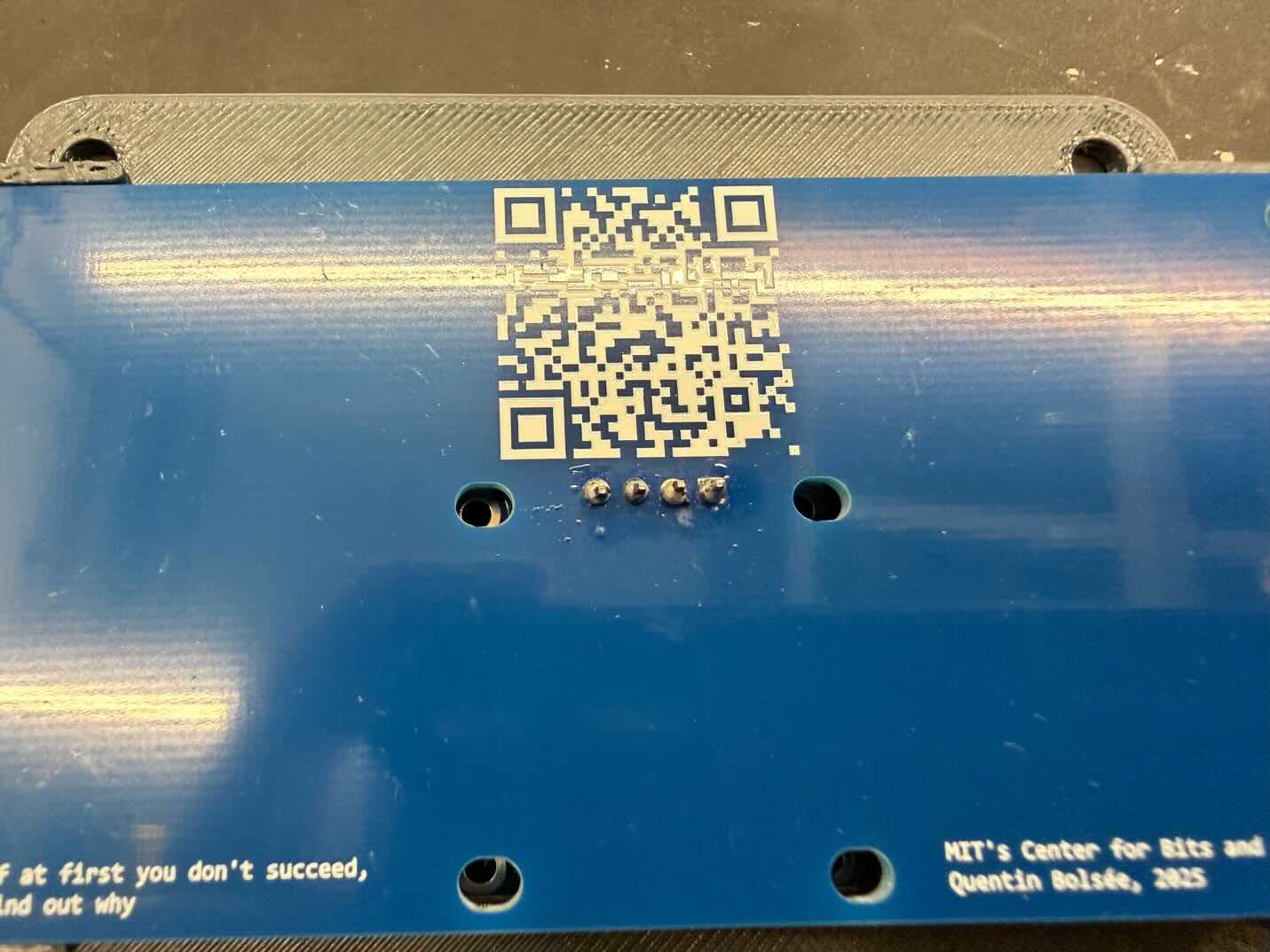
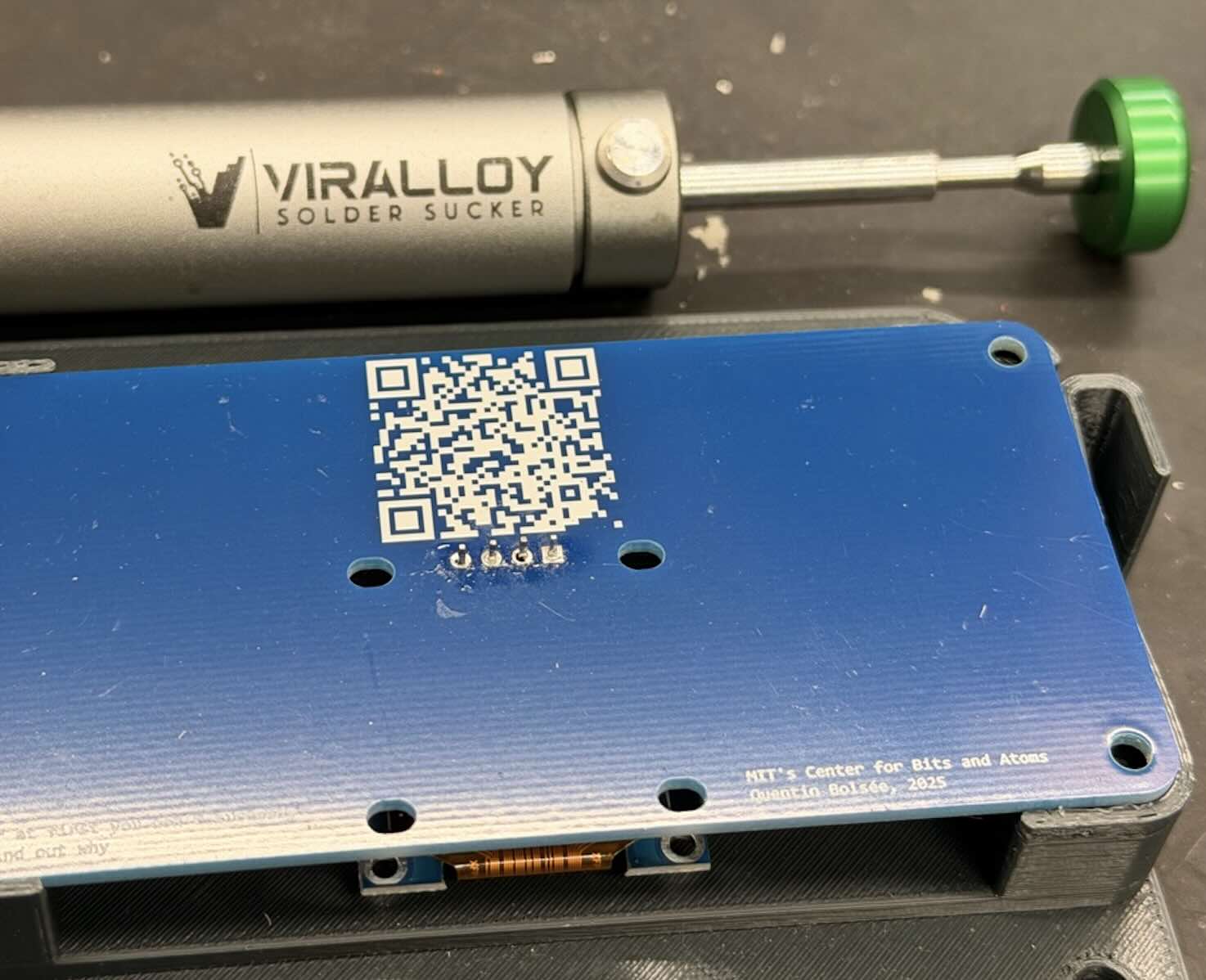
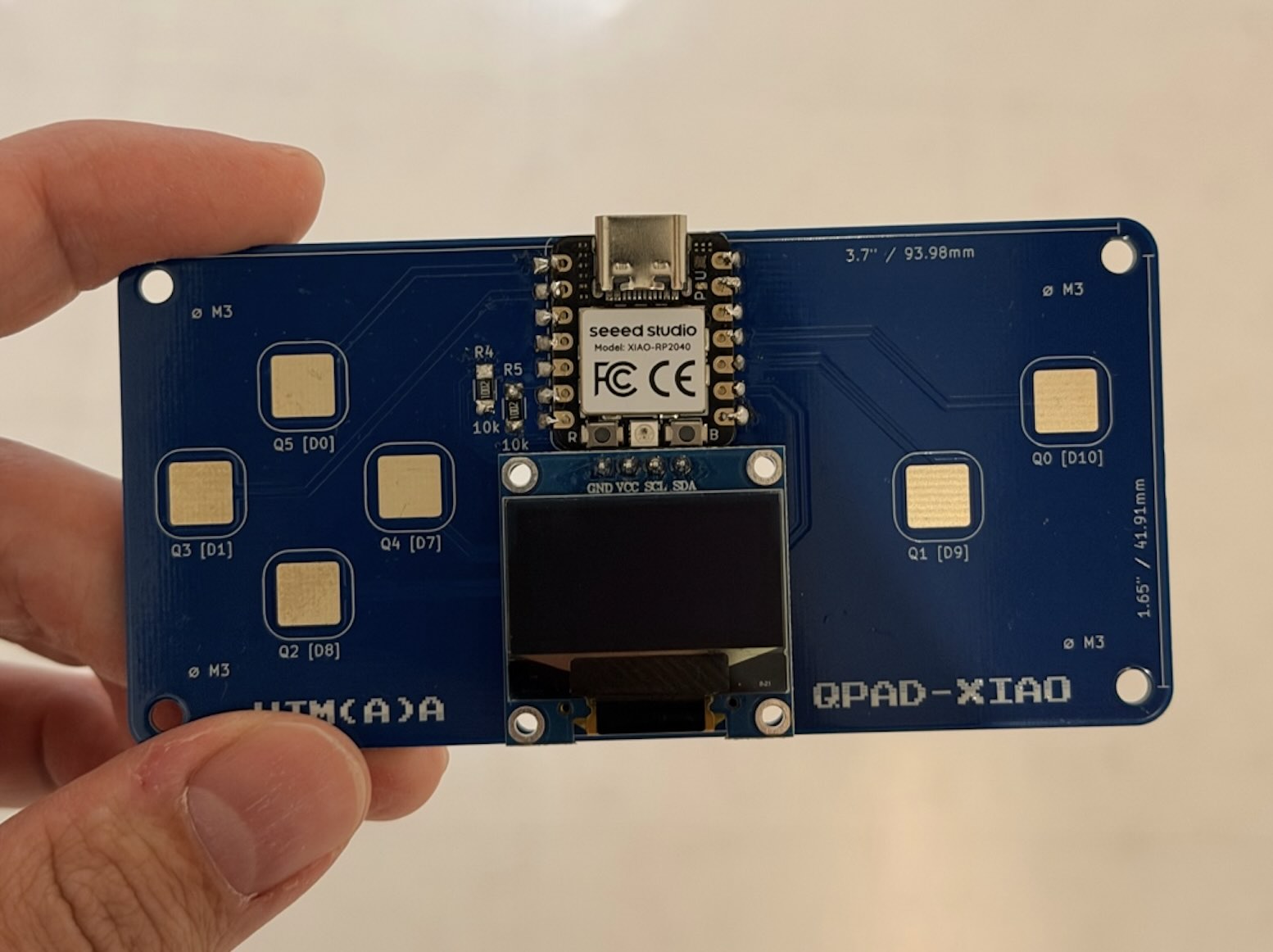
Reworking four connected pins was much harder than checking the order first.
Arduino IDE
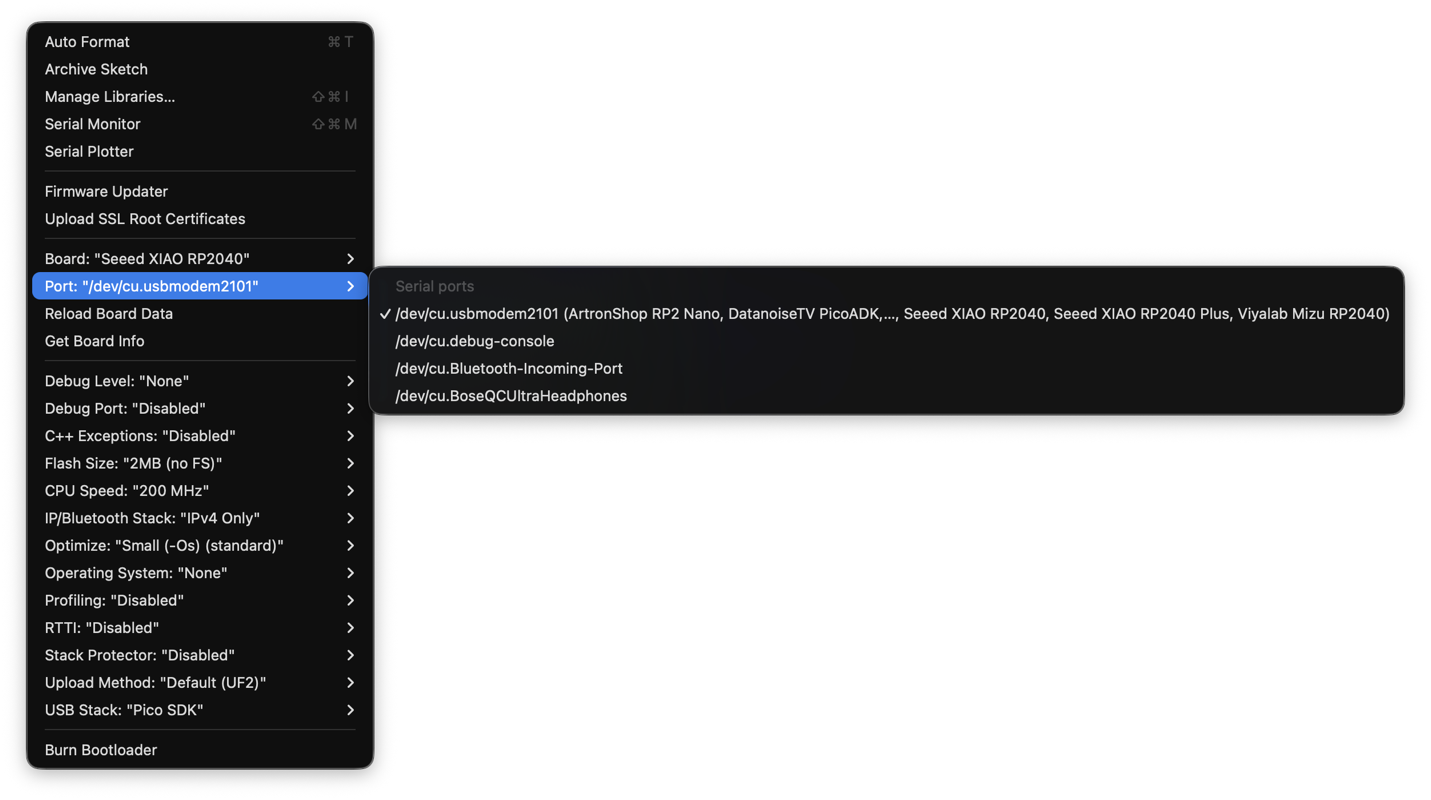
Before using the OLED, I checked that the XIAO RP2040 could receive a program.
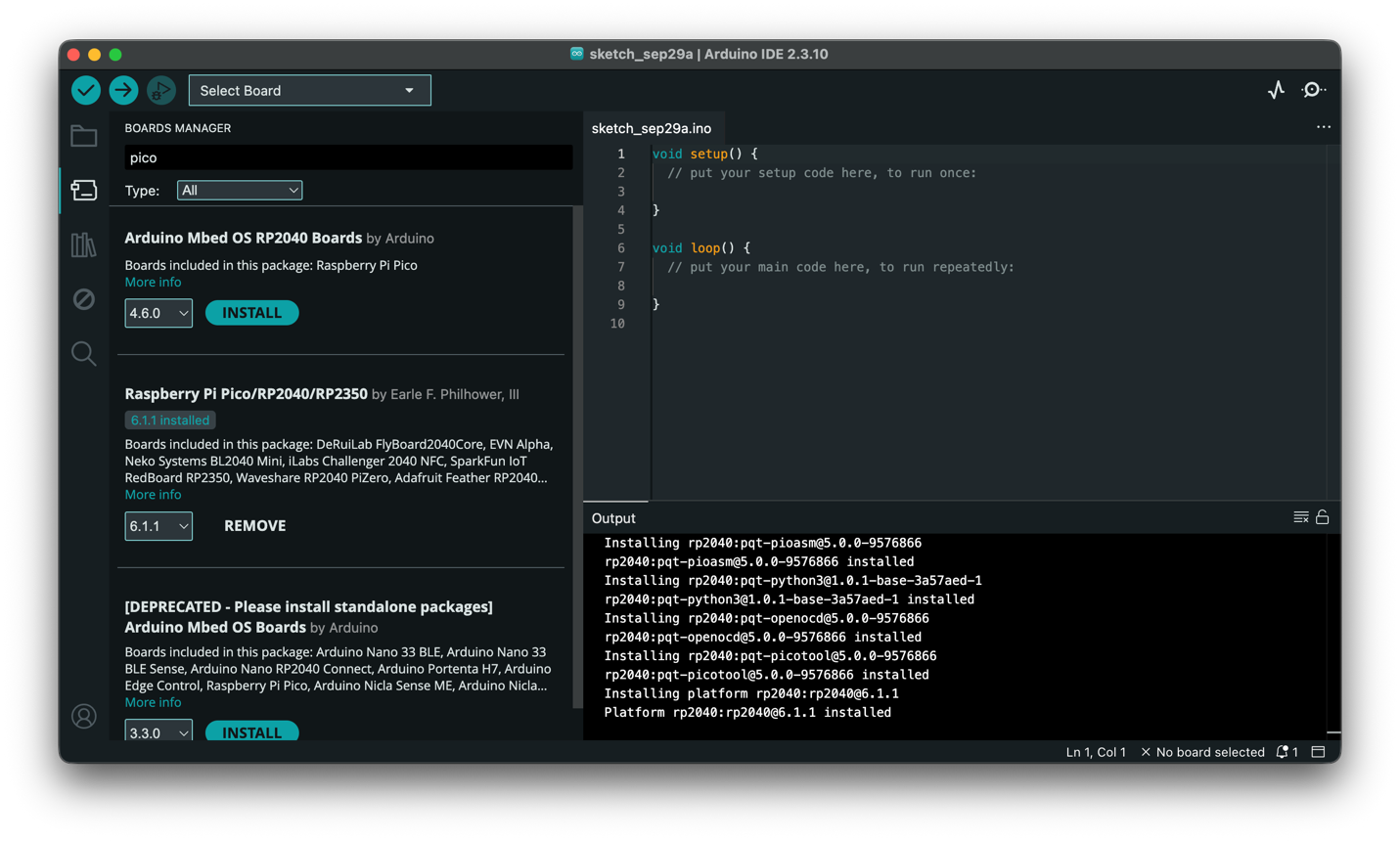
- I connected the XIAO to my MacBook Pro with a USB-C cable and installed Arduino IDE.
- In Settings → Additional Boards Manager URLs, I added the Arduino-Pico package URL:
https://github.com/earlephilhower/arduino-pico/releases/download/global/package_rp2040_index.json - Under Tools → Board → Boards Manager, I installed Raspberry Pi Pico/RP2040/RP2350, then selected the XIAO RP2040 board and its USB port. I accepted the Mac's access prompt.
- I opened File → Examples → 01.Basics → Blink and uploaded it. The board's USER LED blinked once per second, confirming that the connection and upload worked.
Displaying text on the OLED
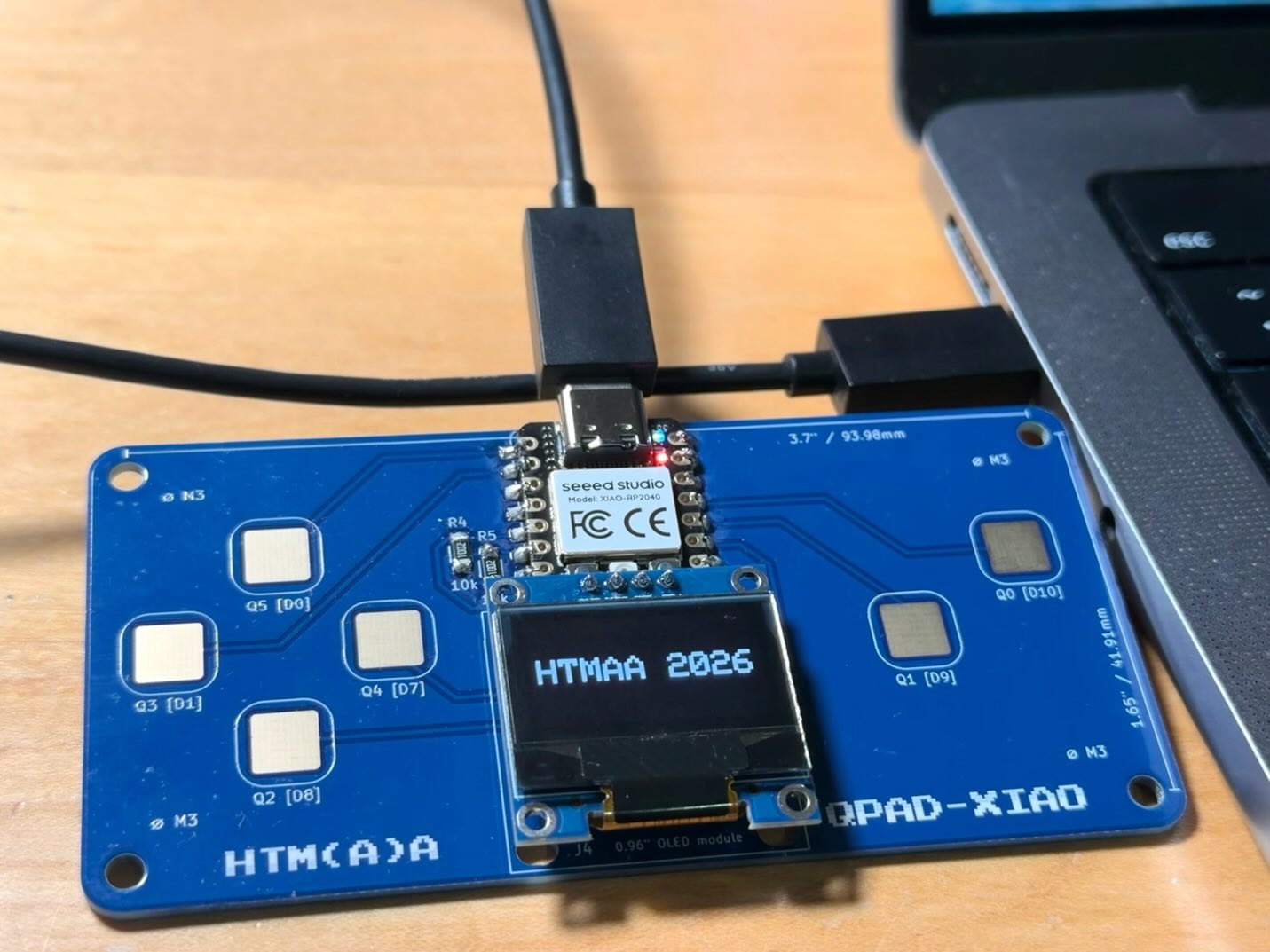
My first display sketch printed “HTMAA 2026” on the 128 × 64 OLED.
I installed Adafruit GFX Library and Adafruit SSD1306, including their dependencies. In this sketch, the display uses I²C address 0x3C, with SDA on GPIO 6 and SCL on GPIO 7. I verified the sketch, uploaded it, and saw the text appear.
GFX provides the text drawing functions, while the SSD1306 library sends the image to the display.
First OLED sketch
Download oled-message.ino ↓View full Arduino sketch
#include <Wire.h>
#include <Adafruit_GFX.h>
#include <Adafruit_SSD1306.h>

Adafruit_SSD1306 display(128, 64, &Wire, -1);

void setup() {
  Wire.setSDA(6);
  Wire.setSCL(7);

  if (!display.begin(SSD1306_SWITCHCAPVCC, 0x3C)) {
    while (true) {
      delay(1000);
    }
  }

  display.clearDisplay();
  display.setTextSize(2);
  display.setTextColor(SSD1306_WHITE);
  display.setCursor(4, 24);
  display.print("HTMAA 2026");
  display.display();
}

void loop() {
}Switching the message with Q0
I wanted one touch of Q0 to switch between “HTMAA 2026” and “Xiangtao Shi.”
The second sketch reads Q0 through GPIO 3, labeled D10 on this board. It first discharges the pad, then enables the pin's pull-up and counts how long the signal stays low. A touch increases the pad's capacitance, which changes that timing. The threshold turns the measurement into a touch decision.
Two touched samples confirm a press; five untouched samples confirm release. This keeps one finger press from toggling the message repeatedly. The sketch redraws the OLED and also prints the message to the USB Serial Monitor for debugging. When I touched Q0, my name appeared on screen.
Q0 touch toggle sketch
Download q0-touch-toggle.ino ↓View full Arduino sketch
#include <Wire.h>
#include <Adafruit_GFX.h>
#include <Adafruit_SSD1306.h>

Adafruit_SSD1306 display(128, 64, &Wire, -1);

const uint8_t Q0_PIN = 3;
const uint8_t TOUCH_THRESHOLD = 6;

bool showName = false;
bool fingerDown = false;
uint8_t pressSamples = 0;
uint8_t releaseSamples = 0;

uint8_t readQ0() {
  pinMode(Q0_PIN, OUTPUT);
  digitalWrite(Q0_PIN, LOW);
  delayMicroseconds(25);
  pinMode(Q0_PIN, INPUT_PULLUP);

  uint8_t count = 0;
  while (digitalReadFast(Q0_PIN) == LOW && count < 200) {
    count++;
  }
  return count;
}

void drawText() {
  display.clearDisplay();
  display.setTextColor(SSD1306_WHITE);
  display.setTextSize(2);

  if (showName) {
    display.setCursor(16, 12);
    display.println("Xiangtao");
    display.setCursor(46, 36);
    display.print("Shi");
    Serial.println("Xiangtao Shi");
  } else {
    display.setCursor(4, 24);
    display.print("HTMAA 2026");
    Serial.println("HTMAA 2026");
  }

  display.display();
}

void setup() {
  Serial.begin(115200);
  Wire.setSDA(6);
  Wire.setSCL(7);

  if (!display.begin(SSD1306_SWITCHCAPVCC, 0x3C)) {
    while (true) {
      Serial.println("OLED not found at 0x3C");
      delay(1000);
    }
  }

  drawText();
}

void loop() {
  bool touched = readQ0() > TOUCH_THRESHOLD;

  if (touched) {
    releaseSamples = 0;
    if (pressSamples < 2) pressSamples++;

    if (pressSamples >= 2 && !fingerDown) {
      fingerDown = true;
      showName = !showName;
      drawText();
    }
  } else {
    pressSamples = 0;
    if (releaseSamples < 5) releaseSamples++;
    if (releaseSamples >= 5) fingerDown = false;
  }

  delay(20);
}
Blink confirmed the upload path, the static message confirmed the OLED and libraries worked, and the final sketch linked the touch input and the display output.
Sources & credits
- Indium: flux-cored wire ↗
- HAKKO: tip contact area ↗
- Seeed Studio: XIAO RP2040 ↗
- Seeed Studio: XIAO pin map ↗
- Adafruit: OLED libraries ↗
OpenAI Codex helped draft the sketch, polish the English and create the HTML layout using my notes and photographs.