Soldering the QPAD Xiao
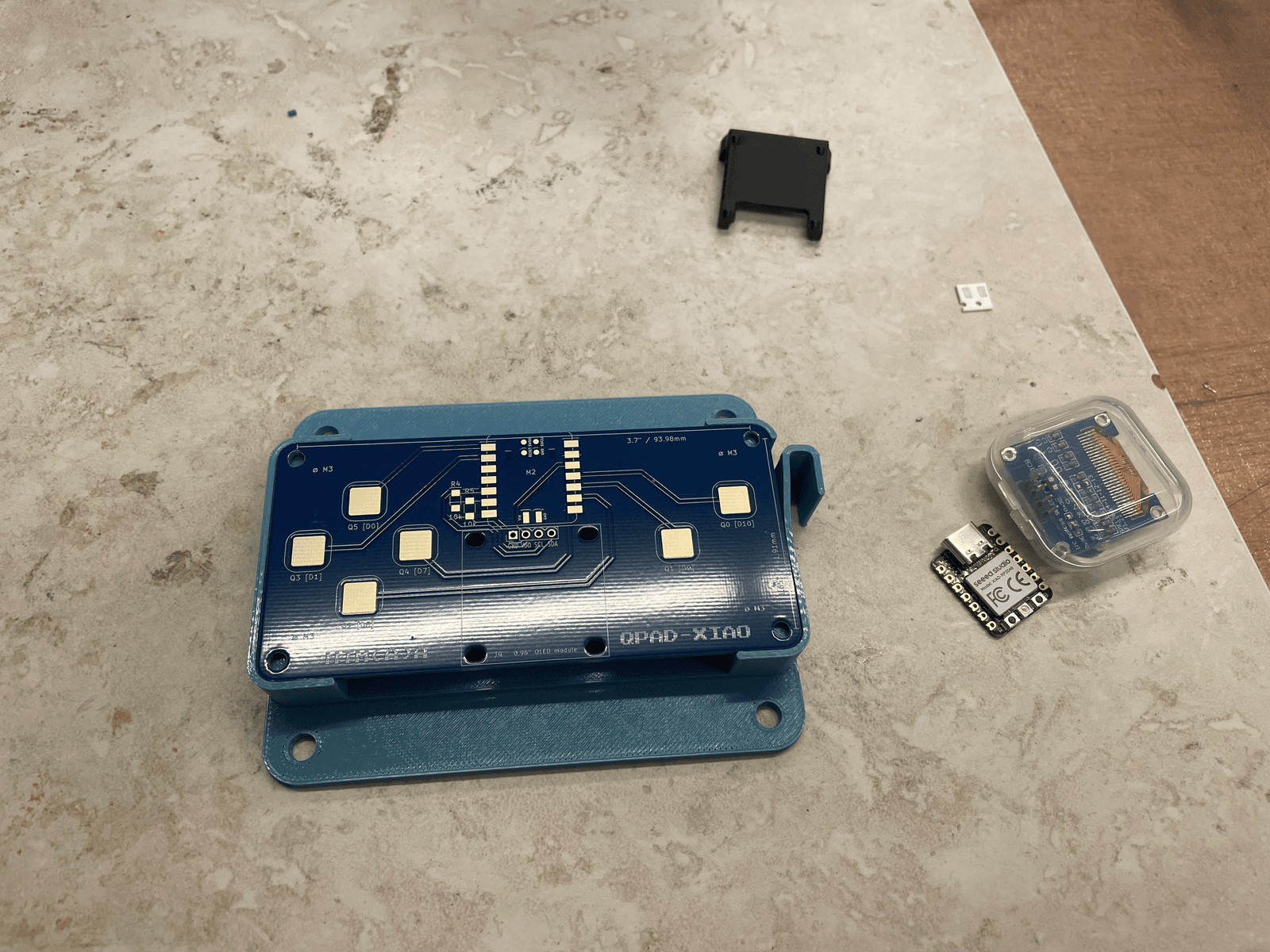
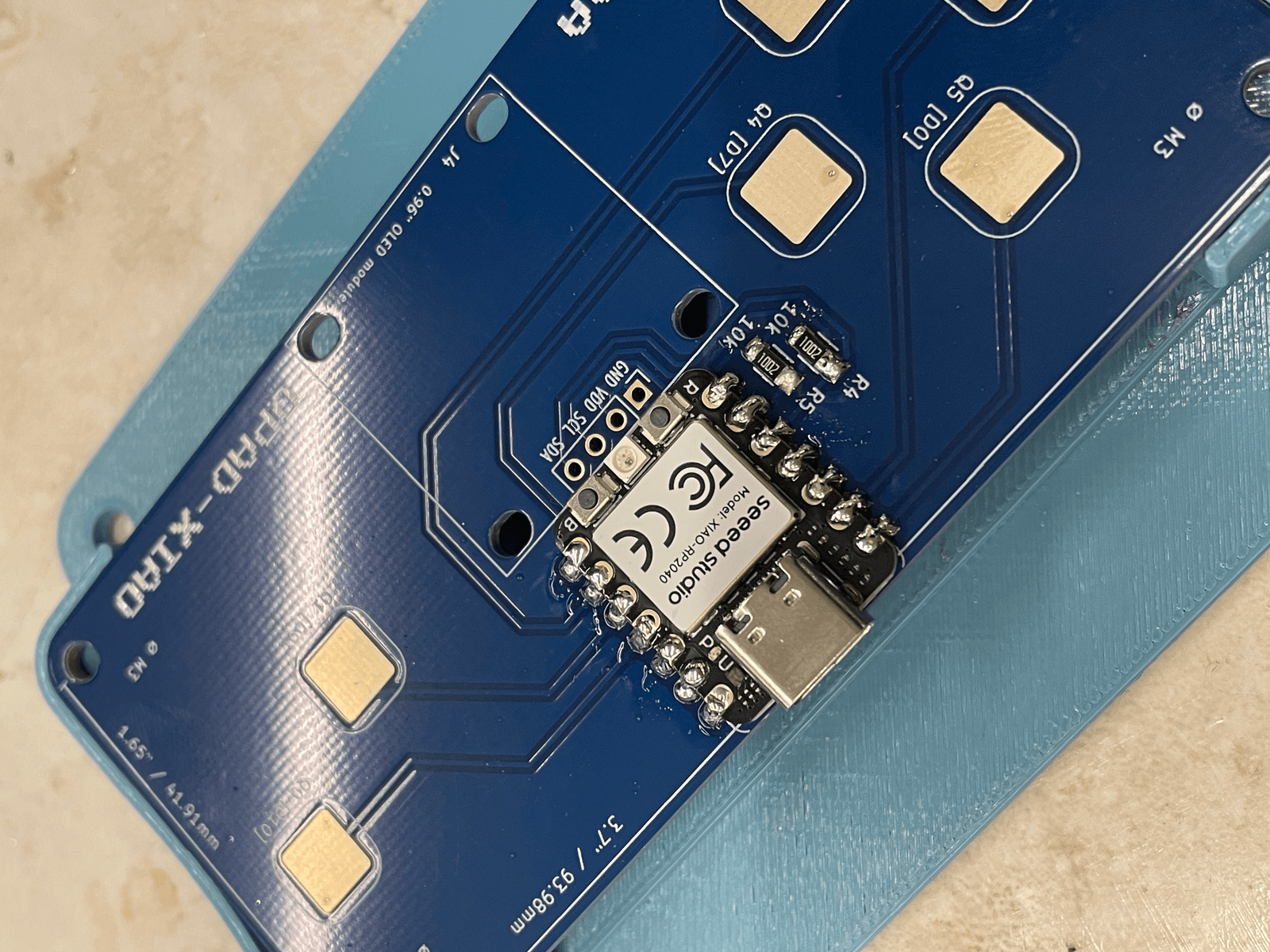
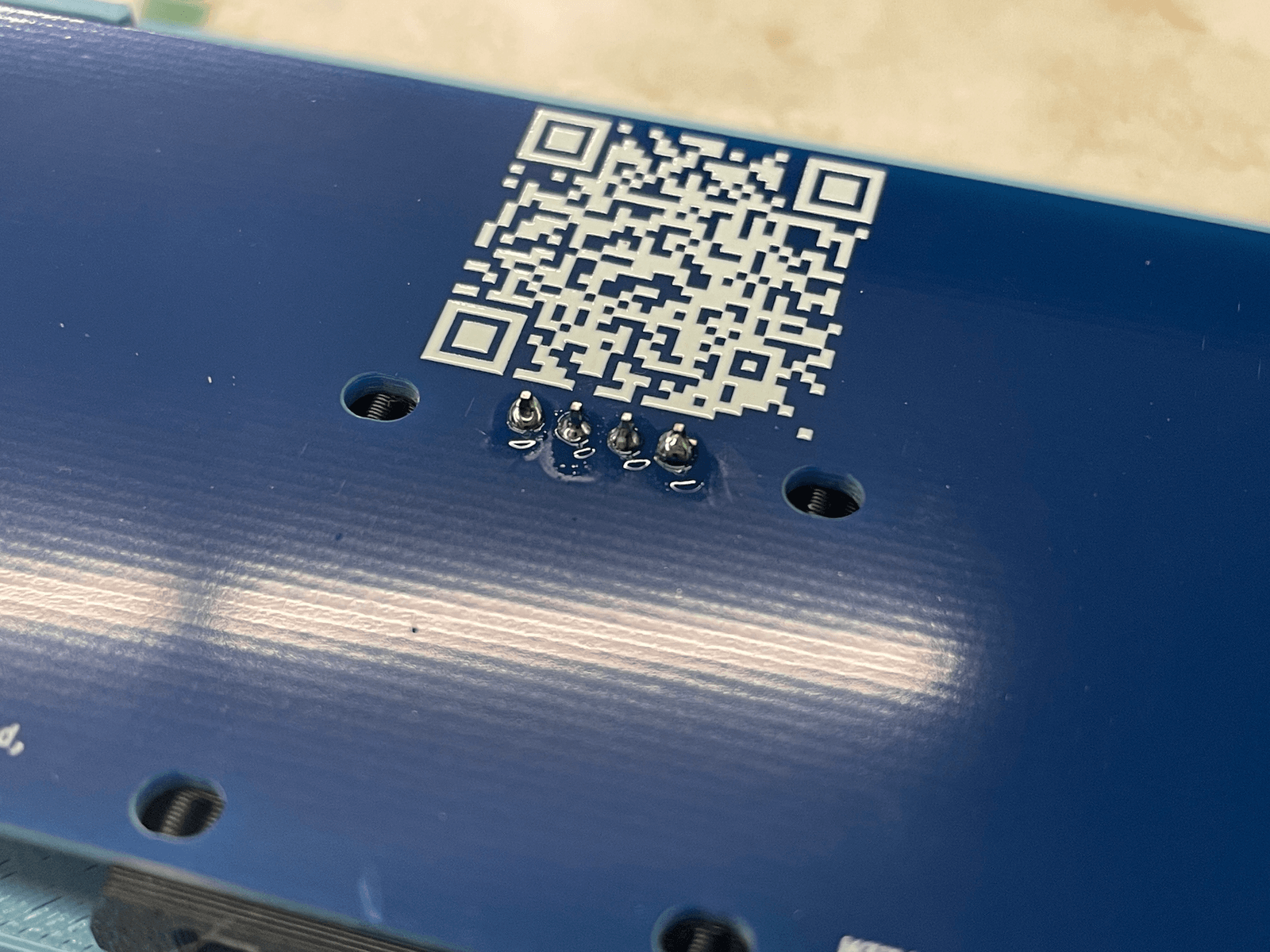
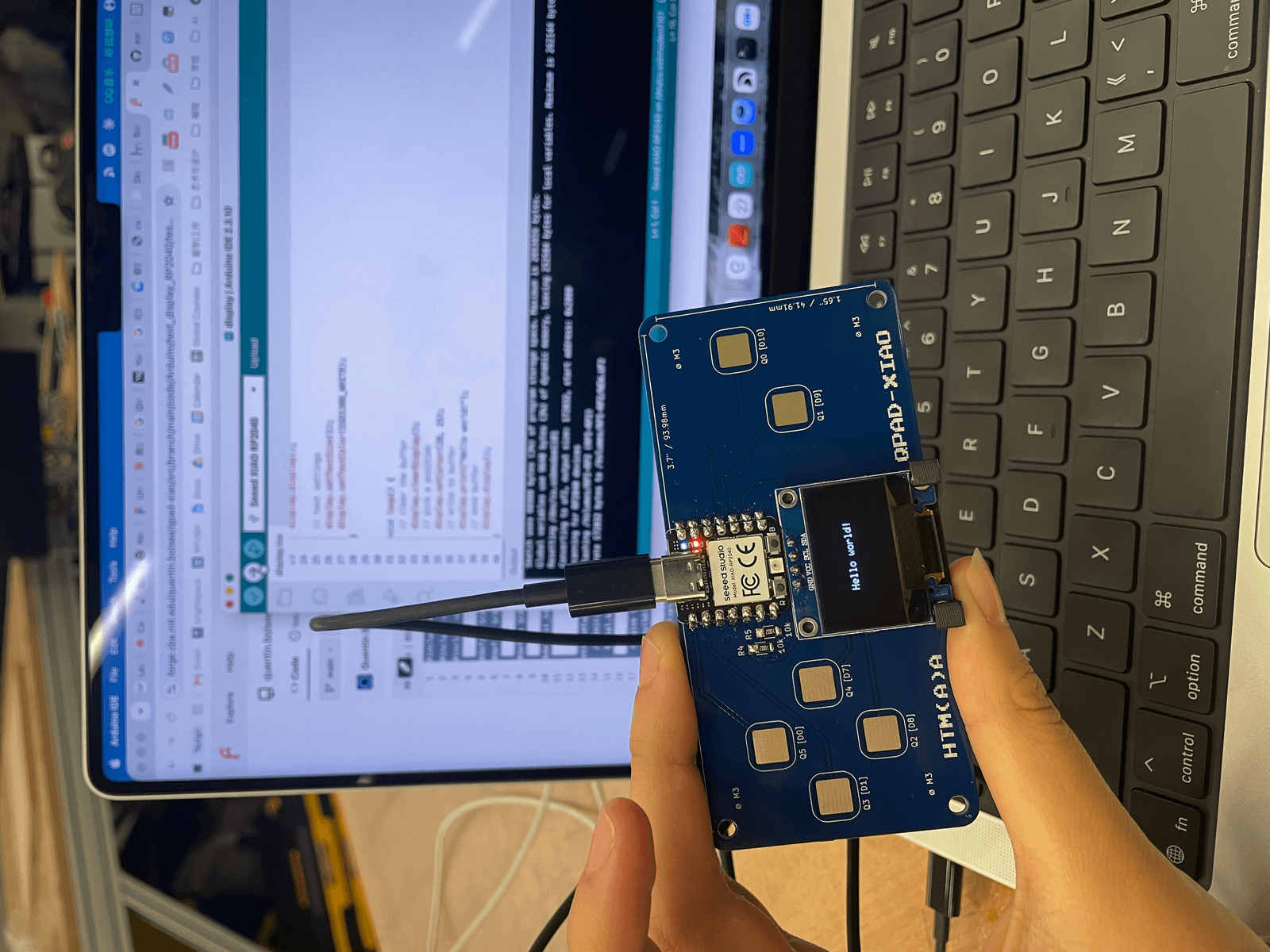
I started by following the soldering tutorial and taking the board one component at a time. I soldered the two resistors first, then the XIAO RP2040, and finally the small OLED display onto the QPAD.
Trying the QPAD-XIAO Examples
At first I could not get the board to connect to my computer at all. After a while I realized that the USB-C cable I had grabbed from my iPad charger could provide power but could not carry data. Switching to a USB-C cable that supports data transfer solved it.
Before writing my own program, I used the starter code in the QPAD-XIAO examples. I tested the blink, display, and touch sketch. I also tried the tetris game included in the examples.
Implementing a Perceptron From my p5.js Sketch
I had a small p5.js perceptron sketch that I wrote before. I could click anywhere in a big canvas, make a red or blue point. Each point had two inputs, x0 and x1, both between 0 and 1, plus a label: class A was 1, and class B was 0. The model made one very plain prediction by multiplying each input by a weight and adding a bias. Then it compared that prediction with the label and nudged the weights a tiny bit.
const prediction = w0 * x0 + w1 * x1 + bias;const error = label - prediction;
w0 += learningRate * error * x0;w1 += learningRate * error * x1;bias += learningRate * error;
Turning the QPAD into a Little Dataset Editor
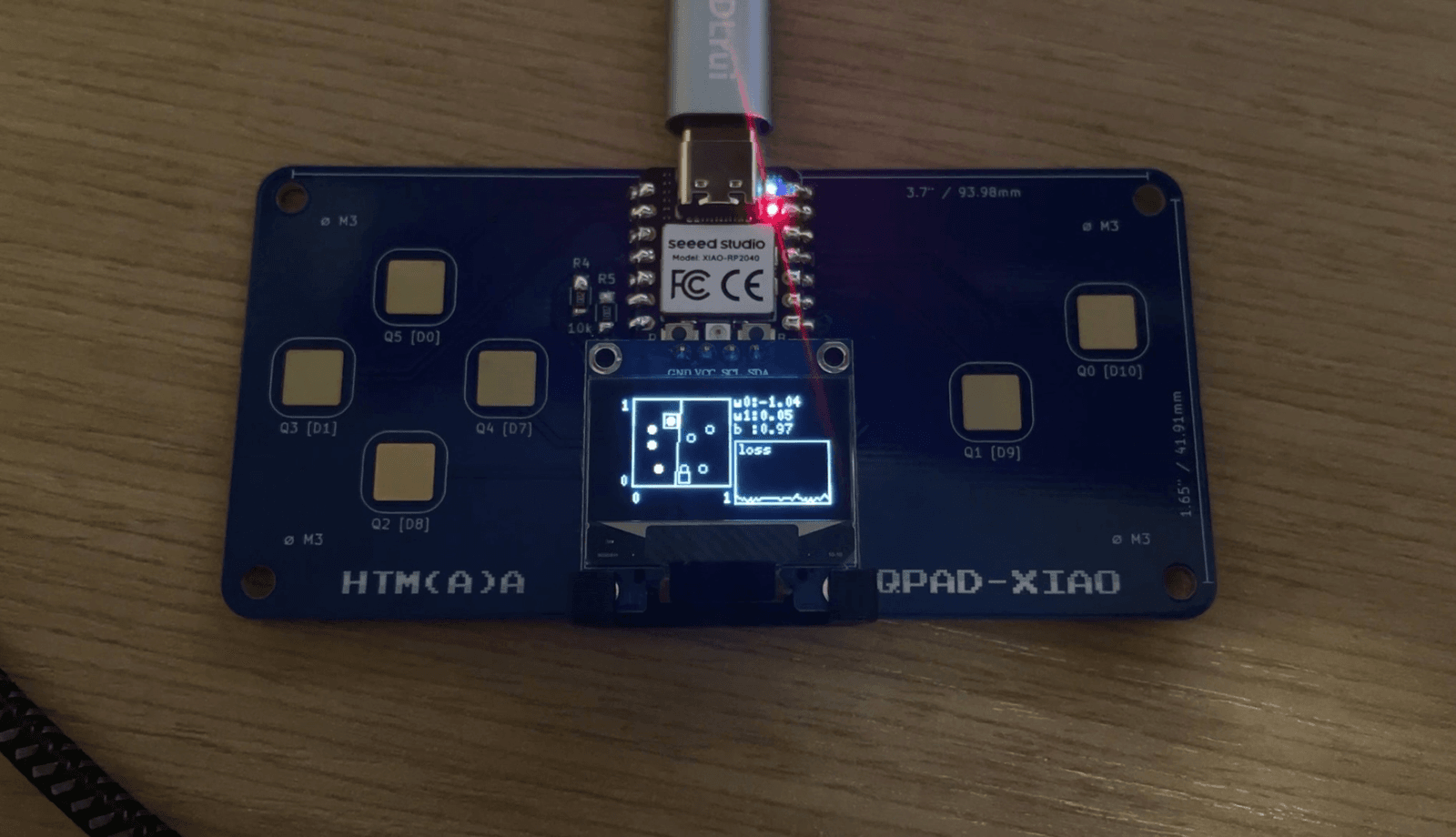
The QPAD has six touch pads and a 128 by 64 monochrome OLED, so I had to make the interaction much more direct. The four directional pads move a small cursor through the data field. A long press on D9 places a class-A point, while D10 places a class-B point. Holding D9 and D10 together turns into a training gesture. After a short pause it repeatedly picks a random existing point and trains on it.
// left, right, up, down, add A, add Bconst uint8_t touchPins[] = {D1, D7, D0, D8, D9, D10};
if (justPressed(0) && cursorX > 0) cursorX--;           // D1: leftif (justPressed(1) && cursorX < GRID_W - 1) cursorX++;  // D7: rightif (justPressed(2) && cursorY > 0) cursorY--;           // D0: upif (justPressed(3) && cursorY < GRID_H - 1) cursorY++;  // D8: down
Canvas on the U8g2lib
AI credit: I do it with the help of Codex.
The OLED’s whole drawing area is only 128 by 64 pixels, the origin is in the top-left corner, and screen y increases downward. With U8g2, I draw into a memory buffer first and then send the finished frame to the screen. The data field only occupies the left part of the display, so I map the normalized inputs x0 and x1 into that smaller rectangle. A filled dot means A, a hollow dot means B, and a little square shows where the next point will go. The right side is reserved for the weights and the loss graph.
oled.clearBuffer();oled.drawFrame(FIELD_X, FIELD_Y, FIELD_W, FIELD_H);oled.drawDisc(x, y, 2); // class Aoled.setCursor(PANEL_X, 7);oled.print("w0:"); oled.print(w0, 2);oled.sendBuffer();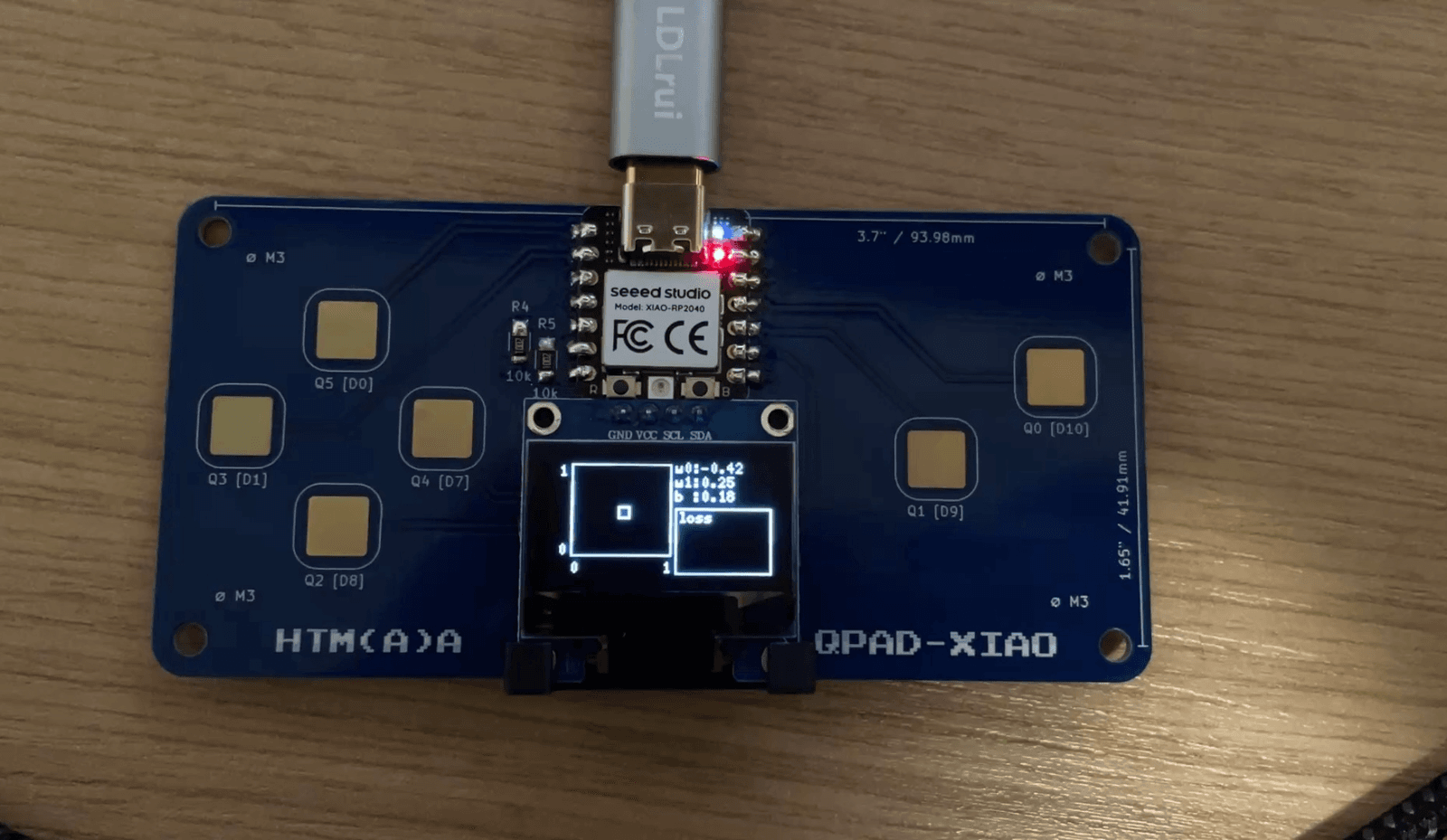
The Boundary Line Has to Stay Inside the Box
The slightly tricky part was the classification boundary. The model says that the border between A and B is where the prediction is exactly halfway between their labels:
w0 * x0 + w1 * x1 + bias = 0.5That equation describes an infinite line, but the OLED only needs the part inside the data field. So I test where the line crosses the four edges of the normalized 0..1 square. For example, at the left edge x0 = 0, I can solve for x1; at the bottom edge x1 = 0, I can solve for x0.
x1 = (0.5 - bias - w0 * x0) / w1x0 = (0.5 - bias - w1 * x1) / w0If two of those candidate points really fall on the frame, I connect them with one OLED line. If there are fewer than two, the boundary is outside the field, which is also a useful thing to see: at that moment the model thinks the whole visible space belongs to one class.
Making Loss Look Like a Trend Instead of Noise
At first I plotted the error of whichever random point had just been selected. It was technically honest, but visually very jumpy: one difficult point could make the line shoot up even while the model was improving overall. I changed it so that after each update, the XIAO walks through every point currently in the dataset and calculates the average squared error. The graph is also fixed from 0 to 1 rather than rescaling itself every frame. That way, when the curve gets close to the bottom, it actually means something instead of just looking small because the graph has zoomed in.
float totalSquaredError = 0.0f;for (uint8_t i = 0; i < sampleCount; i++) { float output = w0 * sampleX0(samples[i]) + w1 * sampleX1(samples[i]) + bias; float error = samples[i].label - output; totalSquaredError += error * error;}float averageLoss = totalSquaredError / sampleCount;And finally, the tiny XIAO is doing the whole job of perceptron.