From a Breadboard to a PCB
Last week, for the 3D-printing and modeling assignment, I made a mechanical structure that uses a stepper motor to convert circular motion into linear motion. At that point, everything was connected on a breadboard. It worked, but the wiring was quite bulky, so this week I wanted to integrate the same functions into a PCB that I designed myself.
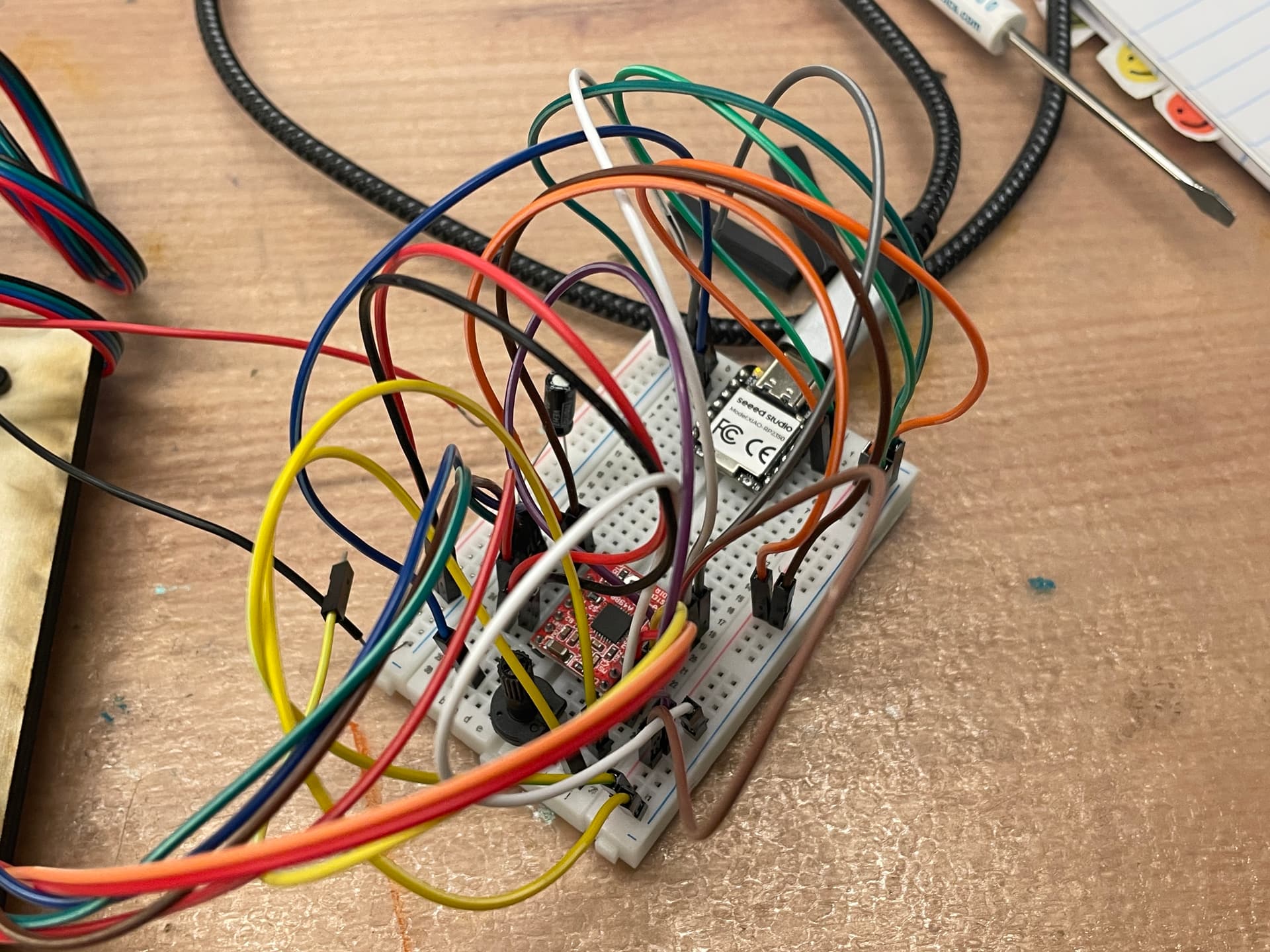
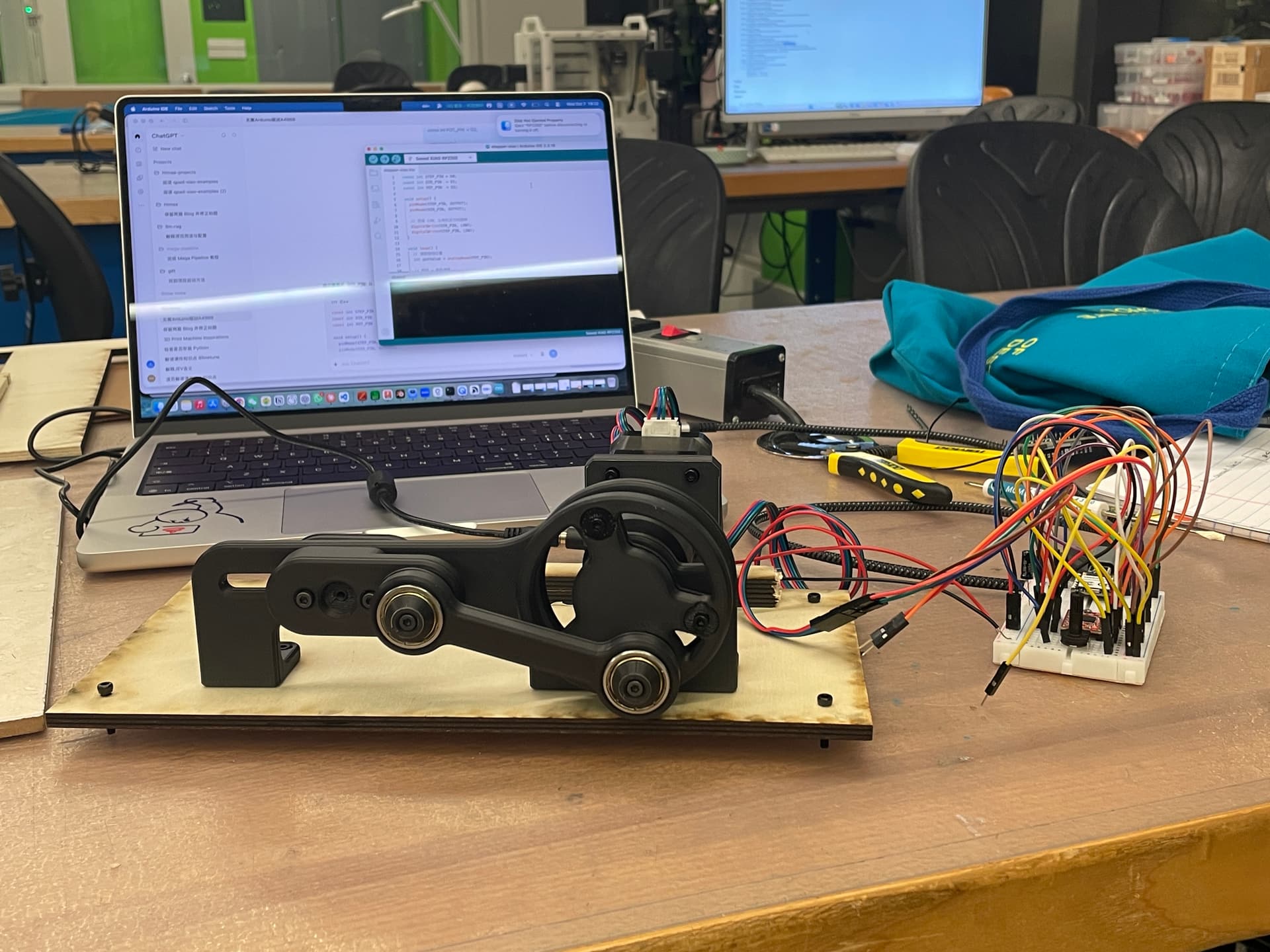
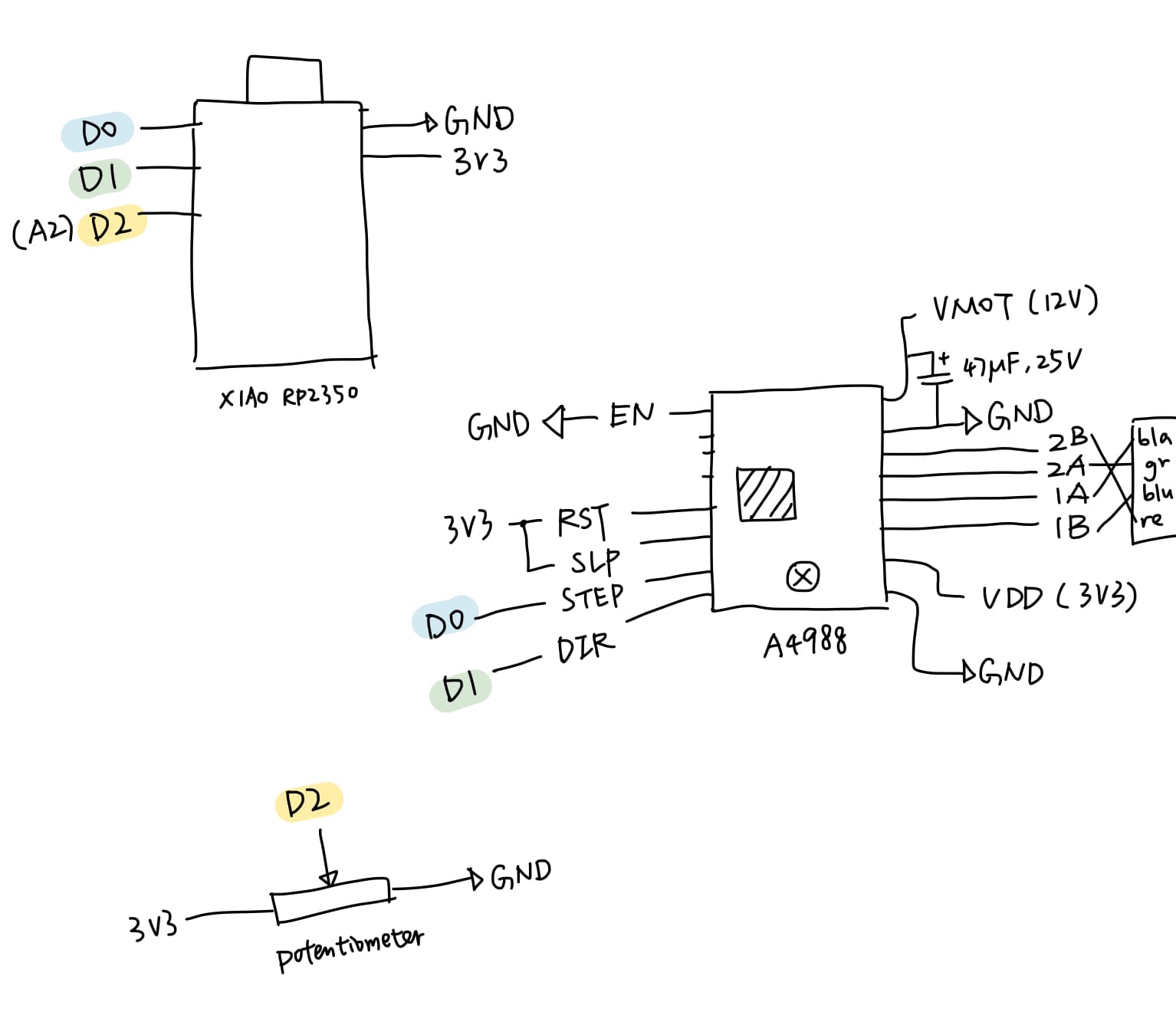
The idea is to use a XIAO RP2350 to control an A4988 driver, then use the A4988 to drive a NEMA 17 stepper motor. A potentiometer controls the motor speed.
I also looked at another stepper-motor driver schematic and PCB as a reference for how someone else organized a similar circuit.
Components and Overall Structure
Once the goal was clear, I listed the components I needed. I first searched the Fab Lab inventory to see what parts were available. Besides the XIAO, A4988, NEMA 17, and potentiometer, I also needed a power connector and a motor connector so that the PCB could connect to the power supply and motor pins, plus a capacitor.
| Component | What it does |
|---|---|
| XIAO RP2350 | Sends control signals and reads the potentiometer |
| A4988 driver module | Drives the NEMA 17 stepper motor |
| NEMA 17 stepper motor | Produces the motion |
| 10 kΩ potentiometer | Controls rotation speed |
| 100 µF capacitor | Helps stabilize the motor power supply |
| 4-pin motor connector | Connects the motor coils to the PCB |
| 2-pin power connector | Brings external 12 V power into the PCB |
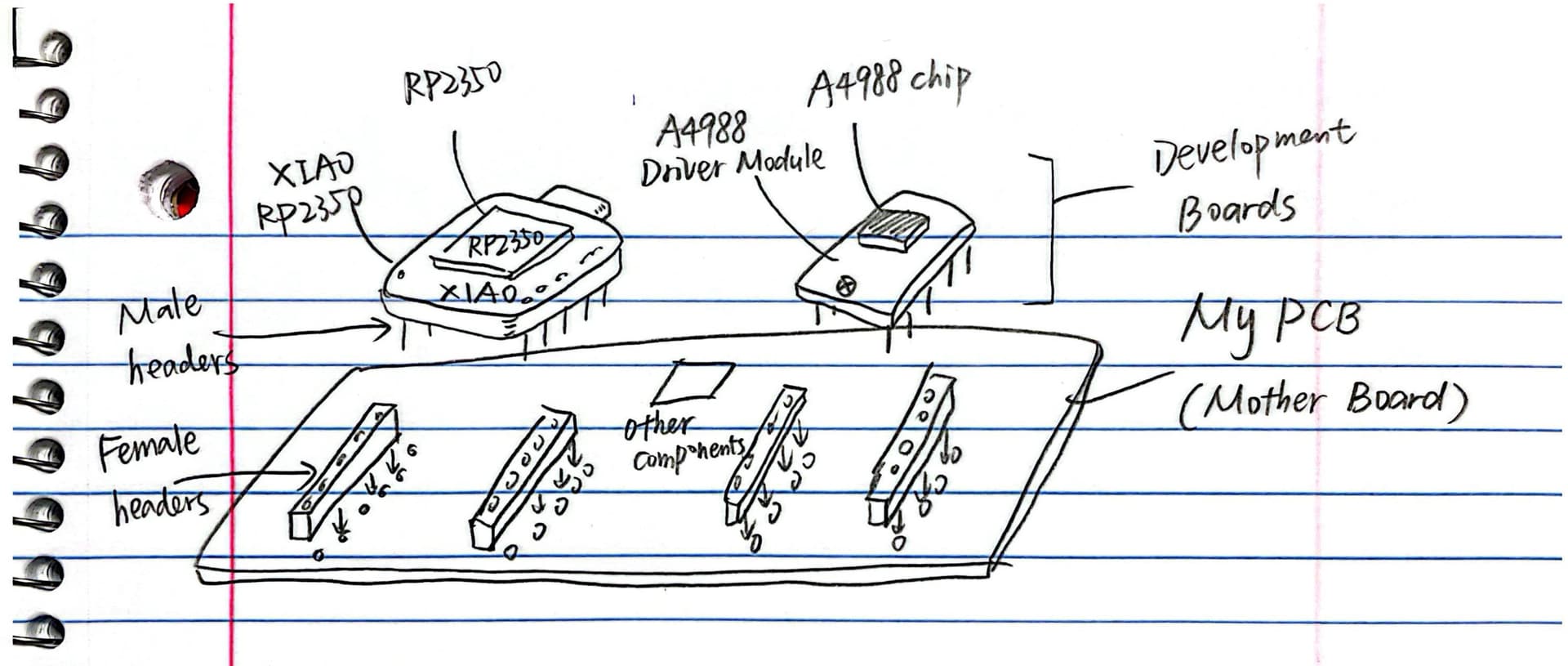
An important thing here is that I am not designing around the bare RP2350 or A4988 chips. I am using the XIAO RP2350 and A4988 driver modules themselves. They are already designed development boards—basically small PCBs—so the board I am designing is a motherboard that mounts and connects these two modules.
Before drawing the schematic, I planned how every part should connect based on the breadboard wiring from last week.
Drawing the Schematic in KiCad
I then started the schematic in KiCad. I referred to these KiCad tutorial videos and this one while learning the workflow.
1. Adding symbols
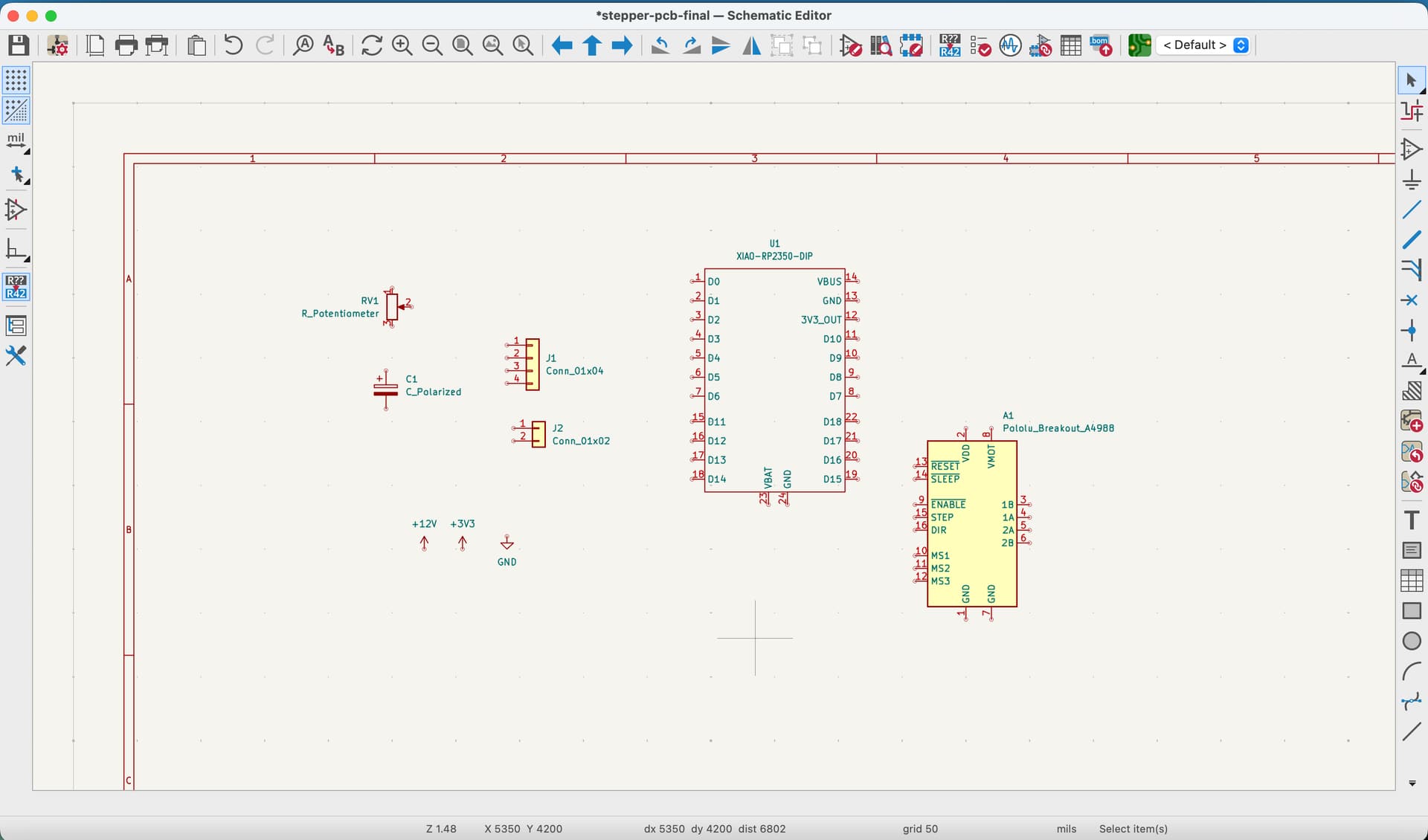
Some symbols were easy to find in KiCad’s default library, such as the potentiometer and capacitor. The XIAO RP2350 and A4988 were not available in the default library in the form I needed, so I first checked the XIAO RP2350 pinout and documentation and the A4988 resources and datasheet, downloaded the appropriate symbol libraries, and added those libraries through KiCad Preferences.
2. Connecting with wires and labels
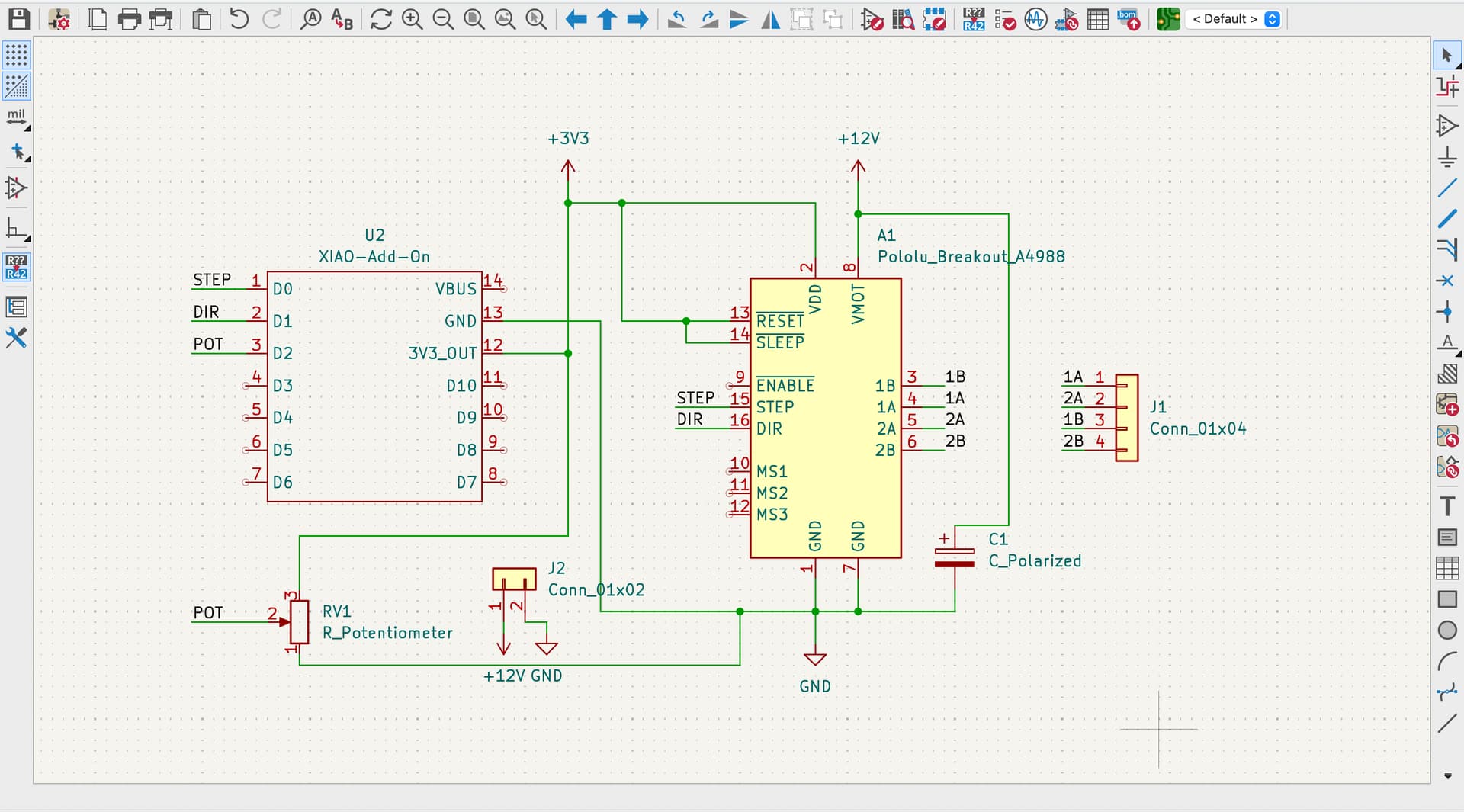
Next, I connected the components with wires. Long wires can make a schematic hard to read, so for longer connections—especially between the A4988 and the NEMA 17—I used labels such as STEP, DIR, 1A, 1B, 2A, and 2B instead.
| Connection | Purpose |
|---|---|
XIAO D0 → A4988 STEP | Sends step pulses |
XIAO D1 → A4988 DIR | Controls direction |
Potentiometer wiper → XIAO D2 | Reads the speed input |
XIAO 3V3 → A4988 VDD | Supplies logic power |
External 12V → A4988 VMOT | Supplies motor power |
A4988 1A/1B/2A/2B → motor connector | Connects the motor coils |
The XIAO is powered through USB, while the motor needs a separate 12 V supply. They still need a shared ground. I also put a 100 µF capacitor between VMOT and GND to help with motor-power spikes.
After connecting everything, I got several warnings:
Pin not connectedInput pin not driven by any output pinsInput power pin not driven by any output power pins
Some pins are intentionally left open, so these warnings appeared. I am still working through how to resolve each one properly—for example, by marking unused pins clearly and setting the needed fixed states for the A4988 control pins.
Finding Footprints
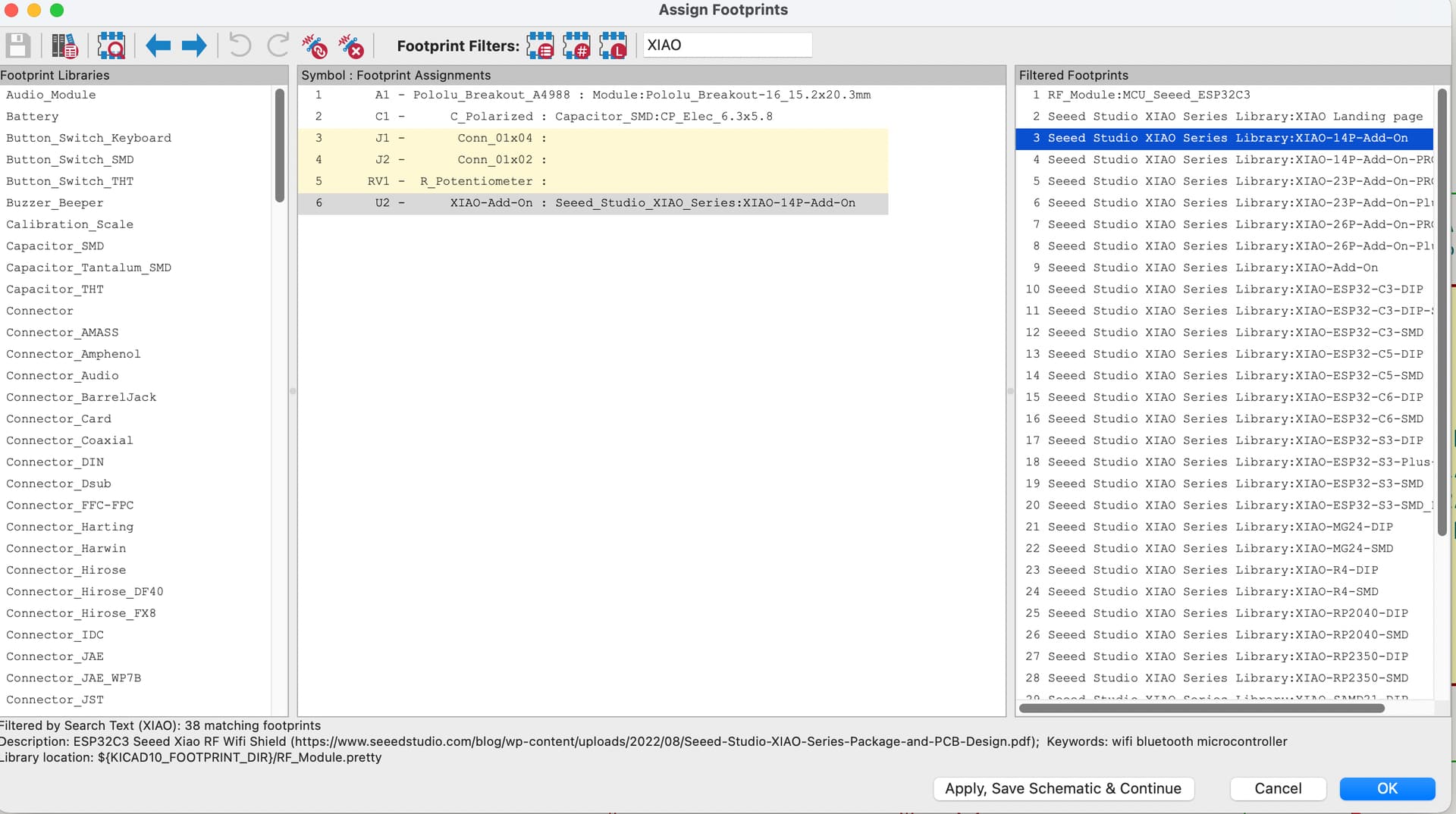
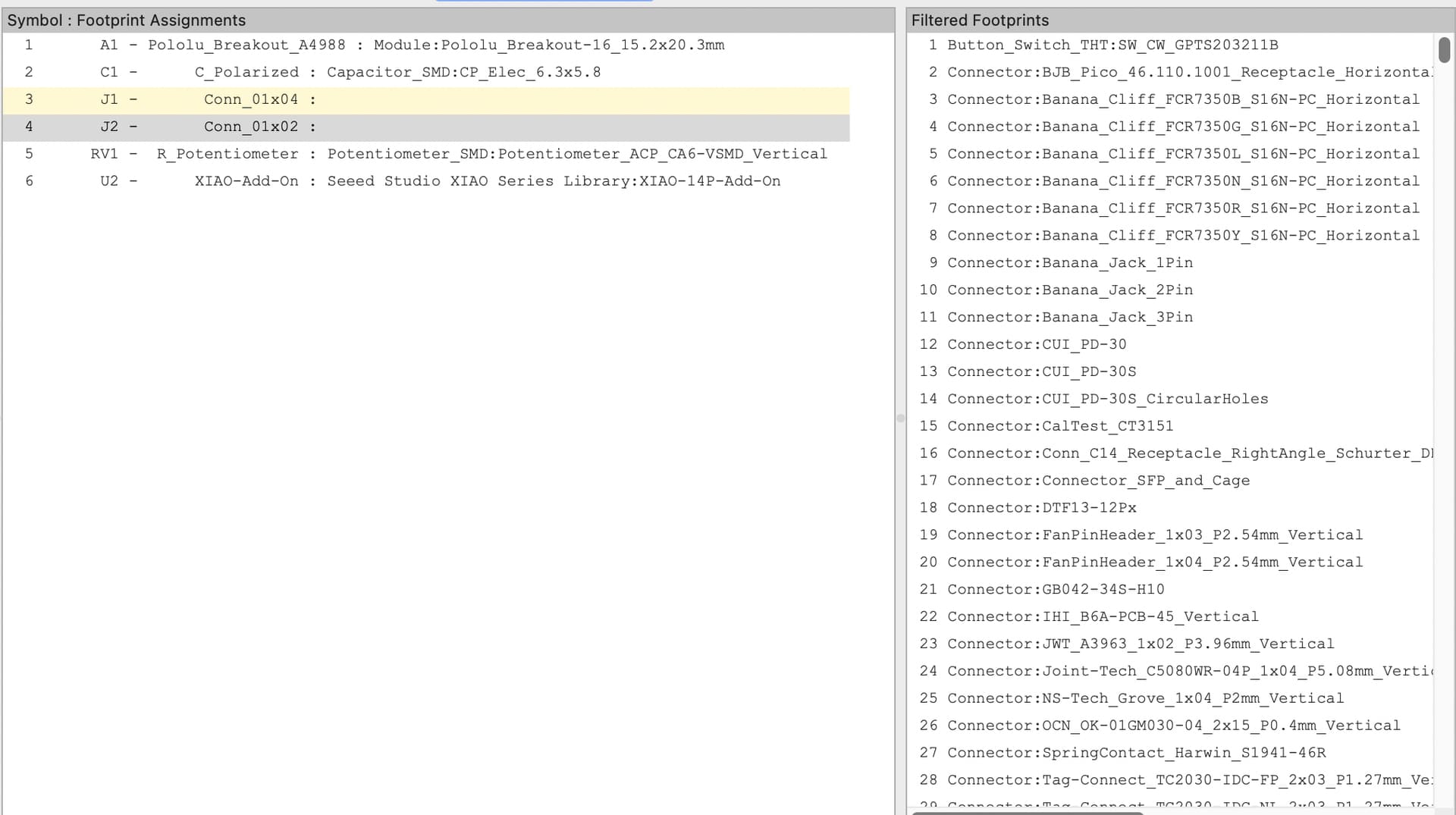
After the schematic comes footprint selection. A footprint describes the real physical size and pad layout of a part, so it is one of the key things that determines the physical PCB.
This was also a difficult part. For the RP2350 and A4988 modules, I downloaded and imported the relevant footprints into KiCad’s footprint library. But for some components, there were simply too many choices. For example, I could not easily tell which 4-pin motor connector or power connector footprint was the right one. I spent a long time looking, eventually picked one somewhat randomly, and later found that it was too large in the PCB design.
Choosing the exact part number—and finding a quick, reliable way to select the matching footprint—is something I still need to research more.
Moving into PCB Design
Once the footprints were assigned, I could move to PCB design. Looking at the topology, I realized that a single-layer board would be very difficult to route, so I used a two-layer process.
The workflow was:
- Import the schematic into PCB Editor.
- Re-place the components so that the routing can be as simple as possible.
- Draw the board outline.
- Route the traces by following the ratsnest lines.
Before routing, I set a trace width of 0.4 mm for everything. In the future, I want to distinguish these more carefully, since power traces should be thicker than GPIO signal traces.
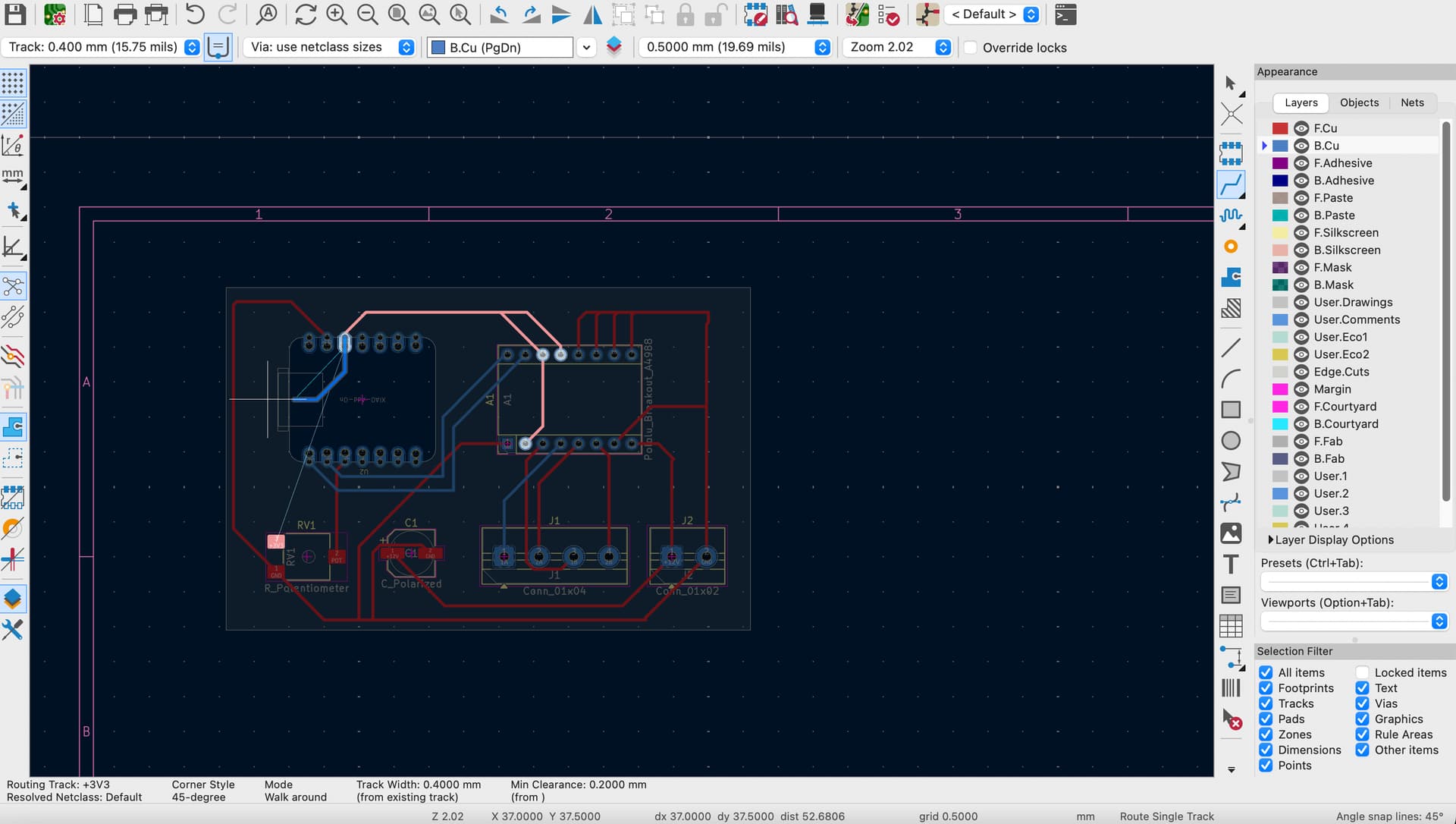
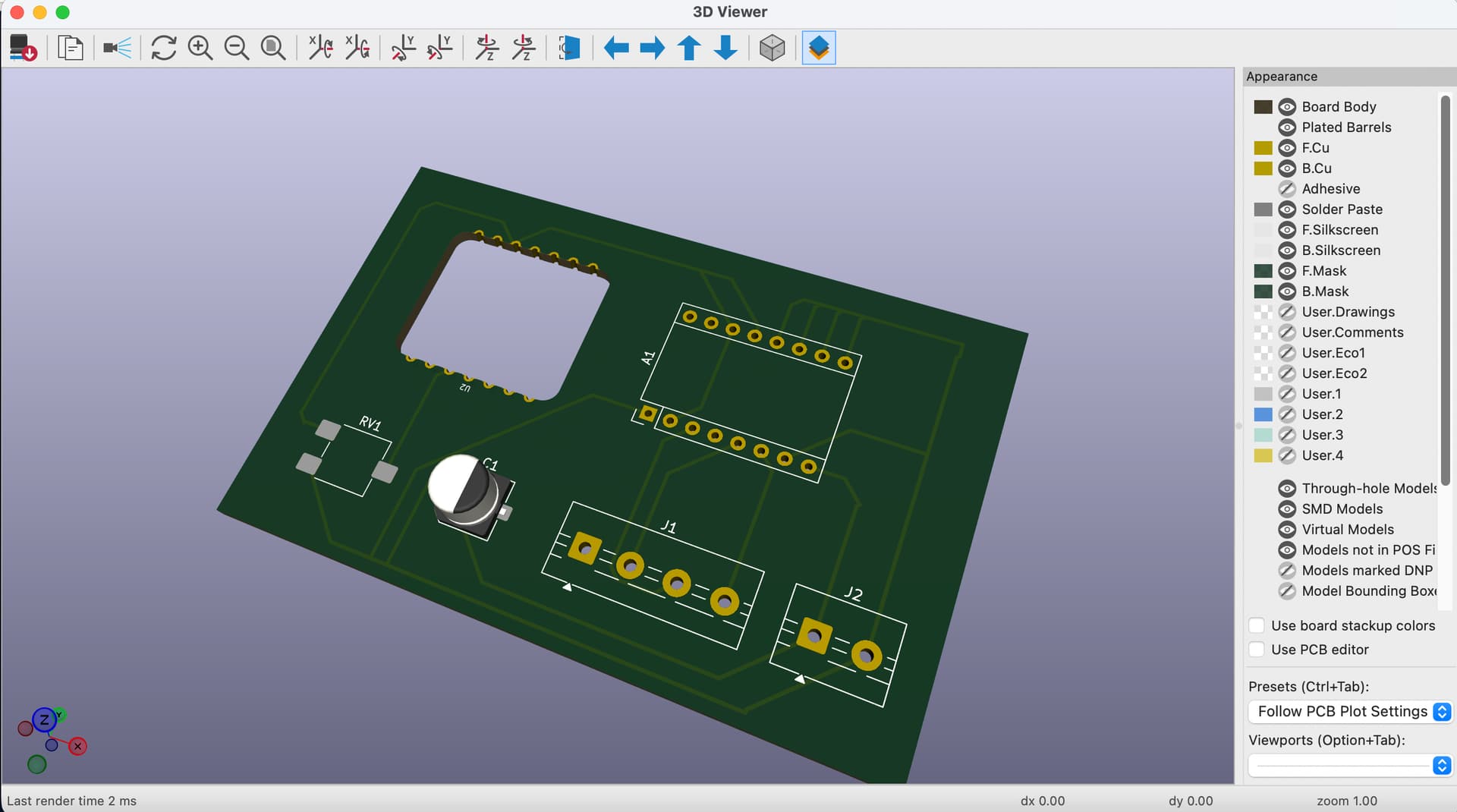
As I routed the board, I found another problem: the XIAO RP2350 footprint I chose has an opening in the middle. That means the bottom layer cannot pass underneath it. I could not find a footprint in the library that was both solid and had exactly the same pin count, so at that point I was not sure what the best solution was.
The routing is still a bit messy and has a lot of room for improvement, but it helped me understand why placement, footprint choice, and routing decisions are all connected.
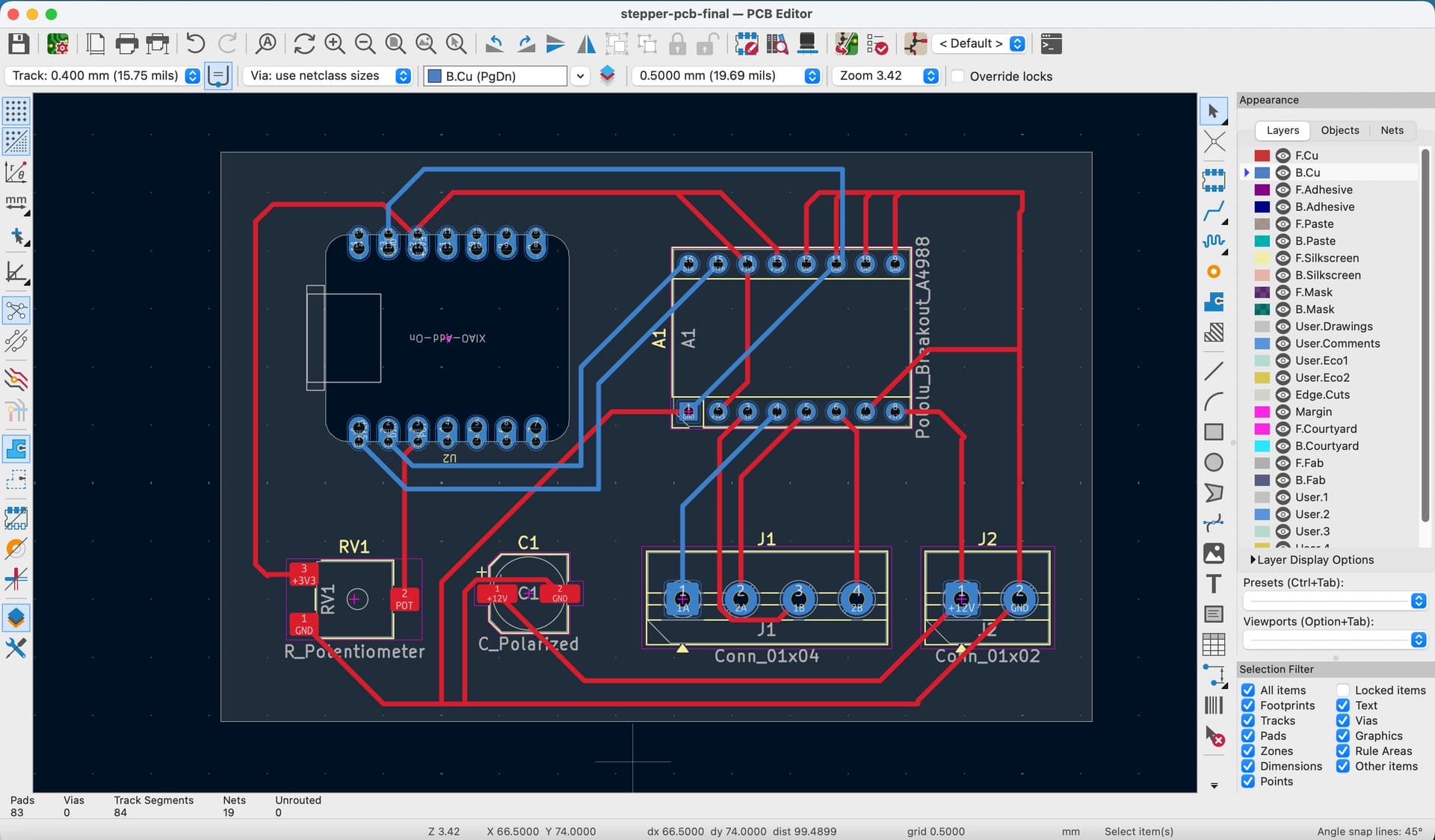
Finally, I checked the overall result in KiCad’s 3D Viewer. In the future, I will add or complete more 3D models for the components and keep optimizing the layout before fabrication.