0Designing is the first step of any manufacturing process
As designers, we are responsible for the object we want to make, from its conception to its execution. That means a good design is not only effective in its task, it is also effective to manufacture.
That is why designing and manufacturing go hand in hand. In this class, we want to help you learn and deeply understand manufacturing processes, so that when you design, you already know how each part will be made and what limitations it needs to take into account. For example, if a part will be laser cut, you should know the available stock and the kerf. If it will be 3D printed, maybe avoid long, skinny, slender elements. And is it going to sit next to something hot? The good designer is the one who makes something effective and realizable.
Back to CAD
So, why do we need a well-done CAD? Think about it this way: your manufactured object will always be worse than your CAD. The better your CAD, both in how it's organized and in how well it describes the object, the better your product or prototype will be. In this class we will use CAD for:
- designing
- preparing manufacturing files (talking to machines: preparing machine-readable files to 3D print, CNC cut, laser cut, etc.)
- DOCUMENTING!
Parametric design
On top of that, this class and this recitation have a big focus on parametric design! This means that when we define an object, instead of using fixed values, we add parameters that we can change later. Parameters can save you so much time. CAD programs recompute your geometry every time you change a parameter. Imagine you made a complex design for laser cutter week, and the new batch of cardboard is thicker! Well, no problem: if you described the thickness as a parameter, the whole design updates. No drama, no tears.
So, let's go step by step: how someone with no previous experience can start approaching 3D modeling, parametrically.
back to index1Installation of Fusion
Fusion is free for students! To get it, visit Autodesk's education page: autodesk.com/education/home
Find Fusion and click Select.
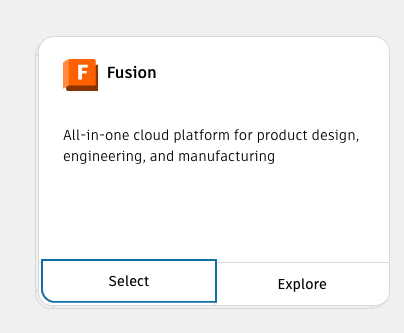
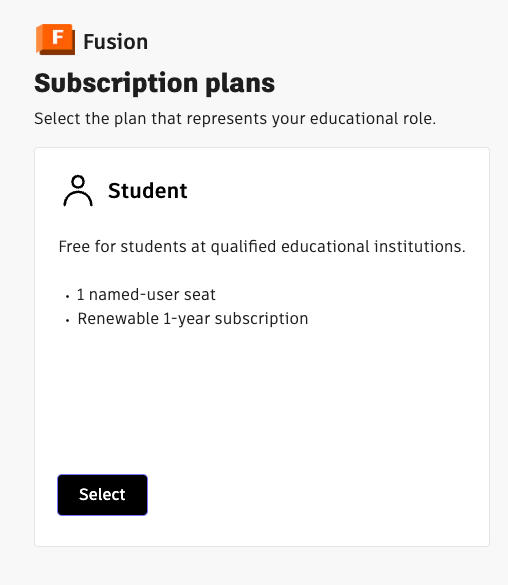
Next, you need to create an account with your institutional email (your @mit.edu). This is how Autodesk checks that you are a student enrolled in a university program. Choose the Student plan and click Select.
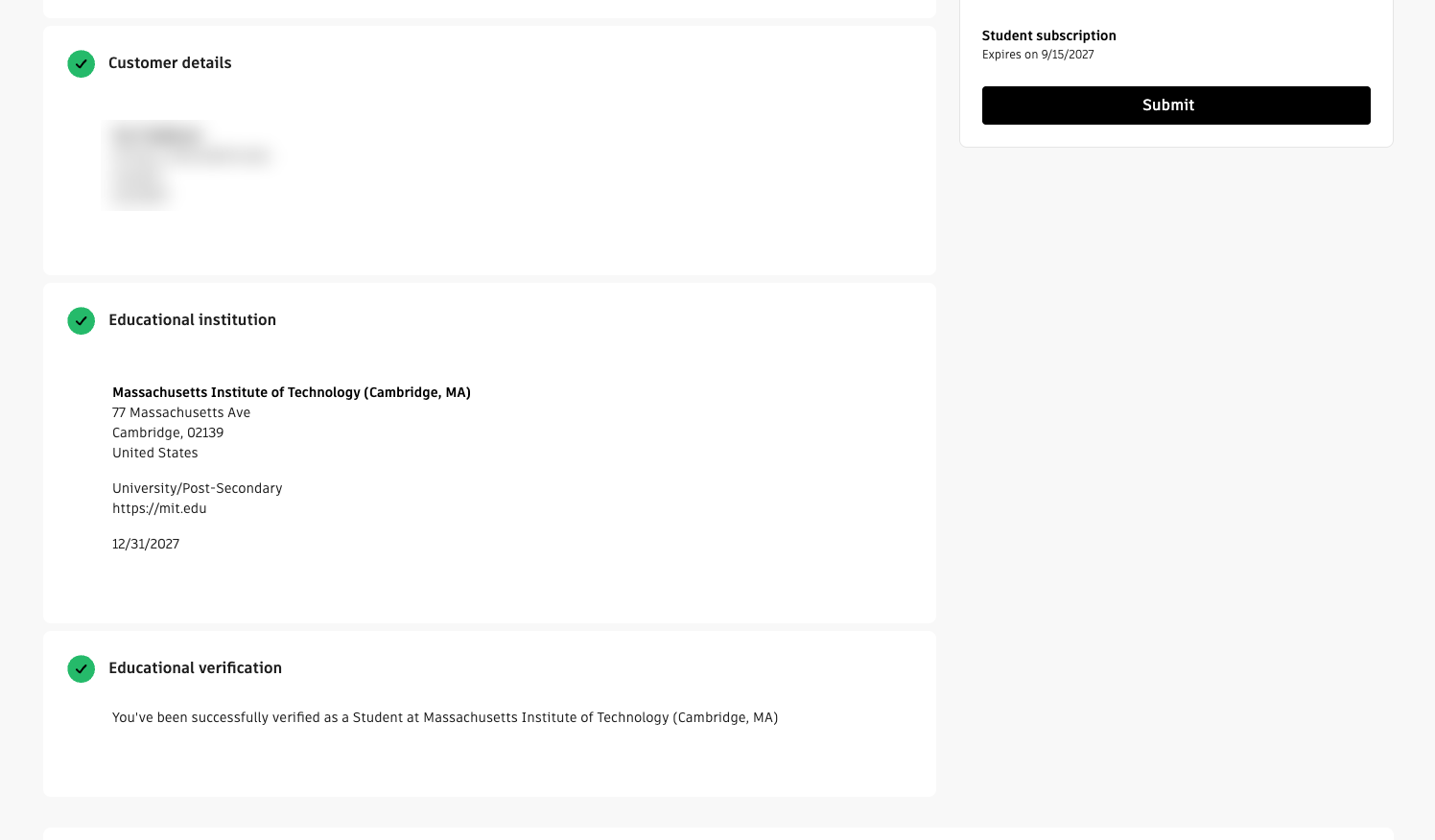
Fill in your account information and your educational institution. Once you've been verified as a student, click Submit! Your student subscription lasts one year, and you can renew it as long as you're still a student.
You will then receive an email. Follow the instructions to create your Autodesk user, then download Fusion and install it on your computer.
Save your username and password! You will need them to log in once Fusion is installed. Logging in links your local machine with the cloud, where your designs are stored.
back to index2Notebook sketch before modeling!
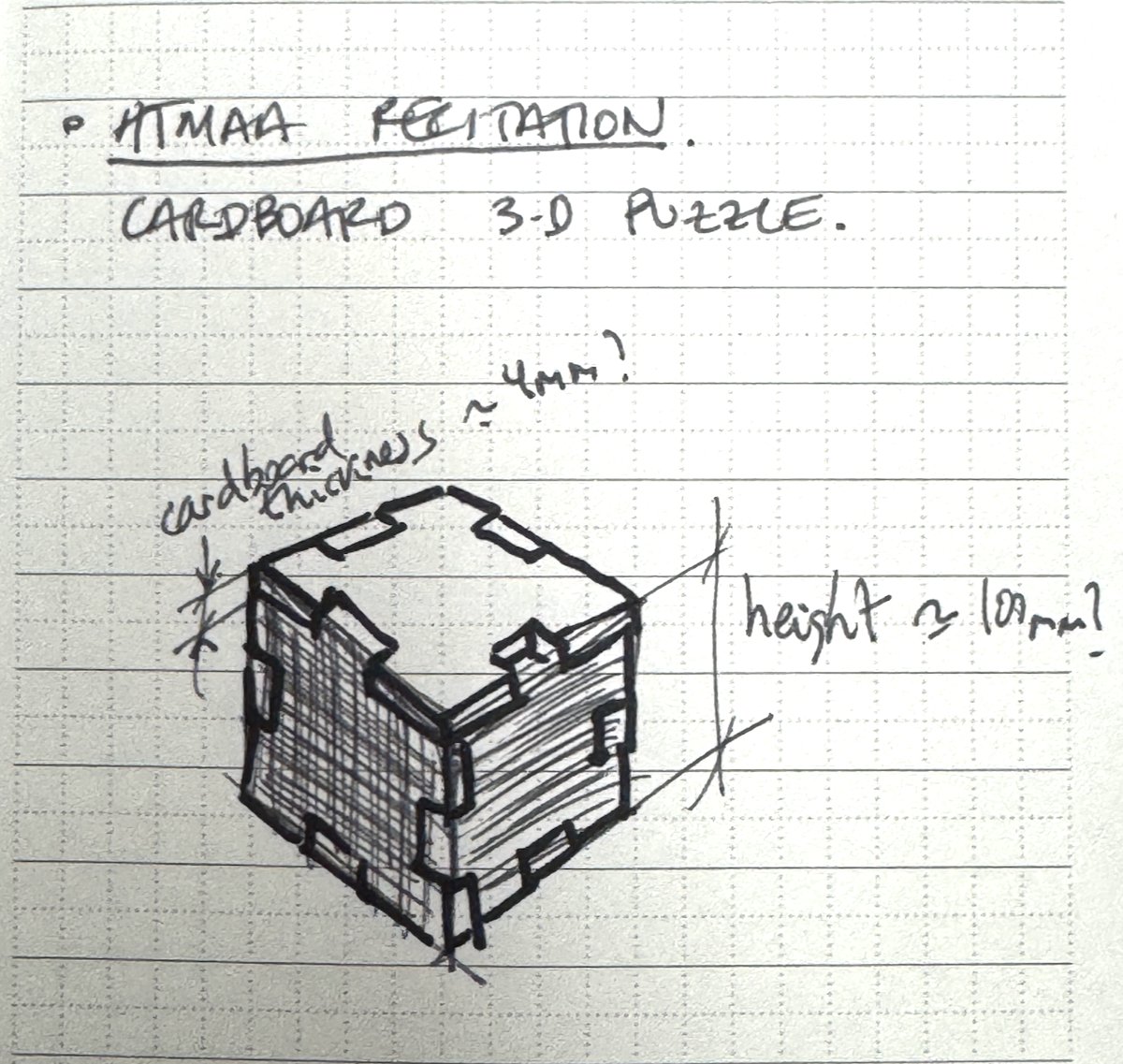
This step is extremely important, and I can't say it enough. In my six years TAing this class, I've seen so many issues that could have been avoided, and so much time students could have saved, if only they had made a sketch before committing to CAD!
Hand-drawn sketches help us develop spatial perception, sure, but they also teach us about what we are about to design. They are the transition from the idea in your head to real life. They don't need to be precise, or final! They're just sketches, a starting point.
A sketch helps you figure out how many parts your design will have, their orientation, and which parameters you will need to define later in CAD. You can also start thinking about materials and manufacturing processes. Basically, it's like cheating.
If you have never used 3D modeling software before, please sketch your ideas first.
3How to use Fusion 360
Text to come.
3.1Part design
Text to come.
3.2Assembly design
Text to come.
3.3Lay out and export: STL, STP, DXF
Text to come.
4Documenting your CAD work
Text to come.
Embedding your Fusion model in your website
Screenshots are great, but you can also embed your actual 3D model in your page, so anyone can rotate it, zoom in and explore it from the browser. Try it with the cube below!
Here's how to do it:
- Open your design on the web. In Fusion, open the Data Panel (the grid icon at the top left), find your design and click View Details on Web. Your design opens in the browser.
- Get the embed code. Click the Share icon, then Embed. Pick a size and click Copy.
- Paste it in your page. What you copied is an
<iframe>. Paste it in your HTML where you want the model to show up, and that's it!
A few things to keep in mind. People outside your team get a copy of your design, not your original file, so nobody can mess with your work. The link always shows the latest version, so when you update your model, your page updates too. And if you can't find the Share or Embed option, file sharing might be turned off for your hub.
Tip: Fusion gives the iframe a fixed width and height. To make it fit any screen, remove the width and height and give it this style instead: width: 100%; aspect-ratio: 4 / 3; border: 0;
5Resources
You won't remember every click from this recitation, and you don't need to! Here's where to look when you get stuck.
From the class
- HTMAA 2026 class site, with the schedule, assignments and all recitations.
- Computer-aided design lecture, with the full overview of CAD tools.
- Your TAs! If you are stuck, ask. That's what we are here for.
To keep learning Fusion
- How to CAD Almost Anything, Fusion 360 edition, a free MIT OpenCourseWare course.
- How to CAD Almost Anything on GitHub, with the workshop slides, recordings and Fusion files.
- Recommended Fusion tutorial series, great for starters. Start with the interface video and keep going.
- Autodesk University, hundreds of free on-demand classes. Search for Fusion.
- Autodesk help: sharing designs, for public links and embedding your model.
From previous recitations
- Parametric design recitation, 2021–2025
- Parametric design and design for manufacturing, 2020
- HTMAA 2023 class site, where all recitations were recorded (look for the video links).
- Intro to CAD and parametric design slides, 2024, by Miana Smith and Diana Mykhaylychenko.
- HTMAA prior years, all previous class sites.
Setup and alternatives
- Autodesk Education, to get Fusion for free as a student.
- Onshape, parametric CAD that runs in your web browser.
- FreeCAD, free and open-source parametric CAD.