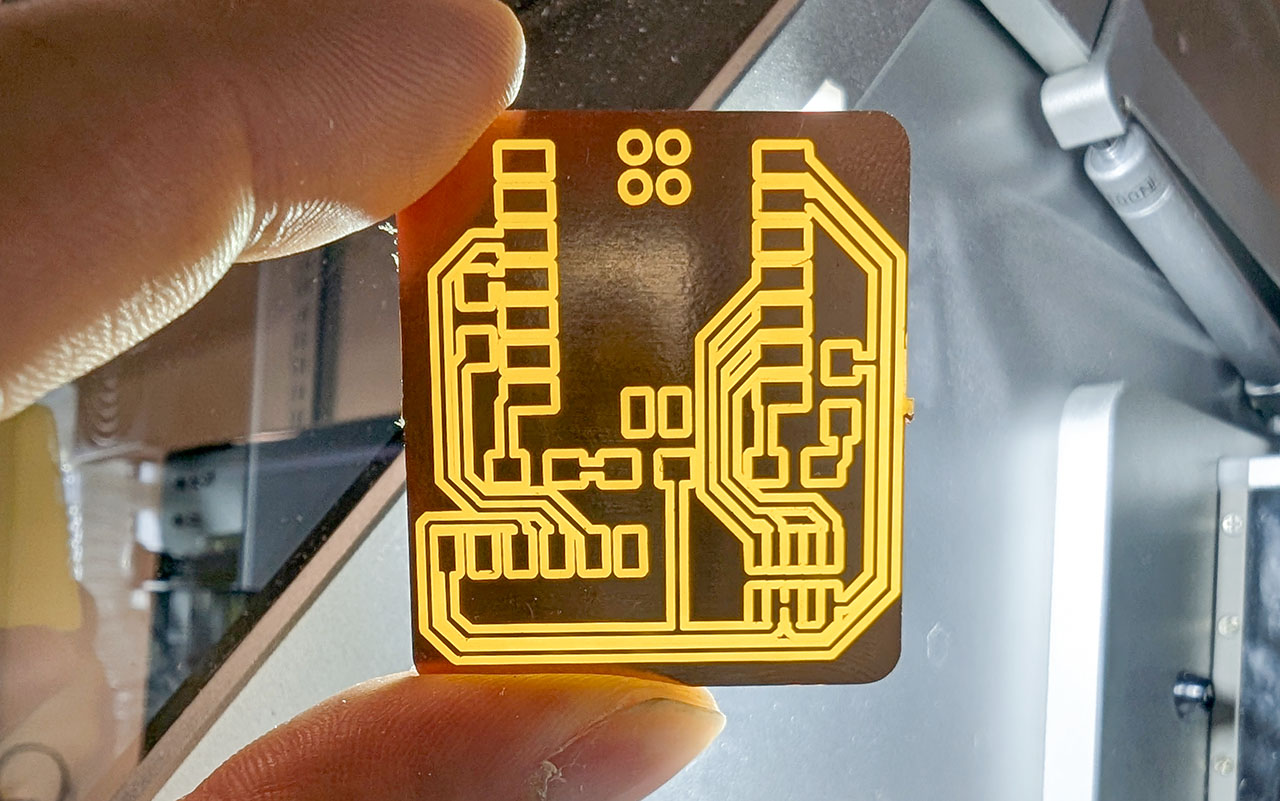
Carvera PCB tutorial
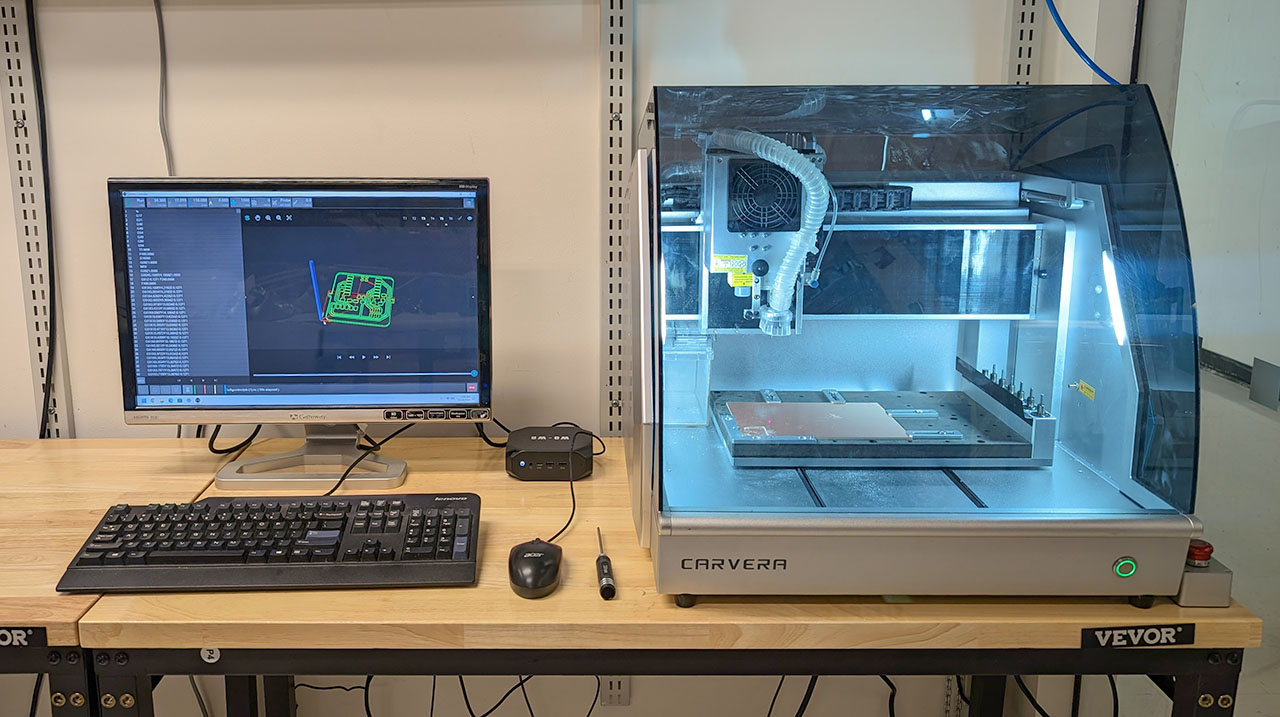
This tutorial will guide you through PCB milling using the Carvera machine, which is an impressive low-cost milling machine with automatic tool changing. In the context of PCB milling, this means that the machine can cut the traces with a fine tool, then swap it for a larger one to cut the board's edge, all automatically.
1. Securing the copper clad
The recommended way to secure the copper clad to the machine is to tape it down. It ensures flatness, and keeps the milled board attached throughout the process. A tape roll is a handy way to cover the whole clad at once:
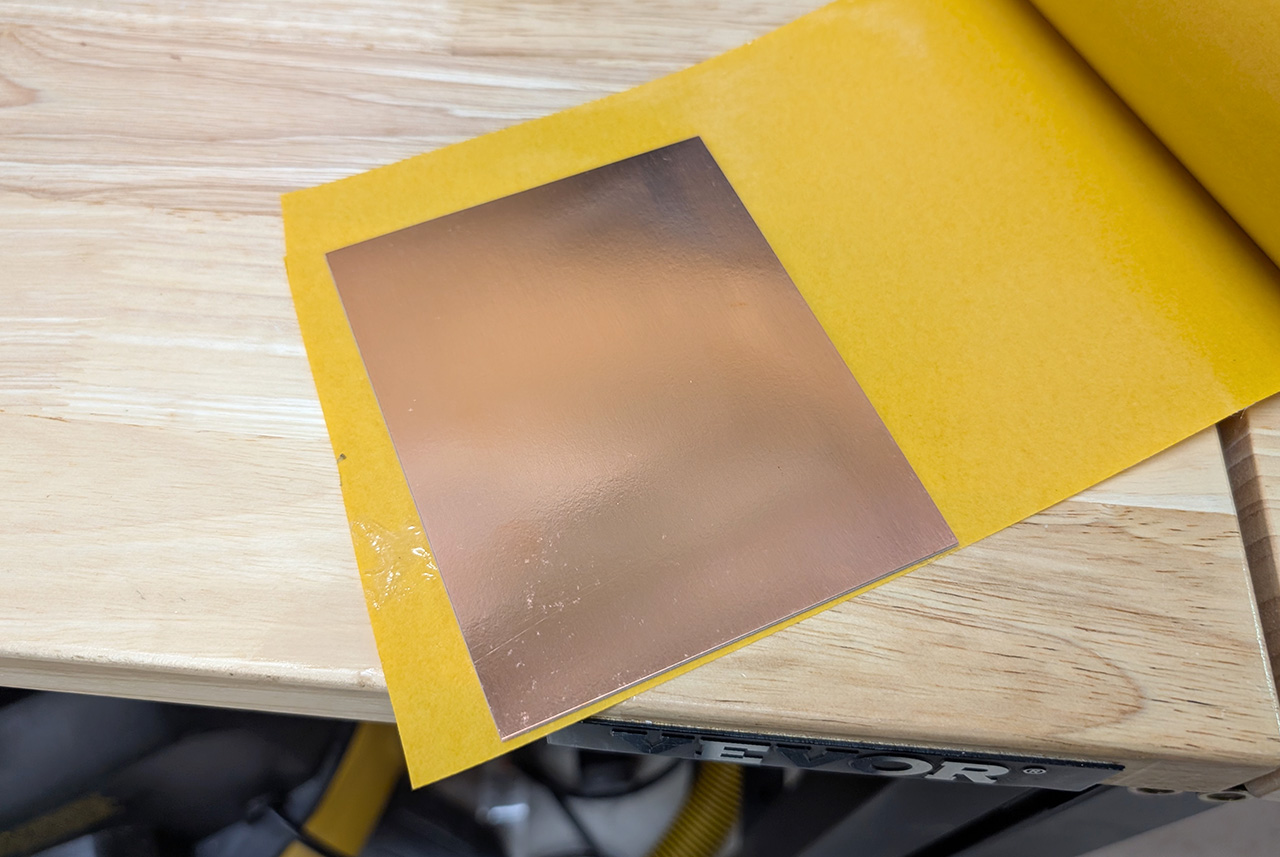
Keep the edges neat and cut them with scissors as needed. Make sure the tape is fully pressed against the clad peeling off the protective layer.
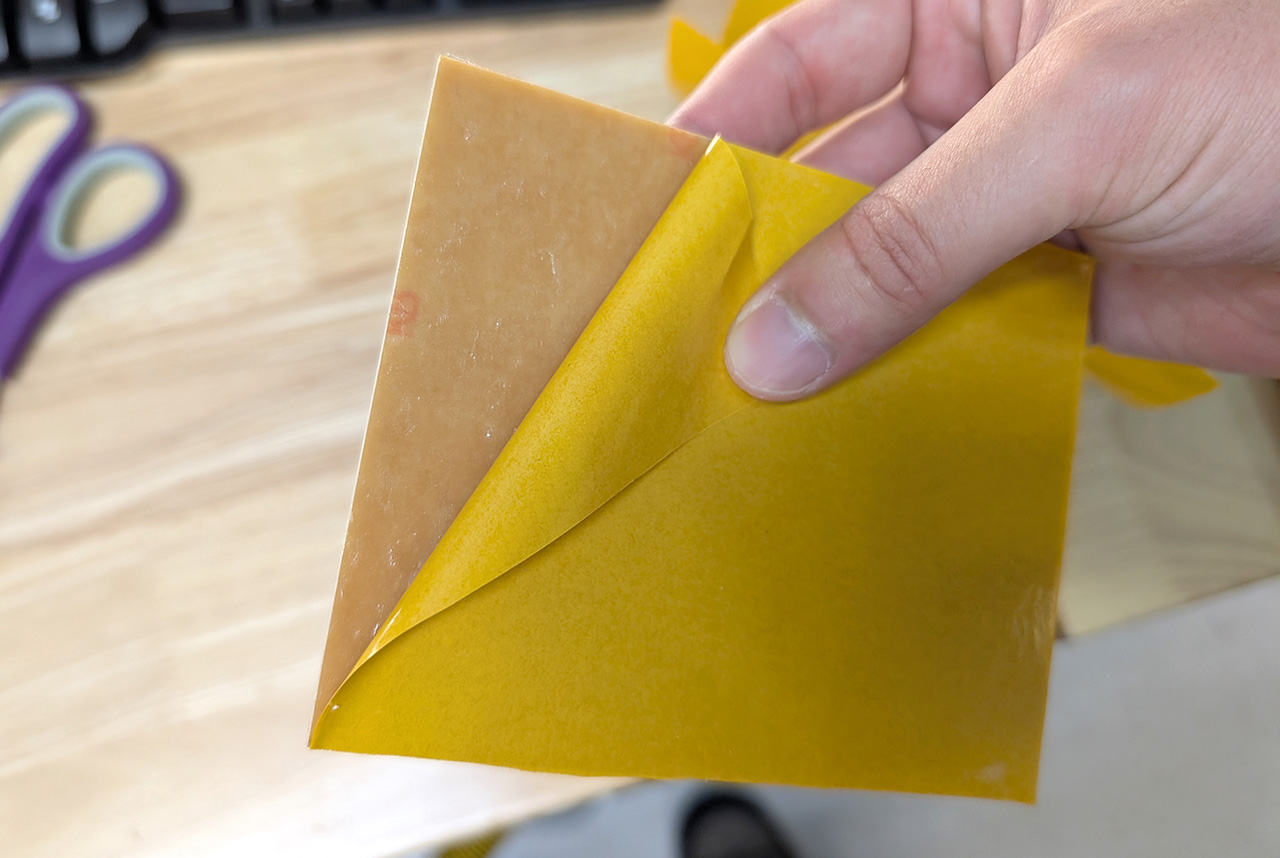
A sacrifical layer is needed throughout the process. The easiest sacrifical layer is simply more copper clad. Use a total of three layers: two sacrifical layers, and the board you'll machine.
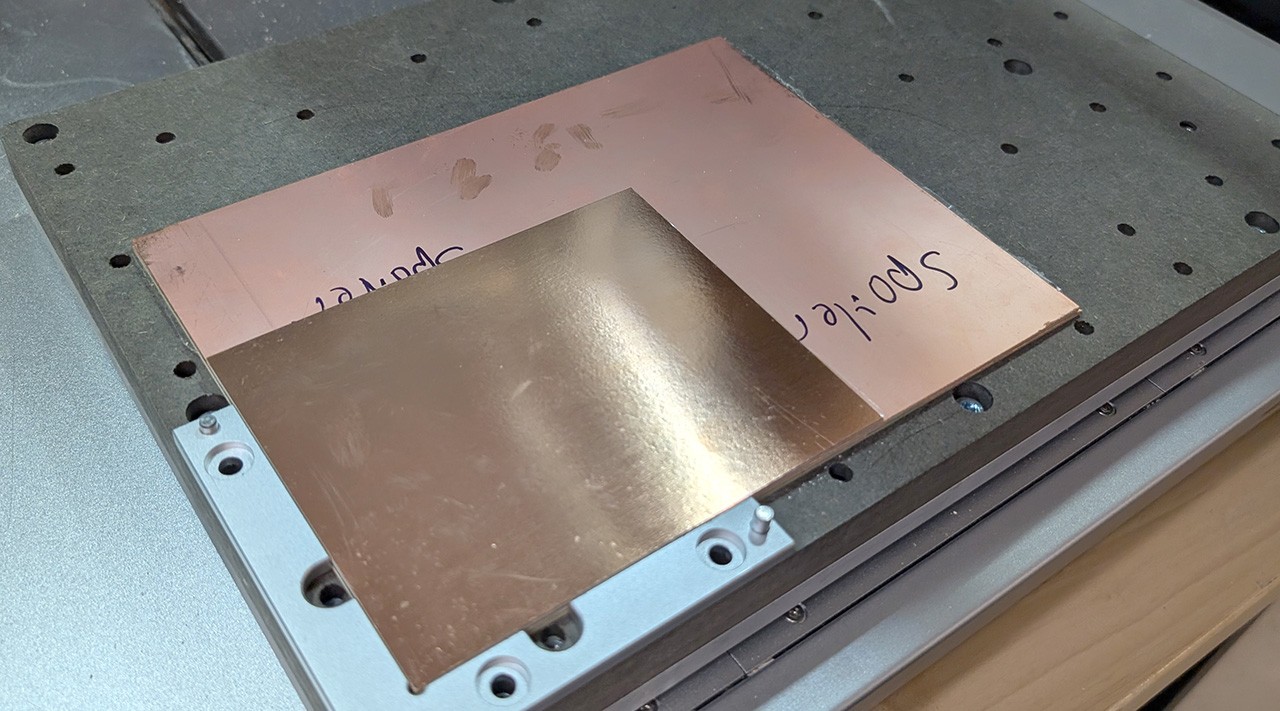
The machine is ready to mill! It's that simple.
2. Preparing the file with mods
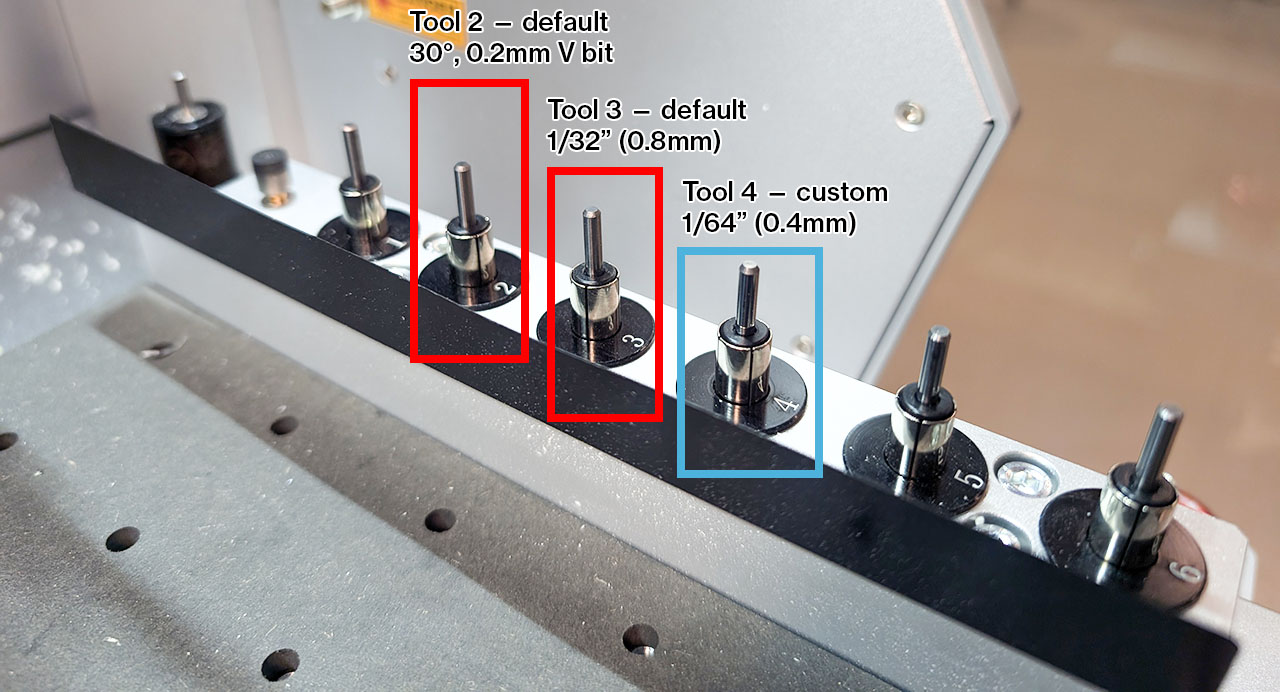
For the purpose of PCB milling, we'll assume the machine has the following tools loaded:
- Tool n°3: 1/32" (0.8mm) flat end mill
- Tool n°4: 1/64" (0.4mm) flat end mill
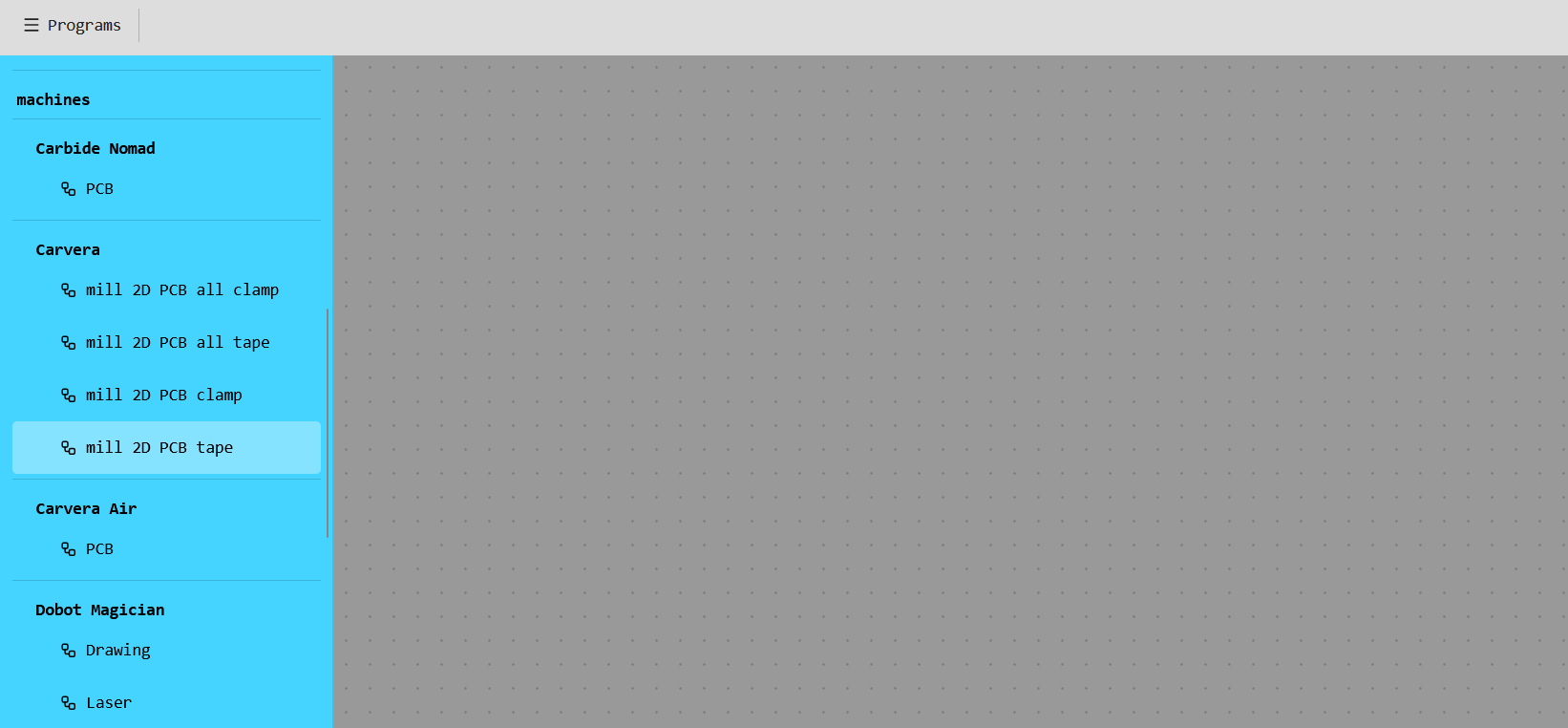
To produce the g-code to mill your PCB, first open mods in a web browser. Open the "mill 2D PCB tape" program under "Carvera":
The program looks very daunting, but your input is only needed on the left side:
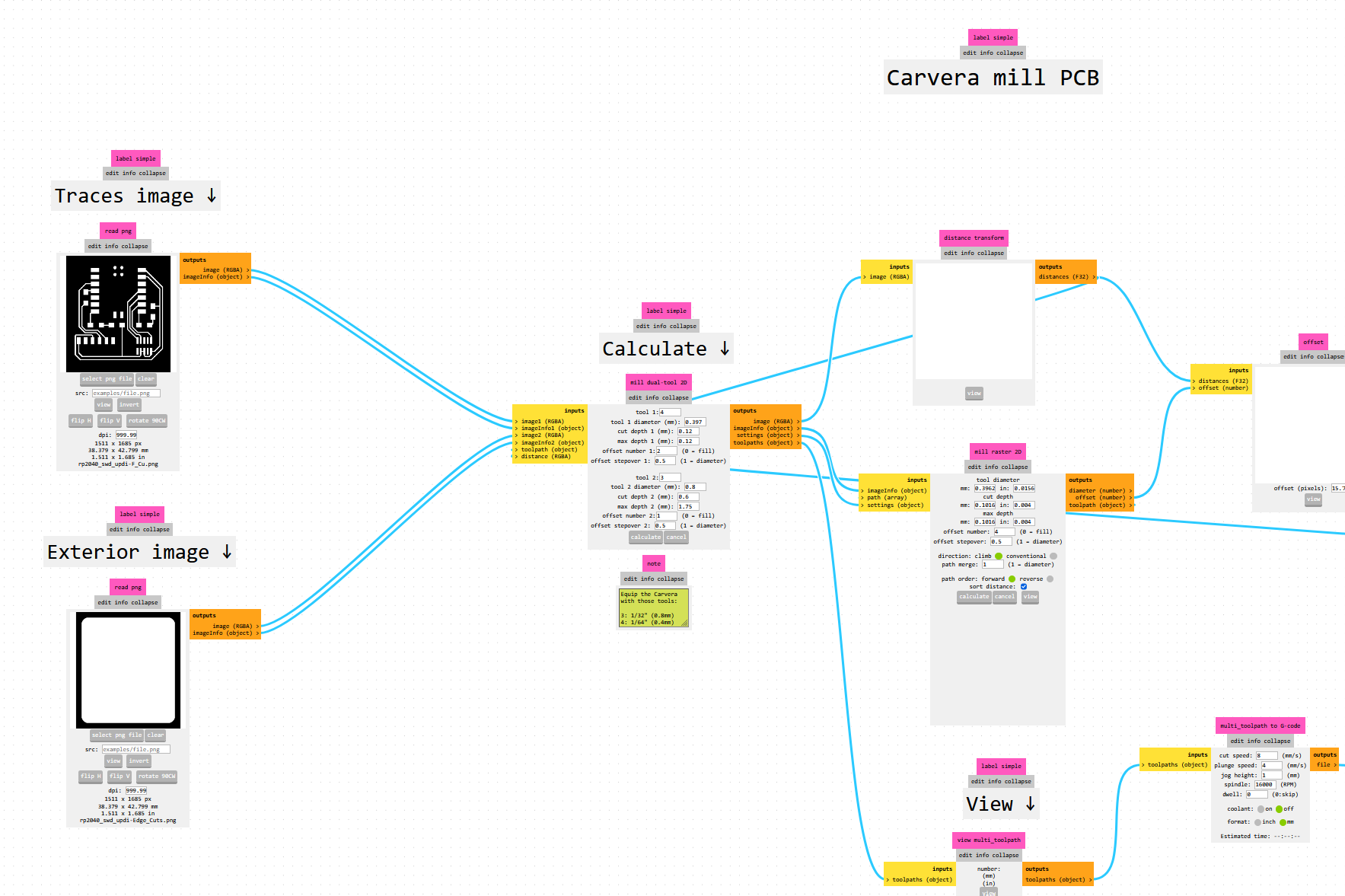
To continue, you'll need a png image of your board's traces, and another png image of your board's edge. You can obtain those files in many ways, for example by converting your gerber files to images using gerber2img.
Load the two images by clicking "select png file" in the respective nodes, on the left of the program. Double check the DPI value of those images, as it can sometimes fail to be automatically detected, in which case you can change it manually.
To obtain your g-code file, simply click on "Calculate" on the central node, marked by a note. The program will become slow or freeze for a few seconds. At the end, you will get a preview and time estimate in the lower right side of the program. The g-code file will autmatically be downloaded to your hard disk. If in doubt, check your Downloads folder, or the browser's download history.
3. Loading the file into CarveraController
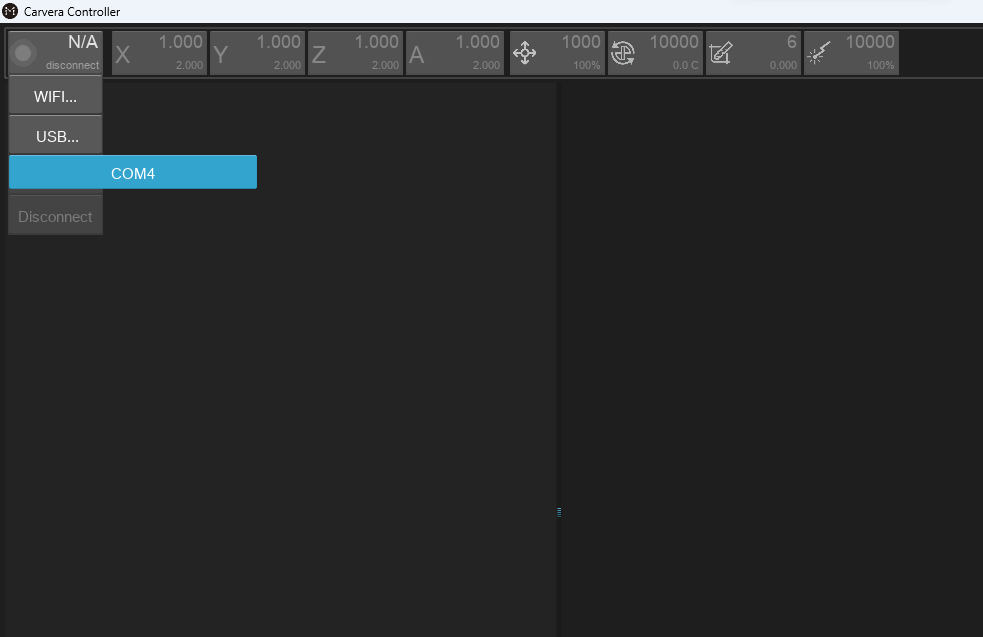
Launch CarveraController, and make sure the machine is connected through USB:
Next, load the file by clicking the icon in the lower-left corner. The Carvera needs the file to be loaded into its internal memory, so you'll need to upload the file first, by clicking on "upload":
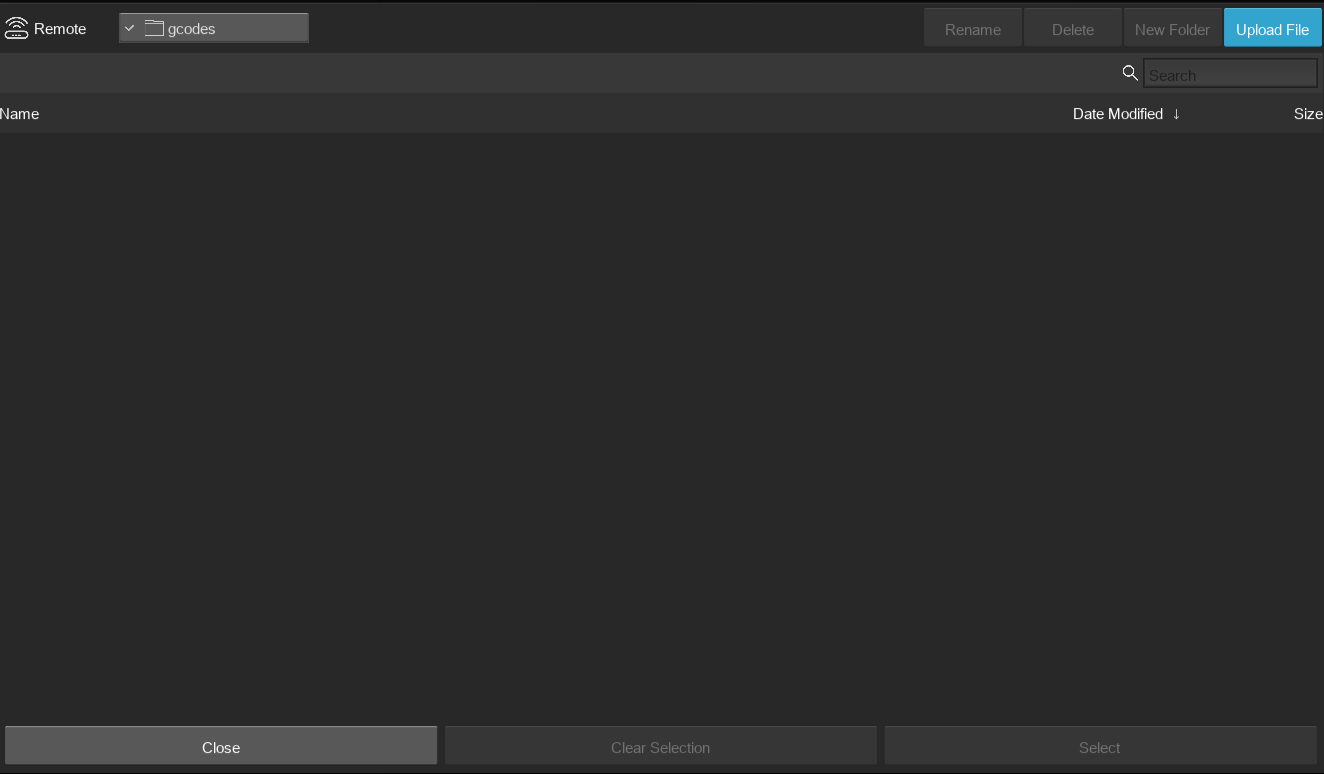
Navigate to the file produced by mods, and click on "Upload". Don't click on "Open", as that won't upload the file to the machine.
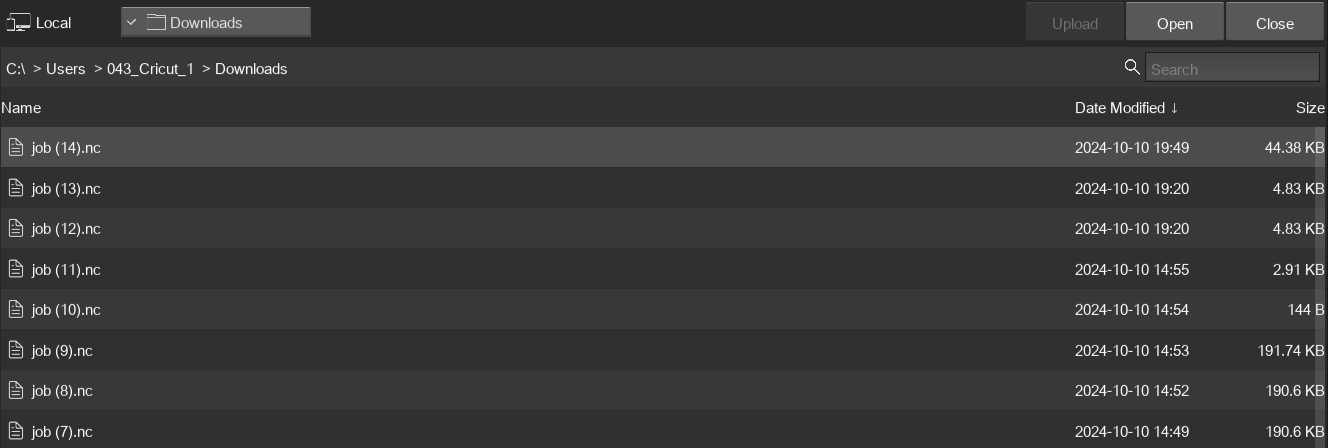
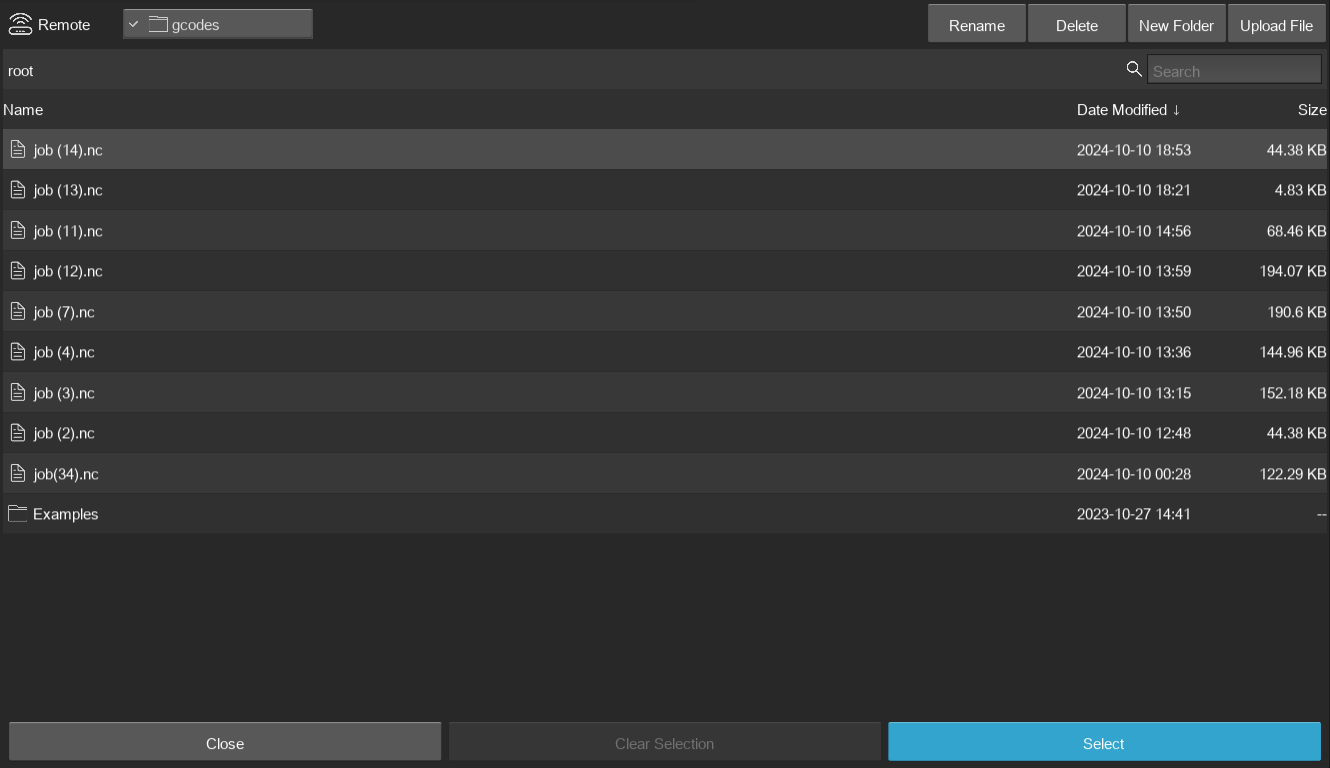
Next, click on "Close" to go back to the machine's locally stored files. Select the one you just uploaded, and click on "Select".
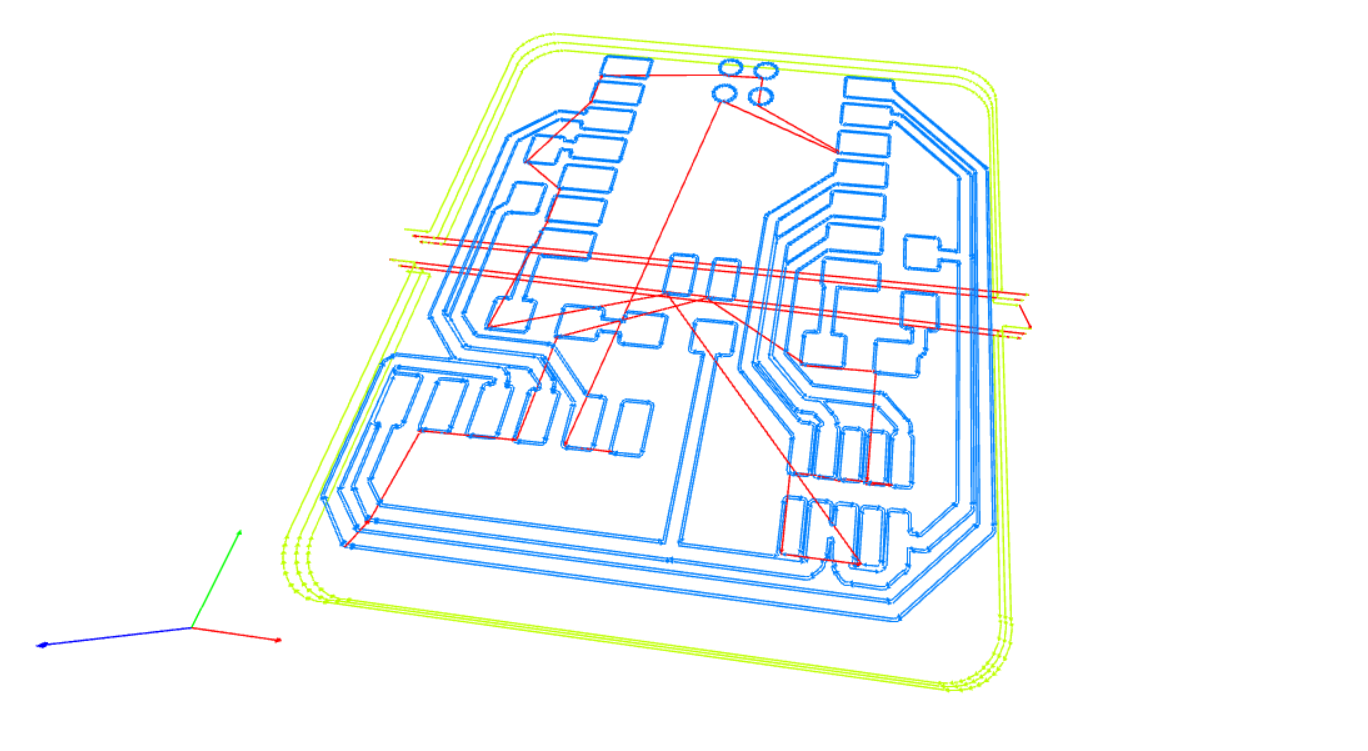
The toolpath is displayed:
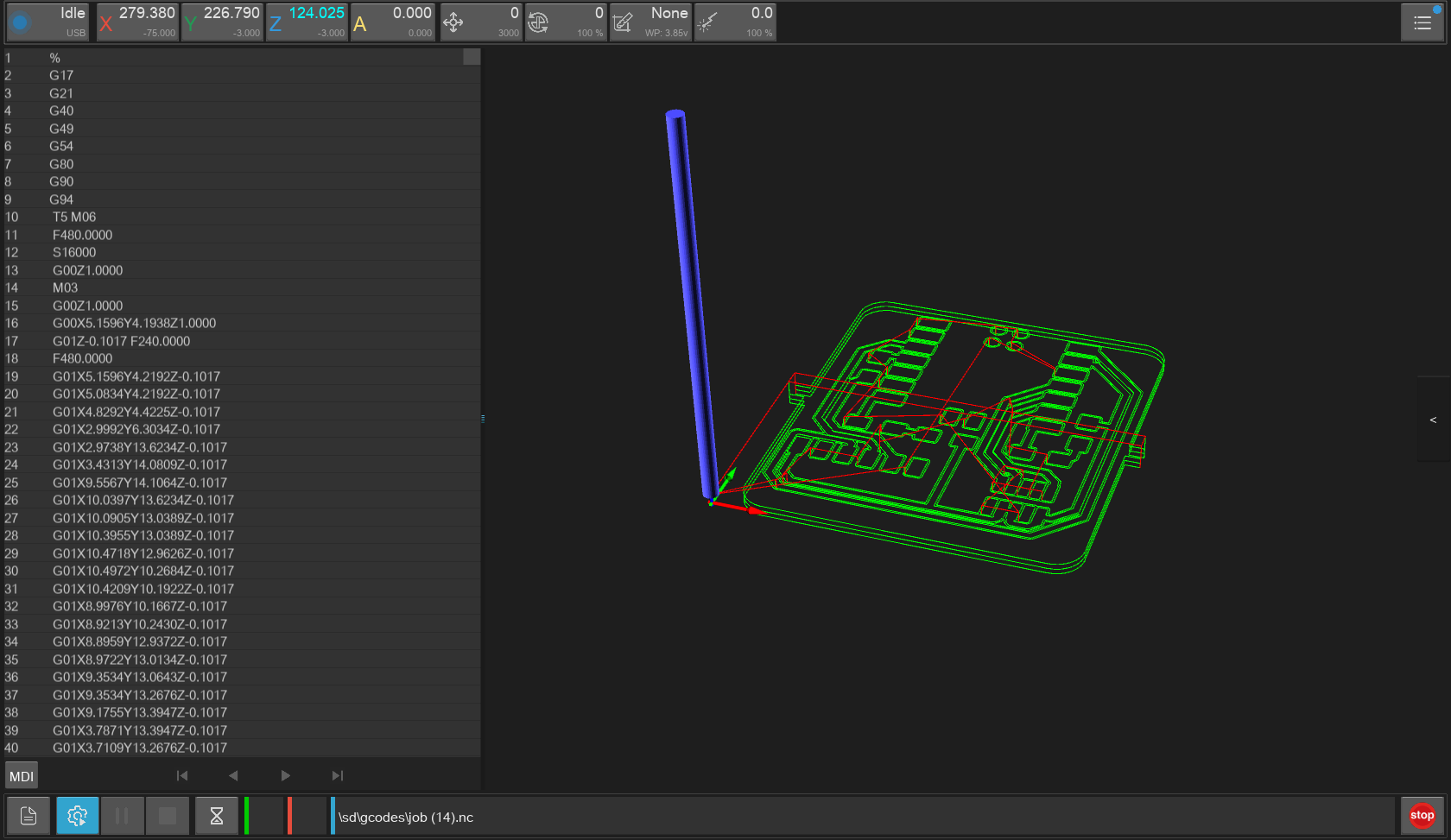
Make sure it looks correct, then click on the gear icon in the lower left corner. A new dialog box opens, letting you configure your program before launching it:
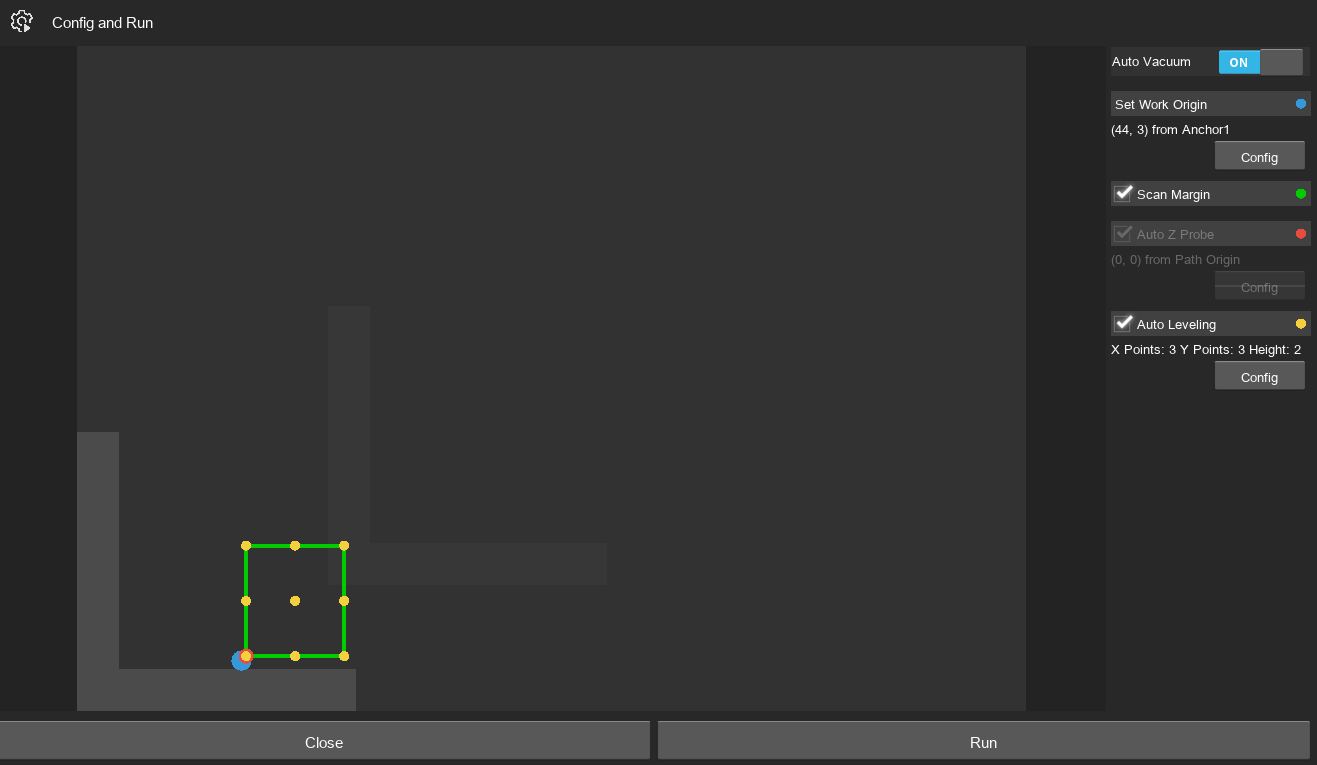
First, you'll need to set the lower left corner of your program. If your PCB clad has already been used before (as should be the case most of the time), you'll need to measure the X and Y offsets needed to not run into it. Using calipers and a ruler, measure the X and Y distances from the L bracket at which you'd like to mill your board. Make sure to leave some margin, and check that your board will fit in the spot you've picked. If you want to mill close to the bracket, use at least 5mm of offset.
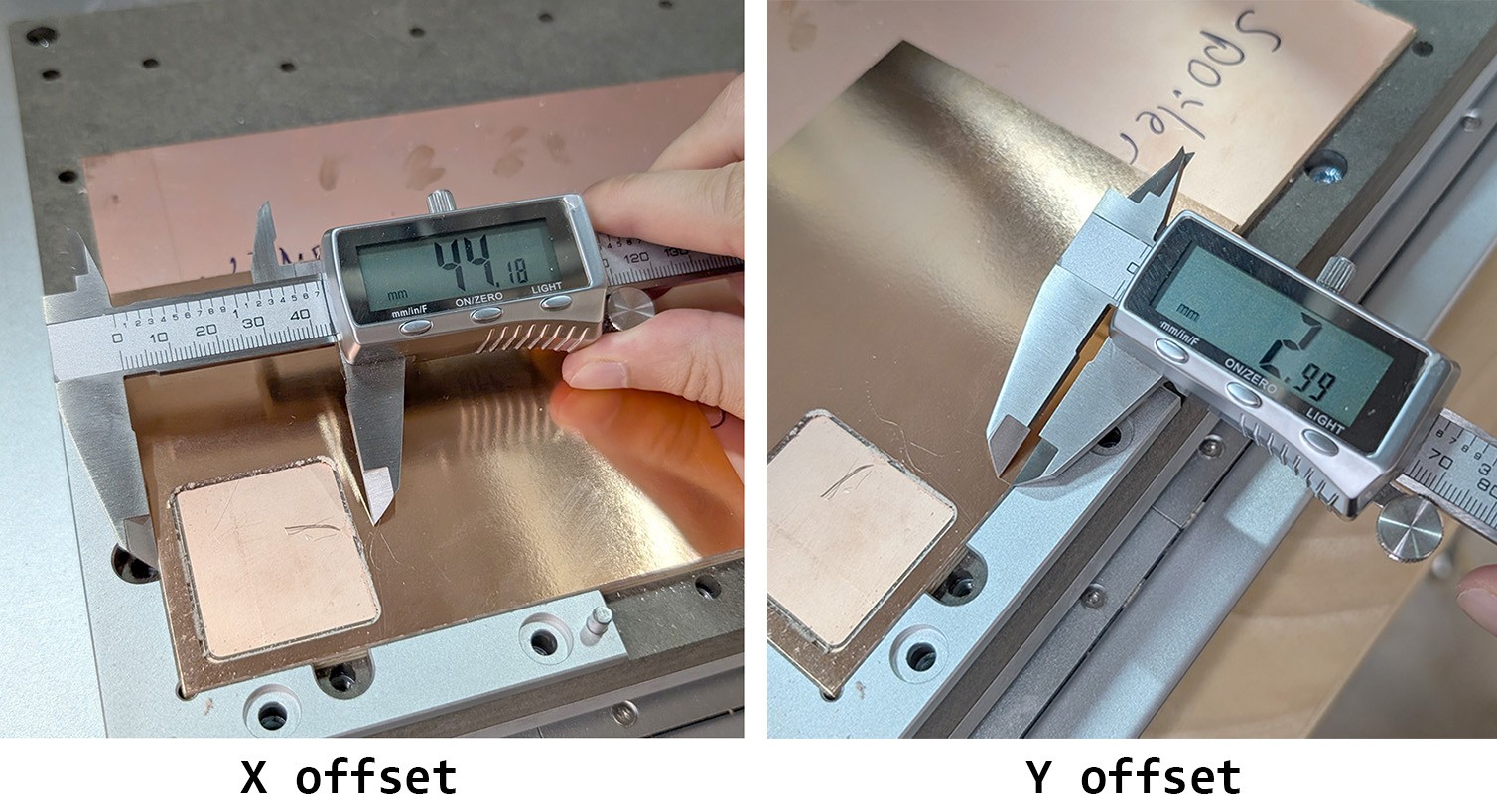
Click on "Config" under "Set Work Origin". Configure the following:
- Tick Anchor1 as the reference
- X Offset: the X offset you measured (in mm), ≥ 3mm
- Y Offset: the Y offset you measured (in mm), ≥ 3mm
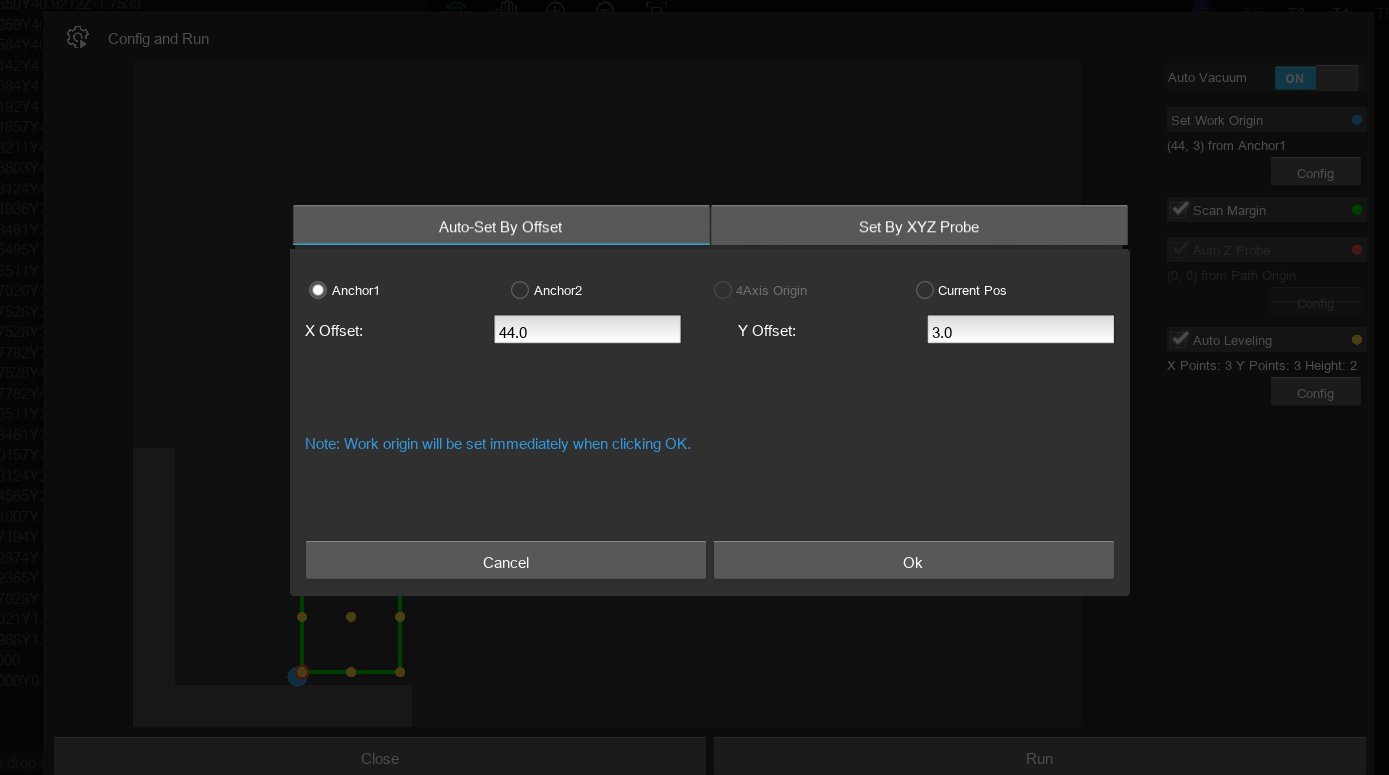
Click on "Ok" to confirm. Next, let's configure auto-leveling with the probe. Tick both "Scan Margin" and "Auto Leveling", and click on "Config" under Auto Leveling.
In the new dialog box, use the following settings:
- Clearance height: 2mm
- X points: 3
- Y points: 3
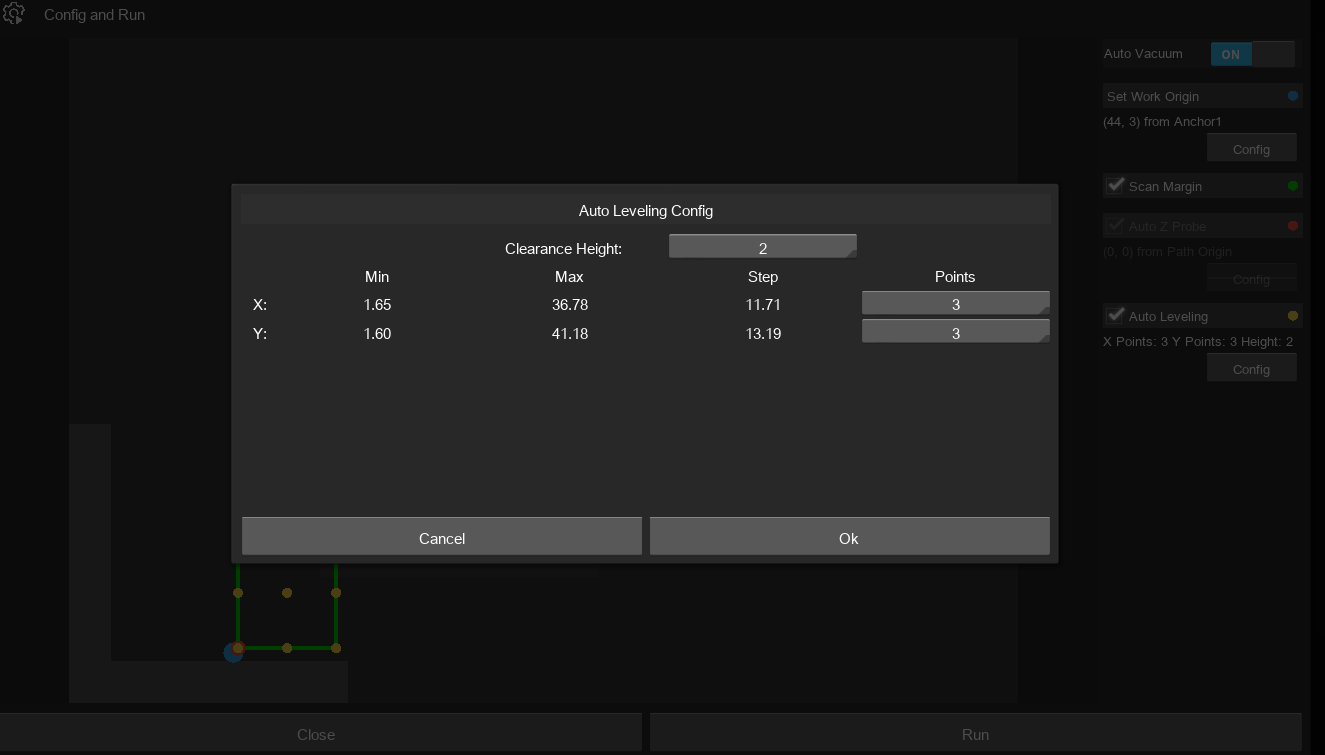
Click on "Ok" to confirm, then click on "Run" to launch the job. The machine will pick up the probe first, and use a laser pointer to show you the margin of your program. If those margins go beyond the copper clad or overlap with the clamps, STOP the machine by clicking on the red stop icon. Go back to the configuration, and correct the X and Y offsets so that your program does not crash the machine in anything.
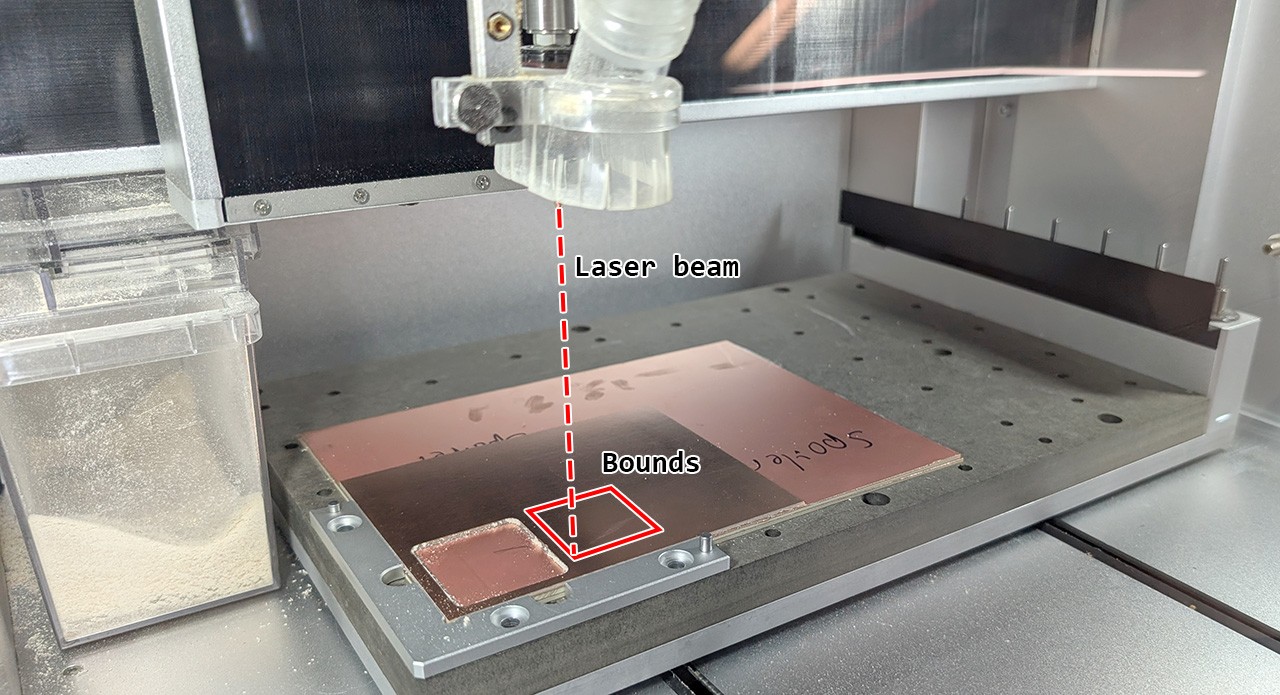
If everything looks right, the machine will probe, then start milling the traces with the fine tool.
Here is the result of a successful trace milling:
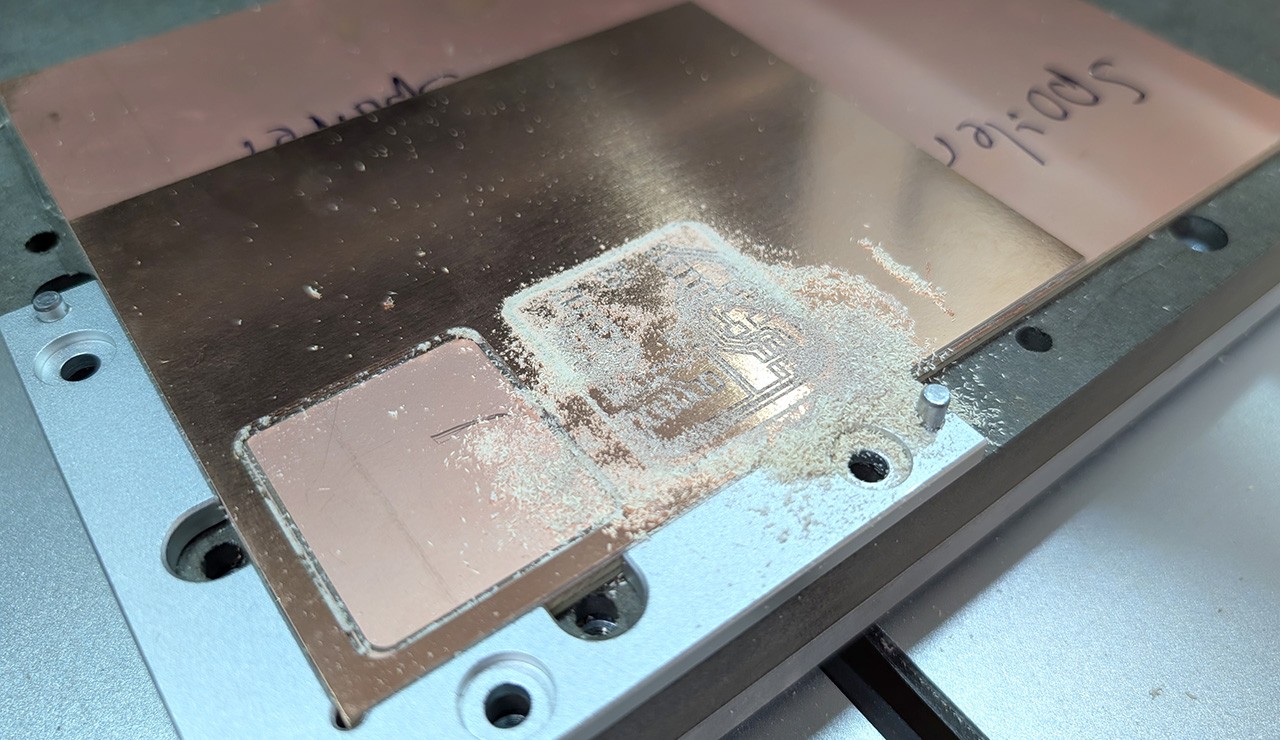
The machine then picks up the larger tool, and mills the outline of your board. Afterward, the machine will drop the tool and bring the working area toward you. Here is the final result:
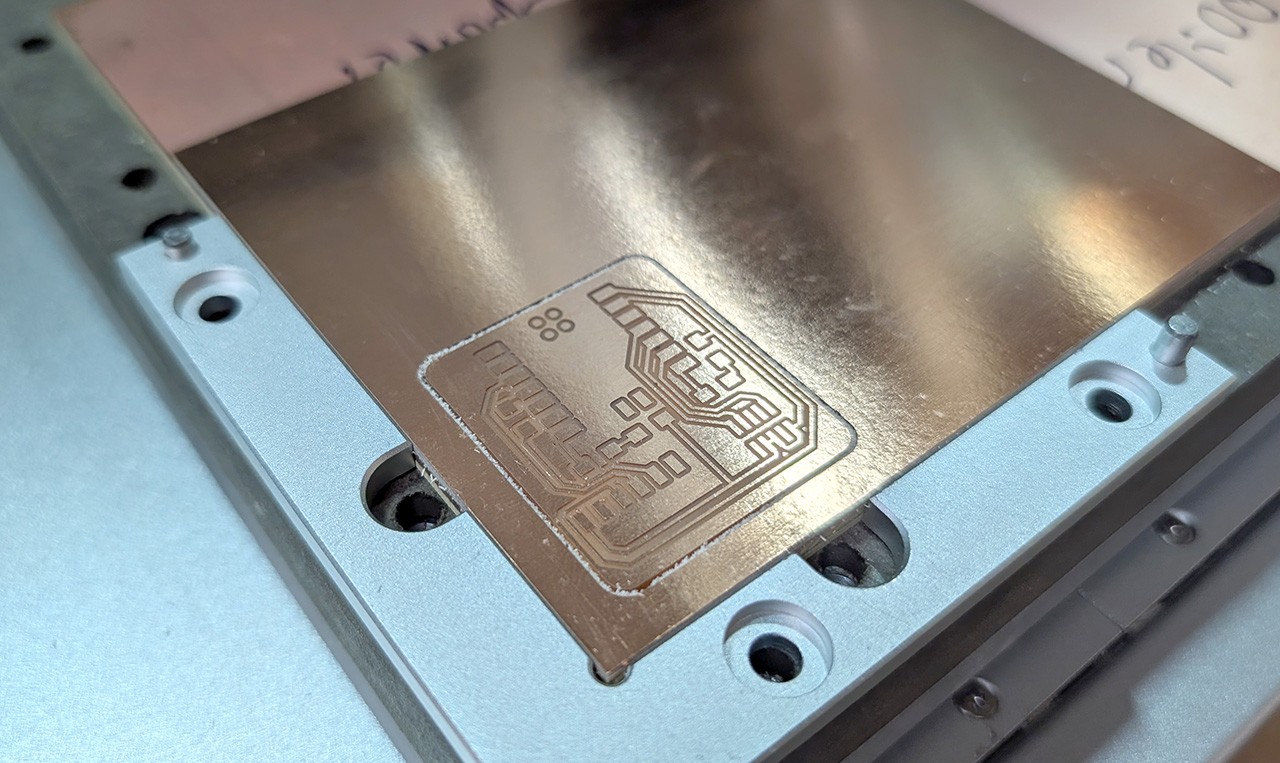
4. Removing your board and cleaning up
Although the machine has a built-in vacuum, there will be a small amount of dust left after milling. To keep the machine tidy for the next user, please use a shop vac to extract all the remaining powder:
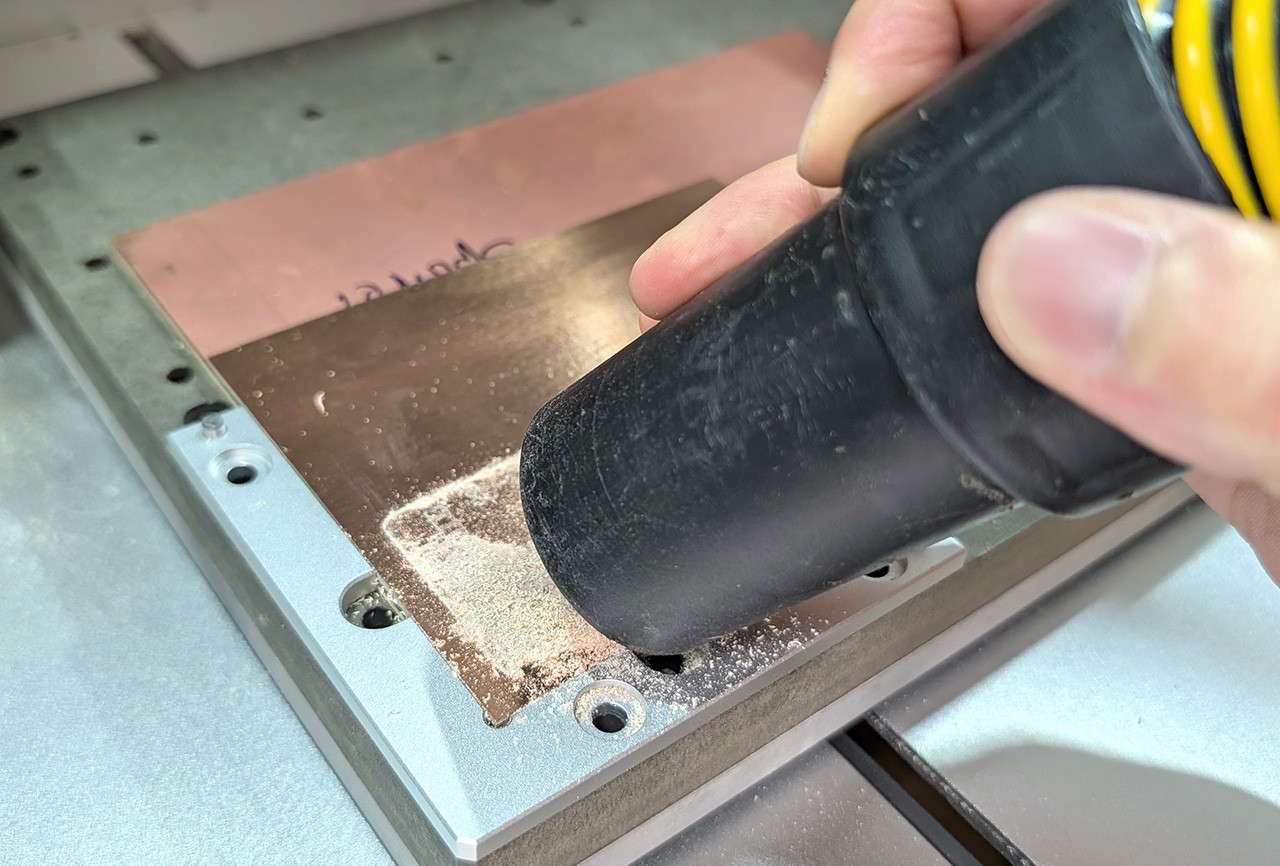
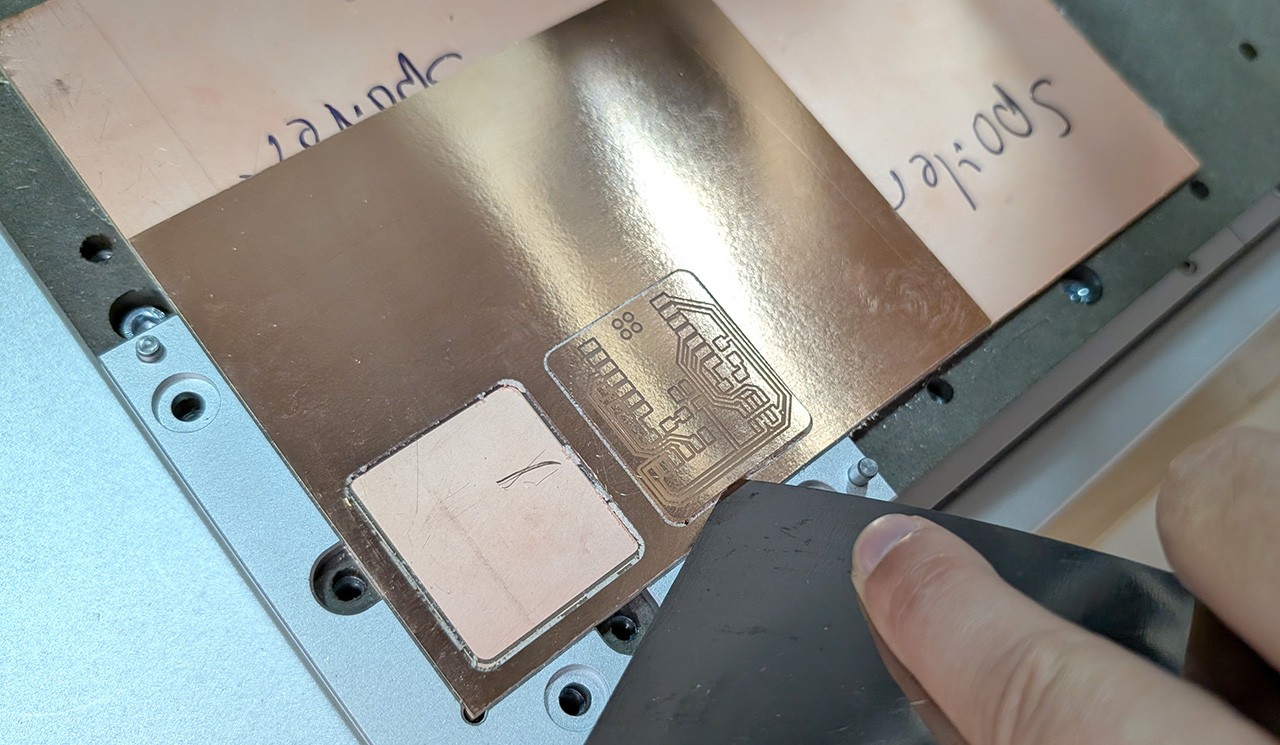
Use a tool to gently detach the board.
The milling process sometimes leaves burrs on the traces, as the copper gets lifted during cutting. To have a cleaner board, and reduce the odds of short circuits, you can use a light abrasive to deburr the surface of your board. Sanding pads are perfect for this, as they conform to the surface of the board.
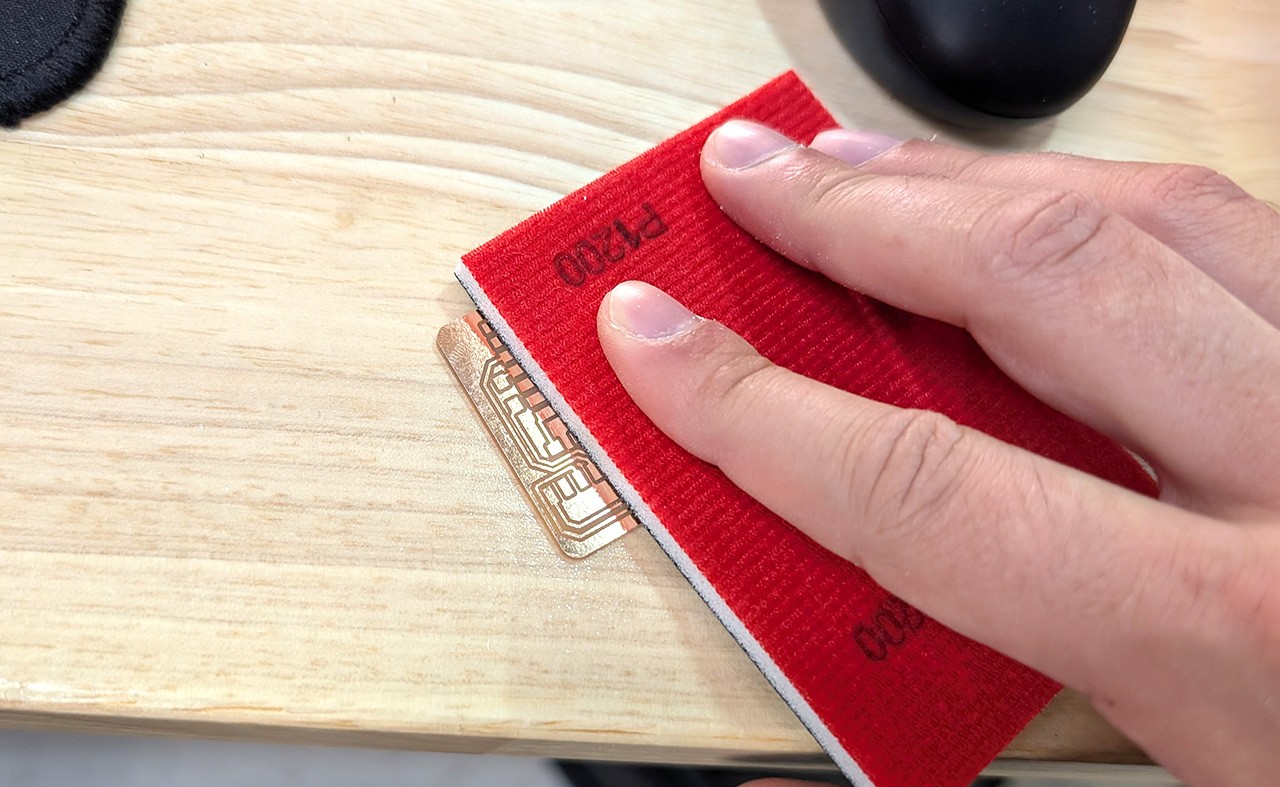
Another perfect board. Pat yourself on the back, and move on to soldering. You can optionally use dish soap and water to clean off the last few impurities, but make sure to get rid of all the soap and water before soldering.
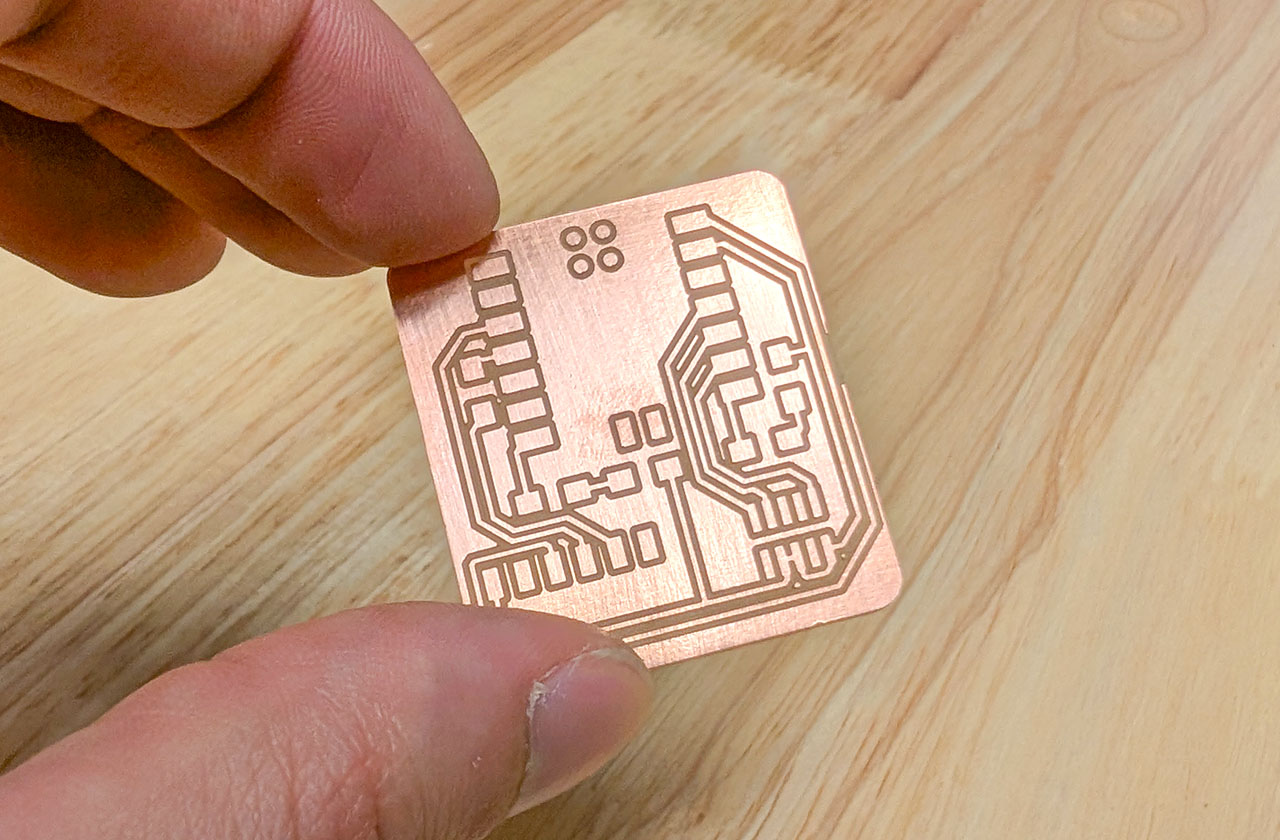
Last tip: if you want to quickly look for short circuits, you can shine a light from the back of the board to enhance contrast.