Week 2: Website, Vinyl & Laser
ASSIGNMENT
- download, read, and sign the student agreement, and commit the file to your repo
- work through a git tutorial
- build a personal site in the class archive describing you and your final project
- do your lab’s safety training
- characterize your lasercutter’s focus, power, speed, rate, kerf, joint clearance and types
- cut something on the vinylcutter
- design, lasercut, and document a parametric construction kit, accounting for the lasercutter kerf
- extra credit: design it to be assembled in multiple ways
- extra credit: include elements that aren’t flat
- extra credit: engrave as well as cut
WEBSITE DEVELOPMENT
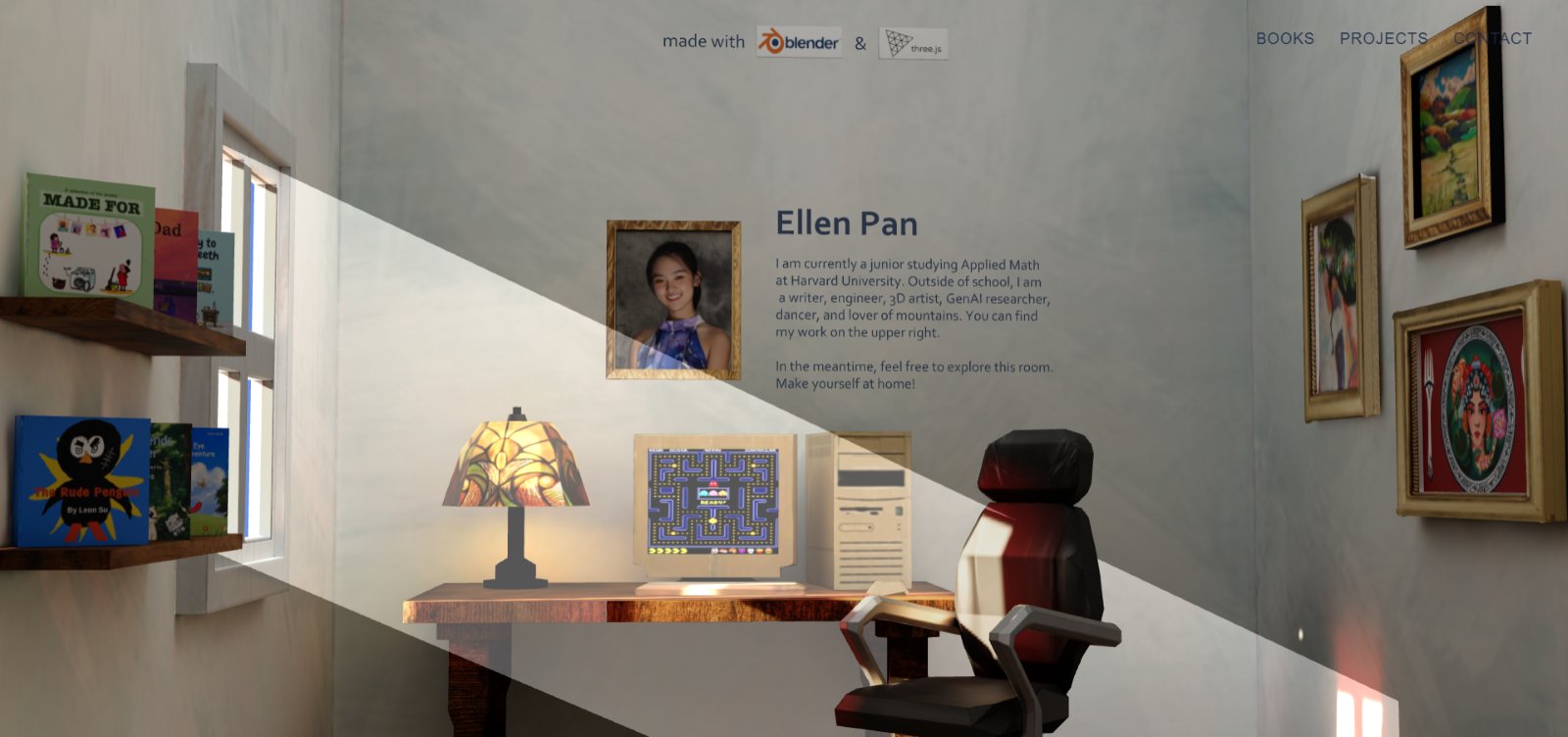
I’ve been working with 3D modeling/environments for a while, and Three.js is my go-to for interesting web design.
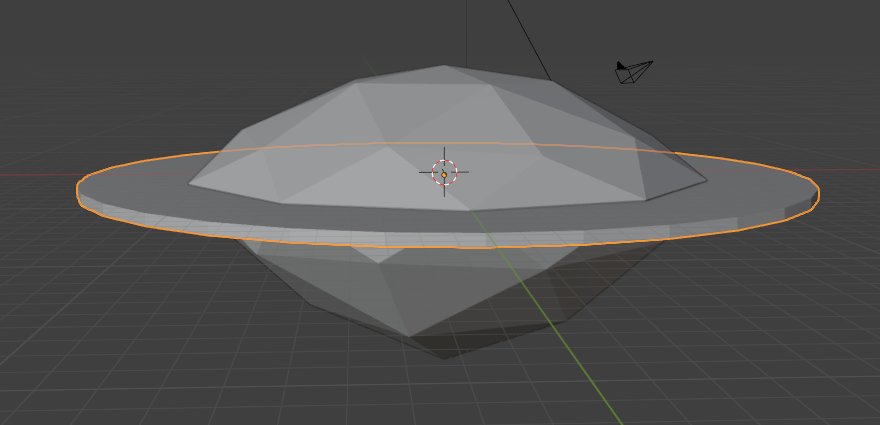
For my HTMAA website, I decided to model an island in Blender that would display my weekly progress along its perimeter. The user would be able to explore my website by “driving a car around the island” via scroll wheel.
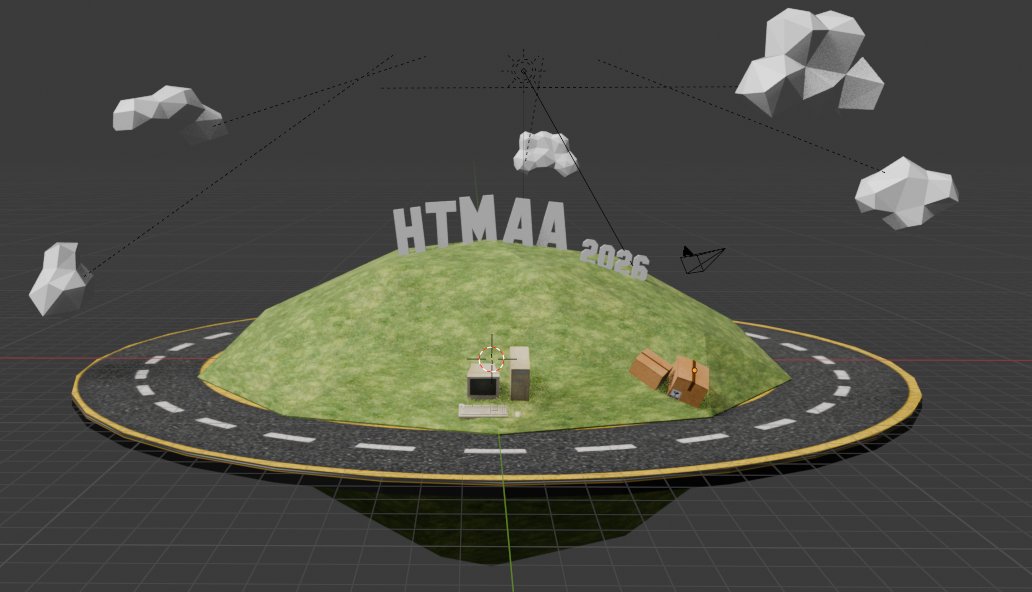
To make things a little more interesting, I added image textures for both objects, and also imported small FBX assets to act as the “thumbnails” for each week’s content, spaced about 15 degrees apart on the circular island. I thought the top of the island seemed a bit barren, so I took inspiration from the Hollywood sign and made my own HTMAA 2026 sign using the Text > Convert to Mesh > Extrude method. I also imported a few low-poly clouds and scattered them in the sky.
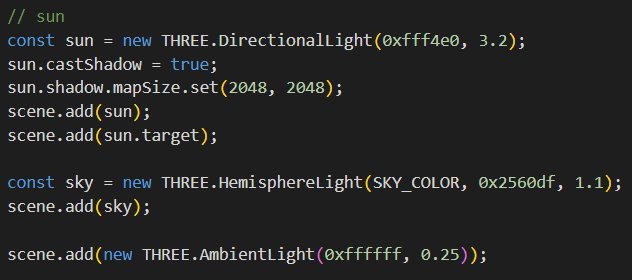
The lighting and environment are all done in the Three.js web environment, so no need to worry about that here. I exported this model as a GLB and added it to my website folder, then used a GLTF loader in my main.js to get it to show up in browser.
Now for the rotation! With some help from Claude, I anchored the camera to point at the center of the island object, and scrolling down rotates it counterclockwise such that it goes a full circle around the island by the time we reach the bottom of the page. I then parented a small car GLB I found on Sketchfab to the camera, so that the two of them would always move together. Now, it looks like my car is driving around the island when I scroll.
At this point, I started linking the subpages for each week to the main island. A button corresponding to each HTML file for my weekly updates fades in/out depending on the angle around the island we’ve driven/scrolled to, so that about every 15 degrees, the button for next week’s page would show up right over its thumbnail object.
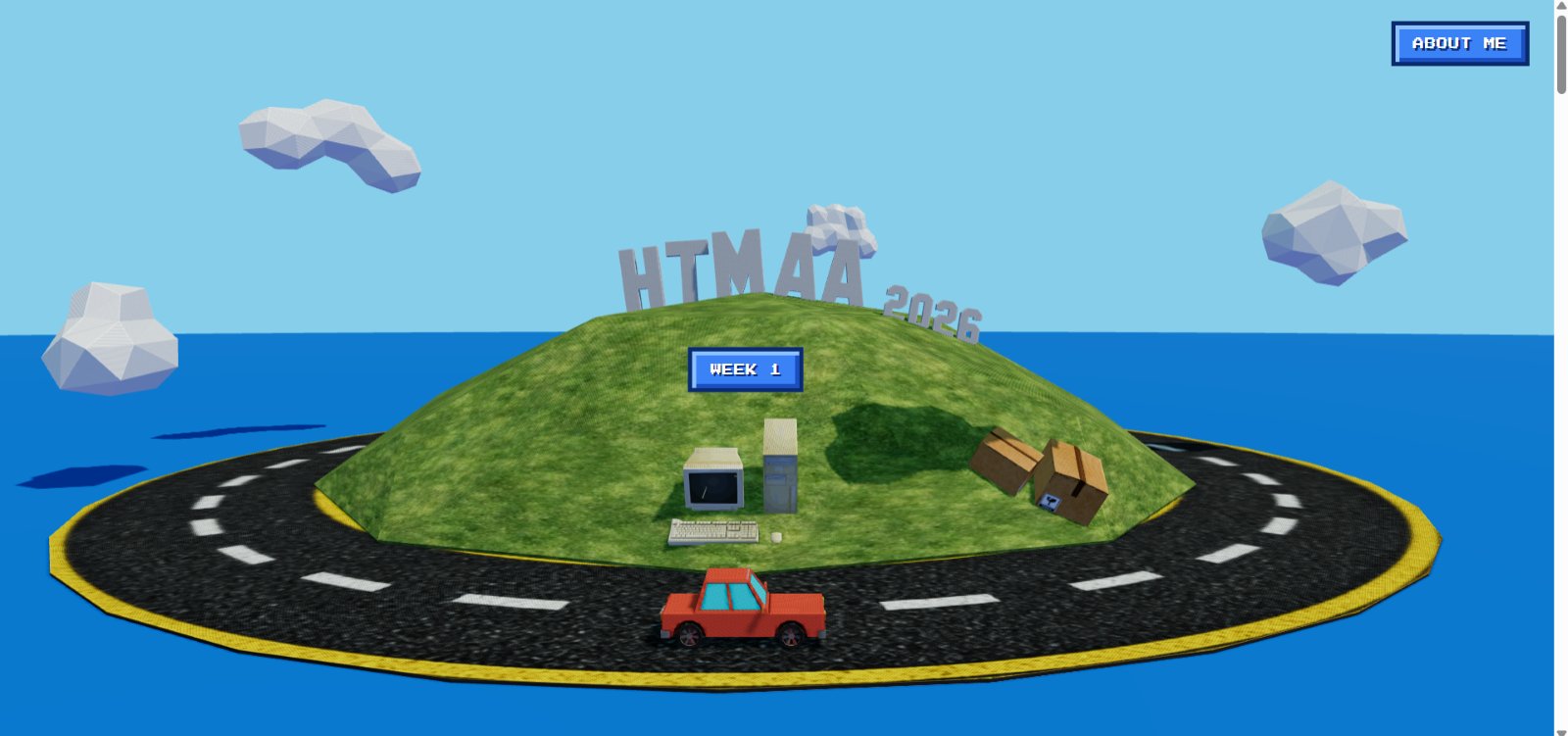
That’s the majority of my website for now! I will continue to update it with more cool stuff in the future; hopefully by keeping my models as low-poly as possible, I won’t overload my site with too many massive files.
VINYL CUTTING
For this assignment, I wanted to design a vinyl sticker based on the Aztec moon goddess Coyolxauhqui, whose massive stone carving I had been studying recently. The carving depicts the moon goddess dismembered by the rising sun; it came up in one of my religion classes recently, and I wanted to reinterpret it as a woodblock print-style piece. I started by taking a photograph of the stone carving and bringing it into Procreate, where I traced the outlines by hand to turn the original relief into a clean black and white file.


Once I had the traced design, I spent some time cleaning up the lines so they would read clearly (since the vinyl cutter program takes black & white PNG files), and I increased the image’s resolution to 600 DPI to make sure the lines would come out sharp once they hit the vinyl cutter. The final image ended up being about 4400 by 4700 pixels, which translated to a design several inches across once it was scaled up for cutting. Qilmeg showed me how to use the vinyl cutter last Friday; before running the job, I made sure to set up the vinyl carefully: I positioned the blade so it would start cutting in exactly the right spot, made sure there was enough clear vinyl around the design so the blade wouldn’t run off the edge and cut into open air partway through, and checked that the sheet didn’t have any leftover cuts from previous projects that could interfere with the new design.
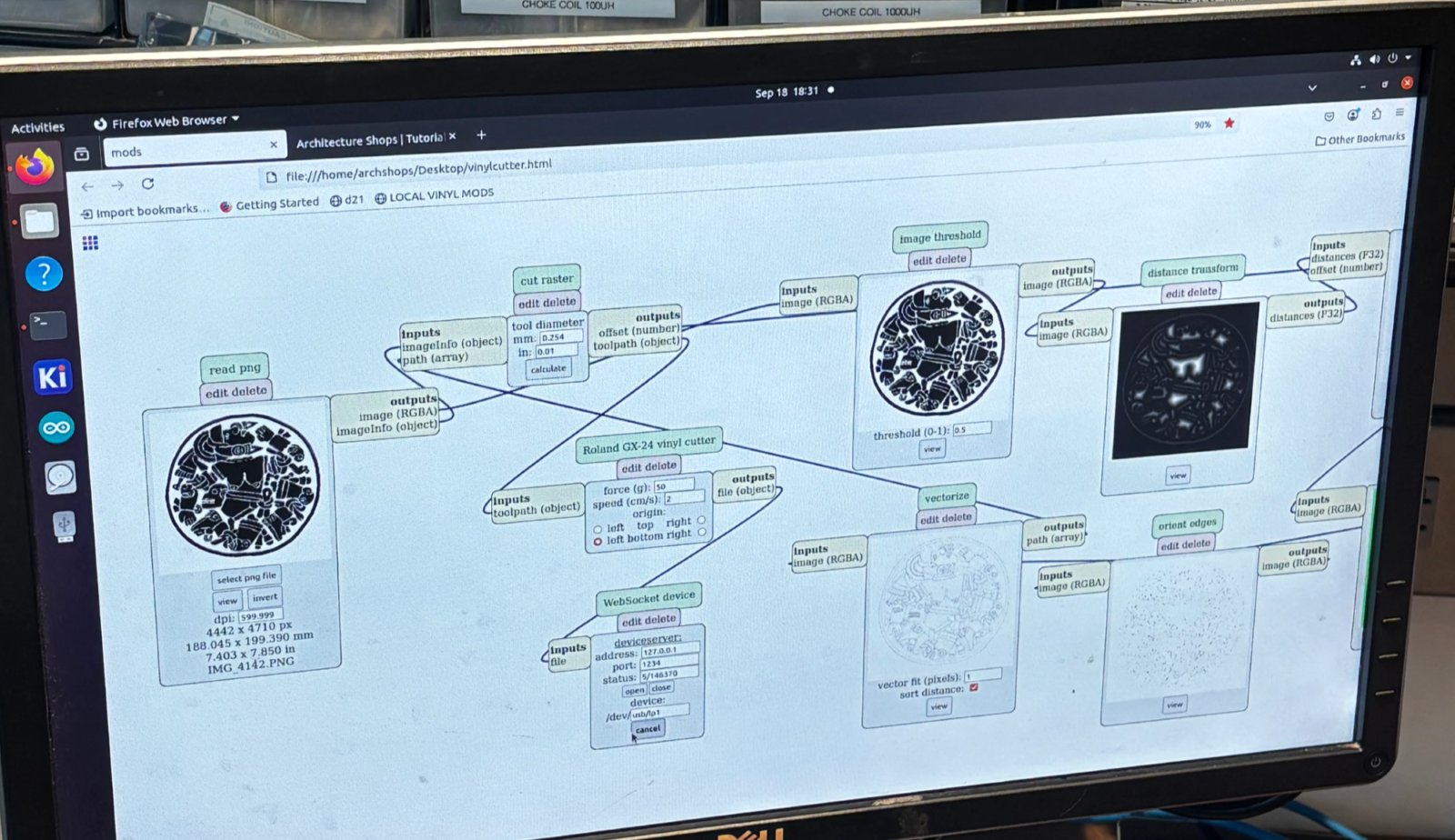
The actual cutting process took only about five minutes and went smoothly on the first try. Watching it run was interesting in its own right, since it was clear that the cutter’s algorithm was calculating its paths and prioritizing efficiency in a very different way than a human artist would when drawing the same image by hand. Once the machine finished, I lifted the cut design off the vinyl sheet. As I weeded out the negative space, I peeled it away from one sheet and pressed it onto a second sheet of paper, which left me with two versions of the design with inverted colors, positive on one and negative on the other. This was a pleasant surprise, since I didn’t think the vinyl material would be strong enough to hold itself together during the peeling process!
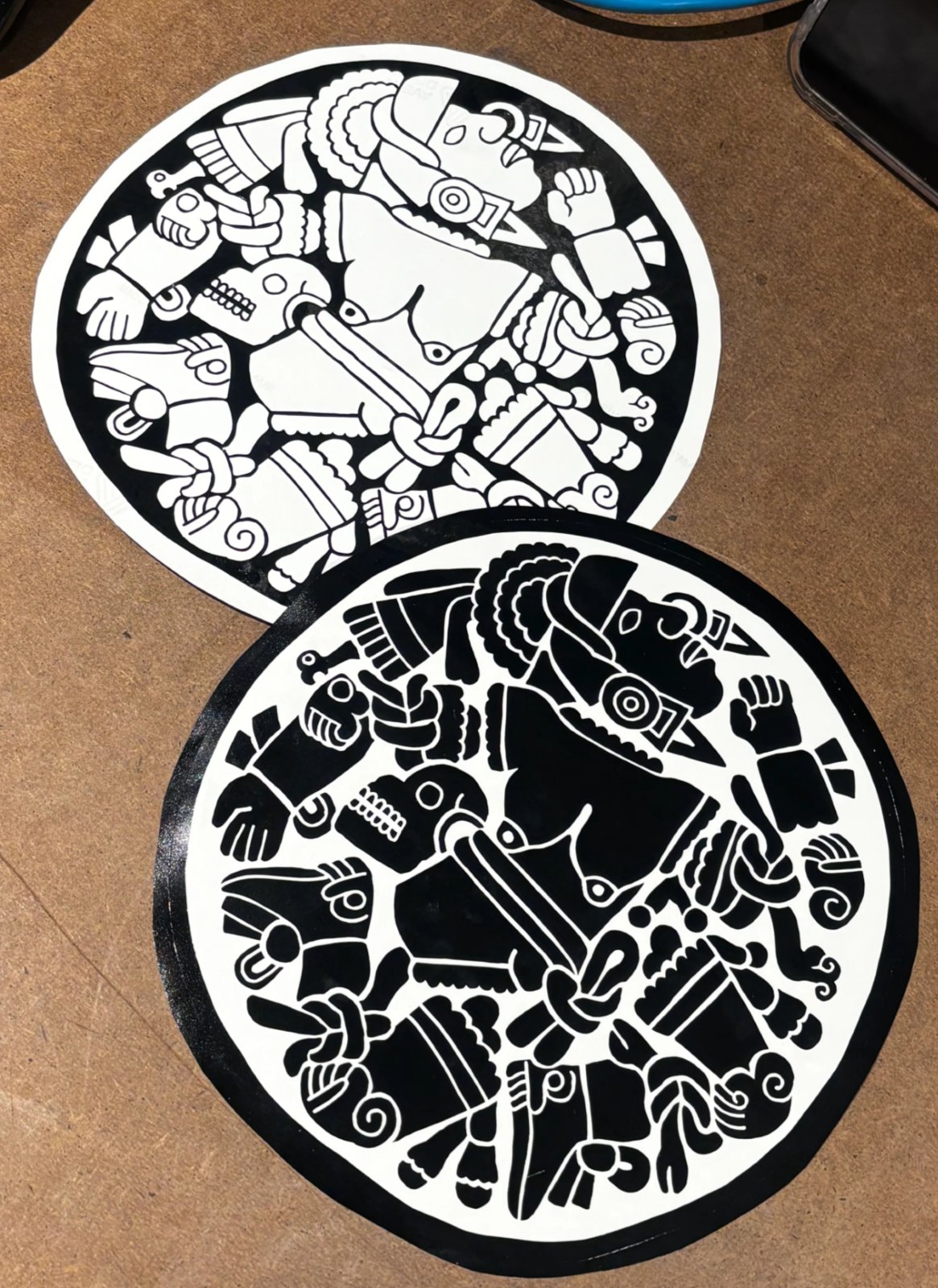
Even though this project succeeded in essentially one pass, I picked up a couple of lessons that I want to carry into future vinyl cutting work. The first is that I should keep detail relatively low, because small enclosed shapes, like some of the nested concentric rings I used in this design, are very difficult to weed out cleanly. I found that replacing those enclosed shapes with spirals gives a very similar visual effect while making the weeding process much easier, since a spiral stays in one connected piece instead of breaking into separate rings. The second lesson is that I need to keep my line widths a bit wider than I initially assumed, since thinner lines are prone to tearing while I’m peeling off the negative, which makes it harder to remove the whole design in one clean motion.
LASER CUTTING
Despite being a school that prides itself in excellence in just about anything, Harvard has dorms with truly foolishly designed interiors. My bathroom setup this year was the incentive for this laser cutting project. The current design resulted in lots of things getting knocked onto the floor, or into the trash can, or straight into the toilet. As such, I was propelled to make a hanging shelf that would sit in the little space between the sink and the wall.
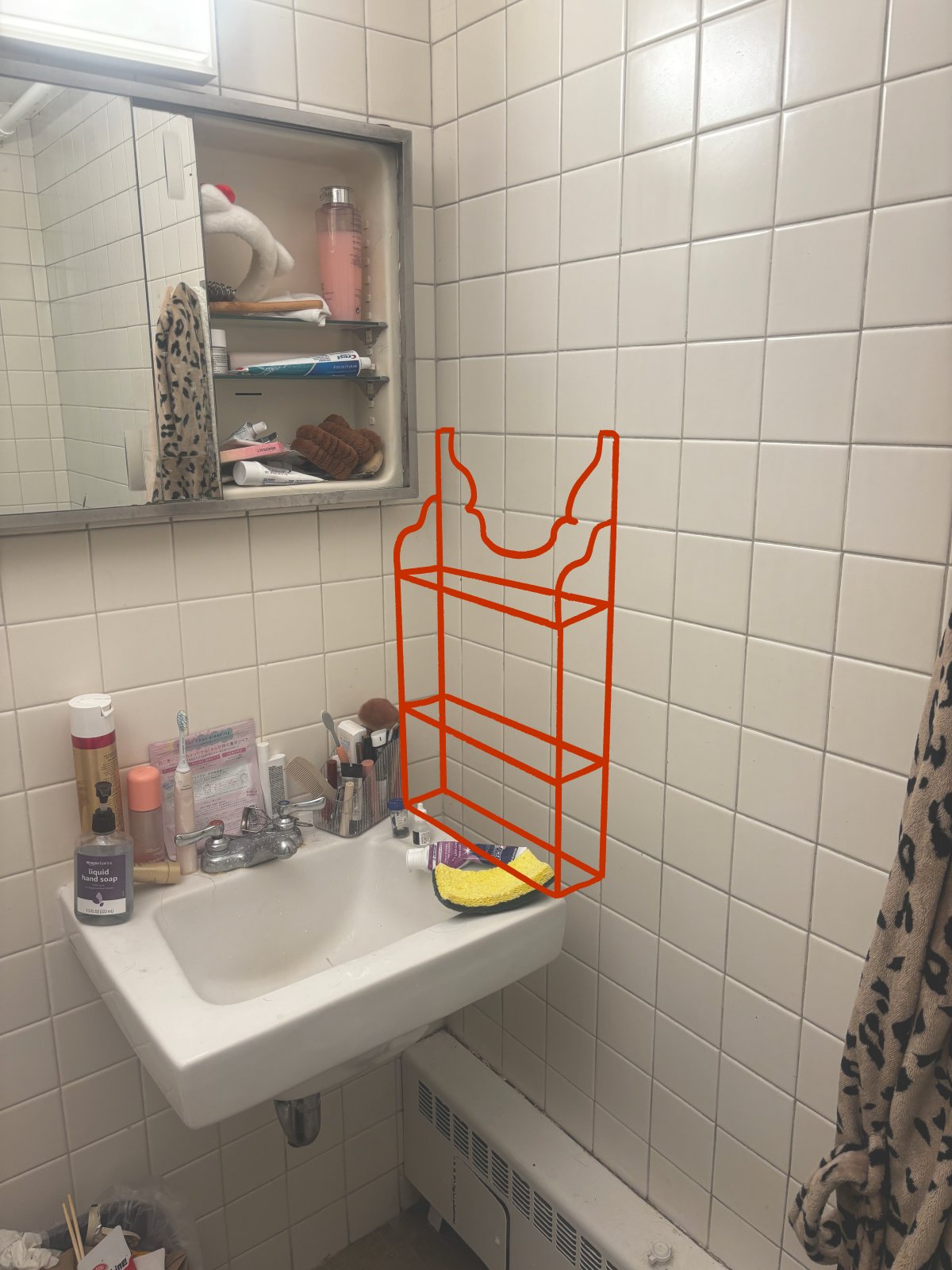
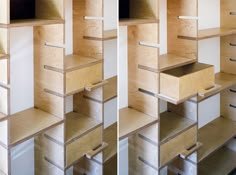
One challenge I gave myself for this project was to use no adhesives or nails in the assembly, only press-fit mechanisms. To get a spatial idea of how that might work, I quickly looked into some examples of slotted shelves:
I did a few test drawings of how the shelf might come together, specifically the attachments between the vertical sides and the horizontal flooring (which would need to carry a good amount of weight). It was very important for the entire structure to be able to survive downward pressure, but also a little bit of lateral tugging, just to make sure the walls wouldn’t fall apart if nudged.
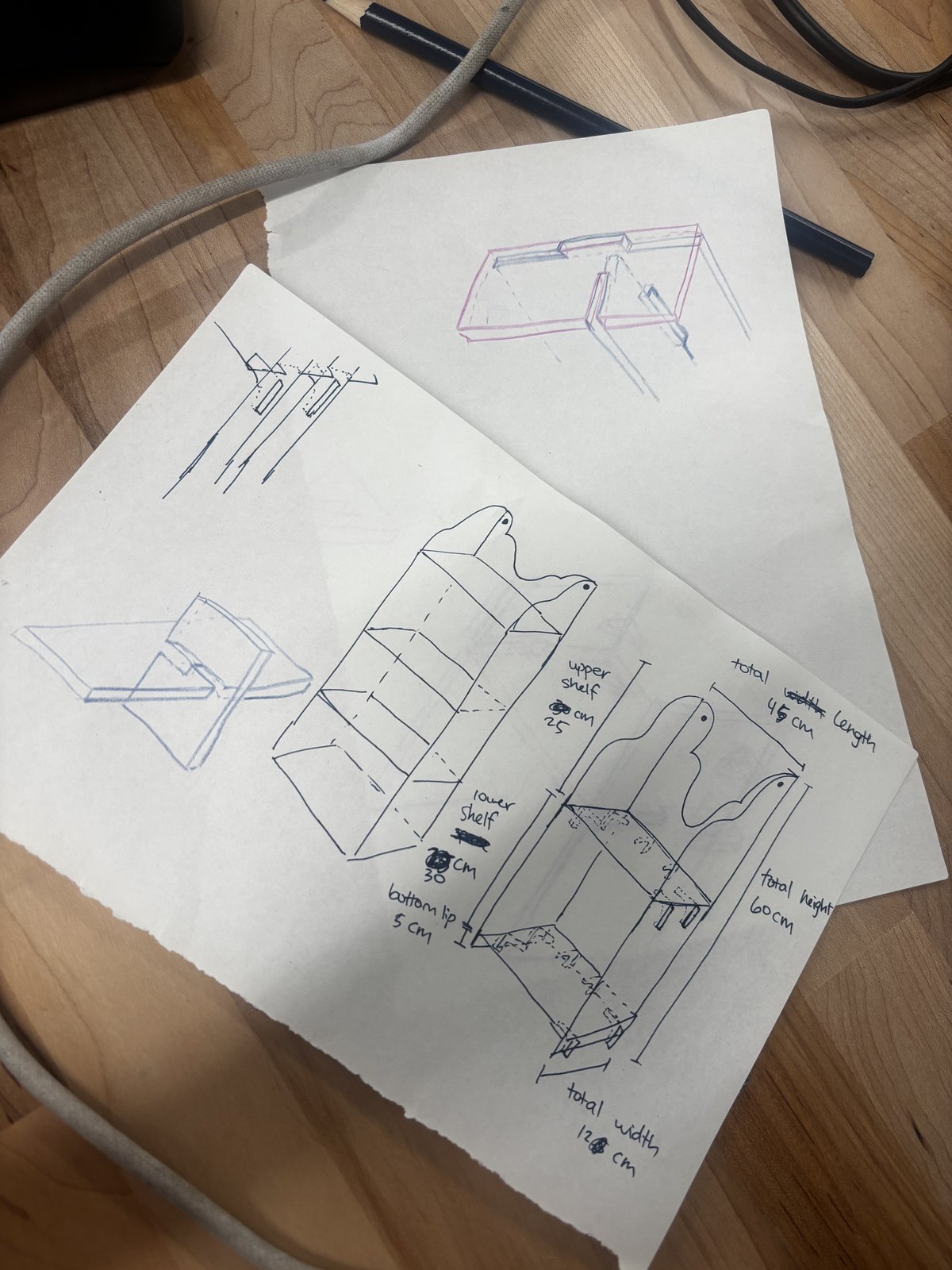
I originally wanted to use a bunch of L-shaped supports to hold up the flooring, but realized that would create lots of unnecessary little parts. Instead, I opted for three biscuit joints per floor panel: one for either side, and one for the back panel.
I began in Fusion 360 by setting up three parameters: total width, total height, and total length. Working parametrically from the start felt important, since I knew I’d want to tweak dimensions later without having to rebuild the geometry by hand every time. Once those three parameters existed, I made my first sketch, which became the base of the shelf, drawn at total width by total length. From that base sketch, I created the two side panels by extruding upward to total height. Then I placed two shelves, spaced apart using their own parameters (top_shelf and bottom_shelf), and added a bottom lip to finish rounding out the basic skeleton of the shelf. Although I’ve had plenty of 3D modeling experience in Blender and ZBrush, I quickly found out upon installation of Fusion that CADding is quite different. It took me maybe 30 minutes just to figure out how to move a solid body from one coordinate to another.
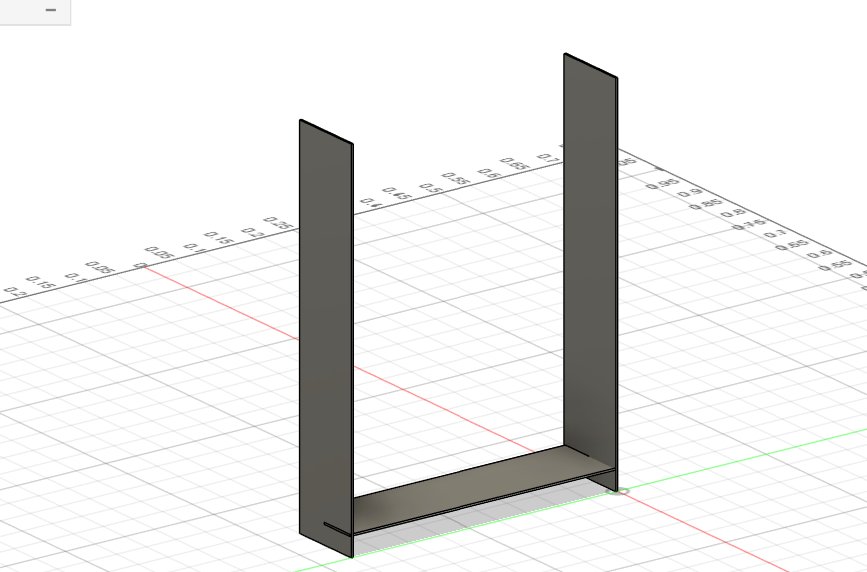
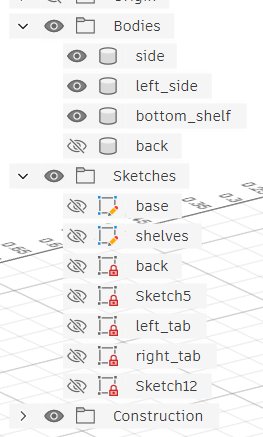
It was very fun to slowly work my way through the program though, once I started getting an idea of the hierarchy. I like the distinction between sketches and bodies in the browser, which made it easy for me to calculate where things were supposed to go while retaining a clean view of just my 3D design.
My approach for the slotting mechanism was to extrude one of the shelves outward into the side panel by a small amount, equal to the material thickness (which I had also set up as its own parameter) so that roughly half the width of that shelf pushed into the side. Then, in that exact same location on the side panel, I cut away material so the shelf could slot directly into the side and be held up by it.
As I kept working, I noticed that a lot of the geometry I wanted was symmetrical along the length of the shelf, and modeling the entire thing twice felt wasteful. So I started a new file with all the same parameters except I halved the length parameter, which let me focus on modeling just one half of the shelf. My plan was to mirror this half at the end to generate the complete piece, which meant I only had to solve the joinery and detailing problems once instead of twice.
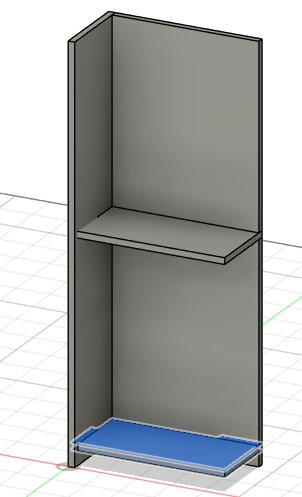
Once the structural joinery was sorted out, I moved on to some more detailed and decorative work. I used the fit point spline tool to freehand some patterns directly in a sketch, then extruded and cut those patterns out of the back and side panels, mainly to make the shelf look nicer (but also to remove some unnecessary weight, since it would be hanging from the wall). I also added a small lip along the front edge of each shelf, so that if something got tipped over on the shelf, the lip would catch it before it could fall off the front and onto the floor.
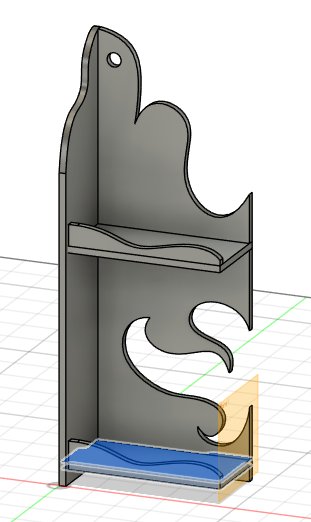
To finish the model, I set a construction plane at exactly half the total length, on the open side of the half-model I’d been building. I then mirrored all the related bodies across that plane and joined everything together into a single, complete shelf body, which finally brought the two halves together into the full design.
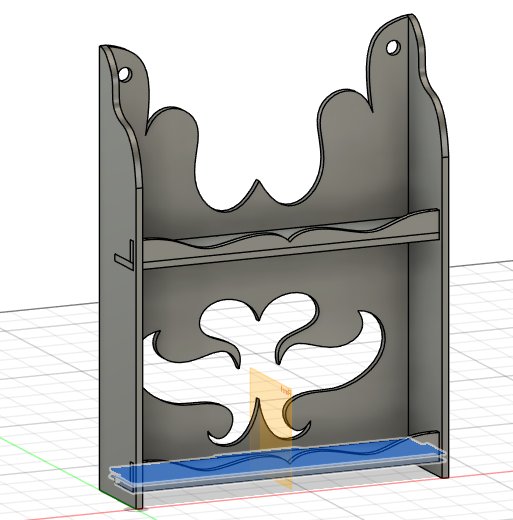
Once I was done in Fusion, I made individual sketches for each face of the shelf and exported them as DXF files. I brought those DXFs into Rhino to arrange them for cutting (after finishing my shop training with Jen!). My first attempt at laser cutting used settings of 40% speed, 40% power, and 10% frequency. That attempt didn’t go well: the cut didn’t fully go through the material, and partway through the job, the laser cutter stopped on its own without finishing (I was eventually enlightened by the shop monitor that the laser cutters here had pressure sensors on the floor nearby, and would automatically turn off if I wandered too far. I apologize for being outsmarted by the machine). I tried again, this time slowing the speed down to 15% while keeping the same power and frequency, and setting the cut type to vector with auto-focus set to thickness. This pass came out noticeably better. I eventually found out that with these settings, the cardboard could be cleanly cut through in just two passes. Unfortunately, this seemed to only be the case on laser cutter #3, because my classmates & shop monitor on the other machines were fighting battles with either weak lasers or cardboard fires all night long.
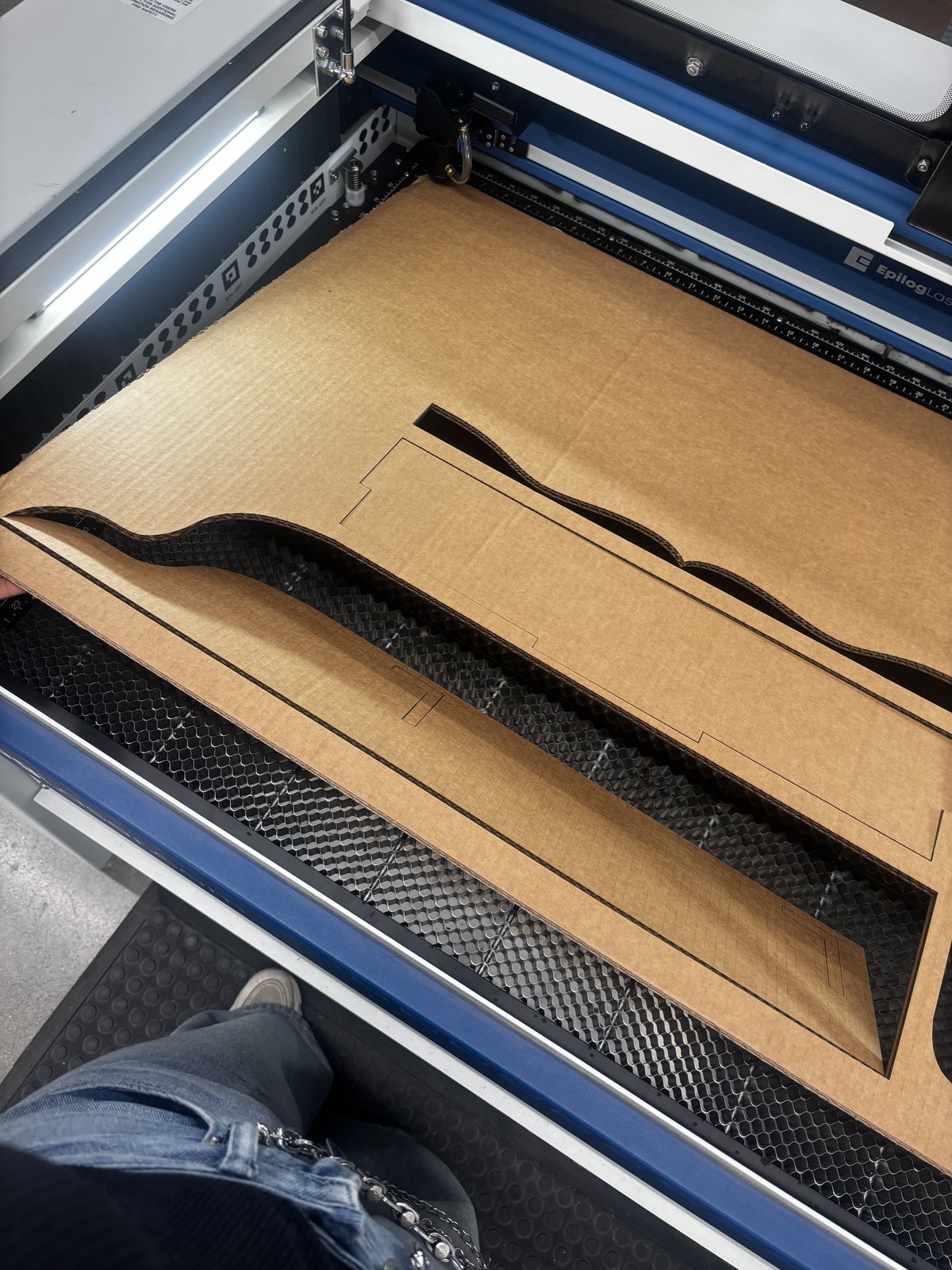
At this point, I’m in the middle of cutting the shelf out of cardboard using those corrected settings, with plans to test how well the tabs and slots fit together before moving on. I soon found that my first versions didn’t have very good joint connections because the slots were too loose. However, a quick measurement for kerf (approx. 1 mm) and adjusting for the exact cardboard thickness (3/8 in. What an awful mix of imperial and metric units…) in my parameters list allowed for a much nicer fit the next time.

After running a few more tests, I was able to get a successful cut and assembly of my shelf! When I make a final version of this shelf out of plywood, I would also like to incorporate some more engraving details. Stay tuned 🫵
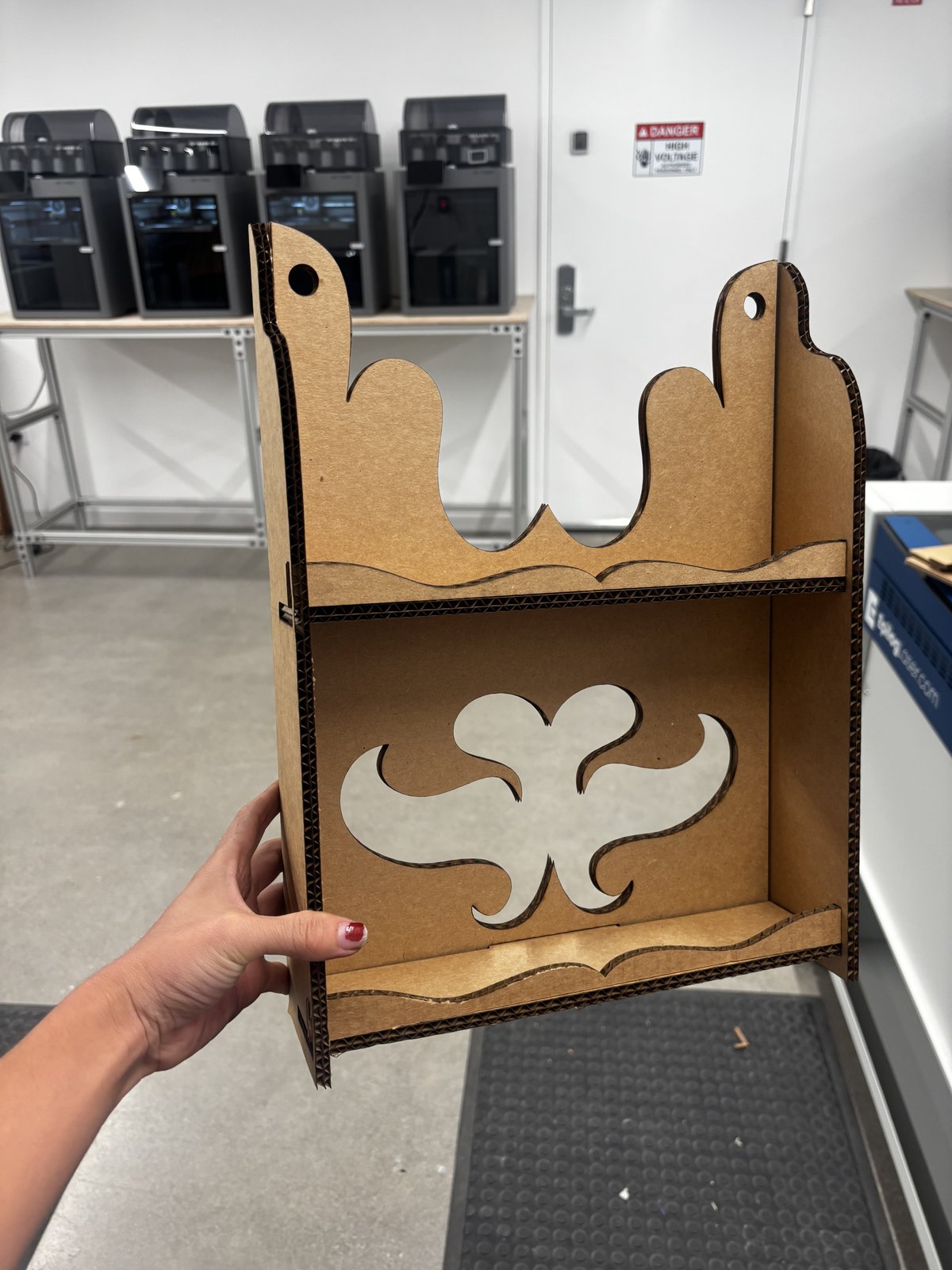
Some lessons learned from this project: parametric designs are handy! I saved so much time on fixing slot/tab fit by tweaking just one number instead of editing every joint by hand. On the flip side, it’s so important (especially since I’m new to Fusion) to remember to set every measurement to a parameter instead of a hardcoded value when creating a design. I had mostly no trouble with this, but when I was adjusting the entire design from 1/16 inch material thickness to 3/8 inch, two of the slots broke down for some reason and I had to spend a good amount of time fixing them.
A problem that I continue to have, despite my best efforts, is with changing the total_height parameter. Almost every other parameter is an expression of total_height, so in theory there should be no problems with changing it to modify the overall size of the shelf. But it seems like I made some previous mistakes in the timeline which maybe led to a referenced body/sketch disappearing, and it just broke down the entire thing even if I tried to change the parameters only slightly.
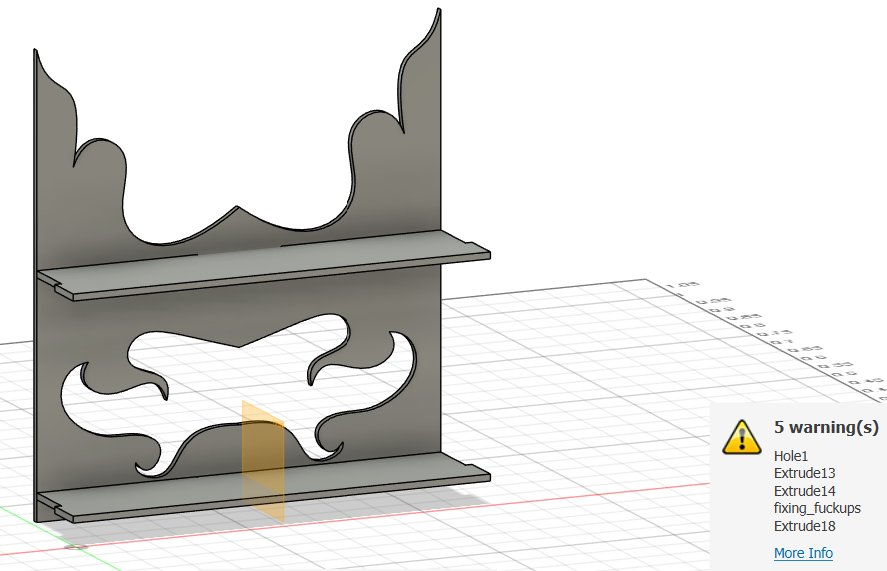
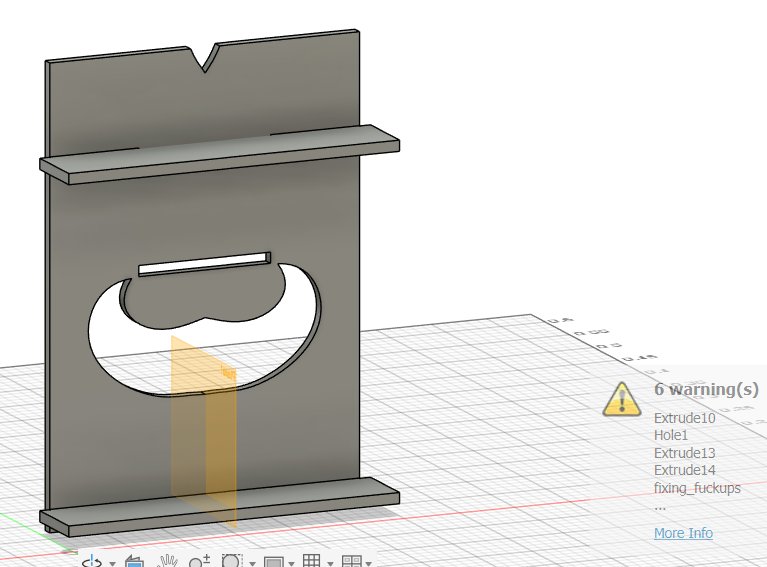
My goal for this week, before I make the shelf a second time from wood, is to figure out how to resolve these timeline errors and making sure I don’t make them in the first place in my future Fusion projects.