Week 5: Electronics Design
ASSIGNMENT
- use an EDA tool to design an embedded microcontroller system using parts from the inventory, and check its design rules for fabrication
- extra credit: simulate a circuit
- extra credit: try another design workflow
- extra credit: design a case
This week, I started using KiCad and learned how to design my own PCB, which has a switch and an LED that the switch controls.
My goal for the rest of the week is to continue or complete what I wrote down in my final project progress tab: design two connected boards, one for sensing motion input from my own legs, and one commanded by the former board to control the actuation of the motors that power the centaur walking mechanism.
For now, though, I’m focused on getting more comfortable with KiCad and understanding how electrical circuits work. I was out of town for most of last week, so I have a little catching up to do and some extra learning, which makes this assignment a good exercise for learning how to design my own PCB.
SCHEMATIC
SETUP
To set up, I opened KiCad and made a new project, which came with a schematic file and a footprint (PCB layout) file. During office hours I learned the difference between the two: the schematic shows logically what each component does, while the footprint converts those logical components into actual physical parts. I also made sure to import all the parts in the Fab library, so that I can select the correct components for the footprint and successfully manufacture this board next week.
THE MICROCONTROLLER
I started by adding a microcontroller to the schematic. I learned that the RP2040 and the ESP32 are two good basic options to start out with, with the primary difference being that the ESP32 has the bonus of Wi-Fi and Bluetooth. This week, I decided to start out with something simple: an LED light controlled by an on/off switch. This basic contraption doesn’t need either Wi-Fi or Bluetooth, so I went with the RP2040.
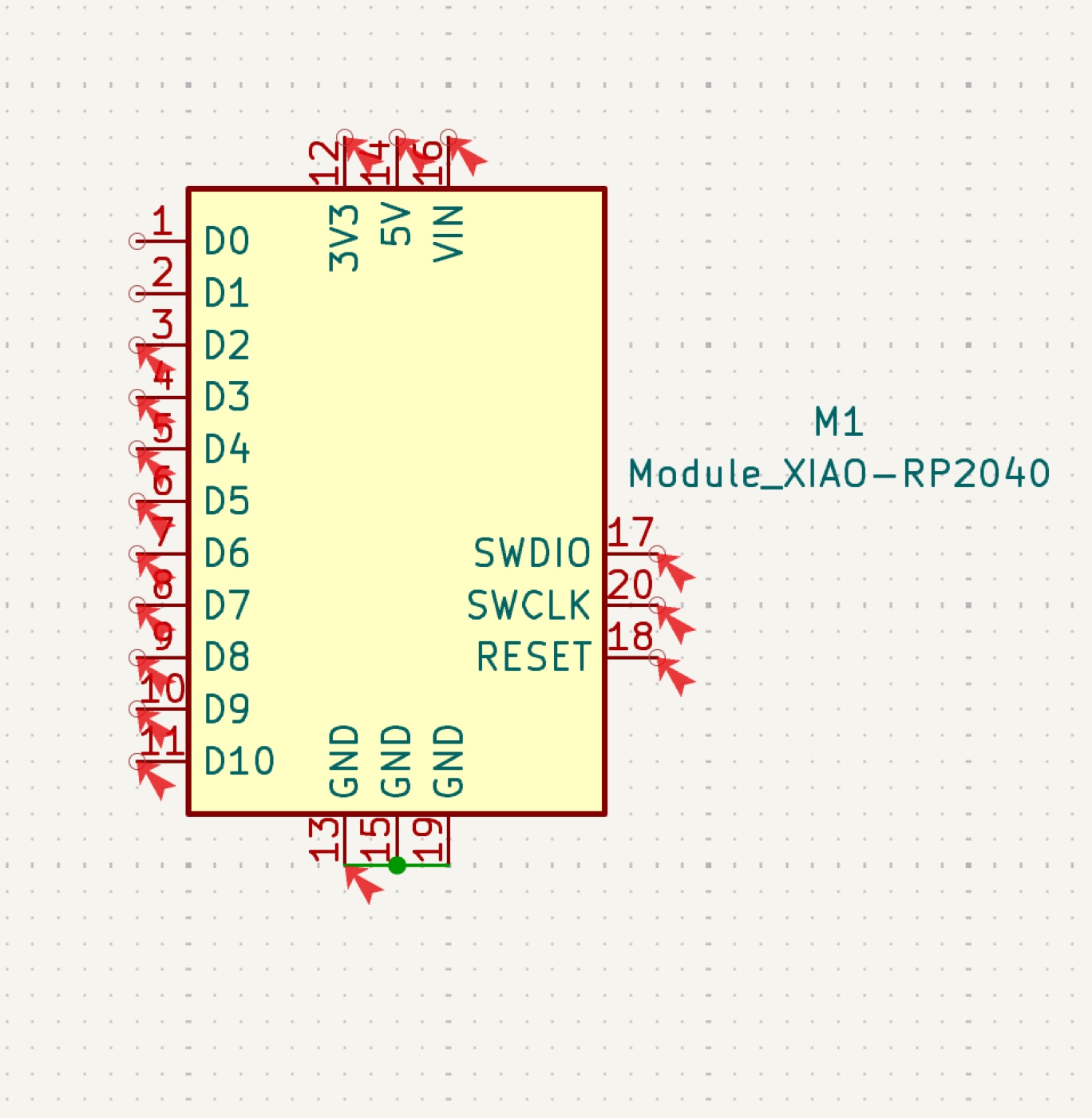
Now I have a microcontroller with 11 analog + digital pins, 3 ground pins, and power pins at the top. The next step was to set up the power and ground, the two most basic things to make a microcontroller function.
POWER & GROUND
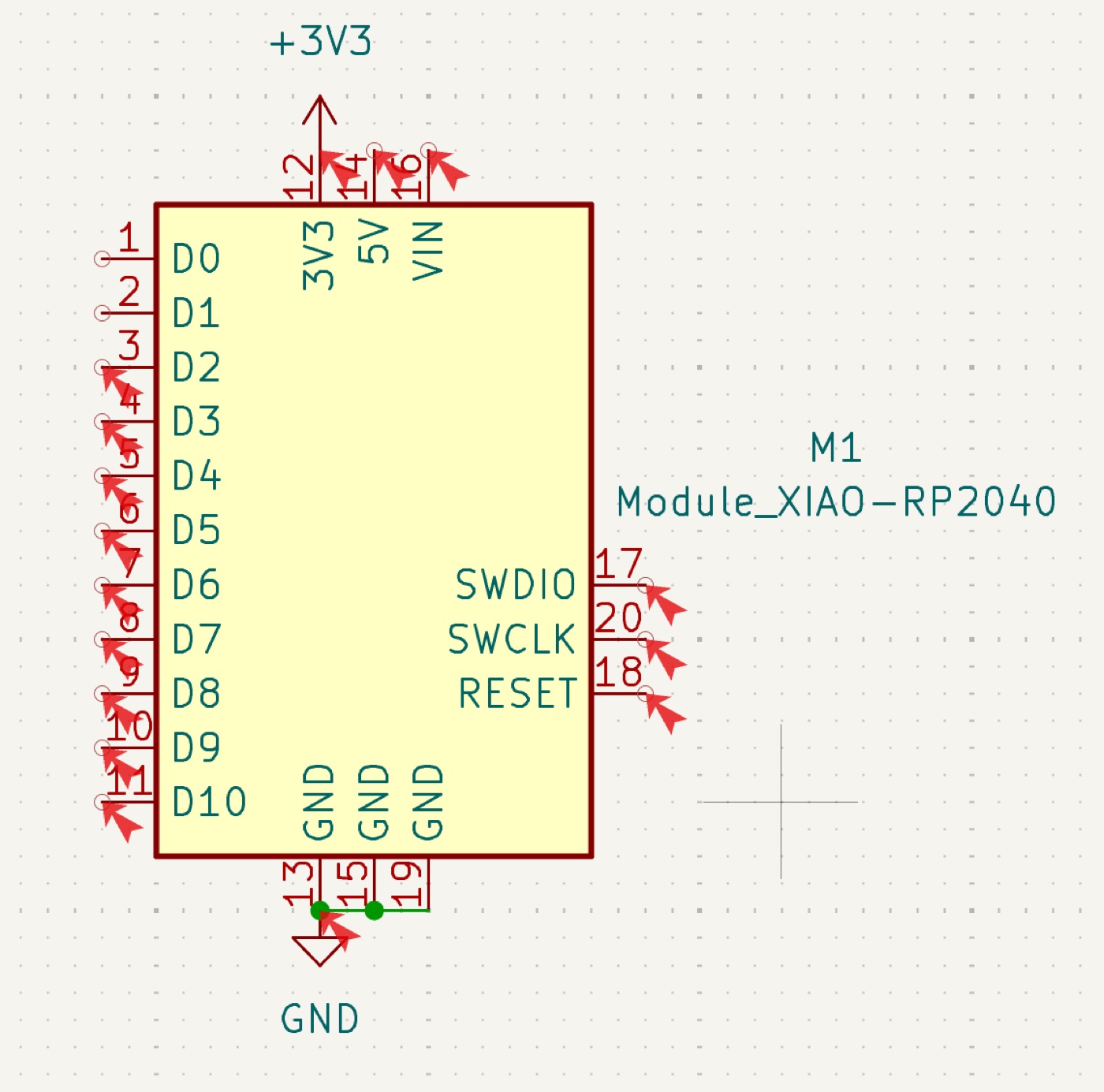
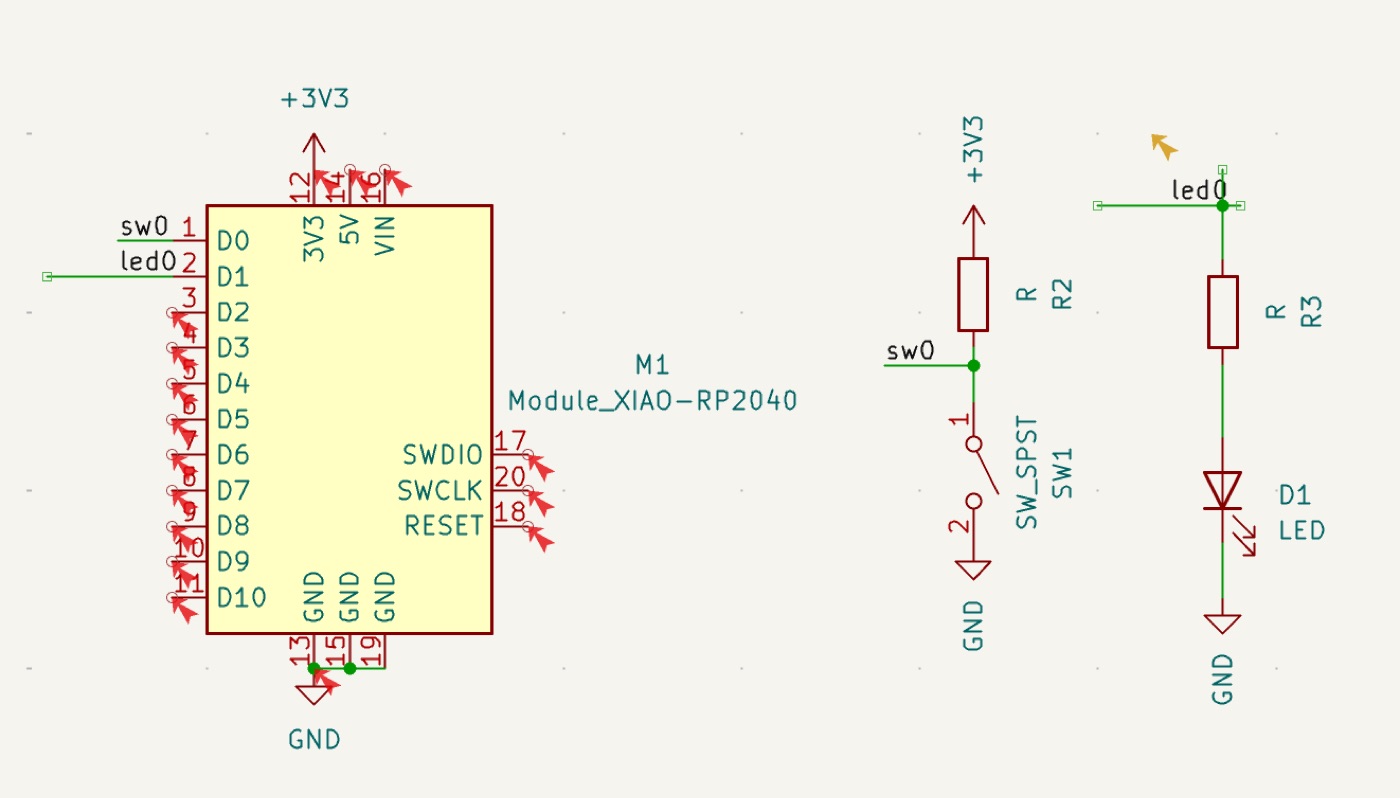
I inserted one arrow symbol for 3V3 and another solid arrow symbol for ground, and attached them to the corresponding pins on the RP2040 in the schematic. I made sure to connect the three ground pins together. A large part of learning KiCad (and PCB design in general) was of course learning how to operate the software, but another important lesson was understanding each of the symbols and the logic behind circuits, which was quite challenging since I haven’t had much experience with electronics before.
THE SWITCH
For the next step, I built the switch. It runs from power, through a resistor, to the switch itself, and then to ground. While doing this, I learned how to move components around and attach wires to them so everything could be spaced out a bit more. I also learned how to add labels, which let me connect separate parts of the schematic without drawing long wires that wrap around everything.
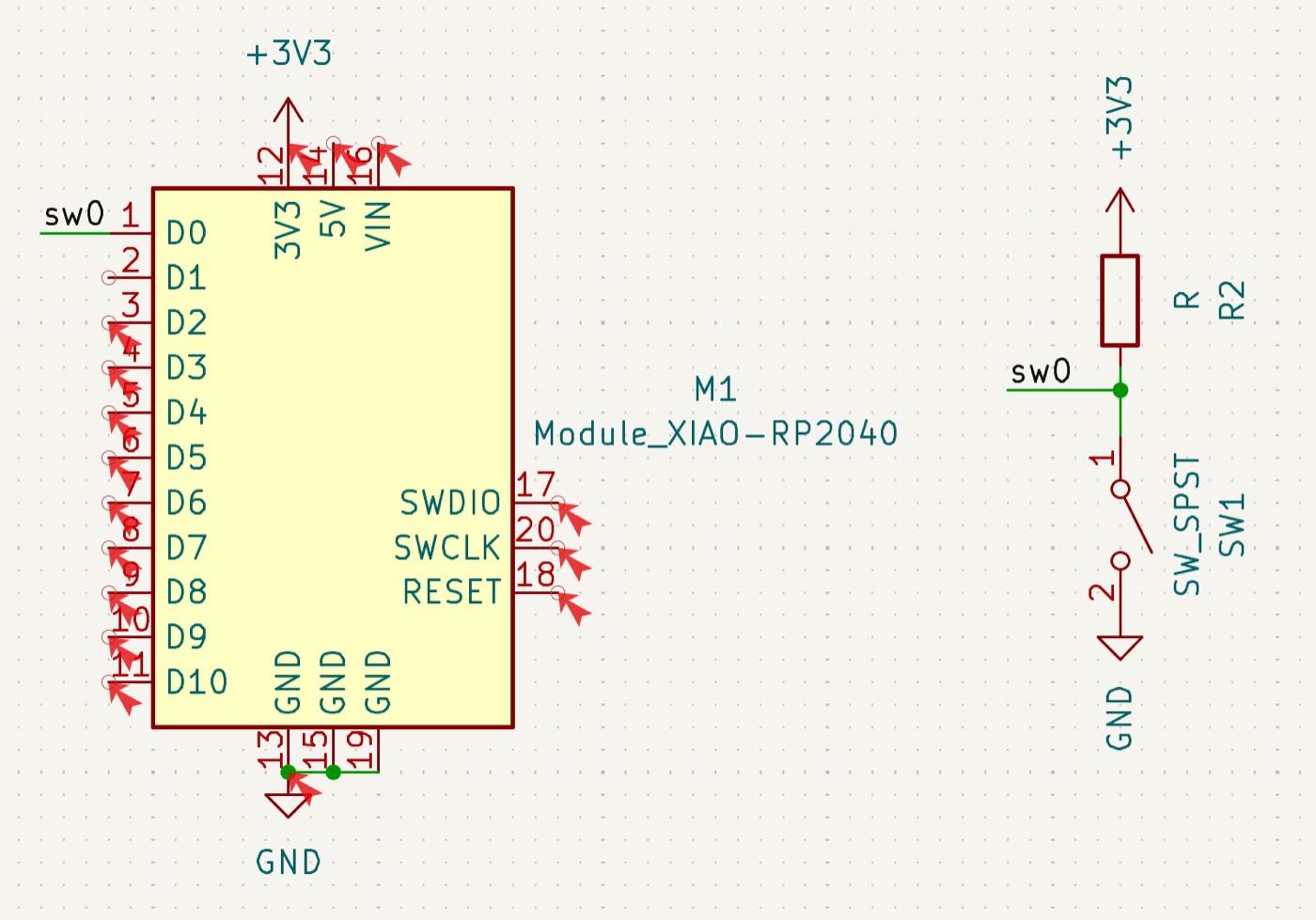
The label sw0 indicates that those two wires are actually connected in the
footprint, despite not having an actual wire connection here in the schematic. This helps
keep the drawing relatively clean without wires running all over the place.
PCB LAYOUT
FIRST LOOK AT THE BOARD
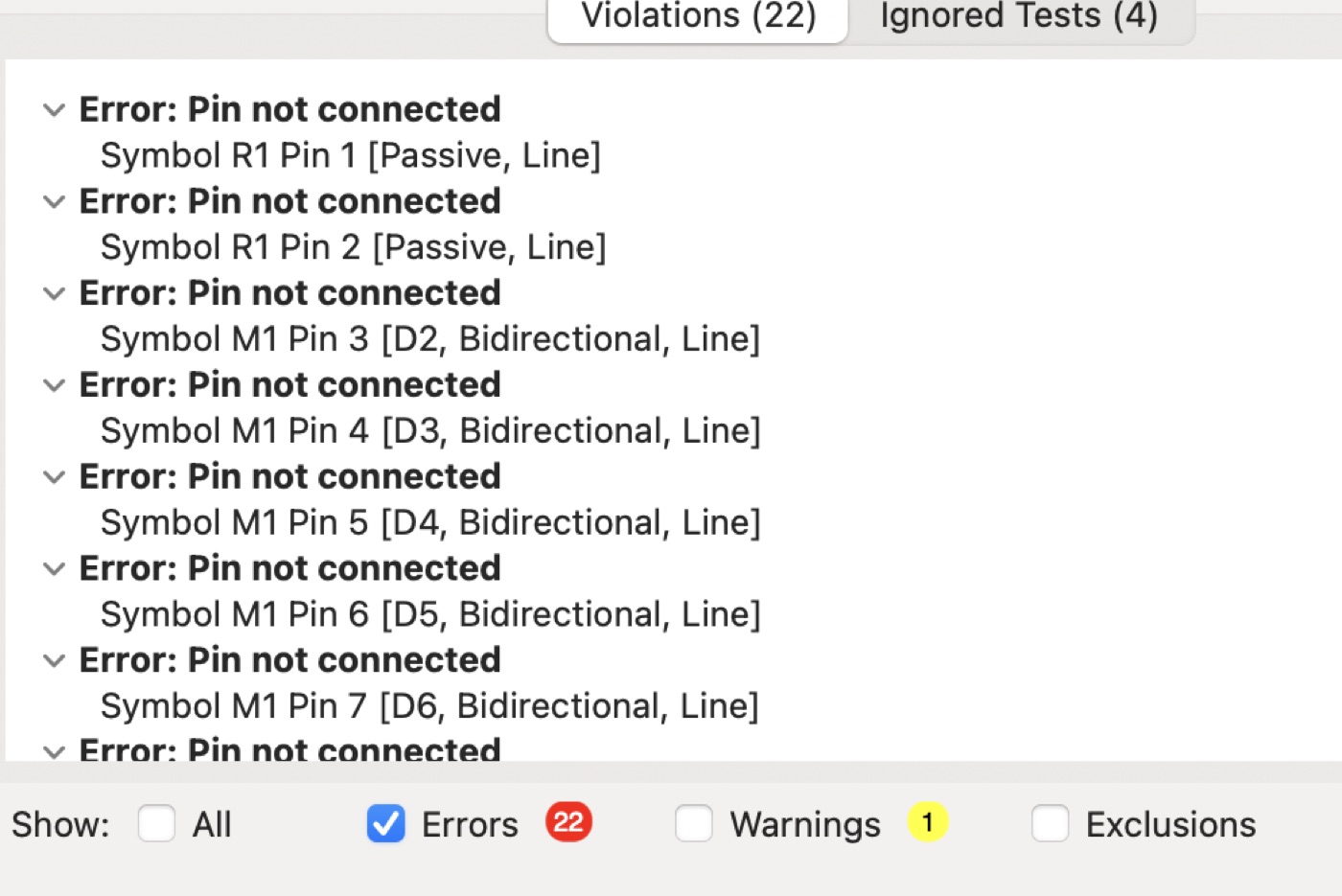
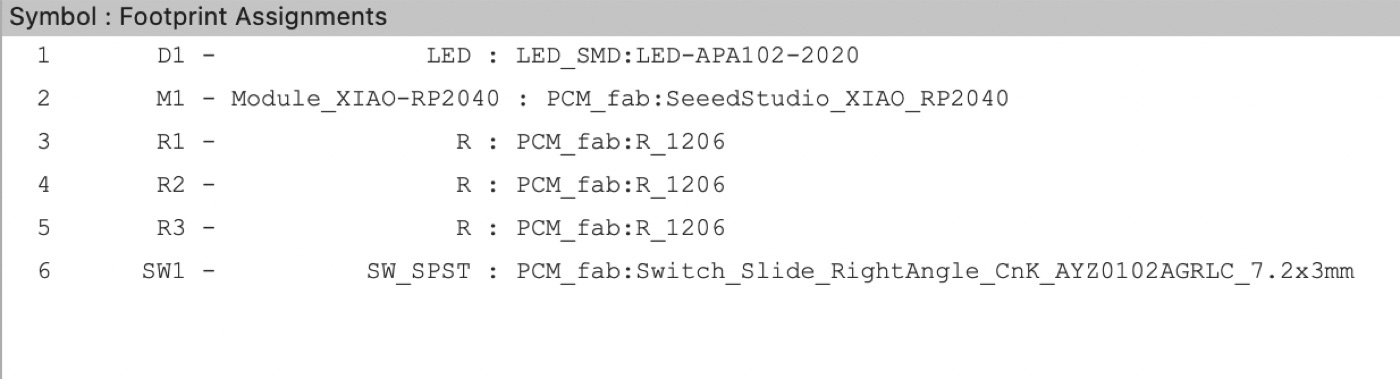
At this point I tried converting the schematic into a footprint just to see what it would look like. First, I had to run the electrical rules check on the schematic to catch any errors. Then I assigned footprints to each component, so that when I produce the board I know exactly which parts to use. For example, there are many different kinds of LEDs and switches, and I had to specify exactly which one I’m using. After that, I exported it to the PCB editor.
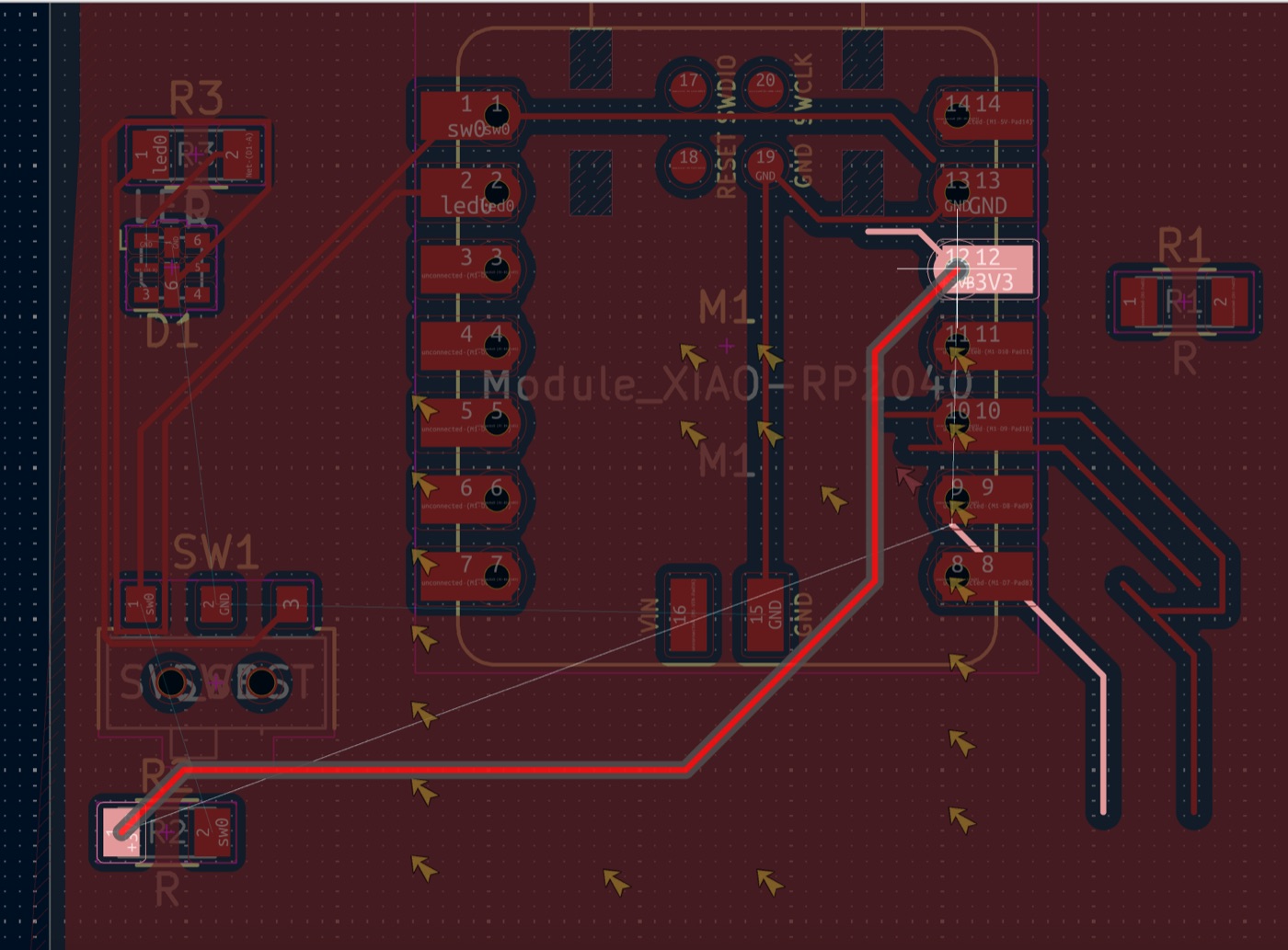
In the PCB editor, I learned that I can move the components around and space them however I want, which leaves some room for artistic creativity. I noticed thin blue lines between different points on the board, which show which points still need to be wired together. I pressed X to bring up the wire tool and connected all of those points. I also moved the components so that the wires overlapped with as few components as possible, just for aesthetics.
ADDING THE LED
After making sure everything worked, I went back to the schematic and completed the other half of my board: the LED. A resistor connects to power, then the LED, then ground. I linked this to the D1 pin on the microcontroller, so now both the LED and the switch are connected to the microcontroller. It acts as a hub between the two, directing information from one to the other. This is what will eventually make the LED turn on and off when the switch is pressed.
THE FINAL BOARD
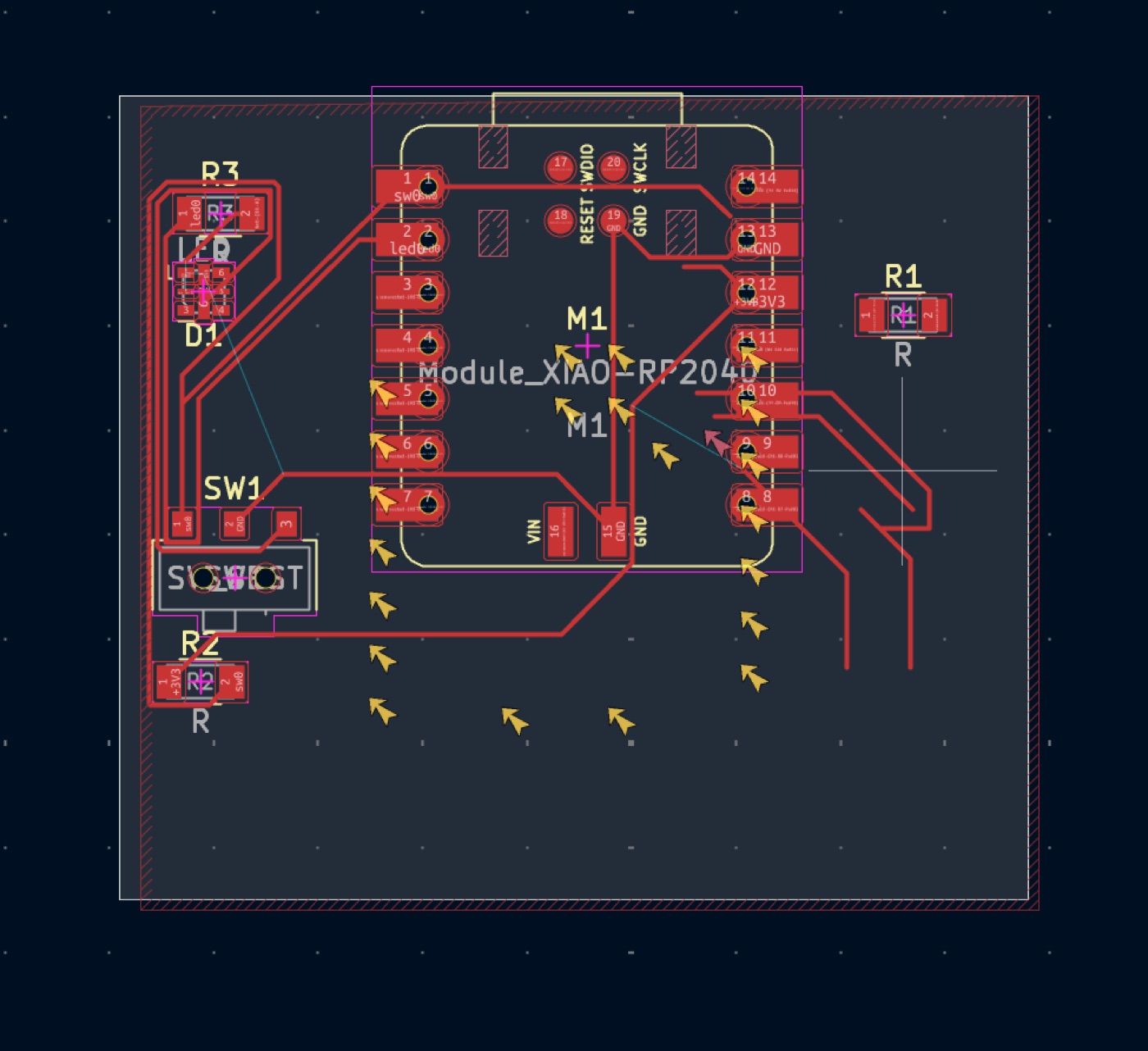
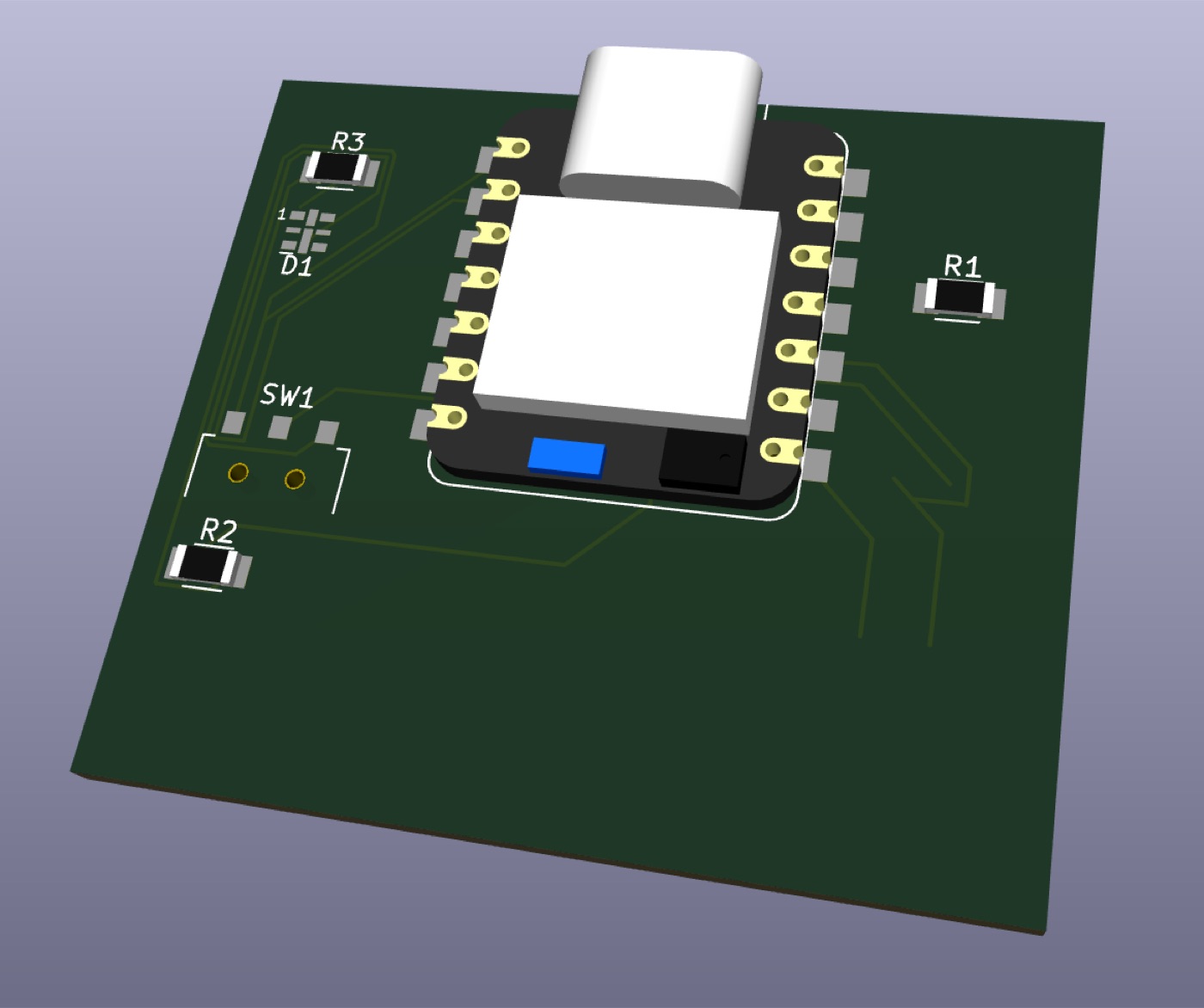
For the final part, I had to update the PCB board with the LED (after adding a footprint for it) and define the size of the board by drawing a square outline. Unfortunately, my first attempt was extremely poor. The wiring doesn’t sufficiently make sense to me just yet, and I believe this board would theoretically work, but it could possibly be the ugliest board ever created.
DESIGNING FOR MANUFACTURING
Some small things I made sure to take care of during the design phase, in order to make it easier for the manufacturing phase next week, are listed below:
- placing the microcontroller near the edge of the board, so that nothing interferes with the USB-C connection
- placing components relatively far apart from each other, so that solder is less likely to overflow and short circuits
- for the switch component (which has two feet inserted through holes in the board), placing it strategically such that it would be easy to solder from the back of the board