Week 2
Embedded Programming
This week, we got the Seeed Studio XIAO RP2040 microcontroller and PCB board, and were tasked to browse through the data sheet for a microcontroller, and write and test a program for an embedded system using a microcontroller to interact (with input &/or output devices) and communicate (with wired or wireless connections).
Soldering
I had soldered once before, for a hackathon project, using wires. I made plenty of mistakes by not knowing how to remove the solder when I would accidentally create shorts, but now I know!
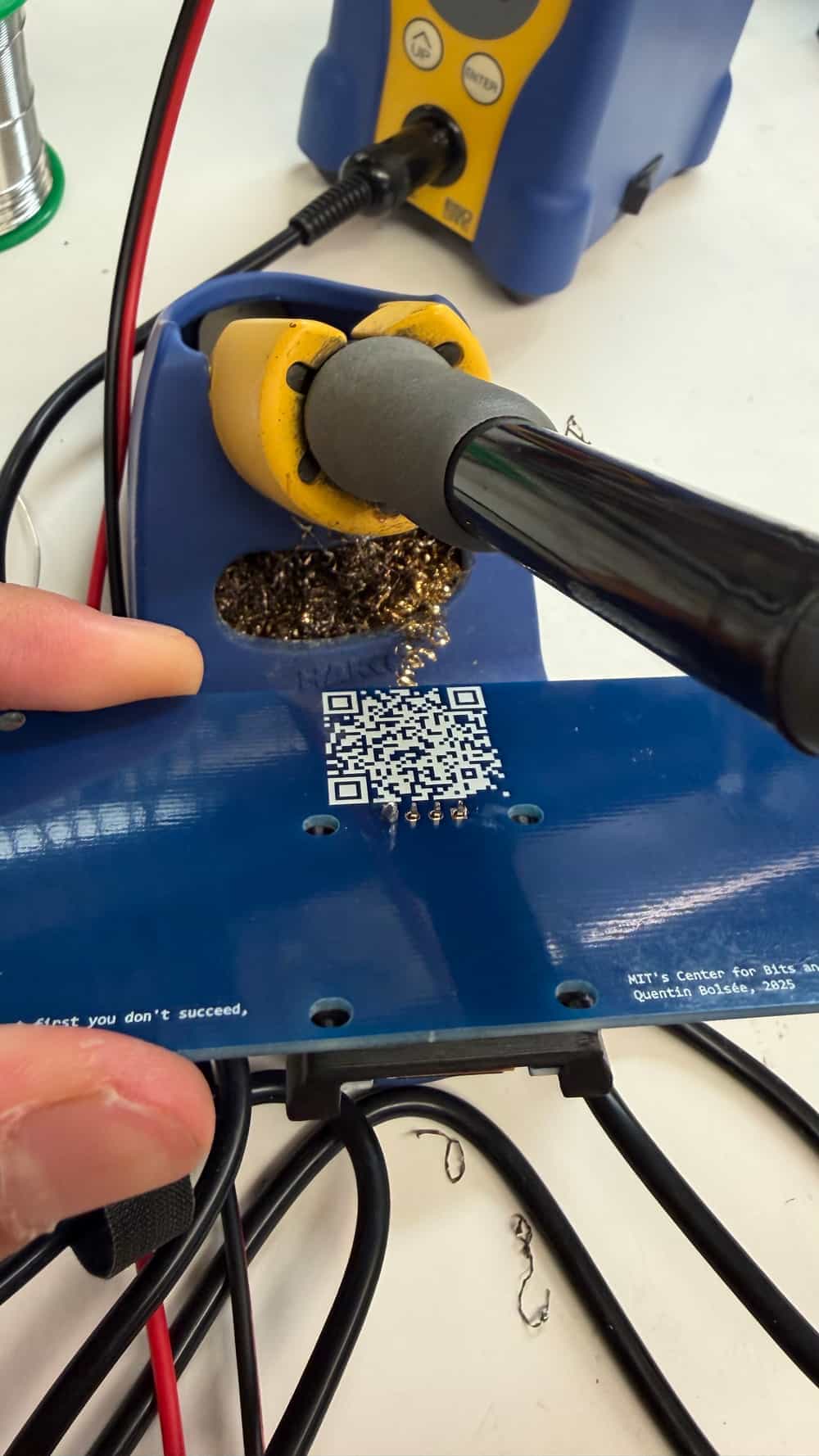
Here's the PCB after everything had been soldered on.
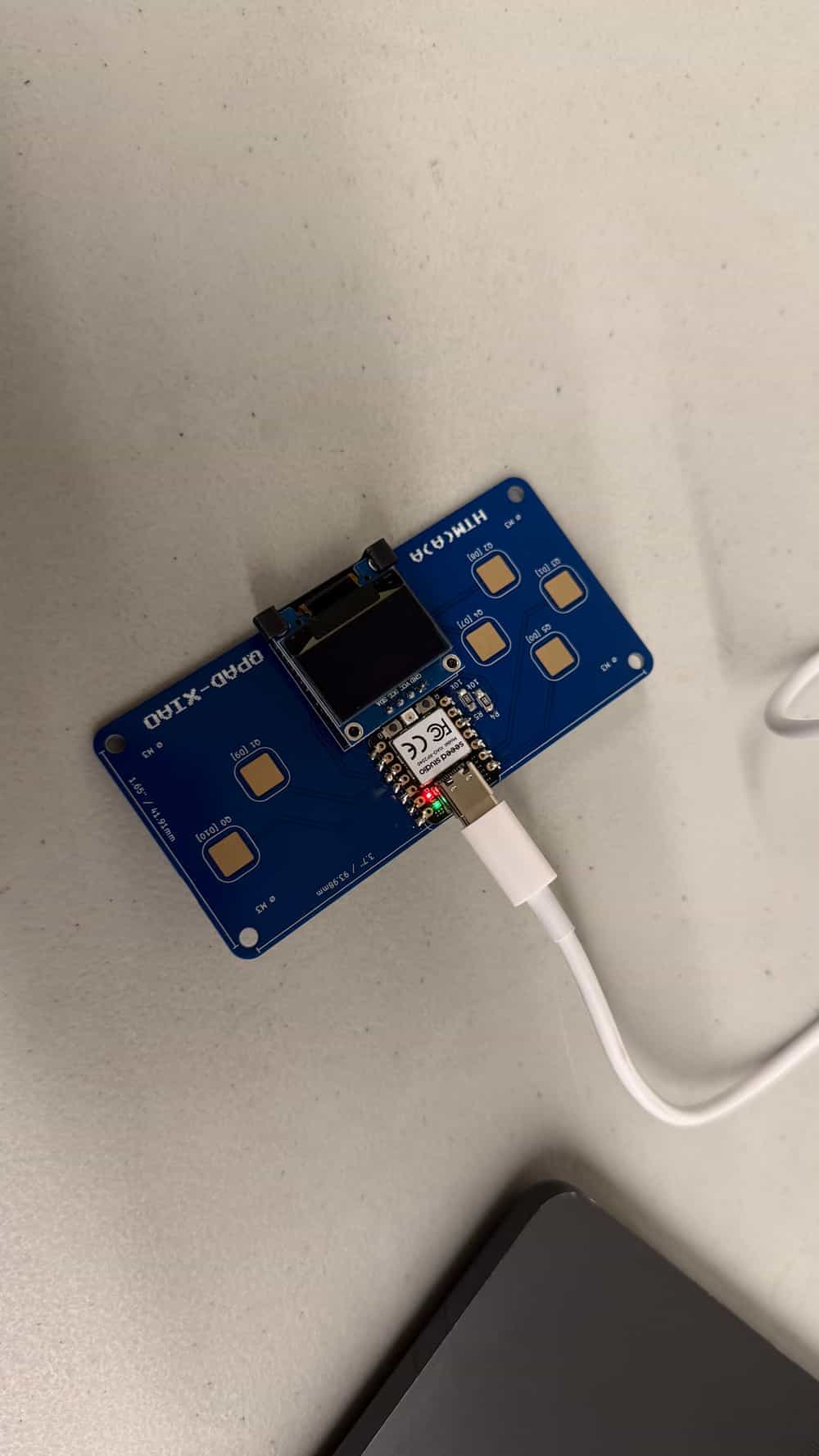
Microcontroller Datasheet
The Seeed Studio XIAO is a PCB that contains the RP2040, a microcontroller, on the board. The RP2040 features:
- Dual Cortex M0+ processors, with a clock cycle of up to 133 MHz each.
- There is 264KB of SRAM on the chip, which is the working memory of the Pi. The read latency is about 4 bytes per clock cycle, for 500 MB/s.There are six banks of SRAM (four banks of 64KB, and two banks of 4KB), making the total read memory bandwidth much higher, around 2GB/s in practice.
- There is also 2MB of flash on the PCB itself. This is like SSD, or the long-term storage of the RP2040. The processor communicates with it using Quad SPI, which runs at four bits per clock cycle. That gives us 15.625 MB/s. (There is a 16KB cache for the flash, though.)
- The USB connector to the computer transmits at 1.5MB/s.
- There are 30 multifunction GPIO pins that is how the RP2040 connects to the outside world.
- To say a bit about how the capacitive touch pads relate to the GPIO pins: two of them (D0, D1) have an ADC connected, so we can use
analogReadto getvaluewherevalue/1023 * 3.3Vis the voltage across the capacitor. In general, the capacitor discharges over time unless we pull the input up, and pressing on the touch pad makes the capacitor discharge slower.
- To say a bit about how the capacitive touch pads relate to the GPIO pins: two of them (D0, D1) have an ADC connected, so we can use
- The RP2040 sets the parameters of the PCB: certain pins need to get a ground or 3.3V voltage.
- On the XIAO, there are three communication protocols: I2C, UART, and SPI corresponding to pins D4-D10. These pins are reprogrammable, but we can use the built-in SPI peripheral on the RP2040 to help.
Signs of Life, Using Capacitive Touch Pads
Getting and debugging the RP2040 to connect to the computer took quite a bit (as it turns out, it doesn't work on EECS_Labs WiFi.) Eventually, I got it to flicker an LED with some simple code in loop() and also learned how to use the pins.
From there, I knew I wanted to use the touch pads to create a sort of game, but I wasn't sure how to go about it. My first attempt was to use analogRead to attempt to read the voltage at a given point in time, before I realized that reconstructing the rate of decay was far too inconsistent. That caused me to realize that we care about the digital state, and I transitioned to using a counter until the digital input was LOW: this would take longer if the touch pad was pressed. Here was the initial code:
const int pins[] = {26, 27, 28, 29, 6, 7, 0, 1, 2, 4, 3};

const int pads[] = {0, 1, 7, 8, 9, 10};

const int MARGIN = 10;


float averages[11] = {};


void setup() {

Serial.begin(115200);

pinMode(17, OUTPUT);

pinMode(16, OUTPUT);

pinMode(25, OUTPUT);


for (int i = 0; i <= 10; i++) {

pinMode(pins[i], INPUT);

}


for (float &average : averages) {

average = -1;

}


digitalWrite(17, HIGH);

digitalWrite(16, HIGH);

digitalWrite(25, HIGH);

}


int read_pad(int pad) {

int sum = 0;


for (int t = 0; t < 10; t++) {

pinMode(pins[pad], OUTPUT);

digitalWrite(pins[pad], LOW);

delayMicroseconds(10);


int count = 0;

noInterrupts();

pinMode(pins[pad], INPUT_PULLUP);


while (digitalRead(pins[pad]) == LOW && count < 5000) {

count++;

}


interrupts();

sum += count;

delay(1);

}


float value = sum / 10.0;

Serial.println(value);


if (averages[pad] < 0) {

averages[pad] = value;

return 0;

}


if (value >= averages[pad] + MARGIN) {

return 1;

}


averages[pad] = 0.75 * averages[pad] + 0.25 * value;

return 0;

}


void loop() {

delay(10);

int count = 0;


for (int pin : pads) {

int pressed = read_pad(pin);

Serial.println(pressed);

count += pressed;

}


digitalWrite(16, count > 0 ? LOW : HIGH);

}
It works!
Walking Through a World
For my assignment, I wanted to think about how to send data to and from the Pi and my computer on the fly, so I wanted to scope out a project that would involve coordinating and optimizing streams of data between the flash, SRAM, and my CPU's RAM. I was also interested in using the capacitive touch pads to create a "game" environment. That is, I would build a system where:
- My computer runs a 3D world created in Blender.
- My RP2040 receives movement signals from the capacitive touch pads.
- My RP2040 tells the computer where the player wants to move.
- The computer renders the next frame and sends it to the RP2040.
- The RP2040 downscales the frame using an on-chip algorithm and displays it on the LED screen.
Rendering the World
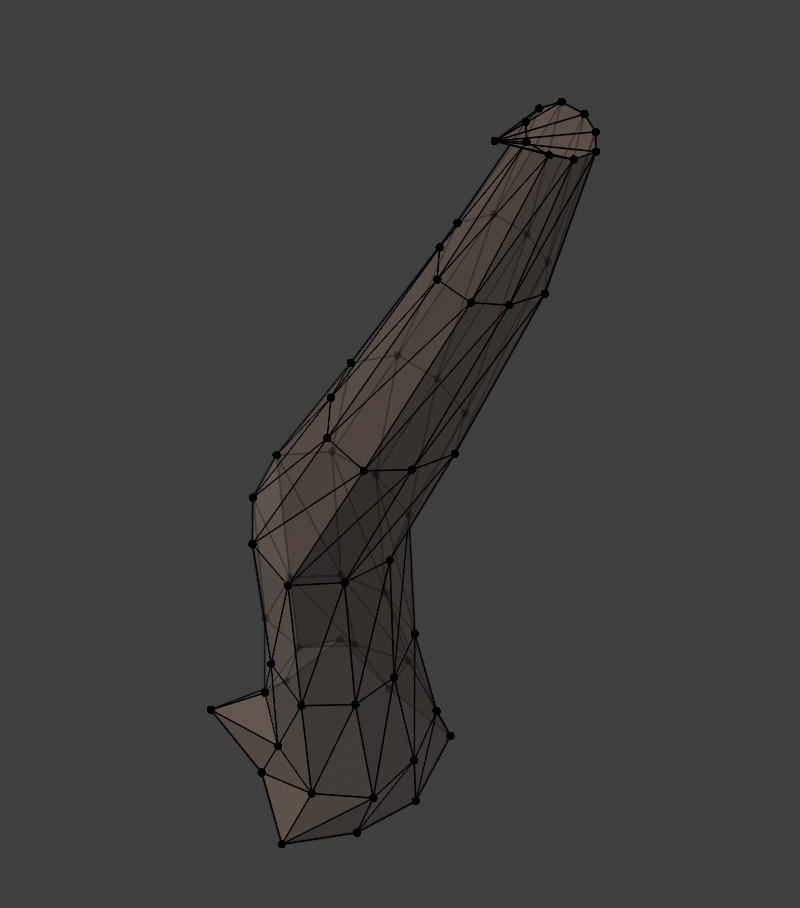
Here, we create a world in Blender and use Godot to render the world. I had never used Blender before, so I sunk quite a bit of time into messing around, and recreated this tree trunk with a bit of help from AI.
Blender creates 3D files that Godot can then turn into an interactive, moveable game. You do this by importing the .glb file that Blender generates, then adding a player, camera, movement script, and collision. With the help of AI, I generated a 3D Blender world to get started.
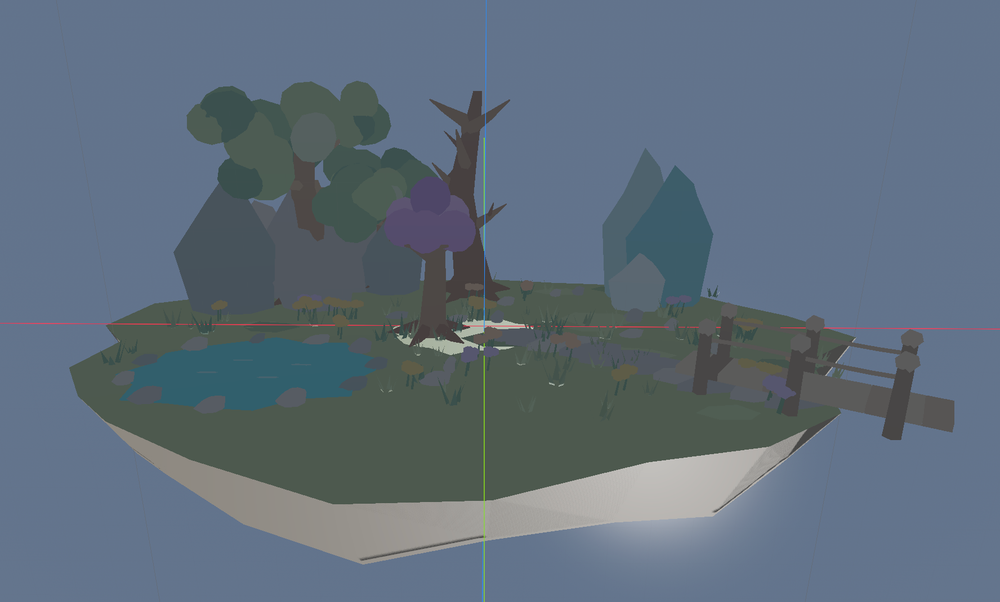
We can add a player and camera by importing sub-nodes into the scene, and changing position, etc. accordingly so the camera is roughly on the "head" of the body.
We can then program the following script in Player to control movements:
extends CharacterBody3D

const SPEED = 4.0
const JUMP_SPEED = 5.0
const MOUSE_SENSITIVITY = 0.002

@onready var camera = $Camera3D

func _ready():
    Input.mouse_mode = Input.MOUSE_MODE_CAPTURED

func _unhandled_input(event):
    if event is InputEventMouseMotion:
        if Input.mouse_mode == Input.MOUSE_MODE_CAPTURED:
            rotate_y(-event.relative.x * MOUSE_SENSITIVITY)
            camera.rotate_x(-event.relative.y * MOUSE_SENSITIVITY)
            camera.rotation.x = clamp(camera.rotation.x, -1.5, 1.5)

    if event is InputEventKey and event.pressed:
        if event.keycode == KEY_ESCAPE:
            Input.mouse_mode = Input.MOUSE_MODE_VISIBLE

    if event is InputEventMouseButton and event.pressed:
        Input.mouse_mode = Input.MOUSE_MODE_CAPTURED

func _physics_process(delta):
    if not is_on_floor():
        velocity.y -= 9.8 * delta
    elif Input.is_action_just_pressed("jump"):
        velocity.y = JUMP_SPEED

    var input_dir = Input.get_vector(
        "move_left", "move_right",
        "move_forward", "move_backward"
    )

    var direction = (
        transform.basis * Vector3(input_dir.x, 0, input_dir.y)
    ).normalized()

    velocity.x = direction.x * SPEED
    velocity.z = direction.z * SPEED

    move_and_slide()
Next, we want to add collisions to every object in the Blender world. We can do this with:
extends Node3D

func _ready():
    add_collisions(self)

func add_collisions(node: Node):
    for child in node.get_children():
        add_collisions(child)

    if node is MeshInstance3D and node.mesh != null:
        node.create_trimesh_collision()
After some debugging, I got it to render and move with the player!
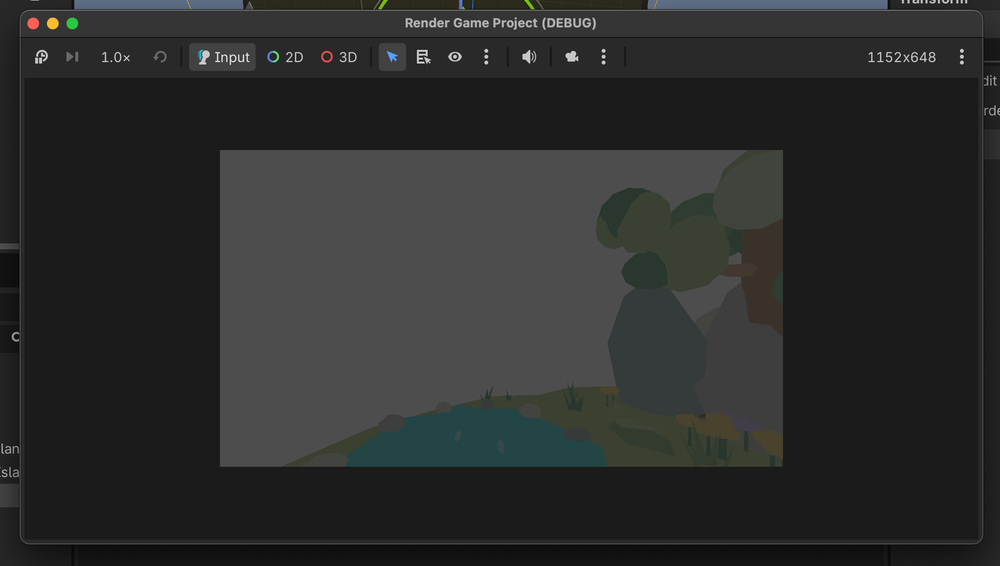
Next, we need some way to convert the capture to a stream of bytes every frame: we do this with the following code:
const FRAME_WIDTH := 64
const FRAME_HEIGHT := 64
const UDP_PORT := 4242

var udp := PacketPeerUDP.new()
var elapsed := 0.0
var capture_busy := false


func _process(time: float) -> void:
	elapsed += time
	if capture_busy:
		return
	elapsed = 0.0
	capture_frame()

func capture_frame() -> void:
	capture_busy = true
	await RenderingServer.frame_post_draw

	var image: Image = get_viewport().get_texture().get_image()
	if image == null or image.is_empty():
		capture_busy = false
		return

	image.resize(FRAME_WIDTH, FRAME_HEIGHT, Image.INTERPOLATE_BILINEAR)
	image.convert(Image.FORMAT_RGB8)
	var bytes: PackedByteArray = image.get_data()
	if bytes.size() == FRAME_WIDTH * FRAME_HEIGHT * 3:
		var err := udp.put_packet(bytes)
		if err != OK:
			push_warning("Error: " + str(err))
	capture_busy = false
This gives us the bytes we can send to the Pi, using a Python script that finds the relevant USB port and sends the bytes to the Pi.
The main memory constraints here are on the SRAM: we have 264KB, and sending a A x B image, downsampled to C x D would take (3AB + CD) bytes (the three is the number of color channels). With 64 by 64 images, this should be enough.
However, there is another issue: we're sending 12288 bytes for a frame, but my macOS has a UDP datagram limit of 9216 bytes. That means we need to split each frame into two packets, and add an identifier of '0' or '1' after each packet. We have sent our frame bytes from Godot to the Pi! (the RGB shift happened when I moved the camera.)
Received frame 520: 12288 bytes
Pico: OK frame 4330 | center RGB: 77,77,77
Pico: OK frame 4340 | center RGB: 77,77,77
Received frame 540: 12288 bytes
Pico: OK frame 4350 | center RGB: 77,77,77
Pico: OK frame 4360 | center RGB: 77,77,77
Received frame 560: 12288 bytes
Pico: OK frame 4370 | center RGB: 77,77,77
Pico: OK frame 4380 | center RGB: 73,72,71
Received frame 580: 12288 bytes
Pico: OK frame 4390 | center RGB: 55,52,42
Pico: OK frame 4400 | center RGB: 65,53,70
Received frame 600: 12288 bytes
Pico: OK frame 4410 | center RGB: 65,53,70
Pico: OK frame 4420 | center RGB: 65,53,70
Finally, we program the microcontroller to render frames!
#include <Arduino.h>

#include <Wire.h>

#include <Adafruit_GFX.h>


#define USE_SH1106 0


#if USE_SH1106

#include <Adafruit_SH110X.h>

Adafruit_SH1106G display(128, 64, &Wire, -1, 100000, 100000);

#else

#include <Adafruit_SSD1306.h>

Adafruit_SSD1306 display(128, 64, &Wire, -1, 100000, 100000);

#endif


const int W = 64;

const int OUT_W = 32;

const int OUT_PIXELS = OUT_W * OUT_W;

const int TARGET_WHITE = OUT_PIXELS / 2;


const bool FILL_SCREEN = false;


uint8_t brightness_map[OUT_PIXELS];

uint8_t input_rgb[W * W * 3];

uint8_t output_rgb[OUT_W * OUT_W * 3];


const uint8_t bayer[4][4] = {

{ 0, 8, 2, 10},

{12, 4, 14, 6},

{ 3, 11, 1, 9},

{15, 7, 13, 5}

};


const char MAGIC[] = "FRM1";

uint8_t matched = 0;

bool receiving = false;

size_t received = 0;

uint32_t last_byte_ms = 0;

uint32_t frames = 0;


void stop_with_error(const char* message) {

while (true) {

Serial.println(message);

delay(1000);

}

}


void setup() {

Serial.begin(115200);

delay(200);


if (!Wire.setSDA(6) || !Wire.setSCL(7)) {

stop_with_error("I2C pin setup failed.");

}

Wire.begin();

Wire.setClock(100000);


#if USE_SH1106

bool ok = display.begin(0x3C, false);

#else

bool ok = display.begin(SSD1306_SWITCHCAPVCC, 0x3C, false, false);

#endif

if (!ok) stop_with_error("Display initialization failed.");


display.clearDisplay();

display.setTextSize(1);

display.setTextColor(1);

display.setCursor(0, 24);

display.print("Waiting for Godot...");

display.display();

}


void downsample_and_display() {

uint16_t histogram[256] = {};

int darkest = 255;

int brightest = 0;


for (int y = 0; y < OUT_W; y++) {

for (int x = 0; x < OUT_W; x++) {

int pixel = y * OUT_W + x;

int src = ((2 * y) * W + 2 * x) * 3;

int dst = pixel * 3;


for (int c = 0; c < 3; c++) {

int sum = input_rgb[src + c]

+ input_rgb[src + 3 + c]

+ input_rgb[src + W * 3 + c]

+ input_rgb[src + W * 3 + 3 + c];

output_rgb[dst + c] = sum / 4;

}


int brightness = (77 * output_rgb[dst]

+ 150 * output_rgb[dst + 1]

+ 29 * output_rgb[dst + 2]) / 256;

brightness_map[pixel] = brightness;

histogram[brightness]++;

if (brightness < darkest) darkest = brightness;

if (brightness > brightest) brightest = brightness;

}

}


int cutoff = 255;

int above_cutoff = 0;

while (cutoff > 0 && above_cutoff + histogram[cutoff] < TARGET_WHITE) {

above_cutoff += histogram[cutoff];

cutoff--;

}


int needed_from_ties = TARGET_WHITE - above_cutoff;

uint16_t ties_by_rank[16] = {};

for (int y = 0; y < OUT_W; y++) {

for (int x = 0; x < OUT_W; x++) {

if (brightness_map[y * OUT_W + x] == cutoff) {

ties_by_rank[bayer[y % 4][x % 4]]++;

}

}

}


int tie_rank = 0;

int earlier_ties = 0;

while (tie_rank < 15 && earlier_ties + ties_by_rank[tie_rank] < needed_from_ties) {

earlier_ties += ties_by_rank[tie_rank];

tie_rank++;

}

int remaining_at_rank = needed_from_ties - earlier_ties;


const int block_width = FILL_SCREEN ? 4 : 2;

const int block_height = 2;

const int x_offset = (128 - OUT_W * block_width) / 2;

int white_count = 0;

display.clearDisplay();


for (int y = 0; y < OUT_W; y++) {

for (int x = 0; x < OUT_W; x++) {

int brightness = brightness_map[y * OUT_W + x];

bool white = brightness > cutoff;


if (brightness == cutoff) {

int rank = bayer[y % 4][x % 4];

white = rank < tie_rank;

if (rank == tie_rank && remaining_at_rank > 0) {

white = true;

remaining_at_rank--;

}

}


if (white) {

white_count++;

display.fillRect(x_offset + block_width * x, block_height * y,

block_width, block_height, 1);

}

}

}

display.display();

frames++;

}


void loop() {

if ((receiving || matched != 0) && millis() - last_byte_ms > 2000) {

receiving = false;

received = 0;

matched = 0;

Serial.println("Dropped incomplete frame.");

}


while (Serial.available() > 0) {

int value = Serial.read();

if (value < 0) break;

uint8_t b = (uint8_t)value;

last_byte_ms = millis();


if (!receiving) {

matched = (b == MAGIC[matched]) ? matched + 1 : (b == 'F' ? 1 : 0);

if (matched == 4) {

matched = 0;

received = 0;

receiving = true;

}

} else {

input_rgb[received++] = b;

if (received == sizeof(input_rgb)) {

receiving = false;

downsample_and_display();

return;

}

}

}

}
Finally, I connected the capacitive touch pads up, and voila, we can use our hands to control a live-updating display on the LEDs!
AI Usage
I did use AI to help with debugging and generating code frameworks for parts I wasn't as familiar with, such as the syntax for Godot, where to program various things, and how to find a USB port. However, I mostly tried to do things by hand, especially the higher-level design decisions.