Week 4 — 3D Scanning and Printing
This week, I will be 3D printing a gyroid heatsink structure modelled in the nTop software; the final goal is to manufacture it out of copper on the Desktop Metal X-series 3D printer—so I will be learning how Binder Jet metal printing works, and I will be printing a prototype of the Form 3 SLS printer.
Metal 3D Printing
In the beginning, I thought I could get the Desktop Metal printer running in one week, which was a big mistake. My usual Prusa MK4 experience didn't anticipate that the first step would be to source 2 gas cylinders with a mixture of argon and hydrogen at 2400 PSI, and 20l of deionized water. This sent me on a slight detour, learning about compressed gas cylinder safety and MIT's procedures for ordering gases. I will not go into much detail, as this information is quite specific to MIT and may not be of much value anywhere else. Furthermore, I do not want to describe safety procedures for something as dangerous as compressed gas; all of my knowledge came from the articles written by MIT EHS.
nTop Software
The heatsink was designed in the nTop implicit modelling software—which apparently spun out of my lab at MIT. I opened the example project with the gyroid heatsink design and started modifying parameters so the design would be aesthetically pleasing and large enough for the printer.
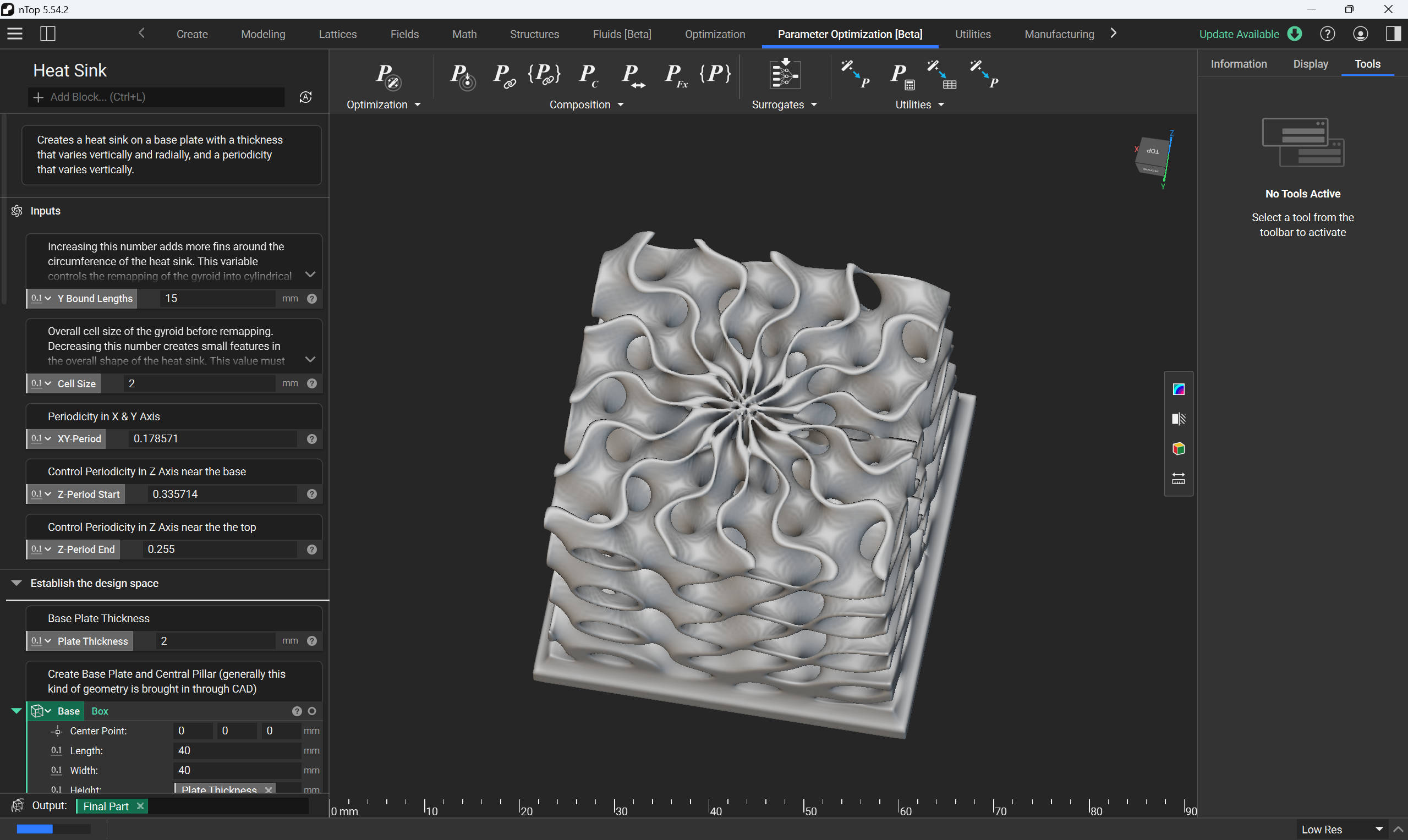
The parameters that I changed were the XY-period, Z-period Start, and Z-period End. These values control how the folds in the gyroid are positioned and how they are spaced out.
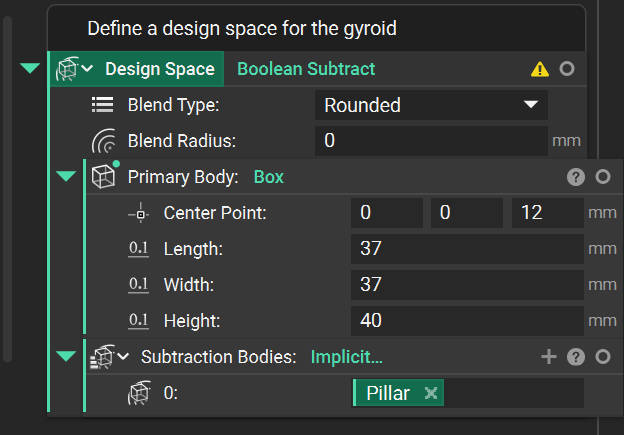
Next, I adjusted the height, length, and width of the design using the parameters shown below:
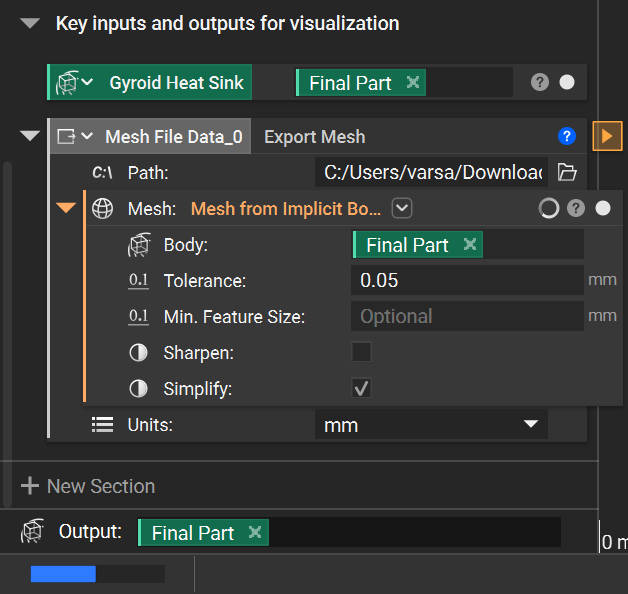
Exporting the final design to an STL file was more complicated than I expected. The heatsink is an implicit body, the format that nTop uses to generate the designs. To convert the implicit body to an STL, we have to place the Mesh From Implicit Body block and select our heatsink ('Final Part') as the Body. Then we set the tolerance; my LLM told me that 0.05mm is good enough for my design. Since I will be using a 0.1 mm layer height for my print, I believed it and moved on. Next, we have to export the mesh to an STL file using the Export Mesh block. While selecting the path for the file to be saved, we need to select STL as our format (OBJ won't work with the PreForm software). Furthermore, I clicked the Simplify box in the Export Mesh block. Finally, we need to wait for over half an hour to get the final part exported.

SLS Printing
Next, I got myself trained on how to use the Formlabs 3D printers. I dragged my file into the PreForm software and used the one-click parameter setting option. This oriented my heatsink sideways and added supports within the gyroid structure. Turns out, the print is relatively fine without any supports, and the base doesn't create any vacuums on the film of the resin vat. Then it was just a matter of sending the print to the printer via a WiFi connection (it was important to connect to the network the printer was connected to; in my case, that was MLDEV)
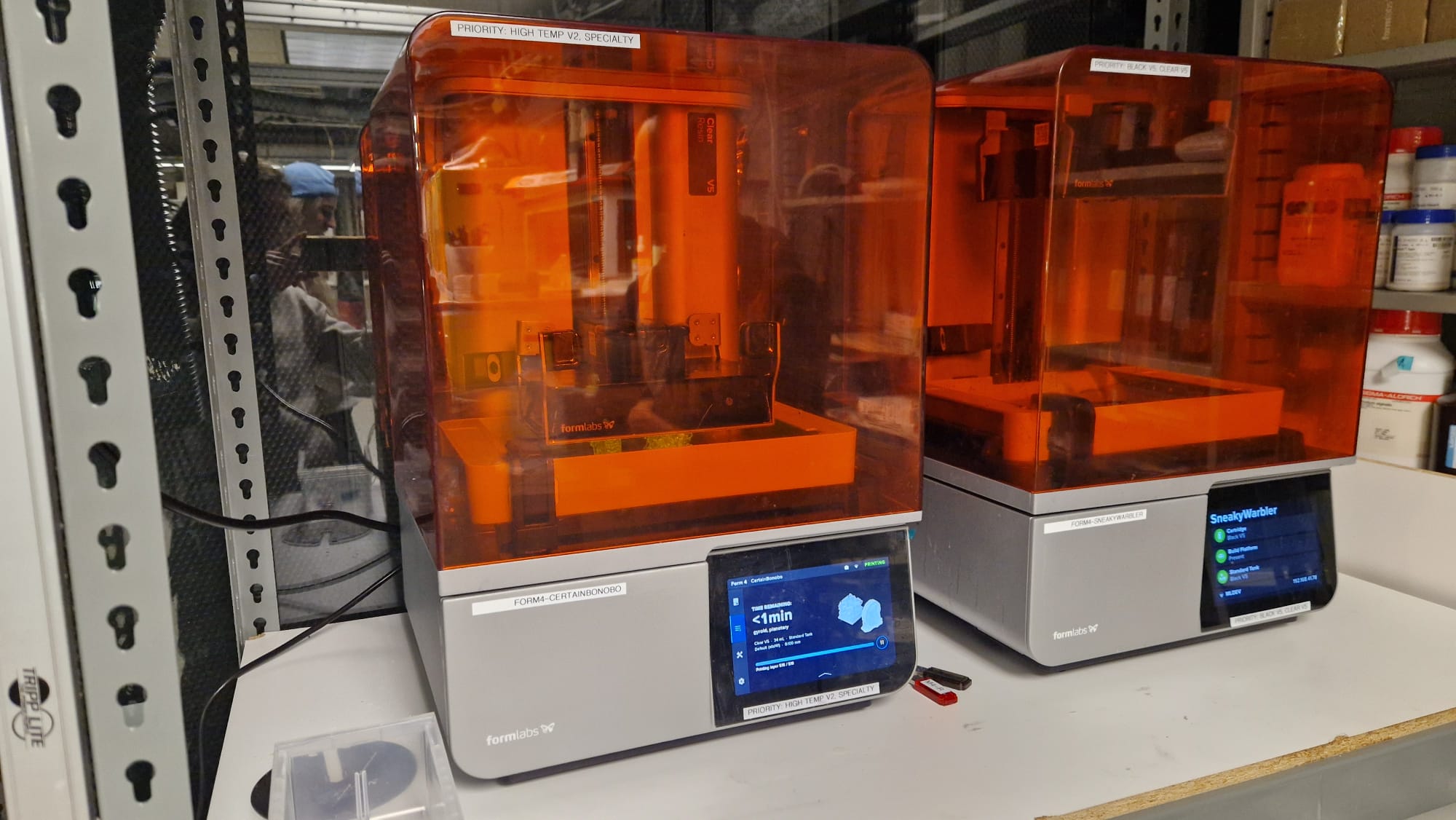
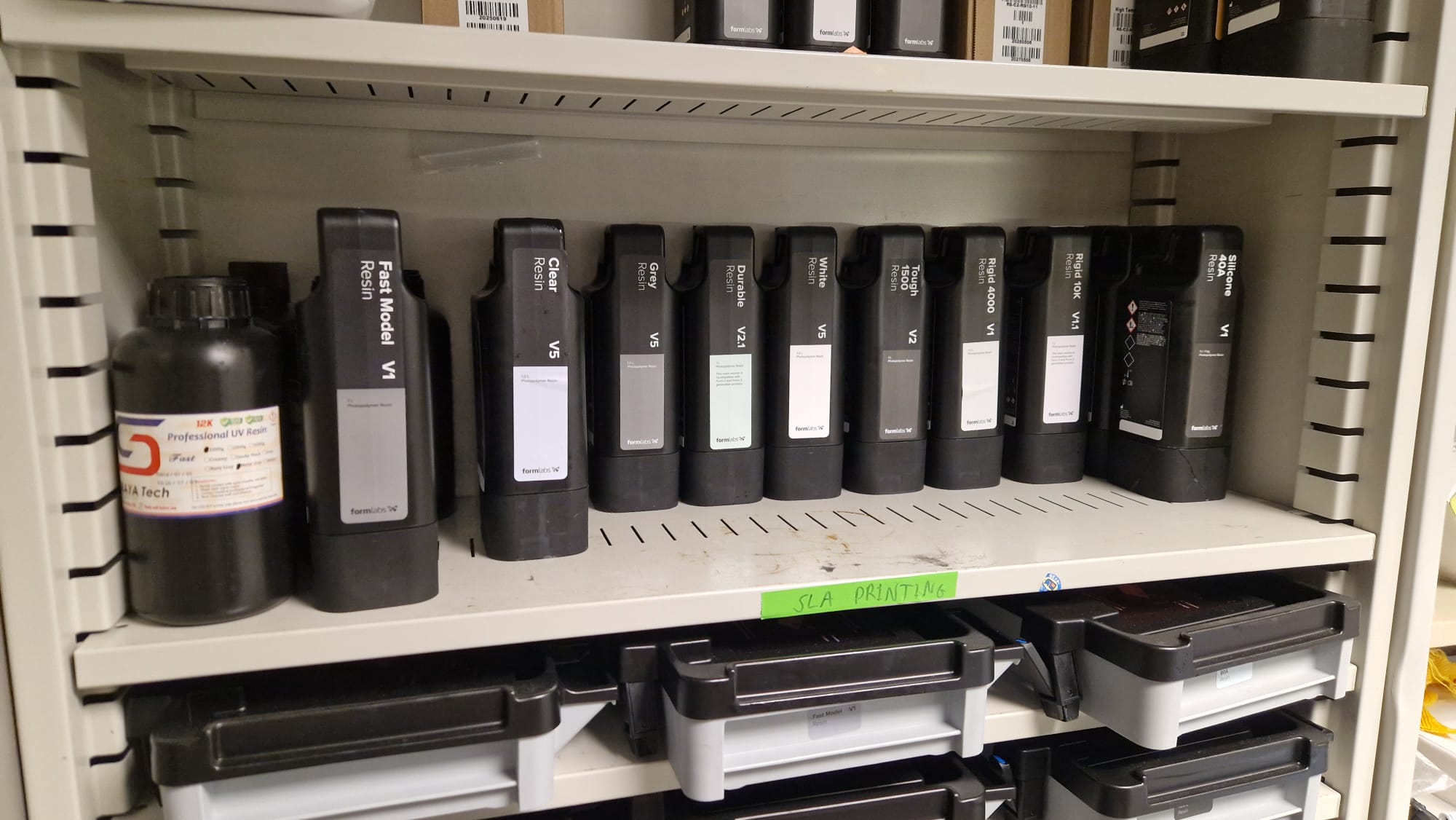
I printed the heatsink in Clear V5 resin from Formlabs, with 0.1 mm layer height. Every other setting was left preconfigured by the printer Admin.
Post Processing
After the printer finished printing (roughly 1 h 15 min), I flexed the build plate to release the prints. It was important to place a hand underneath the prints, so they wouldn't fall into the resin vat and splash everywhere. The first step was washing; normally, this would be a two-step process. However, the IPA solvent was old and saturated with resin, so we only washed in one bath for 5 minutes.
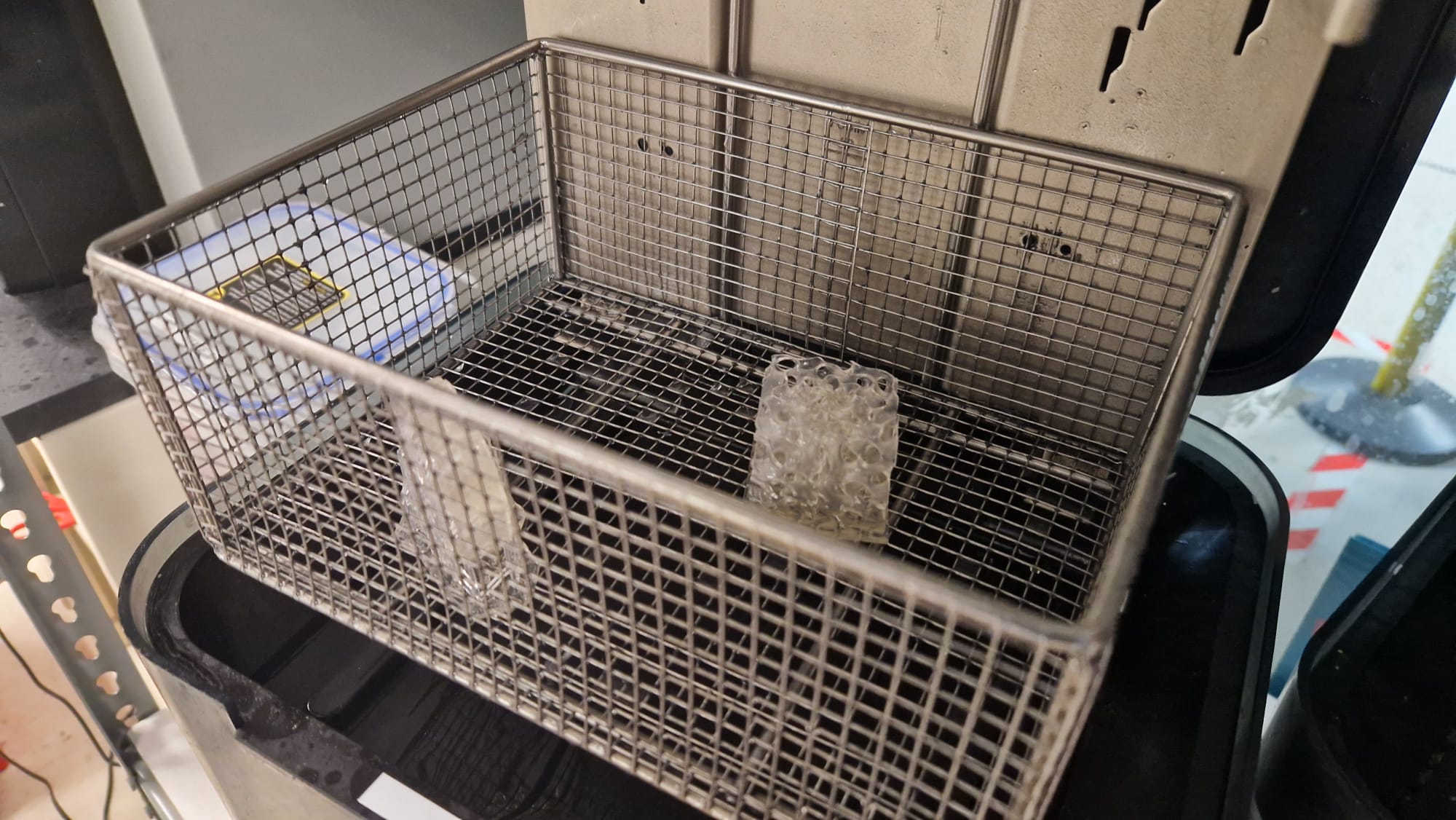
Second was the curing stage: I selected the preset for Black V5 resin and ran the curing process. The timer was set to 1 minute with no heating. I was a bit paranoid about having uncured resin on the part, so I ran the curing process 4 times, just to make sure. To my surprise, there was still uncured resin on the heatsink, so I wiped everything with isopropyl alcohol. This may have been caused by the dirty IPA wash, which would normally remove most of the uncured resin. One thing to note is that clear resins tend to yellow when overcured. In my case, I didn't really care that much, but in the future, this could be a problem when overcuring.
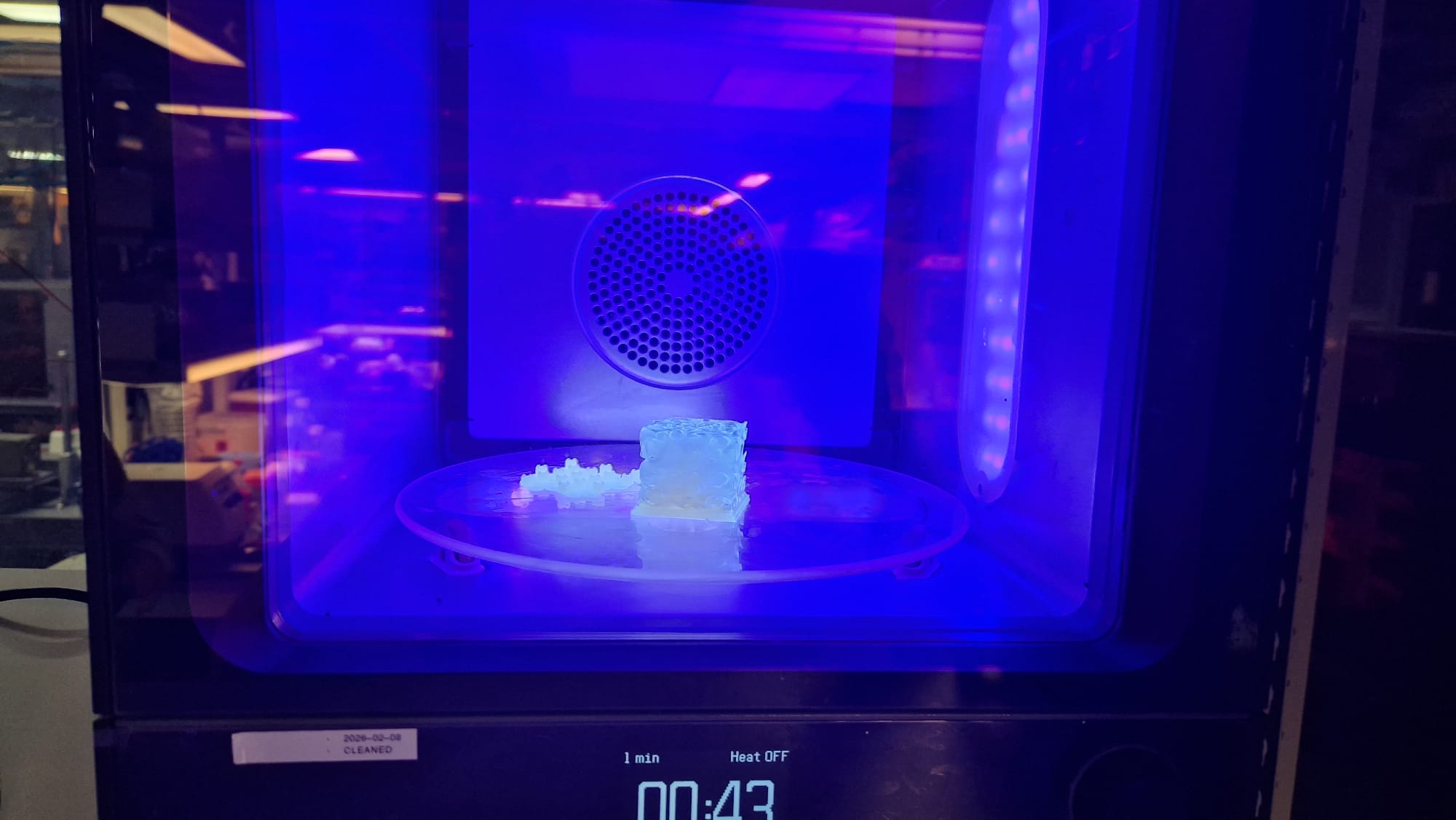
Laser Scanning
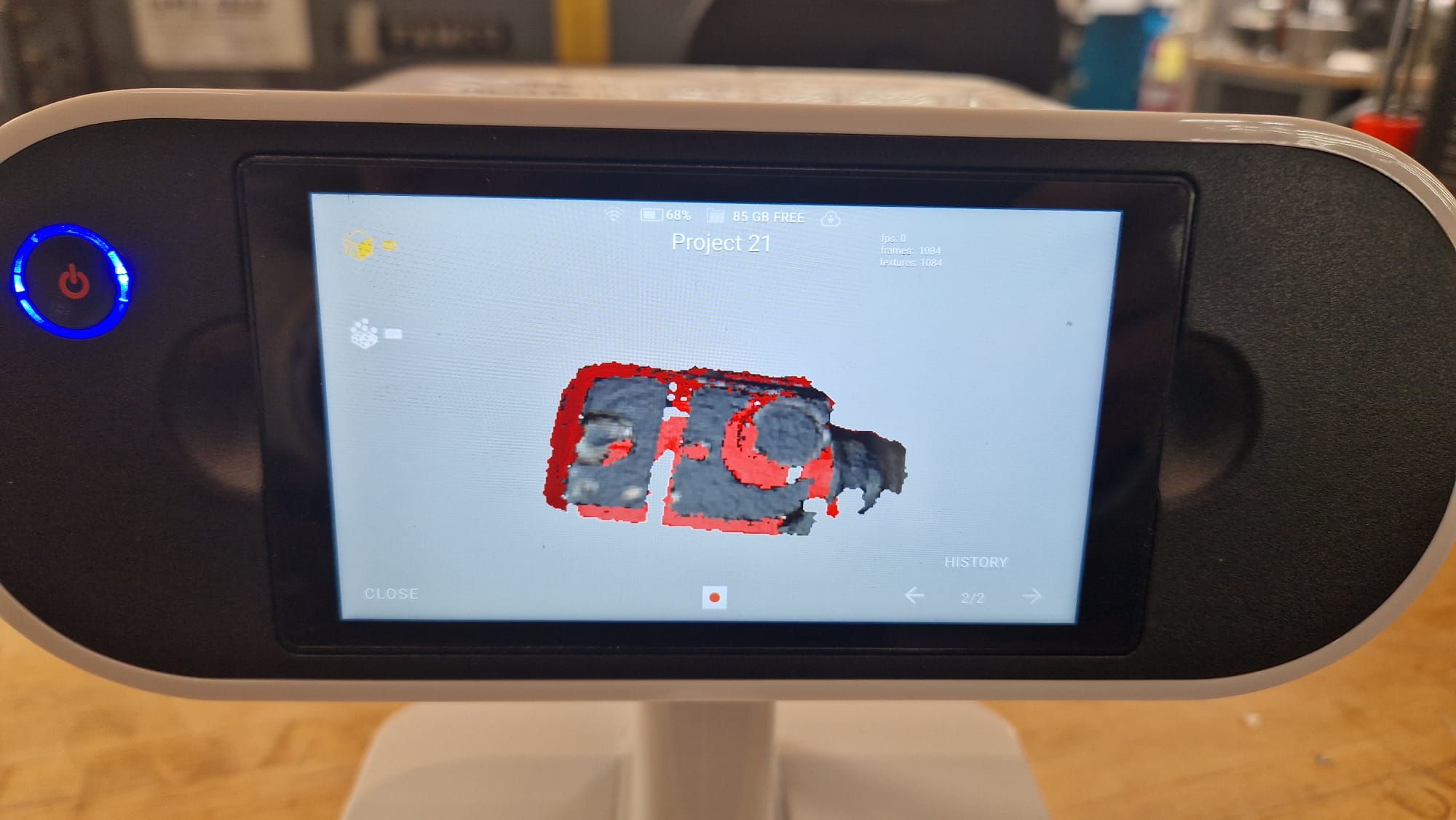
In the past, I did 3D scanning with structured light, so this time, I wanted to try out something different. I went with the Artec Leo scanner, and I really wanted to push it and scan a shiny metallic surface. I had very little luck scanning glass with structured light before, so I hoped the Artec scanner would yield better results.
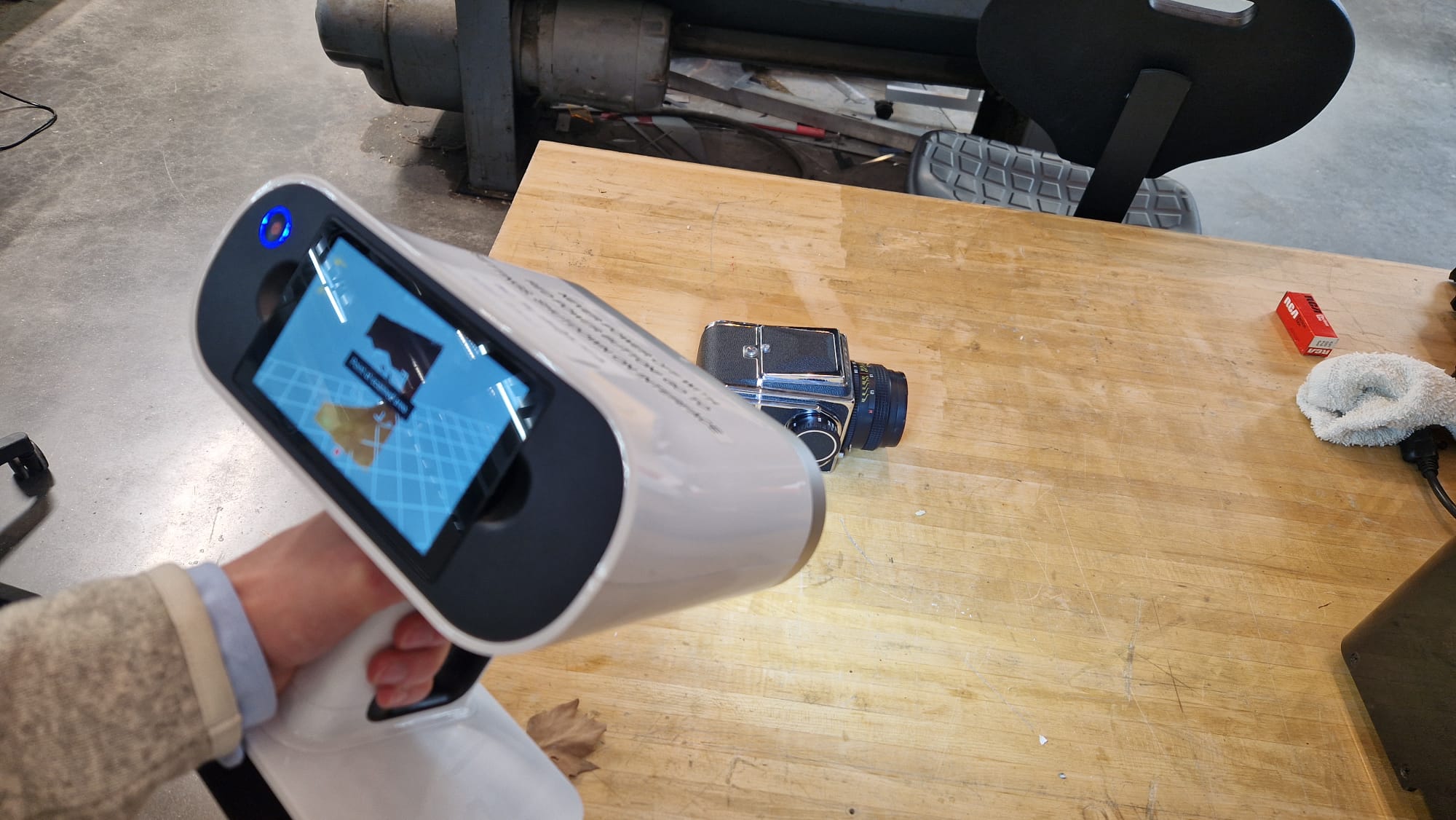
In the image below, you can see that the Kiev 88 film camera I tried to scan was not appearing on the 3D scanner, where it was the most reflective. I could try applying a mattifying spray; however, I didn't want to ruin the camera, as it's quite delicate.