Printing test objects
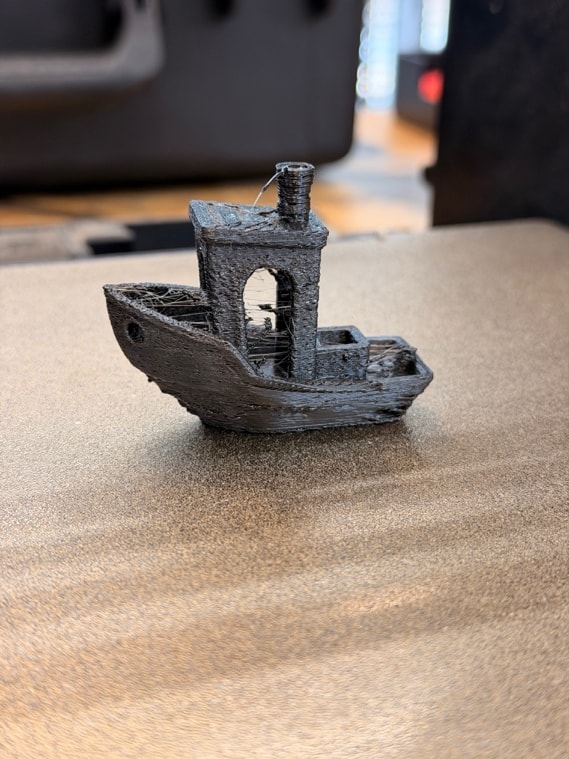
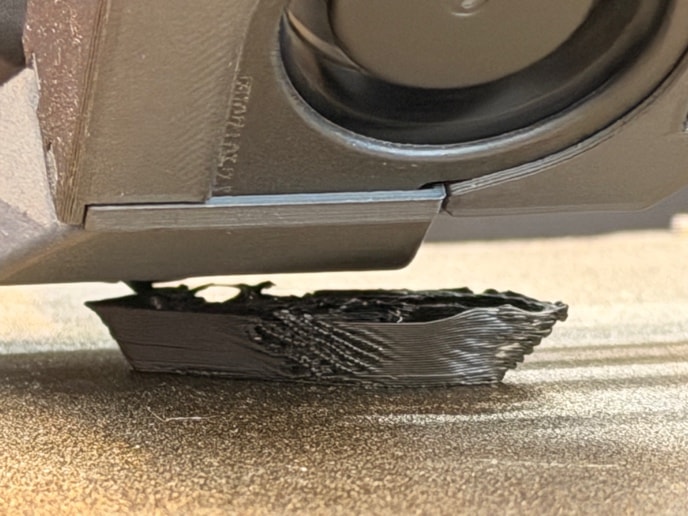
Our first training print was a 3DBenchy boat. The result had gaps and uneven layers.
I suspected under-extrusion, which means the printer deposits less plastic than expected. Possible causes included a nozzle temperature that was too low, a printing speed that was too high, or a mismatch between the installed nozzle and the slicer profile.
The photos below show the rough surface and gaps that made me question the extrusion settings. Prusa's under-extrusion guide explains the possible causes.
Printing a downloaded cable holder
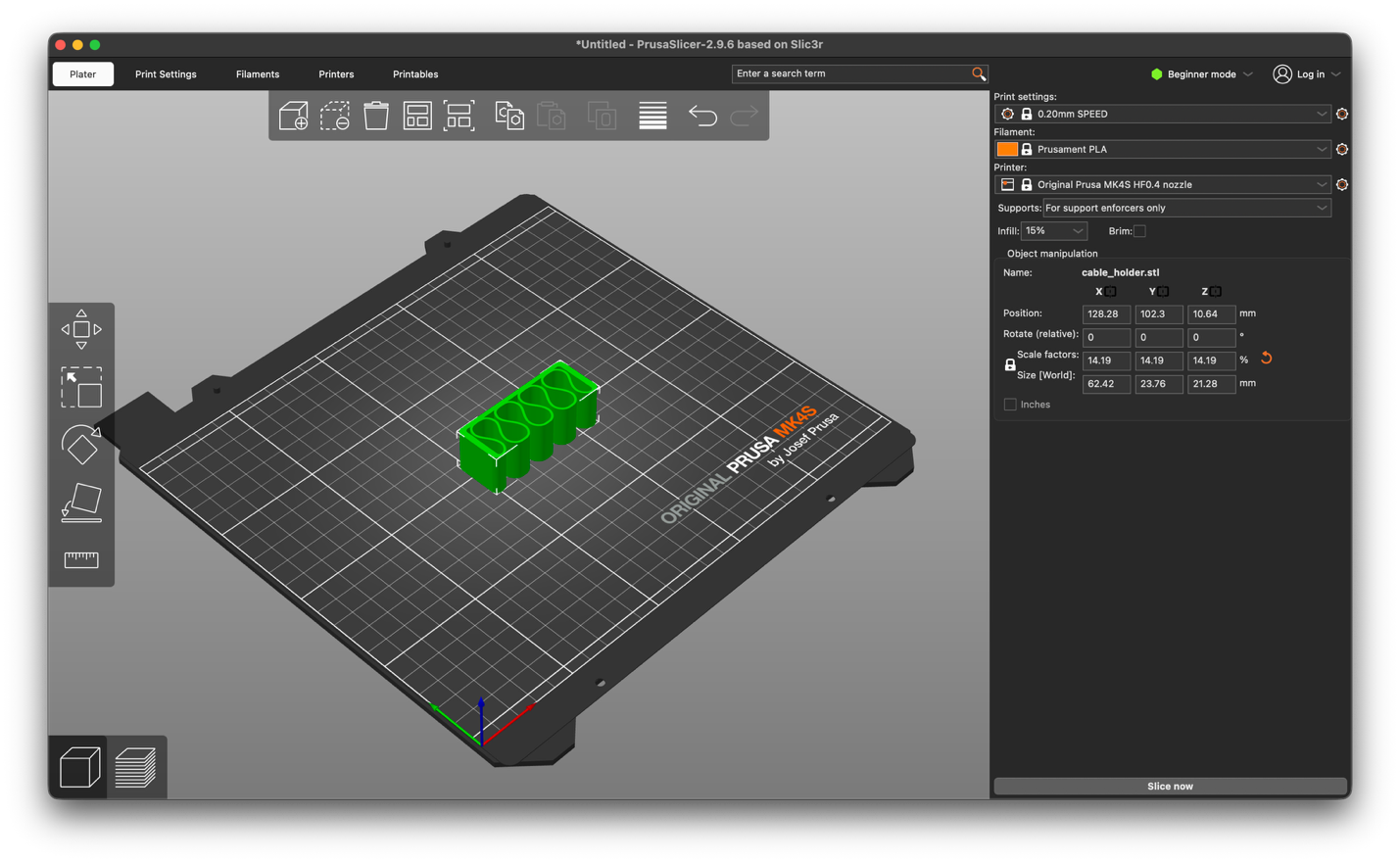
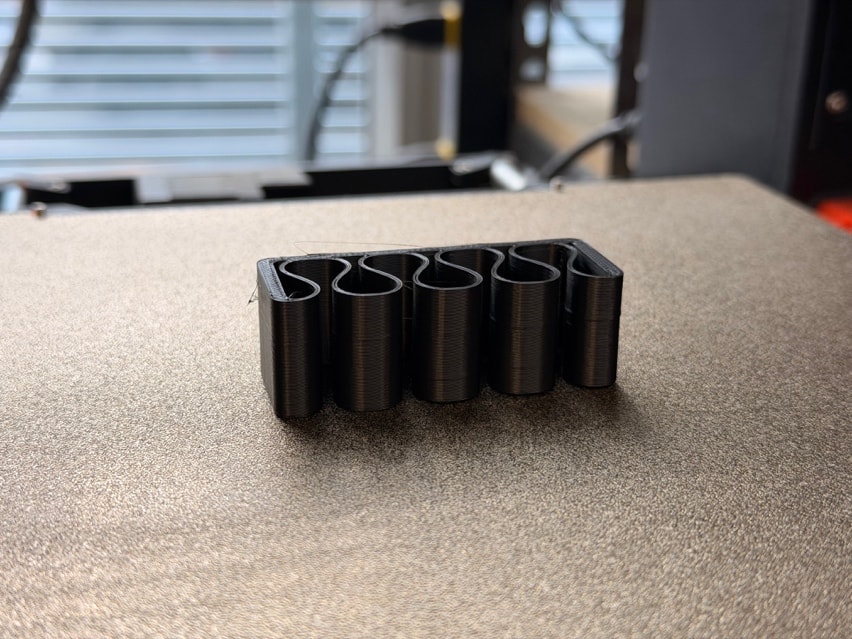
I then printed a Cable Holder from Printables to get more familiar with the printer and slicer settings and try to improve the print quality. This was a downloaded design.
I selected the Original Prusa MK4S HF0.4 nozzle printer profile, the 0.20 mm SPEED print preset, and PLA filament. HF0.4 refers to a 0.4 mm high-flow nozzle. The cable holder printed successfully.
Video / Cable holder print
Designing a DNA model
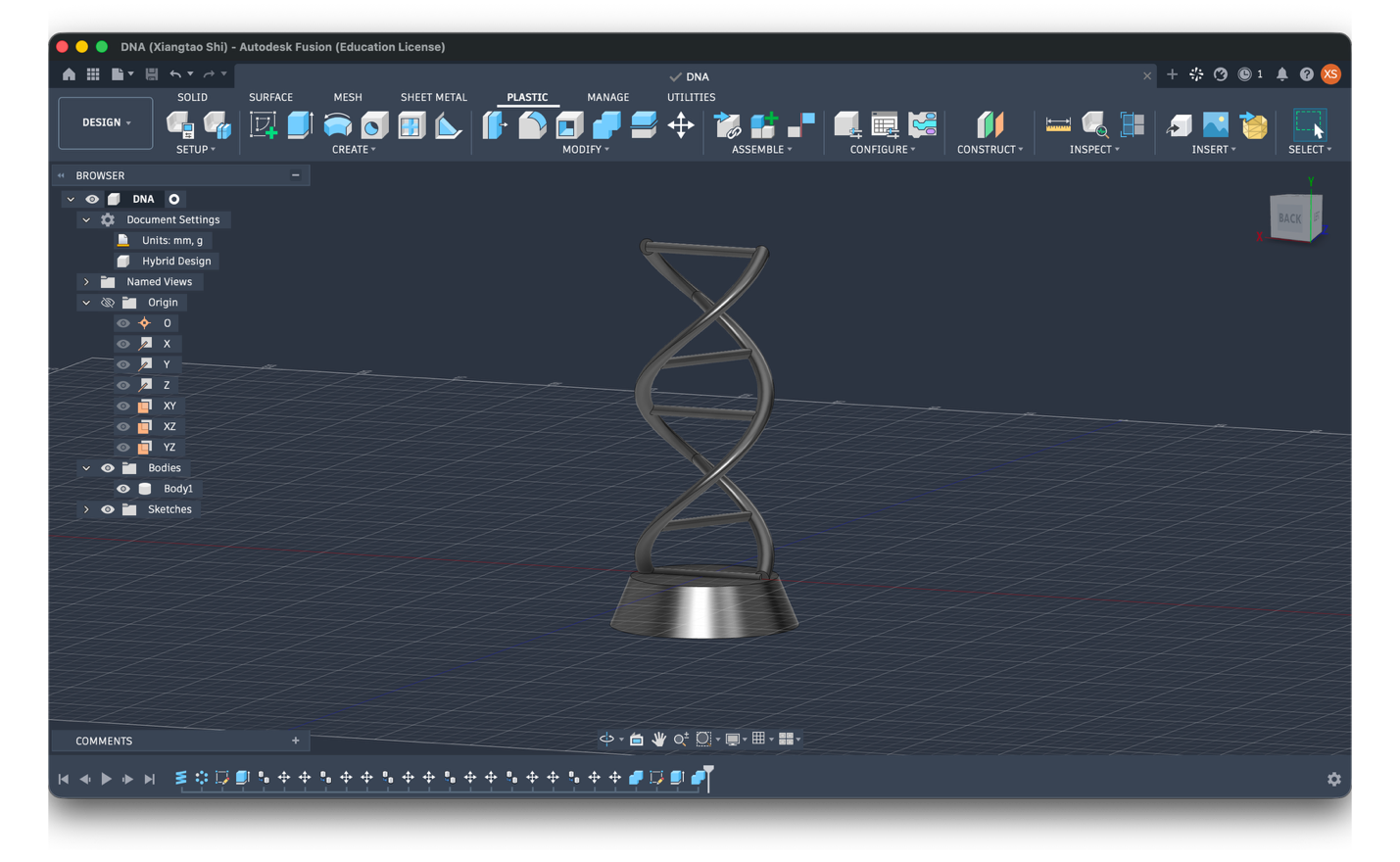
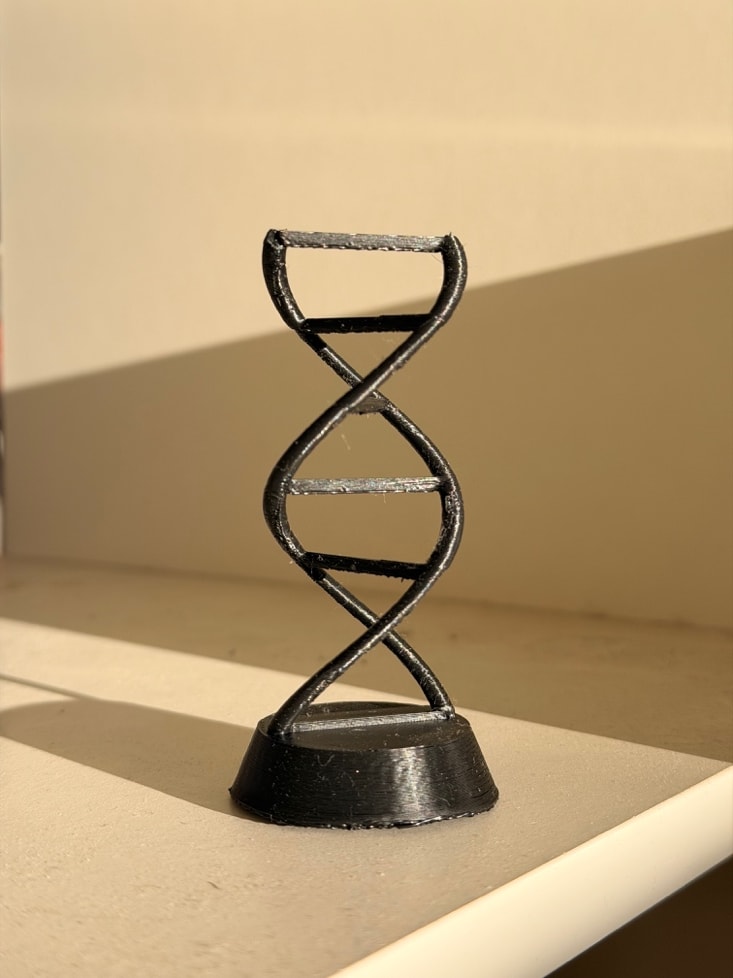
I used parametric modeling in Fusion to make a simplified DNA double helix.
The model has two helical backbones offset by 180°, with connecting rods that represent base pairs. I added a tapered circular base, wider at the bottom, to help it stand upright. The overall dimensions are approximately 46 × 46 × 94 mm.
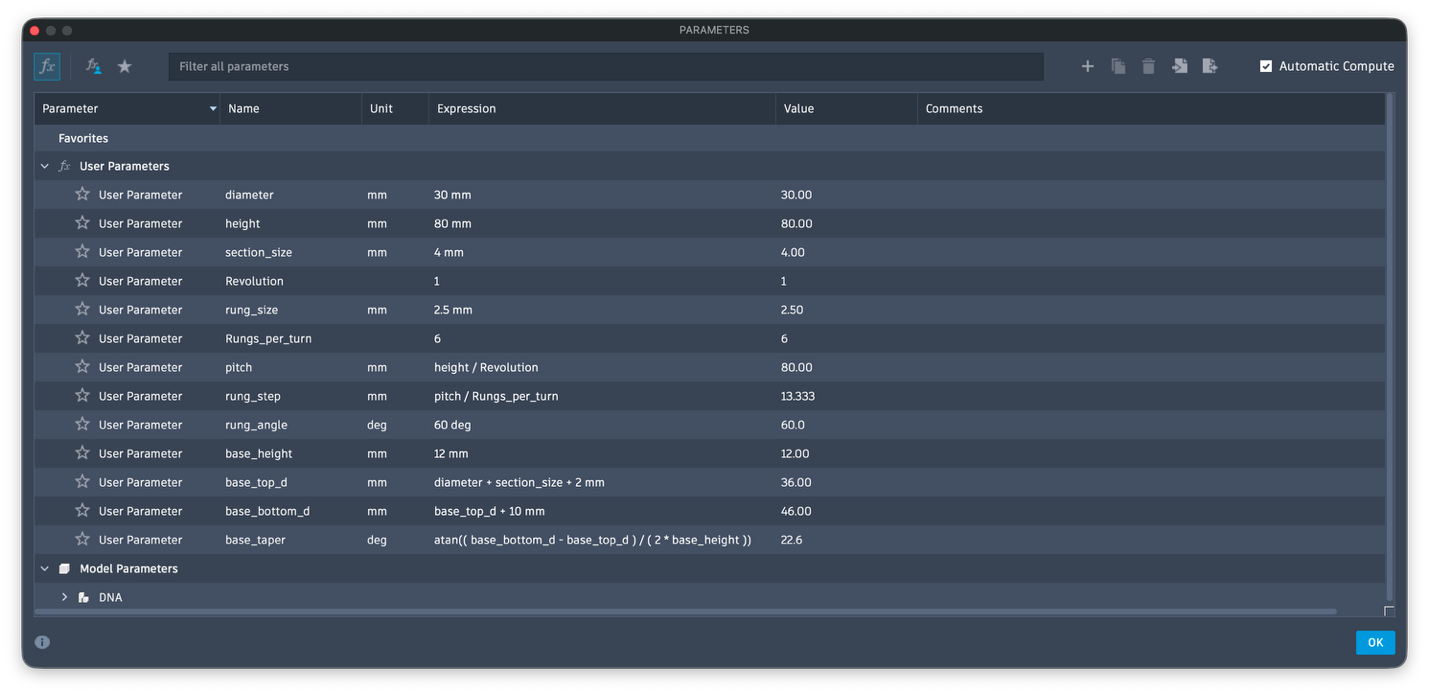
I used named parameters to control the diameter, height, number of turns, and rod size. I can change those values without rebuilding the model. Fusion's Parameters dialog also lets me define dimensions using expressions.
Model dimensions
| Helix diameter | 30 mm |
|---|---|
| Helix height | 80 mm |
| Backbone section size | 4 mm |
| Connecting rod size | 2.5 mm |
| Turns / rods per turn | 1 / 6 |
| Base height | 12 mm |
| Base top / bottom diameter | 36 mm / 46 mm |
Pitch = helix height ÷ turns = 80 mm. Rod spacing = pitch ÷ rods per turn ≈ 13.33 mm, with a 60° angular step.
Video / DNA model
Interactive 3D model
Open model in Autodesk Fusion ↗Explore the DNA model in 3D. Use the viewer controls to rotate, pan, and zoom.
The intertwined backbones and connecting rods leave narrow spaces that are difficult for a milling tool to reach. Printing let me build the connected structure in one piece, with temporary supports for the overhangs.
Exporting and slicing
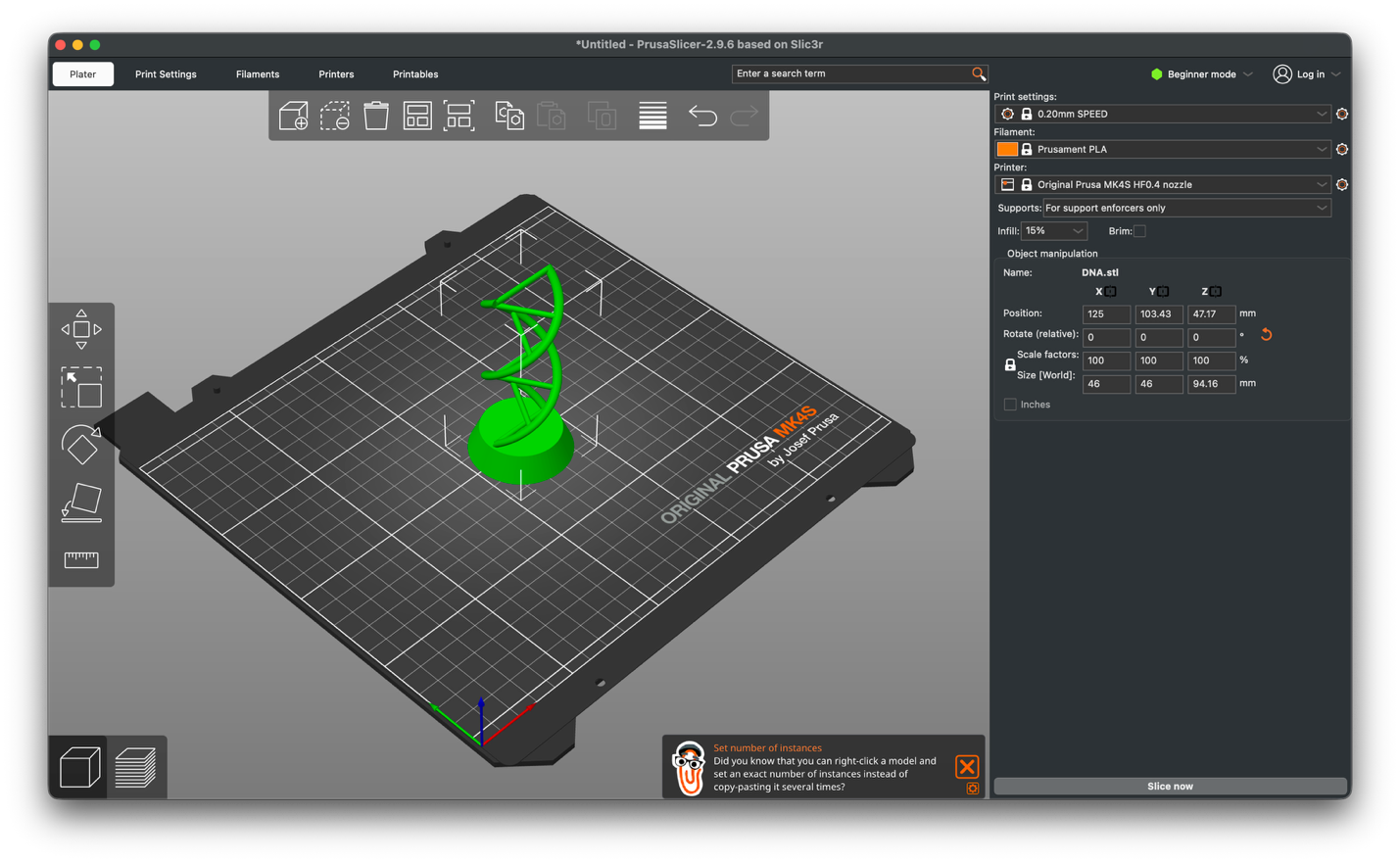
I exported the model as an STL and prepared the print in PrusaSlicer.
- In Fusion, I opened Utilities → Make → 3D Print, selected Export and the model body, and chose STL (Binary) with the units set to Millimeter.
- I imported the STL into PrusaSlicer and used Rotate and Place on Face to put a suitable flat face on the build plate.
- I checked the orientation and support settings, sliced the model, and exported the G-code to a USB drive. I took the drive to the shop and inserted it into the printer.
STL stores a triangulated surface in a unitless format. PrusaSlicer showed imported dimensions of 46 × 46 × 94.16 mm.
Adding organic supports
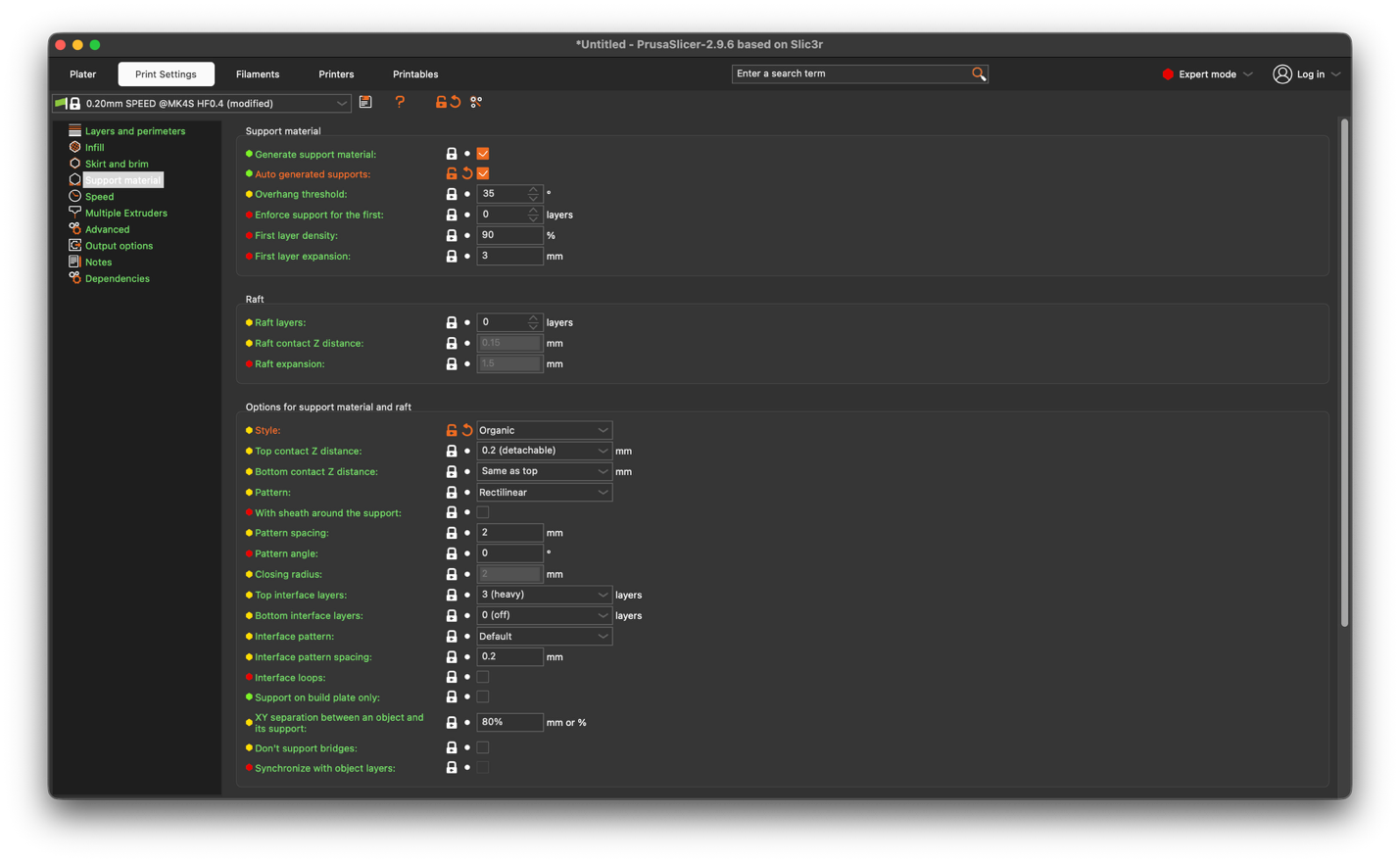
The curved backbones and thin crossbars created several overhangs. I set supports to Everywhere and selected Organic under Print settings → Support material → Style.
Organic supports branch from thicker stems toward the areas that need support. They can use less material and be easier to remove than grid supports, depending on the model and settings. Prusa's organic support documentation explains how they work.
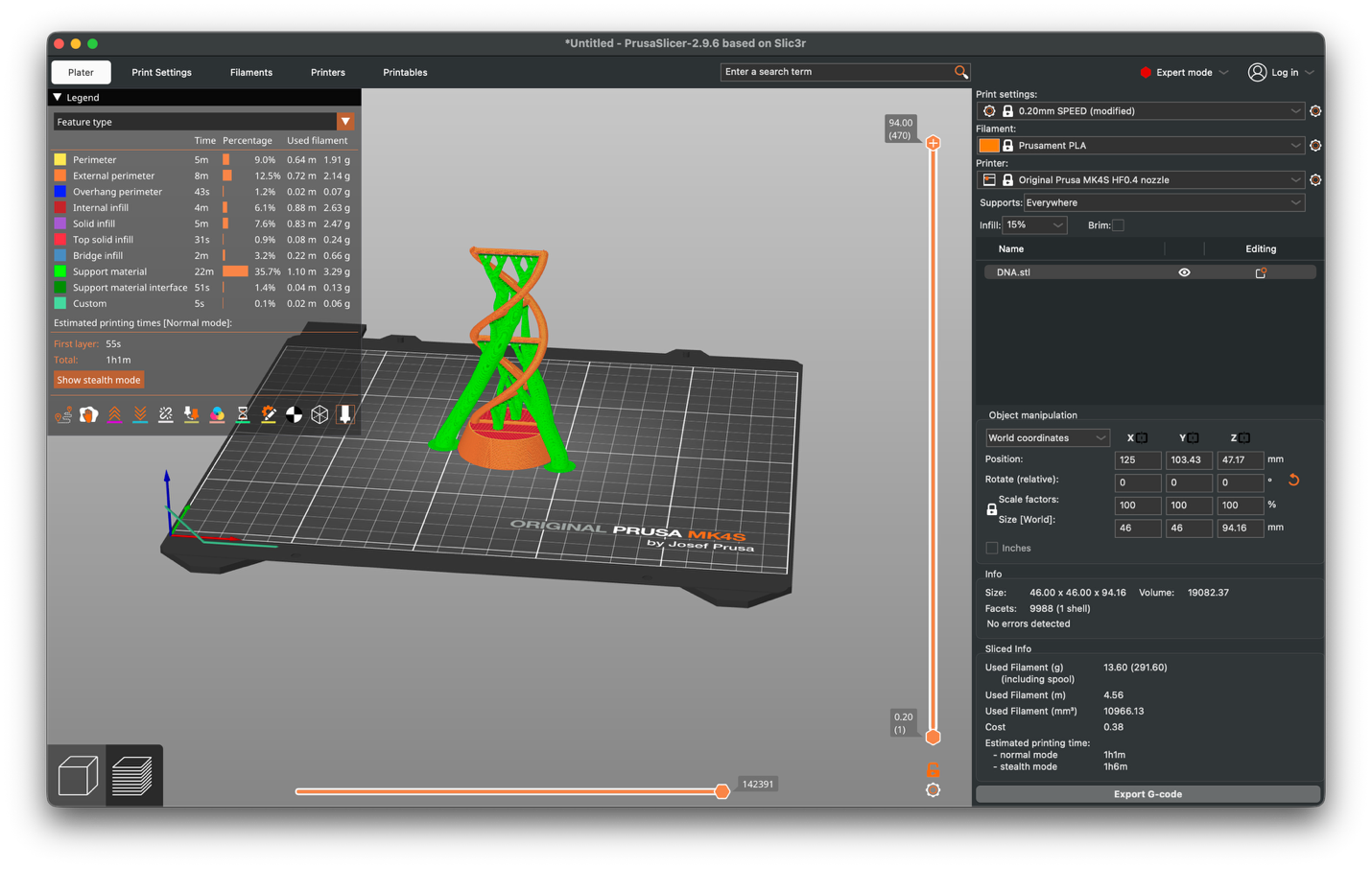
| Printer profile | Original Prusa MK4S HF0.4 nozzle |
|---|---|
| Print preset | 0.20 mm SPEED (modified) |
| Filament profile | Prusament PLA |
| Infill | 15% |
| Supports | Everywhere / Organic |
| Brim | Unchecked |
| Estimated print time | 1 h 1 min |
| Estimated filament | 13.60 g / 4.56 m |
The time and filament amount are estimates from PrusaSlicer, rather than measurements of the completed print.
Fixing print problems
Stuck filament
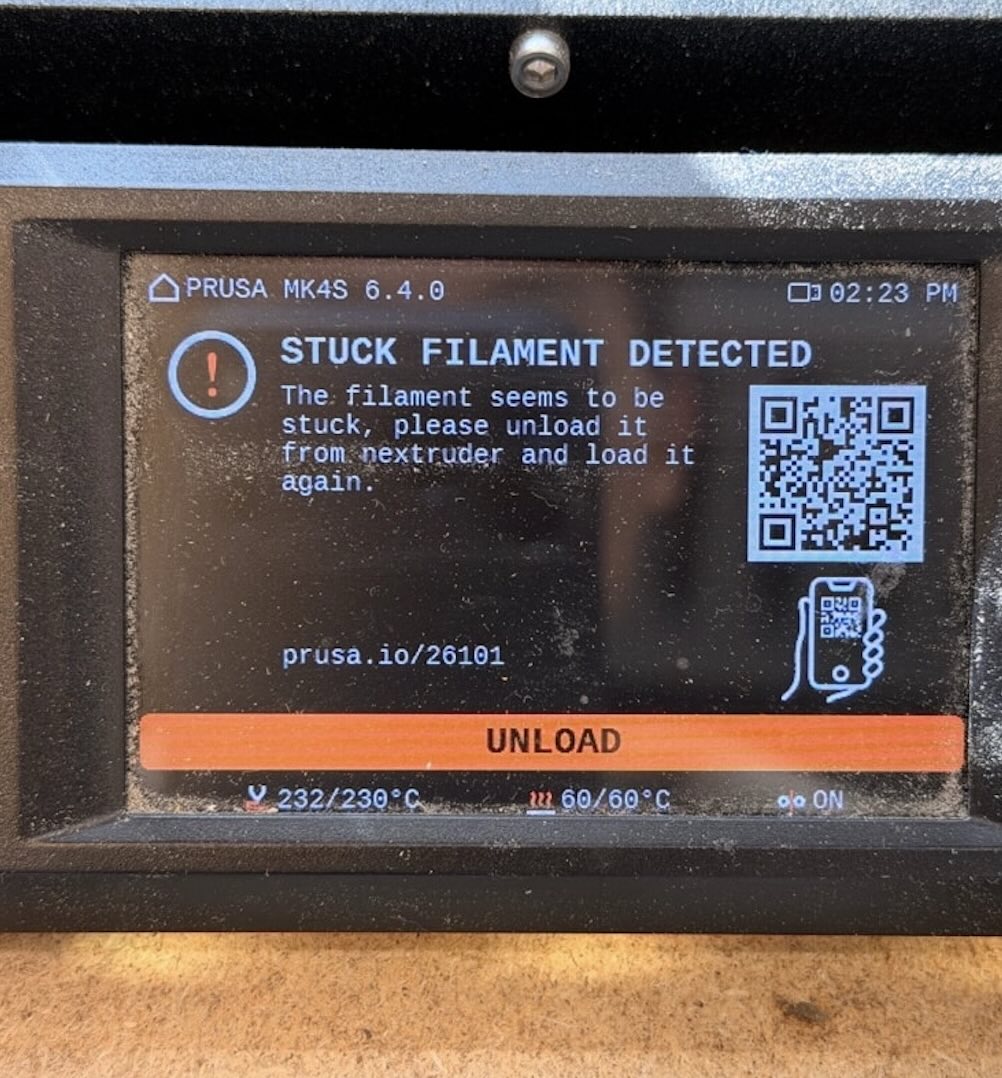
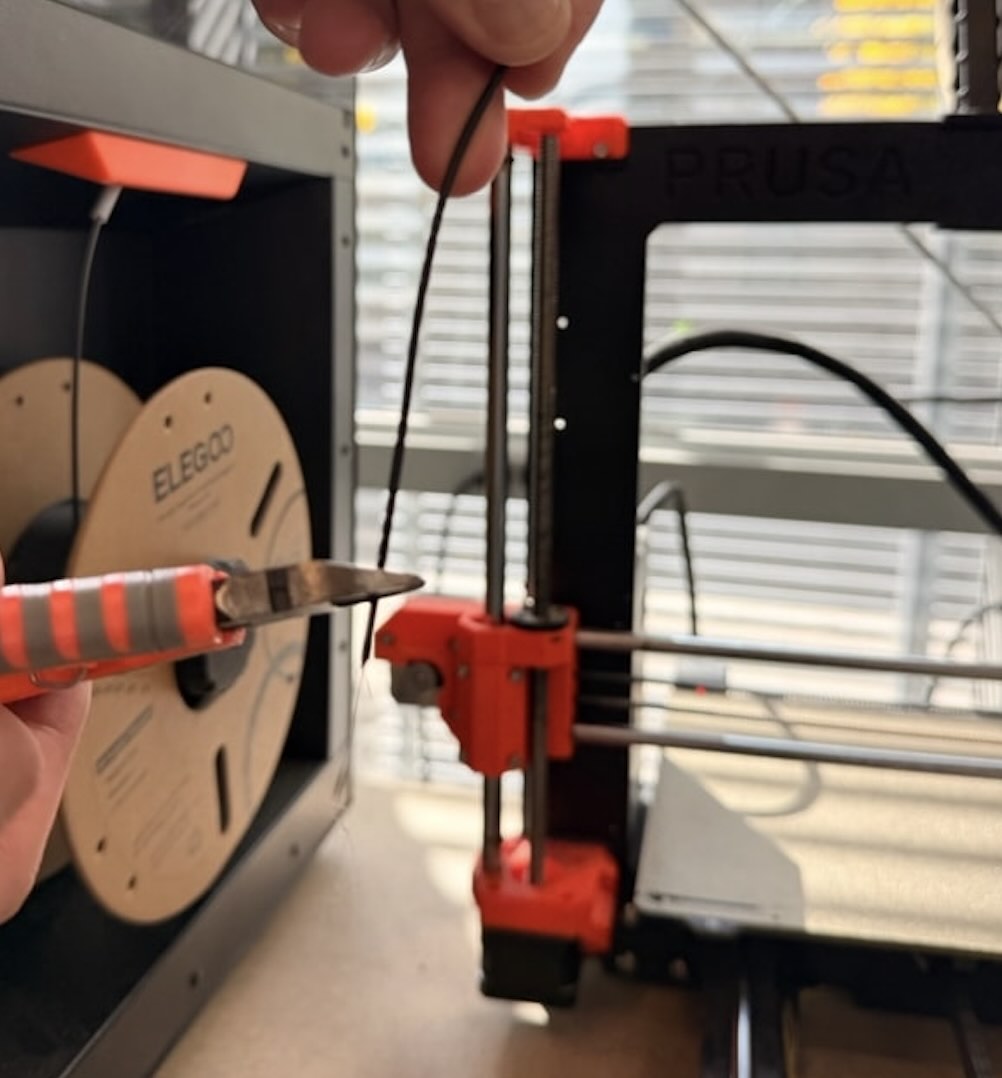
Before I could start the print, the printer reported “Stuck filament detected.” I followed the screen instructions to unload the filament. The tip had an irregular shape, so I cut off the end and reloaded it. The warning cleared, and I continued.
The base lifted off the bed
During another attempt, the edge of the base lifted from the build plate and the print could not continue properly. This is often called warping. I suspected poor first-layer adhesion.
I used compressed air to remove loose dust and debris from the plate, then increased the bed target from 60°C to 70°C. The next attempt adhered better, and I was able to finish the print.
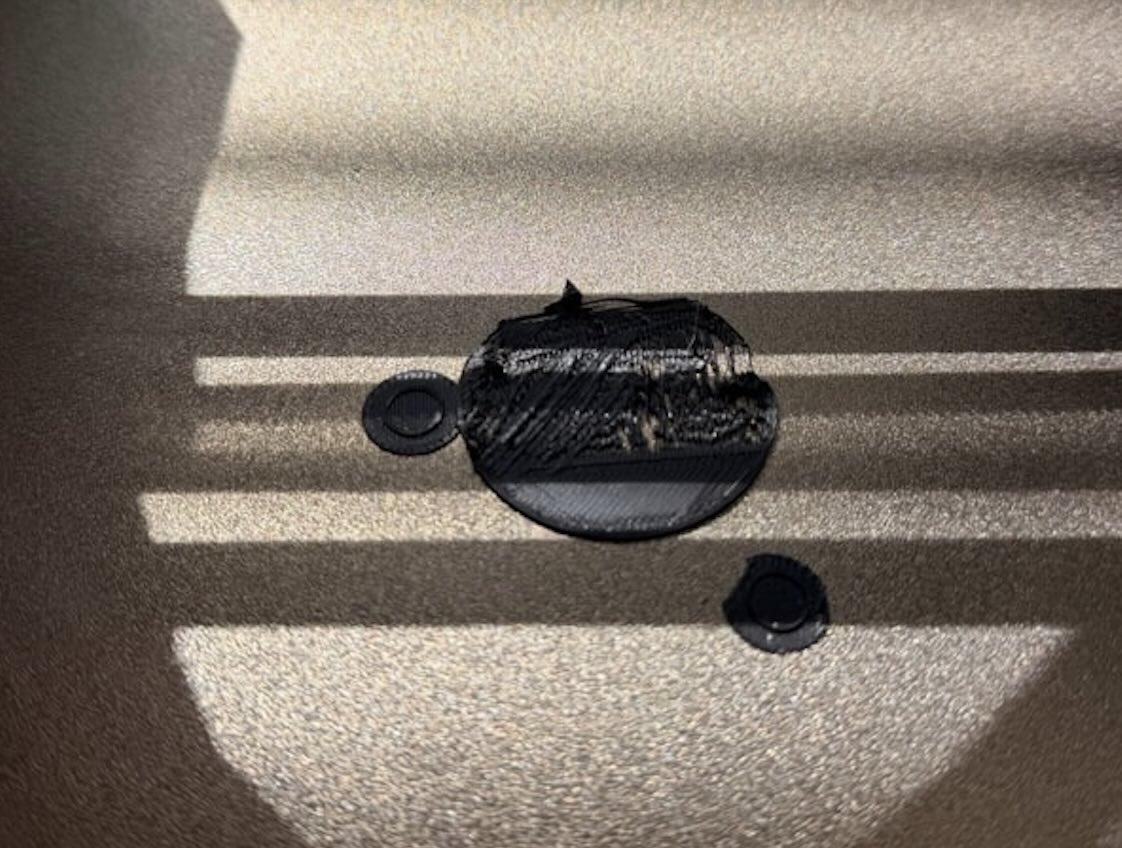
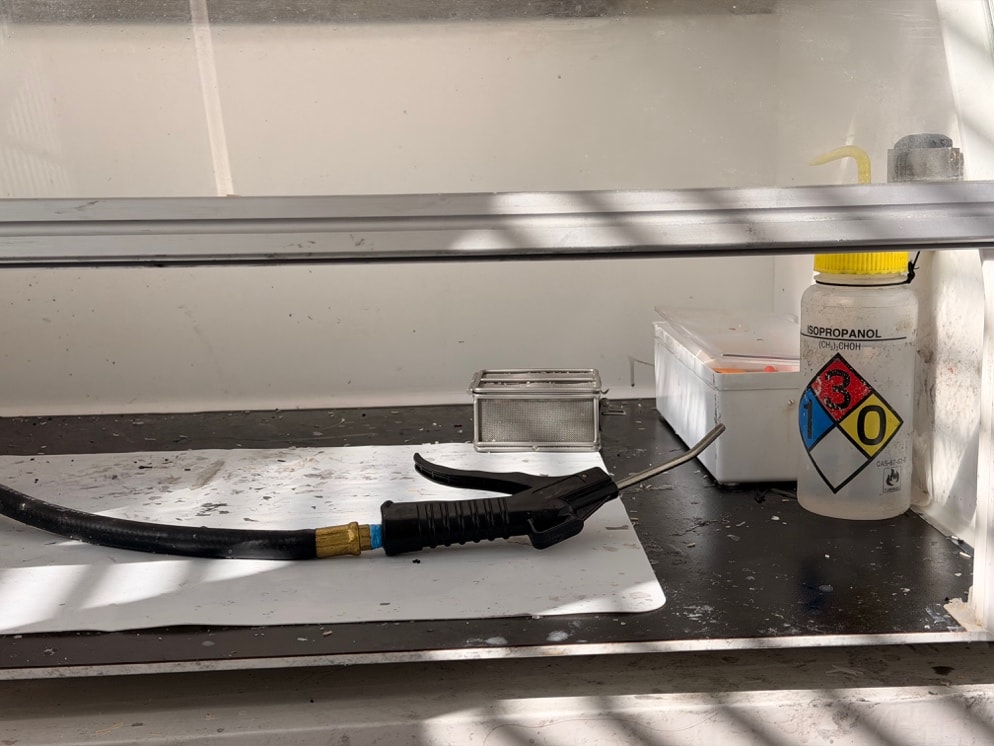
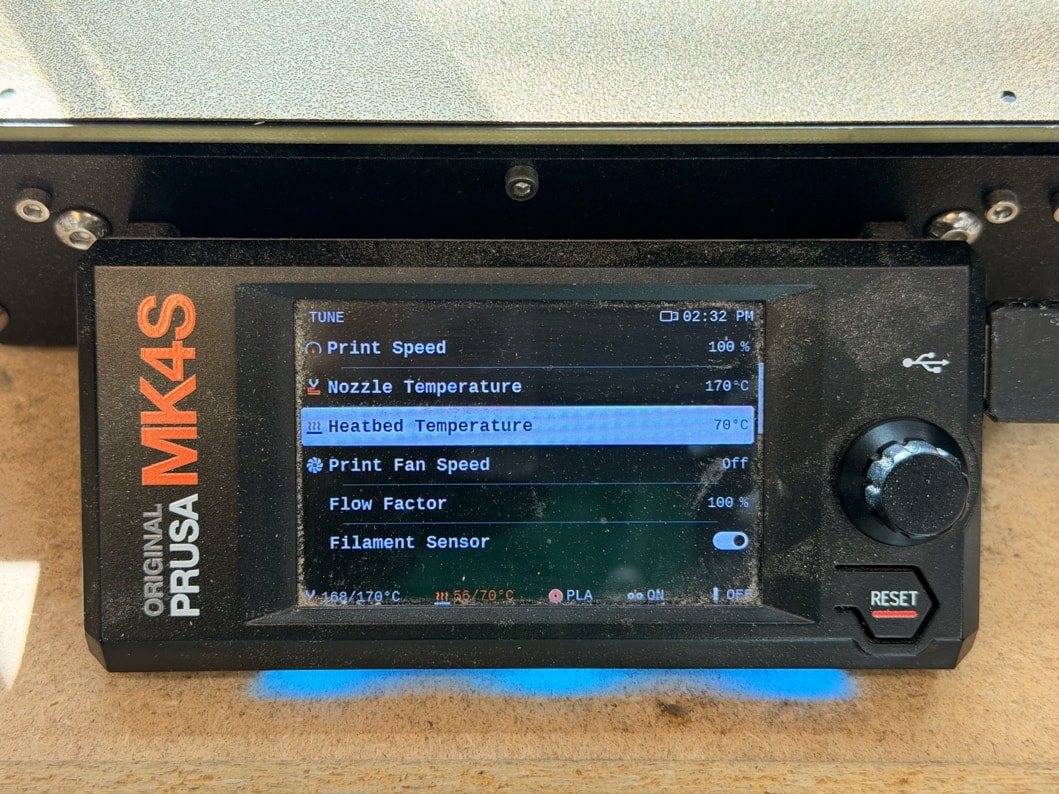
A brim adds a flat border around the first layer to increase its contact area with the bed. I left it unchecked for this print, but it would be one option to try if the base lifted again. Compressed air removes loose debris; it does not remove grease. Prusa's first-layer guide explains surface cleaning and bed-temperature adjustments, and its brim guide explains the added contact area.
Recorded settings
I recorded PLA, a 70°C bed target, 100% print-speed multiplier, and 100% flow factor.
| Material | PLA |
|---|---|
| Bed target | 70°C |
| Print-speed multiplier | 100% |
| Flow factor | 100% |
| Nozzle temperature | 170°C / 230°C |
Removing the supports
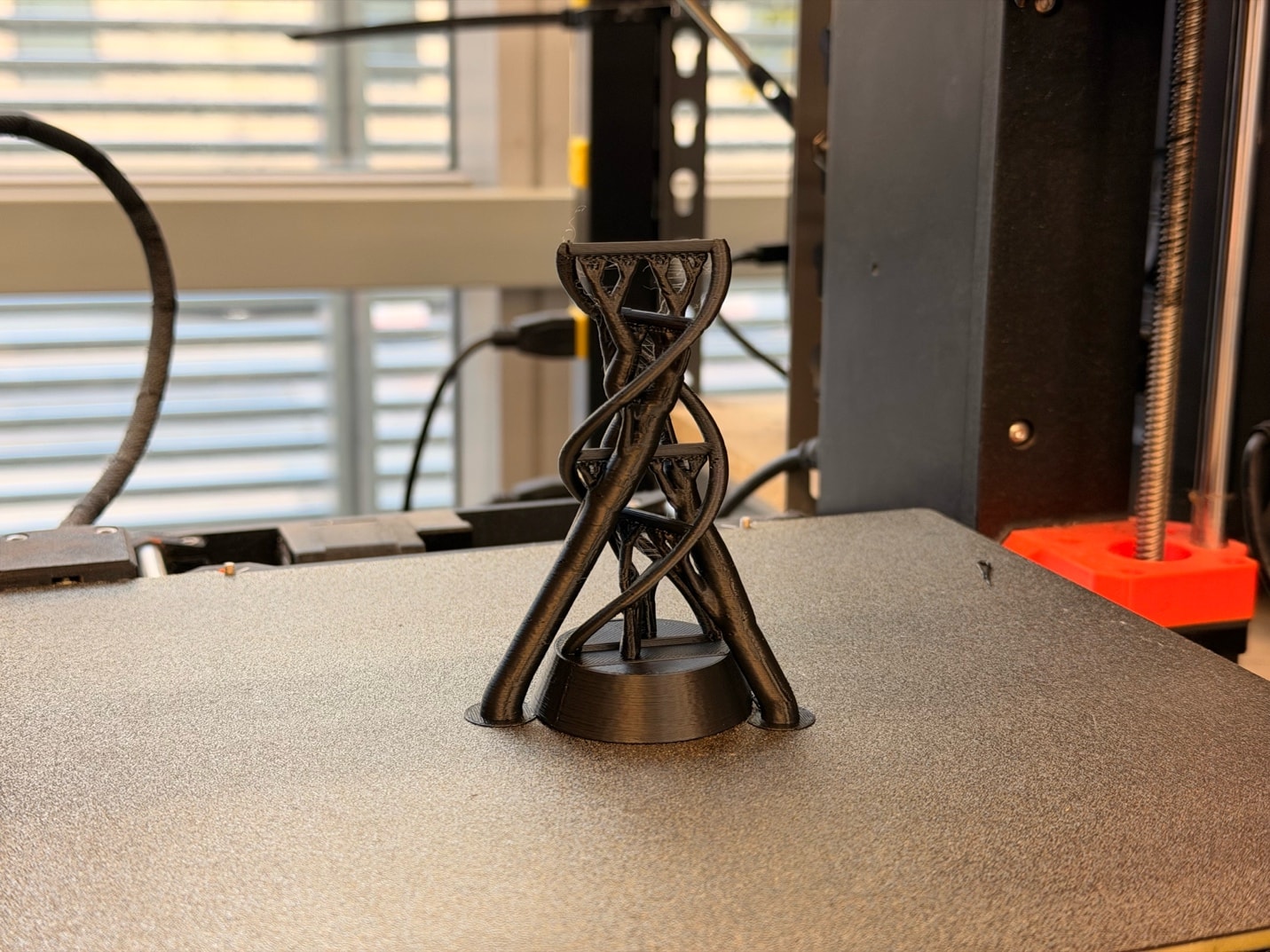
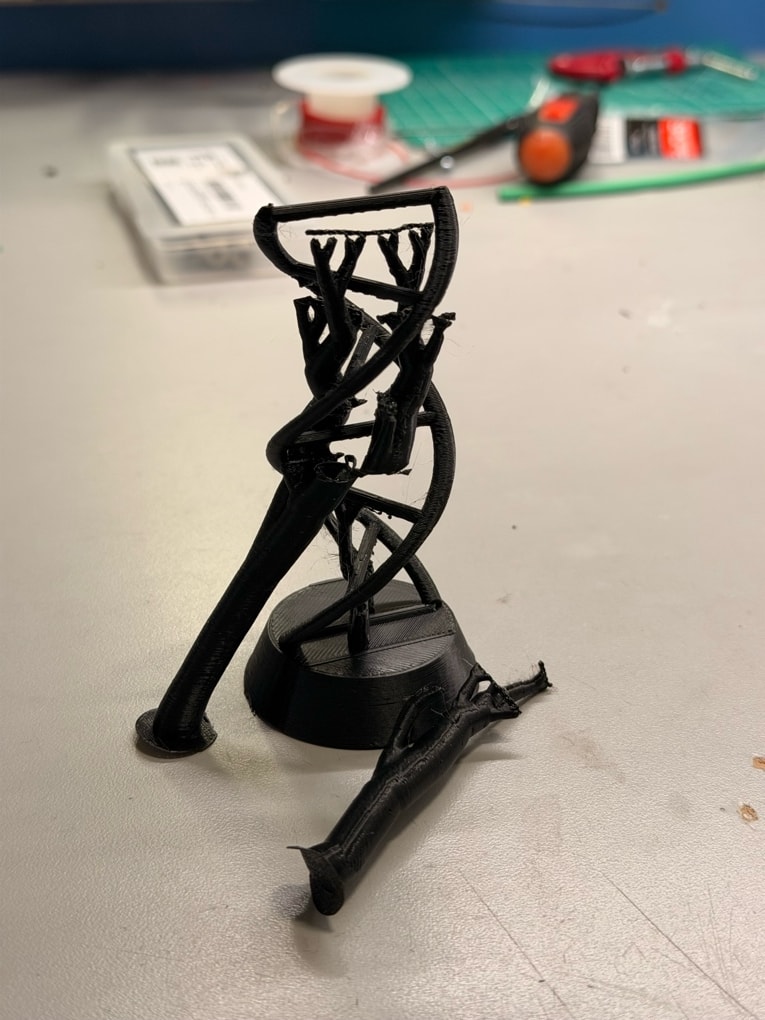
The print finished with supports around the helix. I removed them carefully to reveal the model.
The thin printed rods were easy to damage, so I worked slowly around the backbones and connecting rods. Once the supports were off, I had a finished DNA model that stood on its circular base.
Scanning a dorm chair
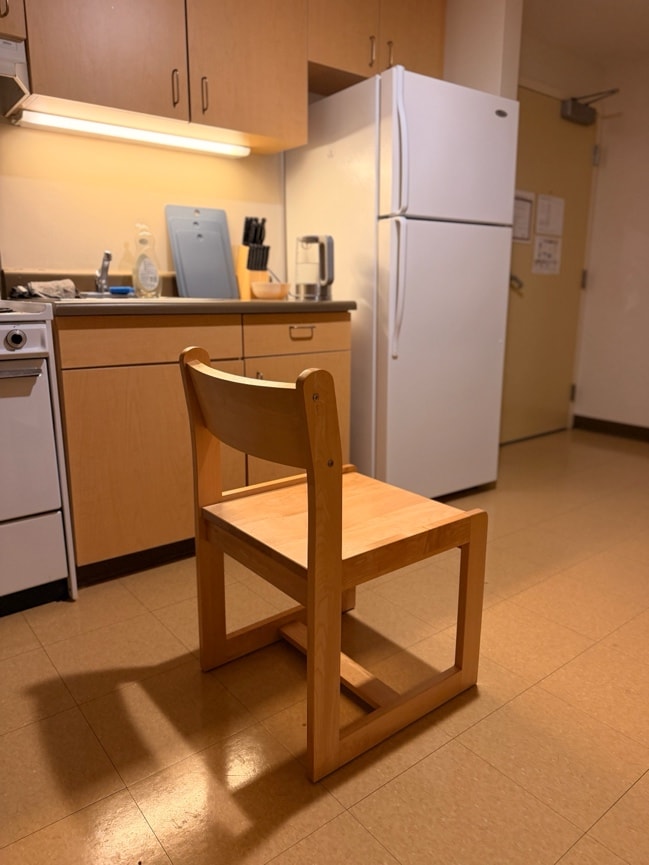
Sara, one of the TAs, recommended Polycam. I used it to scan a wooden chair in my Sydney-Pacific dorm.
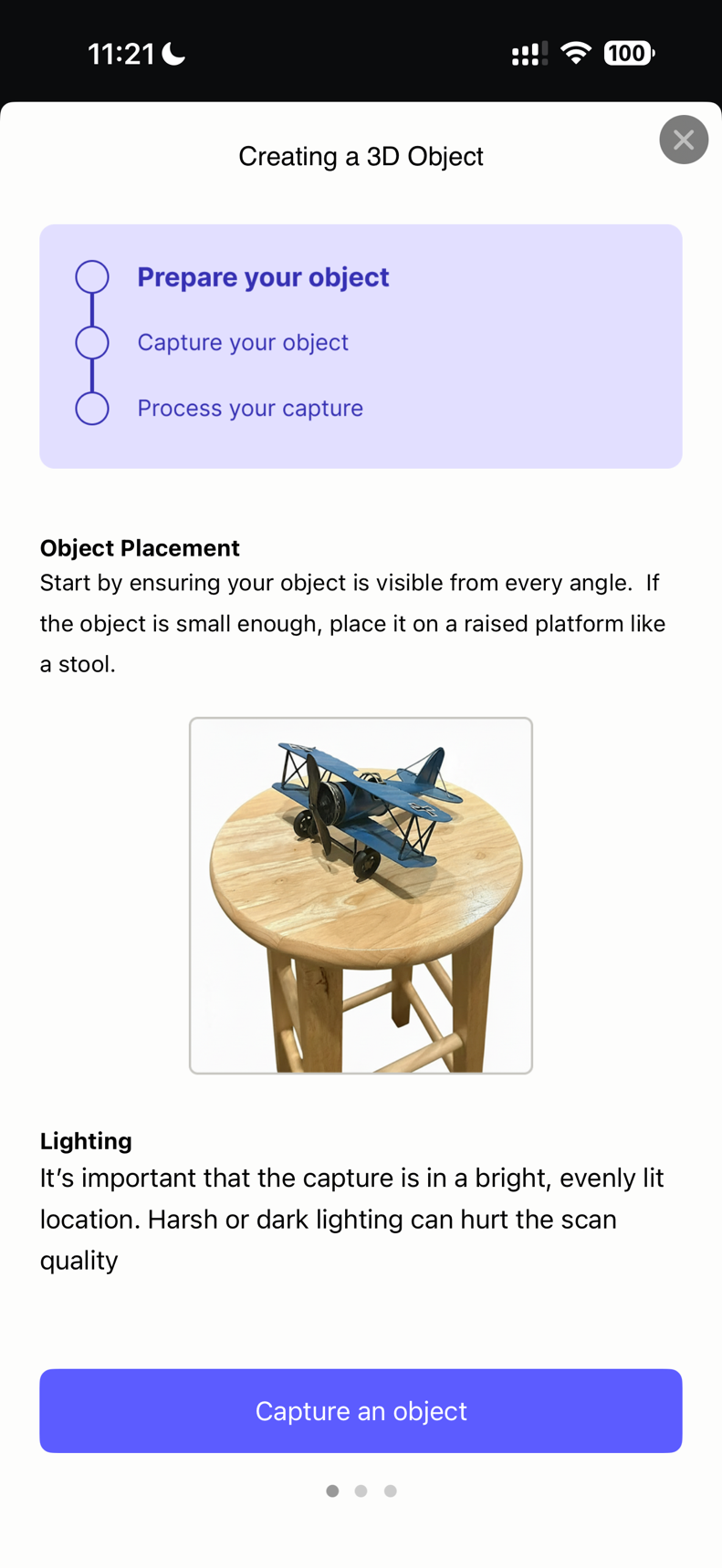
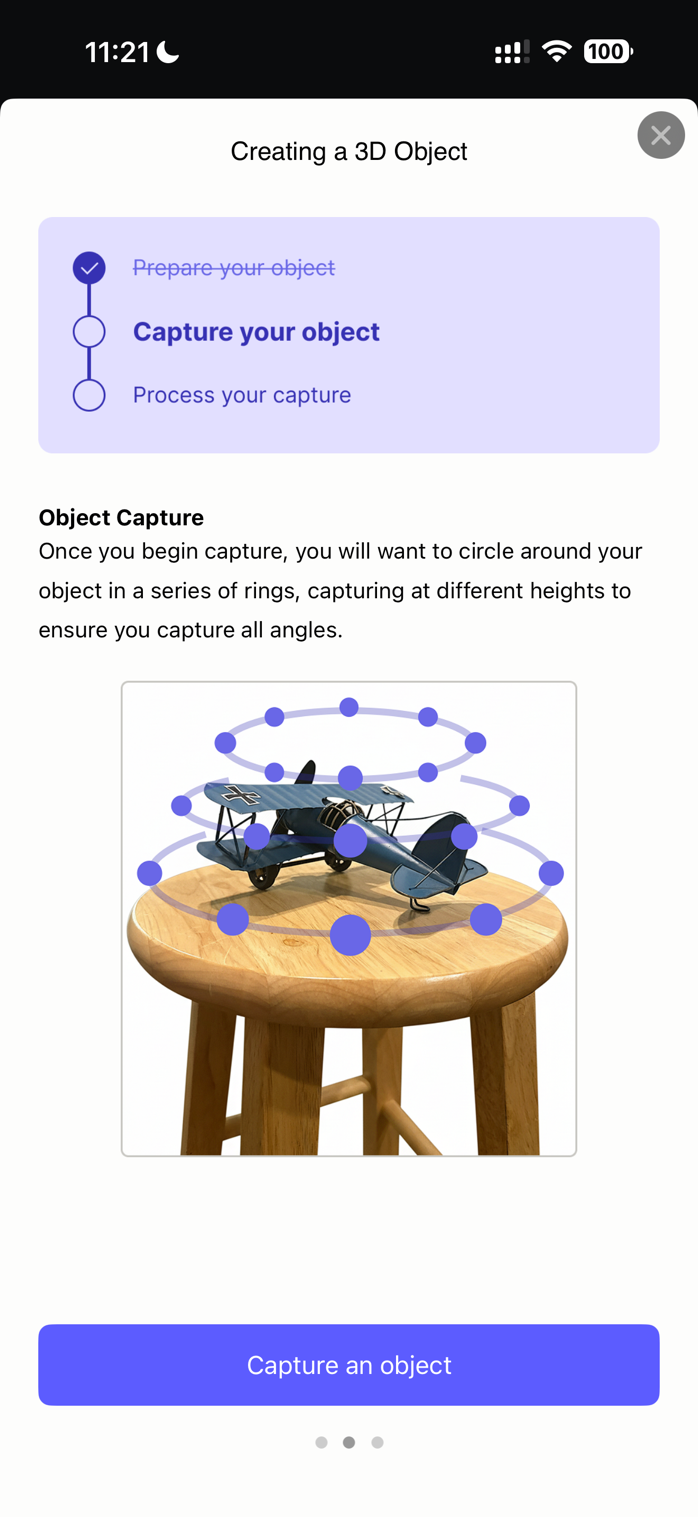
I placed the chair in the middle of the room so I could walk around it and reach every side. I turned on all the lights, then moved around the chair at different heights to capture it from more angles.
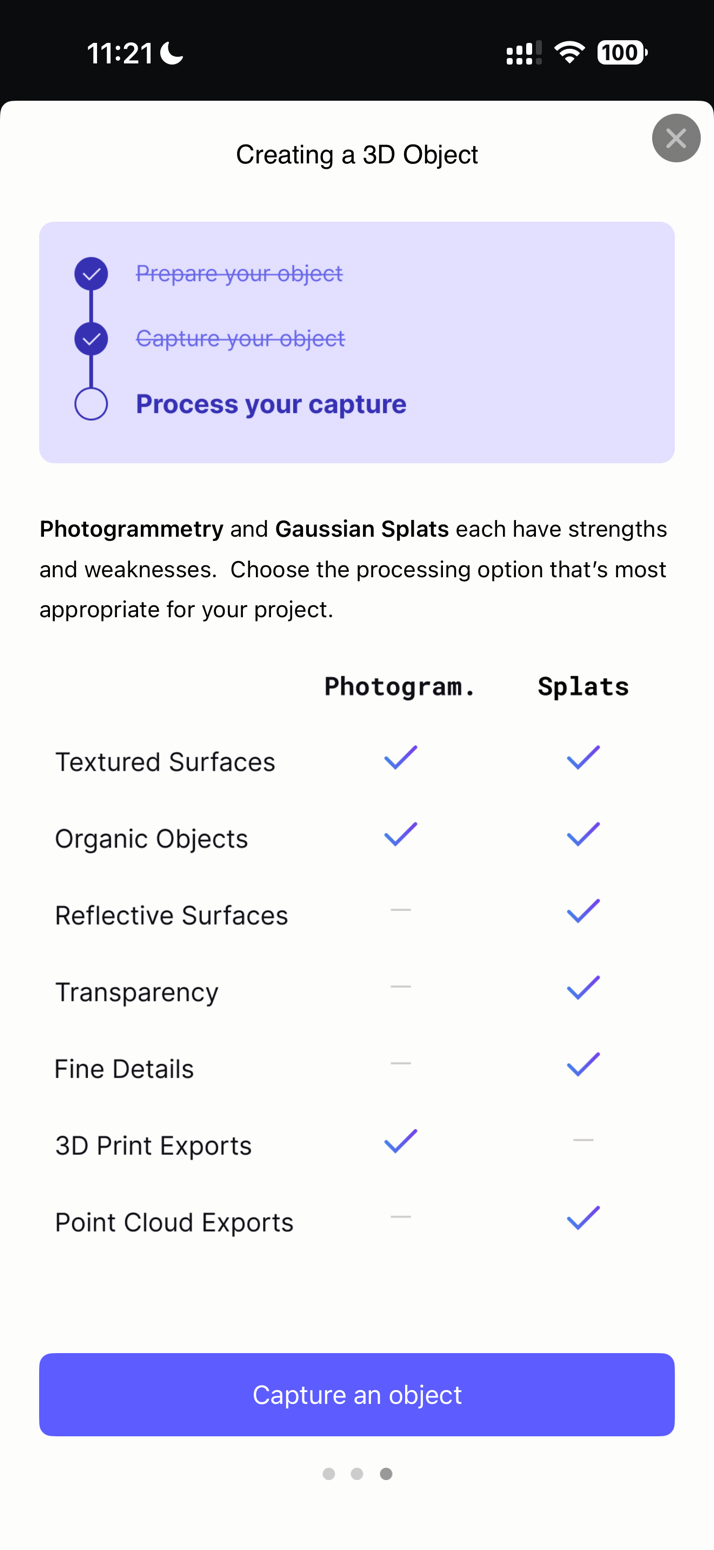
I chose Photogrammetry because the chair had no transparent surfaces or strong reflections, and its shape did not depend on very fine details. Photogrammetry reconstructs a textured 3D mesh from overlapping photographs taken from different viewpoints.
Preparing and capturing the object
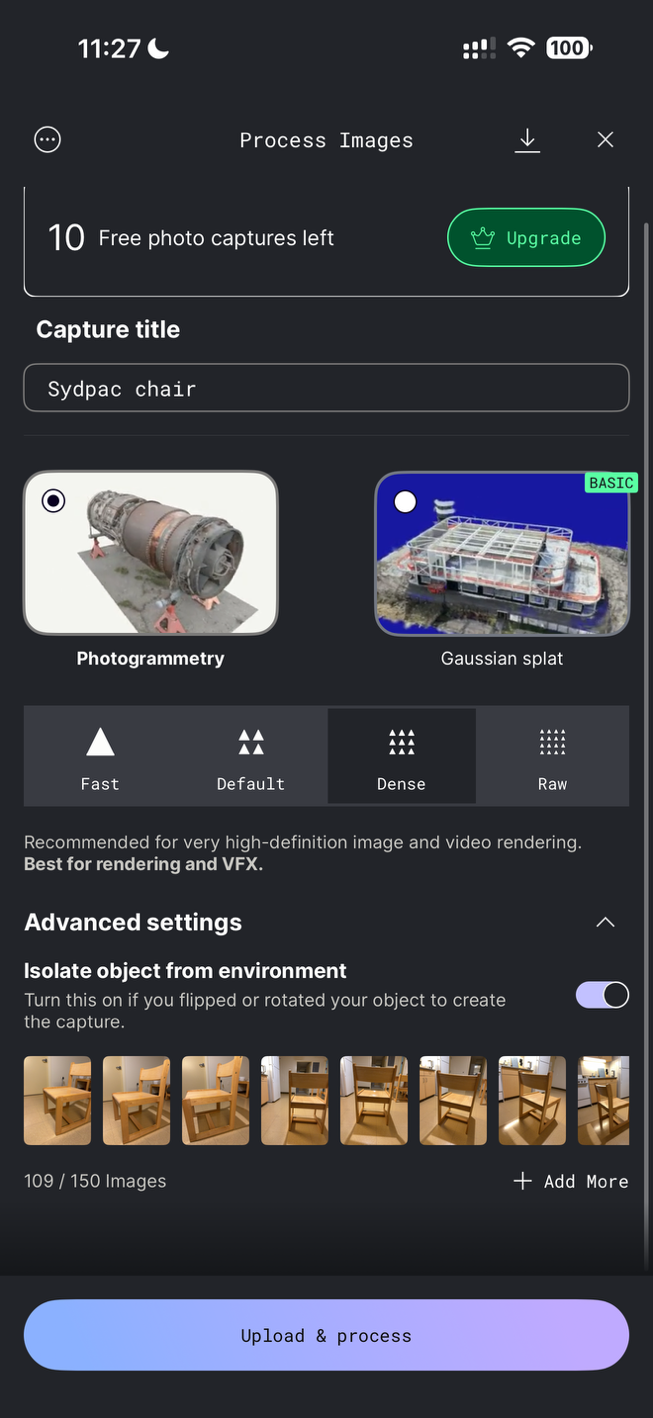
Processing the scan
I captured 109 photos, chose Photogrammetry with the Dense processing setting, and enabled “Isolate object from environment.” This separated the chair from its surroundings in the processed result.
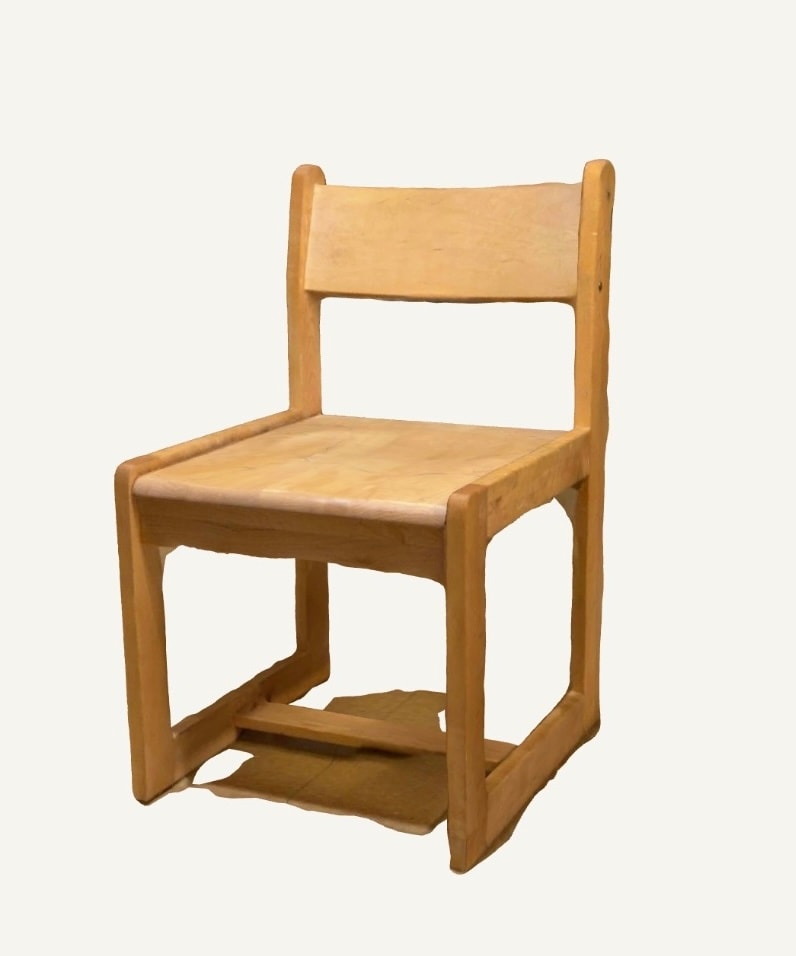
Video / Chair scan
Polycam produced a model of the chair. To improve the detail, I would add sharp, overlapping photos of the areas that were not captured well, especially around the legs and underside. Better coverage and consistent lighting matter more than simply increasing the photo count. Polycam's Object Mode guide explains these capture requirements.
Sources & credits
- Printables: Universal Cable Holder ↗
- Prusa: under-extrusion ↗
- Autodesk: model parameters ↗
- Autodesk: 3D print export ↗
- Prusa: organic supports ↗
- Prusa: first-layer adhesion ↗
- Prusa: skirt and brim ↗
- Polycam: Object Mode ↗
OpenAI Codex helped organize my notes, check technical references, polish the English, and create the HTML layout. The photographs and videos document my work.