Choosing parts and setting up KiCad
This was my first time using KiCad. I started with a small circuit: one button as an input and one red LED as an output.
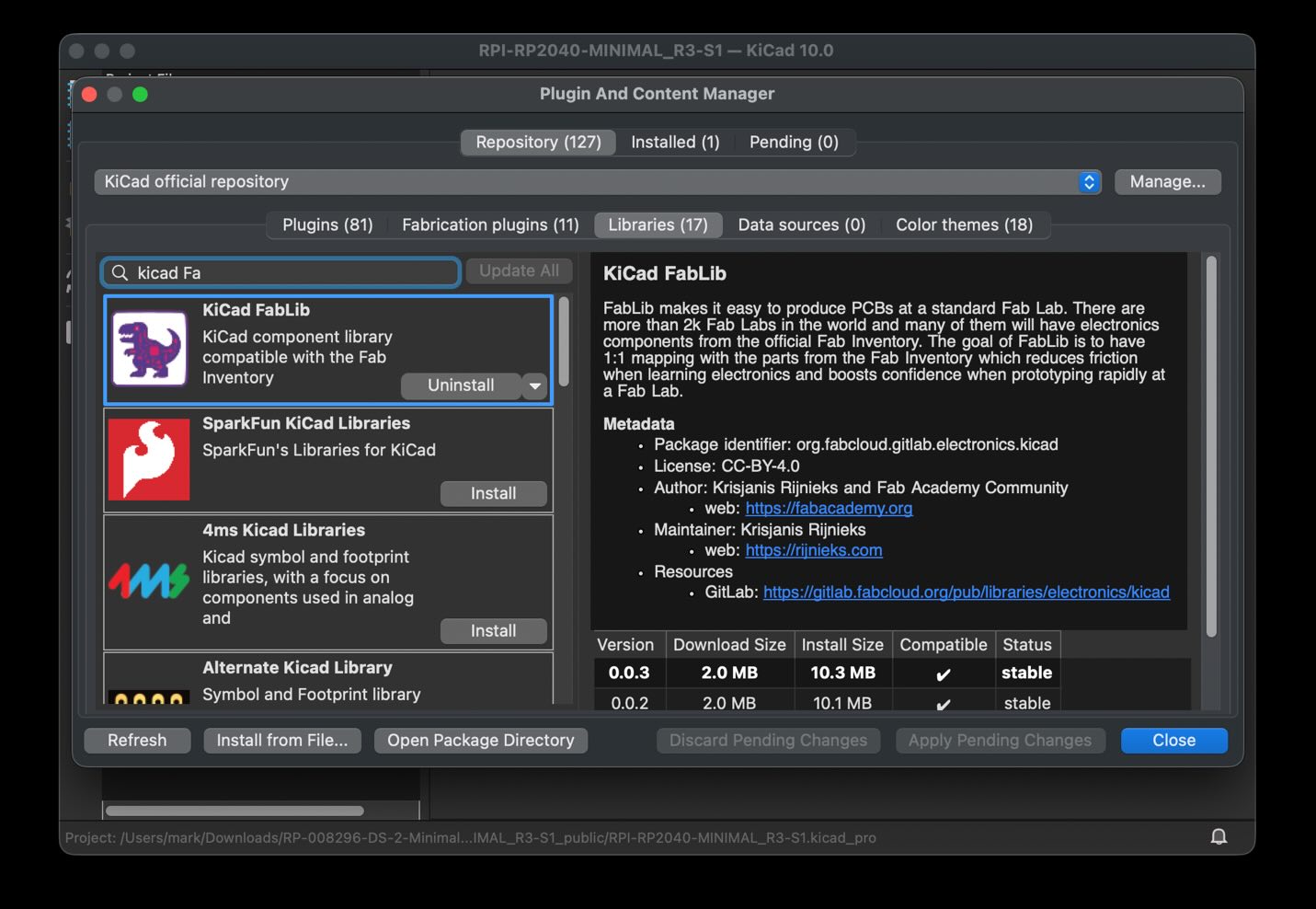
I chose parts from the Fab Inventory and installed KiCad FabLib using the Fab Academy KiCad tutorial. The library includes schematic symbols and PCB footprints for parts used in the lab.
A symbol describes a part's electrical connections. A footprint describes its pads and physical layout on the board. FabLib helped me find matching parts, but it still needed to be checked due to 10% errors.
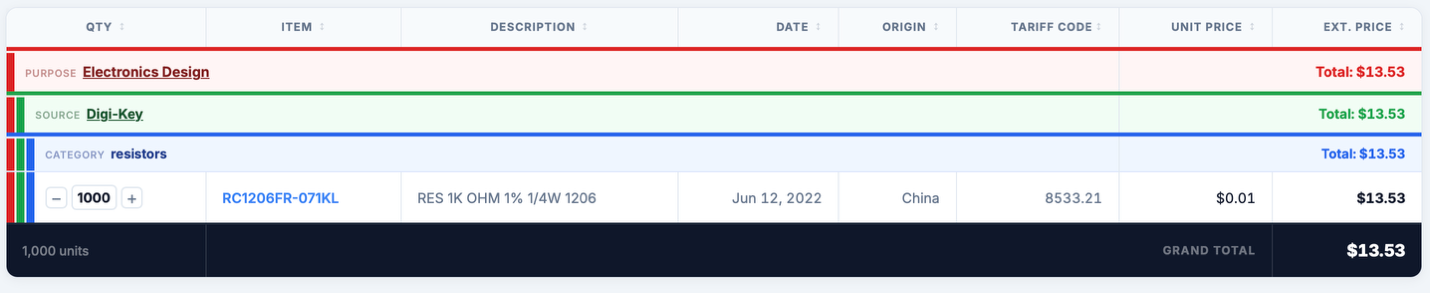
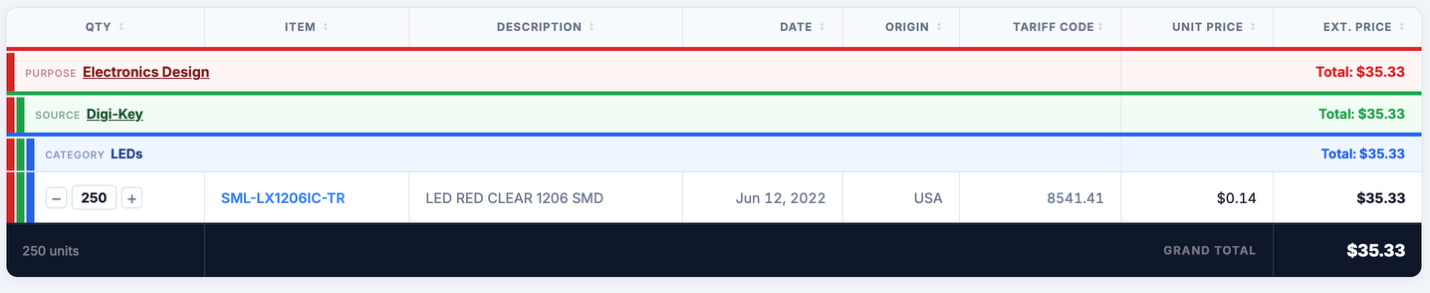
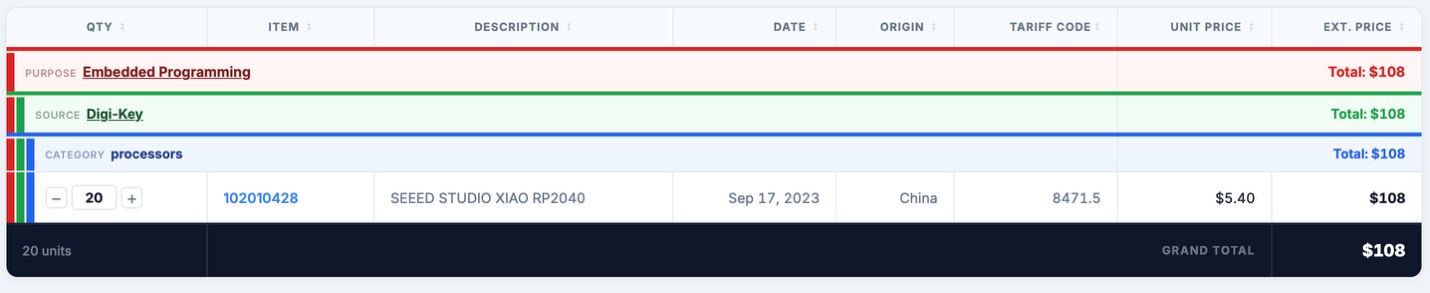
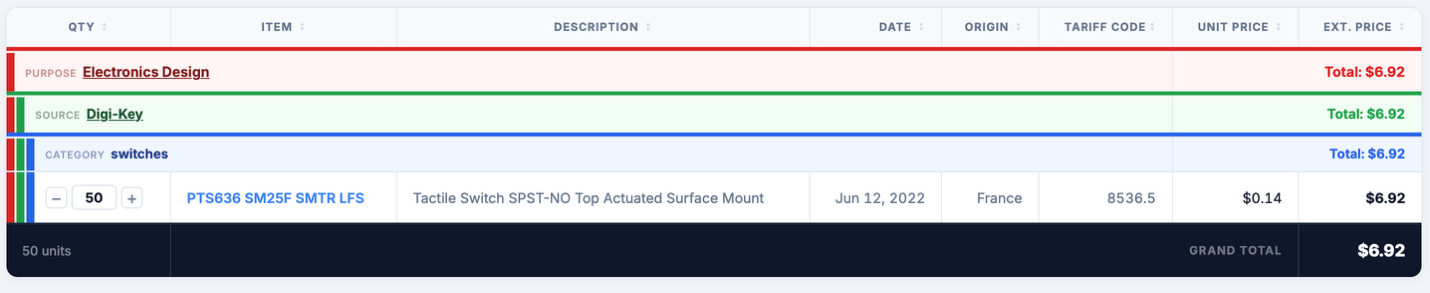
| Part and role | Inventory part | FabLib search |
|---|---|---|
| Microcontroller module | Seeed Studio XIAO RP2040 102010428 | Module_XIAO-RP2040 |
| Tactile button | PTS636 SM25F SMTR LFS | Switch_Tactile_CnK |
| Red LED | SML-LX1206IC-TR | LED_1206 |
| 1 kΩ resistor for the LED | RC1206FR-071KL | R_1206 |
Installing the component library
I installed KiCad FabLib through the Plugin and Content Manager. Then I created a project with File → New Project. I used the .kicad_sch file for the schematic and the .kicad_pcb file for the board layout.
Connecting the button and LED
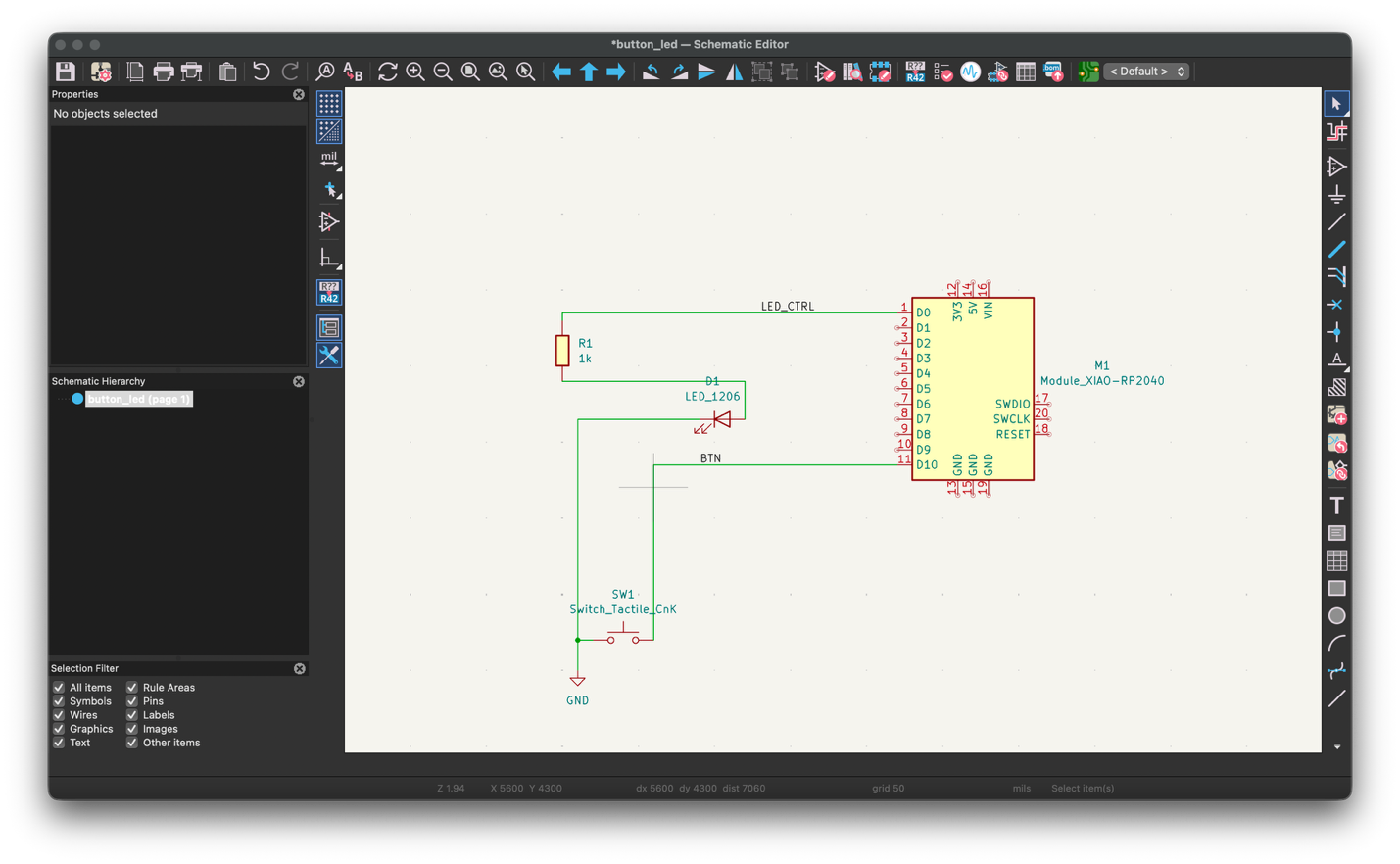
I connected the LED to D0 through a 1 kΩ resistor, and the button between D10 and ground.
The resistor limits the current through the LED. The button changes the input state when pressed. In the program, I enabled the microcontroller's internal pull-up resistor, so the input is HIGH when the button is released and LOW when it connects to ground.
I added the parts from FabLib, drew the wires, and named the signals LED_CTRL and BTN. The schematic records the electrical connections before I decide where the parts will sit on the PCB.
KiCad shortcuts I used
| A | Add a symbol |
|---|---|
| M | Move a symbol |
| R | Rotate a symbol |
| E | Edit properties |
| W | Draw a wire |
| L | Add a net label |
| P | Add a power symbol |
| Esc | End the current action |
Checking the schematic with ERC
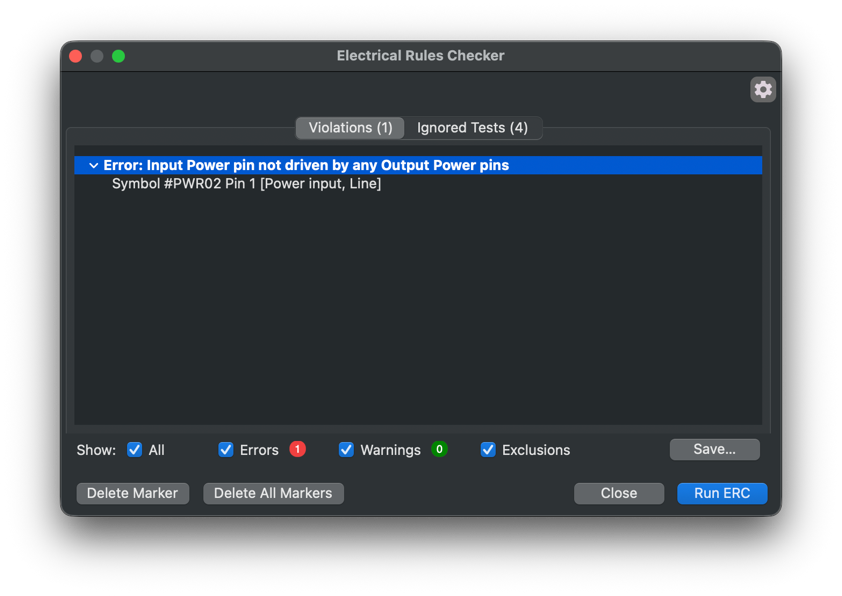
I ran the Electrical Rules Checker (ERC) after wiring the circuit.
The screenshot shows an error: "Input Power pin not driven by any Output Power pins."
ERC checks the schematic's rules. It does not run the microcontroller program or confirm how the physical circuit will behave.
Placing components and routing the board
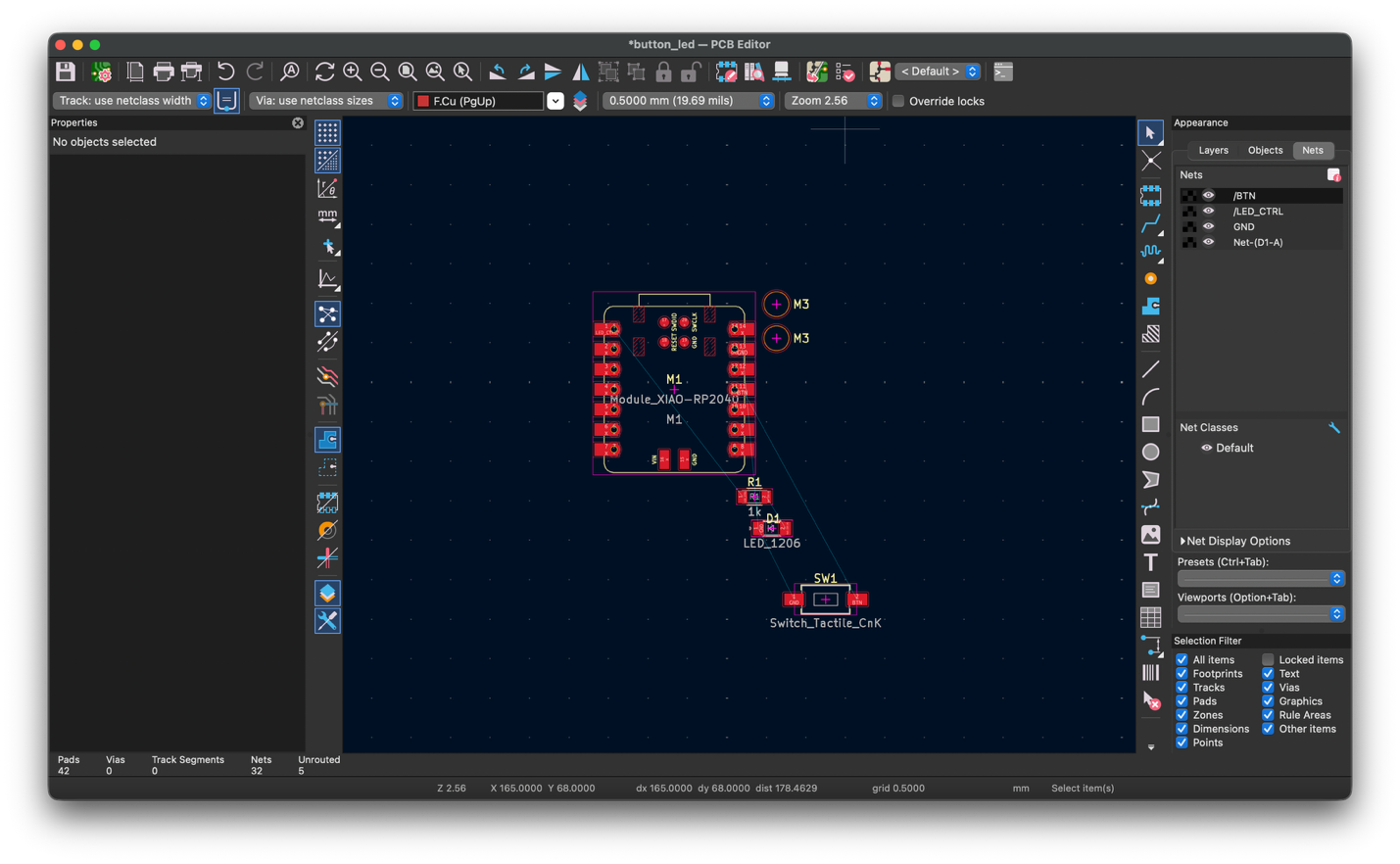
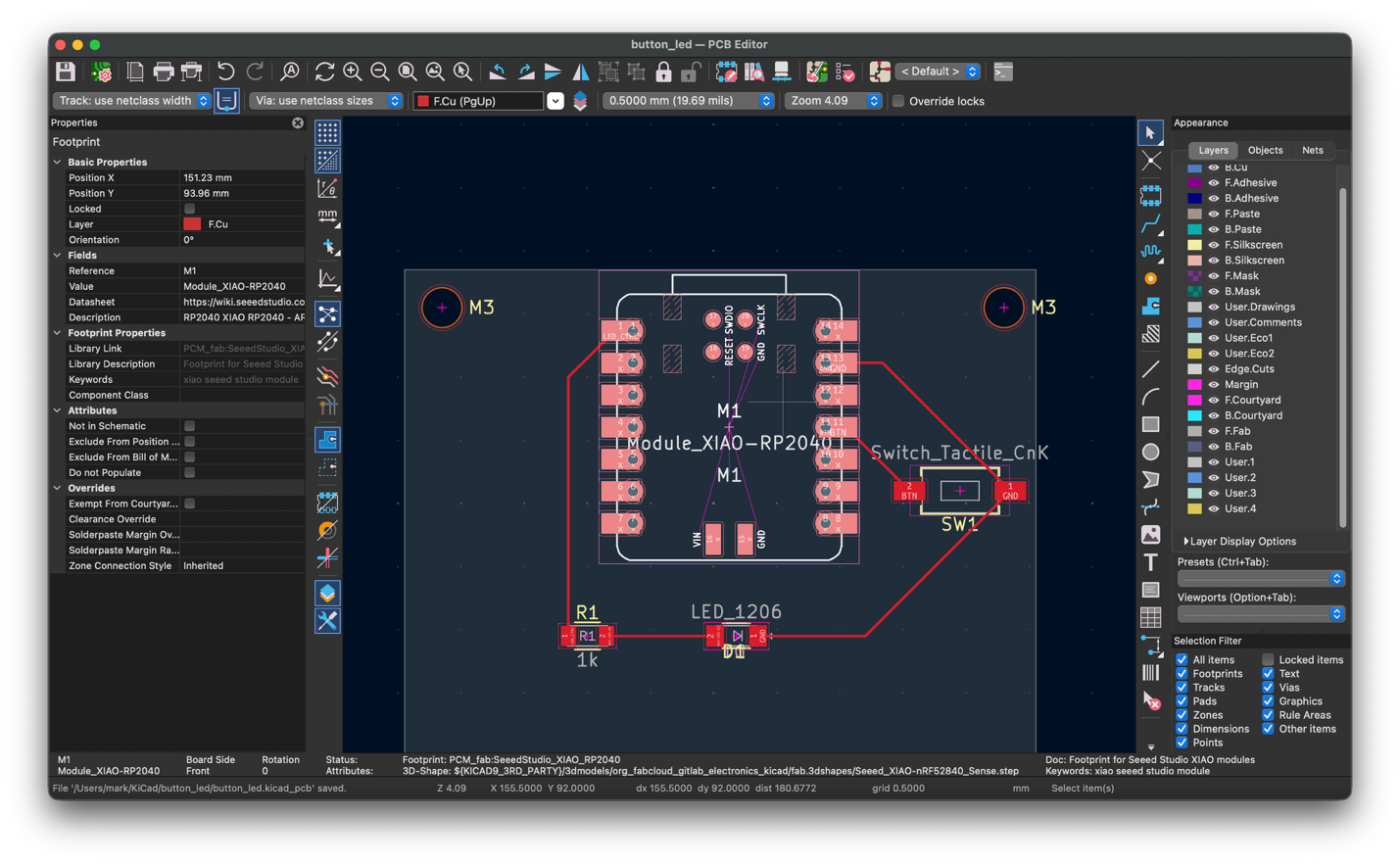
I transferred the schematic into the PCB Editor, arranged the footprints, and routed the connections.
I used Tools → Update PCB from Schematic, with the default shortcut F8. The footprints appeared with a ratsnest: thin lines showing connections that still needed copper tracks.
I drew a closed board outline on Edge.Cuts, then selected F.Cu to route the tracks on the front copper layer. The layout placed the XIAO module near the top, with the LED and resistor below it and the button to the right.
Checking the layout
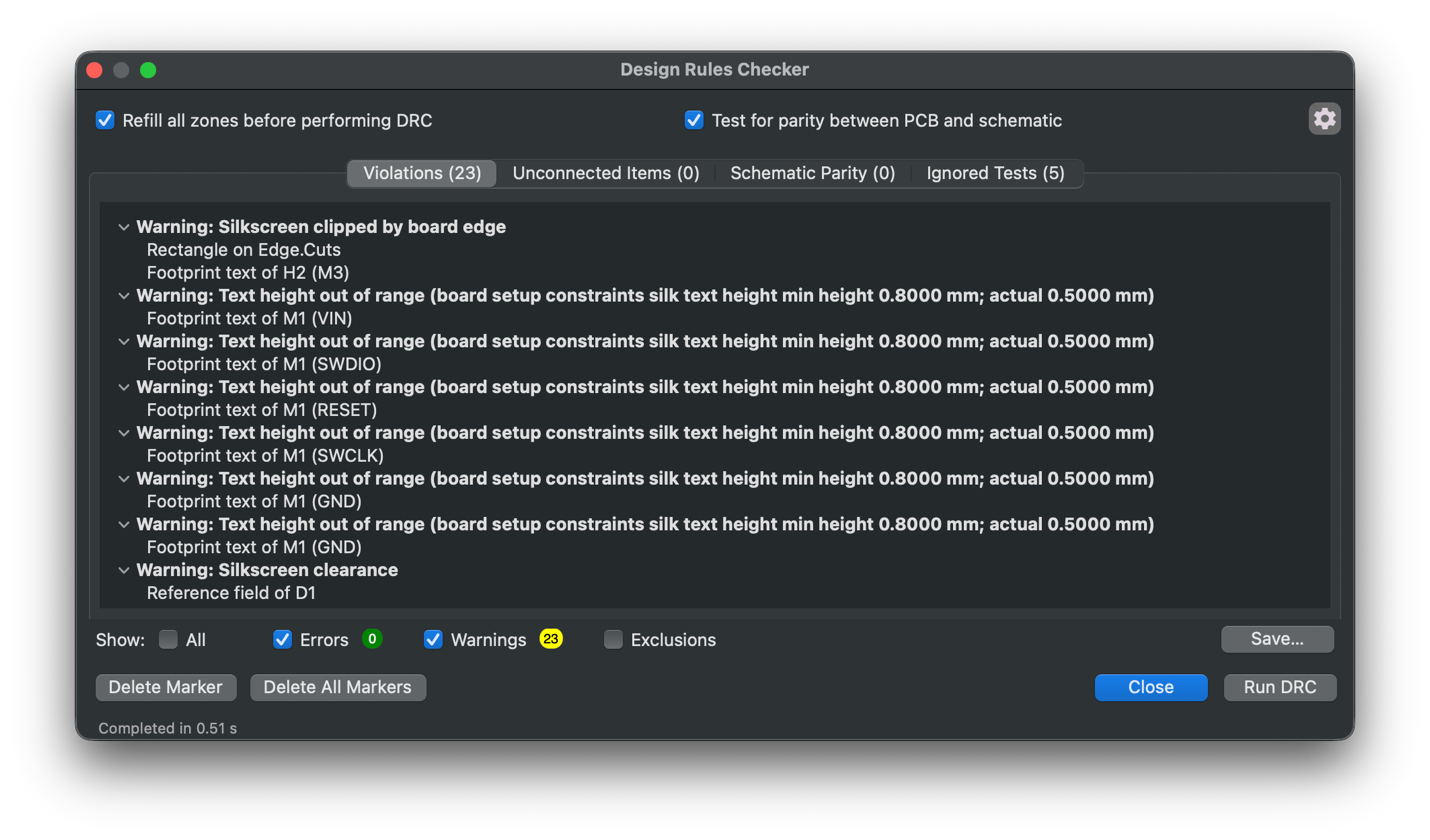
The DRC result showed 0 errors and 23 warnings. Most of the warnings concerned silkscreen text.
The Design Rules Checker (DRC) checks the PCB against configured constraints. My screenshot also showed 0 unconnected items, 0 schematic-parity issues, and 5 ignored tests.
The warnings included text clipped by the board edge, silkscreen clearance, and text that was too small.
Viewing the board in 3D
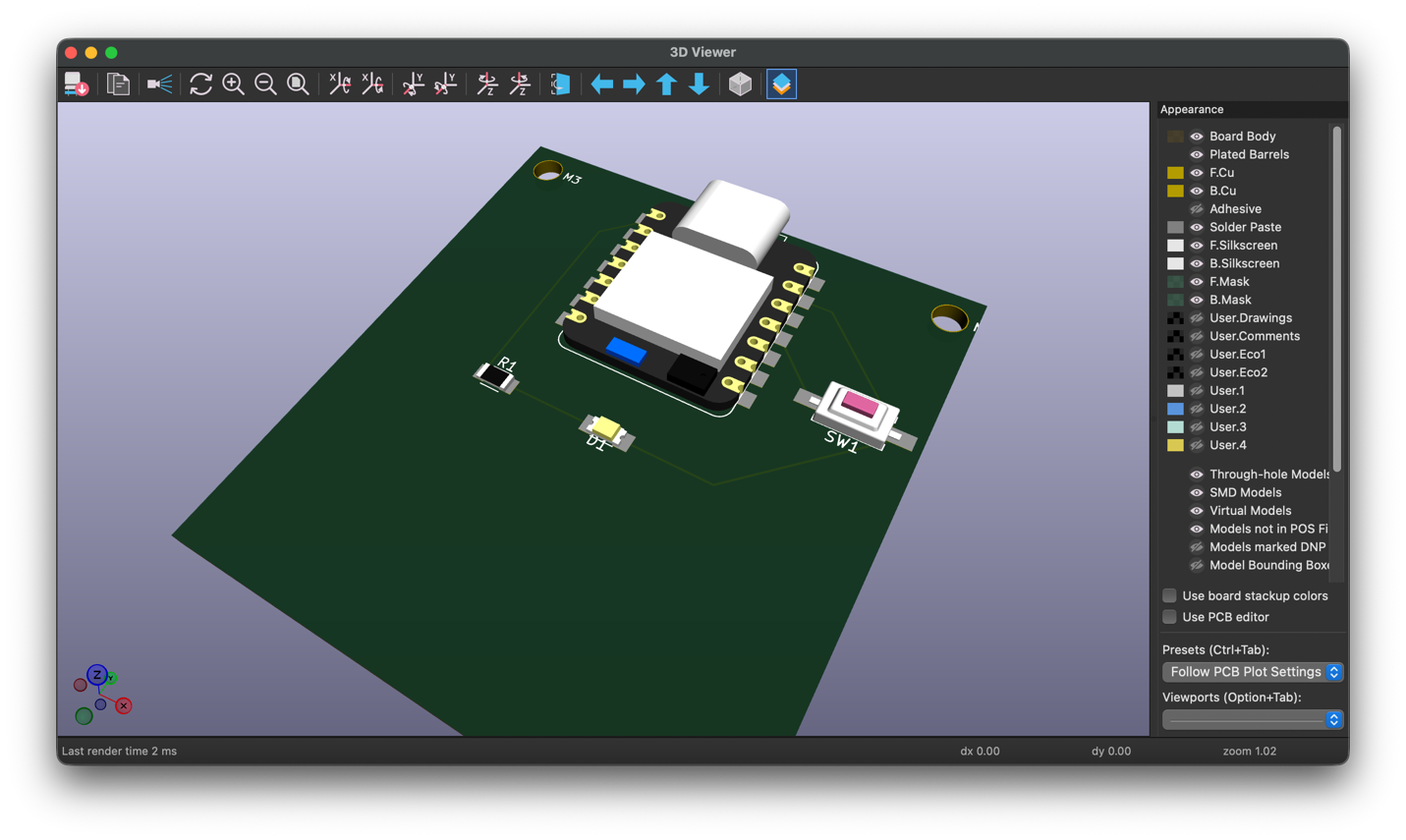
I opened KiCad's 3D Viewer to check the connector orientation, component positions, and space around the parts. It helped me see how the layout would fit together as well as when soldering.
Testing in Wokwi
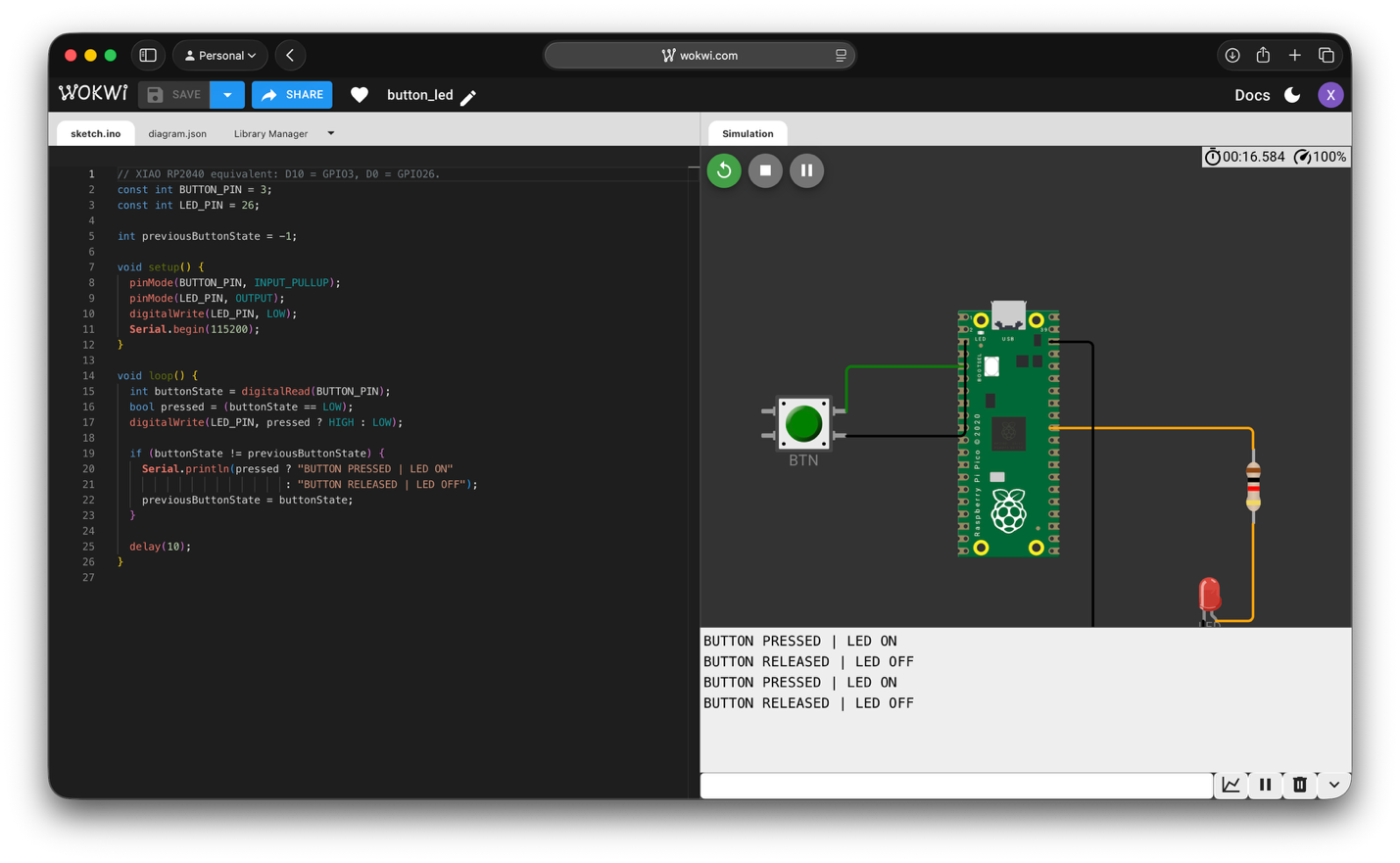
I rebuilt the circuit in Wokwi and ran the button-and-LED program on a simulated Raspberry Pi Pico.
KiCad's simulator uses ngspice for SPICE circuit simulation. It does not directly execute the Arduino program for this microcontroller circuit, so I used Wokwi for the test.
The Pico in Wokwi uses the same RP2040 microcontroller family as the XIAO, but the board labels are different. I matched the connections by RP2040 GPIO number.
Matching the XIAO pins to the Pico
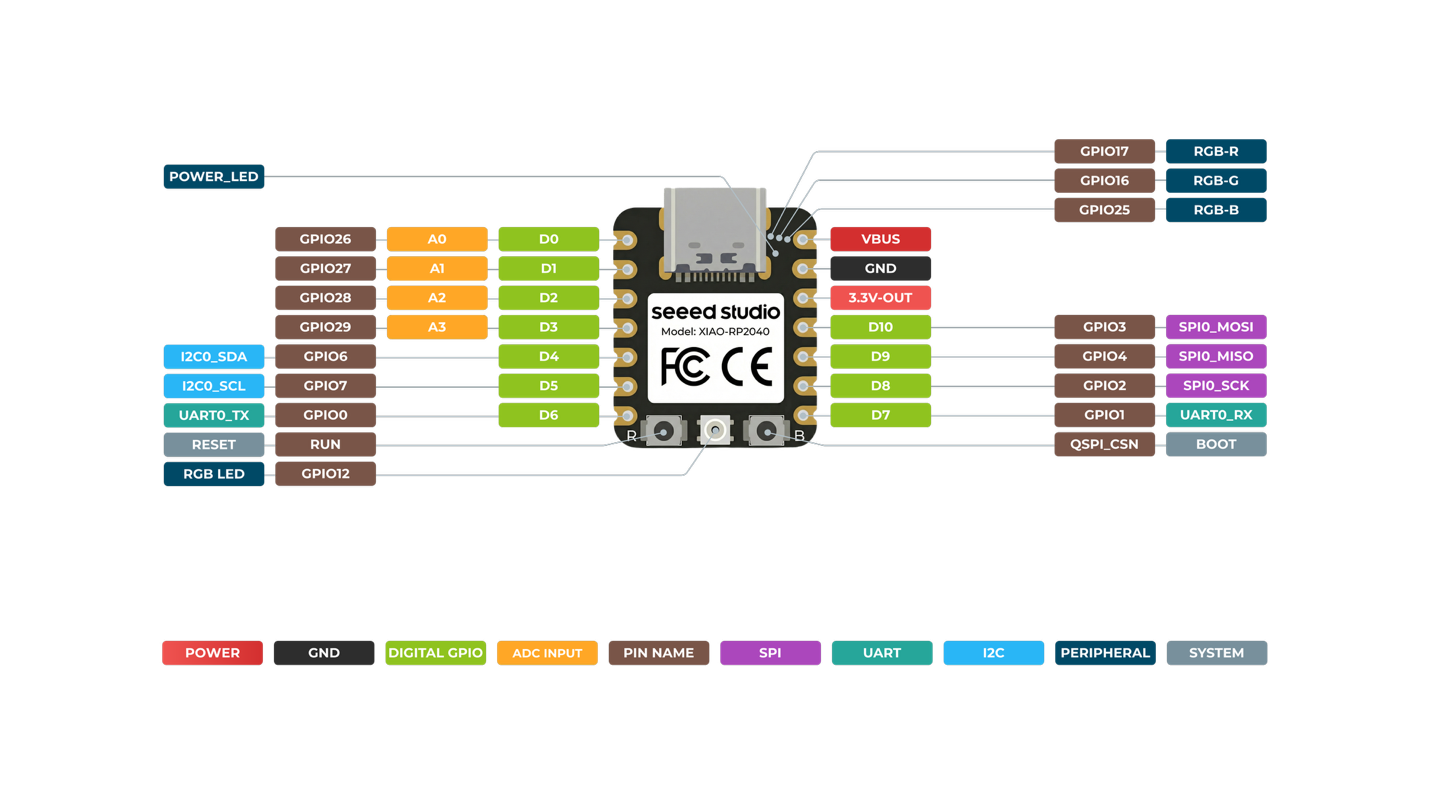
The Seeed Studio pin map shows that the XIAO's D10 pad connects to GPIO3, while D0 connects to GPIO26. In my Pico simulation, I therefore used BUTTON_PIN = 3 and LED_PIN = 26.
| Signal | XIAO pad | RP2040 GPIO | Pico program |
|---|---|---|---|
| Button input | D10 | GPIO3 | BUTTON_PIN = 3 |
| LED output | D0 | GPIO26 | LED_PIN = 26 |
Button input and LED response
I set the button input to INPUT_PULLUP and the LED pin to OUTPUT. The program reads the button, treats LOW as a press, and turns the LED on while the button is held. It prints a message whenever the button state changes.
Core logic from the Pico simulation
const int BUTTON_PIN = 3;  // XIAO D10 corresponds to RP2040 GPIO3
const int LED_PIN = 26;    // XIAO D0 corresponds to RP2040 GPIO26

// In setup():
pinMode(BUTTON_PIN, INPUT_PULLUP);
pinMode(LED_PIN, OUTPUT);

// In loop():
bool pressed = (digitalRead(BUTTON_PIN) == LOW);
digitalWrite(LED_PIN, pressed ? HIGH : LOW);
The serial monitor showed "BUTTON PRESSED | LED ON" and "BUTTON RELEASED | LED OFF" as I changed the input. This test confirmed the program's response in the simulation.
Starting the control board
I also started the low-voltage control-board design for my final project.
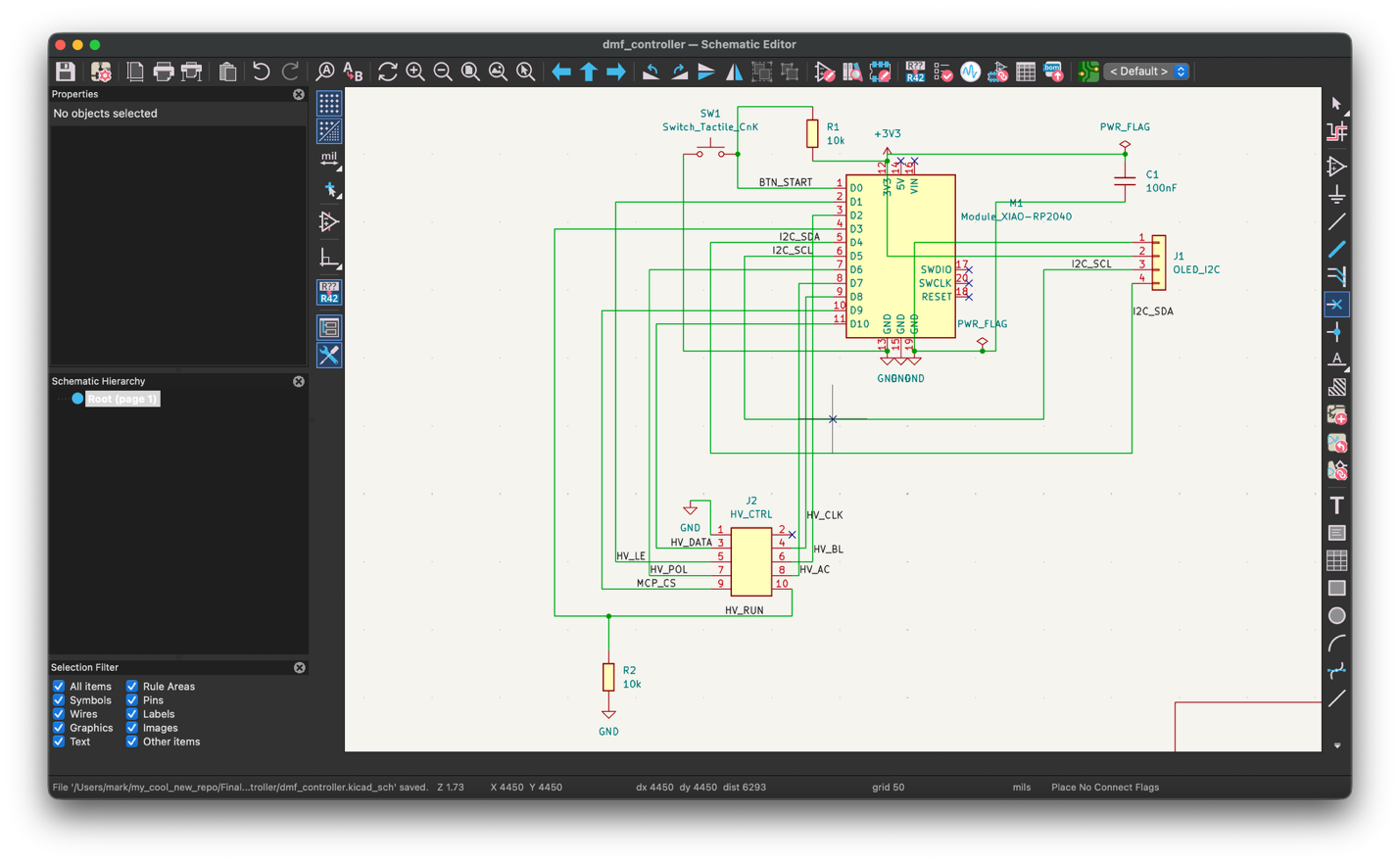
The schematic combines a XIAO RP2040, a start button, and a connector for an OLED display. The display uses I2C, with separate SDA data and SCL clock signals. I also added an HV_CTRL connector for the control signals to a future high-voltage module.
This is the first version control-board schematic. I plan to design the high-voltage module separately to drive droplets. That module is the next part of the project.
Sources and credits
- Fab Academy: KiCad and FabLib ↗
- KiCad: schematic ERC ↗
- KiCad: PCB design rules ↗
- KiCad: SPICE simulation ↗
- Seeed Studio: XIAO RP2040 pin map ↗
- Wokwi: Raspberry Pi Pico ↗
- CBA: group measurement notes ↗
OpenAI Codex helped organize my notes, check technical references, polish the English, and improve the HTML layout.