Preparing the board for milling
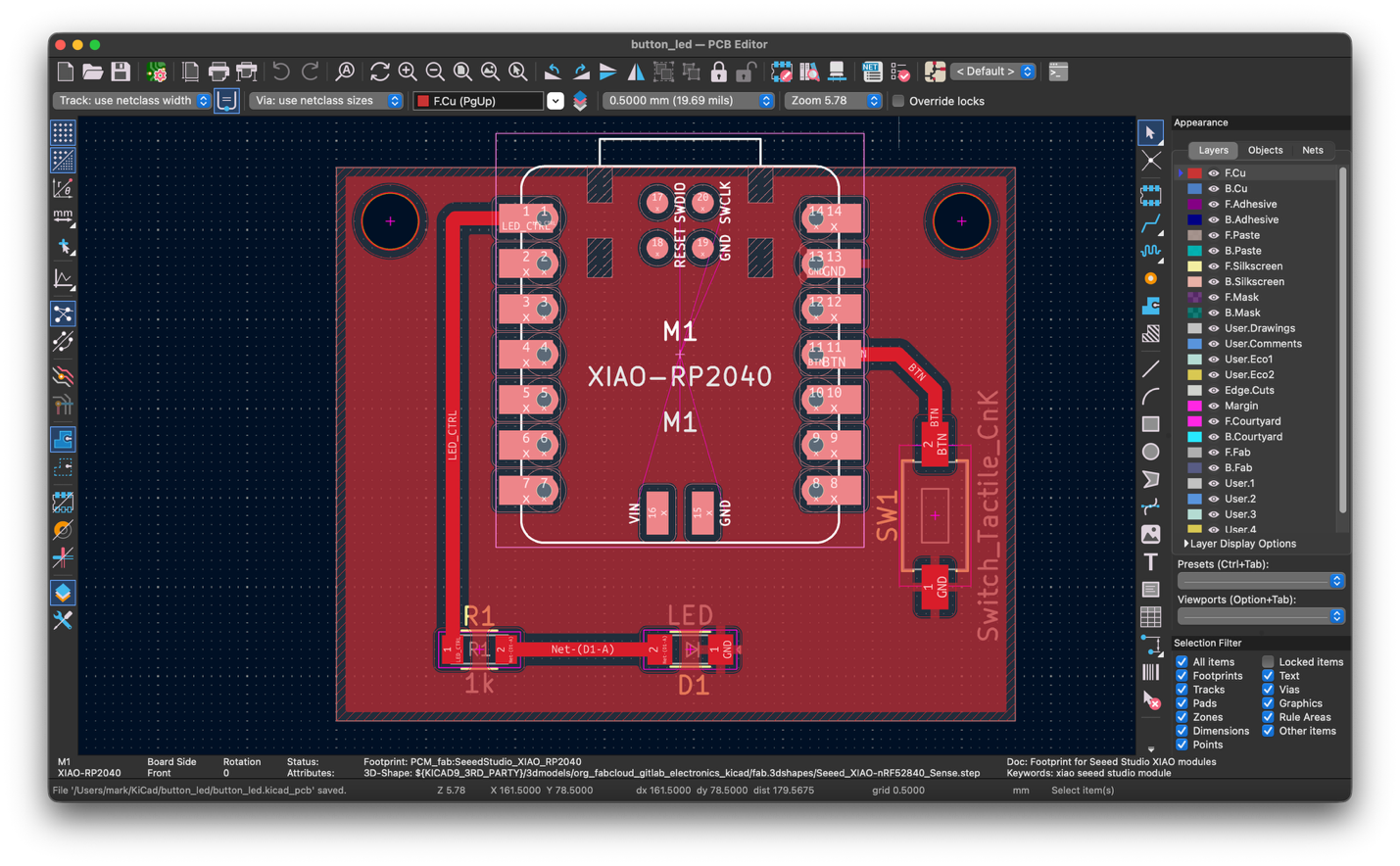
I modified my Week 5 layout to make it easier to mill.
I increased the clearance to 0.4 mm and used 0.8 mm tracks. Clearance is the gap between copper features; track width is the width of the copper connection itself. I also added a filled copper zone assigned to GND.
In KiCad, I selected a track and pressed U to expand the selection, then E to edit its properties. Pressing B refilled the copper zones. The PCB Editor manual explains these tools in more detail.
Exporting Gerber and drill files
In the PCB Editor, I opened File → Plot, selected Gerber, and exported F.Cu and Edge.Cuts. F.Cu contains the front copper trace pattern, and Edge.Cuts defines the board outline. My design also had holes, so I used Generate Drill Files to export the .drl files.
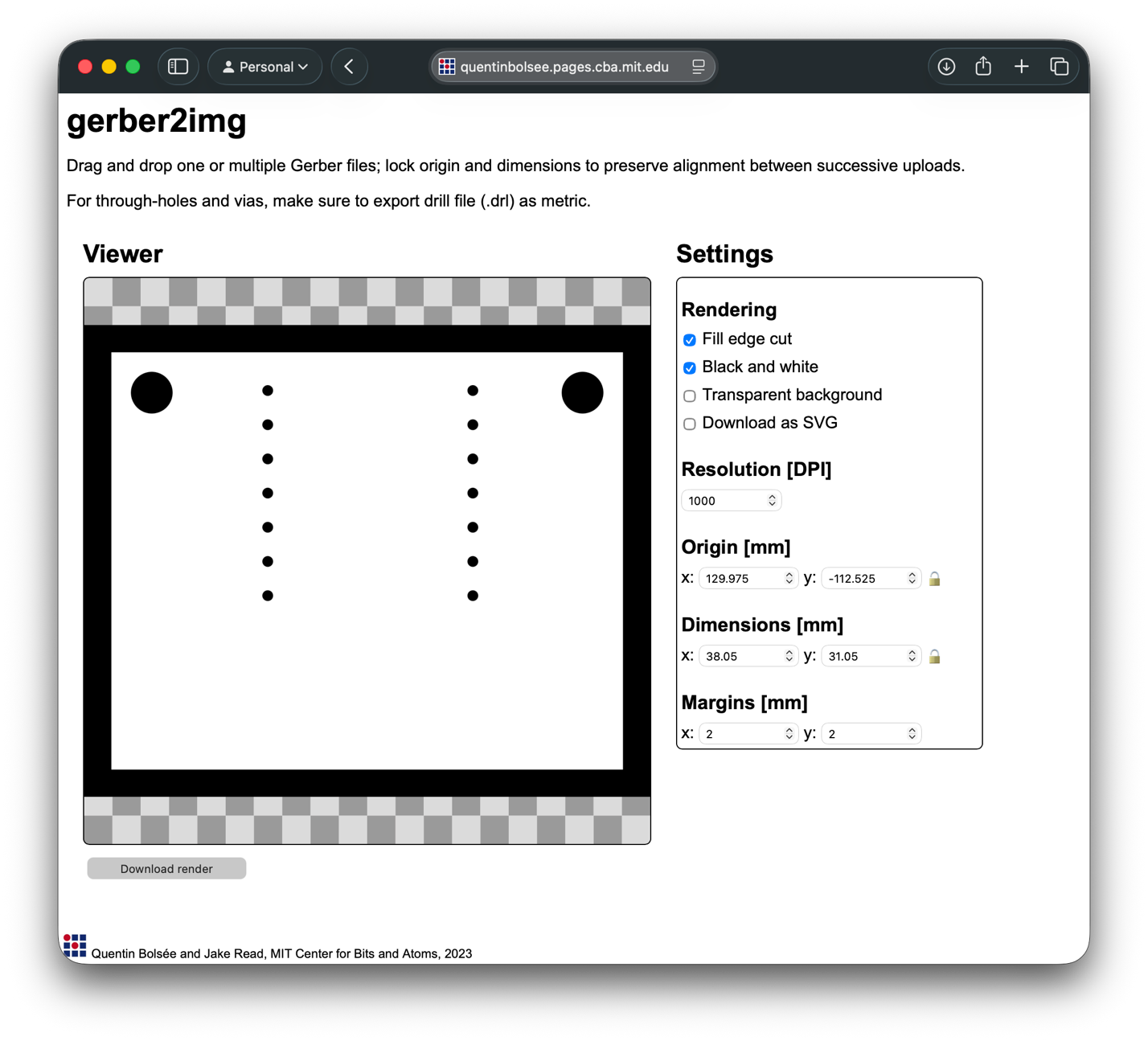
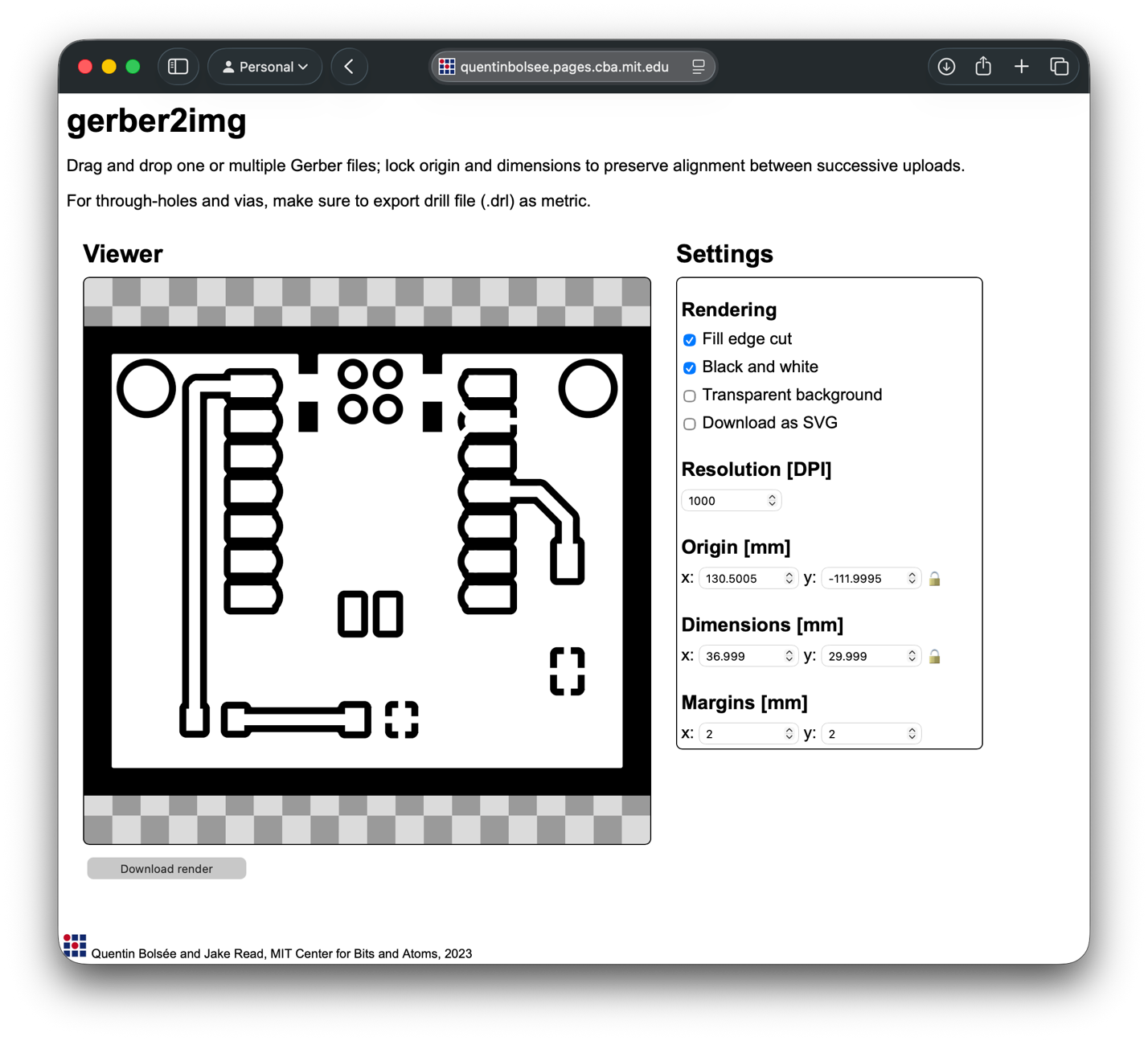
I used gerber2img to convert the fabrication files into PNG images. First I loaded the PTH drill file and the outline Gerber. I selected Black and white, kept the resolution at 1000 DPI, and locked the origin and dimensions. Then I uploaded F.Cu and downloaded the copper image with the same settings. Locking both values keeps successive exports aligned.
Generating the milling toolpath
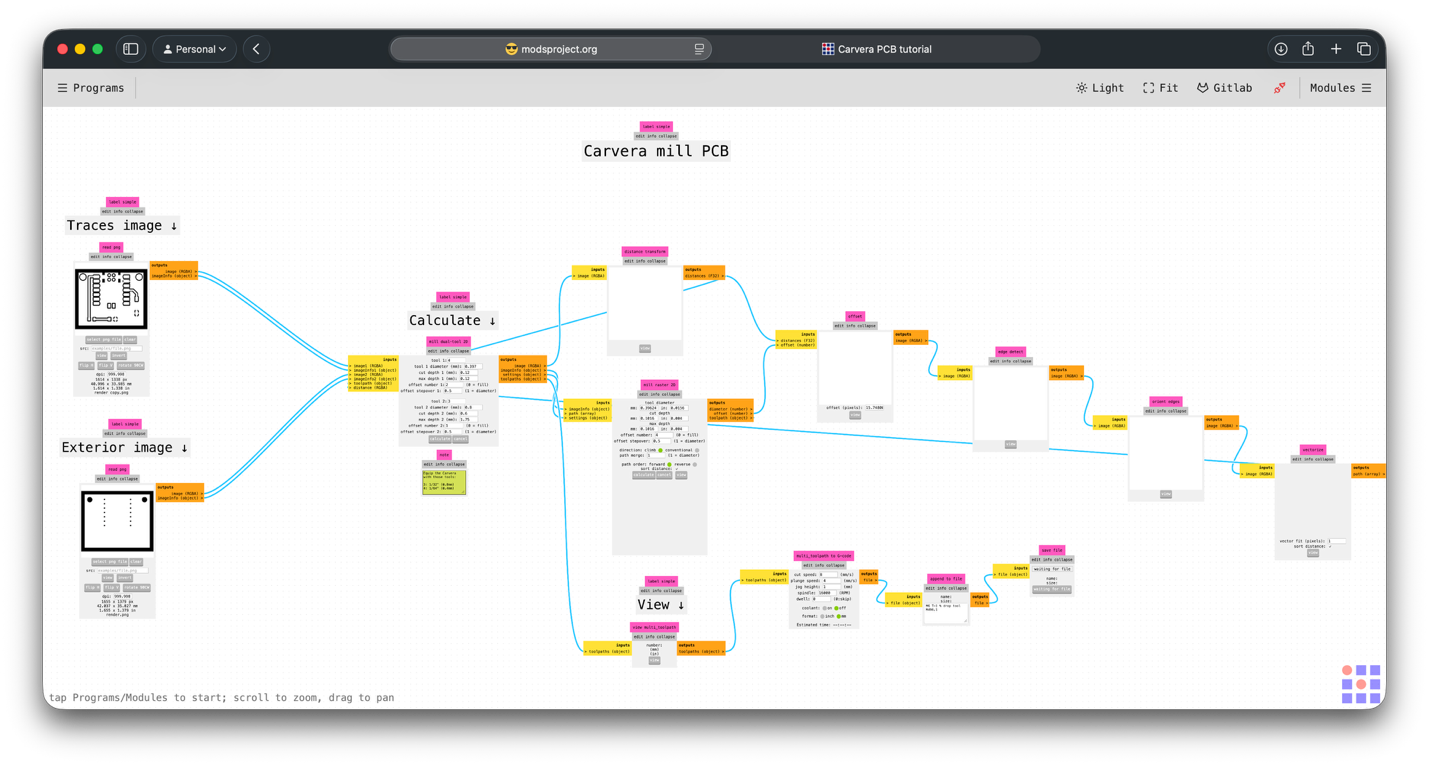
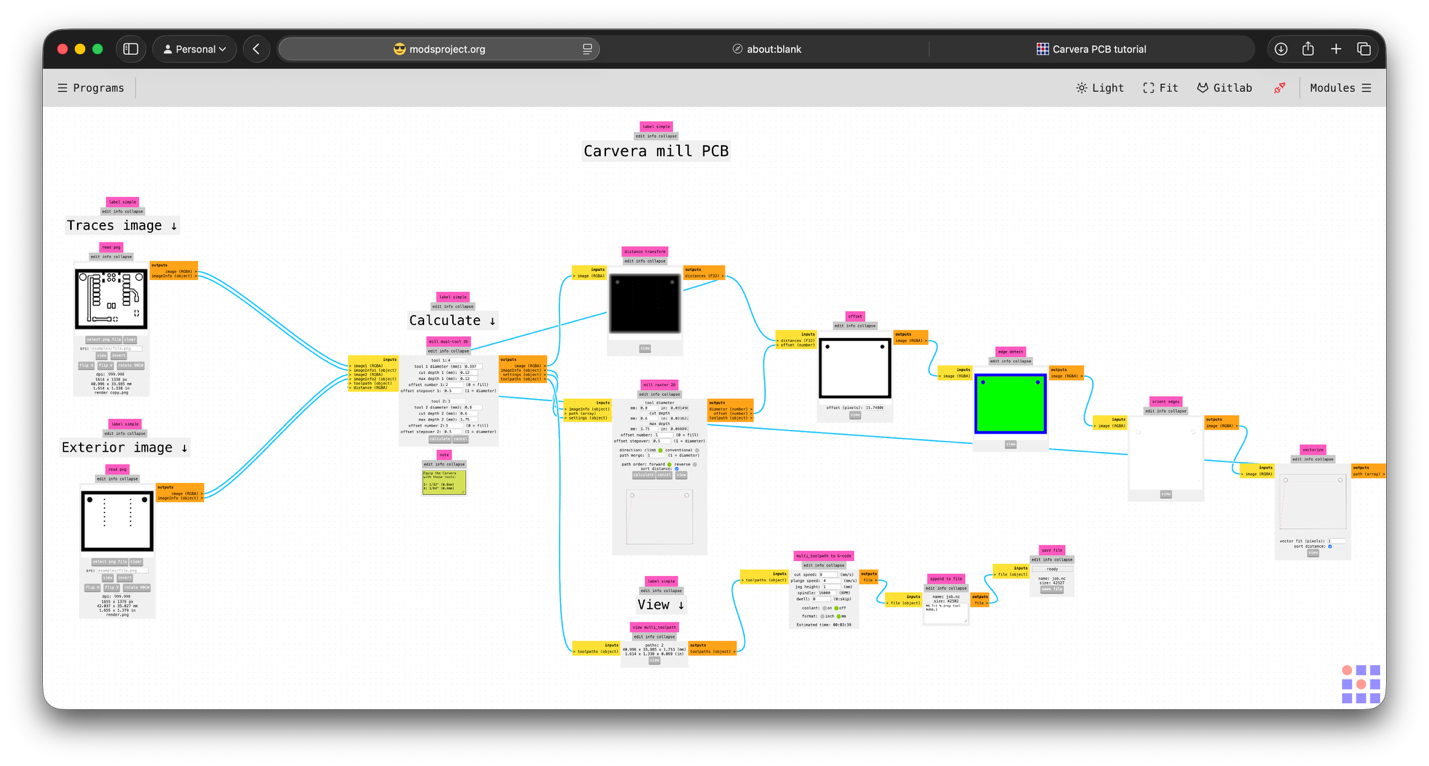
The two PNGs became the input for the Carvera milling program in mods.
In mods, I opened machines → Carvera → mill 2D PCB tape. I loaded the copper PNG as the traces image and the outline and hole PNG as the exterior image.
In this setup, the black regions marked the areas to remove. My first attempt had the image inverted, so I got the opposite result, which looked pretty funny.
Checking the preview
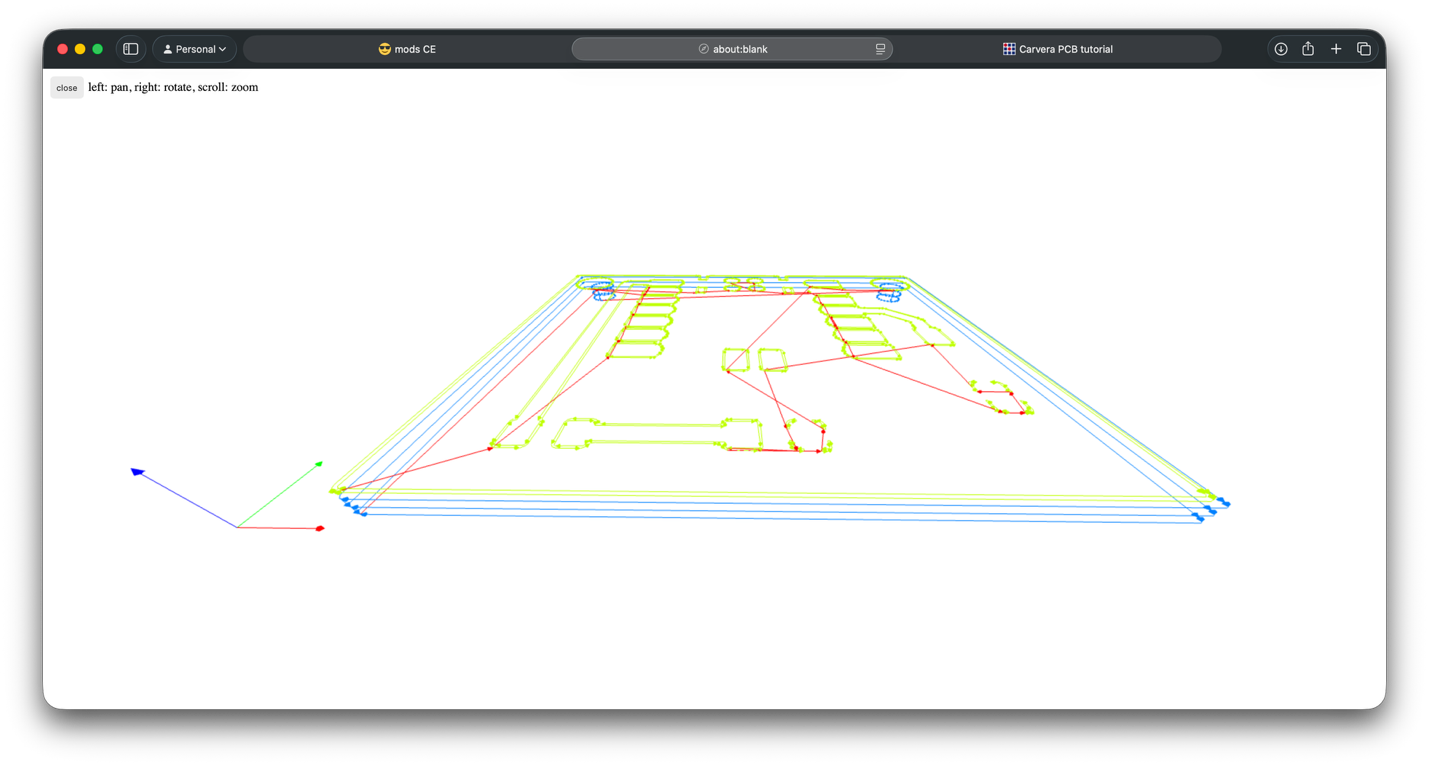
After clicking calculate, I opened the 3D toolpath preview. In my preview, green showed the surface paths and blue showed the cut-through paths. Red showed travel moves between paths.
The software estimated 3 minutes 39 seconds. I saved the toolpath as an .nc file that CarveraController could load.
The first milling mistake
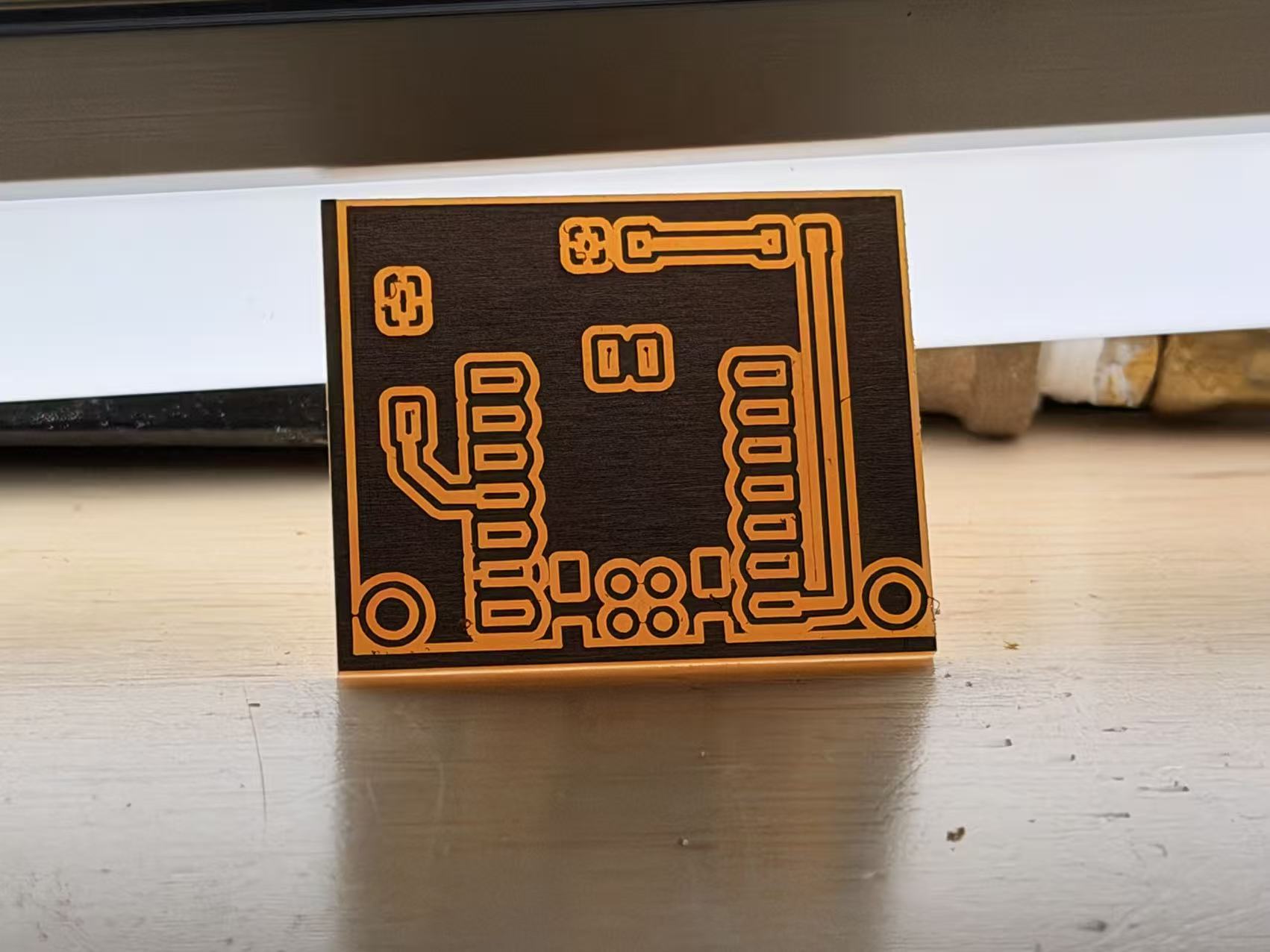
I had removed the copper I wanted to keep. The board made the inversion mistake and I redo it again.
Setting up and milling the board
Set up the board.
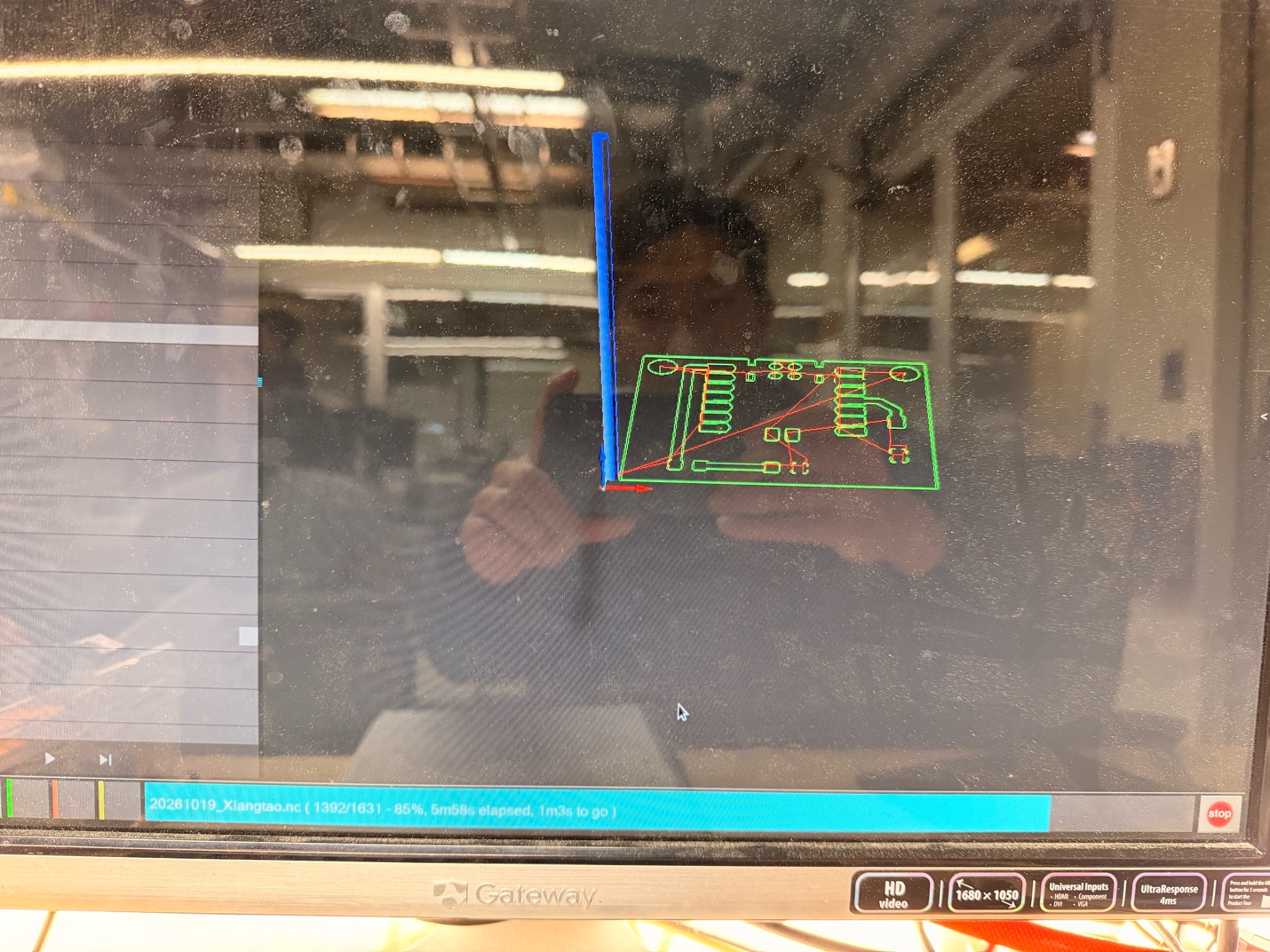
I connected CarveraController to the machine and uploaded the NC file. I had to use Upload and select. Upload alone was not enough because the controller still needed me to select the job. It took me a while to figure this out.
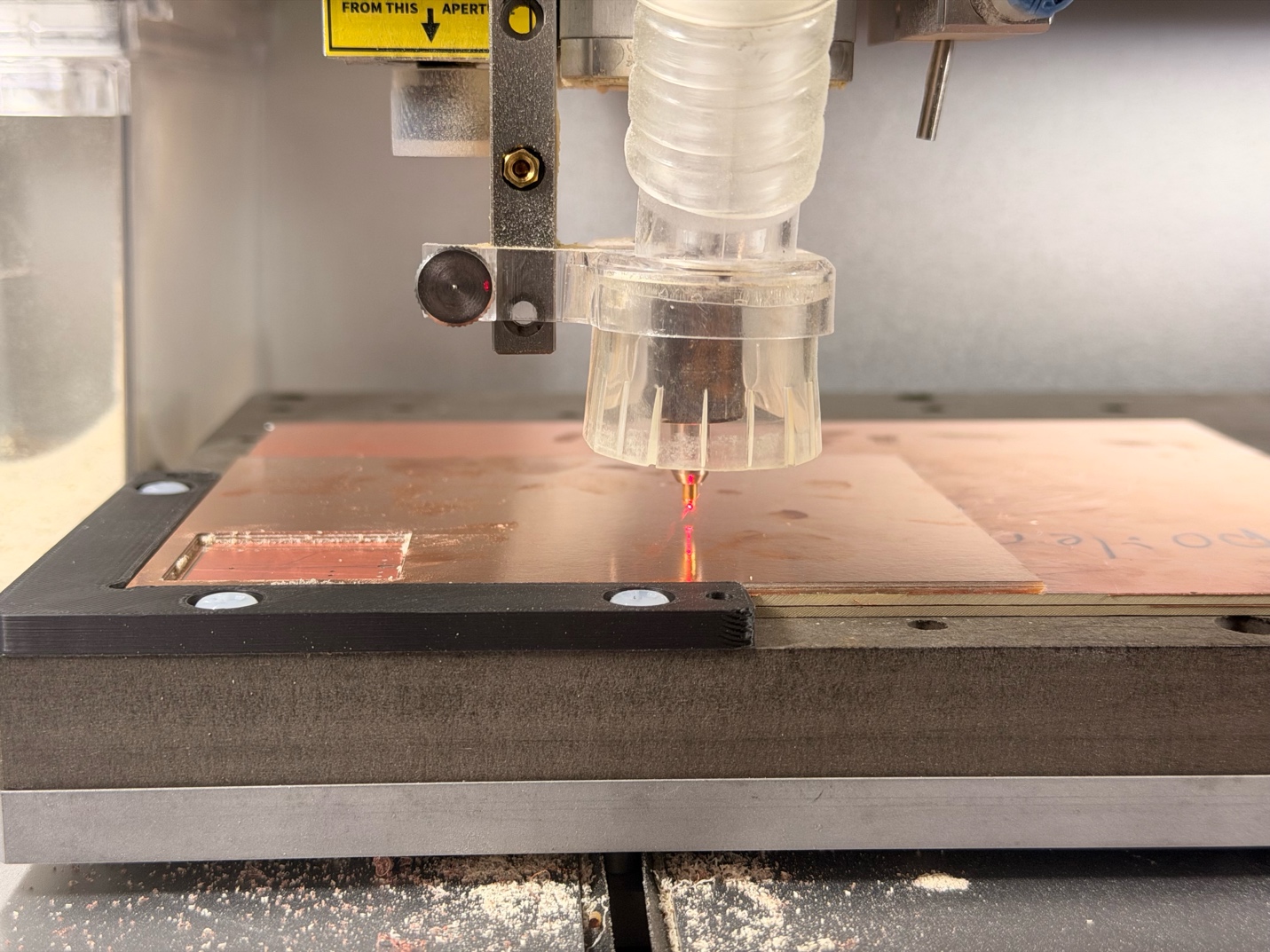
Once the toolpath appeared, I measured the available copper-clad area with calipers and adjusted the X and Y offsets. I selected auto leveling with a 3×3 grid for this board.
Attaching the board and running the job
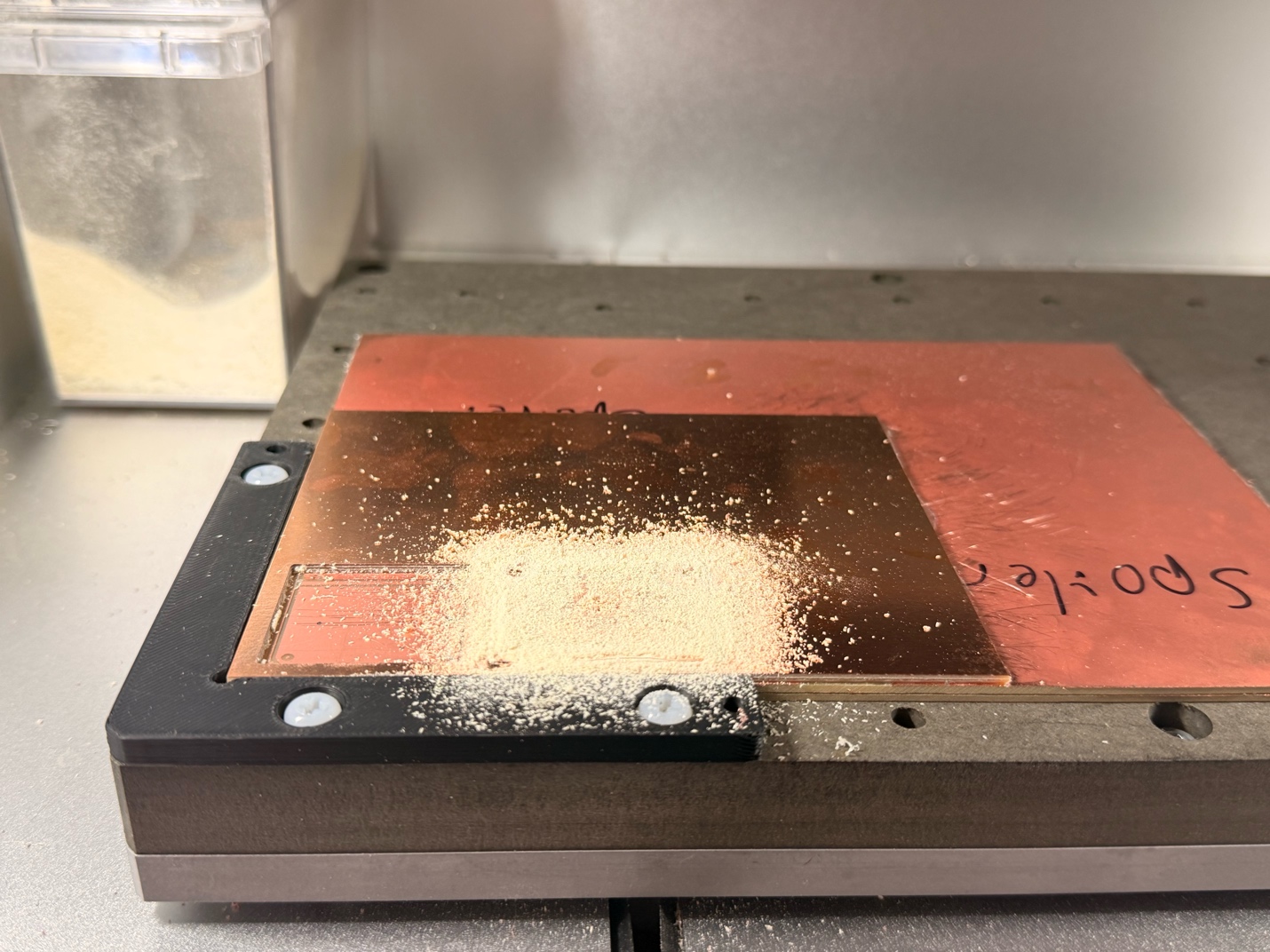
I attached the FR-1 copper-clad board with tape, pressed out the air bubbles, and trimmed the tape neatly around the edges with scissors. The machine already had two sacrificial layers underneath to protect the bed, so I left them in place.
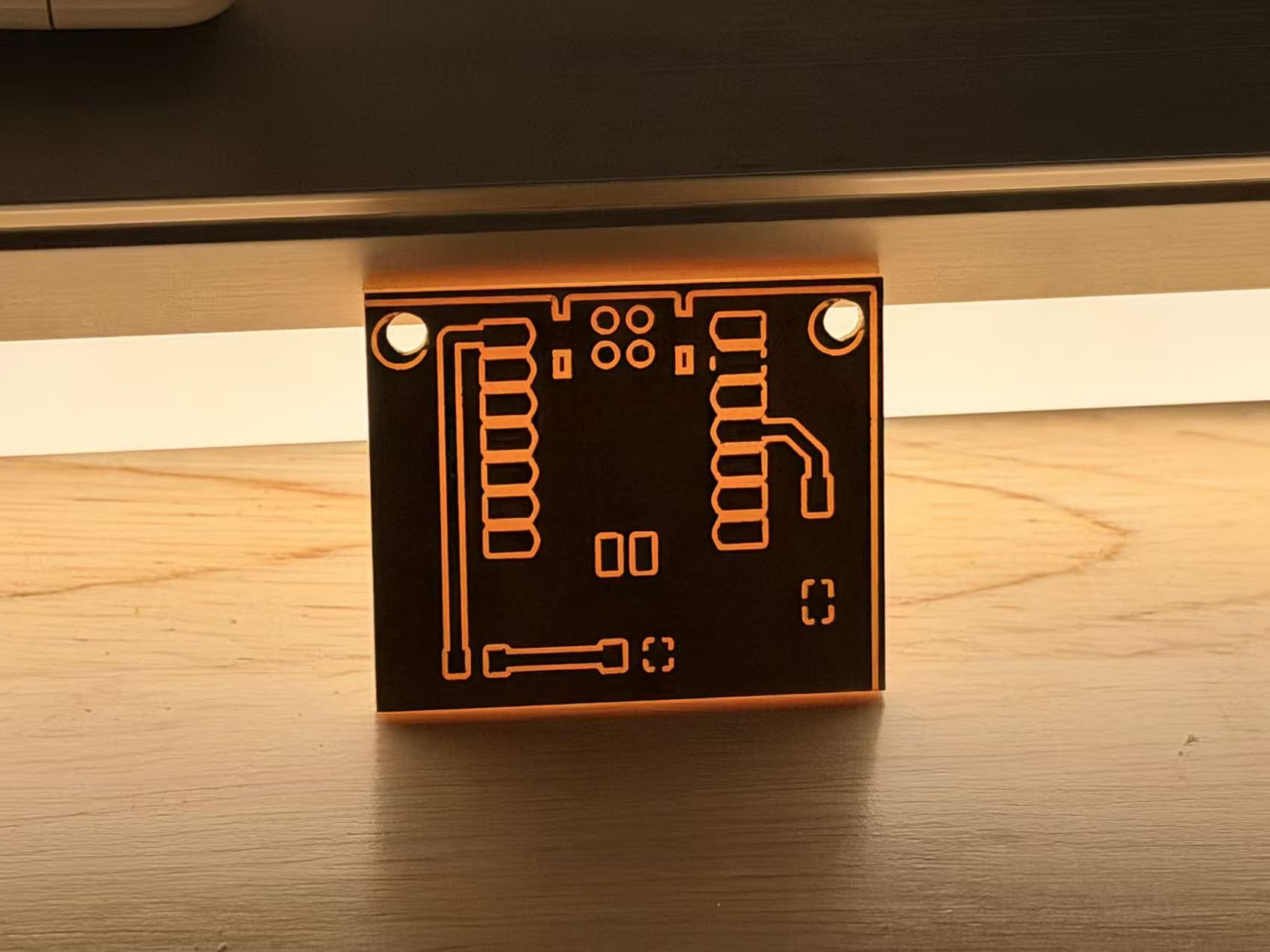
After that, it started working! When the milling finished, I vacuumed the debris and gently lifted the board off the tape. Holding a light behind it made the traces easier to see, especially on this single-sided board.
Soldering the components
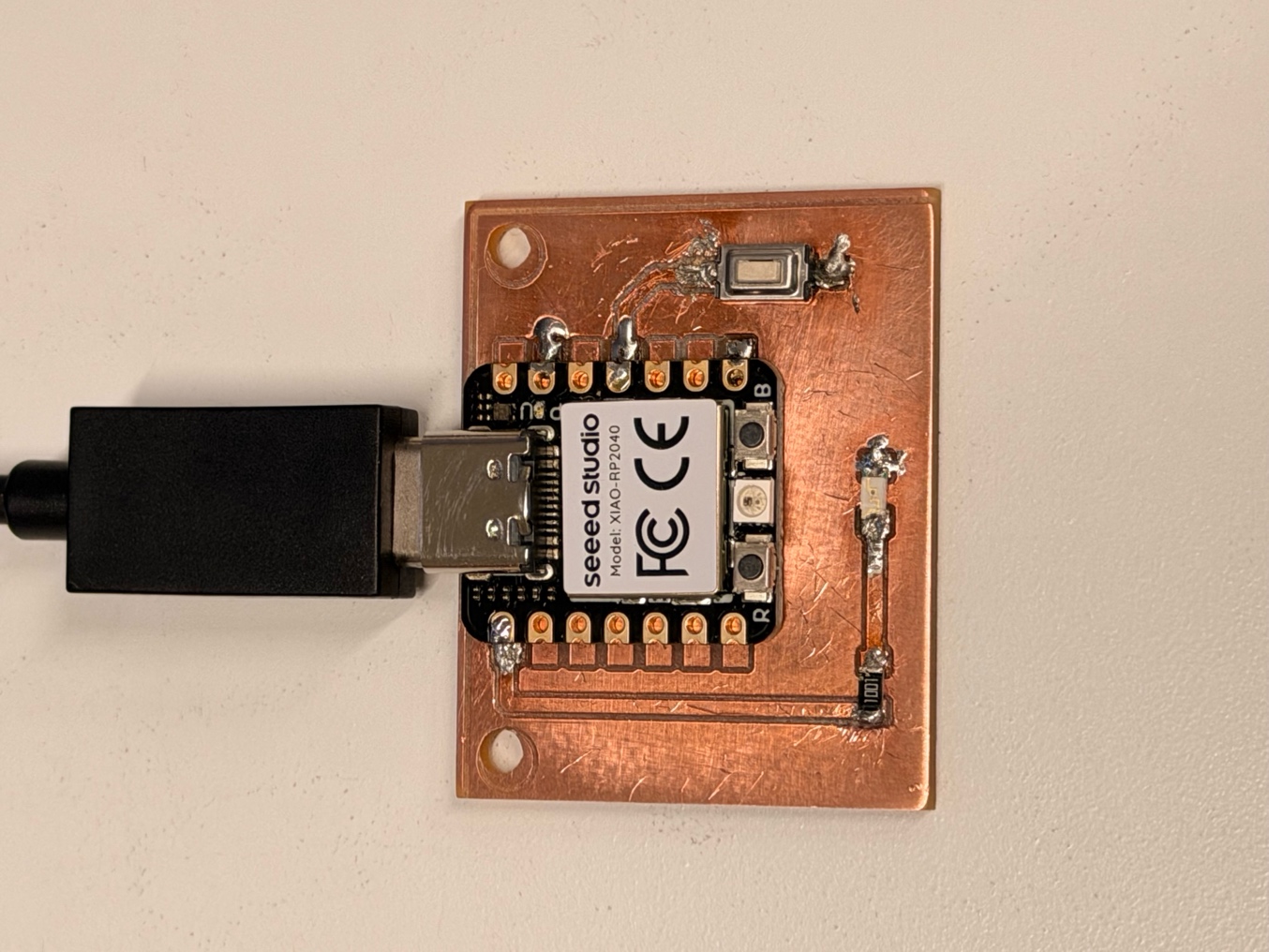
Soldering this milled board was harder than I expected. It was very easy to make a short.
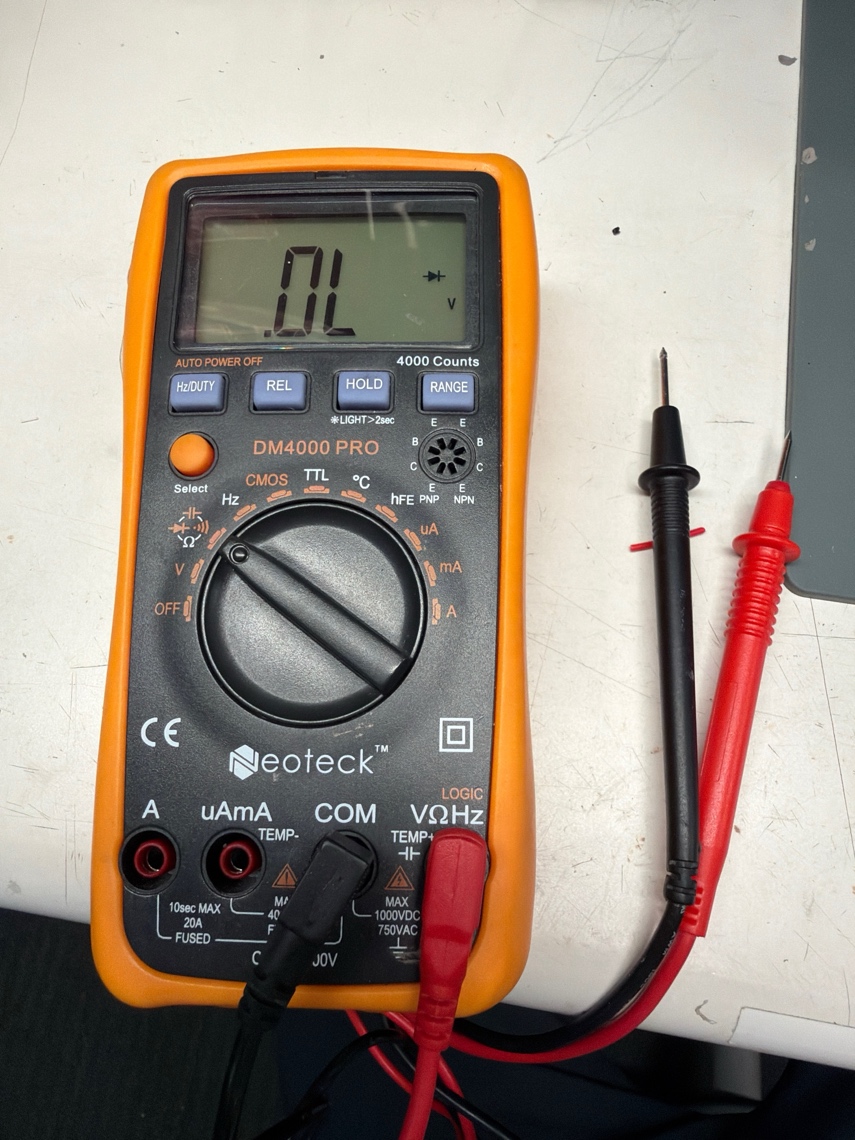
The goal is to make the joints look shiny and smooth. I used a multimeter to check for shorts as I worked.
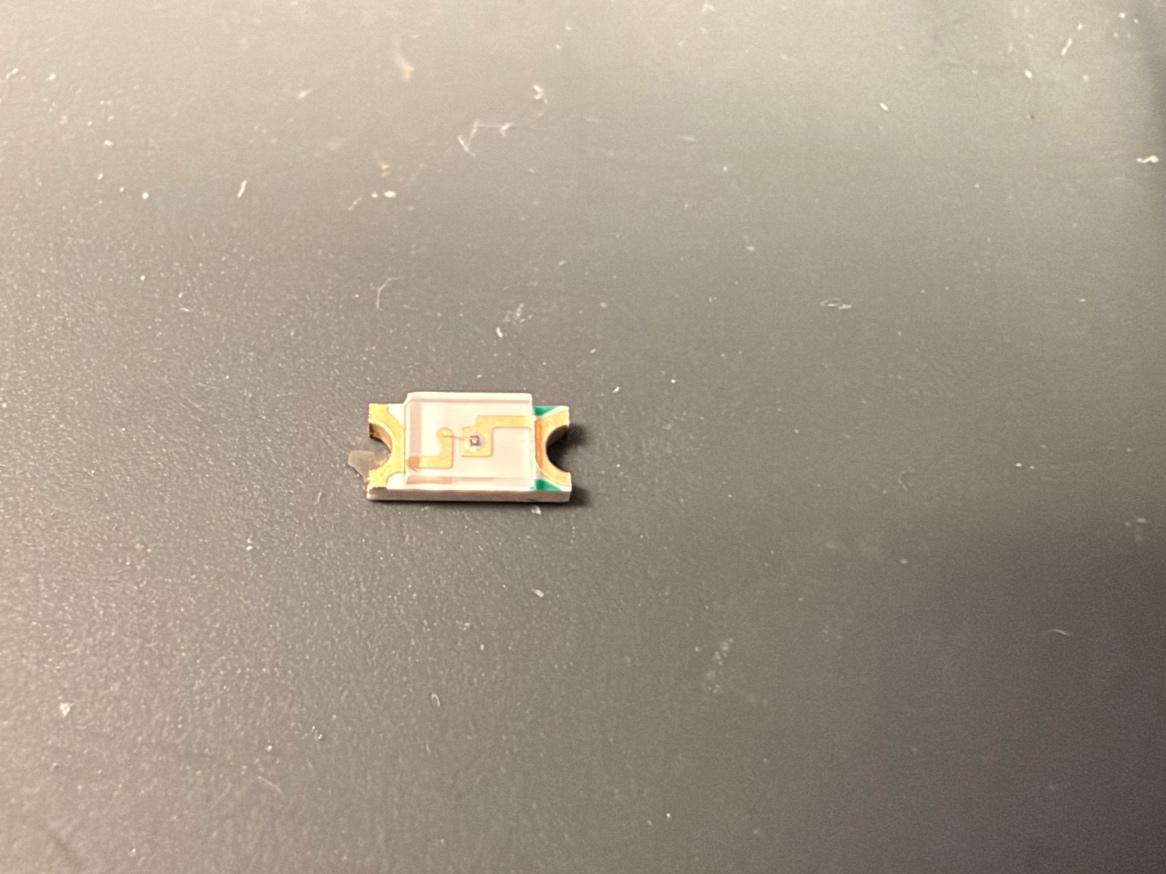
I also had to pay attention to the LED polarity before soldering. The green marker on this LED should be the cathode.
Soldering notes from training
We should start with a clean, tinned iron tip, heat the pad and component terminal together, and feed solder into the joint. A small amount of solder on the tip helps transfer heat. Then wait for the solder to wet the surfaces. Flux helps remove surface oxides so the solder can flow. The joint needs enough heat to form properly, while prolonged heating can damage the part or lift a pad.
I used the multimeter to check for shorts. Inspecting the gaps between pads also helps find shorts. The Adafruit soldering guide has useful examples of bridges, poor wetting, and damaged pads.
Testing the board
The physical board worked after the ground connection was fixed.
I uploaded the Arduino sketch for the XIAO RP2040. The button is on D10 and the LED is on D0. With INPUT_PULLUP, the released button reads HIGH. Pressing the button connects the input to ground and makes it LOW.
The program turns the LED on while the button is pressed and off when it is released.
Demo / The assembled board
| Button released | Raw input 1 (HIGH), LED commanded off |
|---|---|
| Button pressed | Raw input 0 (LOW), LED commanded on |
| Serial output | Raw input, button state, and LED command every 200 ms |
View the Arduino sketch
const int BUTTON_PIN = D10;
const int LED_PIN = D0;

void setup() {
  Serial.begin(115200);

  pinMode(BUTTON_PIN, INPUT_PULLUP);
  pinMode(LED_PIN, OUTPUT);
  digitalWrite(LED_PIN, LOW);
}

void loop() {
  int buttonState = digitalRead(BUTTON_PIN);
  bool pressed = (buttonState == LOW);

  digitalWrite(LED_PIN, pressed ? HIGH : LOW);

  Serial.print("BUTTON_RAW = ");
  Serial.print(buttonState);

  Serial.print(" | BUTTON = ");
  Serial.print(pressed ? "PRESSED" : "RELEASED");

  Serial.print(" | LED_COMMAND = ");
  Serial.println(pressed ? "ON" : "OFF");

  delay(200);
}Multimeter, oscilloscope, and logic analyzer
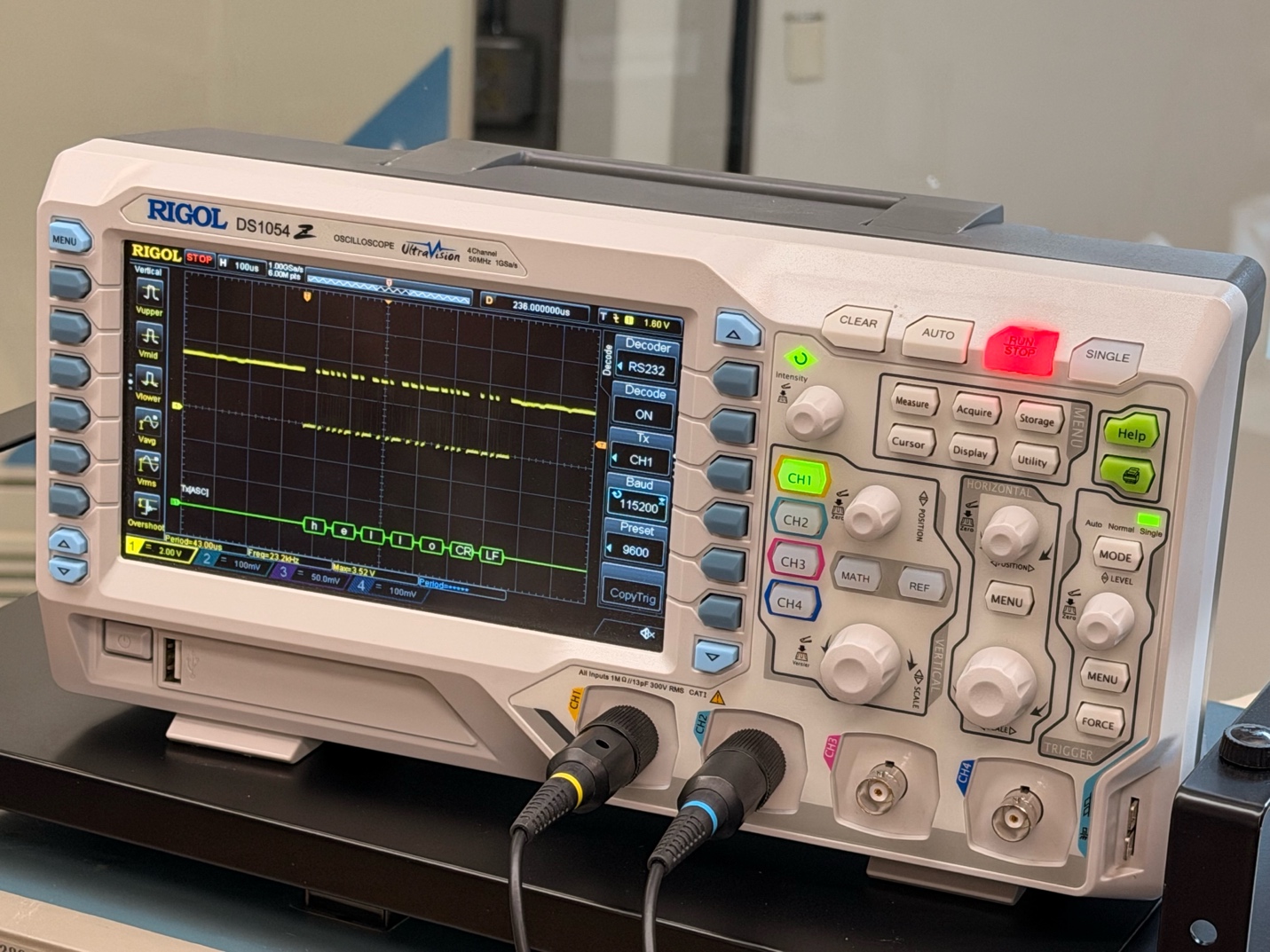
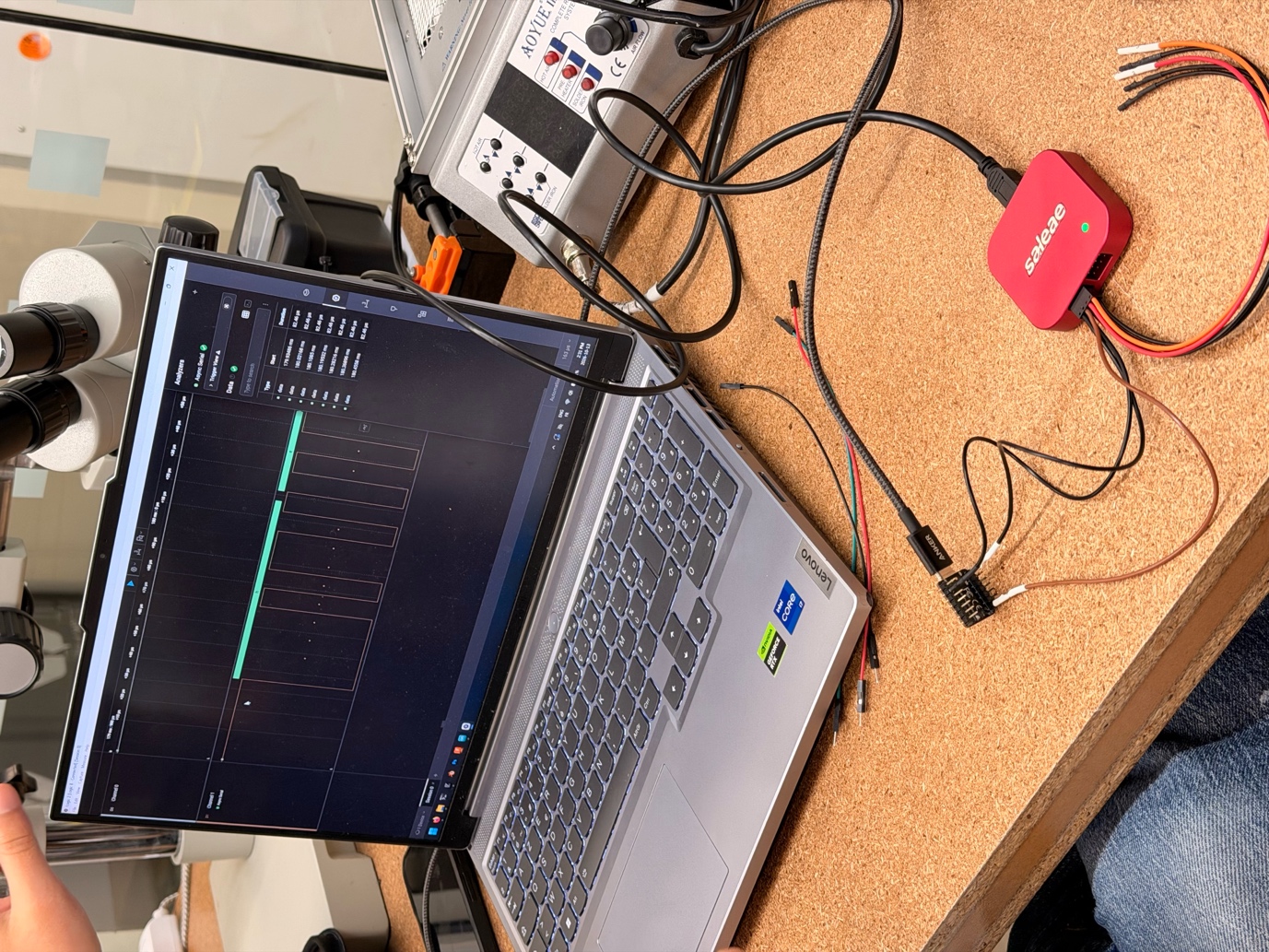
We used all three during training. A multimeter measures values such as voltage and resistance, and its continuity mode helps check connections. An oscilloscope shows how voltage changes over time. A logic analyzer captures digital HIGH and LOW states across several channels and can decode communication between devices.
The oscilloscope could also decode serial data. For UART decoding, the baud rate and serial format must match the transmitted data. The logic analyzer was more convenient for reviewing digital communication. Saleae's async serial guide explains those decoder settings.
I am new to electronics, so I chose a simple circuit to get through the whole process first. Now that I have made and tested this board, I can add more functions and keep working on my final project. I still want to try UV laser PCB fabrication later.
Files from this build
These are the design, fabrication, and program files from this build. The NC program belongs to this Carvera setup.
| File set | Contents | Download |
|---|---|---|
| KiCad project | Schematic, PCB layout, and project settings | KiCad ZIP ↓ |
| Milling files | Gerbers, drill files, raster images, and NC program | Milling ZIP ↓ |
| Gerber layers | Front copper and board outline | F.Cu ↓Edge.Cuts ↓ |
| Drill exports | PTH and NPTH drill files from KiCad | PTH ↓NPTH ↓ |
| Raster inputs | Saved outline and copper images | Board.png ↓Traces.png ↓ |
| Carvera job | 20261019_Xiangtao.nc | NC file ↓ |
| Arduino sketch | D10 button input and D0 LED output | Arduino INO ↓ |
Terms from this week
| FR-1 | A paper and phenolic resin PCB substrate. This was the copper-clad material I used. |
|---|---|
| mil | One thousandth of an inch. 1 mil = 0.0254 mm. |
| Via | A connection between copper on different PCB layers. Board houses commonly use copper-plated hole walls. |
| Silkscreen | Printed text, component labels, and outlines on a PCB. It is a separate layer from the copper pattern. |
| Board house | A company that manufactures PCBs from fabrication files. JLCPCB in Shenzhen was one option mentioned in class. |
| Octopart | A component search engine for finding parts and comparing supplier listings. |
Sources and credits
- HTMAA: electronics production ↗
- KiCad: PCB Editor manual ↗
- Quentin Bolsée and Jake Read: gerber2img ↗
- Quentin Bolsée: Carvera PCB tutorial ↗
- mods: CAM programs ↗
- Adafruit: soldering problems ↗
- Seeed Studio: XIAO RP2040 ↗
- Saleae: async serial decoding ↗
OpenAI Codex helped organize my notes, check technical references, polish the English, and improve the HTML layout.