Assignment
- browse through the data sheet for a microcontroller
- write and test a program for an embedded system using a microcontroller to interact (with input &/or output devices) and communicate (with wired or wireless connections)
Learning electronics basics
I had no electronics knowledge and had not touched physics for ten years, so every word in the lecture was new to me. Before going further I wanted to understand the basics. I first watched an introductory video. Then I gave the assignment and the class links to Claude and asked it to make a curriculum with quizzes for someone with no electronics background.
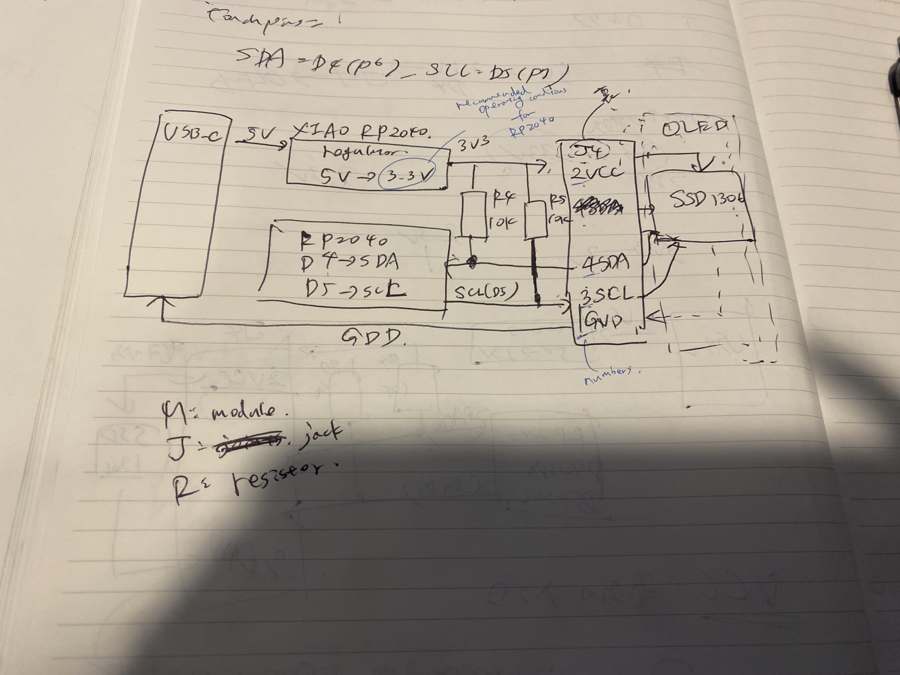
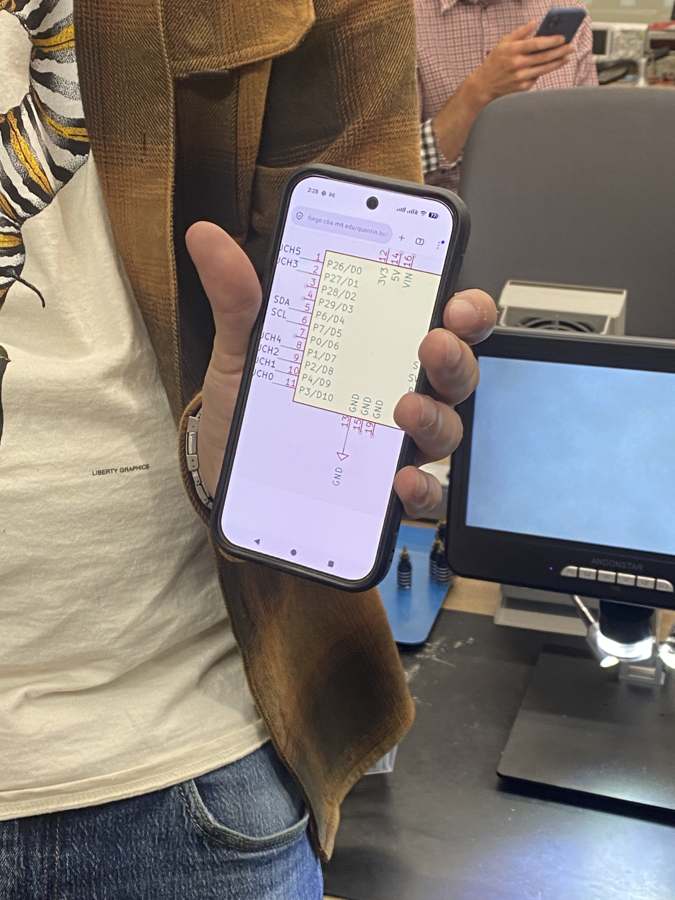
I followed two sets of notes. The first, Embedded Bench Notes, goes from electricity basics (voltage, current, resistance, components and schematics) to digital logic and what is inside a microcontroller, then how code reaches the board, and finally inputs, outputs and communication (buttons and touch, LEDs, PWM, the OLED, serial and I2C). The second walks through the QPad schematic step by step: counting the parts, the XIAO pins, power and ground, net labels, the R4 and R5 pull-ups on SDA and SCL, and why the touch pads have no parts at all.
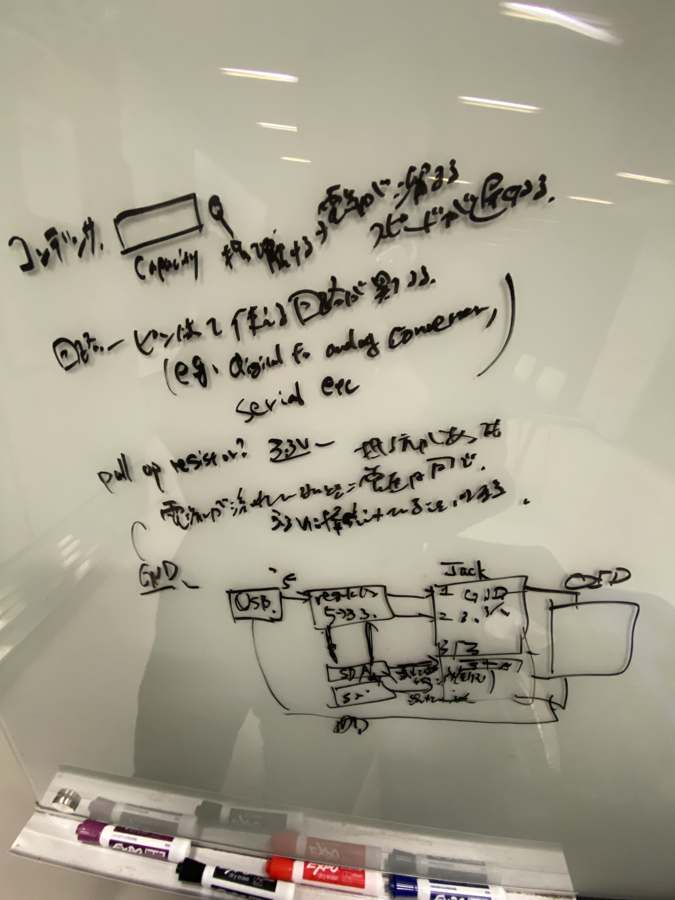
Following the curriculum, I drew the diagrams myself, and the vocabulary finally started to make sense.
Soldering the QPad
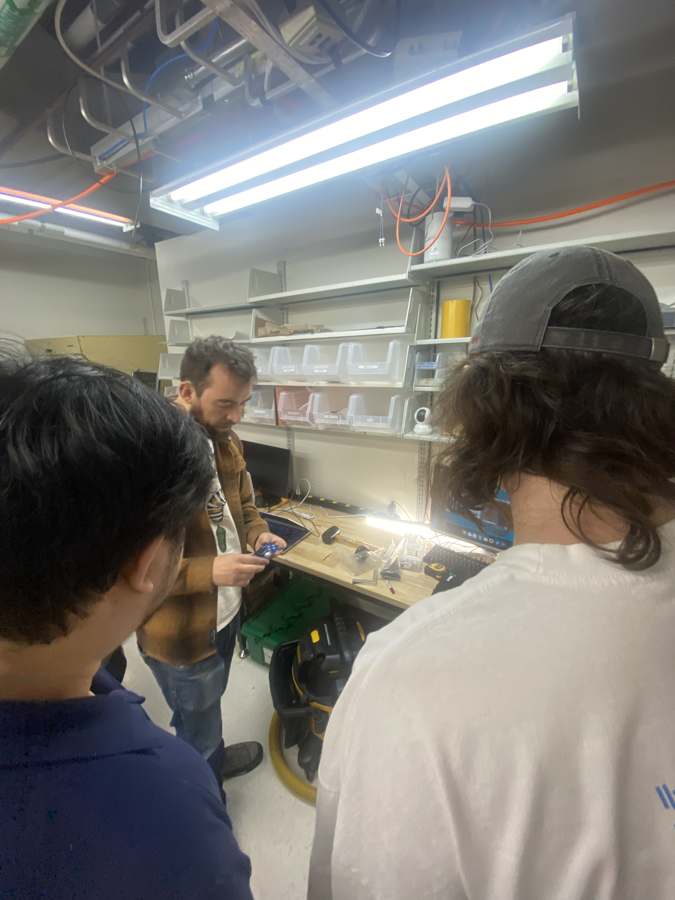
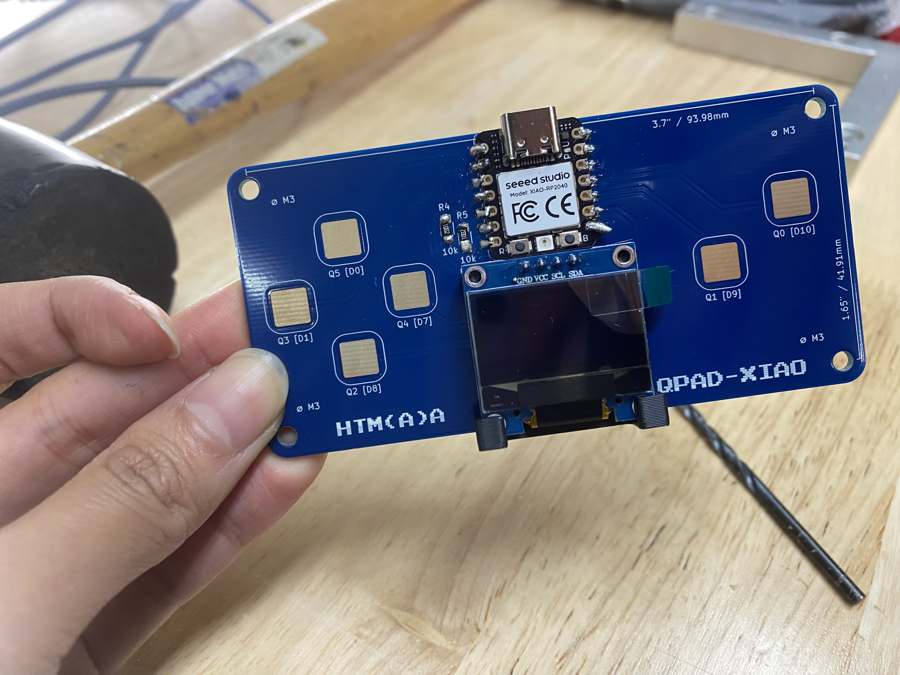
To learn soldering, we used the QPad, a teaching board that our TA Quentin designed. In the training he showed us how to assemble it: a microcontroller (the Seeed XIAO RP2040 module), an OLED display and six capacitive touch pads.
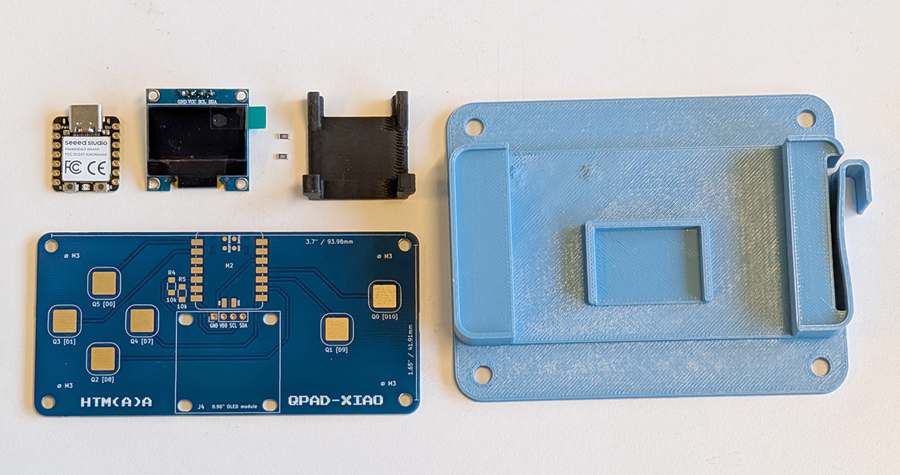
The README of the QPad repository lists what the board needs.
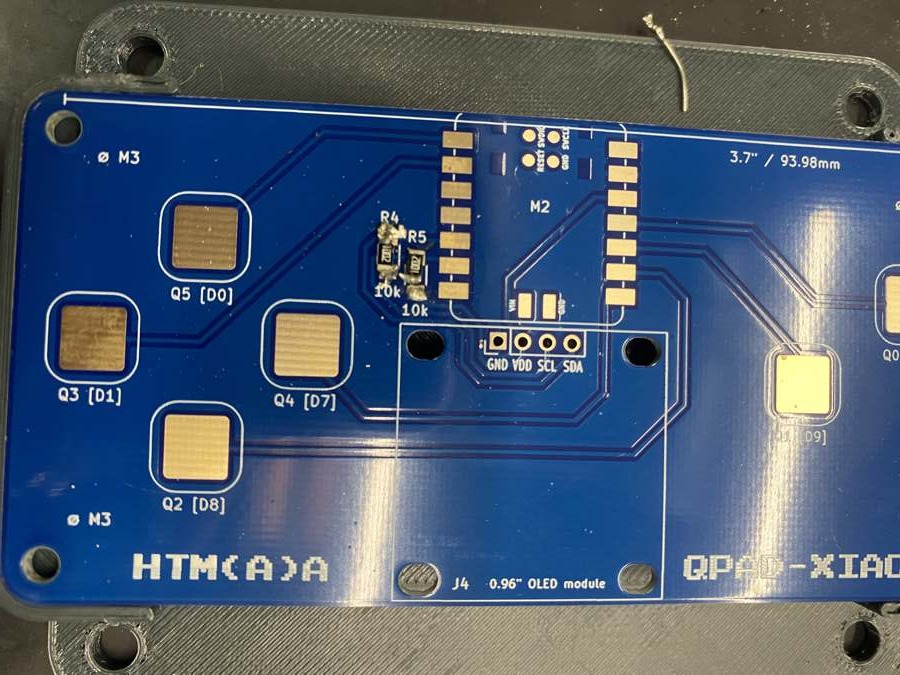
To assemble this board, you need: OLED module, xiao rp2040, resistors: 2x 10k, or anything in the 2-10k range, circuit board, 3D printed support (optional), 3D printed jig (optional).
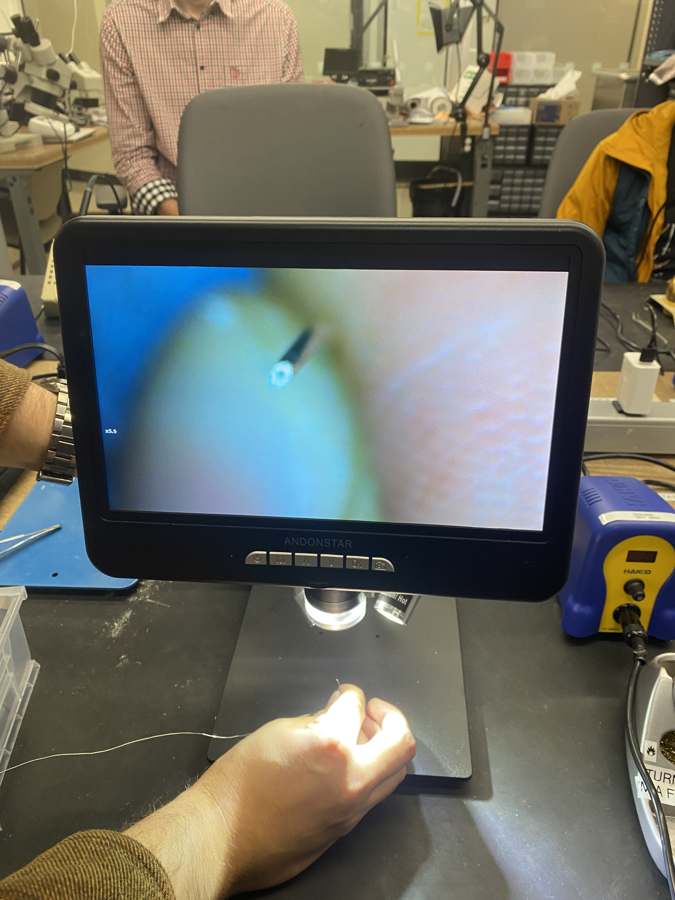
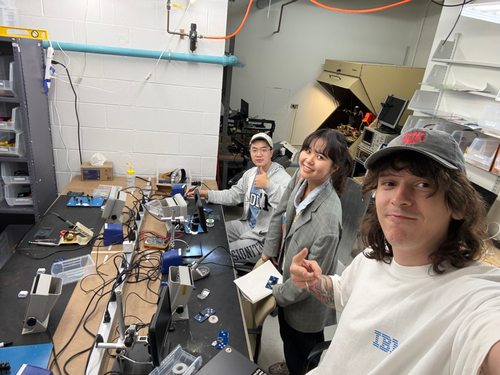
The iron was set to 350°C, and we took turns trying it at the bench. Under the microscope I could see that the solder wire is hollow, with flux inside the core, and I could watch Quentin's joints form up close.
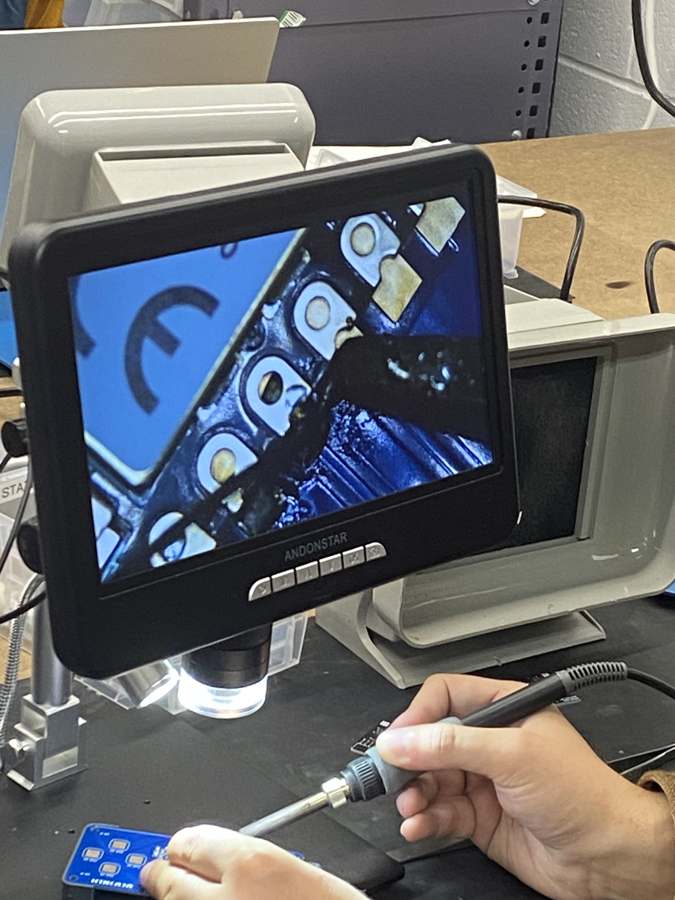
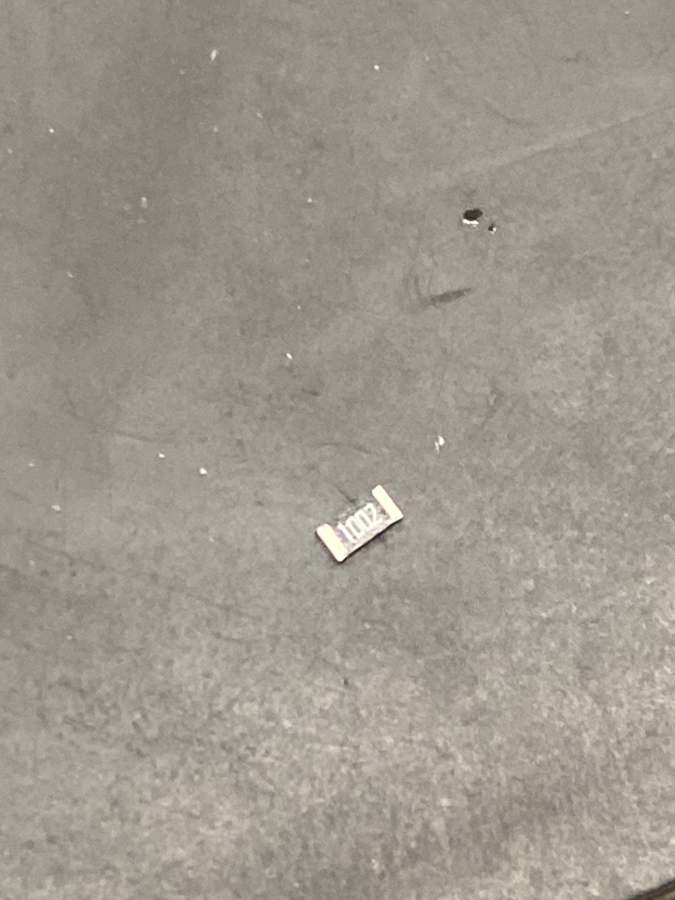
After the training I tried soldering on my own for the first time, following Quentin's soldering guide. I struggled to melt the solder. It went everywhere, and I needed a flux pen to clean up the mess.
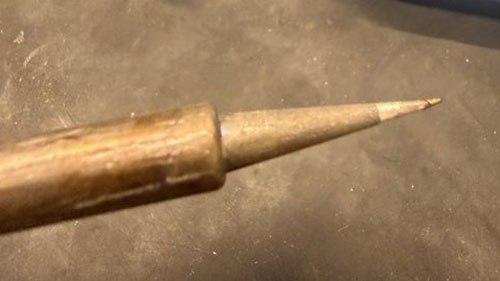
Quentin helped me fix it, and together we figured out that the thin conical tip I had started with made the solder much harder to melt. I switched to a larger tip and it worked much better.
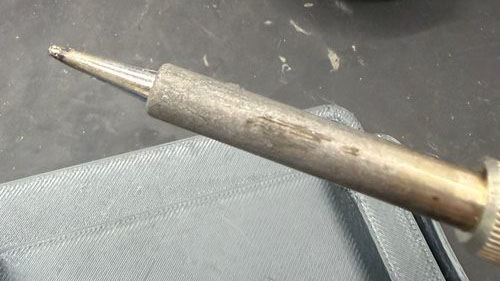
Then I followed the rest of the assembly guide and finished the board. It is not beautiful, but hopefully I will improve as the course goes on.
Reading the datasheet
I read the RP2040 datasheet to understand which GPIO pins can be I2C SDA and SCL, what voltage counts as HIGH, the value of the internal pull-up used by the touch pads, the bits and pins of the ADC, and how much current one pin can supply. It's over 600 pages so I only read the relevant parts.
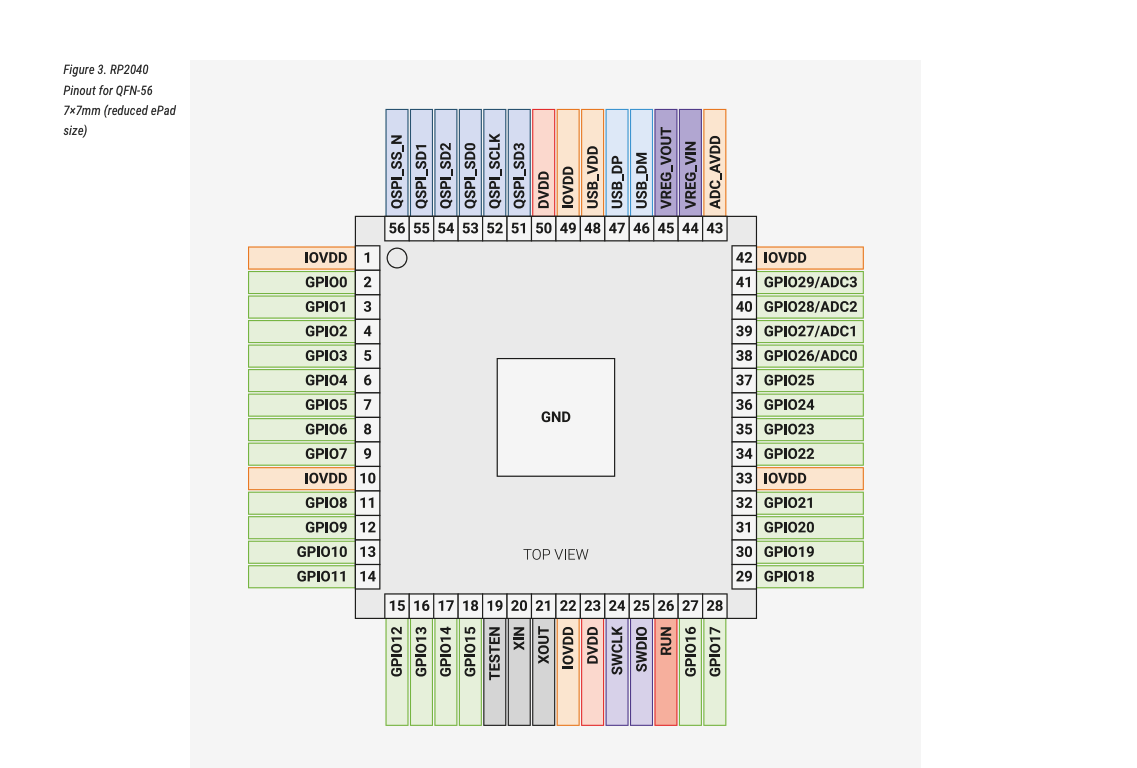
The pin locations (section 1.4.1) show the 56 legs of the chip.
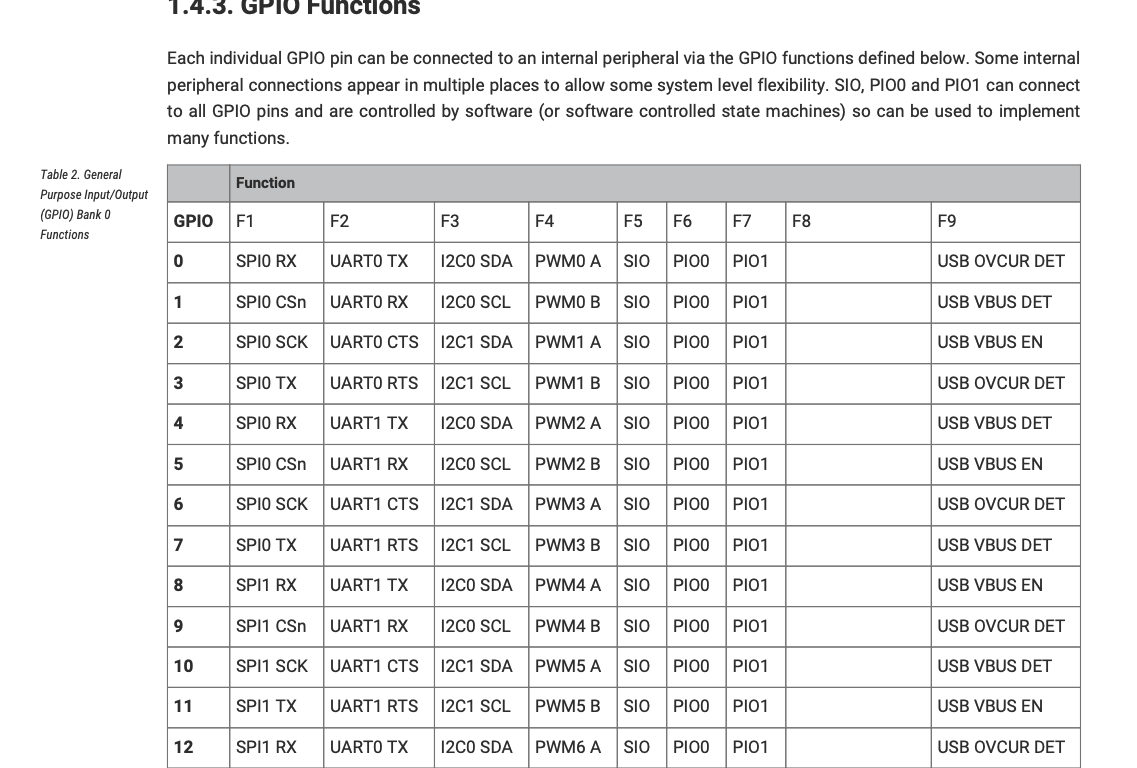
The GPIO function table (section 1.4.3) lists what each pin can become, F1 to F9. GPIO6 and GPIO7 can be I2C1 SDA and SCL, which is why the OLED is wired to D4 and D5. The touch pads only need plain HIGH and LOW (SIO), so they can go on any pin.
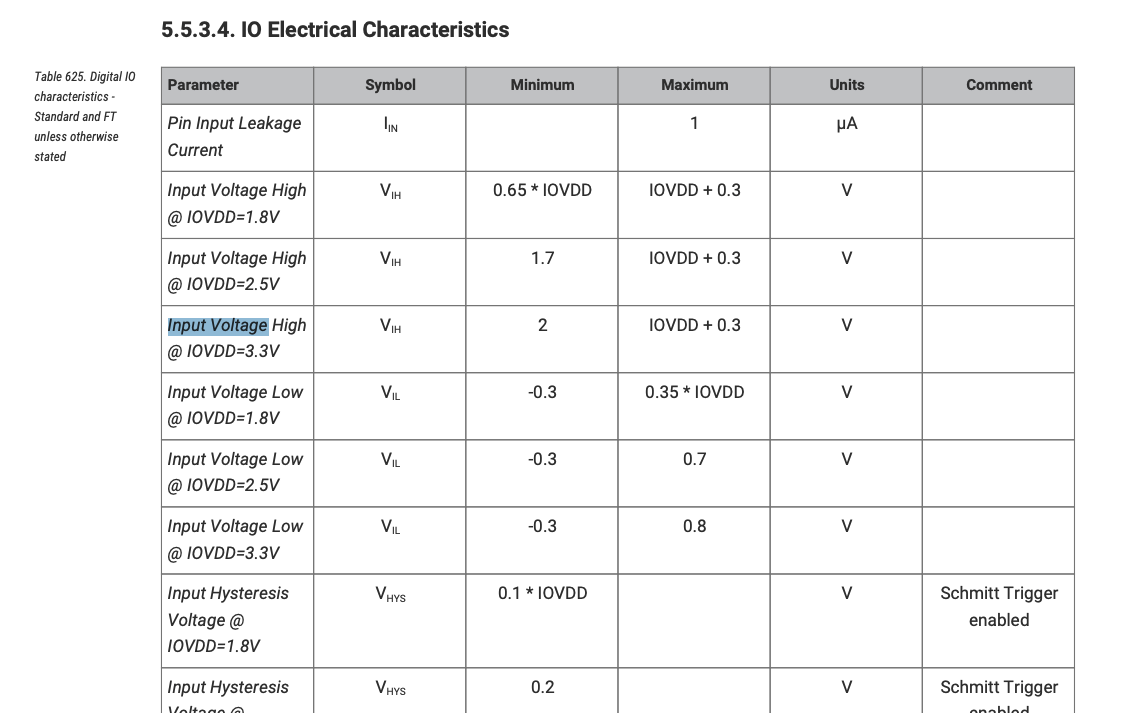
According to the IO electrical characteristics (section 5.5.3.4), any input above 2V is read as HIGH and anything below 0.8V as LOW. The input leakage current is at most 1 µA, which is why an input pin barely draws current and a pull-up resistor holds it at 3.3V.
Programming in the Arduino IDE
Next I tested Quentin's example code. Following the Boards Manager instructions, I added the package URL in the IDE settings and installed the Arduino-Pico core, then selected Seeed XIAO RP2040 as the board. Getting my laptop to see the board took a few steps. I held the BOOT button while plugging it in, the red and blue lights came on, the IDE showed an unknown UF2 board, and after pressing the R (reset) button the correct port appeared.
I went through Quentin's four sketches one by one: blink_RP2040, test_display_RP2040, test_serial_RP2040 and test_touch_RP2040.
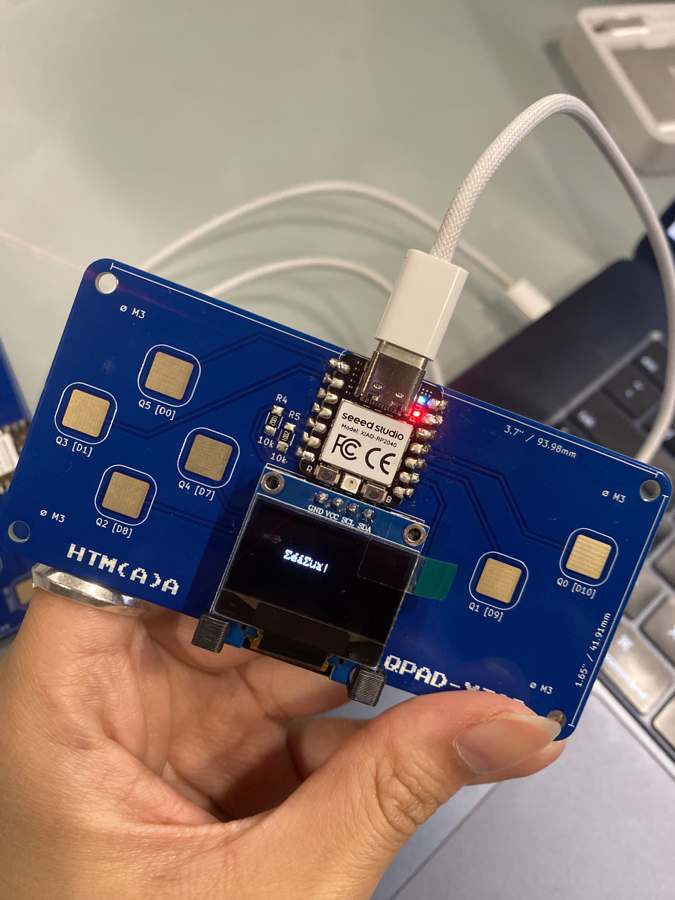
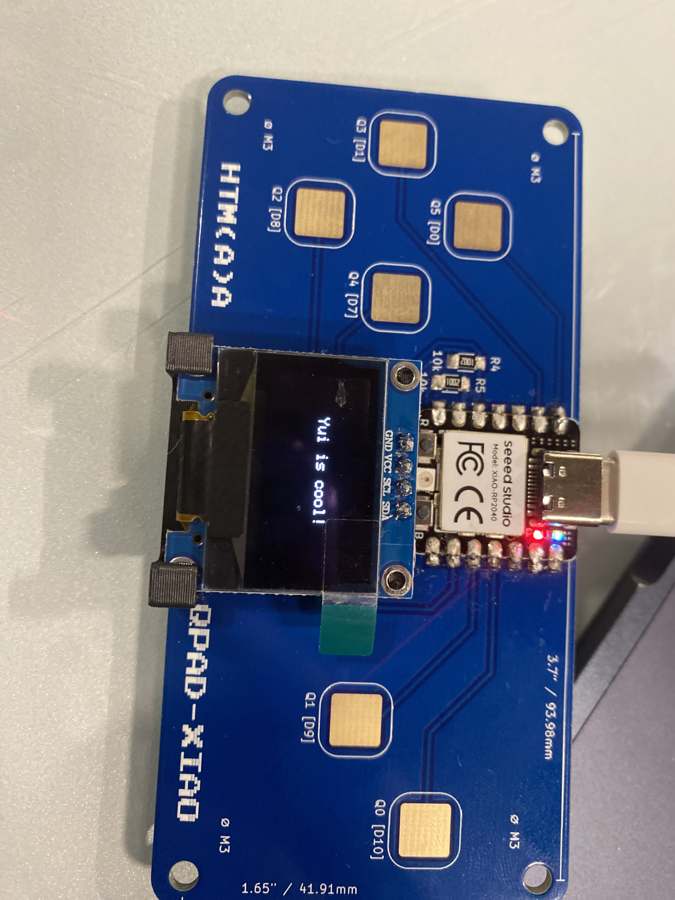
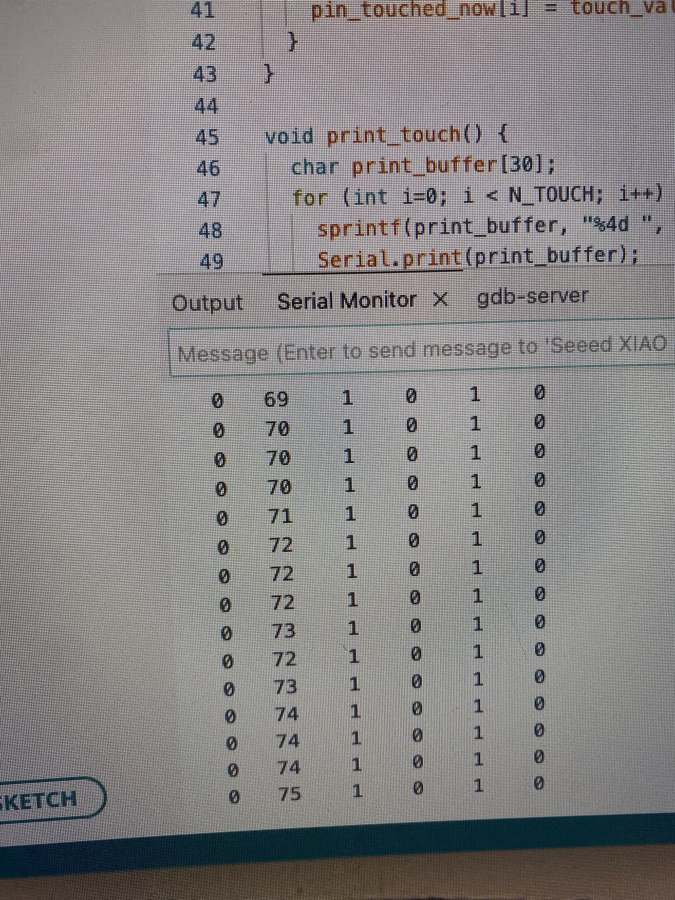
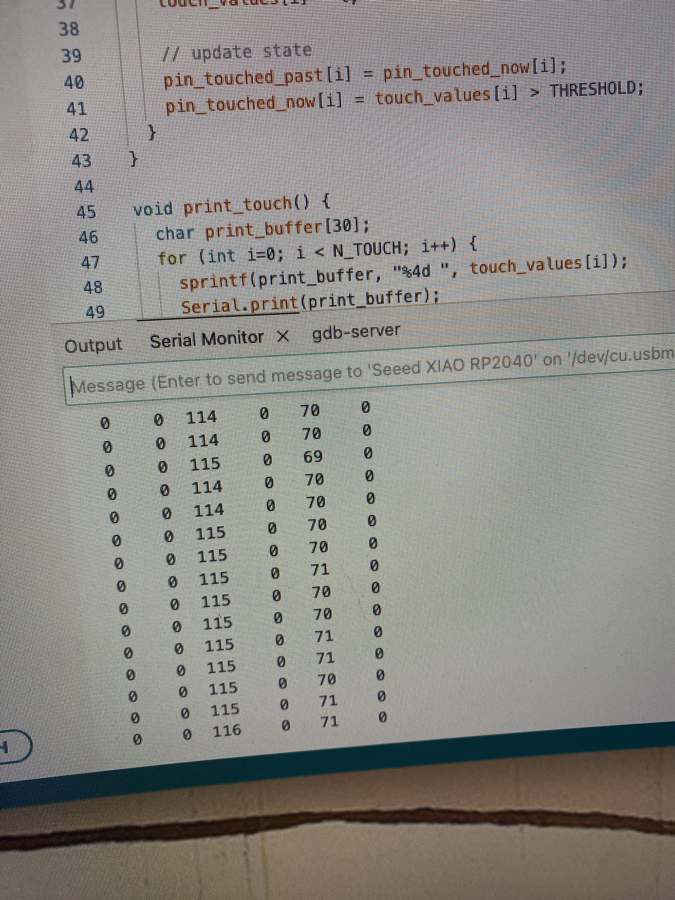
The touch sketch prints one number per pad to the Serial Monitor. The number is how many times the loop runs before the pad charges up to HIGH, so it grows when a finger adds capacitance. The sketch counts a pad as touched when the number goes above 6. I tried it with my fingers and through a water bottle.
Writing and Testing the "Kigo Pad"
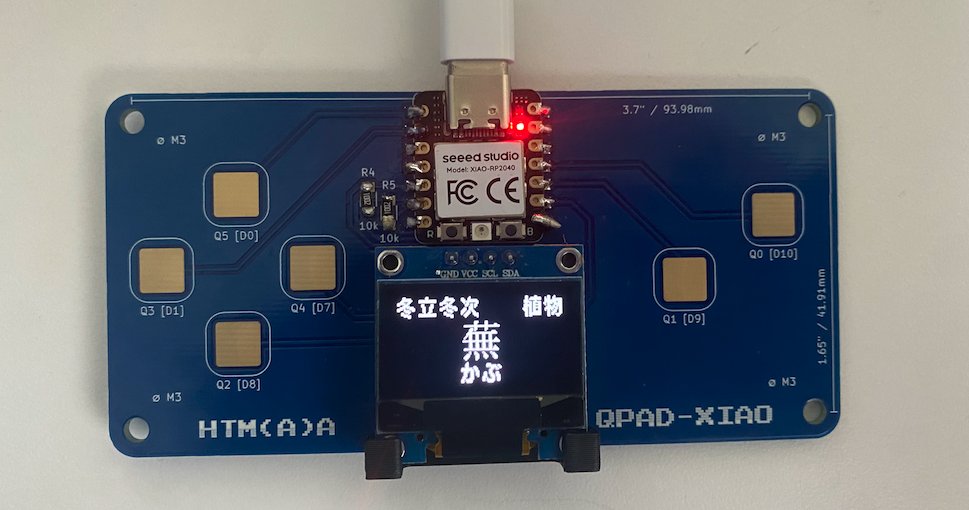
I wanted to use QPad for walking a saijiki, the seasonal word dictionary haiku poets use. The map is a grid of the 72 micro-seasons (七十二候) by the 7 traditional categories of season words, 504 cells in all. The OLED is a small window onto one cell of that map.
Concept: a spatial understanding of words
One of my favorite things to do at a book cafe was to collect interesting books, then return them at the end of the day without looking up where they belonged. I had to explore the shelves myself to learn where each book lived, and each piece of knowledge became tied to a place. But on the internet we get lost. Everything is zoomed in, and we have very little sense of where one word sits in relation to others. Keisuke Matsuoka describes the shift from exploring to searching in his book "The Sociology of Google Maps":
Rather than stepping outside their own bodies to grasp the whole in relative terms, people may have become absorbed in looking only at their current location and its surroundings, always with their own body as the reference point.
I thought the QPad could be an interesting device for exploring a map of words.
So on the QPad, the pads are the controller for moving around the space. The OLED shows the word and where I am on the map. Four of the six pads are arrow keys. Left and right walk through time, one micro-season at a time from 立春 (start of spring) to 大寒 (greatest cold). Up and down change the angle, from weather to landscape, daily life, festivals, animals and plants. The other two pads zoom in and out.
Web prototype
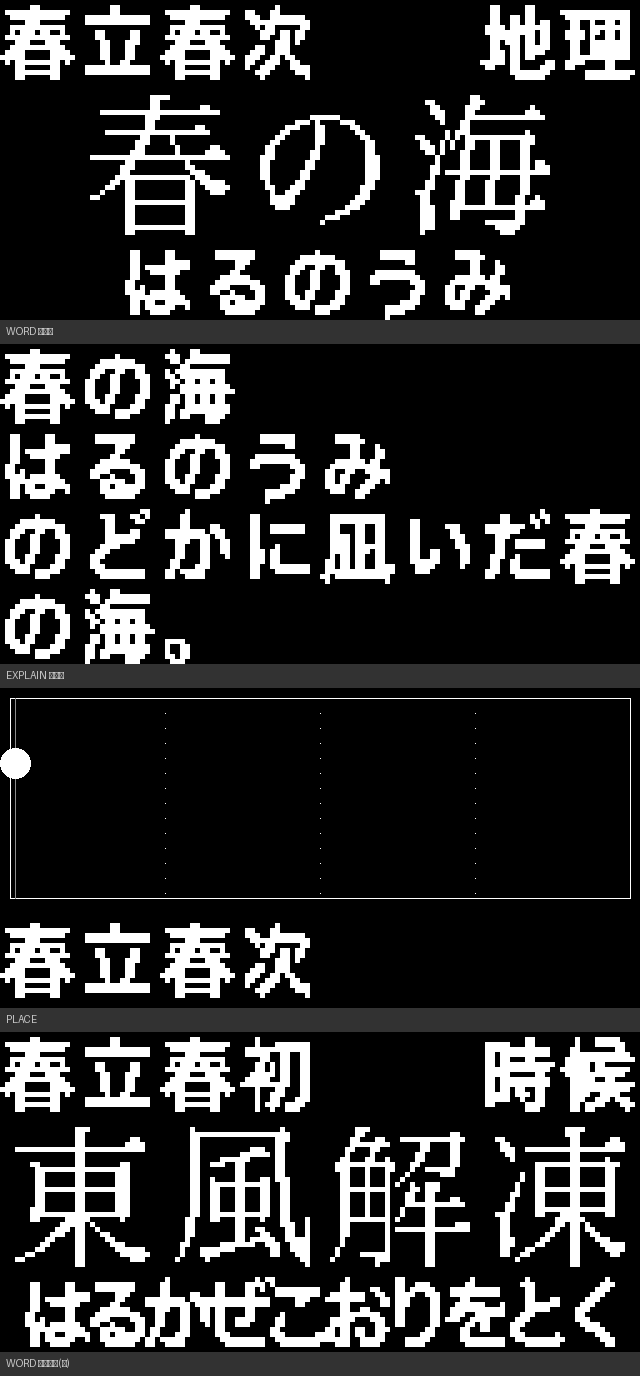
Before touching the hardware I made a browser prototype with Claude that simulates the QPad and its OLED. It runs in any browser: open the prototype. The arrow keys walk, i zooms in, o zooms out. The device has three zoom levels:
- The middle one shows a single word, large.
- Zooming in shows its meaning and reading.
- Zooming out shows the place: a dot for where I am on the whole 72 × 7 map.
All the source is in files/week03/kigo-pad.
Rendering Japanese on the OLED
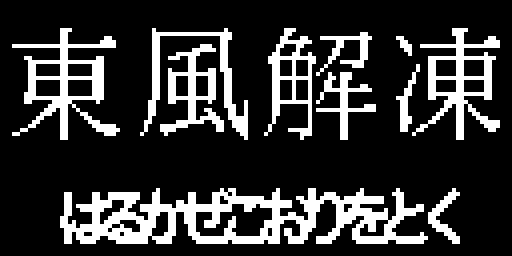
The first hardware problem was making kanji readable on a 128 × 64 OLED. The Adafruit GFX font has no kanji, so I made a Python script (make_font.py) with Claude Opus 4.8 to render only the characters the almanac actually uses into bitmaps: 209 kanji at 32 px in a Mincho typeface, and 104 kana at 16 px in a bold Gothic, because thin Mincho strokes disappear at small sizes. Together they take about 29 KB, which is small next to the 2 MB of flash on the XIAO. The test sketch kigo_min.ino decodes each UTF-8 string, looks up each glyph and draws it pixel by pixel, stepping through all 72 micro-seasons every 2.5 seconds.
Finding and drawing a character
The OLED does not know what 春 is, so the firmware has to look up a picture of it. Every character goes through three steps in kigo_pad.ino.
- Decode. In the source,
"春"is stored as three bytes,E6 98 A5(UTF-8).utf8Next()removes the marker bits from each byte and joins what is left into one number, 0x6625, which is 26149 in decimal. - Find. The font header holds the bitmaps and, next to them, a list of the character numbers in the same order, sorted from small to large.
glyphIndex()runs a binary search on that list: look at the middle, go left or right, repeat. In my font, the 32 px list has 536 characters, and 春 is number 172. The search finds it in 8 steps instead of checking up to 536 entries one by one. It returns -1 if the character is not in the font. - Draw. The bitmap at position 172 is 32 rows of 4 bytes each.
blit()reads every bit from left to right, and puts a white pixel on the screen wherever the bit is 1.
// simplified from the firmware
int gi = glyphIndex(GLYPH32_CP, N_GLYPH32, 26149);   // 春 → 172
blit(GLYPH32, 32, gi, x, y);                         // draw that bitmap at (x, y)
Touch Pad Scripts
With the fonts working, I wanted to move through the map with the six pads. From Quentin's test_touch example, I learned measuring capacitance by timing can be used as buttons. It drives the pad LOW to empty it, switch it to an input with a pull-up, and count how many loops pass before it charges back to HIGH. A finger adds capacitance, so a touched pad charges more slowly and the count climbs; anything past a small threshold counts as a touch.
// count how long a pad takes to charge back to HIGH — a finger makes it slower
int readTouch(int pin){
  pinMode(pin, OUTPUT); digitalWriteFast(pin, LOW);  // drain the pad
  delayMicroseconds(25);
  pinMode(pin, INPUT_PULLUP);                         // let it charge
  int t = 0; while (!digitalReadFast(pin) && t < TOUCH_TMAX) t++;
  return t;                                           // touched → larger count
}
Before mapping pads to directions I had to learn which physical pad was wired to which GPIO. I touched each one and noted which pin value rose, then drew the board as I hold it, with the OLED at the top:
┌──────────────────┬──────┬──────────────────────────────────────┐
│ pad on the board │ GPIO │                 role                 │
├──────────────────┼──────┼──────────────────────────────────────┤
│ top-left         │ 26   │ ↑ up (change category)               │
├──────────────────┼──────┼──────────────────────────────────────┤
│ bottom-left      │ 2    │ ↓ down                               │
├──────────────────┼──────┼──────────────────────────────────────┤
│ left             │ 27   │ ← left (walk back in time)           │
├──────────────────┼──────┼──────────────────────────────────────┤
│ right            │ 1    │ → right (walk forward)               │
├──────────────────┼──────┼──────────────────────────────────────┤
│ right pair       │ 4    │ q0 — tap to zoom in, hold to collect │
├──────────────────┼──────┼──────────────────────────────────────┤
│ right pair       │ 3    │ q5 — zoom out                        │
└──────────────────┴──────┴──────────────────────────────────────┘
//                    LEFT RIGHT UP DOWN q0 q5
int PAD_PIN[N_PAD] = {  27,   1, 26,  2,  4, 3 };
...
for (int i = 0; i < N_PAD; i++) {
  int v = readTouch(PAD_PIN[i]);
  touchPast[i] = touchNow[i];
  touchNow[i]  = (v > TOUCH_THRESHOLD);
  if (touchNow[i] && !touchPast[i]) { pressStart[i] = now; onPress(i); } // just pressed
  else if (!touchNow[i] && touchPast[i]) onRelease(i);                   // just released
}
// q0 held past 0.4 s → collect this word
if (touchNow[P_ZIN] && !q0Saved && now - pressStart[P_ZIN] >= HOLD_MS) { q0Saved = true; doSave(); }
The full firmware is kigo_pad.ino.
Use of AI
I used Claude Opus 4.8. to build the two study pages and quizzes I learned from, and to answer my questions whenever a word did not make sense. The soldering, the testing and the drawings are my own. For the map for poets, I made the browser prototype, the font generation script and the firmware with Claude, starting from my own idea.