Assignment
Make and test a microcontroller development board that I designed.
What I made
This week I designed, milled, stuffed and tested a Raspberry Pi Pico W board that drives a 64×64 HUB75 RGB LED matrix. The goal is to display the album art of the song playing on Spotify. This week I worked through connecting Pico W → 74HCT245 level shifters → HUB75 connector → LED matrix.
What works now:
- The Pico W runs CircuitPython and drives the matrix through my board.
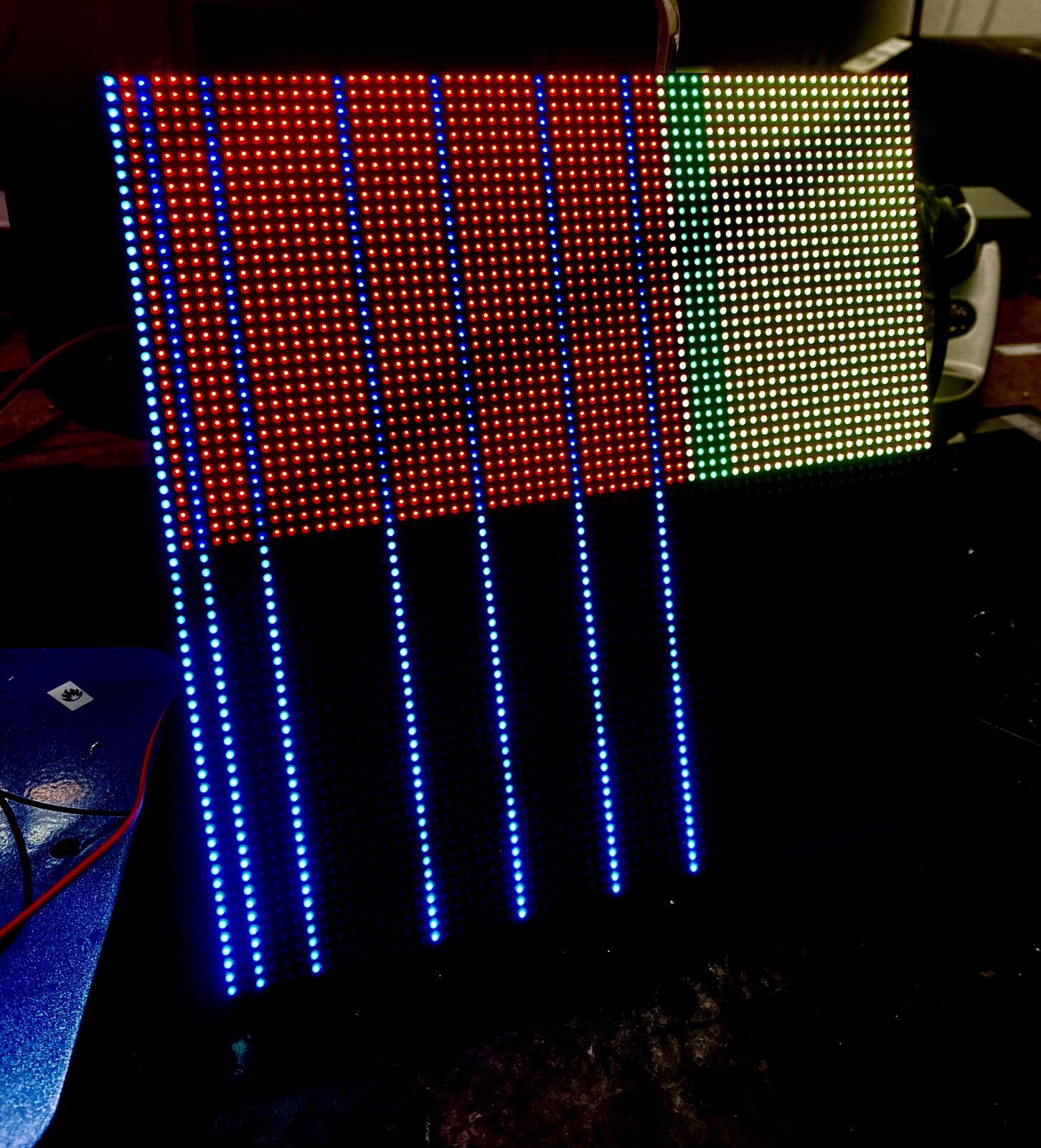
- Full columns and the top half of the panel light up with the test patterns.
- 5 V power reaches the board and the matrix from one 5 V 4 A adapter.
What still needs work:
- The bottom half and some colors (B1, R2, G2) are missing. My measurements point to solder joints on U1 pins 13–15.
- The display changes when I touch the board, so some joints and connectors are not stable yet.
Process
First design
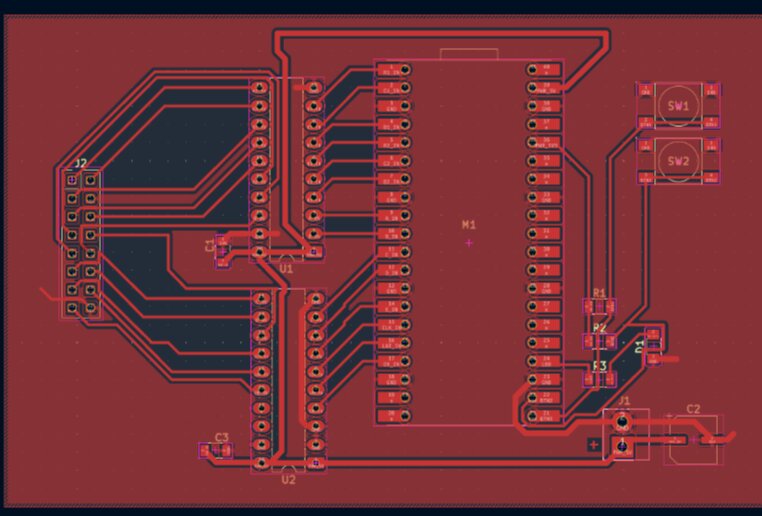
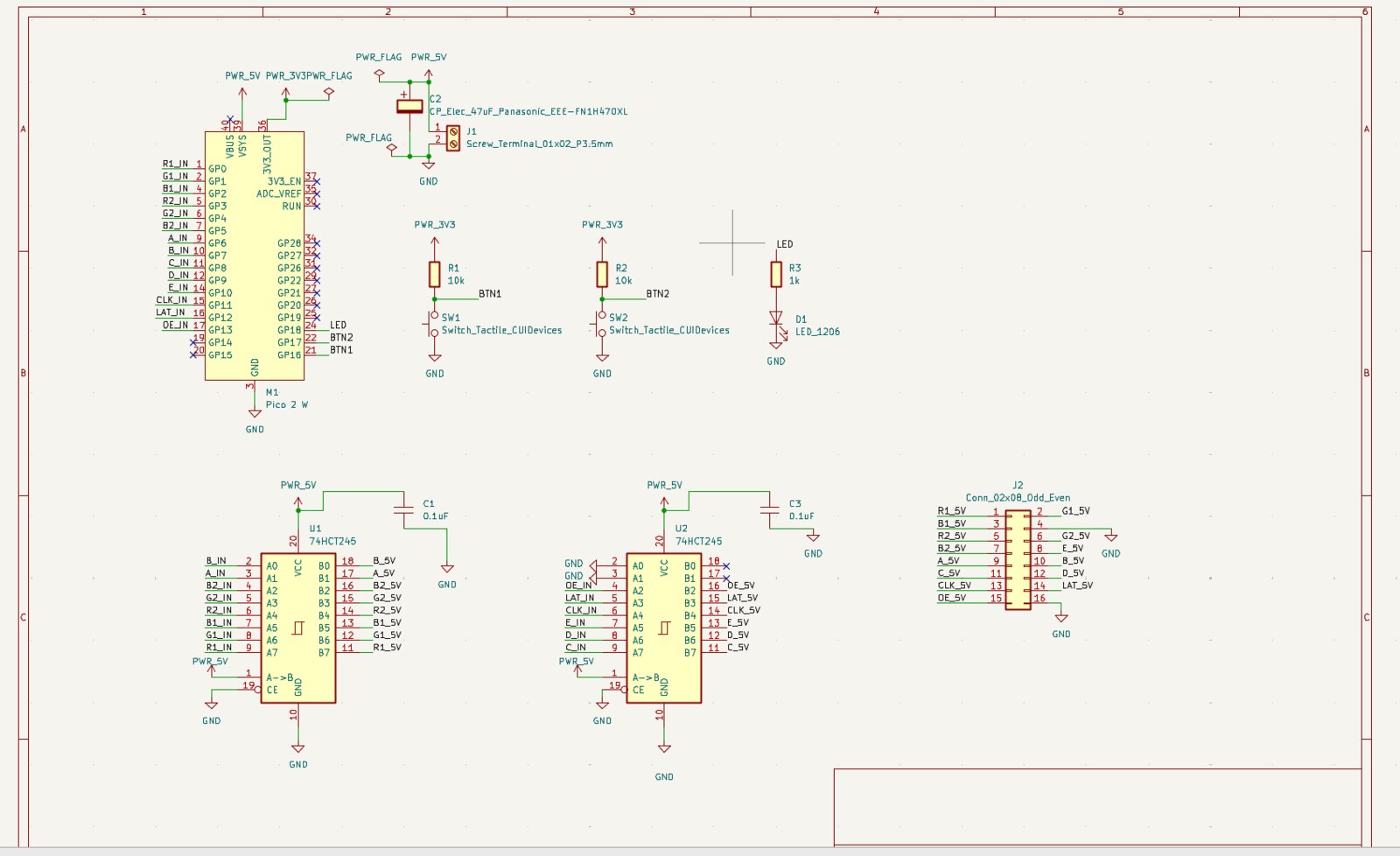
First I had this design. The board connects a Pico W to a HUB75 LED matrix through two 74HCT245 level shifters. The Pico's pins output 3.3 V, while HUB75 panels are designed for 5 V logic, so the 245s re-drive each signal at 5 V.
| Ref | Part | Role |
|---|---|---|
| M1 | Raspberry Pi Pico W (RP2040) | Microcontroller with Wi-Fi (needed later for Spotify) |
| U1, U2 | 74HCT245 (DIP-20) | 3.3 V → 5 V level shifters for the 14 HUB75 signals |
| J2 | 2×8 pin header | HUB75 connector to the matrix |
| J1 | 2-pin screw terminal | 5 V power input |
| C1, C3 | 1 µF (0.1 µF was out of stock) | Decoupling next to each 245 |
| C2 | 10 µF ceramic | Bulk capacitor on the 5 V input |
| SW1, SW2 | 6 mm tactile switches | Buttons (using the Pico's internal pull-ups) |
Pin assignment (GPIO → signal):
- GP0–GP5 → R1, G1, B1, R2, G2, B2 (color data)
- GP6–GP10 → A, B, C, D, E (row address; the 64×64 panel needs the E line)
- GP11 → CLK, GP12 → LAT, GP13 → OE
- GP16, GP17 → SW1, SW2
Carvera training
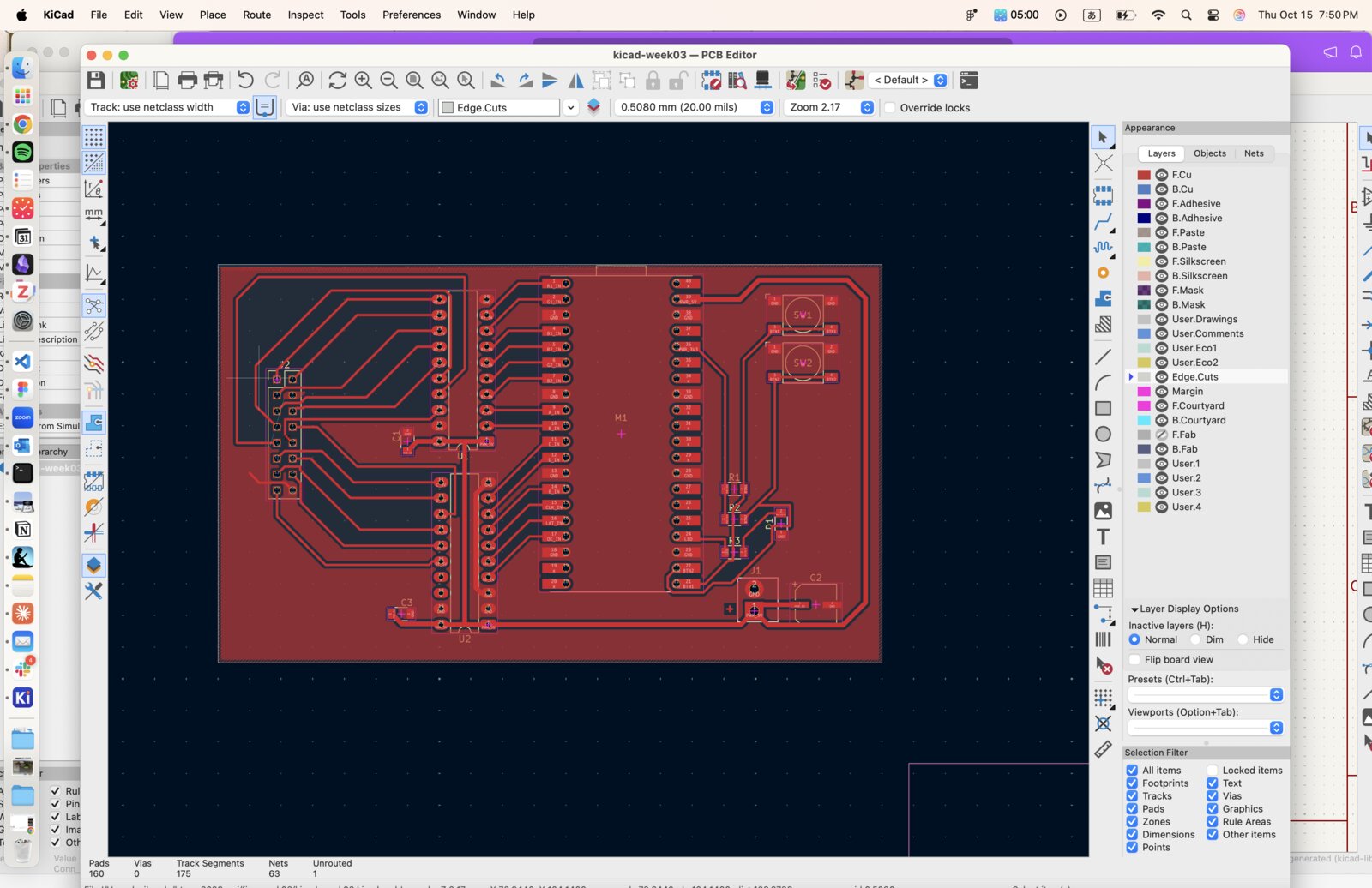
We had a group training on the Carvera. When I prepared my file, I realized some traces were too close together for the end mill, so I reorganized the layout with help from Daniel. I milled the board four times in the end.
Design rules I used:
- Signal traces 0.44 mm, power traces 0.8 mm
- GND as a copper pour (zone)
- Clearance wide enough for a 1/64" (about 0.4 mm) end mill
1st print
I first tried milling with Daniel and Xiangtao, following Quentin's Carvera PCB tutorial.
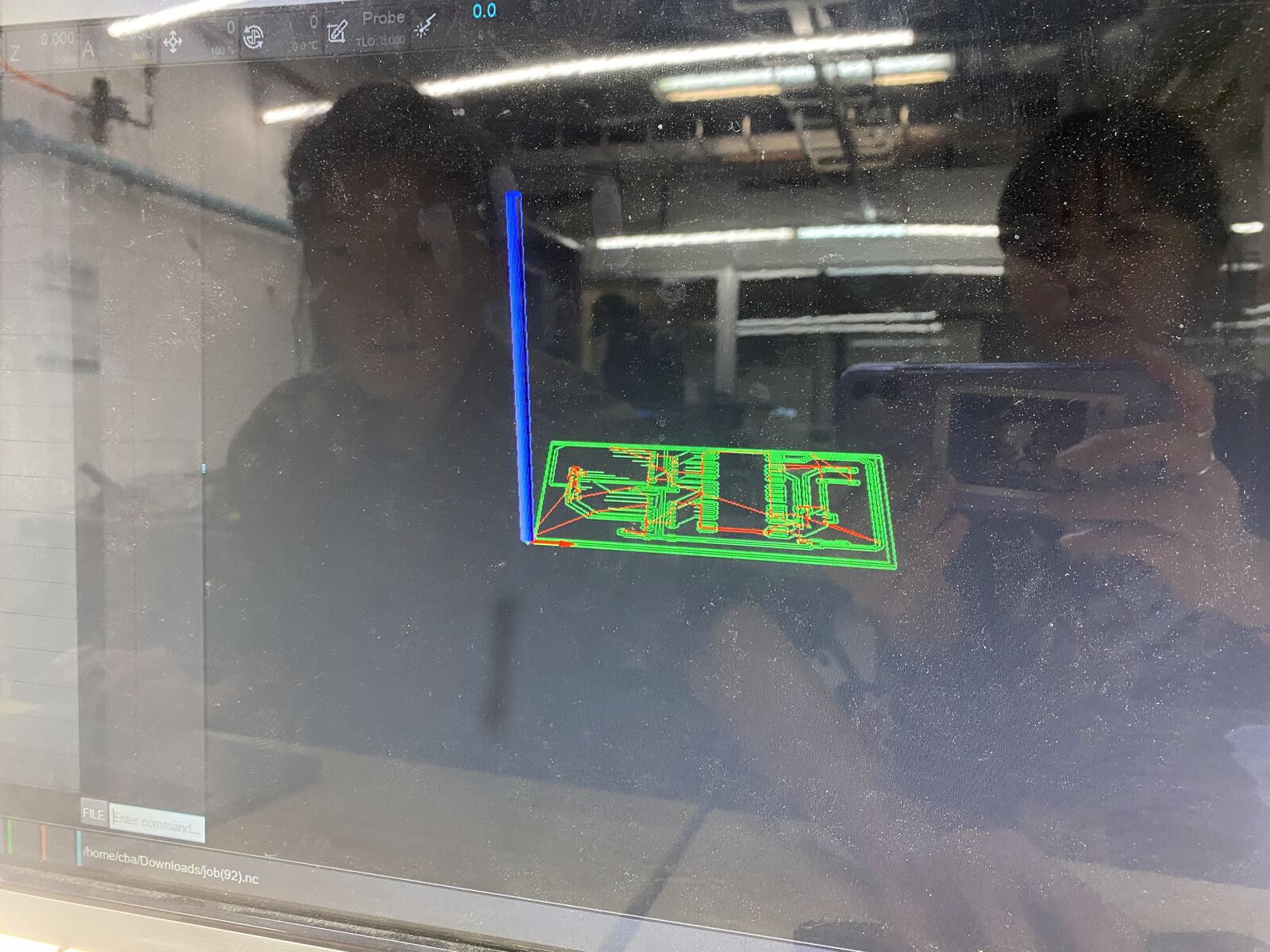
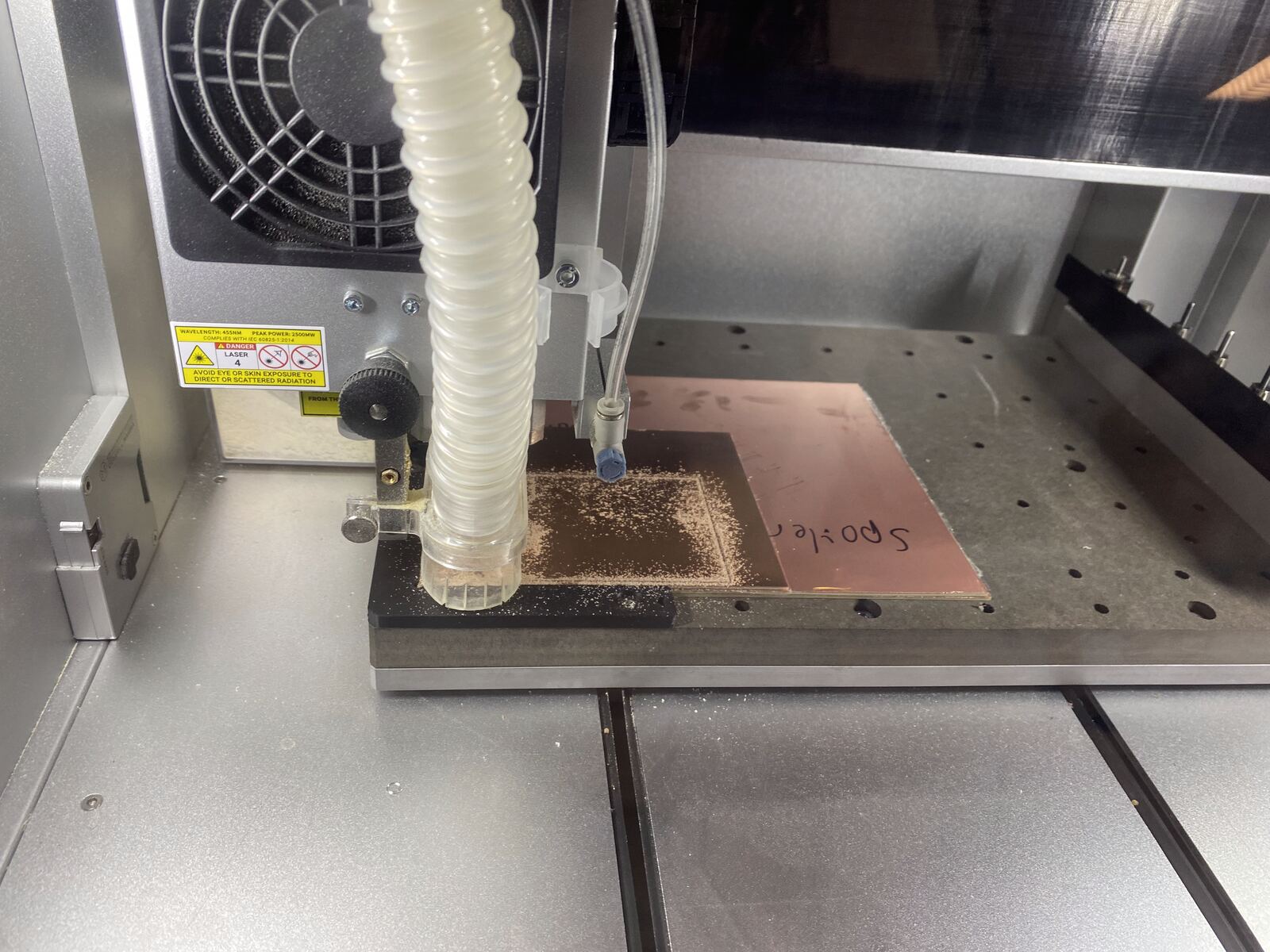
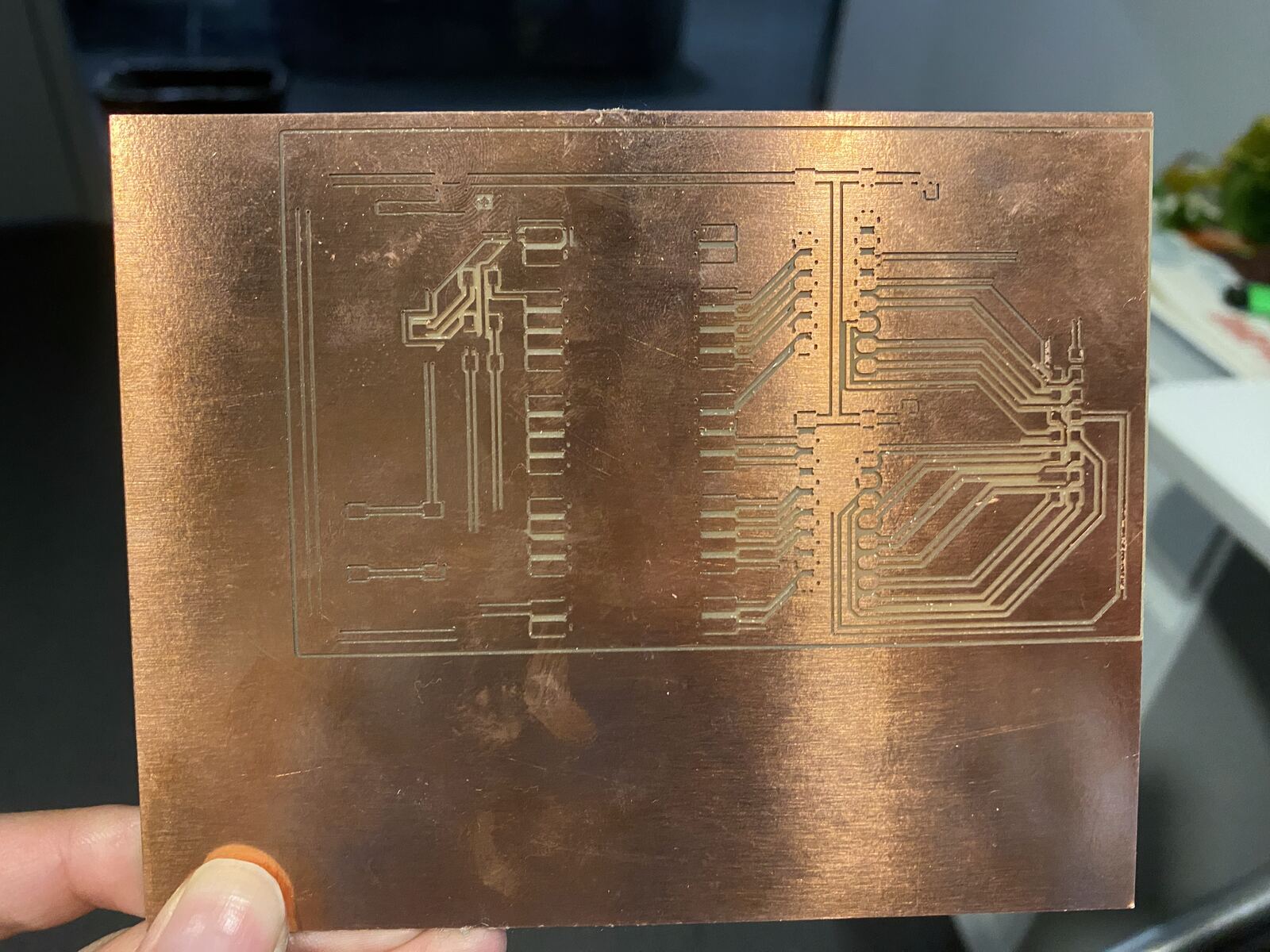
The outline was not cut, because I opened the machine before the job had finished. More importantly, many isolation cuts stopped partway, so copper was left connecting pads to the GND pour.
The G-code itself was fine. The machine cut exactly what the file said. The problem was in what mods generated. I asked Quentin, and he explained that the GND zone clearance was too small.
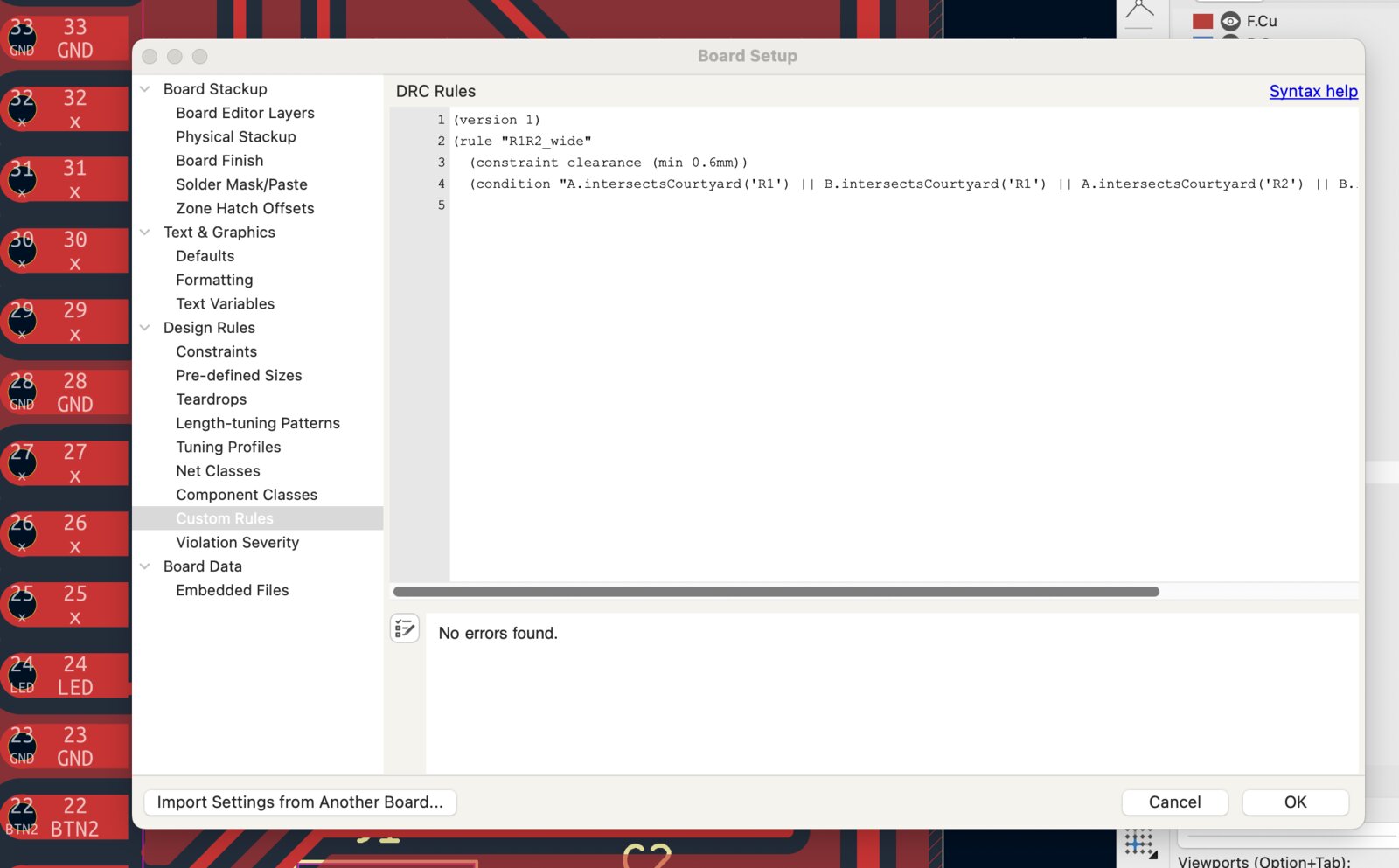
Why it happened: my GND zone clearance was 0.4 mm, about the same as the 1/64" end mill. mods only cuts a gap where the whole tool fits, so it skipped those gaps, especially between the Pico pads and the GND pour. That would have shorted almost every Pico pin to GND.
Fix: I raised the zone clearance to 0.5 mm. Checking the toolpaths, the number of places where a cut stopped short went from 146 to 4, then to 0 after I also fixed two tight spots (a GND strip between J2 pins 3 and 4, and a GND trace bending close to U2 pin 9).
2nd and 3rd print
With those issues fixed, I milled the board a second time and tried soldering (and wasted two Picos along the way, sorry!). The tip at the soldering station wasn't working well, I had a hard time soldering, and I realized the traces were still close together. This board was more for practicing soldering and understanding how it works, so that was okay. The green marks are where I tried a flux pen.
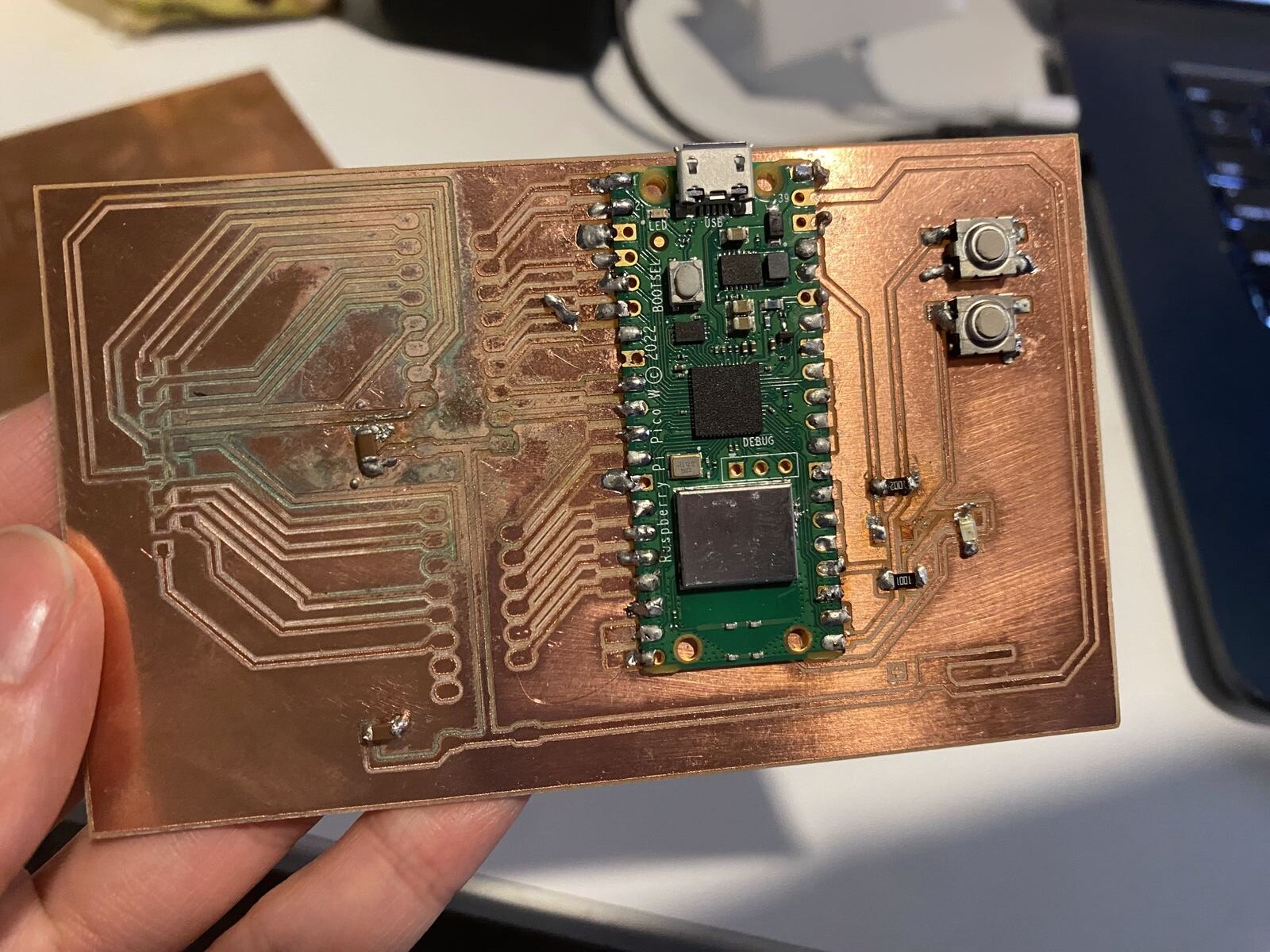
It was very messy, so I milled the same design again and soldered it again.
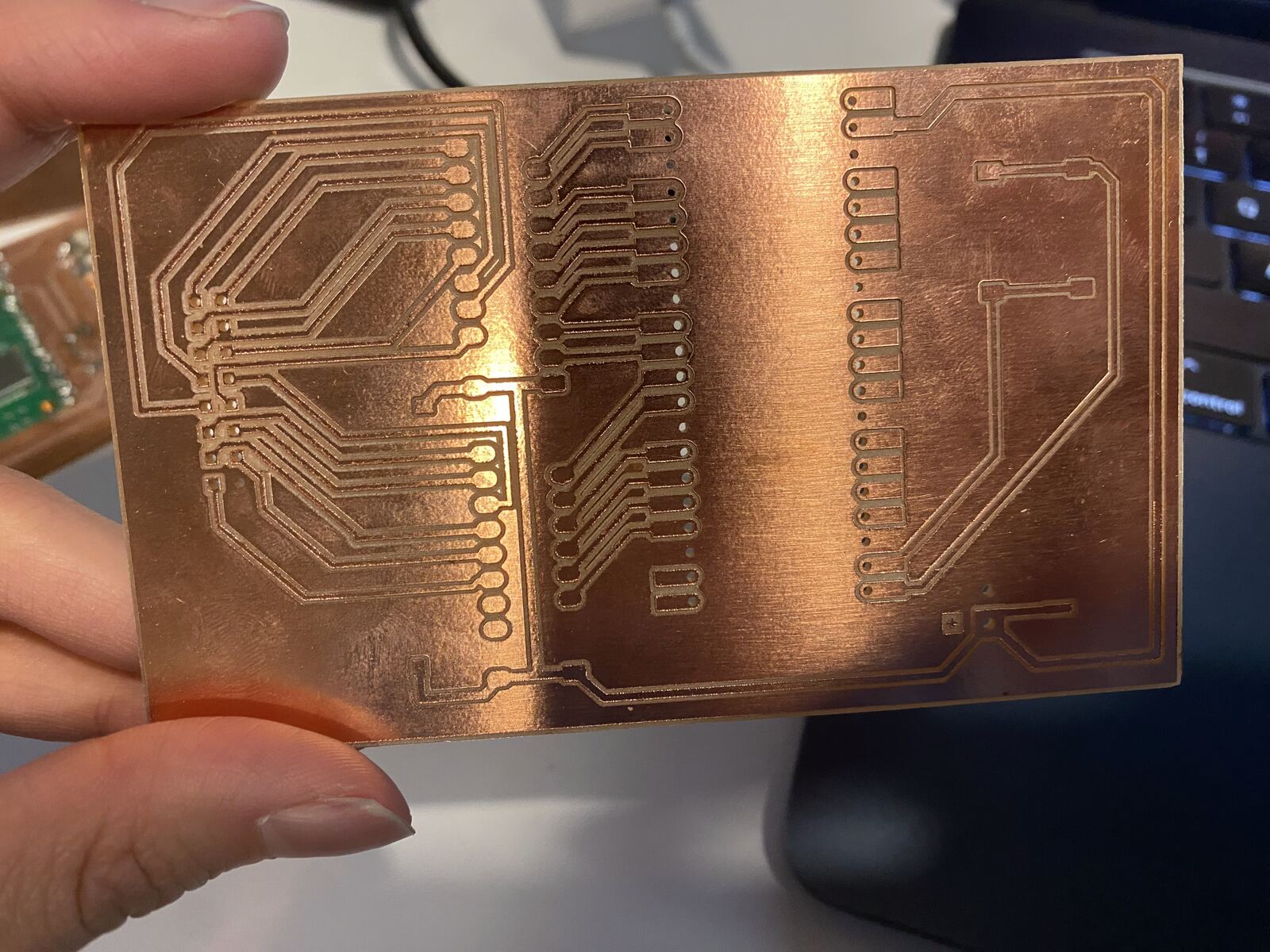
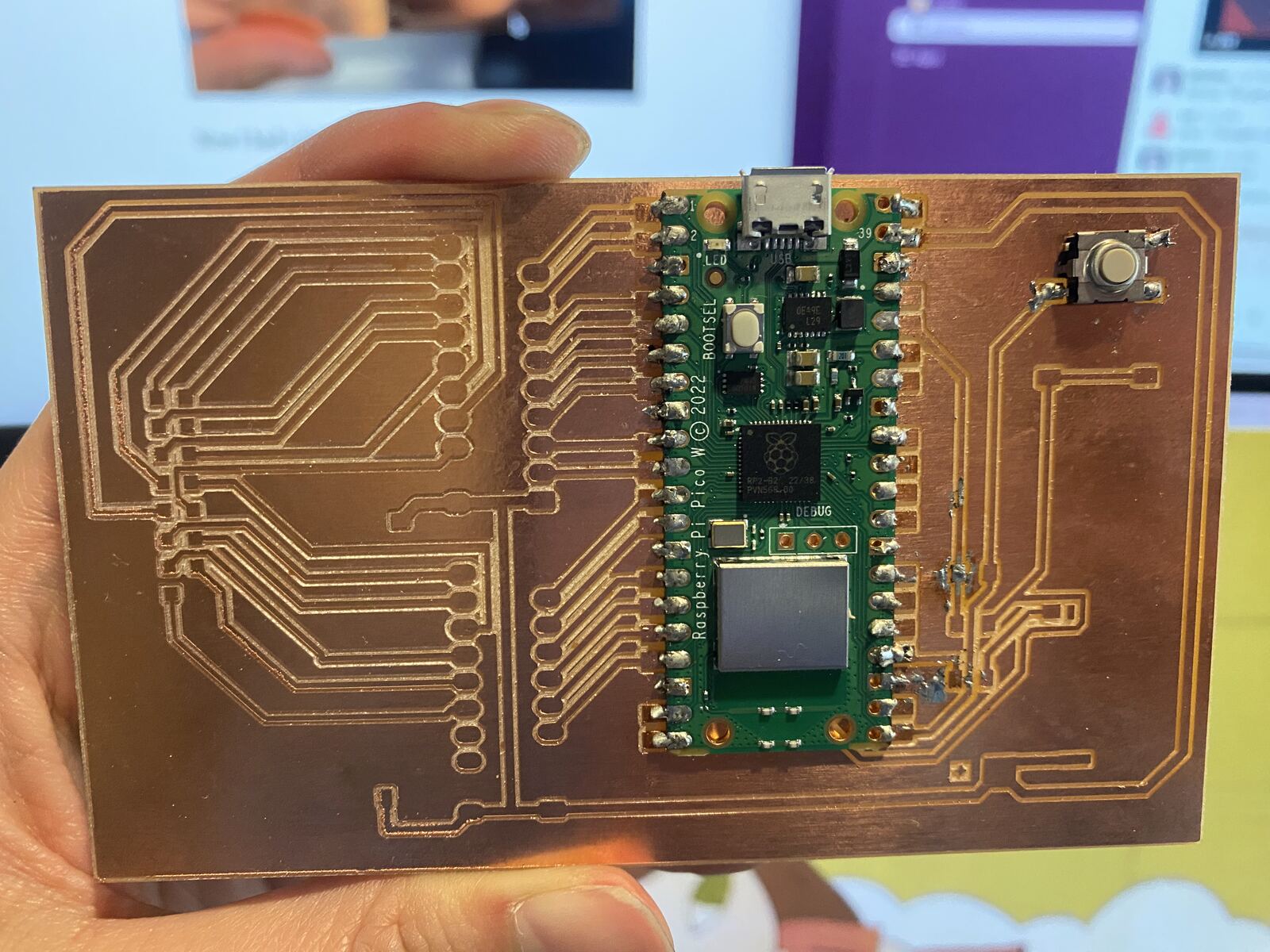
While soldering it, I realized the resistors and the LED weren't necessary: the Pico has internal pull-up resistors for the buttons and its own on-board LED. So I removed R1–R3 and D1 from the design.
During a group meeting, Ivan and Siddharth looked closely at my board and found a place where two traces were connected. I cut them apart with a craft knife.
Adding drill holes
When I started assembling the parts I had ordered, I realized I needed holes to attach them. In KiCad I exported the drill file (File → Fabrication Outputs → Drill Files) and the Gerbers, and loaded the edge cut and drill files together into gerber2img, which renders an image for the drill job. Generating them together keeps the traces, holes and outline aligned.
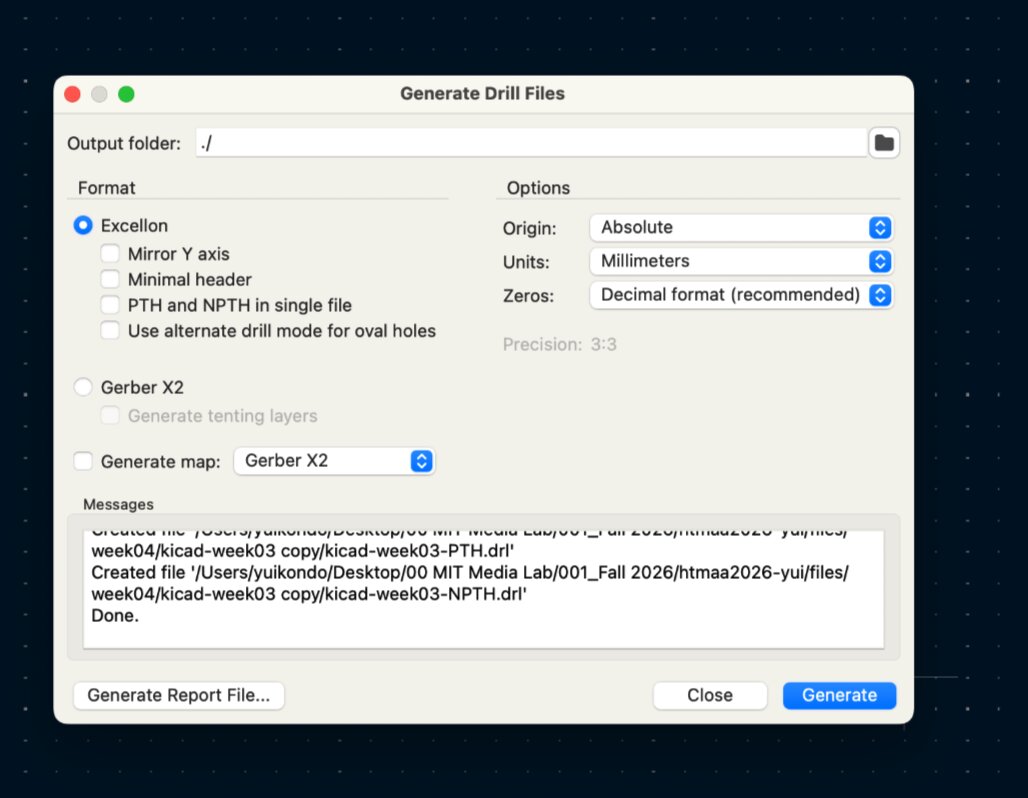
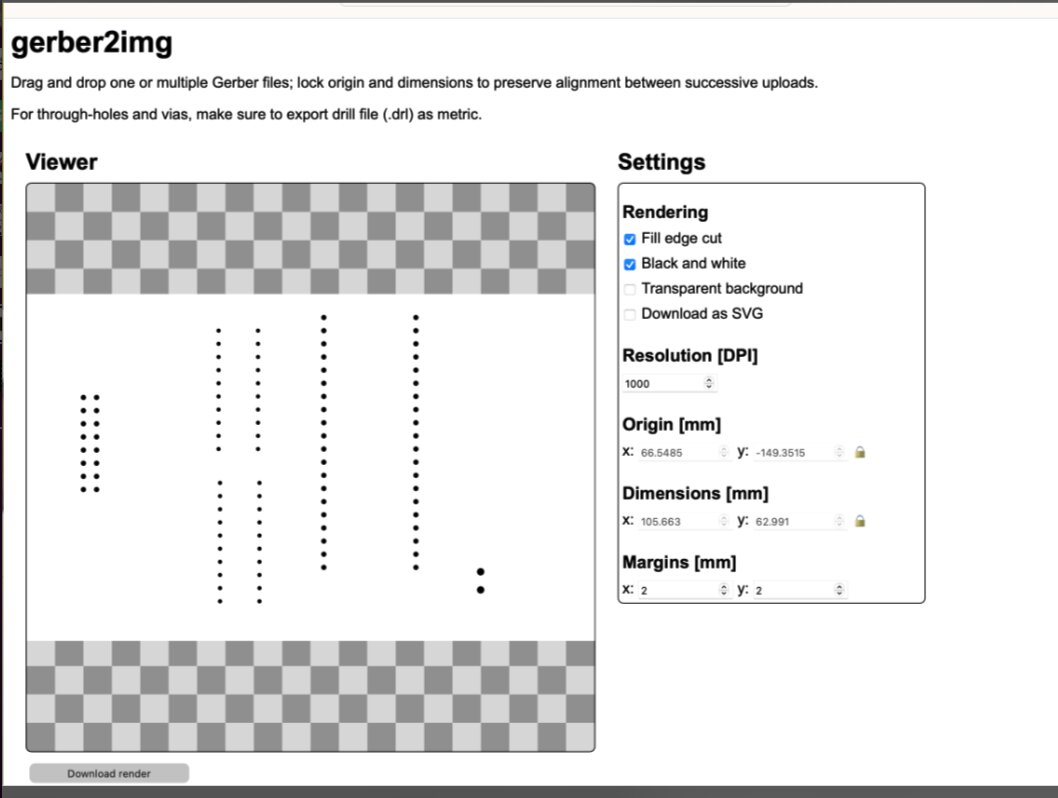
Things I checked before milling the holes:
- All 98 holes were in the file (Pico 40, U1/U2 40, J2 16, J1 2).
- Every hole is larger than the 1/32" (0.79 mm) end mill, or mods skips it. Pico and J2 holes are 1.0 mm (header pins are 0.64 mm square, about 0.9 mm across the diagonal), U1/U2 are 0.9 mm, J1 is 1.4 mm (Quentin clarified this).
- The G-code cut the outline first and the holes after. I reordered it so the holes are cut before the outline, so the board can't shift before drilling.
Office hours with Ben
Then I went to CBA office hours, and Ben suggested changing the through-hole parts to surface-mount versions. On a single-sided milled board, SMD parts need no drilling and no careful alignment of holes, and sockets let me remove the Pico and the 245s without desoldering. He also suggested parts so the power wires connect smoothly.
| Ref | Part | Description |
|---|---|---|
| U1, U2 | TE Connectivity 2445893-3 (×2) | 20-pin SMD DIP socket, 0.3" row spacing, gold flash |
| M1 (Pico) | Samtec SSM-120-L-SV (×2) | SMD socket strip, 0.1" pitch, 1 × 20, gold contacts |
| J2 (HUB75) | Assmann AWHW 16G-SMD | Shrouded 2×8 header, SMD, center slot polarization |
| J1 (power) | Amphenol Anytek TZ022101B000G | 2-position SMD screw terminal, 3.5 mm, 10 A |
| Power jack | Tensility 10-03609 | Panel-mount 2.1 mm DC jack with leads, for an enclosure |
Redesigning the board for holes
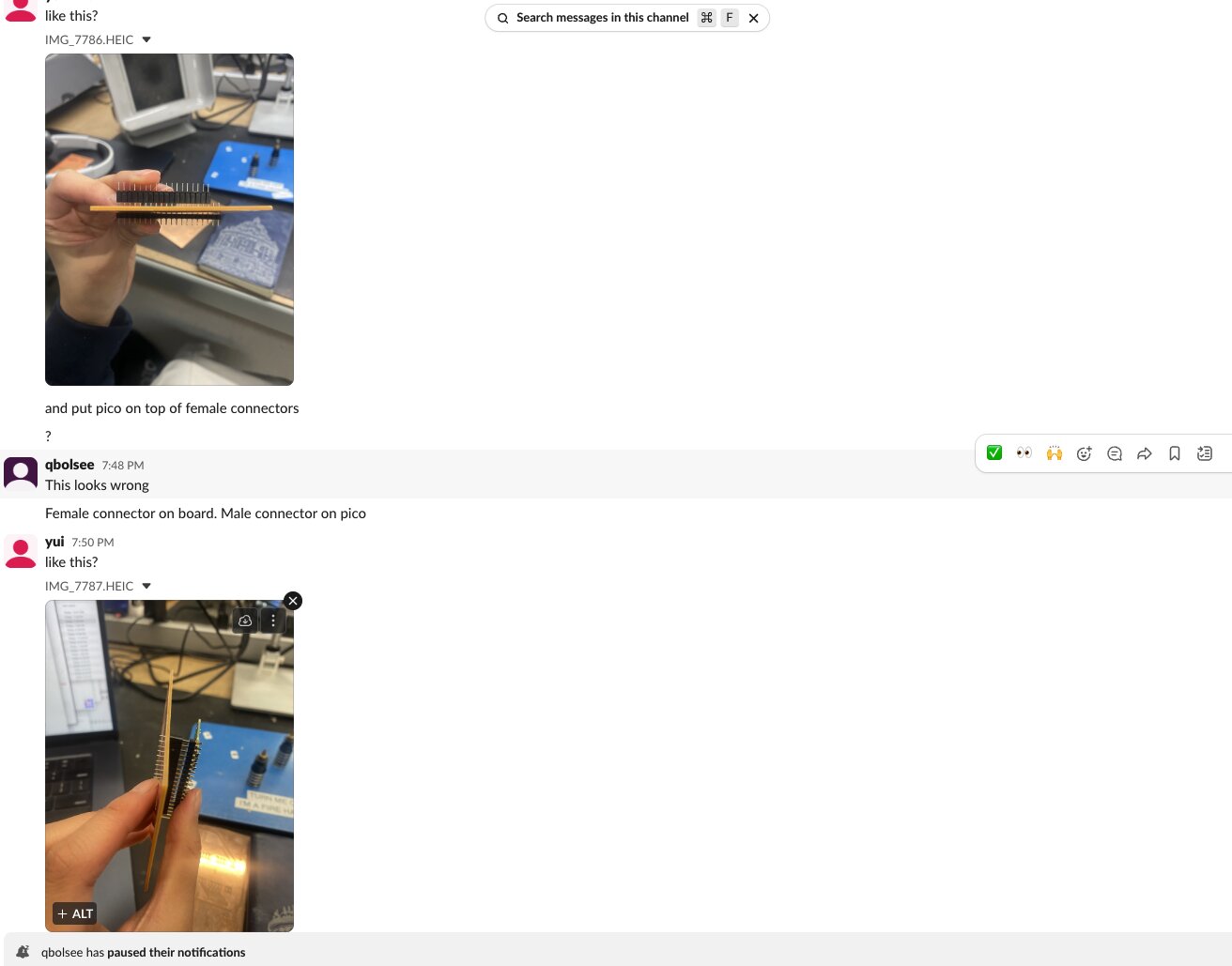
The order would take at least a week, and I didn't want to give up on testing with what I already had. I asked Quentin, and he told me it could work with drilled holes, but I would need to flip the Pico, J2, U1 and U2 to the back of the board and reroute. For the Pico, he suggested female sockets on the board and male pins on the Pico, because if the Pico W's Wi-Fi module sits directly on the copper, it could damage the Pico. My board only has copper on the top, so through-hole parts go on the back and are soldered on the top.
Flipping the footprint to the back (select it and press F) makes KiCad mirror the pad layout so it matches.
- Back (through-hole): Pico (on sockets), J2, U1, U2, J1
- Front (SMD): SW1, SW2, C1, C2, C3, the 0 Ω jumper. SMD pads must stay on F.Cu, because B.Cu isn't milled.
After flipping, the pin order changed, so I had to reroute most of the traces. With only one copper layer, traces can't cross, and one line (E) was trapped behind other traces.
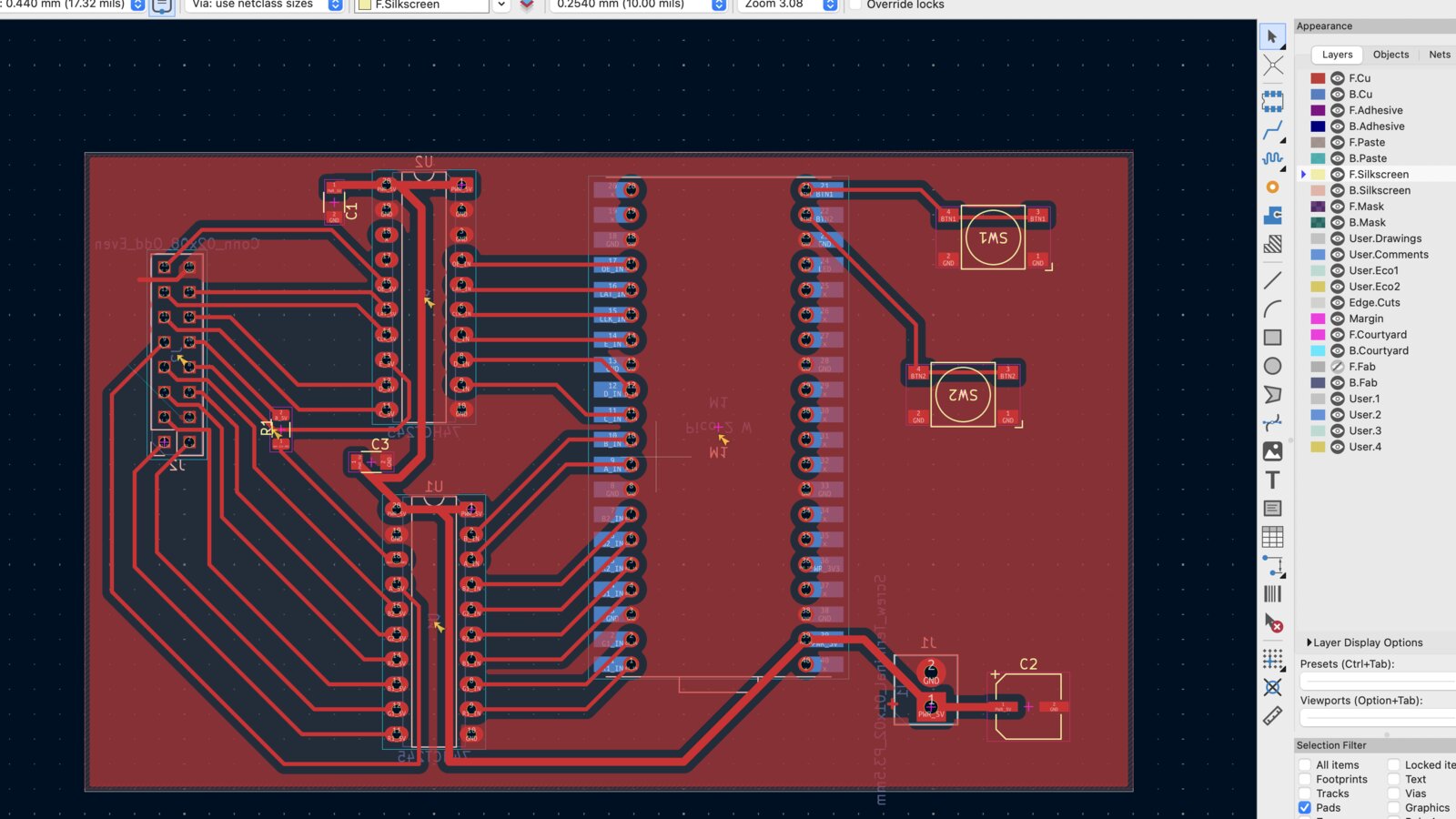
Rerouting was hard at first, but Michal taught me how to use a 0 Ω resistor as a jumper. A 0 Ω resistor is just a bridge: its body hops over a trace that runs between its two pads, so one signal can cross another on a single-layer board. I used one to get the E line from U2 to J2.
4th print and soldering
I milled this version with all isolation cuts closed and the holes in the same setup, and started soldering. My 0 Ω resistor ended up bridging two lines, but Michal kindly showed me how to desolder it, and to look at the joint from an angle to see exactly where the solder connects. He also helped me change the soldering tip, and showed me how to clean it: put fresh solder on the tip and wipe it on the brass wool, so solder sticks to the tip again. That soldering tutoring was much needed, and he's a great teacher.
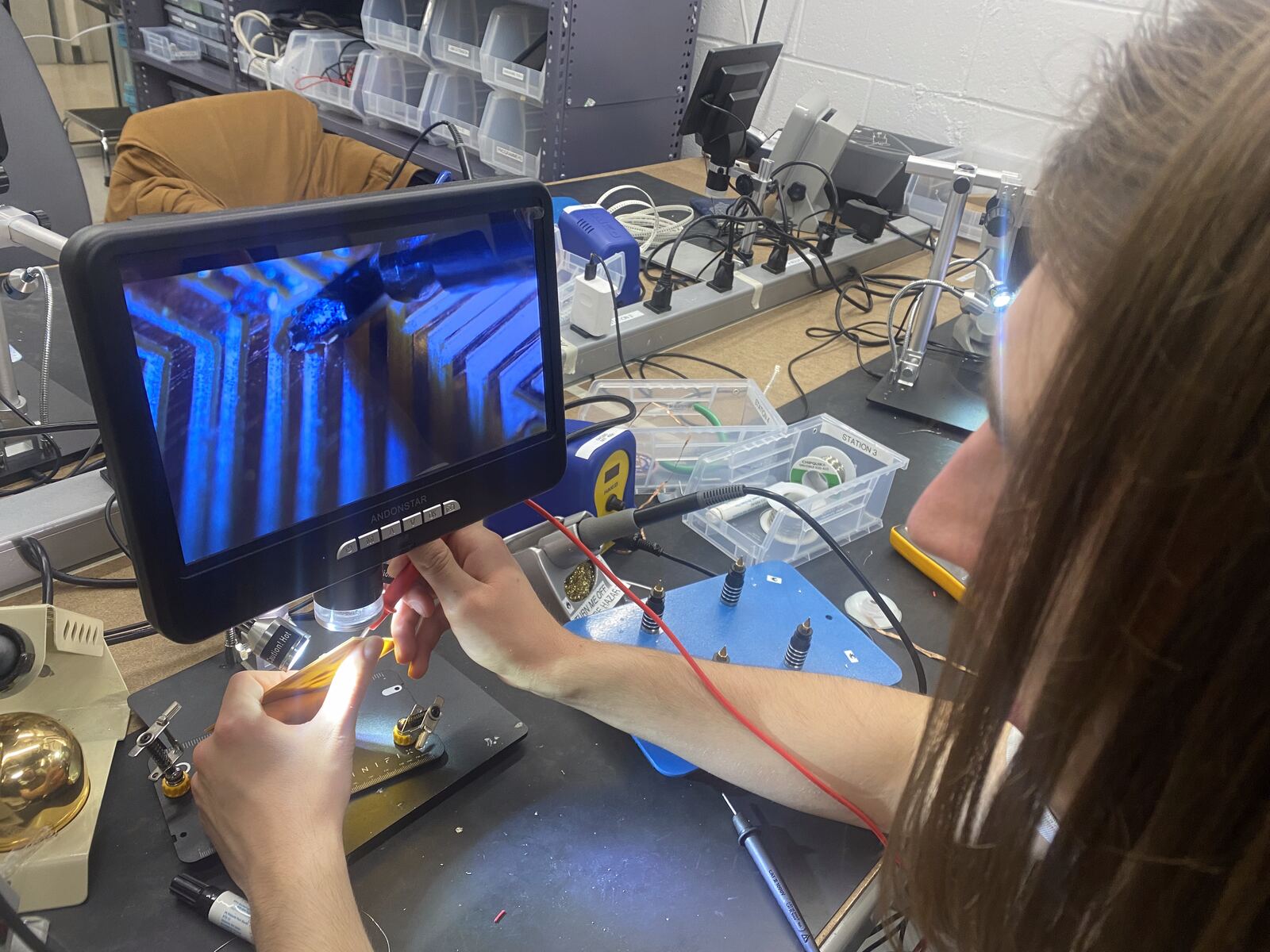
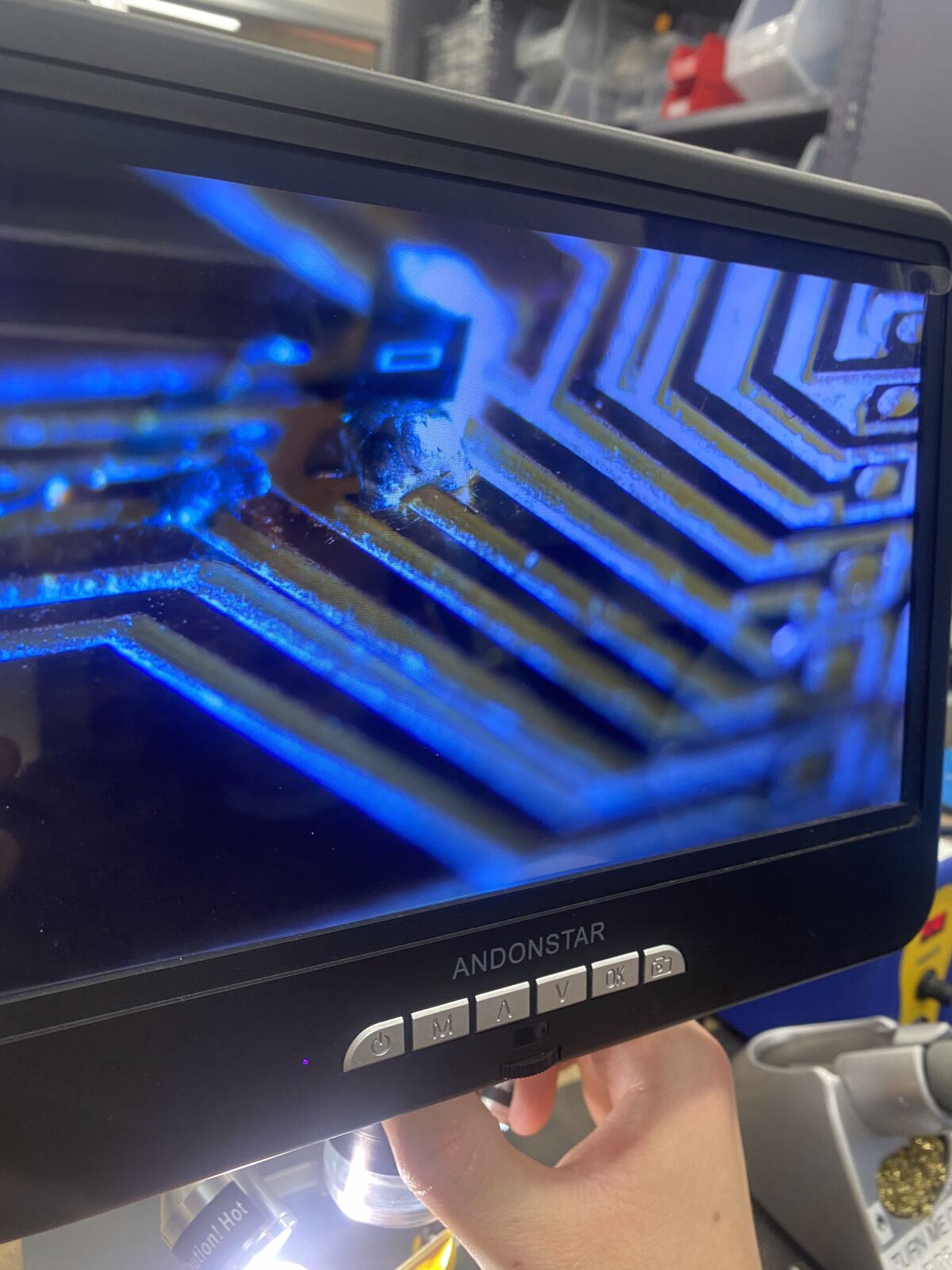
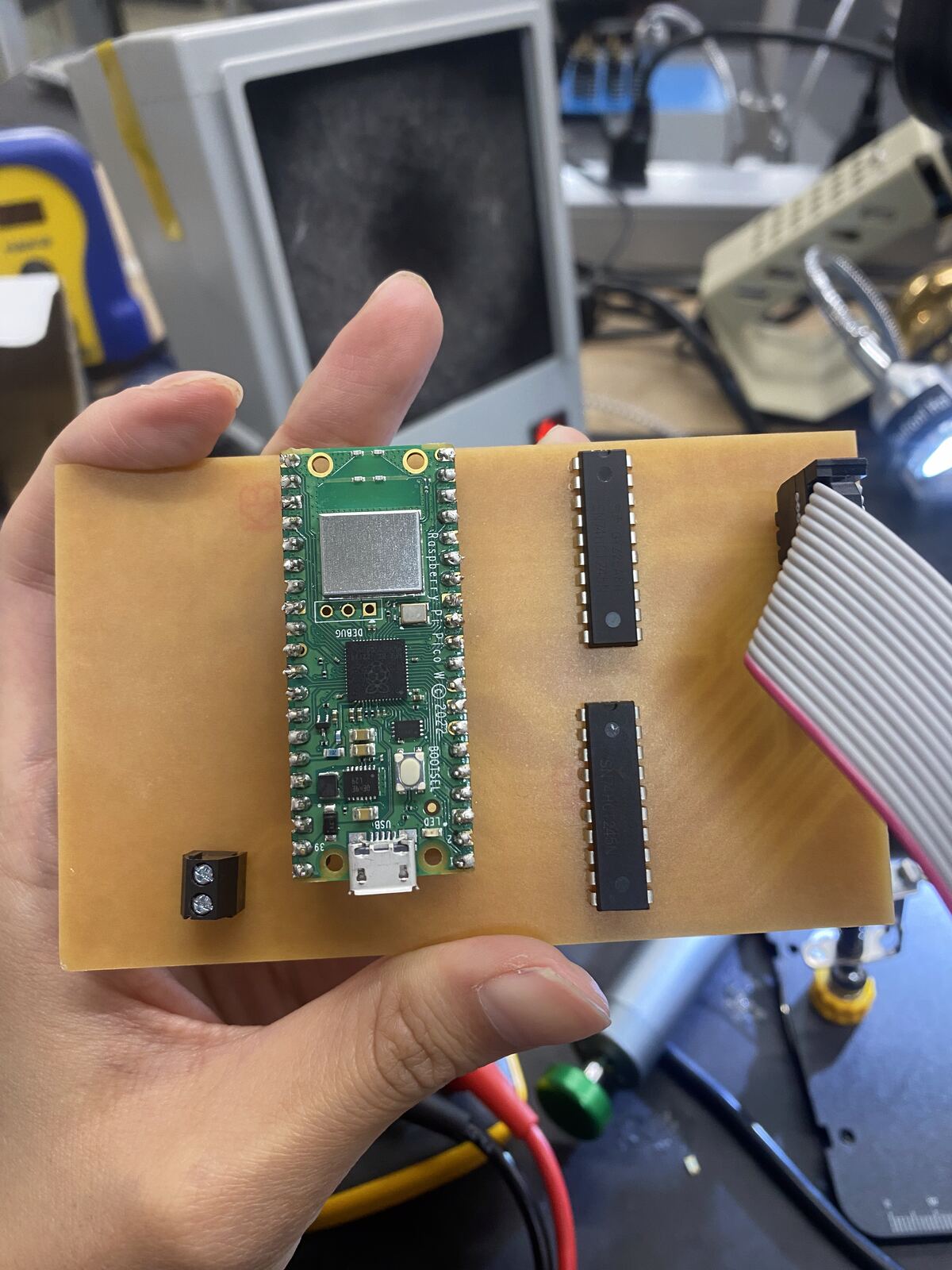
Quentin was patient with me while I figured out how to connect the female sockets and male pins. I soldered male headers onto the Pico, plugged the female sockets onto them, then pushed the sockets into the board from the back and soldered them on top. Using the Pico as a jig keeps the two socket rows straight and at the right spacing.
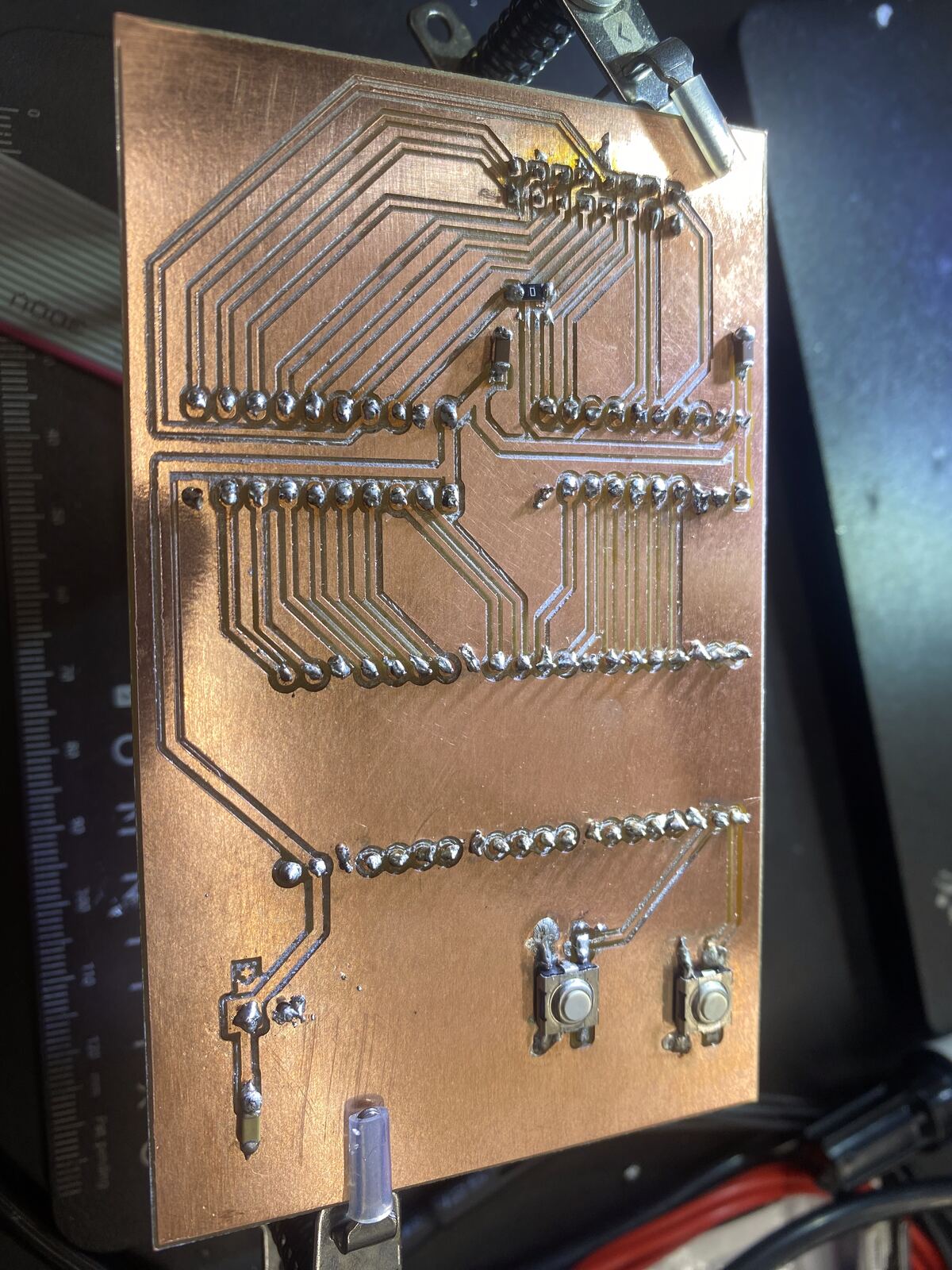
Throughout soldering, I used a multimeter to check for bridges and unexpected connections. For example, I found and fixed these:
- J2 pin 2 was connected to pin 3. The copper had been connected since milling, so I cut it apart with a craft knife.
- J2 pin 15 was connected to GND. I added flux, used tweezers, and desoldered the bridge.
Powering the board
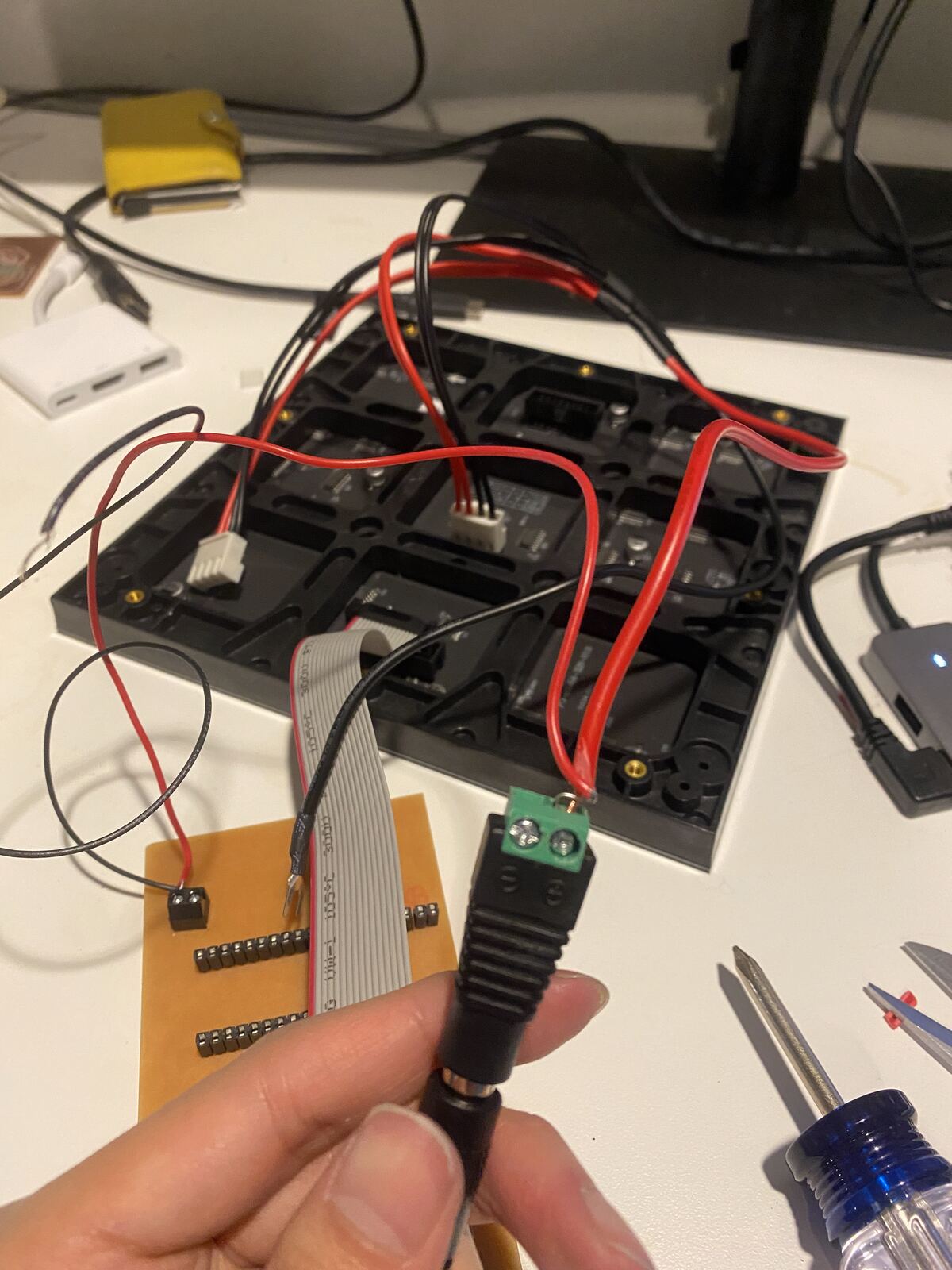
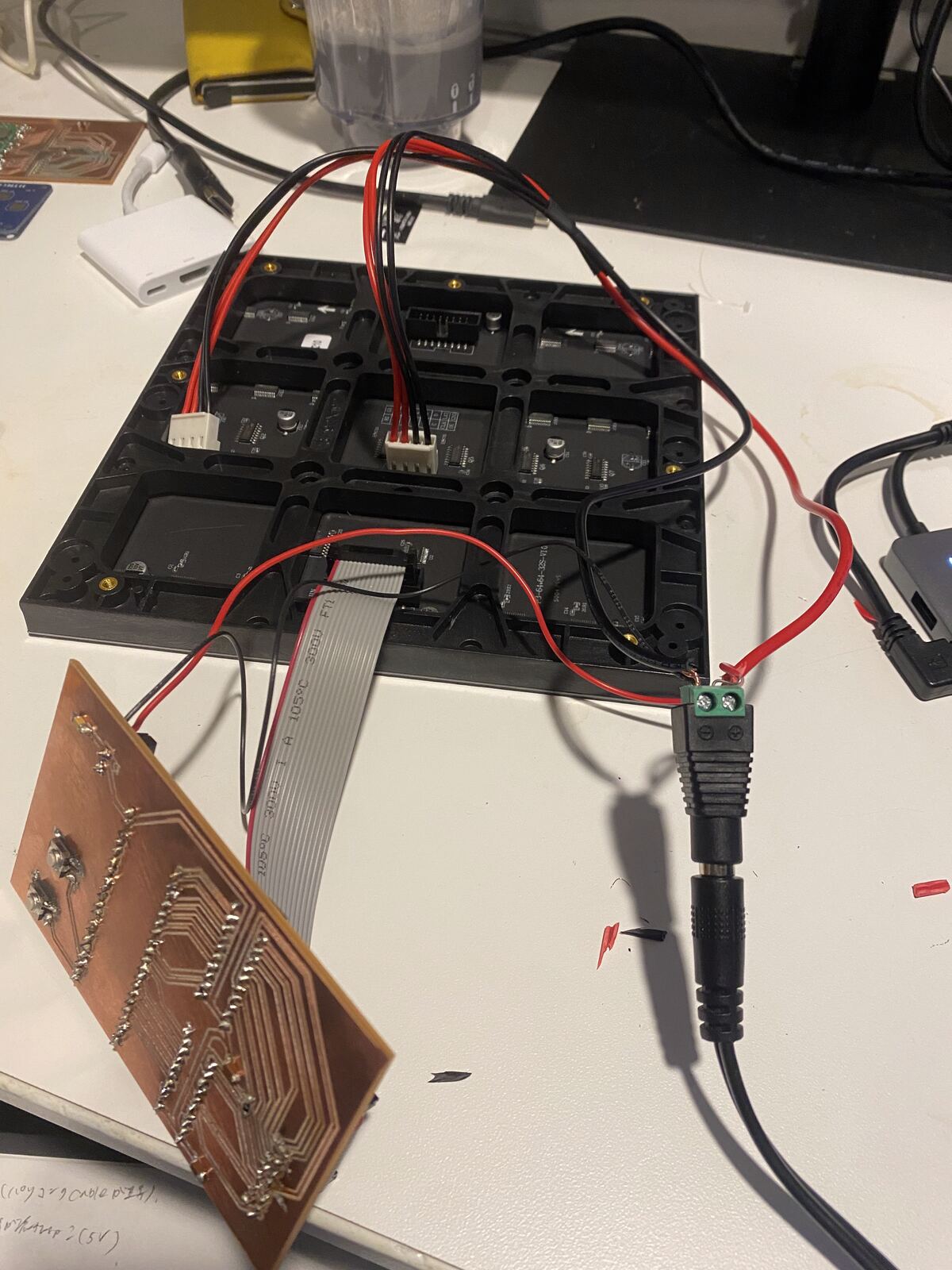
I connected J1 to the DC jack's screw terminal with red (+) and black (−) wires.
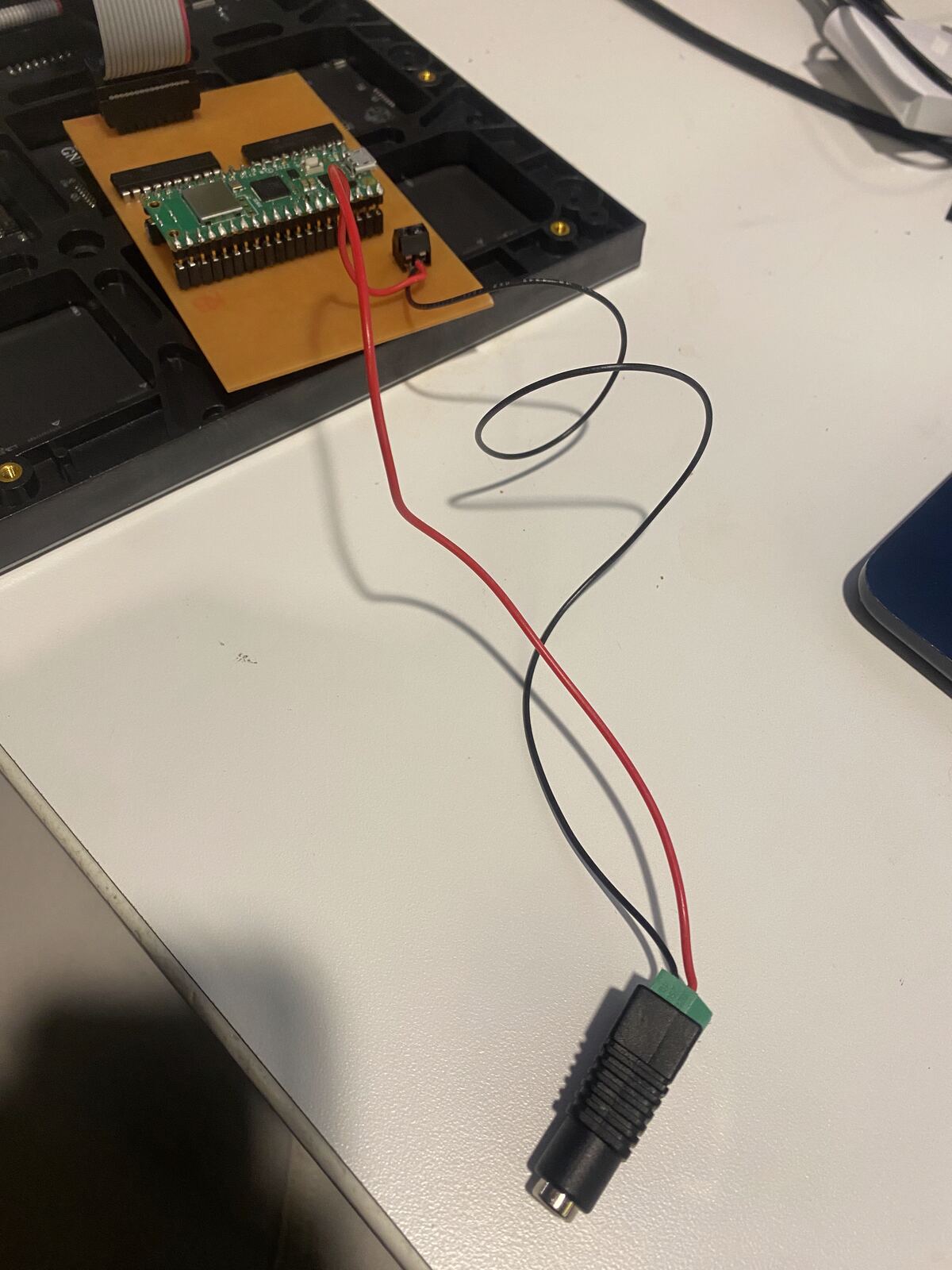
One 5 V 4 A adapter powers both the matrix and the board. The matrix can draw up to about 4 A at full white through its own power cable, while my board (the Pico and the two 245s) only needs tens of mA through J1.
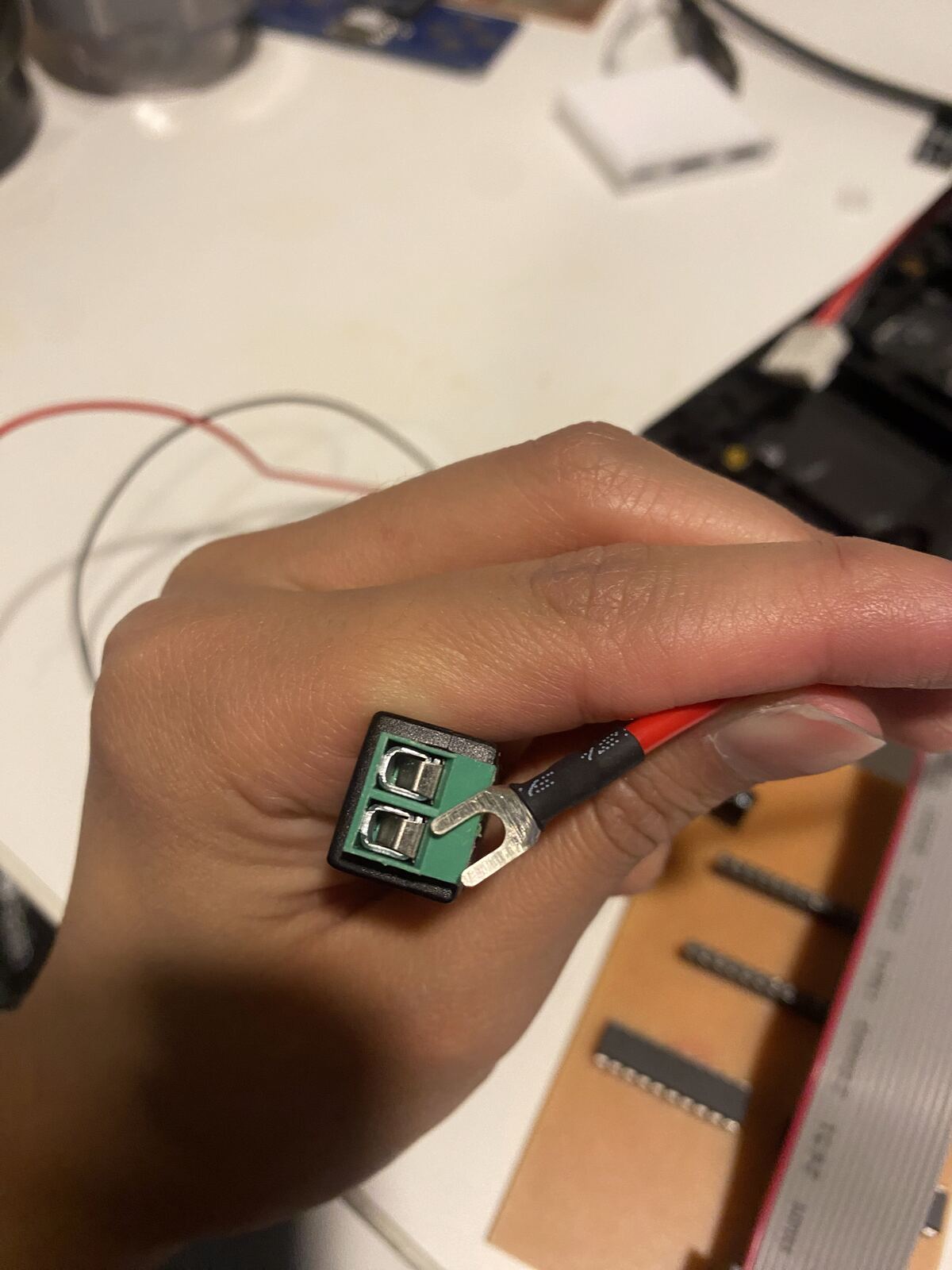
The matrix power cable ends in fork (U-shaped) terminals, which were too big for the small screw terminal. I cut the forks off, stripped the wires, and twisted each matrix wire together with the matching wire from my board before clamping it (red with red on +, black with black on −).
Before powering the matrix, I checked the HUB75 ribbon orientation with the multimeter. With the matrix power connector unplugged, I measured continuity between my board's GND and the matrix's GND pin. HUB75 pins 4 and 16 are GND, so a beep means the cable is the right way around. Then I confirmed 5 V went through to the matrix's power connector.
Connecting the Pico
Then I tried connecting the Pico over USB. At first my MacBook didn't recognize the Pico at all. Michal helped me find a micro USB cable that actually carries data. It also turned out that only the second of the MacBook's two USB-C ports worked.
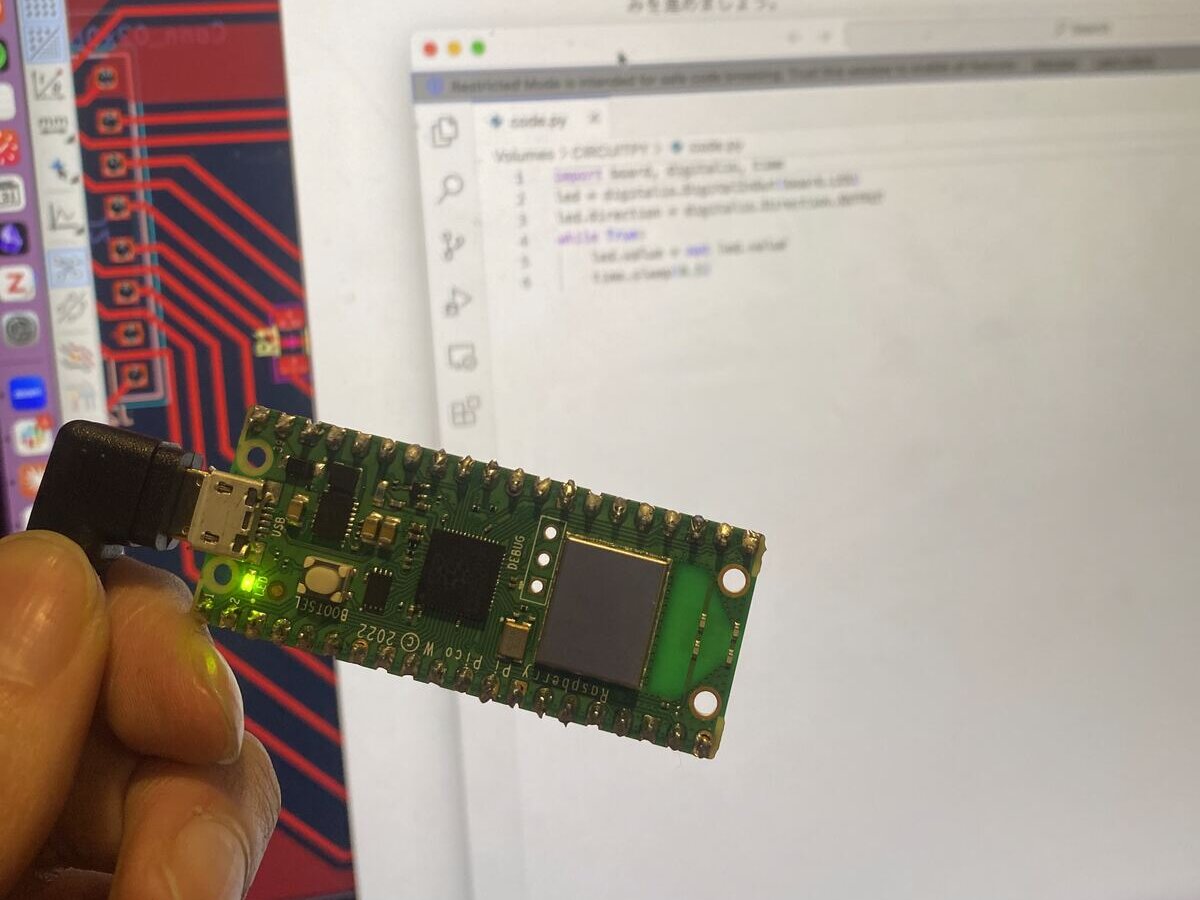
I installed the Raspberry Pi Pico W version of CircuitPython (hold BOOTSEL, plug in, drag the UF2 onto the RPI-RP2 drive). The program is saved as code.py on the CIRCUITPY drive and runs automatically on every power-up, with or without USB.
Lighting up the LED matrix
The first time I wrote the color test program to the Pico, nothing showed up on the matrix. The test code (generated with Claude Opus 5.5) cycles through patterns that each check one group of signals: full red, green, blue and white for the color lines, four quadrants for the top half (R1 G1 B1) and bottom half (R2 G2 B2), a line moving down for the address lines A–E, and a line moving across for CLK and LAT.
So I traced the signal with a multimeter, measuring DC voltage at each stage while the program ran. Fast signals show up on a multimeter as their average, so a toggling 3.3 V line reads about 1.6 V, and a toggling 5 V line about 2.5 V.
- Power: 5 V at the matrix, at U1 and U2 pin 20, and at Pico VSYS. U1/U2 pin 19 (CE) at 0 V, so the 245s were enabled.
- Address lines at J2: B, C, D and E each read about 2.5 V, but A (J2 pin 9) read 0 V. The address lines toggle all the time whatever the pattern, so A should match the others.
- Following A back:
| Point on the A signal | Expected | Measured |
|---|---|---|
| Pico pin 9 (GP6) | about 1.6 V | 1.6 V |
| U1 pin 3 (A input) | about 1.6 V | 0.82 V |
| U1 pin 17 (A output) | about 2.5 V | 0 V |
| J2 pin 9 | about 2.5 V | 0 V |
U1 pin 3 is on the same trace as Pico pin 9, so it should read the same. The drop to 0.82 V, with U1's outputs (pins 13–17) at 0 V, meant U1 didn't have stable voltage on its pins, which pointed to bad solder joints. I also confirmed U1 was in the right way round, since its notch faced the same way as U2's.
So I resoldered U1's joints with flux. After that it had the expected values: U1 pin 3 read 1.6 V and pin 17 read 2.5 V. I tried the program again, and the LED matrix worked!
Stabilizing it and next steps
Then the LED on the Pico sometimes wasn't working well, so I tried to stabilize the wires in the screw terminal by soldering them.
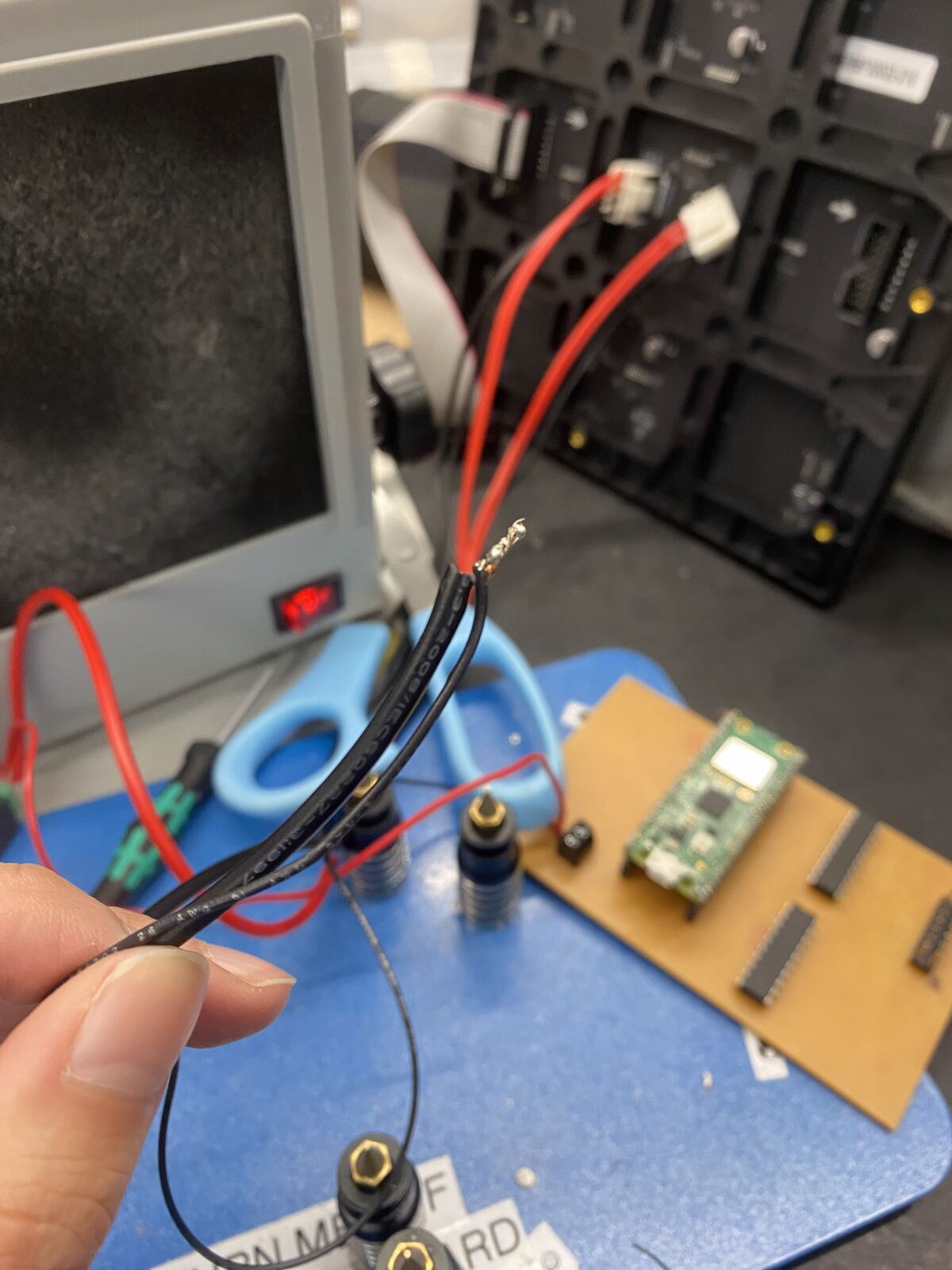
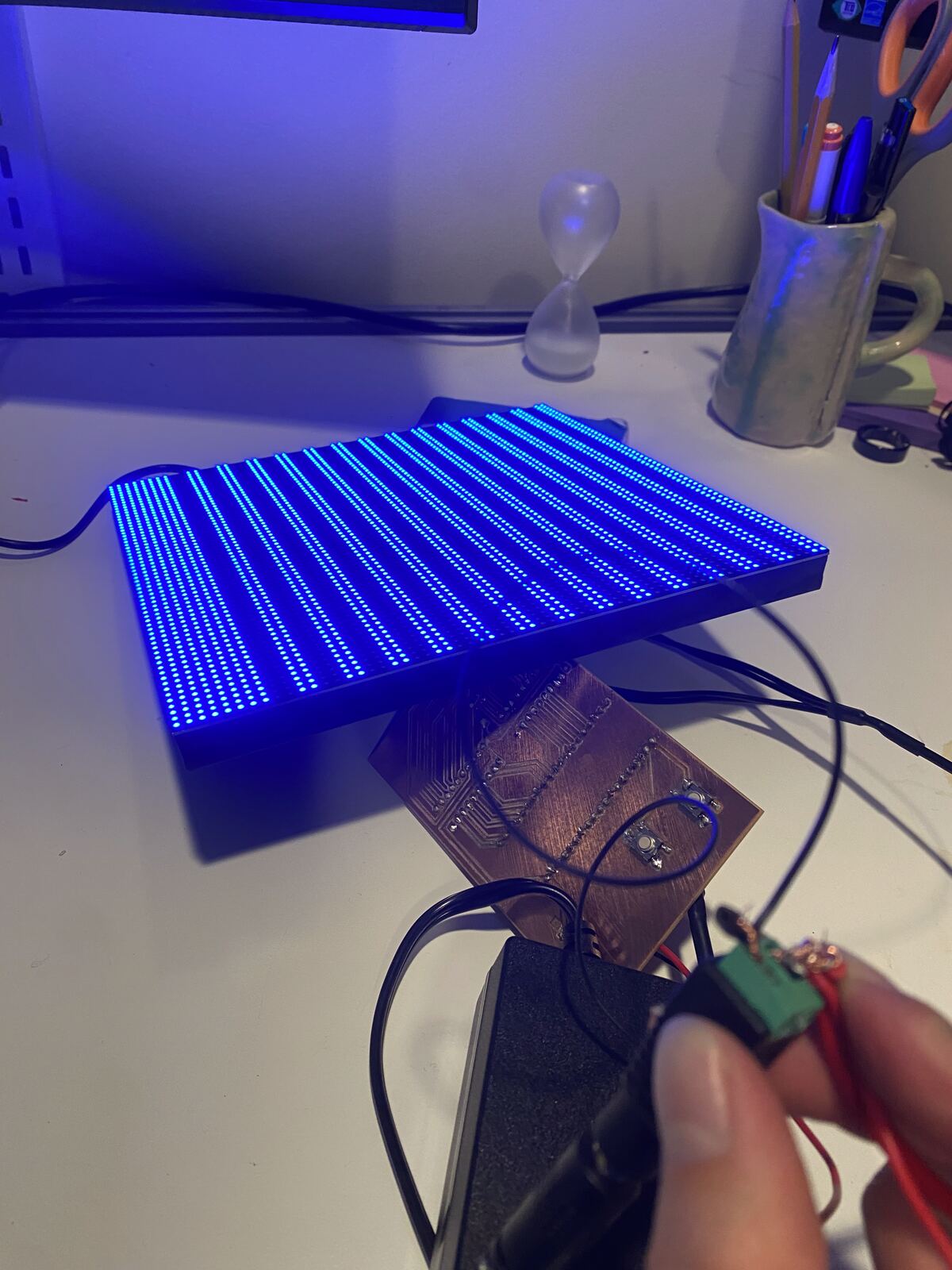
After that, the input became somewhat more stable, but the LED matrix showed random colors every time I touched it.
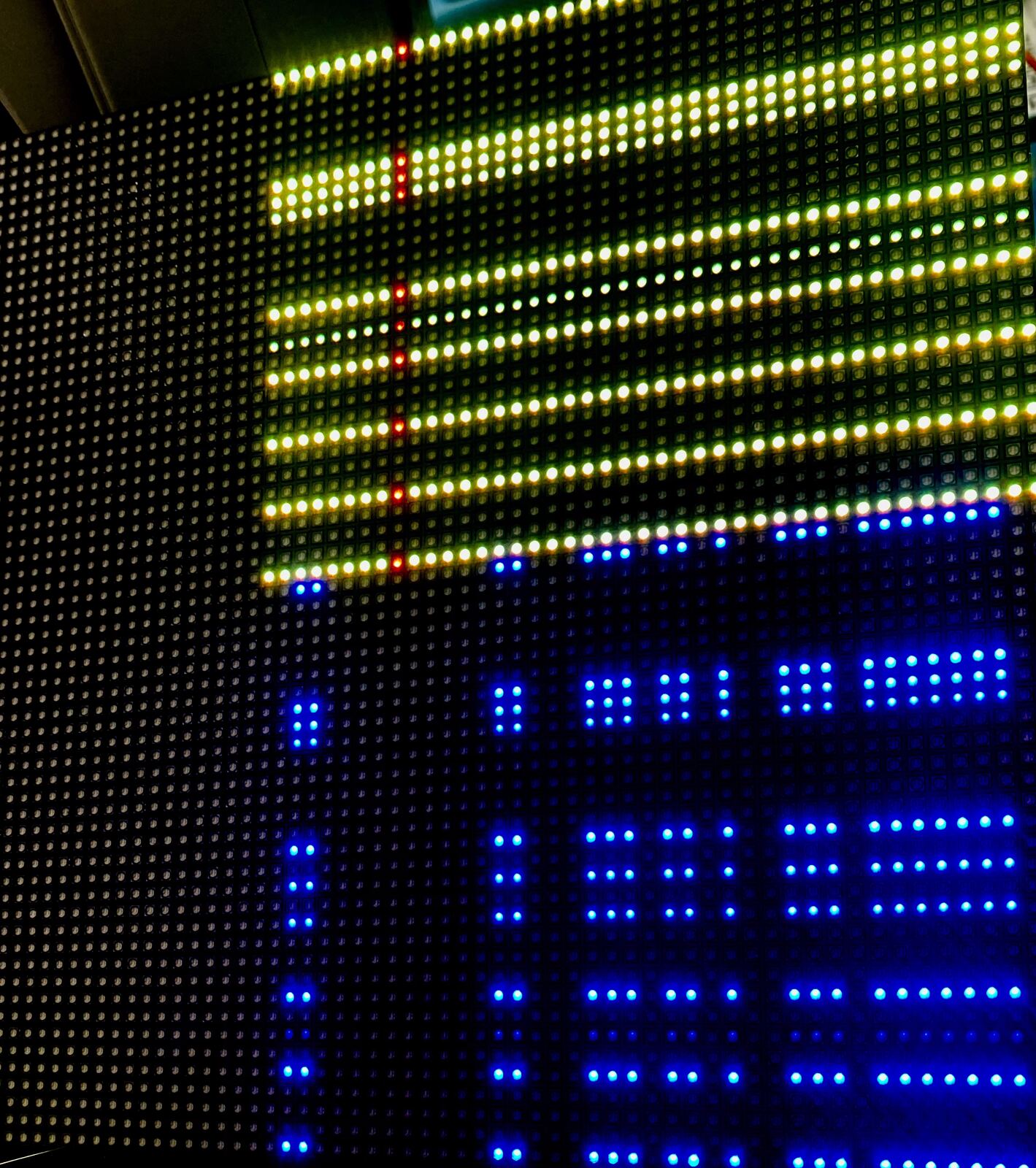
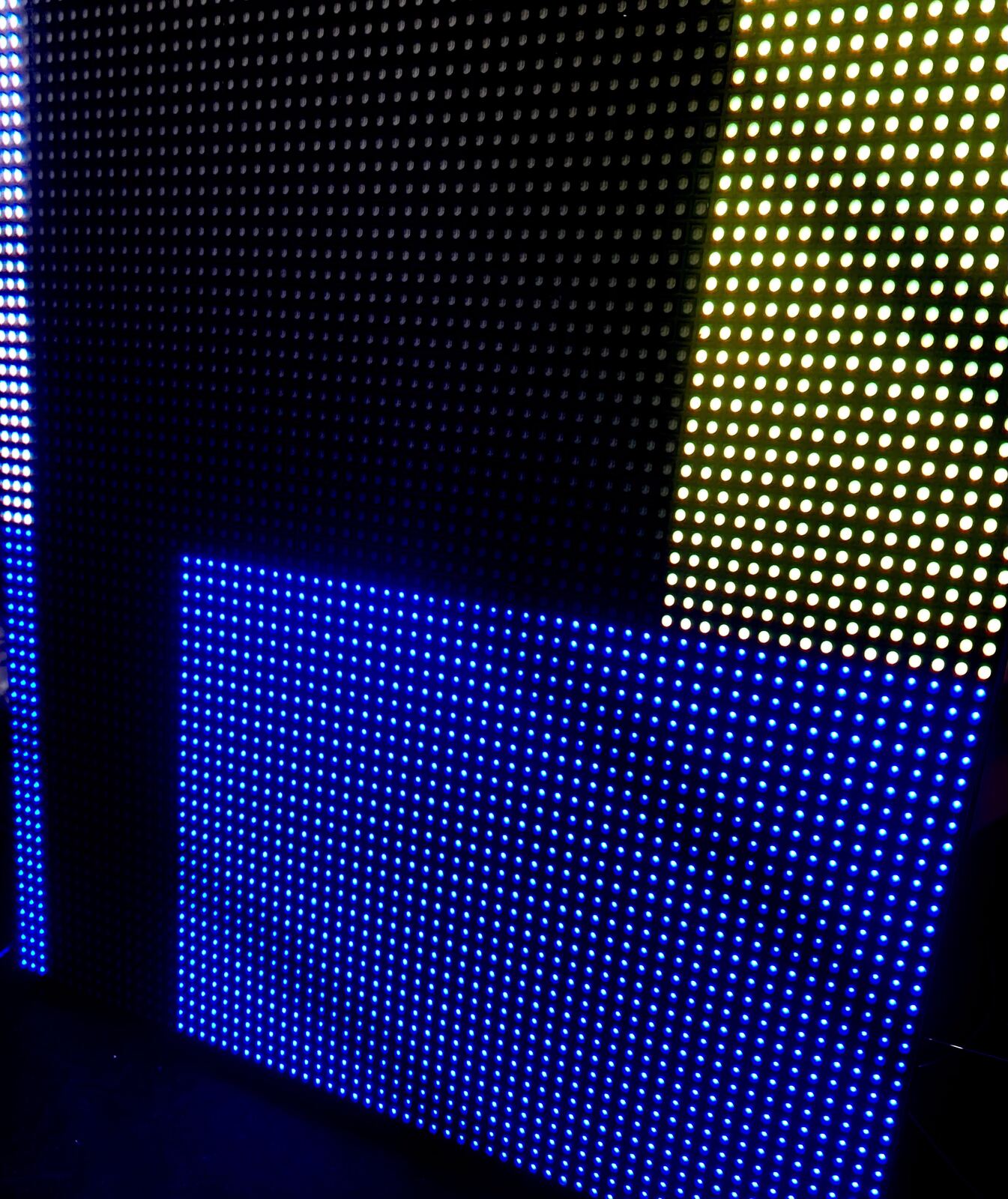
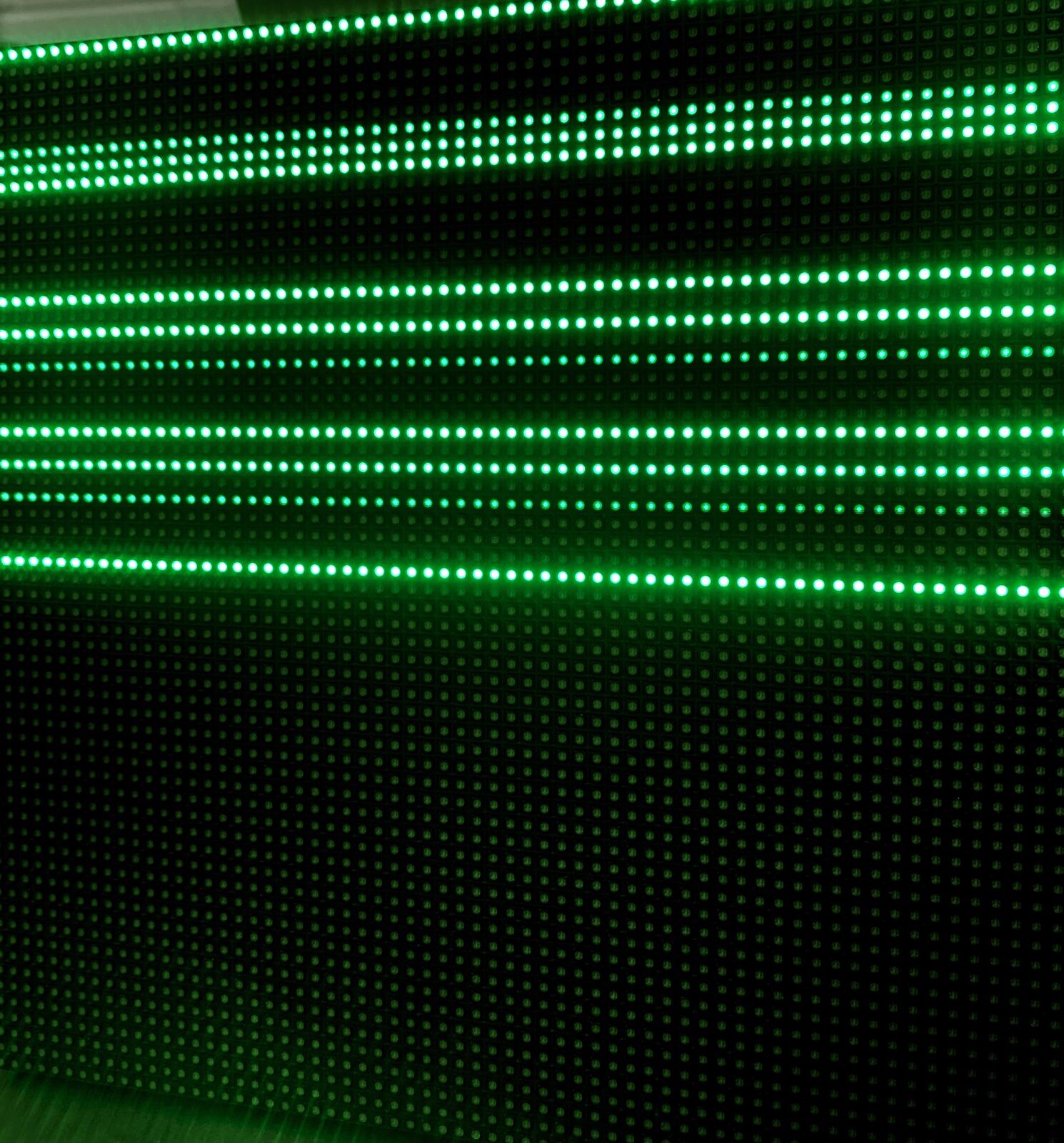
What I found out so far:
- Missing colors: on full white, the top half shows yellow (no blue) and the bottom half only blue. B1, R2 and G2 all go through U1 outputs 13, 14 and 15, which also read 0 V earlier, so those joints need reflowing too.
- Unstable when touched: reseating the HUB75 cable fixed the dark columns on the left once, so loose connections are part of it.
As a next step, I will work on stabilizing it. The soldering needs to be reworked, and the wiring needs to be tidier before it can run reliably.
Use of AI
I used Claude Opus 5.5 to debug throughout the process and to polish this documentation. In the first weeks it was hard to understand what the AI had made, but it helped me imagine what I wanted to build, which made me feel invested in the assignment. Its plans, however, tended to be too complicated. To turn ideas into something real, it helped a lot to talk with the TAs and my peers and to cut the plan down to what I could actually do. Once the plan was simple and I understood what I was doing, the AI was very good at debugging.
Files
- spotifyledmatrix.kicad_sch: schematic
- spotifyledmatrix.kicad_pcb: final board (through-hole parts on the back)
Open the KiCad files in KiCad 10.