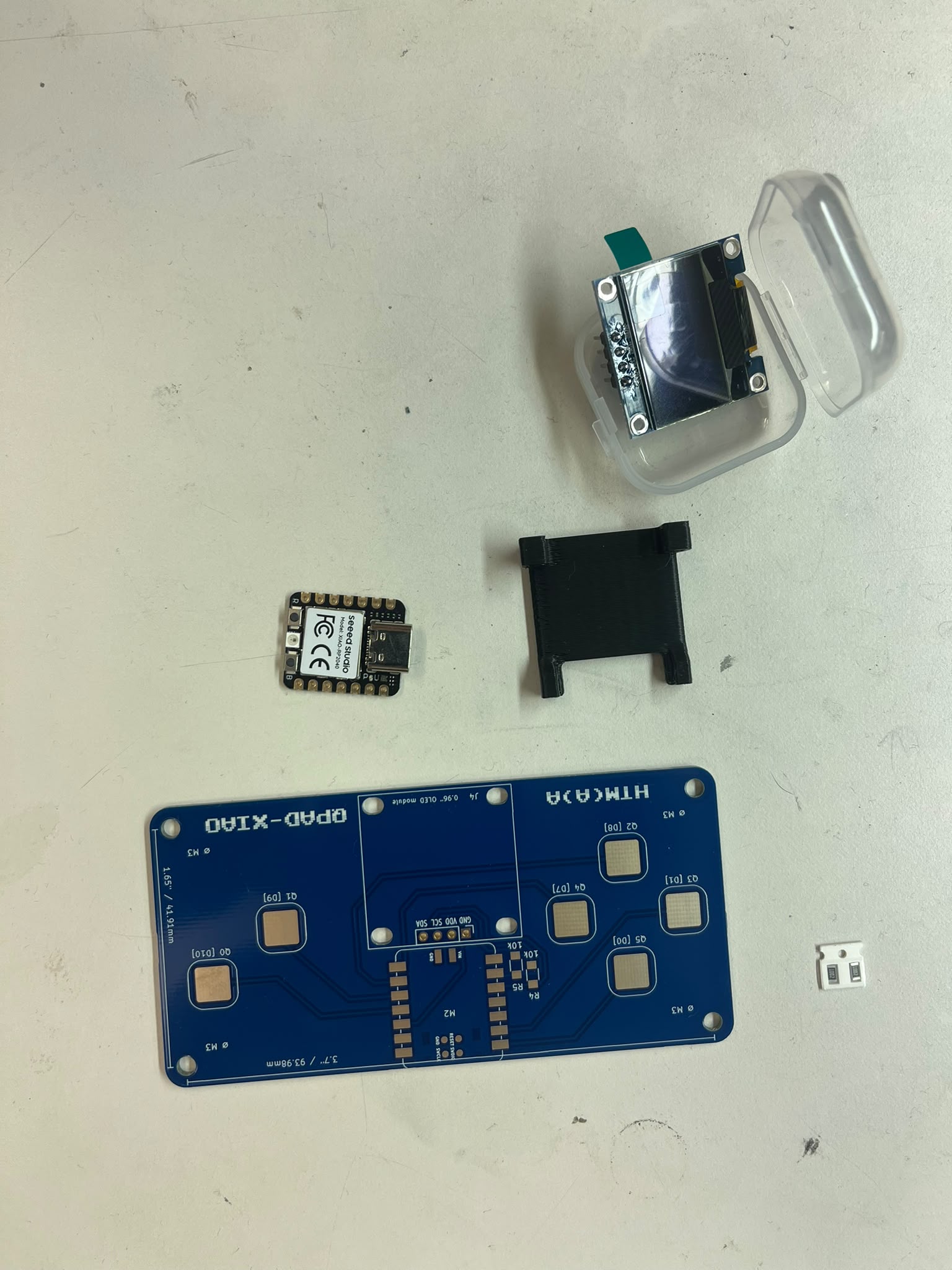
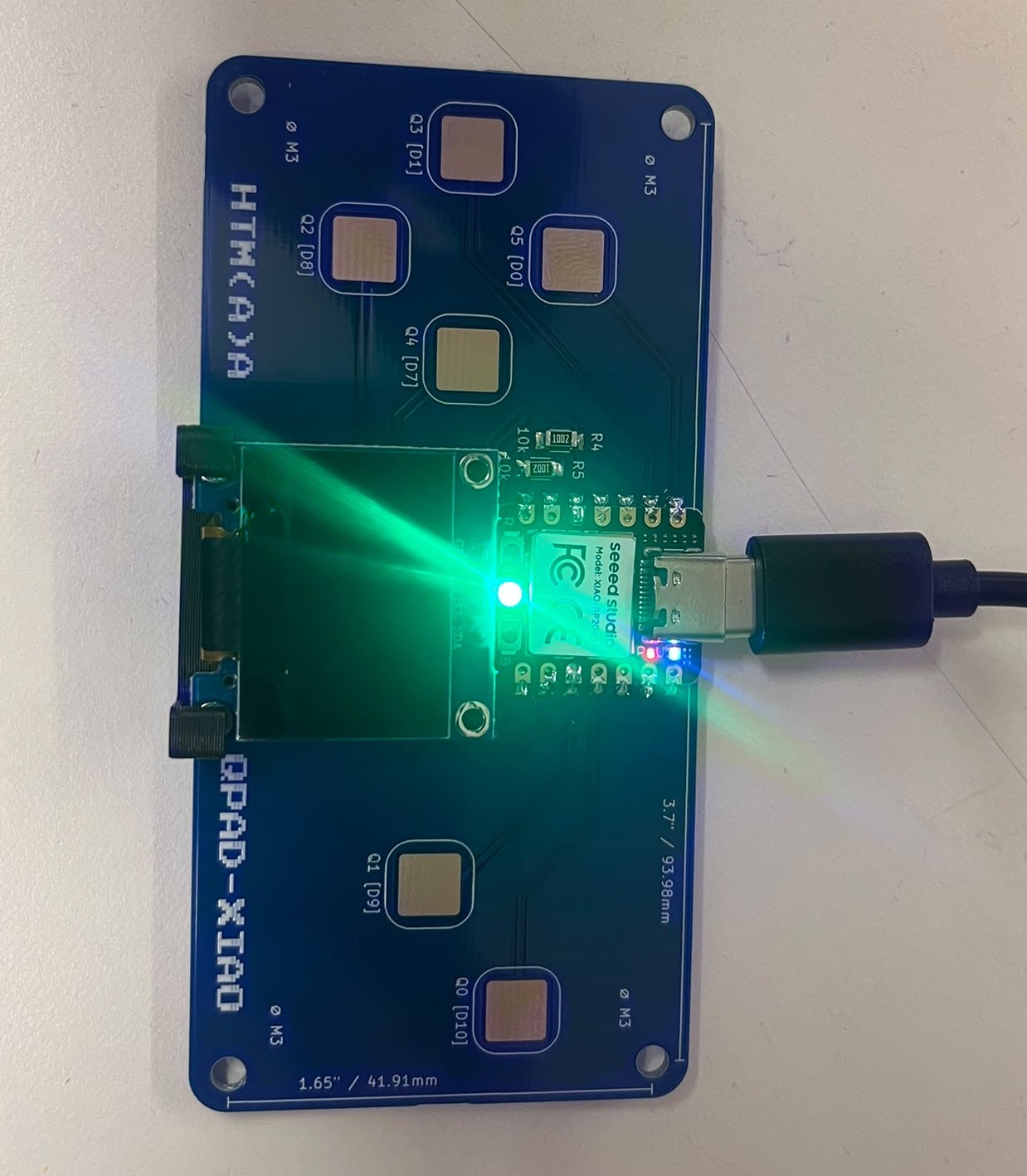
I went to EDS, took the parts necessary for assembly, and soddered the parts together. It only took ~15 minutes, which allows me to get started with the other tasks.
I chose to review the datasheet for the Raspberry pi RP2040. It is a low-cost microcontroller with Dual Cortex M0+ processors, 264 kB of SRAM, 30 GPIO pins, and many internal commonly used peripherals. This microcontroller also allows the user to execute code from external memory through a SPI, DSPI, or QSPI interface, and supports USB hosting. It also has an internal voltage regulator such that it only requires one voltage source.
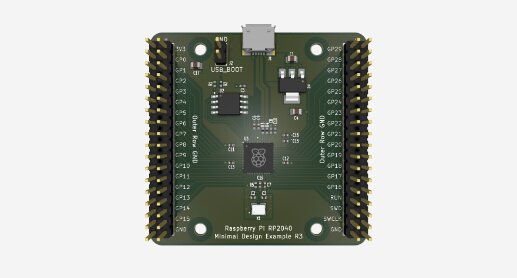
The device requires 3.3 V for the I/O, and 1.1 V for the digital core. However, it has an internal LDO (low-dropout voltage regulator) that converts the 3.3 V to 1.1 V. It uses the 5 V VBUS pin of a micro-USB connector for power, and therefore uses a second LDO that converts 5 V to 3.3 V.
In order to store the program for the RP2040 to boot and run, it utilizes flash memory. Generally, flash memory is used in microcontrollers because it is reprogrammable, fast, and reliable. The RP2040 uses a quad SPI flash memory.
The RP2040 does not require external clock source; it has its own internal oscillator, but it is not of a well-controlled frequency. It is recommended to use an external 12 MHz crystal for any external tasks requiring an oscillator.
The RP2040's PCB was designed minimally for ease of production and to minimize costs. It has two copper layers with components on the top side only, with relaxed design rules.
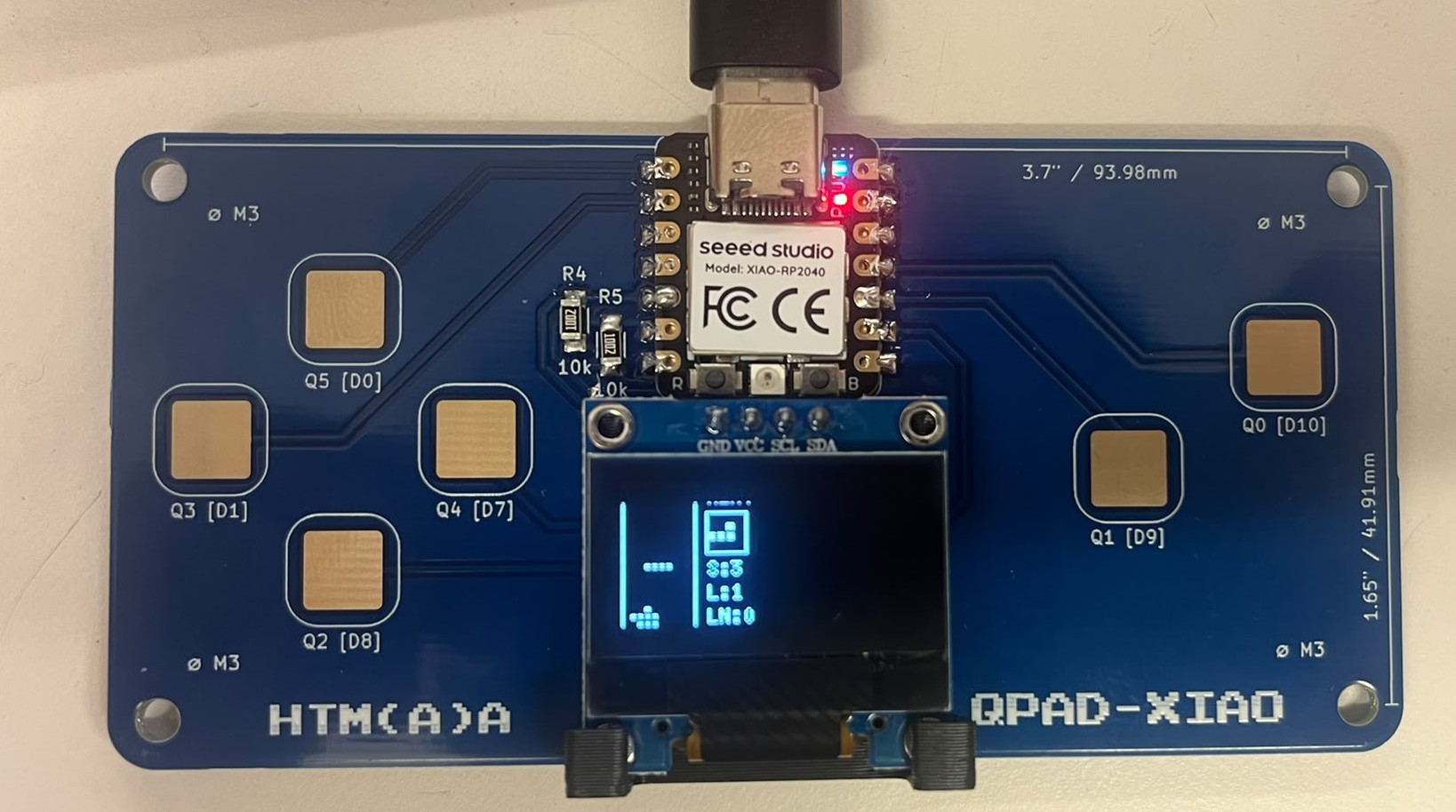
To set up and warm up, I installed Arduino IDE, which is simple and easy to use. Afterwards, I installed an ino file with tetris on it available from the class resources and booted up the RP2040. This allowed me to play tetris on the handheld microcontroller.
For this week, I would like to build an audio visualizer with existing FFT libraries, with capabilities for volume control and bass boosting. This requires external hardware to power the speaker.
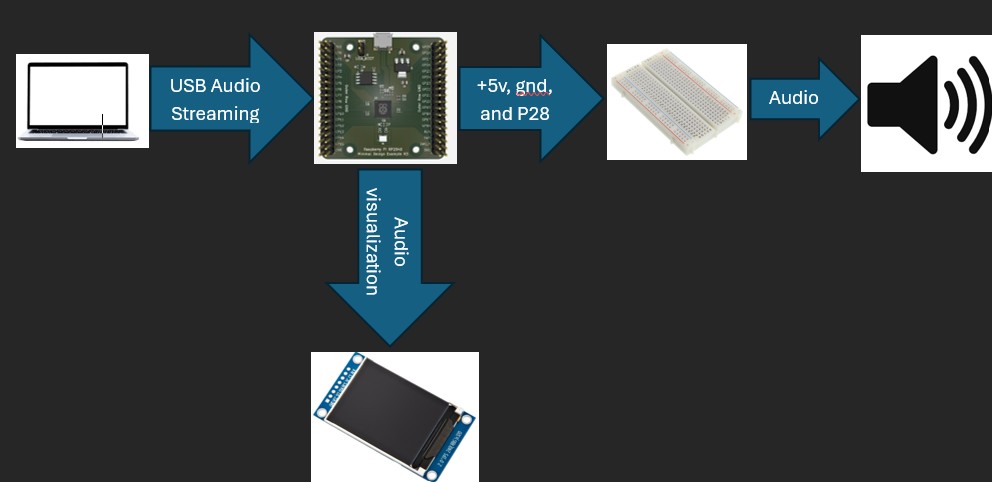
The computer will send audio to the RP2040 via USB streaming. Then, the RP2040 will send the modified audio out to a breadboard with an audio amplifying circuit, which is sent out to a speaker. The RP2040 will also run audio visualization code to print out to the screen.
I can "hijack" the RP2040 by soddering wires directly onto the board, and connecting them on the breadboard. I only need 5v (pin 14), gnd (pin 13), and a GPIO pin. I choose to use P28/D2 (pin 3) because it is freely available and currently unused
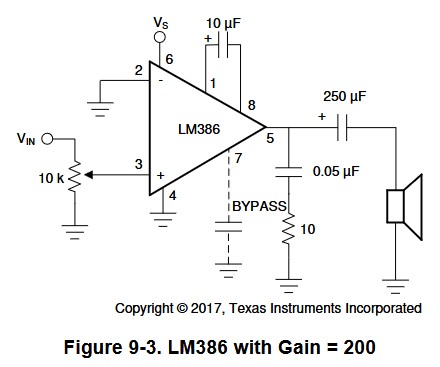
For the audio amplifying circuit, I can use this schematic, which is provided by the LM386 datasheet
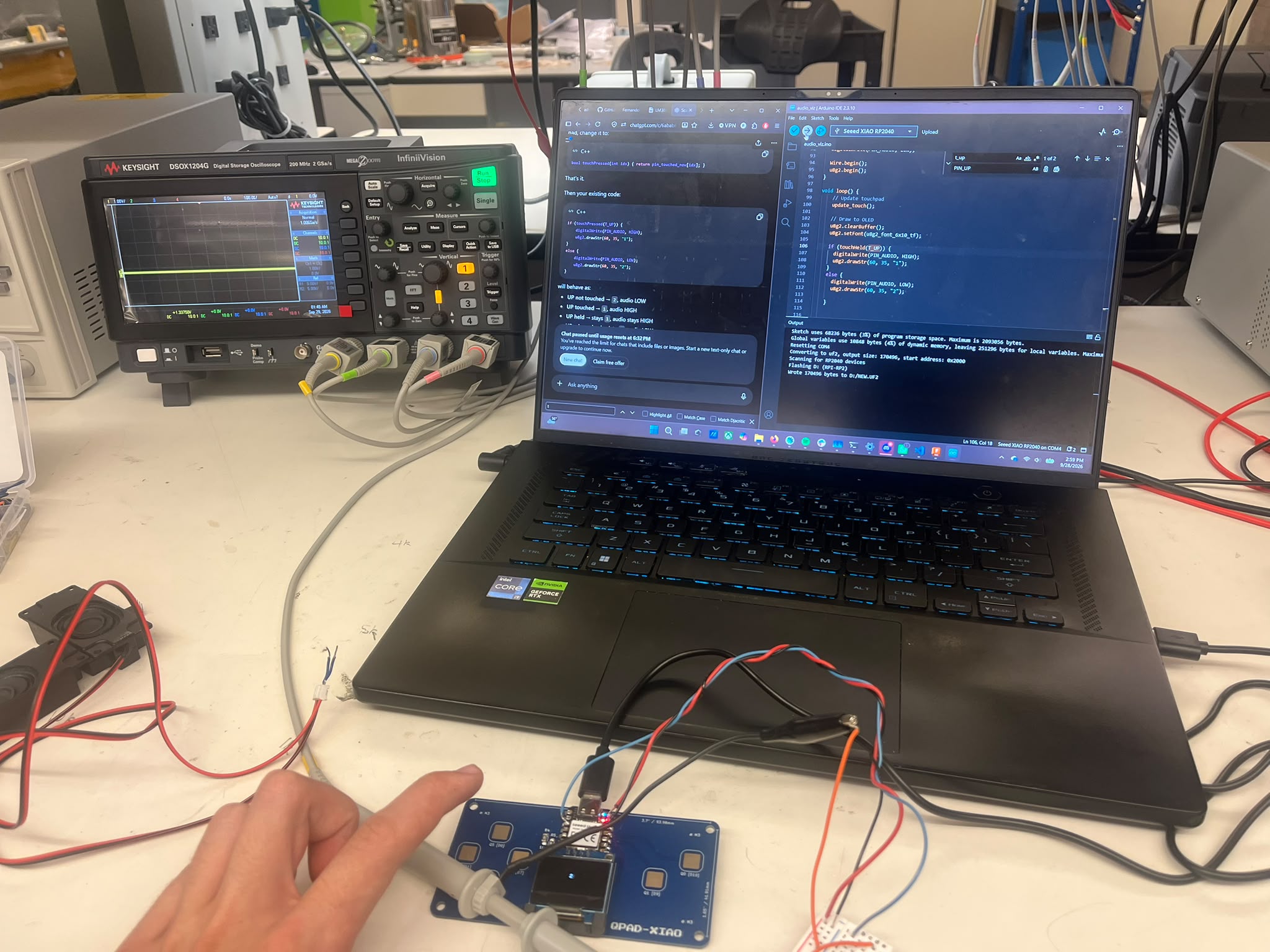
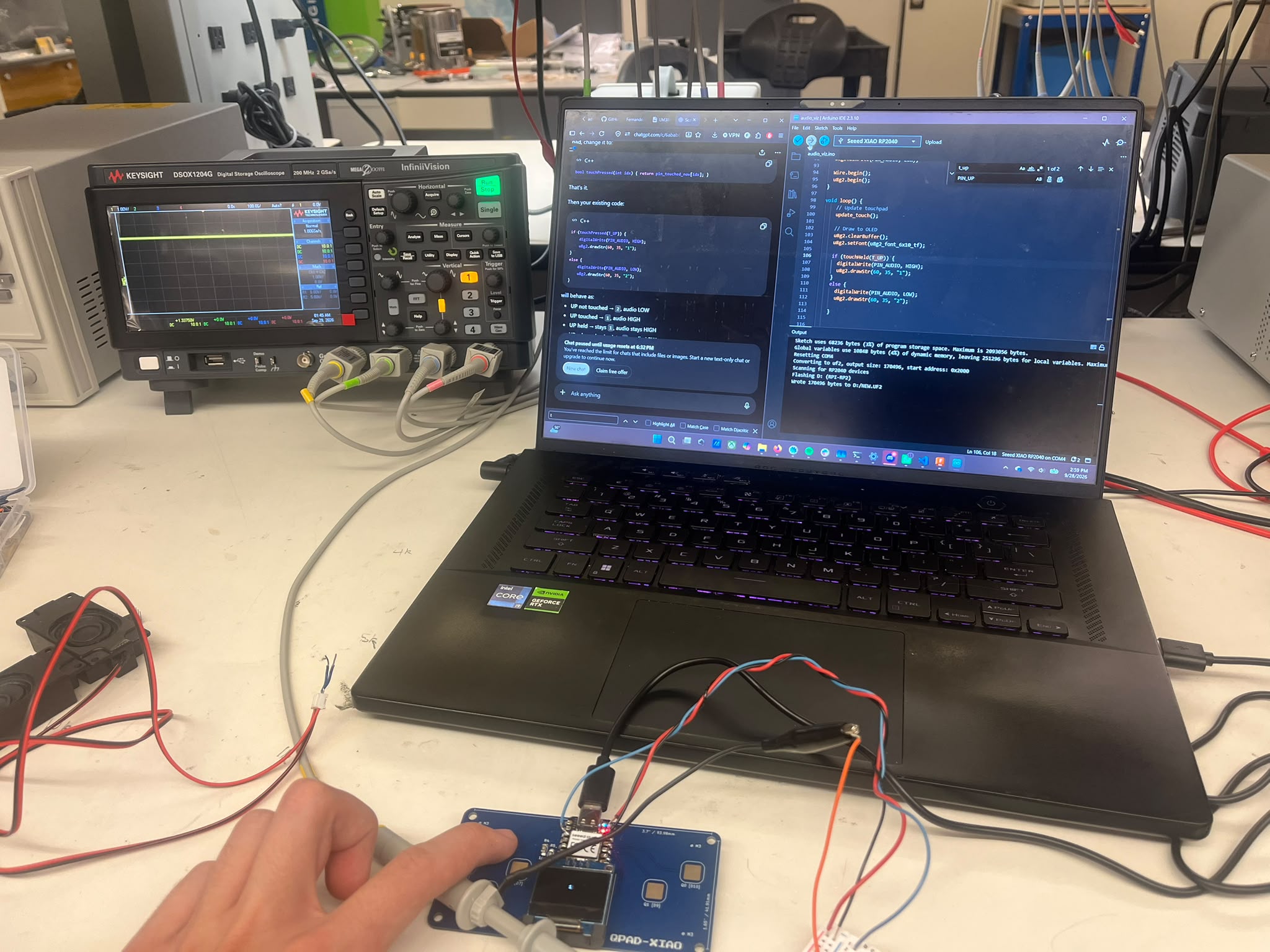
Before building the circuit, I need to make sure I can actually send a signal to the pin. I scavenged the tetris file for useful code regarding OLED display setup and the touch pad sensing. For a proof of concept, I wrote a program that sets the pin to high when I hold the up button, and sets it to low when I don't.
Next I need to have my computer send audio to the RP2040. With assistance from ChatGPT, I wrote a python program the automatically detects the speaker device on my computer, creates a buffer with that data, and then sends it out via serial to the RP2040. The program is linked here and can be downloaded here. The program started sending out 16 khz 8bit audio, and as I made sure everything was working, I bumped it up to 48 khz 16bit audio.
On the Arduino IDE, I assigned pin 3 to become a pwm signal using the AnalogWrite functions at 100 khz. I then created a timer that runs close to 48 khz and sends out the sample values from the music out to that pin.
Lastly. I built the circuit as defined above, adding a low-pass filter to filter out the frequency from the PWM switching.
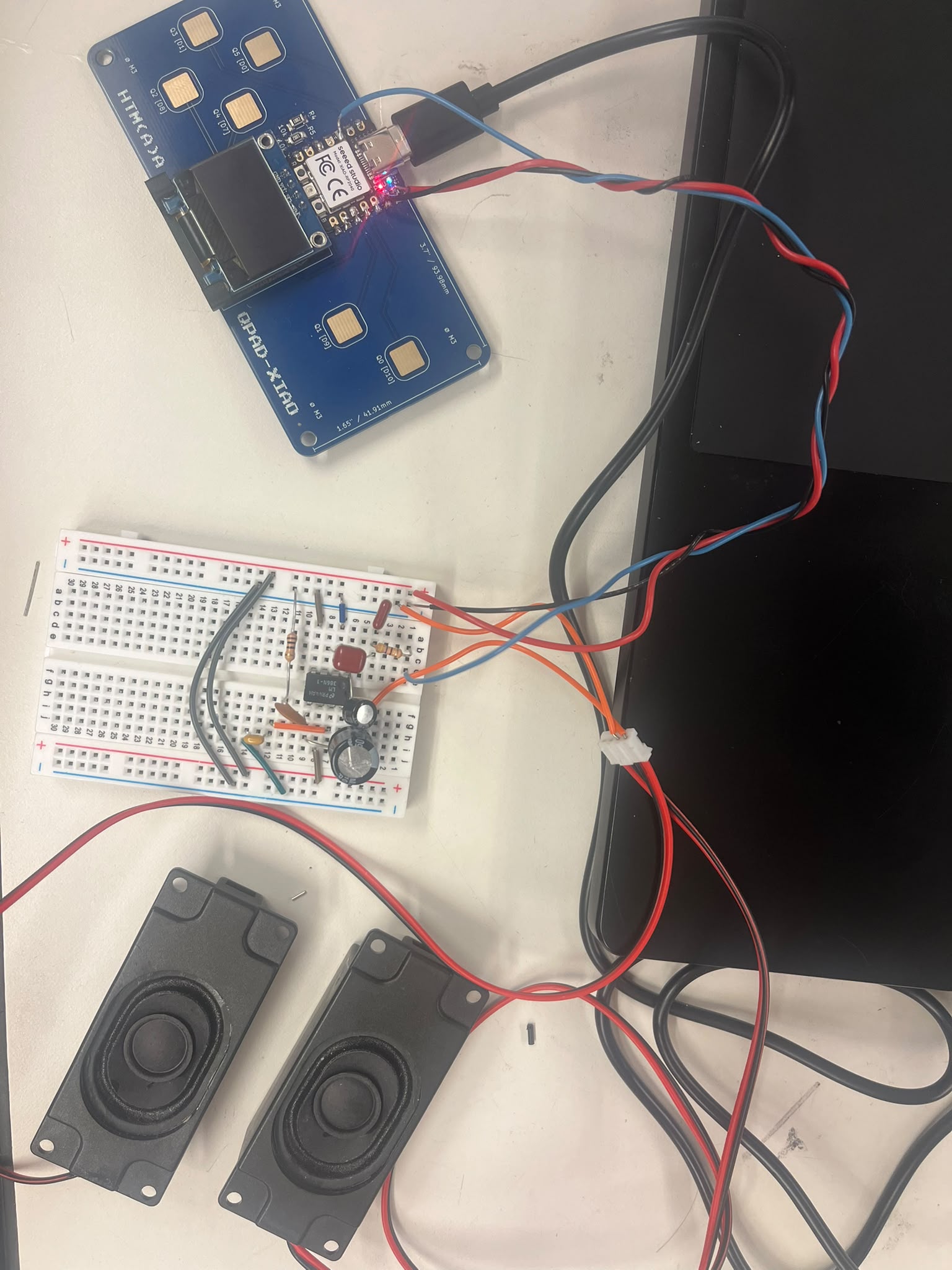
To implement the data visualization on the screen, I plan on using the arduinoFFT library that facilitates reading the signals. My plan is to update the screen 20 times per second, which I am doing with a separate function that gets called 20 times per second, using arduino's millis() helper funciton.
I remembered the RP2040 has two cores, and was therefore able to delegate all the audio tasks to the first core, and sending all the display tasks to the second core. This allows me to play music and display the audio without issue and without clashes, which was giving me issues; the FFT calculations would take too long and would interrupt the audio.
I also had to tune the FFT, since the left most bars would spike significantly more than the right most ones. So, I ended up amplifying the right most bars to achieve a symmetric effect. I also connected the up and down buttons to the volume control, which seems to generally work, but gets choppy as It strays too far from 8, which is the unchanged input. A demo of the working system is shown below.