Week 1: Laser Cutting and Vinyl Cutting
Web Design
I could not stand to look at the bare-bones raw HTML any longer so I had ChatGPT help me draft up a skeleton css file. Ahhh, much better. I also added a favicon to the site, which is a small image that appears in the tab of the browser. I used a small image of music notes for this. Also, used this cool ASCII art font generator to make a cool hero for the main page
Vinyl Cutting
I decided to try the vinyl cutter first, it seemed more straightforward, all I needed was a black and white (or binary) .png image. I wanted to use Illustrator, but alas my MIT Adobe Creative Cloud subscription had not activated yet, so I used Inkscape instead. I did a lot of icebreakers this past week, many of them involving animals, so whales have been very top of mind. I decided to try to make a whale in Inkscape.
First, I drew a whale tail using straight lines.

Then I deleted some nodes and made the remaining nodes into smooth curves to get the tail shape I wanted. This took a bit.
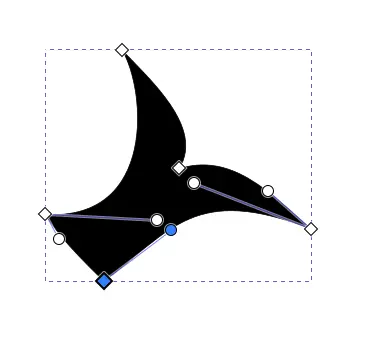
Then I started with a ellipse for the body, and similarly to the tail, I dragged the nodes and adjusted the curves to get a more "boxy" head. The rest of the features followed similar processes, the the mouth and fins were made by starting with triangles and then shaping them, the eye was just a white circle.

Now all that was left to do send it to the vinyl cutter and print! I learned something very important
at this step and that is DPI (Dots Per Inch). This is a VERY important thing to be aware of.
It's basically a measure of resolution, when your image gets converted into the real world.
The formula is basically:
Real World Size (inch) = Image Size (pixels) / DPI
Ideally your DPI should be somewhere between 300 and 600. The Inkscape default is 96. Here is a
comparison between the two DPIs, the left is 96 and the right is 300.
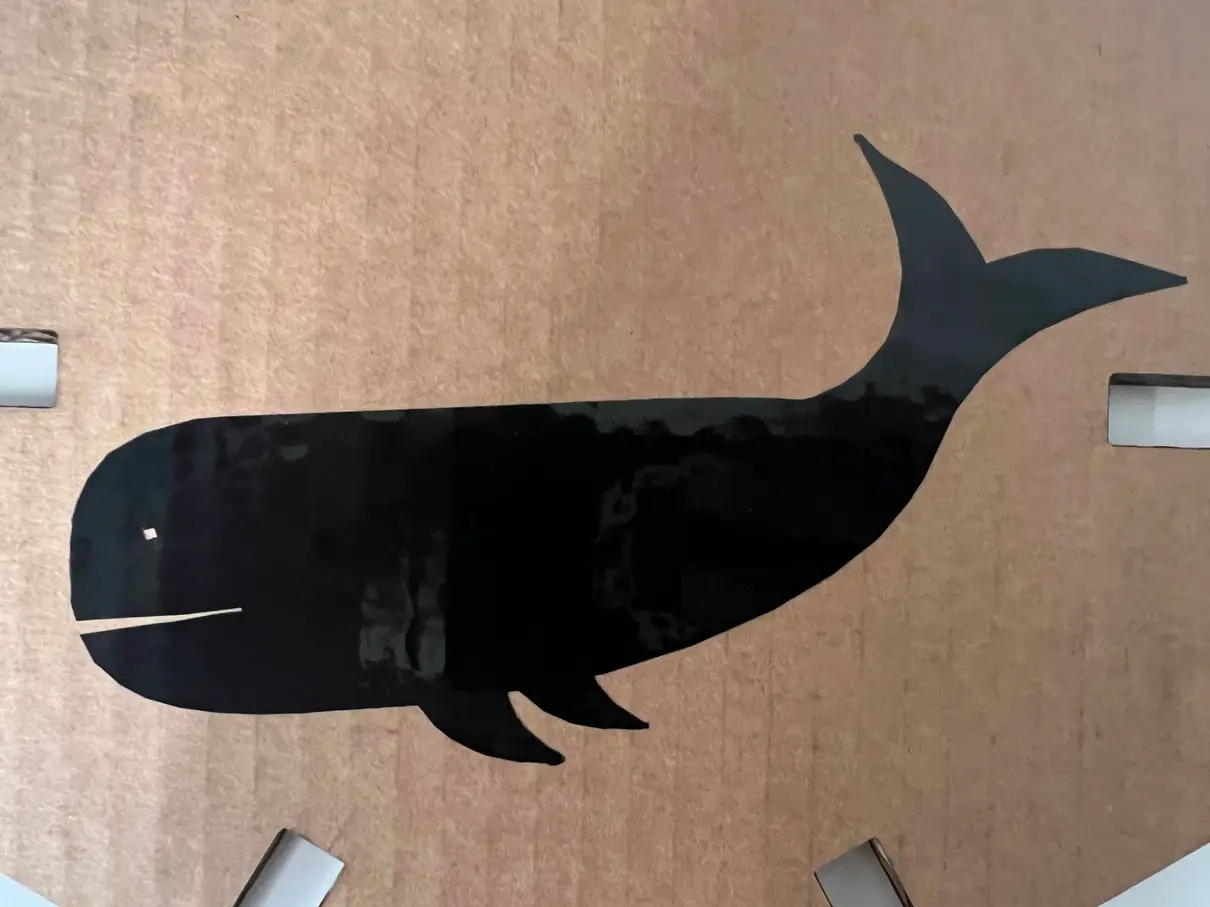
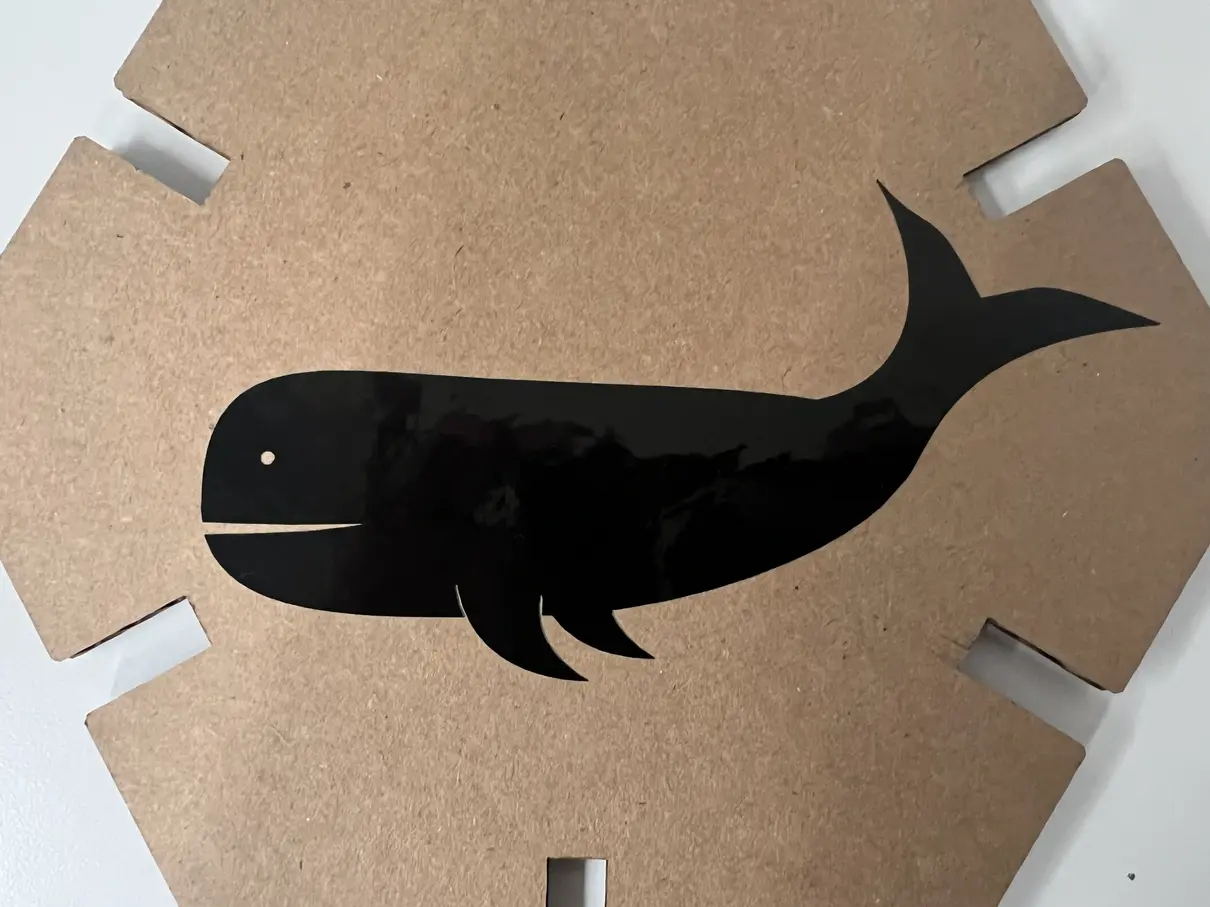
As you can see, the 96 DPI image has a lot of visible edge segments (the eye is a square), and certain details are lost (the fin outline is completely gone). I am very happy with how the 300 DPI whale turned out.
Laser Cutting
This week my task was to create a parametric design and laser cut it.
I started in Fusion 360, my first idea I wanted to try was to make a set of modular pieces,
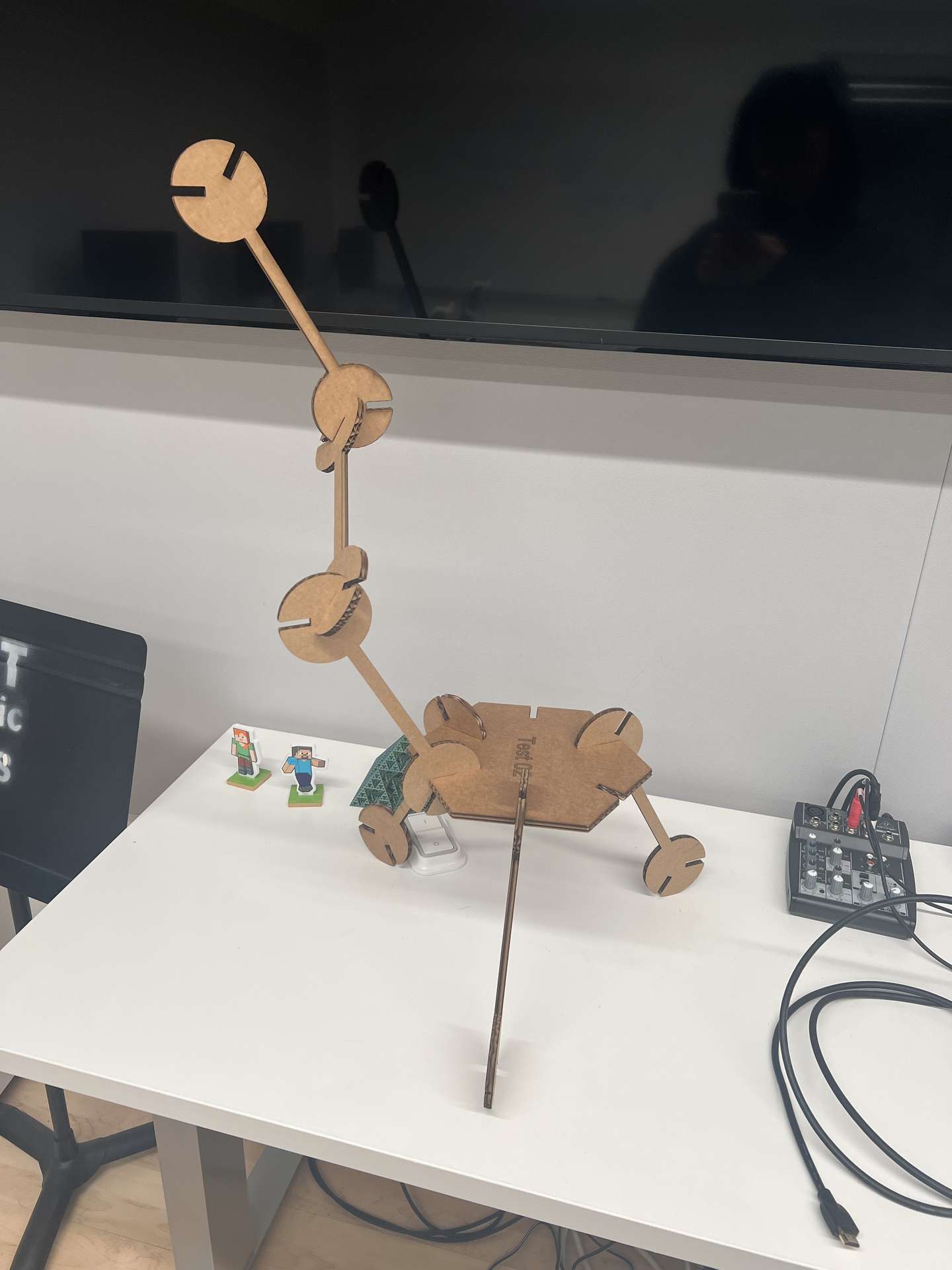
hexagons and wrenches that could fit and interlock. I would use this to test the kerf of the laser
cutter and see what adjustments I need to make.
Following Alfonso's process roughly, I created two components.
I worked on the hexagon first.
One of the new challenges this week was having to be aware of scale, and how my schematics would scale to the real world. To that end, it made a lot more sense to change the units from mm to inches.
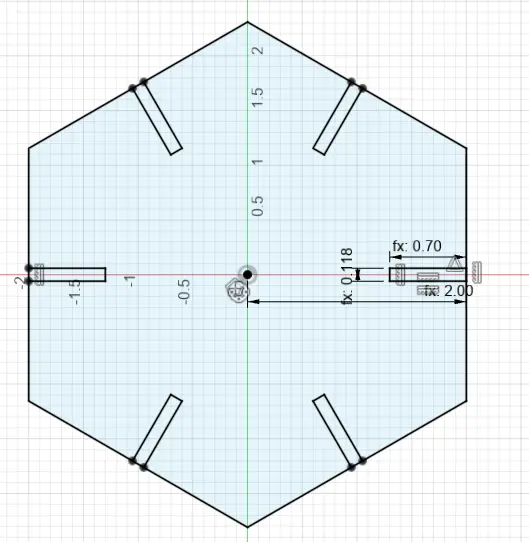
I also defined a bunch of parameters for the hexagon. This made it easy to adjust the size later on when things didn't fit perfectly.

Then I moved on to making the wrench. I was trying out the projection feature in sketch so that I could make the wrench proportional to the hexagon. There did end of being a lot of lines in the sketch but I managed to draw it without too many issues.
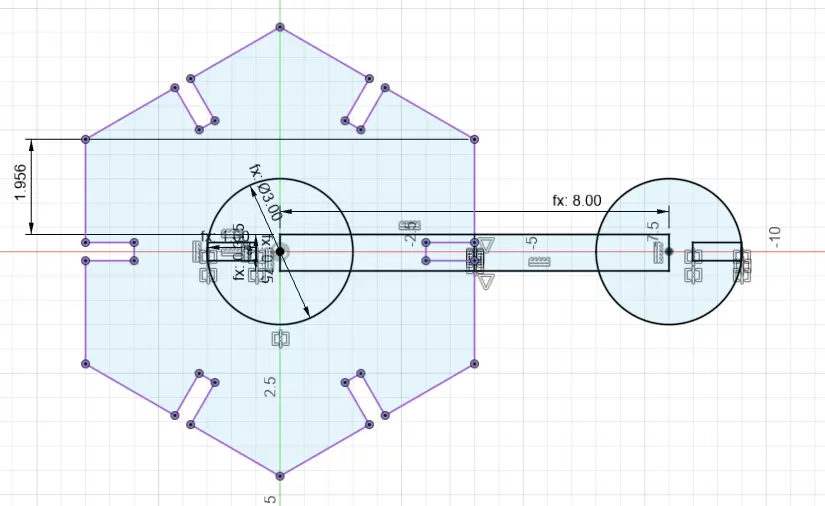
I extruded both so that they were bodies. And then I tried the Assemble > Constraint Components feature. It worked! (more on this later)
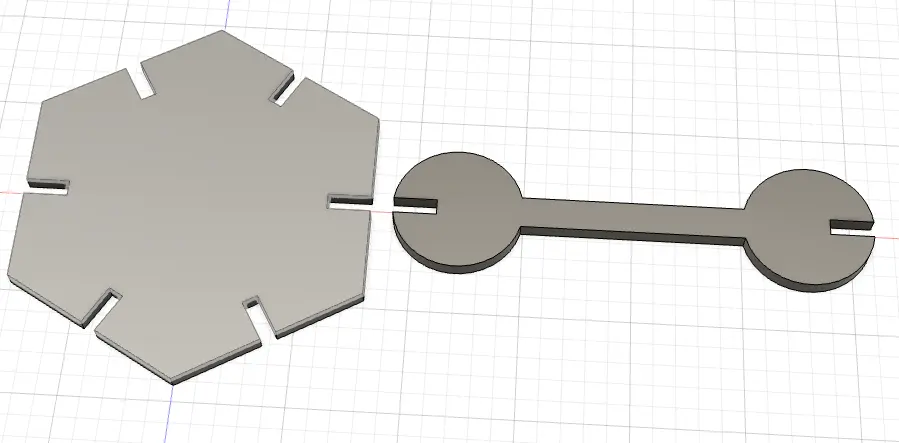
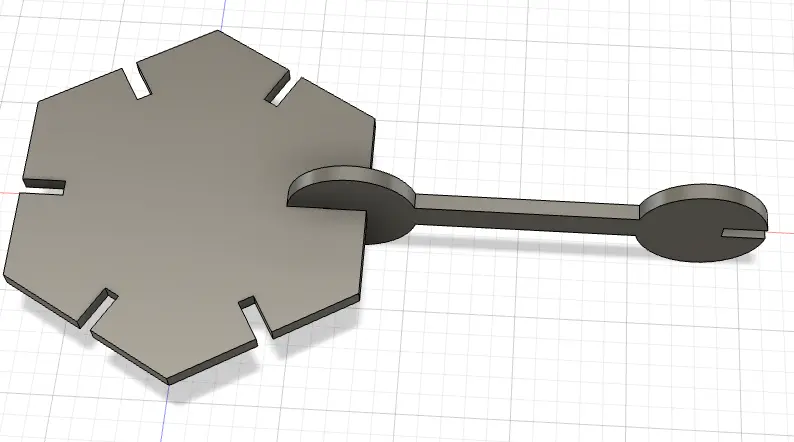
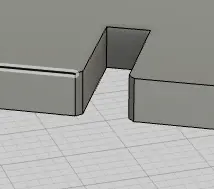
Also made sure to champfer the edges so they would fit together more easily
Then I used the arrange feature to position the components a rectangle in a sketch which I would then export as a .dxf file to laser cut. God bless the arrange feature.
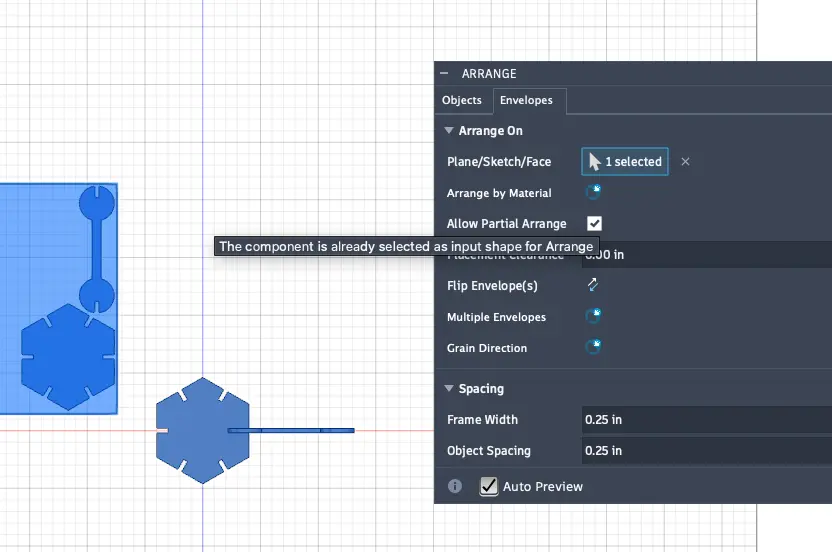
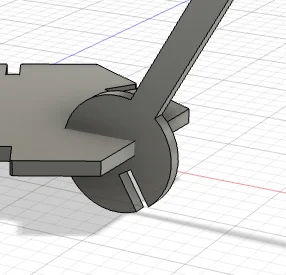
At this point, I realized that the design would be a bit boring to assemble, since it would be completely flat, so I decided to change the wrench sketch. I went back in the timeline and changed the sketch and the changes populated throug the rest of the design.
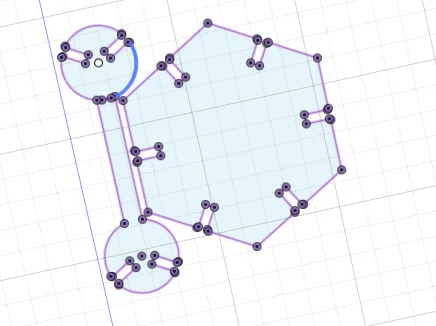
Something weird that happened though, was when I tried using the constraint componenets feature again, it didn't work. I'm not sure why
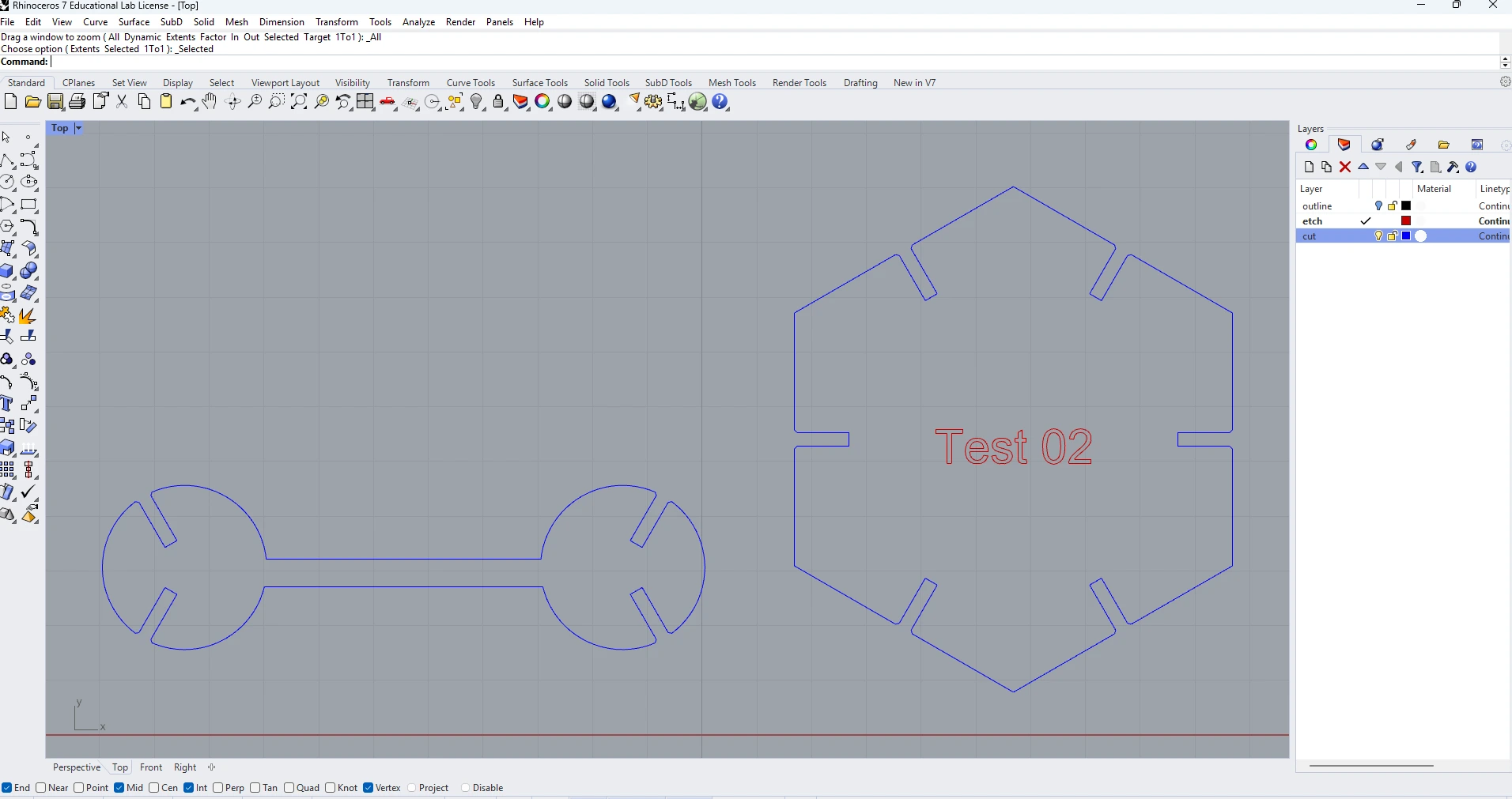
Then I exported the sketch as a .dxf and imported it into the laser cutter software. This involved uploading it onto a hard drive then plugging it into the computer connected to the lazer cutter. The computer taht controlled the lazer cutter used RHINO 7, so there was a bit of editing that needed to be done on that software. But after that, everything was ready to cut! The power did need to be set slighly higher than the factory settings, at around ~30% to cut. I was very excited to see how the pieces would fit together...
And the joints were a little too wide. I had eyeballed the thickness of the cardboard to be 3/8 inch, but in reality it was closer to 1/4 inch. Thankfully, this was an easy fix, since I was designing with parameters that could be easily adjusted. I adjusted the parameters and cut again, and this time the pieces fit together perfectly! Qilmeg helped me add an engraving onto the piece as well.
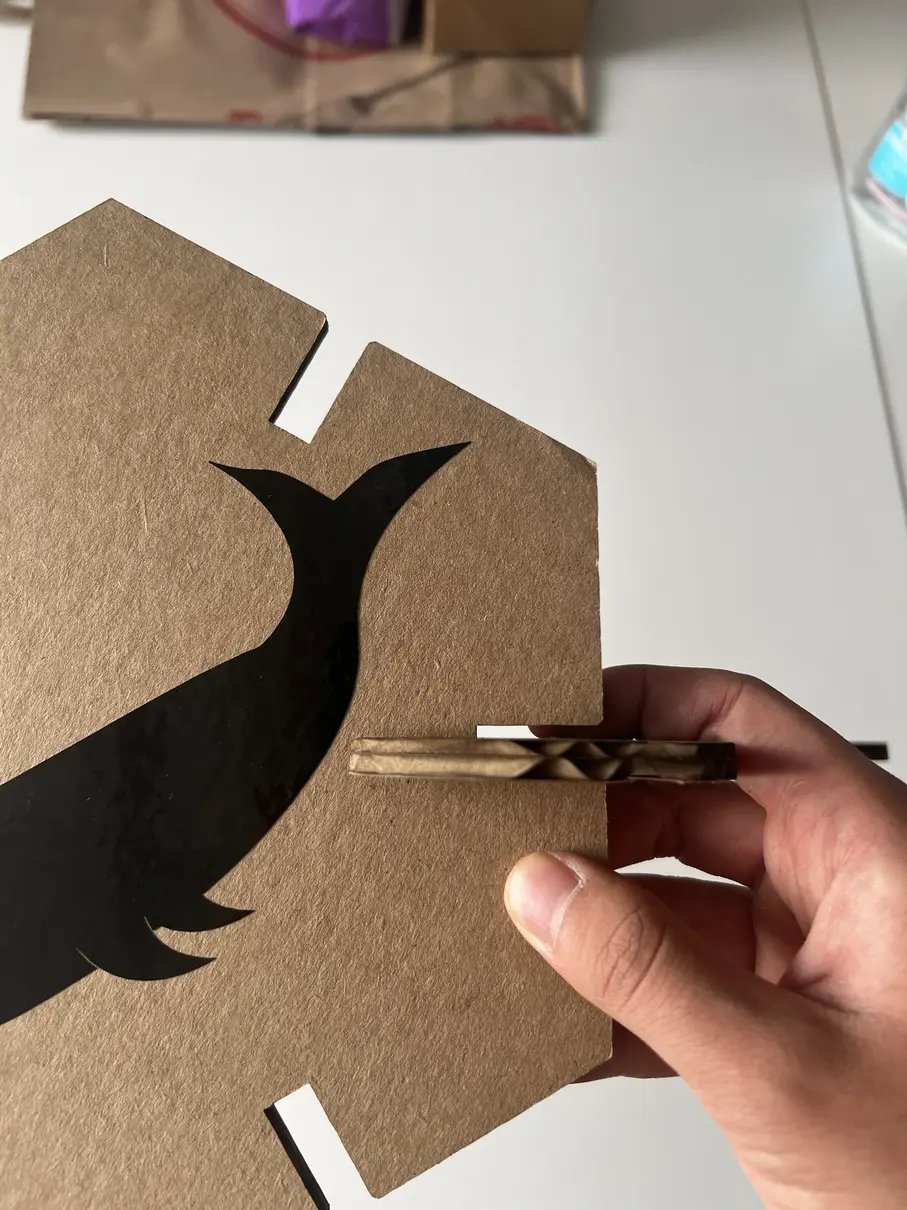
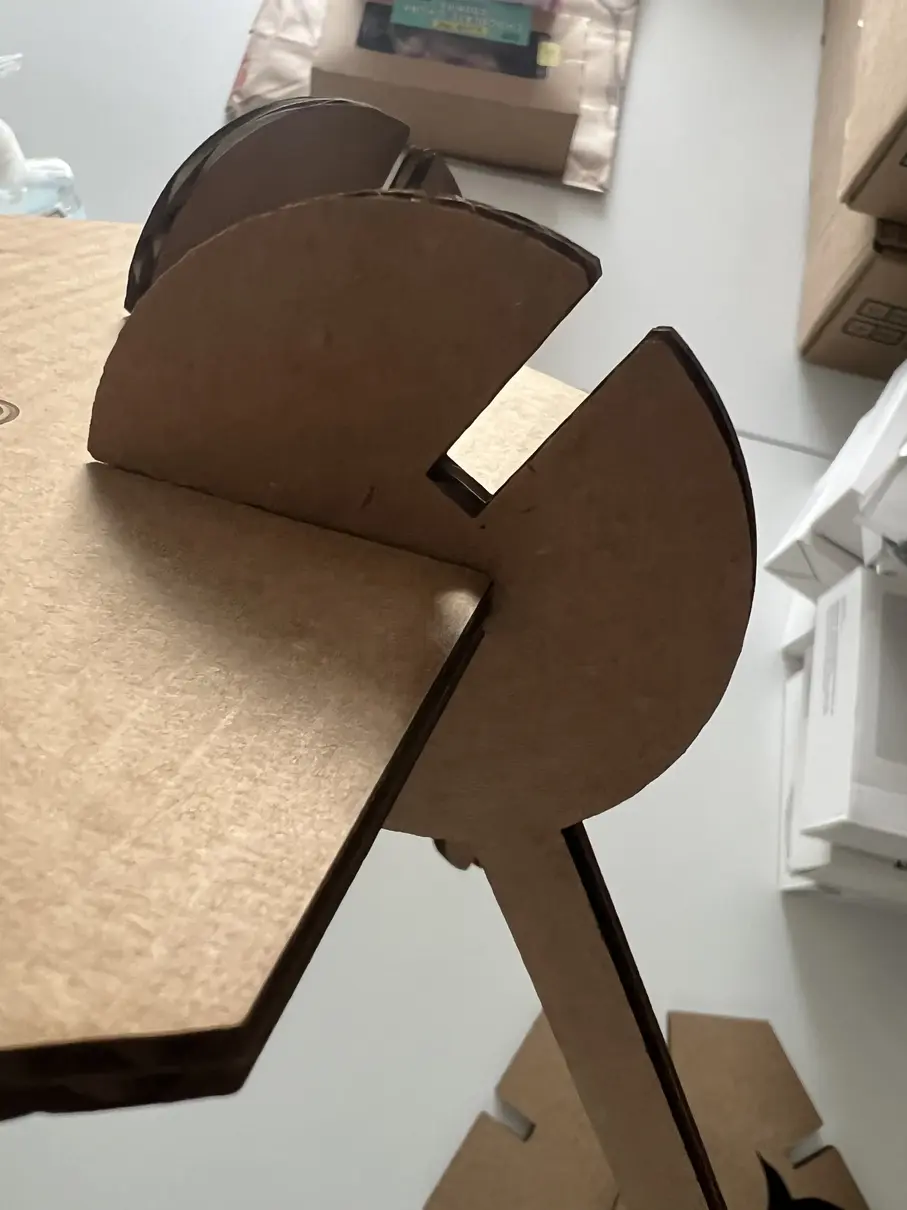
Now I have a nice little hexagon and wrench table.
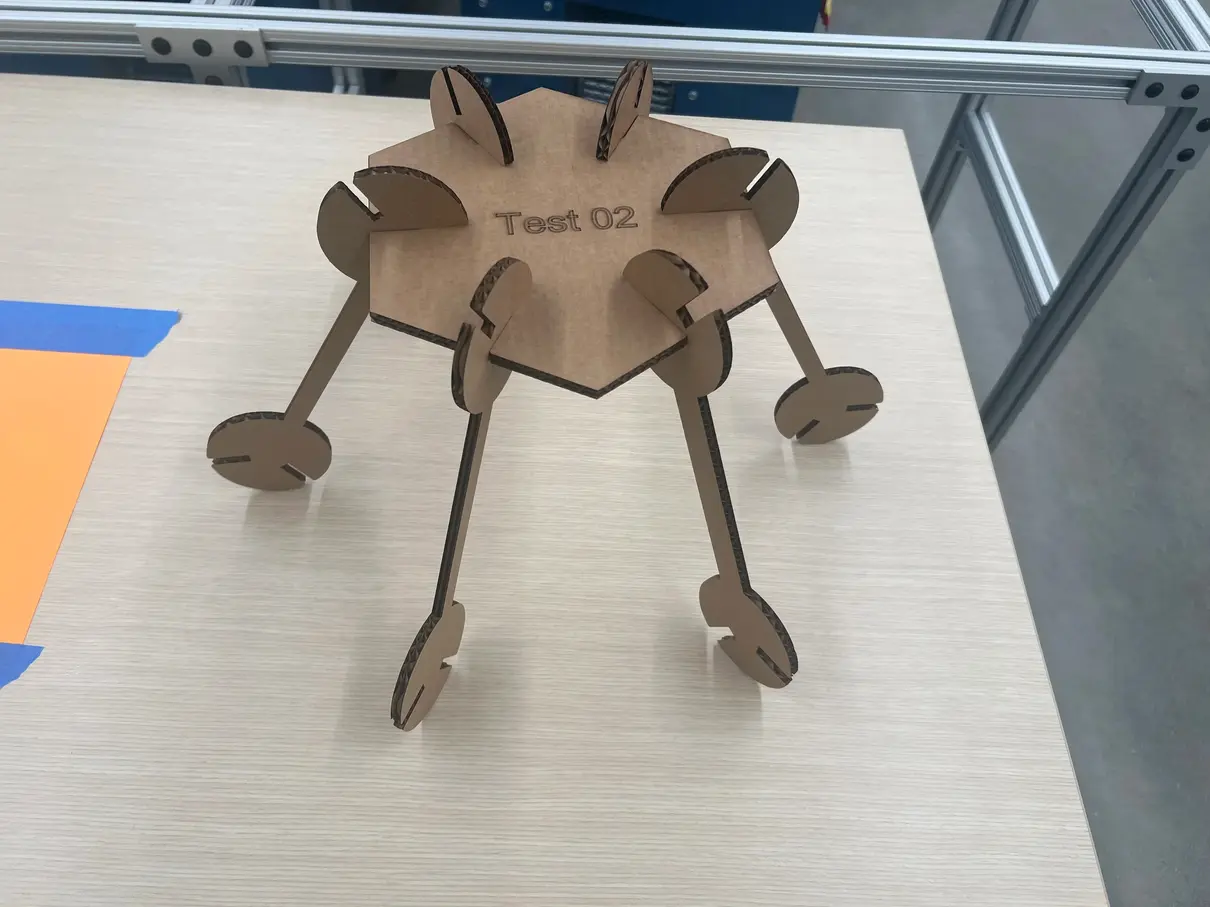
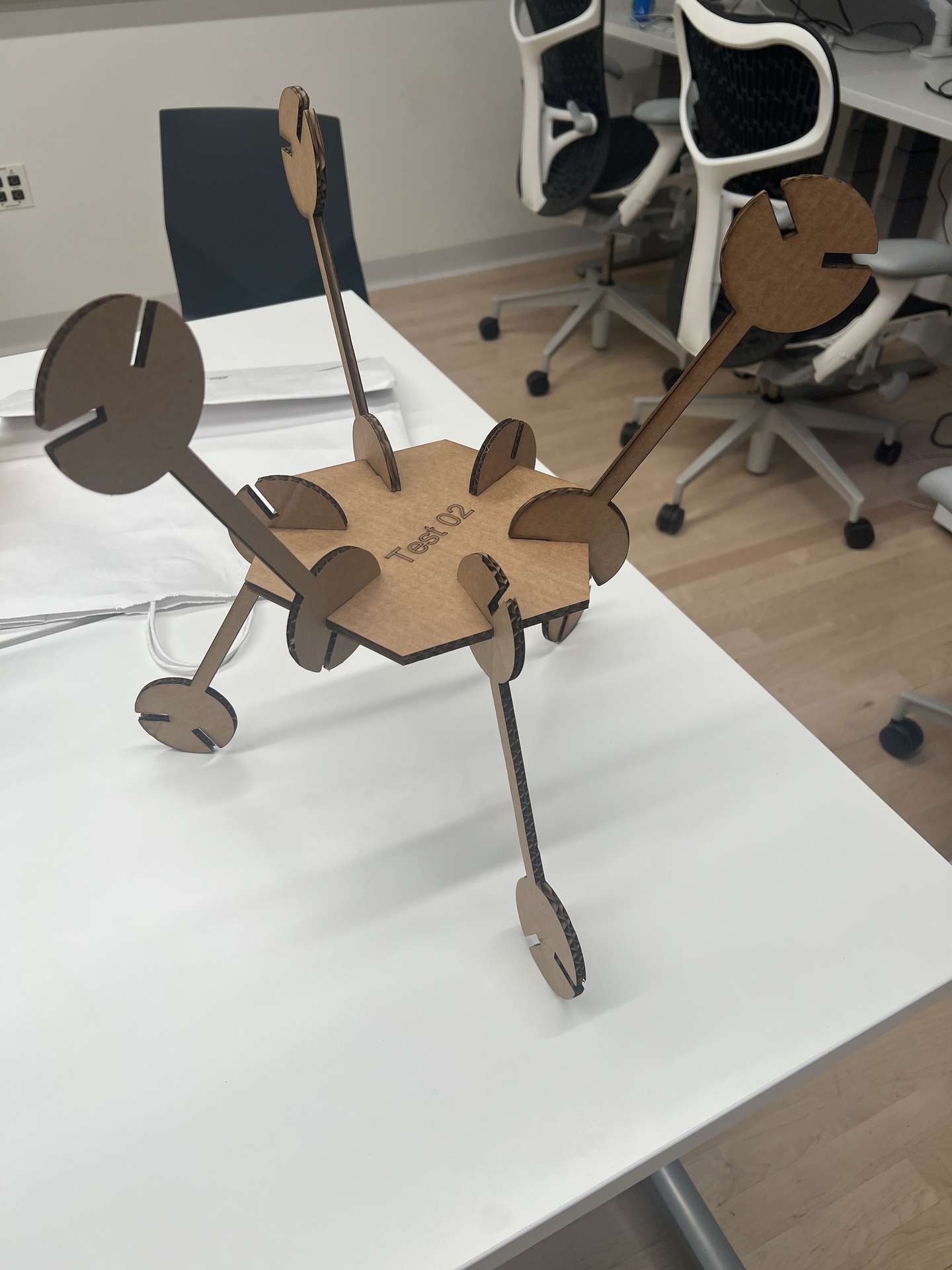
Which can be reassembled to make nice avant-garde art shapes.
Reach Goal
My reach goal was to build an instrument. I found a couple of resources online of people lazer cutting whistles, and I wanted to try to make my own. The side-sections from this guy's project were particularly helpful. I started with making the aforementioned side-sections.
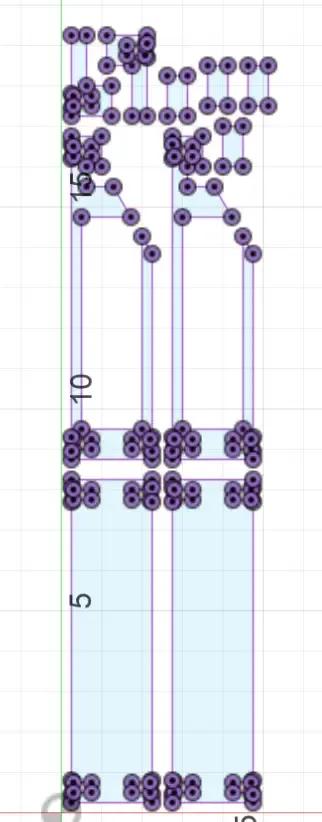
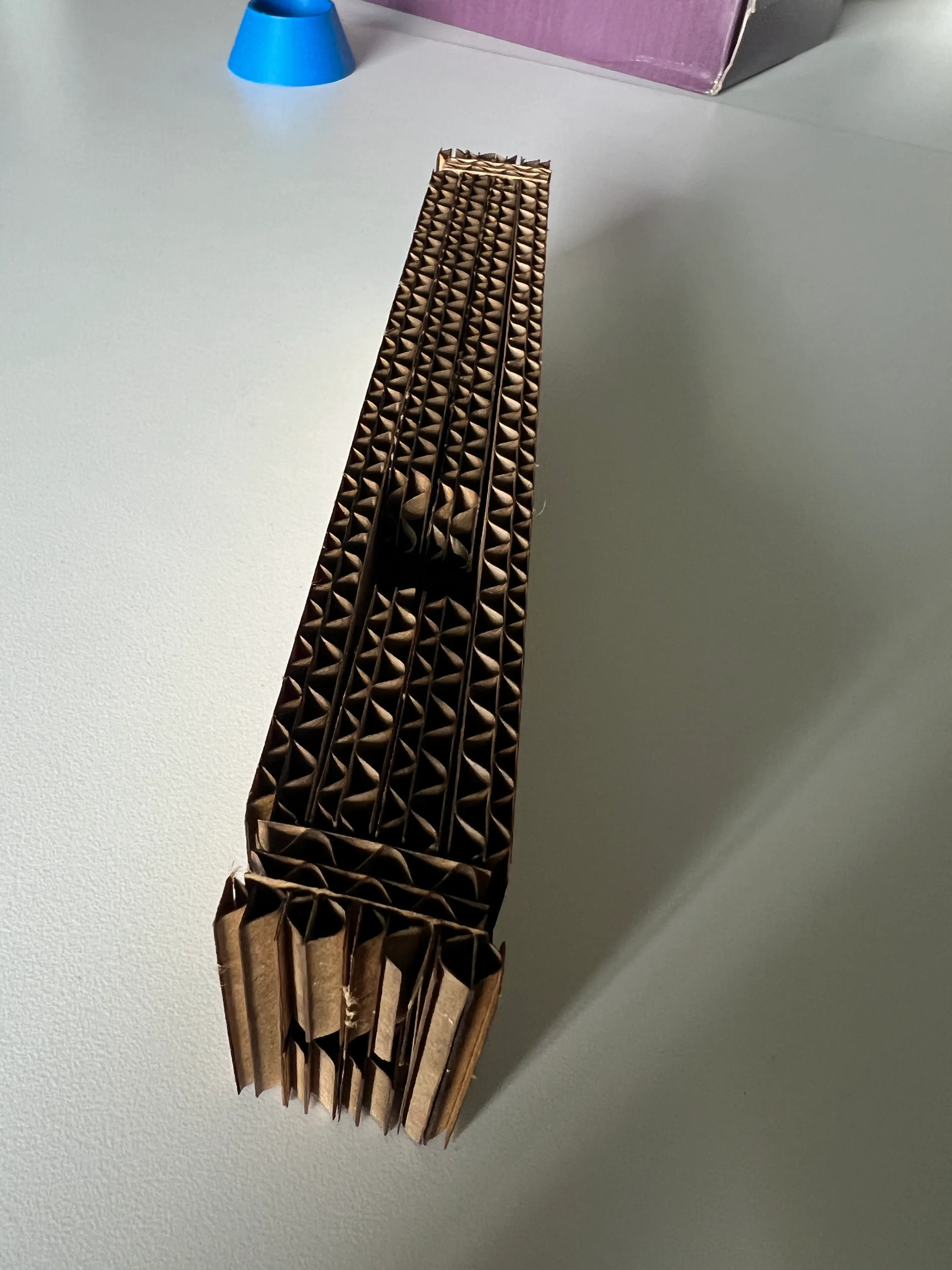
Then I moved on to assembling the whistle. It did assemble, but I forgot an important aspect of the material, cardboard has many holes in it. The airflow is very important and thus it did not sound, tragedy.
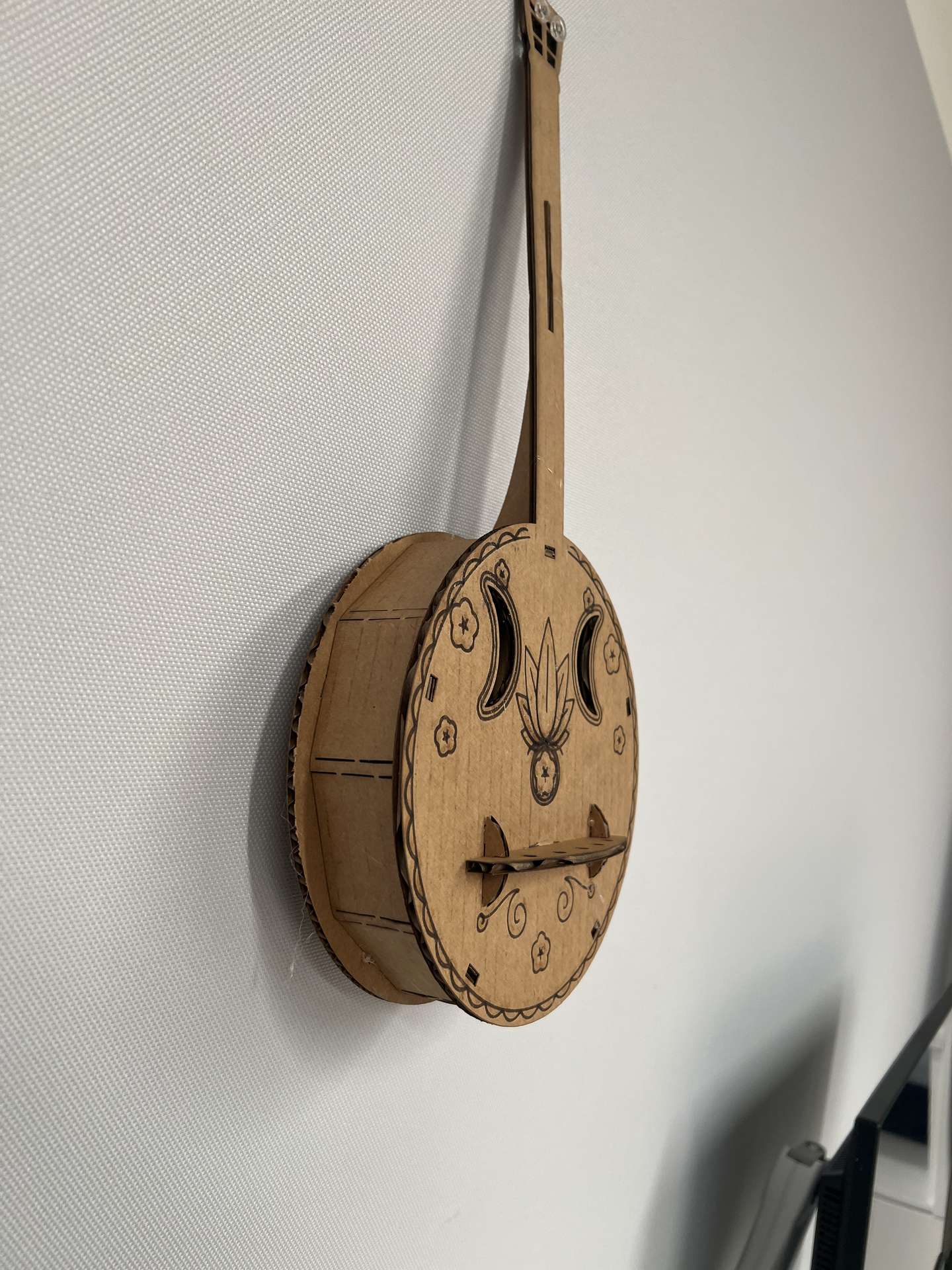
I decided to attack this again, and make something that doesn't necessarily sound but looks cool. I wanted to make a yueqin, a Chinese lute, much like a guitar but with a circular body.
I began work in Fusion, with the skills I had developed thus far, it was easy to make the faces of the instrument.
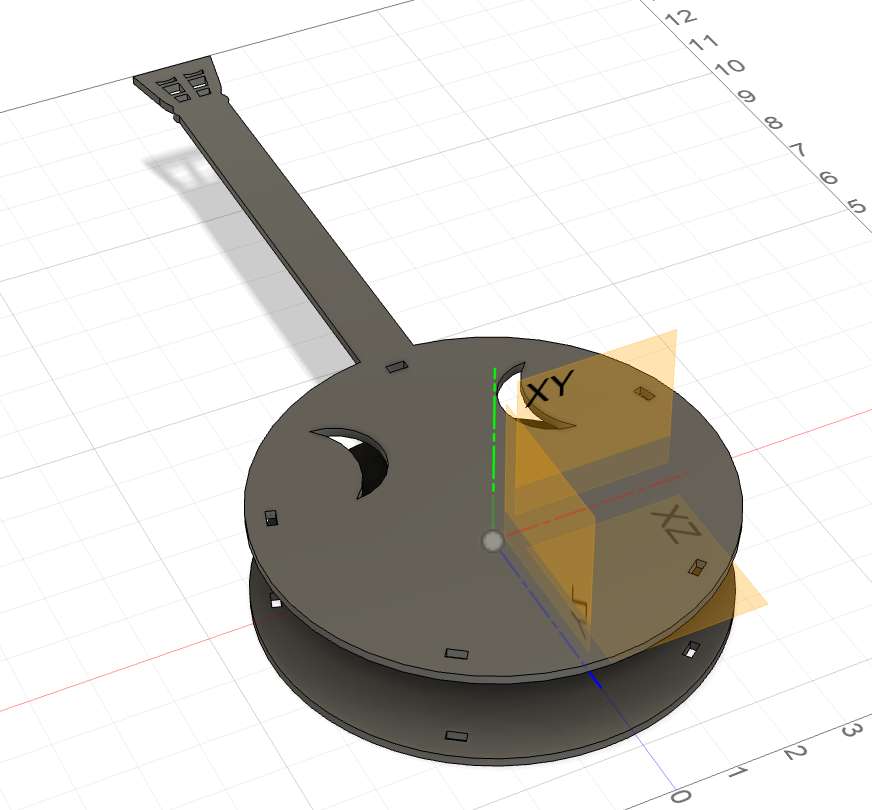
However, for the walls, since they are curved, this raised more of a challenge. I decided to use a sheet metal material for the walls. I thought making a perfect circle would be too challenging, but a decagon would be a pretty good approximation. I set the sheet metal properties to something that felt reasonable, 0.1675 inches thick with a K factor of 0 and bend radius of 0,1 inches. I drew the shape on the bottom face and prepared to flang. However, the sheet metal material is quite finicky, it would not allow me to flange the polygon. What I believe is the issue is that the polygon was a closed shape therefore it would not be able to unfold. So I removed one of the edges of the polygon and sure enough it worked. I made that side a seperate piece.
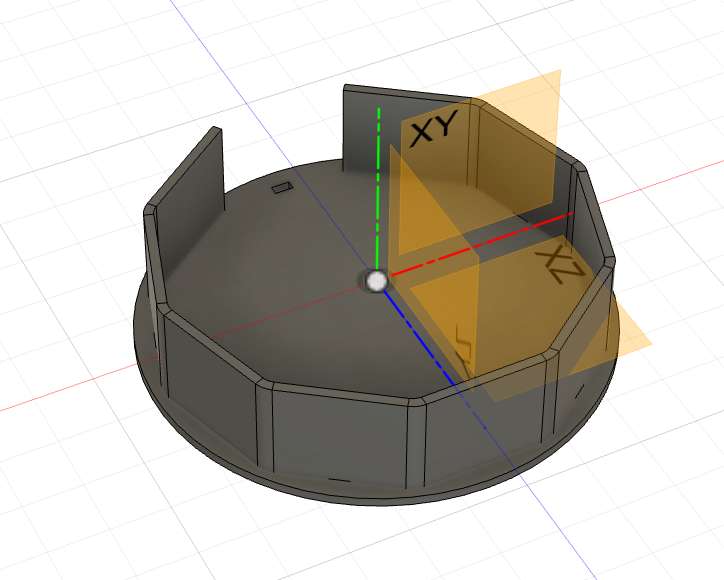
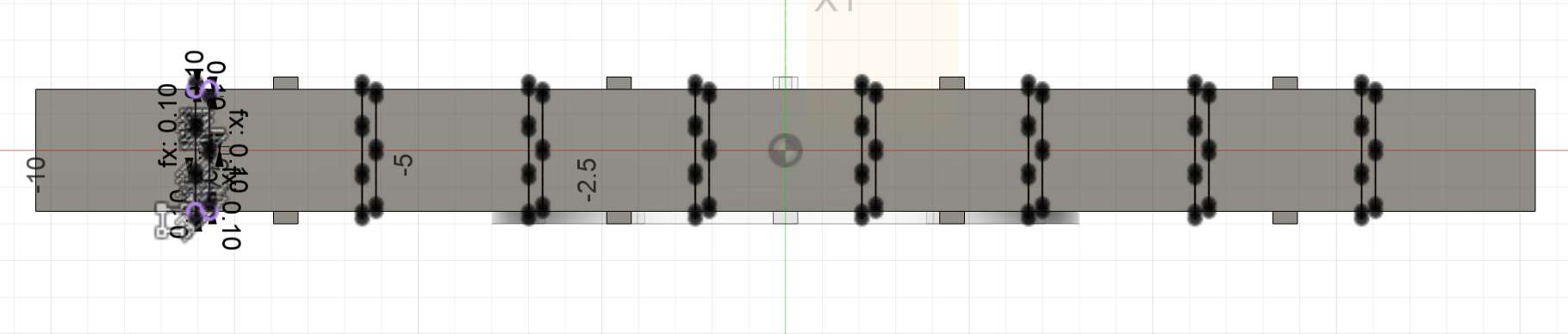
In order for the walls to bend they also needed living hinges. This I did by following the lines that the sheet metal would fold along that showed where the elbows were. I made incomplete cuts in the region that would allow the elbows to fold.
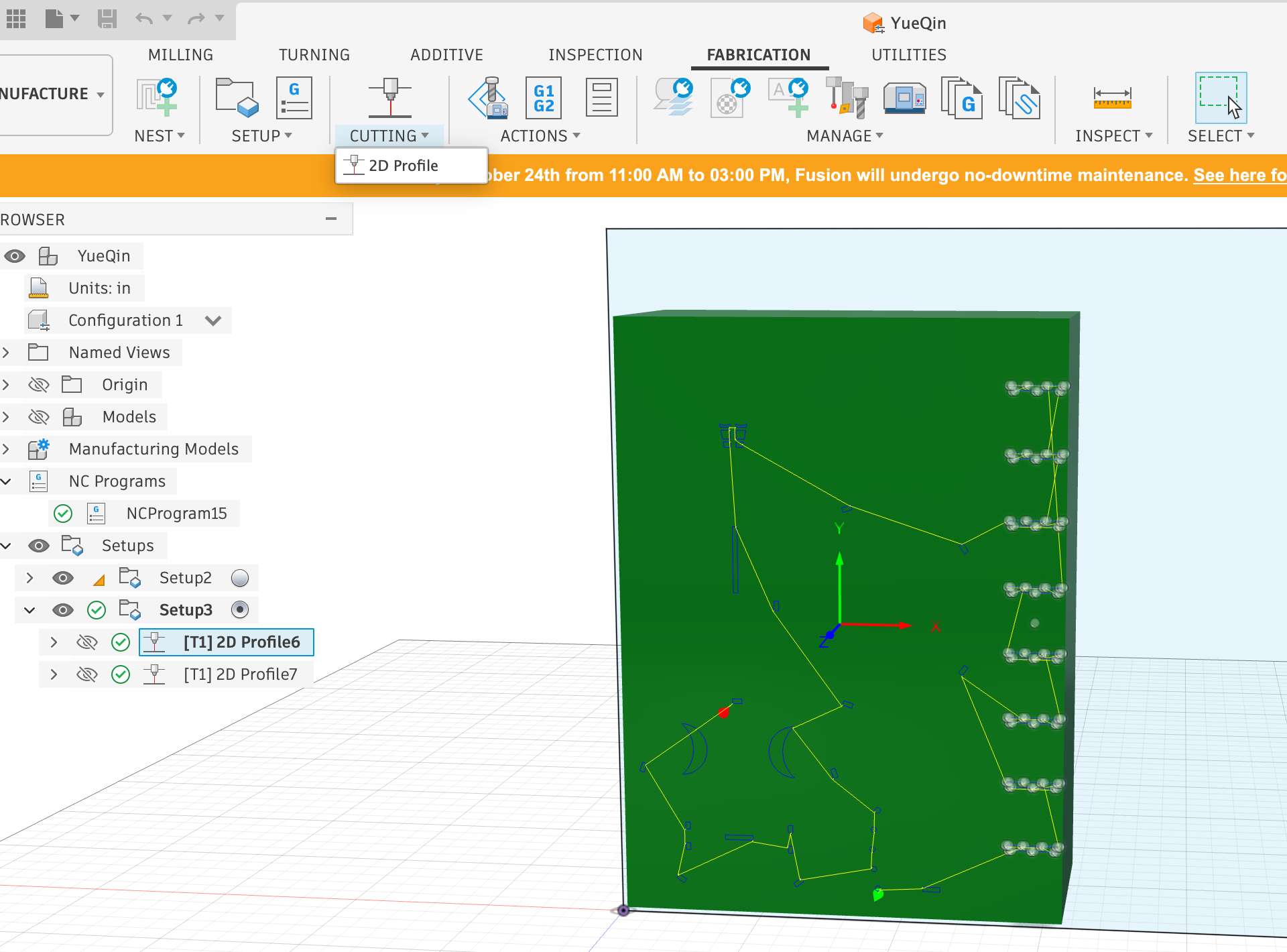
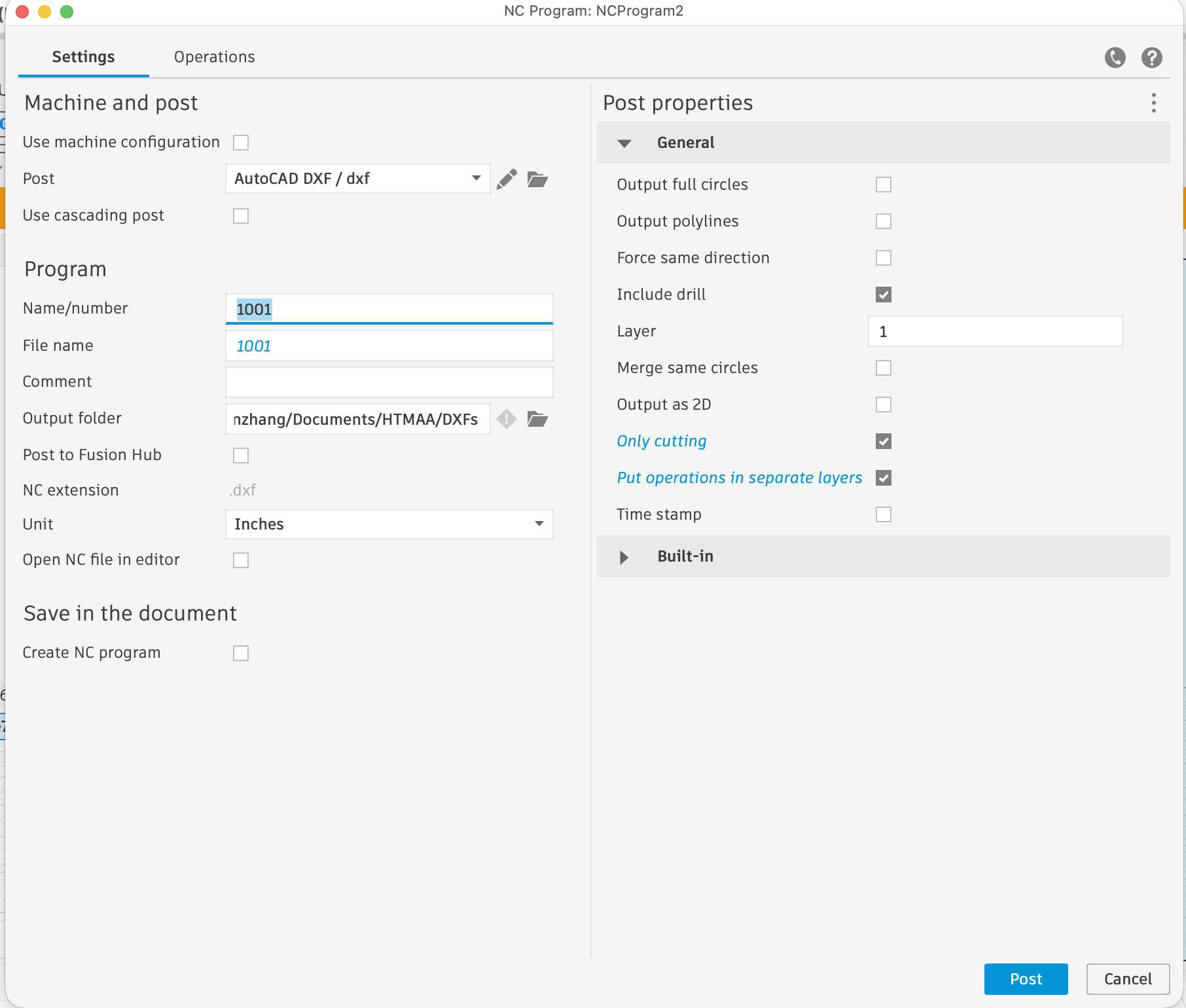
For this project, it would be important to be able to distinguish between engraving, inside cuts, and outside cuts. For this the simple sketch DXF export was not sufficient. For this I went to the manufacturing tab and created a new manufacturing model. I assembled the parts on there just like I would in design tab. Then back in the main manufacturing tab, I made different 2D cuts (under the fabrication tab > cutting) for each of the layers I wanted. Then I exported with the following settings under actions > post process.
 I asked Claude to add some engravings on to it. This is what it looked like in Inkscape.
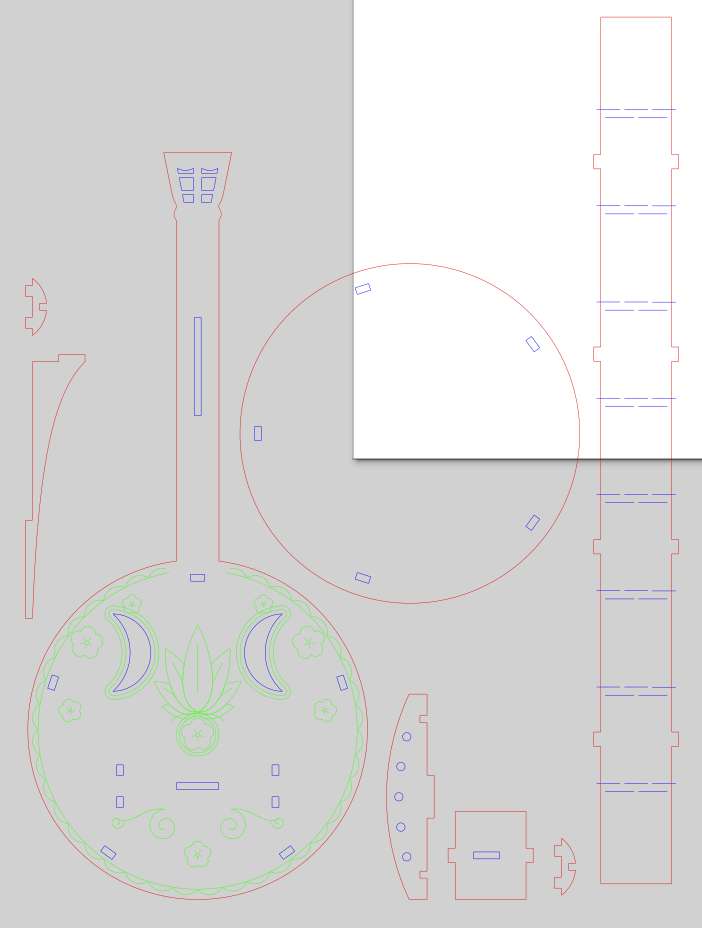
I then exported the design as a .dxf file and sent it too the lazer cutter. One of the important things
to remember that differs from the arch shop tutorial website is to set the focus to plunger instead of thickness.
It was able to cut and engrave. I assembled it (with the help of a little hot glue) and it looks pretty good.
Group portion
I tested different joint tolerances and put everyone's measurements into the website.
