Week 2: Soldering QPAD and Arduino Programming
Soldering
After a brief primer from Qilmeg, I began to try to solder the QPAD together following the instructions on Quentin's website This proved to be difficult initially. Here is my first attempt.
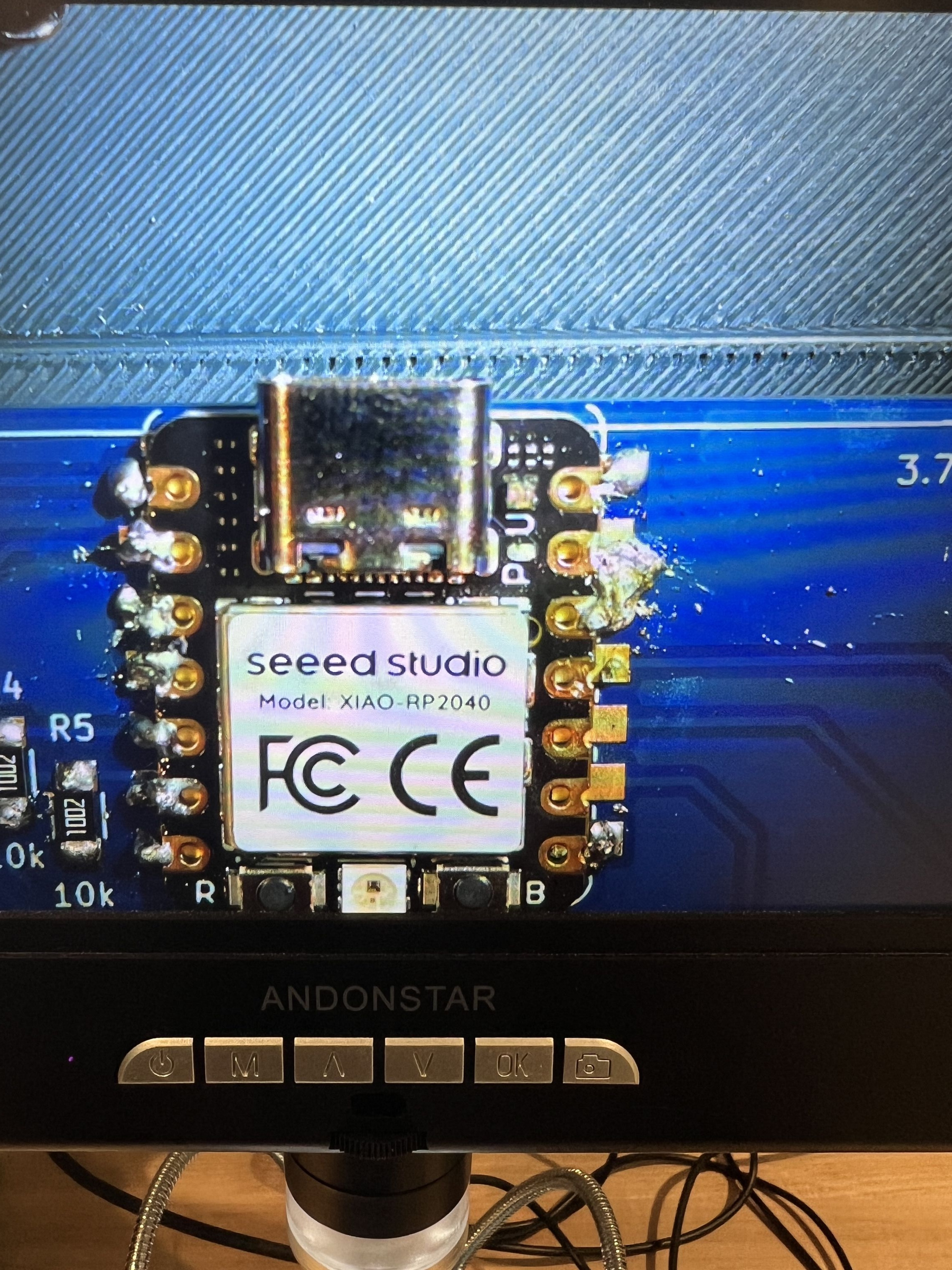
Turns out a primary culprit other than lack of familiarity, was lack of FLUX! Flux is your best friend and makes things melt so much better. Here is attempt #2.
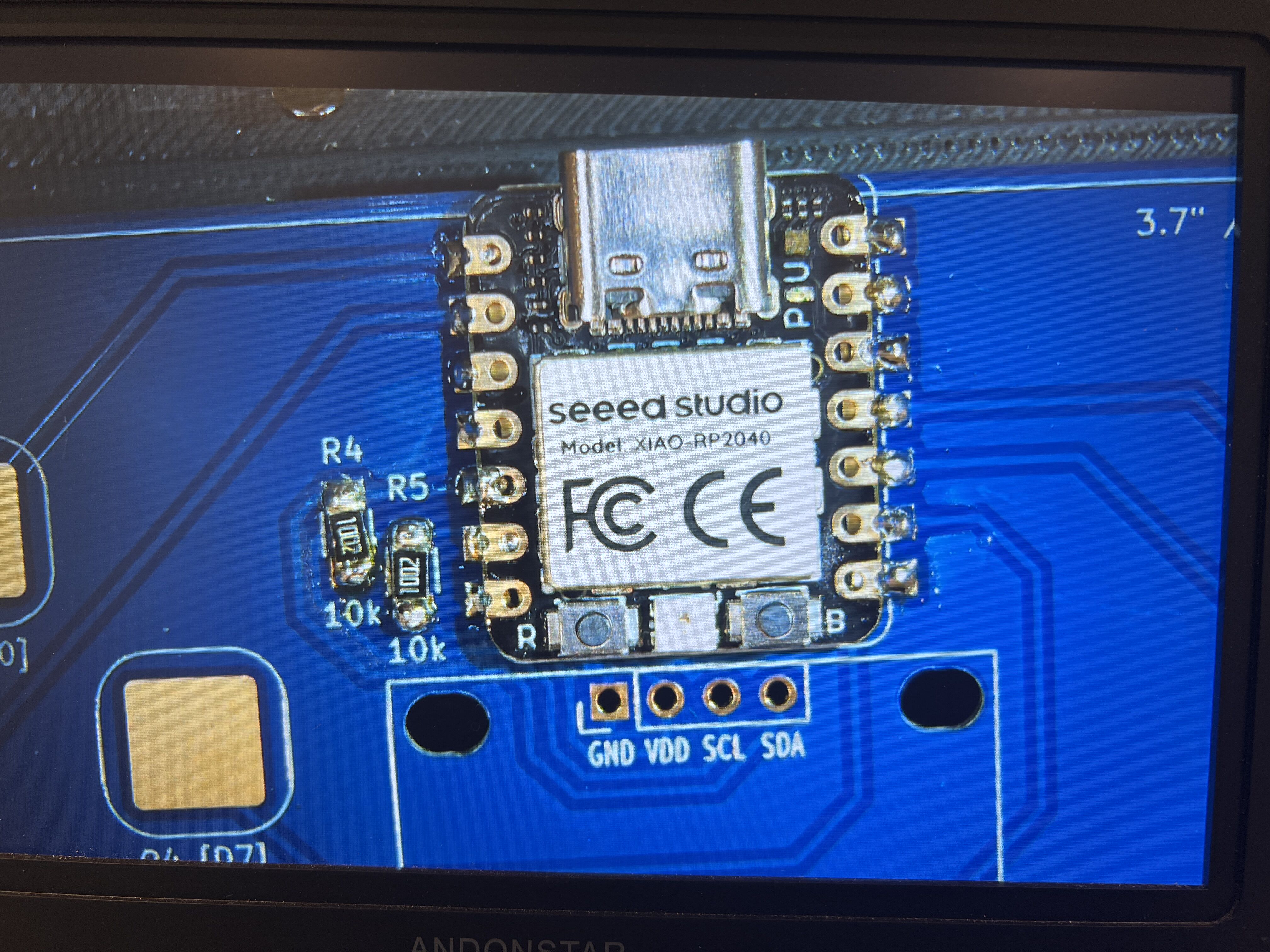
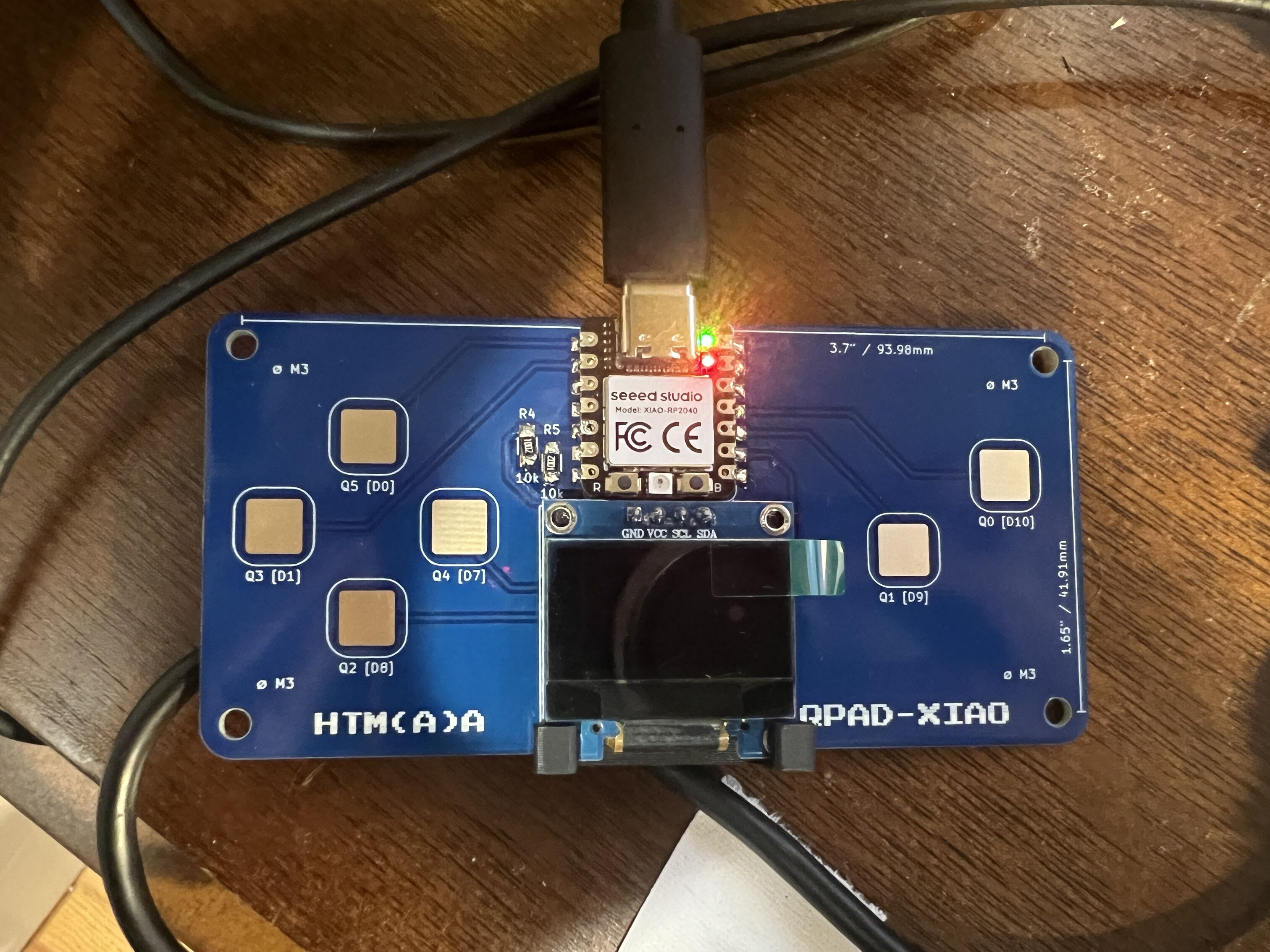
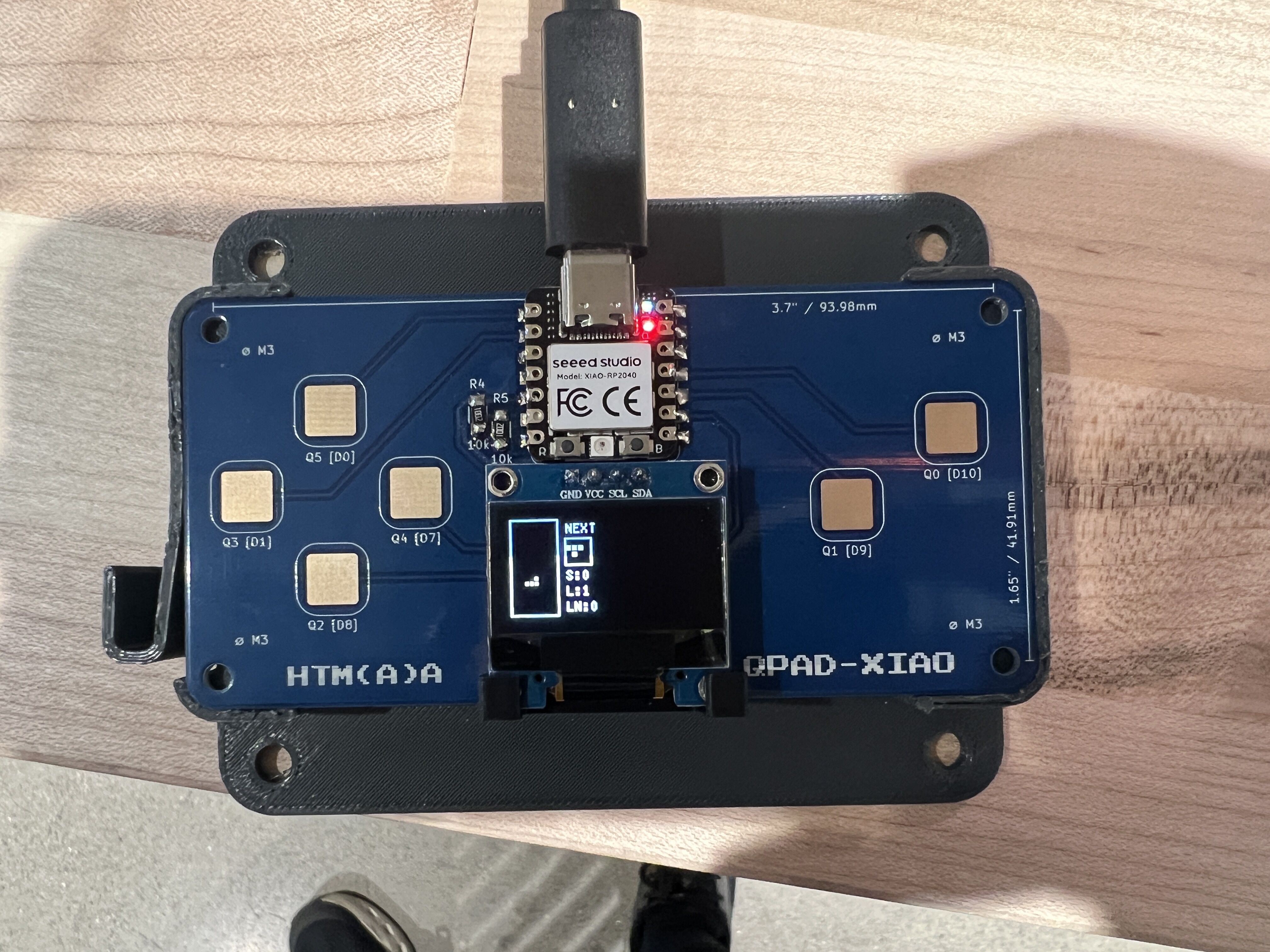
After I finished soldering, the screen still was not turning on, so I used the voltmeter to check the connections to see which ones were working and which were not. Turns out the ground to screen connection wasn't going through, so I fixed the soldering job, and voila I can play Tetris!
I perused through the Seeed Xiao-R2040 datasheet , y'know, light reading. Skimming through, I did think it was interesting that the XIAO-RP2040 had multiple clock sources.
Arduino and Learning Basic 3D Computer Graphics
I was familiar with Arduino, I already had the IDE installed on my computer so after spending a little time downloading the Seeed Xiao R2440 board into my IDE and a few libraries I needed to run code I was all set.
My goal this week was to learn basic 3D computer graphics and to be able to code a running simulator in a 3D plane. As a reach goal I thought about giving the ability to place blocks (like Minecraft!).
First step I tried to code a basic horizon line, and connect it to controls to move the line up and down. If you really use your imagination it's like you're adjusting the camera angle and looking up and down.
I realized that what I really needed was a grid to allow the user to see the 3D space. So I started by drawing that. I defined the XZ plane as the flat plane and the Y axis as elevation.
A fundamental idea in 3D computer graphics how one projects a point in 3D space onto a 2D space (the screen). The basic idea is that there are 2 similar triangles that you can use to get the 2D screen coordinates with information you have about the frustum depth and FOV.
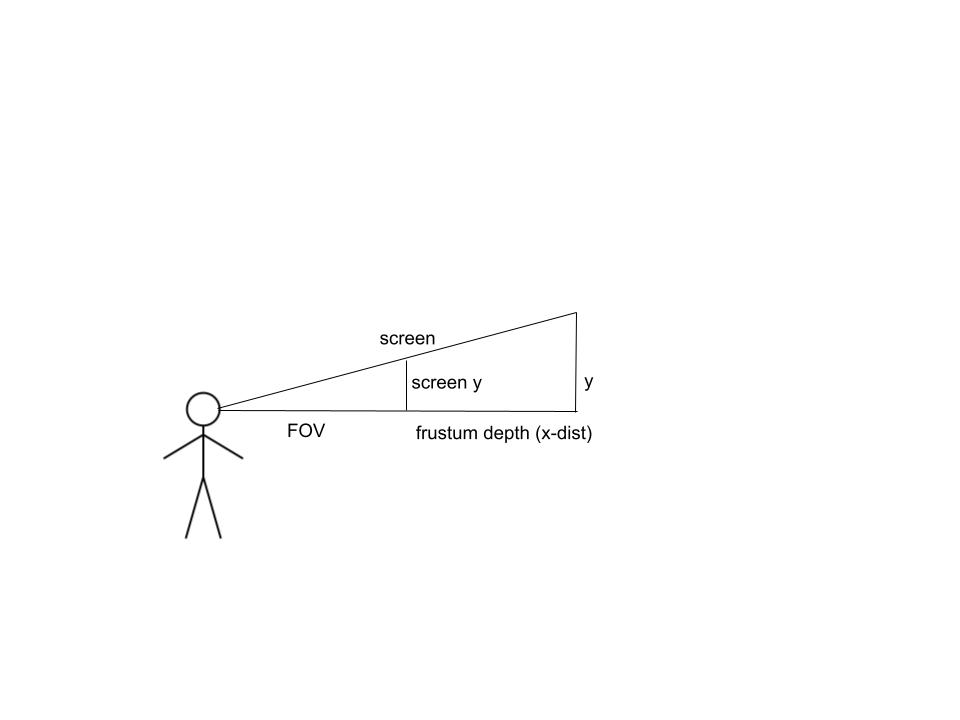
Putting this idea into practice, I figure out the vanishing point lines in the drawing by projecting the farX points. The horizontal lines are inverse-scaled so they get closer as z increases and the y gets closer to the horizon.
const int HORIZON = 32;
const int VP_X = 64;
const int FAR_ROW = HORIZON + 3;   // where the grid stops (matches z = 10)

void drawGrid() {
// lines running away from you, stopped at FAR_ROW
for (int k = -4; k <= 4; k++) {
    int bottomX = VP_X + k * 32;

    // point on this line at FAR_ROW: interpolate between bottom and vanishing point
    int farX = VP_X + (bottomX - VP_X) * (FAR_ROW - HORIZON) / (SCREEN_HEIGHT - 1 - HORIZON);

    display.drawLine(bottomX, SCREEN_HEIGHT - 1, farX, FAR_ROW, SSD1306_WHITE);
}

// lines running across
for (int z = 1; z <= 10; z++) {
    int y = HORIZON + 31 / z;
    display.drawFastHLine(0, y, SCREEN_WIDTH, SSD1306_WHITE);
}
}

void loop() {
    // update_touch();
    // display.clearDisplay();
    drawGrid();
    display.display();
}
Then I got to making it so that you could move back and forth along the z-axis. This was relatively straightforward as the perspective lines (running along the height of the screen) didn't need to change, I just needed to increment the horizontal lines with scaling for perspective.
I borrowed the update_touch() command to take in inputs from Quentin's qpad_tetris.ino
const int HORIZON = 32;
const int VP_X = 64;  // vanishing point x, in the middle of the screen
const int FAR_ROW = HORIZON + 6;

const float K = 62.0; //row scale
const float NEAR_DZ = K / (SCREEN_HEIGHT - 1 - HORIZON); // bottom of screen z-coord

void drawGrid() {
    // lines running away from you, converging at the vanishing point
    for (int k = -4; k <= 4; k++) {
        int bottomX = VP_X + k * 32;

        // project VP_X onto FAR_ROW
        int farX = VP_X + (bottomX - VP_X) * (FAR_ROW - HORIZON) / (SCREEN_HEIGHT - 1 - HORIZON);
        display.drawLine(bottomX, SCREEN_HEIGHT - 1, farX, FAR_ROW, SSD1306_WHITE);
    }

    // lines running across
    for (int i = (int)floorf(camZ / TILE); ;i++) {
        float dz = i * TILE - camZ;
        if (dz < NEAR_DZ) continue; // below screen
        int y = HORIZON + K / dz;
        if (y <= FAR_ROW) break; // exit when horizon is reached
        display.drawFastHLine(0, y, SCREEN_WIDTH, SSD1306_WHITE);
    }
}
In order to control with pads the inputs had to be mapped and logged in the loop() function now
void loop() {
  update_touch();

  // time since last frame, so speed doesn't depend on frame rate
  unsigned long now = micros();
  float dt = (now - lastMicros) * 1e-6f;
  lastMicros = now;

  // pin_touched_now[3] is UP, [2] is DOWN
  if (pin_touched_now[3]) camZ += MOVE_SPEED * dt;
  if (pin_touched_now[2]) camZ -= MOVE_SPEED * dt;

  display.clearDisplay();
  drawGrid();
  display.display();
}
Turns out the ability to turn the camera is a huge step in difficulty. Since now all the lines must also shift angle to account for the yaw of the camera angle in respect to the X and Z axis which the grid is drawn parallel to. In order to support this I had to rethink the drawGrid function, to that end it was helpful to implement some helper functions.
// Translate/rotate a world point into camera space (x = right, z = forward/depth).
void toCameraSpace(float wx, float wz, float s, float c, float &x, float &z) {
  float dx = wx - camX;
  float dz = wz - camZ;
  x = dx * c - dz * s;
  z = dx * s + dz * c;
}

// Project an already-camera-space point to screen coordinates.
// Caller must ensure z >= NEAR_DZ.
void projectCamera(float x, float z, int &sx, int &sy) {
  sx = CX + (int)roundf(FOCAL * x / z);
  sy = HORIZON + (int)roundf(K / z);
}

void drawWorldLine(float wx0, float wz0, float wx1, float wz1, float s, float c) {
  float x0, z0, x1, z1;
  toCameraSpace(wx0, wz0, s, c, x0, z0);
  toCameraSpace(wx1, wz1, s, c, x1, z1);

  if (z0 < NEAR_DZ && z1 < NEAR_DZ) return;  // whole segment too close
  if (z0 < NEAR_DZ) { float t = (NEAR_DZ - z0) / (z1 - z0); x0 += t * (x1 - x0); z0 = NEAR_DZ; }
  if (z1 < NEAR_DZ) { float t = (NEAR_DZ - z1) / (z0 - z1); x1 += t * (x0 - x1); z1 = NEAR_DZ; }

  int sx0, sy0, sx1, sy1;
  projectCamera(x0, z0, sx0, sy0);
  projectCamera(x1, z1, sx1, sy1);
  display.drawLine(sx0, sy0, sx1, sy1, SSD1306_WHITE);
}
And the new drawGrid() was simplified.
void drawGrid() {
  float s = sinf(yaw); // x-component of yaw
  float c = cosf(yaw); // z-component of yaw

  int ix0 = (int)floorf((camX - WORLD_RANGE) / TILE);
  int ix1 = (int)ceilf((camX + WORLD_RANGE) / TILE);
  int iz0 = (int)floorf((camZ - WORLD_RANGE) / TILE);
  int iz1 = (int)ceilf((camZ + WORLD_RANGE) / TILE);

  // lines running away from you (constant x)
  for (int i = ix0; i <= ix1; i++) {
    float wx = i * TILE;
    drawWorldLine(wx, camZ - WORLD_RANGE, wx, camZ + WORLD_RANGE, s, c);
  }

  // lines running across (constant z)
  for (int i = iz0; i <= iz1 ;i++) {
    float wz = i * TILE;
    drawWorldLine(camX - WORLD_RANGE, wz, camX +WORLD_RANGE, wz, s, c);
  }
}
And controls for camera rotation modifying the yaw needed to be added
    // wrap yaw
    if (yaw > PI)  yaw -= 2 * PI;
    if (yaw < -PI) yaw += 2 * PI;

    if (pin_touched_now[0]) yaw -= TURN_SPEED * dt; // LEFT
    if (pin_touched_now[1]) yaw += TURN_SPEED * dt; // RIGHT
Interestingly, if you allow the yaw to be unbounded you get a lot of crazy glitchy effects if you rotate too much, I'm assuming because of some weird float behavior.
Lastly, moving around didn't feel satisfying without being able to jump. This involved making the K (eye height scaled by FOCAL) variable. I needed to add additional logic within loop() to update the Y position of the camera, and simulate some basic physics.
// jump
bool jumpPressed = pin_touched_now[5] && !pin_touched_past[5];
if (jumpPressed && camY <= 0.0f) {
    velY = JUMP_VELOCITY;
}

// basic y-physics engine
camY += velY * dt;
velY -= GRAVITY * dt;
if (camY < 0.0f) {camY = 0.0f; velY = 0.0f; } //landed

float kEff = K * (EYE_HEIGHT + camY) / EYE_HEIGHT;
Afterwards, all of the K's currently used in the grid rendering needed to be replaced with kEff which changes depending where in the jump physics the camera is.
Connecting to Computer
The program already interacts with the input from the touch pads built into the QPAD, but I wanted to try sending data back to my computer as well, to sync the 3D screen on the QPAD to a game of Minecraft on my computer.
This would involve using 2 important Arduino libraries, Keyboard.h and Mouse.h
I added the following functions and called them in the loop() function.
int touch_pins[N_TOUCH]   = { PIN_LEFT, PIN_RIGHT, PIN_DOWN, PIN_UP, PIN_A, PIN_B };
int touch_values[N_TOUCH] = { 0, 0, 0, 0, 0, 0 };
char key_map[N_TOUCH] = { 0, 0, 's', 'w', 0, ' ' };

void update_keyboard() {
  for (int i = 0; i < N_TOUCH; i++) {
    if (key_map[i] == 0) continue;  // skip pads handled elsewhere (mouse)
    if (pin_touched_now[i] && !pin_touched_past[i]) {
      Keyboard.press(key_map[i]);
    } else if (!pin_touched_now[i] && pin_touched_past[i]) {
      Keyboard.release(key_map[i]);
    }
  }
}

const int8_t MOUSE_SPEED = 12;  // pixels per frame while held

void update_mouse() {
  int8_t dx = 0;
  if (pin_touched_now[0]) dx -= MOUSE_SPEED;  // LEFT
  if (pin_touched_now[1]) dx += MOUSE_SPEED;  // RIGHT
  // LEFT CLICK
  if (pin_touched_now[4] && !pin_touched_past[4]) {
    Mouse.press(MOUSE_LEFT);
  } else if (!pin_touched_now[4] && pin_touched_past[4]) {
    Mouse.release(MOUSE_LEFT);
  }
  if (dx != 0) Mouse.move(dx, 0);
}
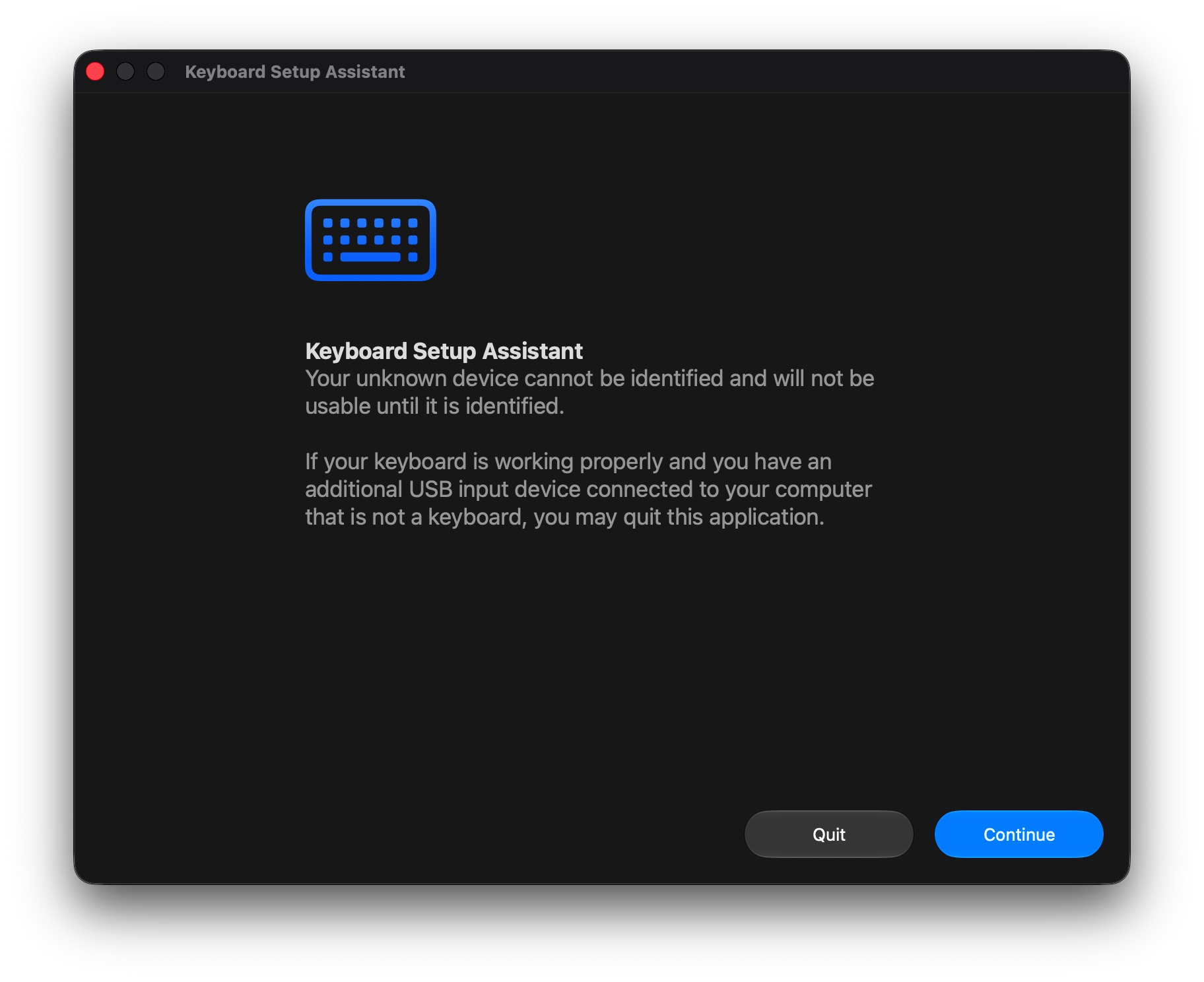
The first time the function is uploaded the computer doesn't recognize the QPAD as a keyboard so you need to go through this setup, and press any random button when it prompts to to type the key next to "shift" (it doesn't exist). Then, manually select the "ANSI" keyboard format.
Micropython
After using the familiar Arduino IDE, I wanted to try out Micropython on the QPAD. There could be a potential benefit to me as I am much more familair with Python than C++.
However the process up setting it up seemed more involved. I downloaded the Thonny IDE, then I plugged in the QPAD, but I needed to do it so that it was recognized as a RPI-RP2 drive.
In Thonny I needed to go to Run > Configure Interpreter > Install or update Micropython. I chose the RP2 family and the Raspberry Pi Pico / Pico H variant (not sure if this is the right one but it works). In order to interface with the screen I needed to go to Tools > Manage Packages and download the micropython_ssd1306 package.
Finally I had everything I needed. I was able to run (and beat) Quentin's hello_game.py on the QPAD.

The process for coding and installing packages in micropython and Thonny felt a lot clunkier than Arduino, so I think moving forward I will still stick with Arduino.
AI use disclaimer
Claude was used to help understand some of the projection tricks and math required to rotate the image based on the yaw. It was prompted to ask about what were the necessary libraries/functions for features like the keyboard/mouse input. I worked through code that Claude had provided and experimented, tweaked, and looked through the code in order to understand it fully.
Group Assignment
I compared C++ and Arduino vs Thonny and Micropython.