Week 4: Electronics Design
Website Updates
This week was electronics design, but equally importantly it was the first website review, so it time to update my website. Now it was looking fine, it was not raw HTML but it had a lot to be desired especially compared to some of the more extravagant ones here.
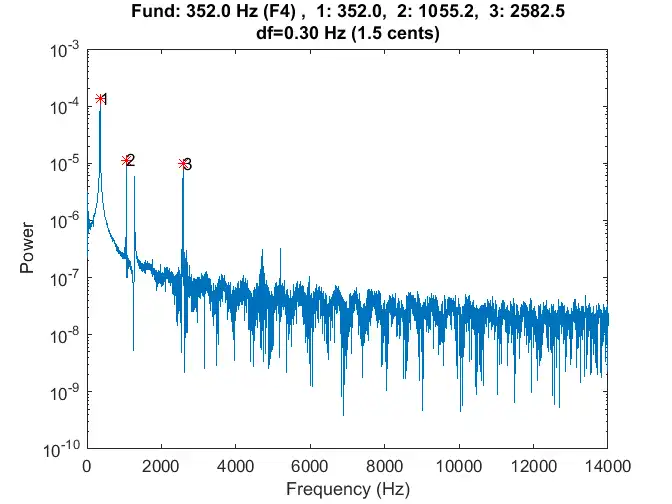
The first improvements I wanted to make were to add some additional audio features to the website. The first was to add a xylphone mallet sound when clicking on links. I looked at the following frequency response of a xylphone hit and roughly approximated it using a triangle wave as the fundamental and a sine wave at 3 and 6 times the fundamental frequency as overtones. The sound is triggered by a pointerdown event, which the javascript listens for and plays the sound when it occurs.
Next I wanted to add some ambient music to the main page, to do this I borrowed a technique from Brian Eno's Music for Airports, where you use multiple loops of different lengths to play a few notes that sound good together in various combinations. I ended up using 4 loops, all playing notes from a Db9 chord (Db, F, A, C, Eb), which sounded very pleasant together. The different loops are of length 19.7, 17.3, 13.1, and 11.9 seconds (the exact lengths are not important, but it is important that they do not have common factors) which means that it would take whopping 885.5 minutes for the loops to start repeating again. In a way this generative music is a bit like windchimes, which different combinations of harmonius pitches sounding together.
I then decided to have Claude help me brush up the website aesthetically as well. The original idea was to have this be a sort of "scrapbook" and each week being an entry in the book. With the help of Claude, I was able to create some CSS elements and accompanying JavaScript to make the pages look more like a book, and to add a few animations as well. To accompany the flipping animation, I added a swish sound effect too when turning the page by filter sweeping nosie.
Electronics Design: Fighting KiCAD
So in alignment with my final project, I wanted to design two small PCBs this week. I forsaw my project needing two boards, a "manager" board from which to send MIDI commands to the different "organ" modules and a "receiver" board to receive MIDI commands from the manager and to control the inflation of different "organs."
Manager Board
| Part | Description |
|---|---|
| Raspberry Pi Pico W | The microcontroller to control the board |
| RGB LED | A LED to indicate the status of the board |
| Power Jack 0.7x2.35mm | A power jack to connect to the battery |
| Resistor 1206 x3 | Resistors to limit the current through the diode |
I got started with the manager board first. I wanted to follow something very similar to the Q-Pad and use capacitor-based button detection. I decided to I wanted to make the buttons looks like the keys on a piano, so following Anthony's suggestion, I went to make some custom footprints. Turns out in custom footprints, you cannot make custom fill regions, so you need to use some clever workarounds. For me, using different sized pads (changing the pad type to SMD so there's no hole in the middle), and now with a combination of different pads I have a pretty convincing set of keys.
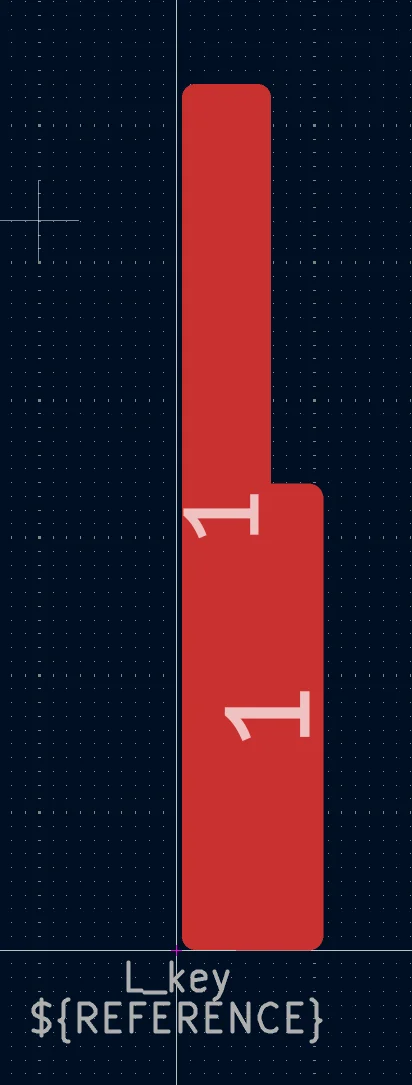
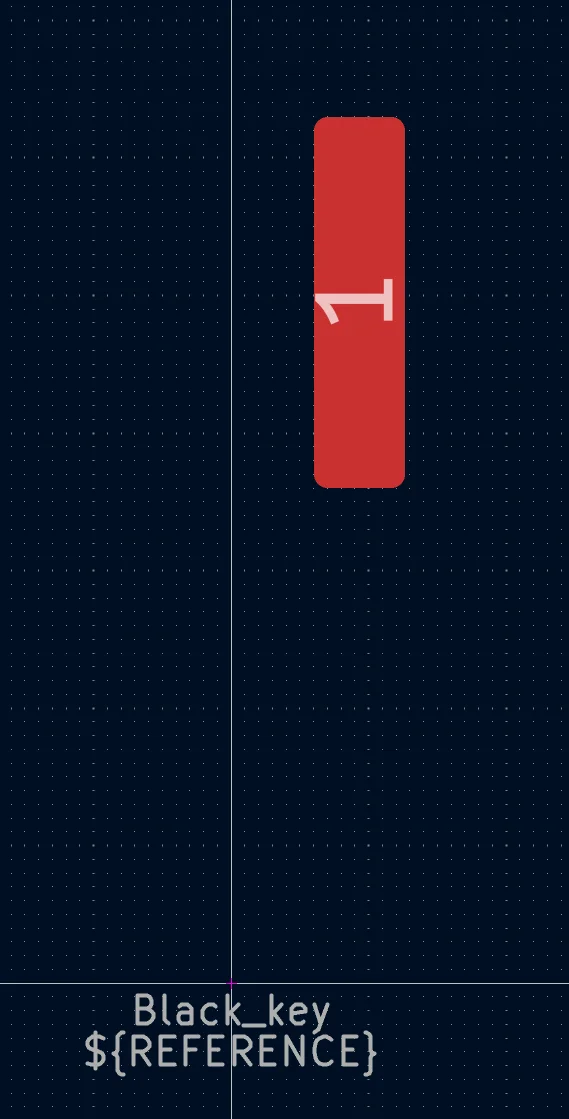
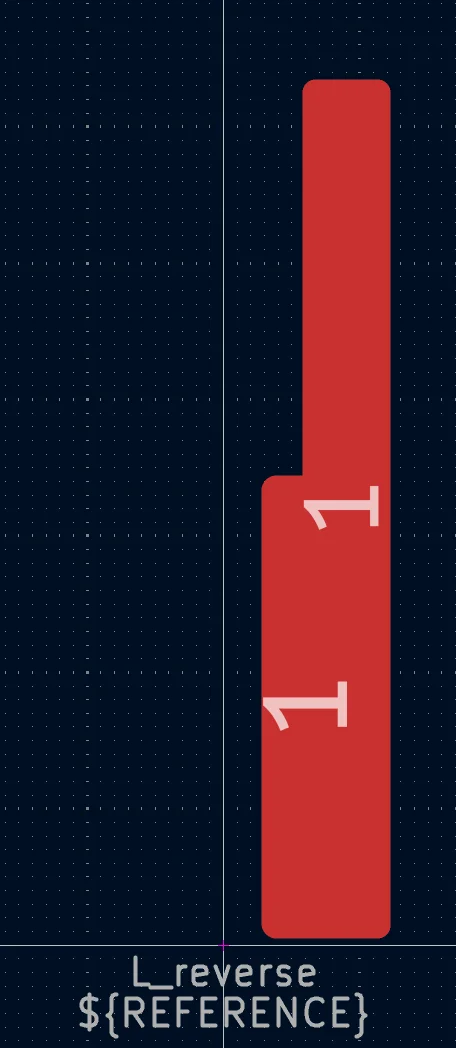
Next I needed to assemble the board. This was relatively simple since I planned on using the Raspberry Pi Pico W as the microcontroller, which has a built in wireless module. I also wanted it to be battery powered so I could move around while using it so I added a power jack from the Inventory and I also added a the RGB LED to help with debugging and indication. The board schematic is shown below.
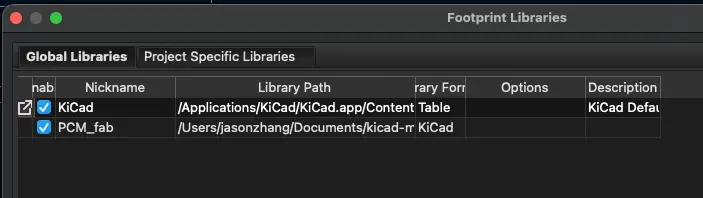
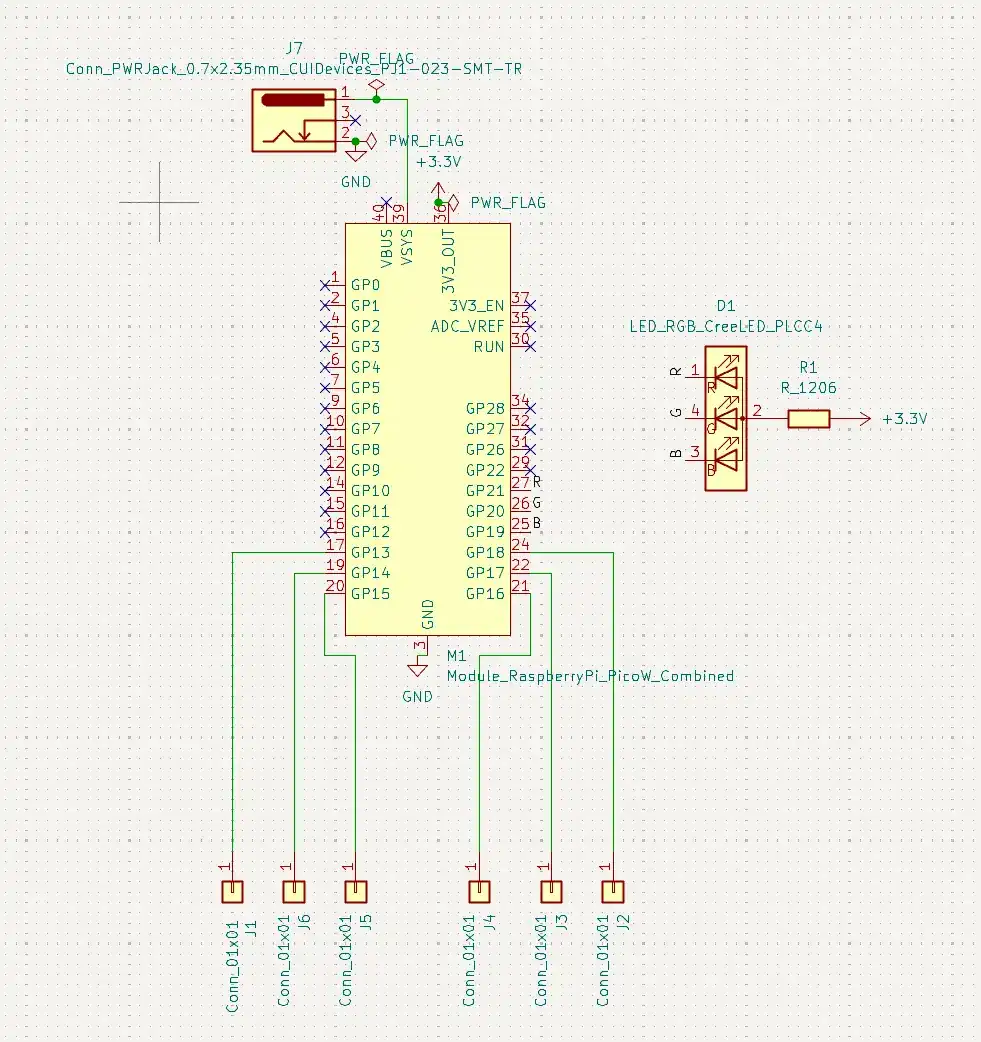
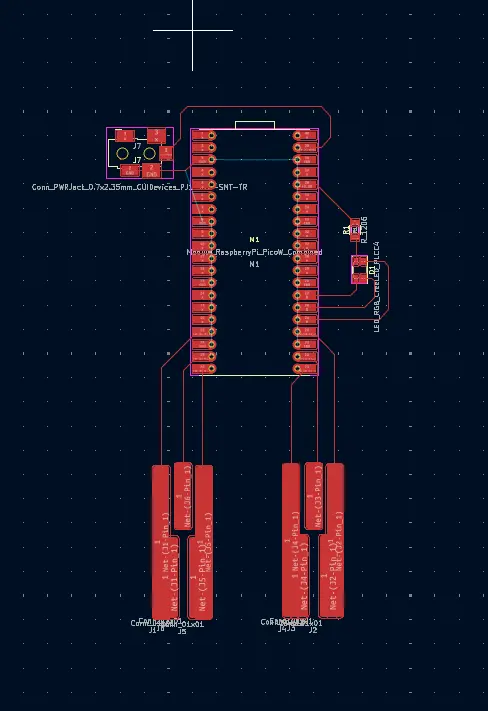
Since there were so few compenents it was easy lay out on the PCB, the one change I did need to make was switching some of the RGB pin connections but other than that I was good to go. There was an issue with importing the associated footprints from the schematic, since those were labeled PCB_fab, but the footprint library was just fab. However this was easy to remedy by changing the library nickname. The board layout is shown below.
Receiver Board
I wanted to tackle the receiver board next. I knew this board would be a bit more complex since it would need to control the inflation of the "organs." The inflators I was looking at were running at around 12V and the Raspberry Pi Pico W needs ~5V to run so I needed a way to step down the voltage. However, in order to do this I needed some parts that were not available in the Inventory.
| Part | Description |
|---|---|
| 12V Fan PABD16025BB-MF00 | A 12V fan to inflate the organs |
| Recom R-78E5.0-0.5 buck module | A buck module to step down the voltage from 12V to 5V |
| Resettable PTC fuse | A fuse to protect the board from overcurrent |
| PWR_Jack_2x5.5mm | A power jack to connect to the battery |
| Shottky Diode x3 | A diode to protect the board from reverse voltage |
| Resistor 1206 x3 | Resistors to limit the current through the diode |
| Raspberry Pi Pico W | The microcontroller to control the board |
| RGB LED | A LED to indicate the status of the board |
| Polarized Capacitor 100uF | Capacitors to filter the noise from the power supply |
| MOSFET SOT-23 | A MOSFET to control the 12V flow to the inflators |
| 1x2 Connector | A connector to connect to the inflators |
The Recom was used in Series to drop the voltage from 12V to 5V, so that it was safe for the board to draw from, and the PTC fuse was an extra layer of safety from overcurrent. The MOSFET was used to control the 12V flow to the inflators to turn on and off.
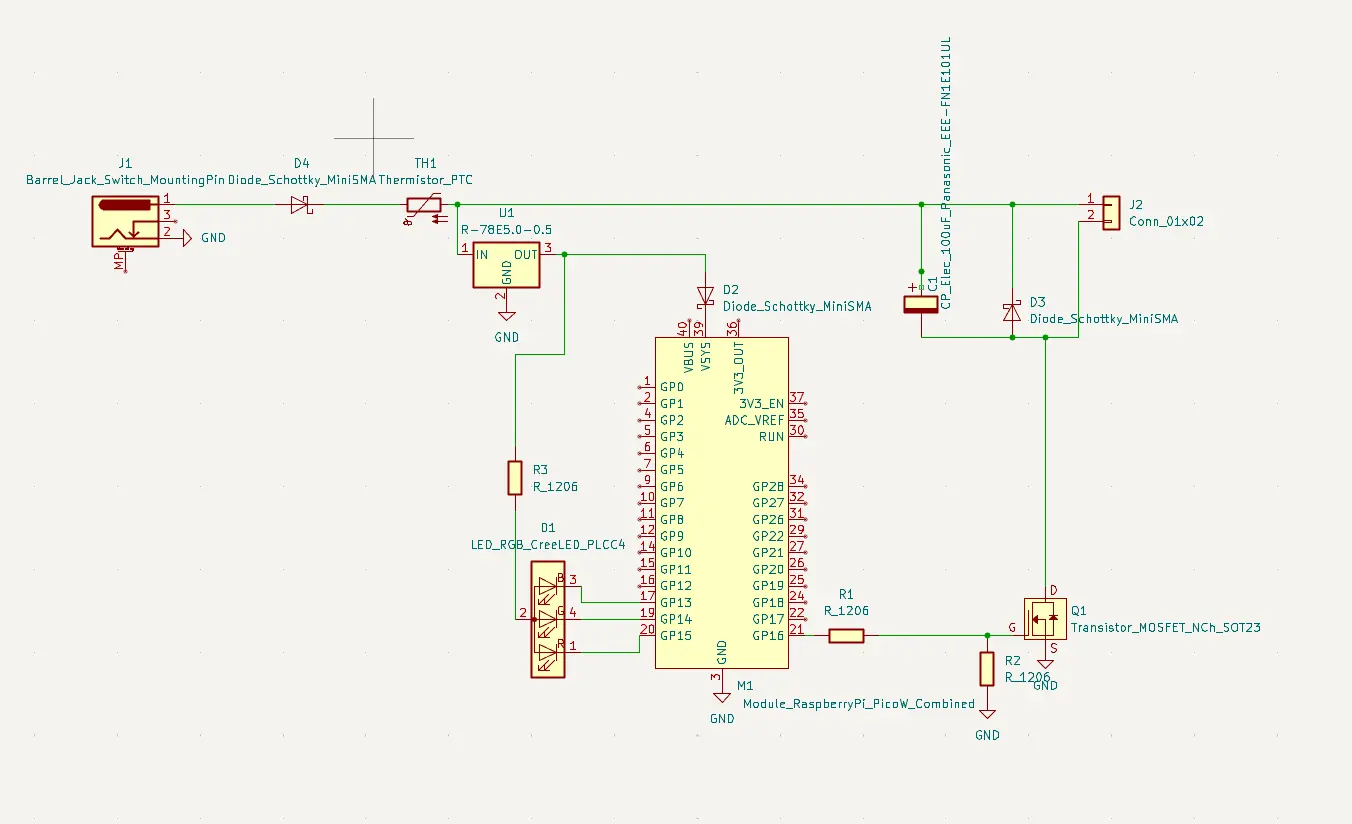
The first time I linked up all the parts I ran it through the ERC checker and got a bunch of errors.
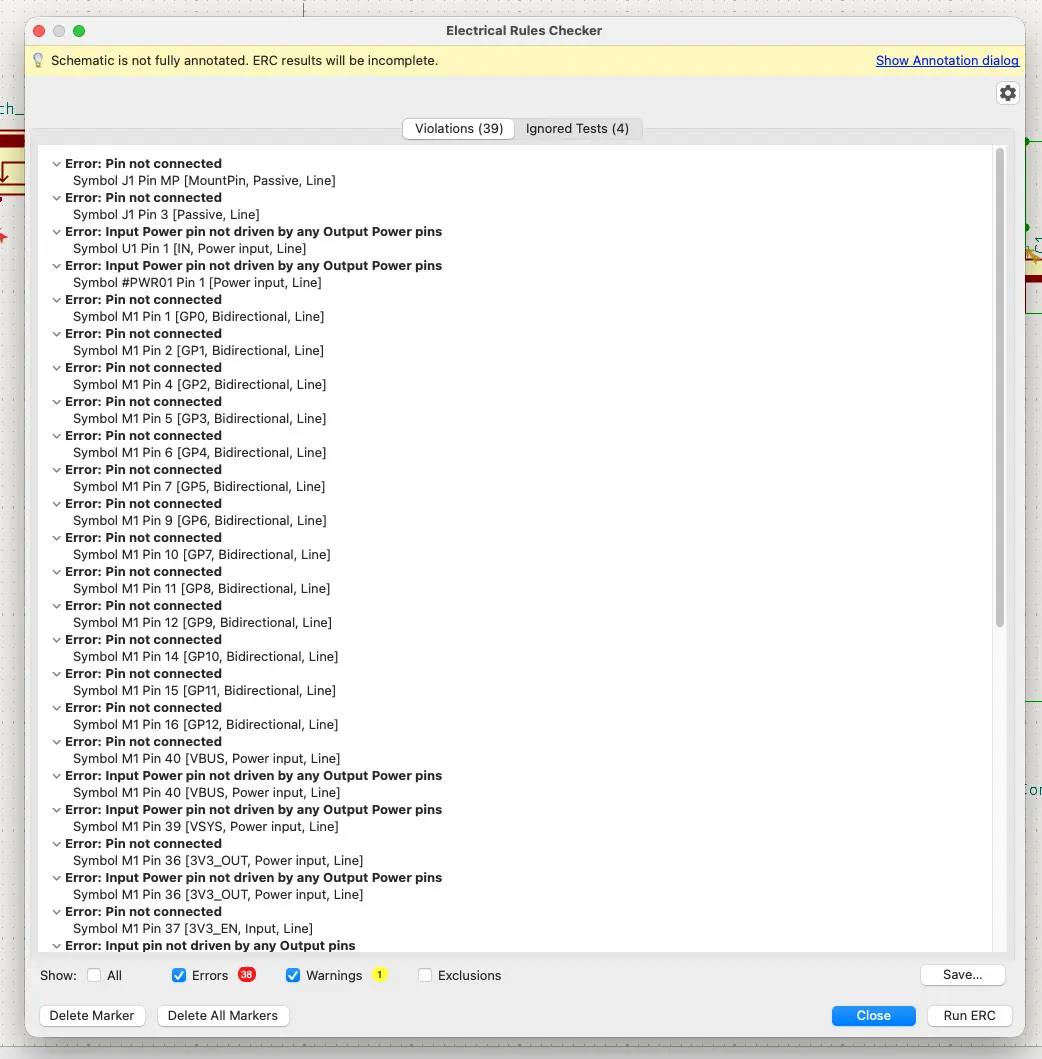
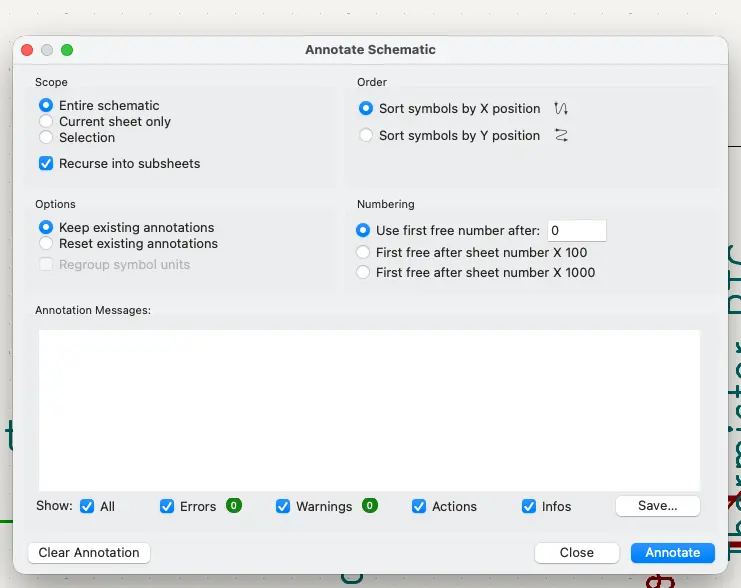
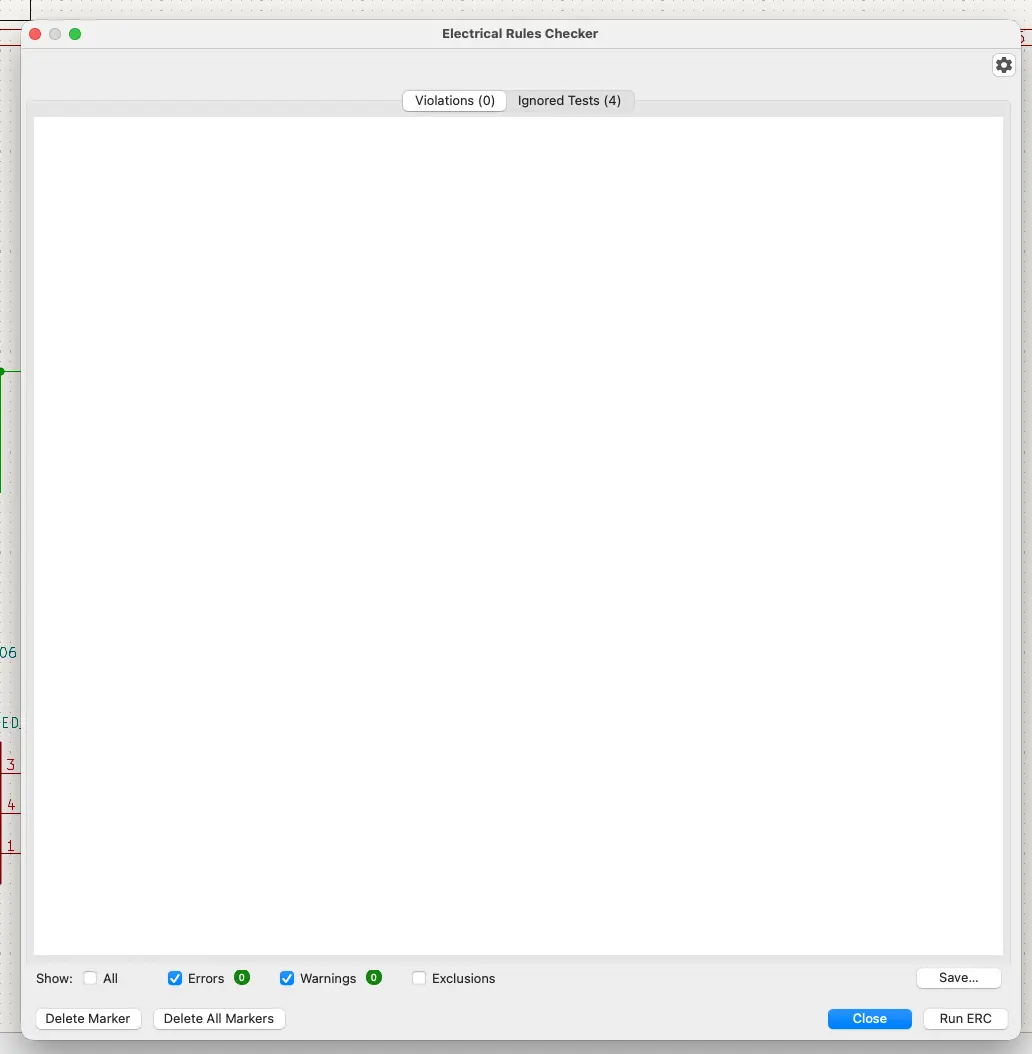
The source of many of these was that I needed power flags to tell KiCAD where the power should be coming from. The other were missing annotations which was easily remedied by pressing the add annotation button. I added these and ran the ERC checker again and got no errors.
Next I needed to lay out the board. This also proved to be more challenging with more parts on the board now. After some rearranging and rotating I was able to get a layout that I was happy with.
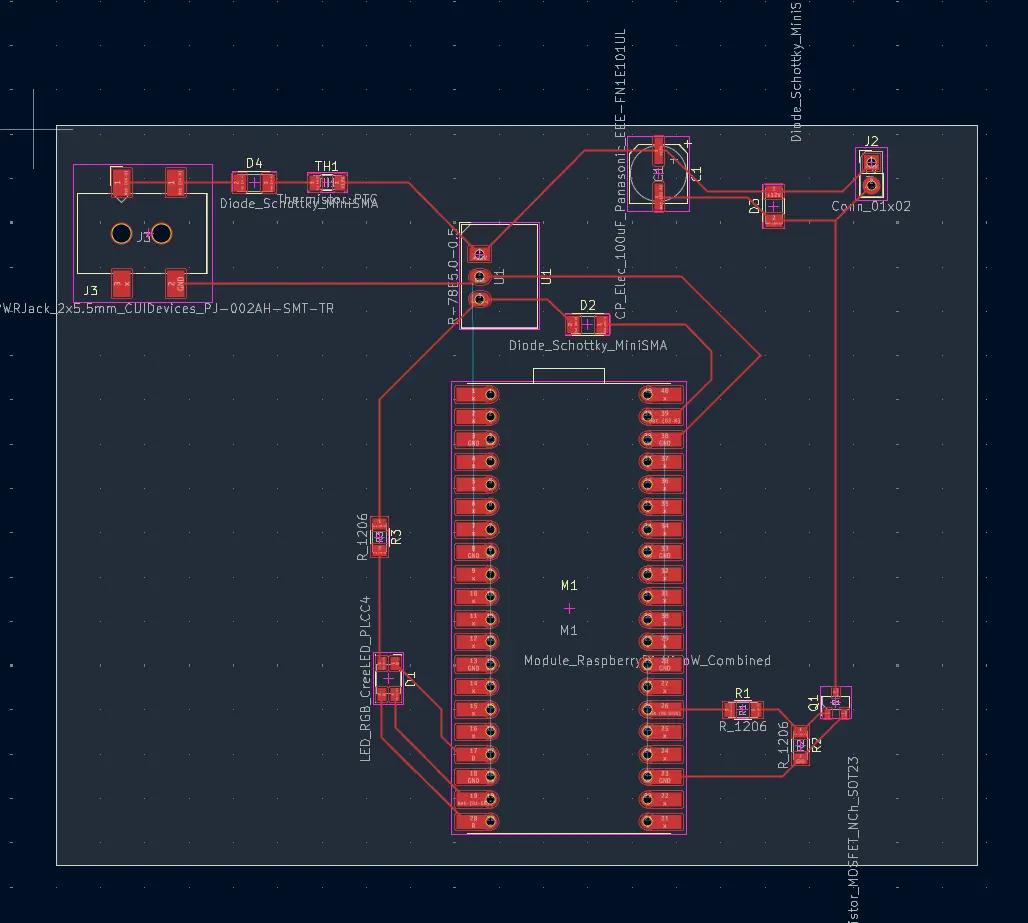
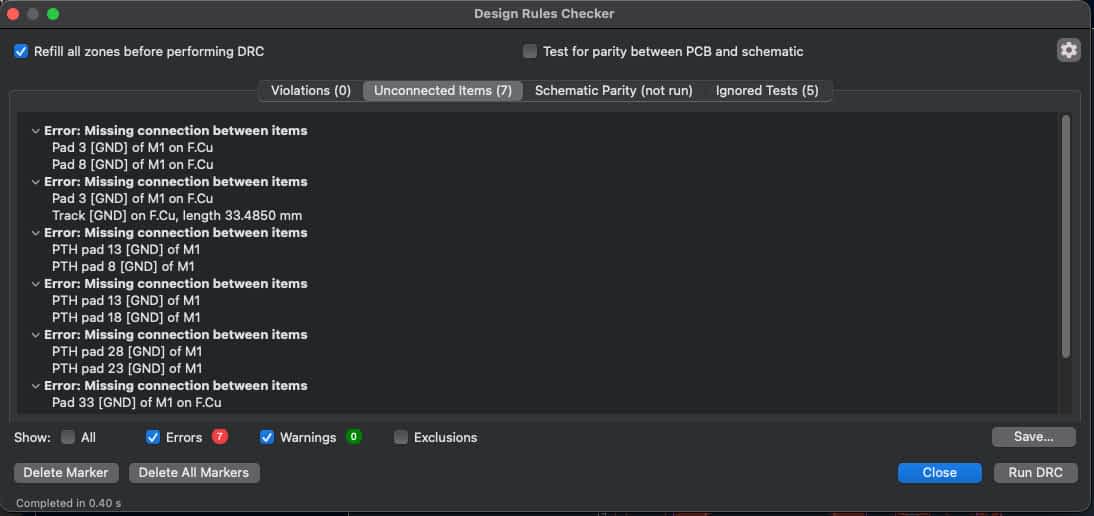
After connecting all the parts, I ran the design rules checker and iterated until there were no issues. There was a lingering issue with the design rules checker wanting me to connect all the ground pins of the Raspberry Pi Pico W to the ground net together. But I believe that this is not necessary since the Raspberry Pi Pico W has a shared ground for all the pins.
Lastly, I wanted to check out my design the 3D view.
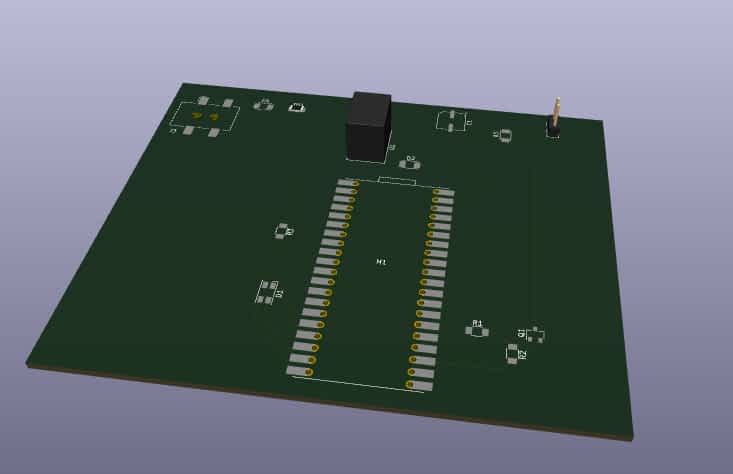
Claude was used to help explain what parts I needed, which were in the inventory and which I needed to order.
Trying Fusion 360
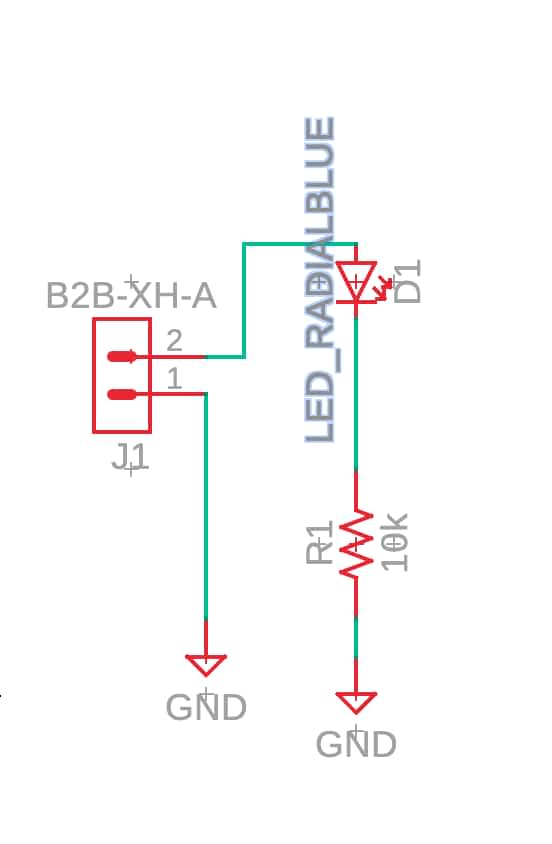
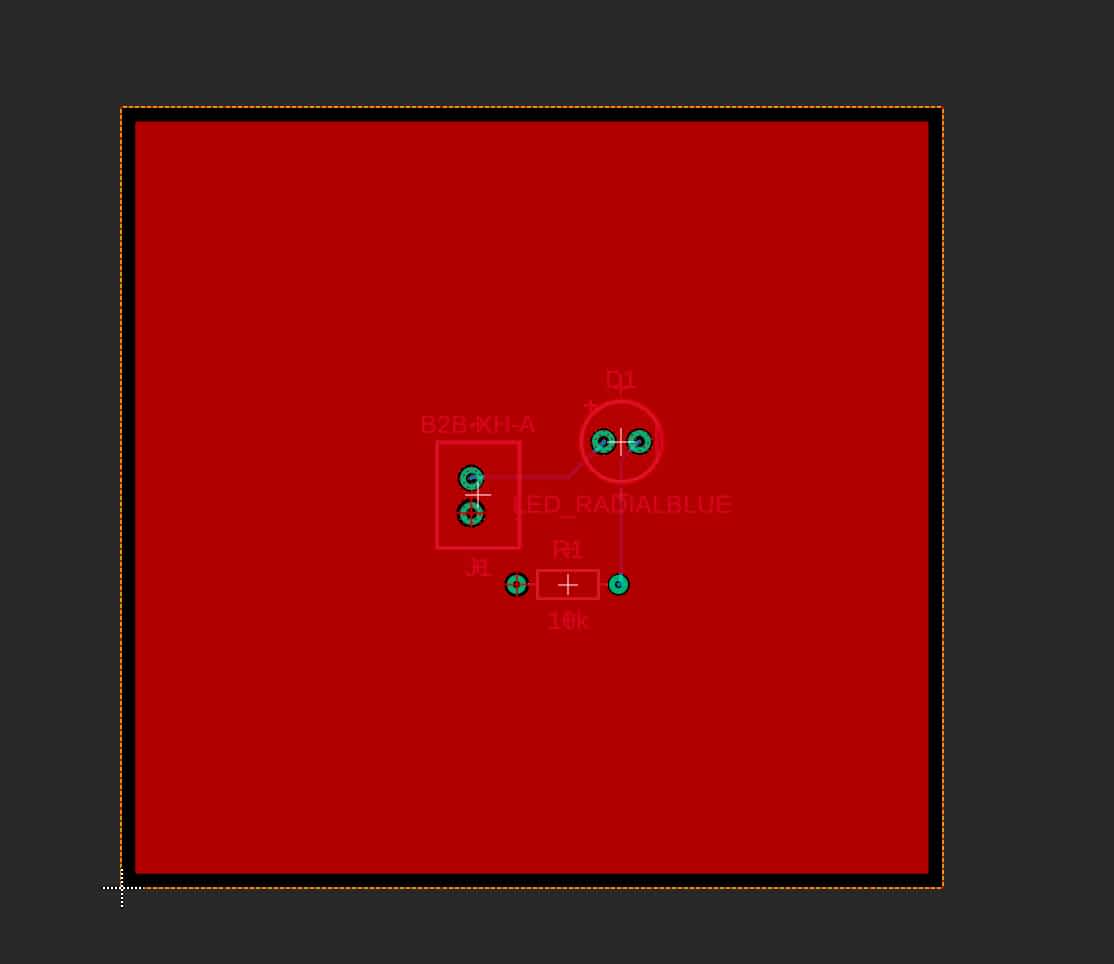
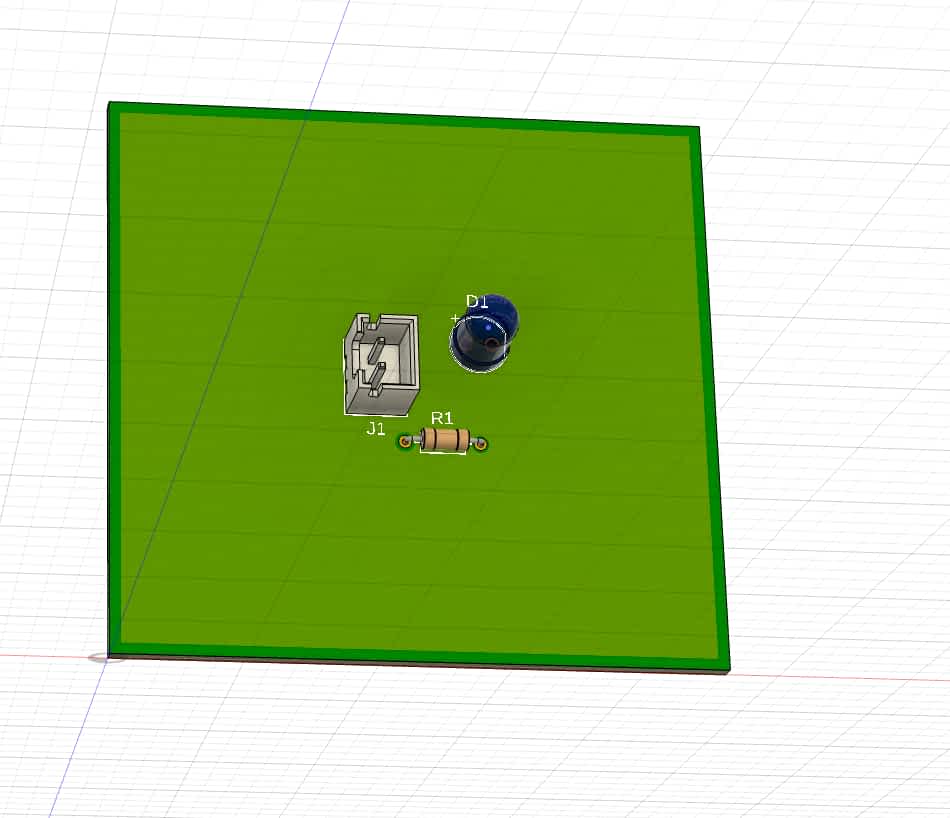
I wanted to try out Fusion 360, to see if it would integrate more easily with designing parts around the PCBs. It was mostly the same, but I was having a hard time figuring out how to import the fab lab library into Fusion. The product seems to be updated quite often and the documentation is not always up to date. I just made a very simple circuit to test it out.
Simulation
I also wanted to try out Wokwi, Falstad was a little too much info for me and the UI wasn't friendly
enough for where I was at with my electronics knowledge. I really wanted to try to simulate the
WiFi feature, sadly that was in the paid tier.
Instead I make a simple circuit that connects a button to an LED through a Raspberry Pi.
I also tried to add an OLED screen, but was unable to get it to work. After searching around through
the example projects, I found that Wokwi has a quirk where you need to use Wire1 instead of just Wire, similarly
you need to use Serial1 instead of just Serial for code and displays to show up correctly.
Here is the project on Wokwi.