Week02
Assembling and debugging the QPAD#
Soldering#
This was my first time soldering outside of this plumbing project you see in my basement. And when my plumber saw what I had done he yelled at me for even exposing him to such DIY work….
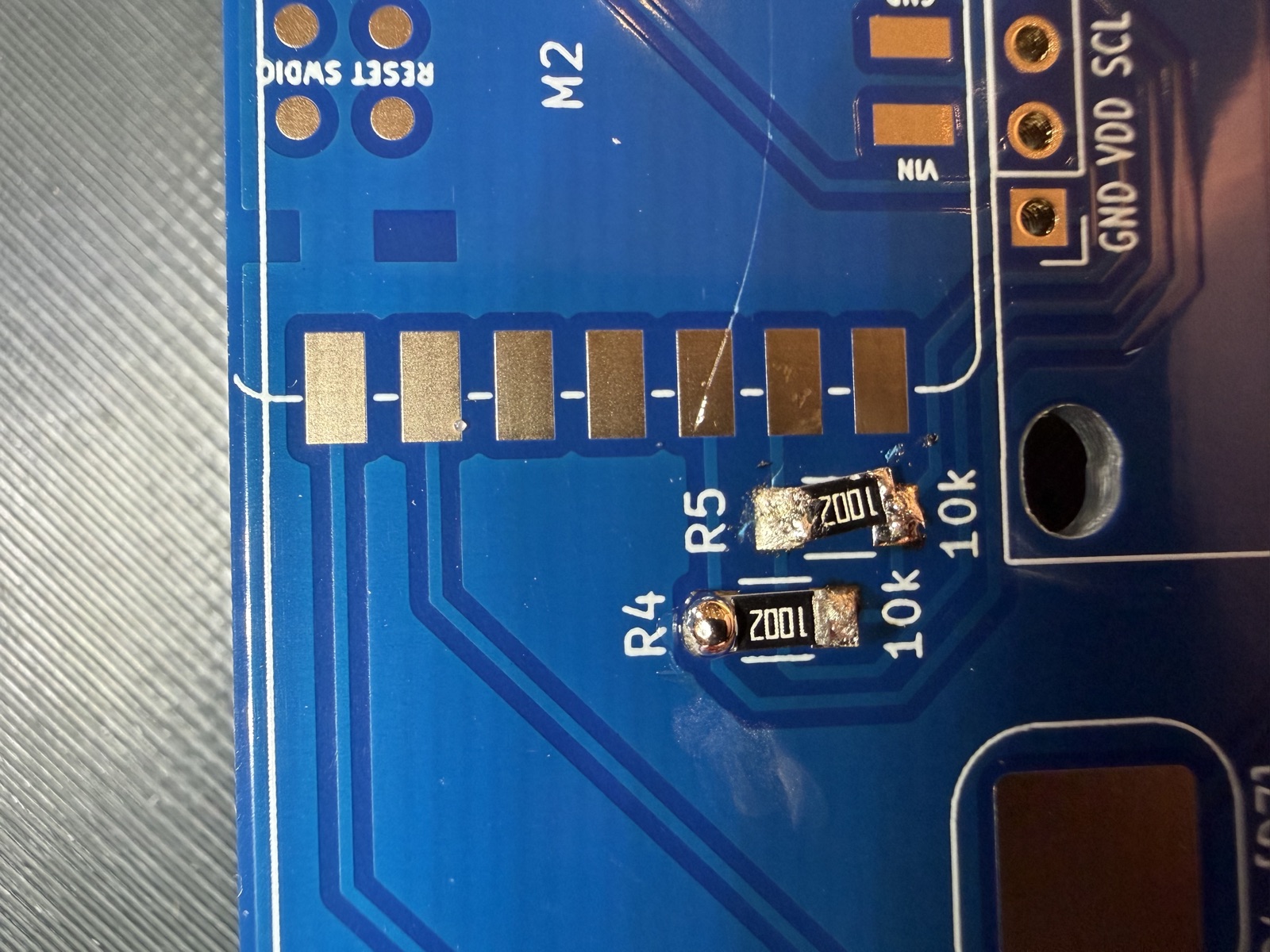
I started with R4 and R5, the two 10k pull-up resistors for the screen’s I2C lines. My first joints were not great. R4’s top end was a shiny ball that never wetted the pad, and the other three ends were dull and grainy (cold joints). R5 also sat crooked.
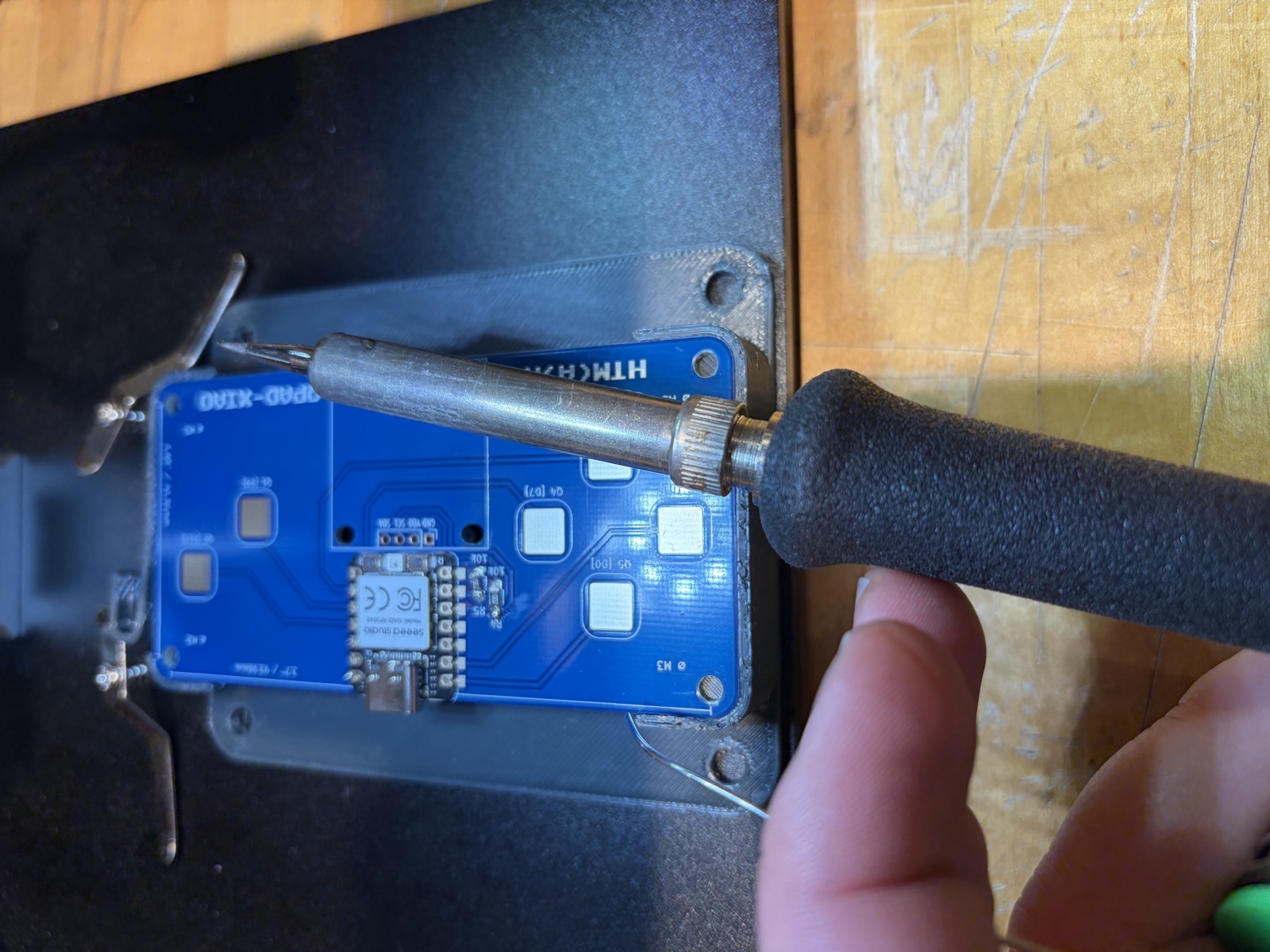
The lab’s flux is a tin of violin rosin with FLUX written on it in marker. So with Claude’s help, I reworked each joint by touching the hot tip to the cake, moving straight to the joint, and holding the iron across both the pad and the resistor end until the solder slumped. My first reflow on R4 left a peak because I lifted the iron straight up. Dragging it off sideways fixed that. I straightened R5 by melting one end at a time and nudging it.
The joints weren’t pretty, but I found a meter in the lab and used it to test these transistors (little did I know I would be spending a lot of time with the meter…). Probing across each resistor’s pads read 10.09k on R4 and 10.11k on R5, so both parts were connected at both ends.
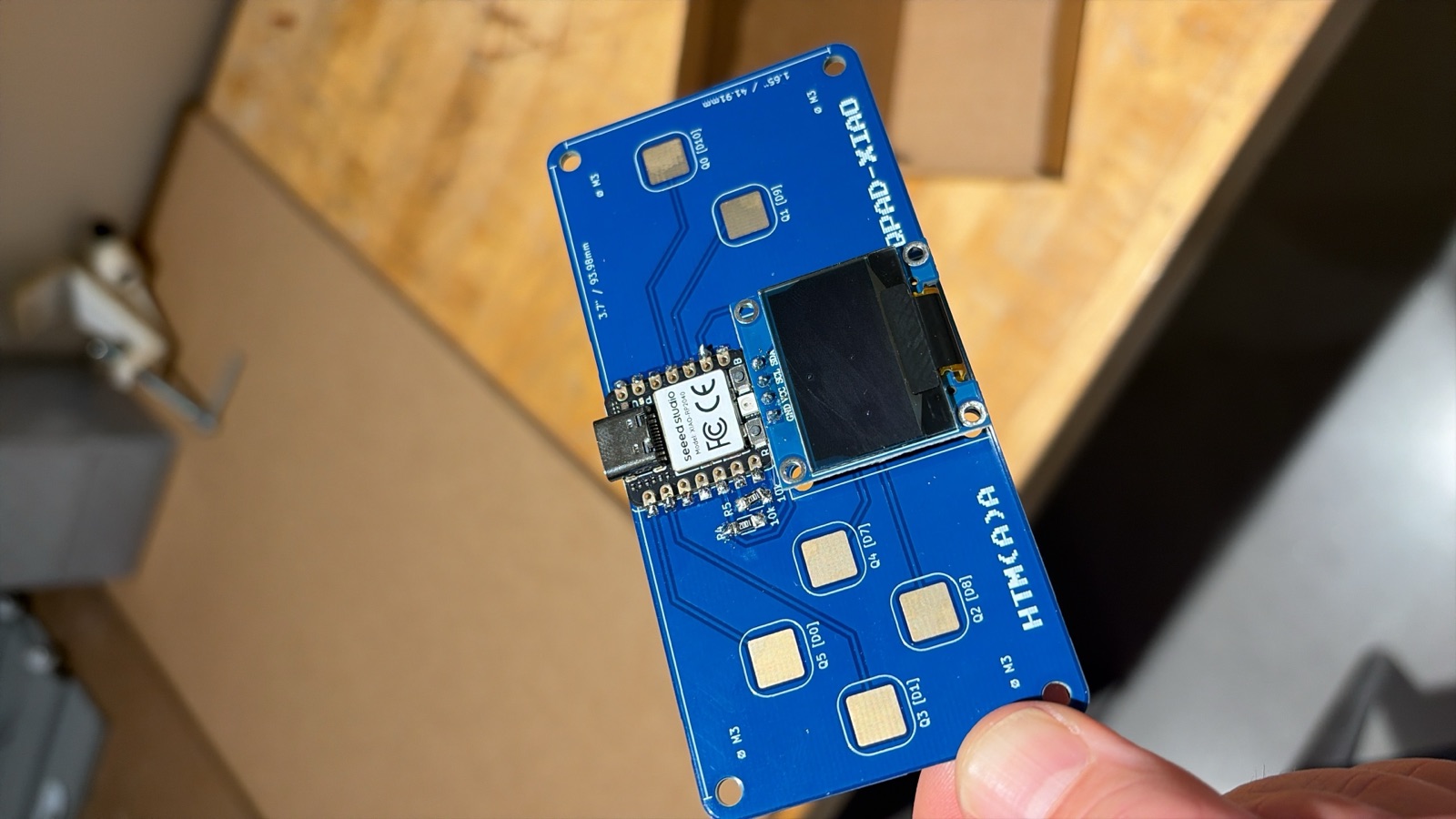
I then moved on to soldering the entire RP2040 and OLED on the board. I thought I did a decent job as my alignment was good and my joints were not shiny balls like before – but by far my most significant learning of this week was that I needed to be testing each solder to confirm a full connection before moving on. I burned ~2hrs in the shop in the next step.
Blank screen#
With the XIAO RP2040 and the OLED on the board, the XIAO’s power LEDs came on over USB, but the screen stayed dark. I set up Arduino IDE 2 with arduino-pico core, selected Seeed XIAO RP2040, installed the Adafruit SSD1306 library, and uploaded Quentin’s test_display_RP2040 sketch. The upload succeeded and the screen showed nothing. Nooooo!
To see whether the chip could reach the screen at all, I asked Claude to help troubleshoot. We tried an I2C scanner that tries every address and prints any device that answers.
#include <Wire.h>

void setup() {
  Serial.begin(115200);
  Wire.begin();
}

void loop() {
  Serial.println("Scanning...");
  int found = 0;
  for (byte addr = 1; addr < 127; addr++) {
    Wire.beginTransmission(addr);
    if (Wire.endTransmission() == 0) {
      Serial.print("Found device at 0x");
      Serial.println(addr, HEX);
      found++;
    }
  }
  if (found == 0) Serial.println("Nothing found");
  delay(2000);
}
It printed “Nothing found” every two seconds. SAD DAY.
Tracing with the meter#
Continuity from the XIAO’s D4 and D5 (GPIO 6 and 7) to the screen’s SDA and SCL beeped, and so did 3V3 to VCC and GND to GND. There were no shorts between SDA, SCL, and GND. SDA to SCL read 6.4k instead of the 20k I expected from R4 and R5 in series.
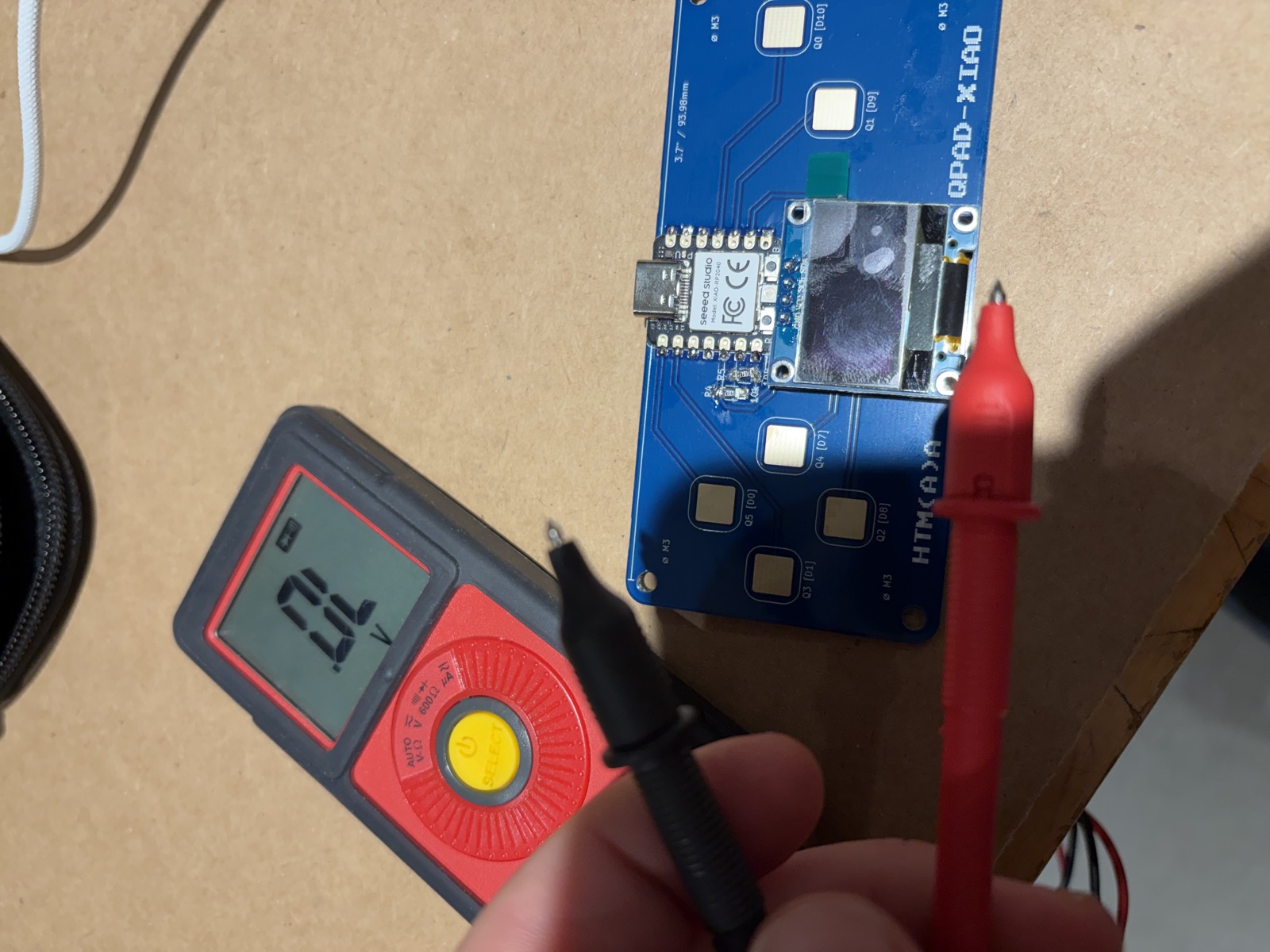
Everything looked connected, but voltage told a different story. XIAO GND to screen VCC read 3.279 V, while the screen’s own GND to its VCC read 0.006 V. The screen had power and no ground.
The continuity tests had fooled me. I had been probing the solder on the QPAD’s pads, and those pads connect through the traces to the screen just fine. What I never checked was the last millimeter between each pad and the XIAO’s castellated notch. A close photo showed it. On most notches, the solder had flowed across the QPAD pad but never climbed into the gold half-hole, so the XIAO was just sitting on top of the pads. Continuity from the GND notch to the solder beside it confirmed there was no connection.
The fix#
Turns out that I had not properly soldered the RP2040 at the 14 pads. I checked continuity from every notch to the solder beside it, and 5 or 6 of the 14 failed. So I reflowed all of them, testing each one right after, then checked neighboring notches for bridges, paying particular attention to 5V and GND. The screen then read 3.28 V between its GND and VCC. Hooray!
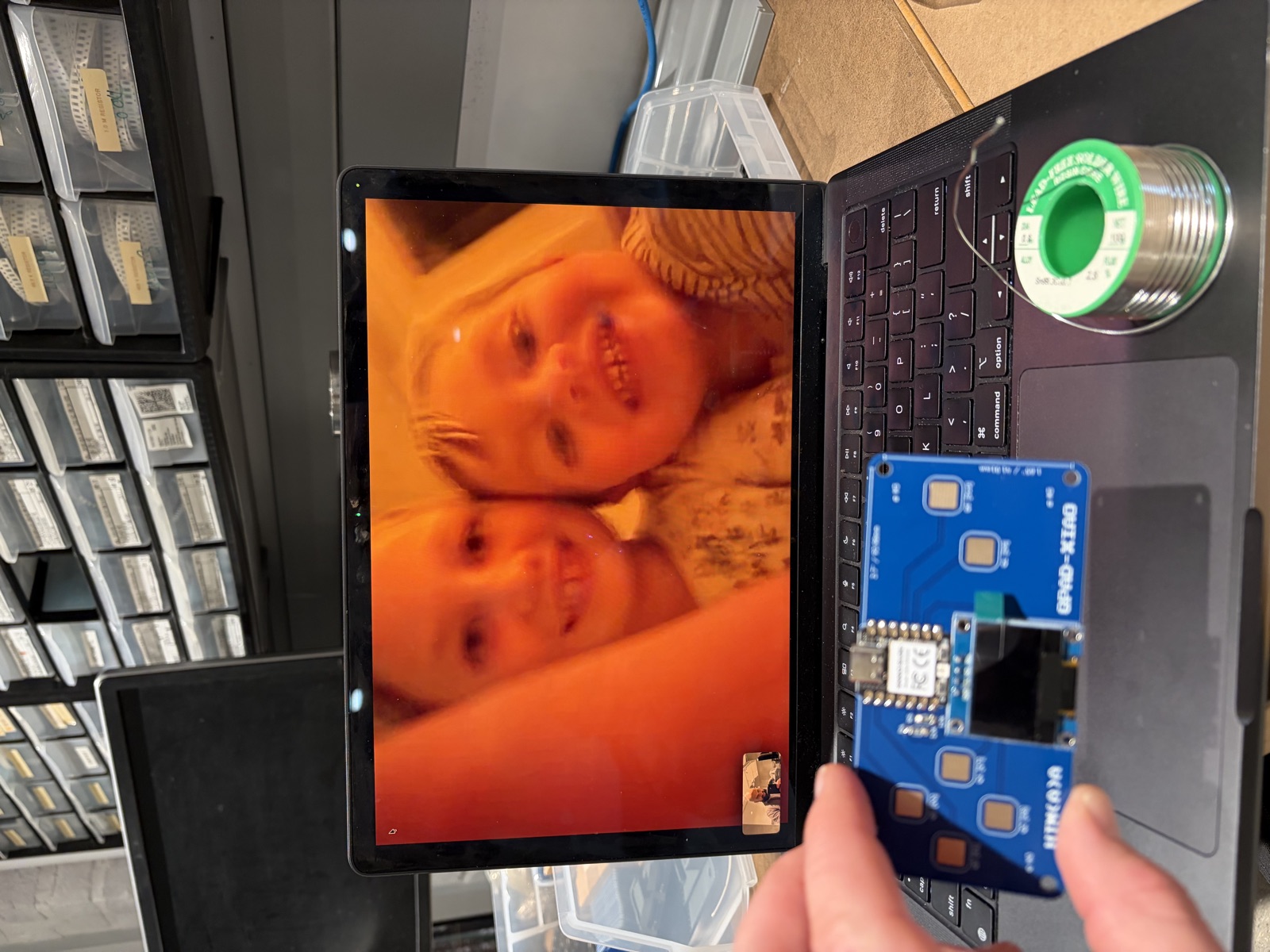
Finally the screen lit up with ‘hello world.’ Hallelujah!
Programming#
Program 1: message board#
The first program covers the assignment in its simplest form. Text typed on my laptop appears on the screen, and touching a pad shows its name on screen and sends it back to the laptop.
The touch pads use the step-response method. Each pad is a small capacitor. The chip drains it, lets it recharge through a pull-up, and times the rise with a PIO state machine. A finger adds capacitance, so a touched pad charges more slowly. Each pad’s lowest reading becomes its untouched baseline, and a reading well above that counts as a touch.
Reading from the laptop without freezing the rest of the program takes select.poll, which checks whether a line has arrived without waiting for one.
My first version showed each message and then immediately blanked it. Thonny sends an extra line-ending character after each line, which the board read as a second, empty message. Skipping empty lines fixed it.
Program 2: a drawing language#
Next I turned the board into an interpreter for a small drawing language. Each line sent over USB is one command.
CLEAR                 wipe the drawing
PIXEL x y             one dot
LINE x1 y1 x2 y2      a line
RECT x y w h          rectangle outline
FILLRECT x y w h      solid rectangle
CIRCLE x y r          circle outline
DISC x y r            solid circle
TEXT x y words        text
SHOW                  send the drawing to the screen
FRAME                 save the drawing as an animation frame
PLAY ms               loop the frames, ms milliseconds each
RESET                 clear the screen and all frames
The interpreter splits each line into a command and its numbers, then calls the matching drawing function from the screen library. Every command gets an “ok” or an error message back, so a typo never crashes the board.
def draw(line):
    parts = line.split()
    cmd = parts[0].upper()
    ...
    n = [int(p) for p in parts[1:]]
    if cmd == "LINE":
        oled.line(n[0], n[1], n[2], n[3], 1)
    elif cmd == "FRAME":
        frames.append(bytes(oled.buffer))
    ...
Animation turned out to be simple. The screen library keeps the whole picture in a 1,024-byte buffer, one bit per pixel. FRAME saves a copy of that buffer, and PLAY copies each saved frame back in turn and sends it to the screen. A pad touch or any new command from the laptop stops the loop.
I hit two bugs here, and both were about the serial link rather than the drawing. When I pasted a block of commands at once, the board handled the first two and lost the rest, because it only checks for input between rounds of pad reading. That taught me to send one command at a time and wait for each “ok.” The second bug made my first animation stop after one frame. The same leftover line-ending character from Thonny was still waiting in the input, and PLAY took it as a signal to stop. Throwing away leftover characters before the loop starts fixed it.
Program 3: poems into pictures#
The last program closes the loop. A Python script on my laptop takes a line or stanza of poetry, sends it to Claude through the Anthropic API along with a description of my drawing language, and gets back an animation written in that language. The script then sends it to the board over USB.
The instructions to Claude are really the documentation for my language, plus a few rules: stay inside 128 × 64, make 4 to 10 frames, finish with PLAY, and interpret the line instead of writing its words on screen. The script keeps only lines that begin with a real command, so any stray commentary from the model gets dropped before it reaches the board.
Flow control, the lesson from program 2, is what makes the link reliable. The script sends one command and waits for “ok” before sending the next.
def send(ser, cmd):
    ser.write((cmd + "\n").encode())
    if cmd.upper().startswith("PLAY"):
        return          # PLAY loops forever, so there's no "ok" to wait for
    deadline = time.time() + 5
    while time.time() < deadline:
        reply = ser.readline().decode().strip()
        if reply == "ok":
            return
        if reply.startswith("error"):
            print("  board:", reply)
            return
The board ran draw.py saved as main.py, so it starts on power-up without Thonny. Thonny has to be fully closed while the script runs, since only one program can hold the USB port.
Two fixes along the way: the model’s reply starts with a block of its own reasoning before the answer, so the script collects only the text blocks. And when I pasted a whole stanza, Python’s input() read it one line at a time and sent each line as its own request. The script now collects lines until an empty one and sends the stanza as a single request.
Data here crosses three links: from my laptop to the API over the internet, back again, and then over USB to the board. The drawing language is the part I built. The model just writes in it.
Toward the final project#
My final project is a volumetric display, where a spinning panel draws a 3D image one slice at a time. The frame buffer and playback loop from this week are a small version of the same idea: a sequence of images, stored ahead of time and played back fast enough to read as one thing. The timing budget is the constraint that matters next. At 600 RPM with 128 slices per revolution, each slice gets about 780 µs, which is far tighter than anything MicroPython did this week and a good reason to learn PIO properly.
How I Used Claude#
I worked through this whole week in one long conversation with Claude, and I set one ground rule early: it would tell me what to do and I would do it, and any code had to be simple enough for it to explain to me line by line.
On the soldering, I sent it photos of my joints and it critiqued them. It spotted the balled joint on R4, the cold joints on the other ends, the crooked R5, and two stray solder balls, and it explained how to use the violin rosin. It also taught me the multimeter from a photo of the lab’s Amprobe, which I had never used.
The debugging was the most useful part, and also the most humbling for both of us. Claude proposed each test, I ran it and reported the number, and it proposed the next one. Its theories were wrong several times. It had me test continuity on the wrong side of the joint, it told me the library’s begin() check would catch a failed screen when it can’t, and it blamed a long I2C transfer for a freeze that turned out to be the Serial Monitor lagging. The meter readings corrected each wrong guess. The real cause came from a close photo of the XIAO, where it noticed the solder had never climbed into the castellated notches. When the course repo’s web page blocked it, Claude cloned the repo with git to read Quentin’s examples, and it checked the arduino-pico board definition to confirm which pins the XIAO uses for I2C.
Claude wrote the three programs, but the direction was mine. I asked for something in Python I could understand, pushed back when the drawings were static and asked for something weirder, and came up with the idea of feeding it poetry. Claude designed the drawing language and the frame-based animation around those requests, and explained each section before I ran it. I typed and ran every step, and the bugs I hit along the way, like the stray line-ending character and the pasted commands getting lost, came from my testing.