00 · Starting point
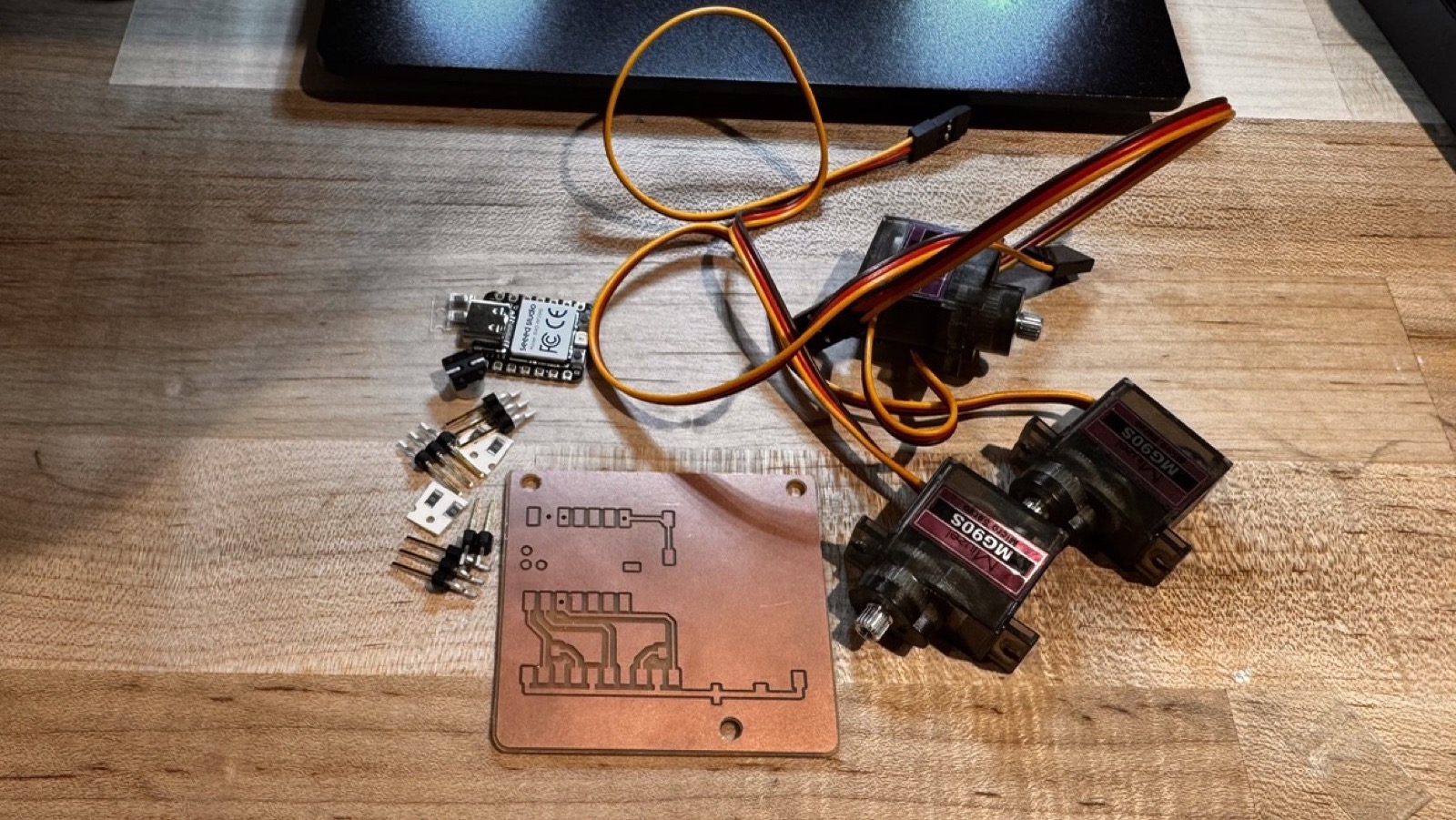
The board from week 05
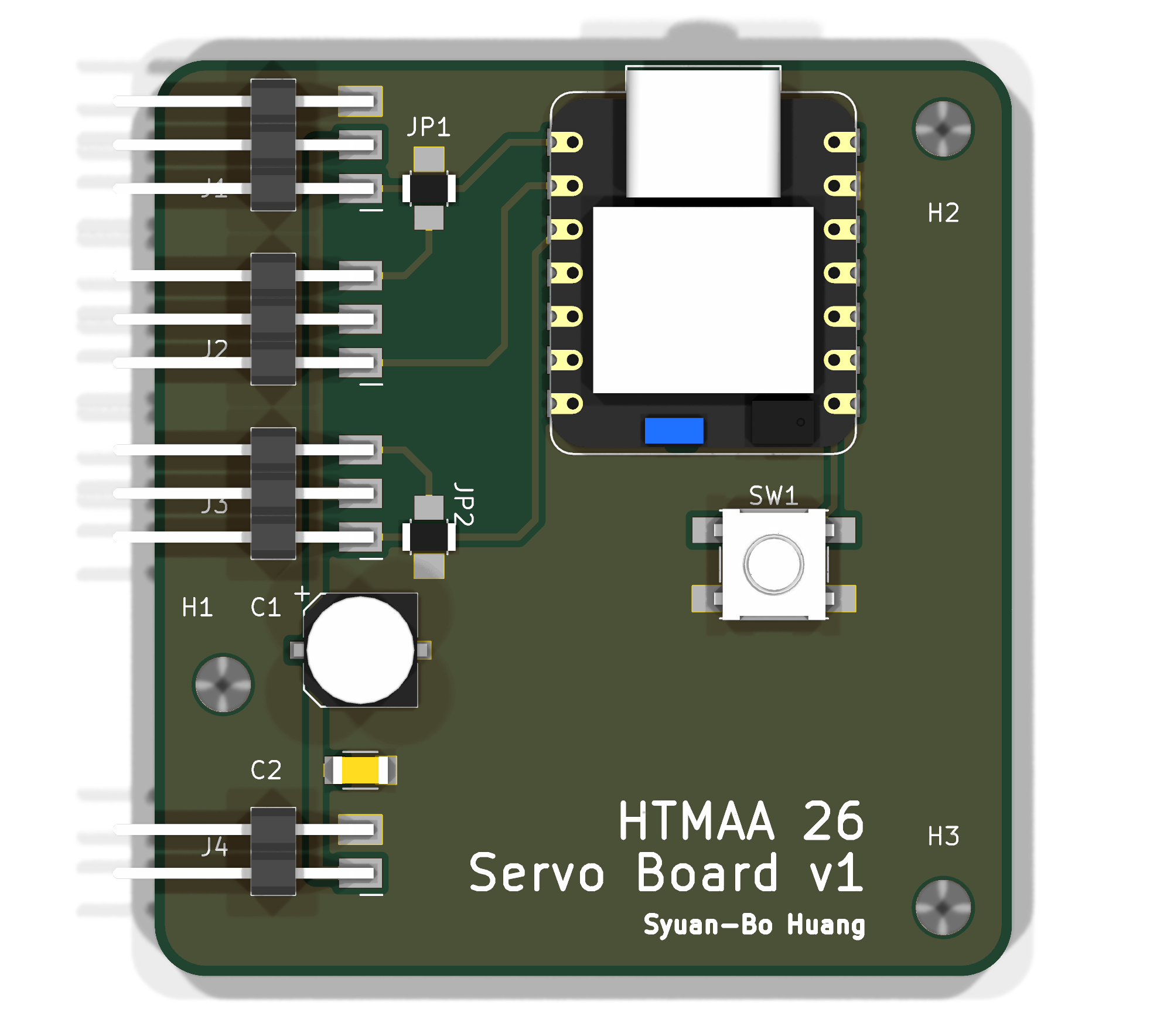
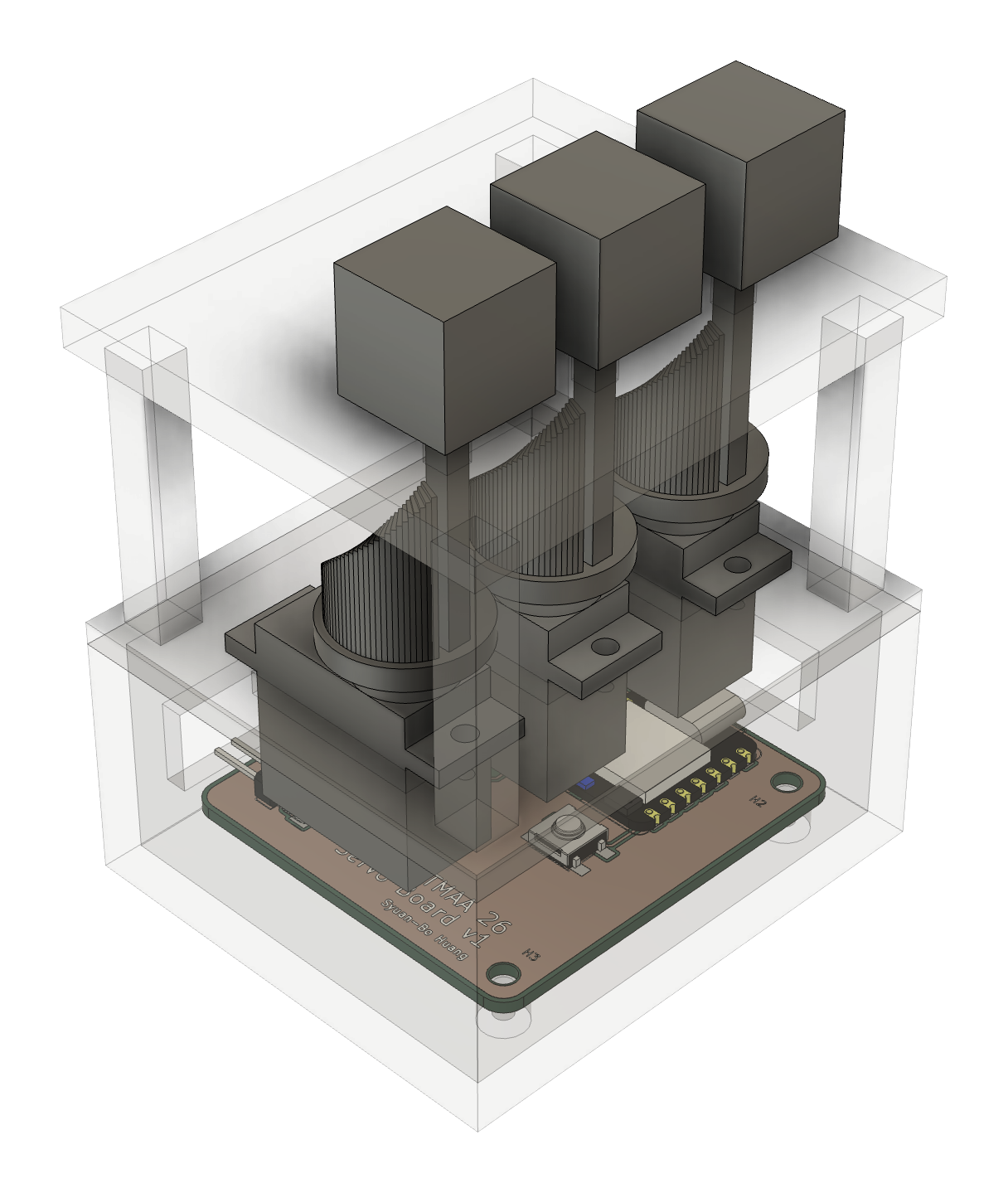
This board is the controller of my final project, Pixelize the Earth. The Fusion model shows what it is for. The board sits at the bottom of the base, on standoffs. Above it, three servos hang through a deck. Each servo turns a stepped cam, and a pin with a cube (a voxel) on top rides on the cam, so when the servo turns, the cube moves up and down. The board is the part that tells each servo how far to turn. Last week I designed it to drive three servos from an XIAO RP2040, with an external 5 V supply for the servos. I call it version 1.
My process this week was: export the board from KiCad as Gerber files, turn them into black and white images with gerber2img, load the images into the milling machine software, mill, then solder.
00 · Process
How I mill a board
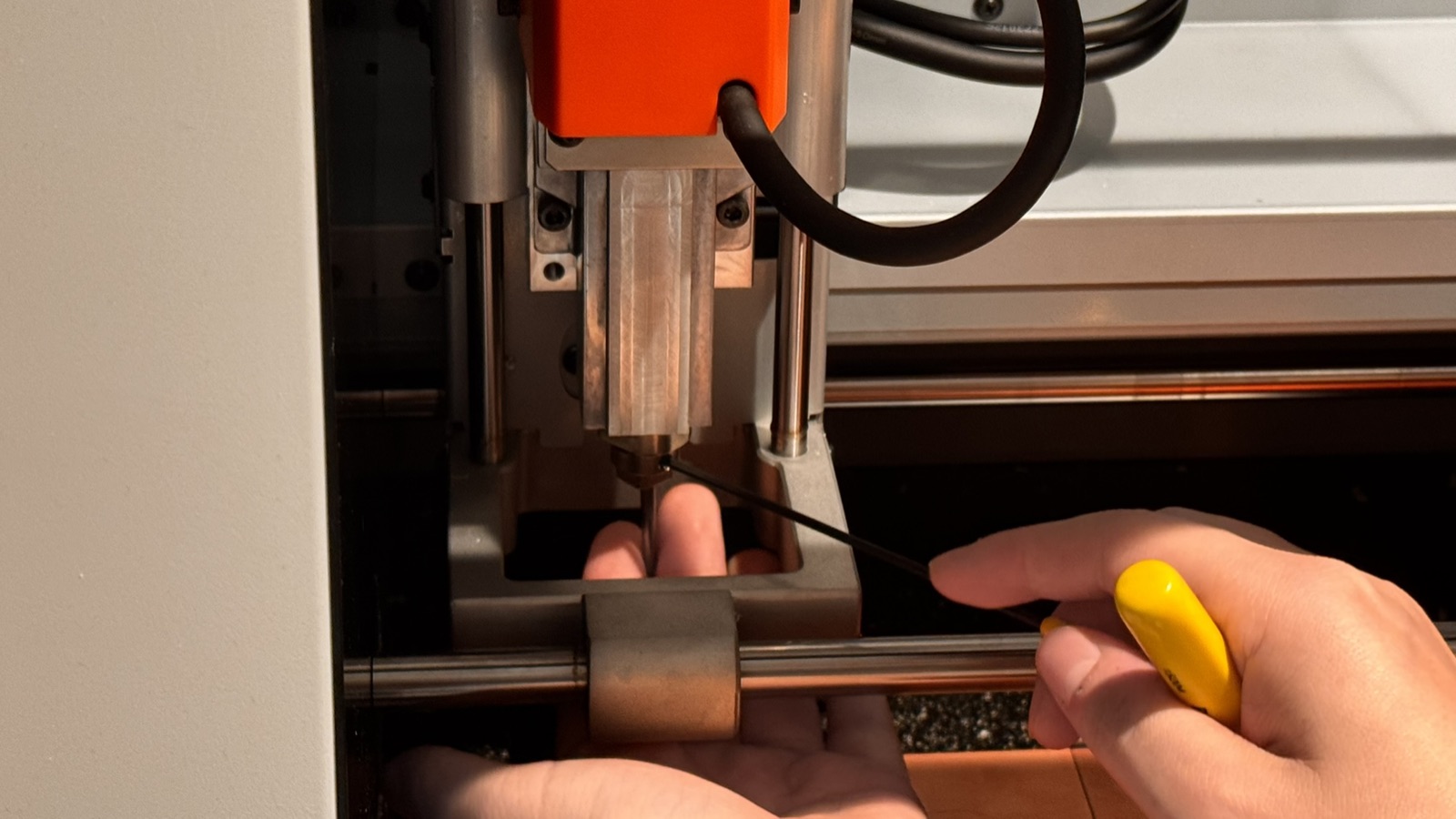
This is the milling process I followed for every board this week, from the Gerber files to a finished board. The machine is the Roland SRM-20 at ArchShop, driven by mods. The three cuts use two end mills: a 1/64″ for the traces, and a 1/32″ for the holes and the outline.
-
Prepare the files
1. Export the Gerber files from KiCad.
2. Open them ingerber2img. Start with the edge cut and lock its origin and dimensions, so that every image shares them. Check that the images are black and white, then exporttrace.png,drill.pngandedge-cut.png. -
Set up the machine
3. Open the SRM-20 program in mods.
4. Install the 1/64″ end mill, which is fortrace.png.
5. Fix the board to the machine bed with double-sided tape.
6. In mods, select the 1/64″ end mill.
7. Measure the origin of the board. -
Mill the traces
8. Lower the end mill until it touches the copper board.
1/64″ · trace.png · steps 8–11 repeat for every cut
9. Calculate the toolpath, then preview it.
10. Send the file to the machine to start milling.
11. When it finishes, vacuum the dust so that the board surface is clean. -
Drill the holes
12. Change to the 1/32″ end mill and select it in mods. Load
1/32″ · drill.pngdrill.png.
13. Repeat steps 8–11. -
Cut out the board
14. Keep the 1/32″ end mill and load
1/32″ · edge-cut.pngedge-cut.png. Repeat steps 8–11 to cut the board out. -
Finish by hand
15. Pry the board off the bed with a scraper.
16. Trim the leftover material that was not cut through around the edges, using cutters.
17. Sand the four edges flat with a sander.
18. The circuit board is finished.
01 · Version 1
Five hours on a board that did not work
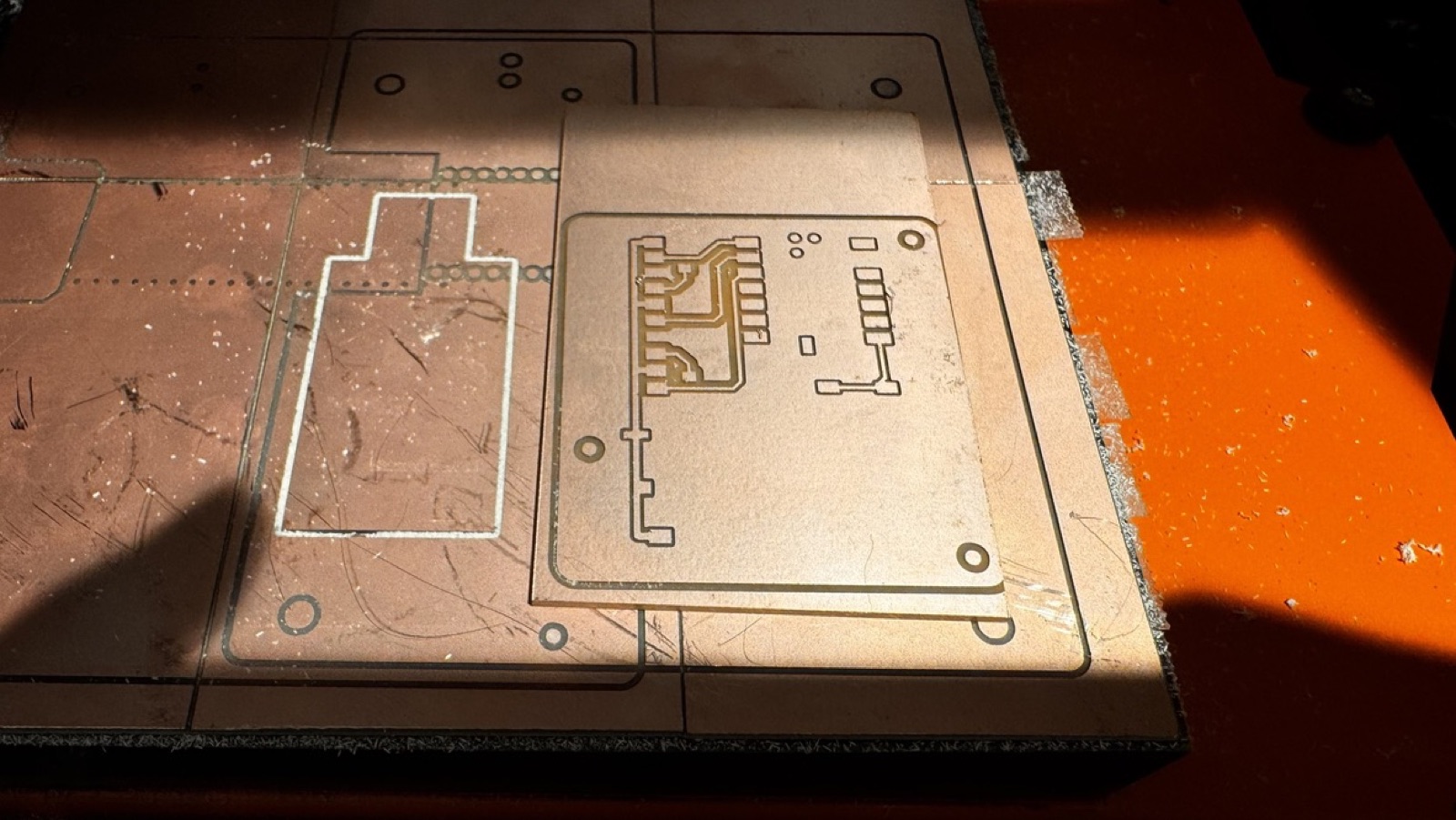
The first milling worked well enough. The one problem was the drill step with the 1/32″ end mill: three holes did not go through. That does not change how the board works, so I left that board as it was. Later I changed the end mill and milled version 1 again. This time the holes went through, and I sanded the edges. I soldered this second board.
Soldering
Soldering was the hardest part of the week. The surface-mount resistors and capacitors are tiny, and the XIAO pads are small. I soldered under a microscope.
Parts list for version 1
| Designator | Part | Footprint (fab library) | Qty |
| C1 | 100uF electrolytic (Panasonic EEE-FN1E101UL) | CP_Elec_100uF_Panasonic_EEE-FN1E101UL | 1 |
| C2 | 10uF | C_1206 | 1 |
| J1, J2, J3 | Servo (pin header 1x3) | PinHeader_01x03_P2.54mm_Horizontal_SMD | 3 |
| J4 | Servo_5V_in (pin header 1x2) | PinHeader_01x02_P2.54mm_Horizontal_SMD | 1 |
| JP1, JP2 | 0R jumper | Jumper_1206 | 2 |
| M1 | Seeed XIAO RP2040 | SeeedStudio_XIAO_RP2040 | 1 |
| SW1 | Omron tactile switch | Button_Omron_B3SN_6.0x6.0mm | 1 |
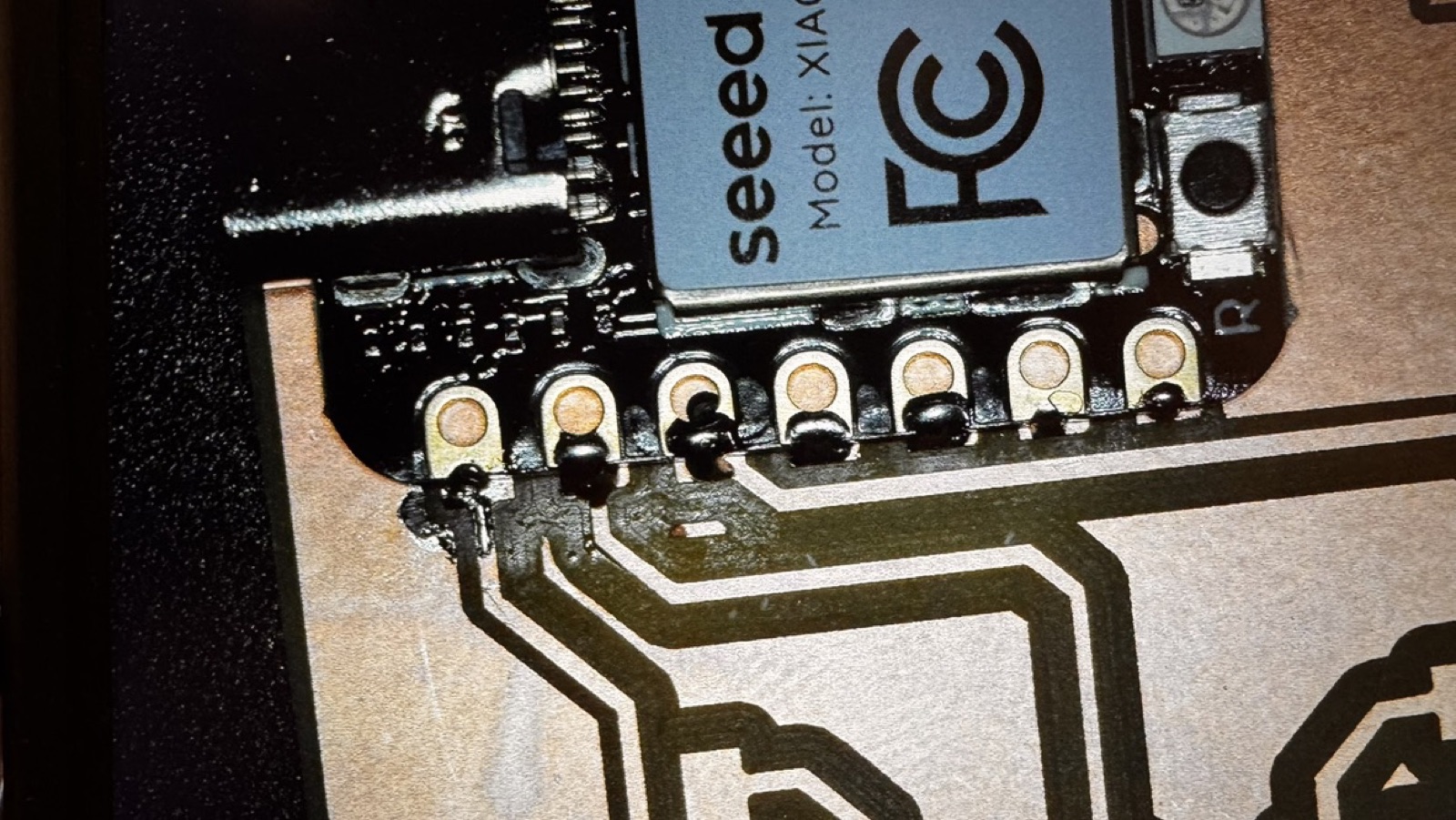
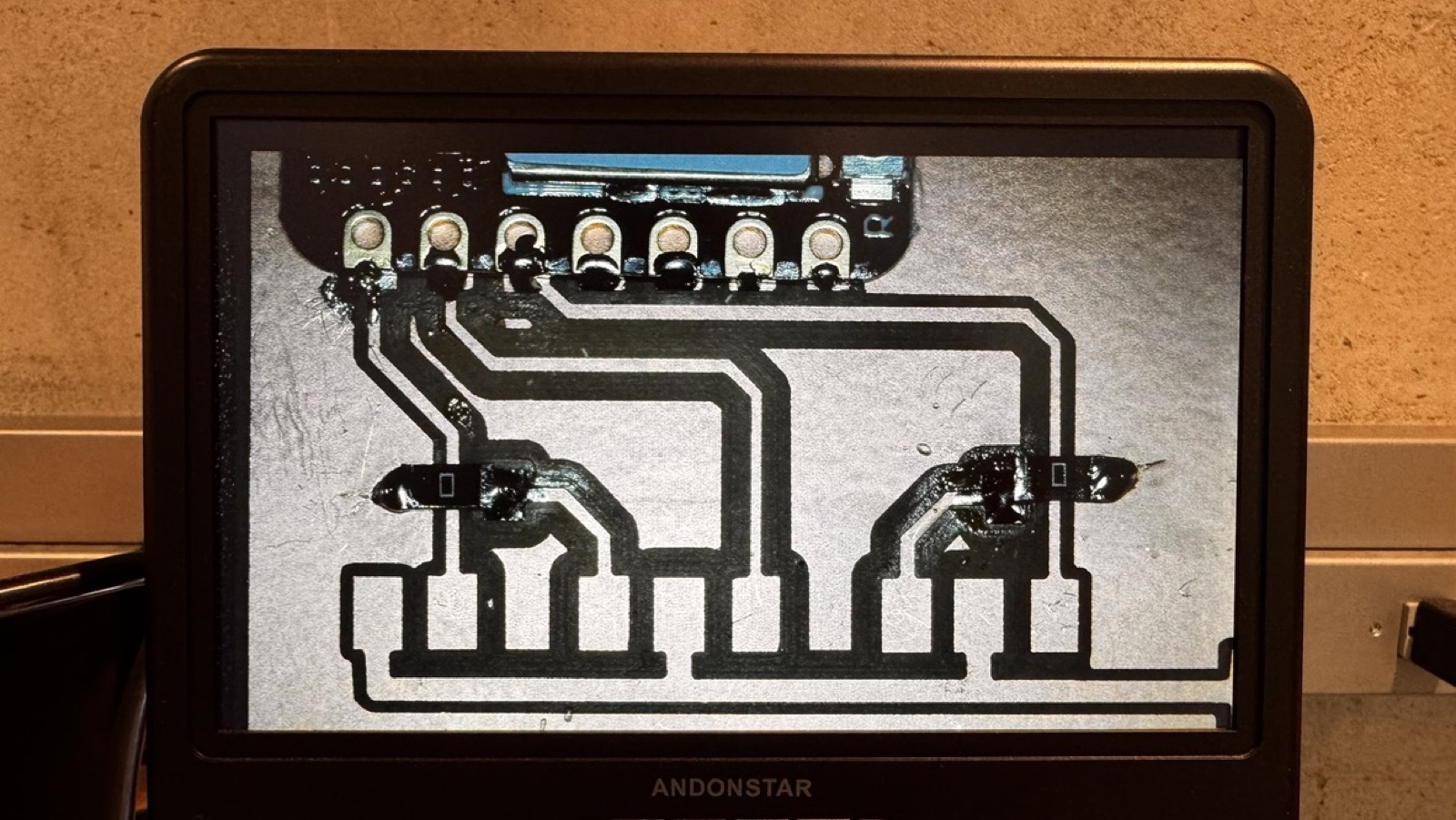
Then I made a mistake. The big 100 µF electrolytic capacitor has a positive and a negative leg, and I did not realize that, so I soldered it the wrong way round. It was not easy to take off again.
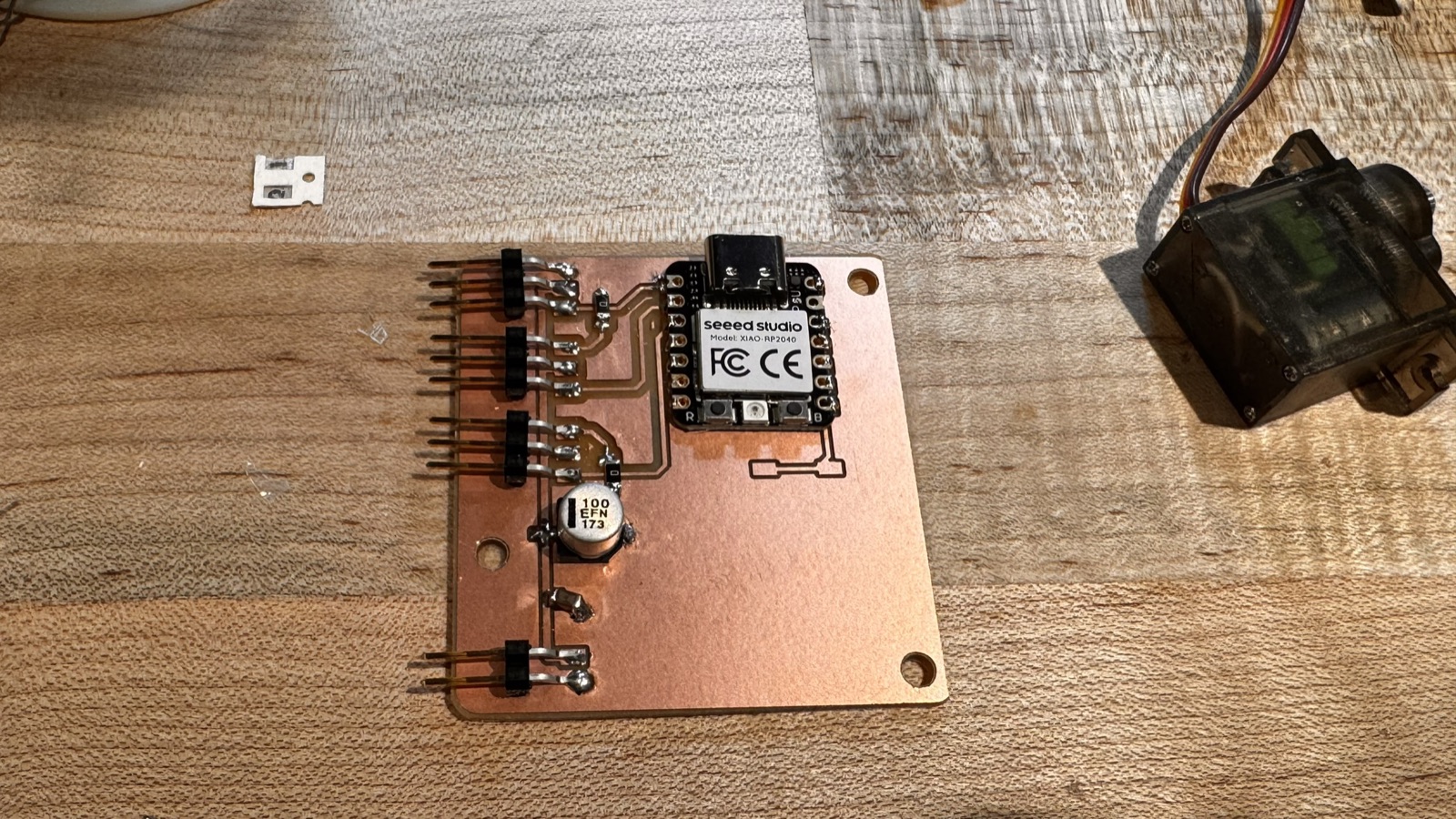
Measuring
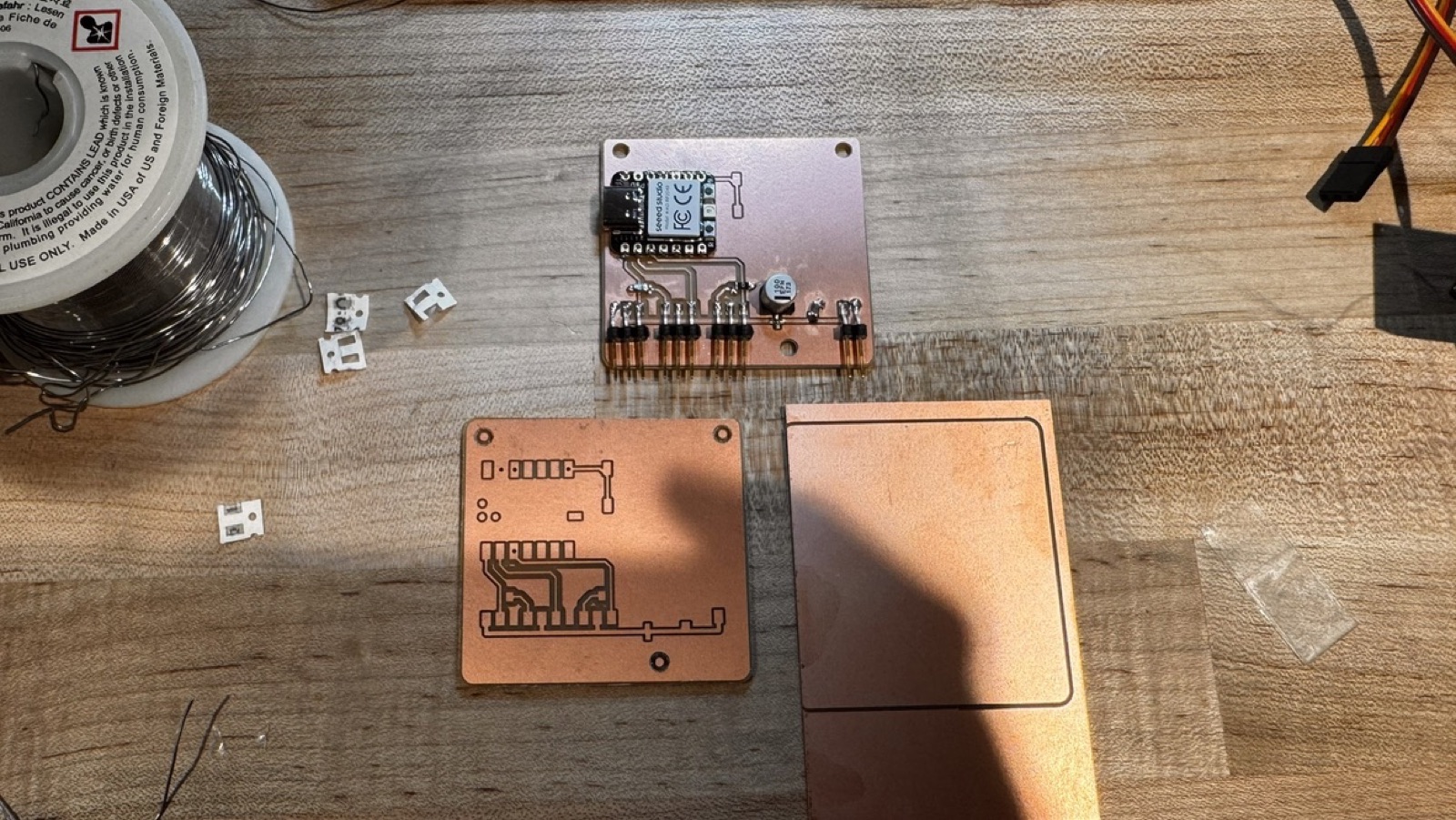
With the multimeter, I found a short: GND was connected to another part of the board. I think solder joined GND to a neighbouring pad, but I did not find the exact place. I decided this board had a problem, and I gave up on it after about five hours.
02 · Version 2
Simplify, then improve the footprint
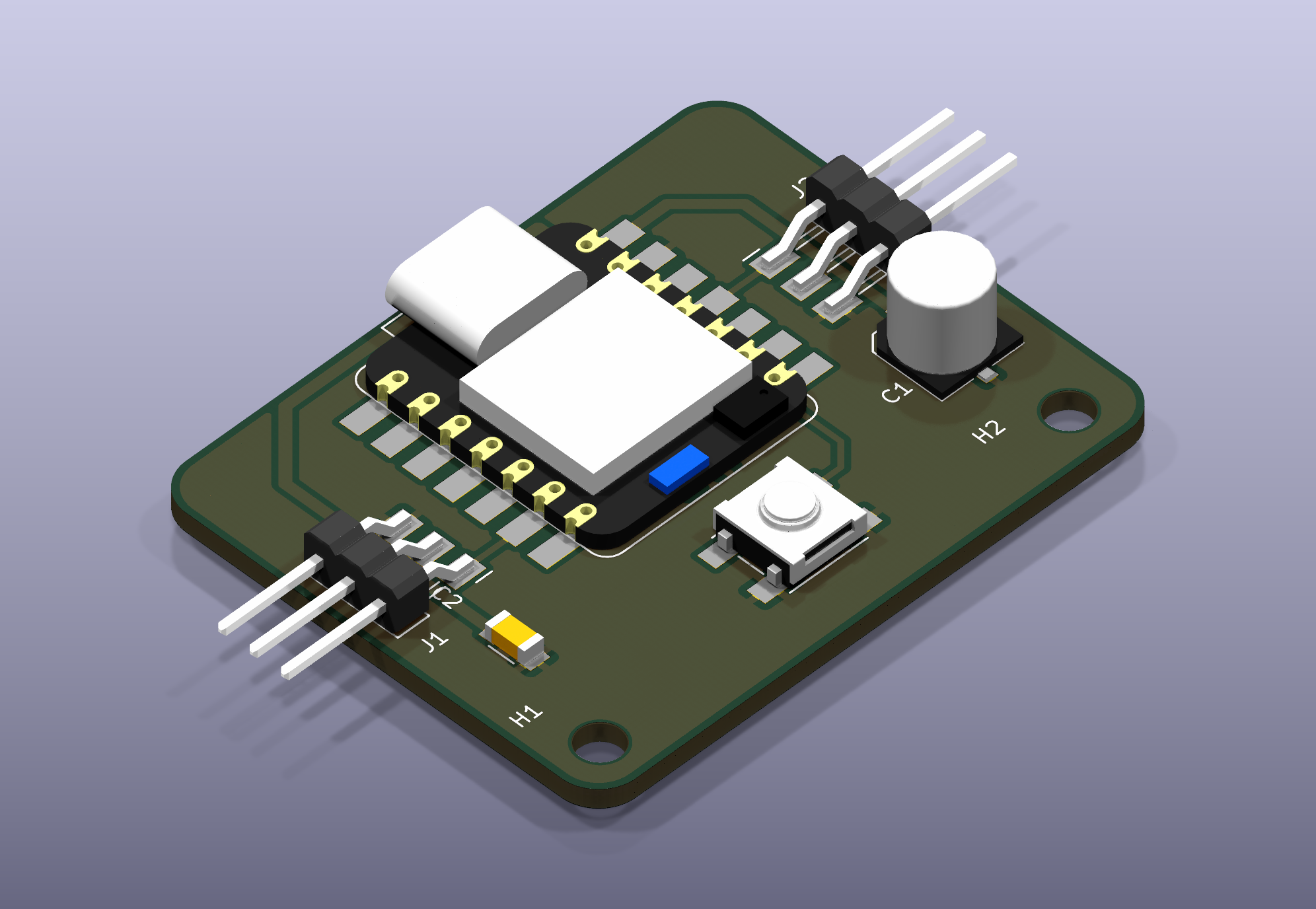
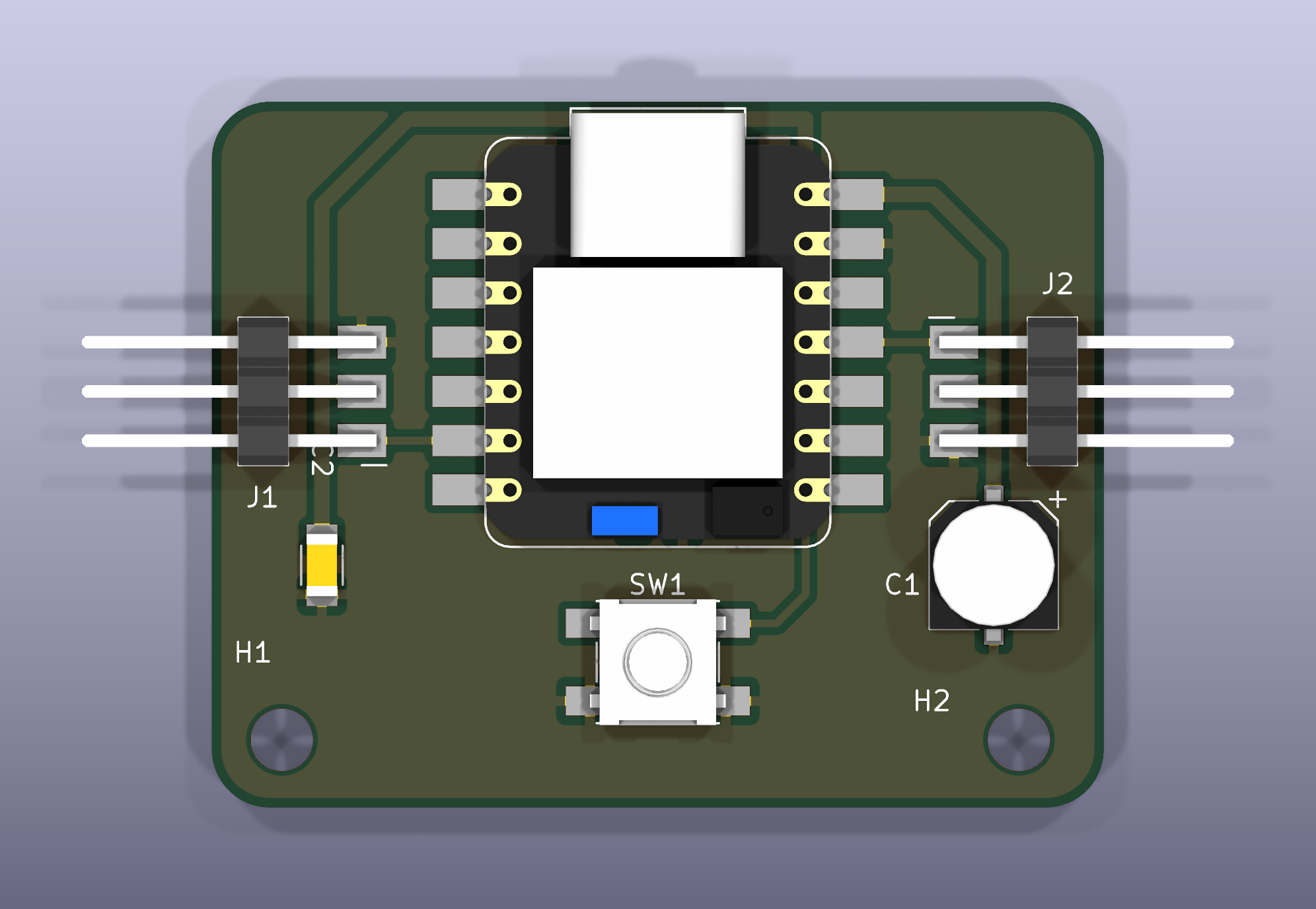
Version 1 felt too complicated and soldering it was too hard, so I simplified it. Version 2 drives two servos instead of three, and has no external power supply. Part of the reason was that I did not know where I would get an external supply. I expect the XIAO can power two servos from USB, but this is an inference from the specifications. I have not tested it.
Soldering was so difficult that I also adjusted the footprint of the XIAO: the pad size and the thermal relief. I drew my own footprint of the XIAO RP2040 and made its pads bigger, which leaves more room to work with the soldering iron. I also added thermal relief to the GND pads, so they are easier to heat. Thermal relief helped.
03 · Version 2 · Milling
The drill holes kept moving
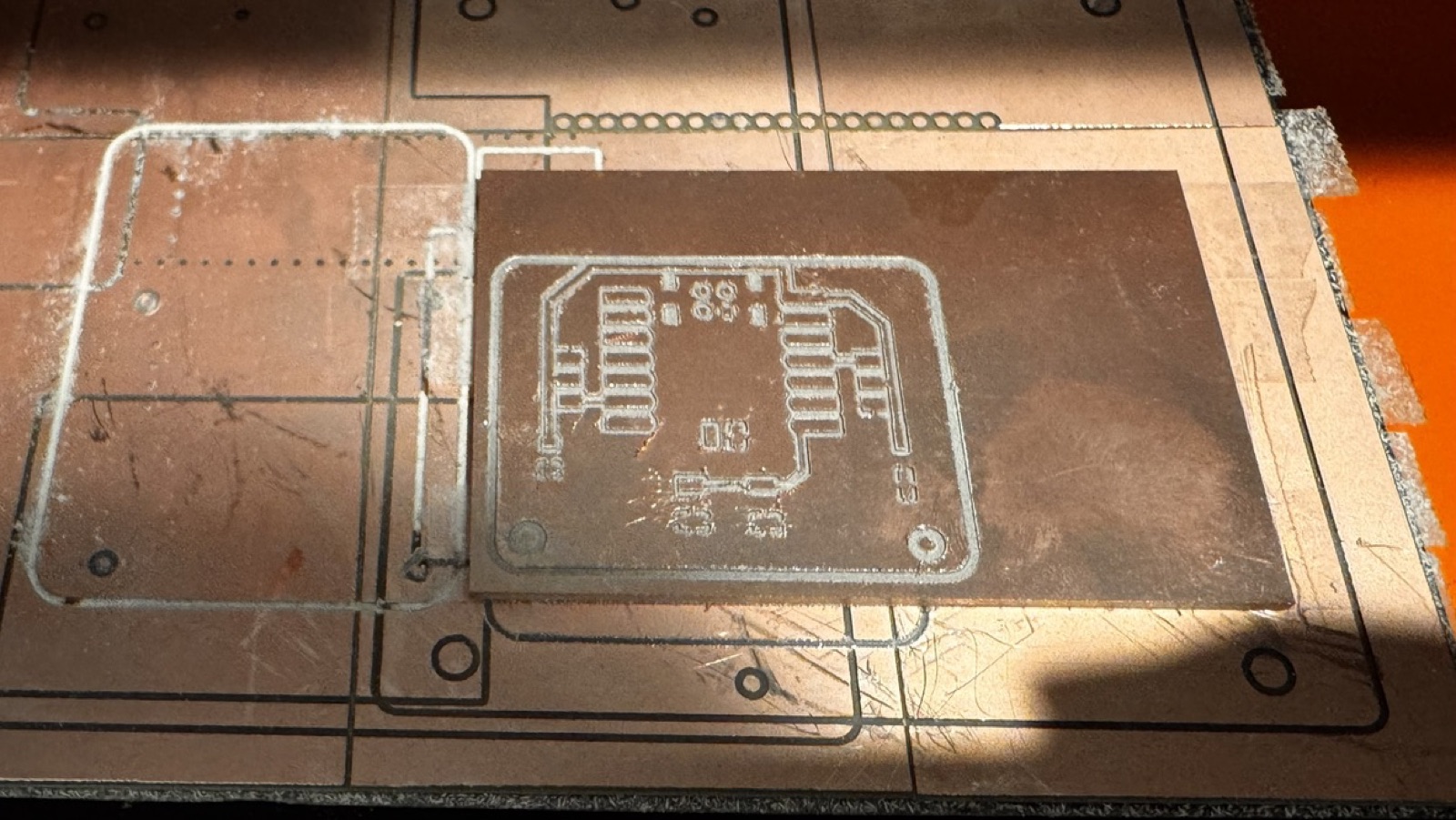
After the traces were cut, the drill holes were shifted from the traces. I changed some parameters, calculated the toolpath again and milled again. I did this twice, and the result was the same, so I was frustrated.
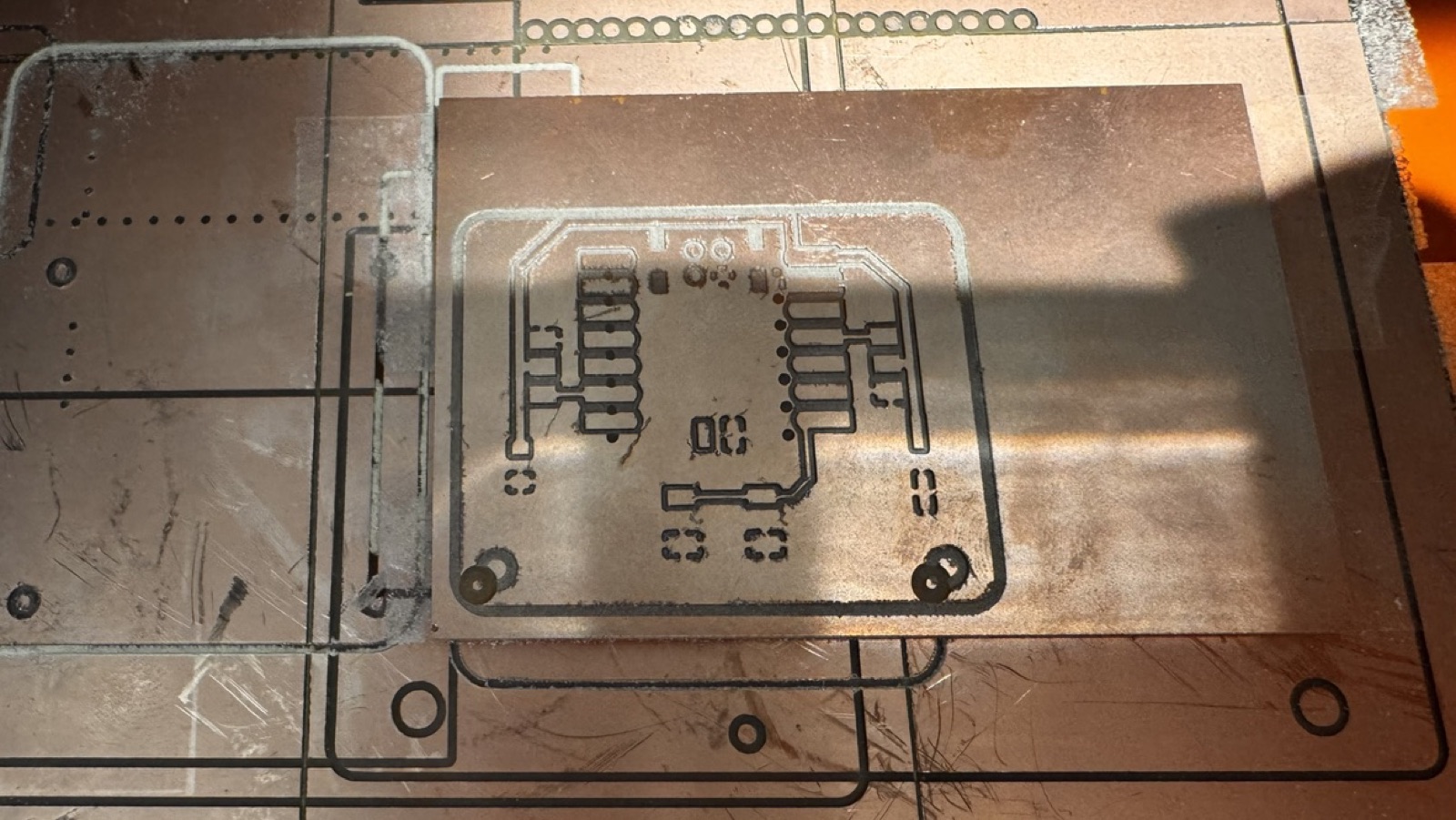
So I went back to the files. In gerber2img I had forgotten to lock the origin and the dimensions. My three images, the traces, the drill holes and the edge cut, therefore had different origins and different sizes, which shifted them against each other. The milling settings were never the problem. After I locked the origin and the dimensions, the holes lined up with the traces.
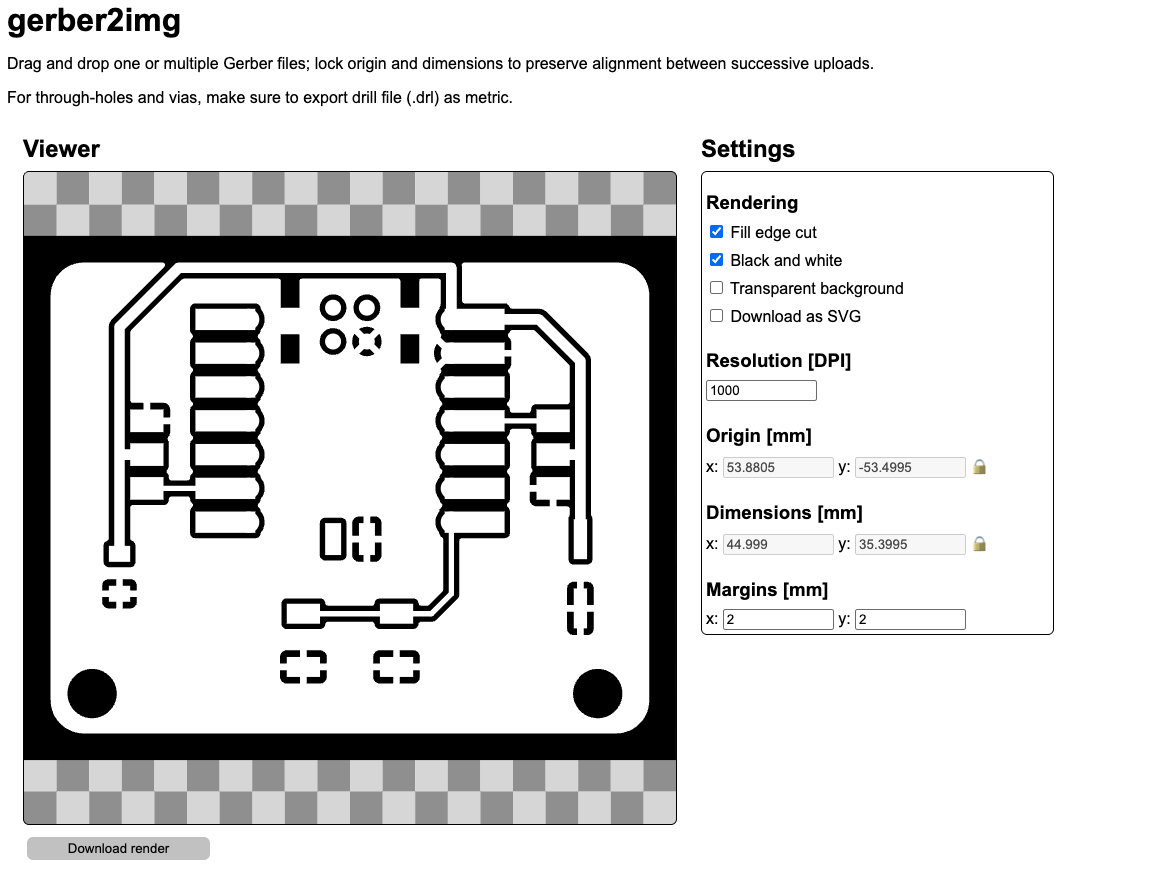
gerber2img with the origin and the dimensions locked (the lock icons at the right of the two fields), so that every file I drop in keeps the same alignment.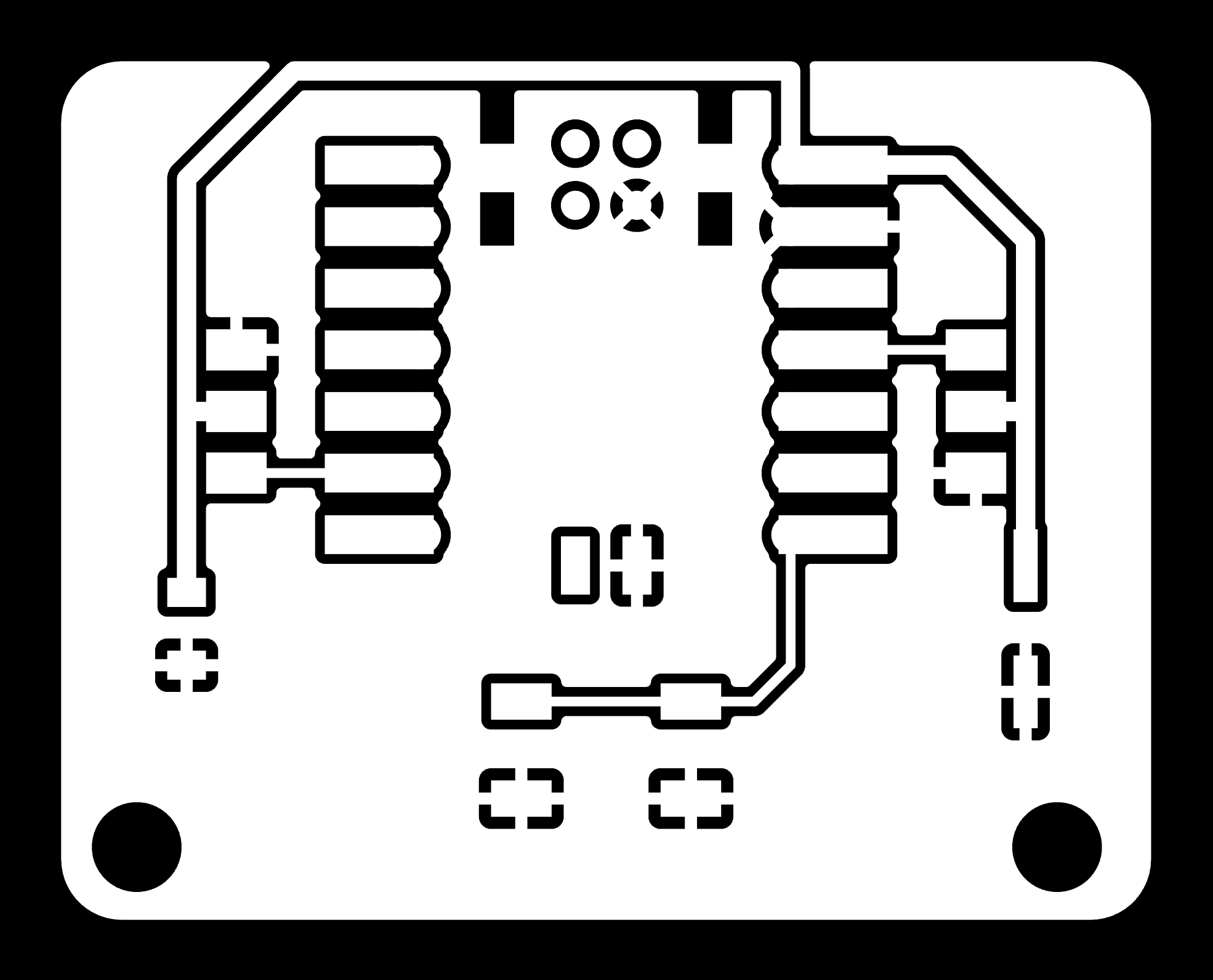
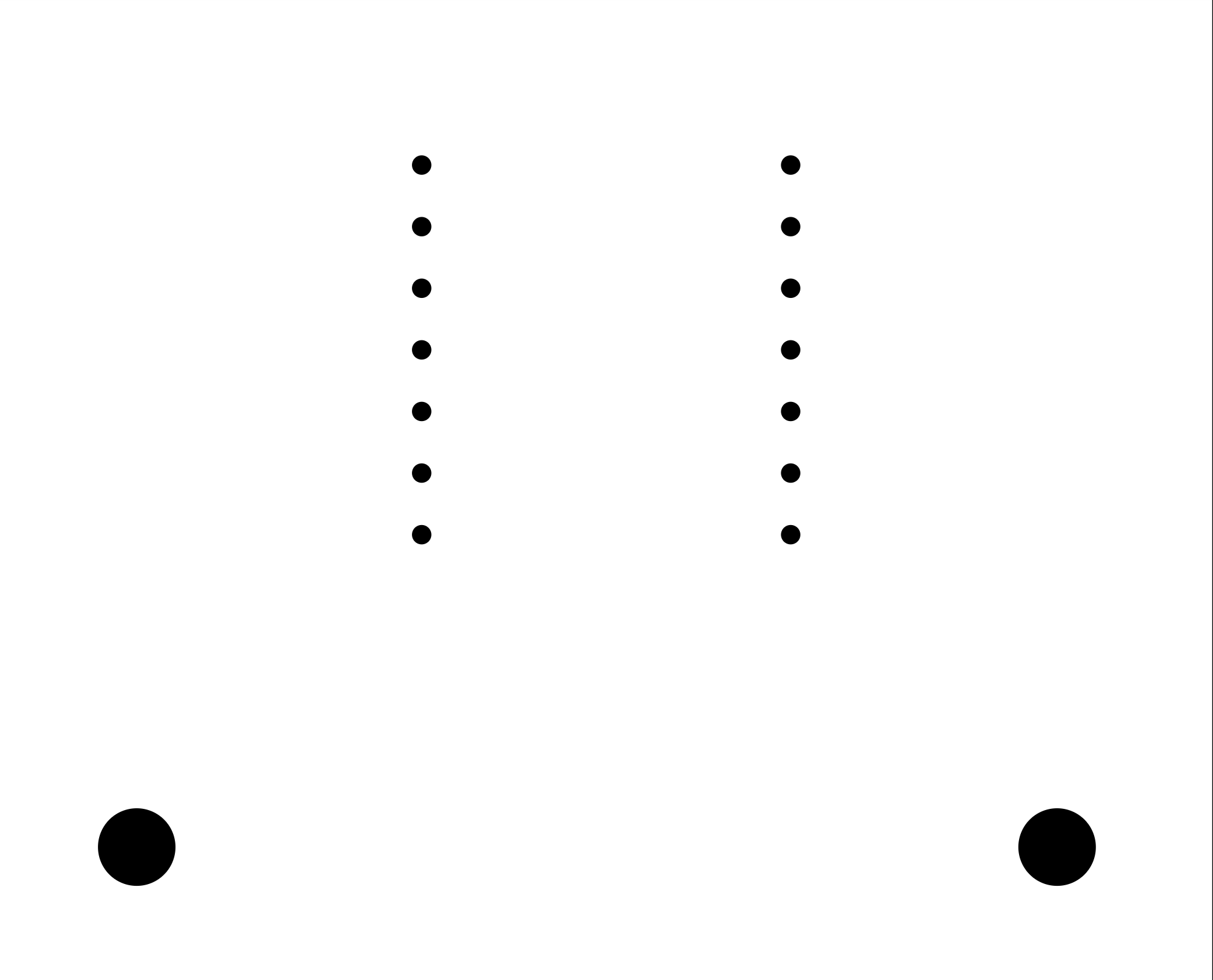
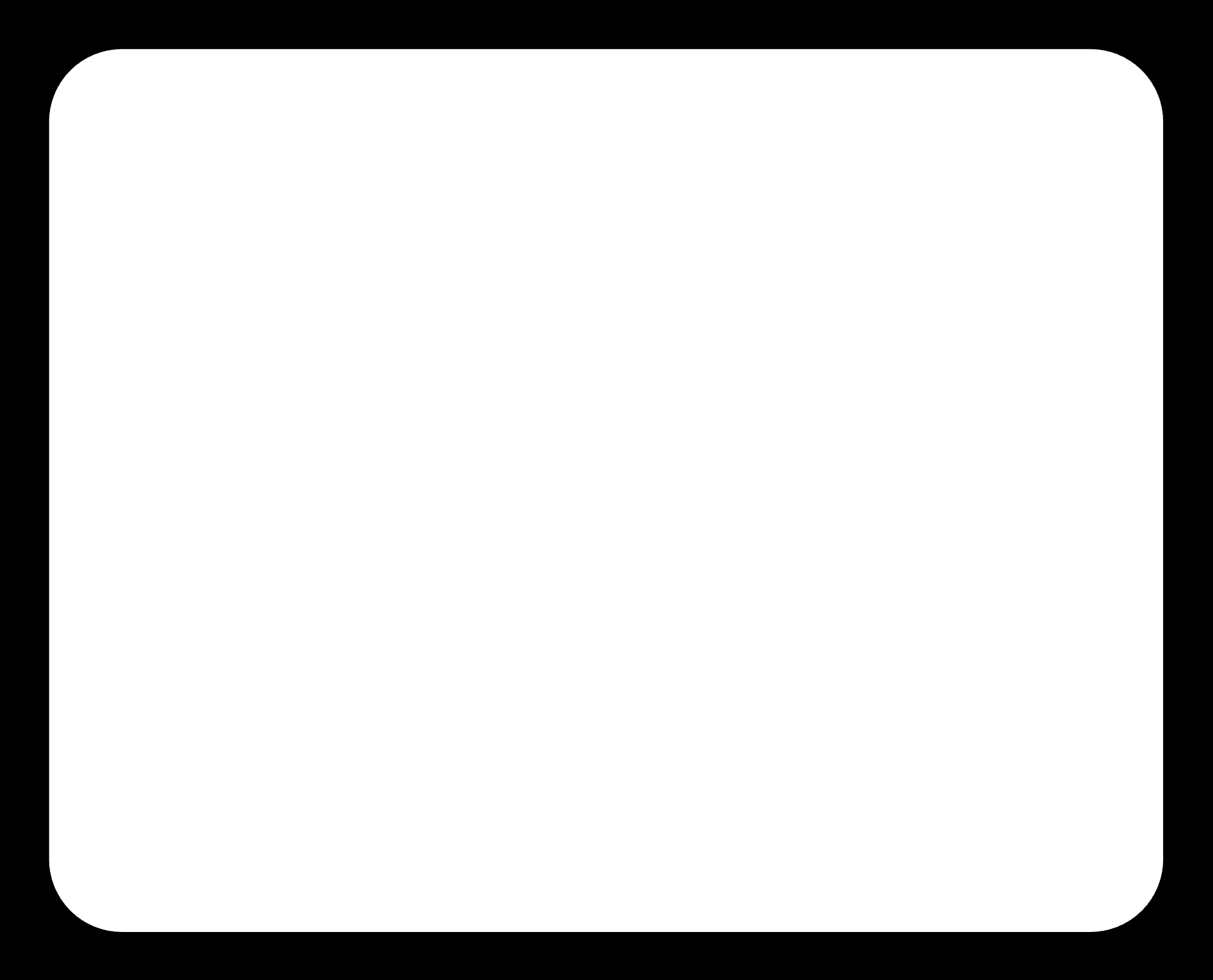
gerber2img, all with the same origin and dimensions. From left to right: traces, drill holes, edge cut.04 · Version 2 · Soldering
Everything was right, and it still did not light up
With that good board I soldered the parts: the 100 µF capacitor, the small SMD capacitor, two pin headers and the XIAO. I did not solder the switch, so its pads are empty. I checked the board and found nothing wrong.
Parts list for version 2
| Designator | Part | Footprint (fab library) | Qty |
| C1 | 100uF electrolytic (Panasonic EEE-FN1E101UL) | CP_Elec_100uF_Panasonic_EEE-FN1E101UL | 1 |
| C2 | 10uF | C_1206 | 1 |
| J1, J2 | Servo (pin header 1x3) | PinHeader_01x03_P2.54mm_Horizontal_SMD | 2 |
| M1 | Seeed XIAO RP2040 | SeeedStudio_XIAO_RP2040 | 1 |
| SW1 | Omron tactile switch | Button_Omron_B3SN_6.0x6.0mm | 1 |
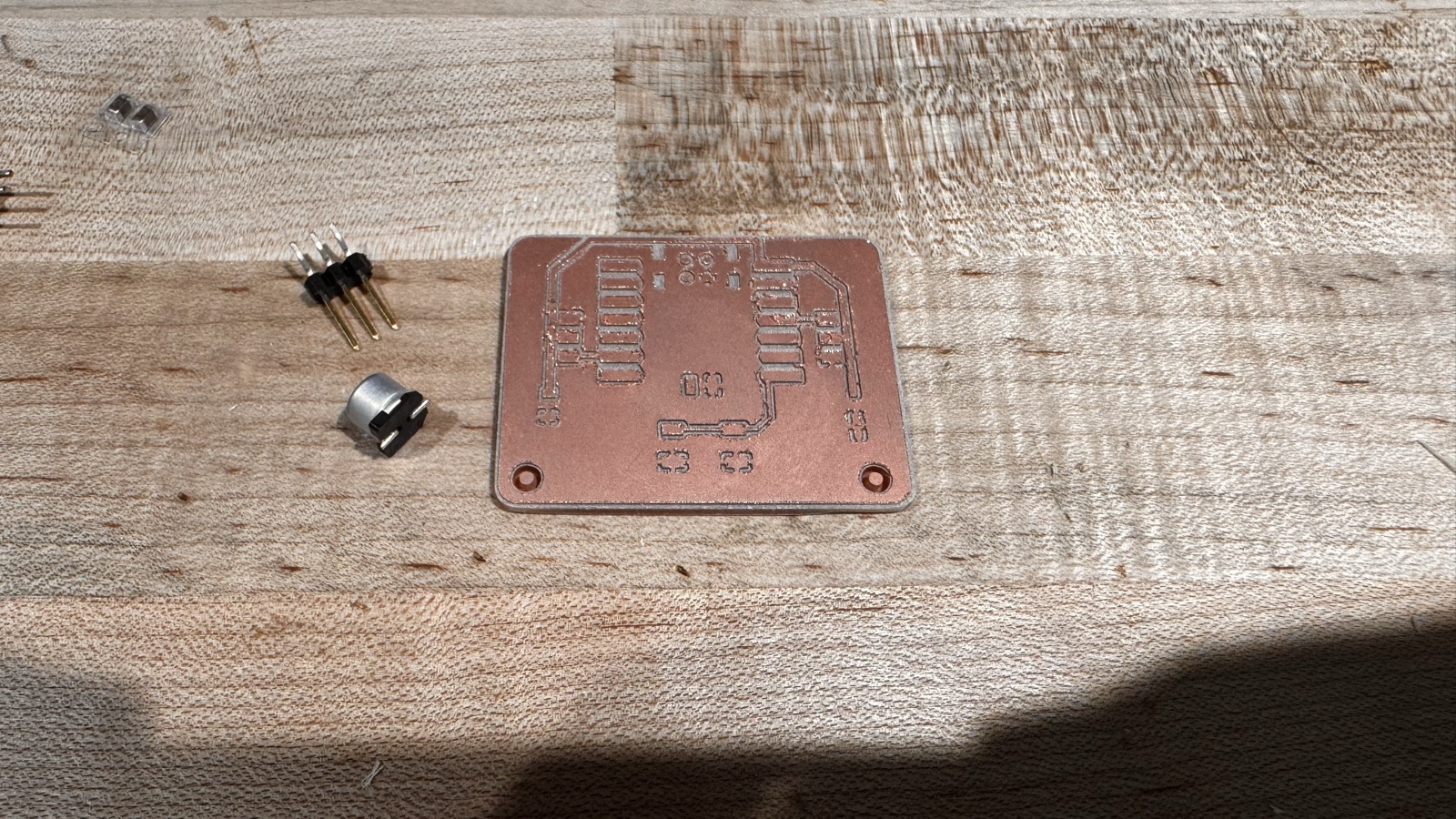
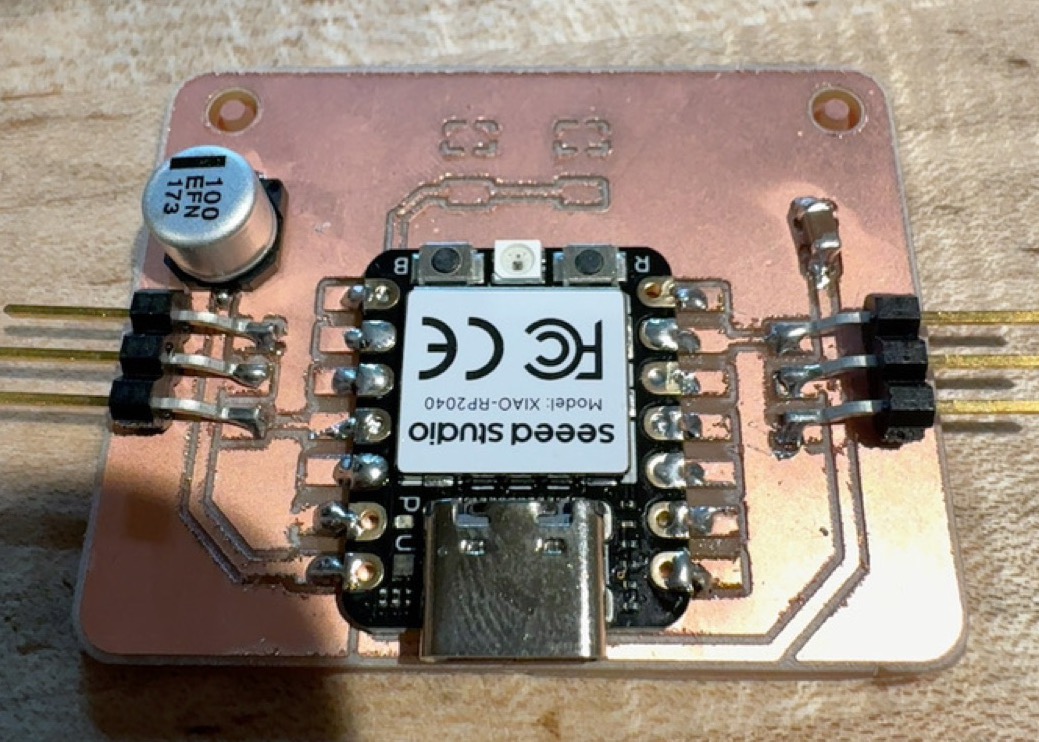
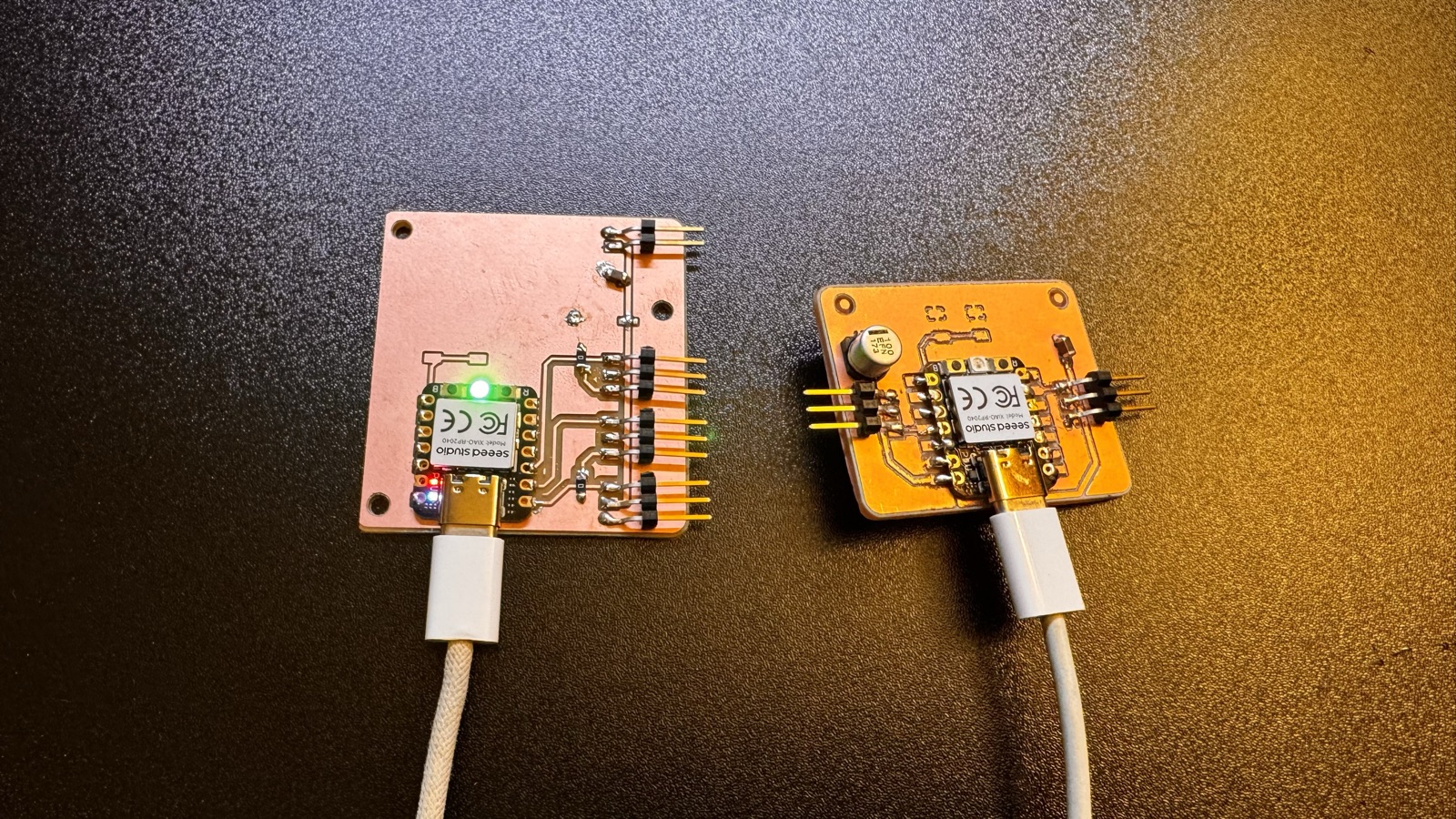
Then I plugged in the power, and the LED on the XIAO did not light. I tried a computer and I tried a wall outlet, and neither worked. To see if the problem was the board or the XIAO, I plugged USB-C directly into the XIAO, without the board. It did not light either. The XIAO was dead.
This was very frustrating. Everything looked correct, and it still did not work. I do not know if the XIAO was already broken from the factory, or if I broke it while soldering. I cannot tell these apart.
05 · Where it stands
A good board, a good MCU, and no servo movement
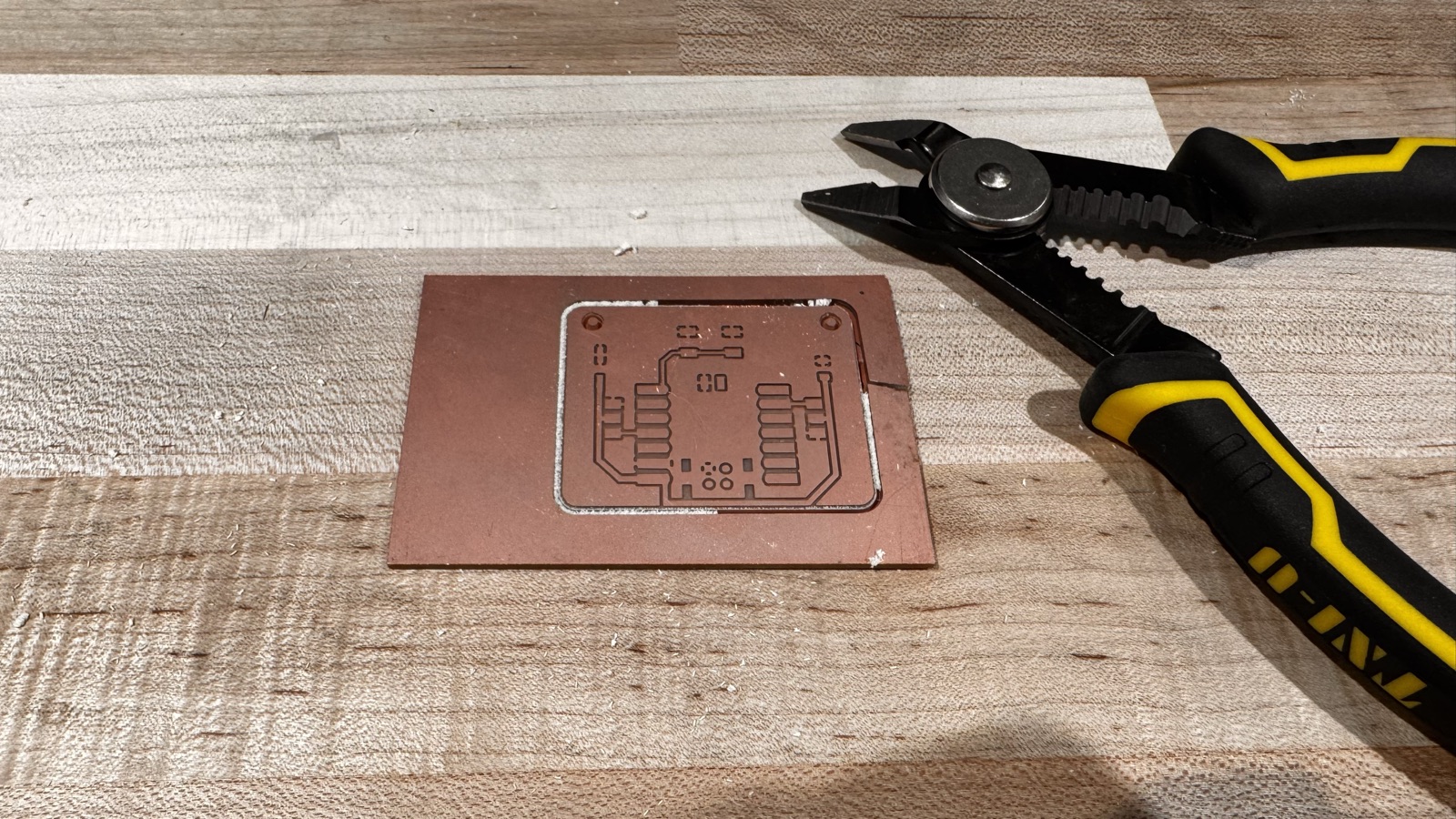
I found another day and milled version 2 once more. This time the milling was very good. I took the board out of the surrounding stock.
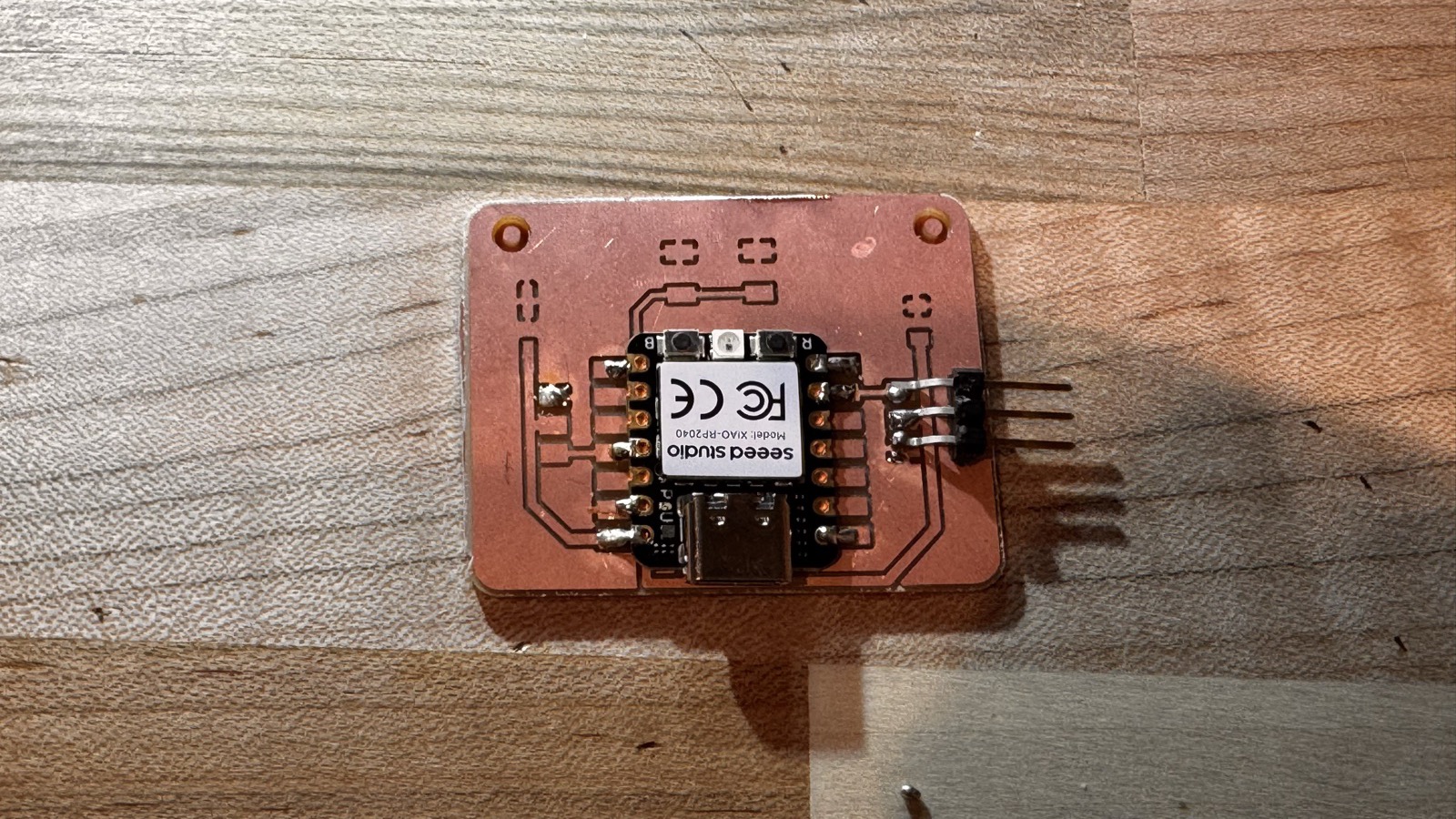
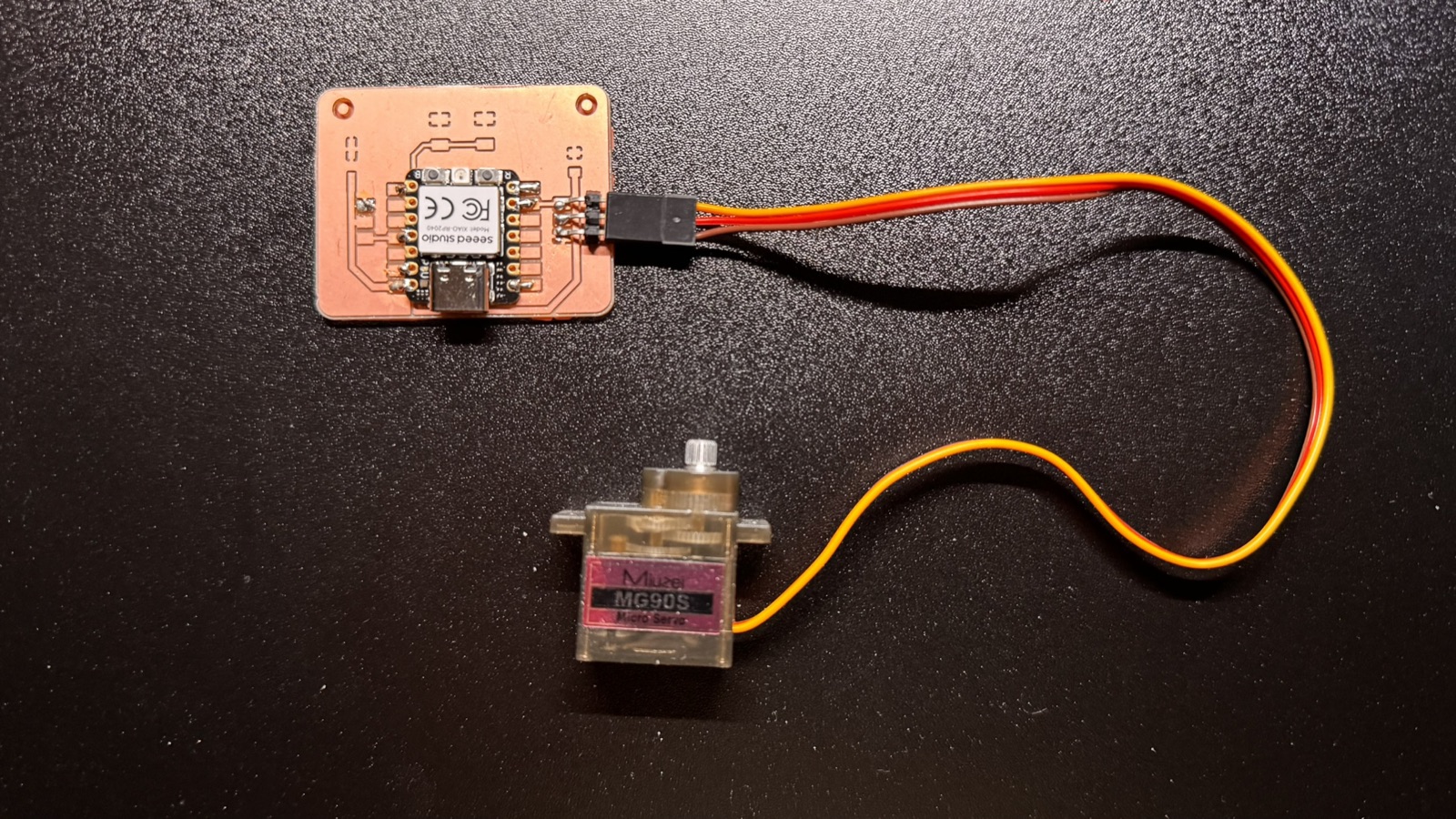
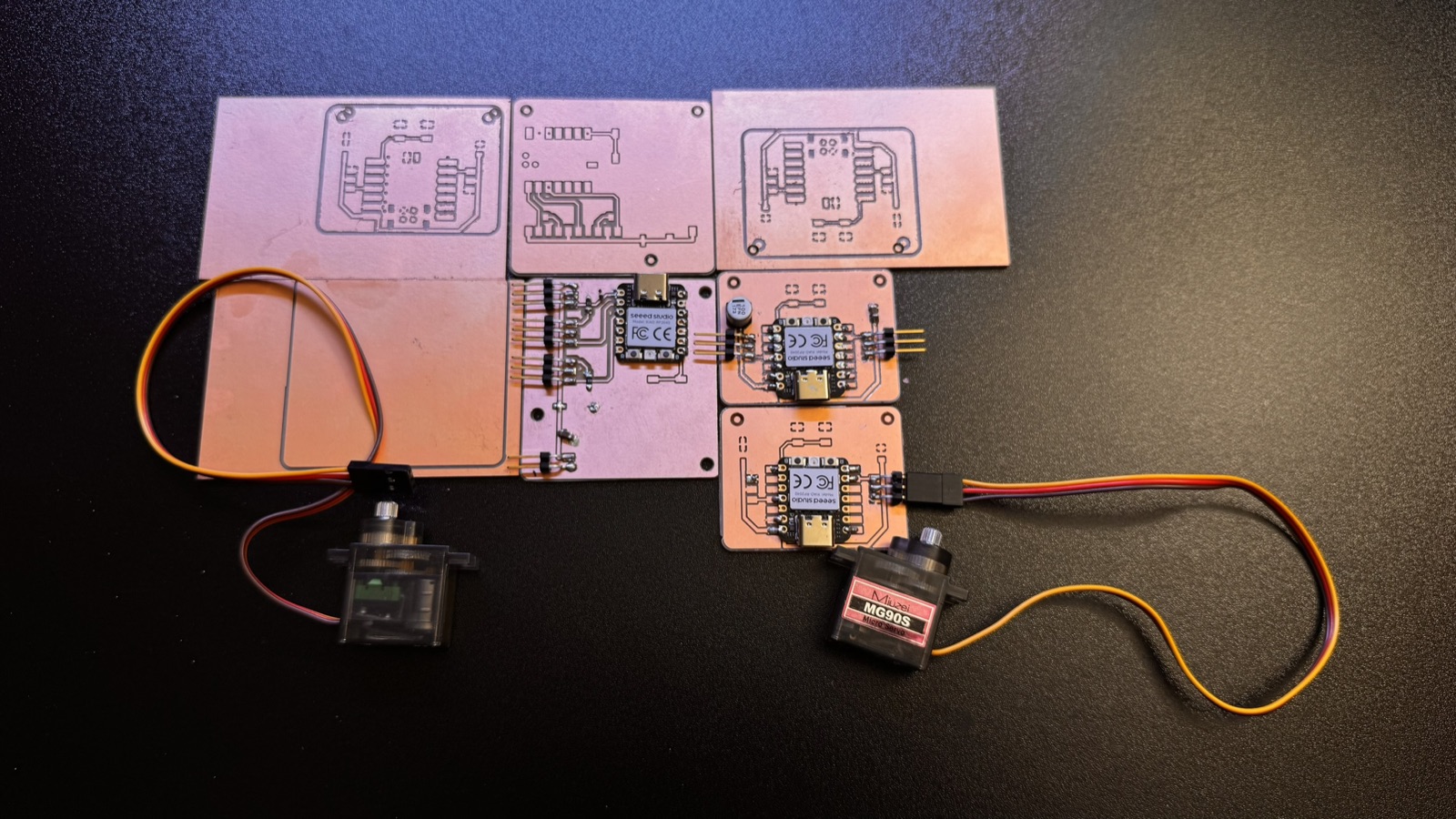
This time I used a new XIAO, and I confirmed that it works. I did not have enough time to solder every part, so I soldered only the XIAO and a pin header, and tried to connect a servo. The servo did not move, and I do not know why yet. I will look into it next week and try to get the whole path working.
06 · Board house
What if a board house made it?
Milling and soldering took most of my week, so on 2026-10-21 I went through JLCPCB’s online quote for version 2, from the Gerber files to the shopping cart. I did not place an order.
Upload and assembly options
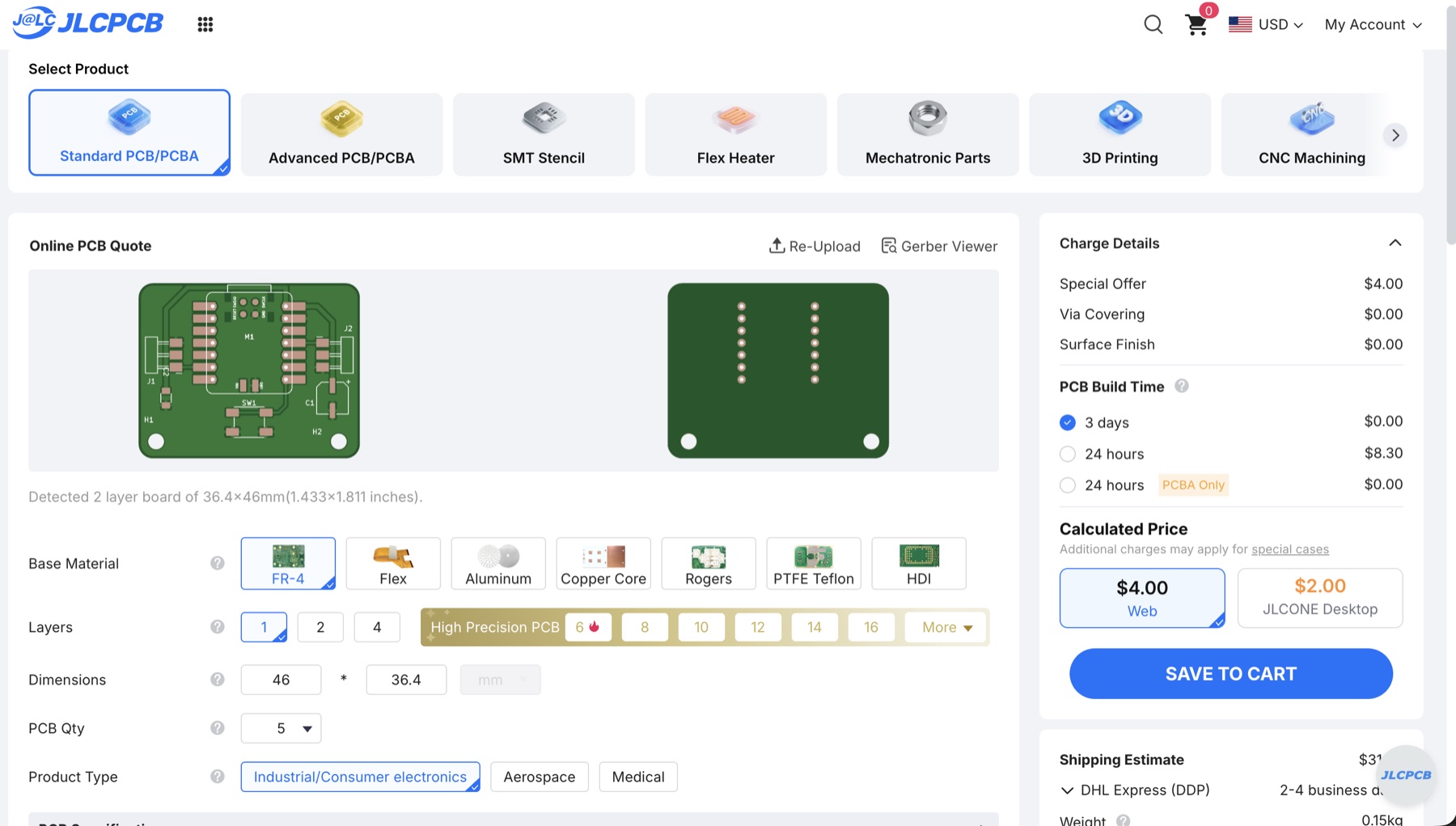
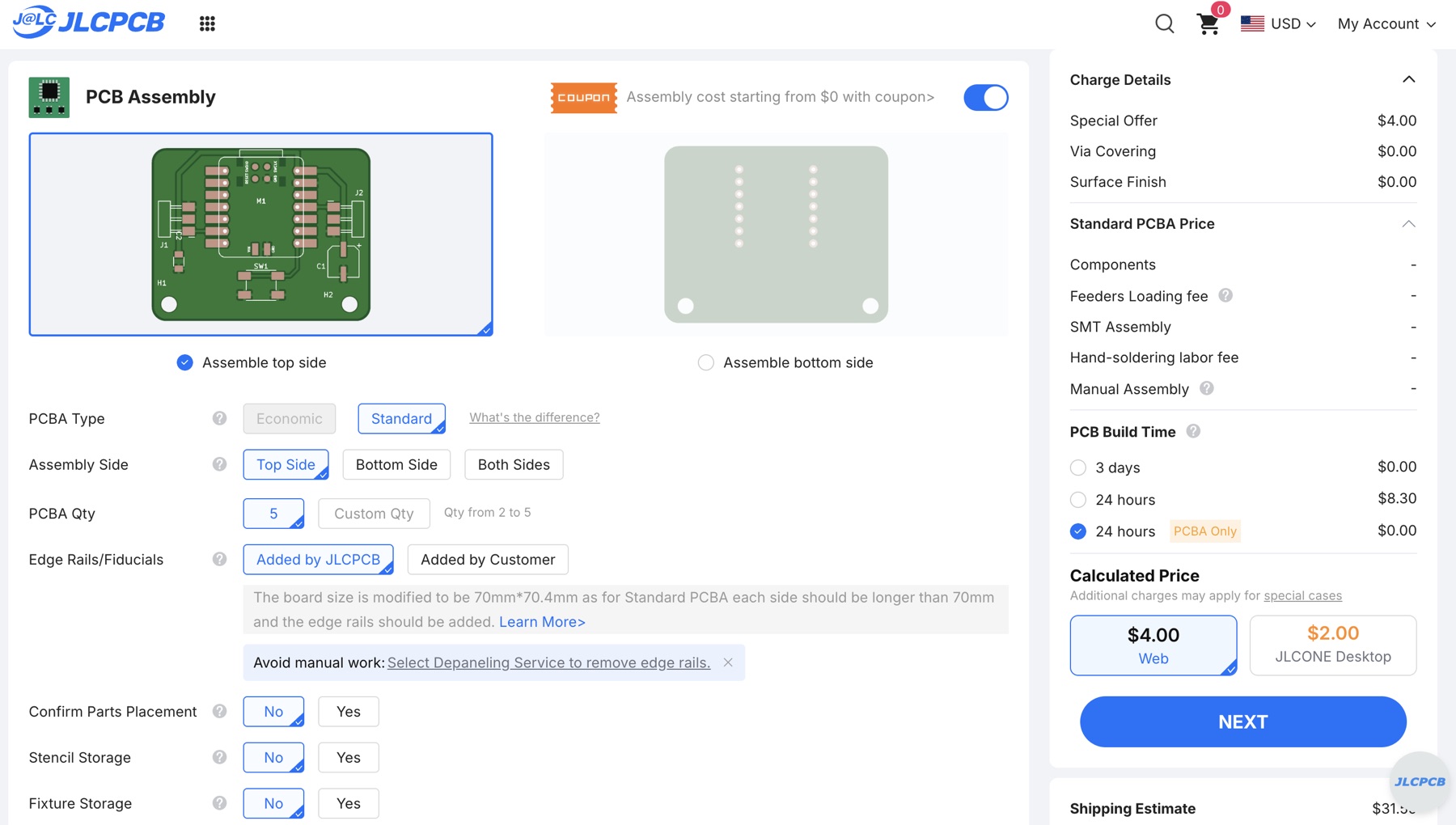
I uploaded output.zip (the Gerber and drill files from KiCad). JLCPCB detected a 2-layer board of 36.4 × 46 mm. I asked for 5 boards, green, 1.6 mm, HASL with lead, and assembly of the top side only with Standard PCBA. The number of assembled boards has to be 2 to 5, and I used 2. JLCPCB adds edge rails (the board becomes 70 × 70.4 mm), which I would break off by hand.
BOM and part placements
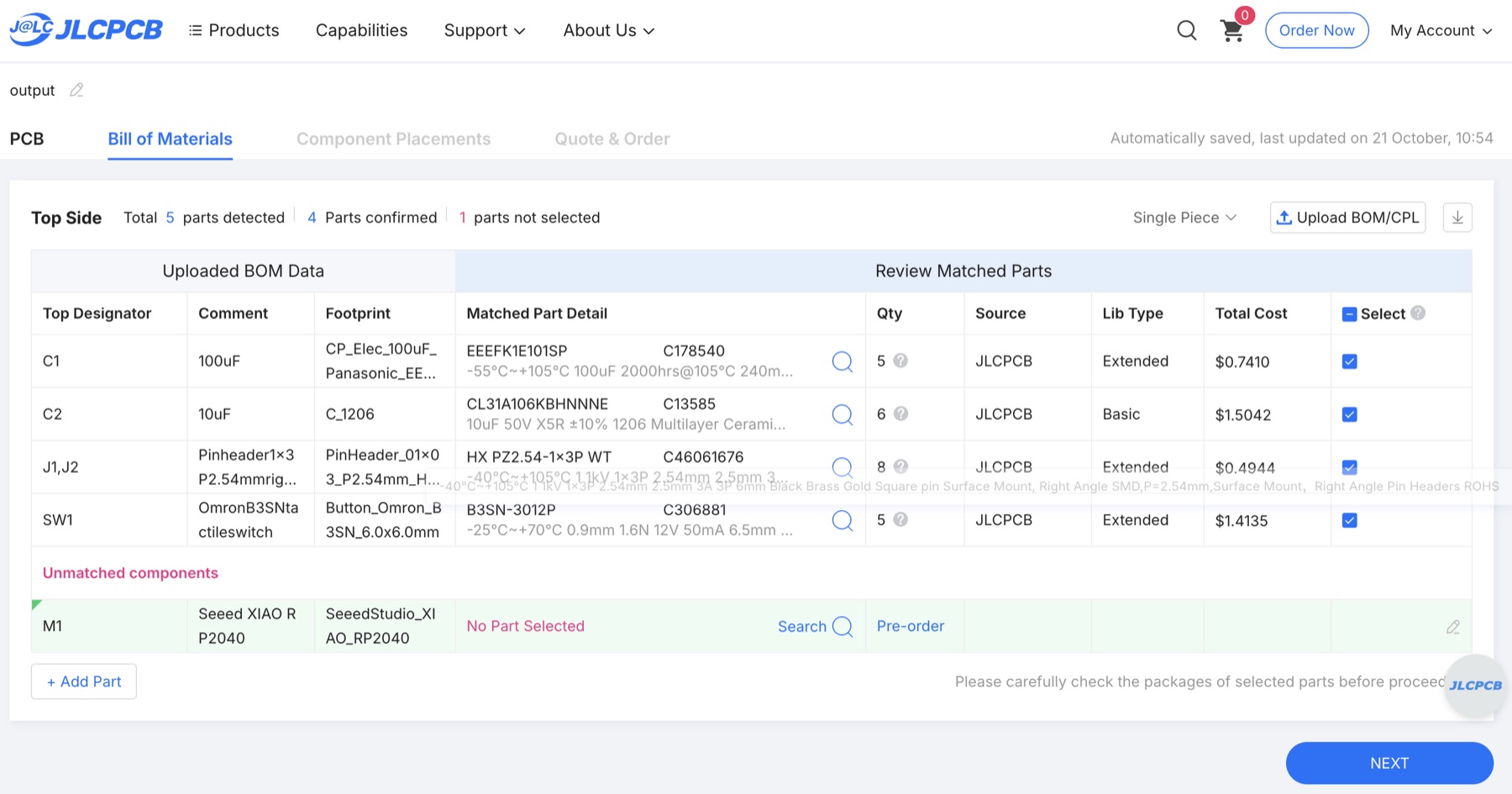
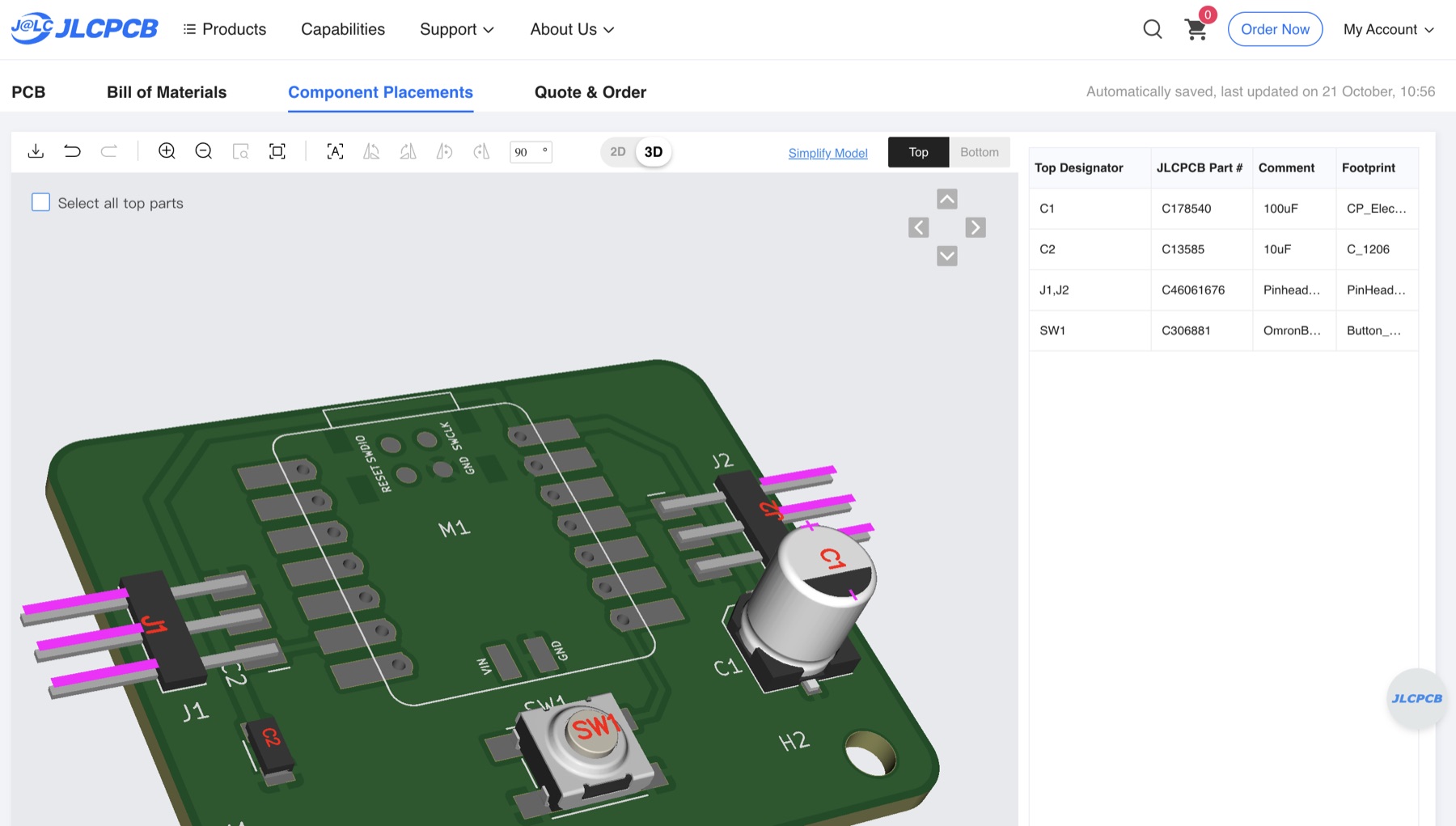
I uploaded the BOM and the CPL (part positions): BOM and CPL. JLCPCB matched 4 of the 5 parts. The XIAO (M1) has no part in stock, so I would solder it myself. In the 3D view, the pin headers J1 and J2 first pointed the wrong way, and I rotated them until the pins pointed out over the board edge. The table lists the parts I matched, checked in JLCPCB’s parts library on the same day; stock changes, so I would check again before ordering.
| Designator | Part | LCSC | JLCPCB type | Stock |
| C1 | 100 µF, 25 V, 6.3 × 5.8 mm SMD electrolytic. Panasonic EEEFK1E101SP instead of my EEE-FN1E101UL (C1881501, 0 in stock). Same electrical values and size. | C178540 | Extended | 9,026 |
| C2 | 10 µF, 1206 ceramic. Samsung CL31A106KBHNNNE, rated 50 V. | C13585 | Basic | 2,311,199 |
| J1, J2 | 1×3 right-angle SMD pin header, 2.54 mm. HX PZ2.54-1x3P WT. I did not check its pads against my footprint. | C46061676 | Extended | 21,682 |
| SW1 | Omron B3SN-3012P, 6 × 6 mm tactile switch, instead of my B3SN-3112P (C306883, 0 in stock). I did not check that the pads are the same. | C306881 | Extended | 11,113 |
| M1 | Seeed XIAO RP2040 module. The parts library lists it (C9900177322 and C9900176459), but both have 0 in stock. JLCPCB shows “No Part Selected” for it, so it would not be assembled and I solder it myself. | C9900177322 | Extended | 0 |
Quote
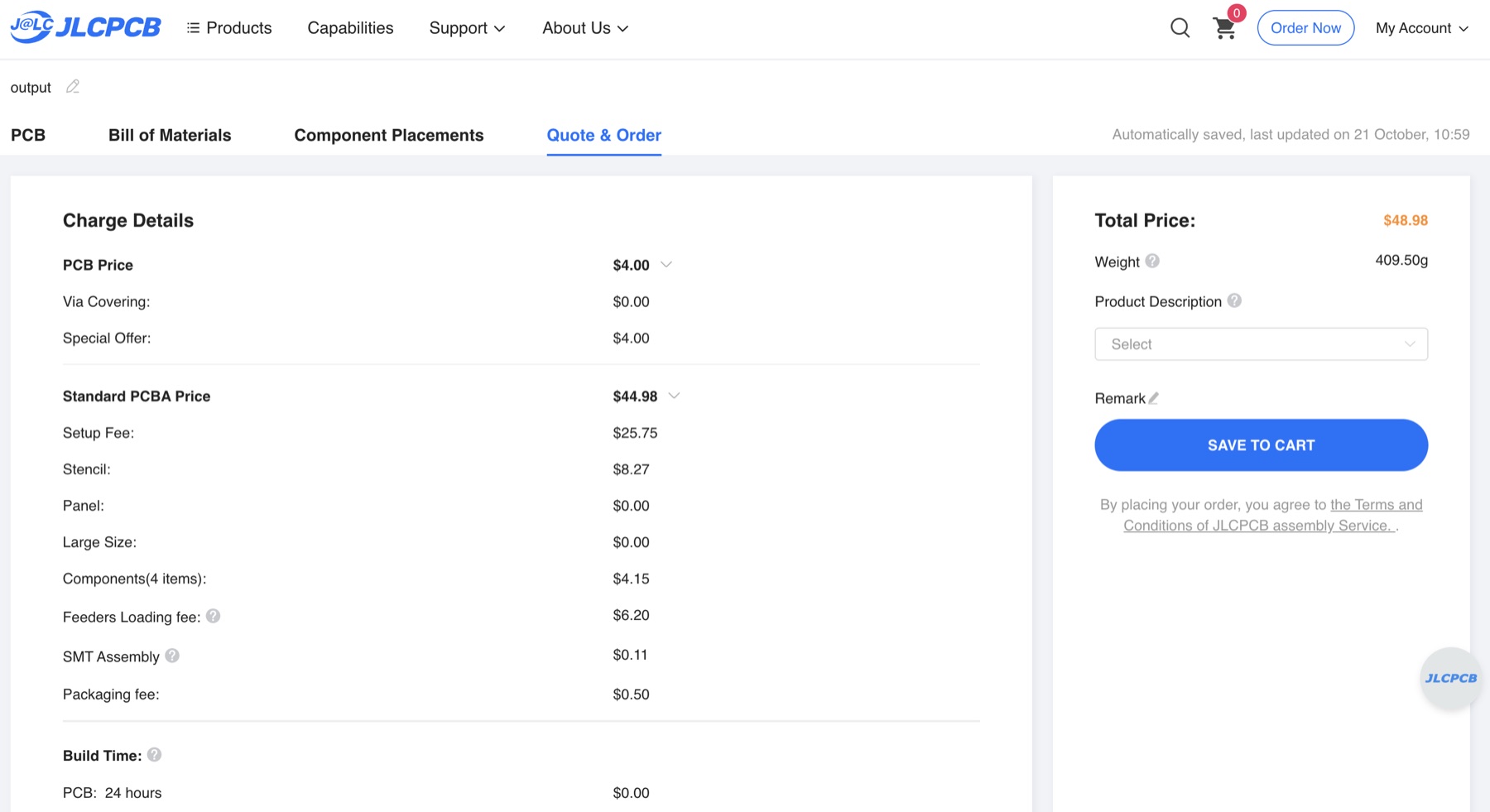
The 2 assembled boards come out of the 5, so I would get 5 boards in total. Most of the assembly price is fixed cost: setup and stencil are $34.02 and the parts only $4.15. Shipping is almost as much as the assembly.
| 5 bare boards | $4.00 |
| Assembly, 2 boards | $44.98 (setup $25.75, stencil $8.27, feeders loading $6.20, components $4.15, packaging $0.50, SMT assembly $0.11) |
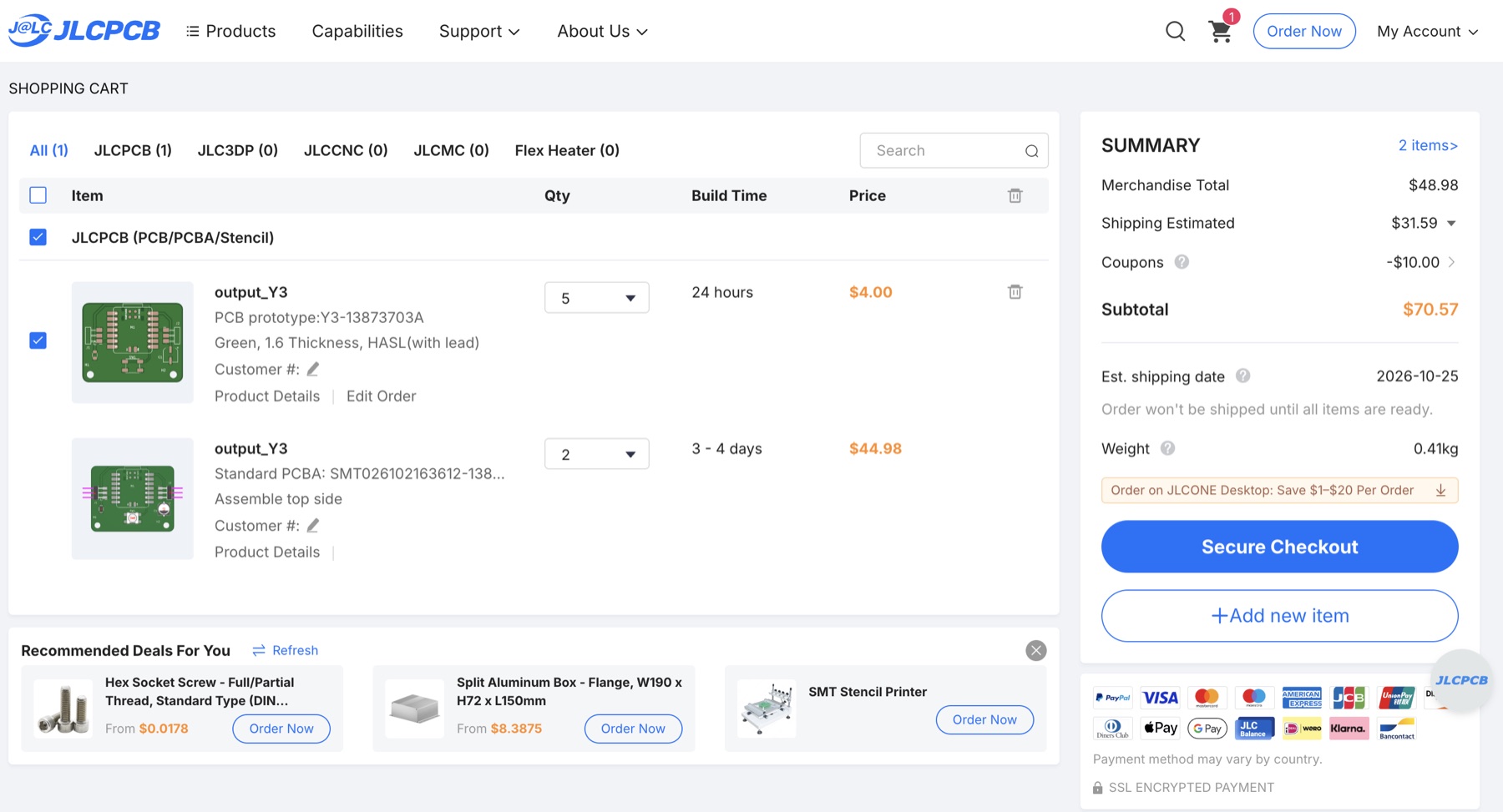
| Shipping (estimated) | $31.59 |
| Coupon | −$10.00 |
| Subtotal | $70.57, estimated shipping date 2026-10-25 |
07 · What I learned
What I will do differently
- Test the MCU first. Plug the XIAO into USB-C on its own before soldering anything.
- Lock the origin and dimensions in
gerber2img. The traces, the drill holes and the edge cut must share them, or the holes will be shifted. - Check polarity before soldering. An electrolytic capacitor has a positive and a negative leg.
- Make the pads bigger. My own XIAO footprint with longer pads, and thermal relief on the GND pads, helped. It did not make soldering easy.
- Soldering was the biggest problem of the week. The tiny SMD resistors and capacitors were the hardest. For a more complex board, I will try ordering the board, and maybe the assembled board (PCBA), from JLCPCB, so that they solder the parts.
08
AI usage
I used Claude (Claude Code) to organize my notes into this page and to convert and resize the photos. I also used the KiCad MCP server Konnect with Claude to help me create the simplified version 2 of the board. The milling, the soldering, the debugging, and what happened and how it felt are mine.