WEEK 03
Embedded Programming
Learning to solder and program an embedded system to build a simple game pad.
September 2026
Soldering QPad
For this week, I am working with QPad, which is a simple style game pad designed by Quentin. It features a Xiao RP2040 microcontroller which acts as the brain on board, a (pretty nice) OLED display, and a few capacitive touch buttons. The 3D printed part is for holding the display in place.
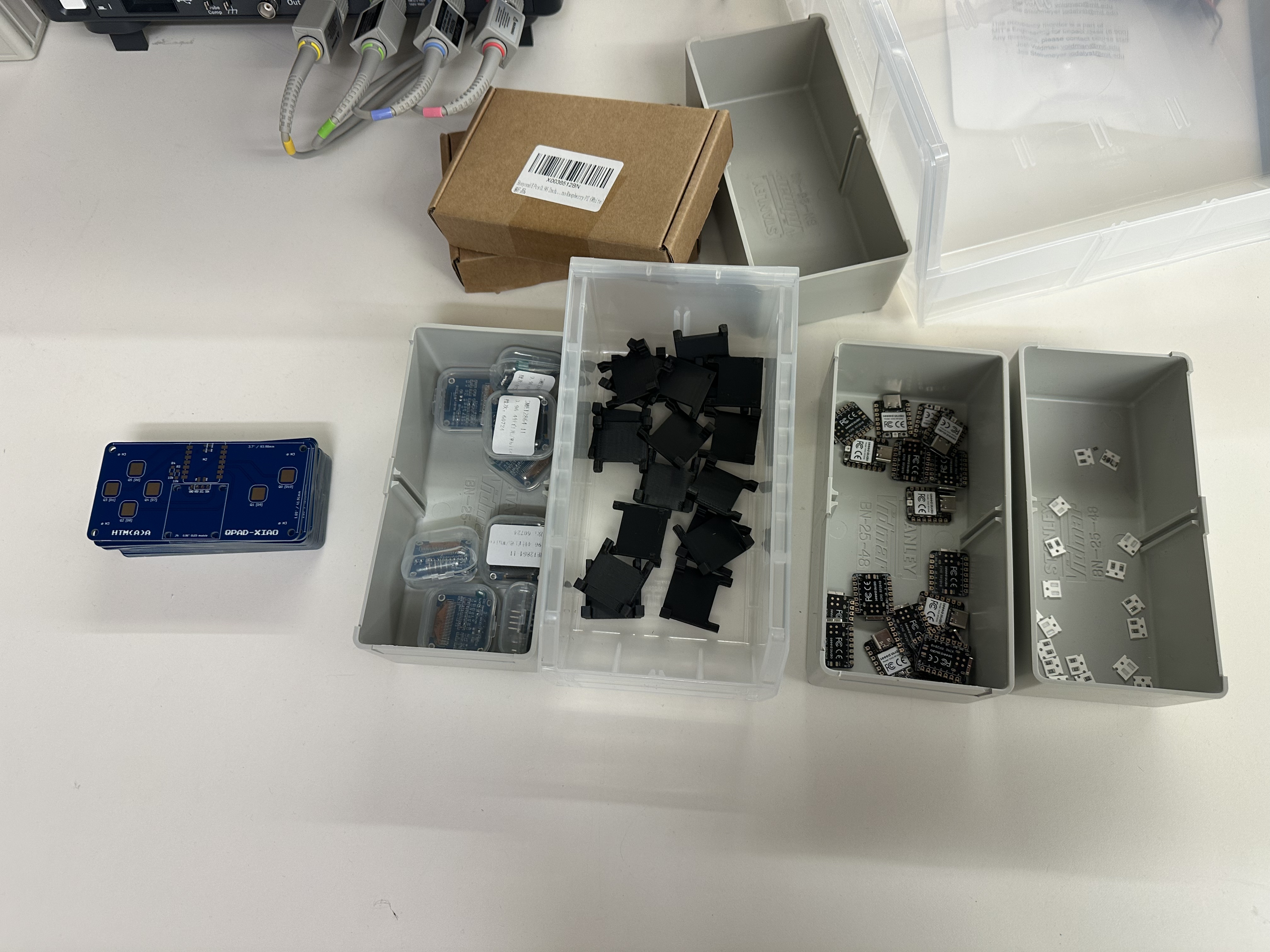
Since I have soldering experience, I began right away.
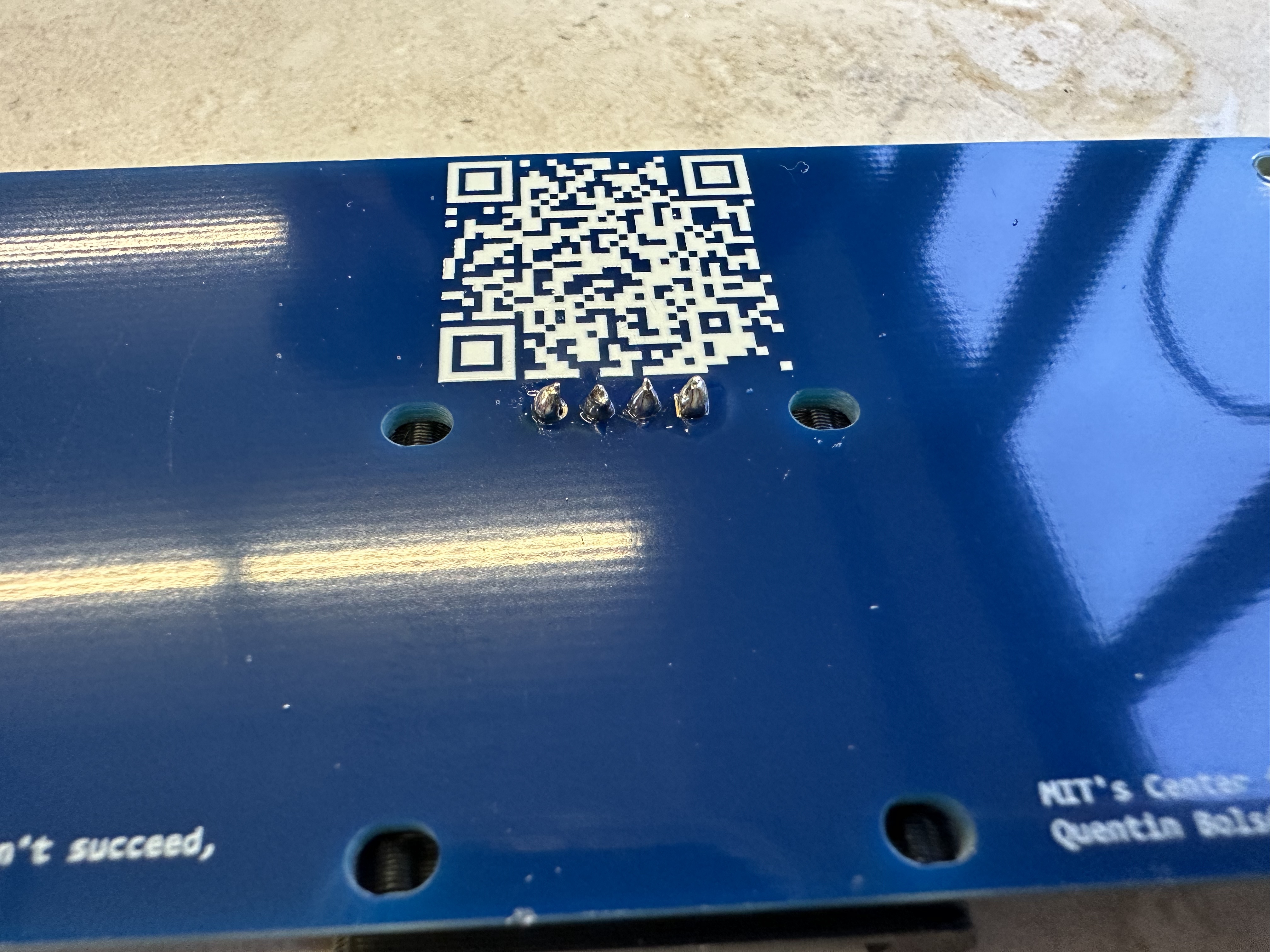
Deviating from the soldering instructions , I actually started with the OLED display first. This is because it is the only component whose pins are on the back of the board. So don't need to worry about flipping the board back and forth.
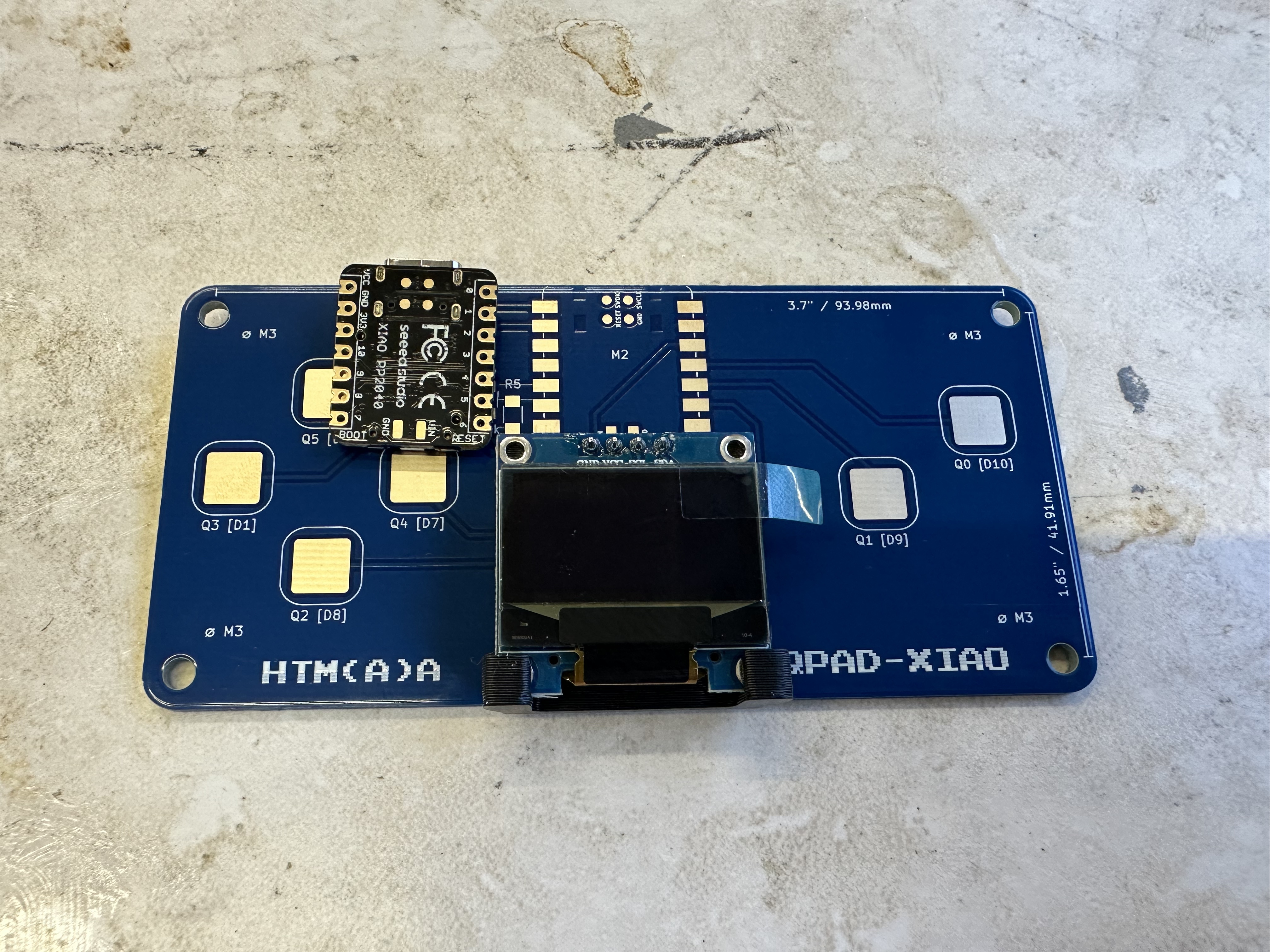
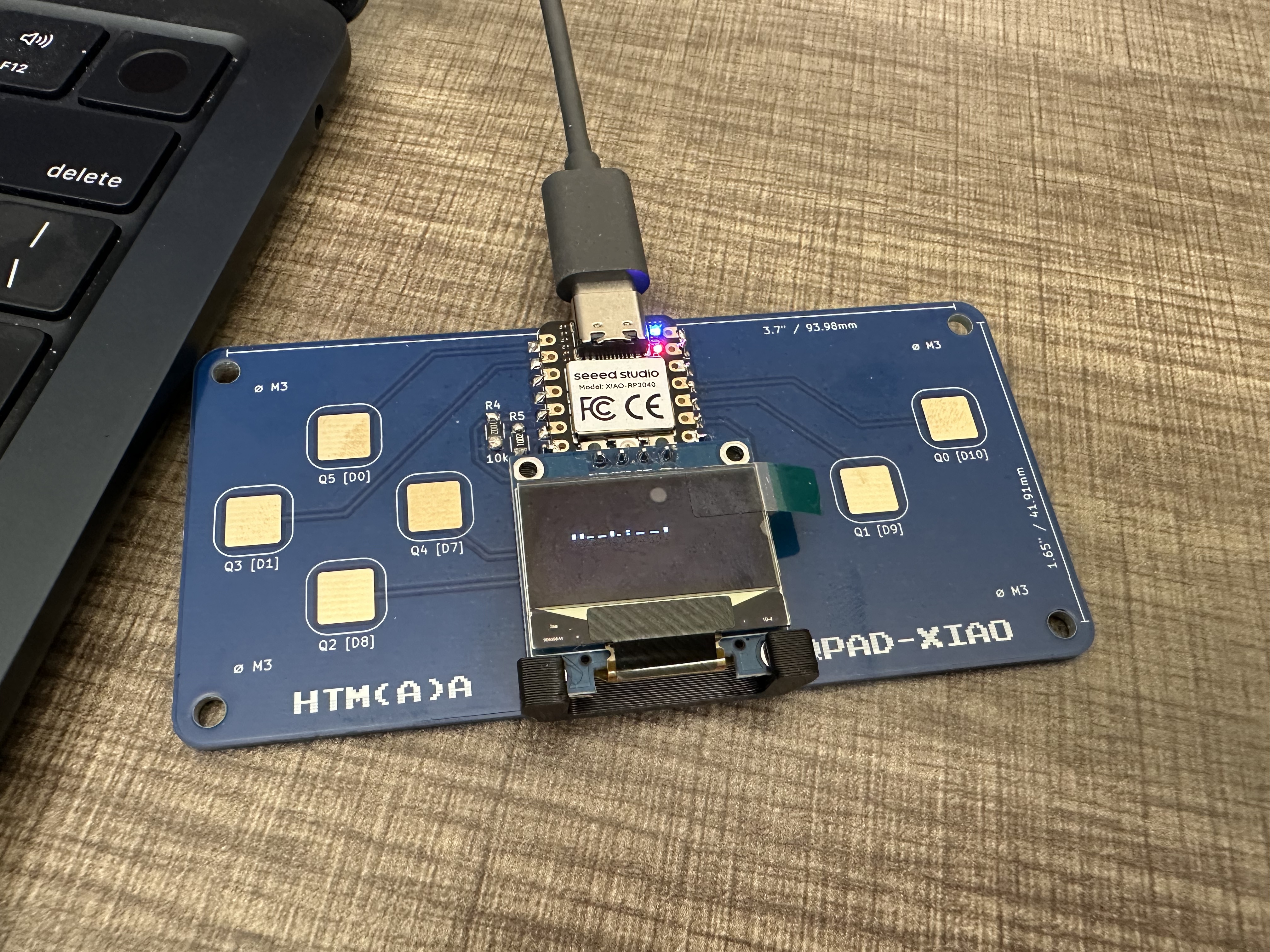
Interestingly, as you can somewhat saw in the above image, taking photots of the OLED display has a flashing effect, which is what blurred the above text. I suspected this is caused by the display's refresh rate interacting with my phone camera. I may delve more into this in the future.
Embedded Architecture Toolchain and Workflow
Before building my own software, I took a pause here to learn some common toolsets and workflows needed for the QPad. I started with 2 common options recommended by Anthony: Arduino and MicroPython.
Workflow
For this week, we compared the two development workflows discussed in class, Arduino and MicroPython:
-
Arduino.
Arduino is a compiled C/C++ workflow that spans the entire range from hardware to coding environments. You write a script with
setup()andloop()in the Arduino IDE, a toolchain on your computer cross-compiles it to native machine code, and you flash that binary onto the board over USB. Once it is running, the program executes directly on the microcontroller, and a large library ecosystem covers common sensors and peripherals. Every change goes through an edit–compile–upload cycle, and there is no interactive prompt, so debugging here is mostly counting on serial prints. -
MicroPython.
MicroPython is a Python 3 interpreter that runs on the microcontroller itself. You write
.pyscripts, copy them onto the board’s filesystem with Thonny, and the on-chip interpreter directly executes them. The very useful part of it is the REPL (Read-Eval-Print Loop): you can connect over serial and try pins, sensors, and functions live without an Arduino-style flash. However, its interpreted code is generally slower and uses more RAM than compiled C.
Arduino setup was fairly straightforward. After installing the software and resetting the RP2040, I verified the built-in LED blink sketch and got the onboard LED flashing.
Setting up MicroPython was slightly more work. After installing Thonny, I needed to manually download and flash the firmware for the XIAO RP2040. That made it possible to run Python on the board.
The blink tests above show that, while the underlying implementations differ, both workflows can realize exactly the same function.
Performance Test
CPU Speed
For the CPU speed test on Arduino, I used the code below to run a simple set of computations:
Arduino
void setup() {
  Serial.begin(115200);
  while (!Serial) {
    delay(10);
  }

  volatile unsigned long x = 0;

  unsigned long start = micros();

  for (unsigned long i = 0; i < 10000; i++) {
    x += i;
    x ^= (x << 1);
  }

  unsigned long t = micros() - start;

  Serial.print("Elapsed time(us): ");
  Serial.println(t);
}

void loop() {}
Output
Elapsed time(us): 853And the same test for MicroPython:
MicroPython
import time

x = 0

start = time.ticks_us()

for i in range(10000):
    x += i
    x ^= (x << 1)

t = time.ticks_diff(time.ticks_us(), start)

print("Elapsed time (us):", t)
Output
>>> %Run -c $EDITOR_CONTENT

MPY: soft reboot
Elapsed time (us): 3069559
GPIO Speed
Same approach for a GPIO speed test on Arduino and MicroPython:
Arduino
#define PIN LED_BUILTIN

void setup() {
  Serial.begin(115200);
  while (!Serial) {
    delay(10);
  }

  pinMode(PIN, OUTPUT);

  unsigned long start = micros();

  for (int i = 0; i < 10000; i++) {
    digitalWrite(PIN, HIGH);
    digitalWrite(PIN, LOW);
  }

  unsigned long t = micros() - start;

  Serial.print("10000 toggles tale ");
  Serial.print(t);
  Serial.println(" us");
}

void loop() {}
Output
10000 toggles tale 8231 usMicroPython
from machine import Pin
import time

led = Pin(25, Pin.OUT)

start = time.ticks_us()

for _ in range(10000):
    led.value(1)
    led.value(0)

t = time.ticks_diff(time.ticks_us(), start)

print("10000 toggles took ", t, "us")
Output
>>> %Run -c $EDITOR_CONTENT

MPY: soft reboot
10000 toggles took  181957 us
The full comparison is below. As expected, MicroPython is slower than Arduino, which runs compiled C:
| Test | Arduino (µs) | MicroPython (µs) | Slowdown |
|---|---|---|---|
| CPU loop, 10,000 iterations | 853 | 3,069,559 | 3,599× |
| GPIO toggle, 10,000 cycles | 8,231 | 181,957 | 22× |
Building the Moveset Game
For the actual game, I wanted to start with a moveset game. The idea is that player need to press a series of buttons in a specific order to complete a move. I feel this feels different from a lot of 2D games, and has a lot potential to be expanded into something more complex. Also, it should be a good way to prepare the QPad inputs and make sure the game flows smoothly.
Again to make buttons work, I heavily relied on the official code examples. The key idea is that the buttons are essentially mini capacitors. And their capacitance changes when human fingers are placed on top of them. The STEPTIME function checks the time to charge them, which produces an indirect measure of capacitance we can use.
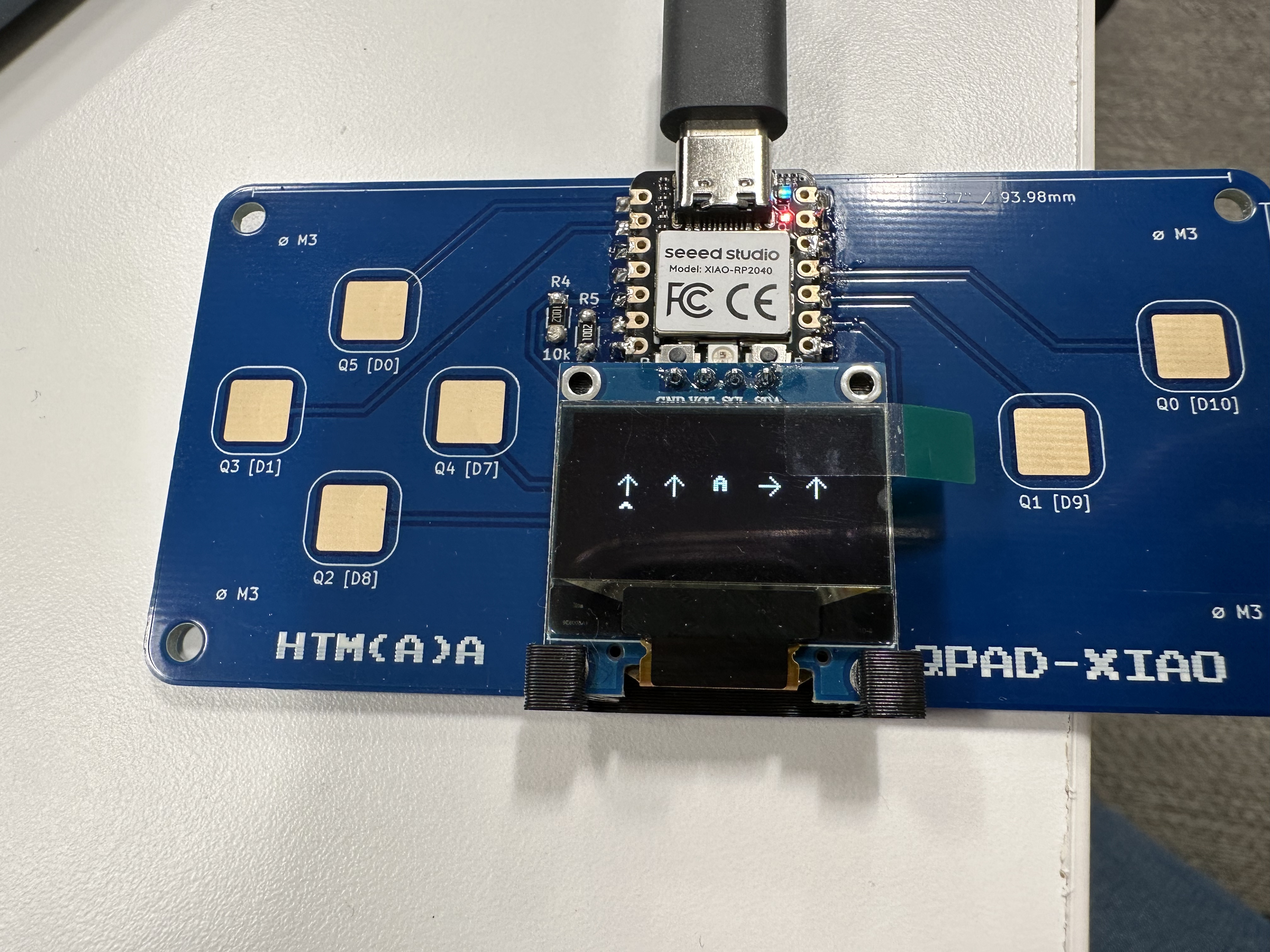
I started with 5 moves on screen. Unfortunately the OLED display does not natively support arrow characters. So I ended up drawing them using oled.lines() function. I am glad how nice the arrows turned out. For the highlighter, it's just a "^" character so that went surprisingly easy.
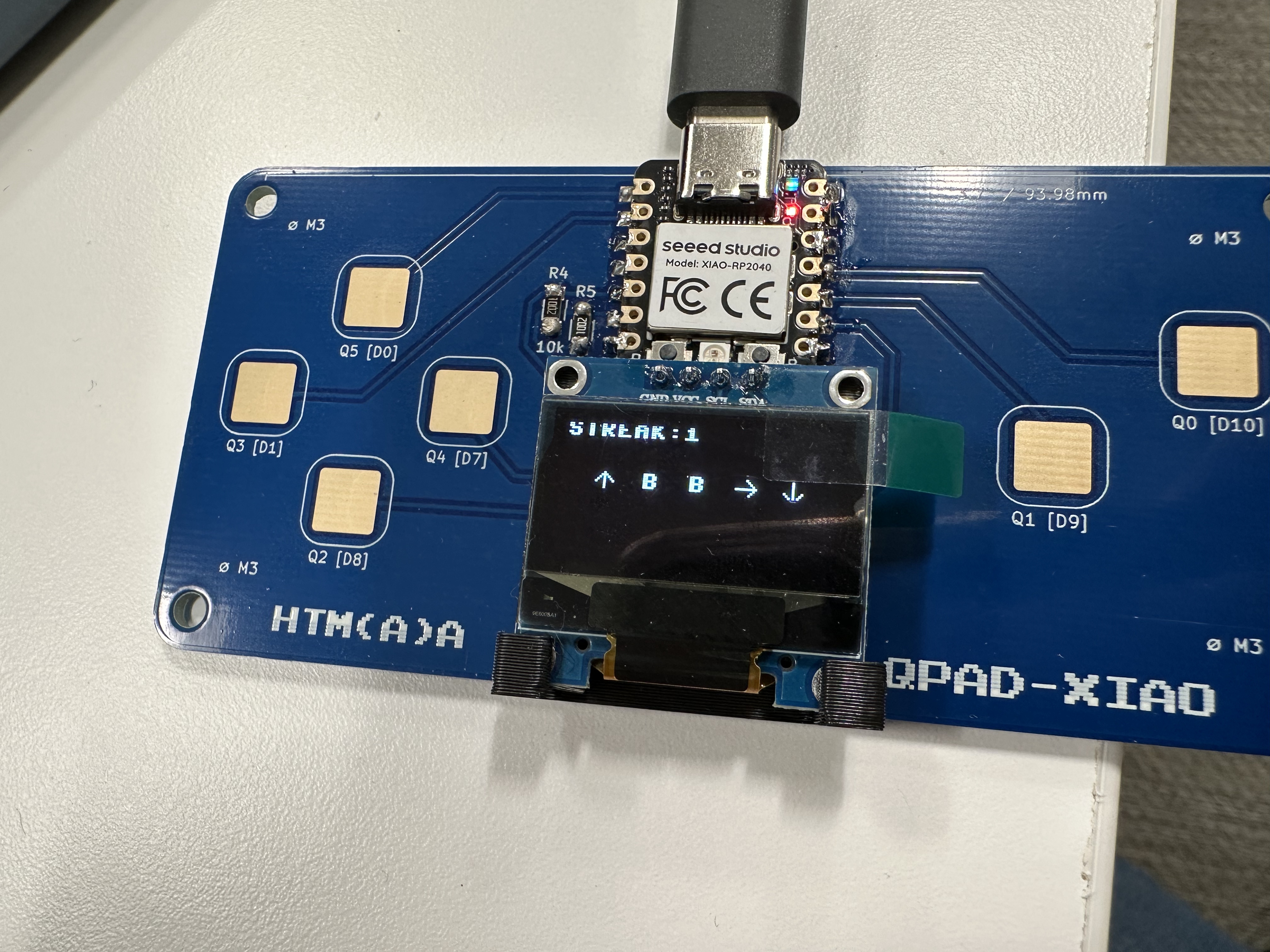
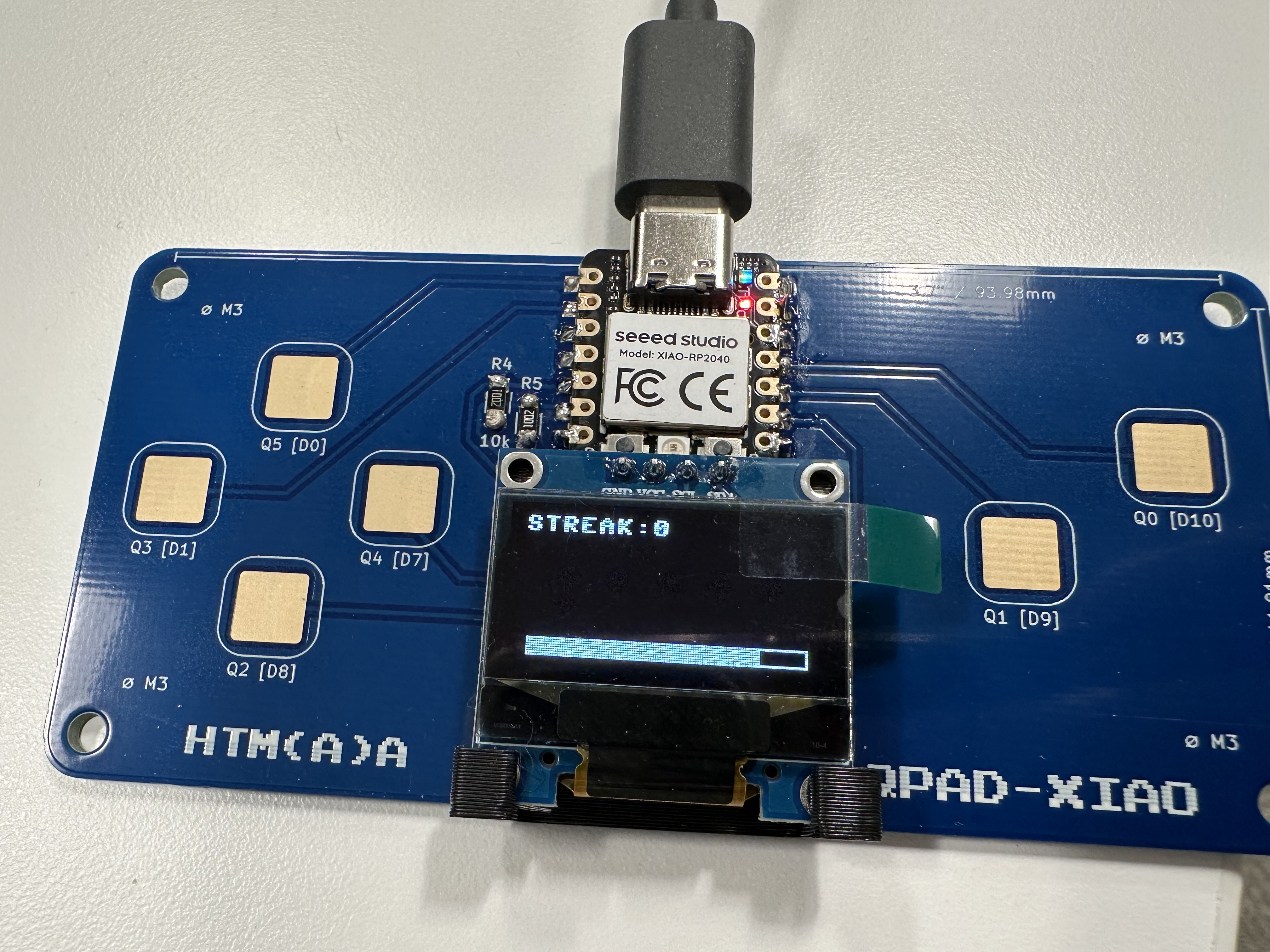
However, I also found that the inputs are a little bit sluggish, which feels very detrimenental to a moveset based game. So I went on a bit of research to see what was causing this.
The first thing I tried was to measure the lag of both the input and the display. And the number I got is 98ms for input and 53ms for display. So that alone combines to around 150ms of lag. Considering that is equivalent to only 6 updates per second, it makes sense the input feels sluggish.
So the main thing I changed after reading the documentation for RP2040, is to offload the input handling to the PIO state machine on each button. This way I can push and collect values from all inputs at once. Additionally, I played a little bit with display freq parameter and it appears that it can support 400kHz with no problem. In the end I brought the combined lag down to 45ms, which is a lot more on par with modern games.
Remarks
Soldering works pretty painless. It has been a long while since I last soldered something. So nice to know I am still worthy.
The games feel very fun and interactive despite its simple design, which is a good foundation for future input sensitive stuff.